## I2PChat GUI Buttons Guide
This guide matches **I2PChat 1.3.0** (see [`VERSION`](../VERSION) at the repository root). Release notes: [**releases/RELEASE_1.3.0.md**](releases/RELEASE_1.3.0.md). For **`SessionManager`** (transport layer since v1.2.6), see [**ARCHITECTURE.md**](ARCHITECTURE.md) and [**releases/RELEASE_1.2.6.md**](releases/RELEASE_1.2.6.md).
### Profile selection dialog
When you start the GUI **without** passing a profile name, the profile chooser appears:
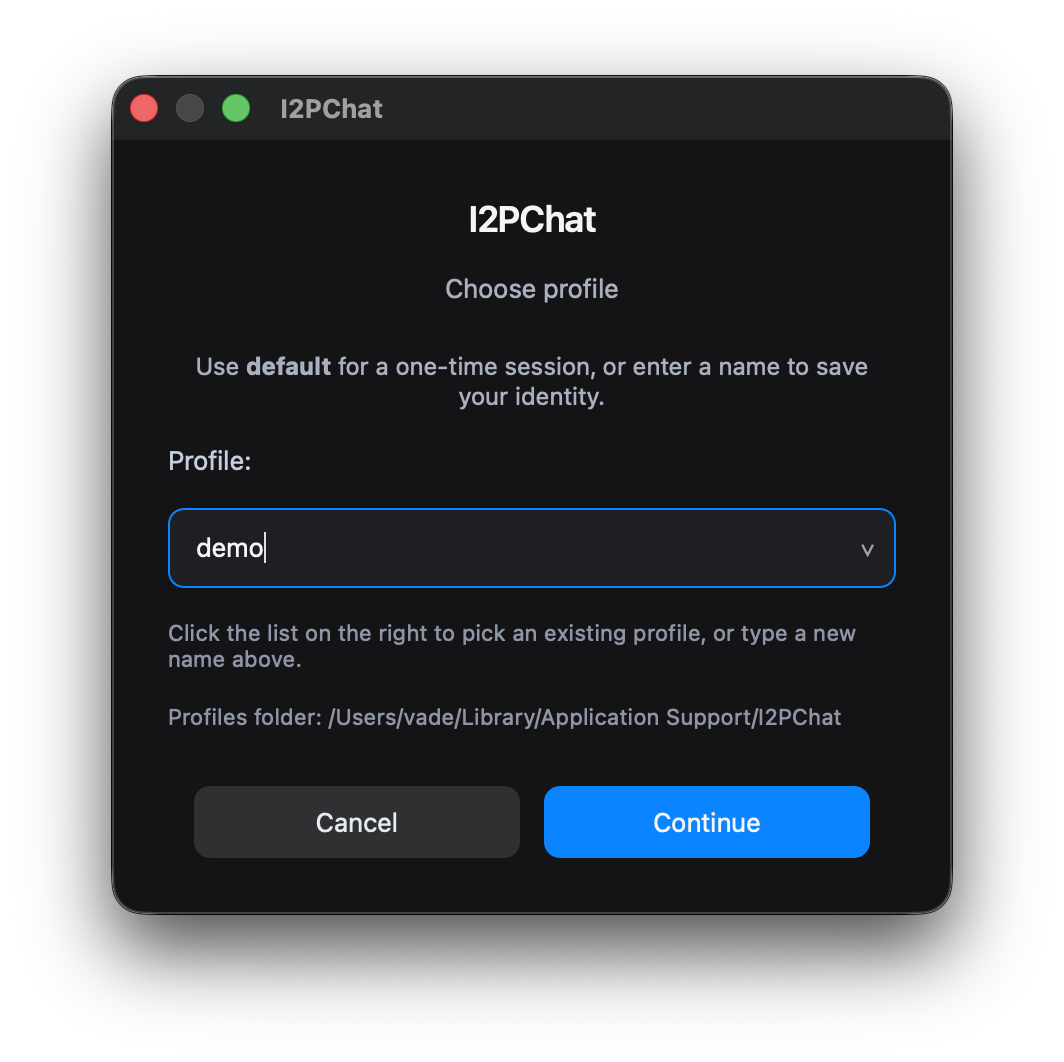 - window title: **I2PChat**;
- subtitle: **Choose profile**;
- hint: `Use random_address for a one-time session, or enter a name to save your identity.`
- **Profile:** field with a combo box (list + editable), current value `random_address` (built-in transient profile);
- helper text: `Click the list on the right to pick an existing profile, or type a new name above.`
- **Profiles folder: ** line (clickable, opens the folder);
- two buttons: **Cancel** and **OK**.
How to use it:
- **`random_address`** (TRANSIENT):
- leave this value if you want a one‑time session without locking to a single peer;
- security note: TOFU trust pins are not persisted between app restarts in this mode;
- the command-line name **`default`** is still accepted as an alias and maps to the same profile and data folder;
- **pick from the list**:
- open the drop‑down on the right and select an existing profile (each lives under `profiles//` with `.dat`);
- **enter a new name**:
- type your own profile name (for example, `alice`);
- allowed characters are `a-z`, `A-Z`, `0-9`, `.`, `_`, `-` (length 1..64);
- the profile `.dat` is created immediately: keys are stored in `profiles//.dat` (or the keyring), and **Lock to peer** appends the peer address and makes the profile one‑to‑one.
**Application data directory** is OS-dependent: on **macOS** — `~/Library/Application Support/I2PChat`, on **Windows** — `%APPDATA%\I2PChat`, on **Linux** and others — `~/.i2pchat`. On Unix, the directory is restricted to the owner (0700).
#### Where profile files (.dat and sidecars) live
Each saved profile (e.g. `alice`) has its **own subfolder** `profiles//` under the application data directory. That folder holds `alice.dat`, contacts, chat history, Blind Box state files, and similar data. The data root may also contain shared items such as `downloads/`, `images/`, and `ui_prefs.json`.
| OS | I2PChat data root | Example profile folder for `alice` |
|---------|-------------------|--------------------------------------|
| Windows | `%APPDATA%\I2PChat` — usually **`C:\Users\\AppData\Roaming\I2PChat`** | `...\I2PChat\profiles\alice\` |
| macOS | `~/Library/Application Support/I2PChat` | `.../I2PChat/profiles/alice/` |
| Linux | `~/.i2pchat` | `~/.i2pchat/profiles/alice/` |
Older installs that kept `alice.dat` (and related files) directly in the data root are **migrated automatically** into `profiles/alice/` the first time that profile is used.
You can open the data folder from the profile chooser dialog — the path line is clickable on all OSes.
Current `.dat` format:
- line 1 — profile private key (if not stored in the system keyring);
- line 2 — pinned peer (`stored peer`) when you use `Lock to peer`.
If identity is stored in the keyring, the `.dat` file may contain only the pinned peer address.
After choosing or typing a name, press **OK** to continue or **Cancel** to close the dialog and abort starting the chat.
### 3. Main window (chat interface)
After you choose a profile, the main chat window opens:
- window title: **I2PChat**;
- subtitle: **Choose profile**;
- hint: `Use random_address for a one-time session, or enter a name to save your identity.`
- **Profile:** field with a combo box (list + editable), current value `random_address` (built-in transient profile);
- helper text: `Click the list on the right to pick an existing profile, or type a new name above.`
- **Profiles folder: ** line (clickable, opens the folder);
- two buttons: **Cancel** and **OK**.
How to use it:
- **`random_address`** (TRANSIENT):
- leave this value if you want a one‑time session without locking to a single peer;
- security note: TOFU trust pins are not persisted between app restarts in this mode;
- the command-line name **`default`** is still accepted as an alias and maps to the same profile and data folder;
- **pick from the list**:
- open the drop‑down on the right and select an existing profile (each lives under `profiles//` with `.dat`);
- **enter a new name**:
- type your own profile name (for example, `alice`);
- allowed characters are `a-z`, `A-Z`, `0-9`, `.`, `_`, `-` (length 1..64);
- the profile `.dat` is created immediately: keys are stored in `profiles//.dat` (or the keyring), and **Lock to peer** appends the peer address and makes the profile one‑to‑one.
**Application data directory** is OS-dependent: on **macOS** — `~/Library/Application Support/I2PChat`, on **Windows** — `%APPDATA%\I2PChat`, on **Linux** and others — `~/.i2pchat`. On Unix, the directory is restricted to the owner (0700).
#### Where profile files (.dat and sidecars) live
Each saved profile (e.g. `alice`) has its **own subfolder** `profiles//` under the application data directory. That folder holds `alice.dat`, contacts, chat history, Blind Box state files, and similar data. The data root may also contain shared items such as `downloads/`, `images/`, and `ui_prefs.json`.
| OS | I2PChat data root | Example profile folder for `alice` |
|---------|-------------------|--------------------------------------|
| Windows | `%APPDATA%\I2PChat` — usually **`C:\Users\\AppData\Roaming\I2PChat`** | `...\I2PChat\profiles\alice\` |
| macOS | `~/Library/Application Support/I2PChat` | `.../I2PChat/profiles/alice/` |
| Linux | `~/.i2pchat` | `~/.i2pchat/profiles/alice/` |
Older installs that kept `alice.dat` (and related files) directly in the data root are **migrated automatically** into `profiles/alice/` the first time that profile is used.
You can open the data folder from the profile chooser dialog — the path line is clickable on all OSes.
Current `.dat` format:
- line 1 — profile private key (if not stored in the system keyring);
- line 2 — pinned peer (`stored peer`) when you use `Lock to peer`.
If identity is stored in the keyring, the `.dat` file may contain only the pinned peer address.
After choosing or typing a name, press **OK** to continue or **Cancel** to close the dialog and abort starting the chat.
### 3. Main window (chat interface)
After you choose a profile, the main chat window opens:
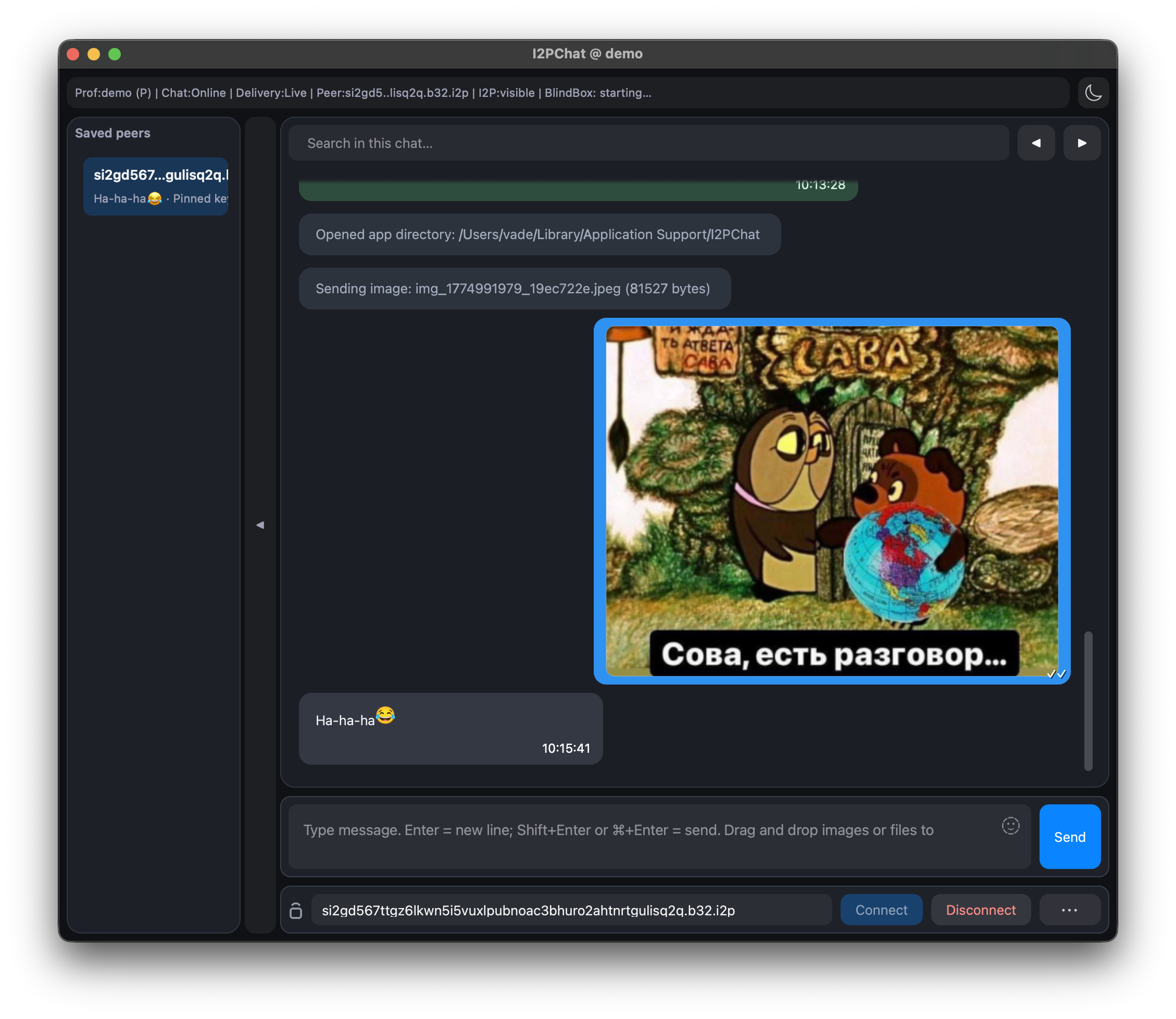 - **Window title** — `I2PChat @ ` (e.g. `I2PChat @ alice`).
- **Status row** — at the top, above the chat: full line includes `Net`, profile (`Prof`), `Link`, `Peer`, `Stored`, `Secure`, current send route (`Send:*`), **BlindBox** state (human‑readable), and `ACKdrop`.
If you **narrow the window**, a shorter line is shown (including `Tx:` and `BB:`). **Hover** the status text for full diagnostics, current send route details, and BlindBox explanation.
On important network/security changes and errors, the status row is temporarily expanded for readability, then returns to normal compact behavior.
- **Theme switch** — to the right of the status row (sun/moon icon). Toggles `ligth` and `night`.
- **Saved peers** — optional **left** sidebar with the per-profile contact book; details in **§3.1**.
- **Chat area** — shows your and peer messages, system notices, and file transfer progress. You can select and copy message text (right‑click or context menu).
- **Message input** — below the chat: type your text. **By default**, **macOS** uses **Enter** to send and **Shift+Enter** for a new line; **Windows/Linux** use **Enter** for a new line and **Ctrl+Enter** to send. On **macOS**, **Command+Enter** and **Ctrl+Enter** both send in either mode. In the **`⋯`** menu you can turn **Enter sends message: ON/OFF** for your preference — when ON, **Enter** sends and **Shift+Enter** inserts a new line; when OFF, **Enter** inserts a new line. The placeholder hint under the field matches the active mode. Setting is saved in **`ui_prefs.json`**. You can **paste a raster image** from the clipboard (**Ctrl+V** / **⌘V** or **Paste** in the field’s menu); it is sent like **Send picture** (PNG/JPEG/WebP).
- **Actions bar** — at the bottom: peer address, connection buttons, and the **`⋯`** menu (see section 4).
Use **Connect** for live chat and the first BlindBox bootstrap session. If BlindBox is already ready, sending text can go straight to the offline queue even without an active live connection.
#### 3.1. Saved peers sidebar (contact book)
The **Saved peers** strip on the **left** is your local **contact book** for the current profile. It is stored as `profiles//.contacts.json` (alongside `.dat`).
- **Rows** — each contact shows a display name (or shortened base32 id without the `.b32.i2p` suffix), a subtitle (last message preview or your note), and unread styling when that peer is not the active chat.
- **Click** a row — sets the peer address field to that contact (same as typing the address) and syncs compose drafts; if the profile is **locked** to another peer, switching may be blocked (see status messages).
- **◀ / ▶** — collapse or expand the sidebar; when the profile is **locked to a peer**, the strip may start **collapsed** to give more space to the chat.
- **Drag** the narrow grip between the list and the chat to resize the strip (within min/max limits).
- **Right‑click** a contact — **Edit name & note…** (local labels only), **Contact details…** (address, TOFU fingerprint, optional **Remove pin**), **Remove from saved peers…** (with options to also delete encrypted history, TOFU pin, profile lock, and BlindBox state file for that peer, where applicable).
### 4. Actions bar (connection and profiles)
The actions bar is located **at the bottom of the window**, below the message input area, and contains:
- the **peer address** input field;
- **`Connect`** and **`Disconnect`** buttons;
- a **`⋯` (More actions)** button that opens a menu with:
- **Load profile (.dat)**;
- **Send picture**;
- **Send file**;
- **BlindBox diagnostics**;
- **Export profile backup…** / **Import profile backup…**;
- **Export history backup…** / **Import history backup…**;
- **Lock to peer**;
- **Forget pinned peer key**;
- **Copy my address**;
- **Chat history: ON/OFF** (label shows the current state);
- **Clear history**;
- **History retention…**;
- **Privacy mode: ON/OFF**;
- **Enter sends message: ON/OFF**;
- **Notification sound: ON/OFF**.
All controls in the bar have the same height and are laid out in a single row.
**Keyboard shortcuts** (Connect, Disconnect, `⋯`, theme, Saved peers, menu actions, etc.) are tied to **physical US QWERTY key positions** — the same key cap as on a standard English (US) keyboard. **Russian and other layouts still fire the same shortcuts**; you do not need to switch to English. On **Linux**, matching uses typical **evdev** scan codes and common **X11** keycode offsets.
#### 4.1. `⋯` (More actions) menu
Click the **`⋯`** button or press **Ctrl+.** (Windows/Linux) / **⌘+.** (macOS) to open or close the same popup menu; the button tooltip includes the **Shortcut:** line. The menu lists profile and connection actions:
- **Window title** — `I2PChat @ ` (e.g. `I2PChat @ alice`).
- **Status row** — at the top, above the chat: full line includes `Net`, profile (`Prof`), `Link`, `Peer`, `Stored`, `Secure`, current send route (`Send:*`), **BlindBox** state (human‑readable), and `ACKdrop`.
If you **narrow the window**, a shorter line is shown (including `Tx:` and `BB:`). **Hover** the status text for full diagnostics, current send route details, and BlindBox explanation.
On important network/security changes and errors, the status row is temporarily expanded for readability, then returns to normal compact behavior.
- **Theme switch** — to the right of the status row (sun/moon icon). Toggles `ligth` and `night`.
- **Saved peers** — optional **left** sidebar with the per-profile contact book; details in **§3.1**.
- **Chat area** — shows your and peer messages, system notices, and file transfer progress. You can select and copy message text (right‑click or context menu).
- **Message input** — below the chat: type your text. **By default**, **macOS** uses **Enter** to send and **Shift+Enter** for a new line; **Windows/Linux** use **Enter** for a new line and **Ctrl+Enter** to send. On **macOS**, **Command+Enter** and **Ctrl+Enter** both send in either mode. In the **`⋯`** menu you can turn **Enter sends message: ON/OFF** for your preference — when ON, **Enter** sends and **Shift+Enter** inserts a new line; when OFF, **Enter** inserts a new line. The placeholder hint under the field matches the active mode. Setting is saved in **`ui_prefs.json`**. You can **paste a raster image** from the clipboard (**Ctrl+V** / **⌘V** or **Paste** in the field’s menu); it is sent like **Send picture** (PNG/JPEG/WebP).
- **Actions bar** — at the bottom: peer address, connection buttons, and the **`⋯`** menu (see section 4).
Use **Connect** for live chat and the first BlindBox bootstrap session. If BlindBox is already ready, sending text can go straight to the offline queue even without an active live connection.
#### 3.1. Saved peers sidebar (contact book)
The **Saved peers** strip on the **left** is your local **contact book** for the current profile. It is stored as `profiles//.contacts.json` (alongside `.dat`).
- **Rows** — each contact shows a display name (or shortened base32 id without the `.b32.i2p` suffix), a subtitle (last message preview or your note), and unread styling when that peer is not the active chat.
- **Click** a row — sets the peer address field to that contact (same as typing the address) and syncs compose drafts; if the profile is **locked** to another peer, switching may be blocked (see status messages).
- **◀ / ▶** — collapse or expand the sidebar; when the profile is **locked to a peer**, the strip may start **collapsed** to give more space to the chat.
- **Drag** the narrow grip between the list and the chat to resize the strip (within min/max limits).
- **Right‑click** a contact — **Edit name & note…** (local labels only), **Contact details…** (address, TOFU fingerprint, optional **Remove pin**), **Remove from saved peers…** (with options to also delete encrypted history, TOFU pin, profile lock, and BlindBox state file for that peer, where applicable).
### 4. Actions bar (connection and profiles)
The actions bar is located **at the bottom of the window**, below the message input area, and contains:
- the **peer address** input field;
- **`Connect`** and **`Disconnect`** buttons;
- a **`⋯` (More actions)** button that opens a menu with:
- **Load profile (.dat)**;
- **Send picture**;
- **Send file**;
- **BlindBox diagnostics**;
- **Export profile backup…** / **Import profile backup…**;
- **Export history backup…** / **Import history backup…**;
- **Lock to peer**;
- **Forget pinned peer key**;
- **Copy my address**;
- **Chat history: ON/OFF** (label shows the current state);
- **Clear history**;
- **History retention…**;
- **Privacy mode: ON/OFF**;
- **Enter sends message: ON/OFF**;
- **Notification sound: ON/OFF**.
All controls in the bar have the same height and are laid out in a single row.
**Keyboard shortcuts** (Connect, Disconnect, `⋯`, theme, Saved peers, menu actions, etc.) are tied to **physical US QWERTY key positions** — the same key cap as on a standard English (US) keyboard. **Russian and other layouts still fire the same shortcuts**; you do not need to switch to English. On **Linux**, matching uses typical **evdev** scan codes and common **X11** keycode offsets.
#### 4.1. `⋯` (More actions) menu
Click the **`⋯`** button or press **Ctrl+.** (Windows/Linux) / **⌘+.** (macOS) to open or close the same popup menu; the button tooltip includes the **Shortcut:** line. The menu lists profile and connection actions:
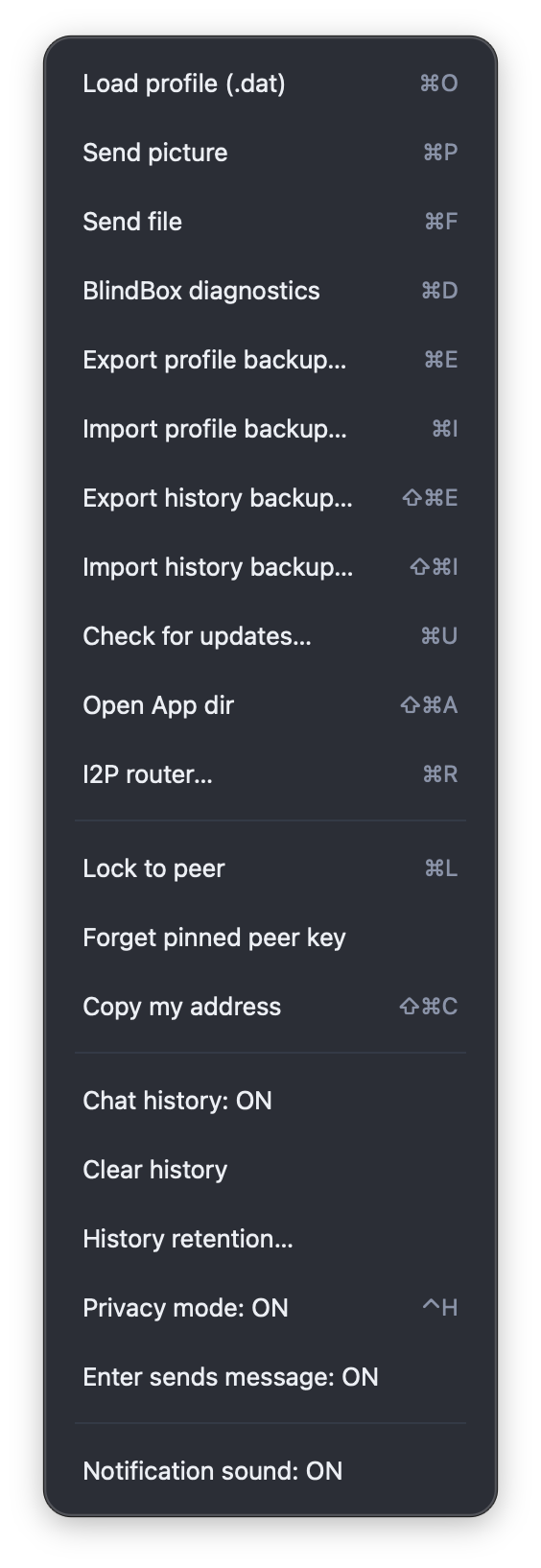 - **Load profile (.dat)** — open a file dialog to load a profile from a `.dat` file.
- **Send picture** — send an image file to the connected peer.
- **Send file** — send any file to the connected peer.
- **BlindBox diagnostics** — opens a textual summary of BlindBox/offline routing and replica health (complements the status row and section 4.9).
- **Export profile backup…** / **Import profile backup…** — password-protected bundles of the current profile (`.dat` and supported sidecar data); import avoids name collisions by choosing a free profile name when needed.
- **Export history backup…** / **Import history backup…** — export or restore encrypted per-peer history files only; the import flow asks whether to overwrite matching files or add only missing ones.
- **Check for updates…** — compare the running build with release ZIP names from the project release page (see section 4.12).
- **Open App dir** — open the application data directory in the system file manager.
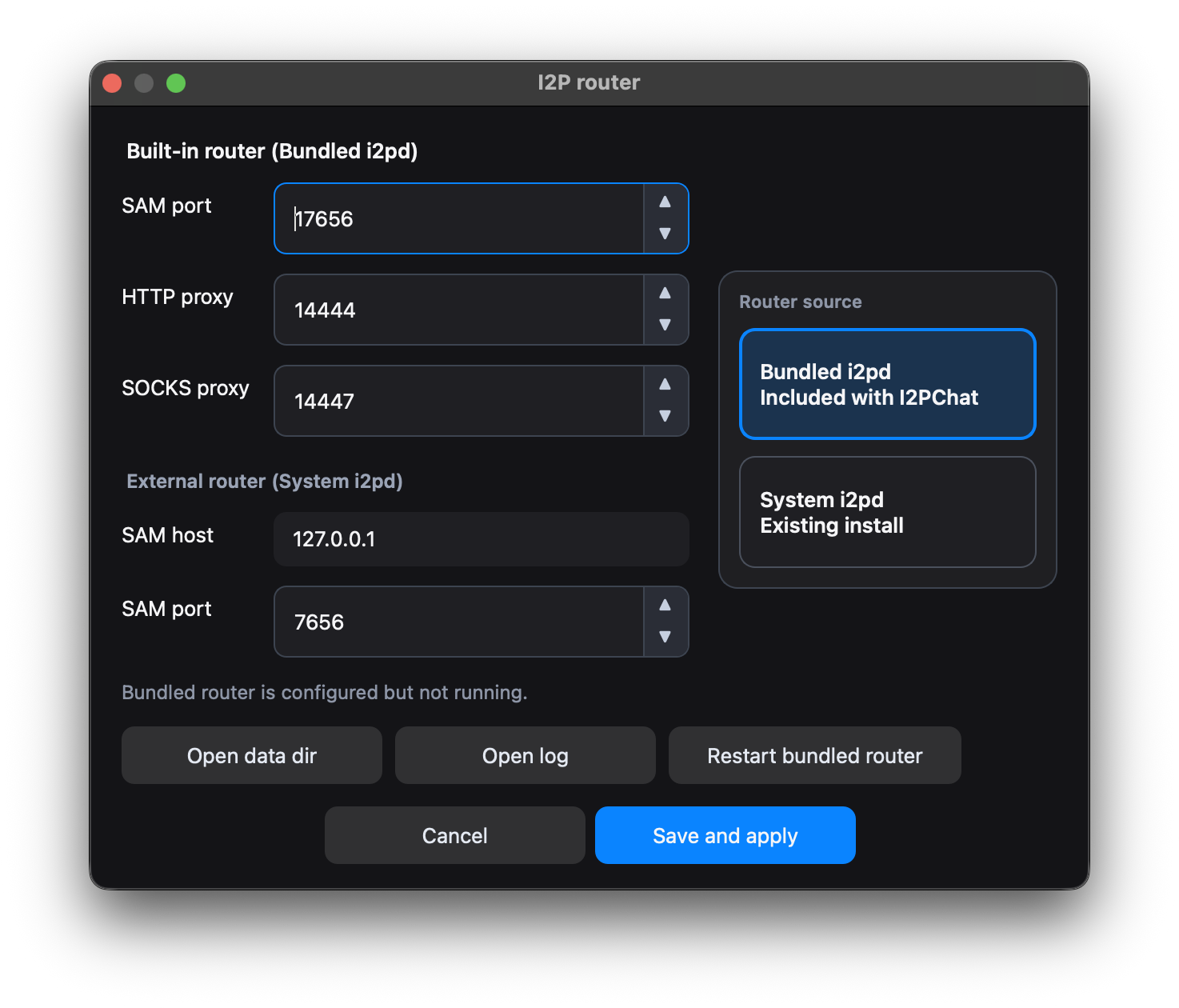
- **I2P router…** — open the router backend dialog (**Ctrl/Cmd+R**): switch between a system `i2pd` SAM endpoint and the bundled router, change backend ports, open the router data/log paths, or restart the bundled router.
- **Lock to peer** — bind the current profile to the connected peer (see section 4.7).
- **Forget pinned peer key** — remove the saved TOFU signing-key pin for the current peer (see section 4.10).
- **Copy my address** — copy your I2P destination to the clipboard.
- **Chat history: ON/OFF** — enable/disable local history persistence (see section 4.11); the menu label reflects the current state.
- **Clear history** — delete the local history file for the current peer.
- **History retention…** — configure maximum messages per peer and maximum age in days before encrypted history is persisted.
- **Privacy mode: ON/OFF** — when ON: tray toasts omit message body text (title may still name the peer); while this window is focused, tray toasts and notification sounds are suppressed (including for other chats). When OFF, those behaviours are disabled. Label shows current state.
- **Enter sends message: ON/OFF** — when **ON**: **Enter** sends the message, **Shift+Enter** inserts a new line (**Ctrl/⌘+Enter** still sends). When **OFF**: **Enter** inserts a new line, **Shift+Enter** also inserts a new line, and **Ctrl+Enter** sends (**on macOS: Command+Enter or Ctrl+Enter**). The compose placeholder text updates accordingly; the choice is persisted for the profile (see **`ui_prefs.json`**).
- **Notification sound: ON/OFF** — enable or mute the incoming-message sound path when it would otherwise play (custom sound path is kept when off; Privacy mode can still mute sound while the window is focused).
Example **I2P router** dialog (**⋯ → I2P router…** / **Ctrl/Cmd+R**):
- **Load profile (.dat)** — open a file dialog to load a profile from a `.dat` file.
- **Send picture** — send an image file to the connected peer.
- **Send file** — send any file to the connected peer.
- **BlindBox diagnostics** — opens a textual summary of BlindBox/offline routing and replica health (complements the status row and section 4.9).
- **Export profile backup…** / **Import profile backup…** — password-protected bundles of the current profile (`.dat` and supported sidecar data); import avoids name collisions by choosing a free profile name when needed.
- **Export history backup…** / **Import history backup…** — export or restore encrypted per-peer history files only; the import flow asks whether to overwrite matching files or add only missing ones.
- **Check for updates…** — compare the running build with release ZIP names from the project release page (see section 4.12).
- **Open App dir** — open the application data directory in the system file manager.
- **I2P router…** — open the router backend dialog (**Ctrl/Cmd+R**): switch between a system `i2pd` SAM endpoint and the bundled router, change backend ports, open the router data/log paths, or restart the bundled router.
- **Lock to peer** — bind the current profile to the connected peer (see section 4.7).
- **Forget pinned peer key** — remove the saved TOFU signing-key pin for the current peer (see section 4.10).
- **Copy my address** — copy your I2P destination to the clipboard.
- **Chat history: ON/OFF** — enable/disable local history persistence (see section 4.11); the menu label reflects the current state.
- **Clear history** — delete the local history file for the current peer.
- **History retention…** — configure maximum messages per peer and maximum age in days before encrypted history is persisted.
- **Privacy mode: ON/OFF** — when ON: tray toasts omit message body text (title may still name the peer); while this window is focused, tray toasts and notification sounds are suppressed (including for other chats). When OFF, those behaviours are disabled. Label shows current state.
- **Enter sends message: ON/OFF** — when **ON**: **Enter** sends the message, **Shift+Enter** inserts a new line (**Ctrl/⌘+Enter** still sends). When **OFF**: **Enter** inserts a new line, **Shift+Enter** also inserts a new line, and **Ctrl+Enter** sends (**on macOS: Command+Enter or Ctrl+Enter**). The compose placeholder text updates accordingly; the choice is persisted for the profile (see **`ui_prefs.json`**).
- **Notification sound: ON/OFF** — enable or mute the incoming-message sound path when it would otherwise play (custom sound path is kept when off; Privacy mode can still mute sound while the window is focused).
Example **I2P router** dialog (**⋯ → I2P router…** / **Ctrl/Cmd+R**):
 #### 4.2. Peer address field
The peer address field uses the **canonical peer id**: a **base32** string (typically 40 characters) **without** the `.b32.i2p` suffix. The app stores and shows peers in this form (contacts, sessions, groups).
Pasting a full **`.b32.i2p`** string is still accepted; it is normalized to the bare host.
**Copy my address** copies your destination as **canonical base32** (no `.b32.i2p` suffix), matching contacts and the peer field.
- You can type or paste the address manually.
- If the current profile is already locked to a peer and the field is empty, the address is filled from the stored value automatically.
#### 4.3. `Connect` button
The **`Connect`** button starts a live connection to the address currently present in the peer field.
**Multiple live sessions:** you can keep several parallel SAM streams to different Saved peers (default cap **8**, override with environment variable **`I2PCHAT_MAX_LIVE_SESSIONS`**, range 1–64). **`Connect`** stays enabled when you already have a live chat, as long as the target peer is not already connected and the cap is not reached. Duplicate connections to the same peer are rejected.
**Keyboard shortcut:** **Ctrl+1** on Windows/Linux, **⌘1** on macOS — same as clicking **`Connect`** when the button is enabled (also works when focus is in the message compose field).
Logic:
1. If the field is **not empty**:
- the GUI asks the core to connect to that peer (`connect_to_peer`).
2. If the field is **empty**:
- if there is a stored peer (`stored_peer`), it is copied into the field and used;
- otherwise a warning is shown:
```text
Please enter peer address
```
After a successful connection:
- the status label is updated;
- incoming messages appear in the chat area;
- other events (file transfers, system/info messages) may start flowing over the network.
Why `Connect` still matters when peer is offline:
- to start a **live chat** when peer is reachable;
- to perform the **first BlindBox root bootstrap** (one successful secure live session with this peer);
- to diagnose peer reachability.
On first contact with a new peer signing key, a **Trust on First Use (TOFU)** dialog appears:
- it shows the peer address, a short fingerprint, and a public key prefix;
- the dialog explicitly warns that TOFU without OOB verification does not confirm identity;
- choose **Yes** to trust and pin the key, or **No** to abort the connection;
- for higher security, verify the fingerprint with your peer out‑of‑band.
**Button state:** **`Connect`** is **disabled** (dimmed) until the network status is **Pending** or **Visible** (I2P session ready), you have a peer address or a stored locked peer, you are not already in a live session **with that same peer**, the concurrent live-session limit is not reached, and you are not already dialling out. While a connection attempt is in progress, **`Connect`** stays disabled; a second click is ignored by the core. **Tooltips** on the button explain why it is disabled (e.g. wait for Pending/Visible, enter an address, already connected to this peer, session limit) and include a **Shortcut:** line for **Ctrl+1** / **⌘1**.
When BlindBox offline queue is already ready, the `Connect` tooltip explicitly marks live connect as **optional**.
#### 4.4. `Disconnect` button
The **`Disconnect`** button terminates the **active** live session (the peer currently selected for chat — same behaviour as before when only one stream exists). With multiple live sessions, disconnect applies to the active peer’s stream.
**Keyboard shortcut:** **Ctrl+0** on Windows/Linux, **⌘0** on macOS — same as **`Disconnect`** when the button is enabled.
**Button state:** **`Disconnect`** is **disabled** until there is an active peer session (socket connected); hover shows a hint when it is inactive, plus **Shortcut:** **Ctrl+0** / **⌘0**.
After pressing it:
- the core initiates a disconnect;
- a system message about the disconnection may appear in the chat;
- the status label is updated accordingly.
#### 4.5. `Copy my address` action (`⋯` menu)
The **`Copy my address`** item in the **`⋯`** menu copies your own I2P destination to the clipboard.
Logic:
1. If the local destination is not yet initialised:
- a dialog is shown (title **Copy My Addr**):
```text
Local destination is not initialized yet.
```
2. If the destination is available:
- the **bare base32** host id is placed into the system clipboard;
- a system message appears in the chat:
```text
My address copied to clipboard.
```
This is convenient when you need to quickly share your address with the other side using an external channel.
#### 4.6. `Send file` action (`⋯` menu)
The **`Send file`** item in the **`⋯`** menu sends a file to the currently connected peer.
After selecting it:
1. A file chooser dialog opens (`Select file to send`).
2. If no path is selected, sending is cancelled.
3. If a file is selected:
- the core starts the transfer (`send_file(path)`).
Transfer progress is displayed in the chat area as messages like:
```text
: / bytes
```
#### 4.2. Peer address field
The peer address field uses the **canonical peer id**: a **base32** string (typically 40 characters) **without** the `.b32.i2p` suffix. The app stores and shows peers in this form (contacts, sessions, groups).
Pasting a full **`.b32.i2p`** string is still accepted; it is normalized to the bare host.
**Copy my address** copies your destination as **canonical base32** (no `.b32.i2p` suffix), matching contacts and the peer field.
- You can type or paste the address manually.
- If the current profile is already locked to a peer and the field is empty, the address is filled from the stored value automatically.
#### 4.3. `Connect` button
The **`Connect`** button starts a live connection to the address currently present in the peer field.
**Multiple live sessions:** you can keep several parallel SAM streams to different Saved peers (default cap **8**, override with environment variable **`I2PCHAT_MAX_LIVE_SESSIONS`**, range 1–64). **`Connect`** stays enabled when you already have a live chat, as long as the target peer is not already connected and the cap is not reached. Duplicate connections to the same peer are rejected.
**Keyboard shortcut:** **Ctrl+1** on Windows/Linux, **⌘1** on macOS — same as clicking **`Connect`** when the button is enabled (also works when focus is in the message compose field).
Logic:
1. If the field is **not empty**:
- the GUI asks the core to connect to that peer (`connect_to_peer`).
2. If the field is **empty**:
- if there is a stored peer (`stored_peer`), it is copied into the field and used;
- otherwise a warning is shown:
```text
Please enter peer address
```
After a successful connection:
- the status label is updated;
- incoming messages appear in the chat area;
- other events (file transfers, system/info messages) may start flowing over the network.
Why `Connect` still matters when peer is offline:
- to start a **live chat** when peer is reachable;
- to perform the **first BlindBox root bootstrap** (one successful secure live session with this peer);
- to diagnose peer reachability.
On first contact with a new peer signing key, a **Trust on First Use (TOFU)** dialog appears:
- it shows the peer address, a short fingerprint, and a public key prefix;
- the dialog explicitly warns that TOFU without OOB verification does not confirm identity;
- choose **Yes** to trust and pin the key, or **No** to abort the connection;
- for higher security, verify the fingerprint with your peer out‑of‑band.
**Button state:** **`Connect`** is **disabled** (dimmed) until the network status is **Pending** or **Visible** (I2P session ready), you have a peer address or a stored locked peer, you are not already in a live session **with that same peer**, the concurrent live-session limit is not reached, and you are not already dialling out. While a connection attempt is in progress, **`Connect`** stays disabled; a second click is ignored by the core. **Tooltips** on the button explain why it is disabled (e.g. wait for Pending/Visible, enter an address, already connected to this peer, session limit) and include a **Shortcut:** line for **Ctrl+1** / **⌘1**.
When BlindBox offline queue is already ready, the `Connect` tooltip explicitly marks live connect as **optional**.
#### 4.4. `Disconnect` button
The **`Disconnect`** button terminates the **active** live session (the peer currently selected for chat — same behaviour as before when only one stream exists). With multiple live sessions, disconnect applies to the active peer’s stream.
**Keyboard shortcut:** **Ctrl+0** on Windows/Linux, **⌘0** on macOS — same as **`Disconnect`** when the button is enabled.
**Button state:** **`Disconnect`** is **disabled** until there is an active peer session (socket connected); hover shows a hint when it is inactive, plus **Shortcut:** **Ctrl+0** / **⌘0**.
After pressing it:
- the core initiates a disconnect;
- a system message about the disconnection may appear in the chat;
- the status label is updated accordingly.
#### 4.5. `Copy my address` action (`⋯` menu)
The **`Copy my address`** item in the **`⋯`** menu copies your own I2P destination to the clipboard.
Logic:
1. If the local destination is not yet initialised:
- a dialog is shown (title **Copy My Addr**):
```text
Local destination is not initialized yet.
```
2. If the destination is available:
- the **bare base32** host id is placed into the system clipboard;
- a system message appears in the chat:
```text
My address copied to clipboard.
```
This is convenient when you need to quickly share your address with the other side using an external channel.
#### 4.6. `Send file` action (`⋯` menu)
The **`Send file`** item in the **`⋯`** menu sends a file to the currently connected peer.
After selecting it:
1. A file chooser dialog opens (`Select file to send`).
2. If no path is selected, sending is cancelled.
3. If a file is selected:
- the core starts the transfer (`send_file(path)`).
Transfer progress is displayed in the chat area as messages like:
```text
: / bytes
```
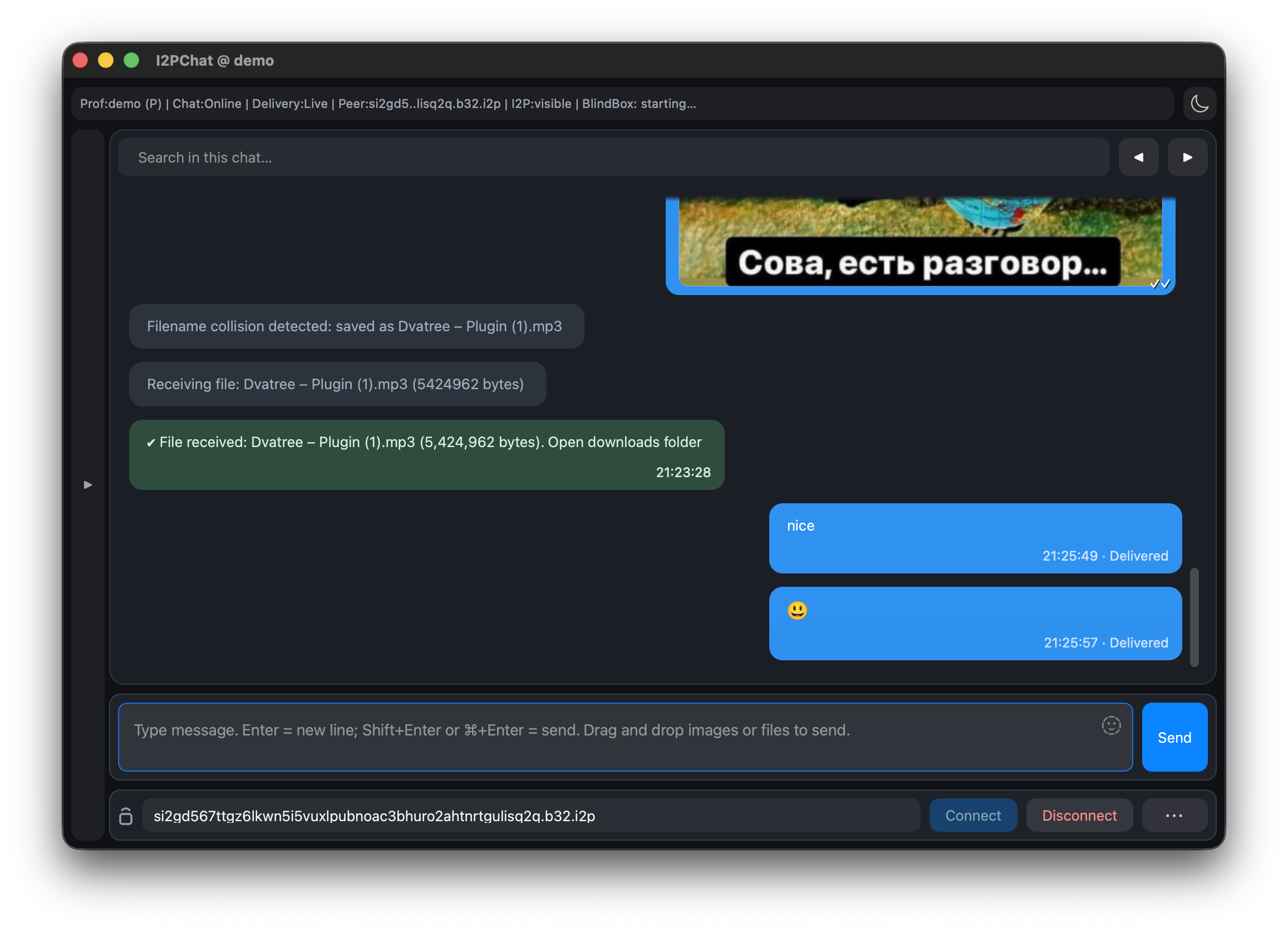 On the receiving side:
- an **`Incoming file`** dialog is shown first:
- with the question `Accept incoming file?`;
- plus filename and size information;
- if the user chooses **`No`**:
- the temporary file is removed;
- a message appears in the chat:
```text
Incoming file rejected:
```
- if a file with the same name already exists in `downloads`, the new file is saved as ` (1).`, ` (2).`, etc. without overwriting.
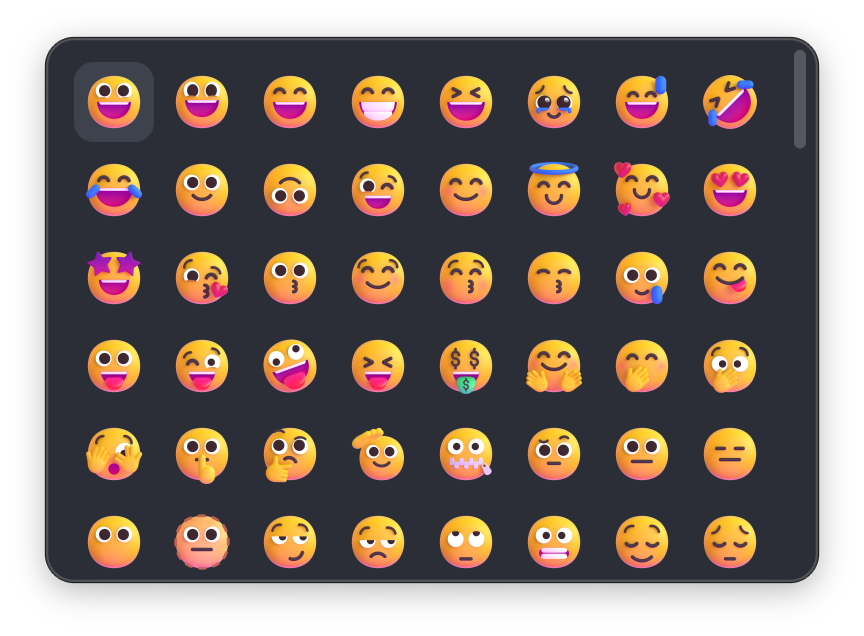
The **`Send picture`** item works the same way but is intended for images (PNG, JPEG, or WebP) and is shown inline in the chat.
On the receiving side:
- an **`Incoming file`** dialog is shown first:
- with the question `Accept incoming file?`;
- plus filename and size information;
- if the user chooses **`No`**:
- the temporary file is removed;
- a message appears in the chat:
```text
Incoming file rejected:
```
- if a file with the same name already exists in `downloads`, the new file is saved as ` (1).`, ` (2).`, etc. without overwriting.
The **`Send picture`** item works the same way but is intended for images (PNG, JPEG, or WebP) and is shown inline in the chat.
 #### 4.7. `Lock to peer` button
The **`Lock to peer`** button is **optional** – you can safely use I2PChat without it.
By default, if you never lock, the profile works like an **email address**:
- **anyone** who knows your destination can write to this profile;
- you are free to connect to different peers over time.
When you do press **`Lock to peer`**, the profile becomes **bound to a single peer**:
- the peer address is stored in the profile `.dat` file in canonical form (line 1 — key, line 2 — peer; keyring setups may store only the peer);
- on subsequent runs with this profile, the stored peer will be reused automatically;
- connections from other addresses can be rejected by the core as “unauthorised”.
Rules and behaviour:
1. If the current profile is `random_address` (mode `TRANSIENT`; alias CLI `default`):
- a warning is shown:
```text
Cannot lock in TRANSIENT mode. Restart with a profile name.
```
2. If the profile is already locked (`stored_peer` is not empty):
- an information dialog is shown with the stored address.
3. If there is no verified peer address yet (`current_peer_addr` is empty):
- a warning is shown:
```text
Peer address not yet verified.
Establish a connection first.
```
4. In all other cases:
- `Lock to peer` is allowed only after cryptographic peer-address binding verification;
- the file `profiles//.dat` is created or updated (canonical format, no duplicate lines);
- a system message appears in the chat:
```text
Identity is now locked to this peer.
```
#### 4.8. `Load .dat` button
The **`Load .dat`** button lets you switch to another profile by picking an existing `.dat` file.
After pressing it:
1. The `Select profile (.dat)` dialog opens:
- by default it points to the **application data directory** (on Windows: `%APPDATA%\I2PChat`, on Linux: `~/.i2pchat`, on macOS: `~/Library/Application Support/I2PChat` — the folder that contains `profiles/`);
- it filters files using the `*.dat` mask.
2. If no file is chosen, the operation is cancelled.
3. If a file is chosen:
- the base name without extension (``) is taken from the path;
- the `.dat` file is copied to `profiles//.dat`, creating `profiles//` if needed (unless that path already exists);
- the profile is switched asynchronously:
- the current core is cleanly shut down (`shutdown`);
- the window title is updated to `I2PChat @ `;
- a new core is created for this profile;
- a new I2P session is initialised.
Using this button you can:
- quickly import an existing profile;
- switch between several profiles without restarting the application.
#### 4.9. Optional: BlindBox (offline text)
**BlindBox** is the offline text queue path for your locked peer when there is **no live secure session**. It is enabled by default for **named/persistent** profiles and disabled for the transient profile (`random_address`).
- You must use a **persistent profile** and **lock to peer**. For cross-host offline delivery, configure shared **Blind Box** servers via `I2PCHAT_BLINDBOX_REPLICAS`. For deployment-wide defaults, use `I2PCHAT_BLINDBOX_DEFAULT_REPLICAS`. For centrally managed production defaults, use `I2PCHAT_BLINDBOX_DEFAULT_REPLICAS_FILE`. **Release binaries** also ship a **built-in pair** in `DEFAULT_RELEASE_BLINDBOX_ENDPOINTS` inside `i2pchat/core/i2p_chat_core.py` (`tcglilyjadosrez5gu3kqvrdpu6ri622jwrzamtpburtnpge7wgq.b32.i2p:19444`, `dzyhukukogujr6r2vwfy667cwm7vg3oomhx2sryxhb6mn4i4wbjq.b32.i2p:19444`; override with env vars, disable with `I2PCHAT_BLINDBOX_NO_BUILTIN_DEFAULTS=1`). See [**RELEASE_0.6.0.md**](releases/RELEASE_0.6.0.md) — no duplicate crypto detail here.
Optional local/dev-only fallback: set `I2PCHAT_BLINDBOX_LOCAL_FALLBACK=1` to start a local Blind Box server (`127.0.0.1:19444`).
**Local token:** set **`I2PCHAT_BLINDBOX_LOCAL_TOKEN`** in the environment of the **I2PChat** process (use the **same** secret for a separate replica daemon on the same `host:port`, if you run one). In **`local-auto`** mode, if the variable is unset, the core generates a one-shot token per run (handy for quick dev, not for pairing with an external replica process). Keep this token for raw TCP / loopback replicas.
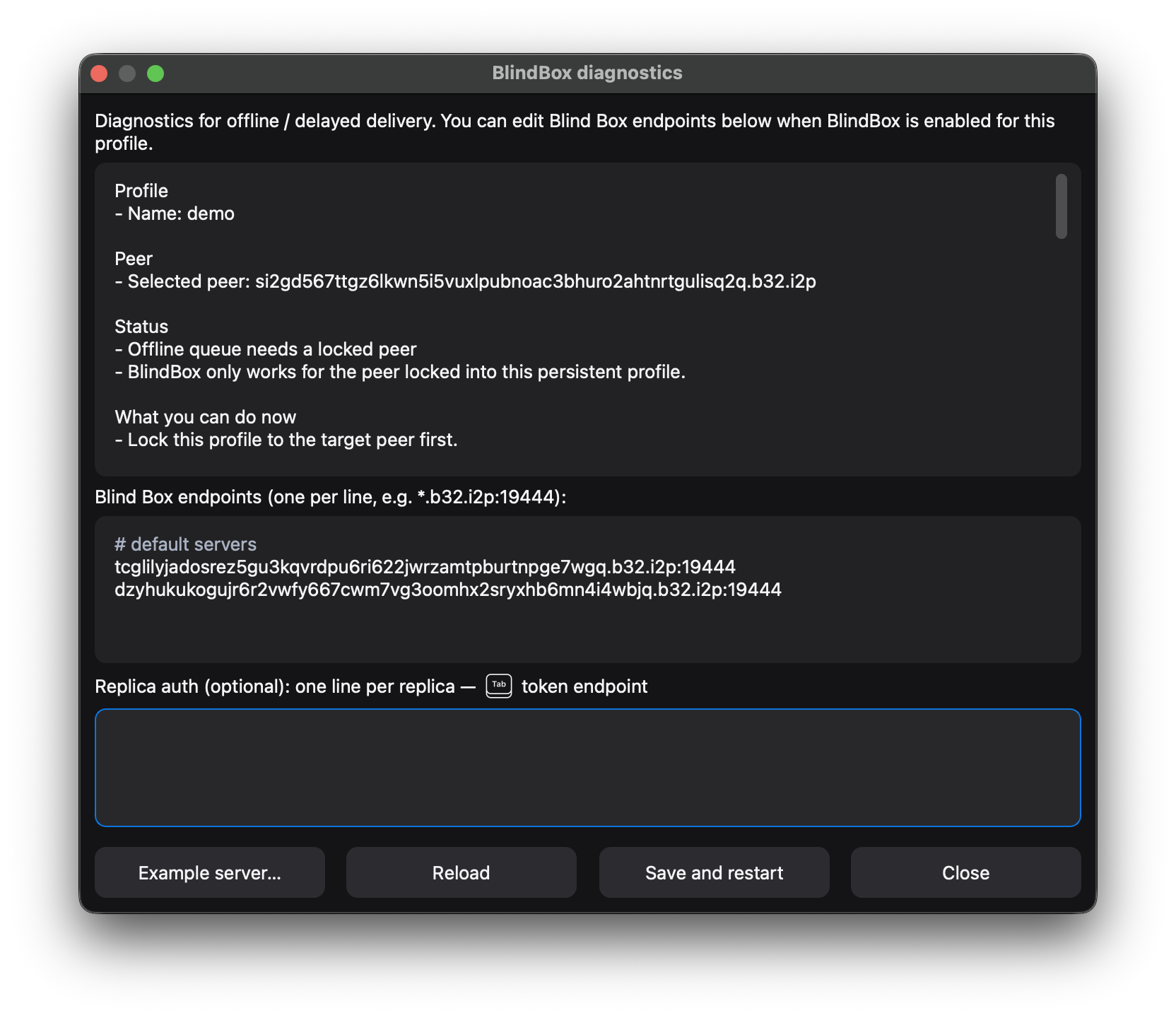
**Per-replica secrets (named profiles):** in **BlindBox diagnostics**, you can map optional tokens to specific replica endpoints (one line per entry: `endpointtoken`). They are stored in `.blindbox_replicas.json` as **`replica_auth`** (file format **version 2**; older **version 1** files load as replicas-only). The client sends the token on `PUT`/`GET` for that endpoint only. On a custom Python replica, set **`BLINDBOX_AUTH_TOKEN`** to the same value (see `i2pchat/blindbox/blindbox_server_example.py`). A line-protocol token does **not** replace trust in the I2P destination — it only gates the raw TCP command line. Public replicas exposed only through an I2P tunnel may leave the token empty, but should still keep TTL / quota limits enabled.
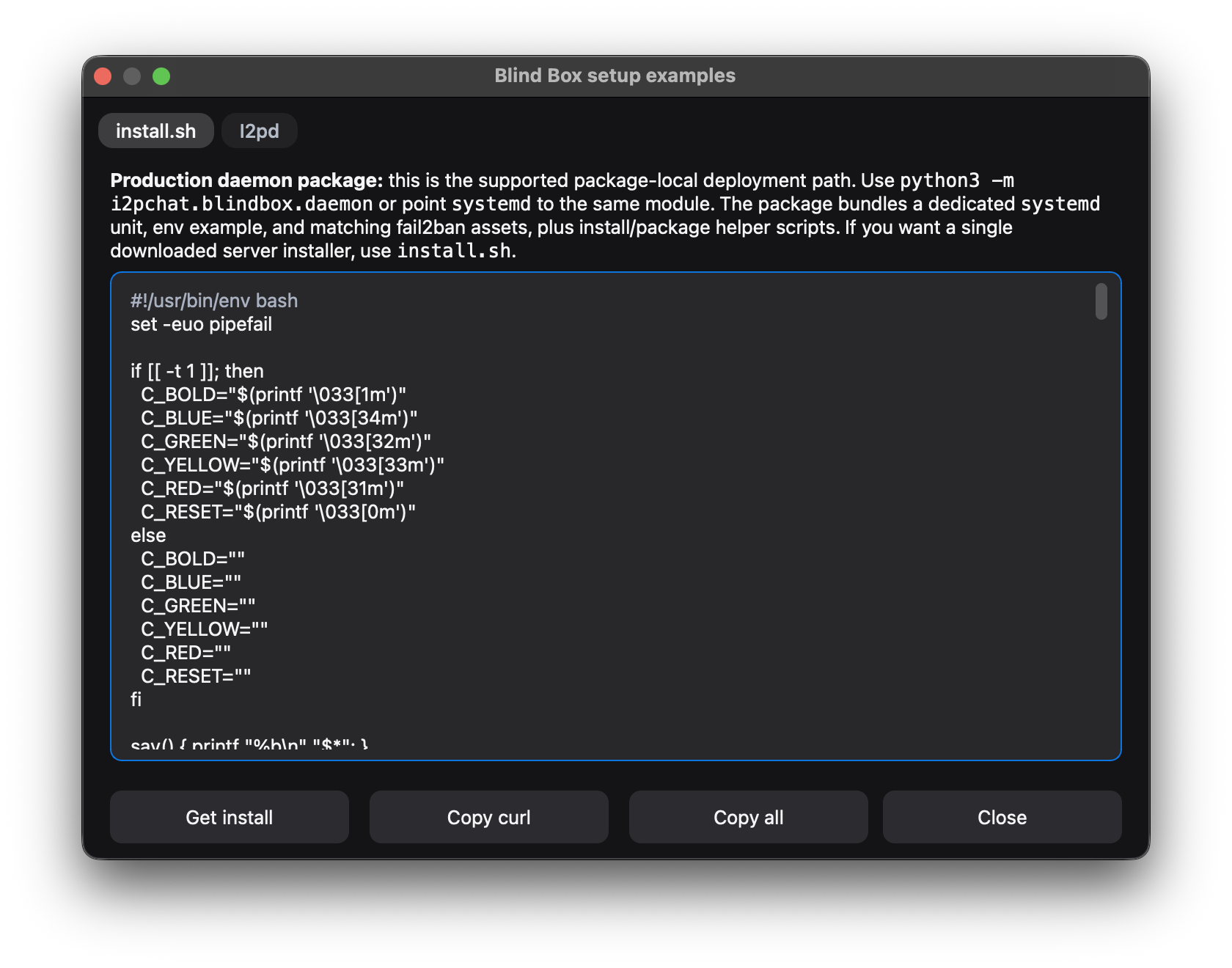
For the package-style deployment path use **`python -m i2pchat.blindbox.daemon`**; the repo bundles matching `systemd`, env, install/bundle helper scripts, a one-shot `install.sh`, and fail2ban examples under `i2pchat/blindbox/daemon/`.
You can force-disable BlindBox with `I2PCHAT_BLINDBOX_ENABLED=0`.
**PUT quorum:** default `I2PCHAT_BLINDBOX_PUT_QUORUM=1` (success if any **Blind Box** stores the blob). Use `=2` to require every listed Blind Box to ACK (stricter).
- `Send` in GUI works as a smart route:
- with a live secure session, text is sent online;
- with `Send: offline queue`, text is queued via BlindBox (without mandatory manual Connect);
- with `Send: need Connect once`, input text is kept and UI asks for one live Connect to bootstrap root.
- In offline-ready mode, the send button label switches to `Send offline` (shown on two lines in the button).
- When a **live secure session** finishes handshaking, the label switches back to **`Send` immediately** — you do not need to send a message first for the button to update.
- BlindBox queue/receive debug lines are not shown in the chat feed; delivery details remain in status/tooltips.
- Runtime state appears in the **status row** (`Send:*` and BlindBox fields); hover for hints if something is misconfigured.
- **Compatibility:** peers on older builds may not support BlindBox traffic; live chat and file/image transfer work as before.
- **Text groups:** offline delivery to a group does **not** use a separate “group-wide” BlindBox key. Each copy is sent to **every** other member over the **same bilateral** BlindBox channel as direct chat with that peer: you need a **BlindBox root** with each such member (typically after at least one successful secure live 1:1 session). Peers currently connected may receive via live; others are queued via BlindBox when the pairwise material exists. After you send, the group feed shows a delivery summary; per-member failures add a **Details** line with the reason (for example `blindbox-await-root`).
Example **BlindBox diagnostics** window (**⋯ → BlindBox diagnostics**): telemetry summary, editable replica endpoints (when allowed), per-replica auth, and **Example server…** / **Save and restart**.
#### 4.7. `Lock to peer` button
The **`Lock to peer`** button is **optional** – you can safely use I2PChat without it.
By default, if you never lock, the profile works like an **email address**:
- **anyone** who knows your destination can write to this profile;
- you are free to connect to different peers over time.
When you do press **`Lock to peer`**, the profile becomes **bound to a single peer**:
- the peer address is stored in the profile `.dat` file in canonical form (line 1 — key, line 2 — peer; keyring setups may store only the peer);
- on subsequent runs with this profile, the stored peer will be reused automatically;
- connections from other addresses can be rejected by the core as “unauthorised”.
Rules and behaviour:
1. If the current profile is `random_address` (mode `TRANSIENT`; alias CLI `default`):
- a warning is shown:
```text
Cannot lock in TRANSIENT mode. Restart with a profile name.
```
2. If the profile is already locked (`stored_peer` is not empty):
- an information dialog is shown with the stored address.
3. If there is no verified peer address yet (`current_peer_addr` is empty):
- a warning is shown:
```text
Peer address not yet verified.
Establish a connection first.
```
4. In all other cases:
- `Lock to peer` is allowed only after cryptographic peer-address binding verification;
- the file `profiles//.dat` is created or updated (canonical format, no duplicate lines);
- a system message appears in the chat:
```text
Identity is now locked to this peer.
```
#### 4.8. `Load .dat` button
The **`Load .dat`** button lets you switch to another profile by picking an existing `.dat` file.
After pressing it:
1. The `Select profile (.dat)` dialog opens:
- by default it points to the **application data directory** (on Windows: `%APPDATA%\I2PChat`, on Linux: `~/.i2pchat`, on macOS: `~/Library/Application Support/I2PChat` — the folder that contains `profiles/`);
- it filters files using the `*.dat` mask.
2. If no file is chosen, the operation is cancelled.
3. If a file is chosen:
- the base name without extension (``) is taken from the path;
- the `.dat` file is copied to `profiles//.dat`, creating `profiles//` if needed (unless that path already exists);
- the profile is switched asynchronously:
- the current core is cleanly shut down (`shutdown`);
- the window title is updated to `I2PChat @ `;
- a new core is created for this profile;
- a new I2P session is initialised.
Using this button you can:
- quickly import an existing profile;
- switch between several profiles without restarting the application.
#### 4.9. Optional: BlindBox (offline text)
**BlindBox** is the offline text queue path for your locked peer when there is **no live secure session**. It is enabled by default for **named/persistent** profiles and disabled for the transient profile (`random_address`).
- You must use a **persistent profile** and **lock to peer**. For cross-host offline delivery, configure shared **Blind Box** servers via `I2PCHAT_BLINDBOX_REPLICAS`. For deployment-wide defaults, use `I2PCHAT_BLINDBOX_DEFAULT_REPLICAS`. For centrally managed production defaults, use `I2PCHAT_BLINDBOX_DEFAULT_REPLICAS_FILE`. **Release binaries** also ship a **built-in pair** in `DEFAULT_RELEASE_BLINDBOX_ENDPOINTS` inside `i2pchat/core/i2p_chat_core.py` (`tcglilyjadosrez5gu3kqvrdpu6ri622jwrzamtpburtnpge7wgq.b32.i2p:19444`, `dzyhukukogujr6r2vwfy667cwm7vg3oomhx2sryxhb6mn4i4wbjq.b32.i2p:19444`; override with env vars, disable with `I2PCHAT_BLINDBOX_NO_BUILTIN_DEFAULTS=1`). See [**RELEASE_0.6.0.md**](releases/RELEASE_0.6.0.md) — no duplicate crypto detail here.
Optional local/dev-only fallback: set `I2PCHAT_BLINDBOX_LOCAL_FALLBACK=1` to start a local Blind Box server (`127.0.0.1:19444`).
**Local token:** set **`I2PCHAT_BLINDBOX_LOCAL_TOKEN`** in the environment of the **I2PChat** process (use the **same** secret for a separate replica daemon on the same `host:port`, if you run one). In **`local-auto`** mode, if the variable is unset, the core generates a one-shot token per run (handy for quick dev, not for pairing with an external replica process). Keep this token for raw TCP / loopback replicas.
**Per-replica secrets (named profiles):** in **BlindBox diagnostics**, you can map optional tokens to specific replica endpoints (one line per entry: `endpointtoken`). They are stored in `.blindbox_replicas.json` as **`replica_auth`** (file format **version 2**; older **version 1** files load as replicas-only). The client sends the token on `PUT`/`GET` for that endpoint only. On a custom Python replica, set **`BLINDBOX_AUTH_TOKEN`** to the same value (see `i2pchat/blindbox/blindbox_server_example.py`). A line-protocol token does **not** replace trust in the I2P destination — it only gates the raw TCP command line. Public replicas exposed only through an I2P tunnel may leave the token empty, but should still keep TTL / quota limits enabled.
For the package-style deployment path use **`python -m i2pchat.blindbox.daemon`**; the repo bundles matching `systemd`, env, install/bundle helper scripts, a one-shot `install.sh`, and fail2ban examples under `i2pchat/blindbox/daemon/`.
You can force-disable BlindBox with `I2PCHAT_BLINDBOX_ENABLED=0`.
**PUT quorum:** default `I2PCHAT_BLINDBOX_PUT_QUORUM=1` (success if any **Blind Box** stores the blob). Use `=2` to require every listed Blind Box to ACK (stricter).
- `Send` in GUI works as a smart route:
- with a live secure session, text is sent online;
- with `Send: offline queue`, text is queued via BlindBox (without mandatory manual Connect);
- with `Send: need Connect once`, input text is kept and UI asks for one live Connect to bootstrap root.
- In offline-ready mode, the send button label switches to `Send offline` (shown on two lines in the button).
- When a **live secure session** finishes handshaking, the label switches back to **`Send` immediately** — you do not need to send a message first for the button to update.
- BlindBox queue/receive debug lines are not shown in the chat feed; delivery details remain in status/tooltips.
- Runtime state appears in the **status row** (`Send:*` and BlindBox fields); hover for hints if something is misconfigured.
- **Compatibility:** peers on older builds may not support BlindBox traffic; live chat and file/image transfer work as before.
- **Text groups:** offline delivery to a group does **not** use a separate “group-wide” BlindBox key. Each copy is sent to **every** other member over the **same bilateral** BlindBox channel as direct chat with that peer: you need a **BlindBox root** with each such member (typically after at least one successful secure live 1:1 session). Peers currently connected may receive via live; others are queued via BlindBox when the pairwise material exists. After you send, the group feed shows a delivery summary; per-member failures add a **Details** line with the reason (for example `blindbox-await-root`).
Example **BlindBox diagnostics** window (**⋯ → BlindBox diagnostics**): telemetry summary, editable replica endpoints (when allowed), per-replica auth, and **Example server…** / **Save and restart**.
 **Blind Box setup examples** (**BlindBox diagnostics → Example server…**): tabbed notes and sources (e.g. **`install.sh`** / **I2pd**), plus **Get install** (save the script) and **Copy curl** (one-liner to fetch and run it on a server) for rolling your own replica.
 #### 4.10. `Forget pinned peer key` action (`⋯` menu)
The **`Forget pinned peer key`** action removes the stored TOFU signing-key pin for the current peer.
Use this when:
- your peer legitimately rotated their signing key;
- you want to reset trust and run TOFU for that peer again.
What happens:
1. The GUI asks for confirmation.
2. The peer entry is removed from the trust store (`.trust.json`).
3. On the next secure connect to that peer, TOFU confirmation is shown again.
#### 4.11. Chat history (locally encrypted)
Chat history is stored **locally per peer** in separate encrypted files.
- History files are created under `profiles//` with this name pattern:
- `.history..enc`
- Encryption details:
- payload is encrypted with `NaCl SecretBox`;
- the profile history key is derived from the profile identity key via HKDF;
- each peer gets a separate file key (salt + peer-scoped context).
- Writes are atomic (temp file + `fsync` + `replace`) to reduce corruption risk on crashes/power loss.
Control from the `⋯` menu:
- **Chat history: ON/OFF**:
- `ON` — new messages from the current secure session are collected and persisted locally;
- `OFF` — new messages are not captured and not written to history.
- **Clear history**:
- removes the history file for the current peer.
- **History retention…**:
- opens a dialog to cap how many messages per peer are kept and how old they may be (days); `0` days means “limit by count only”.
Runtime behavior:
- history is loaded after a secure channel is established;
- history is saved on disconnect and on window close;
- periodic flush is also used when there are unsaved changes.
Size limit:
- by default, the latest `1000` messages per peer are stored;
- you can override this in `ui_prefs.json` via `history_max_messages`.
#### 4.12. Check for updates and verifying downloads
The **`⋯` → Check for updates…** action (**Ctrl/Cmd+U**) fetches the **HTML** releases page, discovers ZIP filenames by pattern, and **compares version numbers** with the local build (the root **`VERSION`** file when running from source). For `*.i2p` hosts the request follows the **active router backend’s HTTP proxy** by default (or `I2PCHAT_UPDATE_HTTP_PROXY` if you override it). The app **does not download** the archive or **verify** hashes or signatures.
**Trust chain when you install manually:**
1. Download the ZIP from the official releases page (or another mirror you trust).
2. Verify SHA256 against **`SHA256SUMS`** from the same release.
3. Verify the detached GPG signature on `SHA256SUMS` (**`SHA256SUMS.asc`**) with the release key (**fingerprint** `2BA0C56D8240077F9773248A2C05CFB3F6DFDF99`, UID **metanoicarmor@gmail.com** — published on [keys.openpgp.org](https://keys.openpgp.org/search?q=metanoicarmor%40gmail.com)). If needed: `gpg --keyserver keys.openpgp.org --recv-keys 2BA0C56D8240077F9773248A2C05CFB3F6DFDF99`, then `gpg --verify SHA256SUMS.asc SHA256SUMS`.
If **`I2PCHAT_RELEASES_PAGE_URL`** is set, the releases page source changes — treat it like any other HTTP origin. The GUI shows a one-time warning the first time you run an update check; only continue if you fully trust that URL.
### 5. System notifications and sound
The GUI uses a system tray icon (`QSystemTrayIcon`) and, where supported,
sound notifications (`QSoundEffect`) for incoming messages.
#### 5.1. System notifications
- When an incoming message from a peer (kind `peer`) is received, the `handle_notify` callback is invoked.
- If the window / application is **not active** (minimised or in the background):
- a short title is built:
- base text is `New message`;
- if the peer address is known, it becomes `New message from `.
- a native system notification (toast) is shown via `QSystemTrayIcon` for about 5 seconds.
- If the window is active, the GUI relies on the visual chat updates without extra pop‑ups.
- For incoming connections, a notification **Incoming connection** is shown with the peer address (when available).
#### 5.2. Sound notifications
- The **`⋯`** menu exposes **Privacy mode** and **Notification sound** toggles alongside the behaviour described below.
- If the `QtMultimedia` module is available:
- a `QSoundEffect` instance is created;
- if `I2PCHAT_NOTIFY_SOUND` is set, the specified local audio file is used;
- default volume is about 70%.
- For incoming messages when the window is not active:
- a custom sound is played (if configured and available);
- if playback fails, the fallback `QApplication.beep()` is used instead.
### 6. Typical usage scenarios
#### 6.0. Install: Debian / Ubuntu
**Without a published apt mirror yet:** install **`.deb`** files from [Releases](https://github.com/MetanoicArmor/I2PChat/releases) (GUI: `i2pchat__{amd64,arm64}.deb`; TUI: `i2pchat-tui_…`):
```bash
sudo apt install ./i2pchat_*_amd64.deb
# or: sudo apt install ./i2pchat-tui_*_amd64.deb
```
Packages expect a **system `i2pd`** with SAM (no embedded router in **`.deb`**).
**Optional GitHub Pages apt mirror** (amd64) only exists after a maintainer configures CI secrets and deploys it — until then **`curl …/KEY.gpg`** returns **404**. When live, use the **deb822** steps in [`packaging/apt/README.md`](../packaging/apt/README.md) and [`docs/INSTALL.md`](INSTALL.md).
#### 6.1. First start and sending a message
1. Choose an I2P router backend:
- either make sure your system I2P router with SAM (`127.0.0.1:7656`) is running;
- or switch I2PChat to the bundled router in **More actions → I2P router…**.
2. Start I2PChat depending on your platform:
- **Windows**: unpack the release archive and run `I2PChat.exe`.
- **Linux**: make the AppImage executable (`chmod +x I2PChat-x86_64.AppImage`) and run `./I2PChat-x86_64.AppImage`.
- **macOS**: move `I2PChat.app` to `/Applications` (or any convenient folder) and open it as a normal app.
3. In the `Choose profile` dialog:
- keep `random_address` or type your own profile name (for example, `alice`).
4. In the main window:
- wait until the status row shows **Pending** or **Visible** (then **`Connect`** becomes available);
- if needed, copy your address via `⋯` → `Copy my address` and send it to your peer via another channel.
5. Once you have the peer address:
- paste it into `Peer .b32.i2p address`;
- press `Connect`.
6. After the connection is established:
- type your message in the bottom input field;
- send with `Enter` on macOS, or `Ctrl+Enter` on Windows/Linux; click `Send` if you prefer the button.
7. The new message will appear on the right side of the chat area as your outgoing message.
#### 6.2. Sending a file to a peer
1. Ensure you are connected to the peer (you pressed `Connect` and see no errors).
2. Open the **`⋯`** menu and choose **`Send file`**.
3. Pick the desired file in the dialog.
4. Watch progress messages in the chat:
```text
: / bytes
```
On the receiving side:
- a confirmation dialog is shown;
- if the user rejects the file, it is deleted and a rejection message appears in the chat.
#### 6.3. Switching to a persistent profile and locking to a peer
1. Start I2PChat with a profile name (optionally via command‑line argument):
- **Windows**: `I2PChat.exe myprofile`.
- **Linux**: `./I2PChat-x86_64.AppImage myprofile`.
- **macOS**: `open -a I2PChat --args myprofile`.
2. Connect to the desired peer using the address field and `Connect`.
3. Make sure the connection is active and messages are exchanged.
4. If you want this profile to behave like a **one‑to‑one channel** (only this peer may reach it), click **`Lock to peer`**:
- make sure the profile is not the transient one (`random_address` / alias `default`);
- on success, you will see:
```text
Identity myprofile is now locked to this peer.
```
5. On subsequent runs with the `myprofile` profile:
- the status row will show `Stored: `;
- if the peer field is empty, the stored address will be auto‑filled;
- connections from other peers will no longer be accepted for this profile.
#### 6.4. Importing an existing `.dat` profile
1. Make sure you have a profile file, for example `friend.dat`.
2. Start the GUI (with any profile or via transient `random_address` / `default`).
3. Click **`Load .dat`**.
4. In the file dialog, pick `friend.dat`:
- the file will be copied to `profiles/friend/friend.dat` (creating `profiles/friend/` if needed, unless it already exists);
- the profile will automatically switch to `friend`;
- the core will be restarted under the new profile.
### 7. Common GUI‑level issues
#### 7.1. No messages appear in the chat
Check the following:
- the status label:
- make sure there are no errors related to SAM / I2P;
- confirm that the state is not stuck at `initializing`;
- the peer address field:
- the address must end with `.b32.i2p`;
- there must be no extra spaces or characters;
- that you actually pressed `Connect` and there are no error messages (`ERROR`, `disconnect`) in the chat.
If everything looks correct but there is still no traffic, the problem is most likely in the **I2P/network layer**, not in the GUI.
#### 7.2. Unable to connect to a peer
Make sure that:
- your selected I2P router backend is running and the SAM port is reachable;
- the peer address is complete (including `.b32.i2p`);
- the peer is online and using a compatible client (legacy clients below `0.3.x`/`0.4.x` are not supported).
In this case the GUI will show the relevant system/error messages in the chat area.
#### 7.3. No incoming file prompts
When a file is incoming, the GUI should show an `Incoming file` dialog with the question `Accept incoming file?`.
If you do not see it:
- check whether another modal dialog is blocking it (it might be behind the main window);
- ensure the application is not stuck due to network issues.
#### 7.4. Copying message text does not work
Check:
- whether a message bubble is selected (click the bubble first);
- whether you use the standard copy shortcut:
- `Ctrl+C` on Windows / Linux;
- `Cmd+C` on macOS;
- you can also use the context menu (`Copy text` / `Copy with timestamp`).
#### 7.5. Qt cannot load the **xcb** platform plugin (Linux)
When running the GUI from source on **Debian/Ubuntu** under **X11**, **PyQt6 6.5+** needs the system library **`libxcb-cursor0`**. If the terminal shows messages like `xcb-cursor0` / `libxcb-cursor0 is needed` or `Could not load the Qt platform plugin "xcb"`, install it:
```bash
sudo apt install libxcb-cursor0
```
Then launch the app again. (The project **README** also lists this next to other Linux setup commands.)
#### 7.6. Running from source: **uv** and the **i2pchat.sam** layer (developers)
If you run I2PChat from a **git checkout** (not a prebuilt zip):
- Install **[uv](https://docs.astral.sh/uv/)** and sync dependencies from **`pyproject.toml`** / **`uv.lock`** — see the repository **README** (`uv sync`, then `uv run python -m …`).
- **I2P SAM** (control connection to the router, sessions, streams, naming lookups) is implemented **inside this repo** as the **`i2pchat.sam`** package. The project does **not** use the PyPI **`i2plib`** package, and the old vendored copy was removed.
### 8. Protocol metadata and padding
Even with post-handshake encryption, some transport metadata remains observable:
- frame type (`TYPE`);
- frame length (`LEN`);
- pre-handshake identity preface exchange.
To reduce length-based traffic analysis, encrypted mode uses a padding profile:
- default: `balanced` (pads to 128-byte buckets);
- optional: `off` (no padding).
Override via environment variable:
```bash
I2PCHAT_PADDING_PROFILE=off python -m i2pchat.gui
```
**Diagnostics:** set `I2PCHAT_LOG_LEVEL` to `DEBUG` or `INFO` to print `i2pchat` package logs to stderr (framing, HMAC verification, transport). Example: `I2PCHAT_LOG_LEVEL=DEBUG python -m i2pchat.gui`.
Canonical entrypoints when running from source (repository root): Qt GUI —
`python -m i2pchat.gui` or `python -m i2pchat.run_gui` (same as the PyInstaller
launcher [`i2pchat/run_gui.py`](../i2pchat/run_gui.py)); terminal TUI —
`python -m i2pchat.tui` (equivalent to `python -m i2pchat.gui.chat_python`).
Application code lives only under `i2pchat/`; there are no flat root-level Python shims.
Trade-off: more padding lowers metadata correlation but increases bandwidth use.
#### 8.1 Core layout (maintainers)
For a map of **`I2PChatCore`**, **`SessionManager`** (per-peer transport state, outbound send policy, streams, reconnect bookkeeping), and how this ties to the status row and **Send** routing, see [**ARCHITECTURE.md**](ARCHITECTURE.md). Current release: [**releases/RELEASE_1.3.0.md**](releases/RELEASE_1.3.0.md). SessionManager transport refactor (v1.2.6): [**releases/RELEASE_1.2.6.md**](releases/RELEASE_1.2.6.md).
### 9. Summary
The I2PChat GUI provides:
- a clear chat view with coloured bubbles;
- `ligth`/`night` themes and a unified cross‑platform look;
- an informative status row (Net/Link/Peer/Secure/ACKdrop);
- a convenient bar for managing profiles and connections;
- file and image sending;
- local encrypted chat history with ON/OFF toggle;
- system and sound notifications for incoming messages.
For everyday use you typically only need to:
1. Run the I2PChat application (exe / AppImage / `.app`) with the desired profile.
2. Paste the peer address and press `Connect`.
3. Chat using the input field and `Send` button.
4. When needed, send files/images and use profile locking for a long‑term peer.
#### 4.10. `Forget pinned peer key` action (`⋯` menu)
The **`Forget pinned peer key`** action removes the stored TOFU signing-key pin for the current peer.
Use this when:
- your peer legitimately rotated their signing key;
- you want to reset trust and run TOFU for that peer again.
What happens:
1. The GUI asks for confirmation.
2. The peer entry is removed from the trust store (`.trust.json`).
3. On the next secure connect to that peer, TOFU confirmation is shown again.
#### 4.11. Chat history (locally encrypted)
Chat history is stored **locally per peer** in separate encrypted files.
- History files are created under `profiles//` with this name pattern:
- `.history..enc`
- Encryption details:
- payload is encrypted with `NaCl SecretBox`;
- the profile history key is derived from the profile identity key via HKDF;
- each peer gets a separate file key (salt + peer-scoped context).
- Writes are atomic (temp file + `fsync` + `replace`) to reduce corruption risk on crashes/power loss.
Control from the `⋯` menu:
- **Chat history: ON/OFF**:
- `ON` — new messages from the current secure session are collected and persisted locally;
- `OFF` — new messages are not captured and not written to history.
- **Clear history**:
- removes the history file for the current peer.
- **History retention…**:
- opens a dialog to cap how many messages per peer are kept and how old they may be (days); `0` days means “limit by count only”.
Runtime behavior:
- history is loaded after a secure channel is established;
- history is saved on disconnect and on window close;
- periodic flush is also used when there are unsaved changes.
Size limit:
- by default, the latest `1000` messages per peer are stored;
- you can override this in `ui_prefs.json` via `history_max_messages`.
#### 4.12. Check for updates and verifying downloads
The **`⋯` → Check for updates…** action (**Ctrl/Cmd+U**) fetches the **HTML** releases page, discovers ZIP filenames by pattern, and **compares version numbers** with the local build (the root **`VERSION`** file when running from source). For `*.i2p` hosts the request follows the **active router backend’s HTTP proxy** by default (or `I2PCHAT_UPDATE_HTTP_PROXY` if you override it). The app **does not download** the archive or **verify** hashes or signatures.
**Trust chain when you install manually:**
1. Download the ZIP from the official releases page (or another mirror you trust).
2. Verify SHA256 against **`SHA256SUMS`** from the same release.
3. Verify the detached GPG signature on `SHA256SUMS` (**`SHA256SUMS.asc`**) with the release key (**fingerprint** `2BA0C56D8240077F9773248A2C05CFB3F6DFDF99`, UID **metanoicarmor@gmail.com** — published on [keys.openpgp.org](https://keys.openpgp.org/search?q=metanoicarmor%40gmail.com)). If needed: `gpg --keyserver keys.openpgp.org --recv-keys 2BA0C56D8240077F9773248A2C05CFB3F6DFDF99`, then `gpg --verify SHA256SUMS.asc SHA256SUMS`.
If **`I2PCHAT_RELEASES_PAGE_URL`** is set, the releases page source changes — treat it like any other HTTP origin. The GUI shows a one-time warning the first time you run an update check; only continue if you fully trust that URL.
### 5. System notifications and sound
The GUI uses a system tray icon (`QSystemTrayIcon`) and, where supported,
sound notifications (`QSoundEffect`) for incoming messages.
#### 5.1. System notifications
- When an incoming message from a peer (kind `peer`) is received, the `handle_notify` callback is invoked.
- If the window / application is **not active** (minimised or in the background):
- a short title is built:
- base text is `New message`;
- if the peer address is known, it becomes `New message from `.
- a native system notification (toast) is shown via `QSystemTrayIcon` for about 5 seconds.
- If the window is active, the GUI relies on the visual chat updates without extra pop‑ups.
- For incoming connections, a notification **Incoming connection** is shown with the peer address (when available).
#### 5.2. Sound notifications
- The **`⋯`** menu exposes **Privacy mode** and **Notification sound** toggles alongside the behaviour described below.
- If the `QtMultimedia` module is available:
- a `QSoundEffect` instance is created;
- if `I2PCHAT_NOTIFY_SOUND` is set, the specified local audio file is used;
- default volume is about 70%.
- For incoming messages when the window is not active:
- a custom sound is played (if configured and available);
- if playback fails, the fallback `QApplication.beep()` is used instead.
### 6. Typical usage scenarios
#### 6.0. Install: Debian / Ubuntu
**Without a published apt mirror yet:** install **`.deb`** files from [Releases](https://github.com/MetanoicArmor/I2PChat/releases) (GUI: `i2pchat__{amd64,arm64}.deb`; TUI: `i2pchat-tui_…`):
```bash
sudo apt install ./i2pchat_*_amd64.deb
# or: sudo apt install ./i2pchat-tui_*_amd64.deb
```
Packages expect a **system `i2pd`** with SAM (no embedded router in **`.deb`**).
**Optional GitHub Pages apt mirror** (amd64) only exists after a maintainer configures CI secrets and deploys it — until then **`curl …/KEY.gpg`** returns **404**. When live, use the **deb822** steps in [`packaging/apt/README.md`](../packaging/apt/README.md) and [`docs/INSTALL.md`](INSTALL.md).
#### 6.1. First start and sending a message
1. Choose an I2P router backend:
- either make sure your system I2P router with SAM (`127.0.0.1:7656`) is running;
- or switch I2PChat to the bundled router in **More actions → I2P router…**.
2. Start I2PChat depending on your platform:
- **Windows**: unpack the release archive and run `I2PChat.exe`.
- **Linux**: make the AppImage executable (`chmod +x I2PChat-x86_64.AppImage`) and run `./I2PChat-x86_64.AppImage`.
- **macOS**: move `I2PChat.app` to `/Applications` (or any convenient folder) and open it as a normal app.
3. In the `Choose profile` dialog:
- keep `random_address` or type your own profile name (for example, `alice`).
4. In the main window:
- wait until the status row shows **Pending** or **Visible** (then **`Connect`** becomes available);
- if needed, copy your address via `⋯` → `Copy my address` and send it to your peer via another channel.
5. Once you have the peer address:
- paste it into `Peer .b32.i2p address`;
- press `Connect`.
6. After the connection is established:
- type your message in the bottom input field;
- send with `Enter` on macOS, or `Ctrl+Enter` on Windows/Linux; click `Send` if you prefer the button.
7. The new message will appear on the right side of the chat area as your outgoing message.
#### 6.2. Sending a file to a peer
1. Ensure you are connected to the peer (you pressed `Connect` and see no errors).
2. Open the **`⋯`** menu and choose **`Send file`**.
3. Pick the desired file in the dialog.
4. Watch progress messages in the chat:
```text
: / bytes
```
On the receiving side:
- a confirmation dialog is shown;
- if the user rejects the file, it is deleted and a rejection message appears in the chat.
#### 6.3. Switching to a persistent profile and locking to a peer
1. Start I2PChat with a profile name (optionally via command‑line argument):
- **Windows**: `I2PChat.exe myprofile`.
- **Linux**: `./I2PChat-x86_64.AppImage myprofile`.
- **macOS**: `open -a I2PChat --args myprofile`.
2. Connect to the desired peer using the address field and `Connect`.
3. Make sure the connection is active and messages are exchanged.
4. If you want this profile to behave like a **one‑to‑one channel** (only this peer may reach it), click **`Lock to peer`**:
- make sure the profile is not the transient one (`random_address` / alias `default`);
- on success, you will see:
```text
Identity myprofile is now locked to this peer.
```
5. On subsequent runs with the `myprofile` profile:
- the status row will show `Stored: `;
- if the peer field is empty, the stored address will be auto‑filled;
- connections from other peers will no longer be accepted for this profile.
#### 6.4. Importing an existing `.dat` profile
1. Make sure you have a profile file, for example `friend.dat`.
2. Start the GUI (with any profile or via transient `random_address` / `default`).
3. Click **`Load .dat`**.
4. In the file dialog, pick `friend.dat`:
- the file will be copied to `profiles/friend/friend.dat` (creating `profiles/friend/` if needed, unless it already exists);
- the profile will automatically switch to `friend`;
- the core will be restarted under the new profile.
### 7. Common GUI‑level issues
#### 7.1. No messages appear in the chat
Check the following:
- the status label:
- make sure there are no errors related to SAM / I2P;
- confirm that the state is not stuck at `initializing`;
- the peer address field:
- the address must end with `.b32.i2p`;
- there must be no extra spaces or characters;
- that you actually pressed `Connect` and there are no error messages (`ERROR`, `disconnect`) in the chat.
If everything looks correct but there is still no traffic, the problem is most likely in the **I2P/network layer**, not in the GUI.
#### 7.2. Unable to connect to a peer
Make sure that:
- your selected I2P router backend is running and the SAM port is reachable;
- the peer address is complete (including `.b32.i2p`);
- the peer is online and using a compatible client (legacy clients below `0.3.x`/`0.4.x` are not supported).
In this case the GUI will show the relevant system/error messages in the chat area.
#### 7.3. No incoming file prompts
When a file is incoming, the GUI should show an `Incoming file` dialog with the question `Accept incoming file?`.
If you do not see it:
- check whether another modal dialog is blocking it (it might be behind the main window);
- ensure the application is not stuck due to network issues.
#### 7.4. Copying message text does not work
Check:
- whether a message bubble is selected (click the bubble first);
- whether you use the standard copy shortcut:
- `Ctrl+C` on Windows / Linux;
- `Cmd+C` on macOS;
- you can also use the context menu (`Copy text` / `Copy with timestamp`).
#### 7.5. Qt cannot load the **xcb** platform plugin (Linux)
When running the GUI from source on **Debian/Ubuntu** under **X11**, **PyQt6 6.5+** needs the system library **`libxcb-cursor0`**. If the terminal shows messages like `xcb-cursor0` / `libxcb-cursor0 is needed` or `Could not load the Qt platform plugin "xcb"`, install it:
```bash
sudo apt install libxcb-cursor0
```
Then launch the app again. (The project **README** also lists this next to other Linux setup commands.)
#### 7.6. Running from source: **uv** and the **i2pchat.sam** layer (developers)
If you run I2PChat from a **git checkout** (not a prebuilt zip):
- Install **[uv](https://docs.astral.sh/uv/)** and sync dependencies from **`pyproject.toml`** / **`uv.lock`** — see the repository **README** (`uv sync`, then `uv run python -m …`).
- **I2P SAM** (control connection to the router, sessions, streams, naming lookups) is implemented **inside this repo** as the **`i2pchat.sam`** package. The project does **not** use the PyPI **`i2plib`** package, and the old vendored copy was removed.
### 8. Protocol metadata and padding
Even with post-handshake encryption, some transport metadata remains observable:
- frame type (`TYPE`);
- frame length (`LEN`);
- pre-handshake identity preface exchange.
To reduce length-based traffic analysis, encrypted mode uses a padding profile:
- default: `balanced` (pads to 128-byte buckets);
- optional: `off` (no padding).
Override via environment variable:
```bash
I2PCHAT_PADDING_PROFILE=off python -m i2pchat.gui
```
**Diagnostics:** set `I2PCHAT_LOG_LEVEL` to `DEBUG` or `INFO` to print `i2pchat` package logs to stderr (framing, HMAC verification, transport). Example: `I2PCHAT_LOG_LEVEL=DEBUG python -m i2pchat.gui`.
Canonical entrypoints when running from source (repository root): Qt GUI —
`python -m i2pchat.gui` or `python -m i2pchat.run_gui` (same as the PyInstaller
launcher [`i2pchat/run_gui.py`](../i2pchat/run_gui.py)); terminal TUI —
`python -m i2pchat.tui` (equivalent to `python -m i2pchat.gui.chat_python`).
Application code lives only under `i2pchat/`; there are no flat root-level Python shims.
Trade-off: more padding lowers metadata correlation but increases bandwidth use.
#### 8.1 Core layout (maintainers)
For a map of **`I2PChatCore`**, **`SessionManager`** (per-peer transport state, outbound send policy, streams, reconnect bookkeeping), and how this ties to the status row and **Send** routing, see [**ARCHITECTURE.md**](ARCHITECTURE.md). Current release: [**releases/RELEASE_1.3.0.md**](releases/RELEASE_1.3.0.md). SessionManager transport refactor (v1.2.6): [**releases/RELEASE_1.2.6.md**](releases/RELEASE_1.2.6.md).
### 9. Summary
The I2PChat GUI provides:
- a clear chat view with coloured bubbles;
- `ligth`/`night` themes and a unified cross‑platform look;
- an informative status row (Net/Link/Peer/Secure/ACKdrop);
- a convenient bar for managing profiles and connections;
- file and image sending;
- local encrypted chat history with ON/OFF toggle;
- system and sound notifications for incoming messages.
For everyday use you typically only need to:
1. Run the I2PChat application (exe / AppImage / `.app`) with the desired profile.
2. Paste the peer address and press `Connect`.
3. Chat using the input field and `Send` button.
4. When needed, send files/images and use profile locking for a long‑term peer.