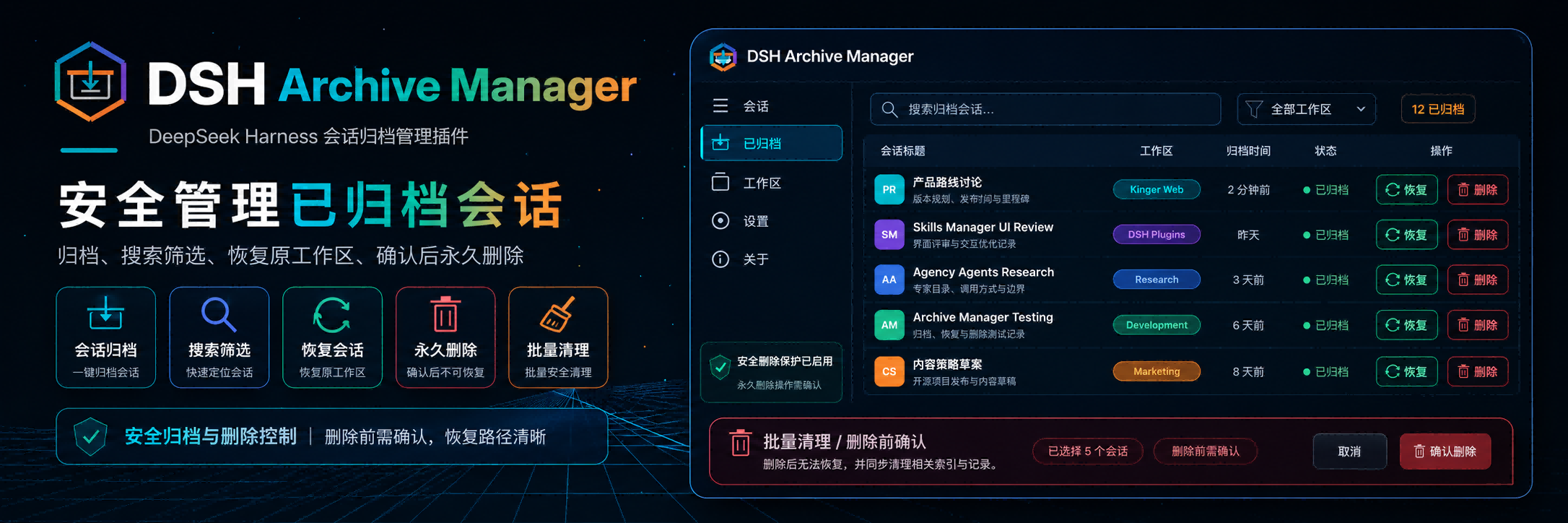
# DSH Archive Manager
**Safely manage archived sessions in DeepSeek Harness**
[简体中文](README.zh-CN.md) · [Changelog](CHANGELOG.md) · [Apache-2.0](LICENSE)
[](LICENSE)
[](https://www.npmjs.com/package/@michengai/dsh-archive-manager)
[](https://www.npmjs.com/package/@michengai/dsh-archive-manager)
[](https://github.com/MichengAI/dsh-archive-manager)
[](https://nodejs.org/)
> DSH Archive Manager is a community-maintained DeepSeek Harness (DSH) plugin, not an official DeepSeek AI product.
## Features
Put inactive conversations away and find them again when needed. Search, restore, and clean up archives in one place while keeping everyday task lists tidy.
- **Put finished tasks away**: archive one conversation or all active chats in a workspace.
- **Find past work**: search titles, filter by project, and sort by time or title in **Settings → Archived sessions**.
- **Resume your work**: restore one conversation, a project group, or all archived chats.
- **Clean up records**: permanently delete individual chats or batches after confirmation. **Permanent deletion cannot be undone.**
## Screenshots
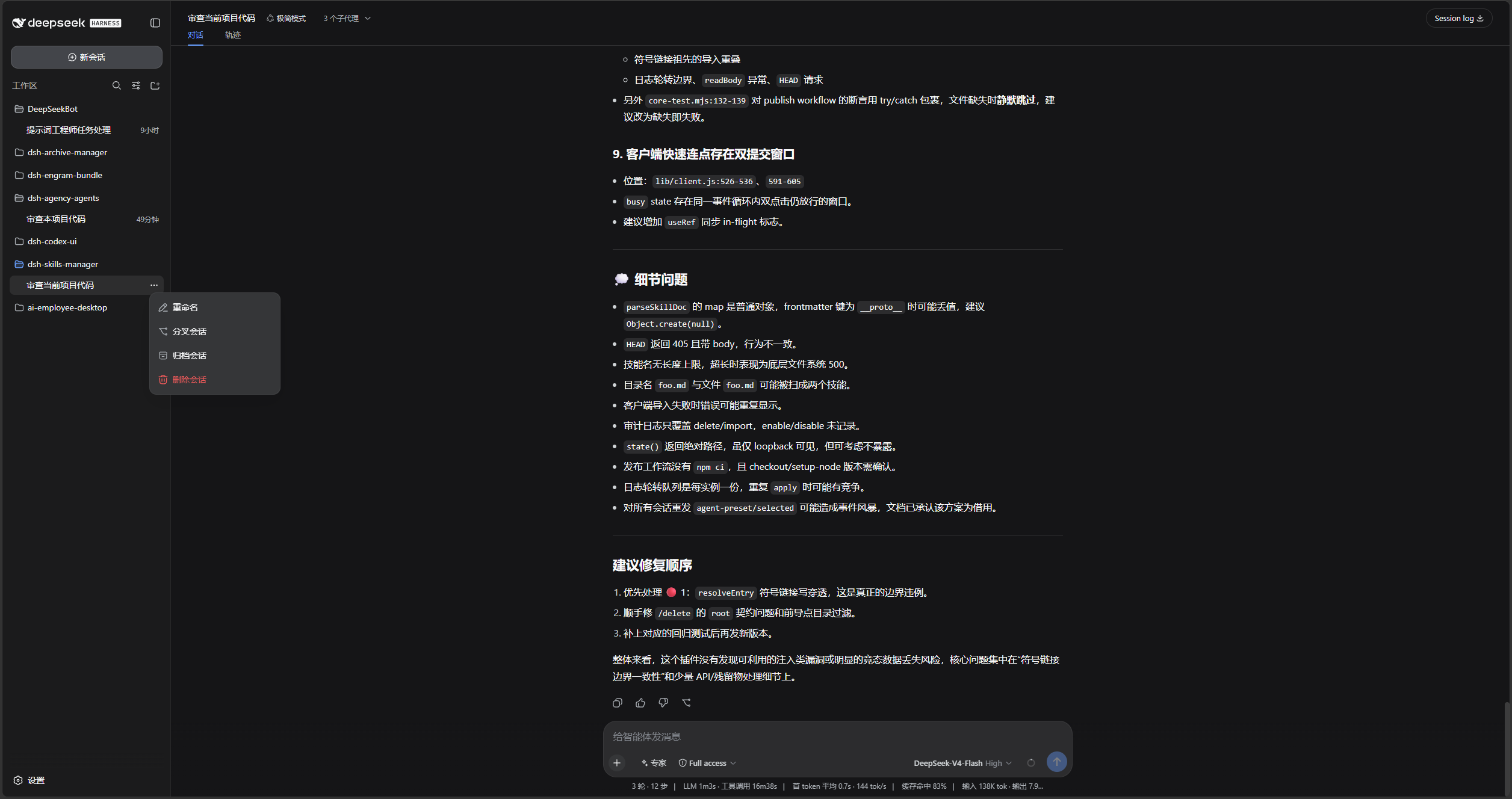
Open the sidebar session menu and choose **Archive session**:
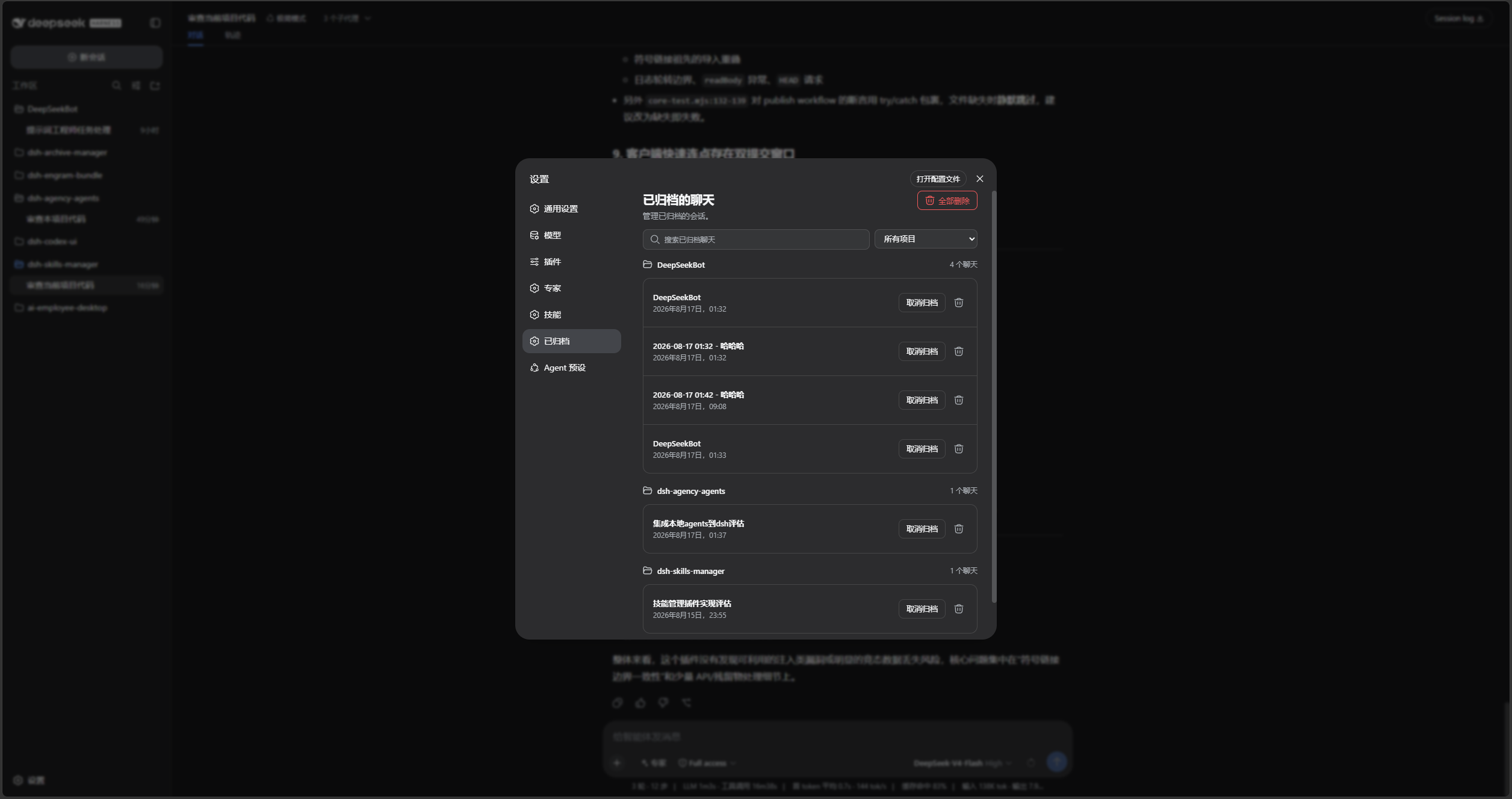
Search, sort, filter by project, unarchive, or permanently delete chats in **Settings → Archived sessions**:
## DSH product ecosystem
For a ready-to-use workbench, download [DSH Codex Desktop](https://github.com/MichengAI/dsh-codex-desktop/releases). If you already use [DeepSeek Harness](https://github.com/deepseek-ai/deepseek-harness), install any of these eight plugins individually. The desktop app includes all eight.
| Plugin | What you can do |
| --- | --- |
| [Codex UI](https://github.com/MichengAI/dsh-codex-ui) | Organize projects and conversations, search tasks, and navigate chat turns |
| [IM Connect](https://github.com/MichengAI/dsh-im-connect) | Send tasks and receive replies through your usual messenger |
| [Automation](https://github.com/MichengAI/dsh-automation) | Schedule tasks and review each run |
| [Skills Manager](https://github.com/MichengAI/dsh-skills-manager) | Find, enable, create, and import local skills |
| [Archive Manager](https://github.com/MichengAI/dsh-archive-manager) | Search, restore, or clean up archived conversations |
| [Agency Agents](https://github.com/MichengAI/dsh-agency-agents) | Choose and summon specialists for your task |
| [BTW](https://github.com/MichengAI/dsh-btw) | Ask side questions without interrupting the main task |
| [Simplify](https://github.com/MichengAI/dsh-simplify) | Use /simplify to improve code within your Git changes |
## Prerequisites
- Plugin `0.1.33` and later support DeepSeek Harness `0.1.3-alpha.2` (official master `c389f96`) alongside the verified legacy hosts listed below. Later master commits require separate validation.
- A working DeepSeek Harness Web installation with `dsh` available in PowerShell.
- Examples use the `web` profile; replace it with the target profile.
- Source installation and development require Node.js 22+ and pnpm. npm installation does not require running `pnpm install` separately.
## Installation
Run `pnpm test:compat` to test the same plugin artifacts with isolated host dependencies. The following combinations have passed; this does not claim coverage of every intermediate release:
- `pnpm test`: build and run local tests, excluding `test/fixtures`; local host links may affect dependency resolution.
- `pnpm test:matrix`: build, then install three isolated host versions and run the full matrix.
- `pnpm test:latest`: build, then run the six real storage tests against the isolated latest baseline.
- `pnpm test:compat`: validate legacy cache migration and run the full matrix.
Do not run `test/fixtures/*.mjs` directly. Fixtures validate the isolated entry point, dependency versions, and resolved paths before loading the host. If local dependencies have drifted, run `pnpm install --frozen-lockfile` to restore declared development dependencies. This does not guarantee removal of undeclared packages or host links under `test/node_modules`; use the isolated commands for compatibility acceptance.
| DSH | Cordis | Automated regression |
| --- | --- | --- |
| `0.1.1-rc.2` | `4.0.1` | 134 passed, plus legacy cache migration validation |
| `0.1.2-rc.1` | `4.0.2` | 134 passed |
| `0.1.3-alpha.2` | `4.0.2` | 137 passed |
Coverage includes client Remote integration, archive/restore, real JSONL/Zstandard deletion and subagent cascades, and queries/reopened storage after deletion. Tested on Windows / Node.js 24; a full DSH Web browser acceptance run has not been performed. The latest storage fixture isolates only the upstream POSIX `fs-ext` import that cannot load on Windows; file operations and native Windows locking still use the official implementation.
The installation commands below use the official npm registry.
### Ask an agent to install it (recommended)
Send the prompt below to any agent that can run terminal commands on your computer. Replace `web` with your actual profile. Once installed, use the plugin in DSH.
```text
Install the DSH plugin @michengai/dsh-archive-manager into my local web profile by running: dsh plugin --profile web add @michengai/dsh-archive-manager@latest --registry=https://registry.npmjs.org/. Then run dsh --profile web --dump-config, confirm the configuration includes workspace-archive-manager, ui-workspace-archive-manager, and explain how to reload DSH and start using the plugin.
```
### Install the latest package from the official npm registry
Run this from any PowerShell directory:
```powershell
[Console]::OutputEncoding = [System.Text.Encoding]::UTF8
$OutputEncoding = [System.Text.Encoding]::UTF8
dsh plugin --profile web add @michengai/dsh-archive-manager@latest --registry=https://registry.npmjs.org/
dsh --profile web --dump-config
```
To pin a release, replace `@latest` with a specific version such as `@x.y.z`.
The configuration output should contain `workspace-archive-manager` and `ui-workspace-archive-manager`. Restart DSH Web and hard-refresh the browser. Do not copy client files manually: the Settings page and archive menu need the mounted plugin.
## Updates
The settings title shows the installed version and a **Check for updates** button. When a newer release is available, **Update automatically** runs only when the DSH CLI or Desktop update service is available; otherwise, the dialog provides a profile-specific manual command to copy and run.
## Usage
1. Open the sidebar session menu and choose **Archive session**.
2. Open **Settings → Archived sessions** to inspect sessions by workspace.
3. Search by title, sort by update time, creation time, or title, or filter the list by project.
4. Select **Unarchive** to restore one session, or select **Restore all** in the page header.
5. Open a project heading's action menu to restore or delete all of that project's archived chats.
6. Use the delete icon to remove one session permanently, then confirm the deletion. **It cannot be undone.**
If the entry is missing after installation or upgrade, restart DSH Web and hard-refresh the browser. It is located directly after **Connectors** in Settings.
## Data handling limits
- Deletion always requires confirmation.
- It removes workspace records, archive markers, and the projection cache. For the official JSONL backend, a validated layout also allows removal of the session-owned directory and its contents, including attachments. Other backends or unknown layouts only lose the located transcript artifact, never its parent directory.
- Project containers and storage roots are retained. Deletion refuses symbolic links or Windows junctions at the official layout's project/session directory levels and keeps the operation retryable.
- Layout validation uses the official backend's initialized absolute root, so a relative root remains stable across host working-directory changes. If that field is unavailable, only an absolute configured root is accepted. An unverified official JSONL layout emits a warning with the session ID and artifact path before falling back to artifact-only deletion.
- Directory validation is not a cross-process filesystem lock: do not concurrently move or replace storage directories or change directory links during deletion. Storage paths writable by untrusted processes are not a security isolation boundary.
- A live session finishes writing before cleanup to prevent data truncation.
- The plugin replaces DSH’s default workspace and projection services. Install through the DSH profile instead of manually composing the patch.
## Secondary development
### Install from source
Use this for debugging or unpublished changes. The cloned directory becomes the plugin source path:
```powershell
[Console]::OutputEncoding = [System.Text.Encoding]::UTF8
$OutputEncoding = [System.Text.Encoding]::UTF8
Set-Location D:\Repository\deepseek-harness-plugin
git clone https://github.com/MichengAI/dsh-archive-manager.git
Set-Location .\dsh-archive-manager
pnpm install --frozen-lockfile
pnpm build
dsh plugin --profile web add .
dsh --profile web --dump-config
```
Restart DSH Web and hard-refresh the browser. `dsh plugin ... add .` reads the package metadata and `cordis.patch.yml`; do not install by copying `lib` directly.
`src` is the sole maintained source directory. `pnpm build` uses esbuild to compile it into publishable `lib` output. Do not edit `lib` directly because the next build overwrites it.
- [src\index.js](src/index.js): host service entry point.
- [src\workspace.js](src/workspace.js): archived-session and workspace service.
- [src\projcache.js](src/projcache.js): session projection cache.
- [src\client.js](src/client.js): Settings page and archive UI.
- `test\*.test.mjs`: host, client, Remote, and styling coverage.
After changing `src`, run the tests, confirm that generated `lib` output is committed with the source, then install from the local directory:
```powershell
[Console]::OutputEncoding = [System.Text.Encoding]::UTF8
$OutputEncoding = [System.Text.Encoding]::UTF8
pnpm test
pnpm pack:check
dsh plugin --profile web add .
```
`pnpm test` runs `pnpm build` first. The build generates all `lib` output from `src` in a temporary directory, then atomically replaces the previous output only after a successful build. A failed build preserves the existing `lib`.
## Validation
```powershell
[Console]::OutputEncoding = [System.Text.Encoding]::UTF8
$OutputEncoding = [System.Text.Encoding]::UTF8
pnpm verify
```
`prepublishOnly` runs the full verification suite before publishing and verifies that committed `lib` output matches the current `src` build.
## License
Licensed under [Apache License 2.0](LICENSE).