---
title: Get started viewing and changing the DOM
description: How to view nodes, search for nodes, edit nodes, reference nodes in the Console, break on node changes, and more.
author: MSEdgeTeam
ms.author: msedgedevrel
ms.topic: article
ms.service: microsoft-edge
ms.subservice: devtools
ms.date: 10/20/2023
---
# Get started viewing and changing the DOM
To learn the basics of viewing and changing the [Document Object Model](https://developer.mozilla.org/docs/Web/API/Document_Object_Model) (DOM) of a page using Microsoft Edge DevTools, follow these interactive tutorial sections.
To understand the difference between the DOM and HTML, see [Appendix: HTML versus the DOM](#appendix-html-versus-the-dom), below.
## View DOM nodes
The DOM Tree of the **Elements** tool is where you do all DOM-related activities in DevTools.
#### Inspect a node
When you are interested in a particular DOM node, **Inspect** is a fast way to open DevTools and investigate that node.
1. Open the [DOM Examples](https://microsoftedge.github.io/Demos/devtools-dom-get-started/) demo page in a new window or tab. (To open a link in a new window or tab, right-click the link. Or, press and hold **Ctrl** (Windows, Linux) or **Command** (macOS) and then click the link.)
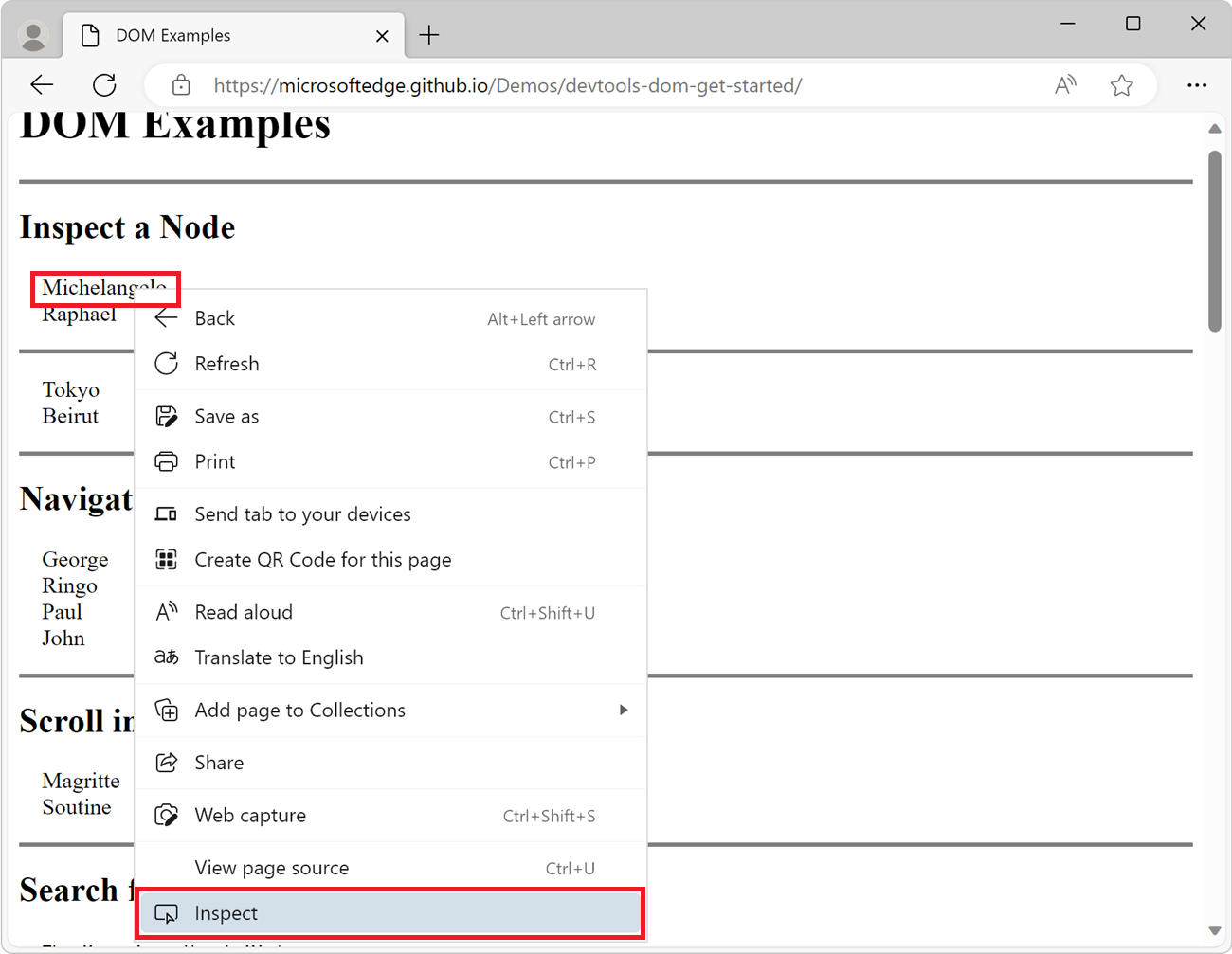
1. In the rendered webpage, under **Inspect a Node**, right-click **Michelangelo** and then select **Inspect**:
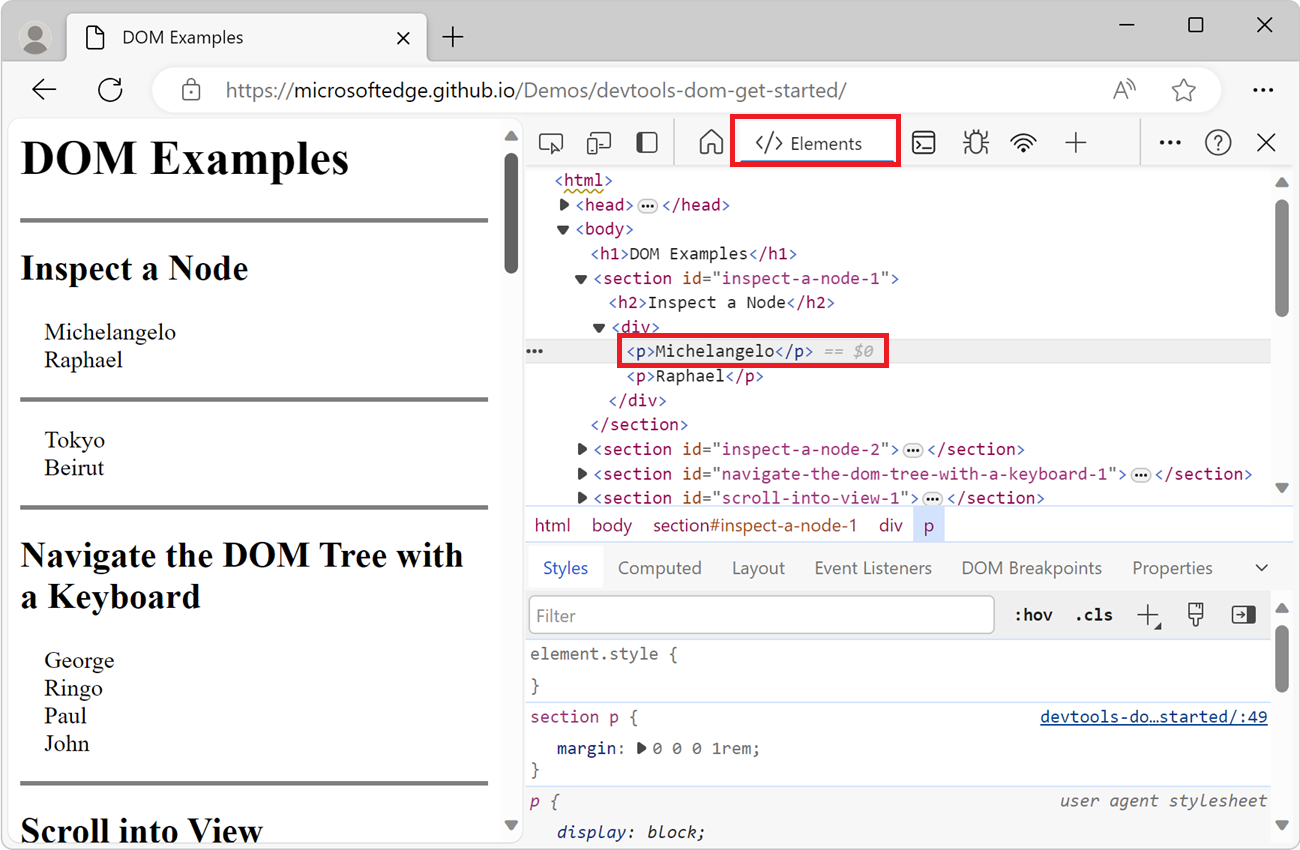
The **Elements** tool of DevTools opens. The `
Michelangelo
` node is highlighted in the **DOM Tree**:
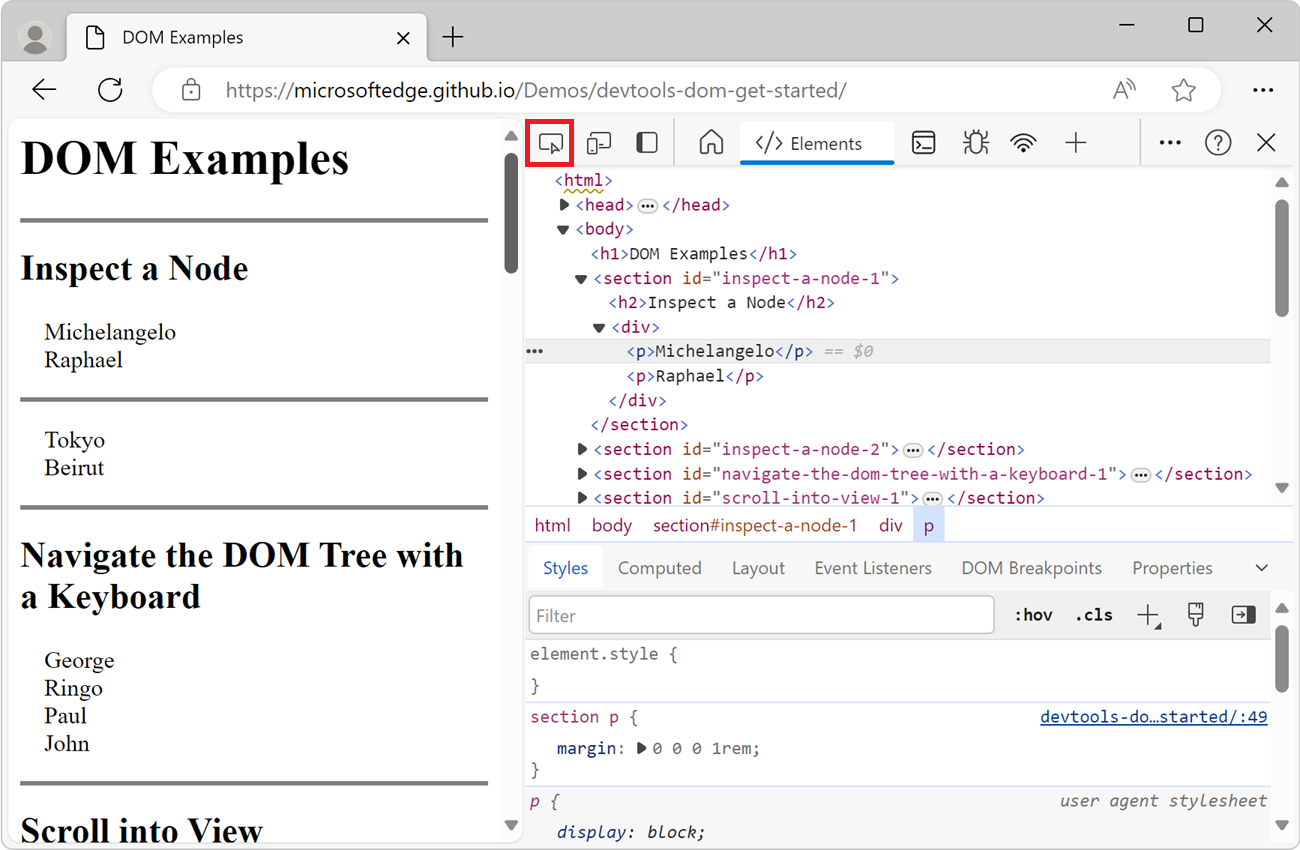
1. Click the **Inspect** () icon in the top-left corner of DevTools:
1. Under **Inspect a Node**, click the **Tokyo** text. Now, `
Tokyo
` node is highlighted in the DOM Tree.
Inspecting a node is also the first step towards viewing and changing the styles of a node. See [Get started viewing and changing CSS](../css/index.md).
#### Navigate the DOM Tree with a keyboard
Once you have selected a node in the DOM Tree, you can navigate the DOM Tree with your keyboard.
1. Open the [DOM Examples](https://microsoftedge.github.io/Demos/devtools-dom-get-started/) demo page in a new window or tab.
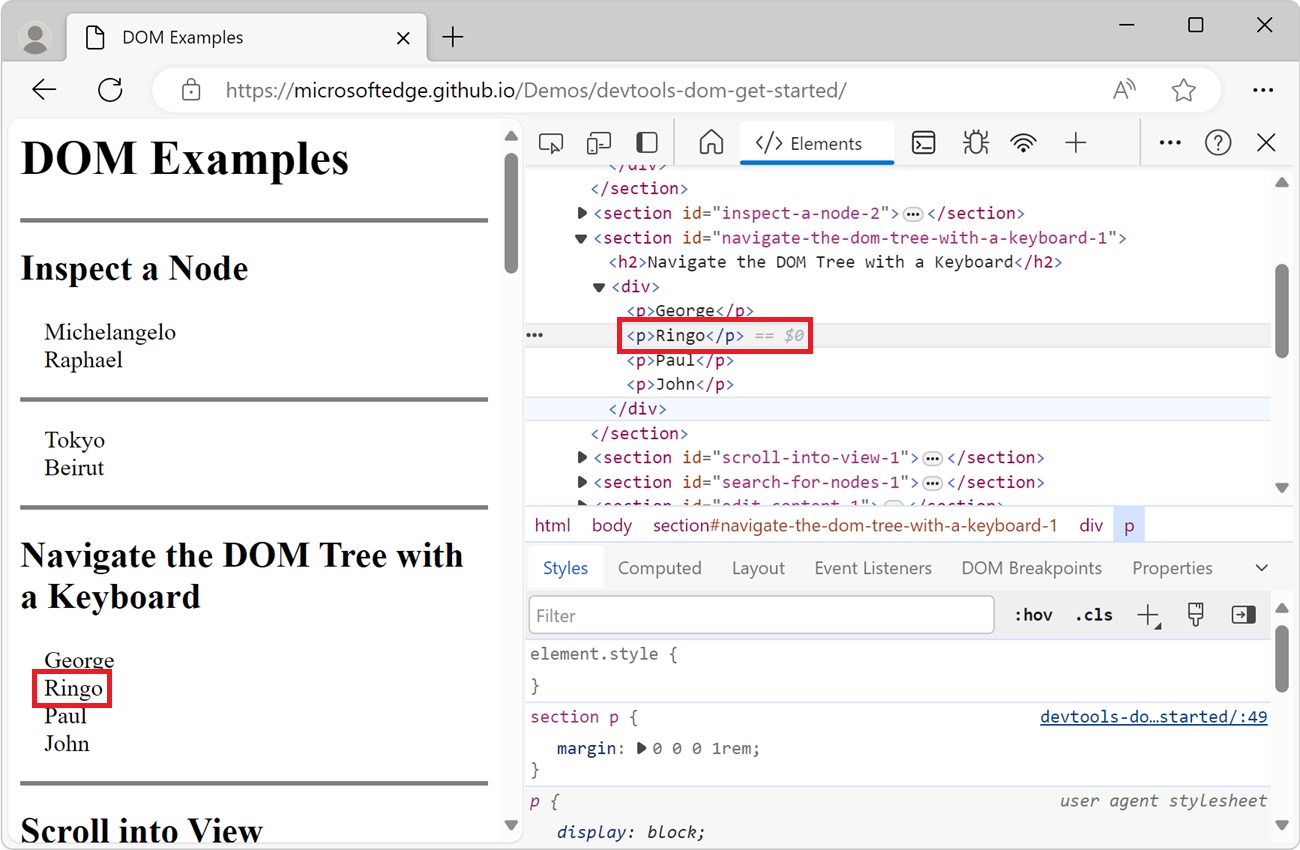
1. In the rendered webpage, under **Navigate the DOM Tree with a Keyboard**, right-click **Ringo** and then select **Inspect**. `
Ringo
` is selected in the DOM Tree:
1. Press the **Up Arrow** key two times. `
` is selected:
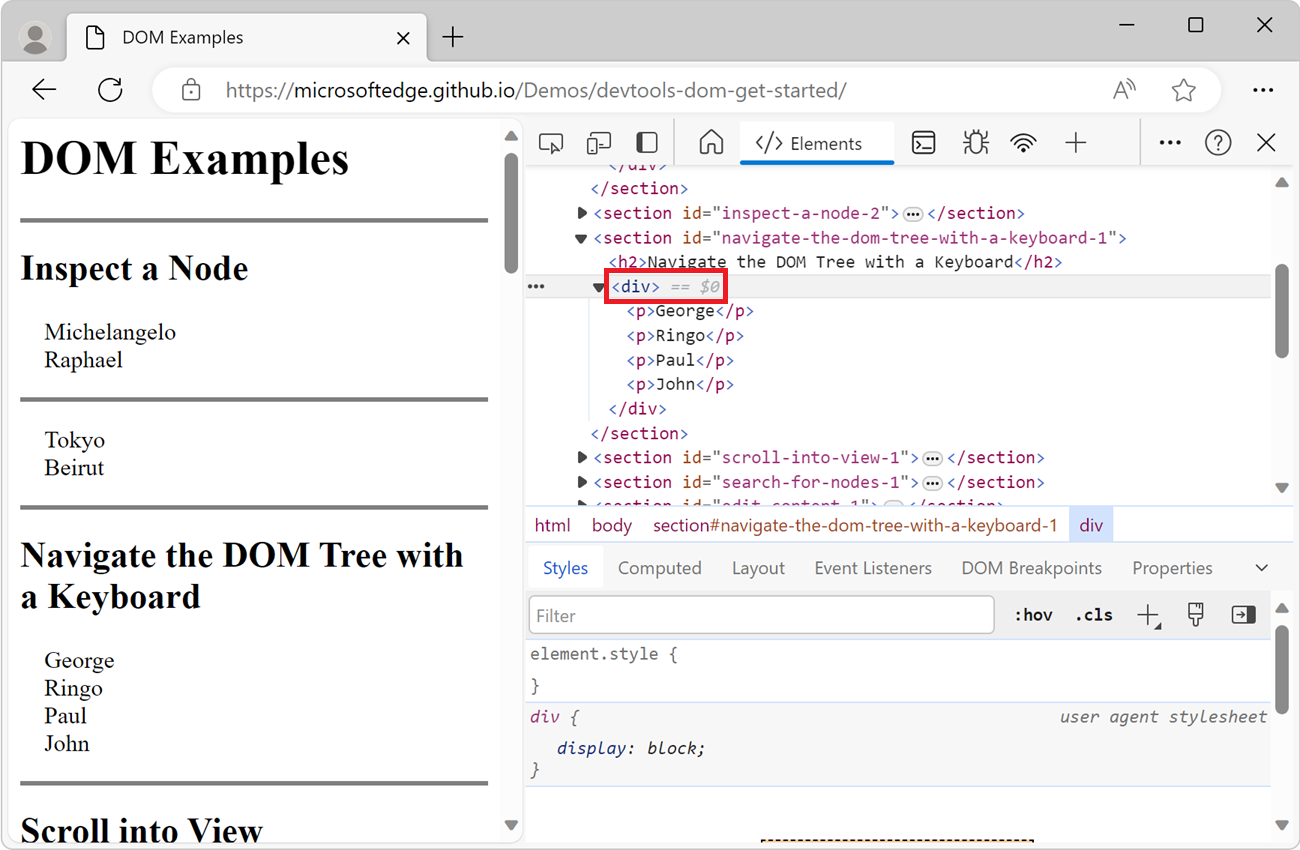
1. Press the **Left Arrow** key. The `
` list collapses.
1. Press the **Left Arrow** key again. The parent of the `
` node is selected. In this case, it's the `` that has the ID `navigate-the-dom-tree-with-a-keyboard-1`.
1. Press the **Down Arrow** key two times, so that you have re-selected the `
` list that you just collapsed.
It should look like this: `
...
`.
1. Press the **Right Arrow** key. The list expands.
#### Scroll into view
When viewing the DOM Tree, you may find yourself interested in a DOM node that isn't currently visible in the rendered webpage. For example, suppose that you scrolled to the bottom of the page, and you're interested in the `
` node at the top of the page. **Scroll into view** lets you quickly reposition the viewport so that you can see the node.
1. Open the [DOM Examples](https://microsoftedge.github.io/Demos/devtools-dom-get-started/) demo page in a new window or tab.
1. In the rendered webpage, under **Scroll into View**, right-click **Magritte** and then select **Inspect**.
1. Scroll to the bottom of the DOM Examples page.
1. The `
Magritte
` node should still be selected in your DOM Tree. If not, go back to [Scroll into view](#scroll-into-view) and start over.
1. Right-click the `
Magritte
` node, and then select **Scroll into view**:
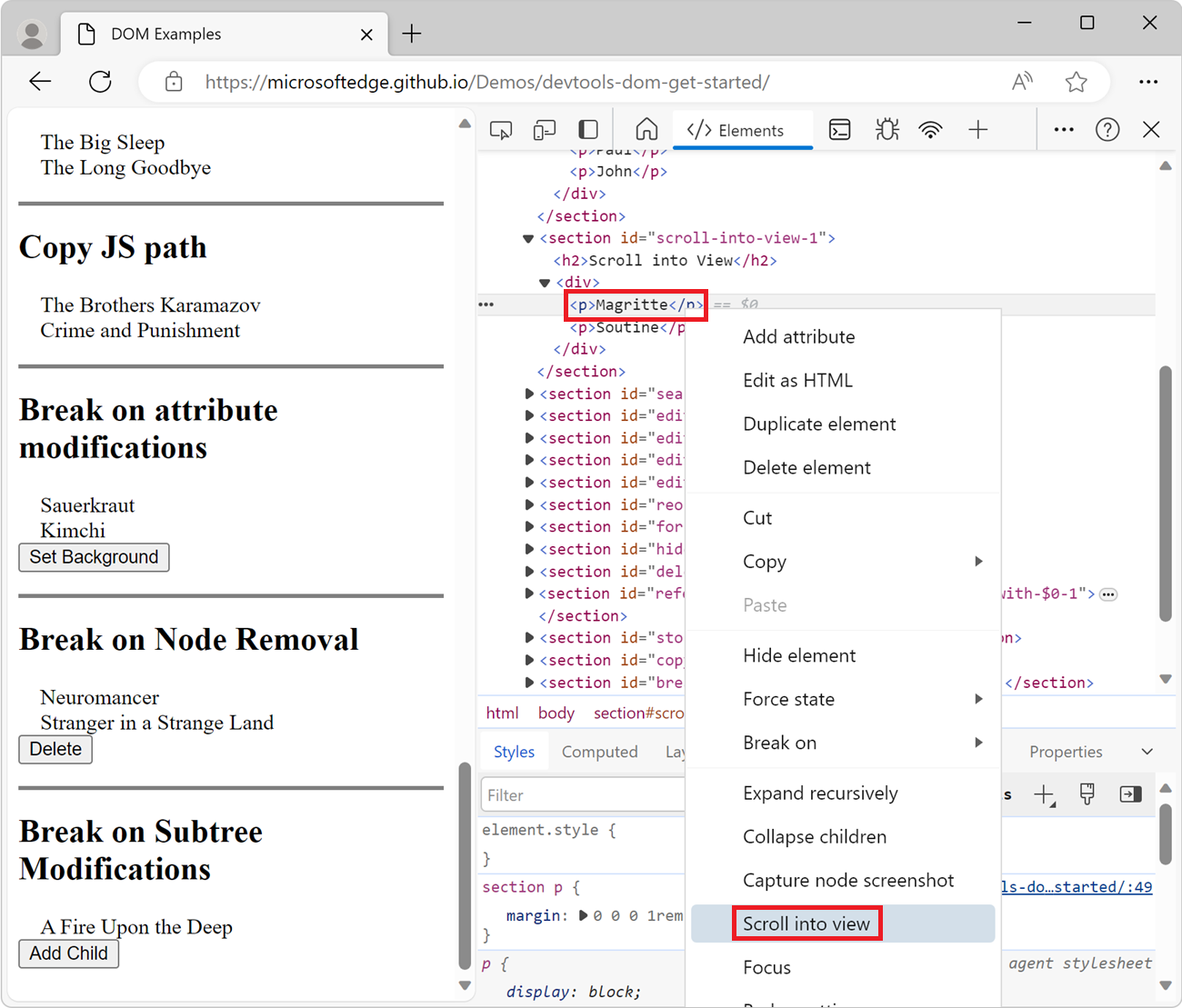
Your viewport scrolls back up to display the **Magritte** node. See [Appendix: Missing options](#appendix-missing-options) if the **Scroll into view** option isn't displayed.
#### Search for nodes
You can search the DOM Tree by string, CSS selector, or XPath selector.
1. Focus your cursor on the **Elements** tool, such as by clicking the **Elements** tab.
1. Press **Ctrl+F** (Windows, Linux) or **Command+F** (macOS). The Search bar opens at the bottom of the DOM Tree.
1. Type **The Moon is a Harsh Mistress**. The last sentence is highlighted in the DOM Tree:
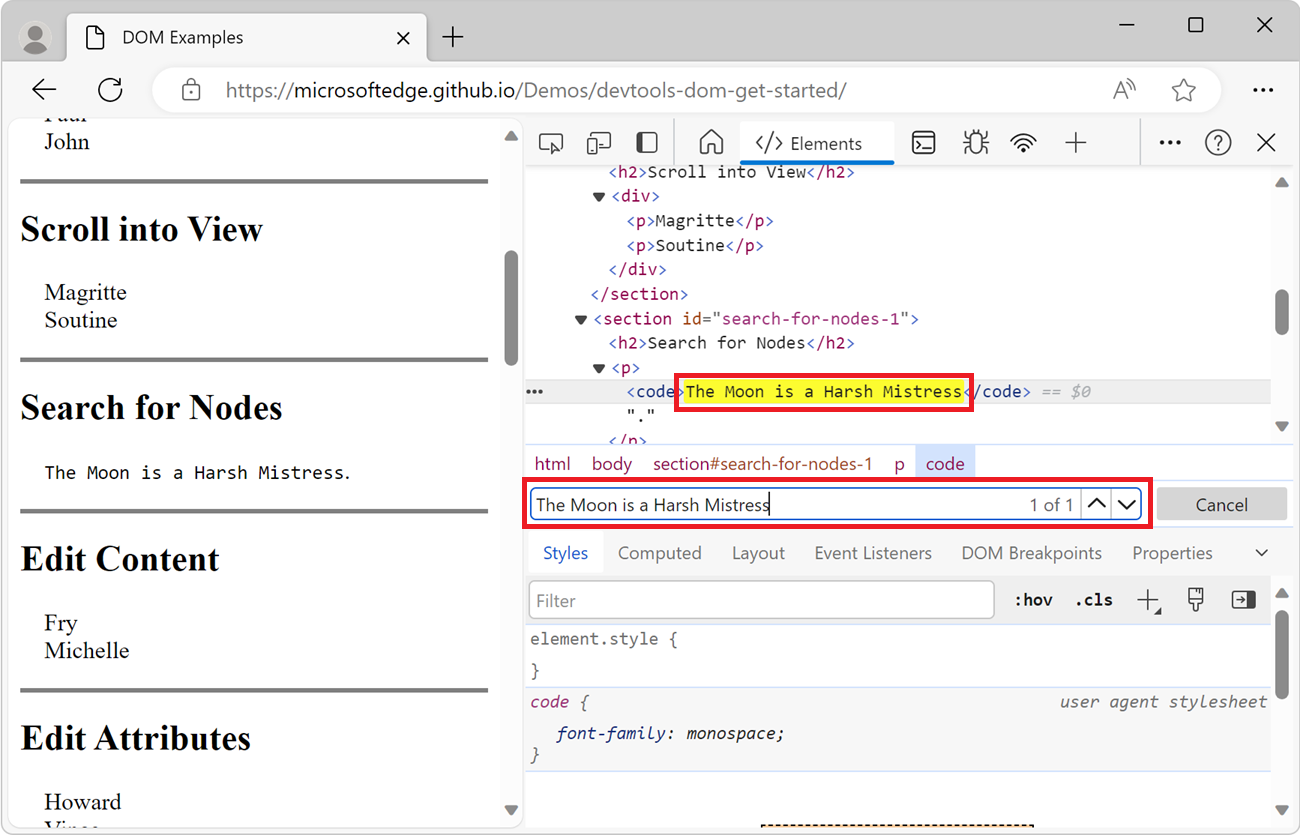
The Search bar also supports CSS and XPath selectors.
## Edit the DOM
You can edit the DOM in DevTools and view how the changes affect the page in real time.
#### Edit text content
To edit the text content of a node, double-click the content in the DOM Tree, as follows:
1. Open the [DOM Examples](https://microsoftedge.github.io/Demos/devtools-dom-get-started/) demo page in a new window or tab.
1. In the rendered webpage, under **Edit Content**, right-click **Michelle** and then select **Inspect**.
1. In the DOM Tree, double-click the text `Michelle`, between the `
` and `
` tags. The text is highlighted to indicate that it's selected:
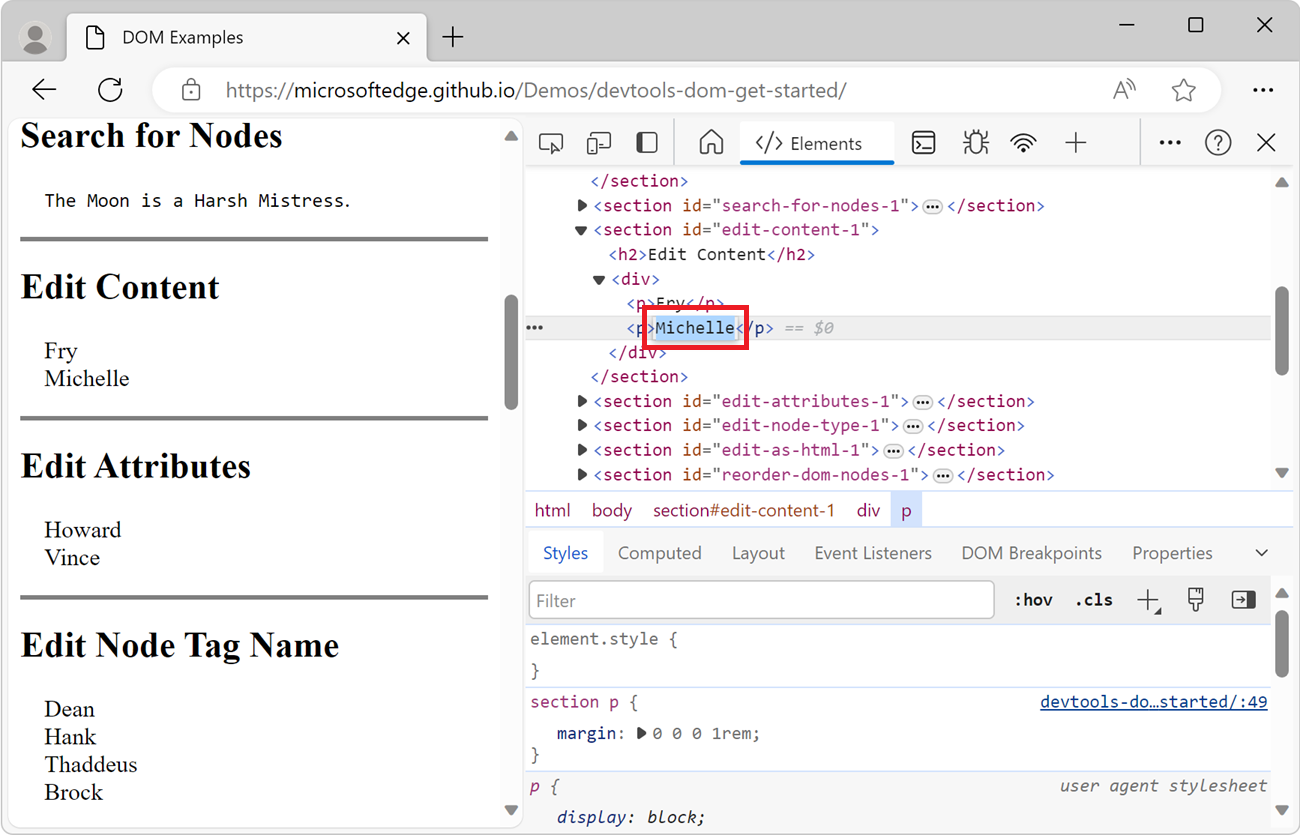
1. Delete `Michelle`, type `Leela`, then press **Enter** to confirm the change. The text in the DOM changes from **Michelle** to **Leela**.
#### Edit or add attributes
To edit an existing attribute, double-click the attribute name or value.
To add a new attribute, double-click the element for which to add an attribute, as follows:
1. Open the [DOM Examples](https://microsoftedge.github.io/Demos/devtools-dom-get-started/) demo page in a new window or tab.
1. In the rendered webpage, under **Edit Attributes**, right-click **Howard** and then select **Inspect**.
1. Double-click `
`. The text is highlighted to indicate that the node is selected:
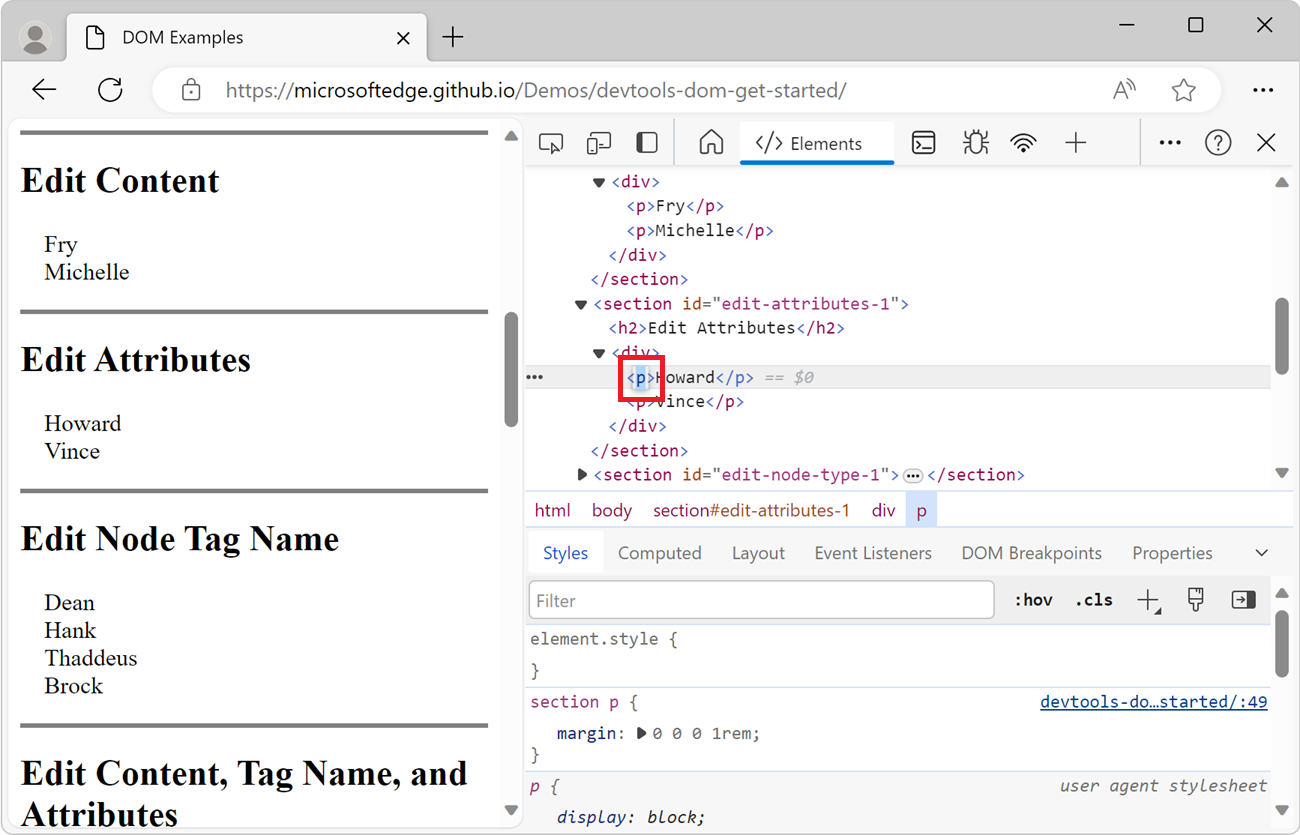
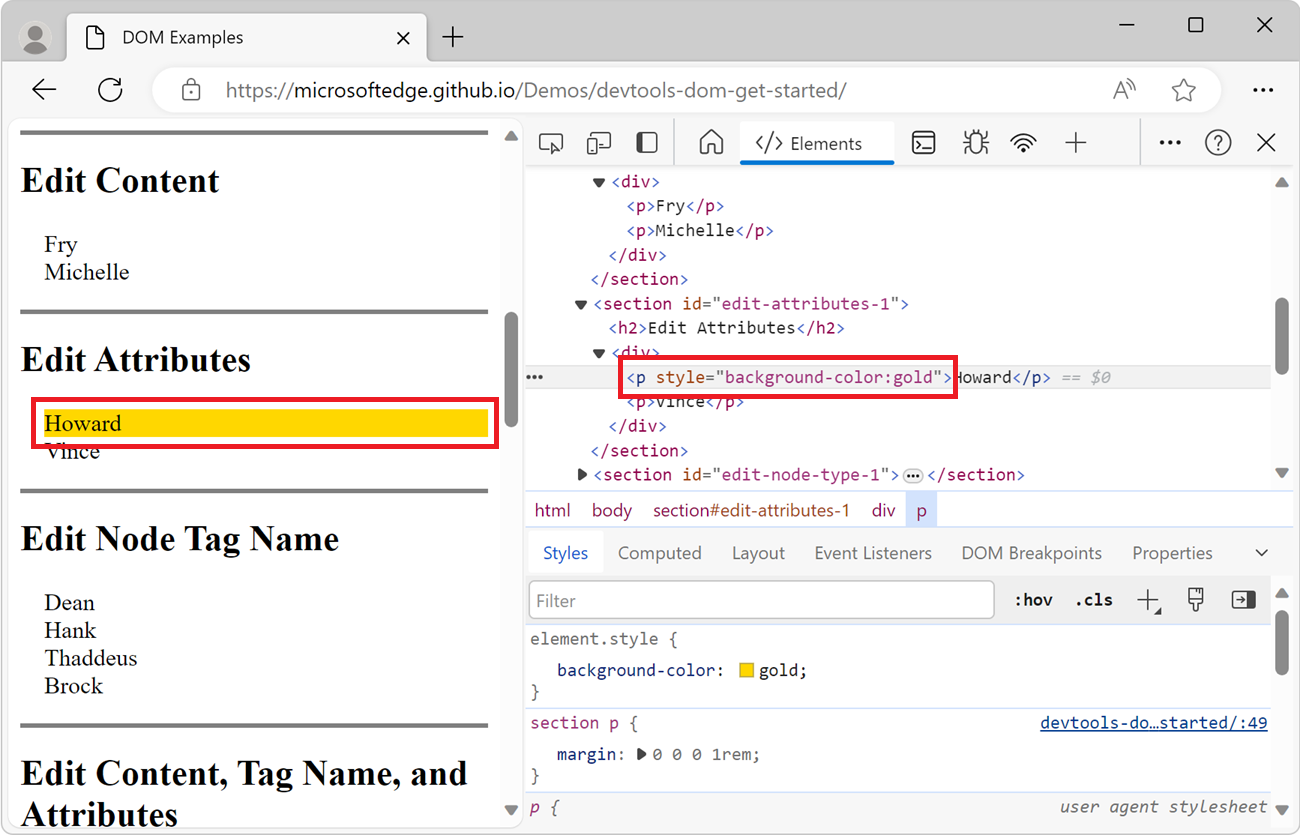
1. Press the **Right Arrow** key, add a space, type `style="background-color:gold"`, and then press **Enter**. The background color of the node changes to gold:
#### Edit node tag name
To edit the tag name of a node, double-click the tag name and then type in the new tag name.
1. Open the [DOM Examples](https://microsoftedge.github.io/Demos/devtools-dom-get-started/) demo page in a new window or tab.
1. In the rendered webpage, under **Edit Node Tag Name**, right-click **Hank** and then select **Inspect**.
1. Double-click `
`. The text `p` is highlighted.
1. Delete `p`, type `button`, then press **Enter**. The `