# Sublime - Jumper
## Go To Anywhere
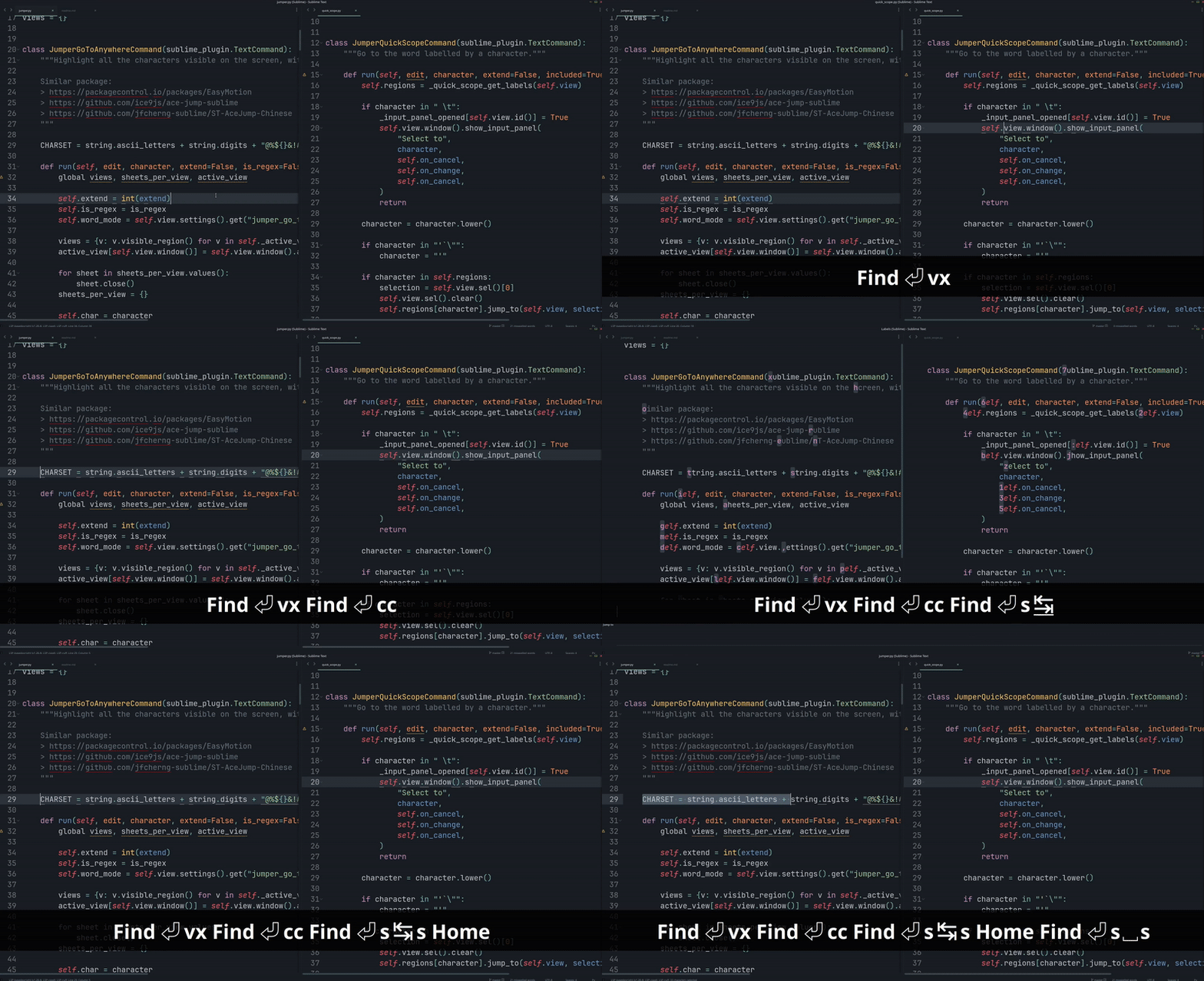
Taking inspiration from [EasyMotion](https://github.com/tednaleid/sublime-EasyMotion) and [Ace Jump](https://github.com/acejump/AceJump), press a shortcut to label every match of a regex visible on the screen. Typing the label jumps to that position.
While the labels are shown, you can switch mode:
- "`enter`" then the label: select everything between the cursor and the target, target included (the color will change)
- "`tab`" then the label: select everything between the cursor and the target, target excluded (the color will change)
- "`|`" then the label: keep the current selection and add a new cursor at the target
- pressing the same key a second time (or backspace on an empty input) goes back to "jump" mode
```json
[
{
// Label all the words on the screen
"keys": ["shift+find"],
"command": "jumper",
"args": {"regex": "\\w+"}
},
{
// Label only the words of the current line
// (press it a second time to label the whole screen)
"keys": ["find"],
"command": "jumper",
"args": {"regex": "\\w+", "current_line": true}
}
]
```
The `extend` argument selects the initial mode: `1` selects up to the target but excludes it, `2` includes the target, and `3` adds a cursor at the target.
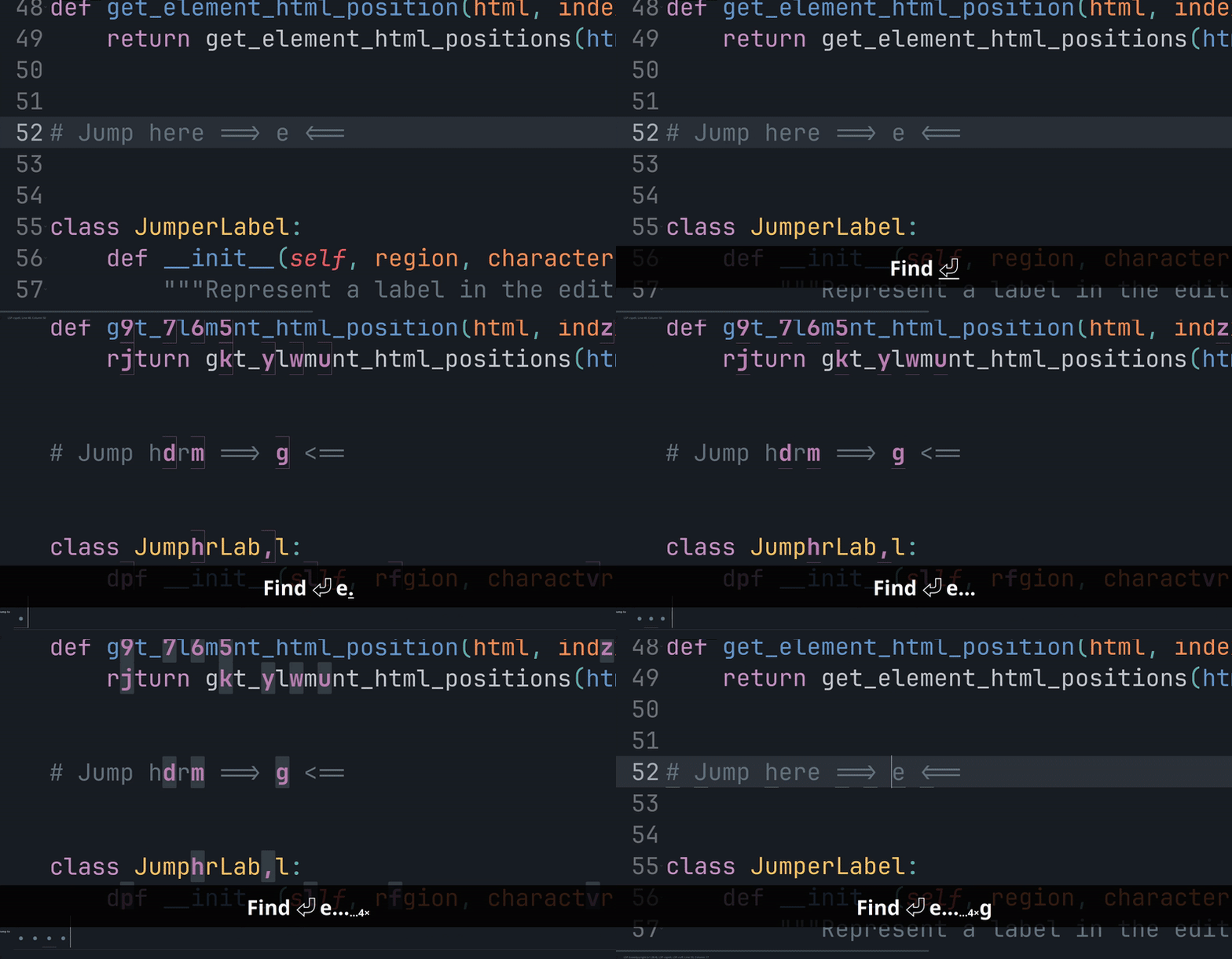
The labels are **derived from the matched text**: a match starting with a unique letter is labelled by that letter, so typing the first letter of your target usually jumps there directly. When several matches start with the same letter, longer labels are generated (preferring the following characters of the matched text).
You can change the character set used for labels, listing preferred characters first. Whitespace, "`enter`", "`tab`", and "`|`" are reserved for switching modes and cannot be used:
```json
{
"jumper_charset": "ntesiroamglpufywjbhd,cxkv:z"
}
```
The jump works when many files are open, the labels stay unique across all the views. But the "select" and "add cursor" modes only show the labels of the current view (because we can not extend a selection between 2 files).
Taking inspiration from [Quick Scope](https://github.com/unblevable/quick-scope), the characters used by the labels of the current line can be underlined, so you know what to type before even starting the command. Set `jumper_quick_scope_regex` to the same regex as your `current_line: true` keybinding (or to `""` to disable the highlight):
```json
{"jumper_quick_scope_regex": "\\w+"}
```
With `jumper_escalate_line_to_screen`, pressing the "current line" shortcut a second time re-executes the command on the whole screen instead of only the current line.
Set `jumper_case_sensitive` to `true` to make searches and labels case-sensitive. The default is `false`.
When a label has more characters than the matched text can display, borders are shown around the last visible character. They will disappear while you type the label.
## Technical
Sublime text doesn't support "phantom on top of text", so the default implementation use HTML sheet.
You can check the branch `master-all-labels-methods` to see all possible way to add labels
- phantoms: the text will shift to the right
- buffer: we will change the buffer, but the "redo" history can not be cleaned
- popup: we show a popup, but you will see a shadow and you can not jump to the first line
- sheet: the default implementation, only drawback is that when you are in "label typing" mode, you can not select text with the mousse
## Frontier Selection
The selector, bracket, and matching-text commands share a frontier: the
selection that advances the next time a navigation command runs. A gutter dot
identifies each frontier.
All three commands accept `"direction": "next"` (the default) or
`"direction": "previous"`, and `"mode": "replace"` (the default) or
`"mode": "add"`. Each selected target becomes the new frontier. Replace mode
replaces only the frontier, while selections added earlier remain selected.
### Select Matching Text
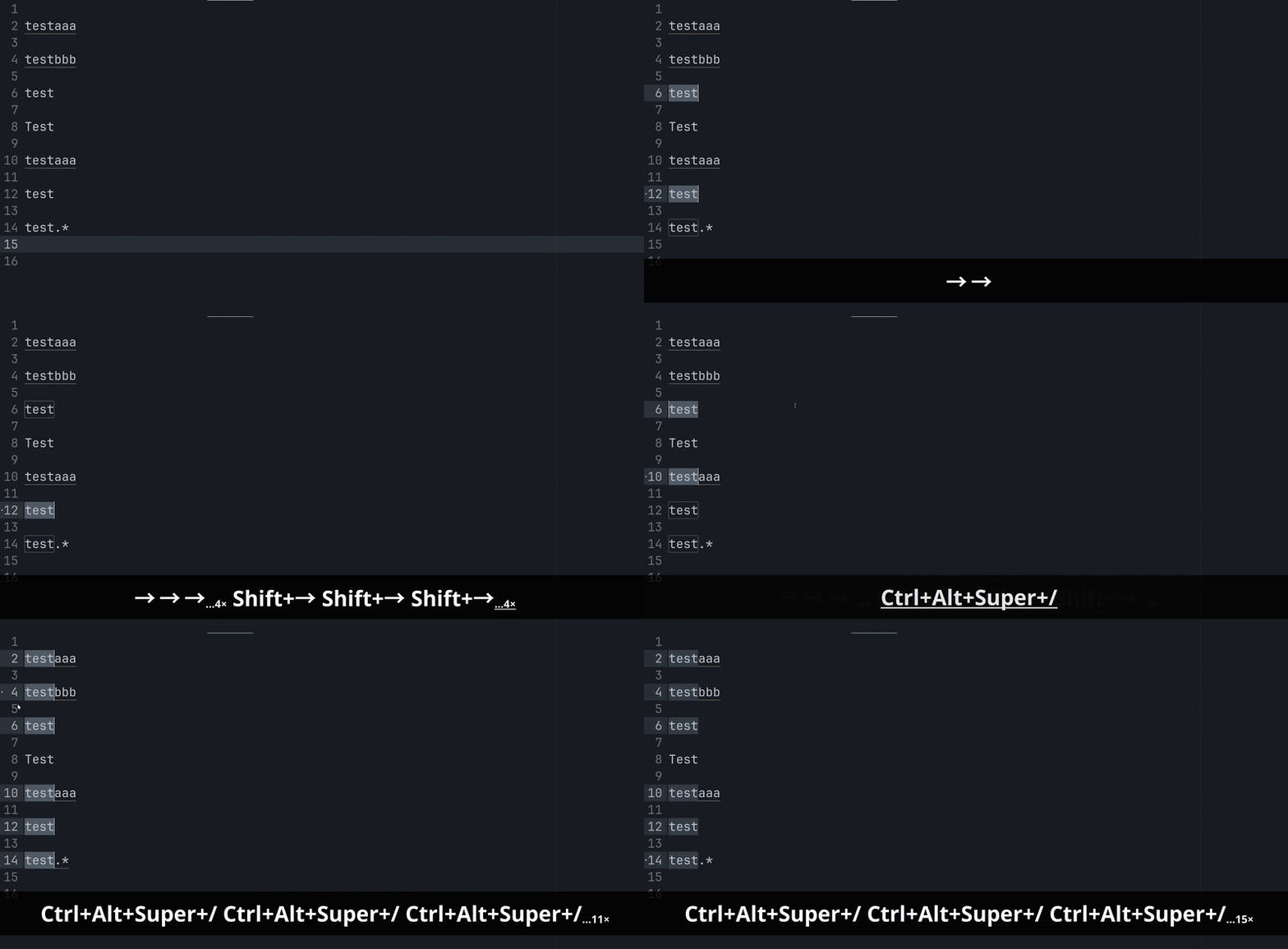
The `jumper_select_matching_text` command selects the next or previous text that
matches the current selection.
Like `find_under_expand`,
- with an empty cursor, the first invocation selects the current word and enables whole-word matching
- with selected text, it searches for that exact text without requiring whole-word boundaries
- matching is always case-sensitive
The frontier dot is green in text mode and cyan in word mode.
```json
[
{
"keys": ["alt+ctrl+super+/"],
"command": "jumper_select_matching_text"
},
{
"keys": ["alt+ctrl+super+\\"],
"command": "jumper_select_matching_text",
"args": {"direction": "previous"}
},
{
"keys": ["shift+alt+ctrl+super+/"],
"command": "jumper_select_matching_text",
"args": {"mode": "add"}
},
{
"keys": ["shift+alt+ctrl+super+\\"],
"command": "jumper_select_matching_text",
"args": {"direction": "previous", "mode": "add"}
}
]
```
### Select Selector

The `jumper_select_selector` command selects the next or previous region that
matches a Sublime selector.
This provides syntax-aware navigation similar to Vim text objects.
See:
- https://www.sublimetext.com/docs/scope_naming.html
- https://www.sublimetext.com/docs/selectors.html
By default, it selects string contents.
```json
[
{
"keys": ["alt+ctrl+super+'"],
"command": "jumper_select_selector"
},
{
"keys": ["alt+ctrl+super+`"],
"command": "jumper_select_selector",
"args": {"direction": "previous"}
},
{
"keys": ["shift+alt+ctrl+super+'"],
"command": "jumper_select_selector",
"args": {"mode": "add"}
},
{
"keys": ["shift+alt+ctrl+super+`"],
"command": "jumper_select_selector",
"args": {"direction": "previous", "mode": "add"}
},
// Select next / previous class / function
{
"keys": ["alt+ctrl+super+f"],
"command": "jumper_select_selector",
"args": {"selector": "entity.name"}
},
{
"keys": ["alt+ctrl+super+w"],
"command": "jumper_select_selector",
"args": {"direction": "previous", "selector": "entity.name"}
},
// next / previous condition / loop
{
"keys": ["alt+ctrl+super+i"],
"command": "jumper_select_selector",
"args": {
"selector": "keyword.control.conditional | keyword.control.loop - keyword.control.loop.for.in"
}
},
{
"keys": ["alt+ctrl+super+e"],
"command": "jumper_select_selector",
"args": {
"direction": "previous",
"selector": "keyword.control.conditional | keyword.control.loop - keyword.control.loop.for.in"
}
},
{
"keys": ["shift+alt+ctrl+super+i"],
"command": "jumper_select_selector",
"args": {
"mode": "add",
"selector": "keyword.control.conditional | keyword.control.loop - keyword.control.loop.for.in"
}
},
{
"keys": ["shift+alt+ctrl+super+e"],
"command": "jumper_select_selector",
"args": {
"selector": "keyword.control.conditional | keyword.control.loop - keyword.control.loop.for.in",
"direction": "previous",
"mode": "add"
}
}
]
```
Use `trim_selector` to remove matching syntax tokens from the beginning and end
of each result while keeping matching tokens inside the content (even if empty).
```json
{
"keys": ["alt+primary+super+4"],
"command": "jumper_select_selector",
"args": {
"selector": "comment",
"trim_selector": "punctuation",
"trim": true
}
}
```
### Select Next / Previous Bracket Content
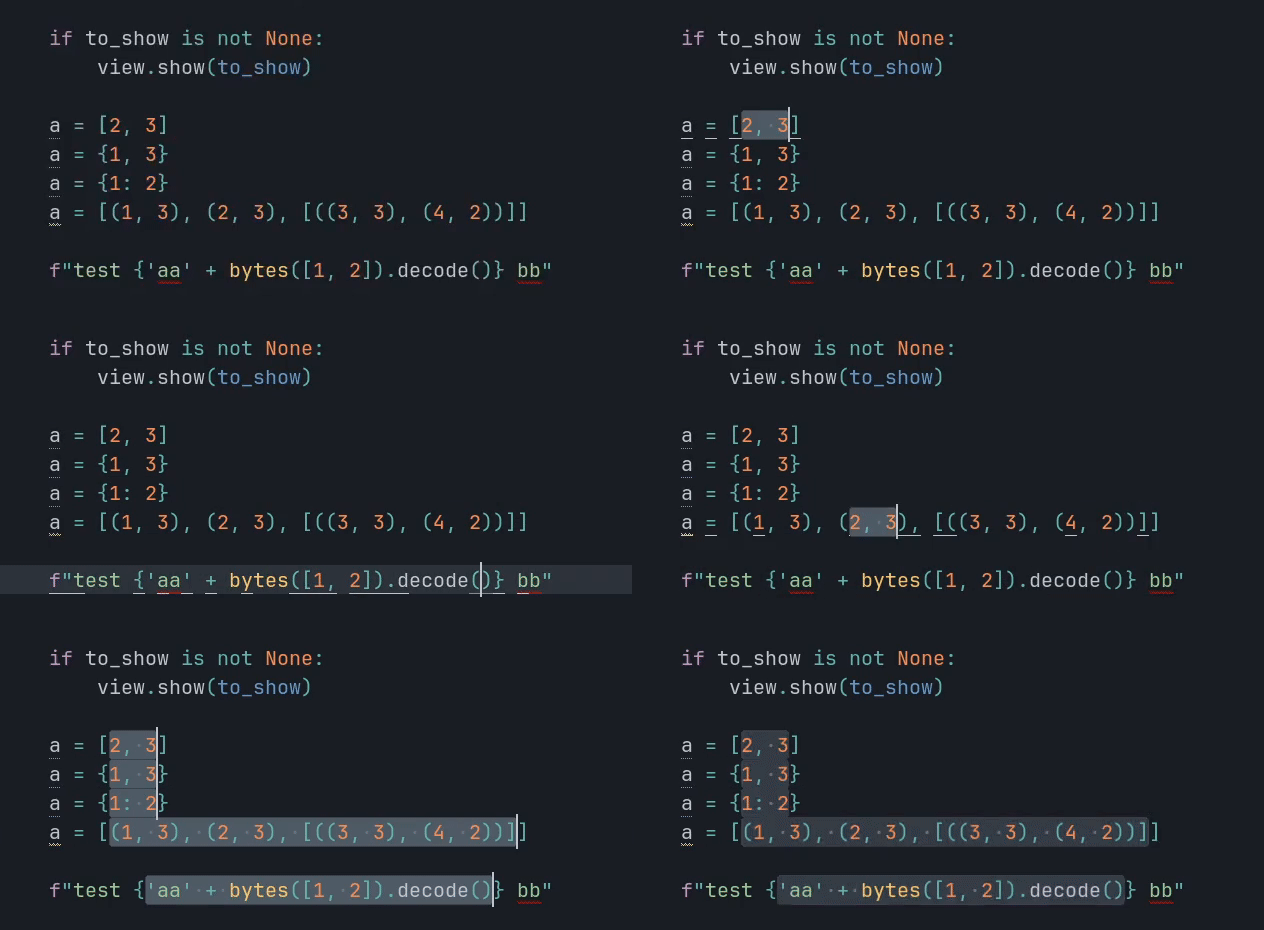
The `jumper_select_next_bracket` command selects the contents of the next or
previous `()`, `{}`, or `[]` pair.
```json
[
{
"keys": ["alt+ctrl+super+]"],
"command": "jumper_select_next_bracket"
},
{
"keys": ["alt+ctrl+super+["],
"command": "jumper_select_next_bracket",
"args": {"direction": "previous"}
},
{
"keys": ["shift+alt+ctrl+super+]"],
"command": "jumper_select_next_bracket",
"args": {"mode": "add"}
},
{
"keys": ["shift+alt+ctrl+super+["],
"command": "jumper_select_next_bracket",
"args": {"direction": "previous", "mode": "add"}
}
]
```
Or if you want to select the next or previous parenthesis content:
```json
[
{
"keys": ["alt+ctrl+super+]"],
"command": "jumper_select_next_bracket",
"args": {
"brackets_text": "()"
}
},
{
"keys": ["alt+ctrl+super+["],
"command": "jumper_select_next_bracket",
"args": {"direction": "previous", "brackets_text": "()"}
},
{
"keys": ["shift+alt+ctrl+super+]"],
"command": "jumper_select_next_bracket",
"args": {"mode": "add", "brackets_text": "()"}
},
{
"keys": ["shift+alt+ctrl+super+["],
"command": "jumper_select_next_bracket",
"args": {"direction": "previous", "mode": "add", "brackets_text": "()"}
}
]
```
When the selection is inside `()`, moving to the previous pair selects the
parent pair; moving to the next pair selects the following one.
## Go To Previous Modification
[`jumper_previous_modification` demo](https://youtu.be/QUIU8pPL6QE)
The `jumper_previous_modification` command moves through modification history,
including modifications:
- in a different tab
- in a different group
- in a different window
- in an unsaved sheet
It remembers the original window and group and tries to reopen files there. If
that is not possible, it reopens them in the current window.
History keeps only the most recent modification for each line.
Set `"per_file": true` to move between modified files instead of individual
modifications.
```json
[
{
"keys": ["ctrl+,"],
"command": "jumper_previous_modification"
},
{
"keys": ["ctrl+."],
"command": "jumper_previous_modification",
"args": {"direction": "next"}
},
{
"keys": ["ctrl+shift+,"],
"command": "jumper_previous_modification",
"args": {"per_file": true}
},
{
"keys": ["ctrl+shift+."],
"command": "jumper_previous_modification",
"args": {"direction": "next", "per_file": true}
}
]
```
When a history jump temporarily opens a sheet, a later history jump closes it
unless it has been modified.
Run the command `jumper_previous_modification_panel` to open a panel with the history.
## TODO
- "Go To Anywhere", when clicking on a tab, the input panel should close
- Improve `jumper_select_selector` once https://github.com/sublimehq/sublime_text/issues/6660 is fixed