# @nativescript/iqkeyboardmanager
## Contents
- [@nativescript/iqkeyboardmanager](#nativescriptiqkeyboardmanager)
- [Contents](#contents)
- [Intro](#intro)
- [Installation](#installation)
- [Use @nativescript/iqkeyboardmanager](#use-nativescriptiqkeyboardmanager)
- [Adding a hint text to the TextView accessory bar](#adding-a-hint-text-to-the-textview-accessory-bar)
- [Core](#core)
- [Angular](#angular)
- [Vue](#vue)
- [Svelte](#svelte)
- [React](#react)
- [Tweaking the appearance and behavior](#tweaking-the-appearance-and-behavior)
- [Multi-factor one-time code auto-fill](#multi-factor-one-time-code-auto-fill)
- [Native documentation](#native-documentation)
- [Maintainers](#maintainers)
- [License](#license)
## Intro
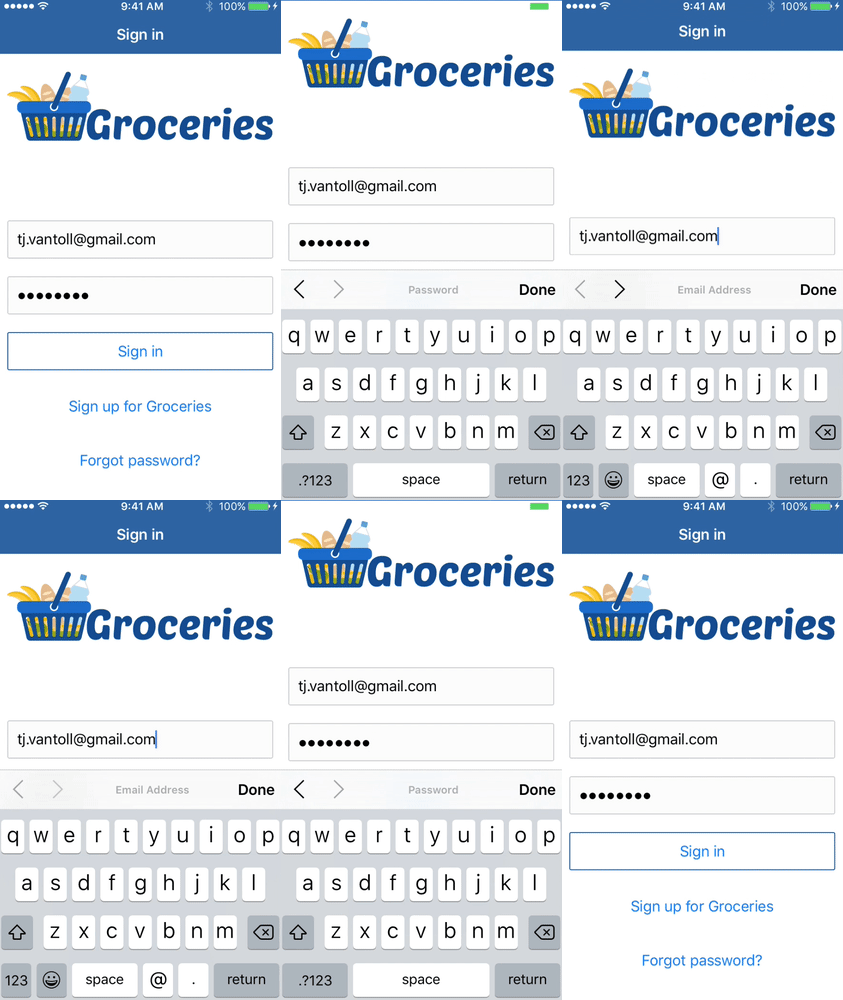
A NativeScript wrapper for the popular [IQKeyboardManager](https://cocoapods.org/pods/IQKeyboardManager) iOS framework, which provides an elegant solution for preventing the iOS keyboard from covering `UITextView` controls.
## Installation
To install the plugin, run the following command from the root folder of your project:
```cli
npm install @nativescript/iqkeyboardmanager
```
## Use @nativescript/iqkeyboardmanager
The following sections describe how to use the `@nativescript/iqkeyboardmanager` plugin in the different flavors that NativeScript supports.
> **Note** Make related text fields siblings for the IQKeyboardManager to automatically
add the `previous`(`<`) and `next`(`>`) buttons to the accessory bar. The user can then use those buttons to jump back and forth.
```
IQKeyboardToolbarManager.shared.isEnabled = true
```
### Adding a hint text to the TextView accessory bar
By default, when a `TextField` is focused, the keyboard manager shows the field's hint label in the accessory bar above the keyboard.
For a `TextView`, however, use the `TextViewWithHint` component,
provided by this plugin, to add the hint label to the accessory bar. Be sure to enable the toolbar:
```ts
IQKeyboardToolbarManager.shared.enableAutoToolbar = true;
```
#### Core
```xml
```
#### Angular
In the `.modules.ts` file where you want to use this feature (or the `app.module.ts`),
register the `TextViewWithHint` element:
```typescript
import { registerElement } from '@nativescript/angular';
import { TextViewWithHint } from '@nativescript/iqkeyboardmanager';
registerElement('TextViewWithHint', () => TextViewWithHint);
```
Then in the markup, use that element like this:
```html
```
#### Vue
Register the component.
```javascript
.registerElement('TextViewWithHint', () => require('@nativescript/iqkeyboardmanager').TextViewWithHint);
```
#### Svelte
Register the component.
```javascript
.registerNativeViewElement('textViewWithHint', () => require('@nativescript/iqkeyboardmanager').TextViewWithHint);
```
### React
1. Register the `TextViewWithHint` component.
```ts
interface PreviewNextViewAttributes extends ViewAttributes {
}
interface TextViewWithHintAttributes extends ViewAttributes {
text:string;
hint?: string
}
declare global {
module JSX {
interface IntrinsicElements {
/**
* If determining the GradientAttributes is too much work,
* you could substitute it for `any` type!
*/
previousNextView: NativeScriptProps,
textViewWithHint: NativeScriptProps
}
}
}
registerElement("previousNextView", ()=> require("@nativescript/iqkeyboardmanager").PreviousNextView)
registerElement("textViewWithHint", ()=> require("@nativescript/iqkeyboardmanager").TextViewWithHint)
```
2. Use `TextViewWithHint` in markup:
```xml
```
### Tweaking the appearance and behavior
1. Add the following path to your app’s `references.d.ts` file.
```xml
///
```
2. Initialize an instance of `IQKeyboardManager` as follows.
```typescript
const iqKeyboard = IQKeyboardManager.shared;
```
You now have the full IQKeyboardManager APIs available for you to use. For example, to switch to a dark keyboard you could use the following code.
```typescript
const iqKeyboard = IQKeyboardManager.shared;
const config = IQKeyboardAppearanceConfiguration.new();
config.appearance = UIKeyboardAppearance.Dark;
config.overrideAppearance = true;
iqKeyboard.keyboardConfiguration = config;
// Toolbar
iqKeyboard.enableAutoToolbar = true;
```
#### Multi-factor one-time code auto-fill
iOS has a feature where a text field's QuickType search suggestion bar can suggest `one-time` code values for multi-factor authentication that were texted to your device.
If the field is identified as a `one-time` code field, the suggestion will appear for about 3 minutes after being received. The user simply has to tap the suggestion to fill in the value — no short-term memorization or copy/paste gestures are required. Examples of message formats are:
- 123456 is your App Name code.
- 123456 is your App Name login code.
- 123456 is your App Name verification code.
To implement this functionality in your app, first declare `UITextContentTypeOneTimeCode` near the component imports:
```typescript
declare var UITextContentTypeOneTimeCode;
```
Then, set the field's `ios.textContentType` property:
```typescript
// This code assumes this.page exists as a reference to the current Page.
const mfaCodeField: TextField = this.page.getViewById(oneTimeCodeFieldName);
if (mfaCodeField !== null && mfaCodeField.ios) {
mfaCodeField.ios.textContentType = UITextContentTypeOneTimeCode;
}
```
There are other `textContentType` values you might want to use. You can read more about the property in [this article](https://medium.com/developerinsider/ios12-password-autofill-automatic-strong-password-and-security-code-autofill-6e7db8da1810).
## Native documentation
For more details on how IQKeyboardManager works, including more detailed API documentation, refer to [the library's CocoaPod page](https://cocoapods.org/pods/IQKeyboardManager).
## Maintainers
For maintainers of this plugin: when the [IQKeyboardManager Podfile](https://github.com/NativeScript/plugins/blob/main/packages/iqkeyboardmanager/platforms/ios/Podfile) updates, you should generate new typings for the plugin to reflect those changes.
To do so, execute these commands.
```bash
cd demo
TNS_DEBUG_METADATA_PATH="$(pwd)/metadata" tns build ios
TNS_TYPESCRIPT_DECLARATIONS_PATH="$(pwd)/typings" tns build ios
```
Next, locate IQKeyboardManager’s generated typings file in the `demo/typings` folder and override the `IQKeyboardManager.d.ts` file in this repo’s root.
## License
Apache License Version 2.0