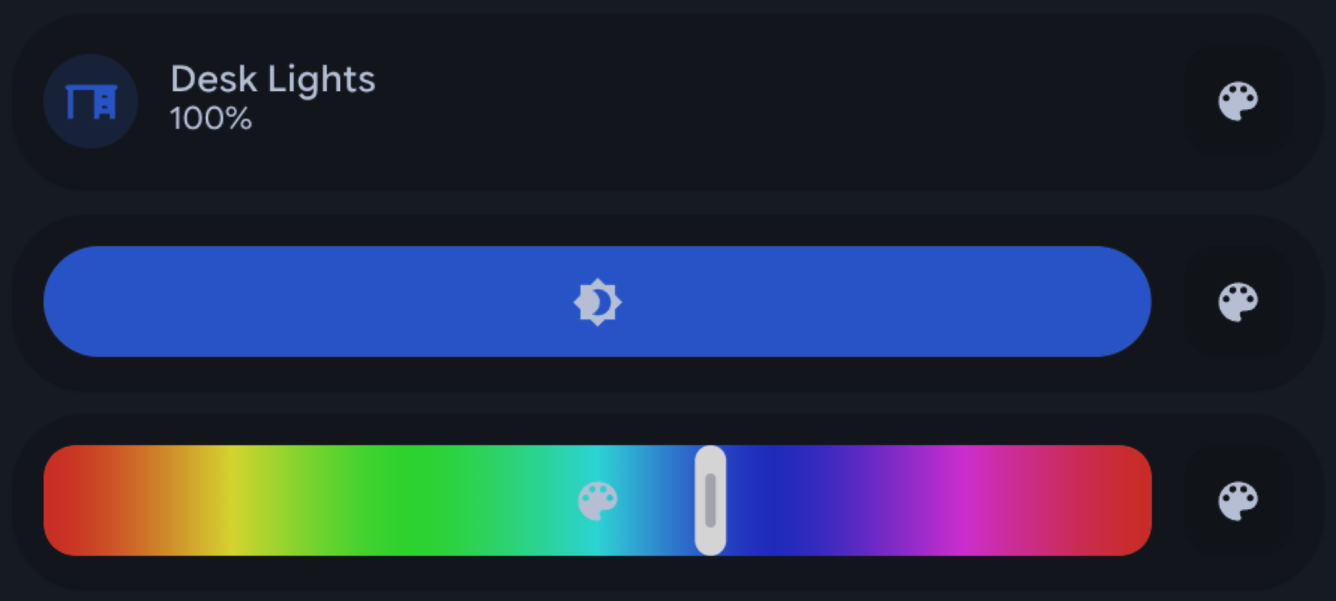
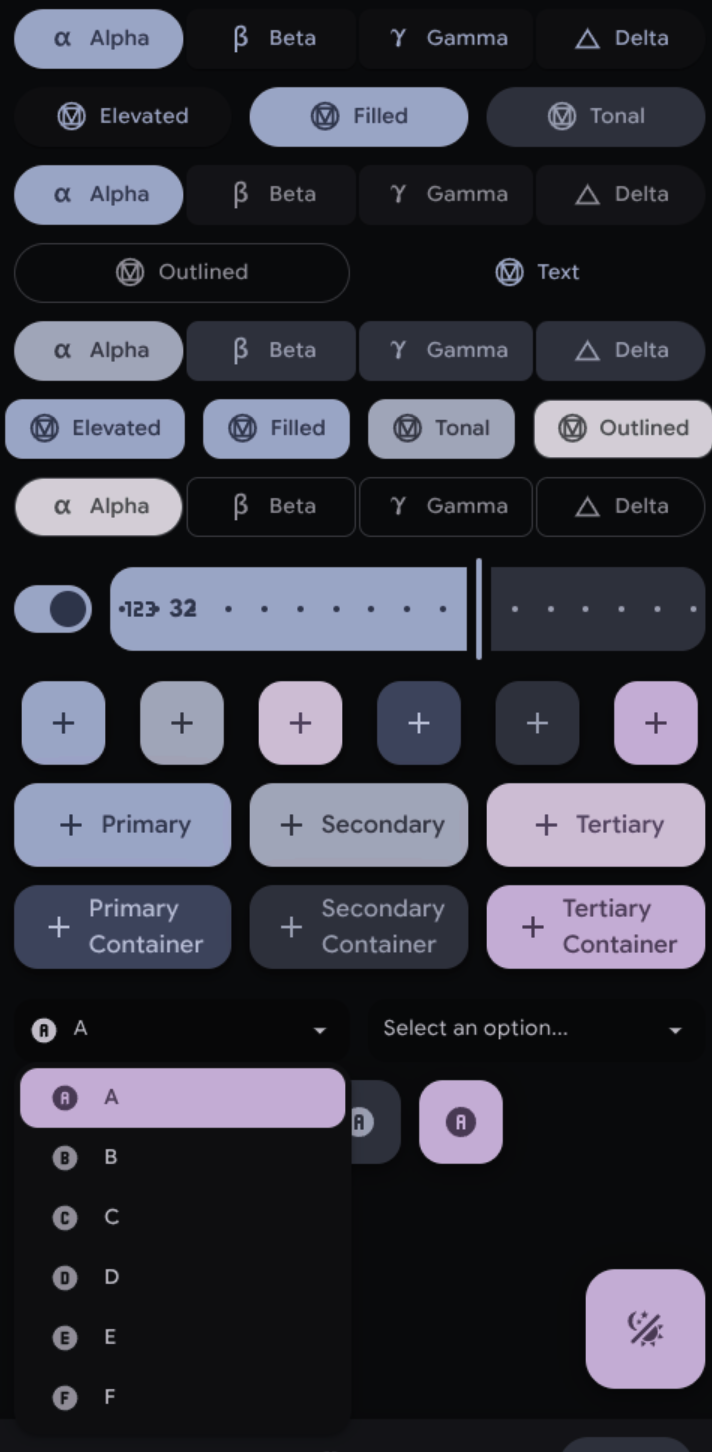
 Buttons, dropdowns, selectors, sliders, and toggles (and technically inputs which are already Material Design 3 friendly) have Material Design 3 variants designed using the [Material Design 3 specifications](https://m3.material.io/). While they can be used with any theme, they work best with Material You [Theme](https://github.com/Nerwyn/material-you-theme) and [Utilities](https://github.com/Nerwyn/material-you-utilities). These variants will follow theme palette colors rather than parent card colors.
To select one of these variants, use the `Type` dropdown menu in the feature's appearance panel.
# Feature Types
## Buttons
Buttons, dropdowns, selectors, sliders, and toggles (and technically inputs which are already Material Design 3 friendly) have Material Design 3 variants designed using the [Material Design 3 specifications](https://m3.material.io/). While they can be used with any theme, they work best with Material You [Theme](https://github.com/Nerwyn/material-you-theme) and [Utilities](https://github.com/Nerwyn/material-you-utilities). These variants will follow theme palette colors rather than parent card colors.
To select one of these variants, use the `Type` dropdown menu in the feature's appearance panel.
# Feature Types
## Buttons
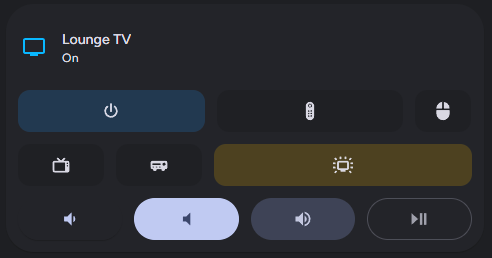 Buttons are the most basic type of custom feature, being based on the example provided in the Home Assistant developer documentation. In addition to tap actions, buttons also support double tap actions, hold actions, and an alternate momentary button mode. Buttons (like most features) can be given an icon and label, and further stylized with custom CSS.
## Dropdowns
Buttons are the most basic type of custom feature, being based on the example provided in the Home Assistant developer documentation. In addition to tap actions, buttons also support double tap actions, hold actions, and an alternate momentary button mode. Buttons (like most features) can be given an icon and label, and further stylized with custom CSS.
## Dropdowns
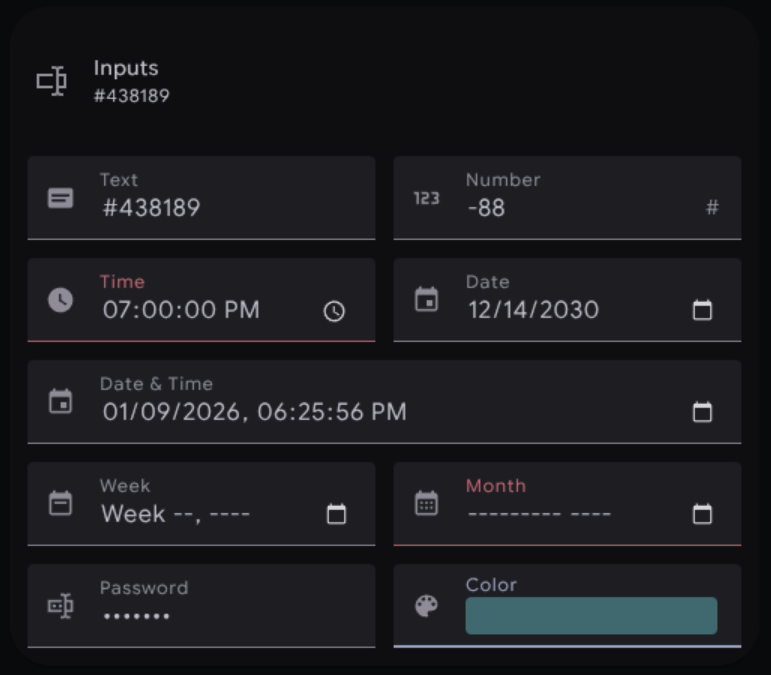 Inputs allow you to create Home Assistant stylized and optimized [HTML input elements](https://developer.mozilla.org/en-US/docs/Web/HTML/Reference/Elements/input). Visually they are similar to those found when you add an input text entity to an entities card. Technically they support all input types, although only a subset will be available through the configuration UI as most of the others are redundant or better handled by other custom card features.
You can provide it with an action, which will fire when you press the `Enter` or `Tab` key or when you complete using the browser dialog for the input type. You can cancel your action by pressing `Escape`. All input type can be given a range, with defaults being provided for each input type. Number inputs can also be provided a step. Most input types can be provided with a range. If the input value falls outside of this range, then the feature will be highlighted with error colors and it will not fire an action until its value passes validation.
## Selectors
Inputs allow you to create Home Assistant stylized and optimized [HTML input elements](https://developer.mozilla.org/en-US/docs/Web/HTML/Reference/Elements/input). Visually they are similar to those found when you add an input text entity to an entities card. Technically they support all input types, although only a subset will be available through the configuration UI as most of the others are redundant or better handled by other custom card features.
You can provide it with an action, which will fire when you press the `Enter` or `Tab` key or when you complete using the browser dialog for the input type. You can cancel your action by pressing `Escape`. All input type can be given a range, with defaults being provided for each input type. Number inputs can also be provided a step. Most input types can be provided with a range. If the input value falls outside of this range, then the feature will be highlighted with error colors and it will not fire an action until its value passes validation.
## Selectors
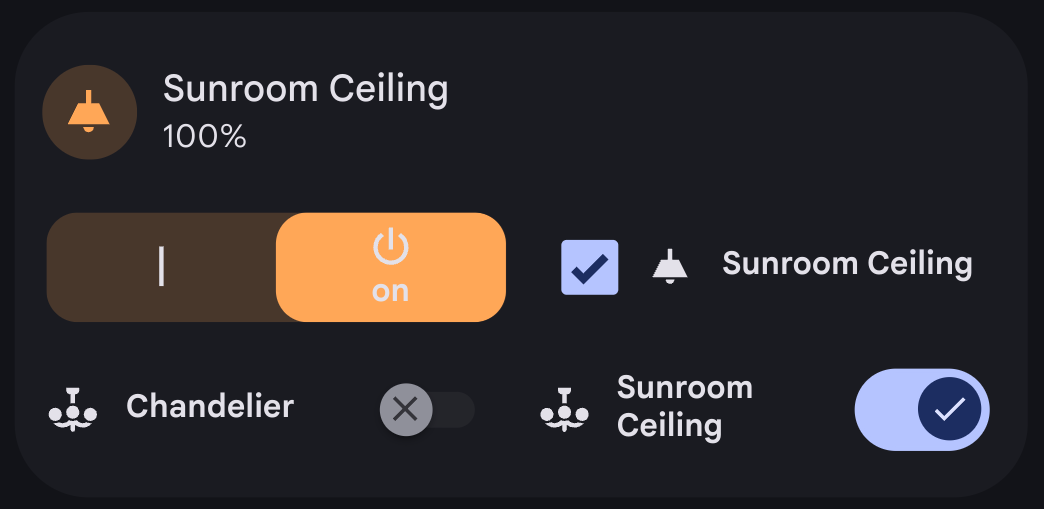 Toggles allow you to create Home Assistant style toggles, similar to the default switch and light entity toggle features. Like the default toggle, you can either tap or swipe on it in the correct direction to activate it. While toggles work best with `toggle` actions, like all features in this project it can be used with any action. You can use templates to change the toggle on and off options.
Toggles have a special template variable `checked`. `checked` gives you the current boolean value of the feature. By default this value is true if the feature value is in the allow list `true, yes, on, enable, enabled, open, opening, 1` or if its numeric cast is greater than 0. You can disable numeric checks and switch to checking a block list `false, no, off, disable, disabled, closed, closing, 0, undefined, null` using the configuration UI. You can also set a custom allow/block list.
Toggles feature three icons! There's the icon normally shown alongside the label, and additional checked and unchecked icons. For the default toggle the normal icon and label will appear on the toggle thumb while the checked/unchecked icons will appear in the toggle background. For the Material Design toggle options, the normal icon and label will appear inline with the checkbox/switch, and the checked/unchecked icons will appear within the checkbox or on the switch thumb.
# How To Use
This project now has a fully featured configuration user interface! To get started, install this project using HACS. Then go to a dashboard and create a tile card, or any other card that supports card features. The entity ID can be anything you like. Click `Add feature` and then `Custom features row`
All custom features are encapsulated in a custom features row. This allows you to add multiple custom features to a row, apply overall CSS styles, and change the widths of features in the row relative to each other using the `flex-basis` CSS property. You can add a custom features row just like any default feature, except that this feature is available for all entities.
Toggles allow you to create Home Assistant style toggles, similar to the default switch and light entity toggle features. Like the default toggle, you can either tap or swipe on it in the correct direction to activate it. While toggles work best with `toggle` actions, like all features in this project it can be used with any action. You can use templates to change the toggle on and off options.
Toggles have a special template variable `checked`. `checked` gives you the current boolean value of the feature. By default this value is true if the feature value is in the allow list `true, yes, on, enable, enabled, open, opening, 1` or if its numeric cast is greater than 0. You can disable numeric checks and switch to checking a block list `false, no, off, disable, disabled, closed, closing, 0, undefined, null` using the configuration UI. You can also set a custom allow/block list.
Toggles feature three icons! There's the icon normally shown alongside the label, and additional checked and unchecked icons. For the default toggle the normal icon and label will appear on the toggle thumb while the checked/unchecked icons will appear in the toggle background. For the Material Design toggle options, the normal icon and label will appear inline with the checkbox/switch, and the checked/unchecked icons will appear within the checkbox or on the switch thumb.
# How To Use
This project now has a fully featured configuration user interface! To get started, install this project using HACS. Then go to a dashboard and create a tile card, or any other card that supports card features. The entity ID can be anything you like. Click `Add feature` and then `Custom features row`
All custom features are encapsulated in a custom features row. This allows you to add multiple custom features to a row, apply overall CSS styles, and change the widths of features in the row relative to each other using the `flex-basis` CSS property. You can add a custom features row just like any default feature, except that this feature is available for all entities.
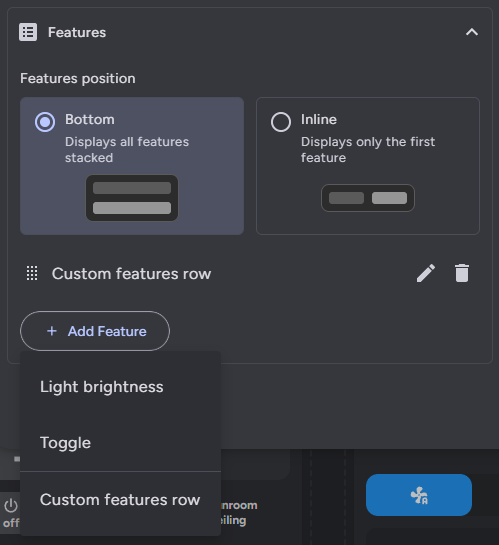 Within a custom features row you can add individual features using the add custom feature button. This works just like the top level add feature button but just for custom features. Each feature will look like a blank rectangle to start. Features can be reordered, copied, edited, and deleted from here.
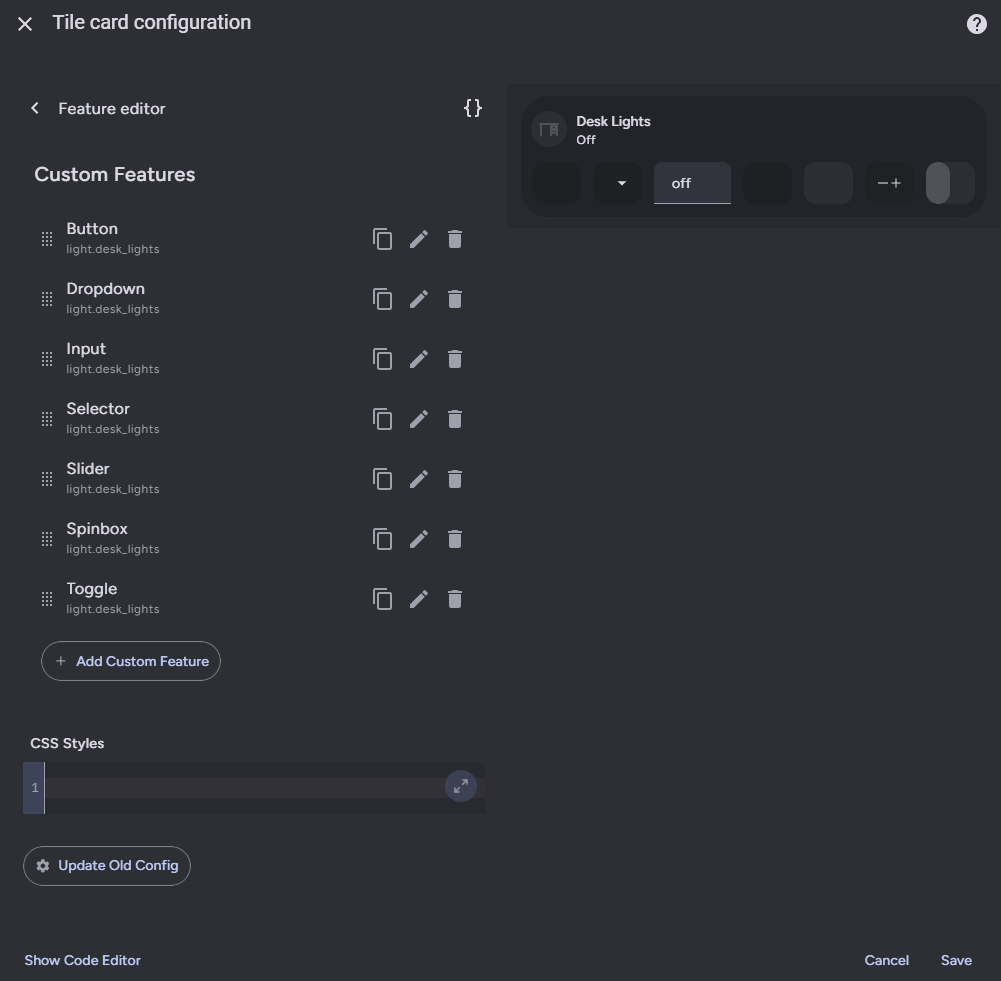 You can also add CSS styles for the entire row here. CSS styles have to be encapsulated in a CSS selector like so.
```css
:host {
--mdc-icon-size: 32px;
}
```
By default, features will autofill with its parent's entity information for tracking its internal state when you click the autofill button in the header. Other information such as its icon, unit of measurement, and action will also autofill if available.
Haptics can be toggled on and off for each feature, defaulting to off.
## General Options
You can also add CSS styles for the entire row here. CSS styles have to be encapsulated in a CSS selector like so.
```css
:host {
--mdc-icon-size: 32px;
}
```
By default, features will autofill with its parent's entity information for tracking its internal state when you click the autofill button in the header. Other information such as its icon, unit of measurement, and action will also autofill if available.
Haptics can be toggled on and off for each feature, defaulting to off.
## General Options
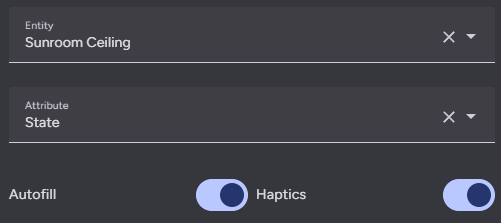 Every feature can have an entity assigned to it, which is used to track its internal value. This value can then be used in styles and actions using templates, like `{{ value | float }}` By default the value will be derived from the entity state, but it can be changed to an attribute use the corresponding field.
Some additional logic is applied for certain attributes:
- `brightness` - Converted from the default range of 0-255 to 0-100.
- `media_position` - Updated twice a second using the current timestamp and the attribute `media_position_updated_at` when the entity state is `playing`, and locked to a max value using the attribute `media_duration`.
- `elapsed` - Only for timer entities. Updated twice a second using the the current timestamp and the attributes `duration`, `remaining`, and `finishes_at`, and locked to a max value using the attribute `duration`.
- **Note**: `elapsed` is not an actual attribute of timer entities, but is a possible `value_attribute` for timer entities for the purpose of displaying accurate timer elapsed values. Timer entities do have an attribute `remaining`, which only updates when the timer state changes. The actual `remaining` attribute can be calculated using the `elapsed` value and the timer `duration` attribute.
If you do not set a feature entity, you can instead set the feature value using a template in the value template field. This template is not used if entity ID is set, even if that entity ID does not exist or it's state or attribute is undefined, it is only used if no entity is set at all.
Haptics are disabled for features by default, but can be toggled on at the feature level.
### Input, Slider, and Spinbox General Options
Every feature can have an entity assigned to it, which is used to track its internal value. This value can then be used in styles and actions using templates, like `{{ value | float }}` By default the value will be derived from the entity state, but it can be changed to an attribute use the corresponding field.
Some additional logic is applied for certain attributes:
- `brightness` - Converted from the default range of 0-255 to 0-100.
- `media_position` - Updated twice a second using the current timestamp and the attribute `media_position_updated_at` when the entity state is `playing`, and locked to a max value using the attribute `media_duration`.
- `elapsed` - Only for timer entities. Updated twice a second using the the current timestamp and the attributes `duration`, `remaining`, and `finishes_at`, and locked to a max value using the attribute `duration`.
- **Note**: `elapsed` is not an actual attribute of timer entities, but is a possible `value_attribute` for timer entities for the purpose of displaying accurate timer elapsed values. Timer entities do have an attribute `remaining`, which only updates when the timer state changes. The actual `remaining` attribute can be calculated using the `elapsed` value and the timer `duration` attribute.
If you do not set a feature entity, you can instead set the feature value using a template in the value template field. This template is not used if entity ID is set, even if that entity ID does not exist or it's state or attribute is undefined, it is only used if no entity is set at all.
Haptics are disabled for features by default, but can be toggled on at the feature level.
### Input, Slider, and Spinbox General Options
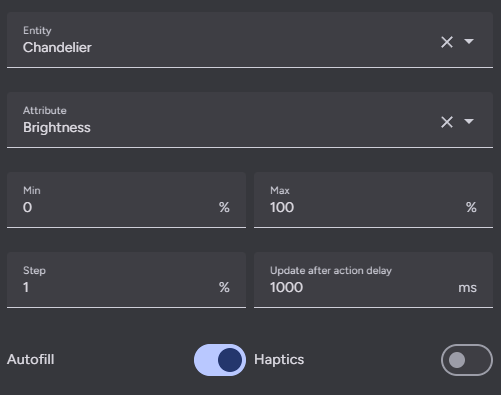 Inputs, sliders, and spinboxes have some additional general options. Both can have range `Min` and `Max` values defined by the user. These values default to 0 and 100 for sliders, spinboxes, and some input types. Sliders, spinboxes, and number type inputs can also have a `Step` size defined, which defaults to 1.
Inputs, sliders, and spinboxes will wait one second before updating their internal values from Home Assistant. This time can be changed by setting `Update after action delay`. Spinboxes will wait to fire their actions until a set amount of time after their buttons have stopped being pressed. This time defaults to one second and can be changed by setting `Debounce time`.
Inputs also have an Input Type field, which can be used to choose between many of the HTML input element types that have been optimized for use with this feature.
### Dropdown and Selector Options
Inputs, sliders, and spinboxes have some additional general options. Both can have range `Min` and `Max` values defined by the user. These values default to 0 and 100 for sliders, spinboxes, and some input types. Sliders, spinboxes, and number type inputs can also have a `Step` size defined, which defaults to 1.
Inputs, sliders, and spinboxes will wait one second before updating their internal values from Home Assistant. This time can be changed by setting `Update after action delay`. Spinboxes will wait to fire their actions until a set amount of time after their buttons have stopped being pressed. This time defaults to one second and can be changed by setting `Debounce time`.
Inputs also have an Input Type field, which can be used to choose between many of the HTML input element types that have been optimized for use with this feature.
### Dropdown and Selector Options
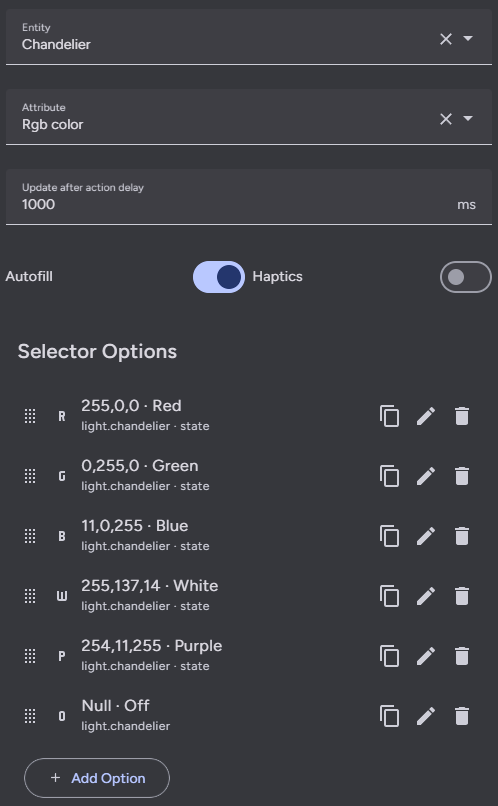 Dropdowns and selectors are made up of options, which can be added to, reordered, copied, deleted, and edited from a list similar to the overall features or custom features in a row. Dropdowns have dropdown options which can each have a single action, and selectors have buttons which can have multiple different actions.
Like sliders and spinboxes, selectors have a one second delay before updating their internal values from Home Assistant, which can be adjusted using `Update after action delay`.
Dropdowns can also be assigned their own default icon and label. When no option is selected, the default icon and label are used.
#### Dynamic Options
Instead of manually defining every option, a dropdown or selector can generate its options from a list. Change `Option mode` to `Entity attribute` to use an entity attribute value as the options list, or `Template` to define the options list using a template. When in template mode, the template result can either be a list of option value strings or partial option config objects.
Each feature option will be generated using the items from the option list and the `Option template`, which you can modify. Use the template variable `option` to reference the current option list item.
When using an entity attribute to define the option list, the option template action will be autofilled if identified.
### Toggle General Options
Dropdowns and selectors are made up of options, which can be added to, reordered, copied, deleted, and edited from a list similar to the overall features or custom features in a row. Dropdowns have dropdown options which can each have a single action, and selectors have buttons which can have multiple different actions.
Like sliders and spinboxes, selectors have a one second delay before updating their internal values from Home Assistant, which can be adjusted using `Update after action delay`.
Dropdowns can also be assigned their own default icon and label. When no option is selected, the default icon and label are used.
#### Dynamic Options
Instead of manually defining every option, a dropdown or selector can generate its options from a list. Change `Option mode` to `Entity attribute` to use an entity attribute value as the options list, or `Template` to define the options list using a template. When in template mode, the template result can either be a list of option value strings or partial option config objects.
Each feature option will be generated using the items from the option list and the `Option template`, which you can modify. Use the template variable `option` to reference the current option list item.
When using an entity attribute to define the option list, the option template action will be autofilled if identified.
### Toggle General Options
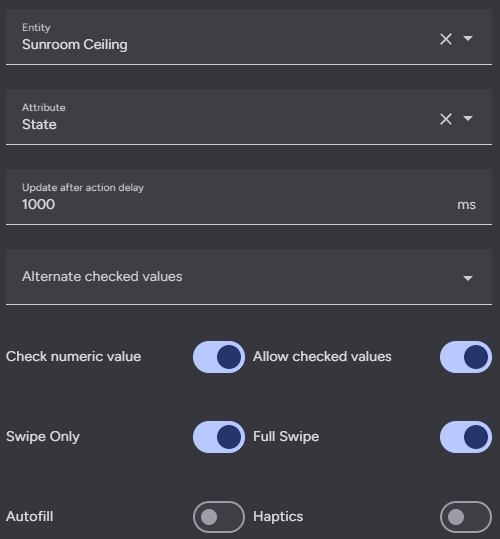 While toggles are fairly simple, custom toggles have some extra options so you can customize their behavior. By default a toggle is considered on/checked if its value (entity's state or attribute) is in the list `true, yes, on, enable, enabled, open, opening, 1`, or if its numeric cast is greater than zero. You can disable the numeric cast check with the option `Check numeric value`. You can also change the toggle check behavior to instead set the toggle state to off/unchecked if its value is in the list `false, no, off, disable, disabled, closed, closing, 0, undefined, null` using the option `Allow/Block checked values`. If you want to make your toggle change its state based on a value not in either of these lists or a limited list, you can use the `Alternate checked values` box to create an alternate allow or block list.
For default toggles and default styled custom toggles, you can swipe on them in the correct direction in addition to tapping them to actuate them. You can make it so that default styled custom toggles only activate on swipe. In addition to this, you can enable full swipe mode, where the toggle thumb will move as you drag it and will only activate if you drag it all the way to the other end of the toggle track. This makes it perform like a "swipe to unlock" switch.
## Appearance
While toggles are fairly simple, custom toggles have some extra options so you can customize their behavior. By default a toggle is considered on/checked if its value (entity's state or attribute) is in the list `true, yes, on, enable, enabled, open, opening, 1`, or if its numeric cast is greater than zero. You can disable the numeric cast check with the option `Check numeric value`. You can also change the toggle check behavior to instead set the toggle state to off/unchecked if its value is in the list `false, no, off, disable, disabled, closed, closing, 0, undefined, null` using the option `Allow/Block checked values`. If you want to make your toggle change its state based on a value not in either of these lists or a limited list, you can use the `Alternate checked values` box to create an alternate allow or block list.
For default toggles and default styled custom toggles, you can swipe on them in the correct direction in addition to tapping them to actuate them. You can make it so that default styled custom toggles only activate on swipe. In addition to this, you can enable full swipe mode, where the toggle thumb will move as you drag it and will only activate if you drag it all the way to the other end of the toggle track. This makes it perform like a "swipe to unlock" switch.
## Appearance
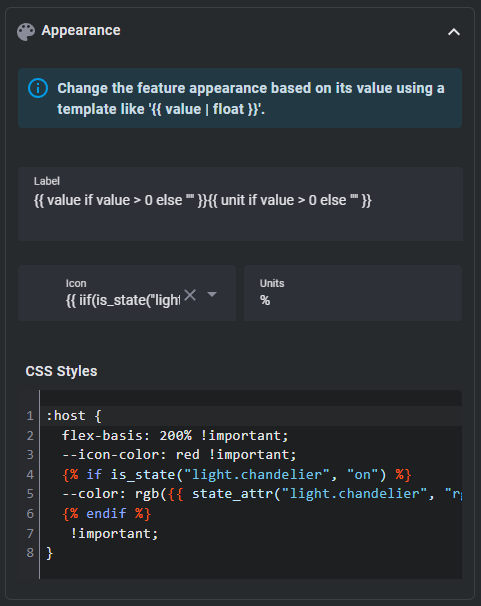 All features can have a `Label`, `Icon`, and `Units` (dropdowns and selectors support these fields at the option level). These fields can also be set using templates. Like the overall custom features row, each custom feature can have its CSS styles set (including using templates).
Toggles have two extra icons for checked and unchecked states. These icons appear in the background of the default toggle, within the box of the checkbox toggle, and on the thumb of the switch toggles.
Buttons, dropdowns, selectors, sliders, and toggles have design variants that can be changed here. These are based off of variants found within Home Assistant and Material Design. Some Material Design 3 button variants also support toggle styles (not to be confused with toggles, which have more in depth boolean logic) to style the button differently if its state is `off` or `on`.
### A Note on Templating
Almost all fields support nunjucks templating. Nunjucks is a templating engine for JavaScript, which is heavily based on the jinja2 templating engine for Python which Home Assistant uses. While the syntax of nunjucks and jinja2 is almost identical, you may find the [nunjucks documentation](https://mozilla.github.io/nunjucks/templating.html) useful. Most extensions supported by Home Assistant templates are supported by this templating system, but not all and the syntax may vary. Please see the [ha-nunjucks](https://github.com/Nerwyn/ha-nunjucks) repository for a list of available extensions. If you want additional extensions to be added or have templating questions or bugs, please make an issue or discussion on that repository, not this one.
You can include the current value of a feature and its units by using the variables `value` and `unit` in a label template. You can also include `hold_secs` in a template if performing a momentary repeat or end action. For toggles you can use the boolean variable `checked` to check whether the toggle is on or off. For dropdown and selector options you can use the variable `option` to reference an option's option. Each custom feature can also reference its entry using `config` within templates. `config.entity` and `config.attribute` will return the features entity ID and attribute with their templates rendered (if they have them), and other templated config fields can be rendered within templates by wrapping them in the function `render` within a template. Information about the parent card such as its entity ID, state, and attributes can be accessed using `stateObj`. The structure of `stateObj` matches the [Home Assistant websocket `HassEntity` type definition](https://github.com/home-assistant/home-assistant-js-websocket/blob/1d51737f6092b95e2bc98e85aca752771b97b760/lib/types.ts#L72-L96) and is listed below.
All features can have a `Label`, `Icon`, and `Units` (dropdowns and selectors support these fields at the option level). These fields can also be set using templates. Like the overall custom features row, each custom feature can have its CSS styles set (including using templates).
Toggles have two extra icons for checked and unchecked states. These icons appear in the background of the default toggle, within the box of the checkbox toggle, and on the thumb of the switch toggles.
Buttons, dropdowns, selectors, sliders, and toggles have design variants that can be changed here. These are based off of variants found within Home Assistant and Material Design. Some Material Design 3 button variants also support toggle styles (not to be confused with toggles, which have more in depth boolean logic) to style the button differently if its state is `off` or `on`.
### A Note on Templating
Almost all fields support nunjucks templating. Nunjucks is a templating engine for JavaScript, which is heavily based on the jinja2 templating engine for Python which Home Assistant uses. While the syntax of nunjucks and jinja2 is almost identical, you may find the [nunjucks documentation](https://mozilla.github.io/nunjucks/templating.html) useful. Most extensions supported by Home Assistant templates are supported by this templating system, but not all and the syntax may vary. Please see the [ha-nunjucks](https://github.com/Nerwyn/ha-nunjucks) repository for a list of available extensions. If you want additional extensions to be added or have templating questions or bugs, please make an issue or discussion on that repository, not this one.
You can include the current value of a feature and its units by using the variables `value` and `unit` in a label template. You can also include `hold_secs` in a template if performing a momentary repeat or end action. For toggles you can use the boolean variable `checked` to check whether the toggle is on or off. For dropdown and selector options you can use the variable `option` to reference an option's option. Each custom feature can also reference its entry using `config` within templates. `config.entity` and `config.attribute` will return the features entity ID and attribute with their templates rendered (if they have them), and other templated config fields can be rendered within templates by wrapping them in the function `render` within a template. Information about the parent card such as its entity ID, state, and attributes can be accessed using `stateObj`. The structure of `stateObj` matches the [Home Assistant websocket `HassEntity` type definition](https://github.com/home-assistant/home-assistant-js-websocket/blob/1d51737f6092b95e2bc98e85aca752771b97b760/lib/types.ts#L72-L96) and is listed below.
::after
::after
```
#### Selector CSS Attributes and HTML
| Name | Description |
| --------------- | ------------------------------------------------- |
| --color | Hover and selected background color of an option. |
| --hover-opacity | Opacity to use when hovering over an option. |
```html
::before
::before
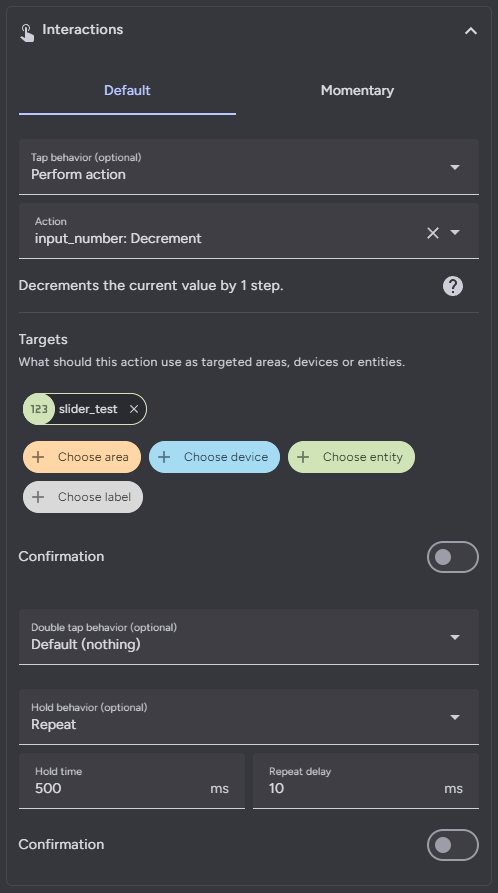 Each action also supports the `confirmation` field. More information on Home Assistant action confirmations can be found [here](https://www.home-assistant.io/dashboards/actions/#options-for-confirmation).
When setting the action certain features like the slider, you must use `value` within a template in the action data to use the feature value in action. Click the visual/code editor button toggle in the feature editor header to show the yaml config for just this feature.
Each action also supports the `confirmation` field. More information on Home Assistant action confirmations can be found [here](https://www.home-assistant.io/dashboards/actions/#options-for-confirmation).
When setting the action certain features like the slider, you must use `value` within a template in the action data to use the feature value in action. Click the visual/code editor button toggle in the feature editor header to show the yaml config for just this feature.
 ### Action Types
Actions follow the [Home Assistant actions](https://www.home-assistant.io/dashboards/actions/) syntax. All Home Assistant actions are supported along with some additional ones.
| Action | Description |
| -------------- | ---------------------------------------------------------------------------------------------------------------------------------------------------------------------------------------------------------------------------------------------------------------------------------------------------------------------------------------------------------------------------------------------------------------------------------- |
| More info | Open the more info dialog. |
| Toggle | Toggle between the target's on and off (or similar) states. |
| Navigate | Navigate to another Home Assistant page. |
| URL | Navigate to an external URL. |
| Perform action | Call any Home Assistant service action. |
| Assist | Open the assist dialog. Uses the mobile dialog if available, like in the Home Assistant app. The pipeline ID and start listening options only work in the mobile assist dialog. |
| Fire DOM event | Fire a browser dom event using the action object as the event detail. Useful for opening [browser mod popup cards](https://github.com/thomasloven/hass-browser_mod?tab=readme-ov-file#how-do-i-update-a-popup-from-the-browser-mod-15) and for [setting custom features attributes](#setting-and-using-attributes). **Note**: Home Assistant hardcodes the event type to `ll-custom`. For other events use the `event_type` field. |
| Evaluate JS | Evaluate a string as JavaScript code. You have access to the custom feature via `this`, which includes `this.hass`, `this.config`, and `this.value`. **Potentially dangerous, do not do something dumb like call actions in a loop with no delay which can crash your browser or server.** |
| Repeat | Repeat the tap action ten times a second while held. Only applicable to hold. |
| No action | Explicilty set a command to do nothing. |
The entire action `data` and `target` fields are templatable, meaning that you can define the entire field as a YAML string in a template like so:
```yaml
action: light.turn_{{ iif(checked, 'on', 'off') }}
data: |
{% if checked %}
brightness_pct: 100
{% endif %}
```
### Adjustable Timings
Double tap and hold actions have user adjustable timings to change how they are triggered.
#### Hold Time
Hold actions are triggered by holding down on a button for a defined amount of time and then releasing. The default amount of time is 500ms. You can change this by setting `Hold time` in the hold action to a different number.
#### Repeat and Repeat Delay
By setting a hold action to `repeat`, the tap action will repeat while the button is held down. The default delay between repeats is 100ms. You can change this by setting `Repeat delay` in the hold action to a different number. See the below section on [repeat](#repeat) for more.
#### Double Tap Window
Double tap actions have a default window of 200ms to trigger before a single tap action is triggered instead. You can change this by setting `Double tap window` in the double tap action to a different number.
**Note**: Setting `Double tap window` above or too close to `Hold time` can result in undesirable behavior, as the hold timer expires before the double tap timer does. If you increase the `Double tap window` you should also increase `Hold time` to not be too close to it by at least 100ms if not more. In a custom feature without a hold action defined, you can set `Hold behavior` explicitly to `Nothing` to render the `Hold time` field.
### Momentary Button mode
### Action Types
Actions follow the [Home Assistant actions](https://www.home-assistant.io/dashboards/actions/) syntax. All Home Assistant actions are supported along with some additional ones.
| Action | Description |
| -------------- | ---------------------------------------------------------------------------------------------------------------------------------------------------------------------------------------------------------------------------------------------------------------------------------------------------------------------------------------------------------------------------------------------------------------------------------- |
| More info | Open the more info dialog. |
| Toggle | Toggle between the target's on and off (or similar) states. |
| Navigate | Navigate to another Home Assistant page. |
| URL | Navigate to an external URL. |
| Perform action | Call any Home Assistant service action. |
| Assist | Open the assist dialog. Uses the mobile dialog if available, like in the Home Assistant app. The pipeline ID and start listening options only work in the mobile assist dialog. |
| Fire DOM event | Fire a browser dom event using the action object as the event detail. Useful for opening [browser mod popup cards](https://github.com/thomasloven/hass-browser_mod?tab=readme-ov-file#how-do-i-update-a-popup-from-the-browser-mod-15) and for [setting custom features attributes](#setting-and-using-attributes). **Note**: Home Assistant hardcodes the event type to `ll-custom`. For other events use the `event_type` field. |
| Evaluate JS | Evaluate a string as JavaScript code. You have access to the custom feature via `this`, which includes `this.hass`, `this.config`, and `this.value`. **Potentially dangerous, do not do something dumb like call actions in a loop with no delay which can crash your browser or server.** |
| Repeat | Repeat the tap action ten times a second while held. Only applicable to hold. |
| No action | Explicilty set a command to do nothing. |
The entire action `data` and `target` fields are templatable, meaning that you can define the entire field as a YAML string in a template like so:
```yaml
action: light.turn_{{ iif(checked, 'on', 'off') }}
data: |
{% if checked %}
brightness_pct: 100
{% endif %}
```
### Adjustable Timings
Double tap and hold actions have user adjustable timings to change how they are triggered.
#### Hold Time
Hold actions are triggered by holding down on a button for a defined amount of time and then releasing. The default amount of time is 500ms. You can change this by setting `Hold time` in the hold action to a different number.
#### Repeat and Repeat Delay
By setting a hold action to `repeat`, the tap action will repeat while the button is held down. The default delay between repeats is 100ms. You can change this by setting `Repeat delay` in the hold action to a different number. See the below section on [repeat](#repeat) for more.
#### Double Tap Window
Double tap actions have a default window of 200ms to trigger before a single tap action is triggered instead. You can change this by setting `Double tap window` in the double tap action to a different number.
**Note**: Setting `Double tap window` above or too close to `Hold time` can result in undesirable behavior, as the hold timer expires before the double tap timer does. If you increase the `Double tap window` you should also increase `Hold time` to not be too close to it by at least 100ms if not more. In a custom feature without a hold action defined, you can set `Hold behavior` explicitly to `Nothing` to render the `Hold time` field.
### Momentary Button mode
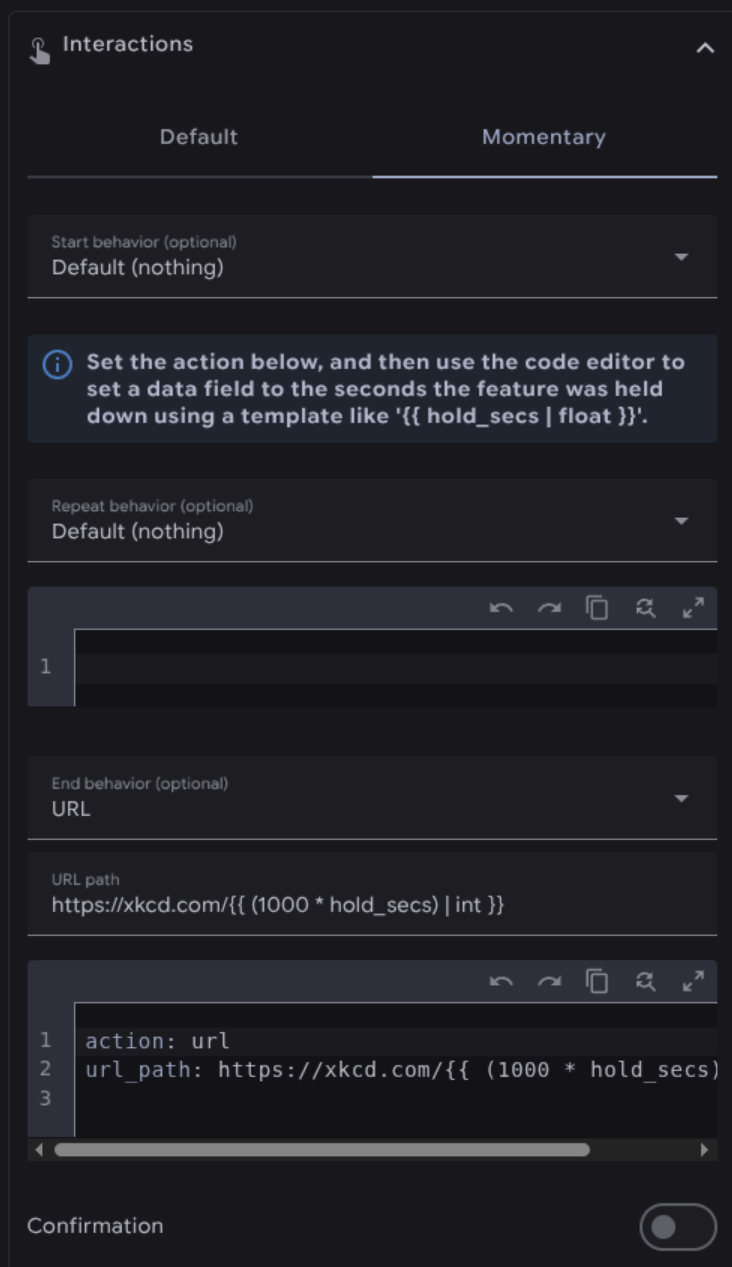 As an alternative to normal tap, hold, and double tap actions, buttons, including those within selectors and spinboxes, can also be used in a momentary mode. Configuring this option disables the normal tap, hold, and double tap actions.
The momentary start action is fired when you first press down on a button. The momentary end action is fired when you release the button. Similarly to repeat hold action, the momentary repeat action is held when you hold down on the button for a set number of milliseconds. Unlike the repeat hold action, it can be different from the momentary start action. These actions can be used together or separately.
For momentary repeat and end actions you can include the number of seconds a button has been held down using `hold_secs` in a template. Click the visual/code editor button toggle in the feature editor header to show the yaml config for just this feature.
### Setting and Using Attributes
You can use the `Fire DOM event` action to set attributes on custom features rows and custom features cards. You can then use CSS to apply custom styles to custom features based on these attributes.
```yaml
action: fire-dom-event
event_type: cf-attributes
attributes:
button: ''
slider:
- brightness
- color
```
Setting an attribute value to a string like `button` in the example above will add it to the parent row. Setting it to an array like `slider` in the example above will cycle through the values in the array, removing it once it cycles through all values. If you want to set attributes without removing them, use a string value. If you want to toggle the attribute or cycle through attribute values, use an array value.
# YAML Examples
While all configuration can now be done through the user interface, these YAML examples can provide some insight on how to do some advanced styling and templating.
## Example 1
A lock tile with a toggle.
As an alternative to normal tap, hold, and double tap actions, buttons, including those within selectors and spinboxes, can also be used in a momentary mode. Configuring this option disables the normal tap, hold, and double tap actions.
The momentary start action is fired when you first press down on a button. The momentary end action is fired when you release the button. Similarly to repeat hold action, the momentary repeat action is held when you hold down on the button for a set number of milliseconds. Unlike the repeat hold action, it can be different from the momentary start action. These actions can be used together or separately.
For momentary repeat and end actions you can include the number of seconds a button has been held down using `hold_secs` in a template. Click the visual/code editor button toggle in the feature editor header to show the yaml config for just this feature.
### Setting and Using Attributes
You can use the `Fire DOM event` action to set attributes on custom features rows and custom features cards. You can then use CSS to apply custom styles to custom features based on these attributes.
```yaml
action: fire-dom-event
event_type: cf-attributes
attributes:
button: ''
slider:
- brightness
- color
```
Setting an attribute value to a string like `button` in the example above will add it to the parent row. Setting it to an array like `slider` in the example above will cycle through the values in the array, removing it once it cycles through all values. If you want to set attributes without removing them, use a string value. If you want to toggle the attribute or cycle through attribute values, use an array value.
# YAML Examples
While all configuration can now be done through the user interface, these YAML examples can provide some insight on how to do some advanced styling and templating.
## Example 1
A lock tile with a toggle.
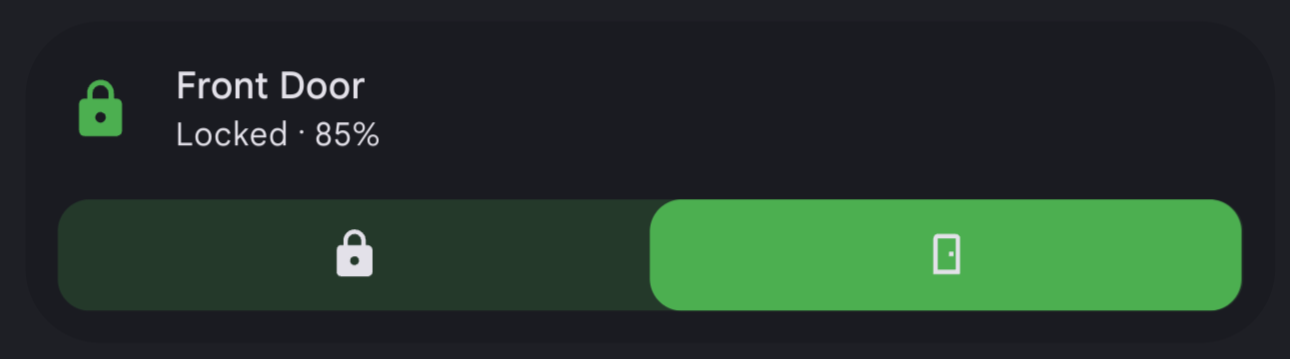
Config
```yaml features: - type: custom:service-call entries: - type: toggle entity_id: lock.front_door_ble value_attribute: state styles: |- :host { --color: var(--feature-color); } tap_action: action: toggle target: entity_id: lock.front_door_ble data: {} checked_values: - locked checked_icon: mdi:lock unchecked_icon: mdi:lock-open-outline icon: mdi:door type: tile entity: lock.front_door_ble show_entity_picture: false vertical: false layout_options: grid_columns: 4 grid_rows: 2 features_position: bottom card_mod: style: ha-tile-info$: | .secondary:after { visibility: visible; content: " ⸱ {{ states('sensor.front_door_battery_level') }}%"; } ```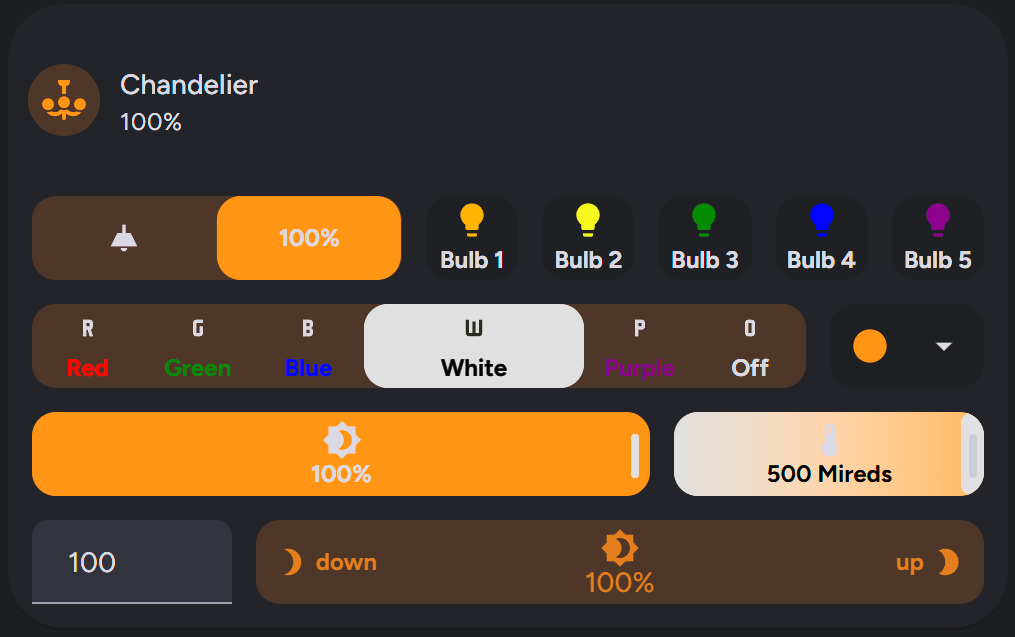
Config
```yaml type: tile layout_options: grid_columns: 4 grid_rows: 5 entity: light.chandelier vertical: false icon_tap_action: action: perform-action perform_action: light.toggle target: entity_id: light.chandelier confirmation: true features: - type: custom:service-call entries: - type: toggle tap_action: action: perform-action confirmation: text: >- Are you sure you want to turn the light {{ 'on' if checked else 'off' }}? exemptions: [] target: entity_id: - light.chandelier perform_action: light.turn_{{ 'on' if checked else 'off' }} data: | {% if checked %} kelvin: 2000 {% endif %} icon: '' label: >- {{ value if checked else states(config.entity) }}{{ unit if checked else "" }} value_attribute: brightness unit_of_measurement: '%' entity_id: light.chandelier styles: |- :host { flex-basis: 400%; } haptics: true unchecked_icon: mdi:ceiling-light-outline checked_icon: mdi:ceiling-light - tap_action: action: call-service service: light.toggle target: entity_id: light.chandelier_bulb_1 icon: mdi:lightbulb label: Bulb 1 entity_id: light.chandelier type: button value_attribute: state styles: |- :host { --icon-color: orange; } - tap_action: action: call-service service: light.toggle target: entity_id: light.chandelier_bulb_2 icon: mdi:lightbulb label: Bulb 2 entity_id: light.chandelier type: button value_attribute: state styles: |- :host { --icon-color: yellow; } - tap_action: action: call-service service: light.toggle target: entity_id: light.chandelier_bulb_3 icon: mdi:lightbulb label: Bulb 3 entity_id: light.chandelier type: button value_attribute: state styles: |- :host { --icon-color: green; } - tap_action: action: call-service service: light.toggle target: entity_id: light.chandelier_bulb_4 icon: mdi:lightbulb label: Bulb 4 entity_id: light.chandelier type: button value_attribute: state styles: |- :host { --icon-color: blue; } - tap_action: action: call-service service: light.toggle target: entity_id: light.chandelier_bulb_5 icon: mdi:lightbulb label: Bulb 5 entity_id: light.chandelier type: button value_attribute: state styles: |- :host { --icon-color: purple; } styles: '' - type: custom:service-call entries: - type: selector entity_id: light.chandelier value_attribute: rgb_color options: - tap_action: action: call-service service: light.turn_on data: color_name: red target: entity_id: light.chandelier confirmation: true option: 255,0,0 label: Red icon: mdi:alpha-r entity_id: light.chandelier type: button value_attribute: state styles: | :host { --label-color: red; --color: red; {% if (state_attr(config.entity, "rgb_color") or []).join(',') == '255,0,0' %} --label-filter: invert(1); {% endif %} } - tap_action: action: call-service service: light.turn_on data: color_name: green target: entity_id: light.chandelier option: 0,255,0 label: Green icon: mdi:alpha-g entity_id: light.chandelier type: button value_attribute: state styles: |- :host { --label-color: green; --color: green; {% if (state_attr(config.entity, "rgb_color") or []).join(',') == '0,255,0' %} --label-filter: invert(1); {% endif %} } - tap_action: action: call-service service: light.turn_on data: color_name: blue target: entity_id: light.chandelier option: 11,0,255 label: Blue icon: mdi:alpha-b entity_id: light.chandelier type: button value_attribute: state styles: |- :host { --label-color: blue; --color: blue; {% if (state_attr(config.entity, "rgb_color") or []).join(',') == '11,0,255' %} --label-filter: invert(1); {% endif %} } - tap_action: action: call-service service: light.turn_on data: color_temp: 500 target: entity_id: light.chandelier option: 255,137,14 label: White icon: mdi:alpha-w entity_id: light.chandelier type: button value_attribute: state styles: |- :host { flex-basis: 200%; --label-color: white; --color: white; {% if (state_attr(config.entity, "rgb_color") or []).join(',') == '255,137,14' %} --label-filter: invert(1); --icon-filter: invert(1); {% endif %} } - tap_action: action: call-service service: light.turn_on target: entity_id: light.chandelier data: color_name: purple option: 254,11,255 label: Purple icon: mdi:alpha-p entity_id: light.chandelier type: button value_attribute: state styles: |- :host { --label-color: purple; --color: purple; {% if (state_attr(config.entity, "rgb_color") or []).join(',') == '254,11,255' %} --label-filter: invert(1); {% endif %} } - entity_id: light.chandelier option: 'null' tap_action: action: perform-action perform_action: light.turn_off target: entity_id: - light.chandelier data: {} label: 'Off' icon: mdi:alpha-o styles: | :host { {% if (state_attr(config.entity, "rgb_color") or []).join(',') == '255,0,0' %} --label-filter: invert(1); {% endif %} } styles: |- :host { flex-basis: 500%; } .background { {% if is_state(config.entity, "on") %} --background: rgb({{ state_attr(config.entity, "rgb_color") }}); {% endif %} } - type: dropdown entity_id: light.chandelier options: - entity_id: light.chandelier option: 255,137,14 tap_action: action: perform-action perform_action: light.turn_on target: entity_id: light.chandelier data: brightness_pct: 100 kelvin: 2000 icon: mdi:checkbox-blank-circle styles: |- .icon { color: rgb(255,137,14); } - entity_id: light.chandelier option: 255,0,0 tap_action: action: perform-action perform_action: light.turn_on target: entity_id: - light.chandelier data: brightness_pct: 100 color_name: red confirmation: true icon: mdi:checkbox-blank-circle styles: |- .icon { color: var(--red-color); } - entity_id: light.chandelier option: 0,255,0 tap_action: action: perform-action perform_action: light.turn_on target: entity_id: - light.chandelier data: brightness_pct: 100 color_name: green confirmation: false icon: mdi:checkbox-blank-circle styles: |- .icon { color: var(--green-color); } - entity_id: light.chandelier option: 11,0,255 tap_action: action: perform-action perform_action: light.turn_on target: entity_id: - light.chandelier data: brightness_pct: 100 color_name: blue icon: mdi:checkbox-blank-circle styles: |- .icon { color: var(--blue-color); } - entity_id: light.chandelier option: 254,11,255 tap_action: action: perform-action perform_action: light.turn_on target: entity_id: - light.chandelier data: rgb_color: - 128 - 0 - 128 brightness_pct: 100 icon: mdi:checkbox-blank-circle styles: |- .icon { color: var(--purple-color); } - entity_id: light.chandelier tap_action: action: perform-action perform_action: light.turn_off target: entity_id: - light.chandelier data: {} icon: mdi:checkbox-blank-circle-outline styles: '' option: 'null' value_attribute: rgb_color styles: |- .option { min-width: 0; } styles: '' - type: custom:service-call entries: - type: slider label: '{{ value }}{{ unit }}' unit_of_measurement: '%' value_attribute: brightness icon: mdi:brightness-4 tap_action: action: call-service service: light.turn_on data: brightness_pct: '{{ value }}' target: entity_id: light.chandelier entity_id: light.chandelier styles: | :host { flex-basis: 200%; } range: - 0 - 100 step: 1 thumb: default - type: slider thumb: line value_attribute: color_temp_kelvin tap_action: action: perform-action target: entity_id: light.chandelier confirmation: true perform_action: light.turn_on data: color_temp_kelvin: '{{ value }}' label: '{{ value }}{{ unit }}' unit_of_measurement: ' Mireds' icon: mdi:thermometer range: - '{{ state_attr("light.chandelier", "min_color_temp_kelvin") }}' - '{{ state_attr("light.chandelier", "max_color_temp_kelvin") }}' step: 1 entity_id: light.chandelier styles: |- :host { --label-color: var(--disabled-color); --background: linear-gradient(90deg, rgb(255, 167, 87), rgb(255, 255, 251)); --background-opacity: 1; } styles: '' - type: custom:service-call entries: - type: input entity_id: light.chandelier tap_action: action: perform-action target: entity_id: - light.chandelier perform_action: light.turn_on data: brightness_pct: '{{ value | int }}' range: - 0 - 100 styles: '' value_attribute: brightness thumb: number - type: spinbox haptics: true icon: mdi:brightness-4 unit_of_measurement: '%' label: '{{ value }}{{ unit }}' step: 1 range: - 0 - 100 value_attribute: brightness tap_action: action: call-service service: light.turn_on data: brightness_pct: '{{ value | float }}' target: entity_id: light.chandelier decrement: icon: mdi:brightness-3 label: down hold_action: action: repeat entity_id: light.chandelier type: button value_attribute: state styles: |- :host { flex-flow: row; } .icon { padding-right: 4px; } increment: icon: mdi:brightness-2 label: up hold_action: action: repeat entity_id: light.chandelier type: button value_attribute: state styles: |- :host { flex-flow: row-reverse; } .icon { padding-left: 4px; } hold_action: action: repeat entity_id: light.chandelier styles: |- :host { flex-basis: 500%; --light-color: rgb({{ state_attr(config.entity, "rgb_color") }}); --on-color: {{ "var(--light-color)" if is_state(config.entity, "on") else "initial" }}; --background: var(--on-color); --icon-color: var(--on-color); --label-color: var(--on-color); } debounce_time: 1004 features_position: bottom ```
Config
```yaml features: - type: custom:service-call entries: - type: button haptics: true tap_action: action: perform-action perform_action: light.turn_on data: entity_id: light.sunroom_ceiling color_name: red double_tap_action: action: perform-action perform_action: light.turn_on xdouble_tap_window: 1000 data: entity_id: light.sunroom_ceiling color_name: green hold_action: action: perform-action perform_action: light.turn_on xhold_time: 2000 data: entity_id: light.sunroom_ceiling color_name: blue icon: mdi:power label: '{{ states(config.entity) }}' entity_id: light.sunroom_ceiling value_attribute: state styles: |- :host { {% if is_state(config.entity, "on") %} --color: rgb({{ state_attr(config.entity, "rgb_color") }}); {% endif %}; } - type: slider haptics: true label: '{{ value }}{{ unit }}' unit_of_measurement: '%' value_attribute: brightness icon: mdi:brightness-4 tap_action: action: perform-action perform_action: light.turn_on data: brightness_pct: '{{ value | int }}' target: entity_id: light.sunroom_ceiling entity_id: light.sunroom_ceiling range: - 0 - 100 step: 1 thumb: default styles: | :host { flex-basis: 200%; {% if is_state(config.entity, "on") %} --color: rgb({{ state_attr(config.entity, "rgb_color") }}) {% endif %} } .tooltip { {% if is_state(config.entity, "off") %} display: none; {% endif %} } - type: custom:service-call entries: - type: slider thumb: line range: - 0 - 360 step: 0.1 value_attribute: hs_color.0 icon: mdi:palette tap_action: action: perform-action target: entity_id: light.sunroom_ceiling data: hs_color: - '{{ value }}' - 100 perform_action: light.turn_on entity_id: light.sunroom_ceiling styles: |- :host { flex-basis: 200%; --background: linear-gradient(to right, #f00 0%, #ff0 17%, #0f0 33%, #0ff 50%, #00f 66%, #f0f 83%, #f00 100%); --background-opacity: 1; } .tooltip { background: hsl({{ value }}, 100%, 50%); } - type: slider thumb: line value_attribute: color_temp tap_action: action: perform-action perform_action: light.turn_on data: color_temp: '{{ value }}' entity_id: light.sunroom_ceiling label: '{{ value }}{{ unit }}' unit_of_measurement: ' Mireds' icon: mdi:thermometer range: - '{{ state_attr(config.entity, "min_mireds") }}' - '{{ state_attr(config.entity, "max_mireds") }}' step: 1 styles: |- :host { --background: linear-gradient(-90deg, rgb(255, 167, 87), rgb(255, 255, 251)); --background-opacity: 1; --label-color: var(--disabled-color); } entity_id: light.sunroom_ceiling - type: custom:service-call entries: - type: slider tap_action: action: perform-action perform_action: cover.set_cover_position data: position: '{{ value }}' entity_id: cover.sunroom_curtains value_attribute: current_position icon: mdi:curtains entity_id: cover.sunroom_curtains styles: |- :host { --color: var(--feature-color); --icon-color: var(--disabled-color); } range: - 0 - 100 step: 1 - type: custom:service-call entries: - type: button entity_id: cover.sunroom_curtains icon: mdi:curtains-closed momentary_end_action: action: perform-action perform_action: cover.stop_cover target: entity_id: cover.sunroom_curtains momentary_start_action: action: perform-action perform_action: cover.close_cover target: entity_id: cover.sunroom_curtains - type: button entity_id: cover.sunroom_curtains icon: mdi:curtains momentary_end_action: action: perform-action perform_action: cover.stop_cover target: entity_id: cover.sunroom_curtains momentary_start_action: action: perform-action perform_action: cover.open_cover target: entity_id: cover.sunroom_curtains - type: custom:service-call entries: - type: slider entity_id: media_player.spotify tap_action: action: perform-action perform_action: media_player.volume_set data: volume_level: '{{ value }}' target: entity_id: media_player.spotify value_attribute: volume_level icon: mdi:spotify label: | {{ state_attr(config.entity, "media_title") }} {{ state_attr(config.entity, "media_artist") }} range: - 0 - 1 thumb: round styles: |- :host { --color: rgb(31, 223, 100); flex-direction: row; border-radius: 42px; --tooltip-label: '{{ (value * 100) | int }}%'; flex-basis: 500%; } .icon { color: rgb(37, 79, 55); padding: 8px; flex: auto; position: absolute; transform: translateX(var(--thumb-offset)); } .label { left: -16px; filter: invert(1); } step: 0.01 - type: button entity_id: media_player.spotify icon: mdi:play-pause tap_action: action: perform-action perform_action: media_player.media_play_pause data: {} target: entity_id: media_player.spotify double_tap_action: action: perform-action perform_action: script.spotify_refresh_every_5_seconds_for_30_seconds target: entity_id: media_player.spotify value_attribute: state styles: '' - type: custom:service-call entries: - type: button entity_id: media_player.spotify value_attribute: media_position tap_action: action: perform-action perform_action: media_player.media_previous_track target: entity_id: media_player.spotify label: >- {% set minutes = (value / 60) | int %} {% set seconds = (value - 60 * minutes) | int %} {{ minutes }}:{{ 0 if seconds < 10 else "" }}{{ seconds | int }} styles: |- :host { overflow: visible; height: 12px; border-radius: 0px; --color: none; } - type: slider tap_action: action: perform-action perform_action: media_player.media_seek data: seek_position: '{{ value }}' target: entity_id: media_player.spotify entity_id: media_player.spotify value_attribute: media_position value_from_hass_delay: 5000 range: - 0 - '{{ state_attr(config.entity, "media_duration") }}' step: 1 thumb: flat styles: |- :host { --color: rgb(31, 223, 100); --tooltip-label: '{{ (value / 60) | int }}:{{ 0 if (value - 60*((value / 60) | int)) < 10 else "" }}{{ (value - 60*((value / 60) | int)) | int }}'; --thumb-width: 1px; flex-basis: 1200%; height: 10px; } - type: button entity_id: media_player.spotify value_attribute: media_position tap_action: action: perform-action perform_action: media_player.media_next_track target: entity_id: media_player.spotify label: >- {{ (state_attr(config.entity, "media_duration") / 60) | int }}:{{ 0 if (state_attr(config.entity, "media_duration") - 60*((state_attr(config.entity, "media_duration") / 60) | int)) < 10 else "" }}{{ (state_attr(config.entity, "media_duration") - 60*((state_attr(config.entity, "media_duration") / 60) | int)) | int }} styles: |- :host { overflow: visible; height: 12px; border-radius: 0px; --color: none; } type: tile entity: binary_sensor.sun_room color: accent icon: '' layout_options: grid_columns: 4 grid_rows: 6 ```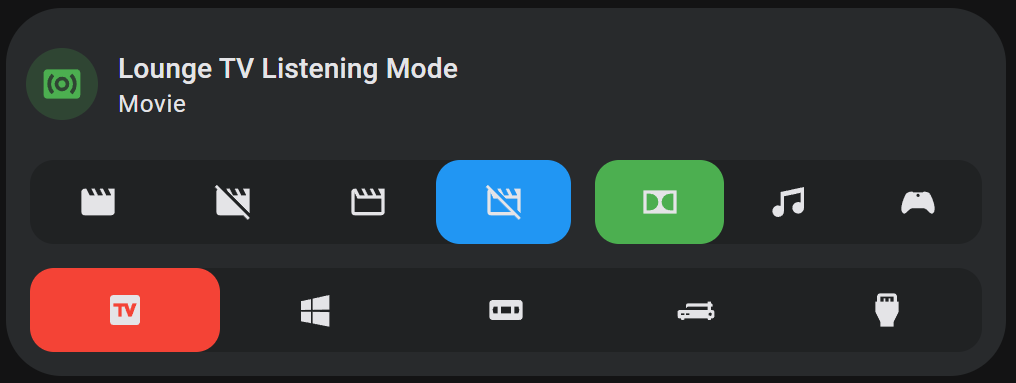
Config
```yaml features: - type: custom:service-call entries: - type: selector entity_id: input_select.lounge_tv_theater_mode options: - icon: mdi:movie entity_id: input_select.lounge_tv_theater_mode option: Theater tap_action: action: perform-action perform_action: input_select.select_option data: option: Theater target: entity_id: input_select.lounge_tv_theater_mode type: button value_attribute: state styles: '' - icon: mdi:movie-off entity_id: input_select.lounge_tv_theater_mode option: Light tap_action: action: perform-action perform_action: input_select.select_option data: option: Light target: entity_id: input_select.lounge_tv_theater_mode type: button value_attribute: state styles: '' - icon: mdi:movie-outline entity_id: input_select.lounge_tv_theater_mode option: Dark tap_action: action: perform-action perform_action: input_select.select_option data: option: Dark target: entity_id: input_select.lounge_tv_theater_mode type: button value_attribute: state styles: '' - icon: mdi:movie-off-outline entity_id: input_select.lounge_tv_theater_mode option: 'Off' tap_action: action: perform-action perform_action: input_select.select_option data: option: 'Off' target: entity_id: input_select.lounge_tv_theater_mode type: button value_attribute: state styles: '' value_attribute: state styles: |- :host { --color: var(--blue-color); flex-basis: 140%; } - type: selector entity_id: input_select.lounge_tv_listening_mode options: - icon: mdi:dolby entity_id: input_select.lounge_tv_listening_mode option: Movie tap_action: action: perform-action perform_action: input_select.select_option data: option: Movie target: entity_id: input_select.lounge_tv_listening_mode type: button value_attribute: state styles: '' - icon: mdi:music entity_id: input_select.lounge_tv_listening_mode option: Music tap_action: action: perform-action perform_action: input_select.select_option data: option: Music target: entity_id: input_select.lounge_tv_listening_mode type: button value_attribute: state styles: '' - icon: mdi:microsoft-xbox-controller entity_id: input_select.lounge_tv_listening_mode option: Game tap_action: action: perform-action perform_action: input_select.select_option data: option: Game target: entity_id: input_select.lounge_tv_listening_mode type: button value_attribute: state styles: '' value_attribute: state styles: '' - type: custom:service-call entries: - type: selector entity_id: input_select.lounge_tv_source options: - icon: mdi:television-box entity_id: input_select.lounge_tv_source option: Google TV tap_action: action: perform-action perform_action: input_select.select_option data: option: Google TV target: entity_id: input_select.lounge_tv_source type: button value_attribute: state styles: '' - icon: mdi:microsoft-windows entity_id: input_select.lounge_tv_source option: HTPC tap_action: action: perform-action perform_action: input_select.select_option data: option: HTPC target: entity_id: input_select.lounge_tv_source type: button value_attribute: state styles: '' - icon: mdi:vhs entity_id: input_select.lounge_tv_source option: DVD/VHS tap_action: action: perform-action perform_action: input_select.select_option data: option: DVD/VHS target: entity_id: input_select.lounge_tv_source type: button value_attribute: state styles: '' - icon: mdi:record-player entity_id: input_select.lounge_tv_source option: Vinyl tap_action: action: perform-action perform_action: input_select.select_option data: option: Vinyl target: entity_id: input_select.lounge_tv_source type: button value_attribute: state styles: '' - icon: mdi:video-input-hdmi entity_id: input_select.lounge_tv_source option: External tap_action: action: perform-action perform_action: input_select.select_option data: option: External target: entity_id: input_select.lounge_tv_source type: button value_attribute: state styles: '' value_attribute: state styles: |- :host { --color: var(--red-color); } type: tile entity: input_select.lounge_tv_listening_mode color: green layout_options: grid_columns: 4 grid_rows: 3 ```
Config
```yaml features: - type: custom:service-call entries: - type: selector option_type: template option_template: entity_id: '' icon: mdi:alpha-{{ option | safe | lower }} tap_action: action: fire-dom-event event_type: cf-attributes attributes: option: '{{ option }}' confirmation: '{{ option == "C" }}' options_template: A,B,C value_template: A value_from_hass_delay: 999999999 entity_id: '' styles: |- .selected { --icon-color: var(--disabled-color); } #A { --color: var(--red-color); } #B { --color: var(--green-color); } #C { --color: var(--blue-color); } - type: custom:service-call entries: - type: button icon: mdi:arrow-down-bold tap_action: action: perform-action data: {} target: entity_id: input_number.slider_test perform_action: input_number.decrement hold_action: action: repeat repeat_delay: 10 entity_id: input_number.slider_test value_attribute: state styles: '' - type: slider thumb: round entity_id: input_number.slider_test label: | Input Number {{ value }}{{ unit }} unit_of_measurement: '#' icon: mdi:numeric styles: |- :host { flex-basis: 600%; --tooltip-label: "The number is {{ value }}"; --label-color: var(--disabled-color); } .icon { color: var(--disabled-color); padding: 8px; flex: auto; position: absolute; translate: var(--thumb-translate); transition: var(--thumb-transition); --mdc-icon-size: 24px; } {% if value == config.range[0] %} .thumb { visibility: hidden; } .icon { visibility: hidden; } {% endif %} range: - -128 - 128 tap_action: action: perform-action target: entity_id: - input_number.slider_test data: value: '{{ value | int }}' confirmation: false perform_action: input_number.set_value step: 0.5 value_attribute: state - type: button icon: mdi:arrow-up-bold action: call-service haptics: true hold_action: action: repeat repeat_delay: 10 entity_id: input_number.slider_test tap_action: action: perform-action target: entity_id: - input_number.slider_test perform_action: input_number.increment data: {} value_attribute: state styles: '' styles: |- :host { --feature-height: 64px; } :host(:not([option='A'])) { display: none; } :host(:not([option])) { display: block; } - type: custom:service-call entries: - type: spinbox tap_action: action: perform-action data: value: '{{ value | float }}' target: entity_id: input_number.slider_test perform_action: input_number.set_value range: - -128 - 128 step: 0.5 label: '{{ value }}' hold_action: action: repeat repeat_delay: 50 decrement: entity_id: input_number.slider_test type: button value_attribute: state styles: '' entity_id: input_number.slider_test increment: entity_id: input_number.slider_test type: button value_attribute: state styles: '' haptics: true value_attribute: state styles: '' haptics: false icon: '' styles: |- :host(:not([option='A'])) { display: none; } :host(:not([option])) { display: block; } - type: custom:service-call entries: - type: button icon: mdi:youtube tap_action: action: url url_path: youtube.com double_tap_action: action: url url_path: play.spotify.com entity_id: input_select.select_test value_attribute: state styles: '' - type: button icon: mdi:view-dashboard tap_action: action: navigate navigation_path: /lovelace/0 double_tap_action: action: navigate navigation_path: /lovelace-extra/0 entity_id: input_select.select_test value_attribute: state styles: '' - type: button icon: mdi:view-compact tap_action: action: navigate navigation_path: /lovelace-extra/subview entity_id: input_select.select_test value_attribute: state styles: '' styles: |- :host(:not([option='B'])) { display: none; } - type: custom:service-call entries: - type: button icon: mdi:assistant tap_action: action: assist pipeline_id: last_used label: '' entity_id: input_select.select_test value_attribute: state styles: '' double_tap_action: action: navigate navigation_path: ?conversation=1 - type: button tap_action: action: eval confirmation: text: This is a test of a Home Assistant confirmation with custom text eval: >- console.log("This was made using an exec call with a confirmation."); value_attribute: state styles: |- .icon { color: var(--red-color); } icon: mdi:language-javascript entity_id: input_select.select_test - type: button tap_action: action: eval confirmation: false eval: >- console.log("This was made using an exec call with no confirmation."); value_attribute: state styles: |- .icon { color: var(--yellow-color); } icon: mdi:language-javascript entity_id: input_select.select_test styles: |- :host(:not([option='C'])) { display: none; } type: custom:custom-features-card ```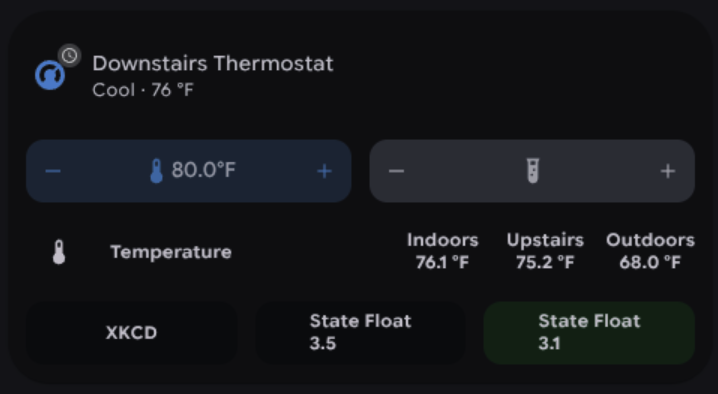
Config
```yaml type: tile layout_options: grid_columns: 4 grid_rows: 4 entity: climate.downstairs_thermostat vertical: false features: - type: custom:service-call entries: - type: spinbox icon: mdi:thermometer label: '{{ number_translated(value, 1) }}{{ unit }}' step: 0.5 debounceTime: 1000 range: - '{{ state_attr("climate.downstairs_thermostat", "min_temp") }}' - '{{ state_attr("climate.downstairs_thermostat", "max_temp") }}' value_attribute: temperature unit_of_measurement: °F hold_action: action: repeat entity_id: climate.downstairs_thermostat styles: |- :host { --background: var(--tile-color); --icon-color: var(--tile-color); flex-flow: row; } tap_action: action: perform-action target: entity_id: climate.downstairs_thermostat data: temperature: '{{ value | float }}' perform_action: climate.set_temperature - type: spinbox icon: mdi:test-tube step: 1 debounceTime: 1000 range: - '{{ state_attr("climate.downstairs_thermostat", "min_temp") }}' - '{{ state_attr("climate.downstairs_thermostat", "max_temp") }}' value_attribute: temperature hold_action: action: repeat styles: |- :host { --background: var(--primary-color); } tap_action: action: none decrement: entity_id: climate.downstairs_thermostat tap_action: action: eval eval: console.log('Going Down!'); increment: tap_action: action: eval eval: console.log('Going Up'); entity_id: climate.downstairs_thermostat hold_action: action: repeat entity_id: climate.downstairs_thermostat styles: '' - type: custom:service-call entries: - type: button label: Temperature icon: mdi:thermometer styles: |- :host { flex-direction: row; flex-basis: 400%; justify-content: left; gap: 24px; margin-left: 12px; } .label { width: unset; } thumb: transparent - type: button entity_id: sensor.downstairs_indoor_temperature styles: |- .label { text-align: center; } label: |- Indoors {{ value }}{{ unit }} unit_of_measurement: ' °F' thumb: transparent - type: button entity_id: sensor.upstairs_thermostat_current_temperature styles: |- .label { text-align: center; } label: |- Upstairs {{ value }}{{ unit }} unit_of_measurement: ' °F' thumb: transparent - type: button entity_id: sensor.downstairs_outdoor_temperature styles: |- .label { text-align: center; } label: |- Outdoors {{ value }}{{ unit }} unit_of_measurement: ' °F' thumb: transparent styles: '' - type: custom:service-call entries: - type: button entity_id: climate.downstairs_thermostat label: XKCD value_from_hass_delay: 5000 momentary_end_action: action: url url_path: https://xkcd.com/{{ (1000 * hold_secs) | int }} value_attribute: state - type: button entity_id: sensor.cold_flu_index_today label: |- State Float {{ value }} value_attribute: state styles: '' icon: '' momentary_end_action: action: eval eval: >- const actionType = 'momentary_end_action' const message = `${actionType} - ${Math.floor(this.momentaryEnd - this.momentaryStart)}ms` console.log(message) const event = new Event('hass-notification', { bubbles: true, composed: true }) event.detail = { message } this.dispatchEvent(event) momentary_start_action: action: eval eval: >- const actionType = 'momentary_start_action' const message = `${actionType}` console.log(message) const event = new Event('hass-notification', { bubbles: true, composed: true }) event.detail = { message } this.dispatchEvent(event) momentary_repeat_action: action: eval eval: >- const actionType = 'momentary_repeat_action' const message = `${actionType} - ${Math.floor(this.momentaryEnd - this.momentaryStart)}ms` console.log(message) const event = new Event('hass-notification', { bubbles: true, composed: true }) event.detail = { message } this.dispatchEvent(event) - type: button entity_id: sensor.cold_flu_index_today label: |- State Float {{ value }} value_attribute: strep_index icon: '' styles: |- .background { --color: {{ "blue" if state_attr(config.entity, config.attribute) < 3 else "green" }}; } tap_action: action: more-info target: entity_id: sensor.cold_flu_index_today confirmation: text: Show Cold & Flu Index? exemptions: - user: af773a442cd7493f8178f7c23b7882d7 - user: 7e9bf9d73edc48df8ece5cec7e9a4f00 data: {} styles: '' features_position: bottom ```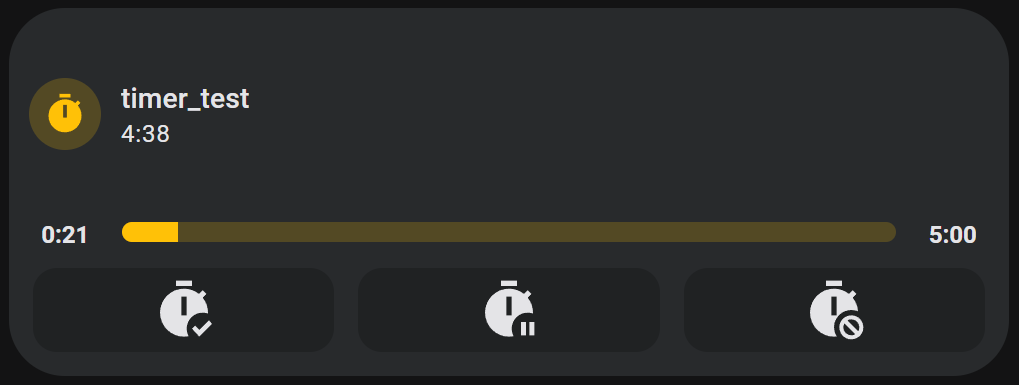
Config
```yaml features: - type: custom:service-call entries: - type: button value_attribute: elapsed label: >- {% set t = as_timedelta(state_attr(config.entity, "duration")).seconds - value %} {% set minutes = (t/ 60) | int %} {% set seconds = (t- 60 * minutes) | int %} {{ minutes }}:{{ 0 if seconds < 10 else "" }}{{ seconds | int }} styles: |- :host { overflow: visible; height: 12px; border-radius: 0px; --color: none; } entity_id: timer.timer_test - type: slider tap_action: action: none value_attribute: elapsed thumb: flat step: 1 range: - 0 - >- {% set hms = (state_attr(config.entity, "duration") or '0:0:0').split(":") %} {{ (hms[0] |int ) * 3600 + (hms[1] | int) * 60 + (hms[2] | int) }} styles: |- :host { flex-basis: 1200%; height: 10px; --thumb-width: 1px; } entity_id: timer.timer_test - type: button value_attribute: duration label: '{% set hms = value.split(":") %} {{ hms[1] | int }}:{{ hms[2] }}' styles: |- :host { overflow: visible; height: 12px; border-radius: 0px; --color: none; } entity_id: timer.timer_test - type: custom:service-call entries: - type: button icon: mdi:timer-check tap_action: action: perform-action perform_action: timer.start target: entity_id: timer.timer_test entity_id: timer.timer_test value_attribute: elapsed - type: button icon: mdi:timer-pause tap_action: action: perform-action perform_action: timer.pause target: entity_id: timer.timer_test entity_id: timer.timer_test value_attribute: elapsed - type: button icon: mdi:timer-cancel tap_action: action: perform-action perform_action: timer.cancel target: entity_id: timer.timer_test entity_id: timer.timer_test value_attribute: elapsed styles: |- :host { --mdc-icon-size: 32px; } type: tile entity: timer.timer_test layout_options: grid_columns: 4 grid_rows: 3 ```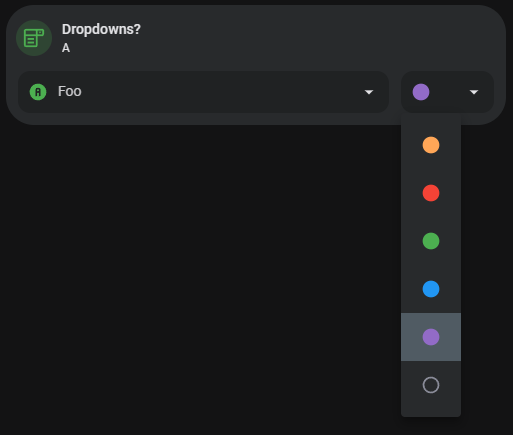
Config
```yaml type: tile grid_options: columns: 12 rows: auto entity: input_select.select_test name: Dropdowns? icon: mdi:form-dropdown color: green vertical: false features: - type: custom:service-call entries: - type: dropdown entity_id: input_select.select_test icon: mdi:ab-testing option_type: attribute option_template: label: '{{ option | safe }}' tap_action: action: perform-action perform_action: input_select.select_option target: entity_id: '{{ config.entity }}' data: option: '{{ option | safe }}' icon: mdi:alpha-{{ option | lower }}-circle entity_id: input_select.select_test options_attribute: options option_attribute: options option_entity: input_select.select_test value_attribute: state - type: dropdown entity_id: light.desk_lights value_attribute: effect icon: mdi:string-lights label: '{{ value }}' option_type: attribute option_attribute: effect_list option_entity: light.desk_lights option_template: entity_id: light.desk_lights label: '{{ option | safe }}' tap_action: action: perform-action perform_action: light.turn_on data: effect: '{{ option | safe }}' target: entity_id: '{{ config.entity }}' thumb: md3-standard - type: dropdown entity_id: light.sunroom_ceiling options: - entity_id: light.sunroom_ceiling option: 255,167,87 tap_action: action: perform-action perform_action: light.turn_on target: entity_id: light.sunroom_ceiling data: brightness_pct: 100 color_temp_kelvin: 2000 icon: mdi:checkbox-blank-circle styles: |- .icon { color: rgb(255,166,87); } - entity_id: light.sunroom_ceiling option: 255,0,0 tap_action: action: perform-action perform_action: light.turn_on target: entity_id: - light.sunroom_ceiling data: rgb_color: - 255 - 0 - 0 brightness_pct: 100 confirmation: text: RED ALERT?! icon: mdi:checkbox-blank-circle styles: |- .icon { color: var(--red-color); } - entity_id: light.sunroom_ceiling option: 0,255,0 tap_action: action: perform-action perform_action: light.turn_on target: entity_id: - light.sunroom_ceiling data: rgb_color: - 0 - 255 - 0 brightness_pct: 100 icon: mdi:checkbox-blank-circle styles: |- .icon { color: var(--green-color); } - entity_id: light.sunroom_ceiling option: 0,0,255 tap_action: action: perform-action perform_action: light.turn_on target: entity_id: - light.sunroom_ceiling data: rgb_color: - 0 - 0 - 255 brightness_pct: 100 icon: mdi:checkbox-blank-circle styles: |- .icon { color: var(--blue-color); } - entity_id: light.sunroom_ceiling option: 128,0,128 tap_action: action: perform-action perform_action: light.turn_on target: entity_id: - light.sunroom_ceiling data: rgb_color: - 128 - 0 - 128 brightness_pct: 100 icon: mdi:checkbox-blank-circle styles: |- .icon { color: var(--purple-color); } - entity_id: light.sunroom_ceiling tap_action: action: perform-action perform_action: light.turn_off target: entity_id: - light.sunroom_ceiling data: {} icon: mdi:checkbox-blank-circle-outline styles: '' option: 'null' value_attribute: rgb_color icon: mdi:ceiling-light thumb: md3-fab-primary features_position: bottom ```