# Universal Remote Card
[](https://github.com/nerwyn/universal-remote-card/releases)
[](LICENSE)
[](https://github.com/hacs/default)
[](https://github.com/Nerwyn)
[](https://github.com/Nerwyn/universal-remote-card/commits/main)
[](https://community.home-assistant.io/t/universal-remote-card-buttons-touchpads-sliders-and-keyboards-for-multiple-platforms/)
[](https://www.buymeacoffee.com/nerwyn)
[](https://my.home-assistant.io/redirect/hacs_repository/?repository=universal-remote-card&owner=Nerwyn&category=Plugin)
_Formerly called Android TV Card_
A super customizable universal remote card iterating on the work of several other projects. Featuring:
- Configuration UI.
- Out of the box support for [many platforms](#media-platform-and-entity-ids) with default key and source lists.
- Android TV (with keyboard)
- Sony BRAVIA (with keyboard)
- Fire TV (with keyboard)
- Apple TV (with keyboard)
- Roku (with keyboard)
- LG webOS (with keyboard)
- Samsung TV (with keyboard)
- Kodi (with keyboard)
- Unified Remote for Windows, macOS, and Linux (with keyboard)
- Philips TV
- Denon AVR
- Yamaha YNCA
- Jellyfin
- Unfolded Circle
- Generic Remote
- Support for multiple buttons, circlepads, touchpads, and sliders using default or user defined actions.
- Complete [Home Assistant actions](https://www.home-assistant.io/dashboards/actions/) support.
- [Keyboard and search](#keyboard-and-search) dialog actions for most platforms.
- [Template](#a-note-on-templating) support for almost all fields using ha-nunjucks.
- [Accessability keyboard controls](#keyboard-interactions-and-accessability) for all components.
- Toggleable haptics.
- User configurable remote [layout](#layout).
- Icons and labels for all elements.
- Custom SVG icon support.
- CSS style options for all sub-elements.
# How To Use
This project now has a fully featured configuration user interface! To get started, install this project using HACS. Then go to a dashboard and create a universal remote card or edit an existing one.
The editor has four tabs - General, Layout, Elements, and Icons.
# General
Start by selecting your media platform, then your device using the Config Entry ID field. The latter will autofill the remote and media player ID fields if available for the config entry. Platform, entity ID, and timing fields set in the general tab will be used for default keys and sources. If you do not set these fields for custom elements, they will also use these fields. If you explicitly set one of these fields in a custom element, it will not be overwritten if you change the matching general field until you clear the field in the custom element. To completely clear toggle fields, you must remove them from the config using the code editor.
## Media Platform and Entity IDs
This card supports several media platforms with default key and source lists. Different platforms require different fields as listed below. Some platforms require custom integrations or have additional configuration notes and are called out below the table.
| Platform | Remote ID | Media Player ID | Keyboard ID | Config Entry ID | Remote/Device Name | MAC Address |
| -------------------------------------------------------------------------- | ------------------------------------------- | ------------------------------------------------------------------------------------------------------------------------------------------------- | ----------------------------------------------------------------------------------------------------------- | --------------- | ----------------------------------- | ----------- |
| [Android TV](https://www.home-assistant.io/integrations/androidtv_remote/) | Default keys, sources, keyboard, and search | Default slider | [ADB](https://www.home-assistant.io/integrations/androidtv/) remote or media player for keyboard and search | | | |
| [Sony BRAVIA](https://www.home-assistant.io/integrations/braviatv/) | Default keys | Default sources and slider | [ADB](https://www.home-assistant.io/integrations/androidtv/) remote or media player for keyboard and search | | | |
| [Fire TV](https://www.home-assistant.io/integrations/androidtv/) | Default keys, keyboard, and search | Default sources, slider, keyboard, and search | Keyboard and search | | | |
| [Apple TV](https://www.home-assistant.io/integrations/apple_tv) | Default keys | Default sources and slider | | Keyboard | | |
| [Roku](https://www.home-assistant.io/integrations/roku/) | Default keys and keyboard | Default sources, slider, and search | | | | |
| [LG webOS](https://www.home-assistant.io/integrations/webostv/) | | Default keys, sources, slider, and keyboard | | | | Wake on LAN |
| [Samsung TV](https://www.home-assistant.io/integrations/samsungtv/) | Default keys | Default sources, keyboard (requires the [SamsungTV Smart Component custom integration](https://github.com/ollo69/ha-samsungtv-smart)), and slider | | | | Wake on LAN |
| [Kodi](https://www.home-assistant.io/integrations/kodi/) | | Default keys, sources, slider, keyboard, and search | | | | Wake on LAN |
| [Unified Remote](https://github.com/akshansh1998/hass-unified-remote) | | | | | Default keys and keyboard | |
| [Philips TV](https://www.home-assistant.io/integrations/philips_js/) | Default keys | Play/pause and slider | | | | |
| [Denon AVR](https://www.home-assistant.io/integrations/denonavr/) | | Default keys, sources, and slider | | | | |
| [Yamaha YNCA](https://github.com/mvdwetering/yamaha_ynca) | Default keys | Default sources, play/pause, volume, and slider | | | | |
| [Jellyfin](https://www.home-assistant.io/integrations/jellyfin/) | Default keys | Play/pause and slider | | | | |
| [Unfolded Circle](https://github.com/JackJPowell/hass-unfoldedcircle) | Default keys | | | | | |
| Generic Remote | Default keys and sources | | | | `remote.send_command` `data.device` | |
### Android TV - Remote API and Android Debug Bridge
Modern Android TVs use the Android TV Remote protocol for receiving commands, including keyboard input. This protocol does not work for global search, which still requires the Android Debug Bridge integration for triggering global search without navigating to an inconsistently placed search box in the Android TV UI.
As of Android 14, changes have been made to Android Debug Bridge in the name of security which make it harder to use for TV control. It uses a random port rather than the old default, disconnects after some time of inactivity, and does not work over wired connections. To get around these changes, you can sideload a tool like [adb-auto-enable](https://github.com/mouldybread/adb-auto-enable) onto your Android TV to automatically enable ADB on boot and use a static port.
### Sony BRAVIA - Different APIs on Different Models
Some Sony BRAVIA TVs do not support the Android TV Remote API, but do have their own proprietary API. The correct integration should be chosen based on which one your television supports. If you use the Sony BRAVIA platform, then you will also want to set up the Android Debug Bridge integration and provide its remote or media player entity ID in the Keyboard ID field in order to use the keyboard and search actions.
### Fire TV (Legacy) - Android Debug Bridge
Legacy Fire TV is a heavily modified fork of Android TV. It uses the Android Debug Bridge integration for all interactions. If your Android TV does not support the Android TV Remote API, you can use this platform with the Android Debug Bridge integration instead.
Starting in 2025, new Amazon Fire TV devices use a new operating system called Vega OS. Vega OS is not based on Android, and communicating with it not possible with Home Assistant. At time of writing, you cannot use this card (or anything except Amazon official methods) to control a Vega OS Fire TV.
### Samsung TV - Sources and Keyboard Using Custom Integration
The Home Assistant Samsung TV integration does not allow you to change sources or send text. To do so you need to setup the [SamsungTV Smart Component custom integration](https://github.com/ollo69/ha-samsungtv-smart) and provide its media player entity ID to this card.
### Unified Remote - Custom Integration
Unified Remote relies entirely on [a custom integration](https://github.com/akshansh1998/hass-unified-remote), which is used to control a [Unified Remote server](https://www.unifiedremote.com/) on your PC. This custom integration creates a media player entity, but all default keys are called using the action `unified_remote.call` which can be used to call any Unified Remote API. You must enter the Unified Remote server friendly name you used when configuring the integration in the card Remote/Device Name field.
Unified Remote has not been updated in many years, and is slowly ceasing to work with newer operating systems. Certain functionality like mouse clicks (see [discussion thread](https://github.com/Nerwyn/universal-remote-card/discussions/285) and keyboard for workaround) no longer works on Linux Wayland devices
### Yamaha YNCA - Custom integration
Yamaha YNCA relies entirely on [a custom integration](https://github.com/mvdwetering/yamaha_ynca), which is used to control Yamaha AV receivers that support the YNCA protocol. This custom integration creates remote and media player entities which can be provided to this card.
### Unfolded Circle - Custom Integration
Unfolded Circle relies entirely on [a custom integration](https://github.com/JackJPowell/hass-unfoldedcircle), which is used to control an [Unfolded Circle Remote Two/3](https://www.unfoldedcircle.com/). This custom integration creates a remote entity which can be provided to this card, which is then used to call its `unfoldedcircle.send_button_command` action.
### Generic Remote - Shorthand for IR/RF Commands
The generic remote platform takes all default key and source buttons of all other platforms and creates generic remote actions using their names and icons. It also includes a default circlepad and touchpads.
```yaml
name: power
icon: mdi:power
tap_action:
action: key
key: power
device: Generic Device
```
You can use `remote.learn_command` on supported platforms like [Broadlink Remote](https://www.home-assistant.io/integrations/broadlink/#remote) to create commands that match these actions. If needed a remote/device name can be provided which will be included in the key actions data.
## Action Timings
Double tap and hold actions have user adjustable timings to change how they are triggered. These values can be set globally in the general tab or for each custom element.
### Hold Time
Hold actions are triggered by holding down on a button for a defined amount of time and then releasing. The default amount of time is 500ms. You can change this by setting `Hold time` in the general tab or a custom element hold action to a different number.
### Repeat and Repeat Delay
By setting a hold action to `repeat`, the tap action will repeat while a button or touchpad direction is held down. The default delay between repeats is 100ms. You can change this by setting `Repeat delay` in the general tab or a custom element hold action to a different number.
The following default keys have their hold actions set to `repeat` by default. You can disable this by creating a custom element for them and setting their hold actions to `none` or a different action. The circlepad and touchpad direction actions also are set to repeat when held, and can similarly be disabled or remapped by creating a custom element for the touchpad and changing it's hold action.
- up
- down
- left
- right
- volume_up
- volume_down
- delete
- forward_delete
- touchpad up/down/left/right
### Double Tap Window
Double tap actions have a default window of 200ms to trigger before a single tap action is triggered instead. You can change this by setting `Double tap window` in the general tab or a custom element double tap action to a different number.
**Note**: Setting `Double tap window` above or too close to `Hold time` can result in undesirable behavior, as the hold timer expires before the double tap timer does. If you increase the `Double tap window` you should also increase `Hold time` to not be too close to it by at least 100ms if not more. In a custom element without a hold action defined, you can set `Hold behavior` explicitly to `Nothing` to render the `Hold time` field.
## Miscellaneous
### CSS Styles
Styles can be set and changed for the remote card and all sub-elements using regular CSS and templating. CSS styles have to be encapsulated in a CSS selector like the following.
| CSS Selector | Element |
| ------------------ | ------------------------------- |
| :host | The card or sub-element host. |
| .row | All rows. |
| .column | All columns. |
| .button-pad | All default button pads. |
| .empty-button | All empty/null button spaces. |
| remote-button | All buttons. |
| #row-1 | The first row. |
| #column-1 | The first column. |
| #pad-1 | The first button default pad. |
| #power | The name of a specific element. |
| #power::part(icon) | The icon of a specific element. |
```css
/* All rows */
.row {
justify-content: center;
}
/* All buttons */
remote-button {
background: rgb(27, 27, 27);
padding: 8px;
margin: 4px;
border-radius: 24px;
--icon-size: 24px;
}
/* The icon of the power button
* You no longer need to create a custom element just to style default ones by using ::part pseudo-elements
*/
#power::part(icon) {
color: red;
}
```
If you hover over the card preview window, a red dashed outline will appear along with a tooltip showing either the element name or the row, column, or pad ID selector.
### Autofill and Haptics
When creating custom elements, the card editor will autofill fields using information set in the general tab when you click the autofill button or set the custom element name. This value can also be set at the custom remote element level. Haptics can be similarly toggled globally or for individual custom remote elements and are enabled by default.
### Other
You can add a title to the card with the title field.
Instead of copying the same custom elements across multiple remote cards, you can put custom elements in an array in a JSON or YAML file on your Home Assistant server's config www folder and fetch them by filename, like `local/remote_card_custom_elements.yaml`.
If you are updating from an older version of this card, you may find that your configurations no longer work. Sorry! To upgrade them, click the button `Update old config` at the bottom of the general tab. It should update your configuration to work with newer versions of this card.
# Layout
When you first create a universal remote card, it will have a default layout. Feel free to modify or delete this layout to your liking. Not all default keys used in the default layout are available for all platforms.
The remote layout is defined using a series of nested arrays. The lowest level of arrays is each row. As you nest arrays further it switches between rows and columns, allowing you to create unique remote layouts.
```yaml
- - home
- menu
- back
- keyboard
- - - volume_buttons
- momentary_light
- - netflix
- hulu
- disney
- max
- primevideo
- touchpad
- slider
- - chandelier_light_color
- light_color
- sunroom_light
- search
```
The default keys and sources lists for your selected platform are displayed below the layout code editor. If you have configured any custom elements, they will be displayed above this. You can use this as reference as you create your remote, or drag and drop entries from these lists to the editor. The default keys list also includes the default touchpad and slider, along with some special elements for button pads and layouts. Not all special elements are available for all platforms.
| Name | Type | Description |
| ------------------ | ----------- | ----------------------------------------------------------------------------------------------------------------------------------------------------------------------------------------------- |
| circlepad | circlepad | A circlepad with five buttons for navigation. |
| clickwheel | circlepad | A circlepad with five buttons for media control and iPod-like volume control. |
| touchpad | touchpad | A touchpad for swipe navigation. |
| dragpad | touchpad | A touchpad for drag navigation. Use two fingers for faster movement. |
| mousepad | touchpad | A touchpad for mouse navigation. **Note**: mousepad support is dependent on the platform supporting mouse movement via a Home Assistant action. |
| slider | slider | A slider that controls the volume of the entity defined by `media_player_id`. **Note**: Volume slider support is dependent on the media player supporting the `media_player.volume_set` action. |
| volume_buttons | button rows | Shorthand to generate a set of volume down, volume mute, and volume up buttons in a row or column. |
| navigation_buttons | button rows | Shorthand to generate a set of up, down, left, right, and center buttons across three rows within a column. |
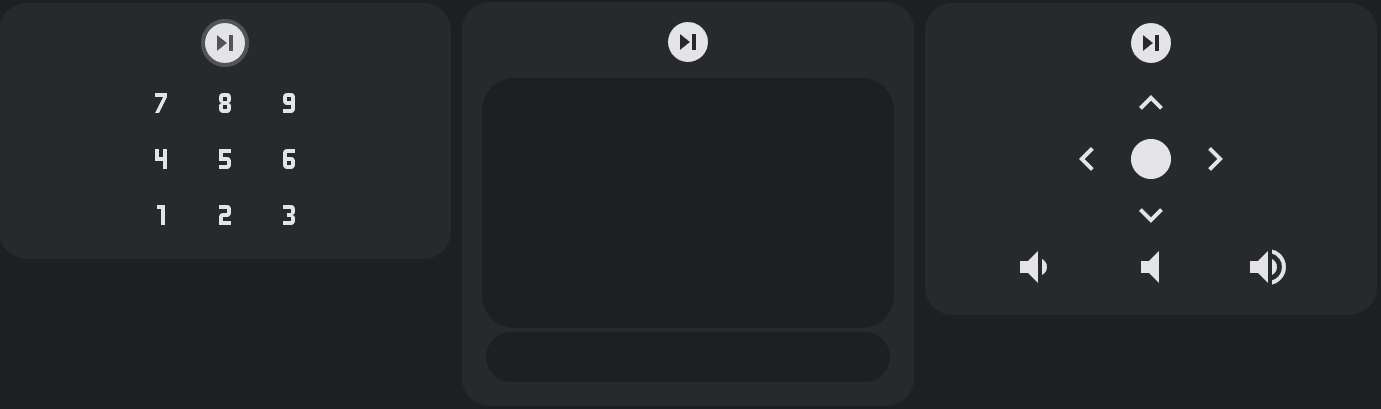
| dpad | button grid | Shorthand to generate a set of up, down, left, right, and center buttons arranged in a square grid. |
| numpad | button grid | Shorthand to generate a set of 1-9 buttons arranged in a square grid. Does not include `n0`. |
| dialpad | button grid | Shorthand to generate a set of 1-9 buttons arranged in a square grid, reversed. Does not include `n0`. |
| xpad | button grid | Shorthand to generate a set of A, B, X, and Y buttons arranged in a square grid. |
| npad | button grid | Shorthand to generate a set of A, B, X, and Y buttons arranged in an alternate square grid. |
# Custom Elements
In addition to the default keys and sources, you can create your own custom elements. You can also overwrite default keys and sources (including the default touchpad and slider) by setting the custom element name to match a default one. If you do so the custom element config will be autopopulated.
Click the `Add remote element` button to add a custom element remote element. Custom action remote elements can be buttons, sliders, or touchpads.
Custom actions in this list can be reordered for organization, but doing so does not have any effect on the the remote card layout. They can also be deleted, copied, and edited.
## General Options
Every remote element must have a name so that it can be added to your remote.
Every remote element can have an entity assigned to it, which is used to track it's internal value. This value can then be used in styles and actions using templates, like `{{ value | float }}`. By default the value will be derived from the entity state, but it can be changed to an attribute using the corresponding field.
Some additional value logic is applied for certain attributes:
- `brightness` - Converted from the default range of 0-255 to 0-100.
- `media_position` - Updated twice per second using the current timestamp and the attribute `media_position_updated_at` when the entity state is `playing`, and locked to a max value using the attribute `media_duration`.
- `elapsed` - Only for timer entities. Updated twice per second using the the current timestamp and the attributes `duration`, `remaining`, and `finishes_at`, and locked to a max value using the attribute `duration`.
- **Note**: `elapsed` is not an actual attribute of timer entities, but is a possible attribute for timer entities in this card for the purpose of displaying accurate timer elapsed values. Timer entities do have an attribute `remaining`, which only updates when the timer state changes. The actual `remaining` attribute can be calculated using the elapsed value and the timer duration attribute.
If you do not set an entity, you can instead set the remote element value using a template in the value template field. This template is not used if entity ID is set, even if that entity ID does not exist or it's state or attribute is undefined, it is only used if no entity is set at all.
Haptics are enabled for remote elements by default, but can be toggled globally or at the custom element level.
### Slider General Options
Sliders have some additional general options. They have a range `Min` and `Max` which defaults to 0 and 1 respectively. They also have a `Step` size which defaults to 0.01.
Sliders will wait one second before updating their internal values from Home Assistant to prevent it from bouncing between the old and new values. This time can be changed by setting `Update after action delay`, which defaults to 1000ms
### Circlepad and Touchpad Tabs
Circlepads and touchpads have five tabs at the top of their actions page for each direction and it's center. Only the center tab has general options as these apply to the entire touchpad remote element. Each direction and center have their own options for appearance and interactions as described below.
## Appearance
All remote elements can have a `Label`, `Icon`, and `Units`. These fields can also be set using templates. Similar to the general tab, each remote element can have it's CSS styles set (also supports templates).
### Vertical Sliders
Sliders have an additional `Vertical` toggle which rotates it 90 degrees to make it vertical. By default sliders will be horizontal. Vertical slider heights are determined by the slider's sibling elements. If it has no sibling elements or you find that it is not consistently rendering correctly, then you may need to explicitly set it's height using the style options like so:
```css
:host {
height: 350px;
}
```
### Multiple Icons and Labels for Circlepads and Touchpads
Circlepads and touchpads can have a separate icon and label for the center and each direction. You can also style each of these icons and labels independently using their own `CSS Styles` fields. General styles such as those for `toucharea` or `#center` like height should go in the center tab styles.
### A Note on Templating
Almost all fields support nunjucks templating. Nunjucks is a templating engine for JavaScript, which is heavily based on the jinja2 templating engine for Python which Home Assistant uses. While the syntax of nunjucks and jinja2 is almost identical, you may find the [nunjucks documentation](https://mozilla.github.io/nunjucks/templating.html) useful. Most extensions supported by Home Assistant templates are supported by this templating system, but not all and the syntax may vary. Please see the [ha-nunjucks](https://github.com/Nerwyn/ha-nunjucks) repository for a list of available extensions. If you want additional extensions to be added or have templating questions or bugs, please make an issue or discussion on that repository, not this one.
You can include the current value of a remote element and it's units by using the variables `value` and `unit` in a label template. You can also include `hold_secs` in a template if performing a momentary repeat or end action. Each remote element can also reference it's configuration using `config` within templates. `config.entity` and `config.attribute` will return the remote element's entity ID and attribute with their templates rendered (if they have them), and other templated config fields can be rendered within templates by wrapping them in the function `render` within a template. You can access the entire card config in a template via `config.card`, and global values such as remote ID within that like `config.card.remote_id`. Note that default values for some fields are not actually in the config and will not appear in templates, and you have to default to them using "or", like `config.card.platform or 'Android TV'`.
You can include touch location information in your templates using the values `initialX`, `initialY`, `currentX`, `currentY`, `deltaX`, and `deltaY` This is especially useful when using drag interactions on the touchpad, like with the Unified Remote default mousepad or as a dragpad on all platforms.
### CSS Styles
You may find the following CSS selectors useful for styling:
| CSS Selector | Element |
| ---------------------------------- | -------------------------------------------------- |
| :host | The element itself. |
| .icon | The element icon. |
| .label | The element label. |
| .circlepad | The circlepad outer element. |
| #up, #down, #left, #right, #center | The circlepad buttons. |
| button | A button element background. |
| toucharea | A touchpad element background. |
| input | A slider range element. |
| .thumb | A slider thumb visual element. |
| .thumb .active | A slider thumb trailing / active track area. |
| .background | A slider element background / inactive track area. |
| .tooltip | A slider element tooltip. |
| .button-pad | All button pads. |
While you can now set most CSS fields directly using their sub-element selectors, you may find the following CSS properties useful, especially for sliders which use and modify them internally.
| Name | Description |
| --------------------------- | --------------------------------------------------------------------------------------------------------------------------------------------------------------------------------------------------------------------------------------------------------------------------- |
| --icon-size | Height and width of the icon. |
| --thumb-width | Slider thumb interactable area width, defaults to `48px`. Does not represent the visually seen active area. |
| --height | Slider height when horizontal and width when vertical. |
| --thumb-translate | Slider thumb translation function, defaults to `var(--thumb-offset) 0`. |
| --thumb-transition | Slider thumb transition animation, defaults to `translate 180ms ease-in-out, background 180ms ease-in-out`. |
| --tooltip-label | Slider tooltip label template, defaults to `'{{ value }}'`. |
| --tooltip-transform | Slider tooltip location transform function, defaults to `translate(var(--thumb-offset), calc(-0.5 * var(--height) - 0.4em - 10px))` for horizontal sliders and `translate(calc(-0.3 * var(--height) - 0.8em - 18px), calc(-1 * var(--thumb-offset)))` for vertical sliders. |
| --ha-ripple-color | Color of ripples when hovered over or pressed, defaults to `var(--secondary-text-color)`. |
| --ha-ripple-hover-color | Color of ripples when hovered over, defaults to `var(--secondary-text-color)`. |
| --ha-ripple-pressed-color | Color of riples when pressed, defaults to `var(--secondary-text-color)`. |
| --ha-ripple-hover-opacity | Opacity of ripples when hovered over, defaults to `0.08`. |
| --ha-ripple-pressed-opacity | Opacity of ripples when pressed, defaults to `0.12`. |
| --ha-ripple-height | Ripple height, defaults to `100%`. |
| --ha-ripple-width | Ripple width, defaults to `100%`. |
| --ha-ripple-top | Ripple top offset, defaults to `0`. |
| --ha-ripple-left | Ripple left offset, defaults to `0`. |
You may also find the actual HTML of the remote elements useful for directly styling its subelements.
#### Button HTML
```html
#shadow-root
```
#### Circlepad HTML
```html
#shadow-root
```
#### Touchpad HTML
```html
#shadow-root
#shadow-root
```
#### Slider HTML
```html
#shadow-root
::after
```
## Interactions
There are three traditional ways to trigger an action - tap, double tap, and hold. Buttons, touchpad center support all three, touchpad swipes only support tap and hold actions, and sliders only support tap actions. Defining a double tap action that is not `none` introduces a 200ms delay to single tap actions.
Each action also supports the `confirmation` field. More information on Home Assistant action confirmations can be found [here](https://www.home-assistant.io/dashboards/actions/#options-for-confirmation).
When setting the action for a slider, you must use `value` within a template in the action data to use the feature value in action. For convenience, a codebox for the action will be displayed below the normal action options.
### Action Types
Actions follow the [Home Assistant actions](https://www.home-assistant.io/dashboards/actions/) syntax. All Home Assistant actions are supported along with some additional ones.
| Action | Description |
| -------------- | ------------------------------------------------------------------------------------------------------------------------------------------------------------------------------------------------------------------------------------------------------------------------------------------ |
| More info | Open the more info dialog. |
| Toggle | Toggle between the target's on and off (or similar) states. |
| Navigate | Navigate to another Home Assistant page. |
| URL | Navigate to an external URL. |
| Perform action | Call any Home Assistant service action. |
| Assist | Open the assist dialog. Uses the mobile dialog if available, like in the Home Assistant app. The pipeline ID and start listening options only work in the mobile assist dialog. |
| Key | Send an remote button press like action to the media platform. The actual action varies by platform. |
| Source | Open an app using an action on a media platform. The actual action varies by platform. |
| Keyboard | Open a dialog for sending seamless keyboard input. |
| Textbox | Open a dialog for sending bulk keyboard input. |
| Search | Open a dialog for sending a global search query. |
| Fire DOM event | Fire a browser dom event using the action object as the event detail. Useful for opening [browser mod popup cards](https://github.com/thomasloven/hass-browser_mod?tab=readme-ov-file#how-do-i-update-a-popup-from-the-browser-mod-15). Use `data.event_type` to change the event type. |
| Evaluate JS | Evaluate a string as JavaScript code. You have access to the custom feature via `this`, which includes `this.hass`, `this.config`, and `this.value`. **Potentially dangerous, do not do something dumb like call actions in a loop with no delay which can crash your browser or server.** |
| Repeat | Repeat the tap action ten times a second while held. Only applicable to hold. |
| Nothing | Explicilty set a command to do nothing. |
The entire action `data` and `target` fields are templatable, meaning that you can define the entire field as a YAML string in a template like so:
```yaml
action: light.turn_{{ iif(checked, 'on', 'off') }}
data: |
{% if value == 'off' %}
brightness_pct: 100
{% endif %}
```
#### Key and Source
`Key` and `Source` are shortcuts for `perform-action` actions and vary by platform as listed below. Some platforms do not support key or source.
##### Keys
| Platform | Action | Data |
| -------------------------------------------------------------------------------------------------------------------------- | ---------------------------------- | --------------------------------------------------------------------------------------------------------------------------------------------------------------------------------------- |
| Android TVSony BRAVIAFire TVRokuApple TVSamsung TVPhilips TVJellyfinGeneric Remote | remote.send_command | { command: action.key, device: config.device, // if defined hold_secs: 1 // if hold action performed but not defined} |
| LG webOS | webostv.button | { button: action.key} |
| Kodi | kodi.call_method | { method: action.key} |
| Denon AVR | denonavr.get_command | { command: \`/goform/formiPhoneAppDirect.xml?${action.key}\`} |
| Unfolded Circle | unfoldedcircle.send_button_command | { button: action.key} |
##### Sources
| Platform | Action | Data |
| --------------------------------------------------------- | -------------------------- | --------------------------------------------------------------------------------------------------------------- |
| Android TV | remote.turn_on | { activity: action.source} |
| Sony BRAVIA | media_player.play_media | { media_content_id: action.source, media_content_type: "app"} |
| Fire TVRokuLG webOSSamsung TVApple TV | media_player.select_source | { source: action.source} |
| Kodi | kodi.call_method | { addonid: action.source, method: "Addons.ExecuteAddon"} |
Read the Home Assistant documentation as linked above [in this table](#media-platform-and-entity-ids) for more information on the actions performed by each platform. You can also look at the default key and source map files [here](https://github.com/Nerwyn/universal-remote-card/tree/main/src/models/maps). They will use the general remote or media player ID if set but can be overridden at the custom element level.
For Android TV sources you may find the [Android TV deep linking guide helpful](https://community.home-assistant.io/t/android-tv-remote-app-links-deep-linking-guide/567921).
If you find keys or sources that are not part of the default lists that you wish to add, please make a feature or even a pull request to add them, especially if they are for a platform other than Android TV (Android TV default list improvements also welcome). Make sure to also include a default SVG icon for any new sources if one is not available in the Home Assistant default mdi icon pack or the default icons file in this repository.
### Momentary Mode
As an alternative to normal tap, hold, and double tap actions, buttons can also be used in momentary mode. Configuring this option disables the normal tap, hold, and double tap actions.
The momentary start action is fired when you first press down on a button. The momentary end action is fired when you release it. Similarly to repeat hold action, the momentary repeat action is held when you hold down on the button for a set number of milliseconds. Unlike the repeat hold action, it can be different from the momentary start action. These actions can be used together or separately.
For momentary repeat and end actions you can include the number of seconds a button has been held down using `hold_secs` in a template. For convenience, the momentary end action YAML is included in a code box below the action, like shown above.
### Touchpad Interactions
The touchpad's center supports the default tap, double tap, and hold actions. The touchpads direction actions are activated when the user swipes in a direction but do not support double tap actions. Direction actions hold actions are set to repeat by default.
Touchpads also support multi-touch mode, which fires alternate actions when more than one finger is used with it. This mode is disabled by default but can be enabled by setting a touchpad's multi-touch actions to something other than `Nothing`. Multi-touch mode supports center tap, double tap, and hold actions, and direction swipe and hold actions.
Touchpads also support an alternate drag mode. This action is called whenever movement is detected on the touchpad, and works best with mouse movement actions like Unified Remote's `Relmtech.Basic Input delta`. The touchpad X and Y movement can be added to actions using templates using `deltaX` and `deltaY`. Because this action fires every time movement is detected on the touchpad, you may find that it fires too often, or not often enough. You can either use math to modify the values of `deltaX` and `deltaY` within the action data templates, or introduce a delay in which movement will be ignored after a drag action is fired using the configuration UI option `Sampling delay` to tweak the speed of your drag movements and action fire rate. The drag action can also be used in multi-touch mode. Enabling this action disables direction swipe actions, but not center default actions.
### Circlepad Interactions
Circlepads are made up of five buttons, each supporting all interactions that a regular button does. In addition to this, you can use the outer ring of the circlepad like an iPod clickwheel. When setting this action, you can use the template boolean variable `clockwise` to modify the clickwheel action based on the direction you are dragging, like shown in the screenshot. When the clickwheel action is enabled, you cannot drag to scroll on the circlepad, similar to the touchpad.
### Keyboard and Search
This card supports sending text to the following platforms:
| Platform | Keyboard | Search |
| ------------------------------- | -------- | ------ |
| Android TV | Inserts | Yes |
| Sony BRAVIA | Inserts | Yes |
| Fire TV | Inserts | Yes |
| Apple TV | Replaces | No |
| Roku | Inserts | Yes |
| LG webOS | Replaces | No |
| Samsung TV | Replaces | No |
| Kodi | Replaces | Yes |
| Unified Remote (PC, Mac, Linux) | Inserts | No |
If the user defined general platform is listed above, then any action set to a keyboard action will inherit it. Otherwise it will default to `Android TV`. Keyboard support for more platforms can be added if there is a way to do so through their Home Assistant (or community made) integrations.
When you use any keyboard action, a dialog will open that can be typed into.
You can change the prompt text that appears before you type anything using the `Prompt` field at the action level.
For Android TV and Sony BRAVIA, you need to include the Android Debug Bridge integration remote or media player entity ID in the keyboard ID field at the general or action level as it is used to send keys. All other integrations (including Fire TV which uses ADB for everything) will use the user provided remote and/or media player IDs for keyboard input.
For Roku make sure to include both the remote and media player IDs at the general or action level, as the remote is used for normal keyboard entry while the media player is used for search.
#### Keyboard - Seamless Text Entry
Send text to your supported media platform seamlessly using the action or default key `keyboard`. The dialog has several listeners which will send anything you type to your media platform immediately.
ADB can be slow and you may notice some delay in what you type and what appears on your device. This is not a bug, this is the reality of using ADB as an input interface.
##### Insert vs Replace
Platforms which insert text insert characters to the location of your on device screen (not the card text area screen) cursor. Because we do not have a way to retrieve the currently on screen text of any media platform, the dialog and platform text may become out of sync if a message gets dropped due to a network issue, you attempt to erase more than one character at a time, you try to modify the middle of the entered text, or if you prematurely close the dialog window. The keyboard dialog will attempt to prevent you from doing things that would cause this, but please remember that if you make a mistake you have to backspace all the way to the incorrect character from the end of your input text one character at at a time. In my testing the dialog always kept in sync with the platform text unless I attempted to delete more than one character.
Platforms which replace replaced the entire on screen text with the text area text. These platforms do not have any restrictions on cursor movement within the card text area. If you close and re-open the card keyboard the text area will be cleared and if you type anything, it will clear the on device screen text.
#### Textbox - Bulk Text Entry
Send text to your supported media platform in bulk using the action or default button `textbox`. The dialog will not send any information until you tap the send button.
#### Search - Global Search
Send a global search query to your media platform using the action or default button `search`. Like the bulk entry method, the dialog will not send any information until you tap the search button. This method cannot be used to enter text into currently visible text fields.
### Keyboard Interactions and Accessability
Not to be confused with keyboard input to platforms. You can control the elements of this card with your keyboard. By default you can focus on any element in the remote by tabbing to or click on it and then actuating it with the arrow or space/enter keys. You can also assign any key to any button using the `Keyboard Key` field at the bottom of the interactions pane. This button will then actuate when you press this key. All actions are supported when using keyboard interactions. For easier navigational input, any arrow or space/enter keys you type while focused on the remote card itself will be sent to the first circlepad or touchpad in the remote if not assigned to a button. Multi touch and clickwheel actions can be forwarded to touchpads and circlepads by holding down the shift key.
## Icons
You can add custom SVG path icons to use with this card using the icons tab. The custom icons list works the same as the custom elements list, except that there is only one type of custom icon you can add.
Each custom icon has to have a name and a SVG path. The SVG path must generate a 24x24 pixel icon to properly render in the remote. A preview of the icon is shown below the path. I highly recommend using a tool like [this SVG path editor](https://yqnn.github.io/svg-path-editor/) to modify SVG paths to work with this card.
Once setup, you can reference these icons in custom elements in the icon field by name. Many default sources similarly use SVG paths instead of the Home Assistant built in icons. If you have an SVG icon you wish to add to this project, you can create a feature or pull request to do so.
# YAML Examples
While all configuration can now be done through the user interface, these YAML examples can provide some insight on layout basics.
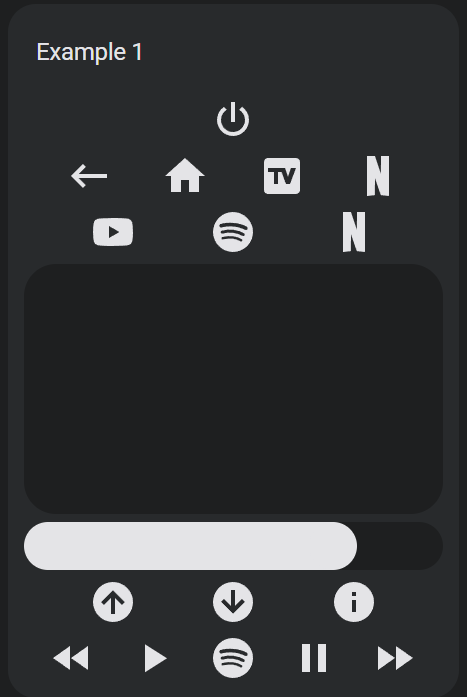
## Example 1
Playing with order, moving and repeating buttons.
Remote Config
```yaml
type: custom:universal-remote-card
remote_id: remote.google_chromecast
media_player_id: media_player.google_chromecast
title: Example 1
rows:
- - power
- - back
- home
- tv
- netflix
- - youtube
- spotify
- netflix
- - touchpad
- - slider
- - channel_up
- channel_down
- info
- - rewind
- play
- spotify
- pause
- fast_forward
```
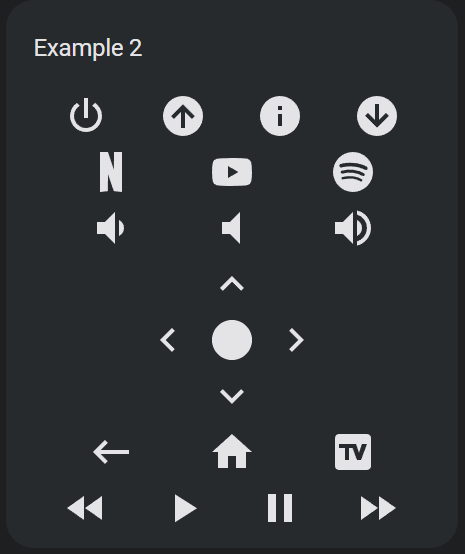
## Example 2
Buttons, buttons everywhere!
Remote Config
```yaml
type: custom:universal-remote-card
remote_id: remote.google_chromecast
title: Example 2
rows:
- - power
- channel_up
- info
- channel_down
- - netflix
- youtube
- spotify
- - volume_buttons
- - dpad
- - back
- home
- tv
- - rewind
- play
- pause
- fast_forward
```
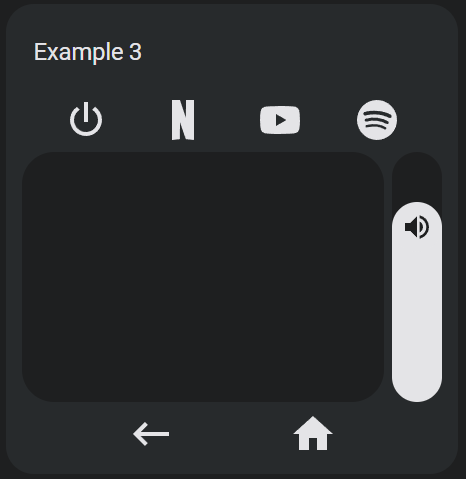
## Example 3
Using less and a vertical slider.
Remote Config
```yaml
type: custom:universal-remote-card
remote_id: remote.google_chromecast
media_player_id: media_player.google_chromecast
title: Example 3
rows:
- - power
- netflix
- youtube
- spotify
- - touchpad
- slider
- - back
- home
custom_actions:
- type: slider
name: slider
range:
- 0
- 1
step: 0.01
value_attribute: volume_level
tap_action:
action: perform-action
perform_action: media_player.volume_set
data:
volume_level: '{{ value | float }}'
vertical: true
icon: mdi:volume-high
```
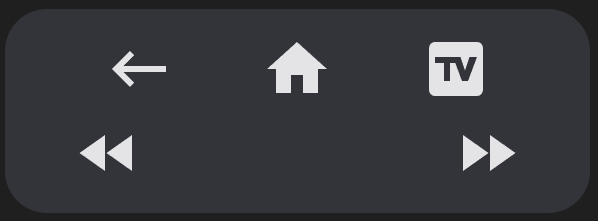
## Example 4
In any row, if you add a `null` item, there will be an empty button sized space.
Remote Config
```yaml
type: custom:universal-remote-card
rows:
- - back
- home
- tv
- - rewind
- null
- null
- fast_forward
```
## Example 5
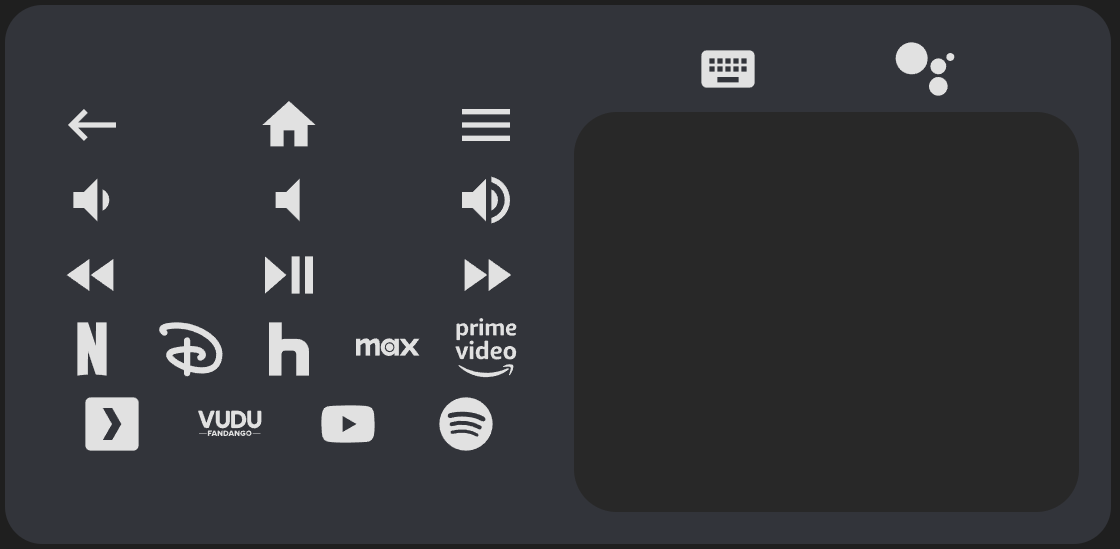
A tablet layout using nested rows and columns.
Remote Config
```yaml
type: custom:universal-remote-card
remote_id: remote.google_chromecast
rows:
- - - - back
- null
- home
- null
- menu
- - volume_down
- null
- volume_mute
- null
- volume_up
- - rewind
- null
- play_pause
- null
- fast_forward
- - netflix
- disney
- hulu
- max
- primevideo
- - plex
- vudu
- youtube
- spotify
- - - keyboard
- search
- - touchpad
custom_actions: []
styles: |-
remote-touchpad::part(toucharea) {
height: 300px;
}
```
## Example 6
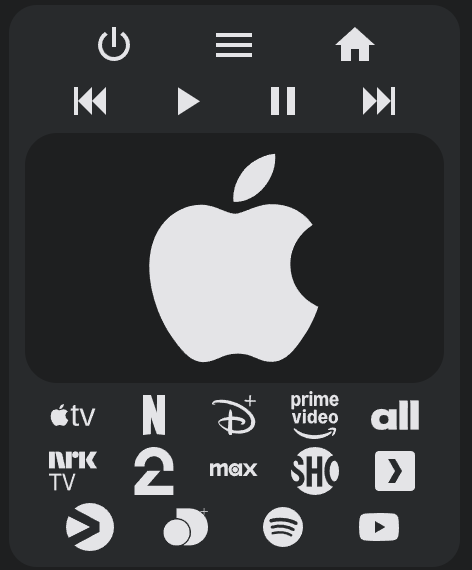
Combining Apple TVs `wakeup` and `suspend` keys into one custom power action and using an icon for the touchpad background.
Remote Config
```yaml
type: custom:universal-remote-card
remote_id: remote.apple_tv
platform: Apple TV
rows:
- - power
- menu
- home
- - skip_backward
- play
- pause
- skip_forward
- - touchpad
- - appletv
- netflix
- disney
- primevideo
- allente
- - nrktv
- tv2play
- max
- skyshowtime
- plex
- - viaplay
- discoveryplus
- spotify
- youtube
custom_actions:
- type: button
name: power
tap_action:
action: key
key: wakeup
icon: mdi:power
hold_action:
action: key
key: suspend
- type: touchpad
name: touchpad
tap_action:
action: key
key: select
up:
tap_action:
action: key
key: up
hold_action:
action: repeat
down:
tap_action:
action: key
key: down
hold_action:
action: repeat
left:
tap_action:
action: key
key: left
hold_action:
action: repeat
right:
tap_action:
action: key
key: right
hold_action:
action: repeat
styles: |-
.icon {
--icon-size: 250px;
}
double_tap_action:
action: key
key: menu
icon: mdi:apple
```
## Example 7
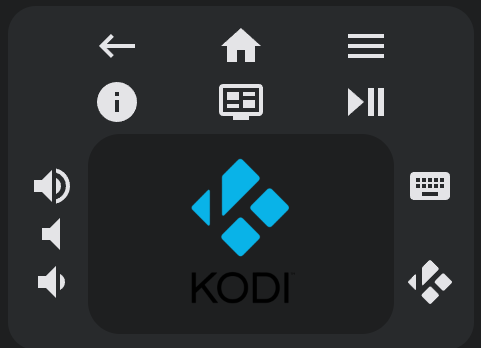
A user's Kodi remote.
Remote Config
```yaml
type: custom:universal-remote-card
keyboard_id: media_player.kodi
media_player_id: media_player.kodi
platform: Kodi
rows:
- - back
- home
- menu
- - info
- osd
- play_pause
- - - volume_buttons
- touchpad
- - keyboard
- null
- search
custom_actions:
- type: touchpad
name: touchpad
tap_action:
action: key
key: Input.Select
up:
tap_action:
action: key
key: Input.Up
hold_action:
action: repeat
styles: ''
down:
tap_action:
action: key
key: Input.Down
hold_action:
action: repeat
left:
tap_action:
action: key
key: Input.Left
hold_action:
action: repeat
right:
tap_action:
action: key
key: Input.Right
hold_action:
action: repeat
styles: |-
toucharea {
height: 200px;
background-image: url("https://upload.wikimedia.org/wikipedia/commons/thumb/2/25/Kodi-logo-Thumbnail-light-transparent.png/600px-Kodi-logo-Thumbnail-light-transparent.png?20141126003611");
background-size: contain;
background-repeat: no-repeat;
background-position: center;
opacity: 1.0;;
}
```
## Example 8
A touchpad remapped to work with a [Denon/Marantz Receiver](https://www.home-assistant.io/integrations/denonavr).
Remote Config
```yaml
type: custom:universal-remote-card
media_player_id: media_player.marantz_sr7013
rows:
- - touchpad
custom_actions:
- type: touchpad
name: touchpad
tap_action:
action: perform-action
perform_action: denonavr.get_command
data:
command: /goform/formiPhoneAppDirect.xml?MNENT
up:
tap_action:
action: perform-action
perform_action: denonavr.get_command
data:
command: /goform/formiPhoneAppDirect.xml?MNCUP
hold_action:
action: repeat
down:
tap_action:
action: perform-action
perform_action: denonavr.get_command
data:
command: /goform/formiPhoneAppDirect.xml?MNCDN
hold_action:
action: repeat
left:
tap_action:
action: perform-action
perform_action: denonavr.get_command
data:
command: /goform/formiPhoneAppDirect.xml?MNCLT
hold_action:
action: repeat
right:
tap_action:
action: perform-action
perform_action: denonavr.get_command
data:
command: /goform/formiPhoneAppDirect.xml?MNCRT
hold_action:
action: repeat
styles: |-
toucharea {
height: 200px;
}
double_tap_action:
action: perform-action
perform_action: denonavr.get_command
data:
command: /goform/formiPhoneAppDirect.xml?MNRTN
```
## Example 9
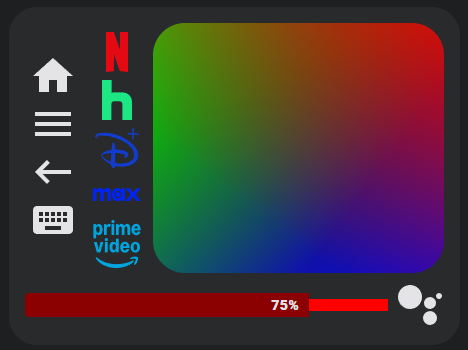
Even more disorder with columns and special elements in the same row as buttons, stylized everything, and a label to display the slider value.
Remote Config
```yaml
type: custom:universal-remote-card
remote_id: remote.google_chromecast
media_player_id: media_player.google_chromecast
rows:
- - - home
- menu
- back
- keyboard
- - netflix
- hulu
- disney
- max
- primevideo
- touchpad
- - slider
- search
custom_actions:
- type: slider
name: slider
range:
- 0
- 0.6
step: 0.01
value_attribute: volume_level
tap_action:
action: perform-action
perform_action: media_player.volume_set
data:
volume_level: '{{ value | float }}'
styles: |-
:host {
height: 24px;
border-radius: 4px;
--background-height: 12px;
--color: darkred;
--background: red;
--thumb-border-radius: 0;
}
.icon {
display: none;
}
.label {
{% if not states(config.entity, 'on') %}
display: none;
{% endif %}
transform: var(--icon-transform);
font-size: 14px;
font-weight: 1000;
color: var(--primary-text-color);
}
.tooltip {
display: none;
}
label: '{{ (value * 100 ) | int }}%'
styles: |-
#netflix::part(icon) {
color: rgb(229, 9, 20);
}
#hulu::part(icon) {
color: rgb(28, 231, 131);
}
#disney::part(icon) {
color: rgb(17, 60, 207);
}
#max::part(icon) {
color: rgb(0, 35, 246);
}
#primevideo::part(icon) {
color: rgb(0, 165, 222);
}
remote-touchpad::part(toucharea) {
background: linear-gradient(217deg, rgba(255,0,0,.8), rgba(255,0,0,0) 70.71%), linear-gradient(127deg, rgba(0,255,0,.8), rgba(0,255,0,0) 70.71%), linear-gradient(336deg, rgba(0,0,255,.8), rgba(0,0,255,0) 70.71%);
}
```
## Example 10
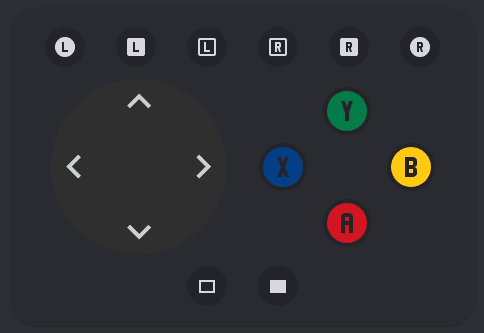
A gamepad using a circlepad and custom styles for buttons.
Remote Config
```yaml
type: custom:universal-remote-card
remote_id: remote.google_chromecast
rows:
- - l1
- l2
- l3
- r3
- r2
- r1
- - circlepad
- xpad
- - null
- null
- select
- start
- null
- null
custom_actions:
- type: button
name: a
tap_action:
action: key
key: BUTTON_A
icon: mdi:alpha-a-circle
styles: |-
:host {
padding: 0;
margin: 0;
--icon-size: 48px;
--icon-color: #C1121C;
}
- type: button
name: b
tap_action:
action: key
key: BUTTON_B
icon: mdi:alpha-b-circle
styles: |-
:host {
padding: 0;
margin: 0;
--icon-size: 48px;
--icon-color: #F7BA0B;
}
- type: button
name: x
tap_action:
action: key
key: BUTTON_X
icon: mdi:alpha-x-circle
styles: |-
:host {
padding: 0;
margin: 0;
--icon-size: 48px;
--icon-color: #00387b;
}
- type: button
name: 'y'
tap_action:
action: key
key: BUTTON_Y
icon: mdi:alpha-y-circle
styles: |-
:host {
padding: 0;
margin: 0;
--icon-size: 48px;
--icon-color: #007243;
}
styles: |-
#circlepad {
width: 175px;
}
#circlepad::part(center) {
visibility: hidden;
}
remote-button {
background: var(--lovelace-background, var(--primary-background-color, #6f767d));;
padding: 8px;
margin: 4px;
border-radius: 24px;
--icon-size: 24px;
}
```
## Example 11
Conditional layouts using templating and attributes.
Remote Config
```yaml
type: custom:universal-remote-card
rows:
- - previous_thing
- next_thing
- - touchpad
- - sliderDown
- slider
- sliderUp
- - dpad
- - volume_buttons
- - numpad
custom_actions:
- icon: mdi:skip-previous-circle
tap_action:
action: fire-dom-event
event_type: urc-attributes
attributes:
page:
- 3
- 2
type: button
name: previous_thing
value_attribute: state
haptics: true
- icon: mdi:skip-next-circle
tap_action:
action: fire-dom-event
event_type: urc-attributes
attributes:
page:
- 2
- 3
type: button
name: next_thing
value_attribute: state
haptics: true
styles: |-
.row {
display: none;
}
#row-1 {
display: flex;
}
:host(:not([page])) #row-2,
:host(:not([page])) #row-3 {
display: flex;
}
:host([page="2"]) #row-4,
:host([page="2"]) #row-5 {
display: flex;
}
:host([page="3"]) #row-6 {
display: flex;
}
```
## Example 12
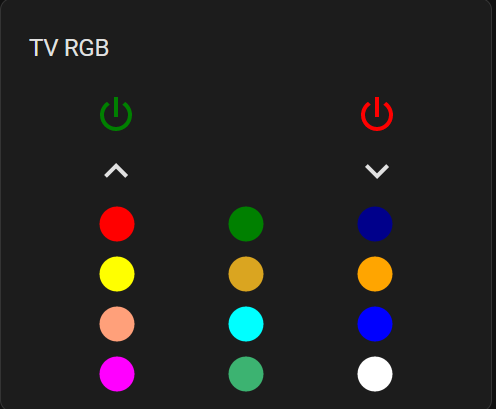
RGB Remote using Broadlink RM4 Pro and the Generic Remote platform.
Remote Config
```yaml
type: custom:universal-remote-card
remote_id: remote.rm4_pro
title: TV RGB
rows:
- - power
- null
- poweroff
- - up
- null
- down
- - red
- green
- dark_blue
- - yellow
- yellow_orange
- orange
- - orange_light
- cyan
- blue
- - pink
- green_light
- white
custom_actions:
- icon: mdi:circle
tap_action:
action: key
key: red
name: red
type: button
styles: |-
:host {
--icon-size: 42px;
--icon-color: red;
}
- icon: mdi:circle
tap_action:
action: key
key: green
name: green
type: button
styles: |-
:host {
--icon-size: 42px;
--icon-color: green;
}
- icon: mdi:circle
tap_action:
action: key
key: dark_blue
name: dark_blue
type: button
styles: |-
:host {
--icon-size: 42px;
--icon-color: darkblue;
}
- icon: mdi:circle
tap_action:
action: key
key: yellow
name: yellow
type: button
styles: |-
:host {
--icon-size: 42px;
--icon-color: yellow;
}
- icon: mdi:circle
tap_action:
action: key
key: yellow_orange
name: yellow_orange
type: button
styles: |-
:host {
--icon-size: 42px;
--icon-color: goldenrod;
}
- icon: mdi:circle
tap_action:
action: key
key: orange
name: orange
type: button
styles: |-
:host {
--icon-size: 42px;
--icon-color: orange;
}
- icon: mdi:circle
tap_action:
action: key
key: orange_light
name: orange_light
type: button
styles: |-
:host {
--icon-size: 42px;
--icon-color: lightsalmon;
}
- icon: mdi:circle
tap_action:
action: key
key: cyan
name: cyan
type: button
styles: |-
:host {
--icon-size: 42px;
--icon-color: cyan;
}
- icon: mdi:circle
tap_action:
action: key
key: blue
name: blue
type: button
styles: |-
:host {
--icon-size: 42px;
--icon-color: blue;
}
- icon: mdi:circle
tap_action:
action: key
key: pink
name: pink
type: button
styles: |-
:host {
--icon-size: 42px;
--icon-color: magenta;
}
- icon: mdi:circle
tap_action:
action: key
key: green_light
name: green_light
type: button
styles: |-
:host {
--icon-size: 42px;
--icon-color: mediumseagreen;
}
- icon: mdi:circle
tap_action:
action: key
key: white
name: white
type: button
styles: |-
:host {
--icon-size: 42px;
--icon-color: white;
}
- type: button
name: power
tap_action:
action: key
key: on
icon: mdi:power
styles: |-
:host {
--icon-color: green;
}
- icon: mdi:power
tap_action:
action: key
key: off
name: poweroff
type: button
styles: |-
:host {
--icon-color: red;
}
- type: button
name: up
tap_action:
action: key
key: brightness+
hold_action:
action: repeat
icon: mdi:chevron-up
- type: button
name: down
tap_action:
action: key
key: brightness-
hold_action:
action: repeat
icon: mdi:chevron-down
platform: Generic Remote
```
## Example 13
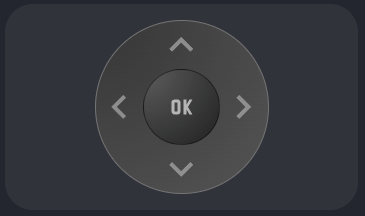
Style a `circlepad` to be like a traditional tv remote.
Remote Config
```yaml
type: custom:universal-remote-card
rows:
- - circlepad
custom_actions:
- type: circlepad
name: circlepad
tap_action:
action: key
key: center
up:
icon: mdi:chevron-up
tap_action:
action: key
key: up
hold_action:
action: repeat
down:
icon: mdi:chevron-down
tap_action:
action: key
key: down
hold_action:
action: repeat
left:
icon: mdi:chevron-left
tap_action:
action: key
key: left
hold_action:
action: repeat
right:
icon: mdi:chevron-right
tap_action:
action: key
key: right
hold_action:
action: repeat
styles: |-
:host {
width: 174px;
}
.circlepad {
border: 1px solid #444;
background: radial-gradient(circle at top left, #202020 15%, #303030 100%);
--icon-color: rgba(128,128,128,0.5);
}
#center::part(button) {
background: radial-gradient(circle at top left, #303030 15%, #101010 100%);
border: 1px solid rgba(0, 0, 0, 0.5);
}
#center::part(icon) {
color: rgba(128,128,128, 0.8);
--icon-size: 36px;
}
#left,
#right {
width: 100%;
}
icon: ok
styles: ''
custom_icons:
- name: ok
path: >-
M7 7A2 2 0 005 9V15A2 2 0 007 17H9A2 2 0 0011 15V9A2 2 0 009 7H7M7
9H9V15H7V9ZM13 7V17H15V13.7L17 17H19L16 12 19 7H17L15 10.3V7H13Z
```
## Example 14
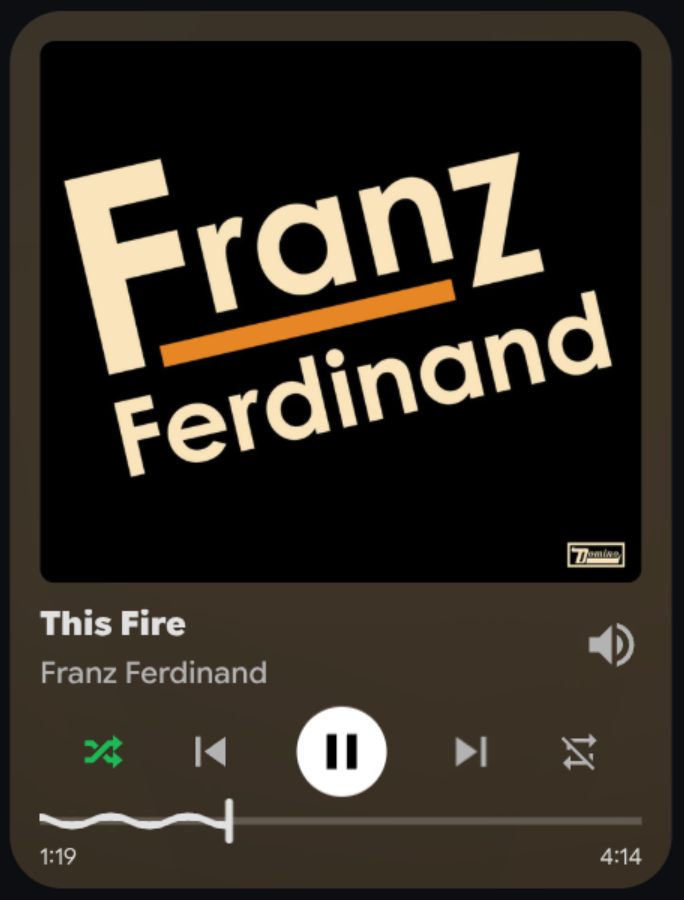
A Spotify app influenced music controller, with album art, album colored background, song info, media position information, controls, and a hidden vertical volume slider. Set `--max-album-height` in the global styles to reduce its size.
Remote Config
```yaml
type: custom:universal-remote-card
media_player_id: media_player.spotify
rows:
- - album_art
- volume
- - song_info
- show_volume
- - shuffle
- previous
- play_pause
- next
- repeat
- - media_position
custom_actions:
- type: touchpad
name: album_art
tap_action:
action: more-info
styles: |-
:host {
display: flex;
pointer-events: all;
border-radius: 0;
--icon-size: 0;
}
toucharea {
content: url("{{ state_attr(config.entity, 'entity_picture') }}");
background: transparent;
height: fit-content;
width: fit-content;
max-width: 100%;
max-height: var(--max-album-height, 50vh);
border-radius: 8px;
--ha-ripple-hover-color: transparent;
}
down:
styles: ''
left:
styles: ''
- type: touchpad
name: song_info
styles: |-
toucharea {
background: none;
height: 50px;
border-radius: 0;
justify-content: center;
gap: 4px;
--ha-ripple-color: none;
--icon-size: 0px;
}
.toucharea-row {
justify-content: flex-start;
}
#left, #right {
display: none;
}
remote-icon-label {
width: -webkit-fill-available;
width: -moz-available;
align-items: flex-start;
}
.label {
font-size: 18px;
line-height: 18px;
height: 22px;
width: -webkit-fill-available;
width: -moz-available;
justify-content: flex-start;
font-weight: 900;
display: block;
overflow: hidden;
text-overflow: ellipsis;
text-align: left;
}
value_attribute: media_title
label: '{{ value | safe }}'
down:
styles: |-
.label {
font-size: 16px;
line-height: 16px;
color: var(--icon-color);
font-weight: 500;
width: -webkit-fill-available;
width: -moz-available;
justify-content: flex-start;
display: block;
overflow: hidden;
text-overflow: ellipsis;
text-align: left;
}
label: '{{ state_attr(config.entity, "media_artist") | safe }}'
- type: button
name: show_volume
icon: mdi:volume-high
tap_action:
action: fire-dom-event
event_type: urc-attributes
attributes:
volume:
- ''
- type: slider
name: volume
value_attribute: volume_level
tap_action:
action: perform-action
perform_action: media_player.volume_set
data:
volume_level: '{{ value | float }}'
icon: mdi:music-note
vertical: true
styles: |-
:host {
position: absolute;
height: var(--max-album-height, 50vh);
width: 50px;
right: 6px;
top: 8px;
--tooltip-label: "{{ (100 * value) | int }}%";
--icon-color: var(--background-color);
transition: all 0.1s ease-out;
opacity: 0;
}
.background {
opacity: 0.5;
}
- type: button
name: shuffle
tap_action:
action: perform-action
perform_action: media_player.shuffle_set
target: {}
data:
shuffle: '{{ not value }}'
styles: |-
:host {
--icon-size: 24px;
}
{% if value %}
:host {
--icon-color: var(--active-color);
}
{% endif %}
value_attribute: shuffle
icon: |-
{% if value %}
mdi:shuffle-variant
{% else %}
mdi:shuffle-disabled
{% endif %}
- type: button
name: previous
tap_action:
action: perform-action
perform_action: media_player.media_previous_track
target: {}
icon: mdi:skip-previous
- type: button
name: play_pause
tap_action:
action: perform-action
perform_action: media_player.media_play_pause
target: {}
icon: |-
{% if is_state(config.entity, "playing") %}
mdi:pause
{% else %}
mdi:play
{% endif %}
styles: |
.icon {
color: black;
}
button {
background-color: white;
height: var(--button_size);
width: var(--button_size);
--button_size: 48px;
}
- type: button
name: next
tap_action:
action: perform-action
perform_action: media_player.media_next_track
target: {}
icon: mdi:skip-next
- type: button
name: repeat
tap_action:
action: perform-action
perform_action: media_player.repeat_set
target: {}
data:
repeat: |-
{% if value == 'off' %}
all
{% elif value == 'all' %}
one
{% else %}
off
{% endif %}
styles: |-
:host {
--icon-size: 24px;
}
{% if value in ['all', 'one'] %}
:host {
--icon-color: var(--active-color);
}
{% endif %}
value_attribute: repeat
icon: |-
{% if value == 'all' %}
mdi:repeat
{% elif value == 'one' %}
mdi:repeat-once
{% else %}
mdi:repeat-off
{% endif %}
- type: slider
name: media_position
value_attribute: media_position
range:
- 0
- '{{ state_attr(config.entity, "media_duration") }}'
tap_action:
action: perform-action
perform_action: media_player.media_seek
data:
seek_position: '{{ value }}'
step: 1
styles: |-
:host {
height: calc(2.5 * var(--height));
justify-content: flex-start;
font-size: 12px;
font-weight: 300;
--height: 10px;
--tooltip-display: none;
}
.container {
overflow: visible;
overflow-x: clip;
--thumb-width: 4px;
--thumb-border-radius: 4px;
}
.background {
background: white;
opacity: 0.2;
height: 4px;
top: 33%;
}
.slider {
margin: 0;
}
@media (hover: hover) {
:hover {
--color: var(--active-color);
}
}
:focus-visible, :active {
--color: var(--active-color);
}
.thumb {
height: 24px;
top: -66%;
}
.thumb .active {
mask-image: url("data:image/svg+xml,%3Csvg xmlns='http://www.w3.org/2000/svg' viewBox='610 1101 1220 75'%3E%3Cpath fill='%23D0BCFF' d='M1870.425 1173.746c-29.448 0-58.665-7.477-84.493-21.622-.03-.016-.061-.032-.09-.049-43.555-23.82-95.546-23.809-139.091.039a4.079 4.079 0 0 1-.113.062c-25.803 14.109-54.984 21.567-84.394 21.568-29.449 0-58.667-7.478-84.495-21.623-43.554-23.852-95.539-23.865-139.089-.052-.03.018-.062.034-.092.051-25.83 14.146-55.048 21.623-84.497 21.623-29.423 0-58.613-7.463-84.425-21.584l-.077-.042c-43.572-23.863-95.596-23.862-139.164-.001l-.085.046c-25.809 14.117-55.001 21.581-84.418 21.581h-.001c-29.45-.001-58.669-7.479-84.498-21.625-43.534-23.845-95.513-23.863-139.063-.058l-.108.06c-25.829 14.146-55.047 21.623-84.496 21.623-29.398 0-58.566-7.451-84.362-21.551-.048-.024-.095-.05-.142-.075-43.568-23.863-95.593-23.863-139.163 0l-.081.043c-25.811 14.12-55.001 21.583-84.421 21.583-29.45 0-58.668-7.478-84.497-21.624-7.521-4.118-10.278-13.554-6.159-21.074s13.554-10.277 21.074-6.158c43.57 23.862 95.593 23.864 139.163 0l.098-.053c25.807-14.114 54.991-21.573 84.406-21.573 29.398 0 58.567 7.451 84.364 21.55l.14.076c43.534 23.843 95.508 23.864 139.056.059l.113-.063c25.828-14.145 55.049-21.622 84.496-21.622h.002c29.449 0 58.668 7.478 84.497 21.625 43.57 23.863 95.595 23.862 139.165.001.021-.013.043-.024.065-.036 25.813-14.124 55.011-21.591 84.438-21.591 29.42 0 58.61 7.463 84.421 21.582l.082.045c43.539 23.847 95.521 23.862 139.074.049l.096-.053c25.829-14.146 55.047-21.623 84.496-21.623s58.667 7.477 84.496 21.623c43.58 23.867 95.604 23.866 139.172.005l.118-.064c25.803-14.108 54.98-21.564 84.389-21.564 29.448-.001 58.666 7.476 84.494 21.62l.114.063c43.549 23.807 95.528 23.791 139.063-.051 7.52-4.121 16.955-1.361 21.073 6.159 4.119 7.521 1.361 16.955-6.159 21.073-25.828 14.146-55.045 21.622-84.492 21.622z'%3E%3CanimateTransform attributeName='transform' calcMode='linear' dur='1s' from='0 0' repeatCount='indefinite' to='312.5 0' type='translate'/%3E%3C/path%3E%3C/svg%3E");
mask-position: 0 50%;
mask-repeat: repeat-x;
mask-size: auto 100%;
height: var(--height);
top: 7px
}
:host::before {
content: '{% set minutes = (value / 60) | int %}{% set seconds = (value - 60 * minutes)
| int %}{{ minutes }}:{{ 0 if seconds < 10 else "" }}{{ seconds | int }}';
position: absolute;
left: 0;
bottom: 0;
}
:host::after {
content: '{% set duration = state_attr(config.entity, "media_duration") %}{% set minutes = (duration / 60) | int %}{% set seconds = (duration - 60 * minutes)
| int %}{{ minutes }}:{{ 0 if seconds < 10 else "" }}{{ seconds | int }}';
position: absolute;
right: 0;
bottom: 0;
}
value_from_hass_delay: 2000
grid_options:
columns: 12
rows: auto
styles: |-
ha-card {
overflow: hidden;
--icon-size: 32px;
--icon-color: #b3b3b3;
--active-color: #1cb955;
}
ha-card::before {
content: '';
position: absolute;
top: 0;
left: 0;
right: 0;
bottom: 0;
background-image: url("{{ state_attr(config.entity, 'entity_picture') }}");
background-size: cover;
filter: blur(80px) brightness(80%);
transform: scale(5);
}
remote-button:active {
filter: brightness(80%);
}
@media (hover: hover) {
remote-button:hover {
transform: scale(1.02);
--icon-color: white;
}
}
remote-touchpad {
pointer-events: none;
}
#volume {
display: none;
}
#volume::part(range) {
pointer-events: none;
}
:host([volume]) #volume {
display: flex;
}
:host([volume]) #volume::part(range) {
pointer-events: all;
}
haptics: false
```
## Example 15
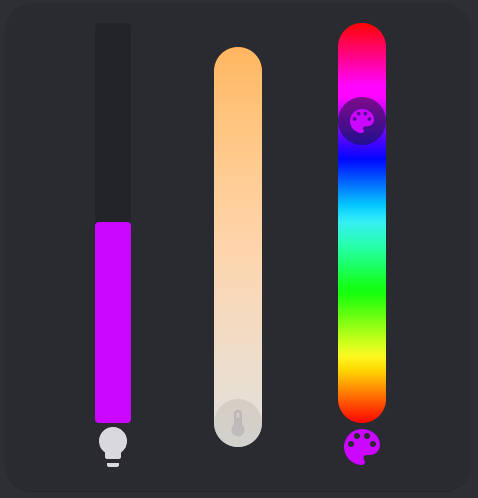
Multiple sliders for light color control.
Remote Config
```yaml
type: custom:universal-remote-card
rows:
- - - brightness
- light_toggle
- color_temp
- - hs_color
- light_color
custom_actions:
- type: slider
vertical: true
entity_id: light.sunroom_ceiling
value_attribute: brightness
range:
- 0
- 100
step: 1
tap_action:
action: perform-action
perform_action: light.turn_on
data:
brightness_pct: '{{ value | int }}'
styles: |
:host {
height: 400px;
border-radius: 4px;
--height: 36px;
--thumb-width: 18px;
--thumb-border-radius: 4px;
{% set rgb_color = state_attr(config.entity, "rgb_color") %}
{% if rgb_color %}
--color: rgb({{ rgb_color }});
{% endif %}
}
.background {
height: 24px;
}
name: brightness
- type: slider
vertical: true
entity_id: light.sunroom_ceiling
value_attribute: color_temp
range:
- '{{ state_attr(config.entity, "min_mireds") }}'
- '{{ state_attr(config.entity, "max_mireds") }}'
step: 1
tap_action:
action: perform-action
data:
color_temp: '{{ value | int }}'
perform_action: light.turn_on
styles: |-
:host {
height: 400px;
--color: rgba(0, 0, 0, 0.2);
--background: linear-gradient(-90deg, rgb(255, 167, 87), rgb(255, 255, 251));
--thumb-box-shadow: none;
}
.icon {
filter: invert(1);
mix-blend-mode: difference;
}
.thumb .active {
display: none;
}
name: color_temp
icon: mdi:thermometer
- type: slider
range:
- 0
- 360
value_attribute: hs_color.0
tap_action:
action: perform-action
perform_action: light.turn_on
data:
hs_color:
- '{{ value | int }}'
- 100
vertical: true
step: 0.1
icon: mdi:palette
styles: |-
:host {
height: 400px;
color: hsl({{ value | int }}, 100%, 50%);
--color: rgba(0, 0, 0, 0.5);
--background: linear-gradient(to right, #f00 0%, #ff0 17%, #0f0 33%, #0ff 50%, #00f 66%, #f0f 83%, #f00 100%);
--thumb-box-shadow: none;
}
.thumb .active {
display: none;
}
entity_id: light.sunroom_ceiling
name: hs_color
- type: button
name: light_toggle
entity_id: light.sunroom_ceiling
tap_action:
action: perform-action
perform_action: light.toggle
target:
entity_id: light.sunroom_ceiling
data: {}
confirmation:
exemptions: []
icon: mdi:lightbulb
haptics: true
- type: button
name: light_color
entity_id: light.sunroom_ceiling
tap_action:
action: perform-action
perform_action: light.turn_on
target:
entity_id: light.sunroom_ceiling
data:
color_name: red
double_tap_action:
action: perform-action
perform_action: light.turn_on
target:
entity_id: light.sunroom_ceiling
data:
color_name: green
hold_action:
action: perform-action
perform_action: light.turn_on
target:
entity_id: light.sunroom_ceiling
data:
color_name: blue
icon: mdi:palette
styles: |-
.icon {
color: rgb({{ value }});
}
value_attribute: rgb_color
styles: |-
.column {
flex: 0;
}
remote-slider {
align-self: center;
}
```
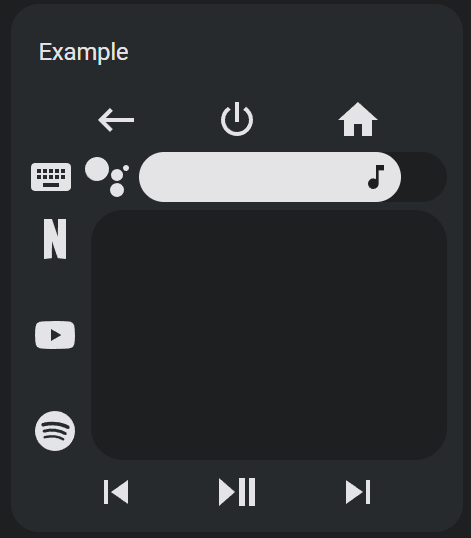 A super customizable universal remote card iterating on the work of several other projects. Featuring:
- Configuration UI.
- Out of the box support for [many platforms](#media-platform-and-entity-ids) with default key and source lists.
- Android TV (with keyboard)
- Sony BRAVIA (with keyboard)
- Fire TV (with keyboard)
- Apple TV (with keyboard)
- Roku (with keyboard)
- LG webOS (with keyboard)
- Samsung TV (with keyboard)
- Kodi (with keyboard)
- Unified Remote for Windows, macOS, and Linux (with keyboard)
- Philips TV
- Denon AVR
- Yamaha YNCA
- Jellyfin
- Unfolded Circle
- Generic Remote
- Support for multiple buttons, circlepads, touchpads, and sliders using default or user defined actions.
- Complete [Home Assistant actions](https://www.home-assistant.io/dashboards/actions/) support.
- [Keyboard and search](#keyboard-and-search) dialog actions for most platforms.
- [Template](#a-note-on-templating) support for almost all fields using ha-nunjucks.
- [Accessability keyboard controls](#keyboard-interactions-and-accessability) for all components.
- Toggleable haptics.
- User configurable remote [layout](#layout).
- Icons and labels for all elements.
- Custom SVG icon support.
- CSS style options for all sub-elements.
# How To Use
This project now has a fully featured configuration user interface! To get started, install this project using HACS. Then go to a dashboard and create a universal remote card or edit an existing one.
The editor has four tabs - General, Layout, Elements, and Icons.
# General
A super customizable universal remote card iterating on the work of several other projects. Featuring:
- Configuration UI.
- Out of the box support for [many platforms](#media-platform-and-entity-ids) with default key and source lists.
- Android TV (with keyboard)
- Sony BRAVIA (with keyboard)
- Fire TV (with keyboard)
- Apple TV (with keyboard)
- Roku (with keyboard)
- LG webOS (with keyboard)
- Samsung TV (with keyboard)
- Kodi (with keyboard)
- Unified Remote for Windows, macOS, and Linux (with keyboard)
- Philips TV
- Denon AVR
- Yamaha YNCA
- Jellyfin
- Unfolded Circle
- Generic Remote
- Support for multiple buttons, circlepads, touchpads, and sliders using default or user defined actions.
- Complete [Home Assistant actions](https://www.home-assistant.io/dashboards/actions/) support.
- [Keyboard and search](#keyboard-and-search) dialog actions for most platforms.
- [Template](#a-note-on-templating) support for almost all fields using ha-nunjucks.
- [Accessability keyboard controls](#keyboard-interactions-and-accessability) for all components.
- Toggleable haptics.
- User configurable remote [layout](#layout).
- Icons and labels for all elements.
- Custom SVG icon support.
- CSS style options for all sub-elements.
# How To Use
This project now has a fully featured configuration user interface! To get started, install this project using HACS. Then go to a dashboard and create a universal remote card or edit an existing one.
The editor has four tabs - General, Layout, Elements, and Icons.
# General
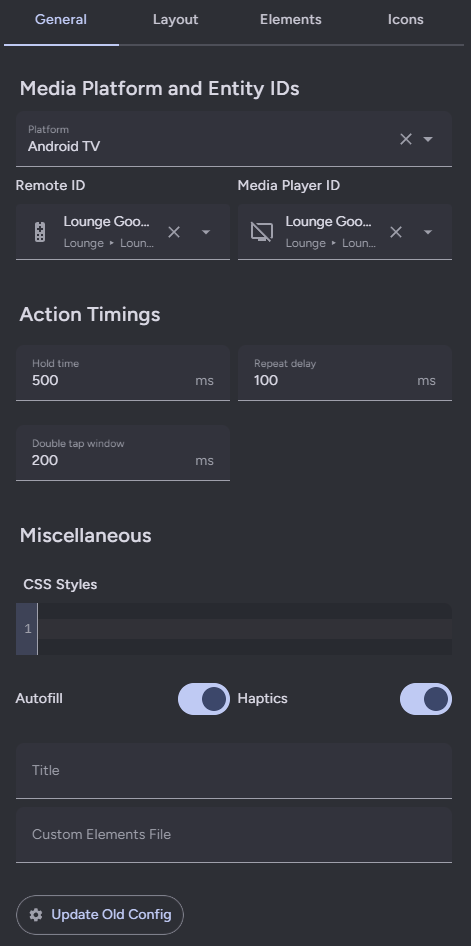 Start by selecting your media platform, then your device using the Config Entry ID field. The latter will autofill the remote and media player ID fields if available for the config entry. Platform, entity ID, and timing fields set in the general tab will be used for default keys and sources. If you do not set these fields for custom elements, they will also use these fields. If you explicitly set one of these fields in a custom element, it will not be overwritten if you change the matching general field until you clear the field in the custom element. To completely clear toggle fields, you must remove them from the config using the code editor.
## Media Platform and Entity IDs
This card supports several media platforms with default key and source lists. Different platforms require different fields as listed below. Some platforms require custom integrations or have additional configuration notes and are called out below the table.
| Platform | Remote ID | Media Player ID | Keyboard ID | Config Entry ID | Remote/Device Name | MAC Address |
| -------------------------------------------------------------------------- | ------------------------------------------- | ------------------------------------------------------------------------------------------------------------------------------------------------- | ----------------------------------------------------------------------------------------------------------- | --------------- | ----------------------------------- | ----------- |
| [Android TV](https://www.home-assistant.io/integrations/androidtv_remote/) | Default keys, sources, keyboard, and search | Default slider | [ADB](https://www.home-assistant.io/integrations/androidtv/) remote or media player for keyboard and search | | | |
| [Sony BRAVIA](https://www.home-assistant.io/integrations/braviatv/) | Default keys | Default sources and slider | [ADB](https://www.home-assistant.io/integrations/androidtv/) remote or media player for keyboard and search | | | |
| [Fire TV](https://www.home-assistant.io/integrations/androidtv/) | Default keys, keyboard, and search | Default sources, slider, keyboard, and search | Keyboard and search | | | |
| [Apple TV](https://www.home-assistant.io/integrations/apple_tv) | Default keys | Default sources and slider | | Keyboard | | |
| [Roku](https://www.home-assistant.io/integrations/roku/) | Default keys and keyboard | Default sources, slider, and search | | | | |
| [LG webOS](https://www.home-assistant.io/integrations/webostv/) | | Default keys, sources, slider, and keyboard | | | | Wake on LAN |
| [Samsung TV](https://www.home-assistant.io/integrations/samsungtv/) | Default keys | Default sources, keyboard (requires the [SamsungTV Smart Component custom integration](https://github.com/ollo69/ha-samsungtv-smart)), and slider | | | | Wake on LAN |
| [Kodi](https://www.home-assistant.io/integrations/kodi/) | | Default keys, sources, slider, keyboard, and search | | | | Wake on LAN |
| [Unified Remote](https://github.com/akshansh1998/hass-unified-remote) | | | | | Default keys and keyboard | |
| [Philips TV](https://www.home-assistant.io/integrations/philips_js/) | Default keys | Play/pause and slider | | | | |
| [Denon AVR](https://www.home-assistant.io/integrations/denonavr/) | | Default keys, sources, and slider | | | | |
| [Yamaha YNCA](https://github.com/mvdwetering/yamaha_ynca) | Default keys | Default sources, play/pause, volume, and slider | | | | |
| [Jellyfin](https://www.home-assistant.io/integrations/jellyfin/) | Default keys | Play/pause and slider | | | | |
| [Unfolded Circle](https://github.com/JackJPowell/hass-unfoldedcircle) | Default keys | | | | | |
| Generic Remote | Default keys and sources | | | | `remote.send_command` `data.device` | |
### Android TV - Remote API and Android Debug Bridge
Modern Android TVs use the Android TV Remote protocol for receiving commands, including keyboard input. This protocol does not work for global search, which still requires the Android Debug Bridge integration for triggering global search without navigating to an inconsistently placed search box in the Android TV UI.
As of Android 14, changes have been made to Android Debug Bridge in the name of security which make it harder to use for TV control. It uses a random port rather than the old default, disconnects after some time of inactivity, and does not work over wired connections. To get around these changes, you can sideload a tool like [adb-auto-enable](https://github.com/mouldybread/adb-auto-enable) onto your Android TV to automatically enable ADB on boot and use a static port.
### Sony BRAVIA - Different APIs on Different Models
Some Sony BRAVIA TVs do not support the Android TV Remote API, but do have their own proprietary API. The correct integration should be chosen based on which one your television supports. If you use the Sony BRAVIA platform, then you will also want to set up the Android Debug Bridge integration and provide its remote or media player entity ID in the Keyboard ID field in order to use the keyboard and search actions.
### Fire TV (Legacy) - Android Debug Bridge
Legacy Fire TV is a heavily modified fork of Android TV. It uses the Android Debug Bridge integration for all interactions. If your Android TV does not support the Android TV Remote API, you can use this platform with the Android Debug Bridge integration instead.
Starting in 2025, new Amazon Fire TV devices use a new operating system called Vega OS. Vega OS is not based on Android, and communicating with it not possible with Home Assistant. At time of writing, you cannot use this card (or anything except Amazon official methods) to control a Vega OS Fire TV.
### Samsung TV - Sources and Keyboard Using Custom Integration
The Home Assistant Samsung TV integration does not allow you to change sources or send text. To do so you need to setup the [SamsungTV Smart Component custom integration](https://github.com/ollo69/ha-samsungtv-smart) and provide its media player entity ID to this card.
### Unified Remote - Custom Integration
Unified Remote relies entirely on [a custom integration](https://github.com/akshansh1998/hass-unified-remote), which is used to control a [Unified Remote server](https://www.unifiedremote.com/) on your PC. This custom integration creates a media player entity, but all default keys are called using the action `unified_remote.call` which can be used to call any Unified Remote API. You must enter the Unified Remote server friendly name you used when configuring the integration in the card Remote/Device Name field.
Unified Remote has not been updated in many years, and is slowly ceasing to work with newer operating systems. Certain functionality like mouse clicks (see [discussion thread](https://github.com/Nerwyn/universal-remote-card/discussions/285) and keyboard for workaround) no longer works on Linux Wayland devices
### Yamaha YNCA - Custom integration
Yamaha YNCA relies entirely on [a custom integration](https://github.com/mvdwetering/yamaha_ynca), which is used to control Yamaha AV receivers that support the YNCA protocol. This custom integration creates remote and media player entities which can be provided to this card.
### Unfolded Circle - Custom Integration
Unfolded Circle relies entirely on [a custom integration](https://github.com/JackJPowell/hass-unfoldedcircle), which is used to control an [Unfolded Circle Remote Two/3](https://www.unfoldedcircle.com/). This custom integration creates a remote entity which can be provided to this card, which is then used to call its `unfoldedcircle.send_button_command` action.
### Generic Remote - Shorthand for IR/RF Commands
The generic remote platform takes all default key and source buttons of all other platforms and creates generic remote actions using their names and icons. It also includes a default circlepad and touchpads.
```yaml
name: power
icon: mdi:power
tap_action:
action: key
key: power
device: Generic Device
```
You can use `remote.learn_command` on supported platforms like [Broadlink Remote](https://www.home-assistant.io/integrations/broadlink/#remote) to create commands that match these actions. If needed a remote/device name can be provided which will be included in the key actions data.
## Action Timings
Double tap and hold actions have user adjustable timings to change how they are triggered. These values can be set globally in the general tab or for each custom element.
### Hold Time
Hold actions are triggered by holding down on a button for a defined amount of time and then releasing. The default amount of time is 500ms. You can change this by setting `Hold time` in the general tab or a custom element hold action to a different number.
### Repeat and Repeat Delay
By setting a hold action to `repeat`, the tap action will repeat while a button or touchpad direction is held down. The default delay between repeats is 100ms. You can change this by setting `Repeat delay` in the general tab or a custom element hold action to a different number.
The following default keys have their hold actions set to `repeat` by default. You can disable this by creating a custom element for them and setting their hold actions to `none` or a different action. The circlepad and touchpad direction actions also are set to repeat when held, and can similarly be disabled or remapped by creating a custom element for the touchpad and changing it's hold action.
- up
- down
- left
- right
- volume_up
- volume_down
- delete
- forward_delete
- touchpad up/down/left/right
### Double Tap Window
Double tap actions have a default window of 200ms to trigger before a single tap action is triggered instead. You can change this by setting `Double tap window` in the general tab or a custom element double tap action to a different number.
**Note**: Setting `Double tap window` above or too close to `Hold time` can result in undesirable behavior, as the hold timer expires before the double tap timer does. If you increase the `Double tap window` you should also increase `Hold time` to not be too close to it by at least 100ms if not more. In a custom element without a hold action defined, you can set `Hold behavior` explicitly to `Nothing` to render the `Hold time` field.
## Miscellaneous
### CSS Styles
Styles can be set and changed for the remote card and all sub-elements using regular CSS and templating. CSS styles have to be encapsulated in a CSS selector like the following.
| CSS Selector | Element |
| ------------------ | ------------------------------- |
| :host | The card or sub-element host. |
| .row | All rows. |
| .column | All columns. |
| .button-pad | All default button pads. |
| .empty-button | All empty/null button spaces. |
| remote-button | All buttons. |
| #row-1 | The first row. |
| #column-1 | The first column. |
| #pad-1 | The first button default pad. |
| #power | The name of a specific element. |
| #power::part(icon) | The icon of a specific element. |
```css
/* All rows */
.row {
justify-content: center;
}
/* All buttons */
remote-button {
background: rgb(27, 27, 27);
padding: 8px;
margin: 4px;
border-radius: 24px;
--icon-size: 24px;
}
/* The icon of the power button
* You no longer need to create a custom element just to style default ones by using ::part pseudo-elements
*/
#power::part(icon) {
color: red;
}
```
If you hover over the card preview window, a red dashed outline will appear along with a tooltip showing either the element name or the row, column, or pad ID selector.
Start by selecting your media platform, then your device using the Config Entry ID field. The latter will autofill the remote and media player ID fields if available for the config entry. Platform, entity ID, and timing fields set in the general tab will be used for default keys and sources. If you do not set these fields for custom elements, they will also use these fields. If you explicitly set one of these fields in a custom element, it will not be overwritten if you change the matching general field until you clear the field in the custom element. To completely clear toggle fields, you must remove them from the config using the code editor.
## Media Platform and Entity IDs
This card supports several media platforms with default key and source lists. Different platforms require different fields as listed below. Some platforms require custom integrations or have additional configuration notes and are called out below the table.
| Platform | Remote ID | Media Player ID | Keyboard ID | Config Entry ID | Remote/Device Name | MAC Address |
| -------------------------------------------------------------------------- | ------------------------------------------- | ------------------------------------------------------------------------------------------------------------------------------------------------- | ----------------------------------------------------------------------------------------------------------- | --------------- | ----------------------------------- | ----------- |
| [Android TV](https://www.home-assistant.io/integrations/androidtv_remote/) | Default keys, sources, keyboard, and search | Default slider | [ADB](https://www.home-assistant.io/integrations/androidtv/) remote or media player for keyboard and search | | | |
| [Sony BRAVIA](https://www.home-assistant.io/integrations/braviatv/) | Default keys | Default sources and slider | [ADB](https://www.home-assistant.io/integrations/androidtv/) remote or media player for keyboard and search | | | |
| [Fire TV](https://www.home-assistant.io/integrations/androidtv/) | Default keys, keyboard, and search | Default sources, slider, keyboard, and search | Keyboard and search | | | |
| [Apple TV](https://www.home-assistant.io/integrations/apple_tv) | Default keys | Default sources and slider | | Keyboard | | |
| [Roku](https://www.home-assistant.io/integrations/roku/) | Default keys and keyboard | Default sources, slider, and search | | | | |
| [LG webOS](https://www.home-assistant.io/integrations/webostv/) | | Default keys, sources, slider, and keyboard | | | | Wake on LAN |
| [Samsung TV](https://www.home-assistant.io/integrations/samsungtv/) | Default keys | Default sources, keyboard (requires the [SamsungTV Smart Component custom integration](https://github.com/ollo69/ha-samsungtv-smart)), and slider | | | | Wake on LAN |
| [Kodi](https://www.home-assistant.io/integrations/kodi/) | | Default keys, sources, slider, keyboard, and search | | | | Wake on LAN |
| [Unified Remote](https://github.com/akshansh1998/hass-unified-remote) | | | | | Default keys and keyboard | |
| [Philips TV](https://www.home-assistant.io/integrations/philips_js/) | Default keys | Play/pause and slider | | | | |
| [Denon AVR](https://www.home-assistant.io/integrations/denonavr/) | | Default keys, sources, and slider | | | | |
| [Yamaha YNCA](https://github.com/mvdwetering/yamaha_ynca) | Default keys | Default sources, play/pause, volume, and slider | | | | |
| [Jellyfin](https://www.home-assistant.io/integrations/jellyfin/) | Default keys | Play/pause and slider | | | | |
| [Unfolded Circle](https://github.com/JackJPowell/hass-unfoldedcircle) | Default keys | | | | | |
| Generic Remote | Default keys and sources | | | | `remote.send_command` `data.device` | |
### Android TV - Remote API and Android Debug Bridge
Modern Android TVs use the Android TV Remote protocol for receiving commands, including keyboard input. This protocol does not work for global search, which still requires the Android Debug Bridge integration for triggering global search without navigating to an inconsistently placed search box in the Android TV UI.
As of Android 14, changes have been made to Android Debug Bridge in the name of security which make it harder to use for TV control. It uses a random port rather than the old default, disconnects after some time of inactivity, and does not work over wired connections. To get around these changes, you can sideload a tool like [adb-auto-enable](https://github.com/mouldybread/adb-auto-enable) onto your Android TV to automatically enable ADB on boot and use a static port.
### Sony BRAVIA - Different APIs on Different Models
Some Sony BRAVIA TVs do not support the Android TV Remote API, but do have their own proprietary API. The correct integration should be chosen based on which one your television supports. If you use the Sony BRAVIA platform, then you will also want to set up the Android Debug Bridge integration and provide its remote or media player entity ID in the Keyboard ID field in order to use the keyboard and search actions.
### Fire TV (Legacy) - Android Debug Bridge
Legacy Fire TV is a heavily modified fork of Android TV. It uses the Android Debug Bridge integration for all interactions. If your Android TV does not support the Android TV Remote API, you can use this platform with the Android Debug Bridge integration instead.
Starting in 2025, new Amazon Fire TV devices use a new operating system called Vega OS. Vega OS is not based on Android, and communicating with it not possible with Home Assistant. At time of writing, you cannot use this card (or anything except Amazon official methods) to control a Vega OS Fire TV.
### Samsung TV - Sources and Keyboard Using Custom Integration
The Home Assistant Samsung TV integration does not allow you to change sources or send text. To do so you need to setup the [SamsungTV Smart Component custom integration](https://github.com/ollo69/ha-samsungtv-smart) and provide its media player entity ID to this card.
### Unified Remote - Custom Integration
Unified Remote relies entirely on [a custom integration](https://github.com/akshansh1998/hass-unified-remote), which is used to control a [Unified Remote server](https://www.unifiedremote.com/) on your PC. This custom integration creates a media player entity, but all default keys are called using the action `unified_remote.call` which can be used to call any Unified Remote API. You must enter the Unified Remote server friendly name you used when configuring the integration in the card Remote/Device Name field.
Unified Remote has not been updated in many years, and is slowly ceasing to work with newer operating systems. Certain functionality like mouse clicks (see [discussion thread](https://github.com/Nerwyn/universal-remote-card/discussions/285) and keyboard for workaround) no longer works on Linux Wayland devices
### Yamaha YNCA - Custom integration
Yamaha YNCA relies entirely on [a custom integration](https://github.com/mvdwetering/yamaha_ynca), which is used to control Yamaha AV receivers that support the YNCA protocol. This custom integration creates remote and media player entities which can be provided to this card.
### Unfolded Circle - Custom Integration
Unfolded Circle relies entirely on [a custom integration](https://github.com/JackJPowell/hass-unfoldedcircle), which is used to control an [Unfolded Circle Remote Two/3](https://www.unfoldedcircle.com/). This custom integration creates a remote entity which can be provided to this card, which is then used to call its `unfoldedcircle.send_button_command` action.
### Generic Remote - Shorthand for IR/RF Commands
The generic remote platform takes all default key and source buttons of all other platforms and creates generic remote actions using their names and icons. It also includes a default circlepad and touchpads.
```yaml
name: power
icon: mdi:power
tap_action:
action: key
key: power
device: Generic Device
```
You can use `remote.learn_command` on supported platforms like [Broadlink Remote](https://www.home-assistant.io/integrations/broadlink/#remote) to create commands that match these actions. If needed a remote/device name can be provided which will be included in the key actions data.
## Action Timings
Double tap and hold actions have user adjustable timings to change how they are triggered. These values can be set globally in the general tab or for each custom element.
### Hold Time
Hold actions are triggered by holding down on a button for a defined amount of time and then releasing. The default amount of time is 500ms. You can change this by setting `Hold time` in the general tab or a custom element hold action to a different number.
### Repeat and Repeat Delay
By setting a hold action to `repeat`, the tap action will repeat while a button or touchpad direction is held down. The default delay between repeats is 100ms. You can change this by setting `Repeat delay` in the general tab or a custom element hold action to a different number.
The following default keys have their hold actions set to `repeat` by default. You can disable this by creating a custom element for them and setting their hold actions to `none` or a different action. The circlepad and touchpad direction actions also are set to repeat when held, and can similarly be disabled or remapped by creating a custom element for the touchpad and changing it's hold action.
- up
- down
- left
- right
- volume_up
- volume_down
- delete
- forward_delete
- touchpad up/down/left/right
### Double Tap Window
Double tap actions have a default window of 200ms to trigger before a single tap action is triggered instead. You can change this by setting `Double tap window` in the general tab or a custom element double tap action to a different number.
**Note**: Setting `Double tap window` above or too close to `Hold time` can result in undesirable behavior, as the hold timer expires before the double tap timer does. If you increase the `Double tap window` you should also increase `Hold time` to not be too close to it by at least 100ms if not more. In a custom element without a hold action defined, you can set `Hold behavior` explicitly to `Nothing` to render the `Hold time` field.
## Miscellaneous
### CSS Styles
Styles can be set and changed for the remote card and all sub-elements using regular CSS and templating. CSS styles have to be encapsulated in a CSS selector like the following.
| CSS Selector | Element |
| ------------------ | ------------------------------- |
| :host | The card or sub-element host. |
| .row | All rows. |
| .column | All columns. |
| .button-pad | All default button pads. |
| .empty-button | All empty/null button spaces. |
| remote-button | All buttons. |
| #row-1 | The first row. |
| #column-1 | The first column. |
| #pad-1 | The first button default pad. |
| #power | The name of a specific element. |
| #power::part(icon) | The icon of a specific element. |
```css
/* All rows */
.row {
justify-content: center;
}
/* All buttons */
remote-button {
background: rgb(27, 27, 27);
padding: 8px;
margin: 4px;
border-radius: 24px;
--icon-size: 24px;
}
/* The icon of the power button
* You no longer need to create a custom element just to style default ones by using ::part pseudo-elements
*/
#power::part(icon) {
color: red;
}
```
If you hover over the card preview window, a red dashed outline will appear along with a tooltip showing either the element name or the row, column, or pad ID selector.
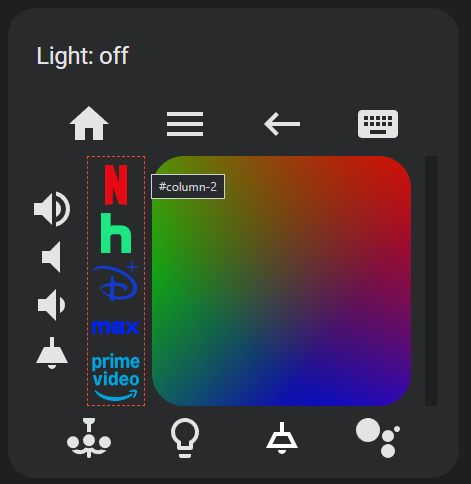 ### Autofill and Haptics
When creating custom elements, the card editor will autofill fields using information set in the general tab when you click the autofill button or set the custom element name. This value can also be set at the custom remote element level. Haptics can be similarly toggled globally or for individual custom remote elements and are enabled by default.
### Other
You can add a title to the card with the title field.
Instead of copying the same custom elements across multiple remote cards, you can put custom elements in an array in a JSON or YAML file on your Home Assistant server's config www folder and fetch them by filename, like `local/remote_card_custom_elements.yaml`.
If you are updating from an older version of this card, you may find that your configurations no longer work. Sorry! To upgrade them, click the button `Update old config` at the bottom of the general tab. It should update your configuration to work with newer versions of this card.
# Layout
When you first create a universal remote card, it will have a default layout. Feel free to modify or delete this layout to your liking. Not all default keys used in the default layout are available for all platforms.
### Autofill and Haptics
When creating custom elements, the card editor will autofill fields using information set in the general tab when you click the autofill button or set the custom element name. This value can also be set at the custom remote element level. Haptics can be similarly toggled globally or for individual custom remote elements and are enabled by default.
### Other
You can add a title to the card with the title field.
Instead of copying the same custom elements across multiple remote cards, you can put custom elements in an array in a JSON or YAML file on your Home Assistant server's config www folder and fetch them by filename, like `local/remote_card_custom_elements.yaml`.
If you are updating from an older version of this card, you may find that your configurations no longer work. Sorry! To upgrade them, click the button `Update old config` at the bottom of the general tab. It should update your configuration to work with newer versions of this card.
# Layout
When you first create a universal remote card, it will have a default layout. Feel free to modify or delete this layout to your liking. Not all default keys used in the default layout are available for all platforms.
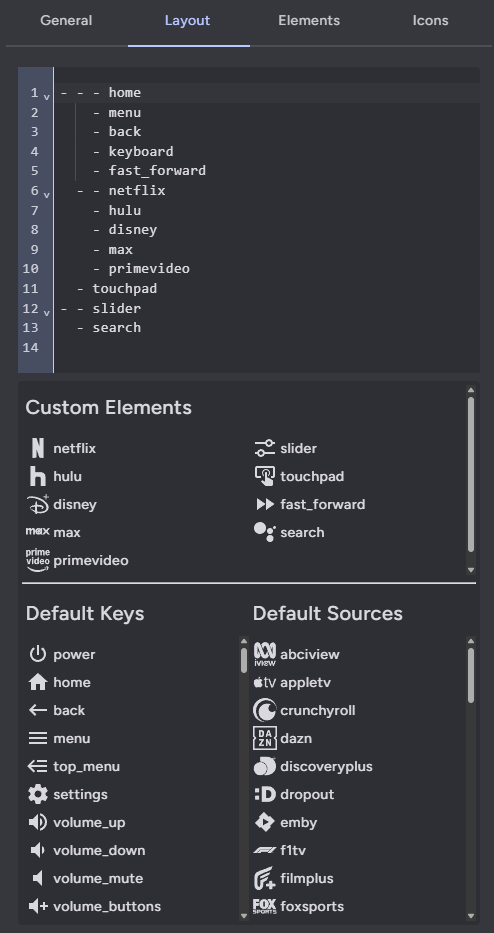 The remote layout is defined using a series of nested arrays. The lowest level of arrays is each row. As you nest arrays further it switches between rows and columns, allowing you to create unique remote layouts.
```yaml
- - home
- menu
- back
- keyboard
- - - volume_buttons
- momentary_light
- - netflix
- hulu
- disney
- max
- primevideo
- touchpad
- slider
- - chandelier_light_color
- light_color
- sunroom_light
- search
```
The default keys and sources lists for your selected platform are displayed below the layout code editor. If you have configured any custom elements, they will be displayed above this. You can use this as reference as you create your remote, or drag and drop entries from these lists to the editor. The default keys list also includes the default touchpad and slider, along with some special elements for button pads and layouts. Not all special elements are available for all platforms.
| Name | Type | Description |
| ------------------ | ----------- | ----------------------------------------------------------------------------------------------------------------------------------------------------------------------------------------------- |
| circlepad | circlepad | A circlepad with five buttons for navigation. |
| clickwheel | circlepad | A circlepad with five buttons for media control and iPod-like volume control. |
| touchpad | touchpad | A touchpad for swipe navigation. |
| dragpad | touchpad | A touchpad for drag navigation. Use two fingers for faster movement. |
| mousepad | touchpad | A touchpad for mouse navigation. **Note**: mousepad support is dependent on the platform supporting mouse movement via a Home Assistant action. |
| slider | slider | A slider that controls the volume of the entity defined by `media_player_id`. **Note**: Volume slider support is dependent on the media player supporting the `media_player.volume_set` action. |
| volume_buttons | button rows | Shorthand to generate a set of volume down, volume mute, and volume up buttons in a row or column. |
| navigation_buttons | button rows | Shorthand to generate a set of up, down, left, right, and center buttons across three rows within a column. |
| dpad | button grid | Shorthand to generate a set of up, down, left, right, and center buttons arranged in a square grid. |
| numpad | button grid | Shorthand to generate a set of 1-9 buttons arranged in a square grid. Does not include `n0`. |
| dialpad | button grid | Shorthand to generate a set of 1-9 buttons arranged in a square grid, reversed. Does not include `n0`. |
| xpad | button grid | Shorthand to generate a set of A, B, X, and Y buttons arranged in a square grid. |
| npad | button grid | Shorthand to generate a set of A, B, X, and Y buttons arranged in an alternate square grid. |
# Custom Elements
The remote layout is defined using a series of nested arrays. The lowest level of arrays is each row. As you nest arrays further it switches between rows and columns, allowing you to create unique remote layouts.
```yaml
- - home
- menu
- back
- keyboard
- - - volume_buttons
- momentary_light
- - netflix
- hulu
- disney
- max
- primevideo
- touchpad
- slider
- - chandelier_light_color
- light_color
- sunroom_light
- search
```
The default keys and sources lists for your selected platform are displayed below the layout code editor. If you have configured any custom elements, they will be displayed above this. You can use this as reference as you create your remote, or drag and drop entries from these lists to the editor. The default keys list also includes the default touchpad and slider, along with some special elements for button pads and layouts. Not all special elements are available for all platforms.
| Name | Type | Description |
| ------------------ | ----------- | ----------------------------------------------------------------------------------------------------------------------------------------------------------------------------------------------- |
| circlepad | circlepad | A circlepad with five buttons for navigation. |
| clickwheel | circlepad | A circlepad with five buttons for media control and iPod-like volume control. |
| touchpad | touchpad | A touchpad for swipe navigation. |
| dragpad | touchpad | A touchpad for drag navigation. Use two fingers for faster movement. |
| mousepad | touchpad | A touchpad for mouse navigation. **Note**: mousepad support is dependent on the platform supporting mouse movement via a Home Assistant action. |
| slider | slider | A slider that controls the volume of the entity defined by `media_player_id`. **Note**: Volume slider support is dependent on the media player supporting the `media_player.volume_set` action. |
| volume_buttons | button rows | Shorthand to generate a set of volume down, volume mute, and volume up buttons in a row or column. |
| navigation_buttons | button rows | Shorthand to generate a set of up, down, left, right, and center buttons across three rows within a column. |
| dpad | button grid | Shorthand to generate a set of up, down, left, right, and center buttons arranged in a square grid. |
| numpad | button grid | Shorthand to generate a set of 1-9 buttons arranged in a square grid. Does not include `n0`. |
| dialpad | button grid | Shorthand to generate a set of 1-9 buttons arranged in a square grid, reversed. Does not include `n0`. |
| xpad | button grid | Shorthand to generate a set of A, B, X, and Y buttons arranged in a square grid. |
| npad | button grid | Shorthand to generate a set of A, B, X, and Y buttons arranged in an alternate square grid. |
# Custom Elements
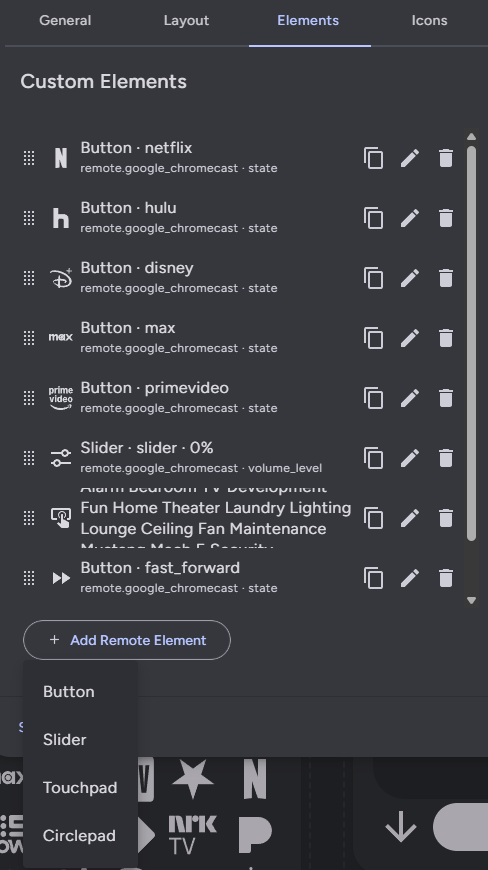 In addition to the default keys and sources, you can create your own custom elements. You can also overwrite default keys and sources (including the default touchpad and slider) by setting the custom element name to match a default one. If you do so the custom element config will be autopopulated.
Click the `Add remote element` button to add a custom element remote element. Custom action remote elements can be buttons, sliders, or touchpads.
Custom actions in this list can be reordered for organization, but doing so does not have any effect on the the remote card layout. They can also be deleted, copied, and edited.
## General Options
In addition to the default keys and sources, you can create your own custom elements. You can also overwrite default keys and sources (including the default touchpad and slider) by setting the custom element name to match a default one. If you do so the custom element config will be autopopulated.
Click the `Add remote element` button to add a custom element remote element. Custom action remote elements can be buttons, sliders, or touchpads.
Custom actions in this list can be reordered for organization, but doing so does not have any effect on the the remote card layout. They can also be deleted, copied, and edited.
## General Options
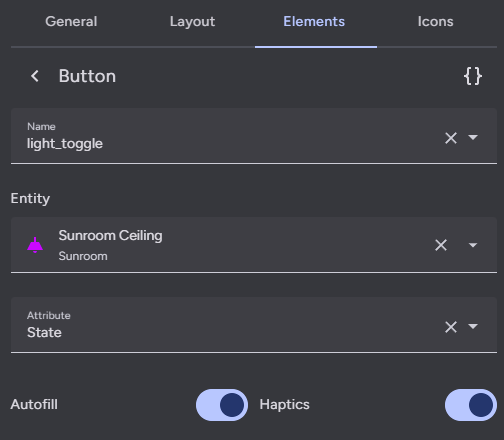 Every remote element must have a name so that it can be added to your remote.
Every remote element can have an entity assigned to it, which is used to track it's internal value. This value can then be used in styles and actions using templates, like `{{ value | float }}`. By default the value will be derived from the entity state, but it can be changed to an attribute using the corresponding field.
Some additional value logic is applied for certain attributes:
- `brightness` - Converted from the default range of 0-255 to 0-100.
- `media_position` - Updated twice per second using the current timestamp and the attribute `media_position_updated_at` when the entity state is `playing`, and locked to a max value using the attribute `media_duration`.
- `elapsed` - Only for timer entities. Updated twice per second using the the current timestamp and the attributes `duration`, `remaining`, and `finishes_at`, and locked to a max value using the attribute `duration`.
- **Note**: `elapsed` is not an actual attribute of timer entities, but is a possible attribute for timer entities in this card for the purpose of displaying accurate timer elapsed values. Timer entities do have an attribute `remaining`, which only updates when the timer state changes. The actual `remaining` attribute can be calculated using the elapsed value and the timer duration attribute.
If you do not set an entity, you can instead set the remote element value using a template in the value template field. This template is not used if entity ID is set, even if that entity ID does not exist or it's state or attribute is undefined, it is only used if no entity is set at all.
Haptics are enabled for remote elements by default, but can be toggled globally or at the custom element level.
### Slider General Options
Every remote element must have a name so that it can be added to your remote.
Every remote element can have an entity assigned to it, which is used to track it's internal value. This value can then be used in styles and actions using templates, like `{{ value | float }}`. By default the value will be derived from the entity state, but it can be changed to an attribute using the corresponding field.
Some additional value logic is applied for certain attributes:
- `brightness` - Converted from the default range of 0-255 to 0-100.
- `media_position` - Updated twice per second using the current timestamp and the attribute `media_position_updated_at` when the entity state is `playing`, and locked to a max value using the attribute `media_duration`.
- `elapsed` - Only for timer entities. Updated twice per second using the the current timestamp and the attributes `duration`, `remaining`, and `finishes_at`, and locked to a max value using the attribute `duration`.
- **Note**: `elapsed` is not an actual attribute of timer entities, but is a possible attribute for timer entities in this card for the purpose of displaying accurate timer elapsed values. Timer entities do have an attribute `remaining`, which only updates when the timer state changes. The actual `remaining` attribute can be calculated using the elapsed value and the timer duration attribute.
If you do not set an entity, you can instead set the remote element value using a template in the value template field. This template is not used if entity ID is set, even if that entity ID does not exist or it's state or attribute is undefined, it is only used if no entity is set at all.
Haptics are enabled for remote elements by default, but can be toggled globally or at the custom element level.
### Slider General Options
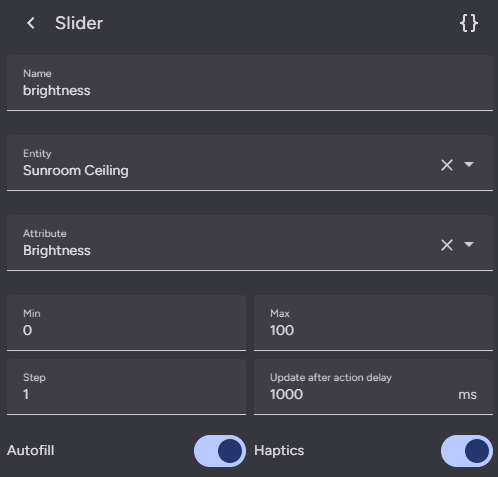 Sliders have some additional general options. They have a range `Min` and `Max` which defaults to 0 and 1 respectively. They also have a `Step` size which defaults to 0.01.
Sliders will wait one second before updating their internal values from Home Assistant to prevent it from bouncing between the old and new values. This time can be changed by setting `Update after action delay`, which defaults to 1000ms
### Circlepad and Touchpad Tabs
Sliders have some additional general options. They have a range `Min` and `Max` which defaults to 0 and 1 respectively. They also have a `Step` size which defaults to 0.01.
Sliders will wait one second before updating their internal values from Home Assistant to prevent it from bouncing between the old and new values. This time can be changed by setting `Update after action delay`, which defaults to 1000ms
### Circlepad and Touchpad Tabs
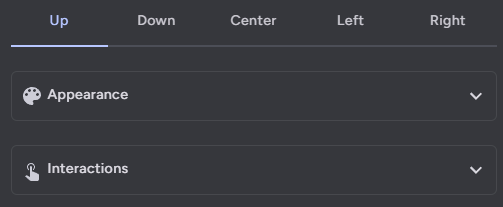 Circlepads and touchpads have five tabs at the top of their actions page for each direction and it's center. Only the center tab has general options as these apply to the entire touchpad remote element. Each direction and center have their own options for appearance and interactions as described below.
## Appearance
Circlepads and touchpads have five tabs at the top of their actions page for each direction and it's center. Only the center tab has general options as these apply to the entire touchpad remote element. Each direction and center have their own options for appearance and interactions as described below.
## Appearance
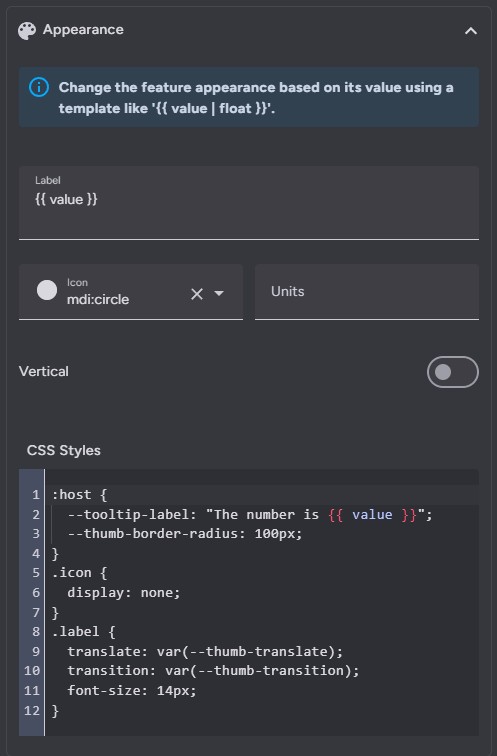 All remote elements can have a `Label`, `Icon`, and `Units`. These fields can also be set using templates. Similar to the general tab, each remote element can have it's CSS styles set (also supports templates).
### Vertical Sliders
Sliders have an additional `Vertical` toggle which rotates it 90 degrees to make it vertical. By default sliders will be horizontal. Vertical slider heights are determined by the slider's sibling elements. If it has no sibling elements or you find that it is not consistently rendering correctly, then you may need to explicitly set it's height using the style options like so:
```css
:host {
height: 350px;
}
```
### Multiple Icons and Labels for Circlepads and Touchpads
Circlepads and touchpads can have a separate icon and label for the center and each direction. You can also style each of these icons and labels independently using their own `CSS Styles` fields. General styles such as those for `toucharea` or `#center` like height should go in the center tab styles.
### A Note on Templating
Almost all fields support nunjucks templating. Nunjucks is a templating engine for JavaScript, which is heavily based on the jinja2 templating engine for Python which Home Assistant uses. While the syntax of nunjucks and jinja2 is almost identical, you may find the [nunjucks documentation](https://mozilla.github.io/nunjucks/templating.html) useful. Most extensions supported by Home Assistant templates are supported by this templating system, but not all and the syntax may vary. Please see the [ha-nunjucks](https://github.com/Nerwyn/ha-nunjucks) repository for a list of available extensions. If you want additional extensions to be added or have templating questions or bugs, please make an issue or discussion on that repository, not this one.
You can include the current value of a remote element and it's units by using the variables `value` and `unit` in a label template. You can also include `hold_secs` in a template if performing a momentary repeat or end action. Each remote element can also reference it's configuration using `config` within templates. `config.entity` and `config.attribute` will return the remote element's entity ID and attribute with their templates rendered (if they have them), and other templated config fields can be rendered within templates by wrapping them in the function `render` within a template. You can access the entire card config in a template via `config.card`, and global values such as remote ID within that like `config.card.remote_id`. Note that default values for some fields are not actually in the config and will not appear in templates, and you have to default to them using "or", like `config.card.platform or 'Android TV'`.
You can include touch location information in your templates using the values `initialX`, `initialY`, `currentX`, `currentY`, `deltaX`, and `deltaY` This is especially useful when using drag interactions on the touchpad, like with the Unified Remote default mousepad or as a dragpad on all platforms.
### CSS Styles
You may find the following CSS selectors useful for styling:
| CSS Selector | Element |
| ---------------------------------- | -------------------------------------------------- |
| :host | The element itself. |
| .icon | The element icon. |
| .label | The element label. |
| .circlepad | The circlepad outer element. |
| #up, #down, #left, #right, #center | The circlepad buttons. |
| button | A button element background. |
| toucharea | A touchpad element background. |
| input | A slider range element. |
| .thumb | A slider thumb visual element. |
| .thumb .active | A slider thumb trailing / active track area. |
| .background | A slider element background / inactive track area. |
| .tooltip | A slider element tooltip. |
| .button-pad | All button pads. |
While you can now set most CSS fields directly using their sub-element selectors, you may find the following CSS properties useful, especially for sliders which use and modify them internally.
| Name | Description |
| --------------------------- | --------------------------------------------------------------------------------------------------------------------------------------------------------------------------------------------------------------------------------------------------------------------------- |
| --icon-size | Height and width of the icon. |
| --thumb-width | Slider thumb interactable area width, defaults to `48px`. Does not represent the visually seen active area. |
| --height | Slider height when horizontal and width when vertical. |
| --thumb-translate | Slider thumb translation function, defaults to `var(--thumb-offset) 0`. |
| --thumb-transition | Slider thumb transition animation, defaults to `translate 180ms ease-in-out, background 180ms ease-in-out`. |
| --tooltip-label | Slider tooltip label template, defaults to `'{{ value }}'`. |
| --tooltip-transform | Slider tooltip location transform function, defaults to `translate(var(--thumb-offset), calc(-0.5 * var(--height) - 0.4em - 10px))` for horizontal sliders and `translate(calc(-0.3 * var(--height) - 0.8em - 18px), calc(-1 * var(--thumb-offset)))` for vertical sliders. |
| --ha-ripple-color | Color of ripples when hovered over or pressed, defaults to `var(--secondary-text-color)`. |
| --ha-ripple-hover-color | Color of ripples when hovered over, defaults to `var(--secondary-text-color)`. |
| --ha-ripple-pressed-color | Color of riples when pressed, defaults to `var(--secondary-text-color)`. |
| --ha-ripple-hover-opacity | Opacity of ripples when hovered over, defaults to `0.08`. |
| --ha-ripple-pressed-opacity | Opacity of ripples when pressed, defaults to `0.12`. |
| --ha-ripple-height | Ripple height, defaults to `100%`. |
| --ha-ripple-width | Ripple width, defaults to `100%`. |
| --ha-ripple-top | Ripple top offset, defaults to `0`. |
| --ha-ripple-left | Ripple left offset, defaults to `0`. |
You may also find the actual HTML of the remote elements useful for directly styling its subelements.
#### Button HTML
```html
All remote elements can have a `Label`, `Icon`, and `Units`. These fields can also be set using templates. Similar to the general tab, each remote element can have it's CSS styles set (also supports templates).
### Vertical Sliders
Sliders have an additional `Vertical` toggle which rotates it 90 degrees to make it vertical. By default sliders will be horizontal. Vertical slider heights are determined by the slider's sibling elements. If it has no sibling elements or you find that it is not consistently rendering correctly, then you may need to explicitly set it's height using the style options like so:
```css
:host {
height: 350px;
}
```
### Multiple Icons and Labels for Circlepads and Touchpads
Circlepads and touchpads can have a separate icon and label for the center and each direction. You can also style each of these icons and labels independently using their own `CSS Styles` fields. General styles such as those for `toucharea` or `#center` like height should go in the center tab styles.
### A Note on Templating
Almost all fields support nunjucks templating. Nunjucks is a templating engine for JavaScript, which is heavily based on the jinja2 templating engine for Python which Home Assistant uses. While the syntax of nunjucks and jinja2 is almost identical, you may find the [nunjucks documentation](https://mozilla.github.io/nunjucks/templating.html) useful. Most extensions supported by Home Assistant templates are supported by this templating system, but not all and the syntax may vary. Please see the [ha-nunjucks](https://github.com/Nerwyn/ha-nunjucks) repository for a list of available extensions. If you want additional extensions to be added or have templating questions or bugs, please make an issue or discussion on that repository, not this one.
You can include the current value of a remote element and it's units by using the variables `value` and `unit` in a label template. You can also include `hold_secs` in a template if performing a momentary repeat or end action. Each remote element can also reference it's configuration using `config` within templates. `config.entity` and `config.attribute` will return the remote element's entity ID and attribute with their templates rendered (if they have them), and other templated config fields can be rendered within templates by wrapping them in the function `render` within a template. You can access the entire card config in a template via `config.card`, and global values such as remote ID within that like `config.card.remote_id`. Note that default values for some fields are not actually in the config and will not appear in templates, and you have to default to them using "or", like `config.card.platform or 'Android TV'`.
You can include touch location information in your templates using the values `initialX`, `initialY`, `currentX`, `currentY`, `deltaX`, and `deltaY` This is especially useful when using drag interactions on the touchpad, like with the Unified Remote default mousepad or as a dragpad on all platforms.
### CSS Styles
You may find the following CSS selectors useful for styling:
| CSS Selector | Element |
| ---------------------------------- | -------------------------------------------------- |
| :host | The element itself. |
| .icon | The element icon. |
| .label | The element label. |
| .circlepad | The circlepad outer element. |
| #up, #down, #left, #right, #center | The circlepad buttons. |
| button | A button element background. |
| toucharea | A touchpad element background. |
| input | A slider range element. |
| .thumb | A slider thumb visual element. |
| .thumb .active | A slider thumb trailing / active track area. |
| .background | A slider element background / inactive track area. |
| .tooltip | A slider element tooltip. |
| .button-pad | All button pads. |
While you can now set most CSS fields directly using their sub-element selectors, you may find the following CSS properties useful, especially for sliders which use and modify them internally.
| Name | Description |
| --------------------------- | --------------------------------------------------------------------------------------------------------------------------------------------------------------------------------------------------------------------------------------------------------------------------- |
| --icon-size | Height and width of the icon. |
| --thumb-width | Slider thumb interactable area width, defaults to `48px`. Does not represent the visually seen active area. |
| --height | Slider height when horizontal and width when vertical. |
| --thumb-translate | Slider thumb translation function, defaults to `var(--thumb-offset) 0`. |
| --thumb-transition | Slider thumb transition animation, defaults to `translate 180ms ease-in-out, background 180ms ease-in-out`. |
| --tooltip-label | Slider tooltip label template, defaults to `'{{ value }}'`. |
| --tooltip-transform | Slider tooltip location transform function, defaults to `translate(var(--thumb-offset), calc(-0.5 * var(--height) - 0.4em - 10px))` for horizontal sliders and `translate(calc(-0.3 * var(--height) - 0.8em - 18px), calc(-1 * var(--thumb-offset)))` for vertical sliders. |
| --ha-ripple-color | Color of ripples when hovered over or pressed, defaults to `var(--secondary-text-color)`. |
| --ha-ripple-hover-color | Color of ripples when hovered over, defaults to `var(--secondary-text-color)`. |
| --ha-ripple-pressed-color | Color of riples when pressed, defaults to `var(--secondary-text-color)`. |
| --ha-ripple-hover-opacity | Opacity of ripples when hovered over, defaults to `0.08`. |
| --ha-ripple-pressed-opacity | Opacity of ripples when pressed, defaults to `0.12`. |
| --ha-ripple-height | Ripple height, defaults to `100%`. |
| --ha-ripple-width | Ripple width, defaults to `100%`. |
| --ha-ripple-top | Ripple top offset, defaults to `0`. |
| --ha-ripple-left | Ripple left offset, defaults to `0`. |
You may also find the actual HTML of the remote elements useful for directly styling its subelements.
#### Button HTML
```html
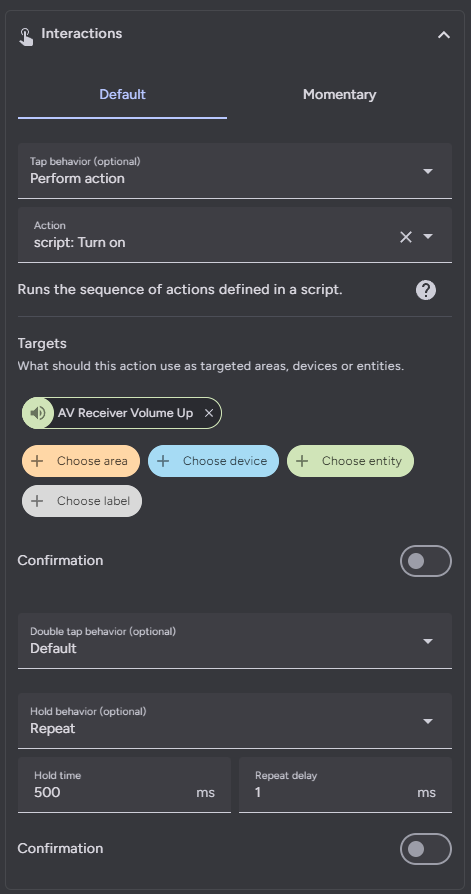 Each action also supports the `confirmation` field. More information on Home Assistant action confirmations can be found [here](https://www.home-assistant.io/dashboards/actions/#options-for-confirmation).
When setting the action for a slider, you must use `value` within a template in the action data to use the feature value in action. For convenience, a codebox for the action will be displayed below the normal action options.
Each action also supports the `confirmation` field. More information on Home Assistant action confirmations can be found [here](https://www.home-assistant.io/dashboards/actions/#options-for-confirmation).
When setting the action for a slider, you must use `value` within a template in the action data to use the feature value in action. For convenience, a codebox for the action will be displayed below the normal action options.
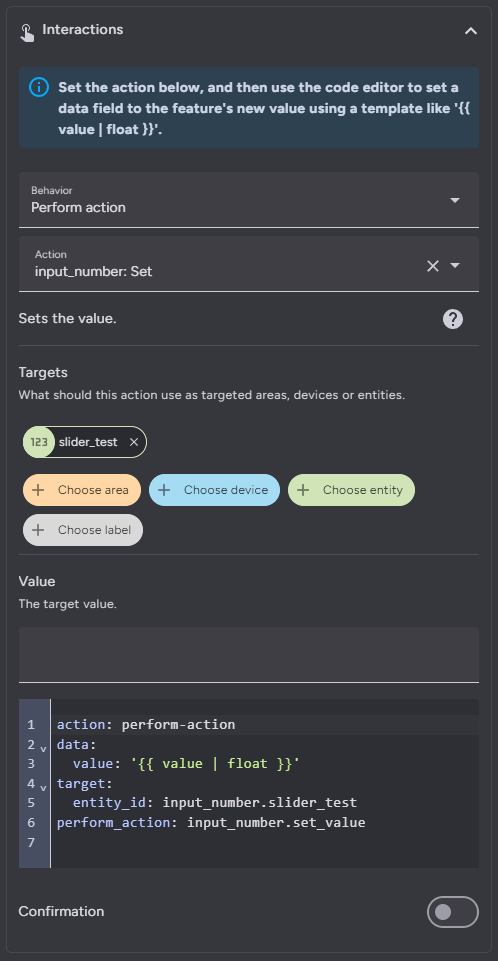 ### Action Types
Actions follow the [Home Assistant actions](https://www.home-assistant.io/dashboards/actions/) syntax. All Home Assistant actions are supported along with some additional ones.
| Action | Description |
| -------------- | ------------------------------------------------------------------------------------------------------------------------------------------------------------------------------------------------------------------------------------------------------------------------------------------ |
| More info | Open the more info dialog. |
| Toggle | Toggle between the target's on and off (or similar) states. |
| Navigate | Navigate to another Home Assistant page. |
| URL | Navigate to an external URL. |
| Perform action | Call any Home Assistant service action. |
| Assist | Open the assist dialog. Uses the mobile dialog if available, like in the Home Assistant app. The pipeline ID and start listening options only work in the mobile assist dialog. |
| Key | Send an remote button press like action to the media platform. The actual action varies by platform. |
| Source | Open an app using an action on a media platform. The actual action varies by platform. |
| Keyboard | Open a dialog for sending seamless keyboard input. |
| Textbox | Open a dialog for sending bulk keyboard input. |
| Search | Open a dialog for sending a global search query. |
| Fire DOM event | Fire a browser dom event using the action object as the event detail. Useful for opening [browser mod popup cards](https://github.com/thomasloven/hass-browser_mod?tab=readme-ov-file#how-do-i-update-a-popup-from-the-browser-mod-15). Use `data.event_type` to change the event type. |
| Evaluate JS | Evaluate a string as JavaScript code. You have access to the custom feature via `this`, which includes `this.hass`, `this.config`, and `this.value`. **Potentially dangerous, do not do something dumb like call actions in a loop with no delay which can crash your browser or server.** |
| Repeat | Repeat the tap action ten times a second while held. Only applicable to hold. |
| Nothing | Explicilty set a command to do nothing. |
The entire action `data` and `target` fields are templatable, meaning that you can define the entire field as a YAML string in a template like so:
```yaml
action: light.turn_{{ iif(checked, 'on', 'off') }}
data: |
{% if value == 'off' %}
brightness_pct: 100
{% endif %}
```
#### Key and Source
`Key` and `Source` are shortcuts for `perform-action` actions and vary by platform as listed below. Some platforms do not support key or source.
##### Keys
| Platform | Action | Data |
| -------------------------------------------------------------------------------------------------------------------------- | ---------------------------------- | --------------------------------------------------------------------------------------------------------------------------------------------------------------------------------------- |
| Android TVSony BRAVIAFire TVRokuApple TVSamsung TVPhilips TVJellyfinGeneric Remote | remote.send_command |
### Action Types
Actions follow the [Home Assistant actions](https://www.home-assistant.io/dashboards/actions/) syntax. All Home Assistant actions are supported along with some additional ones.
| Action | Description |
| -------------- | ------------------------------------------------------------------------------------------------------------------------------------------------------------------------------------------------------------------------------------------------------------------------------------------ |
| More info | Open the more info dialog. |
| Toggle | Toggle between the target's on and off (or similar) states. |
| Navigate | Navigate to another Home Assistant page. |
| URL | Navigate to an external URL. |
| Perform action | Call any Home Assistant service action. |
| Assist | Open the assist dialog. Uses the mobile dialog if available, like in the Home Assistant app. The pipeline ID and start listening options only work in the mobile assist dialog. |
| Key | Send an remote button press like action to the media platform. The actual action varies by platform. |
| Source | Open an app using an action on a media platform. The actual action varies by platform. |
| Keyboard | Open a dialog for sending seamless keyboard input. |
| Textbox | Open a dialog for sending bulk keyboard input. |
| Search | Open a dialog for sending a global search query. |
| Fire DOM event | Fire a browser dom event using the action object as the event detail. Useful for opening [browser mod popup cards](https://github.com/thomasloven/hass-browser_mod?tab=readme-ov-file#how-do-i-update-a-popup-from-the-browser-mod-15). Use `data.event_type` to change the event type. |
| Evaluate JS | Evaluate a string as JavaScript code. You have access to the custom feature via `this`, which includes `this.hass`, `this.config`, and `this.value`. **Potentially dangerous, do not do something dumb like call actions in a loop with no delay which can crash your browser or server.** |
| Repeat | Repeat the tap action ten times a second while held. Only applicable to hold. |
| Nothing | Explicilty set a command to do nothing. |
The entire action `data` and `target` fields are templatable, meaning that you can define the entire field as a YAML string in a template like so:
```yaml
action: light.turn_{{ iif(checked, 'on', 'off') }}
data: |
{% if value == 'off' %}
brightness_pct: 100
{% endif %}
```
#### Key and Source
`Key` and `Source` are shortcuts for `perform-action` actions and vary by platform as listed below. Some platforms do not support key or source.
##### Keys
| Platform | Action | Data |
| -------------------------------------------------------------------------------------------------------------------------- | ---------------------------------- | --------------------------------------------------------------------------------------------------------------------------------------------------------------------------------------- |
| Android TVSony BRAVIAFire TVRokuApple TVSamsung TVPhilips TVJellyfinGeneric Remote | remote.send_command | 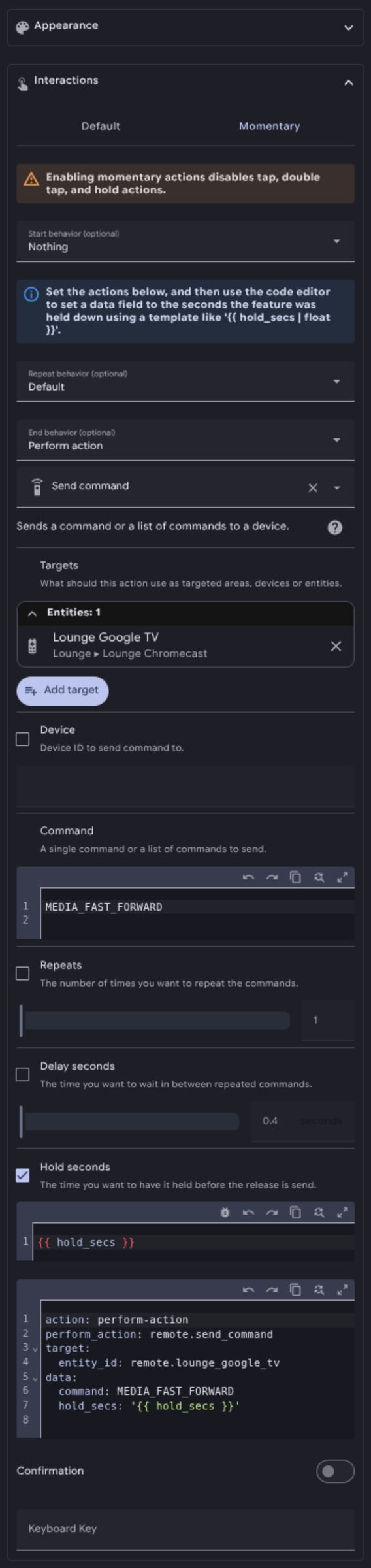 As an alternative to normal tap, hold, and double tap actions, buttons can also be used in momentary mode. Configuring this option disables the normal tap, hold, and double tap actions.
The momentary start action is fired when you first press down on a button. The momentary end action is fired when you release it. Similarly to repeat hold action, the momentary repeat action is held when you hold down on the button for a set number of milliseconds. Unlike the repeat hold action, it can be different from the momentary start action. These actions can be used together or separately.
For momentary repeat and end actions you can include the number of seconds a button has been held down using `hold_secs` in a template. For convenience, the momentary end action YAML is included in a code box below the action, like shown above.
### Touchpad Interactions
As an alternative to normal tap, hold, and double tap actions, buttons can also be used in momentary mode. Configuring this option disables the normal tap, hold, and double tap actions.
The momentary start action is fired when you first press down on a button. The momentary end action is fired when you release it. Similarly to repeat hold action, the momentary repeat action is held when you hold down on the button for a set number of milliseconds. Unlike the repeat hold action, it can be different from the momentary start action. These actions can be used together or separately.
For momentary repeat and end actions you can include the number of seconds a button has been held down using `hold_secs` in a template. For convenience, the momentary end action YAML is included in a code box below the action, like shown above.
### Touchpad Interactions
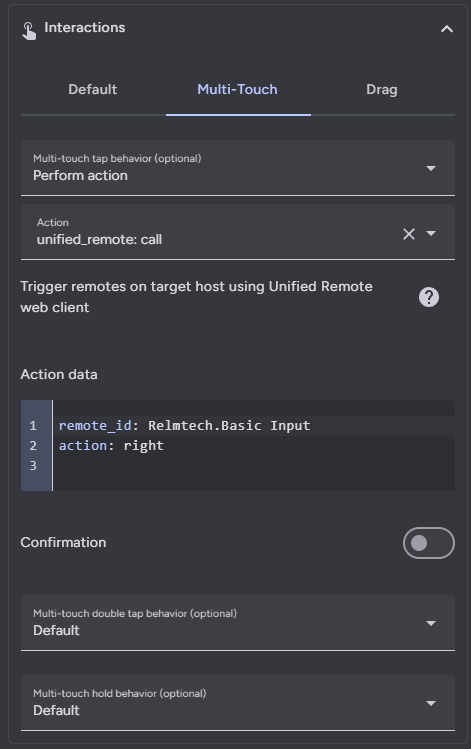 The touchpad's center supports the default tap, double tap, and hold actions. The touchpads direction actions are activated when the user swipes in a direction but do not support double tap actions. Direction actions hold actions are set to repeat by default.
Touchpads also support multi-touch mode, which fires alternate actions when more than one finger is used with it. This mode is disabled by default but can be enabled by setting a touchpad's multi-touch actions to something other than `Nothing`. Multi-touch mode supports center tap, double tap, and hold actions, and direction swipe and hold actions.
Touchpads also support an alternate drag mode. This action is called whenever movement is detected on the touchpad, and works best with mouse movement actions like Unified Remote's `Relmtech.Basic Input delta`. The touchpad X and Y movement can be added to actions using templates using `deltaX` and `deltaY`. Because this action fires every time movement is detected on the touchpad, you may find that it fires too often, or not often enough. You can either use math to modify the values of `deltaX` and `deltaY` within the action data templates, or introduce a delay in which movement will be ignored after a drag action is fired using the configuration UI option `Sampling delay` to tweak the speed of your drag movements and action fire rate. The drag action can also be used in multi-touch mode. Enabling this action disables direction swipe actions, but not center default actions.
### Circlepad Interactions
The touchpad's center supports the default tap, double tap, and hold actions. The touchpads direction actions are activated when the user swipes in a direction but do not support double tap actions. Direction actions hold actions are set to repeat by default.
Touchpads also support multi-touch mode, which fires alternate actions when more than one finger is used with it. This mode is disabled by default but can be enabled by setting a touchpad's multi-touch actions to something other than `Nothing`. Multi-touch mode supports center tap, double tap, and hold actions, and direction swipe and hold actions.
Touchpads also support an alternate drag mode. This action is called whenever movement is detected on the touchpad, and works best with mouse movement actions like Unified Remote's `Relmtech.Basic Input delta`. The touchpad X and Y movement can be added to actions using templates using `deltaX` and `deltaY`. Because this action fires every time movement is detected on the touchpad, you may find that it fires too often, or not often enough. You can either use math to modify the values of `deltaX` and `deltaY` within the action data templates, or introduce a delay in which movement will be ignored after a drag action is fired using the configuration UI option `Sampling delay` to tweak the speed of your drag movements and action fire rate. The drag action can also be used in multi-touch mode. Enabling this action disables direction swipe actions, but not center default actions.
### Circlepad Interactions
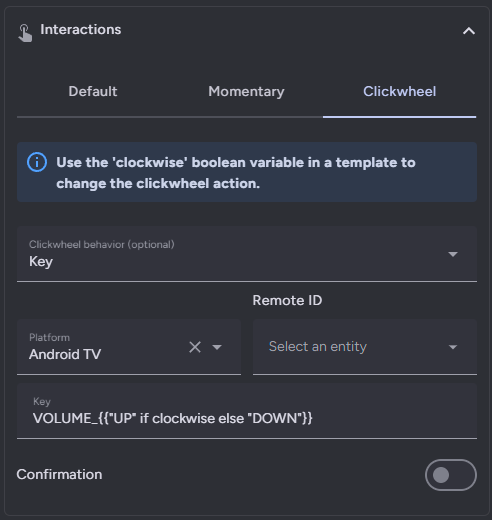 Circlepads are made up of five buttons, each supporting all interactions that a regular button does. In addition to this, you can use the outer ring of the circlepad like an iPod clickwheel. When setting this action, you can use the template boolean variable `clockwise` to modify the clickwheel action based on the direction you are dragging, like shown in the screenshot. When the clickwheel action is enabled, you cannot drag to scroll on the circlepad, similar to the touchpad.
### Keyboard and Search
This card supports sending text to the following platforms:
| Platform | Keyboard | Search |
| ------------------------------- | -------- | ------ |
| Android TV | Inserts | Yes |
| Sony BRAVIA | Inserts | Yes |
| Fire TV | Inserts | Yes |
| Apple TV | Replaces | No |
| Roku | Inserts | Yes |
| LG webOS | Replaces | No |
| Samsung TV | Replaces | No |
| Kodi | Replaces | Yes |
| Unified Remote (PC, Mac, Linux) | Inserts | No |
If the user defined general platform is listed above, then any action set to a keyboard action will inherit it. Otherwise it will default to `Android TV`. Keyboard support for more platforms can be added if there is a way to do so through their Home Assistant (or community made) integrations.
When you use any keyboard action, a dialog will open that can be typed into.
Circlepads are made up of five buttons, each supporting all interactions that a regular button does. In addition to this, you can use the outer ring of the circlepad like an iPod clickwheel. When setting this action, you can use the template boolean variable `clockwise` to modify the clickwheel action based on the direction you are dragging, like shown in the screenshot. When the clickwheel action is enabled, you cannot drag to scroll on the circlepad, similar to the touchpad.
### Keyboard and Search
This card supports sending text to the following platforms:
| Platform | Keyboard | Search |
| ------------------------------- | -------- | ------ |
| Android TV | Inserts | Yes |
| Sony BRAVIA | Inserts | Yes |
| Fire TV | Inserts | Yes |
| Apple TV | Replaces | No |
| Roku | Inserts | Yes |
| LG webOS | Replaces | No |
| Samsung TV | Replaces | No |
| Kodi | Replaces | Yes |
| Unified Remote (PC, Mac, Linux) | Inserts | No |
If the user defined general platform is listed above, then any action set to a keyboard action will inherit it. Otherwise it will default to `Android TV`. Keyboard support for more platforms can be added if there is a way to do so through their Home Assistant (or community made) integrations.
When you use any keyboard action, a dialog will open that can be typed into.
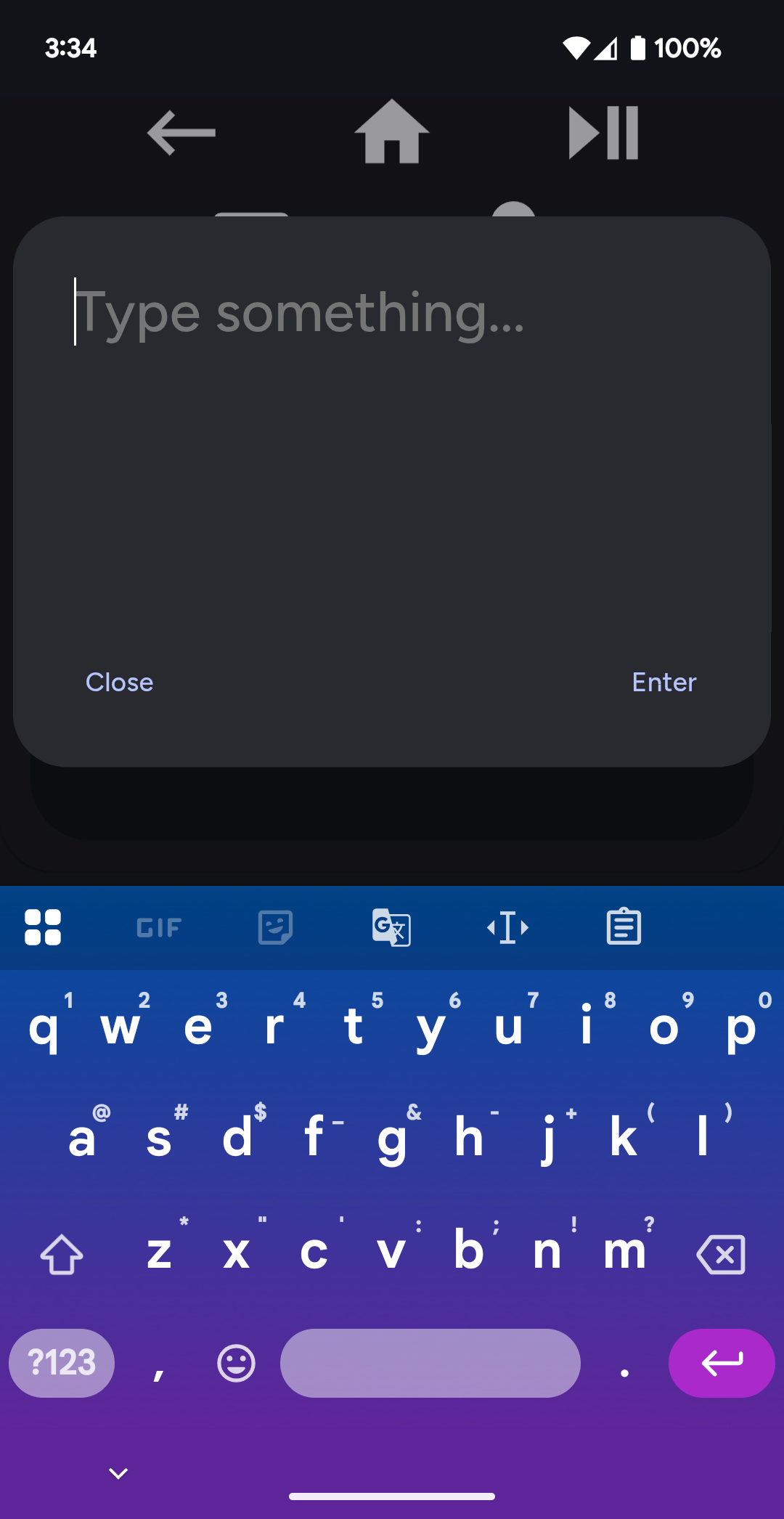 You can change the prompt text that appears before you type anything using the `Prompt` field at the action level.
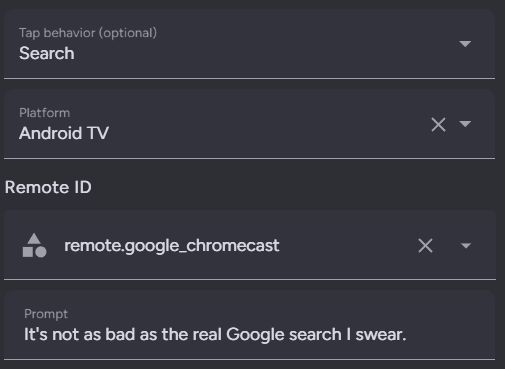 For Android TV and Sony BRAVIA, you need to include the Android Debug Bridge integration remote or media player entity ID in the keyboard ID field at the general or action level as it is used to send keys. All other integrations (including Fire TV which uses ADB for everything) will use the user provided remote and/or media player IDs for keyboard input.
For Roku make sure to include both the remote and media player IDs at the general or action level, as the remote is used for normal keyboard entry while the media player is used for search.
#### Keyboard - Seamless Text Entry
Send text to your supported media platform seamlessly using the action or default key `keyboard`. The dialog has several listeners which will send anything you type to your media platform immediately.
ADB can be slow and you may notice some delay in what you type and what appears on your device. This is not a bug, this is the reality of using ADB as an input interface.
##### Insert vs Replace
Platforms which insert text insert characters to the location of your on device screen (not the card text area screen) cursor. Because we do not have a way to retrieve the currently on screen text of any media platform, the dialog and platform text may become out of sync if a message gets dropped due to a network issue, you attempt to erase more than one character at a time, you try to modify the middle of the entered text, or if you prematurely close the dialog window. The keyboard dialog will attempt to prevent you from doing things that would cause this, but please remember that if you make a mistake you have to backspace all the way to the incorrect character from the end of your input text one character at at a time. In my testing the dialog always kept in sync with the platform text unless I attempted to delete more than one character.
Platforms which replace replaced the entire on screen text with the text area text. These platforms do not have any restrictions on cursor movement within the card text area. If you close and re-open the card keyboard the text area will be cleared and if you type anything, it will clear the on device screen text.
#### Textbox - Bulk Text Entry
Send text to your supported media platform in bulk using the action or default button `textbox`. The dialog will not send any information until you tap the send button.
#### Search - Global Search
Send a global search query to your media platform using the action or default button `search`. Like the bulk entry method, the dialog will not send any information until you tap the search button. This method cannot be used to enter text into currently visible text fields.
### Keyboard Interactions and Accessability
Not to be confused with keyboard input to platforms. You can control the elements of this card with your keyboard. By default you can focus on any element in the remote by tabbing to or click on it and then actuating it with the arrow or space/enter keys. You can also assign any key to any button using the `Keyboard Key` field at the bottom of the interactions pane. This button will then actuate when you press this key. All actions are supported when using keyboard interactions. For easier navigational input, any arrow or space/enter keys you type while focused on the remote card itself will be sent to the first circlepad or touchpad in the remote if not assigned to a button. Multi touch and clickwheel actions can be forwarded to touchpads and circlepads by holding down the shift key.
## Icons
For Android TV and Sony BRAVIA, you need to include the Android Debug Bridge integration remote or media player entity ID in the keyboard ID field at the general or action level as it is used to send keys. All other integrations (including Fire TV which uses ADB for everything) will use the user provided remote and/or media player IDs for keyboard input.
For Roku make sure to include both the remote and media player IDs at the general or action level, as the remote is used for normal keyboard entry while the media player is used for search.
#### Keyboard - Seamless Text Entry
Send text to your supported media platform seamlessly using the action or default key `keyboard`. The dialog has several listeners which will send anything you type to your media platform immediately.
ADB can be slow and you may notice some delay in what you type and what appears on your device. This is not a bug, this is the reality of using ADB as an input interface.
##### Insert vs Replace
Platforms which insert text insert characters to the location of your on device screen (not the card text area screen) cursor. Because we do not have a way to retrieve the currently on screen text of any media platform, the dialog and platform text may become out of sync if a message gets dropped due to a network issue, you attempt to erase more than one character at a time, you try to modify the middle of the entered text, or if you prematurely close the dialog window. The keyboard dialog will attempt to prevent you from doing things that would cause this, but please remember that if you make a mistake you have to backspace all the way to the incorrect character from the end of your input text one character at at a time. In my testing the dialog always kept in sync with the platform text unless I attempted to delete more than one character.
Platforms which replace replaced the entire on screen text with the text area text. These platforms do not have any restrictions on cursor movement within the card text area. If you close and re-open the card keyboard the text area will be cleared and if you type anything, it will clear the on device screen text.
#### Textbox - Bulk Text Entry
Send text to your supported media platform in bulk using the action or default button `textbox`. The dialog will not send any information until you tap the send button.
#### Search - Global Search
Send a global search query to your media platform using the action or default button `search`. Like the bulk entry method, the dialog will not send any information until you tap the search button. This method cannot be used to enter text into currently visible text fields.
### Keyboard Interactions and Accessability
Not to be confused with keyboard input to platforms. You can control the elements of this card with your keyboard. By default you can focus on any element in the remote by tabbing to or click on it and then actuating it with the arrow or space/enter keys. You can also assign any key to any button using the `Keyboard Key` field at the bottom of the interactions pane. This button will then actuate when you press this key. All actions are supported when using keyboard interactions. For easier navigational input, any arrow or space/enter keys you type while focused on the remote card itself will be sent to the first circlepad or touchpad in the remote if not assigned to a button. Multi touch and clickwheel actions can be forwarded to touchpads and circlepads by holding down the shift key.
## Icons
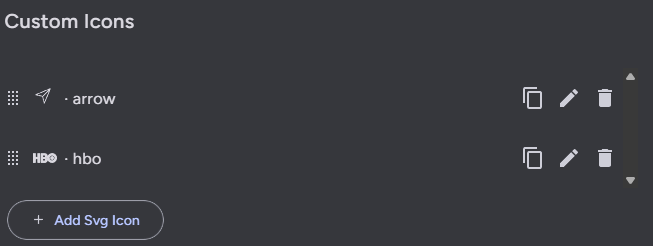 You can add custom SVG path icons to use with this card using the icons tab. The custom icons list works the same as the custom elements list, except that there is only one type of custom icon you can add.
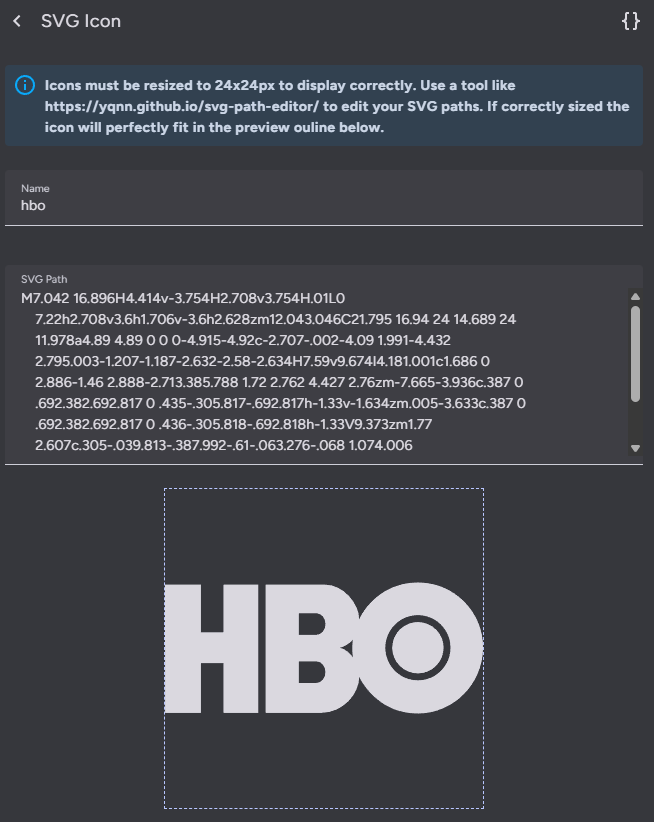 Each custom icon has to have a name and a SVG path. The SVG path must generate a 24x24 pixel icon to properly render in the remote. A preview of the icon is shown below the path. I highly recommend using a tool like [this SVG path editor](https://yqnn.github.io/svg-path-editor/) to modify SVG paths to work with this card.
Once setup, you can reference these icons in custom elements in the icon field by name. Many default sources similarly use SVG paths instead of the Home Assistant built in icons. If you have an SVG icon you wish to add to this project, you can create a feature or pull request to do so.
# YAML Examples
While all configuration can now be done through the user interface, these YAML examples can provide some insight on layout basics.
## Example 1
Playing with order, moving and repeating buttons.
Each custom icon has to have a name and a SVG path. The SVG path must generate a 24x24 pixel icon to properly render in the remote. A preview of the icon is shown below the path. I highly recommend using a tool like [this SVG path editor](https://yqnn.github.io/svg-path-editor/) to modify SVG paths to work with this card.
Once setup, you can reference these icons in custom elements in the icon field by name. Many default sources similarly use SVG paths instead of the Home Assistant built in icons. If you have an SVG icon you wish to add to this project, you can create a feature or pull request to do so.
# YAML Examples
While all configuration can now be done through the user interface, these YAML examples can provide some insight on layout basics.
## Example 1
Playing with order, moving and repeating buttons.