# Login Profiles: `~/.bashrc` and `~/.profile`
- [the command-line environment](#cliEnvironment)
- [when `~/.bashrc` is sourced by `~/.profile`](#profileCallsBashrc)
- [when `~/.bashrc` short-stops](#shortStops)
- [subdividing `~/.bashrc`](#bashrcSubdivisions)
- [default versions of `~/.bashrc` and `~/.profile`](#baselineProfiles)
- [rule of thumb: prefer `~/.bashrc`](#heuristic)
- [PiBuilder](#pibuilder)
- [if you want to append to `~/.profile`](#appendDotProfile)
- [if you want total control](#totalControl)
- [reference versions of `~/.bashrc` and `~/.profile`](#referenceProfiles)
- [useful function: `tidyPATH`](#tidyPATH)
- [cron](#cronjobs)
- [compose profiles](#composeProfiles)
## the command-line environment
There are many ways to execute commands on your Raspberry Pi. The most common methods are:
* Opening a window in the Terminal application from the desktop (console or via VNC).
* Using SSH to connect to the Raspberry Pi from another host:
```
$ ssh pi@raspberrypi.local
```
* Using SSH to run a command remotely. For example, to list the content of your home directory:
```
$ ssh pi@raspberrypi.local ls -l
```
* Using SCP (secure copy) to copy files between hosts. SCP does not "execute commands" in the same way as SSH but, for the purposes of this tutorial, the way its environment is set up is similar to using SSH to run a command remotely.
* Using `cron` to trigger a command at a predetermined time.
With the exception of `cron`, each method triggers setup scripts behind the scenes. This all happens before your commands are run. Collectively, these scripts establish your *environment:*
* `/etc/profile`
* `/etc/bash.bashrc`
* `~/.profile`
* `~/.bashrc`
It's your Raspberry Pi so you can edit the files in `/etc` if you wish but best practice is to leave those alone and only modify the ones in your home directory.
The table below summarises when the two scripts in your home directory are run:
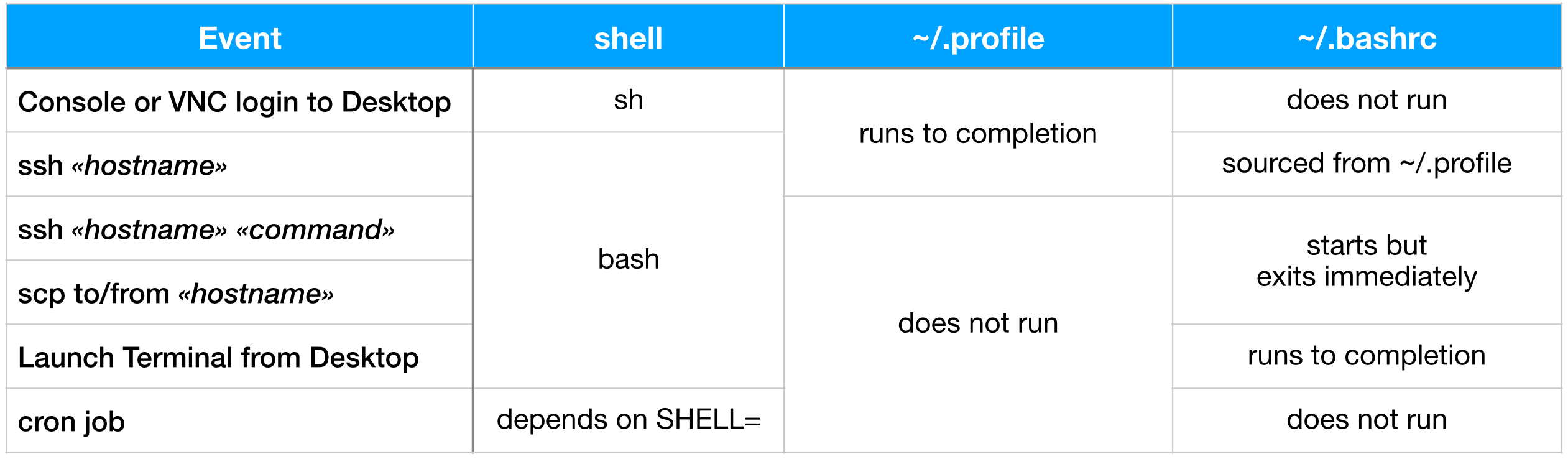
> The same pattern applies to `/etc/profile` and `/etc/bash.bashrc`
### when `~/.bashrc` is sourced by `~/.profile`
In the `ssh «hostname»` case, the default version of `~/.profile` contains these lines:
```
# if running bash
if [ -n "$BASH_VERSION" ]; then
# include .bashrc if it exists
if [ -f "$HOME/.bashrc" ]; then
. "$HOME/.bashrc"
fi
fi
```
If you remove those lines from `~/.profile` then `~/.bashrc` will not run when you SSH to the host. It is unwise to do this because most of your PATH is set up by `~/.bashrc`. Many commands will not execute as you expect if your PATH is not set up in the usual way.
### when `~/.bashrc` starts but exits immediately
The "short-stop" behaviour of these cases depends on the following lines of code in the default version of `~/.bashrc`:
```
… preamble …
# If not running interactively, don't do anything
case $- in
*i*) ;;
*) return ;;
esac
… postamble …
```
The `return` statement is executed for any non-interactive shell.
### subdividing `~/.bashrc`
The overall effect of the `case` statement is to divide `~/.bashrc` into two parts:
* the *preamble* which is always executed; and
* the *postamble* which is only executed for interactive shells.
If you ever wondered why you need to use full pathnames to run commands in your `~/.local/bin` when using `ssh host command` syntax, it is due to the combined effect of `~/.profile` not running and `~/.bashrc` stopping before adding `~/.local/bin` to your PATH.
The preamble section of the default version of `~/.bashrc` does not contain any commands but that doesn't mean you can't put commands into the preamble if you wish. One very good candidate for the preamble is adding `~/.local/bin` to your PATH.
### default versions of `~/.bashrc` and `~/.profile`
Each new user account is initialised by copying these files:
* `/etc/skel/.bashrc`
* `/etc/skel/.profile`
If you ever make a mess of your own `~/.profile` or `~/.bashrc`, you can always obtain pristine copies from `/etc/skel`.
## rule of thumb: prefer `~/.bashrc`
As you can see from the [table above](#whenTable), `~/.bashrc` has better coverage than `~/.profile` so that makes `~/.bashrc` far more useful.
It then boils down to *when* you want a given command to be run:
* if you *always* want a command to run then put it in the `~/.bashrc` preamble;
* otherwise put it in the `~/.bashrc` postamble.
## PiBuilder
Out of the box, PiBuilder:
1. Does not change your `~/.profile` at all; but
2. Appends to your `~/.bashrc`. The changes it makes include:
- Sourcing IOTstackAliases if that package is installed (which PiBuilder does by default).
- Enabling `DOCKER_BUILDKIT=1` - see [enable buildkit builds](https://docs.docker.com/develop/develop-images/build_enhancements/#to-enable-buildkit-builds).
- Setting `COMPOSE_PROFILES` to your host name - see [compose profiles](#composeProfiles).
### if you want to append to `~/.profile`
Remembering that `~/PiBuilder` means "the path to the directory where you have cloned the PiBuilder repository from GitHub onto your support host", if you simply create a file at:
```
~/PiBuilder/boot/scripts/support/home/pi/.profile
```
then the contents of that file will be appended to the default `~/.profile` when the 05 script runs.
### if you want total control
PiBuilder supports two environment variables:
* `DOT_PROFILE_ACTION`
* `DOT_BASHRC_ACTION`
Each variable can have the following values:
* `append`. This is the default behaviour. Using `~/.bashrc` as the example, the 05 script will:
```
$ cat /boot/scripts/support/home/pi/.bashrc >>$HOME/.bashrc
```
In the event that the Raspberry Pi Foundation changes the [default versions of `~/.bashrc` and `~/.profile`](#baselineProfiles), appending means you inherit those changes on a clean build.
* `replace`. Using `~/.bashrc` as the example, the 05 script will:
```
$ mv $HOME/.bashrc $HOME/.bashrc.bak
$ cp /boot/scripts/support/home/pi/.bashrc $HOME/.bashrc
```
Unlike `append`, this approach will never inherit any changes to the the [default versions of `~/.bashrc` and `~/.profile`](#baselineProfiles).
> I don't want to overstate this problem. Changes to the defaults are rare. You won't need to keep a constant watch on `/etc/skel`.
* any value other than `append` or `replace` will bypass any `~/.profile` and/or `~/.bashrc` action even if the relevant files are present in `/boot/scripts/support/home/pi` when the 05 script runs.
### reference versions of `~/.bashrc` and `~/.profile`
The PiBuilder tutorials folder contains two reference implementations which you are welcome to adopt, adapt to your own circumstances, and then have PiBuilder implement them automatically on each build by setting the action variables to `replace`.
* `~/PiBuilder/tutorials/reference/reference.bashrc`
* `~/PiBuilder/tutorials/reference/reference.profile`
Between them, these two scripts mean your shell environment will always be as similar as is possible, no matter how you connect to your Raspberry Pi.
#### useful function: `tidyPATH`
Both `~/.profile` and `~/.bashrc` (and their corresponding versions in `/etc`) change your PATH variable several times. Your PATH usually winds up with duplicates for `/usr/bin` and `/usr/sbin`, and it is easy to find yourself having added `~/.local/bin` more than once.
Over time, you may also find your PATH contains references to things that are no longer installed.
Rather than expending effort in trying to eliminate duplicates and non-existent components by hand, it is better to accept that PATH construction is messy, and automate the cleanup.
The following function can be a useful addition to your `~/.bashrc`. It should be defined in the preamble section (it is included in the [`reference.bashrc`](#referenceProfiles)):
```
tidyPATH() {
local REPATH CKPATH P PE
for P in ${PATH//:/ }; do
PE=$(eval echo "$P")
[ -L "$PE" ] && PE=$(realpath "$PE")
if [[ ! "$CKPATH" =~ ":$PE:" && -d "$PE" ]] ; then
[ -n "$REPATH" ] && REPATH="$REPATH:$PE" || REPATH="$PE"
CKPATH="$CKPATH:$PE:"
fi
done
echo "$REPATH"
}
```
This `bash` function works on both Raspberry Pi OS and macOS. Usage is:
```
export PATH=$(tidyPATH)
```
It can be called:
* in `~/.bashrc` before the short-stop exit
* at the end of `~/.bashrc`
* at the end of `~/.profile` where it should be gated like this:
```
[ "$(type -t tidyPATH)" = "function" ] && export PATH=$(tidyPATH)
```
How it works:
1. The `${PATH//:/ }` construct starts with the existing PATH variable and replaces the colon separators with spaces. This makes it *for loop*-friendly and capable of iteration to decompose it back to its constituent parts.
2. `$(eval echo "$P")` expands any embedded shortcuts like `~`.
3. The `-L` operator tests for symbolic links and `realpath` chases symlink chains to arrive at the actual final library folder, if it exists.
4. The line with the `=~` operator checks for duplicates and ensures the candidate both exists and is a directory.
5. The `-n` test either initialises the new path with the first candidate to emerge or appends subsequent candidates to the new path, separated by colons, maintaining the original order.
6. The final `echo` returns the updated path.
## cron
This is a special case. No profile scripts are run when `cron` spawns a job. You can set environment variables in the header section of your `crontab` but variable expansion (eg expecting `$HOME` to expand to `/home/pi`) does not work and neither does sourcing scripts from the header section.
At a pinch, you *can* set up `cron` jobs like this:
```
*/5 * * * * . /home/pi/.bashrc ; run-some-command.sh
```
That will create conditions for `run-some-command.sh` that are similar to invoking it via SSH:
```
$ ssh pi@raspberrypi.local run-some-command.sh
```
In other words, `run-some-command.sh` will inherit whatever is set up by `~/.bashrc` before it short-stops. There are a few provisos:
1. If code in your `~/.bashrc` assumes certain variables will be set, you have to meet that condition in the header section of your `crontab`. The most common example is setting HOME correctly.
2. If code in your `~/.bashrc` writes to stdout or stderr, `cron` will send you an email about it for each invocation. In other words, you may also have to think about redirection to a log file.
Having said all that, if your sole objective is to add `~/.local/bin` to your PATH, you can do that in the `crontab` preamble. Or you can simply use the absolute path, as in:
```
*/5 * * * * ./home/pi/.local/bin/run-some-command.sh
```
## compose profiles
A good example of the use of profiles is a "live" vs "test" scenario. Suppose you have two Raspberry Pis, both running IOTstack:
* The "live" machine is named "iot-hub".
* The "test" machine is named "iot-test"
Assume `~/.bashrc` contains this line:
```
export COMPOSE_PROFILES=$(hostname -s)
```
Consider the following service definitions:
```
services:
red:
container_name: red
image: red
ports:
- "9001:80"
restart: unless-stopped
green:
container_name: green
image: green
profiles:
- iot-hub
ports:
- "9002:80"
restart: unless-stopped
blue:
container_name: blue
image: blue
profiles:
- iot-test
ports:
- "9003:80"
restart: unless-stopped
magenta:
container_name: magenta
image: blue
profiles:
- manual
ports:
- "9004:80"
restart: unless-stopped
```
> "manual" is not a reserved word, it is simply a string that is not one of the host names.
Running `docker-compose up -d` will have the effect:
* On the "live" machine, the *red* and *green* services will start but *blue* and *magenta* will not.
* On the "test" machine, the *red* and *blue* services will start but *green* and *magenta* will not.
On the "live" machine, the *blue* and *magenta* services can be forced to start by naming them explicitly:
```
$ docker-compose up -d blue magenta
```
Naming a container explicitly overrides the profile. You can use the same technique to force *green* and *magenta* to start on the "test" machine.
Using "profiles" makes it easy to have a single `docker-compose.yml` which is used on multiple machines. Adjusting profile names is also a good deal simpler than adding, removing or commenting-in/out whole service definitions as you test changes.
See the [Docker documentation](https://docs.docker.com/compose/profiles/) for another example of using Compose Profiles.