#### \
#### [:mega: Reply to Google Play Reviews using AI :arrow_right:](https://playstorereply.com)
Increase your apps ratings. Engage with all users, no more unanswered reviews.
Save time and increase customer satisfaction.
#### \
# android-youtube-player
[](https://www.appbrain.com/stats/libraries/details/android_youtube_player/android-youtube-player)
[](https://pierfrancescosoffritti.github.io/android-youtube-player/)
[](https://twitter.com/intent/tweet?text=A%20new%20YouTube%20Player%20library%20for%20Android%20and%20Chromecast,%20stable%20and%20customizable&url=https://github.com/PierfrancescoSoffritti/android-youtube-player&via=psoffritti&hashtags=opensource,youtubeplayer,androiddev)
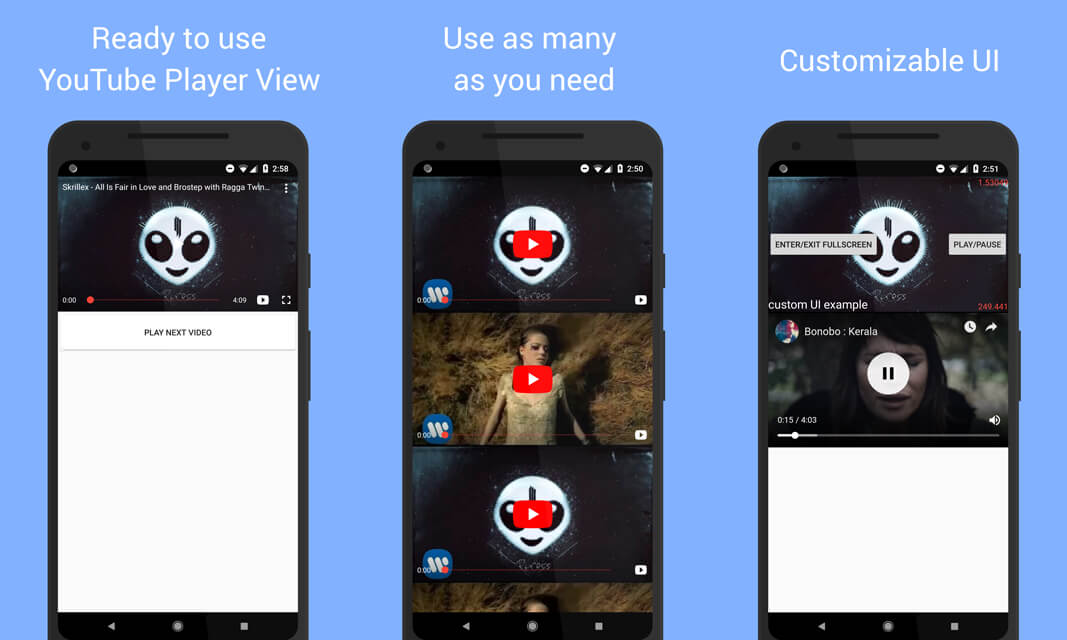
 android-youtube-player is a stable and customizable open source YouTube player for Android. It provides a simple View that can be easily integrated in every Activity/Fragment.
The library is a wrapper around the [IFrame Player API](https://developers.google.com/youtube/iframe_api_reference), which runs inside of a WebView. Therefore there are [no issues with YouTube Terms of Service](#does-this-library-breaks-youtube-terms-of-service).
This library also provides a [Chromecast YouTube player](#chromecast-extension-library), that you can use to cast YouTube videos from your app to a Chromecast device.
## Why does this library exist?
The library provided by Google is the [YouTube Android Player API](https://developers.google.com/youtube/android/player/).
This library has been [historically not reliable]((https://code.google.com/p/gdata-issues/issues/detail?id=4395)) and is now deprecated by Google.
Google now recommends using the IFrame Player API inside a WebView, which is exactly what this library does, while also providing a native Java/Kotlin interface to interact with the web player.
A lengthier explanation of why this library was created can be found in [this Medium post](https://medium.com/@soffritti.pierfrancesco/how-to-play-youtube-videos-in-your-android-app-c40427215230).
## Who is using this library
Now that **the official API from Google is deprecated**, `android-youtube-player` is the main YouTube player library for Android.
**Used by over 5 thousands apps**, with some big names like [Tumblr](https://play.google.com/store/apps/details?id=com.tumblr), [Flipkart](https://play.google.com/store/apps/details?id=com.flipkart.android), [McDonald's](https://play.google.com/store/apps/details?id=com.mcdo.mcdonalds), [InShot Video Editor](https://play.google.com/store/apps/details?id=com.camerasideas.instashot), [Genius](https://play.google.com/store/apps/details?id=com.genius.android) and [reddit is fun](https://play.google.com/store/apps/details?id=com.andrewshu.android.reddit).
You can [see more stats here](https://www.appbrain.com/stats/libraries/details/android_youtube_player/android-youtube-player).
**If you choose to use this library and profit from it**, consider informing me and [become a sponsor on GitHub](https://github.com/sponsors/PierfrancescoSoffritti). This will enable me to continue developing the library, so you don't have to.
## Does this library break YouTube terms of service?
**TL;DR** No.
The library uses YouTube's own web player to play videos. Therefore it is 100% compliant with terms of service.
Playing YouTube videos in a WebView is the recommended approach by Google, both on [Android](https://developers.google.com/youtube/android/player/) and [iOS](https://developers.google.com/youtube/v3/guides/ios_youtube_helper).
That said how you use the library matters, be sure to play videos only when the player is visible. If you follow the instructions in the documentation, the library will automatically handle this for you.
Also remember when publishing your app on the PlayStore to write title and description in a way that makes it obvious that your app doesn't have any affiliation with YouTube (the company). **This issue has nothing to do with the library itself**, but I figured it may be useful knowledge for many of you considering to use it.
# Table of Contents (Core)
1. [Sample app](#sample-app)
2. [Download](#download)
1. [Core](#core)
2. [Chromecast](#chromecast)
3. [Quick start](#quick-start)
4. [API documentation](#api-documentation)
1. [YouTubePlayerView](#youtubeplayerview)
1. [XML attributes](#xml-attributes)
2. [Initialization](#initialization)
3. [IFramePlayerOptions](#iframeplayeroptions)
4. [Full screen](#full-screen)
5. [Release the YouTubePlayerView](#release-the-youtubeplayerview)
6. [LifecycleObserver](#lifecycleobserver)
2. [YouTubePlayer](#youtubeplayer)
1. [Get a reference to YouTubePlayer](#get-a-reference-to-youtubeplayer)
2. [Load videos](#load-videos)
1. [Utility for loading videos](#utility-for-loading-videos)
3. [Events](#events)
4. [Get state from the player](#get-state-from-the-player)
5. [YouTubePlayerTracker](#youtubeplayertracker)
3. [YouTubePlayerListener](#youtubeplayerlistener)
1. [onReady callback](#onready-callback)
2. [onStateChanged callback](#onstatechanged-callback)
4. [Create your own custom UI](#create-your-own-custom-ui)
1. [DefaultPlayerUiController](#defaultplayeruicontroller)
2. [Reusable UI components](#reusable-ui-components)
1. [YouTubePlayerSeekBar](#youtubeplayerseekbar)
2. [FadeViewHelper](#fadeviewhelper)
3. [TimeUtilities](#timeutilities)
5. [Network events](#network-events)
6. [Chromecast support](#chromecast-support)
7. [Useful info](#useful-info)
1. [Hardware acceleration](#hardware-acceleration)
2. [Play YouTube videos in the background](#play-youtube-videos-in-the-background)
3. [minSdk](#minsdk)
# Table of Contents (Chromecast)
1. [Chromecast extension library](#chromecast-extension-library)
2. [Quick start and API documentation](#quick-start---chromecast)
1. [Download extra dependencies](#download-extra-dependencies)
2. [Sender](#sender)
3. [Receiver](#receiver)
4. [Registration](#registration)
5. [Hosting the Chromecast receiver](#hosting-the-chromecast-receiver)
# FAQ
1. [Workarounds](#workarounds)
1. [Change video quality](#change-video-quality)
2. [Login to YouTube account](#login-to-youtube-account)
3. [Block Ads (Auto Ad Skip)](#block-ads)
4. [Remove views that cannot be removed by the controls parameter](#remove-annoying-views)
5. [Force to hide subtitles](#hide-captions)
6. [Play Next Recomended Video](#play-next-recomended-video)
# Sample app
:memo: Both the **core module** and the **chromecast module** have a sample app, to provide examples of usage of the libraries.
* [Go to source code of **core** sample app](./core-sample-app/).
* [Go to source code of **chromecast-sender** sample app](./chromecast-sender-sample-app).
:calling: You can also download and install the apks of both sample apps.
* [Download apk of **core** sample app](./core-sample-app/apk).
* [Download apk of **chromecast-sender** sample app](./chromecast-sender-sample-app/apk).
:eyes: If you want to know when a new release of the library is published: [watch this repository on GitHub](https://github.com/PierfrancescoSoffritti/android-youtube-player/watchers).
# Download
The Gradle dependency is available via [MavenCentral](https://repo1.maven.org/maven2/com/pierfrancescosoffritti/androidyoutubeplayer/).
The minimum API level supported by this library is API 21.
### Core
The *core* module contains the YouTube Player. It's all you need to play YouTube videos in your app.
Add this to your module level `build.gradle` file.
```gradle
dependencies {
implementation 'com.pierfrancescosoffritti.androidyoutubeplayer:core:13.0.0'
}
```
### Chromecast
The *chromecast-sender* module contains the Chromecast YouTube Player. Use it if you need to cast YouTube videos from your app to a Chromecast device.
Add this to your module level `build.gradle` file.
```gradle
dependencies {
implementation 'com.pierfrancescosoffritti.androidyoutubeplayer:chromecast-sender:0.32'
}
```
# Quick start
In order to start using the player you need to add a [YouTubePlayerView](#youtubeplayerview) to your layout.
```xml
```
It is recommended that you add `YouTubePlayerView` as a lifecycle observer of its parent Activity/Fragment. You can [read why in the documentation](#lifecycleobserver).
```java
YouTubePlayerView youTubePlayerView = findViewById(R.id.youtube_player_view);
getLifecycle().addObserver(youTubePlayerView);
```
*(If you have problems adding `YouTubePlayerView` as a `LifecycleObserver`, you probably aren't using androidx, [I suggest you migrate your dependencies](https://developer.android.com/jetpack/androidx/migrate))*
This is all you need, a YouTube video is now playing in your app.
If you want more control, everything can be done programmatically by getting a reference to your `YouTubePlayerView` and adding a `YouTubePlayerListener` to it.
```java
YouTubePlayerView youTubePlayerView = findViewById(R.id.youtube_player_view);
getLifecycle().addObserver(youTubePlayerView);
youTubePlayerView.addYouTubePlayerListener(new AbstractYouTubePlayerListener() {
@Override
public void onReady(@NonNull YouTubePlayer youTubePlayer) {
String videoId = "S0Q4gqBUs7c";
youTubePlayer.loadVideo(videoId, 0);
}
});
```
If you decide to initialize the player programmatically, remember to remove the `autoPlay` and `videoId` attributes from the `YouTubePlayerView` in your XML file.
----
# API documentation
The following sections provides detailed documentation for every component in the library.
If you see any problem or mistake in the documentation, feel free to contribute by opening an issue an/or sending a pull request.
## YouTubePlayerView
`YouTubePlayerView` is the access point to the `YouTubePlayer`.
You can add the View to your layout.
```xml
```
Or you can create it programmatically and manually add it to a ViewGroup.
```java
YouTubePlayerView youTubePlayerView = new YouTubePlayerView(this);
layout.addView(youTubePlayerView);
```
If the height of the View is set to `wrap_content`, the View will automatically have an aspect ratio of 16:9, to match the aspect ratio of most YouTube videos.
### XML attributes
If you add the view to your XML layout you have the possibility to set a few custom attributes, to customize the view's look and behavior. Everything can also be done programmatically.
- [videoId](#videoId)
- [autoPlay](#autoPlay)
- [enableAutomaticInitialization](#enableAutomaticInitialization)
- [handleNetworkEvents](#handleNetworkEvents)
#### videoId
This attribute expects a `String`, which is the id of a YouTube video.
**If set**, the player will automatically start playing the video.
**If not set**, the player won't automatically play.
In general you should use this attribute if you want your player to play only one video. This is not a rule, just best practice. In fact, even if you set the attribute it is still possible to play other videos programmatically.
#### autoPlay
This attribute expects a `boolean`. Its default value is `false`.
**If `true`**, the player start playing the video provided with `videoId` without waiting for user input.
**If `false`**, the player will wait for user input before playing the video provided with `videoId`.
If `videoId` is not set, this attribute is useless, therefore if it is set to `true` `YouTubePlayerView` will throw an exception.
`autoPlay` won't work if `YouTubePlayerView` is not [added as a `LifecycleObserver` of its parent Activity/Fragment](#lifecycleobserver).
#### enableAutomaticInitialization
This attribute expects a `boolean`. Its default value is `true`.
**If `true`**, `YouTubePlayerView` will take care of its initialization.
**If `false`**, you will have to initialize `YouTubePlayerView` programmatically.
In general it makes sense to leave this attribute to `true`. You may want to set it to `false` only if you need to initialize the view using [`IFramePlayerOptions`](#iframeplayeroptions).
#### handleNetworkEvents
This attribute expects a `boolean`. Its default value is `true`.
**If `true`**, `YouTubePlayerView` handle network events by registering a `NetworkReceiver`.
**If `false`**, you will be responsible for handling network events.
It is useful to have this attribute set to `true` so that if the connection drops while the player is initializing `YouTubePlayerView` will be able to resume the initialization automatically once the network is back.
If you decide to set it to `false` you should also disable `enableAutomaticInitialization` and manage network events on your own.
Read more about network events [here](#network-events).
### Initialization
If you need to initialize `YouTubePlayerView` programmatically, you can set its xml attribute `enableAutomaticInitialization` to false.
You can do the same programmatically by calling `youTubePlayerView.setEnableAutomaticInitialization(false)`.
After automatic initialization has been disabled, you need to take care of the initialization of `YouTubePlayerView`.
You can use these methods:
```java
YouTubePlayerView.initialize(YouTubePlayerListener listener)
```
```java
YouTubePlayerView.initialize(YouTubePlayerListener listener, IFramePlayerOptions iframePlayerOptions)
```
```java
YouTubePlayerView.initialize(YouTubePlayerListener listener, boolean handleNetworkEvents)
```
```java
YouTubePlayerView.initialize(YouTubePlayerListener listener, boolean handleNetworkEvents, IFramePlayerOptions iframePlayerOptions)
```
```java
YouTubePlayerView.initialize(YouTubePlayerListener listener, boolean handleNetworkEvents, IFramePlayerOptions iframePlayerOptions, String videoId)
```
#### `initialize(YouTubePlayerListener)`
Initialize the `YouTubePlayer`. Network events are automatically handled by the player.
The argument is a `YouTubePlayerListener`, you can read more about it [here](#youtubeplayerlistener).
#### `initialize(YouTubePlayerListener, boolean)`
Initialize the `YouTubePlayer`. By using the `boolean` is possible to decide if the player should handle network events or not, read more about network events [here](#network-events).
#### `initialize(YouTubePlayerListener, boolean, IFramePlayerOptions)`
By passing an `IFramePlayerOptions` to the initialize method it is possible to set some of the parameters of the IFrame YouTubePlayer. Read more about `IFramePlayerOptions` [here](#iframeplayeroptions).
All the possible parameters and values are listed [here](https://developers.google.com/youtube/player_parameters#Parameters). Not all of them are supported in this library because some don't make sense in this context. [Open an issue](https://github.com/PierfrancescoSoffritti/android-youtube-player/issues) if you need a parameter that is not currently supported.
#### `initialize(YouTubePlayerListener, boolean, IFramePlayerOptions, String)`
By passing the `videoId` the video will be loaded as soon as possible after initialization.
### IFramePlayerOptions
The `IFramePlayerOptions` is an optional argument that can be passed to `YouTubePlayerView.initialize(YouTubePlayerListener, boolean, IFramePlayerOptions)`, it can be used to set some of the parameters of the IFrame YouTubePlayer.
A simple example of how to use `IFramePlayerOptions` can be found in the sample app [here](./core-sample-app/src/main/java/com/pierfrancescosoffritti/androidyoutubeplayer/core/sampleapp/examples/iFramePlayerOptionsExample/IFramePlayerOptionsExampleActivity.java).
Use the Builder to get a `IFramePlayerOptions` object.
```java
IFramePlayerOptions iFramePlayerOptions = new IFramePlayerOptions.Builder(context)
.controls(1)
.build();
```
All the possible parameters and values are listed [here](https://developers.google.com/youtube/player_parameters#Parameters). Not all of them are supported in this library because some don't make sense in this context. [Open an issue](https://github.com/PierfrancescoSoffritti/android-youtube-player/issues) if you need a parameter that is not currently supported.
#### Supported options
##### `controls`
This option indicates whether the web-based UI of the IFrame player should be hidden or visible.
If set to 0: web UI is not visible.
If set to 1: web UI is visible.
##### `rel`
This option controls the related videos shown at the end of a video.
If set to 0: related videos will come from the same channel as the video that was just played.
If set to 1: related videos will come from multiple channels.
##### `ivLoadPolicy`
This option controls video annotations.
If set to 1: the player will show annotations.
If set to 3: the player won't show annotations.
##### `ccLoadPolicy`
This option controls video captions. It doesn't work with automatically generated captions.
If set to 0: the player will show captions.
If set to 1: the player won't show captions.
##### `start`
This parameter causes the player to begin playing the video at the given number of seconds from the start of the video. The parameter value is a positive integer.
It works similarly to the `seekTo` method, and the `startSeconds` argument of `loadVideo` and `cueVideo`.
##### `end`
This parameter specifies the time, measured in seconds from the beginning of the video, when the player should stop playing the video. The parameter value is a positive integer.
### Full screen
The full screen button can be added to the player by using `IFramePlayerOptions`
```java
IFramePlayerOptions iFramePlayerOptions = new IFramePlayerOptions.Builder(context)
.controls(1)
// enable full screen button
.fullscreen(1)
.build();
```
You can listen to full screen events by adding a `FullscreenListener` to `YouTubePlayerView`
```java
youTubePlayerView.addFullscreenListener(new FullscreenListener() {
@Override
public void onEnterFullscreen(@NonNull View fullscreenView, @NonNull Function0 exitFullscreen) {
}
@Override
public void onExitFullscreen() {
}
});
```
See [the sample app for an example](./core-sample-app/src/main/java/com/pierfrancescosoffritti/androidyoutubeplayer/core/sampleapp/examples/fullscreenExample/FullscreenExampleActivity.kt).
When `FullscreenListener#onEnterFullscreen` is called, the player will be rendered inside `fullscreenView` instead of `YouTubePlayerView`, until `FullscreenListener#onExitFullscreen` is called.
Therefore you are required to add `fullscreenView` to your app's view hierarchy when fullscreen is started, and remove it when fullscreen is ended.
You can also use the `YouTubePlayerView#matchParent` and `YouTubePlayerView#wrapContent` to expand the view to fill its parent.
It is responsibility of the developer to hide other Views in the Activity, change the orientation of the Activity etc. The sample app contains an [helper class](./core-sample-app/src/main/java/com/pierfrancescosoffritti/androidyoutubeplayer/core/sampleapp/utils/FullscreenHelper.java) that can help you to update your app state, but this is not part of the library.
If you need to change the orientation of your Activity/Fragment, remember that by default Android recreates Activities and Fragments when the orientation changes. Make sure that you manually handle orientation changes by adding the attribute `android:configChanges` to your Activity definition in the manifest.
```xml
```
### Playlist
You can initialize the player to play playlists instead of videos. This can be done by setting `listType` to `playlist` and then providing the id of the playlist to `list`.
```kotlin
val iFramePlayerOptions = IFramePlayerOptions.Builder(context)
.controls(1)
.listType("playlist")
.list(PLAYLIST_ID)
.build()
```
### Release the YouTubePlayerView
Remember to release the `YouTubePlayerView` when you're done using it, by calling `YouTubePlayerView.release()`.
```java
@Override
public void onDestroy() {
super.onDestroy();
youTubePlayerView.release();
}
```
**You don't need to manually release the player if you registered it as an observer of your Activity/Fragment's lifecycle.**
### LifecycleObserver
`YouTubePlayerView` implements the `LifecycleObserver` interface, this means that it is a lifecycle aware component.
If added as an observer of your Activity/Fragment's lifecycle, `YouTubePlayerView` will be smarter. **It is highly recommended that you register `YouTubePlayerView` as a `LifecycleObserver`.**
```java
lifecycleOwner.getLifecycle().addObserver(youTubePlayerView);
```
Adding `YouTubePlayerView` as an observer to a lifecycle will allow `YouTubePlayerView` to automatically pause the playback when the Activity/Fragment stops (not when it pauses, in order to support multi-window applications).
If you want your app to keep [playing when the Activity/Fragment is not visible](#play-youtube-videos-in-the-background) (remember that this behavior is not allowed, if you want to publish your app on the PlayStore), don't register the `YouTubePlayerView` as a lifecycle observer. But remember to manually call `release()` when the Activity/Fragment is being destroyed.
## YouTubePlayer
`YouTubePlayer` is the component responsible for controlling the playback of YouTube videos. You can see its contract [here](./core/src/main/java/com/pierfrancescosoffritti/androidyoutubeplayer/core/player/YouTubePlayer.kt).
Every [`YouTubePlayerView`](#youtubeplayerview) contains a `YouTubePlayer`.
### Get a reference to YouTubePlayer
There are two ways to get a reference to the `YouTubePlayer`, through the `YouTubePlayerView`.
#### 1. YouTubePlayerView.getYouTubePlayerWhenReady
`YouTubePlayerView.getYouTubePlayerWhenReady` can be used to get a reference to the `YouTubePlayer`. As the name of the method says, you'll only get the player when it is ready.
Therefore this function takes a callback as argument, the callback will be called when the `YouTubePlayer` is ready.
```java
youTubePlayerView.getYouTubePlayerWhenReady(youTubePlayer -> {
// do stuff with it
})
```
#### 2. YouTubePlayerListener
Every method of a [`YouTubePlayerListener`](#youtubeplayerlistener) has the `YouTubePlayer` as argument.
### Load videos
To load a video you can use two methods.
```java
YouTubePlayer.loadVideo(String videoId, float startTime)
```
or
```java
YouTubePlayer.cueVideo(String videoId, float startTime)
```
The difference between the two is that `loadVideo` loads and automatically plays the video, while `cueVideo` just loads video and thumbnail but doesn't autoplay.
#### Utility for loading videos
If the Activity/Fragment is in the background, but you created a `YouTubePlayerListener` that calls `loadVideo` when `onReady` is called, the video will start playing even if the Activity is in the background.
To solve this problem you should use the `loadOrCueVideo` function.
Provided as an utility function in Java.
```java
YouTubePlayerUtils.loadOrCueVideo(
youTubePlayer,
getLifecycle(),
videoId,
startTime
);
```
And as an extension function in Kotlin.
```kotlin
youTubePlayer.loadOrCueVideo(lifeCycle, videoId, startTime)
```
This function will call `loadVideo` only if the Activity is resumed, otherwise it will call `cueVideo`, so that the video starts loading but not playing.
### Events
During its existence the player will constantly emit events, you can easily listen to all of them by adding a [`YouTubePlayerListener`](#youtubeplayerlistener) to it.
### Get state from the player
The IFrame API exposes methods like `isMute` that can be used to read the current state of the player.
These are exposed in the `YouTubePlayer` interface as async calls. They are async becasue in order to get them, the JVM player needs to send a requesto to the IFrame player inside the Webview.
These methods are exposed with the `async` suffix in the `YouTubePlayer`. Suspending extension functions are available to simplify usage from Kotlin.
```kotlin
fun isMutedAsync(callback: BooleanProvider)
suspend fun isMuted(): Boolean
```
### YouTubePlayerTracker
`YouTubePlayerTracker` is an utility provided by the library to easily keep track of a `YouTubePlayer`'s state and other information.
`YouTubePlayerTracker` is a [`YouTubePlayerListener`](#youtubeplayerlistener), therefore in order to use it you need to add it as a listener to the `YouTubePlayer`.
You can then use the tracker to get the player's state and various information about the video that is being played.
```java
YouTubePlayerTracker tracker = new YouTubePlayerTracker();
youTubePlayer.addListener(tracker);
tracker.getState();
tracker.getCurrentSecond();
tracker.getVideoDuration();
tracker.getVideoId();
```
## YouTubePlayerListener
A `YouTubePlayerListener` is used to intercept events emitted by a [`YouTubePlayer`](#youtubeplayer).
During its existence a `YouTubePlayer` will constantly emit events, you can listen to them by adding a `YouTubePlayerListener` to it.
```java
youTubePlayer.addListener(YouTubePlayerListener listener);
youTubePlayer.removeListener(YouTubePlayerListener listener);
```
These are the method that a `YouTubePlayerListener` must implement, every method takes a reference to the `YouTubePlayer` and some other arguments.
```java
// Called when the player is ready to play videos.
// You should start using the player only after this method is called.
void onReady(@NonNull YouTubePlayer youTubePlayer)
// Called every time the state of the player changes.
void onStateChange(@NonNull YouTubePlayer youTubePlayer, @NonNull PlayerConstants.PlayerState state)
// Called every time the quality of the playback changes.
void onPlaybackQualityChange(@NonNull YouTubePlayer youTubePlayer, @NonNull PlayerConstants.PlaybackQuality playbackQuality)
// Called every time the speed of the playback changes.
void onPlaybackRateChange(@NonNull YouTubePlayer youTubePlayer, @NonNull PlayerConstants.PlaybackRate playbackRate)
// Called when an error occurs in the player.
void onError(@NonNull YouTubePlayer youTubePlayer, @NonNull PlayerConstants.PlayerError error)
// Called periodically by the player, the argument is the number of seconds that have been played.
void onCurrentSecond(@NonNull YouTubePlayer youTubePlayer, float second)
// Called when the total duration of the video is loaded.
// Note that getDuration() will return 0 until the video's metadata is loaded, which normally happens just after the video starts playing.
void onVideoDuration(@NonNull YouTubePlayer youTubePlayer, float duration)
// Called periodically by the player, the argument is the percentage of the video that has been buffered.
void onVideoLoadedFraction(@NonNull YouTubePlayer youTubePlayer, float loadedFraction)
// Called when the id of the current video is loaded
void onVideoId(@NonNull YouTubePlayer youTubePlayer, String videoId)
void onApiChange(@NonNull YouTubePlayer youTubePlayer)
```
If you don't want to implement all the methods of this interface, you can extend `AbstractYouTubePlayerListener` instead of implementing `YouTubePlayerListener` and override only the methods you are interested in.
For more information on the methods defined in the `YouTubePlayerListener` interface, please refer to the documentation defined above each method [in the codebase](./core/src/main/java/com/pierfrancescosoffritti/androidyoutubeplayer/core/player/listeners/YouTubePlayerListener.kt).
### onReady callback
The onReady callback of a `YouTubePlayerListener` is called once, when the `YouTubePlayer` is ready to be used for the first time. **You can't use a `YouTubePlayer` before it is ready**.
### onStateChanged callback
The `YouTubePlayer` has a state, that changes accordingly to the playback changes. The [list of possible states](./core/src/main/java/com/pierfrancescosoffritti/androidyoutubeplayer/core/player/PlayerConstants.kt) is the same of the YouTube [IFrame Player API](https://developers.google.com/youtube/iframe_api_reference#Playback_status).
```
UNKNOWN
UNSTARTED
ENDED
PLAYING
PAUSED
BUFFERING
VIDEO_CUED
```
## Create your own custom UI
Customization is an important aspect of this library. If need to, you can completely replace the default UI of the player.
`YouTubePlayerView` has methods for that.
```java
View inflateCustomPlayerUi(@LayoutRes int customUiLayoutID)
void setCustomPlayerUi(View view)
```
This method takes in the `id` of a layout resource, which is a regular XML file containing the definition of a layout, or a `View`.
The new UI will be overlayed over the player.
For this reason it is recommended to disable the UI of the IFrame player, by initializing the `YouTubePlayerView` with `IFramePlayerOptions`.
```java
// disable web ui
IFramePlayerOptions options = new IFramePlayerOptions.Builder(context).controls(0).build();
youTubePlayerView.initialize(listener, options);
```
You are responsible for managing your custom UI with your own code. Meaning: you should write your own class to manage the UI. A simple but complete example can be seen [here, in the sample app](./core-sample-app/src/main/java/com/pierfrancescosoffritti/androidyoutubeplayer/core/sampleapp/examples/customUiExample), I recommend taking a few minutes to read it, it should be trivial to understand.
Example (taken from sample app):
```java
View customPlayerUi = youTubePlayerView.inflateCustomPlayerUi(R.layout.custom_player_ui);
YouTubePlayerListener listener = new AbstractYouTubePlayerListener() {
@Override
public void onReady(@NonNull YouTubePlayer youTubePlayer) {
CustomPlayerUiController customPlayerUiController = new CustomPlayerUiController(CustomUiActivity.this, customPlayerUi, youTubePlayer, youTubePlayerView);
youTubePlayer.addListener(customPlayerUiController);
YouTubePlayerUtils.loadOrCueVideo(
youTubePlayer, getLifecycle(),
VideoIdsProvider.getNextVideoId(),0f
);
}
};
// disable iframe ui
IFramePlayerOptions options = new IFramePlayerOptions.Builder(context).controls(0).build();
youTubePlayerView.initialize(listener, options);
```
A blog post going deeper on this is available [at this link](https://medium.com/@soffritti.pierfrancesco/customize-android-youtube-players-ui-9f32da9e8505).
*Example of a custom UI: (this is just a ugly example, but here your design skills are the limit :))*
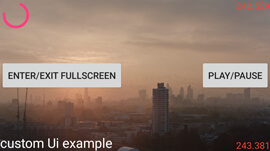
Warning: when replacing the IFrame UI, be carfeul not to break YouTube's terms of service. Altering the player look and feel might be an issue if you intend to publish your app on the PlayStore.
### DefaultPlayerUiController
`DefaultPlayerUiController` is a pre-made ready-to-use custom UI.
Starting from version 12.0.0 of the library, this UI is available as a separate module that needs to be used in conjunction with the `core` module. To import the library add this to the dependencies in your `gradle.build` file:
```gradle
dependencies {
implementation 'com.pierfrancescosoffritti.androidyoutubeplayer:core:{latest-version}'
implementation 'com.pierfrancescosoffritti.androidyoutubeplayer:custom-ui:{latest-version}'
}
```
After importing the dependency, you can use it like this:
```java
YouTubePlayerListener listener = new AbstractYouTubePlayerListener() {
@Override
public void onReady(@NonNull YouTubePlayer youTubePlayer) {
// using pre-made custom ui
DefaultPlayerUiController defaultPlayerUiController = new DefaultPlayerUiController(youTubePlayerView, youTubePlayer);
youTubePlayerView.setCustomPlayerUi(defaultPlayerUiController.getRootView());
}
};
// disable iframe ui
IFramePlayerOptions options = new IFramePlayerOptions.Builder(context).controls(0).build();
youTubePlayerView.initialize(listener, options);
```
The UI will look something like this.

You can use the `DefaultPlayerUiController` to hide views, add new view etc.
#### Menu
`DefaultPlayerUiController` has an optional menu. You can use these methods to control the menu's behavior:
``` java
PlayerUiController.showMenuButton(boolean show);
PlayerUiController.setMenuButtonClickListener(@NonNull View.OnClickListener customMenuButtonClickListener);
```
By default the menu icon is not visible.
The default `OnClickListener` opens the menu when the menu icon is clicked. You can change this behavior, for example to open a menu with a different UX, like a bottom sheet panel. Obviously if you want a UX different from the one provided by the library, you are responsible for creating your own components.
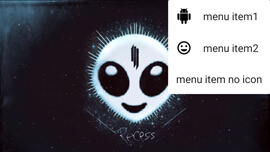
*Menu screenshot:*
##### YouTubePlayerMenu
You can get a reference of the `YouTubePlayerMenu` from the `PlayerUiController`.
```java
YouTubePlayerMenu PlayerUiController.getMenu()
```
Once you get a `YouTubePlayerMenu` object you can add and remove items to it, show it and dismiss it.
```java
YouTubePlayerMenu addItem(MenuItem menuItem)
YouTubePlayerMenu removeItem(MenuItem menuItem)
YouTubePlayerMenu removeItem(int itemIndex)
void show(View anchorView)
void dismiss()
```
Initially the `YouTubePlayerMenu` doesn't contain any item. You need to add them.
##### MenuItem
`MenuItem`s are the items of the `YouTubePlayerMenu`. They have a title, an optional icon and a `OnClickListener` that is called when the item is clicked.
### Reusable UI components
The library provides some pre-built UI components, these components are useful to reduce the time needed to build your own UI and controllers.
Starting from version 12.0.0, these components exist in the `custom-ui` module. So you need to add it to your app's dependencies in order to use them.
#### YouTubePlayerSeekBar
This component is useful to display and control the time of the playback. It shows the current time, the total duration of the video and a seek bar.

You can add it to your layout programmatically or in your xml.
```xml
```
It is possible to change font size and color by using the `fontSize` and `color` attributes.
`YouTubePlayerSeekBar` implements `YouTubePlayerListener`. In order for it to work you need to add it as a listener to your `YouTubePlayer` object.
```java
youTubePlayer.addListener(youTubePlayerSeekBar);
```
You may want to listen to events from `YouTubePlayerSeekBar`, in order to update the current time of your `YouTubePlayer` when the user moves the touch bar. To do that pass a `YouTubePlayerSeekBarListener` to `YouTubePlayerSeekBar`.
```java
youTubePlayerSeekBar.setYoutubePlayerSeekBarListener(new YouTubePlayerSeekBarListener() {
@Override
public void seekTo(float time) {
youTubePlayer.seekTo(time);
}
});
```
#### FadeViewHelper
An helper class that automatically fades out a view when not used. It can be used to automate the fade in and out of a container for the player controls, so that they automatically fade when appropriate.
The `FadingFrameLayout` is a `YouTubePlayerListener` therefore it can change it's behavior based on the state of the player. For example: if the video is paused it won't automatically fade out.
You can initialize it by passing to the constructor the view you want to be fading.
```java
FadeViewHelper fadeViewHelper = new FadeViewHelper(controlsContainer);
```
It is possible to change the animation duration and fade out delay by using the setter methods.
```java
fadeViewHelper.setAnimationDuration(FadeViewHelper.DEFAULT_ANIMATION_DURATION);
fadeViewHelper.setFadeOutDelay(FadeViewHelper.DEFAULT_FADE_OUT_DELAY);
```
They both take the time in milliseconds.
In order for `FadeViewHelper` to work properly you need to add it as a listener to your `YouTubePlayer` object.
```java
youTubePlayer.addListener(fadeViewHelper);
```
Use the method `FadeViewHelper.setDisabled(boolean)` to disable the automatic fading.
Use the method `FadeViewHelper.toggleVisibility()` to toggle the visibility of the target view, with a fade animation.
#### TimeUtilities
A set of utilities than can be used to format time Strings (like duration and current time of videos).
```java
String TimeUtilities.formatTime(float timeInSeconds)
```
Takes in the time in seconds and returns a String with the time formatted as "M:SS". (M = minutes, S = seconds).
## Network events
[`YouTubePlayerView`](#youtubeplayerview) automatically handles network events, using an internal BroadcastReceiver. You can choose to enable or disable this feature [when initializing the player](#initialization), or by setting the xml attribute `app:handleNetworkEvents="false"`.
Using the internal BroadcastReceiver is the easiest and recommended way to handle network events. The library is capable of handling cases in which the connection goes off and the playback can't continue, or cases in which the connection goes off while the player is in the process of initialization.
If you want to use your own BroadcastReceiver make sure to cover all the possible scenarios, in order to provide a good user experience.
## Chromecast support
If you need to cast YouTube videos to a Chromecast device you can use the *chromecast-sender* extension library. Read its documentation [here](#chromecast-extension-library).
## Useful info
### Hardware acceleration
Is important that the Activity containing the [YouTubePlayerView](#youtubeplayerview) is hardware accelerated. This option is enabled by default, you don't have to change anything in your app. Unless you manually disabled hardware acceleration.
If you need to disable hardware acceleration in your application, you can enable it at the Activity level, only for the Activity containing the `YouTubePlayerView`, as explained [here](https://developer.android.com/guide/topics/graphics/hardware-accel.html).
Disabling hardware acceleration on the Activity containing `YouTubePlayerView` may result in some weird behavior. The one I have observed so far shows a black image in the player, while the audio is playing normally.
### Play YouTube videos in the background
With this library it's easy to play YouTube videos when the app is not visible. In order to do that you simply have to not call `youTubePlayer.pause()` when the Activity is being paused or stopped and enable background playback by calling `YouTubePlayerView.enableBackgroundPlayback(true)`.
Adding `YouTubePlayerView` as an [observer to a lifecycle](#lifecycleobserver) will automatically cause the player to pause the playback when the Activity/Fragment stops.
Therefore if you want your app to keep playing even when the Activity/Fragment is paused/stopped, don't register it as a lifecycle observer and enable background playback for the view. But remember to manually call `YouTubePlayerView.release()` when the Activity/Fragment is destroyed.
Remember that this behavior is against [YouTube terms of service](https://developers.google.com/youtube/terms/api-services-terms-of-service), therefore if you decide to allow background playback you won't be able to publish your app on the Play Store.
Use this functionality only if you plan to build the app for personal use or if you plan to distribute it through different channels.
### minSdk
The minSdk of the library is 21. [At this point in time](https://developer.android.com/about/dashboards/index.html) it doesn't make much sense for new apps to support older versions of Android.
---
# Chromecast extension library
android-youtube-player is a stable and customizable open source YouTube player for Android. It provides a simple View that can be easily integrated in every Activity/Fragment.
The library is a wrapper around the [IFrame Player API](https://developers.google.com/youtube/iframe_api_reference), which runs inside of a WebView. Therefore there are [no issues with YouTube Terms of Service](#does-this-library-breaks-youtube-terms-of-service).
This library also provides a [Chromecast YouTube player](#chromecast-extension-library), that you can use to cast YouTube videos from your app to a Chromecast device.
## Why does this library exist?
The library provided by Google is the [YouTube Android Player API](https://developers.google.com/youtube/android/player/).
This library has been [historically not reliable]((https://code.google.com/p/gdata-issues/issues/detail?id=4395)) and is now deprecated by Google.
Google now recommends using the IFrame Player API inside a WebView, which is exactly what this library does, while also providing a native Java/Kotlin interface to interact with the web player.
A lengthier explanation of why this library was created can be found in [this Medium post](https://medium.com/@soffritti.pierfrancesco/how-to-play-youtube-videos-in-your-android-app-c40427215230).
## Who is using this library
Now that **the official API from Google is deprecated**, `android-youtube-player` is the main YouTube player library for Android.
**Used by over 5 thousands apps**, with some big names like [Tumblr](https://play.google.com/store/apps/details?id=com.tumblr), [Flipkart](https://play.google.com/store/apps/details?id=com.flipkart.android), [McDonald's](https://play.google.com/store/apps/details?id=com.mcdo.mcdonalds), [InShot Video Editor](https://play.google.com/store/apps/details?id=com.camerasideas.instashot), [Genius](https://play.google.com/store/apps/details?id=com.genius.android) and [reddit is fun](https://play.google.com/store/apps/details?id=com.andrewshu.android.reddit).
You can [see more stats here](https://www.appbrain.com/stats/libraries/details/android_youtube_player/android-youtube-player).
**If you choose to use this library and profit from it**, consider informing me and [become a sponsor on GitHub](https://github.com/sponsors/PierfrancescoSoffritti). This will enable me to continue developing the library, so you don't have to.

## Does this library break YouTube terms of service?
**TL;DR** No.
The library uses YouTube's own web player to play videos. Therefore it is 100% compliant with terms of service.
Playing YouTube videos in a WebView is the recommended approach by Google, both on [Android](https://developers.google.com/youtube/android/player/) and [iOS](https://developers.google.com/youtube/v3/guides/ios_youtube_helper).
That said how you use the library matters, be sure to play videos only when the player is visible. If you follow the instructions in the documentation, the library will automatically handle this for you.
Also remember when publishing your app on the PlayStore to write title and description in a way that makes it obvious that your app doesn't have any affiliation with YouTube (the company). **This issue has nothing to do with the library itself**, but I figured it may be useful knowledge for many of you considering to use it.
# Table of Contents (Core)
1. [Sample app](#sample-app)
2. [Download](#download)
1. [Core](#core)
2. [Chromecast](#chromecast)
3. [Quick start](#quick-start)
4. [API documentation](#api-documentation)
1. [YouTubePlayerView](#youtubeplayerview)
1. [XML attributes](#xml-attributes)
2. [Initialization](#initialization)
3. [IFramePlayerOptions](#iframeplayeroptions)
4. [Full screen](#full-screen)
5. [Release the YouTubePlayerView](#release-the-youtubeplayerview)
6. [LifecycleObserver](#lifecycleobserver)
2. [YouTubePlayer](#youtubeplayer)
1. [Get a reference to YouTubePlayer](#get-a-reference-to-youtubeplayer)
2. [Load videos](#load-videos)
1. [Utility for loading videos](#utility-for-loading-videos)
3. [Events](#events)
4. [Get state from the player](#get-state-from-the-player)
5. [YouTubePlayerTracker](#youtubeplayertracker)
3. [YouTubePlayerListener](#youtubeplayerlistener)
1. [onReady callback](#onready-callback)
2. [onStateChanged callback](#onstatechanged-callback)
4. [Create your own custom UI](#create-your-own-custom-ui)
1. [DefaultPlayerUiController](#defaultplayeruicontroller)
2. [Reusable UI components](#reusable-ui-components)
1. [YouTubePlayerSeekBar](#youtubeplayerseekbar)
2. [FadeViewHelper](#fadeviewhelper)
3. [TimeUtilities](#timeutilities)
5. [Network events](#network-events)
6. [Chromecast support](#chromecast-support)
7. [Useful info](#useful-info)
1. [Hardware acceleration](#hardware-acceleration)
2. [Play YouTube videos in the background](#play-youtube-videos-in-the-background)
3. [minSdk](#minsdk)
# Table of Contents (Chromecast)
1. [Chromecast extension library](#chromecast-extension-library)
2. [Quick start and API documentation](#quick-start---chromecast)
1. [Download extra dependencies](#download-extra-dependencies)
2. [Sender](#sender)
3. [Receiver](#receiver)
4. [Registration](#registration)
5. [Hosting the Chromecast receiver](#hosting-the-chromecast-receiver)
# FAQ
1. [Workarounds](#workarounds)
1. [Change video quality](#change-video-quality)
2. [Login to YouTube account](#login-to-youtube-account)
3. [Block Ads (Auto Ad Skip)](#block-ads)
4. [Remove views that cannot be removed by the controls parameter](#remove-annoying-views)
5. [Force to hide subtitles](#hide-captions)
6. [Play Next Recomended Video](#play-next-recomended-video)
# Sample app
:memo: Both the **core module** and the **chromecast module** have a sample app, to provide examples of usage of the libraries.
* [Go to source code of **core** sample app](./core-sample-app/).
* [Go to source code of **chromecast-sender** sample app](./chromecast-sender-sample-app).
:calling: You can also download and install the apks of both sample apps.
* [Download apk of **core** sample app](./core-sample-app/apk).
* [Download apk of **chromecast-sender** sample app](./chromecast-sender-sample-app/apk).
:eyes: If you want to know when a new release of the library is published: [watch this repository on GitHub](https://github.com/PierfrancescoSoffritti/android-youtube-player/watchers).
# Download
The Gradle dependency is available via [MavenCentral](https://repo1.maven.org/maven2/com/pierfrancescosoffritti/androidyoutubeplayer/).
The minimum API level supported by this library is API 21.
### Core
The *core* module contains the YouTube Player. It's all you need to play YouTube videos in your app.
Add this to your module level `build.gradle` file.
```gradle
dependencies {
implementation 'com.pierfrancescosoffritti.androidyoutubeplayer:core:13.0.0'
}
```
### Chromecast
The *chromecast-sender* module contains the Chromecast YouTube Player. Use it if you need to cast YouTube videos from your app to a Chromecast device.
Add this to your module level `build.gradle` file.
```gradle
dependencies {
implementation 'com.pierfrancescosoffritti.androidyoutubeplayer:chromecast-sender:0.32'
}
```
# Quick start
In order to start using the player you need to add a [YouTubePlayerView](#youtubeplayerview) to your layout.
```xml
```
It is recommended that you add `YouTubePlayerView` as a lifecycle observer of its parent Activity/Fragment. You can [read why in the documentation](#lifecycleobserver).
```java
YouTubePlayerView youTubePlayerView = findViewById(R.id.youtube_player_view);
getLifecycle().addObserver(youTubePlayerView);
```
*(If you have problems adding `YouTubePlayerView` as a `LifecycleObserver`, you probably aren't using androidx, [I suggest you migrate your dependencies](https://developer.android.com/jetpack/androidx/migrate))*
This is all you need, a YouTube video is now playing in your app.
If you want more control, everything can be done programmatically by getting a reference to your `YouTubePlayerView` and adding a `YouTubePlayerListener` to it.
```java
YouTubePlayerView youTubePlayerView = findViewById(R.id.youtube_player_view);
getLifecycle().addObserver(youTubePlayerView);
youTubePlayerView.addYouTubePlayerListener(new AbstractYouTubePlayerListener() {
@Override
public void onReady(@NonNull YouTubePlayer youTubePlayer) {
String videoId = "S0Q4gqBUs7c";
youTubePlayer.loadVideo(videoId, 0);
}
});
```
If you decide to initialize the player programmatically, remember to remove the `autoPlay` and `videoId` attributes from the `YouTubePlayerView` in your XML file.
----
# API documentation
The following sections provides detailed documentation for every component in the library.
If you see any problem or mistake in the documentation, feel free to contribute by opening an issue an/or sending a pull request.
## YouTubePlayerView
`YouTubePlayerView` is the access point to the `YouTubePlayer`.
You can add the View to your layout.
```xml
```
Or you can create it programmatically and manually add it to a ViewGroup.
```java
YouTubePlayerView youTubePlayerView = new YouTubePlayerView(this);
layout.addView(youTubePlayerView);
```
If the height of the View is set to `wrap_content`, the View will automatically have an aspect ratio of 16:9, to match the aspect ratio of most YouTube videos.
### XML attributes
If you add the view to your XML layout you have the possibility to set a few custom attributes, to customize the view's look and behavior. Everything can also be done programmatically.
- [videoId](#videoId)
- [autoPlay](#autoPlay)
- [enableAutomaticInitialization](#enableAutomaticInitialization)
- [handleNetworkEvents](#handleNetworkEvents)
#### videoId
This attribute expects a `String`, which is the id of a YouTube video.
**If set**, the player will automatically start playing the video.
**If not set**, the player won't automatically play.
In general you should use this attribute if you want your player to play only one video. This is not a rule, just best practice. In fact, even if you set the attribute it is still possible to play other videos programmatically.
#### autoPlay
This attribute expects a `boolean`. Its default value is `false`.
**If `true`**, the player start playing the video provided with `videoId` without waiting for user input.
**If `false`**, the player will wait for user input before playing the video provided with `videoId`.
If `videoId` is not set, this attribute is useless, therefore if it is set to `true` `YouTubePlayerView` will throw an exception.
`autoPlay` won't work if `YouTubePlayerView` is not [added as a `LifecycleObserver` of its parent Activity/Fragment](#lifecycleobserver).
#### enableAutomaticInitialization
This attribute expects a `boolean`. Its default value is `true`.
**If `true`**, `YouTubePlayerView` will take care of its initialization.
**If `false`**, you will have to initialize `YouTubePlayerView` programmatically.
In general it makes sense to leave this attribute to `true`. You may want to set it to `false` only if you need to initialize the view using [`IFramePlayerOptions`](#iframeplayeroptions).
#### handleNetworkEvents
This attribute expects a `boolean`. Its default value is `true`.
**If `true`**, `YouTubePlayerView` handle network events by registering a `NetworkReceiver`.
**If `false`**, you will be responsible for handling network events.
It is useful to have this attribute set to `true` so that if the connection drops while the player is initializing `YouTubePlayerView` will be able to resume the initialization automatically once the network is back.
If you decide to set it to `false` you should also disable `enableAutomaticInitialization` and manage network events on your own.
Read more about network events [here](#network-events).
### Initialization
If you need to initialize `YouTubePlayerView` programmatically, you can set its xml attribute `enableAutomaticInitialization` to false.
You can do the same programmatically by calling `youTubePlayerView.setEnableAutomaticInitialization(false)`.
After automatic initialization has been disabled, you need to take care of the initialization of `YouTubePlayerView`.
You can use these methods:
```java
YouTubePlayerView.initialize(YouTubePlayerListener listener)
```
```java
YouTubePlayerView.initialize(YouTubePlayerListener listener, IFramePlayerOptions iframePlayerOptions)
```
```java
YouTubePlayerView.initialize(YouTubePlayerListener listener, boolean handleNetworkEvents)
```
```java
YouTubePlayerView.initialize(YouTubePlayerListener listener, boolean handleNetworkEvents, IFramePlayerOptions iframePlayerOptions)
```
```java
YouTubePlayerView.initialize(YouTubePlayerListener listener, boolean handleNetworkEvents, IFramePlayerOptions iframePlayerOptions, String videoId)
```
#### `initialize(YouTubePlayerListener)`
Initialize the `YouTubePlayer`. Network events are automatically handled by the player.
The argument is a `YouTubePlayerListener`, you can read more about it [here](#youtubeplayerlistener).
#### `initialize(YouTubePlayerListener, boolean)`
Initialize the `YouTubePlayer`. By using the `boolean` is possible to decide if the player should handle network events or not, read more about network events [here](#network-events).
#### `initialize(YouTubePlayerListener, boolean, IFramePlayerOptions)`
By passing an `IFramePlayerOptions` to the initialize method it is possible to set some of the parameters of the IFrame YouTubePlayer. Read more about `IFramePlayerOptions` [here](#iframeplayeroptions).
All the possible parameters and values are listed [here](https://developers.google.com/youtube/player_parameters#Parameters). Not all of them are supported in this library because some don't make sense in this context. [Open an issue](https://github.com/PierfrancescoSoffritti/android-youtube-player/issues) if you need a parameter that is not currently supported.
#### `initialize(YouTubePlayerListener, boolean, IFramePlayerOptions, String)`
By passing the `videoId` the video will be loaded as soon as possible after initialization.
### IFramePlayerOptions
The `IFramePlayerOptions` is an optional argument that can be passed to `YouTubePlayerView.initialize(YouTubePlayerListener, boolean, IFramePlayerOptions)`, it can be used to set some of the parameters of the IFrame YouTubePlayer.
A simple example of how to use `IFramePlayerOptions` can be found in the sample app [here](./core-sample-app/src/main/java/com/pierfrancescosoffritti/androidyoutubeplayer/core/sampleapp/examples/iFramePlayerOptionsExample/IFramePlayerOptionsExampleActivity.java).
Use the Builder to get a `IFramePlayerOptions` object.
```java
IFramePlayerOptions iFramePlayerOptions = new IFramePlayerOptions.Builder(context)
.controls(1)
.build();
```
All the possible parameters and values are listed [here](https://developers.google.com/youtube/player_parameters#Parameters). Not all of them are supported in this library because some don't make sense in this context. [Open an issue](https://github.com/PierfrancescoSoffritti/android-youtube-player/issues) if you need a parameter that is not currently supported.
#### Supported options
##### `controls`
This option indicates whether the web-based UI of the IFrame player should be hidden or visible.
If set to 0: web UI is not visible.
If set to 1: web UI is visible.
##### `rel`
This option controls the related videos shown at the end of a video.
If set to 0: related videos will come from the same channel as the video that was just played.
If set to 1: related videos will come from multiple channels.
##### `ivLoadPolicy`
This option controls video annotations.
If set to 1: the player will show annotations.
If set to 3: the player won't show annotations.
##### `ccLoadPolicy`
This option controls video captions. It doesn't work with automatically generated captions.
If set to 0: the player will show captions.
If set to 1: the player won't show captions.
##### `start`
This parameter causes the player to begin playing the video at the given number of seconds from the start of the video. The parameter value is a positive integer.
It works similarly to the `seekTo` method, and the `startSeconds` argument of `loadVideo` and `cueVideo`.
##### `end`
This parameter specifies the time, measured in seconds from the beginning of the video, when the player should stop playing the video. The parameter value is a positive integer.
### Full screen
The full screen button can be added to the player by using `IFramePlayerOptions`
```java
IFramePlayerOptions iFramePlayerOptions = new IFramePlayerOptions.Builder(context)
.controls(1)
// enable full screen button
.fullscreen(1)
.build();
```
You can listen to full screen events by adding a `FullscreenListener` to `YouTubePlayerView`
```java
youTubePlayerView.addFullscreenListener(new FullscreenListener() {
@Override
public void onEnterFullscreen(@NonNull View fullscreenView, @NonNull Function0 exitFullscreen) {
}
@Override
public void onExitFullscreen() {
}
});
```
See [the sample app for an example](./core-sample-app/src/main/java/com/pierfrancescosoffritti/androidyoutubeplayer/core/sampleapp/examples/fullscreenExample/FullscreenExampleActivity.kt).
When `FullscreenListener#onEnterFullscreen` is called, the player will be rendered inside `fullscreenView` instead of `YouTubePlayerView`, until `FullscreenListener#onExitFullscreen` is called.
Therefore you are required to add `fullscreenView` to your app's view hierarchy when fullscreen is started, and remove it when fullscreen is ended.
You can also use the `YouTubePlayerView#matchParent` and `YouTubePlayerView#wrapContent` to expand the view to fill its parent.
It is responsibility of the developer to hide other Views in the Activity, change the orientation of the Activity etc. The sample app contains an [helper class](./core-sample-app/src/main/java/com/pierfrancescosoffritti/androidyoutubeplayer/core/sampleapp/utils/FullscreenHelper.java) that can help you to update your app state, but this is not part of the library.
If you need to change the orientation of your Activity/Fragment, remember that by default Android recreates Activities and Fragments when the orientation changes. Make sure that you manually handle orientation changes by adding the attribute `android:configChanges` to your Activity definition in the manifest.
```xml
```
### Playlist
You can initialize the player to play playlists instead of videos. This can be done by setting `listType` to `playlist` and then providing the id of the playlist to `list`.
```kotlin
val iFramePlayerOptions = IFramePlayerOptions.Builder(context)
.controls(1)
.listType("playlist")
.list(PLAYLIST_ID)
.build()
```
### Release the YouTubePlayerView
Remember to release the `YouTubePlayerView` when you're done using it, by calling `YouTubePlayerView.release()`.
```java
@Override
public void onDestroy() {
super.onDestroy();
youTubePlayerView.release();
}
```
**You don't need to manually release the player if you registered it as an observer of your Activity/Fragment's lifecycle.**
### LifecycleObserver
`YouTubePlayerView` implements the `LifecycleObserver` interface, this means that it is a lifecycle aware component.
If added as an observer of your Activity/Fragment's lifecycle, `YouTubePlayerView` will be smarter. **It is highly recommended that you register `YouTubePlayerView` as a `LifecycleObserver`.**
```java
lifecycleOwner.getLifecycle().addObserver(youTubePlayerView);
```
Adding `YouTubePlayerView` as an observer to a lifecycle will allow `YouTubePlayerView` to automatically pause the playback when the Activity/Fragment stops (not when it pauses, in order to support multi-window applications).
If you want your app to keep [playing when the Activity/Fragment is not visible](#play-youtube-videos-in-the-background) (remember that this behavior is not allowed, if you want to publish your app on the PlayStore), don't register the `YouTubePlayerView` as a lifecycle observer. But remember to manually call `release()` when the Activity/Fragment is being destroyed.
## YouTubePlayer
`YouTubePlayer` is the component responsible for controlling the playback of YouTube videos. You can see its contract [here](./core/src/main/java/com/pierfrancescosoffritti/androidyoutubeplayer/core/player/YouTubePlayer.kt).
Every [`YouTubePlayerView`](#youtubeplayerview) contains a `YouTubePlayer`.
### Get a reference to YouTubePlayer
There are two ways to get a reference to the `YouTubePlayer`, through the `YouTubePlayerView`.
#### 1. YouTubePlayerView.getYouTubePlayerWhenReady
`YouTubePlayerView.getYouTubePlayerWhenReady` can be used to get a reference to the `YouTubePlayer`. As the name of the method says, you'll only get the player when it is ready.
Therefore this function takes a callback as argument, the callback will be called when the `YouTubePlayer` is ready.
```java
youTubePlayerView.getYouTubePlayerWhenReady(youTubePlayer -> {
// do stuff with it
})
```
#### 2. YouTubePlayerListener
Every method of a [`YouTubePlayerListener`](#youtubeplayerlistener) has the `YouTubePlayer` as argument.
### Load videos
To load a video you can use two methods.
```java
YouTubePlayer.loadVideo(String videoId, float startTime)
```
or
```java
YouTubePlayer.cueVideo(String videoId, float startTime)
```
The difference between the two is that `loadVideo` loads and automatically plays the video, while `cueVideo` just loads video and thumbnail but doesn't autoplay.
#### Utility for loading videos
If the Activity/Fragment is in the background, but you created a `YouTubePlayerListener` that calls `loadVideo` when `onReady` is called, the video will start playing even if the Activity is in the background.
To solve this problem you should use the `loadOrCueVideo` function.
Provided as an utility function in Java.
```java
YouTubePlayerUtils.loadOrCueVideo(
youTubePlayer,
getLifecycle(),
videoId,
startTime
);
```
And as an extension function in Kotlin.
```kotlin
youTubePlayer.loadOrCueVideo(lifeCycle, videoId, startTime)
```
This function will call `loadVideo` only if the Activity is resumed, otherwise it will call `cueVideo`, so that the video starts loading but not playing.
### Events
During its existence the player will constantly emit events, you can easily listen to all of them by adding a [`YouTubePlayerListener`](#youtubeplayerlistener) to it.
### Get state from the player
The IFrame API exposes methods like `isMute` that can be used to read the current state of the player.
These are exposed in the `YouTubePlayer` interface as async calls. They are async becasue in order to get them, the JVM player needs to send a requesto to the IFrame player inside the Webview.
These methods are exposed with the `async` suffix in the `YouTubePlayer`. Suspending extension functions are available to simplify usage from Kotlin.
```kotlin
fun isMutedAsync(callback: BooleanProvider)
suspend fun isMuted(): Boolean
```
### YouTubePlayerTracker
`YouTubePlayerTracker` is an utility provided by the library to easily keep track of a `YouTubePlayer`'s state and other information.
`YouTubePlayerTracker` is a [`YouTubePlayerListener`](#youtubeplayerlistener), therefore in order to use it you need to add it as a listener to the `YouTubePlayer`.
You can then use the tracker to get the player's state and various information about the video that is being played.
```java
YouTubePlayerTracker tracker = new YouTubePlayerTracker();
youTubePlayer.addListener(tracker);
tracker.getState();
tracker.getCurrentSecond();
tracker.getVideoDuration();
tracker.getVideoId();
```
## YouTubePlayerListener
A `YouTubePlayerListener` is used to intercept events emitted by a [`YouTubePlayer`](#youtubeplayer).
During its existence a `YouTubePlayer` will constantly emit events, you can listen to them by adding a `YouTubePlayerListener` to it.
```java
youTubePlayer.addListener(YouTubePlayerListener listener);
youTubePlayer.removeListener(YouTubePlayerListener listener);
```
These are the method that a `YouTubePlayerListener` must implement, every method takes a reference to the `YouTubePlayer` and some other arguments.
```java
// Called when the player is ready to play videos.
// You should start using the player only after this method is called.
void onReady(@NonNull YouTubePlayer youTubePlayer)
// Called every time the state of the player changes.
void onStateChange(@NonNull YouTubePlayer youTubePlayer, @NonNull PlayerConstants.PlayerState state)
// Called every time the quality of the playback changes.
void onPlaybackQualityChange(@NonNull YouTubePlayer youTubePlayer, @NonNull PlayerConstants.PlaybackQuality playbackQuality)
// Called every time the speed of the playback changes.
void onPlaybackRateChange(@NonNull YouTubePlayer youTubePlayer, @NonNull PlayerConstants.PlaybackRate playbackRate)
// Called when an error occurs in the player.
void onError(@NonNull YouTubePlayer youTubePlayer, @NonNull PlayerConstants.PlayerError error)
// Called periodically by the player, the argument is the number of seconds that have been played.
void onCurrentSecond(@NonNull YouTubePlayer youTubePlayer, float second)
// Called when the total duration of the video is loaded.
// Note that getDuration() will return 0 until the video's metadata is loaded, which normally happens just after the video starts playing.
void onVideoDuration(@NonNull YouTubePlayer youTubePlayer, float duration)
// Called periodically by the player, the argument is the percentage of the video that has been buffered.
void onVideoLoadedFraction(@NonNull YouTubePlayer youTubePlayer, float loadedFraction)
// Called when the id of the current video is loaded
void onVideoId(@NonNull YouTubePlayer youTubePlayer, String videoId)
void onApiChange(@NonNull YouTubePlayer youTubePlayer)
```
If you don't want to implement all the methods of this interface, you can extend `AbstractYouTubePlayerListener` instead of implementing `YouTubePlayerListener` and override only the methods you are interested in.
For more information on the methods defined in the `YouTubePlayerListener` interface, please refer to the documentation defined above each method [in the codebase](./core/src/main/java/com/pierfrancescosoffritti/androidyoutubeplayer/core/player/listeners/YouTubePlayerListener.kt).
### onReady callback
The onReady callback of a `YouTubePlayerListener` is called once, when the `YouTubePlayer` is ready to be used for the first time. **You can't use a `YouTubePlayer` before it is ready**.
### onStateChanged callback
The `YouTubePlayer` has a state, that changes accordingly to the playback changes. The [list of possible states](./core/src/main/java/com/pierfrancescosoffritti/androidyoutubeplayer/core/player/PlayerConstants.kt) is the same of the YouTube [IFrame Player API](https://developers.google.com/youtube/iframe_api_reference#Playback_status).
```
UNKNOWN
UNSTARTED
ENDED
PLAYING
PAUSED
BUFFERING
VIDEO_CUED
```
## Create your own custom UI
Customization is an important aspect of this library. If need to, you can completely replace the default UI of the player.
`YouTubePlayerView` has methods for that.
```java
View inflateCustomPlayerUi(@LayoutRes int customUiLayoutID)
void setCustomPlayerUi(View view)
```
This method takes in the `id` of a layout resource, which is a regular XML file containing the definition of a layout, or a `View`.
The new UI will be overlayed over the player.
For this reason it is recommended to disable the UI of the IFrame player, by initializing the `YouTubePlayerView` with `IFramePlayerOptions`.
```java
// disable web ui
IFramePlayerOptions options = new IFramePlayerOptions.Builder(context).controls(0).build();
youTubePlayerView.initialize(listener, options);
```
You are responsible for managing your custom UI with your own code. Meaning: you should write your own class to manage the UI. A simple but complete example can be seen [here, in the sample app](./core-sample-app/src/main/java/com/pierfrancescosoffritti/androidyoutubeplayer/core/sampleapp/examples/customUiExample), I recommend taking a few minutes to read it, it should be trivial to understand.
Example (taken from sample app):
```java
View customPlayerUi = youTubePlayerView.inflateCustomPlayerUi(R.layout.custom_player_ui);
YouTubePlayerListener listener = new AbstractYouTubePlayerListener() {
@Override
public void onReady(@NonNull YouTubePlayer youTubePlayer) {
CustomPlayerUiController customPlayerUiController = new CustomPlayerUiController(CustomUiActivity.this, customPlayerUi, youTubePlayer, youTubePlayerView);
youTubePlayer.addListener(customPlayerUiController);
YouTubePlayerUtils.loadOrCueVideo(
youTubePlayer, getLifecycle(),
VideoIdsProvider.getNextVideoId(),0f
);
}
};
// disable iframe ui
IFramePlayerOptions options = new IFramePlayerOptions.Builder(context).controls(0).build();
youTubePlayerView.initialize(listener, options);
```
A blog post going deeper on this is available [at this link](https://medium.com/@soffritti.pierfrancesco/customize-android-youtube-players-ui-9f32da9e8505).
*Example of a custom UI: (this is just a ugly example, but here your design skills are the limit :))*

Warning: when replacing the IFrame UI, be carfeul not to break YouTube's terms of service. Altering the player look and feel might be an issue if you intend to publish your app on the PlayStore.
### DefaultPlayerUiController
`DefaultPlayerUiController` is a pre-made ready-to-use custom UI.
Starting from version 12.0.0 of the library, this UI is available as a separate module that needs to be used in conjunction with the `core` module. To import the library add this to the dependencies in your `gradle.build` file:
```gradle
dependencies {
implementation 'com.pierfrancescosoffritti.androidyoutubeplayer:core:{latest-version}'
implementation 'com.pierfrancescosoffritti.androidyoutubeplayer:custom-ui:{latest-version}'
}
```
After importing the dependency, you can use it like this:
```java
YouTubePlayerListener listener = new AbstractYouTubePlayerListener() {
@Override
public void onReady(@NonNull YouTubePlayer youTubePlayer) {
// using pre-made custom ui
DefaultPlayerUiController defaultPlayerUiController = new DefaultPlayerUiController(youTubePlayerView, youTubePlayer);
youTubePlayerView.setCustomPlayerUi(defaultPlayerUiController.getRootView());
}
};
// disable iframe ui
IFramePlayerOptions options = new IFramePlayerOptions.Builder(context).controls(0).build();
youTubePlayerView.initialize(listener, options);
```
The UI will look something like this.

You can use the `DefaultPlayerUiController` to hide views, add new view etc.
#### Menu
`DefaultPlayerUiController` has an optional menu. You can use these methods to control the menu's behavior:
``` java
PlayerUiController.showMenuButton(boolean show);
PlayerUiController.setMenuButtonClickListener(@NonNull View.OnClickListener customMenuButtonClickListener);
```
By default the menu icon is not visible.
The default `OnClickListener` opens the menu when the menu icon is clicked. You can change this behavior, for example to open a menu with a different UX, like a bottom sheet panel. Obviously if you want a UX different from the one provided by the library, you are responsible for creating your own components.
*Menu screenshot:*

##### YouTubePlayerMenu
You can get a reference of the `YouTubePlayerMenu` from the `PlayerUiController`.
```java
YouTubePlayerMenu PlayerUiController.getMenu()
```
Once you get a `YouTubePlayerMenu` object you can add and remove items to it, show it and dismiss it.
```java
YouTubePlayerMenu addItem(MenuItem menuItem)
YouTubePlayerMenu removeItem(MenuItem menuItem)
YouTubePlayerMenu removeItem(int itemIndex)
void show(View anchorView)
void dismiss()
```
Initially the `YouTubePlayerMenu` doesn't contain any item. You need to add them.
##### MenuItem
`MenuItem`s are the items of the `YouTubePlayerMenu`. They have a title, an optional icon and a `OnClickListener` that is called when the item is clicked.
### Reusable UI components
The library provides some pre-built UI components, these components are useful to reduce the time needed to build your own UI and controllers.
Starting from version 12.0.0, these components exist in the `custom-ui` module. So you need to add it to your app's dependencies in order to use them.
#### YouTubePlayerSeekBar
This component is useful to display and control the time of the playback. It shows the current time, the total duration of the video and a seek bar.

You can add it to your layout programmatically or in your xml.
```xml
```
It is possible to change font size and color by using the `fontSize` and `color` attributes.
`YouTubePlayerSeekBar` implements `YouTubePlayerListener`. In order for it to work you need to add it as a listener to your `YouTubePlayer` object.
```java
youTubePlayer.addListener(youTubePlayerSeekBar);
```
You may want to listen to events from `YouTubePlayerSeekBar`, in order to update the current time of your `YouTubePlayer` when the user moves the touch bar. To do that pass a `YouTubePlayerSeekBarListener` to `YouTubePlayerSeekBar`.
```java
youTubePlayerSeekBar.setYoutubePlayerSeekBarListener(new YouTubePlayerSeekBarListener() {
@Override
public void seekTo(float time) {
youTubePlayer.seekTo(time);
}
});
```
#### FadeViewHelper
An helper class that automatically fades out a view when not used. It can be used to automate the fade in and out of a container for the player controls, so that they automatically fade when appropriate.
The `FadingFrameLayout` is a `YouTubePlayerListener` therefore it can change it's behavior based on the state of the player. For example: if the video is paused it won't automatically fade out.
You can initialize it by passing to the constructor the view you want to be fading.
```java
FadeViewHelper fadeViewHelper = new FadeViewHelper(controlsContainer);
```
It is possible to change the animation duration and fade out delay by using the setter methods.
```java
fadeViewHelper.setAnimationDuration(FadeViewHelper.DEFAULT_ANIMATION_DURATION);
fadeViewHelper.setFadeOutDelay(FadeViewHelper.DEFAULT_FADE_OUT_DELAY);
```
They both take the time in milliseconds.
In order for `FadeViewHelper` to work properly you need to add it as a listener to your `YouTubePlayer` object.
```java
youTubePlayer.addListener(fadeViewHelper);
```
Use the method `FadeViewHelper.setDisabled(boolean)` to disable the automatic fading.
Use the method `FadeViewHelper.toggleVisibility()` to toggle the visibility of the target view, with a fade animation.
#### TimeUtilities
A set of utilities than can be used to format time Strings (like duration and current time of videos).
```java
String TimeUtilities.formatTime(float timeInSeconds)
```
Takes in the time in seconds and returns a String with the time formatted as "M:SS". (M = minutes, S = seconds).
## Network events
[`YouTubePlayerView`](#youtubeplayerview) automatically handles network events, using an internal BroadcastReceiver. You can choose to enable or disable this feature [when initializing the player](#initialization), or by setting the xml attribute `app:handleNetworkEvents="false"`.
Using the internal BroadcastReceiver is the easiest and recommended way to handle network events. The library is capable of handling cases in which the connection goes off and the playback can't continue, or cases in which the connection goes off while the player is in the process of initialization.
If you want to use your own BroadcastReceiver make sure to cover all the possible scenarios, in order to provide a good user experience.
## Chromecast support
If you need to cast YouTube videos to a Chromecast device you can use the *chromecast-sender* extension library. Read its documentation [here](#chromecast-extension-library).
## Useful info
### Hardware acceleration
Is important that the Activity containing the [YouTubePlayerView](#youtubeplayerview) is hardware accelerated. This option is enabled by default, you don't have to change anything in your app. Unless you manually disabled hardware acceleration.
If you need to disable hardware acceleration in your application, you can enable it at the Activity level, only for the Activity containing the `YouTubePlayerView`, as explained [here](https://developer.android.com/guide/topics/graphics/hardware-accel.html).
Disabling hardware acceleration on the Activity containing `YouTubePlayerView` may result in some weird behavior. The one I have observed so far shows a black image in the player, while the audio is playing normally.
### Play YouTube videos in the background
With this library it's easy to play YouTube videos when the app is not visible. In order to do that you simply have to not call `youTubePlayer.pause()` when the Activity is being paused or stopped and enable background playback by calling `YouTubePlayerView.enableBackgroundPlayback(true)`.
Adding `YouTubePlayerView` as an [observer to a lifecycle](#lifecycleobserver) will automatically cause the player to pause the playback when the Activity/Fragment stops.
Therefore if you want your app to keep playing even when the Activity/Fragment is paused/stopped, don't register it as a lifecycle observer and enable background playback for the view. But remember to manually call `YouTubePlayerView.release()` when the Activity/Fragment is destroyed.
Remember that this behavior is against [YouTube terms of service](https://developers.google.com/youtube/terms/api-services-terms-of-service), therefore if you decide to allow background playback you won't be able to publish your app on the Play Store.
Use this functionality only if you plan to build the app for personal use or if you plan to distribute it through different channels.
### minSdk
The minSdk of the library is 21. [At this point in time](https://developer.android.com/about/dashboards/index.html) it doesn't make much sense for new apps to support older versions of Android.
---
# Chromecast extension library
 The *chromecast-sender* extension library extends the *core* library with chromecast functionalities. It shares some interfaces with the *core* library, therefore they can be used together.
The scope of this library is to provide the basic framework and utilities needed to cast YouTube videos to a Chromecast device.
**The api of this library is not 100% finalized yet, but is stable. You can use it in your apps.**
# Quick start - Chromecast
A Google Cast application is made of two components: a Sender and a Receiver.
* [Sender](#sender): is responsible for initiating the cast sessions. In our case the sender is an Android app.
* [Receiver](#receiver): a web app that gets downloaded on the Chromecast when a sender initiates a cast sessions.
### Download extra dependencies
To use Google Cast functionalities add the *chromecast-sender* module to your dependencies:
[last-version](#download).
```
implementation 'com.pierfrancescosoffritti.androidyoutubeplayer:chromecast-sender:last-version'
// this is not needed to use the library, but it provides the quite useful cast button.
implementation 'androidx.mediarouter:mediarouter:last-version'
```
### Sender
In order to use the Google Cast framework an app has to declare a `OptionsProvider`, as described in the [Google Cast documentation](https://developers.google.com/cast/docs/android_sender_integrate#initialize_the_cast_context).
Add this class to your project:
```java
public final class CastOptionsProvider implements com.google.android.gms.cast.framework.OptionsProvider {
public com.google.android.gms.cast.framework.CastOptions getCastOptions(Context appContext) {
// Register you custom receiver on the Google Cast SDK Developer Console to get this ID.
String receiverId = "";
return new com.google.android.gms.cast.framework.CastOptions.Builder()
.setReceiverApplicationId(receiverId)
.build();
}
public List getAdditionalSessionProviders(Context context) {
return null;
}
}
```
You can read how to get a `receiverId` [here](#registration).
Add the `OptionsProvider` to your `manifest.xml` file.
*(`OPTIONS_PROVIDER_CLASS_NAME` is meant to be like that, change only the `android:value` attribute)*
```xml
```
Add a MediaRouterButton to your layout, in your xml file or programmatically.
```xml
```
Then in your Activity/Fragment get a reference to the `MediaRouteButton` and check the status of the GooglePlayServices on the user's phone.
```java
private int googlePlayServicesAvailabilityRequestCode = 1;
@Override
protected void onCreate(Bundle savedInstanceState) {
super.onCreate(savedInstanceState);
setContentView(R.layout.activity_main);
androidx.mediarouter.app.MediaRouteButton mediaRouteButton = findViewById(R.id.media_route_button);
CastButtonFactory.setUpMediaRouteButton(this, mediaRouteButton);
// can't use CastContext until I'm sure the user has GooglePlayServices
PlayServicesUtils.checkGooglePlayServicesAvailability(this, googlePlayServicesAvailabilityRequestCode, this::initChromecast);
}
@Override
public void onActivityResult(int requestCode, int resultCode, Intent data) {
super.onActivityResult(requestCode, resultCode, data);
// can't use CastContext until I'm sure the user has GooglePlayServices
if(requestCode == googlePlayServicesAvailabilityRequestCode)
PlayServicesUtils.checkGooglePlayServicesAvailability(this, googlePlayServicesAvailabilityRequestCode, this::initChromecast);
}
private void initChromecast() {
new ChromecastYouTubePlayerContext(
CastContext.getSharedInstance(this).getSessionManager(),
new SimpleChromecastConnectionListener()
);
}
```
You can easily check the GooglePlayServices status by using `PlayServicesUtils.checkGooglePlayServicesAvailability`, a utility function provided by the *chromecast-sender* library.
`PlayServicesUtils.checkGooglePlayServicesAvailability` does what is described [here, in the official doc](https://developers.google.com/android/guides/setup#ensure_devices_have_the_google_play_services_apk). It will check the status of GooglePlayServices and will show a dialog to the user if some action is needed in order to fix the problem. It won't display anything if everything is ok (which it is, 99% of the cases), in this case it will simply call the function passed as third parameter.
If there are some problems, the result of the operation is delivered through the `onActivityResult` callback.
Once you're sure the user's GooglePlayServices is all right, you can create the `ChromecastYouTubePlayerContext`. The access point to the *chromecast-sender* library.
`ChromecastYouTubePlayerContext` is the entry point to the *chromecast-sender* library. Once it is created, it automatically starts listening for Chromecast connection events. The `ChromecastConnectionListener` passed to the constructor will be used to do just that.
When a user clicks the `MediaRouteButton` a series of events will be triggered in the framework, use `ChromecastConnectionListener`'s callbacks to be notified of these events.
```java
private class SimpleChromecastConnectionListener implements ChromecastConnectionListener {
@Override
public void onChromecastConnecting() {
Log.d(getClass().getSimpleName(), "onChromecastConnecting");
}
@Override
public void onChromecastConnected(@NonNull ChromecastYouTubePlayerContext chromecastYouTubePlayerContext) {
Log.d(getClass().getSimpleName(), "onChromecastConnected");
initializeCastPlayer(chromecastYouTubePlayerContext);
}
@Override
public void onChromecastDisconnected() {
Log.d(getClass().getSimpleName(), "onChromecastDisconnected");
}
private void initializeCastPlayer(ChromecastYouTubePlayerContext chromecastYouTubePlayerContext) {
chromecastYouTubePlayerContext.initialize(new AbstractYouTubePlayerListener() {
@Override
public void onReady(@NonNull YouTubePlayer youTubePlayer) {
youTubePlayer.loadVideo("S0Q4gqBUs7c", 0f);
}
});
}
}
```
Only after a Chromecast connection has been established you can initialize the `ChromecastConnectionListener`.
From now on it will be the same as using a local `YouTubePlayer`. As you can see in the example, you need to call `ChromecastYouTubePlayerContext.initialize`, providing a `YouTubePlayerListener`.
The `YouTubePlayerListener` will notify you of changes in the playback.
You can call `loadVideo`, `cueVideo`, `pause`, `play` etc.. on the `YouTubePlayer` object as you're used to, the library will take care of the communication with the Google Cast device.
For how to use the `YouTubePlayer` object and `YouTubePlayerListener`, you can refer to the documentation for the *core* library, [YouTubePlayer](#youtubeplayer).
This example can be found [in the chromecast-sender sample app](./chromecast-sender-sample-app/src/main/java/com/pierfrancescosoffritti/androidyoutubeplayer/chromecast/sampleapp/examples/basicExample/BasicExampleActivity.kt), written in Kotlin and in the [core sample app](./core-sample-app/src/main/java/com/pierfrancescosoffritti/androidyoutubeplayer/core/sampleapp/examples/chromecastExample/), written in Java.
*Screenshot of the CastButton added to the YouTubePlayerView:*

### Receiver
This library requires a custom receiver, you can find the source code of the *chromecast-receiver* [here](./chromecast-receiver).
You don't need to change anything here, it just works.
Take this code and upload it (as it is) on your server. (Read the [hosting paragraph](#hosting-the-chromecast-receiver) to learn more about hosting).
### Registration
In order to use your receiver you need a receiverId. This is the ID of your receiver app. To get a receiver ID you need to register your receiver on the Google Cast SDK developer console, you can learn how to do it by reading the [official documentation](https://developers.google.com/cast/docs/registration). Remember to register a **Custom Receiver**, this is the type of receiver you need for this library.
### Hosting the chromecast-receiver
You will be required to host your receiver somewhere, host it where you prefer. Firebase free hosting may be a good option, for development.
# Workarounds
The following sections provides unofficial workarounds that can't be implemented in the library because they might break at anytime. To use them you will need to create your own fork of the library. Use them at your own peril. Using any of these workarounds might break YouTube terms of service.
These workaround have been provided by the community of users of this library. Thanks to @Serkali-sudo for the help!
## Change Video Quality
The IFrame Player API currently doesn't support changing the video quality on modile devices, but we can do it indirectly.
The IFrame player keeps the quality value in a window interface called [localStorage](https://developer.mozilla.org/en-US/docs/Web/API/Window/localStorage). We can access it and change it from there.
In order to access the player's `localStorage`, you need to turn on the `domStorageEnabled` setting in the webview.
Go to `WebViewYouTubePlayer#initWebView` and add this line to enable `domStorage`:
```kt
settings.domStorageEnabled = true
```
Add these functions to `ayp_youtube_player.html`:
```js
// Return the available quality options for the current video.
// Not all videos have the same quality options, so we need to check what's available first.
// this function will return an array like: ["hd1080","hd720","large","medium","small","tiny","auto"]
function sendVideoQuality(player) {
YouTubePlayerBridge.sendVideoQuality(JSON.stringify(player.getAvailableQualityLevels()))
}
function setPlaybackQuality(playbackQuality) {
if (playbackQuality == "auto") {
localStorage.removeItem("yt-player-quality");
} else {
var now = Date.now();
// this will set `playbackQuality` as the selected video quality, untile it expires
localStorage.setItem("yt-player-quality", JSON.stringify({
data: playbackQuality,
creation: now,
expiration: now + 2419200000
}));
}
// after changing the quality you need to reload the video to see changes.
// reload the video and start playing where it was.
if (player) {
var currentTime = player.getCurrentTime();
player.loadVideoById(player.getVideoData().video_id, currentTime);
}
}
```
To receive events from the webview, add this to `YouTubePlayerBridge.kt`:
```kt
@JavascriptInterface
fun sendVideoQuality(quality: String) {
mainThreadHandler.post {
for(listener in youTubePlayerOwner.getListeners()) {
// also add this new method to the listener interface
listener.onVideoQuality(youTubePlayerOwner.getInstance(), quality)
}
}
}
```
Add this to the `YoutubePlayer` interface:
```kt
fun setPlaybackQuality(quality: String)
```
And implement it in `WebViewYouTubePlayer.kt`
```kt
override fun setPlaybackQuality(quality: String) {
mainThreadHandler.post { loadUrl("javascript:setPlaybackQuality('$quality')") }
}
```
Now you should be able to change the quality of your videos :)
Get all the available qualities using `YouTubePlayerListener#onVideoQuality` and set the player's quality using `youtubePlayer#setPlaybackQuality`.
## Login to YouTube account
By logging in you will be able to play private videos from the user.
The idea here is to create a `WebView` and use it to authentucate with YouTube. The results of the authentication will be shared with the `WebView` containing the YouTube player.
```java
private void log_in() {
WebView webView = new WebView(context);
webView.getSettings().setJavaScriptEnabled(true);
webView.getSettings().setDomStorageEnabled(true);
webView.getSettings().setSavePassword(true);
webView.getSettings().setSaveFormData(true);
webView.loadUrl("https://accounts.google.com/ServiceLogin?service=youtube&uilel=3&passive=true&continue=https%3A%2F%2Fwww.youtube.com%2Fsignin%3Faction_handle_signin%3Dtrue%26app%3Dm%26hl%3Dtr%26next%3Dhttps%253A%252F%252Fm.youtube.com%252F");
webView.setWebViewClient(new WebViewClient() {
@Override
public boolean shouldOverrideUrlLoading(WebView view, WebResourceRequest request) {
//if webview redirects to youtube.com it means we're logged in
if (
request.getUrl().toString().startsWith("https://m.youtube.com") ||
request.getUrl().toString().startsWith("https://www.youtube.com")
) {
Log.d(TAG, "Logged in");
Toast.makeText(MainActivity.this, "Logged in", Toast.LENGTH_SHORT).show();
return false;
}
return false;
}
});
}
```
In `WebViewYouTubePlayer#initWebView` add this code to enable dom storage, to avoid being logged out constantly:
```kt
settings.domStorageEnabled = true
```
## Block Ads
This workaround searches for the `video-ads` element in the webview by running a query selector every 100 milliseconds. When it finds a `video-ads` element, first mutes it, then subtracts the duration of the ad from the duration of the main video and unmutes it again.
Add this function to `ayp_youtube_player.html` and call it from `sendPlayerStateChange`:
```js
let adblockIntervalId;
function initializeAdBlock() {
if (adblockIntervalId) {
clearInterval(adblockIntervalId);
}
const playerIFrame = document.querySelector("iframe");
if (playerIFrame) {
adblockIntervalId = setInterval(() => {
if (!playerIFrame) {
return;
}
const frameDoc = playerIFrame.contentDocument;
if (!frameDoc) {
return;
}
const adsContainer = frameDoc.querySelector('.video-ads');
if (!adsContainer || adsContainer.childElementCount == 0) {
return;
}
const adsVideo = adsContainer.querySelector("video");
if (adsVideo) {
adsVideo.muted = true;
adsVideo.style.display = 'none';
adsVideo.currentTime = adsVideo.duration - 0.15;
adsVideo.muted = false;
adsVideo.style.display = '';
if (adblockIntervalId) {
clearInterval(adblockIntervalId);
}
}
else {
const isAdShowing = frameDoc.getElementsByClassName('ad-showing').length != 0;
if (!isAdShowing) {
return;
}
const mainVideo = frameDoc.querySelector('.html5-main-video');
if (!mainVideo) {
return;
}
mainVideo.muted = true;
mainVideo.currentTime = mainVideo.duration - 0.15;
mainVideo.muted = false;
if (adblockIntervalId) {
clearInterval(adblockIntervalId);
}
}
}, 100);
}
}
```
## Remove Annoying Views
This workaround provides ways to remove annoying views from the player that can't be removed with official APIs.
### Hide Title
Hide title and channel picture at once
Add this to `ayp_youtube_player.html`, and call it inside `onReady`.
```js
function hideVideoTitle() {
setInterval(() => {
const playerIFrame = document.querySelector("iframe");
if (!playerIFrame) {
return;
}
const frameDoc = playerIFrame.contentDocument;
if (!frameDoc) {
return;
}
const title = frameDoc.querySelector('.ytp-chrome-top');
if (title) {
title.style.display = 'none';
}
}, 100);
}
```
### Hide 'More Videos' section that covers most of the video when paused (Only visible on tablets and bigger screens)
Add this to `ayp_youtube_player.html`, and call it inside `onReady`.
```js
function hideTabletPopup() {
setInterval(() => {
const playerIFrame = document.querySelector("iframe");
if (!playerIFrame) {
return;
}
const frameDoc = playerIFrame.contentDocument;
if (!frameDoc) {
return;
}
const collection = frameDoc.getElementsByClassName("ytp-pause-overlay-container")[0];
if (!collection) {
return;
}
collection.style.display = 'none';
}, 100);
}
```
## Hide Captions
Add this to `ayp_youtube_player.html`, and call it inside `onReady`.
```js
function hideCaption() {
setInterval(() => {
if(!player) {
return;
}
player.unloadModule('captions');
}, 1000);
}
```
To enable captions
```js
function hideCaption() {
if(!player) {
return;
}
player.loadModule('captions');
}
```
## Play Next Recomended Video
This workaround gets the id from 'more videos' and plays it as a next video, you can think of it like the "recomended" section on YouTube. You can use it like auto-play on YouTube.
If the `rel` parameter is set to 0: the next video will come from the same channel as the video that was just played.
If the `rel` parameter is set to 1: the next video will be from related videos that come from multiple channels.
Add this to `ayp_youtube_player.html`, and call it inside `onReady`.
```js
function playNextVideo() {
const playerIFrame = document.querySelector("iframe");
if (!playerIFrame) {
return;
}
const frameDoc = playerIFrame.contentDocument;
if (!frameDoc) {
return;
}
const nextVideo = frameDoc.querySelectorAll('.ytp-suggestions a')
if(!nextVideo){
return;
}
let videoId = nextVideo[0].href.split('v=')[1];
let ampersandIndex = videoId.indexOf('&');
if (ampersandIndex != -1) {
videoId = videoId.substring(0, ampersandIndex);
}
player.loadVideoById(videoId, 0);
}
```
Then add this method to the `YouTubePlayer` interface:
```kt
fun playNextVideo()
```
And implement it in `WebViewYouTubePlayer`
```kt
override fun playNextVideo() {
mainThreadHandler.post { loadUrl("javascript:playNextVideo()") }
}
```
---
For any question feel free to [open an issue on the GitHub repository](https://github.com/PierfrancescoSoffritti/android-youtube-player/issues).
The *chromecast-sender* extension library extends the *core* library with chromecast functionalities. It shares some interfaces with the *core* library, therefore they can be used together.
The scope of this library is to provide the basic framework and utilities needed to cast YouTube videos to a Chromecast device.
**The api of this library is not 100% finalized yet, but is stable. You can use it in your apps.**
# Quick start - Chromecast
A Google Cast application is made of two components: a Sender and a Receiver.
* [Sender](#sender): is responsible for initiating the cast sessions. In our case the sender is an Android app.
* [Receiver](#receiver): a web app that gets downloaded on the Chromecast when a sender initiates a cast sessions.
### Download extra dependencies
To use Google Cast functionalities add the *chromecast-sender* module to your dependencies:
[last-version](#download).
```
implementation 'com.pierfrancescosoffritti.androidyoutubeplayer:chromecast-sender:last-version'
// this is not needed to use the library, but it provides the quite useful cast button.
implementation 'androidx.mediarouter:mediarouter:last-version'
```
### Sender
In order to use the Google Cast framework an app has to declare a `OptionsProvider`, as described in the [Google Cast documentation](https://developers.google.com/cast/docs/android_sender_integrate#initialize_the_cast_context).
Add this class to your project:
```java
public final class CastOptionsProvider implements com.google.android.gms.cast.framework.OptionsProvider {
public com.google.android.gms.cast.framework.CastOptions getCastOptions(Context appContext) {
// Register you custom receiver on the Google Cast SDK Developer Console to get this ID.
String receiverId = "";
return new com.google.android.gms.cast.framework.CastOptions.Builder()
.setReceiverApplicationId(receiverId)
.build();
}
public List getAdditionalSessionProviders(Context context) {
return null;
}
}
```
You can read how to get a `receiverId` [here](#registration).
Add the `OptionsProvider` to your `manifest.xml` file.
*(`OPTIONS_PROVIDER_CLASS_NAME` is meant to be like that, change only the `android:value` attribute)*
```xml
```
Add a MediaRouterButton to your layout, in your xml file or programmatically.
```xml
```
Then in your Activity/Fragment get a reference to the `MediaRouteButton` and check the status of the GooglePlayServices on the user's phone.
```java
private int googlePlayServicesAvailabilityRequestCode = 1;
@Override
protected void onCreate(Bundle savedInstanceState) {
super.onCreate(savedInstanceState);
setContentView(R.layout.activity_main);
androidx.mediarouter.app.MediaRouteButton mediaRouteButton = findViewById(R.id.media_route_button);
CastButtonFactory.setUpMediaRouteButton(this, mediaRouteButton);
// can't use CastContext until I'm sure the user has GooglePlayServices
PlayServicesUtils.checkGooglePlayServicesAvailability(this, googlePlayServicesAvailabilityRequestCode, this::initChromecast);
}
@Override
public void onActivityResult(int requestCode, int resultCode, Intent data) {
super.onActivityResult(requestCode, resultCode, data);
// can't use CastContext until I'm sure the user has GooglePlayServices
if(requestCode == googlePlayServicesAvailabilityRequestCode)
PlayServicesUtils.checkGooglePlayServicesAvailability(this, googlePlayServicesAvailabilityRequestCode, this::initChromecast);
}
private void initChromecast() {
new ChromecastYouTubePlayerContext(
CastContext.getSharedInstance(this).getSessionManager(),
new SimpleChromecastConnectionListener()
);
}
```
You can easily check the GooglePlayServices status by using `PlayServicesUtils.checkGooglePlayServicesAvailability`, a utility function provided by the *chromecast-sender* library.
`PlayServicesUtils.checkGooglePlayServicesAvailability` does what is described [here, in the official doc](https://developers.google.com/android/guides/setup#ensure_devices_have_the_google_play_services_apk). It will check the status of GooglePlayServices and will show a dialog to the user if some action is needed in order to fix the problem. It won't display anything if everything is ok (which it is, 99% of the cases), in this case it will simply call the function passed as third parameter.
If there are some problems, the result of the operation is delivered through the `onActivityResult` callback.
Once you're sure the user's GooglePlayServices is all right, you can create the `ChromecastYouTubePlayerContext`. The access point to the *chromecast-sender* library.
`ChromecastYouTubePlayerContext` is the entry point to the *chromecast-sender* library. Once it is created, it automatically starts listening for Chromecast connection events. The `ChromecastConnectionListener` passed to the constructor will be used to do just that.
When a user clicks the `MediaRouteButton` a series of events will be triggered in the framework, use `ChromecastConnectionListener`'s callbacks to be notified of these events.
```java
private class SimpleChromecastConnectionListener implements ChromecastConnectionListener {
@Override
public void onChromecastConnecting() {
Log.d(getClass().getSimpleName(), "onChromecastConnecting");
}
@Override
public void onChromecastConnected(@NonNull ChromecastYouTubePlayerContext chromecastYouTubePlayerContext) {
Log.d(getClass().getSimpleName(), "onChromecastConnected");
initializeCastPlayer(chromecastYouTubePlayerContext);
}
@Override
public void onChromecastDisconnected() {
Log.d(getClass().getSimpleName(), "onChromecastDisconnected");
}
private void initializeCastPlayer(ChromecastYouTubePlayerContext chromecastYouTubePlayerContext) {
chromecastYouTubePlayerContext.initialize(new AbstractYouTubePlayerListener() {
@Override
public void onReady(@NonNull YouTubePlayer youTubePlayer) {
youTubePlayer.loadVideo("S0Q4gqBUs7c", 0f);
}
});
}
}
```
Only after a Chromecast connection has been established you can initialize the `ChromecastConnectionListener`.
From now on it will be the same as using a local `YouTubePlayer`. As you can see in the example, you need to call `ChromecastYouTubePlayerContext.initialize`, providing a `YouTubePlayerListener`.
The `YouTubePlayerListener` will notify you of changes in the playback.
You can call `loadVideo`, `cueVideo`, `pause`, `play` etc.. on the `YouTubePlayer` object as you're used to, the library will take care of the communication with the Google Cast device.
For how to use the `YouTubePlayer` object and `YouTubePlayerListener`, you can refer to the documentation for the *core* library, [YouTubePlayer](#youtubeplayer).
This example can be found [in the chromecast-sender sample app](./chromecast-sender-sample-app/src/main/java/com/pierfrancescosoffritti/androidyoutubeplayer/chromecast/sampleapp/examples/basicExample/BasicExampleActivity.kt), written in Kotlin and in the [core sample app](./core-sample-app/src/main/java/com/pierfrancescosoffritti/androidyoutubeplayer/core/sampleapp/examples/chromecastExample/), written in Java.
*Screenshot of the CastButton added to the YouTubePlayerView:*

### Receiver
This library requires a custom receiver, you can find the source code of the *chromecast-receiver* [here](./chromecast-receiver).
You don't need to change anything here, it just works.
Take this code and upload it (as it is) on your server. (Read the [hosting paragraph](#hosting-the-chromecast-receiver) to learn more about hosting).
### Registration
In order to use your receiver you need a receiverId. This is the ID of your receiver app. To get a receiver ID you need to register your receiver on the Google Cast SDK developer console, you can learn how to do it by reading the [official documentation](https://developers.google.com/cast/docs/registration). Remember to register a **Custom Receiver**, this is the type of receiver you need for this library.
### Hosting the chromecast-receiver
You will be required to host your receiver somewhere, host it where you prefer. Firebase free hosting may be a good option, for development.
# Workarounds
The following sections provides unofficial workarounds that can't be implemented in the library because they might break at anytime. To use them you will need to create your own fork of the library. Use them at your own peril. Using any of these workarounds might break YouTube terms of service.
These workaround have been provided by the community of users of this library. Thanks to @Serkali-sudo for the help!
## Change Video Quality
The IFrame Player API currently doesn't support changing the video quality on modile devices, but we can do it indirectly.
The IFrame player keeps the quality value in a window interface called [localStorage](https://developer.mozilla.org/en-US/docs/Web/API/Window/localStorage). We can access it and change it from there.
In order to access the player's `localStorage`, you need to turn on the `domStorageEnabled` setting in the webview.
Go to `WebViewYouTubePlayer#initWebView` and add this line to enable `domStorage`:
```kt
settings.domStorageEnabled = true
```
Add these functions to `ayp_youtube_player.html`:
```js
// Return the available quality options for the current video.
// Not all videos have the same quality options, so we need to check what's available first.
// this function will return an array like: ["hd1080","hd720","large","medium","small","tiny","auto"]
function sendVideoQuality(player) {
YouTubePlayerBridge.sendVideoQuality(JSON.stringify(player.getAvailableQualityLevels()))
}
function setPlaybackQuality(playbackQuality) {
if (playbackQuality == "auto") {
localStorage.removeItem("yt-player-quality");
} else {
var now = Date.now();
// this will set `playbackQuality` as the selected video quality, untile it expires
localStorage.setItem("yt-player-quality", JSON.stringify({
data: playbackQuality,
creation: now,
expiration: now + 2419200000
}));
}
// after changing the quality you need to reload the video to see changes.
// reload the video and start playing where it was.
if (player) {
var currentTime = player.getCurrentTime();
player.loadVideoById(player.getVideoData().video_id, currentTime);
}
}
```
To receive events from the webview, add this to `YouTubePlayerBridge.kt`:
```kt
@JavascriptInterface
fun sendVideoQuality(quality: String) {
mainThreadHandler.post {
for(listener in youTubePlayerOwner.getListeners()) {
// also add this new method to the listener interface
listener.onVideoQuality(youTubePlayerOwner.getInstance(), quality)
}
}
}
```
Add this to the `YoutubePlayer` interface:
```kt
fun setPlaybackQuality(quality: String)
```
And implement it in `WebViewYouTubePlayer.kt`
```kt
override fun setPlaybackQuality(quality: String) {
mainThreadHandler.post { loadUrl("javascript:setPlaybackQuality('$quality')") }
}
```
Now you should be able to change the quality of your videos :)
Get all the available qualities using `YouTubePlayerListener#onVideoQuality` and set the player's quality using `youtubePlayer#setPlaybackQuality`.
## Login to YouTube account
By logging in you will be able to play private videos from the user.
The idea here is to create a `WebView` and use it to authentucate with YouTube. The results of the authentication will be shared with the `WebView` containing the YouTube player.
```java
private void log_in() {
WebView webView = new WebView(context);
webView.getSettings().setJavaScriptEnabled(true);
webView.getSettings().setDomStorageEnabled(true);
webView.getSettings().setSavePassword(true);
webView.getSettings().setSaveFormData(true);
webView.loadUrl("https://accounts.google.com/ServiceLogin?service=youtube&uilel=3&passive=true&continue=https%3A%2F%2Fwww.youtube.com%2Fsignin%3Faction_handle_signin%3Dtrue%26app%3Dm%26hl%3Dtr%26next%3Dhttps%253A%252F%252Fm.youtube.com%252F");
webView.setWebViewClient(new WebViewClient() {
@Override
public boolean shouldOverrideUrlLoading(WebView view, WebResourceRequest request) {
//if webview redirects to youtube.com it means we're logged in
if (
request.getUrl().toString().startsWith("https://m.youtube.com") ||
request.getUrl().toString().startsWith("https://www.youtube.com")
) {
Log.d(TAG, "Logged in");
Toast.makeText(MainActivity.this, "Logged in", Toast.LENGTH_SHORT).show();
return false;
}
return false;
}
});
}
```
In `WebViewYouTubePlayer#initWebView` add this code to enable dom storage, to avoid being logged out constantly:
```kt
settings.domStorageEnabled = true
```
## Block Ads
This workaround searches for the `video-ads` element in the webview by running a query selector every 100 milliseconds. When it finds a `video-ads` element, first mutes it, then subtracts the duration of the ad from the duration of the main video and unmutes it again.
Add this function to `ayp_youtube_player.html` and call it from `sendPlayerStateChange`:
```js
let adblockIntervalId;
function initializeAdBlock() {
if (adblockIntervalId) {
clearInterval(adblockIntervalId);
}
const playerIFrame = document.querySelector("iframe");
if (playerIFrame) {
adblockIntervalId = setInterval(() => {
if (!playerIFrame) {
return;
}
const frameDoc = playerIFrame.contentDocument;
if (!frameDoc) {
return;
}
const adsContainer = frameDoc.querySelector('.video-ads');
if (!adsContainer || adsContainer.childElementCount == 0) {
return;
}
const adsVideo = adsContainer.querySelector("video");
if (adsVideo) {
adsVideo.muted = true;
adsVideo.style.display = 'none';
adsVideo.currentTime = adsVideo.duration - 0.15;
adsVideo.muted = false;
adsVideo.style.display = '';
if (adblockIntervalId) {
clearInterval(adblockIntervalId);
}
}
else {
const isAdShowing = frameDoc.getElementsByClassName('ad-showing').length != 0;
if (!isAdShowing) {
return;
}
const mainVideo = frameDoc.querySelector('.html5-main-video');
if (!mainVideo) {
return;
}
mainVideo.muted = true;
mainVideo.currentTime = mainVideo.duration - 0.15;
mainVideo.muted = false;
if (adblockIntervalId) {
clearInterval(adblockIntervalId);
}
}
}, 100);
}
}
```
## Remove Annoying Views
This workaround provides ways to remove annoying views from the player that can't be removed with official APIs.
### Hide Title
Hide title and channel picture at once
Add this to `ayp_youtube_player.html`, and call it inside `onReady`.
```js
function hideVideoTitle() {
setInterval(() => {
const playerIFrame = document.querySelector("iframe");
if (!playerIFrame) {
return;
}
const frameDoc = playerIFrame.contentDocument;
if (!frameDoc) {
return;
}
const title = frameDoc.querySelector('.ytp-chrome-top');
if (title) {
title.style.display = 'none';
}
}, 100);
}
```
### Hide 'More Videos' section that covers most of the video when paused (Only visible on tablets and bigger screens)
Add this to `ayp_youtube_player.html`, and call it inside `onReady`.
```js
function hideTabletPopup() {
setInterval(() => {
const playerIFrame = document.querySelector("iframe");
if (!playerIFrame) {
return;
}
const frameDoc = playerIFrame.contentDocument;
if (!frameDoc) {
return;
}
const collection = frameDoc.getElementsByClassName("ytp-pause-overlay-container")[0];
if (!collection) {
return;
}
collection.style.display = 'none';
}, 100);
}
```
## Hide Captions
Add this to `ayp_youtube_player.html`, and call it inside `onReady`.
```js
function hideCaption() {
setInterval(() => {
if(!player) {
return;
}
player.unloadModule('captions');
}, 1000);
}
```
To enable captions
```js
function hideCaption() {
if(!player) {
return;
}
player.loadModule('captions');
}
```
## Play Next Recomended Video
This workaround gets the id from 'more videos' and plays it as a next video, you can think of it like the "recomended" section on YouTube. You can use it like auto-play on YouTube.
If the `rel` parameter is set to 0: the next video will come from the same channel as the video that was just played.
If the `rel` parameter is set to 1: the next video will be from related videos that come from multiple channels.
Add this to `ayp_youtube_player.html`, and call it inside `onReady`.
```js
function playNextVideo() {
const playerIFrame = document.querySelector("iframe");
if (!playerIFrame) {
return;
}
const frameDoc = playerIFrame.contentDocument;
if (!frameDoc) {
return;
}
const nextVideo = frameDoc.querySelectorAll('.ytp-suggestions a')
if(!nextVideo){
return;
}
let videoId = nextVideo[0].href.split('v=')[1];
let ampersandIndex = videoId.indexOf('&');
if (ampersandIndex != -1) {
videoId = videoId.substring(0, ampersandIndex);
}
player.loadVideoById(videoId, 0);
}
```
Then add this method to the `YouTubePlayer` interface:
```kt
fun playNextVideo()
```
And implement it in `WebViewYouTubePlayer`
```kt
override fun playNextVideo() {
mainThreadHandler.post { loadUrl("javascript:playNextVideo()") }
}
```
---
For any question feel free to [open an issue on the GitHub repository](https://github.com/PierfrancescoSoffritti/android-youtube-player/issues).