 ## Installation
### Using [HACS](https://hacs.xyz/) (recommended)
This integration can be installed using HACS.
To do it search for `Xiaomi Cloud Map Extractor` in *Integrations* section.
### Manual
To install this integration manually you have to download [*xiaomi_cloud_map_extractor.zip*](https://github.com/PiotrMachowski/Home-Assistant-custom-components-Xiaomi-Cloud-Map-Extractor/releases/latest/download/xiaomi_cloud_map_extractor.zip) and extract its contents to `config/custom_components/xiaomi_cloud_map_extractor` directory:
```bash
mkdir -p custom_components/xiaomi_cloud_map_extractor
cd custom_components/xiaomi_cloud_map_extractor
wget https://github.com/PiotrMachowski/Home-Assistant-custom-components-Xiaomi-Cloud-Map-Extractor/releases/latest/download/xiaomi_cloud_map_extractor.zip
unzip xiaomi_cloud_map_extractor.zip
rm xiaomi_cloud_map_extractor.zip
```
## Configuration
After installation of the custom component, it needs to be configured in `configuration.yaml` file.
To do so, add a camera entry to your configuration with at least a [basic](#basic) or [recommended](#recommended) configuration.
Vacuum token can be extracted by following [this guide](https://www.home-assistant.io/integrations/xiaomi_miio/#retrieving-the-access-token) (ignore "not recommended" message, as it applies only to built-in Xiaomi Miio integration).
You also need to enter your Xiaomi Cloud username and password.
These are the credentials used for the Xiaomi Home app (_not ones from Roborock app_).
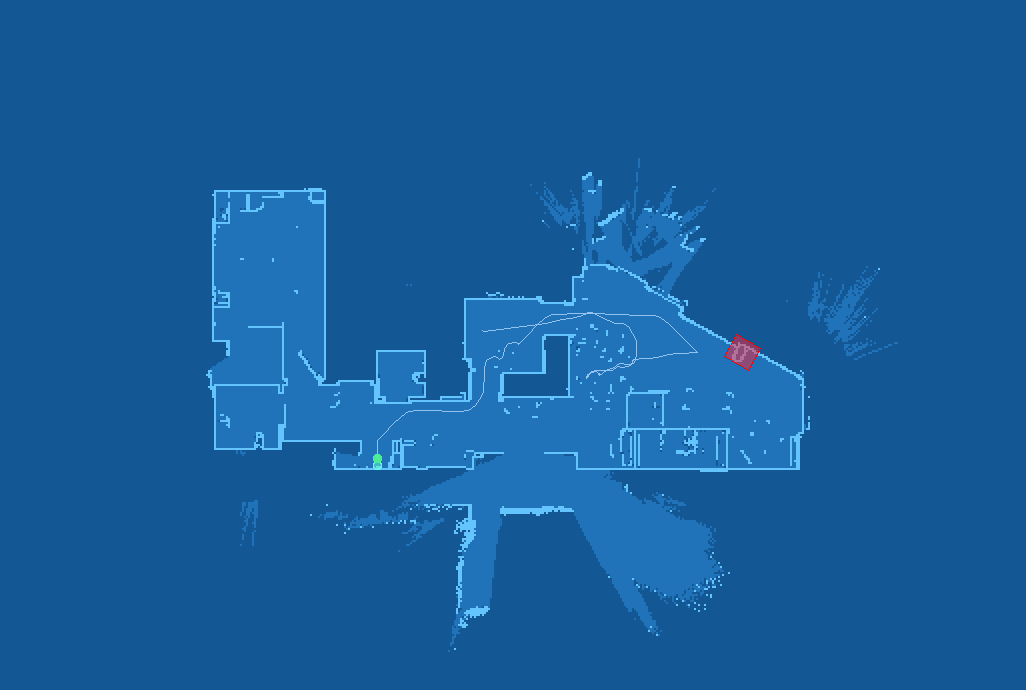
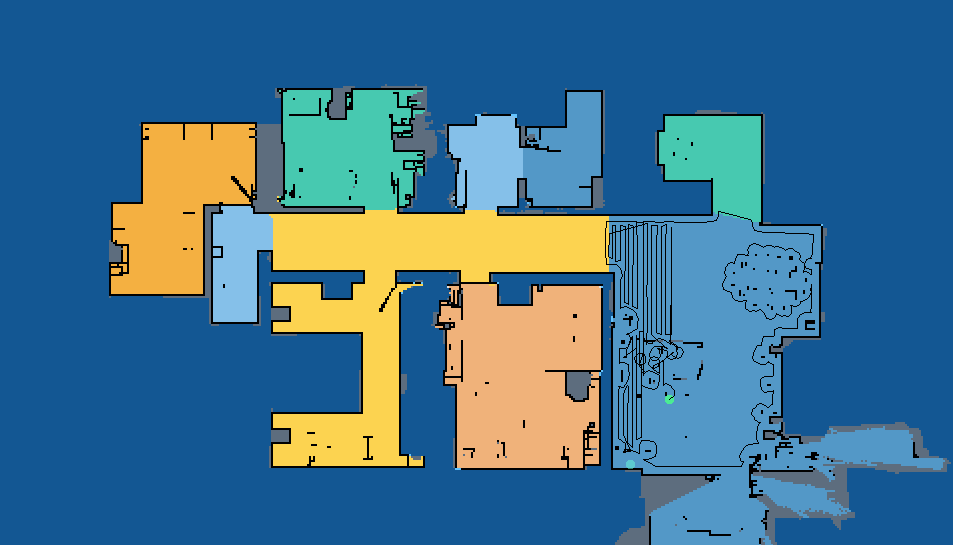
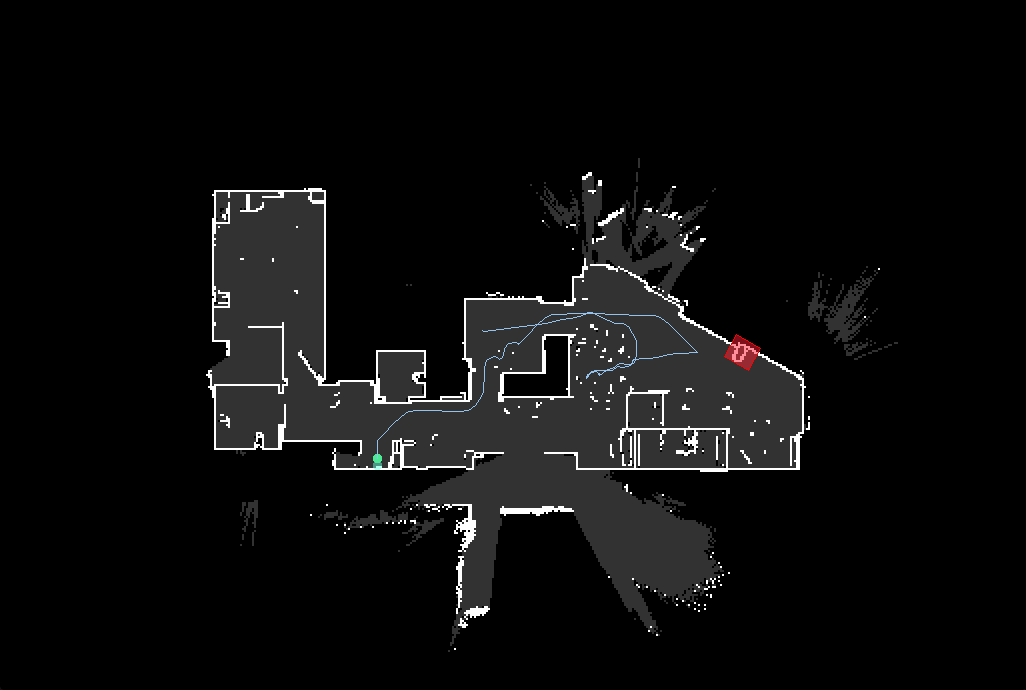
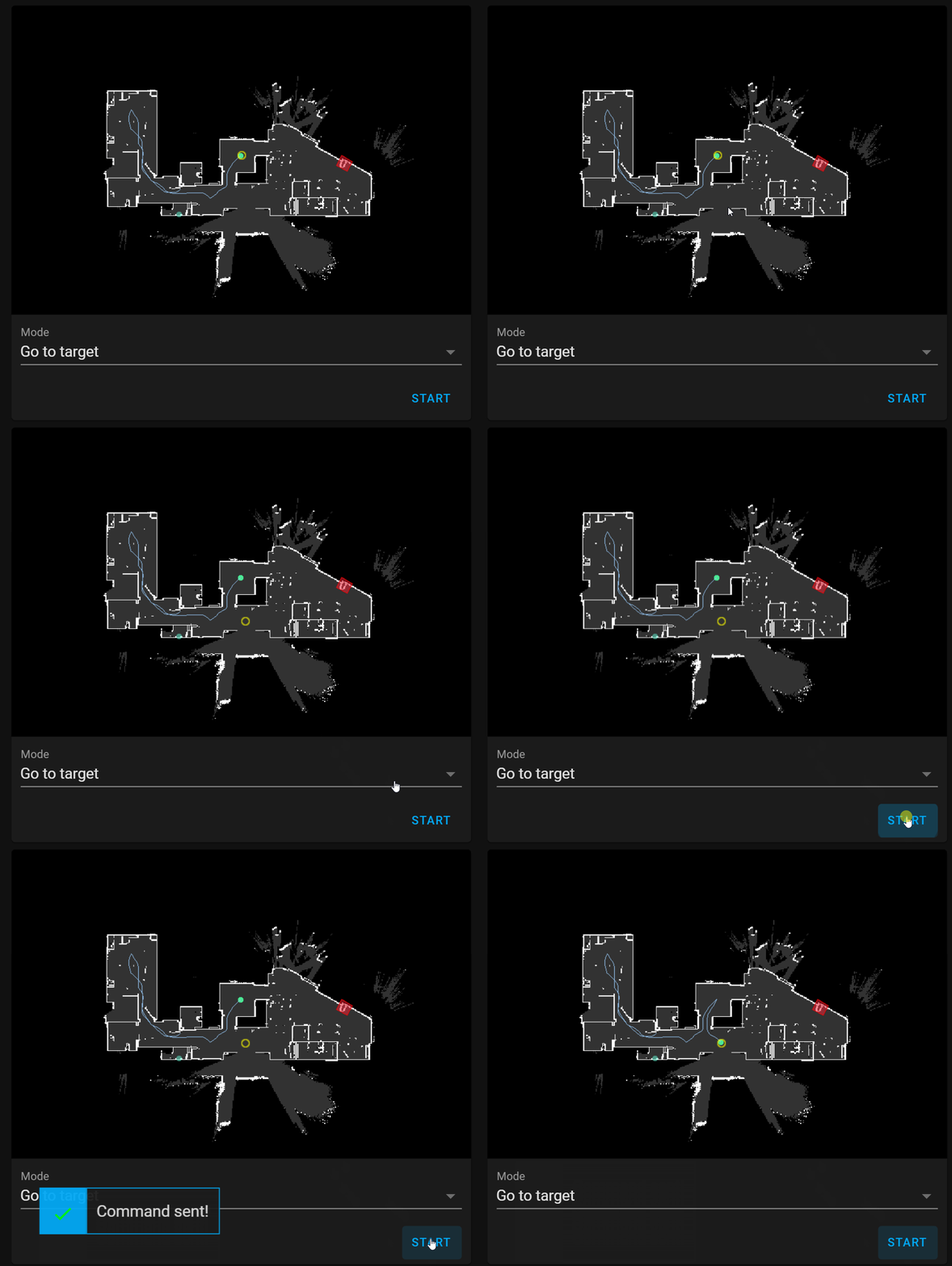
After installation and a reboot of your Home Assistant instance, you should get a camera entity which shows the vacuum map.
This might take a few minutes after a first restart.
If you have a problem with configuration validation you have to remove camera from `configuration.yaml`, restart Home Assistant, add camera config and restart HA again.
After modification of camera's configuration you can reload its settings in [Configuration](https://my.home-assistant.io/redirect/config/) or using `xiaomi_cloud_map_extractor.reload` service.
### Examples
#### Basic
```yaml
camera:
- platform: xiaomi_cloud_map_extractor
host: !secret xiaomi_vacuum_host
token: !secret xiaomi_vacuum_token
username: !secret xiaomi_cloud_username
password: !secret xiaomi_cloud_password
```
#### Recommended
```yaml
camera:
- platform: xiaomi_cloud_map_extractor
host: !secret xiaomi_vacuum_host
token: !secret xiaomi_vacuum_token
username: !secret xiaomi_cloud_username
password: !secret xiaomi_cloud_password
draw: ['all']
attributes:
- calibration_points
```
#### Full
| This configuration's purpose is to show all available options, do not use it unless you know what you are doing. |
| --- |
## Installation
### Using [HACS](https://hacs.xyz/) (recommended)
This integration can be installed using HACS.
To do it search for `Xiaomi Cloud Map Extractor` in *Integrations* section.
### Manual
To install this integration manually you have to download [*xiaomi_cloud_map_extractor.zip*](https://github.com/PiotrMachowski/Home-Assistant-custom-components-Xiaomi-Cloud-Map-Extractor/releases/latest/download/xiaomi_cloud_map_extractor.zip) and extract its contents to `config/custom_components/xiaomi_cloud_map_extractor` directory:
```bash
mkdir -p custom_components/xiaomi_cloud_map_extractor
cd custom_components/xiaomi_cloud_map_extractor
wget https://github.com/PiotrMachowski/Home-Assistant-custom-components-Xiaomi-Cloud-Map-Extractor/releases/latest/download/xiaomi_cloud_map_extractor.zip
unzip xiaomi_cloud_map_extractor.zip
rm xiaomi_cloud_map_extractor.zip
```
## Configuration
After installation of the custom component, it needs to be configured in `configuration.yaml` file.
To do so, add a camera entry to your configuration with at least a [basic](#basic) or [recommended](#recommended) configuration.
Vacuum token can be extracted by following [this guide](https://www.home-assistant.io/integrations/xiaomi_miio/#retrieving-the-access-token) (ignore "not recommended" message, as it applies only to built-in Xiaomi Miio integration).
You also need to enter your Xiaomi Cloud username and password.
These are the credentials used for the Xiaomi Home app (_not ones from Roborock app_).
After installation and a reboot of your Home Assistant instance, you should get a camera entity which shows the vacuum map.
This might take a few minutes after a first restart.
If you have a problem with configuration validation you have to remove camera from `configuration.yaml`, restart Home Assistant, add camera config and restart HA again.
After modification of camera's configuration you can reload its settings in [Configuration](https://my.home-assistant.io/redirect/config/) or using `xiaomi_cloud_map_extractor.reload` service.
### Examples
#### Basic
```yaml
camera:
- platform: xiaomi_cloud_map_extractor
host: !secret xiaomi_vacuum_host
token: !secret xiaomi_vacuum_token
username: !secret xiaomi_cloud_username
password: !secret xiaomi_cloud_password
```
#### Recommended
```yaml
camera:
- platform: xiaomi_cloud_map_extractor
host: !secret xiaomi_vacuum_host
token: !secret xiaomi_vacuum_token
username: !secret xiaomi_cloud_username
password: !secret xiaomi_cloud_password
draw: ['all']
attributes:
- calibration_points
```
#### Full
| This configuration's purpose is to show all available options, do not use it unless you know what you are doing. |
| --- |
 | Color name | Description |
| --- | --- |
| `color_carpets` | Carpets fill, in checkboard pattern |
| `color_charger` | Charger fill |
| `color_charger_outline` | Charger outline |
| `color_cleaned_area` | Fill of area that already has been cleaned |
| `color_goto_path` | Path for goto mode |
| `color_grey_wall` | Obstacles (e.g. chairs, table legs) |
| `color_ignored_obstacle_with_photo` | Ignored obstacle with photo mark on a map |
| `color_ignored_obstacle` | Ignored obstacle mark on a map |
| `color_map_inside` | Map inside (for software without rooms support) |
| `color_map_outside` | Map outside |
| `color_map_wall_v2` | Walls (for software with rooms support) |
| `color_map_wall` | Walls (for software without rooms support) |
| `color_new_discovered_area` | Newly discovered areas |
| `color_no_carpet_zones_outline` | Outline of no-carpet zones |
| `color_no_carpet_zones` | Fill of no-carpet zones |
| `color_no_go_zones_outline` | Outline of no-go zones |
| `color_no_go_zones` | Fill of no-go zones |
| `color_no_mop_zones_outline` | Outline of no-mopping zones |
| `color_no_mop_zones` | Fill of no-mopping zones |
| `color_obstacle_with_photo` | Obstacle with photo mark on a map |
| `color_obstacle` | Obstacle mark on a map |
| `color_path` | Path of a vacuum |
| `color_mop_path` | Mopped path of a vacuum (for vacuums that support mopping) |
| `color_predicted_path` | Predicted path to a point in goto mode |
| `color_robo` | Vacuum fill |
| `color_robo_outline` | Vacuum outline |
| `color_room_names` | Room names (if available) |
| `color_scan` | Areas not assigned to any room (for software with rooms support) |
| `color_unknown` | Other areas |
| `color_virtual_walls` | Virtual walls |
| `color_zones_outline` | Outline of areas selected for zoned cleaning |
| `color_zones` | Fill of areas selected for zoned cleaning |
#### Room colors configuration
This section contains mapping between room numbers and colors.
Each color is represented by a list of 3 or 4 parameters: `[red, green, blue]` or `[red, green, blue, alpha]`.
Each parameter is a number from a range 0-255 and can be also provided as a HEX value: [0x12, 0xAF, 0xC5] matches #12AFC5.
#### Draw configuration
A list of features to be drawn on a map. If all features should be drawn it can be replaced with:
```yaml
draw: ["all"]
```
Available values:
- `charger`
- `cleaned_area`
- `goto_path`
- `ignored_obstacles_with_photo`
- `ignored_obstacles`
- `mop_path`
- `no_carpet_zones`
- `no_go_zones`
- `no_mopping_zones`
- `obstacles_with_photo`
- `obstacles`
- `path`
- `predicted_path`
- `room_names`
- `vacuum_position`
- `virtual_walls`
- `zones`
#### Texts configuration
Each list entry must obey a following schema.
You can get a list of available fonts by executing this command:
```bash
fc-list | grep ttf | sed "s/.*\///"| sed "s/ttf.*/ttf/"
```
| Parameter | Type | Required | Default value | Description |
|---|---|---|---|---|
| `text` | string | true | | Text to draw on a map |
| `x` | float | true | | X position of a text (in percents) |
| `y` | float | true | | Y position of a text (in percents) |
| `color` | list | false | black | Desired color of a text, formatted like [here](#colors-configuration) |
| `font` | string | false | | Name of a font to use |
| `font_size` | int | false | | Size of a font |
#### Map transformation configuration
| Parameter | Type | Required | Default value | Description |
|---|---|---|---|---|
| `scale` | float | false | 1 | Scaling factor for a map. |
| `rotate` | integer | false | 0 | Angle of map rotation. Available values: [`0`, `90`, `180`, `270`] |
| `trim` | map | false | 0 | Map trimming configuration. Each trimming direction is in percents: value `25` means trimming of quarter of image size in a given dimension. Available keys: [`left`, `right`, `top`, `bottom`] |
#### Sizes configuration
| Parameter | Type | Required | Default value | Description |
|---|---|---|---|---|
| `charger_radius` | float | false | 6 | Radius of a charger circle. |
| `vacuum_radius` | float | false | 6 | Radius of a vacuum semi-circle. |
| `obstacle_radius` | float | false | 3 | Radius of an obstacle circle. |
| `ignored_obstacle_radius` | float | false | 3 | Radius of an ignored obstacle circle circle. |
| `obstacle_with_photo_radius` | float | false | 3 | Radius of an obstacle with photo circle. |
| `ignored_obstacle_with_photo_radius` | float | false | 3 | Radius of an ignored obstacle with photo circle. |
| `path_width` | float | false | 1 | Width of path line. |
| `mop_path_width` | float | false | equal to vacuum radius | Width of mop path line. |
#### Attributes configuration
A list of attributes that an entity should have.
Available values:
- `calibration_points` - Calculated calibration points for [Lovelace Xiaomi Vacuum Map card](https://github.com/PiotrMachowski/lovelace-xiaomi-vacuum-map-card).
| Color name | Description |
| --- | --- |
| `color_carpets` | Carpets fill, in checkboard pattern |
| `color_charger` | Charger fill |
| `color_charger_outline` | Charger outline |
| `color_cleaned_area` | Fill of area that already has been cleaned |
| `color_goto_path` | Path for goto mode |
| `color_grey_wall` | Obstacles (e.g. chairs, table legs) |
| `color_ignored_obstacle_with_photo` | Ignored obstacle with photo mark on a map |
| `color_ignored_obstacle` | Ignored obstacle mark on a map |
| `color_map_inside` | Map inside (for software without rooms support) |
| `color_map_outside` | Map outside |
| `color_map_wall_v2` | Walls (for software with rooms support) |
| `color_map_wall` | Walls (for software without rooms support) |
| `color_new_discovered_area` | Newly discovered areas |
| `color_no_carpet_zones_outline` | Outline of no-carpet zones |
| `color_no_carpet_zones` | Fill of no-carpet zones |
| `color_no_go_zones_outline` | Outline of no-go zones |
| `color_no_go_zones` | Fill of no-go zones |
| `color_no_mop_zones_outline` | Outline of no-mopping zones |
| `color_no_mop_zones` | Fill of no-mopping zones |
| `color_obstacle_with_photo` | Obstacle with photo mark on a map |
| `color_obstacle` | Obstacle mark on a map |
| `color_path` | Path of a vacuum |
| `color_mop_path` | Mopped path of a vacuum (for vacuums that support mopping) |
| `color_predicted_path` | Predicted path to a point in goto mode |
| `color_robo` | Vacuum fill |
| `color_robo_outline` | Vacuum outline |
| `color_room_names` | Room names (if available) |
| `color_scan` | Areas not assigned to any room (for software with rooms support) |
| `color_unknown` | Other areas |
| `color_virtual_walls` | Virtual walls |
| `color_zones_outline` | Outline of areas selected for zoned cleaning |
| `color_zones` | Fill of areas selected for zoned cleaning |
#### Room colors configuration
This section contains mapping between room numbers and colors.
Each color is represented by a list of 3 or 4 parameters: `[red, green, blue]` or `[red, green, blue, alpha]`.
Each parameter is a number from a range 0-255 and can be also provided as a HEX value: [0x12, 0xAF, 0xC5] matches #12AFC5.
#### Draw configuration
A list of features to be drawn on a map. If all features should be drawn it can be replaced with:
```yaml
draw: ["all"]
```
Available values:
- `charger`
- `cleaned_area`
- `goto_path`
- `ignored_obstacles_with_photo`
- `ignored_obstacles`
- `mop_path`
- `no_carpet_zones`
- `no_go_zones`
- `no_mopping_zones`
- `obstacles_with_photo`
- `obstacles`
- `path`
- `predicted_path`
- `room_names`
- `vacuum_position`
- `virtual_walls`
- `zones`
#### Texts configuration
Each list entry must obey a following schema.
You can get a list of available fonts by executing this command:
```bash
fc-list | grep ttf | sed "s/.*\///"| sed "s/ttf.*/ttf/"
```
| Parameter | Type | Required | Default value | Description |
|---|---|---|---|---|
| `text` | string | true | | Text to draw on a map |
| `x` | float | true | | X position of a text (in percents) |
| `y` | float | true | | Y position of a text (in percents) |
| `color` | list | false | black | Desired color of a text, formatted like [here](#colors-configuration) |
| `font` | string | false | | Name of a font to use |
| `font_size` | int | false | | Size of a font |
#### Map transformation configuration
| Parameter | Type | Required | Default value | Description |
|---|---|---|---|---|
| `scale` | float | false | 1 | Scaling factor for a map. |
| `rotate` | integer | false | 0 | Angle of map rotation. Available values: [`0`, `90`, `180`, `270`] |
| `trim` | map | false | 0 | Map trimming configuration. Each trimming direction is in percents: value `25` means trimming of quarter of image size in a given dimension. Available keys: [`left`, `right`, `top`, `bottom`] |
#### Sizes configuration
| Parameter | Type | Required | Default value | Description |
|---|---|---|---|---|
| `charger_radius` | float | false | 6 | Radius of a charger circle. |
| `vacuum_radius` | float | false | 6 | Radius of a vacuum semi-circle. |
| `obstacle_radius` | float | false | 3 | Radius of an obstacle circle. |
| `ignored_obstacle_radius` | float | false | 3 | Radius of an ignored obstacle circle circle. |
| `obstacle_with_photo_radius` | float | false | 3 | Radius of an obstacle with photo circle. |
| `ignored_obstacle_with_photo_radius` | float | false | 3 | Radius of an ignored obstacle with photo circle. |
| `path_width` | float | false | 1 | Width of path line. |
| `mop_path_width` | float | false | equal to vacuum radius | Width of mop path line. |
#### Attributes configuration
A list of attributes that an entity should have.
Available values:
- `calibration_points` - Calculated calibration points for [Lovelace Xiaomi Vacuum Map card](https://github.com/PiotrMachowski/lovelace-xiaomi-vacuum-map-card).
 - `carpet_map`
- `charger`
- `cleaned_rooms`
- `country`
- `goto_path`
- `goto_predicted_path`
- `goto`
- `ignored_obstacles_with_photo`
- `ignored_obstacles`
- `image`
- `is_empty`
- `map_name`
- `mop_path`
- `no_carpet_areas`
- `no_go_areas`
- `no_mopping_areas`
- `obstacles_with_photo`
- `obstacles`
- `path`
- `room_numbers`
- `rooms`
- `vacuum_position`
- `vacuum_room_name`
- `vacuum_room`
- `walls`
- `zones`
## Updates
Camera image is updated every 5s by default.
It can be disabled in config using `auto_update` property.
You can also disable and enable automatic updates using services `camera.turn_off`, `camera.turn_on`.
If automatic updates are disabled you can manually trigger update using `homeassistant.update_entity` service.
You can change interval of automatic updates using `scan_interval` setting ([documentation](https://www.home-assistant.io/docs/configuration/platform_options/#scan-interval))
If you want to disable map updates when a vacuum is not running you can use [this blueprint](https://github.com/PiotrMachowski/Home-Assistant-custom-components-Xiaomi-Cloud-Map-Extractor/blob/master/blueprints/automation/disable_vacuum_camera_update_when_docked.yaml).
[](https://my.home-assistant.io/redirect/blueprint_import/?blueprint_url=https%3A%2F%2Fgithub.com%2FPiotrMachowski%2FHome-Assistant-custom-components-Xiaomi-Cloud-Map-Extractor%2Fblob%2Fmaster%2Fblueprints%2Fautomation%2Fdisable_vacuum_camera_update_when_docked.yaml)
## Supported devices
This integration was tested on following vacuums:
- Xiaomi map format:
- `rockrobo.vacuum.v1` (Xiaomi Vacuum Gen 1, Mi Robot Vacuum, SDJQR01RR, SDJQR02RR)
- `roborock.vacuum.m1s` (Xiaomi Mi Robot 1S)
- `roborock.vacuum.s4` (Roborock S4)
- `roborock.vacuum.s5` (Roborock S5)
- `roborock.vacuum.s5e` (Roborock S5 Max)
- `rockrobo.vacuum.s6` (Roborock S6)
- `roborock.vacuum.a08` (Roborock S6 Pure)
- `roborock.vacuum.a10` (Roborock S6 MaxV)
- `roborock.vacuum.a15` (Roborock S7)
- `roborock.vacuum.a19` (Roborocka S4 Max)
- `roborock.vacuum.a27` (Roborock S7 MaxV)
- `roborock.vacuum.a70` (Roborock S8 Pro Ultra)
- Viomi map format:
- `viomi.vacuum.v6` (Viomi Vacuum V2 Pro, Xiaomi Mijia STYJ02YM, Mi Robot Vacuum Mop Pro)
- `viomi.vacuum.v7` (Mi Robot Vacuum-Mop Pro)
- `viomi.vacuum.v8` (Mi Robot Vacuum-Mop Pro)
- `viomi.vacuum.v13` (Viomi V3)
- Roidmi map format:
- `roidmi.vacuum.v60` (Roidmi EVE Plus)
- `viomi.vacuum.v18` (Viomi S9)
- `viomi.vacuum.v38` (Viomi V5 Pro)
- `zhimi.vacuum.xa1` (Lydsto R1)
- `chuangmi.vacuum.hmi707` (IMILAB V1 Vacuum)
- Dreame map format:
- `dreame.vacuum.mc1808` (Xiaomi Mi Mop/Xiaomi Mijia 1C)
- `dreame.vacuum.p2008` (Dreame F9)
- `dreame.vacuum.p2009` (Dreame D9)
- `dreame.vacuum.p2028` (Dreame Z10 Pro)
- `dreame.vacuum.p2029` (Dreame L10 Pro)
- `dreame.vacuum.p2036` (Trouver LDS Cleaner)
- `dreame.vacuum.p2041o` (Xiaomi Mop 2 Pro+)
- `dreame.vacuum.p2140` (Mijia Robot Vacuum-Mop 2C)
- `dreame.vacuum.p2157` (MOVA L600)
- `dreame.vacuum.p2259` (Dreame D9 Max)
## Retrieving map
When `store_map_raw: true` is added to your config this integration will store a raw map file in `/tmp` directory.
If you don't use Core installation ([installation types](https://www.home-assistant.io/installation/#compare-installation-methods)) you can retrieve this file in the following way:
- In [SSH & Terminal add-on](https://github.com/hassio-addons/addon-ssh) enable protected access
- Open terminal and use the following command to copy file:
```
docker exec homeassistant bash -c "mkdir -p /config/tmp/ && cp /tmp/map_* /config/tmp/"
```
- Map file will appear in `tmp` folder in your `config` folder
## Enabling debug logging
To enable debug logging add following section to your `configuration.yaml`
```yaml
logger:
default: info
logs:
custom_components.xiaomi_cloud_map_extractor: debug
```
## Special thanks
This integration wouldn't exist without following projects:
- [openHAB miIO add-on](https://github.com/openhab/openhab-addons/tree/main/bundles/org.openhab.binding.miio/src/main/java/org/openhab/binding/miio) by [@marcelrv](https://github.com/marcelrv)
- [valeCLOUDo](https://github.com/Xento/valeCLOUDo) by [@Xento](https://github.com/Xento)
- [Xiaomi Robot Vacuum Protocol](https://github.com/marcelrv/XiaomiRobotVacuumProtocol) by [@marcelrv](https://github.com/marcelrv)
- [Valetudo](https://github.com/Hypfer/Valetudo) by [@Hypfer](https://github.com/Hypfer)
## Support
If you want to support my work with a donation you can use one of the following platforms:
- `carpet_map`
- `charger`
- `cleaned_rooms`
- `country`
- `goto_path`
- `goto_predicted_path`
- `goto`
- `ignored_obstacles_with_photo`
- `ignored_obstacles`
- `image`
- `is_empty`
- `map_name`
- `mop_path`
- `no_carpet_areas`
- `no_go_areas`
- `no_mopping_areas`
- `obstacles_with_photo`
- `obstacles`
- `path`
- `room_numbers`
- `rooms`
- `vacuum_position`
- `vacuum_room_name`
- `vacuum_room`
- `walls`
- `zones`
## Updates
Camera image is updated every 5s by default.
It can be disabled in config using `auto_update` property.
You can also disable and enable automatic updates using services `camera.turn_off`, `camera.turn_on`.
If automatic updates are disabled you can manually trigger update using `homeassistant.update_entity` service.
You can change interval of automatic updates using `scan_interval` setting ([documentation](https://www.home-assistant.io/docs/configuration/platform_options/#scan-interval))
If you want to disable map updates when a vacuum is not running you can use [this blueprint](https://github.com/PiotrMachowski/Home-Assistant-custom-components-Xiaomi-Cloud-Map-Extractor/blob/master/blueprints/automation/disable_vacuum_camera_update_when_docked.yaml).
[](https://my.home-assistant.io/redirect/blueprint_import/?blueprint_url=https%3A%2F%2Fgithub.com%2FPiotrMachowski%2FHome-Assistant-custom-components-Xiaomi-Cloud-Map-Extractor%2Fblob%2Fmaster%2Fblueprints%2Fautomation%2Fdisable_vacuum_camera_update_when_docked.yaml)
## Supported devices
This integration was tested on following vacuums:
- Xiaomi map format:
- `rockrobo.vacuum.v1` (Xiaomi Vacuum Gen 1, Mi Robot Vacuum, SDJQR01RR, SDJQR02RR)
- `roborock.vacuum.m1s` (Xiaomi Mi Robot 1S)
- `roborock.vacuum.s4` (Roborock S4)
- `roborock.vacuum.s5` (Roborock S5)
- `roborock.vacuum.s5e` (Roborock S5 Max)
- `rockrobo.vacuum.s6` (Roborock S6)
- `roborock.vacuum.a08` (Roborock S6 Pure)
- `roborock.vacuum.a10` (Roborock S6 MaxV)
- `roborock.vacuum.a15` (Roborock S7)
- `roborock.vacuum.a19` (Roborocka S4 Max)
- `roborock.vacuum.a27` (Roborock S7 MaxV)
- `roborock.vacuum.a70` (Roborock S8 Pro Ultra)
- Viomi map format:
- `viomi.vacuum.v6` (Viomi Vacuum V2 Pro, Xiaomi Mijia STYJ02YM, Mi Robot Vacuum Mop Pro)
- `viomi.vacuum.v7` (Mi Robot Vacuum-Mop Pro)
- `viomi.vacuum.v8` (Mi Robot Vacuum-Mop Pro)
- `viomi.vacuum.v13` (Viomi V3)
- Roidmi map format:
- `roidmi.vacuum.v60` (Roidmi EVE Plus)
- `viomi.vacuum.v18` (Viomi S9)
- `viomi.vacuum.v38` (Viomi V5 Pro)
- `zhimi.vacuum.xa1` (Lydsto R1)
- `chuangmi.vacuum.hmi707` (IMILAB V1 Vacuum)
- Dreame map format:
- `dreame.vacuum.mc1808` (Xiaomi Mi Mop/Xiaomi Mijia 1C)
- `dreame.vacuum.p2008` (Dreame F9)
- `dreame.vacuum.p2009` (Dreame D9)
- `dreame.vacuum.p2028` (Dreame Z10 Pro)
- `dreame.vacuum.p2029` (Dreame L10 Pro)
- `dreame.vacuum.p2036` (Trouver LDS Cleaner)
- `dreame.vacuum.p2041o` (Xiaomi Mop 2 Pro+)
- `dreame.vacuum.p2140` (Mijia Robot Vacuum-Mop 2C)
- `dreame.vacuum.p2157` (MOVA L600)
- `dreame.vacuum.p2259` (Dreame D9 Max)
## Retrieving map
When `store_map_raw: true` is added to your config this integration will store a raw map file in `/tmp` directory.
If you don't use Core installation ([installation types](https://www.home-assistant.io/installation/#compare-installation-methods)) you can retrieve this file in the following way:
- In [SSH & Terminal add-on](https://github.com/hassio-addons/addon-ssh) enable protected access
- Open terminal and use the following command to copy file:
```
docker exec homeassistant bash -c "mkdir -p /config/tmp/ && cp /tmp/map_* /config/tmp/"
```
- Map file will appear in `tmp` folder in your `config` folder
## Enabling debug logging
To enable debug logging add following section to your `configuration.yaml`
```yaml
logger:
default: info
logs:
custom_components.xiaomi_cloud_map_extractor: debug
```
## Special thanks
This integration wouldn't exist without following projects:
- [openHAB miIO add-on](https://github.com/openhab/openhab-addons/tree/main/bundles/org.openhab.binding.miio/src/main/java/org/openhab/binding/miio) by [@marcelrv](https://github.com/marcelrv)
- [valeCLOUDo](https://github.com/Xento/valeCLOUDo) by [@Xento](https://github.com/Xento)
- [Xiaomi Robot Vacuum Protocol](https://github.com/marcelrv/XiaomiRobotVacuumProtocol) by [@marcelrv](https://github.com/marcelrv)
- [Valetudo](https://github.com/Hypfer/Valetudo) by [@Hypfer](https://github.com/Hypfer)
## Support
If you want to support my work with a donation you can use one of the following platforms:
| Platform | Payment methods | Link | Comment |
|---|---|---|---|
| Ko-fi |
|

|
|
| buycoffee.to |
|

|
|
| PayPal |
|

|
|
| Revolut |
|

|
|