 Homelable
Self-hosted homelab infrastructure visualization, documentation, scanning & live monitoring


Screenshots ·
Features ·
Installation ·
Documentation ·
Rack Canvas ·
Network Scanner ·
Zigbee / Z-Wave ·
Proxmox ·
Live View ·
REST API ·
MCP Server
## About
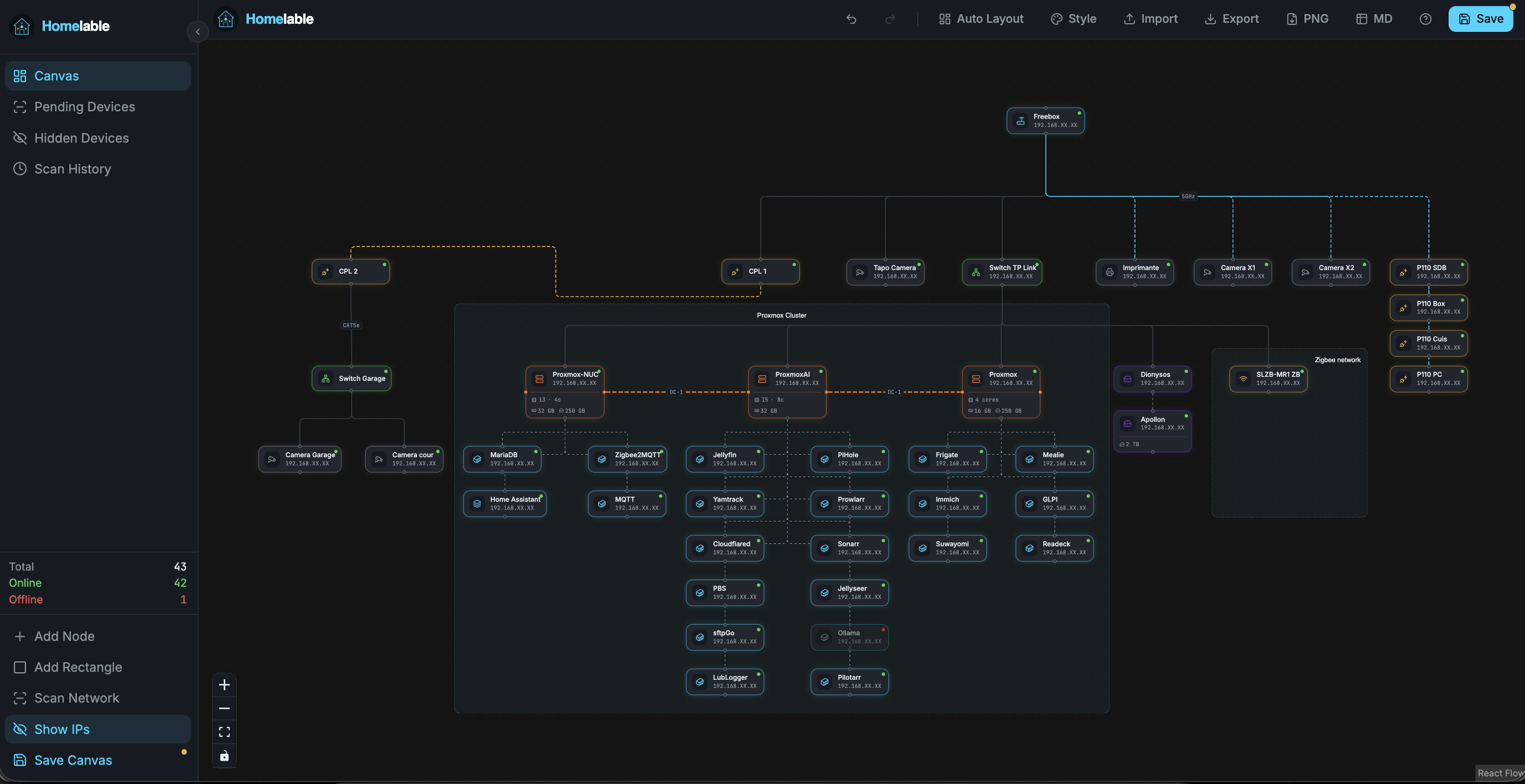
Homelable is a self-hosted infrastructure visualization solution. It provides a network/zigbee/zwave scanning feature to accelerate the identification of machines, devices and services deployed on your local infrastructure.
Homelable also offers a healthcheck system through multiple methods (ping/TCP, /health API, etc.) to get a global overview of online/offline services.
Every device also gets a **document** — written for you from what the scan found, and yours to maintain from there — next to a Library of pages you write yourself: runbooks, incidents, a network overview. Your homelab stops being documented in a wiki somewhere else.
You can also select some pre-built design styles, or personalize each device in your diagram.
If you just like the design, you can only run the frontend and export your design as PNG.
If you are running  Homeassistant, check the [Homelable HA version](https://github.com/Pouzor/homelable-hacs) (via HACS)
---
## Screenshots
Homeassistant, check the [Homelable HA version](https://github.com/Pouzor/homelable-hacs) (via HACS)
---
## Screenshots


---
## Features
From one-click **network scans** and **Proxmox / Zigbee / Z-Wave** imports to **live status monitoring**, floor plans, **rack canvases** with port-to-port patching, a **markdown documentation space** for the whole lab, multi-canvas layouts and an **MCP server** for AI assistants — Homelable maps, documents and watches your whole homelab.
Every feature, with how to turn it on and use it, is described in **[FEATURES.md](./FEATURES.md)**.
---
## Installation
Docker (from the **[pre-built GHCR images](./INSTALLATION.md#pre-built-docker-images)**), Proxmox LXC, **[bare metal without Docker](./INSTALLATION.md#bare-metal--no-docker)** (`sudo bash scripts/install-baremetal.sh` — systemd unit plus nginx on a Debian/Ubuntu host), build from source, configuration, and development setup are all covered in **[INSTALLATION.md](./INSTALLATION.md)**.
### ☁️ One-Click Cloud Deploy
[](https://repocloud.io/details/Homelable/)
---
## Rack Canvas
Next to the network diagram, Homelable draws the **physical** side of your lab: racks, the gear mounted in them, and the patch cables between their ports. It is a canvas kind of its own — create it from the canvas switcher, **New Canvas → Kind → Rack**.
### Usage
1. **Add Rack** in the header drops a rack; double-click its frame to set U height, 19"/10" width, numbering direction and colours
2. **+ Device** in the sidebar mounts something — an entry from your Device Inventory, a new device (which joins the inventory), or an accessory (blank, shelf, cable manager)
3. Pick a **faceplate** from the visual catalog: servers, switches, routers, patch panels, UPS and PDUs, desktop NAS towers, shelves and blanks
4. Click **Patch**, then drag from one port to another to cable them — across racks if you need to. Click a cable and press Delete to unplug it
5. **Save Rack** when you're happy; nothing is written behind your back
Gear sits in a U range and part of a 12-column width grid, so half- and third-width machines share a U; a drop snaps to the nearest free slot. A mount can follow the status check of its matching diagram node, and **Import links** derives patches from the links already drawn on your diagrams.
> **Full documentation:** [docs/rack-canvas.md](./docs/rack-canvas.md)
---
## Documentation
Homelable keeps its own markdown documentation space, so the lab is described where it is drawn. Sidebar → **Documentation**.
Every device has a document, generated once from what the scan actually found — identity, hardware, one section per service, network, operations, troubleshooting — and never rewritten behind you. Beside it, a **Library** of pages you write: runbooks, incidents, decisions, a network overview, from a template or blank.
### Usage
1. **Pick a device** in the tree — one with no document yet gets one written from its facts. Re-pivot the tree by zone, subnet, type, rack, vendor, tag… at no cost; it is grouped from data the app already holds
2. **Write markdown**, save explicitly — nothing is ever saved behind your back. `/` inserts a freshly generated block (services, hardware, network, rack) from the device's current data
3. **Link things**: `[[VLAN plan]]`, `[[device:nas-01]]`. Each document lists **Linked from** at the bottom, so you can see what points at it
4. **History**: up to 50 versions per document. Read one, diff it against the current body, restore it — what it replaces is kept too
5. **Search** the whole space, tag documents, and set `review_every: 6m` on the ones that rot; a document past its interval is badged as due
A device that changes after its document was written raises a **device data changed** banner, and **Regenerate** rebuilds the document from scratch when you want that. Old per-device **Notes** migrate into documents from a banner, non-destructively.
Full mode only — documents need the backend to store, index and search them.
> **Full documentation:** [docs/documentation.md](./docs/documentation.md)
---
## Documentation View (read-only public documentation)
Documentation View shares your documentation space — the tree, the pages and their
version history — with anyone on your network, no login required. It is disabled by
default, and uses its own key: enabling Live View does not enable this.
### Activation
Add `DOCS_VIEW_KEY` to your `.env`:
`DOCS_VIEW_KEY=your-secret-key`
Generate one with `python3 -c "import secrets; print(secrets.token_urlsafe(32))"`, then
restart the backend:
`docker compose restart backend`
### Usage
Use this URL to read your documentation:
`http:///docs?key=your-secret-key`
The page shows the document tree, the filter box and any page you pick, plus its earlier
versions. Nothing can be written: no editing, no restoring, no deleting. Your device
inventory and your canvases are not reachable through it.
> **Anyone holding that URL reads every document**, and every image a document embeds —
> uploaded media is served without authentication. There is no per-document opt-in: the
> key is all or nothing. Keep documentation you would not share out of Homelable, or
> leave this off.
---
## Network Scanner
The scanner runs `nmap -sV --open` on your configured CIDR ranges and populates a **Pending Devices** queue. From the sidebar you can then approve (adds a node to the canvas), hide, or ignore each discovered device.
### Triggering a scan
To save you time when mapping your infrastructure, Homlable can scan your network and report all the services it detects. It can also identify them, saving you even more time.
Click **Scan Network** in the sidebar. The Scan History tab opens automatically and refreshes every 3 seconds until the scan completes.
### Deep scan (custom ports)
By default the scanner only probes nmap's standard port set. To fingerprint services on non-standard ports, enable the deep scan via `.env` (all options are overridable per-scan from the scan dialog):
```env
# JSON array of port specs — each entry is a single port "N" or an inclusive
# range "N-M" (1–65535, N <= M). These are ports, not CIDRs or bare integers.
SCANNER_HTTP_RANGES=["8080","9000-9100"]
SCANNER_HTTP_PROBE_ENABLED=true # send an HTTP probe to those ports for service ID
SCANNER_HTTP_VERIFY_TLS=false # verify TLS certs on the HTTP probe
```
The listed ports are appended to nmap's `-p` spec. Invalid entries (out-of-range, malformed, or reversed ranges) are silently skipped.
### MAC addresses (Docker)
The scan reports no MAC address when the backend runs on a Docker bridge
network — ARP is layer 2, and from a bridge every LAN host sits behind the
Docker gateway. It also means a DHCP device that changes IP comes back as a new
inventory entry, since matching prefers the MAC. Fix and caveats:
[INSTALLATION.md](./INSTALLATION.md#scanning-from-docker--mac-addresses).
### macOS / root privileges
Some nmap scan types (SYN scan, OS detection) require root. If the scan fails with a permissions error, run it manually with sudo using the included script:
```bash
cd backend
sudo python ../scripts/run_scan.py 192.168.1.0/24
# Multiple ranges:
sudo python ../scripts/run_scan.py 192.168.1.0/24 10.0.0.0/24
```
Results are written directly to the database and appear as Pending Devices in the UI without restarting the backend.
> On Linux the backend process itself can be given the `NET_RAW` capability instead of running as root:
> ```bash
> sudo setcap cap_net_raw+ep $(which nmap)
> ```
---
## Node Check Methods
Homelable continuously monitors your nodes and displays their live status (online / offline / unknown) directly on the canvas. Each node can be configured with an independent check method suited to the service it runs.
| Method | Description |
|--------|-------------|
| `ping` | ICMP ping |
| `http` | GET request, success if status < 500 |
| `https` | GET with TLS verify |
| `tcp` | TCP connect (target: `host:port`) |
| `ssh` | TCP connect to port 22 |
| `prometheus` | GET `/metrics` |
| `health` | GET `/health` |
---
## Zigbee2MQTT Import
Homelable can connect directly to your MQTT broker and import your Zigbee network topology from **Zigbee2MQTT**, placing each device on the canvas as a typed node.
### Prerequisites
- A running **MQTT broker** (e.g. Mosquitto) accessible from the Homelable host
- **Zigbee2MQTT** connected to the broker with at least one device paired
### Usage
1. Click **Zigbee Import** in the left sidebar (below "Scan Network")
2. Enter your broker host, port (default `1883`), optional credentials, and base topic (default `zigbee2mqtt`)
3. Click **Test Connection** to verify reachability, then **Fetch Devices**
4. Select the devices you want from the grouped list (Coordinator / Router / End Device)
5. Click **Add N to Canvas** — devices are placed in a grid with IoT edges
### Node Types
| Type | Z2M Device | Icon |
|------|-----------|------|
| `zigbee_coordinator` | Coordinator | Network hub |
| `zigbee_router` | Router (mains-powered) | Radio |
| `zigbee_enddevice` | End Device (battery) | Antenna |
Hierarchy is set automatically: coordinator → routers → end devices (`parent_id`).
LQI (Link Quality Indicator) is stored as a node property.
> **Full documentation:** [docs/zigbee-import.md](./docs/zigbee-import.md)
---
## Z-Wave Import
Homelable can also import your **Z-Wave** network from **Z-Wave JS UI** (formerly `zwavejs2mqtt`) over the same MQTT broker, dropping each node on the canvas as a typed node.
### Prerequisites
- A running **MQTT broker** (e.g. Mosquitto) accessible from the Homelable host
- **Z-Wave JS UI** connected to the broker with its MQTT gateway enabled and at least one node included
### Usage
1. Click **Z-Wave Import** in the left sidebar (below "Zigbee Import")
2. Enter your broker host, port (default `1883`), optional credentials, MQTT prefix (default `zwave`), and gateway name (default `zwavejs2mqtt`)
3. Click **Test Connection** to verify reachability
4. Choose a target — **Pending section** or **Canvas directly** — then **Import to Pending** / **Fetch Devices**
5. Select the devices you want from the grouped list (Controller / Router / End Device) and click **Add N to Canvas**
### Node Types
| Type | Z-Wave Role | Icon |
|------|-------------|------|
| `zwave_coordinator` | Controller | Network hub |
| `zwave_router` | Routing (mains-powered) node | Radio |
| `zwave_enddevice` | End Device (battery) | Antenna |
Hierarchy is set automatically: controller → routers → end devices (`parent_id`), derived from each node's neighbor list. Z-Wave has no LQI, so that property is omitted.
> **Full documentation:** [docs/zwave-import.md](./docs/zwave-import.md)
---
## Proxmox VE Import
Homelable can import your **Proxmox VE** inventory over the Proxmox REST API — hosts, VMs and LXC containers arrive as typed, named nodes with run state and hardware specs, and can auto-sync on a schedule. Guest IPs that were already found by a network scan are merged in place (no duplicates).
### Prerequisites
- A reachable **Proxmox VE** host (default API port `8006`)
- A **Proxmox API token** with the read-only **`PVEAuditor`** role (Datacenter → Permissions → API Tokens)
### Usage
1. Click **Proxmox Import** in the left sidebar (below "Z-Wave Import")
2. Enter the host, port (default `8006`), and API token (`user@realm!tokenid` + secret) — or leave the token blank to use the server-configured one
3. Click **Test Connection** to verify reachability + token
4. Choose a target — **Pending section** or **Canvas directly** — then **Import to Pending** / **Fetch Inventory**
5. Select the devices from the grouped list (Hosts / Virtual Machines / LXC Containers) and click **Add N to Canvas**
### Node Types
| Type | Proxmox object | Icon |
|------|----------------|------|
| `proxmox` | Host / cluster member | Layers |
| `vm` | QEMU virtual machine | Box |
| `lxc` | LXC container | Container |
Each host is linked to its guests with a `virtual` edge. vCPU / RAM / disk are imported as node properties (hidden by default). Enable **auto-sync** from Settings once a server token is configured (`PROXMOX_TOKEN_ID` / `PROXMOX_TOKEN_SECRET`).
> **Full documentation:** [docs/proxmox-import.md](./docs/proxmox-import.md)
---
## Session duration
With local auth, a login lasts 24 hours. Change it in your `.env` (value in minutes), then restart the backend:
```env
ACCESS_TOKEN_EXPIRE_MINUTES=10080 # 1 week
```
The session is kept per tab: closing the tab or the browser always asks for a new login. To keep the canvas on a screen permanently, use [Live View](#live-view-read-only-public-canvas) instead — it needs no login at all. OIDC sessions use `OIDC_SESSION_EXPIRE_MINUTES` (max 1440).
---
## Live View (read-only public canvas)
Live View lets you share a read-only snapshot of your canvas with anyone on your network — no login required. It is disabled by default.
### Activation
Add LIVEVIEW_KEY to your .env:
`LIVEVIEW_KEY=your-secret-key`
Then restart the backend:
`docker compose restart backend`
### Usage
Use this URL to view your canvas:
http:///view?key=your-secret-key
The page shows your canvas in pan/zoom-only mode — no editing, no credentials needed. Clicking a node that has an IP opens it in a new tab.
---
## Gethomepage Widget (read-only stats)
Homelable can expose a small JSON stats endpoint that [gethomepage](https://gethomepage.dev) consumes through its built-in `customapi` widget. Disabled by default.
### Activation
Add `HOMEPAGE_API_KEY` to your `.env`:
`HOMEPAGE_API_KEY=your-secret-key`
Restart the backend (`docker compose restart backend`).
### Endpoint
`GET /api/v1/stats/summary` — requires header `X-API-Key: your-secret-key`. Returns:
```json
{
"nodes": 12,
"online": 9,
"offline": 2,
"unknown": 1,
"pending_devices": 3,
"zigbee_devices": 5,
"last_scan_at": "2026-05-14T10:00:00+00:00"
}
```
### gethomepage `services.yaml` snippet
```yaml
- Homelab:
- Homelable:
icon: mdi-lan
href: http://homelable.local:3000
widget:
type: customapi
url: http://homelable.local:8000/api/v1/stats/summary
method: GET
headers:
X-API-Key: your-secret-key
mappings:
- field: nodes ; label: Nodes
- field: online ; label: Online
- field: offline ; label: Offline
- field: pending_devices ; label: Pending
- field: zigbee_devices ; label: Zigbee
- field: last_scan_at ; label: Last scan
```
The backend port (`8000`) must be reachable from your gethomepage container.
---
## REST API
Everything the UI does goes through a documented JSON API under `/api/v1` —
nodes, links, designs, racks, documents, the scanner. Script it to create nodes
for new machines, attach properties, and wire links between them.
Interactive documentation ships with the app, generated from the code so it
never drifts:
| URL | What |
|---|---|
| `http://:3000/docs` | Swagger UI — browse and call every endpoint |
| `http://:3000/redoc` | ReDoc — the same schema, reference layout |
| `http://:3000/openapi.json` | OpenAPI schema, for client generators |
Authenticate with a bearer token from `POST /api/v1/auth/login`, then send it as
`Authorization: Bearer `:
```bash
TOKEN=$(curl -s http://:3000/api/v1/auth/login \
-H 'Content-Type: application/json' \
-d '{"username":"admin","password":"your-password"}' | jq -r .access_token)
curl -s http://:3000/api/v1/nodes -H "Authorization: Bearer $TOKEN"
```
> **Full documentation:** [docs/api.md](./docs/api.md)
> [!WARNING]
> The docs endpoints are not behind authentication — anyone who can reach the
> app can read the API shape (not your data). Keep Homelable on your LAN.
---
## MCP Server (AI Integration) (optional)
Homelable can exposes a [Model Context Protocol](https://modelcontextprotocol.io) server so any MCP-compatible AI client (Claude Code, Claude Desktop, Open WebUI…) can read your homelab topology and act on it.
### What the AI can do
| | Action |
|---|---|
| **Read** | List all nodes, edges, full canvas, zones, designs, the device inventory and scan history — and the rack canvases: racks, mounted gear, patched cables |
| **Write** | Add / update / delete nodes, edges and zones, trigger a network scan, approve / hide / restore discovered devices, create and edit inventory entries, build racks and mount, move and patch the gear in them |
### Setup
**1. Add the keys to your `.env`:**
```env
# Authenticates AI clients (Claude Code, etc.) → MCP server
MCP_API_KEY=mcp_sk_changeme
# Authenticates MCP server → backend (internal Docker network only, never exposed)
MCP_SERVICE_KEY=svc_changeme
# Generate both with:
# python3 -c "import secrets; print(secrets.token_hex(32))"
```
No plain-text passwords involved — `AUTH_PASSWORD_HASH` is only used for the web UI login.
**2. Start the MCP service:**
```bash
docker compose up -d mcp
# MCP server is now listening on http://:8001
```
> **Proxmox LXC / bare-metal (no Docker):** create the LXC via
> [community-scripts/ProxmoxVE](https://github.com/community-scripts/ProxmoxVE) (or any
> Debian/Ubuntu LXC), then inside it run `sudo bash scripts/lxc-mcp-install.sh`.
> Installs a `homelable-mcp` systemd service, prompts for `MCP_API_KEY` / `MCP_SERVICE_KEY`
> (auto-generated if you press Enter), and skips prompts if `mcp/.env` already exists.
**3. Configure your AI client:**
**Claude Code** — run this command in your terminal:
```bash
claude mcp add --transport http homelable http://:8001/mcp/ \
--header "X-API-Key: mcp_sk_yourkey"
```
Or add it manually to `~/.claude.json`:
```json
{
"mcpServers": {
"homelable": {
"type": "http",
"url": "http://:8001/mcp/",
"headers": {
"X-API-Key": "mcp_sk_yourkey"
}
}
}
}
```
**Claude Desktop** — edit `~/Library/Application Support/Claude/claude_desktop_config.json` (macOS) or `%APPDATA%\Claude\claude_desktop_config.json` (Windows):
```json
{
"mcpServers": {
"homelable": {
"type": "http",
"url": "http://:8001/mcp/",
"headers": {
"X-API-Key": "mcp_sk_yourkey"
}
}
}
}
```
### Example prompts
- *"What nodes are currently offline?"*
- *"Add a new LXC container named `pihole` at 192.168.1.5, connected to my switch."*
- *"Trigger a network scan on 192.168.1.0/24 and show me the pending devices."*
- *"Show me the full canvas topology."*
- *"How much free U is left in the garage rack?"*
- *"Mount the NAS in rack 1 and patch its first port to port 12 of the patch panel."*
- *"Search the documentation for what we wrote about the backup schedule."*
- *"Write a runbook page for restoring a Proxmox backup, then link it from the NAS document."*
- *"Show me what changed in the firewall document, and restore the version before the last edit."*
### Security
- The MCP server is **not** intended to be exposed to the internet — keep port 8001 firewalled to your LAN.
- Rotate the key any time by updating `MCP_API_KEY` in `.env` and restarting: `docker compose restart mcp`.
- The MCP server communicates with the backend over the internal Docker network — the backend API is never directly exposed to MCP clients.
---