![Icon](src/icon.png)

Full Notebook View for Joplin

English | 中文

A sidebar plugin for Joplin that provides a Windows Explorer-style notebook tree view, with integrated outline navigation, search, filtering, export, and other productivity features.

--- ## Screenshots
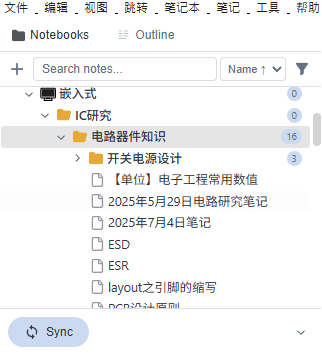
Notebook Tree View
Notebook Tree View — Hierarchical expand/collapse with live highlight
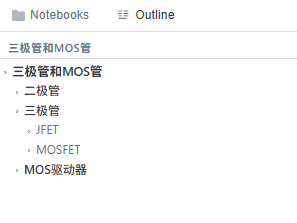
Outline Navigation
Outline Navigation — Auto-extracted Markdown headings
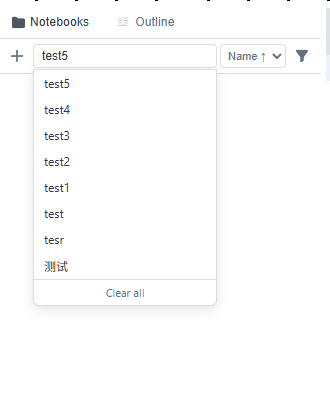
Search & Filter
Search & Filter — Date range and type filtering
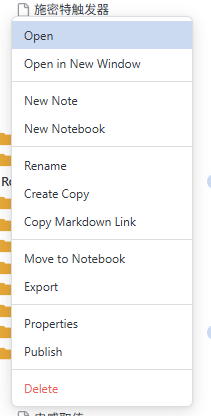
Context Menu
Context Menu — Export, rename, move, and more
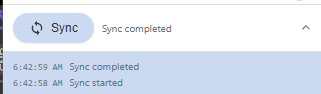
Exclusions & Sync
Exclusion Management & One-Click Sync
--- ## Features ### Notebook Tree View - **Hierarchical Expand/Collapse** — Browse all notebooks and sub-notebooks in a tree structure with one-click expand/collapse - **Live Highlight** — Currently open note is highlighted in the tree and auto-scrolled into view - **Note Count** — Displays the number of notes contained in each folder - **Emoji Icon Support** — Automatically detects and displays Joplin notebook emoji icons - **Todo Status** — Distinguishes between regular notes and todos (different icons for completed/incomplete) ### Dual-Tab Sidebar - **Notebooks** — Tree navigation for notebooks and notes - **Outline** — Auto-extracts Markdown headings from the current note; click to jump to the corresponding position ### Search & Filter - **Real-time Search** — Quickly search notes and notebooks by keyword - **Search History** — Automatically saves recent search queries for quick recall - **Advanced Filtering** — Combine filters by type (note/notebook) and modification date range - **Exclusion Management** — Add specific notes or notebooks to an exclusion list to hide them from the view ### Context Menu - New Note / New Sub-notebook - Rename (inline editing) - Open in New Window - Create Copy / Copy Markdown Link - Move to Another Notebook - Export as Markdown / HTML / PDF / JEX - View Properties / Publish - Delete (with confirmation; deleting a notebook requires typing its name to confirm) ### Sync & Settings - **One-Click Sync** — Integrated sync button at the bottom with sync status and log panel - **Hide Title Bar** — Option to hide the note title input field above the editor for a more immersive editing experience --- ## Installation ### Install from Joplin Plugin Repository (Recommended) 1. Open Joplin and go to **Tools → Options → Plugins** 2. Search for `Full Notebook View` in the search box 3. Click Install ### Manual Installation 1. Manually compile this repository and obtain the `.jpl` file 2. Open Joplin and go to **Tools → Options → Plugins** 3. Click **Install from File** and select the compiled `.jpl` file --- ## Usage ### Opening the Panel After installation, the plugin adds a sidebar panel to the right side of Joplin. You can also toggle the panel visibility using the **tree icon button** on the toolbar. ### Shortcuts & Interactions | Action | Description | |--------|-------------| | Click ▶/▼ | Expand or collapse a folder | | Click a note title | Open the note in the editor | | Right-click | Open the context menu (new, export, delete, etc.) | | Outline tab | Click a heading to jump to the corresponding position | ### Settings Go to **Tools → Options → Full Notebook View** to adjust: - **Hide note title bar** — Hide the note title input field --- ## Build ```bash # Install dependencies npm install # Build the plugin (generates dist/ and publish/) npm run dist ``` After building, the `publish/` directory will contain the `.jpl` plugin package and `.json` manifest file. --- ## Tech Stack - TypeScript - Joplin Plugin API - Native WebView (Vanilla JS + CSS) --- ## Compatibility - Joplin **v3.5+** - Supports Windows, macOS, and Linux --- ## Contributing Issues and Pull Requests are welcome! If you have any suggestions or find a bug, please report it via [GitHub Issues](../../issues). --- ## License This project is open-sourced under the [MIT](LICENSE) License.