---
title: "timeglyph-lens — the cursor-hover timestamp overlay"
description: >-
timeglyph-lens is an always-on-top overlay that follows your cursor and decodes
any number under the pointer into ranked timestamp readings — with weekday,
public holiday, and Chinese 干支 pillars. macOS and Windows.
---
# timeglyph-lens — the cursor overlay
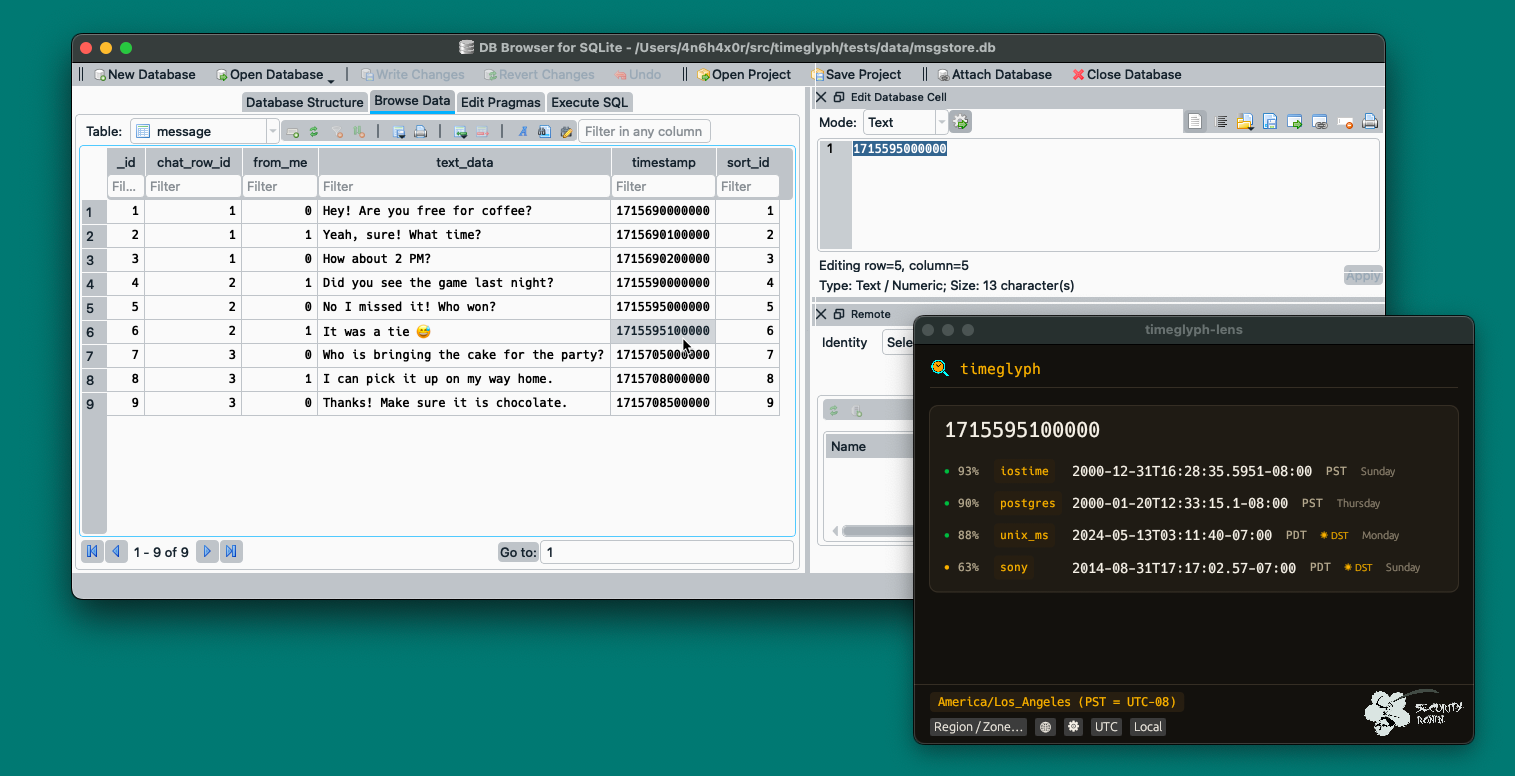
`timeglyph-lens` is the interactive front-end to the [timeglyph](index.md) engine.
It is an always-on-top window that follows your cursor and shows timeglyph's
ranked readings for any number in the UI element under the pointer — no
copy-paste, no switching windows. Point at a Unix time in a log, a FILETIME in a
registry viewer, or a column in a database browser, and the decodings appear.
## What each reading shows
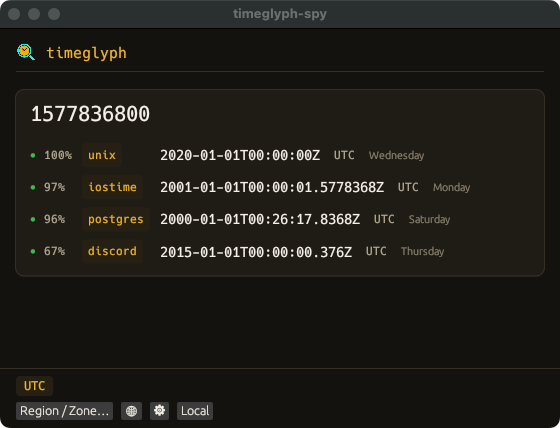
Every candidate is a row in a compact instrument panel:
- **Confidence** — a red/amber/green dot and a percentage from the engine's
plausibility score (the same scoring as the CLI; hover for the component
breakdown).
- **Format** — the amber chip (e.g. `unix`, `webkit`, `cocoa`); hover for the full
format name.
- **Instant** — rendered in the chosen display timezone.
- **Weekday** — the day of week of the shown date.
- **Public holiday** — if that date is a public holiday in the display zone's
country, its name (see [Public holidays](holidays.md)). Only for a named IANA
zone; *consistent with* a holiday, an annotation, not proof.
- **干支 pillars** (opt-in) — the Chinese lunisolar date and the four
Heavenly-Stem / Earthly-Branch pillars, stems over branches, each spot-colored
by its 五行 (Five Element), with the day branch ringed. Enable it in Settings.
## Display timezone
The footer selects how instants are rendered: **UTC** (the default), **Local**,
a **fixed offset** or IANA zone via **Region / Zone…**, or a click on the **🌐**
world map. UTC-anchored readings shift into the chosen zone (with an explicit
offset); naive wall-clock readings are shown as-is and tagged *local time (not
time-zone adjusted)*. The zone is session-scoped and never persisted — a prior
case's zone can't silently carry into the next launch.
## Settings
The **⚙** button (and, on macOS, the ⌘, menu item) opens Settings:
- **Theme** — dark (default) or light; both palettes clear WCAG AA.
- **Chinese lunisolar / 干支** — turns on the 干支 pillars and the longitude
input (which refines only the hour pillar to true solar time).
## Platforms & permissions
| Platform | Status | Picker |
|---|---|---|
| macOS | supported | Accessibility API (`AXUIElementCopyElementAtPosition`) |
| Windows | supported | UI Automation (`IUIAutomation::ElementFromPoint`) |
| Linux | not supported | no picker backend |
On macOS the picker narrows to the exact word under the cursor; on Windows it
reads the hovered element's name.
### First launch on macOS — grant Accessibility
macOS gates the Accessibility API behind an explicit grant. On first launch
timeglyph-lens triggers the system prompt; until you allow it, the overlay shows a
**"Grant Accessibility to timeglyph-lens"** reminder and no readings appear. To
grant it:
1. Open **System Settings → Privacy & Security → Accessibility**.
2. Turn on **timeglyph-lens** (click **+** and add it if it isn't listed).
3. Quit and relaunch timeglyph-lens.
### Windows
No special permission is needed. To inspect an **elevated** (Run-as-administrator)
window, run timeglyph-lens elevated too — Windows isolates UI access across
privilege levels (UIPI).
## Install
A single install brings both the `timeglyph` CLI and the `timeglyph-lens` overlay:
- **Windows:** `winget install SecurityRonin.timeglyph`.
- **macOS:** `brew install securityronin/tap/timeglyph`.
Or download the `timeglyph-lens` binary from the
[latest release](https://github.com/SecurityRonin/timeglyph/releases/latest), or
build from source:
```bash
cargo build --release --manifest-path lens/Cargo.toml
```
Grant Accessibility permission on first launch.