— Customize PageEdit —
The Preferences dialog gives you control over many settings in PageEdit.
Select the menu item to open the Preferences dialog:
You can change the following settings (see below for details):
Once the Preferences window is open, you can choose the area you want to modify by clicking on the entry on the left. Selecting or closing the window will save the current settings.
Appearance settings do not affect how your HTML file is displayed to the user!
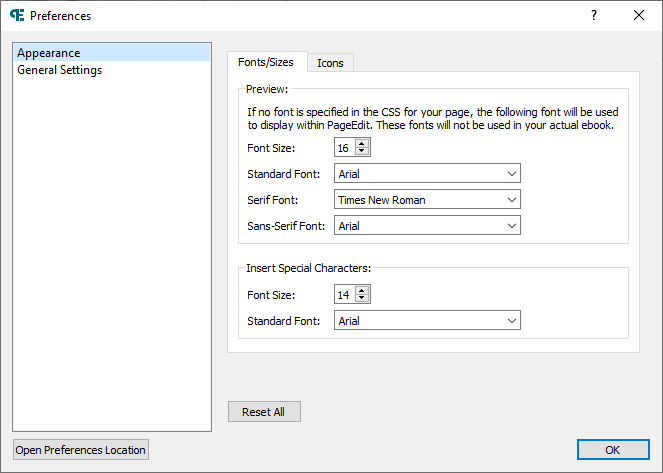
You can modify the fonts and colors that PageEdit uses to display your XHTML file while editing:
The settings that can be changed include:
The default fonts are Arial and Times New Roman. If these are not available on your system, the preferences will default to the first available font.
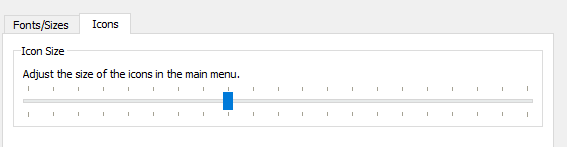
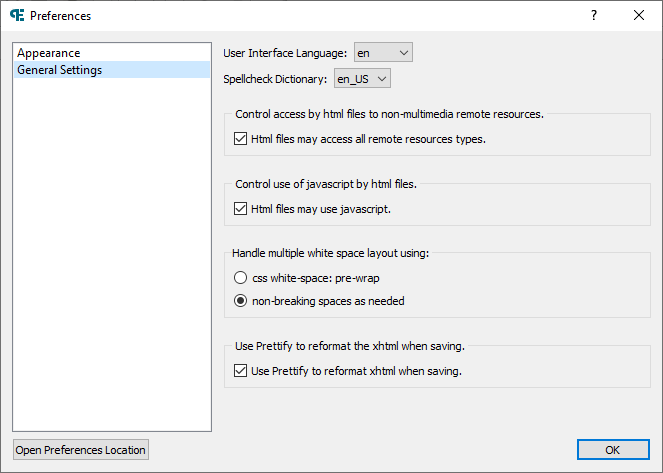
The settings that can be changed include:
If you change the user interface language, you must restart PageEdit in order for the new user interface language to take effect.
(If a translation is not available for specific words then they will be shown in English.)
PageEdit includes several standard dictionaries: US English, British English, French, German and Spanish. You can select one using the Spellcheck Dictionary drop-down menu.
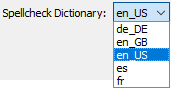
You can download additional dictionaries from the Chromium Hunspell website and install them by copying them to the folder.
For example, if you want to install an Italian dictionary, download it-IT-3-0.bdic and copy it to the qtwebengine_dictionaries folder.
Advanced users can also convert their Hunspell dictionaries with qwebengine_convert_dict.
The button on all the Preferences screens can be used to open the directory containing all of your preference files. You can copy the files for backup or for sharing with others.
The preferences location will likely be in the following locations:
Windows:
%USERPROFILE%\AppData\Local\sigil-ebook\pageedit
MAC:
~/Library/Application\ Support/sigil-ebook/pageedit
Linux:
$HOME/.local/share/sigil-ebook/pageedit
And the files you are likely to see will include:
If you delete , PageEdit will reset all preferences.
Since PageEdit is a Qt app, you can customize the font size of some GUI controls with a qt_styles.qss style sheet file in the PageEdit preferences folder. (qt_styles.qss needs to contain valid Qt style sheet declarations.)
For example, the following styles will increase the font size of the fields in the Find toolbar:
QLabel { font-size: 16pt }
QLineEdit { font-size: 16pt }
QComboBox { font-size: 16pt }