# Snowflake Cortex AI Model Context Protocol (MCP) Server
 This Snowflake MCP server provides tooling for Snowflake Cortex AI, object management, and SQL orchestration, bringing these capabilities to the MCP ecosystem. When connected to an MCP Client (e.g. [Claude for Desktop](https://claude.ai/download), [fast-agent](https://fast-agent.ai/), [Agentic Orchestration Framework](https://github.com/Snowflake-Labs/orchestration-framework/blob/main/README.md)), users can leverage these features.
The MCP server currently supports the below capabilities:
- **[Cortex Search](https://docs.snowflake.com/en/user-guide/snowflake-cortex/cortex-search/cortex-search-overview)**: Query unstructured data in Snowflake as commonly used in Retrieval Augmented Generation (RAG) applications.
- **[Cortex Analyst](https://docs.snowflake.com/en/user-guide/snowflake-cortex/cortex-analyst)**: Query structured data in Snowflake via rich semantic modeling.
- **[Cortex Agent](https://docs.snowflake.com/en/user-guide/snowflake-cortex/cortex-agents)**: Agentic orchestrator across structured and unstructured data retrieval
- **Object Management**: Perform basic operations against Snowflake's most common objects such as creation, dropping, updating, and more.
- **SQL Execution**: Run LLM-generated SQL managed by user-configured permissions.
- **[Semantic View Querying](https://docs.snowflake.com/en/user-guide/views-semantic/overview)**: Discover and query Snowflake Semantic Views
# Getting Started
## Service Configuration
A simple configuration file is used to drive all tooling. An example can be seen at [services/configuration.yaml](services/configuration.yaml) and a template is below. The path to this configuration file will be passed to the server and the contents used to create MCP server tools at startup.
**Cortex Services**
Many Cortex Agent, Search, and Analyst services can be added. Ideal descriptions are both highly descriptive and mutually exclusive.
Only the explicitly listed Cortex services will be available as tools in the MCP client.
**Other Services**
Other services include tooling for [object management](object-management), [query execution](sql-execution), and [semantic view usage](semantic-view-querying).
These groups of tools can be enabled by setting them to True in the `other_services` section of the configuration file.
**SQL Statement Permissions**
The `sql_statement_permissions` section ensures that only approved statements are executed across any tools with access to change Snowflake objects.
The list contains SQL expression types. Those marked with True are permitted while those marked with False are not permitted. Please see [SQL Execution](#sql-execution) for examples of each expression type.
```
agent_services: # List all Cortex Agent services
- service_name:
description: > # Describe contents of the agent service
database_name:
schema_name:
- service_name:
description: > # Describe contents of the agent service
database_name:
schema_name:
search_services: # List all Cortex Search services
- service_name:
description: > # Describe contents of the search service
database_name:
schema_name:
- service_name:
description: > # Describe contents of the search service
database_name:
schema_name:
analyst_services: # List all Cortex Analyst semantic models/views
- service_name: # Create descriptive name for the service
semantic_model: # Fully-qualify semantic YAML model or Semantic View
description: > # Describe contents of the analyst service
- service_name: # Create descriptive name for the service
semantic_model: # Fully-qualify semantic YAML model or Semantic View
description: > # Describe contents of the analyst service
other_services: # Set desired tool groups to True to enable tools for that group
object_manager: True # Perform basic operations against Snowflake's most common objects such as creation, dropping, updating, and more.
query_manager: True # Run LLM-generated SQL managed by user-configured permissions.
semantic_manager: True # Discover and query Snowflake Semantic Views and their components.
sql_statement_permissions: # List SQL statements to explicitly allow (True) or disallow (False).
# - All: True # To allow everything, uncomment and set All: True.
- Alter: True
- Command: True
- Comment: True
- Commit: True
- Copy: True
- Create: True
- Delete: True
- Describe: True
- Drop: True
- Insert: True
- Merge: True
- Rollback: True
- Select: True
- Transaction: True
- TruncateTable: True
- Unknown: False # To allow unknown or unmapped statement types, set Unknown: True.
- Update: True
- Use: True
```
> [!NOTE]
> Previous versions of the configuration file supported specifying explicit values for columns and limit for each Cortex Search service. Instead, these are now exclusively dynamic based on user prompt. If not specified, a search service's default search_columns will be returned with a limit of 10.
## Connecting to Snowflake
The MCP server uses the [Snowflake Python Connector](https://docs.snowflake.com/en/developer-guide/python-connector/python-connector-connect) for all authentication and connection methods. **Please refer to the official Snowflake documentation for comprehensive authentication options and best practices.**
**The MCP server honors the RBAC permissions assigned to the specified role (as passed in the connection parameters) or default role of the user (if no role is passed to connect).**
Connection parameters can be passed as CLI arguments and/or environment variables. The server supports all authentication methods available in the Snowflake Python Connector, including:
- Username/password authentication
- Key pair authentication
- OAuth authentication
- Single Sign-On (SSO)
- Multi-factor authentication (MFA)
### Connection Parameters
Connection parameters can be passed as CLI arguments and/or environment variables:
| Parameter | CLI Arguments | Environment Variable | Description |
|-----------|--------------|---------------------|-------------|
| Account | --account | SNOWFLAKE_ACCOUNT | Account identifier (e.g. xy12345.us-east-1) |
| Host | --host | SNOWFLAKE_HOST | Snowflake host URL |
| User | --user, --username | SNOWFLAKE_USER | Username for authentication |
| Password | --password | SNOWFLAKE_PASSWORD | Password or programmatic access token |
| Role | --role | SNOWFLAKE_ROLE | Role to use for connection |
| Warehouse | --warehouse | SNOWFLAKE_WAREHOUSE | Warehouse to use for queries |
| Passcode in Password | --passcode-in-password | - | Whether passcode is embedded in password |
| Passcode | --passcode | SNOWFLAKE_PASSCODE | MFA passcode for authentication |
| Private Key | --private-key | SNOWFLAKE_PRIVATE_KEY | Private key for key pair authentication |
| Private Key File | --private-key-file | SNOWFLAKE_PRIVATE_KEY_FILE | Path to private key file |
| Private Key Password | --private-key-file-pwd | SNOWFLAKE_PRIVATE_KEY_FILE_PWD | Password for encrypted private key |
| Authenticator | --authenticator | - | Authentication type (default: snowflake) |
| Connection Name | --connection-name | - | Name of connection from connections.toml (or config.toml) file |
> [!WARNING]
> **Deprecation Notice**: The CLI arguments `--account-identifier` and `--pat`, as well as the environment variable `SNOWFLAKE_PAT`, are deprecated and will be removed in a future release. Please use `--account` and `--password` (or `SNOWFLAKE_ACCOUNT` and `SNOWFLAKE_PASSWORD`) instead.
# Transport Configuration
The MCP server supports multiple transport mechanisms. For detailed information about MCP transports, see [FastMCP Transport Protocols](https://gofastmcp.com/deployment/running-server#transport-protocols).
| Transport | Description | Use Case |
|-----------|-------------|----------|
| `stdio` | Standard input/output (default) | Local development, MCP client integration |
| `sse` (legacy) | Server-Sent Events | Streaming applications |
| `streamable-http` | Streamable HTTP transport | Container deployments, remote servers |
## Usage
```bash
# Default stdio transport
uvx snowflake-labs-mcp --service-config-file config.yaml
# HTTP transport with custom endpoint
uvx snowflake-labs-mcp --service-config-file config.yaml --transport streamable-http --endpoint /my-endpoint
# For containers (uses streamable-http on port 9000)
uvx snowflake-labs-mcp --service-config-file config.yaml --transport streamable-http --endpoint /snowflake-mcp
```
## Transport Customizations
Server customizations available for `sse` and `streamable-http` transports:
| Parameter | CLI Argument | Environment Variable | Default |
|-----------|--------------|---------------------|------------------|
| Host | --server-host | SNOWFLAKE_MCP_HOST | "0.0.0.0"
| Port | --port | SNOWFLAKE_MCP_PORT | 9000
| Endpoint | --endpoint | SNOWFLAKE_MCP_ENDPOINT | /mcp
| Debug Logging | --verbose | SNOWFLAKE_MCP_VERBOSE | false
Example:
```bash
export SNOWFLAKE_MCP_ENDPOINT="/my-mcp"
uvx snowflake-labs-mcp --service-config-file config.yaml --transport streamable-http
```
# Using with MCP Clients
The MCP server is client-agnostic and will work with most MCP Clients that support basic functionality for MCP tools and (optionally) resources. Below are examples for local installation. For connecting to containerized deployments, see [Connecting MCP Clients to Containers](#connecting-mcp-clients-to-containers).
## [Claude Desktop](https://support.anthropic.com/en/articles/10065433-installing-claude-for-desktop)
To integrate this server with Claude Desktop as the MCP Client, add the following to your app's server configuration. By default, this is located at:
- macOS: ~/Library/Application Support/Claude/claude_desktop_config.json
- Windows: %APPDATA%\Claude\claude_desktop_config.json
Set the path to the service configuration file and configure your connection method:
```json
{
"mcpServers": {
"mcp-server-snowflake": {
"command": "uvx",
"args": [
"snowflake-labs-mcp",
"--service-config-file",
"/tools_config.yaml",
"--connection-name",
"default"
]
}
}
}
```
## [Cursor](https://www.cursor.com/)
Register the MCP server in Cursor by opening Cursor and navigating to Settings -> Cursor Settings -> MCP. Add the below:
```json
{
"mcpServers": {
"mcp-server-snowflake": {
"command": "uvx",
"args": [
"snowflake-labs-mcp",
"--service-config-file",
"/tools_config.yaml",
"--connection-name",
"default"
]
}
}
}
```
Add the MCP server as context in the chat.
This Snowflake MCP server provides tooling for Snowflake Cortex AI, object management, and SQL orchestration, bringing these capabilities to the MCP ecosystem. When connected to an MCP Client (e.g. [Claude for Desktop](https://claude.ai/download), [fast-agent](https://fast-agent.ai/), [Agentic Orchestration Framework](https://github.com/Snowflake-Labs/orchestration-framework/blob/main/README.md)), users can leverage these features.
The MCP server currently supports the below capabilities:
- **[Cortex Search](https://docs.snowflake.com/en/user-guide/snowflake-cortex/cortex-search/cortex-search-overview)**: Query unstructured data in Snowflake as commonly used in Retrieval Augmented Generation (RAG) applications.
- **[Cortex Analyst](https://docs.snowflake.com/en/user-guide/snowflake-cortex/cortex-analyst)**: Query structured data in Snowflake via rich semantic modeling.
- **[Cortex Agent](https://docs.snowflake.com/en/user-guide/snowflake-cortex/cortex-agents)**: Agentic orchestrator across structured and unstructured data retrieval
- **Object Management**: Perform basic operations against Snowflake's most common objects such as creation, dropping, updating, and more.
- **SQL Execution**: Run LLM-generated SQL managed by user-configured permissions.
- **[Semantic View Querying](https://docs.snowflake.com/en/user-guide/views-semantic/overview)**: Discover and query Snowflake Semantic Views
# Getting Started
## Service Configuration
A simple configuration file is used to drive all tooling. An example can be seen at [services/configuration.yaml](services/configuration.yaml) and a template is below. The path to this configuration file will be passed to the server and the contents used to create MCP server tools at startup.
**Cortex Services**
Many Cortex Agent, Search, and Analyst services can be added. Ideal descriptions are both highly descriptive and mutually exclusive.
Only the explicitly listed Cortex services will be available as tools in the MCP client.
**Other Services**
Other services include tooling for [object management](object-management), [query execution](sql-execution), and [semantic view usage](semantic-view-querying).
These groups of tools can be enabled by setting them to True in the `other_services` section of the configuration file.
**SQL Statement Permissions**
The `sql_statement_permissions` section ensures that only approved statements are executed across any tools with access to change Snowflake objects.
The list contains SQL expression types. Those marked with True are permitted while those marked with False are not permitted. Please see [SQL Execution](#sql-execution) for examples of each expression type.
```
agent_services: # List all Cortex Agent services
- service_name:
description: > # Describe contents of the agent service
database_name:
schema_name:
- service_name:
description: > # Describe contents of the agent service
database_name:
schema_name:
search_services: # List all Cortex Search services
- service_name:
description: > # Describe contents of the search service
database_name:
schema_name:
- service_name:
description: > # Describe contents of the search service
database_name:
schema_name:
analyst_services: # List all Cortex Analyst semantic models/views
- service_name: # Create descriptive name for the service
semantic_model: # Fully-qualify semantic YAML model or Semantic View
description: > # Describe contents of the analyst service
- service_name: # Create descriptive name for the service
semantic_model: # Fully-qualify semantic YAML model or Semantic View
description: > # Describe contents of the analyst service
other_services: # Set desired tool groups to True to enable tools for that group
object_manager: True # Perform basic operations against Snowflake's most common objects such as creation, dropping, updating, and more.
query_manager: True # Run LLM-generated SQL managed by user-configured permissions.
semantic_manager: True # Discover and query Snowflake Semantic Views and their components.
sql_statement_permissions: # List SQL statements to explicitly allow (True) or disallow (False).
# - All: True # To allow everything, uncomment and set All: True.
- Alter: True
- Command: True
- Comment: True
- Commit: True
- Copy: True
- Create: True
- Delete: True
- Describe: True
- Drop: True
- Insert: True
- Merge: True
- Rollback: True
- Select: True
- Transaction: True
- TruncateTable: True
- Unknown: False # To allow unknown or unmapped statement types, set Unknown: True.
- Update: True
- Use: True
```
> [!NOTE]
> Previous versions of the configuration file supported specifying explicit values for columns and limit for each Cortex Search service. Instead, these are now exclusively dynamic based on user prompt. If not specified, a search service's default search_columns will be returned with a limit of 10.
## Connecting to Snowflake
The MCP server uses the [Snowflake Python Connector](https://docs.snowflake.com/en/developer-guide/python-connector/python-connector-connect) for all authentication and connection methods. **Please refer to the official Snowflake documentation for comprehensive authentication options and best practices.**
**The MCP server honors the RBAC permissions assigned to the specified role (as passed in the connection parameters) or default role of the user (if no role is passed to connect).**
Connection parameters can be passed as CLI arguments and/or environment variables. The server supports all authentication methods available in the Snowflake Python Connector, including:
- Username/password authentication
- Key pair authentication
- OAuth authentication
- Single Sign-On (SSO)
- Multi-factor authentication (MFA)
### Connection Parameters
Connection parameters can be passed as CLI arguments and/or environment variables:
| Parameter | CLI Arguments | Environment Variable | Description |
|-----------|--------------|---------------------|-------------|
| Account | --account | SNOWFLAKE_ACCOUNT | Account identifier (e.g. xy12345.us-east-1) |
| Host | --host | SNOWFLAKE_HOST | Snowflake host URL |
| User | --user, --username | SNOWFLAKE_USER | Username for authentication |
| Password | --password | SNOWFLAKE_PASSWORD | Password or programmatic access token |
| Role | --role | SNOWFLAKE_ROLE | Role to use for connection |
| Warehouse | --warehouse | SNOWFLAKE_WAREHOUSE | Warehouse to use for queries |
| Passcode in Password | --passcode-in-password | - | Whether passcode is embedded in password |
| Passcode | --passcode | SNOWFLAKE_PASSCODE | MFA passcode for authentication |
| Private Key | --private-key | SNOWFLAKE_PRIVATE_KEY | Private key for key pair authentication |
| Private Key File | --private-key-file | SNOWFLAKE_PRIVATE_KEY_FILE | Path to private key file |
| Private Key Password | --private-key-file-pwd | SNOWFLAKE_PRIVATE_KEY_FILE_PWD | Password for encrypted private key |
| Authenticator | --authenticator | - | Authentication type (default: snowflake) |
| Connection Name | --connection-name | - | Name of connection from connections.toml (or config.toml) file |
> [!WARNING]
> **Deprecation Notice**: The CLI arguments `--account-identifier` and `--pat`, as well as the environment variable `SNOWFLAKE_PAT`, are deprecated and will be removed in a future release. Please use `--account` and `--password` (or `SNOWFLAKE_ACCOUNT` and `SNOWFLAKE_PASSWORD`) instead.
# Transport Configuration
The MCP server supports multiple transport mechanisms. For detailed information about MCP transports, see [FastMCP Transport Protocols](https://gofastmcp.com/deployment/running-server#transport-protocols).
| Transport | Description | Use Case |
|-----------|-------------|----------|
| `stdio` | Standard input/output (default) | Local development, MCP client integration |
| `sse` (legacy) | Server-Sent Events | Streaming applications |
| `streamable-http` | Streamable HTTP transport | Container deployments, remote servers |
## Usage
```bash
# Default stdio transport
uvx snowflake-labs-mcp --service-config-file config.yaml
# HTTP transport with custom endpoint
uvx snowflake-labs-mcp --service-config-file config.yaml --transport streamable-http --endpoint /my-endpoint
# For containers (uses streamable-http on port 9000)
uvx snowflake-labs-mcp --service-config-file config.yaml --transport streamable-http --endpoint /snowflake-mcp
```
## Transport Customizations
Server customizations available for `sse` and `streamable-http` transports:
| Parameter | CLI Argument | Environment Variable | Default |
|-----------|--------------|---------------------|------------------|
| Host | --server-host | SNOWFLAKE_MCP_HOST | "0.0.0.0"
| Port | --port | SNOWFLAKE_MCP_PORT | 9000
| Endpoint | --endpoint | SNOWFLAKE_MCP_ENDPOINT | /mcp
| Debug Logging | --verbose | SNOWFLAKE_MCP_VERBOSE | false
Example:
```bash
export SNOWFLAKE_MCP_ENDPOINT="/my-mcp"
uvx snowflake-labs-mcp --service-config-file config.yaml --transport streamable-http
```
# Using with MCP Clients
The MCP server is client-agnostic and will work with most MCP Clients that support basic functionality for MCP tools and (optionally) resources. Below are examples for local installation. For connecting to containerized deployments, see [Connecting MCP Clients to Containers](#connecting-mcp-clients-to-containers).
## [Claude Desktop](https://support.anthropic.com/en/articles/10065433-installing-claude-for-desktop)
To integrate this server with Claude Desktop as the MCP Client, add the following to your app's server configuration. By default, this is located at:
- macOS: ~/Library/Application Support/Claude/claude_desktop_config.json
- Windows: %APPDATA%\Claude\claude_desktop_config.json
Set the path to the service configuration file and configure your connection method:
```json
{
"mcpServers": {
"mcp-server-snowflake": {
"command": "uvx",
"args": [
"snowflake-labs-mcp",
"--service-config-file",
"/tools_config.yaml",
"--connection-name",
"default"
]
}
}
}
```
## [Cursor](https://www.cursor.com/)
Register the MCP server in Cursor by opening Cursor and navigating to Settings -> Cursor Settings -> MCP. Add the below:
```json
{
"mcpServers": {
"mcp-server-snowflake": {
"command": "uvx",
"args": [
"snowflake-labs-mcp",
"--service-config-file",
"/tools_config.yaml",
"--connection-name",
"default"
]
}
}
}
```
Add the MCP server as context in the chat.
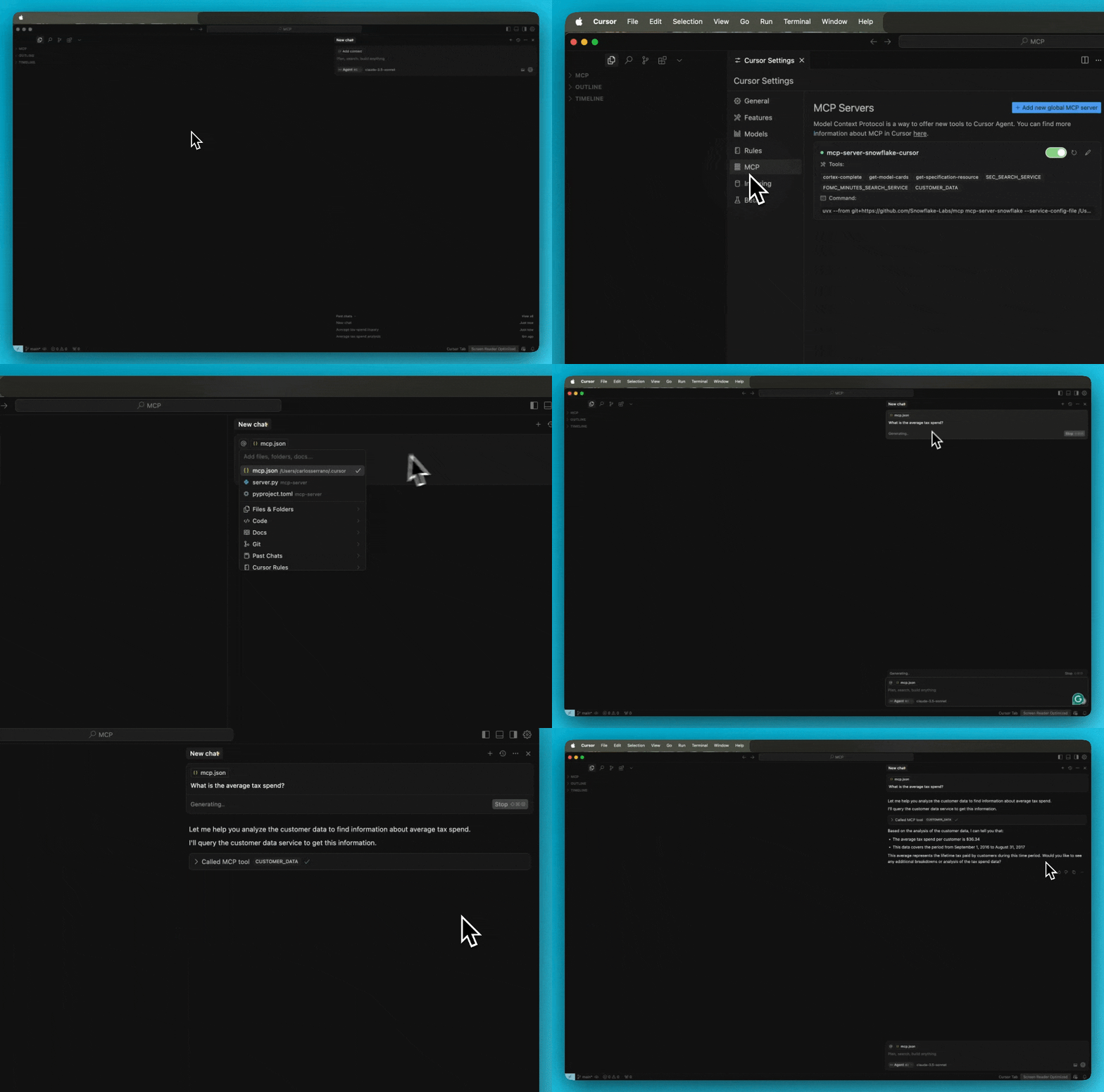 For troubleshooting Cursor server issues, view the logs by opening the Output panel and selecting Cursor MCP from the dropdown menu.
## [fast-agent](https://fast-agent.ai/)
Update the `fastagent.config.yaml` mcp server section with the configuration file path and connection name:
```yaml
# MCP Servers
mcp:
servers:
mcp-server-snowflake:
command: "uvx"
args: ["snowflake-labs-mcp", "--service-config-file", "/tools_config.yaml", "--connection-name", "default"]
```
For troubleshooting Cursor server issues, view the logs by opening the Output panel and selecting Cursor MCP from the dropdown menu.
## [fast-agent](https://fast-agent.ai/)
Update the `fastagent.config.yaml` mcp server section with the configuration file path and connection name:
```yaml
# MCP Servers
mcp:
servers:
mcp-server-snowflake:
command: "uvx"
args: ["snowflake-labs-mcp", "--service-config-file", "/tools_config.yaml", "--connection-name", "default"]
```
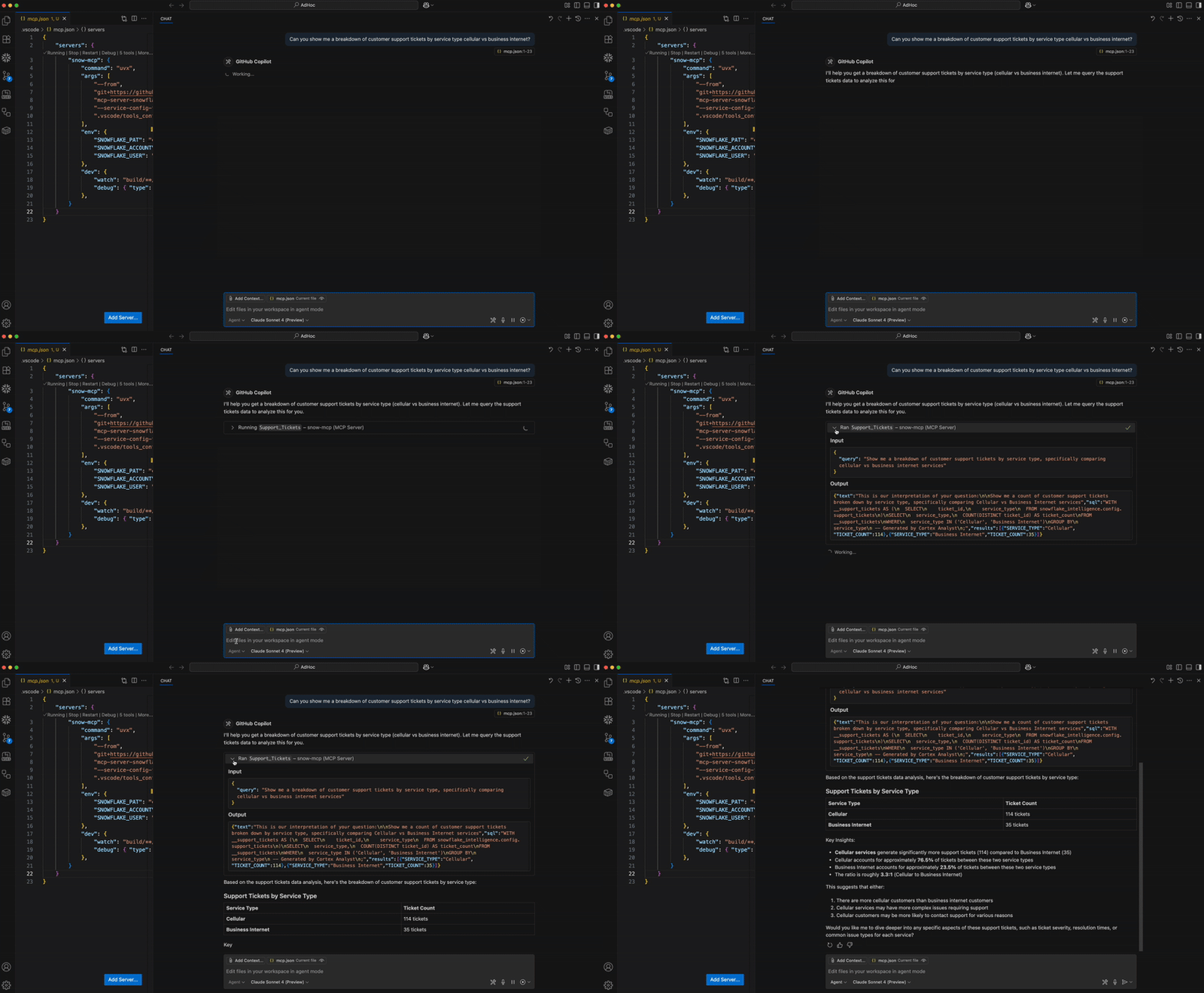
 ## Microsoft Visual Studio Code + GitHub Copilot
For prerequisites, environment setup, step-by-step guide and instructions, please refer to this [blog](https://medium.com/snowflake/build-a-natural-language-data-assistant-in-vs-code-with-copilot-mcp-and-snowflake-cortex-ai-04a22a3b0f17).
## Microsoft Visual Studio Code + GitHub Copilot
For prerequisites, environment setup, step-by-step guide and instructions, please refer to this [blog](https://medium.com/snowflake/build-a-natural-language-data-assistant-in-vs-code-with-copilot-mcp-and-snowflake-cortex-ai-04a22a3b0f17).
 ## [Codex](https://github.com/openai/codex)
Register the MCP server in codex by adding the following to `~/.codex/config.toml`
```toml
[mcp_servers.mcp-server-snowflake]
command = "uvx"
args = [
"snowflake-labs-mcp",
"--service-config-file",
"/tools_config.yaml",
"--connection-name",
"default"
]
```
After editing, the snowflake mcp should appear in the output of `codex mcp list` run from the terminal.
# Container Deployment
Deploy the MCP server as a container for remote access or production environments. This guide provides step-by-step instructions for both Docker and Docker Compose deployments.
## Docker Deployment
Follow these steps to deploy the MCP server using Docker:
### Step 1: Prepare Configuration File
Create a directory for MCP configuration and copy the template:
```bash
mkdir -p ${HOME}/.mcp/
cp services/configuration.yaml ${HOME}/.mcp/tools_config.yaml
```
### Step 2: Configure Services
Edit the configuration file to match your environment:
```bash
# Edit the configuration file as needed
# Update service names, database/schema references, and enable desired features
nano ${HOME}/.mcp/tools_config.yaml
```
### Step 3: Build Container Image
Build the Docker image from the provided Dockerfile:
```bash
docker build -f docker/server/Dockerfile -t mcp-server-snowflake .
```
### Step 4: Set Environment Variables
Configure your Snowflake connection parameters. Choose one of the following authentication methods:
**Username/Password Authentication:**
```bash
export SNOWFLAKE_ACCOUNT=
export SNOWFLAKE_USER=
export SNOWFLAKE_PASSWORD=
```
**Key Pair Authentication:**
```bash
export SNOWFLAKE_ACCOUNT=
export SNOWFLAKE_USER=
export SNOWFLAKE_PRIVATE_KEY="$(cat )"
export SNOWFLAKE_PRIVATE_KEY_FILE_PWD=
```
### Step 5: Run Container
Start the container with your configuration and environment variables:
**For Username/Password Authentication:**
```bash
docker run -d \
--name mcp-server-snowflake \
-p 9000:9000 \
-e SNOWFLAKE_ACCOUNT=${SNOWFLAKE_ACCOUNT} \
-e SNOWFLAKE_USER=${SNOWFLAKE_USER} \
-e SNOWFLAKE_PASSWORD=${SNOWFLAKE_PASSWORD} \
-v ${HOME}/.mcp/tools_config.yaml:/app/services/tools_config.yaml:ro \
mcp-server-snowflake
```
**For Key Pair Authentication:**
```bash
docker run -d \
--name mcp-server-snowflake \
-p 9000:9000 \
-e SNOWFLAKE_ACCOUNT=${SNOWFLAKE_ACCOUNT} \
-e SNOWFLAKE_USER=${SNOWFLAKE_USER} \
-e SNOWFLAKE_PRIVATE_KEY="${SNOWFLAKE_PRIVATE_KEY}" \
-e SNOWFLAKE_PRIVATE_KEY_FILE_PWD=${SNOWFLAKE_PRIVATE_KEY_FILE_PWD} \
-v ${HOME}/.mcp/tools_config.yaml:/app/services/tools_config.yaml:ro \
mcp-server-snowflake
```
### Step 6: Verify Deployment
Check that the container is running and accessible:
```bash
# Check container status
docker ps
# Check container logs
docker logs mcp-server-snowflake
# Test endpoint (should return MCP server info)
curl http://localhost:9000/snowflake-mcp
```
## Docker Compose Deployment
Follow these steps for a simplified deployment using Docker Compose:
### Step 1: Prepare Configuration File
Create the configuration directory and copy the template:
```bash
mkdir -p ${HOME}/.mcp/
cp services/configuration.yaml ${HOME}/.mcp/tools_config.yaml
```
### Step 2: Configure Services
Edit the configuration file to match your environment:
```bash
# Update service configurations as needed
nano ${HOME}/.mcp/tools_config.yaml
```
### Step 3: Set Environment Variables
Configure your Snowflake connection parameters:
```bash
export SNOWFLAKE_ACCOUNT=
export SNOWFLAKE_USER=
# For username/password auth:
export SNOWFLAKE_PASSWORD=
# For key pair auth, also set:
# export SNOWFLAKE_PRIVATE_KEY="$(cat )"
# export SNOWFLAKE_PRIVATE_KEY_FILE_PWD=
```
### Step 4: Start Services
Launch the container using Docker Compose:
```bash
docker-compose up -d
```
### Step 5: Verify Deployment
Check that the services are running:
```bash
# Check service status
docker-compose ps
# View logs
docker-compose logs
# Test endpoint
curl http://localhost:9000/snowflake-mcp
```
## Connecting MCP Clients to Containers
Once your MCP server is running in a container, you can connect various MCP clients to it. The connection configuration is the same across all clients - only the configuration format differs.
**Connection URL Format:**
- Local deployment: `http://localhost:9000/snowflake-mcp`
- Remote deployment: `http://:/snowflake-mcp`
### Claude Desktop
Add this to your `claude_desktop_config.json`:
```json
{
"mcpServers": {
"mcp-server-snowflake": {
"url": "http://localhost:9000/snowflake-mcp"
}
}
}
```
### Cursor
Add this to your MCP settings in Cursor (Settings -> Cursor Settings -> MCP):
```json
{
"mcpServers": {
"mcp-server-snowflake": {
"url": "http://localhost:9000/snowflake-mcp"
}
}
}
```
### fast-agent
Add this to your `fastagent.config.yaml`:
```yaml
# MCP Servers
mcp:
servers:
mcp-server-snowflake:
url: "http://localhost:9000/snowflake-mcp"
```
**Notes:**
- For remote deployments, replace `localhost:9000` with your server's hostname and port
- Ensure your firewall allows connections on port 9000 (or your configured port)
- For production deployments, consider using HTTPS and proper authentication
# Cortex Services
Instances of Cortex Agent (in `agent_services` section), Cortex Search (in `search_services` section), and Cortex Analyst (in `analyst_services` section) of the configuration file will be served as tools. Leave these sections blank to omit such tools.
Only Cortex Agent objects are supported in the MCP server. That is, only Cortex Agent objects pre-configured in Snowflake can be leveraged as tools. See [Cortex Agent Run API](https://docs.snowflake.com/en/user-guide/snowflake-cortex/cortex-agents-run#streaming-responses) for more details.
Ensure all services have accurate context names for service name, database, schema, etc. Ideal descriptions are both highly descriptive and mutually exclusive.
The `semantic_model` value in analyst services should be a fully-qualified semantic view OR semantic YAML file in a Snowflake stage:
- For a semantic view: `MY_DATABASE.MY_SCHEMA.MY_SEMANTIC_VIEW`
- For a semantic YAML file: `@MY_DATABASE.MY_SCHEMA.MY_STAGE/my_semantic_file.yaml` (**Note the `@`.**)
# Object Management
The MCP server includes dozens of tools narrowly scoped to fulfill basic operation management. It is recommended to use Snowsight directly for advanced object management.
The MCP server currently supports **creating**, **dropping**, **creating or altering**, **describing**, and **listing** the below object types.
**To enable these tools, set `object_manager` to True in the configuration file under `other_services`.**
```
- Database
- Schema
- Table
- View
- Warehouse
- Compute Pool
- Role
- Stage
- User
- Image Repository
```
Please note that these tools are also governed by permissions captured in the configuration file under `sql_statement_permissions`.
Object management tools to create and create or alter objects are governed by the `Create` permission. Object dropping is governed by the `Drop` permission.
It is likely that more actions and objects will be included in future releases.
# SQL Execution
The general SQL tool will provide a way to execute generic SQL statements generated by the MCP client. Users have full control over the types of SQL statement that are approved in the configuration file.
Listed in the configuration file under `sql_statement_permissions` are [sqlglot expression types](https://sqlglot.com/sqlglot/expressions.html). Those marked as False will be stopped before execution. Those marked with True will be executed (or prompt the user for execution based on the MCP client settings).
**To enable the SQL execution tool, set `query_manager` to True in the configuration file under `other_services`.**
**To allow all SQL expressions to pass the additional validation, set `All` to True.**
Not all Snowflake SQL commands are mapped in sqlglot and you may find some obscure commands have yet to be captured in the configuration file.
**Setting `Unknown` to True will allow these uncaptured commands to pass the additional validation.** You may also add new expression types directly to honor specific ones.
Below are some examples of sqlglot expression types with accompanying Snowflake SQL command examples:
| SQLGlot Expression Type | SQL Command |
|------------------------|-------------|
| Alter | `ALTER TABLE my_table ADD COLUMN new_column VARCHAR(50);` |
| Command | `CALL my_procedure('param1_value', 123);`
## [Codex](https://github.com/openai/codex)
Register the MCP server in codex by adding the following to `~/.codex/config.toml`
```toml
[mcp_servers.mcp-server-snowflake]
command = "uvx"
args = [
"snowflake-labs-mcp",
"--service-config-file",
"/tools_config.yaml",
"--connection-name",
"default"
]
```
After editing, the snowflake mcp should appear in the output of `codex mcp list` run from the terminal.
# Container Deployment
Deploy the MCP server as a container for remote access or production environments. This guide provides step-by-step instructions for both Docker and Docker Compose deployments.
## Docker Deployment
Follow these steps to deploy the MCP server using Docker:
### Step 1: Prepare Configuration File
Create a directory for MCP configuration and copy the template:
```bash
mkdir -p ${HOME}/.mcp/
cp services/configuration.yaml ${HOME}/.mcp/tools_config.yaml
```
### Step 2: Configure Services
Edit the configuration file to match your environment:
```bash
# Edit the configuration file as needed
# Update service names, database/schema references, and enable desired features
nano ${HOME}/.mcp/tools_config.yaml
```
### Step 3: Build Container Image
Build the Docker image from the provided Dockerfile:
```bash
docker build -f docker/server/Dockerfile -t mcp-server-snowflake .
```
### Step 4: Set Environment Variables
Configure your Snowflake connection parameters. Choose one of the following authentication methods:
**Username/Password Authentication:**
```bash
export SNOWFLAKE_ACCOUNT=
export SNOWFLAKE_USER=
export SNOWFLAKE_PASSWORD=
```
**Key Pair Authentication:**
```bash
export SNOWFLAKE_ACCOUNT=
export SNOWFLAKE_USER=
export SNOWFLAKE_PRIVATE_KEY="$(cat )"
export SNOWFLAKE_PRIVATE_KEY_FILE_PWD=
```
### Step 5: Run Container
Start the container with your configuration and environment variables:
**For Username/Password Authentication:**
```bash
docker run -d \
--name mcp-server-snowflake \
-p 9000:9000 \
-e SNOWFLAKE_ACCOUNT=${SNOWFLAKE_ACCOUNT} \
-e SNOWFLAKE_USER=${SNOWFLAKE_USER} \
-e SNOWFLAKE_PASSWORD=${SNOWFLAKE_PASSWORD} \
-v ${HOME}/.mcp/tools_config.yaml:/app/services/tools_config.yaml:ro \
mcp-server-snowflake
```
**For Key Pair Authentication:**
```bash
docker run -d \
--name mcp-server-snowflake \
-p 9000:9000 \
-e SNOWFLAKE_ACCOUNT=${SNOWFLAKE_ACCOUNT} \
-e SNOWFLAKE_USER=${SNOWFLAKE_USER} \
-e SNOWFLAKE_PRIVATE_KEY="${SNOWFLAKE_PRIVATE_KEY}" \
-e SNOWFLAKE_PRIVATE_KEY_FILE_PWD=${SNOWFLAKE_PRIVATE_KEY_FILE_PWD} \
-v ${HOME}/.mcp/tools_config.yaml:/app/services/tools_config.yaml:ro \
mcp-server-snowflake
```
### Step 6: Verify Deployment
Check that the container is running and accessible:
```bash
# Check container status
docker ps
# Check container logs
docker logs mcp-server-snowflake
# Test endpoint (should return MCP server info)
curl http://localhost:9000/snowflake-mcp
```
## Docker Compose Deployment
Follow these steps for a simplified deployment using Docker Compose:
### Step 1: Prepare Configuration File
Create the configuration directory and copy the template:
```bash
mkdir -p ${HOME}/.mcp/
cp services/configuration.yaml ${HOME}/.mcp/tools_config.yaml
```
### Step 2: Configure Services
Edit the configuration file to match your environment:
```bash
# Update service configurations as needed
nano ${HOME}/.mcp/tools_config.yaml
```
### Step 3: Set Environment Variables
Configure your Snowflake connection parameters:
```bash
export SNOWFLAKE_ACCOUNT=
export SNOWFLAKE_USER=
# For username/password auth:
export SNOWFLAKE_PASSWORD=
# For key pair auth, also set:
# export SNOWFLAKE_PRIVATE_KEY="$(cat )"
# export SNOWFLAKE_PRIVATE_KEY_FILE_PWD=
```
### Step 4: Start Services
Launch the container using Docker Compose:
```bash
docker-compose up -d
```
### Step 5: Verify Deployment
Check that the services are running:
```bash
# Check service status
docker-compose ps
# View logs
docker-compose logs
# Test endpoint
curl http://localhost:9000/snowflake-mcp
```
## Connecting MCP Clients to Containers
Once your MCP server is running in a container, you can connect various MCP clients to it. The connection configuration is the same across all clients - only the configuration format differs.
**Connection URL Format:**
- Local deployment: `http://localhost:9000/snowflake-mcp`
- Remote deployment: `http://:/snowflake-mcp`
### Claude Desktop
Add this to your `claude_desktop_config.json`:
```json
{
"mcpServers": {
"mcp-server-snowflake": {
"url": "http://localhost:9000/snowflake-mcp"
}
}
}
```
### Cursor
Add this to your MCP settings in Cursor (Settings -> Cursor Settings -> MCP):
```json
{
"mcpServers": {
"mcp-server-snowflake": {
"url": "http://localhost:9000/snowflake-mcp"
}
}
}
```
### fast-agent
Add this to your `fastagent.config.yaml`:
```yaml
# MCP Servers
mcp:
servers:
mcp-server-snowflake:
url: "http://localhost:9000/snowflake-mcp"
```
**Notes:**
- For remote deployments, replace `localhost:9000` with your server's hostname and port
- Ensure your firewall allows connections on port 9000 (or your configured port)
- For production deployments, consider using HTTPS and proper authentication
# Cortex Services
Instances of Cortex Agent (in `agent_services` section), Cortex Search (in `search_services` section), and Cortex Analyst (in `analyst_services` section) of the configuration file will be served as tools. Leave these sections blank to omit such tools.
Only Cortex Agent objects are supported in the MCP server. That is, only Cortex Agent objects pre-configured in Snowflake can be leveraged as tools. See [Cortex Agent Run API](https://docs.snowflake.com/en/user-guide/snowflake-cortex/cortex-agents-run#streaming-responses) for more details.
Ensure all services have accurate context names for service name, database, schema, etc. Ideal descriptions are both highly descriptive and mutually exclusive.
The `semantic_model` value in analyst services should be a fully-qualified semantic view OR semantic YAML file in a Snowflake stage:
- For a semantic view: `MY_DATABASE.MY_SCHEMA.MY_SEMANTIC_VIEW`
- For a semantic YAML file: `@MY_DATABASE.MY_SCHEMA.MY_STAGE/my_semantic_file.yaml` (**Note the `@`.**)
# Object Management
The MCP server includes dozens of tools narrowly scoped to fulfill basic operation management. It is recommended to use Snowsight directly for advanced object management.
The MCP server currently supports **creating**, **dropping**, **creating or altering**, **describing**, and **listing** the below object types.
**To enable these tools, set `object_manager` to True in the configuration file under `other_services`.**
```
- Database
- Schema
- Table
- View
- Warehouse
- Compute Pool
- Role
- Stage
- User
- Image Repository
```
Please note that these tools are also governed by permissions captured in the configuration file under `sql_statement_permissions`.
Object management tools to create and create or alter objects are governed by the `Create` permission. Object dropping is governed by the `Drop` permission.
It is likely that more actions and objects will be included in future releases.
# SQL Execution
The general SQL tool will provide a way to execute generic SQL statements generated by the MCP client. Users have full control over the types of SQL statement that are approved in the configuration file.
Listed in the configuration file under `sql_statement_permissions` are [sqlglot expression types](https://sqlglot.com/sqlglot/expressions.html). Those marked as False will be stopped before execution. Those marked with True will be executed (or prompt the user for execution based on the MCP client settings).
**To enable the SQL execution tool, set `query_manager` to True in the configuration file under `other_services`.**
**To allow all SQL expressions to pass the additional validation, set `All` to True.**
Not all Snowflake SQL commands are mapped in sqlglot and you may find some obscure commands have yet to be captured in the configuration file.
**Setting `Unknown` to True will allow these uncaptured commands to pass the additional validation.** You may also add new expression types directly to honor specific ones.
Below are some examples of sqlglot expression types with accompanying Snowflake SQL command examples:
| SQLGlot Expression Type | SQL Command |
|------------------------|-------------|
| Alter | `ALTER TABLE my_table ADD COLUMN new_column VARCHAR(50);` |
| Command | `CALL my_procedure('param1_value', 123);`
`GRANT ROLE analyst TO USER user1;`
`SHOW TABLES IN SCHEMA my_database.my_schema;` |
| Comment | `COMMENT ON TABLE my_table IS 'This table stores customer data.';` |
| Commit | `COMMIT;` |
| Create | `CREATE TABLE my_table ( id INT, name VARCHAR(255), email VARCHAR(255) );`
`CREATE OR ALTER VIEW my_schema.my_new_view AS SELECT id, name, created_at FROM my_schema.my_table WHERE created_at >= '2023-01-01';` |
| Delete | `DELETE FROM my_table WHERE id = 101;` |
| Describe | `DESCRIBE TABLE my_table;` |
| Drop | `DROP TABLE my_table;` |
| Error | `COPY INTO my_table FROM @my_stage/data/customers.csv FILE_FORMAT = (TYPE = CSV SKIP_HEADER = 1 FIELD_DELIMITER = ',');`
`REVOKE ROLE analyst FROM USER user1;`
`UNDROP TABLE my_table;` |
| Insert | `INSERT INTO my_table (id, name, email) VALUES (102, 'Jane Doe', 'jane.doe@example.com');` |
| Merge | `MERGE INTO my_table AS target USING (SELECT 103 AS id, 'John Smith' AS name, 'john.smith@example.com' AS email) AS source ON target.id = source.id WHEN MATCHED THEN UPDATE SET target.name = source.name, target.email = source.email WHEN NOT MATCHED THEN INSERT (id, name, email) VALUES (source.id, source.name, source.email);` |
| Rollback | `ROLLBACK;` |
| Select | `SELECT id, name FROM my_table WHERE id < 200 ORDER BY name;` |
| Transaction | `BEGIN;` |
| TruncateTable | `TRUNCATE TABLE my_table;` |
| Update | `UPDATE my_table SET email = 'new.email@example.com' WHERE name = 'Jane Doe';` |
| Use | `USE DATABASE my_database;` |
# Semantic View Querying
Several tools support the discovery and querying of [Snowflake Semantic Views](https://docs.snowflake.com/en/user-guide/views-semantic/overview) and their components.
Semantic Views can be **listed** and **described**. In addition, you can **list their metrics and dimensions**.
Lastly, you can **[query Semantic Views](https://docs.snowflake.com/en/user-guide/views-semantic/querying)** directly.
**To enable these tools, set `semantic_manager` to True in the configuration file under `other_services`.**
# Troubleshooting
## Running MCP Inspector
The [MCP Inspector](https://modelcontextprotocol.io/docs/tools/inspector) is a powerful debugging tool that provides a web interface to interact with your MCP server directly. It's essential for troubleshooting configuration issues, testing tools, and validating your setup.
### Basic Inspector Usage
Launch the inspector with your MCP server configuration:
```bash
npx @modelcontextprotocol/inspector uvx snowflake-labs-mcp --service-config-file /tools_config.yaml --connection-name "default"
```
### What the Inspector Shows You
Once launched, the inspector will open a web interface where you can:
1. **View Available Tools**: See all MCP tools loaded from your configuration file
2. **Test Tool Execution**: Call tools directly with custom parameters to verify they work
3. **Inspect Resources**: View any resources exposed by the server
4. **Debug Connection Issues**: See detailed error messages if connection fails
5. **Validate Configuration**: Ensure your service configurations are properly loaded
### Common Troubleshooting Scenarios
**Configuration File Issues:**
- If tools don't appear, check your `tools_config.yaml` syntax
- Verify that service names and database/schema references are correct
- Ensure `other_services` are set to `True` for the tool groups you want
**Connection Problems:**
- Verify your Snowflake connection parameters are correct
- Check that your role has the necessary permissions for the services you've configured
- For key pair authentication, ensure your private key is properly formatted
**Tool Execution Errors:**
- Use the inspector to test individual tools with known-good parameters
- Check the server logs for detailed error messages
- Verify that the underlying Snowflake objects (databases, schemas, services) exist
### Alternative Debugging Methods
**Using Cursor MCP Logs:**
- Open Output panel in Cursor
- Select "Cursor MCP" from the dropdown
- View real-time logs as you interact with the MCP server
**Command Line Debugging:**
Enable debug logging with `--verbose` or set `SNOWFLAKE_MCP_VERBOSE=true`:
```bash
uvx snowflake-labs-mcp --service-config-file /tools_config.yaml --connection-name "default" --verbose
```
# FAQs
#### How do I connect to Snowflake?
- The MCP server supports all connection methods supported by the Snowflake Python Connector.
See [Connecting to Snowflake with the Python Connector](https://docs.snowflake.com/en/developer-guide/python-connector/python-connector-connect) for more information.
#### I'm receiving a tool limit error/warning.
- While LLMs' support for more tools will likely grow, you can hide tool groups by setting them to False in the configuration file.
Only listed Cortex services will be made into tools as well.
#### Can I use a Programmatic Access Token (PAT) instead of a password?
- Yes. Pass it to the CLI flag --password or set as environment variable SNOWFLAKE_PASSWORD.
#### How do I try this?
- The MCP server is intended to be used as one part of the MCP ecosystem. Think of it as a collection of tools. You'll need an MCP Client to act as an orchestrator. See the [MCP Introduction](https://modelcontextprotocol.io/introduction) for more information.
#### Where is this deployed? Is this in Snowpark Container Services?
- All tools in this MCP server are managed services, accessible via REST API. No separate remote service deployment is necessary. Instead, the current version of the server is intended to be started by the MCP client, such as Claude Desktop, Cursor, fast-agent, etc. By configuring these MCP client with the server, the application will spin up the server service for you. Future versions of the MCP server may be deployed as a remote service in the future.
#### I'm receiving permission errors from my tool calls.
- If using a Programmatic Access Tokens, note that they do not evaluate secondary roles. When creating them, please select a single role that has access to all services and their underlying objects OR select any role. A new PAT will need to be created to alter this property.
#### How many Cortex Search or Cortex Analysts can I add?
- You may add multiple instances of both services. The MCP Client will determine the appropriate one(s) to use based on the user's prompt.
#### Help! I'm getting an SSLError?
- If your account name contains underscores, try using the dashed version of the URL.
- Account identifier with underscores: `acme-marketing_test_account`
- Account identifier with dashes: `acme-marketing-test-account`
#### How do I run the MCP server in a container for multiple users?
- Deploy using Docker or Docker Compose as shown in the [Container Deployment](#container-deployment) section. The containerized server runs on HTTP and can handle multiple concurrent MCP client connections. Configure your environment variables for authentication and mount your configuration file as a read-only volume.
#### Why aren't my Cortex services showing up as tools?
- Verify that your configuration file syntax is correct (use MCP Inspector to validate)
- Ensure the service names, database names, and schema names match exactly what exists in Snowflake
- Check that your role has access to the specified databases and schemas
- Confirm that the Cortex services actually exist in the specified locations
#### Can I use different authentication methods for different environments?
- Yes. You can set environment variables differently for each deployment, use different connection names in your connections.toml file, or pass different CLI arguments. The server supports all Snowflake Python Connector authentication methods including username/password, key pairs, OAuth, and SSO.
#### How do I limit which SQL statements can be executed?
- Use the `sql_statement_permissions` section in your configuration file. Set specific statement types to `True` (allow) or `False` (deny). For maximum security, only enable the statement types you actually need. Set `Unknown` to `False` to block unrecognized statement types.
#### The MCP server is slow to start up. Is this normal?
- Initial startup can take a few seconds as the server connects to Snowflake and validates your configuration. Subsequent tool calls should be much faster. If startup takes more than 30 seconds, check your network connection to Snowflake and verify your authentication credentials.
# Bug Reports, Feedback, or Other Questions
Please add issues to the GitHub repository.