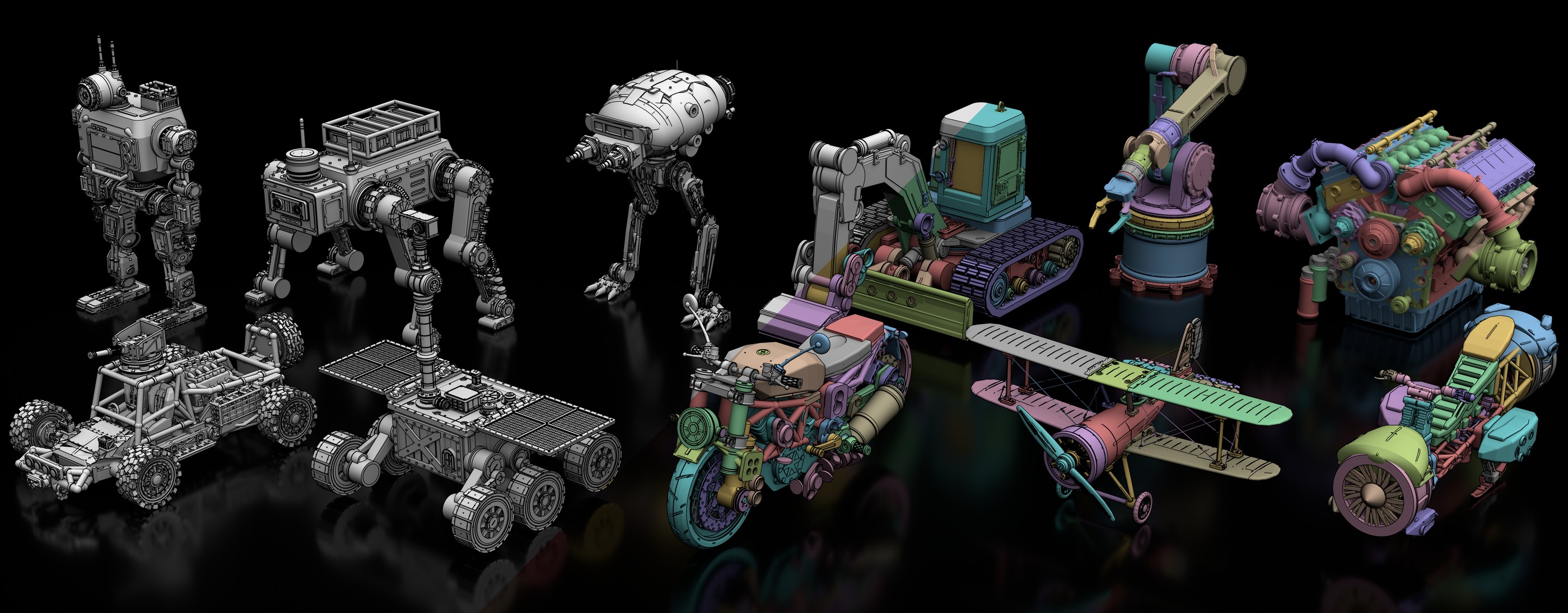
**Procedura** turns text or a reference image into a 3D model you can edit.
It builds one part at a time, checks and improves the shape, adds materials,
and exports files for moving parts.
**Run it inside Codex or Claude Code through MCP.** It uses the model in your
current session. You do not need a separate model API key. Your agent's usual
usage limits and billing apply.
## News
- **2026-10-20 — MCP release.** Run Procedura inside Codex or Claude Code with
the model in your current session. See the [setup guide](docs/mcp.md).
## Quick start
You need Git, curl, Python 3.11+ with `venv` support, and Codex or Claude Code.
Sign in to your agent before you start.
The setup script supports Linux x86_64. It installs Bun, OpenSCAD, Blender,
and the Python packages. See the [MCP guide](docs/mcp.md#quick-setup) for other
platforms and setup options.
### 1. Install
```bash
curl -fsSL https://raw.githubusercontent.com/SpatiaOS/Procedura/main/scripts/install-mcp.sh \
| bash -s -- --agent both
```
This installs into `~/.local/share/Procedura` and sets up both agents.
Use `--agent codex` or `--agent claude` to set up just one.
For an existing clone, run this from its folder:
```bash
bash scripts/install-mcp.sh --agent both
```
### 2. Open your agent
```bash
cd ~/.local/share/Procedura
codex
```
Run `claude` instead of `codex` for Claude Code. If you used a clone, open the
agent from that folder instead.
Choose your model and reasoning effort in the agent. Follow its project and MCP
trust prompts. Restart the agent if it was open during setup.
### 3. Ask for a model
Describe what you want and give the path to a PNG image:
> Use Procedura to build the rover in `/absolute/path/rover.png`. Run the full
> pipeline. Show me the preview, output files, and any warnings or failed checks.
You can also use `$procedura` in Codex or `/procedura` in Claude Code.
Keep the session open until the run ends. Large models can take hours.
For a model without an image, ask for a text-only run. You can also ask the agent
to make a reference image if it has a built-in image tool.
## Output files
Find your files in `outputs/mcp//` inside the project folder.
| File | What it contains |
| --- | --- |
| `final.scad` | Source code you can edit in OpenSCAD |
| `final.obj` | The 3D mesh |
| `final_painted.*` | The model with materials |
| `preview_final/`, `preview_painted/` | Preview images |
| `motion/` | USD and URDF files for moving parts, plus motion test results |
| `.cx/completion.json` | Run result, warnings, and a list of output files |
The final report lists any failed or skipped steps. Check the previews and the
report to see what the run produced.
## Good to know
- **Physics checks need Isaac Sim.** Install it separately. If it is missing,
the report says that these checks did not run.
- **Use one case per project folder.** To run cases at once, use a separate clone
and agent session for each case.
- **Keep files and settings unchanged during a run.** See the
[recovery guide](docs/mcp.md#outputs-recovery-and-troubleshooting) if a run stops.
## Guides
- [MCP guide](docs/mcp.md): setup, text-only models, and help with failed runs.
- [API guide](docs/api.md): use a model API key, run batches, or repeat a stage.
- [Studio](web/README.md): run the web app. It uses the API setup.
## Credits
The code that connects to models uses design ideas from
[opencode](https://github.com/anomalyco/opencode) and
[openclaw](https://github.com/openclaw/openclaw). Both projects use the MIT license.
## License
MIT. See [LICENSE](LICENSE). OpenSCAD and Blender are separate tools with GPL
licenses.