# F:ist
F:ist is a fast and intuitive search tool for the filesystem.
// video
# Installation
# Or install via cargo
Install from GitHub releases[^20]:
```shell
curl -fsSL https://raw.githubusercontent.com/Squirreljetpack/fist/main/install.sh | sh
```
Install the required dependencies:
```shell
# dependencies (optional)
cargo install bat fd-find eza ripgrep
```
Optionally, setup shell integration:
```
# Only zsh support for now
echo "\neval$(fs :tool shell)" >> ~/.zshrc # or whatever the startup file of your respective shell is.
```
Call as:
- `fs`: Directory navigation
- `fs [..paths] pattern`: interactive find
- `generate_paths | fs`: enriched fuzzy searching of paths
- `z [query]`: directory jump (requires [shell integration](#shell-integration))
[^20]: f:ist is also on cargo: `cargo install fist`, but this method is not recommended as fist is currently missing features
# Commands
### Bindings overview
- `Up`/`Down`: Navigate (or `Up` in the initial position to to enter prompt).
- `Left`/`Right`: Back/Enter.
- `Enter`: Default (system) open.
- `Alt-Enter`: Print / Alternate open.
- `Ctrl-Enter`: Open in background.
- `ctrl-.`/`ctrl-q`: Open folder in editor.
---
- `ctrl-f`/`ctrl-r`: Find files / Search text.
- `ctrl-g`: History view (Folders and files).
- `alt-a`/`alt-shift-a`: App view[^2]
- `ctrl-z`/`ctrl-y`: Undo / Redo.
---
- `ctrl-x`/`ctrl-c`/`ctrl-v`: Cut, Copy, Paste.
- `delete/shift-delete`: Trash/Delete.
- `ctrl-e`: Open menu.
- `ctrl-t`: Open stash.
- `ctrl-i` : Open filters.
- `ctrl-s`/`alt-h`: Toggle hidden.
- `ctrl-d`: Toggle contextual visibility.
---
- `Tab`: Toggle select.
- `alt-enter`: Print.
- `?`: toggle preview.
- `alt-/`: toggle [informative](#Lessfilter) preview.
- `ctrl-l`: Maximize preview.
- `alt-l`: Maximize [extended](#Lessfilter) preview.
- `/` and `~`: Jump to home
- `ctrl-[1-9]`: Autojump to item
- `ctrl-0`: Autojump to prompt
For a full list of binds, press `ctrl-shift-h` within the app. [^1]
[^1]: For more information on bindings (how they are defined, key testing, and default generic binds), see [matchmaker](https://github.com/Squirreljetpack/matchmaker).
[^2]: You can also replace this bind with the chain: [`CAS(App)`, `ClearStash`, `Push`, `App`], which will open all currently selected items with the selected app.
# Panes
### Nav
To begin, call `fs` without any positional arguments.
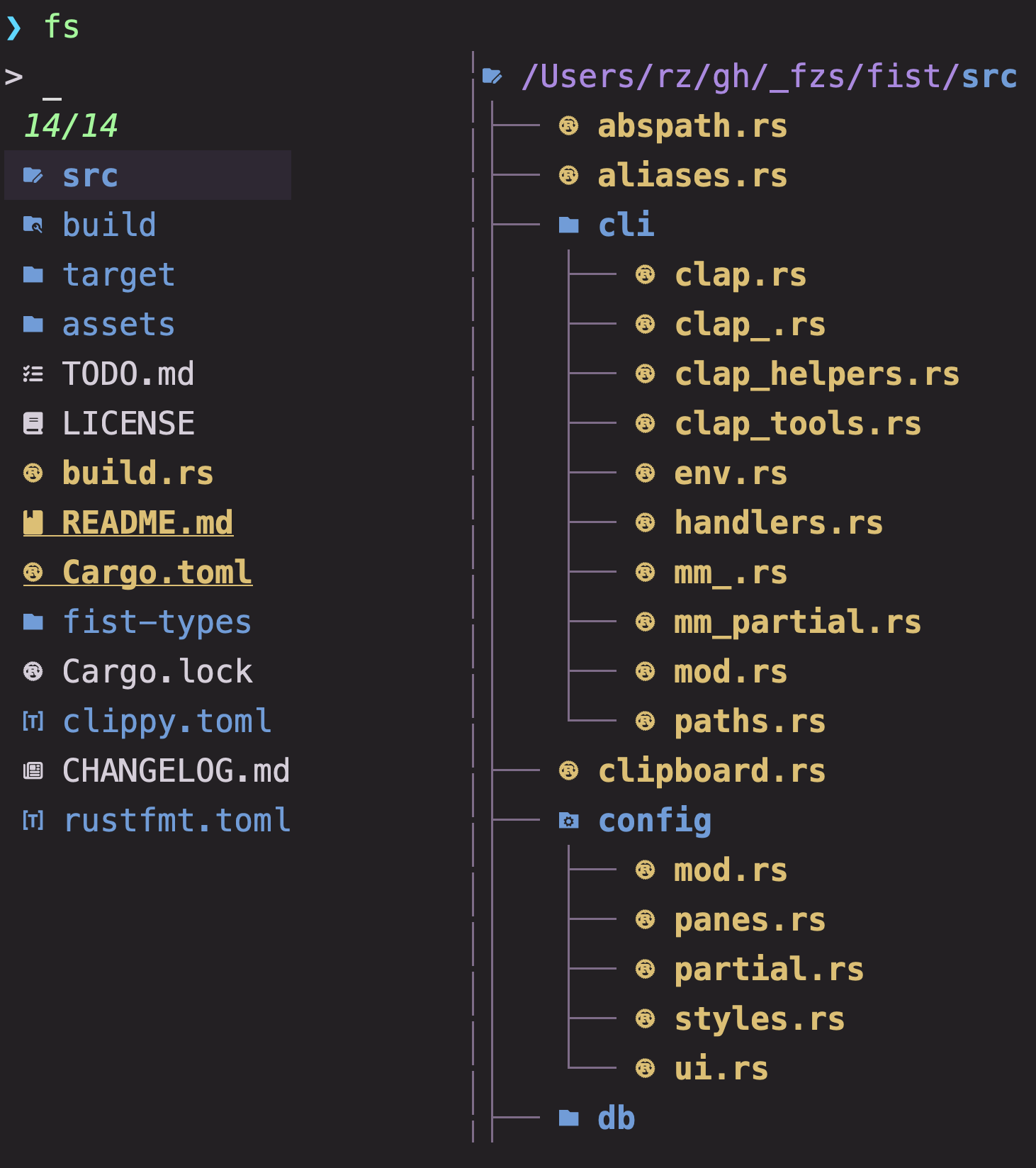 Once inside, you can navigate and re-enter from other panes by pressing the left/right arrow keys (corresponding to the `Parent`/ `Advance` actions).
### Find
You can search through all files recursively by
- using the subcommand: `fs :: [OPTIONS] [PATHS]... [PATTERN]`
- by calling `fs` directly with the same arguments
- or by triggering the `Find` action (`ctrl-f`) in-app.
Once inside, you can navigate and re-enter from other panes by pressing the left/right arrow keys (corresponding to the `Parent`/ `Advance` actions).
### Find
You can search through all files recursively by
- using the subcommand: `fs :: [OPTIONS] [PATHS]... [PATTERN]`
- by calling `fs` directly with the same arguments
- or by triggering the `Find` action (`ctrl-f`) in-app.
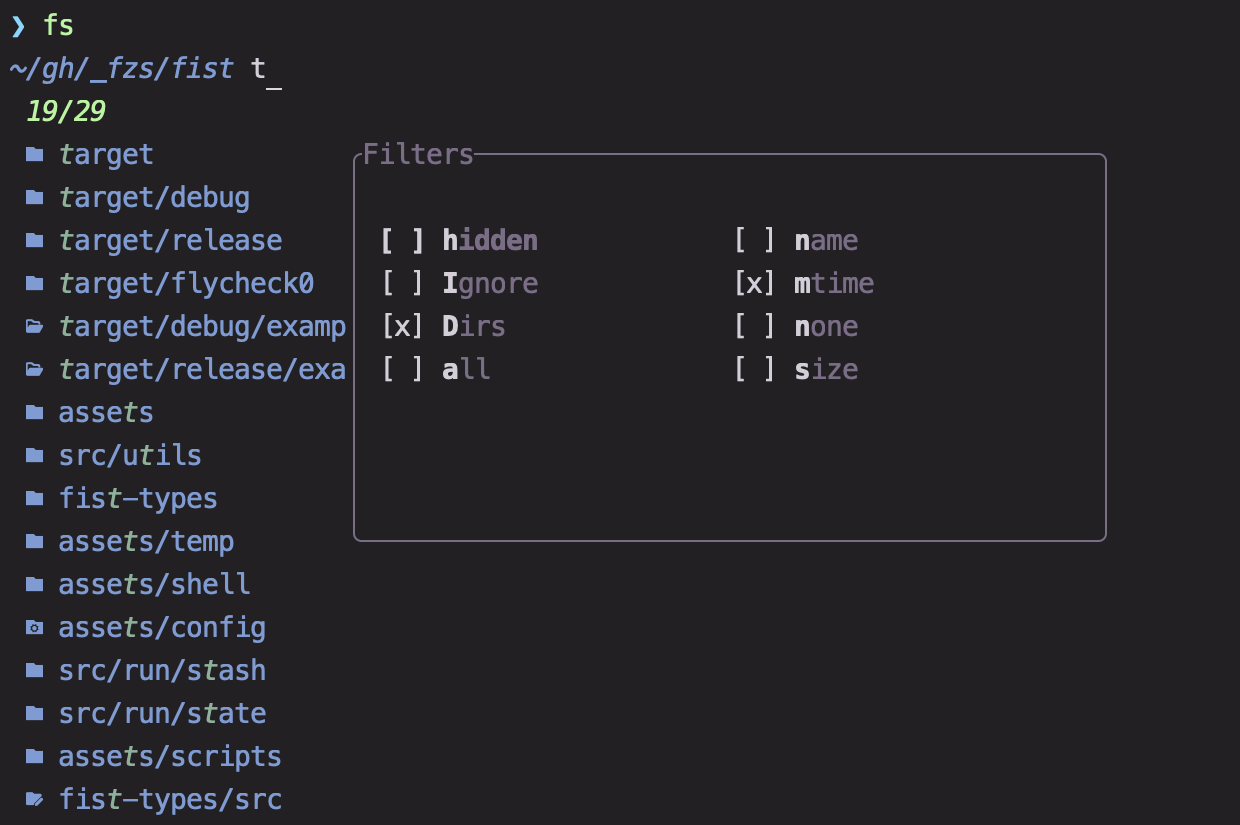 The results will be available for filtering, navigating, editing, previewing etc. Filtering and sort order can be adjusted through the [Filters overlay](#Filters).
> [!NOTE]
>
> f:ist uses fd for this internally, and that search parameters can be passed through directly following `--`. However, it is not a strict wrapper and several differences in behavior in the command specification exist:
>
> - The last positional argument is treated as the query instead of the first
> - queries beginning with `.` auto-enables the inclusion of hidden files
> - Default parameters, directory-specific ignores, and other parameters can be set in the [config](./src/config/mod.rs#L257).
> - The `-t` (type) flag has be overloaded to support more conditions. In addition to file types (`directory/d, symlink/l, ..etc.` ), it now supports extensions (`-t .ext`), pre-set categories (`image/i, video/v`), and custom categories as well.
### Search
You can perform a full text search
- using the subcommand: `fs : [OPTIONS] [PATTERNS]... [-- ...]`
- or by triggering the `Search` action (`ctrl-r`) in-app.
In f:ist, each result supports two columns: the main filepath column, and a secondary context column[^3].
In this pane, the context column contains the query matches (and any requested context lines around them).
This pane operates in a query and a filter mode, which can be switched between[^4]:
- In _query mode_, the results are (dynamically) populated with all text matches of a given query (your input).
- In _filter mode_, the results are filtered to only lines matching your input.
- By default, the filter applies to the main (first) column. To switch to filtering the second column, type `%` (i.e. `path_filter % context_filter`)
- The current query/filter of the inactive mode is displayed above your input.
- In query mode, multiple queries (of which any should match) are seperated by whitespace. Queries containing whitespace can be grouped together by single quotes. Single quotes can be escaped as `\'`.
- The default mode treats the given queries as _regexes_ (as opposed to the filter input, which does not). This can be toggled, or the default [reconfigured](#configuration).
> [!NOTE]
>
> When the active item is `advance`/`executed` on, the matched line and column are saved in the environment variables `HIGHLIGHT_LINE` and `HIGHLIGHT_COLUMN`. If your system has a compatible editor, the `Lessfilter::Edit` action can automatically open the file to the corresponding position -- otherwise, you can configure this manually.
The results will be available for filtering, navigating, editing, previewing etc. Filtering and sort order can be adjusted through the [Filters overlay](#Filters).
> [!NOTE]
>
> f:ist uses fd for this internally, and that search parameters can be passed through directly following `--`. However, it is not a strict wrapper and several differences in behavior in the command specification exist:
>
> - The last positional argument is treated as the query instead of the first
> - queries beginning with `.` auto-enables the inclusion of hidden files
> - Default parameters, directory-specific ignores, and other parameters can be set in the [config](./src/config/mod.rs#L257).
> - The `-t` (type) flag has be overloaded to support more conditions. In addition to file types (`directory/d, symlink/l, ..etc.` ), it now supports extensions (`-t .ext`), pre-set categories (`image/i, video/v`), and custom categories as well.
### Search
You can perform a full text search
- using the subcommand: `fs : [OPTIONS] [PATTERNS]... [-- ...]`
- or by triggering the `Search` action (`ctrl-r`) in-app.
In f:ist, each result supports two columns: the main filepath column, and a secondary context column[^3].
In this pane, the context column contains the query matches (and any requested context lines around them).
This pane operates in a query and a filter mode, which can be switched between[^4]:
- In _query mode_, the results are (dynamically) populated with all text matches of a given query (your input).
- In _filter mode_, the results are filtered to only lines matching your input.
- By default, the filter applies to the main (first) column. To switch to filtering the second column, type `%` (i.e. `path_filter % context_filter`)
- The current query/filter of the inactive mode is displayed above your input.
- In query mode, multiple queries (of which any should match) are seperated by whitespace. Queries containing whitespace can be grouped together by single quotes. Single quotes can be escaped as `\'`.
- The default mode treats the given queries as _regexes_ (as opposed to the filter input, which does not). This can be toggled, or the default [reconfigured](#configuration).
> [!NOTE]
>
> When the active item is `advance`/`executed` on, the matched line and column are saved in the environment variables `HIGHLIGHT_LINE` and `HIGHLIGHT_COLUMN`. If your system has a compatible editor, the `Lessfilter::Edit` action can automatically open the file to the corresponding position -- otherwise, you can configure this manually.
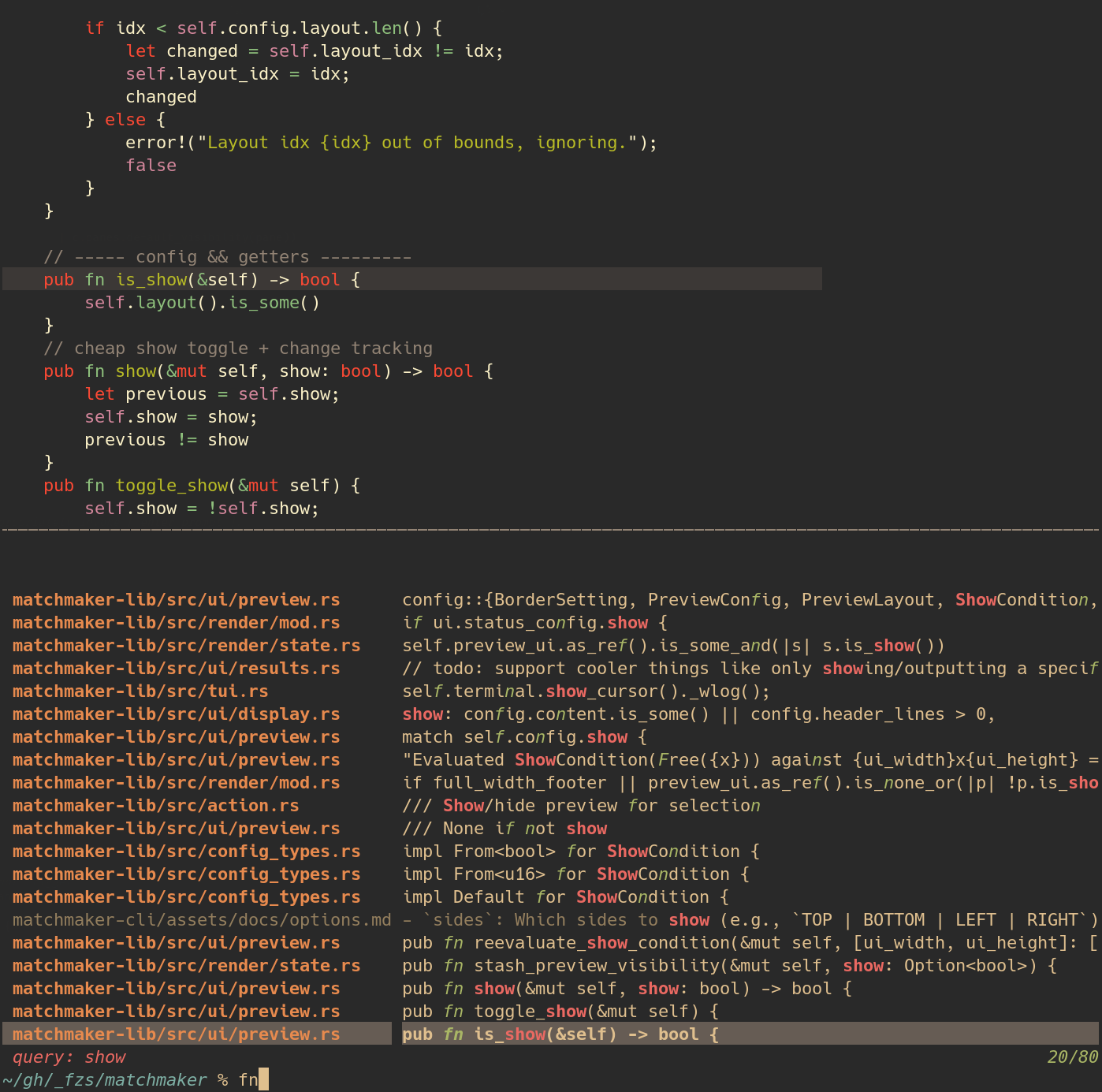 [^3]: In the previous panes, the secondary column was simply empty and therefore not displayed.
[^4]: via the same action.
### Stream/Custom
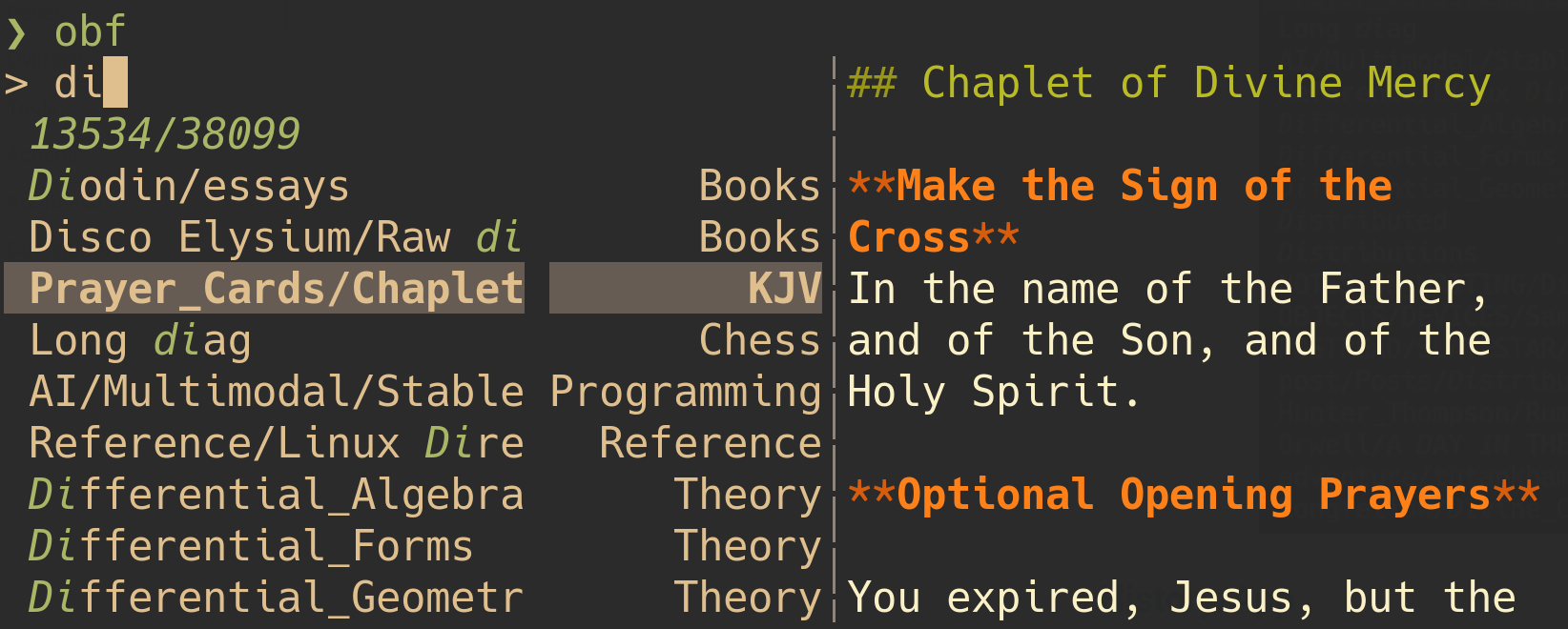
f:ist can also accept **arbitrary lists of files from a command** or **input stream**, where all the usual operations are available:
- directory traversal
- file create/edit/delete/custom actions relative to the current item/directory.
- enriched display
- full text search
- reversible actions
- preview
- filtering and sorting
- and so on.
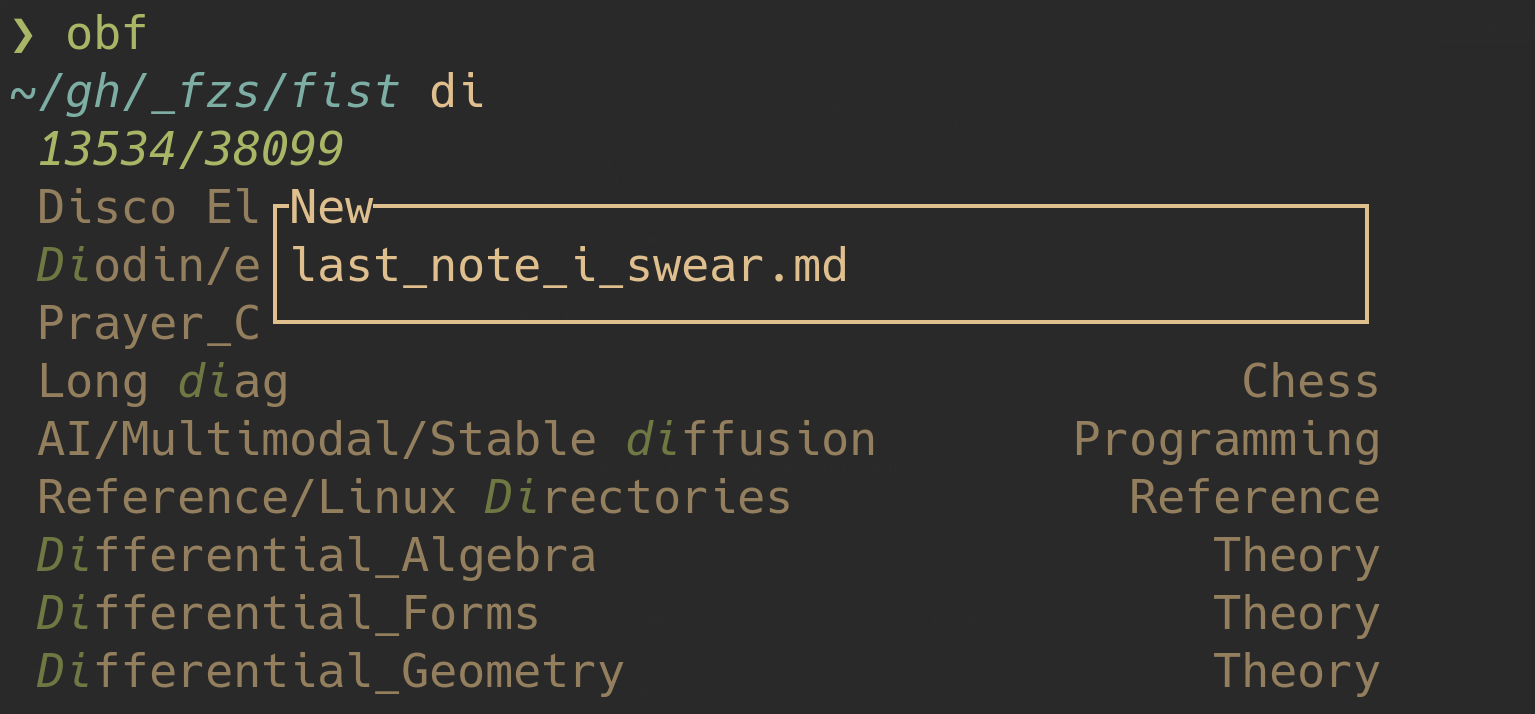
The following is an example script for browsing directories of markdown notes:
```zsh
### --- ob.notes -- ###
#!/bin/zsh
# This first command demonstrates the use of fs as a wrapper for fd,
# by use of the `--list` and `--` parameters:
# `--list` (available for all panes), starts fs non-interactively,
# while arguments after `--` passed through to `fd`.
# The effect however, is simply to list all folders in a given folder.
fs -t d --list $OBSIDIAN_HOME . -- --max-depth 1 |
while read -r line; do
# This command finds all markdown files, and prints them in a custom format:
# {a:b} is a slicing syntax for path components
# {-1:} means take all components including and after the last
# omitting either end takes the full range in that direction
# 3 different delimiters are supported for slicing: `:`, `=` and `.`
# `:` targets the current item and adds single quotes around it
# `=` targets the current item without single quotes
# `.` targets the current working directory without single quotes
# Finally, `{}` prints the full path, and `{_}` the context.
#
# Here, the effect is to print alongside each note their containing "vault".
#
# --no-read is needed because fs tries to read from stdin if it detects incoming input
FS_OUTPUT="{=}\t{-1.}" fs -t .md --list --no-read $line .
done |
# This command browses the results:
# opener: use this program to open the selected file
# delim: use this delimiter to split the input into a Path and a Context
# display: run this script to determine how the input item is rendered given its Path and Context. The given shell command strips path components up to and including the "vault" directory.
FS_OPTS="opener=ob.open display=[echo ${${1#*/$2/}%.md}] delim=\t" fs
# Note:
# For better performance, you should use in the last command instead of display=:
# display-batch=[while (($#)); do echo ${${1#*/$2/}%.md}; shift 2; done]
# which should be a script that consumes a batch of PathItems,
# each of which correspond to 2 input arguments: the Path and the Context,
# and outputs the desired display representation in order.
```
```shell
### --- ob.open -- ###
# This script takes a filepath, and opens it with Obsidian.
# We pass the uri to fs :o so that it records it in our history, which we can later access using `fs :file`.
uri() {
print -nl $@ | sed 's/ /%20/g; s/\//%2F/g'
# or more reliably, print -nl $@ | jq -sRr @uri
}
fs :o "obsidian://open?path=$(uri $1)"
```
[^3]: In the previous panes, the secondary column was simply empty and therefore not displayed.
[^4]: via the same action.
### Stream/Custom
f:ist can also accept **arbitrary lists of files from a command** or **input stream**, where all the usual operations are available:
- directory traversal
- file create/edit/delete/custom actions relative to the current item/directory.
- enriched display
- full text search
- reversible actions
- preview
- filtering and sorting
- and so on.
The following is an example script for browsing directories of markdown notes:
```zsh
### --- ob.notes -- ###
#!/bin/zsh
# This first command demonstrates the use of fs as a wrapper for fd,
# by use of the `--list` and `--` parameters:
# `--list` (available for all panes), starts fs non-interactively,
# while arguments after `--` passed through to `fd`.
# The effect however, is simply to list all folders in a given folder.
fs -t d --list $OBSIDIAN_HOME . -- --max-depth 1 |
while read -r line; do
# This command finds all markdown files, and prints them in a custom format:
# {a:b} is a slicing syntax for path components
# {-1:} means take all components including and after the last
# omitting either end takes the full range in that direction
# 3 different delimiters are supported for slicing: `:`, `=` and `.`
# `:` targets the current item and adds single quotes around it
# `=` targets the current item without single quotes
# `.` targets the current working directory without single quotes
# Finally, `{}` prints the full path, and `{_}` the context.
#
# Here, the effect is to print alongside each note their containing "vault".
#
# --no-read is needed because fs tries to read from stdin if it detects incoming input
FS_OUTPUT="{=}\t{-1.}" fs -t .md --list --no-read $line .
done |
# This command browses the results:
# opener: use this program to open the selected file
# delim: use this delimiter to split the input into a Path and a Context
# display: run this script to determine how the input item is rendered given its Path and Context. The given shell command strips path components up to and including the "vault" directory.
FS_OPTS="opener=ob.open display=[echo ${${1#*/$2/}%.md}] delim=\t" fs
# Note:
# For better performance, you should use in the last command instead of display=:
# display-batch=[while (($#)); do echo ${${1#*/$2/}%.md}; shift 2; done]
# which should be a script that consumes a batch of PathItems,
# each of which correspond to 2 input arguments: the Path and the Context,
# and outputs the desired display representation in order.
```
```shell
### --- ob.open -- ###
# This script takes a filepath, and opens it with Obsidian.
# We pass the uri to fs :o so that it records it in our history, which we can later access using `fs :file`.
uri() {
print -nl $@ | sed 's/ /%20/g; s/\//%2F/g'
# or more reliably, print -nl $@ | jq -sRr @uri
}
fs :o "obsidian://open?path=$(uri $1)"
```
 ### History
f:ist records the **files, directories and applications** that you've visited in a local database, where they are displayed in the `Files`/`Folders` (`ctrl-g`) and `Apps` panes, sorted by relevance[^6].
### History
f:ist records the **files, directories and applications** that you've visited in a local database, where they are displayed in the `Files`/`Folders` (`ctrl-g`) and `Apps` panes, sorted by relevance[^6].
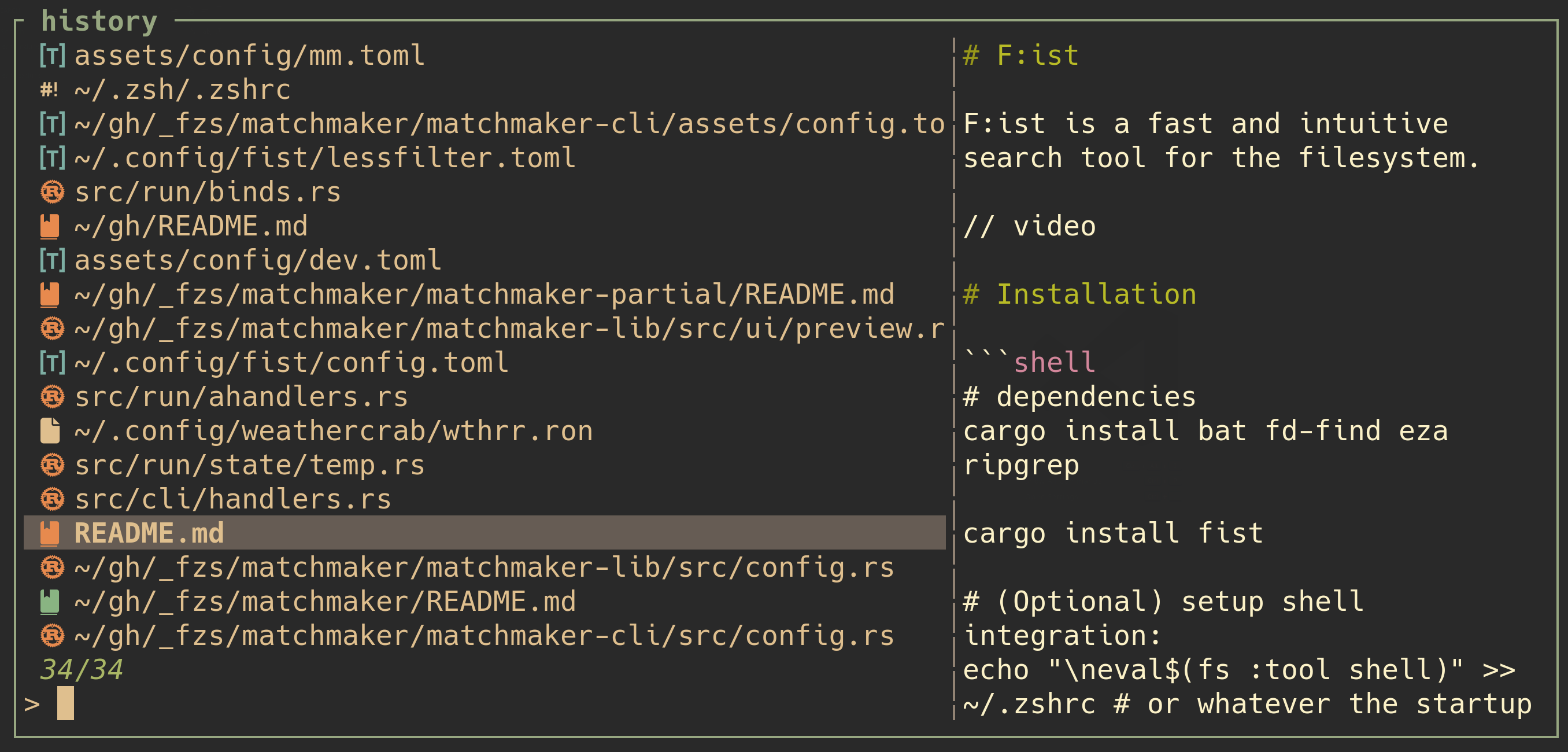 The _Files_ and _Folders_ panes are most useful when integrated into the ambient context where you usually access files. For example, the [shell](#shell-integration), or a [command launcher](#dependencies).
### App
The apps pane comes prepopulated from the existing applications on your system, and can be accessed either through
- `fs :o -w [..FILES]` on the command-line
- the `open with` [menu action](#menu)
- or the `App` action (`alt-a`) in-app.
The _Files_ and _Folders_ panes are most useful when integrated into the ambient context where you usually access files. For example, the [shell](#shell-integration), or a [command launcher](#dependencies).
### App
The apps pane comes prepopulated from the existing applications on your system, and can be accessed either through
- `fs :o -w [..FILES]` on the command-line
- the `open with` [menu action](#menu)
- or the `App` action (`alt-a`) in-app.
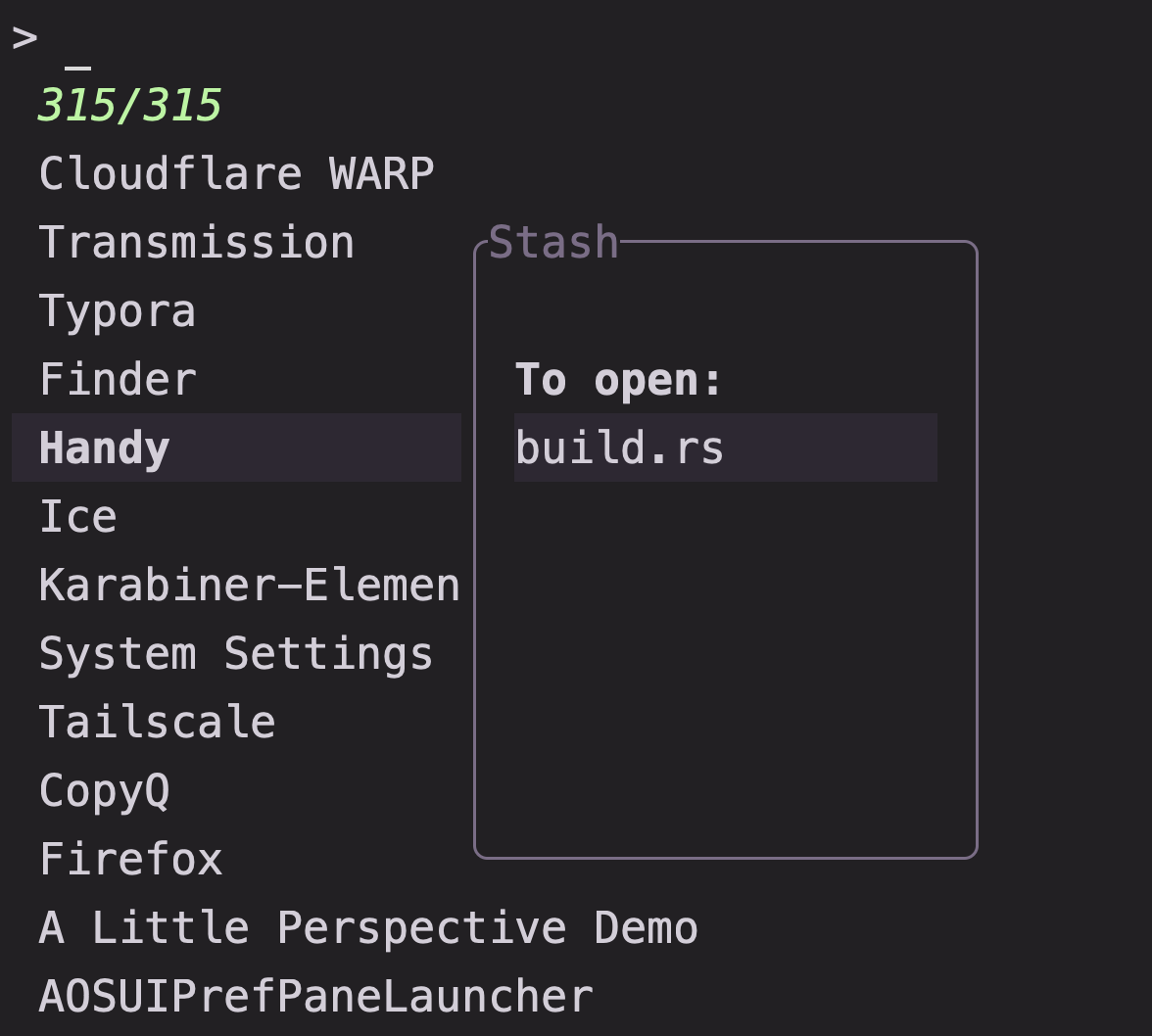 It can be used to select a launch method for a given set of files (provided through the command line, or saved to the [stash](#stash)).
[^6]: frequency, recency, and similarity to query.
### Additional notes
Panes can be navigated between using the `Undo/Redo` actions.
For more information on any of the panes, run `fs [pane] --help` with the appropriate subcommand (i.e. `:rg`).
# Overlays
### Stash
> [!NOTE]
>
> Incomplete
It can be used to select a launch method for a given set of files (provided through the command line, or saved to the [stash](#stash)).
[^6]: frequency, recency, and similarity to query.
### Additional notes
Panes can be navigated between using the `Undo/Redo` actions.
For more information on any of the panes, run `fs [pane] --help` with the appropriate subcommand (i.e. `:rg`).
# Overlays
### Stash
> [!NOTE]
>
> Incomplete
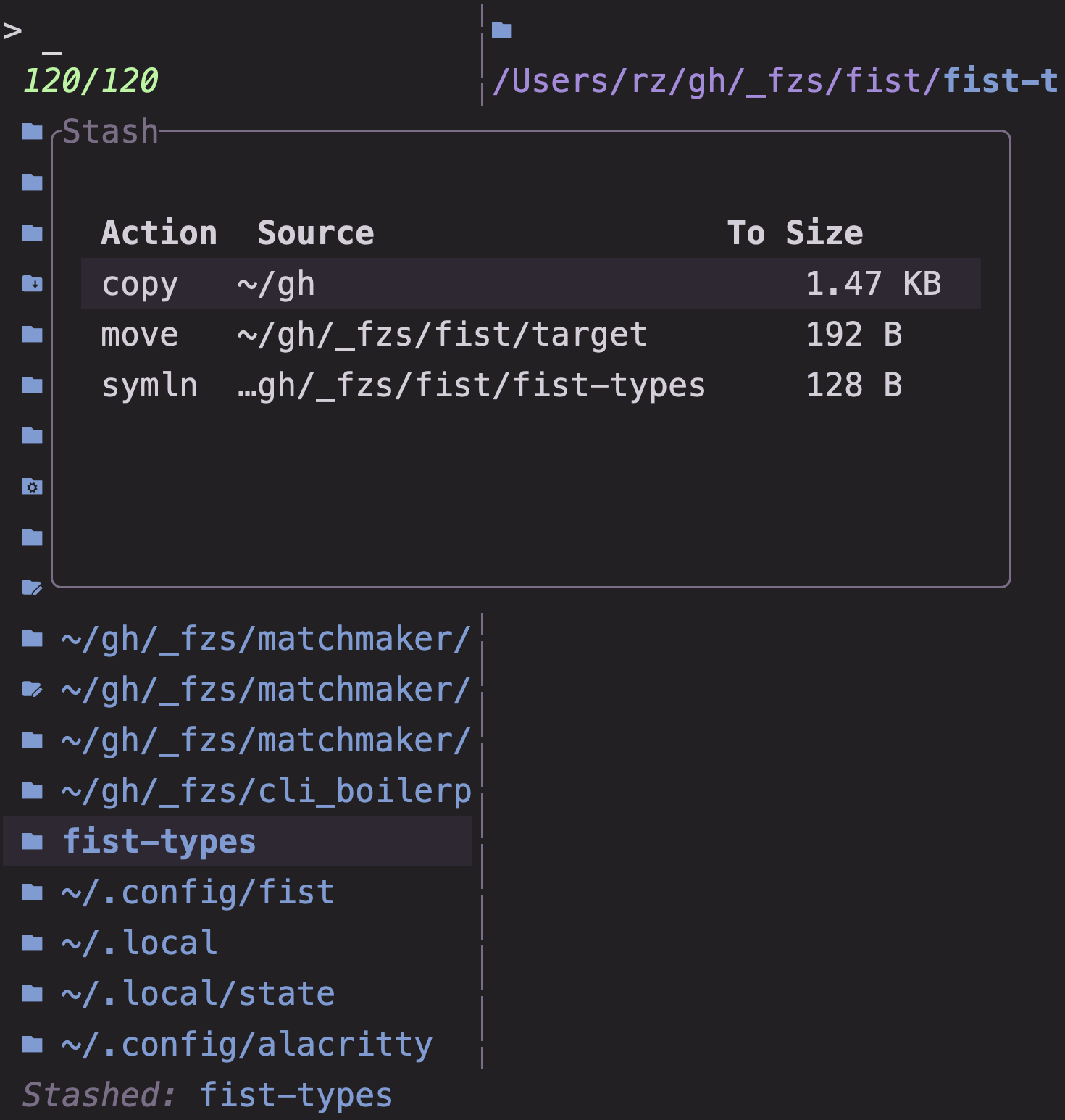 The **Stash** (`ctrl-t`) is a place where actions on items are queued. Within the overlay, stashed item item statuses are visible, and they can be edited, rearranged, removed and executed. Items can also be executed through the [`Paste`] or [`StackFlush`](#Actions) actions.
`Copy` and `Cut` places items on the Stash under the `Copy` and `Cut` stack action types respectively. The `Paste` action executes all stashed `Copy`, `Cut` and `Symlink` tasks, transferring files to their destinations -- the active directory at the time of _execution_ by default.[^7]
`Push` (`alt-s`) places items on the stack under the **Custom** type. When executed, its effect depends on the currently set [Custom Action Type](#CAS).
[^7]: Although safeguards exist to keep these alive and prevent data loss during normal application execution and shutdown, if reliability is crucial it might be safer to define your own custom actions to perform, manage and monitor these actions externally. Ideas and contributions in this area are welcome!
##### _CAS_
All custom-type actions display their action in the stash as the current Custom Action State (CAS), which can be toggled when in the Stash overlay using [`Undo/Redo`](#Actions). The default state is `Symlink`.
The CAS can be shared or exclusive. The `App` CAS is exclusive: when in this state, stash actions (such as [`ClearStash`](#Actions)) only affect the `App` stash, and only `App` items are shown in the overlay. The symlink action is inclusive: it is shown and executed together with the other (`Copy` and `Cut`) actions.
Custom stack types can be declared in the `[stash]` section of the config, and executed through the same channels as the built-in actions -- the overlay, the [Menu](#Menu), or through the [`FlushStash`](#Actions) action.
### Filters
The **Filters overlay** (`ctrl-i`) contains the filtering, sorting, and other pane-specific controls for the displayed results.
### Menu
The **Menu** (`ctrl-e`) houses all the actions available in the current context.
> [!NOTE]
>
> Incomplete
Custom actions can be added in the `[menu]` section of the config. They consist of 3 parts:
- **Action**: The script to execute -- see [here](#templating) for how placeholders are resolved.
- **Conditions**: The various conditions which must be satisfied to show this action in the menu.
- **Execution**: Parameters controlling how the action is executed.
# Tools
f:ist comes with several secondary subcommands for reference and utilitary purposes. They can listed with `fs :tool`.
### Shell integration
Only zsh is supported for now.
The output of `fs :tool shell` will, when sourced, provide the jump and jump+open functions:
The jump function (`z`) is a replacement for `cd`, except that incomplete queries are matched to a most likely destination drawn from the unified f:ist database. This behavior closely mirrors that of [zoxide](https://github.com/ajeetdsouza/zoxide).
> [!NOTE]
>
> In addition, a couple special queries can be used to start an interactive search:
>
> - the only argument is a valid path: `cd`.
> - no arguments: interactively select from history.
> - last argument is `.` : interactively search subdirectories of the best match.
> - otherwise: cd into the best match for the search term (if one exists).[^9]
>
> One final change from zoxide is the introduction of the `history.refind` setting in the [config](#configuration).
> When no match is found, or when the top result is the current directory, this setting causes the the interactive interface to be started.
[^9]: There is one final case: if the last argument is `./`: z interactively navigates the best match. If you have [aliases](#aliases) enabled, this is also just `Z`.
The jump+open function (`zz`) is an analogous replacement for [`lessfilter edit`](#lessfilter): if the query head exists, it opens the target(s) in the editor. Otherwise the query is passed to `z`, and the editor opens in the destination.
##### Additional
Including the `--aliases` flag will add a few simple alias definitions into the initialization:
- [lessfilter](#lessfilter)
- `lz`: directory display
- `l`: lessfilter (display preset)
- `la`: lessfilter (extended preset)
- `ll`: lessfilter (info preset)
- `n`: edit (lessfilter with edit preset)
- `o`: [open](#app)
- `Z`: jump (`z`), then navigate
- In case your shell doesn't support uppercase function names, this one can be renamed like so: `fs :tool shell --aliases --shell csh --nav-name x`.
- `zf`: recent files history
For speed and safety, it is recommended pass your actual shell through to `--shell`.[^10]
[^10]: Another optimization you can make is to cache the generated command: my [zcomet fork](#https://github.com/Squirreljetpack/zcomet) supports this.
### Lessfilter
The previewer is controlled by the lessfilter tool.
The lessfilter tool dispatches to 9 presets:
- preview: For the preview pane
- display: For terminal display
- extended: For terminal interaction/verbose display
- info: Metadata/raw info
- extract: Extract document contents with [kreuzberg](#https://github.com/kreuzberg-dev)
- open: System open
- edit: For editing
- alternate/alternate2: Extra presets for any use
The **Stash** (`ctrl-t`) is a place where actions on items are queued. Within the overlay, stashed item item statuses are visible, and they can be edited, rearranged, removed and executed. Items can also be executed through the [`Paste`] or [`StackFlush`](#Actions) actions.
`Copy` and `Cut` places items on the Stash under the `Copy` and `Cut` stack action types respectively. The `Paste` action executes all stashed `Copy`, `Cut` and `Symlink` tasks, transferring files to their destinations -- the active directory at the time of _execution_ by default.[^7]
`Push` (`alt-s`) places items on the stack under the **Custom** type. When executed, its effect depends on the currently set [Custom Action Type](#CAS).
[^7]: Although safeguards exist to keep these alive and prevent data loss during normal application execution and shutdown, if reliability is crucial it might be safer to define your own custom actions to perform, manage and monitor these actions externally. Ideas and contributions in this area are welcome!
##### _CAS_
All custom-type actions display their action in the stash as the current Custom Action State (CAS), which can be toggled when in the Stash overlay using [`Undo/Redo`](#Actions). The default state is `Symlink`.
The CAS can be shared or exclusive. The `App` CAS is exclusive: when in this state, stash actions (such as [`ClearStash`](#Actions)) only affect the `App` stash, and only `App` items are shown in the overlay. The symlink action is inclusive: it is shown and executed together with the other (`Copy` and `Cut`) actions.
Custom stack types can be declared in the `[stash]` section of the config, and executed through the same channels as the built-in actions -- the overlay, the [Menu](#Menu), or through the [`FlushStash`](#Actions) action.
### Filters
The **Filters overlay** (`ctrl-i`) contains the filtering, sorting, and other pane-specific controls for the displayed results.
### Menu
The **Menu** (`ctrl-e`) houses all the actions available in the current context.
> [!NOTE]
>
> Incomplete
Custom actions can be added in the `[menu]` section of the config. They consist of 3 parts:
- **Action**: The script to execute -- see [here](#templating) for how placeholders are resolved.
- **Conditions**: The various conditions which must be satisfied to show this action in the menu.
- **Execution**: Parameters controlling how the action is executed.
# Tools
f:ist comes with several secondary subcommands for reference and utilitary purposes. They can listed with `fs :tool`.
### Shell integration
Only zsh is supported for now.
The output of `fs :tool shell` will, when sourced, provide the jump and jump+open functions:
The jump function (`z`) is a replacement for `cd`, except that incomplete queries are matched to a most likely destination drawn from the unified f:ist database. This behavior closely mirrors that of [zoxide](https://github.com/ajeetdsouza/zoxide).
> [!NOTE]
>
> In addition, a couple special queries can be used to start an interactive search:
>
> - the only argument is a valid path: `cd`.
> - no arguments: interactively select from history.
> - last argument is `.` : interactively search subdirectories of the best match.
> - otherwise: cd into the best match for the search term (if one exists).[^9]
>
> One final change from zoxide is the introduction of the `history.refind` setting in the [config](#configuration).
> When no match is found, or when the top result is the current directory, this setting causes the the interactive interface to be started.
[^9]: There is one final case: if the last argument is `./`: z interactively navigates the best match. If you have [aliases](#aliases) enabled, this is also just `Z`.
The jump+open function (`zz`) is an analogous replacement for [`lessfilter edit`](#lessfilter): if the query head exists, it opens the target(s) in the editor. Otherwise the query is passed to `z`, and the editor opens in the destination.
##### Additional
Including the `--aliases` flag will add a few simple alias definitions into the initialization:
- [lessfilter](#lessfilter)
- `lz`: directory display
- `l`: lessfilter (display preset)
- `la`: lessfilter (extended preset)
- `ll`: lessfilter (info preset)
- `n`: edit (lessfilter with edit preset)
- `o`: [open](#app)
- `Z`: jump (`z`), then navigate
- In case your shell doesn't support uppercase function names, this one can be renamed like so: `fs :tool shell --aliases --shell csh --nav-name x`.
- `zf`: recent files history
For speed and safety, it is recommended pass your actual shell through to `--shell`.[^10]
[^10]: Another optimization you can make is to cache the generated command: my [zcomet fork](#https://github.com/Squirreljetpack/zcomet) supports this.
### Lessfilter
The previewer is controlled by the lessfilter tool.
The lessfilter tool dispatches to 9 presets:
- preview: For the preview pane
- display: For terminal display
- extended: For terminal interaction/verbose display
- info: Metadata/raw info
- extract: Extract document contents with [kreuzberg](#https://github.com/kreuzberg-dev)
- open: System open
- edit: For editing
- alternate/alternate2: Extra presets for any use
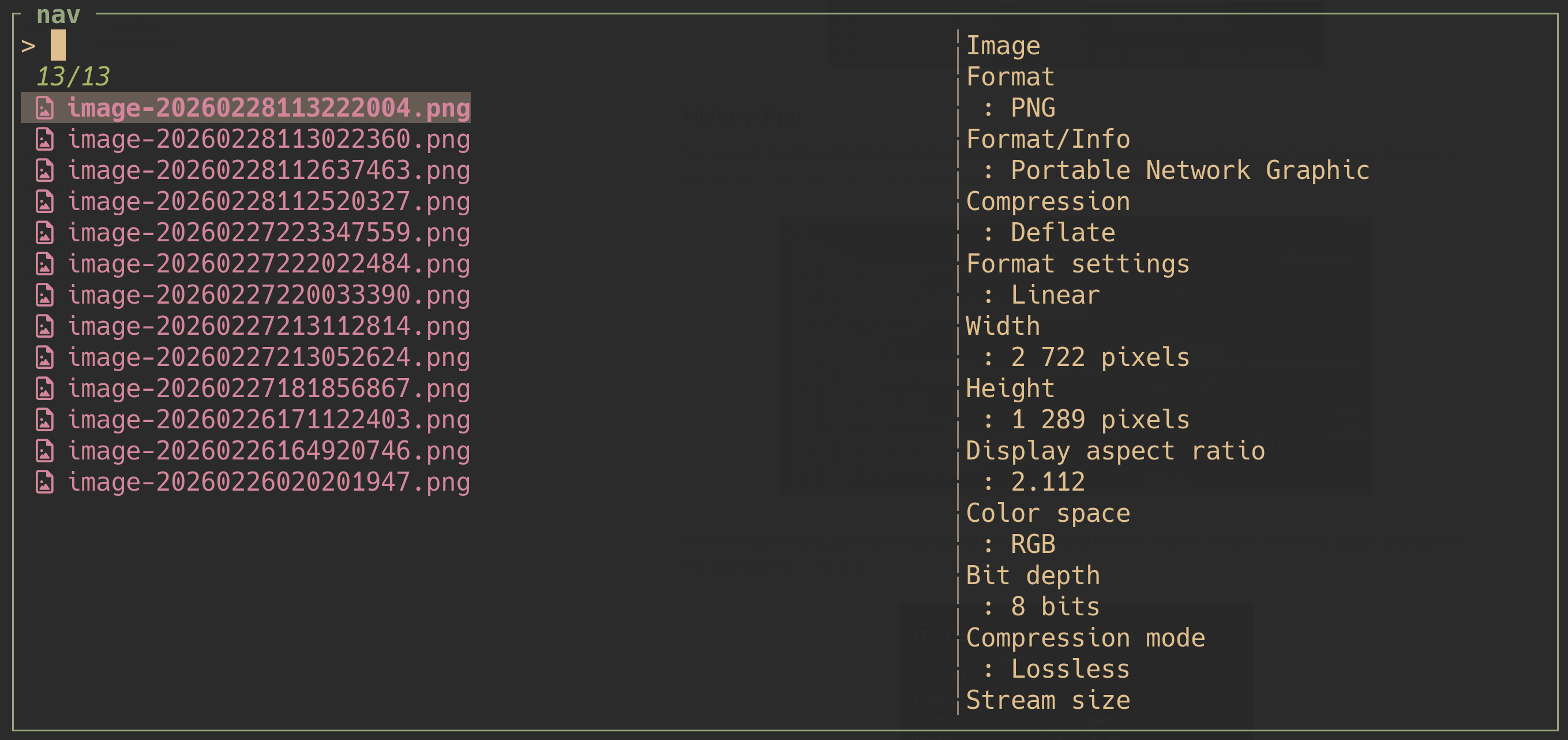 Each preset is configured by a rules table in the [config file](#https://github.com/Squirreljetpack/fist/blob/main/assets/config/lessfilter.toml). Each rule is a pair (Actions, Patterns), and for a given file, the rule whose patterns score the highest is selected -- its actions are invoked on the target file.
The patterns can be prefixed with a score modifier which dictates how the score is modified by a successful match of the pattern - if this is omitted, the default score modifier for the pattern is used.
The score modifiers are:
- Add/Sub (n): Add/Sub (n) to the current score.
- Max/Min (n): Take the max/min of the current score with (n) for the new score.
- Req: Set the score to 0 if the test fails.
The patterns are:
- Glob: (default score: `Max(100)`)
- Child: (default score: `Max(50)`)
- Mime: (default score: `Max(20)`)
- Cat: (default score: `Max(20)`)
- Ext: (default score: `Max(10)`)
- Have: (default score: `Req`)
- Filetype: (default score: `Req`)
Though the syntax has many parts, configuration should be fairly straightforward. F:ist comes with a sane set of defaults with wide coverage for a variety of filetypes, and declaring overrides is as simple as declaring the desired action together with the conditions which it requires. For example:
```toml
### --- lessfilter.toml -- ###
preview = [
# ...
# On an file with mime-type sqlite-3 and a system with sqlite3, this rule gets a score of 20.
[ [ "sqlite" ], [ "application/vnd.sqlite3", "have:sqlite3" ] ],
# ...
]
# When invoking the edit action (in `fist` or through the `n` alias),
# any file belonging to this category will be opened with the system's default preferred application.
# Since this rule has minimal priority (at most 1), any subsequent rule will override it.
edit = [
[ [ "Open" ], [ "1|cat:document", "1|cat:spreadsheet", "1|cat:email", "1|cat:academic" ] ],
]
```
The built-in actions are:
- Text
- Image
- Metadata
- Directory
- Header
- None
- Open
Additional actions can be defined with shell syntax. For example:
```toml
[rules]
alternate = [
[["code"], ["*/*"]],
]
[actions]
code = 'code --add {}'
```
Note that certain default previews will not display without the required [dependencies](#dependencies).
### Types
> [!NOTE]
>
> Incomplete
A list of all supported types, used by the `-t` parameter of the [find subcommand](#find) and the `cat` condition of the [lessfilter](#lessfilter).
### Liza
Liza is an eza wrapper used internally by the lessfilter/previewer to display directories. It can accessed directly through the `lz` [alias](#additional).
### Dependencies
# Actions
> [!NOTE]
> todo
# Additional
### Dependencies
- fd-find
- ripgrep
- bat (preview)
- eza (optional: preview)
- chafa (optional: preview)
- kreuzberg (optional: preview)
- mediainfo (optional: preview)
Conversely, fist integrates into [CommandSpace](https://github.com/Squirreljetpack/command-space), which you may also enjoy checking out.
### Notes
- The `New` action creates a directory if the target ends with a path seperator[^11].
- The command that spawns programs can be delegated to a process manager. For example, using [pueue](https://github.com/Nukesor/pueue):
```toml
# config.toml
[misc]
spawn_with = ["pueue", "add", "-g", "apps", "--"]
```
[^11]: `/` on unix and `\` on windows
### Template
Replacements:
- `{}`
- `{=}`
- `{.}`
- `{+}`
- `{_}`
# Configuration
Configuration is presently only documented in the source files: [Main Config](./src/config/mod.rs), [Panes](./src/config/panes.rs), [Styling](./src/config/styles.rs), [Miscellaneous UI](./src/config/ui.rs), [Lessfilter](./src/lessfilter/config.rs), [Lessfilter](./src/lessfilter/config.rs), [Matchmaker Config](./src/run/mm_config.rs)[^12].
[^12]: For more information on this one, you can refer to the matchmaker documentation [here](https://github.com/Squirreljetpack/matchmaker/blob/main/matchmaker-lib/src/config.rs).
### Notes
- Variant values such as `RetryStrat` or `SortOrder` should be given in CamelCase.
Each preset is configured by a rules table in the [config file](#https://github.com/Squirreljetpack/fist/blob/main/assets/config/lessfilter.toml). Each rule is a pair (Actions, Patterns), and for a given file, the rule whose patterns score the highest is selected -- its actions are invoked on the target file.
The patterns can be prefixed with a score modifier which dictates how the score is modified by a successful match of the pattern - if this is omitted, the default score modifier for the pattern is used.
The score modifiers are:
- Add/Sub (n): Add/Sub (n) to the current score.
- Max/Min (n): Take the max/min of the current score with (n) for the new score.
- Req: Set the score to 0 if the test fails.
The patterns are:
- Glob: (default score: `Max(100)`)
- Child: (default score: `Max(50)`)
- Mime: (default score: `Max(20)`)
- Cat: (default score: `Max(20)`)
- Ext: (default score: `Max(10)`)
- Have: (default score: `Req`)
- Filetype: (default score: `Req`)
Though the syntax has many parts, configuration should be fairly straightforward. F:ist comes with a sane set of defaults with wide coverage for a variety of filetypes, and declaring overrides is as simple as declaring the desired action together with the conditions which it requires. For example:
```toml
### --- lessfilter.toml -- ###
preview = [
# ...
# On an file with mime-type sqlite-3 and a system with sqlite3, this rule gets a score of 20.
[ [ "sqlite" ], [ "application/vnd.sqlite3", "have:sqlite3" ] ],
# ...
]
# When invoking the edit action (in `fist` or through the `n` alias),
# any file belonging to this category will be opened with the system's default preferred application.
# Since this rule has minimal priority (at most 1), any subsequent rule will override it.
edit = [
[ [ "Open" ], [ "1|cat:document", "1|cat:spreadsheet", "1|cat:email", "1|cat:academic" ] ],
]
```
The built-in actions are:
- Text
- Image
- Metadata
- Directory
- Header
- None
- Open
Additional actions can be defined with shell syntax. For example:
```toml
[rules]
alternate = [
[["code"], ["*/*"]],
]
[actions]
code = 'code --add {}'
```
Note that certain default previews will not display without the required [dependencies](#dependencies).
### Types
> [!NOTE]
>
> Incomplete
A list of all supported types, used by the `-t` parameter of the [find subcommand](#find) and the `cat` condition of the [lessfilter](#lessfilter).
### Liza
Liza is an eza wrapper used internally by the lessfilter/previewer to display directories. It can accessed directly through the `lz` [alias](#additional).
### Dependencies
# Actions
> [!NOTE]
> todo
# Additional
### Dependencies
- fd-find
- ripgrep
- bat (preview)
- eza (optional: preview)
- chafa (optional: preview)
- kreuzberg (optional: preview)
- mediainfo (optional: preview)
Conversely, fist integrates into [CommandSpace](https://github.com/Squirreljetpack/command-space), which you may also enjoy checking out.
### Notes
- The `New` action creates a directory if the target ends with a path seperator[^11].
- The command that spawns programs can be delegated to a process manager. For example, using [pueue](https://github.com/Nukesor/pueue):
```toml
# config.toml
[misc]
spawn_with = ["pueue", "add", "-g", "apps", "--"]
```
[^11]: `/` on unix and `\` on windows
### Template
Replacements:
- `{}`
- `{=}`
- `{.}`
- `{+}`
- `{_}`
# Configuration
Configuration is presently only documented in the source files: [Main Config](./src/config/mod.rs), [Panes](./src/config/panes.rs), [Styling](./src/config/styles.rs), [Miscellaneous UI](./src/config/ui.rs), [Lessfilter](./src/lessfilter/config.rs), [Lessfilter](./src/lessfilter/config.rs), [Matchmaker Config](./src/run/mm_config.rs)[^12].
[^12]: For more information on this one, you can refer to the matchmaker documentation [here](https://github.com/Squirreljetpack/matchmaker/blob/main/matchmaker-lib/src/config.rs).
### Notes
- Variant values such as `RetryStrat` or `SortOrder` should be given in CamelCase.