# Subtitle Grid
The subtitle grid is the main area for viewing and managing all subtitle lines.
## Columns
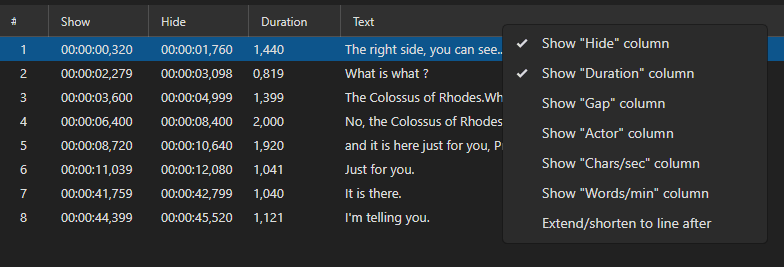
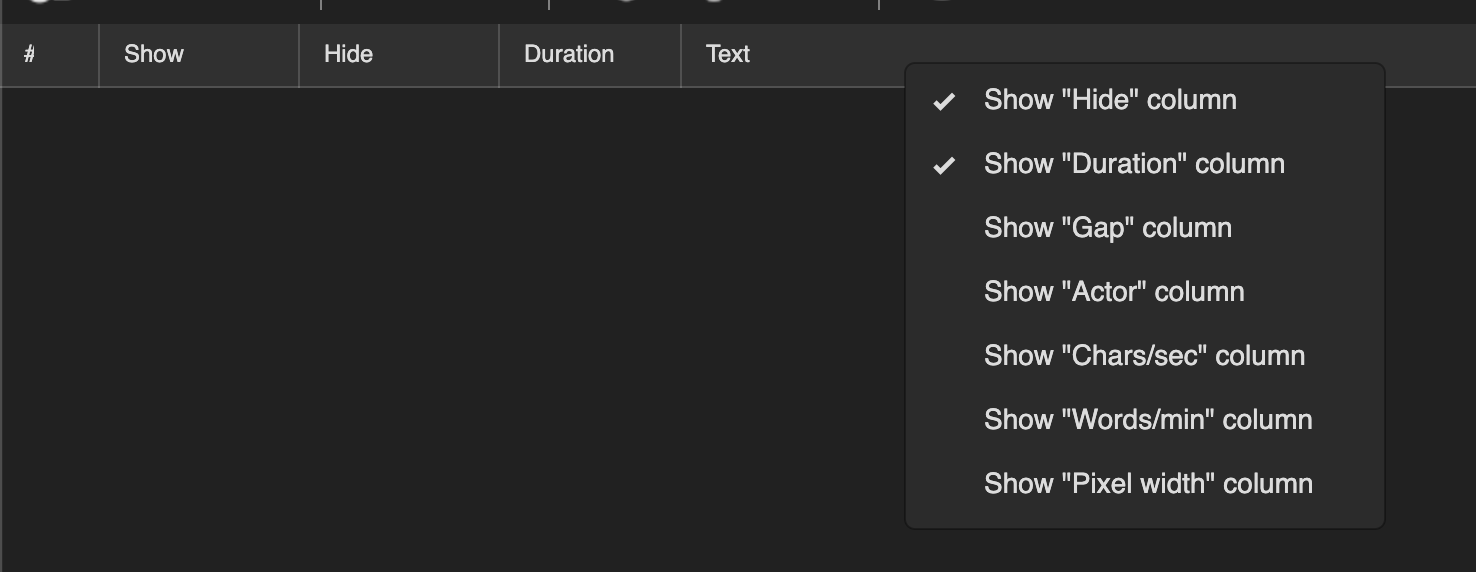
The grid can show the columns below. A few are always visible; the others can be toggled on or off via the column header context menu, and the whole set can be reordered in the **Columns...** dialog (see [Customizing Visible Columns](#customizing-visible-columns) below).
| Column | Always visible | Description |
|--------|---------------|-------------|
| **#** | ✓ | Line number (also shows a bookmark icon when the line is bookmarked) |
| **Show** | | Start time — when the subtitle appears |
| **Hide** | | End time — when the subtitle disappears |
| **Duration** | | How long the subtitle is displayed |
| **Text** | ✓ | The subtitle text |
| **Original text** | | The original text (visible in translation mode) |
| **Style** | | Style name (only available for formats that support styles, e.g. ASS/SSA) |
| **Gap** | | Time gap to the next subtitle line |
| **Actor** | | Actor/speaker name |
| **CPS** | | Characters per second (reading speed indicator) |
| **WPM** | | Words per minute |
| **Pixel width** | | Rendered pixel width of the text |
| **Forced** | | Check mark on lines marked as forced narrative (set with **Toggle forced** in the context menu) |
| **Layer** | | Layer number (only available for formats that support layers, e.g. ASS/SSA) |
| **Shot in** | | Signed distance from the start time to the nearest shot change (milliseconds, or frames in frame mode). Highlighted when [Beautify time codes](beautify-time-codes.md) would move the cue. Empty without a video and shot changes |
| **Shot out** | | The same for the end time |
## Customizing Visible Columns
Right-click anywhere in the **column header row** to open the column visibility menu. Each toggleable column is listed with a checkmark (✓) next to it when it is currently visible. Click a column name to toggle it on or off.
> **Note:** The **Style** and **Layer** columns only appear in the menu when the loaded subtitle format supports them (e.g. ASS/SSA).
**Columns...** at the bottom of the same menu opens a dialog where columns can be shown/hidden and reordered.
## Selecting Lines
- **Click** — Select a single line
- **Ctrl+Click** — Add/remove a line from selection
- **Shift+Click** — Select a range of lines
- **Ctrl+A** — Select all lines
## Context Menu
Right-click a line to access:
- Delete
- Insert before / Insert after
- Insert subtitle after current line... (insert a whole subtitle file)
- Column (delete text, insert text, paste from clipboard, shift cells up/down, text up/down) — see [Column paste](#column-paste)
- Split line / Assisted split... / Assisted move...
- Merge before / Merge after / Merge selected / Merge selected as dialog
- Extend to line before / Extend to line after
- Remove formatting (all, bold, italic, underline, color, font name, alignment)
- Italic / Bold / Color... / Font name... / Alignment...
- Bookmark...
- Toggle forced
- Selected lines... (Speech to text, Auto translate, Change casing, Set layer, Fix common errors, Save as..., etc.)
- Save forced lines as...
## Setting Styles
For ASS/SSA files there are two ways to set a style on the selected lines:
- Right-click the lines and use the **Style** submenu. It lists the styles in the order they are defined in the file, plus **New...**.
- **Set style...** (top of the **Style** submenu, and a shortcut you can assign in **Options → Shortcuts**) opens the style picker. The shortcut works with focus in the grid, the text box or the waveform.
- Each style has a small preview in its own font and colors, the number of lines that use it, and a summary of its font and position. The highlighted style's details (font, alignment, border style, outline/shadow width, margins, colors) are shown on the right.
- Press 1–9 or 0 to set one of the first ten styles, or use Up/Down and Enter. A single click highlights a style so you can read its details, a double-click sets it.
- Type to filter a long style list. A name that does not exist yet can be added as a new style with default settings.
- Esc closes the picker without changes. The help shortcut (F1 by default) opens this page.
- **Manage styles...** closes the picker and opens the styles manager to edit fonts, colors and positions.
- **Set style: 1** … **Set style: 10** (assign in **Options → Shortcuts**) set one of the first ten styles directly, from the grid, the text box or the waveform. The numbers follow the order the styles are defined in the file - the same order as the **Style** submenu and the picker's number keys. The assigned shortcuts are shown next to the style names in the **Style** submenu and in the picker.
The style is set on all selected lines.
## Setting Actors (ASS/SSA)
For ASS/SSA files the context menu has an **Actors** submenu, and these shortcuts can be assigned in **Options → Shortcuts**. They all work with focus in the grid, the text box or the waveform:
- **Set actor...** opens the actor picker: every actor in the file with its number key, line count and "Set actor N" shortcut.
- Press 1–9 or 0 to set one of the first ten actors on the selected lines.
- Type to filter a long cast, then press Enter to set the highlighted actor. A name that does not exist yet can be added as a new actor.
- Alt+Up/Down moves the highlighted actor, e.g. to put the main characters on the number keys. Delete removes the actor from the selected lines.
- **Set actor: 1** … **Set actor: 10** set the first ten actors directly.
- **Set new actor...** and **Actor - Remove**.
The actor order is alphabetical when a file is opened. Actors added while working are appended at the end, so a number keeps pointing at the same actor for the rest of the session.
## Keyboard Shortcuts (Grid)
| Shortcut | Action |
|----------|--------|
| `Delete` | Delete selected lines |
| `Ctrl+A` | Select all |
| `Ctrl+C` | Copy |
| `Ctrl+V` | Paste |
| `Ctrl+X` | Cut |
| `Ctrl+Shift+V` | Fill selected lines with clipboard text (also works on one line) |
| `Enter` | Go to subtitle and set video position (default; **Options → Settings** can change it to *Go to next line*) |
| `Up/Down` | Navigate lines |
| `PageUp/PageDown` | Move the selection one page up / down |
| `Home/End` | Go to the first / last line |
| `Shift+Up/Down/PageUp/PageDown/Home/End` | Extend the selection (`Ctrl+Shift`, or `Cmd+Shift` on macOS, works too when that chord has no shortcut of its own) |
| `0`–`9` | Type a line number to jump to it — digits typed within a second add up, so `1` then `2` goes to line 12 |
The navigation keys and the line-number type-ahead are built in. A shortcut you assign to a bare digit in **Options → Shortcuts** wins over the type-ahead.
### Pasting over several lines
With **one** line selected, `Ctrl+V` inserts the clipboard content as new lines below it, and the status bar says "Inserted N line(s) from the clipboard". To replace the text of that one line instead, use `Ctrl+Shift+V` (**Fill selected lines with clipboard text**): it puts the whole clipboard text into every selected line, time codes untouched. With **several** lines selected, the clipboard is pasted *over* the selection instead — handy for translating: copy the lines out, translate them elsewhere, select the same lines here and paste.
- Clipboard holds a subtitle (SRT, ASSA, …): the selected lines are replaced by the pasted ones, time codes included. The number of pasted lines does not have to match the selection.
- Clipboard holds plain text: one clipboard line goes into each selected line's text, and the time codes are left alone. Clipboard lines that go past the end of the selection are not pasted.
Both are a normal edit, so `Ctrl+Z` undoes them.
### Column paste
**Column → Paste from clipboard...** in the context menu (shortcut "Column, paste", no default key) pastes the clipboard into one column, starting at the first selected line and going down. It never adds lines: pasting stops at the last line of the subtitle.
- **Choose column** — **All** (time codes and text), **Time codes only**, or **Text only**. When the clipboard holds plain text rather than a subtitle, only **Text only** is available and each clipboard line goes into one line's text.
- **Overwrite/shift cells down** — **Overwrite existing cells** replaces the cells, **Shift text cells down** moves the existing cells down one row per pasted line first (the cells pushed past the last line are dropped).
Like SE 4's column paste, this is useful for bringing timings from one file into another, or a translated text block into existing time codes.
## Formatting Display
How the grid treats HTML/ASSA markup is a five-way choice — **Show formatted (HTML/ASSA) text in subtitle grid** in **Options → Settings → Appearance**:
| Mode | What the grid shows |
|------|---------------------|
| **Show formatting** | The tags are hidden and what they mean is rendered — italic, bold, color, font size. The default |
| **Show formatting, keep non-visual tags** | Like *Show formatting*, but tags the grid cannot render — position, alignment, animation, borders, karaoke timing and other HTML tags — stay visible as text, so you can still see that a line is positioned or animated |
| **Show tags** | The text with its tags, with the tags colored so they are easy to pick out |
| **No formatting** | The raw text exactly as it is stored |
| **Hide tags** | The markup is stripped and only the dialogue is drawn, as plain themed text — no colors, fonts or sizes. Useful for translation, where the styling is only a distraction. Vector drawing tags are dropped too |
A shortcut can be assigned in **Options → Shortcuts** to cycle the five modes on the fly; the status bar names the mode you land on.
## Bookmarks
You can bookmark subtitle lines for quick reference:
- **Add/Edit bookmark** — Adds a bookmark with optional text
- **Toggle bookmark** — Quickly toggle bookmark on/off
- **List bookmarks** — View all bookmarks
- **Go to next/previous bookmark** — Navigate between bookmarks