# FreeFrame
**Self-hostable, open-source media review platform. A collaborative alternative to Frame.io.**
[](https://github.com/Techiebutler/freeframe/actions/workflows/ci.yml)
[](LICENSE)
[](docker-compose.prod.yml)
[](docs/contributing.md)
[](https://github.com/Techiebutler/freeframe/discussions)
FreeFrame gives production houses and creative teams a self-hosted platform for reviewing video, image, and audio assets with frame-accurate commenting, annotations, and approval workflows. Your media stays on your infrastructure.
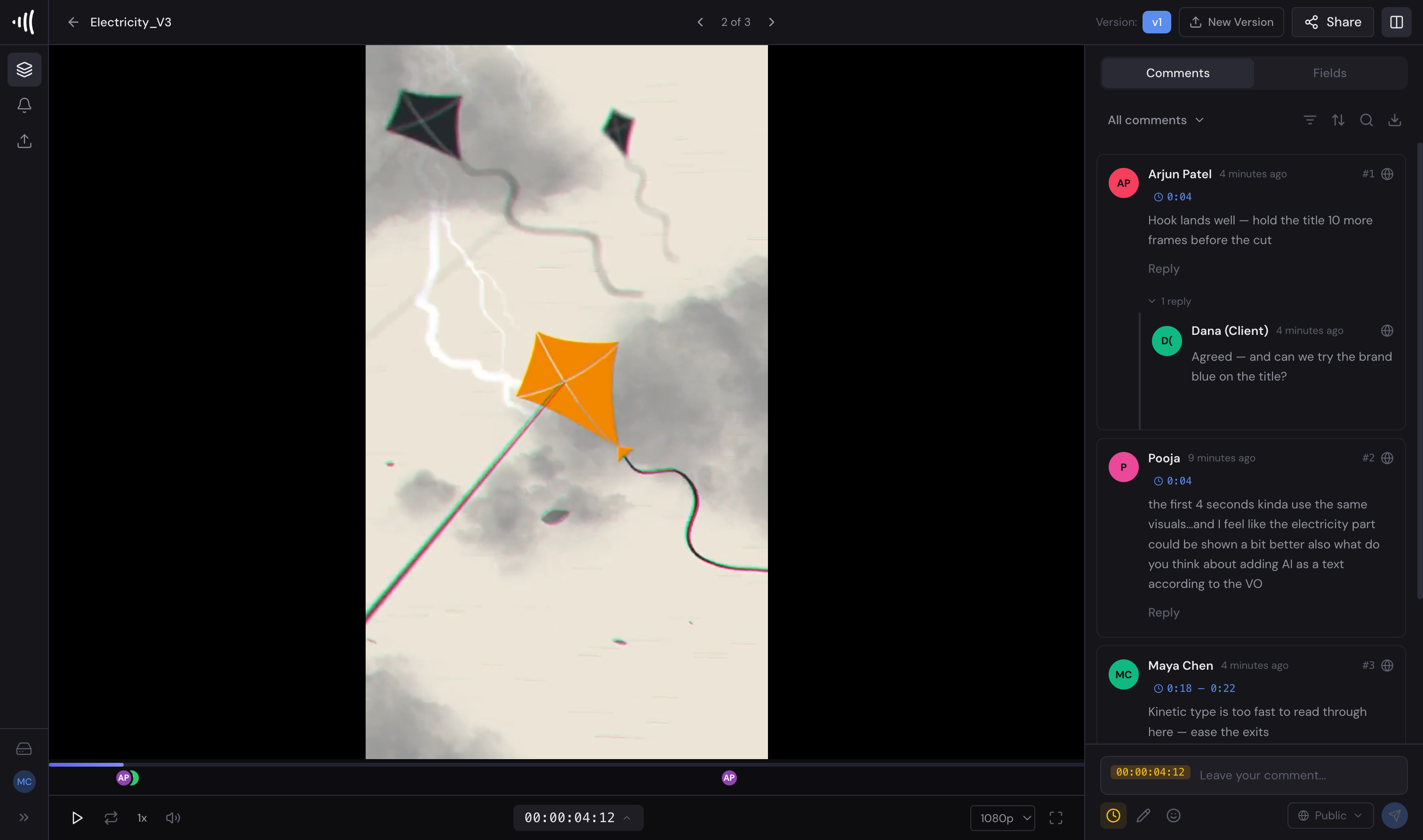
Frame-accurate review: timecoded comment threads, guest replies, resolved ranges, and SMPTE timecode — on your own infrastructure.
---
## Features
- **Video review** with HLS adaptive streaming and frame-accurate timecoded comments
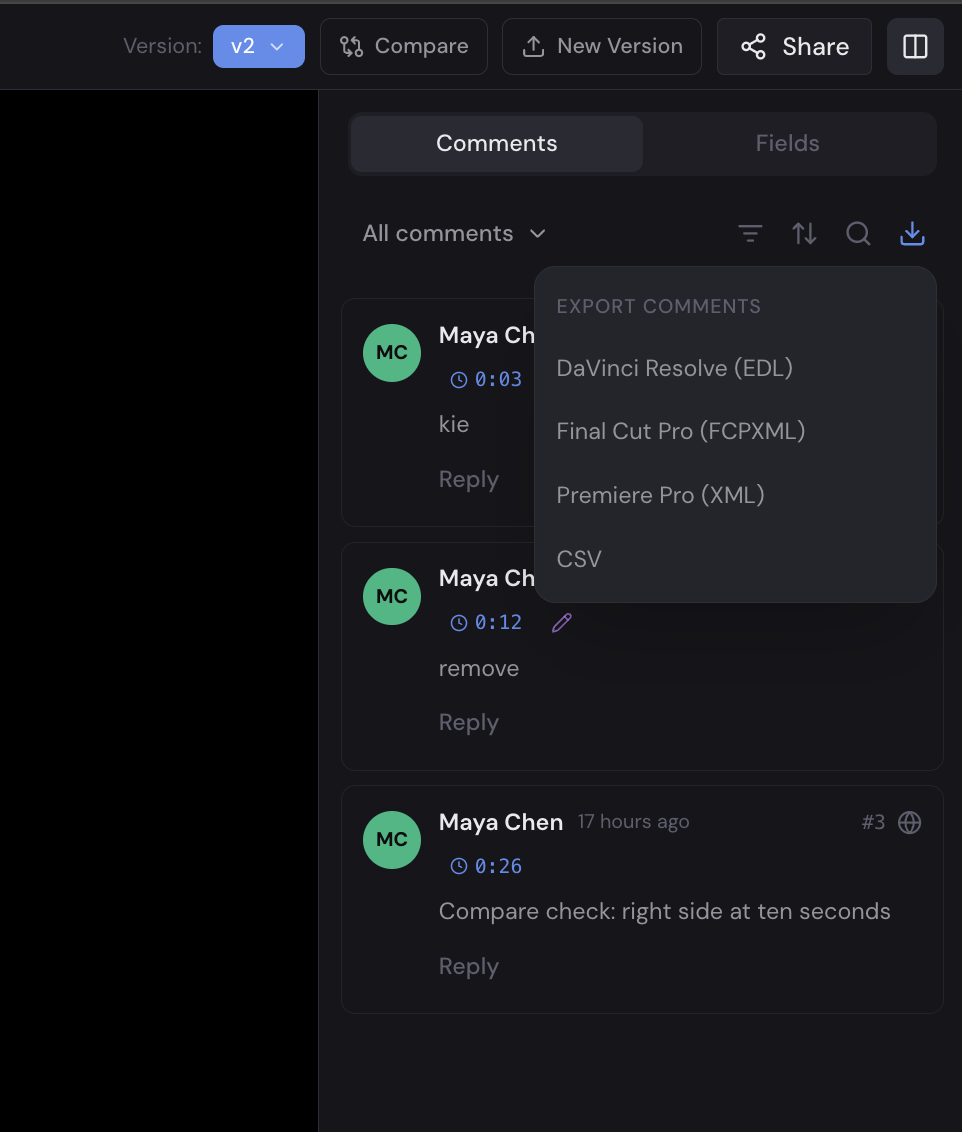
- **Export comments to your NLE** — DaVinci Resolve (marker EDL), Final Cut Pro (FCPXML), Premiere Pro (XML), or CSV
- **Image and audio review** with annotations and waveform visualization
- **Drawing annotations** on any frame using canvas tools
- **Threaded comments** with mentions, reactions, and attachments
- **Approval workflows** with per-reviewer status tracking
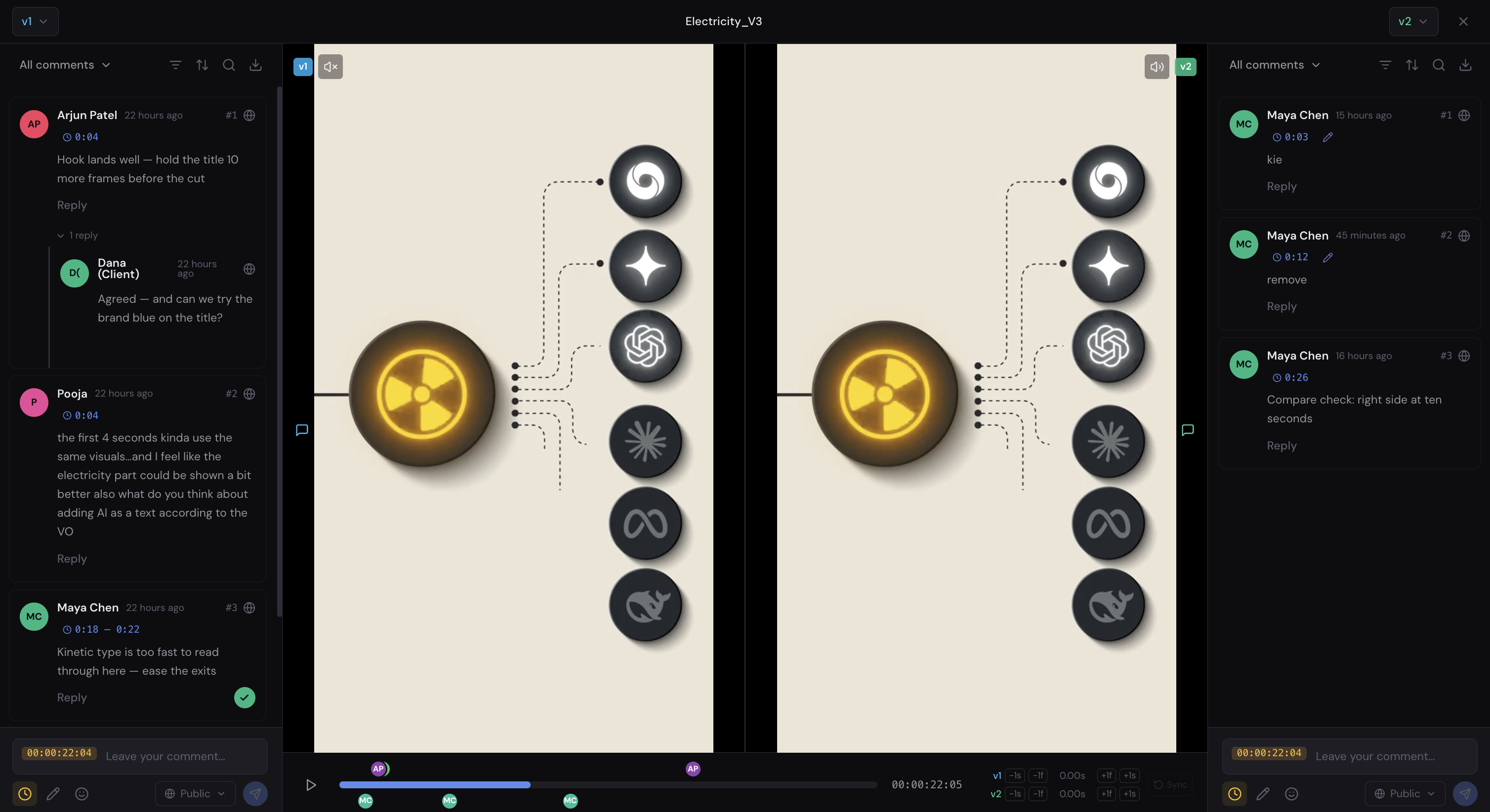
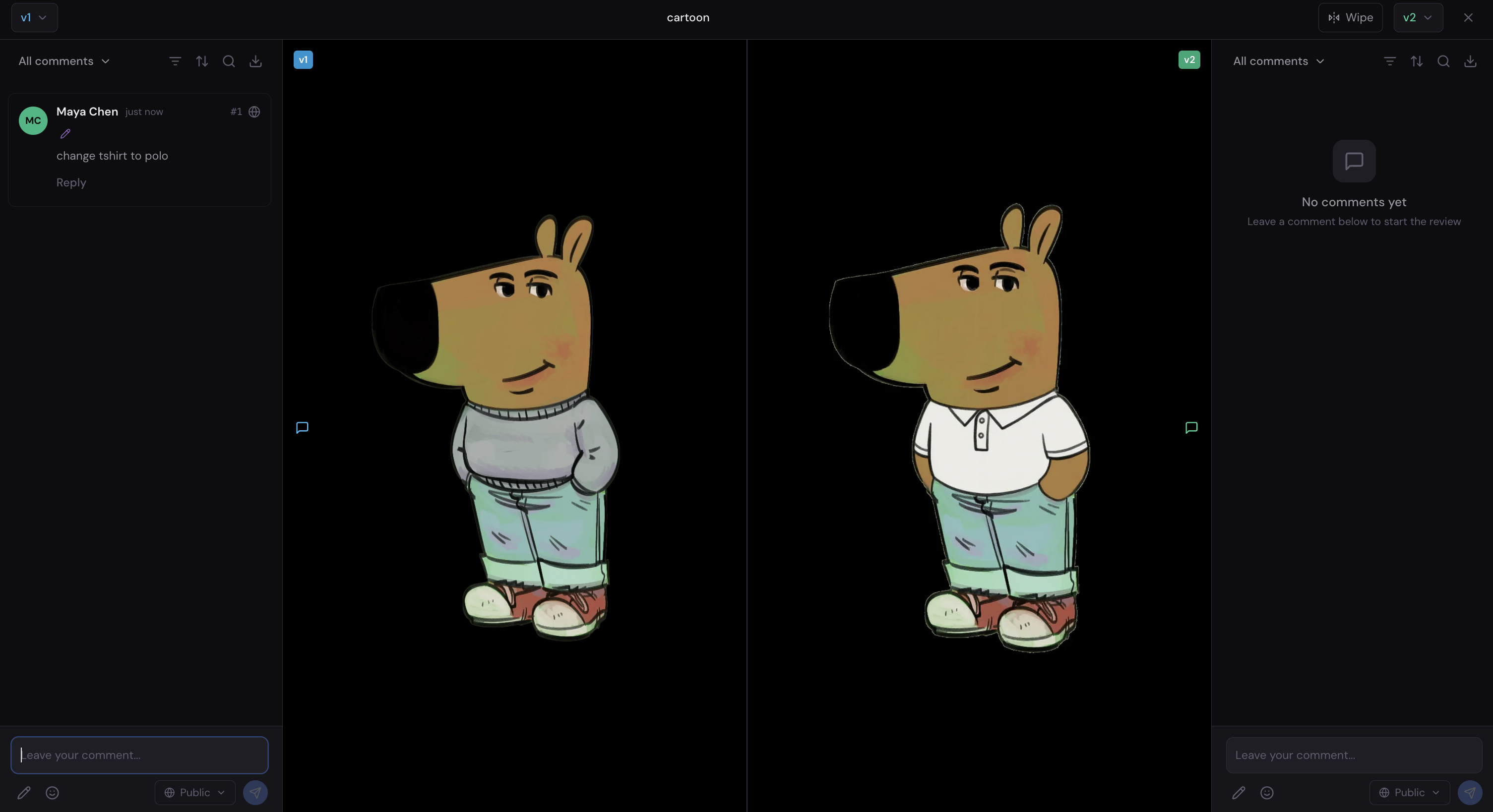
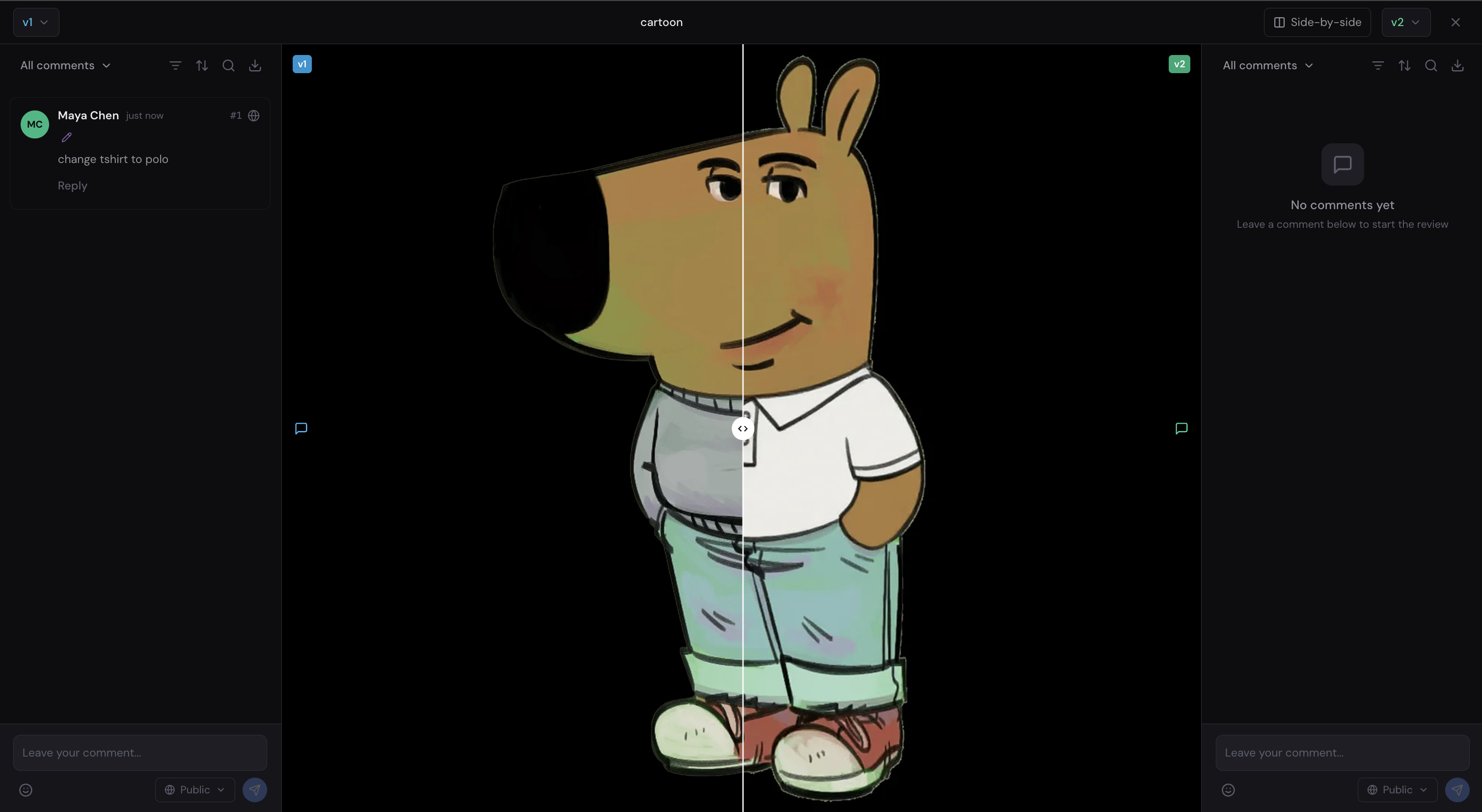
- **Version compare** — put any two versions side-by-side or under a wipe slider, with per-version comments and annotations
- **Folder organization** within projects
- **Team collaboration** with role-based permissions (org, team, project levels)
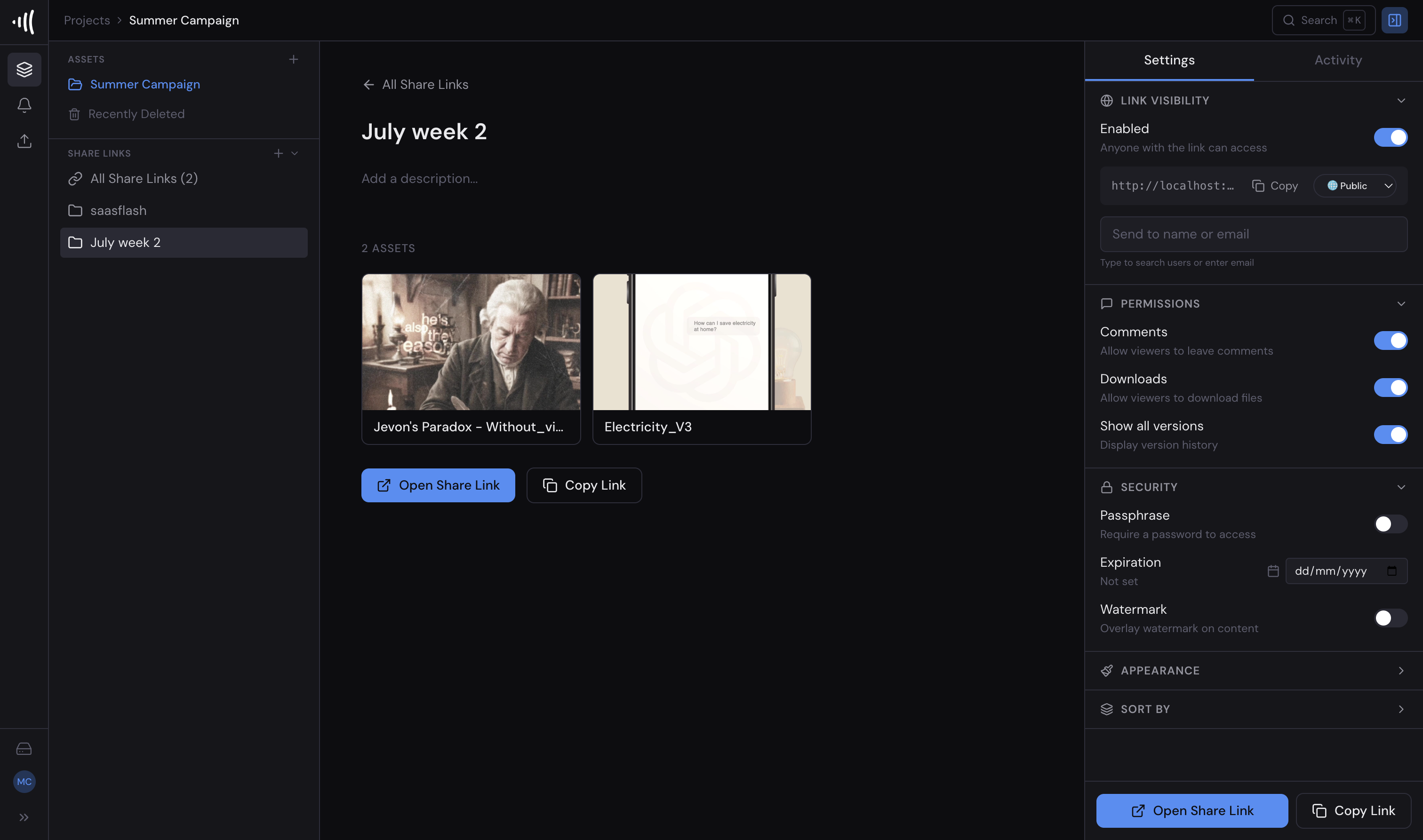
- **Share links** for external reviewers (password-protected, expiring)
- **Guest commenting** via share links (no account required)
- **Due date tracking** with email reminders
- **Real-time updates** via Server-Sent Events
- **White-label it completely** — your workspace name, logos, favicon and accent colour across the app, share links and emails; the "Powered by FreeFrame" badge switches off
- **Self-hosted** with Docker Compose — runs on any server or cloud VM
### Compare any two versions
Put two cuts or revisions on screen at once and see exactly what changed. Video plays in frame-accurate sync with per-side audio and offset trim for re-edited cuts; images compare side-by-side or under a draggable wipe. Each version keeps its own comment thread and annotations, and the whole view is shareable by URL.
| Images side-by-side | Wipe slider |
|---|---|
|  |  |
### Take comments straight into your edit
Export a version's timecoded comments as timeline markers your editor can import — DaVinci Resolve (marker EDL), Final Cut Pro (FCPXML), Premiere Pro (XML), or CSV — so notes land on the exact frame back in the timeline.
See [Export comments to an NLE](docs/comment-export.md) for the export workflow, format choices, and frame-rate troubleshooting.
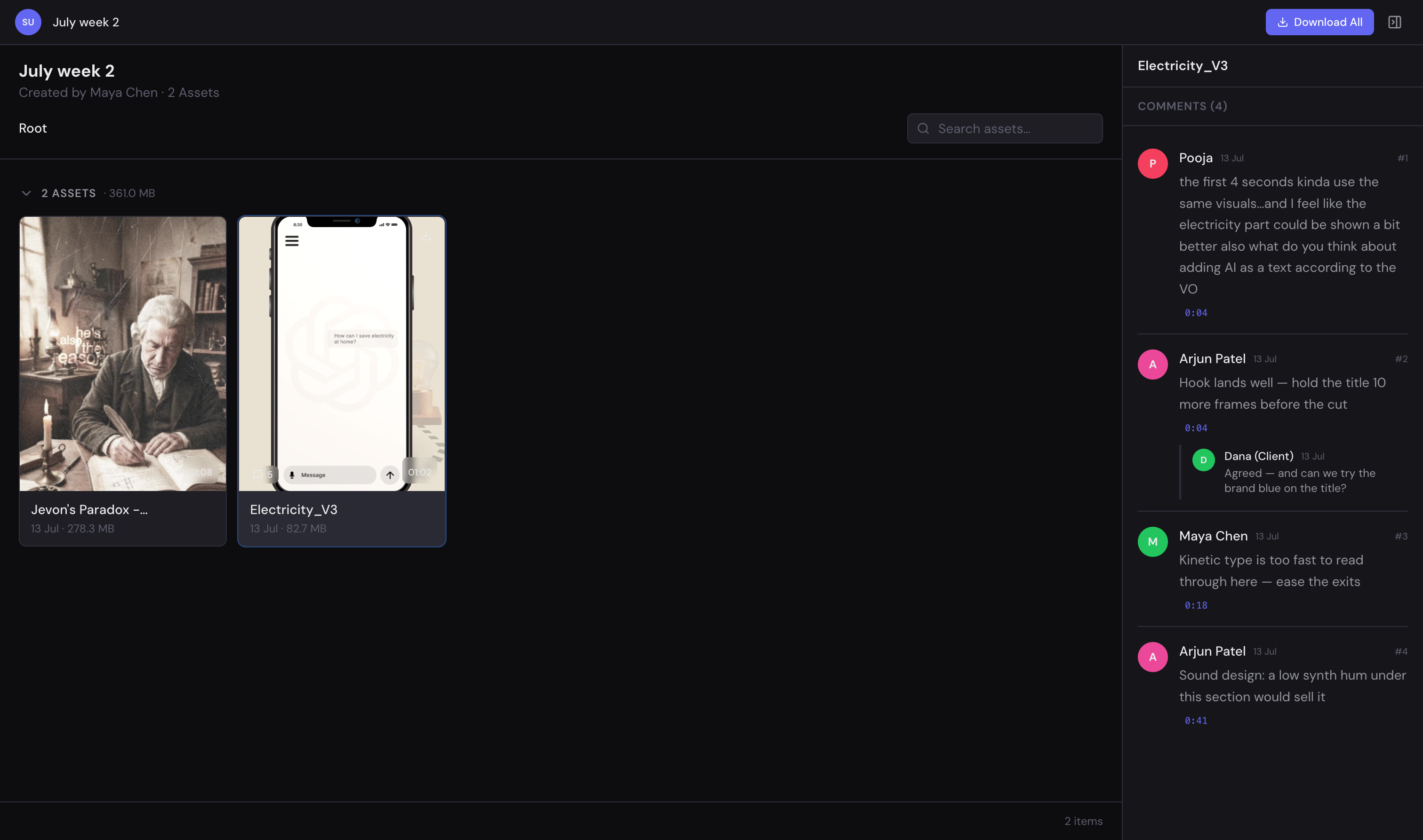
### Share with clients — no accounts needed
Send a link; clients review and comment without signing up. You stay in control of every link: comments/downloads permissions, passphrase, expiration date, watermarking, and appearance.
| Client view (no login) | Your share-link controls |
|---|---|
|  |  |
### Make it yours, not ours
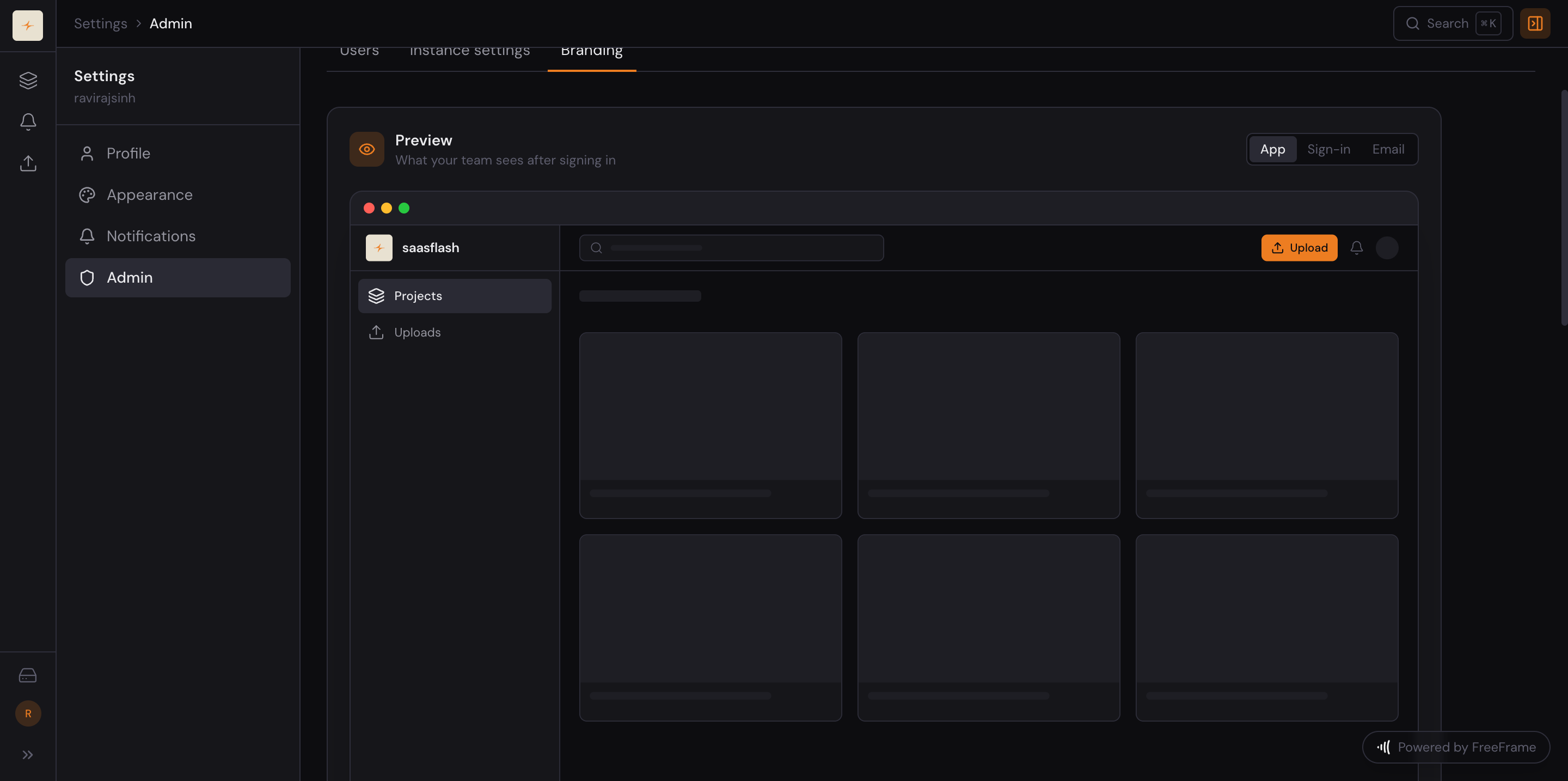
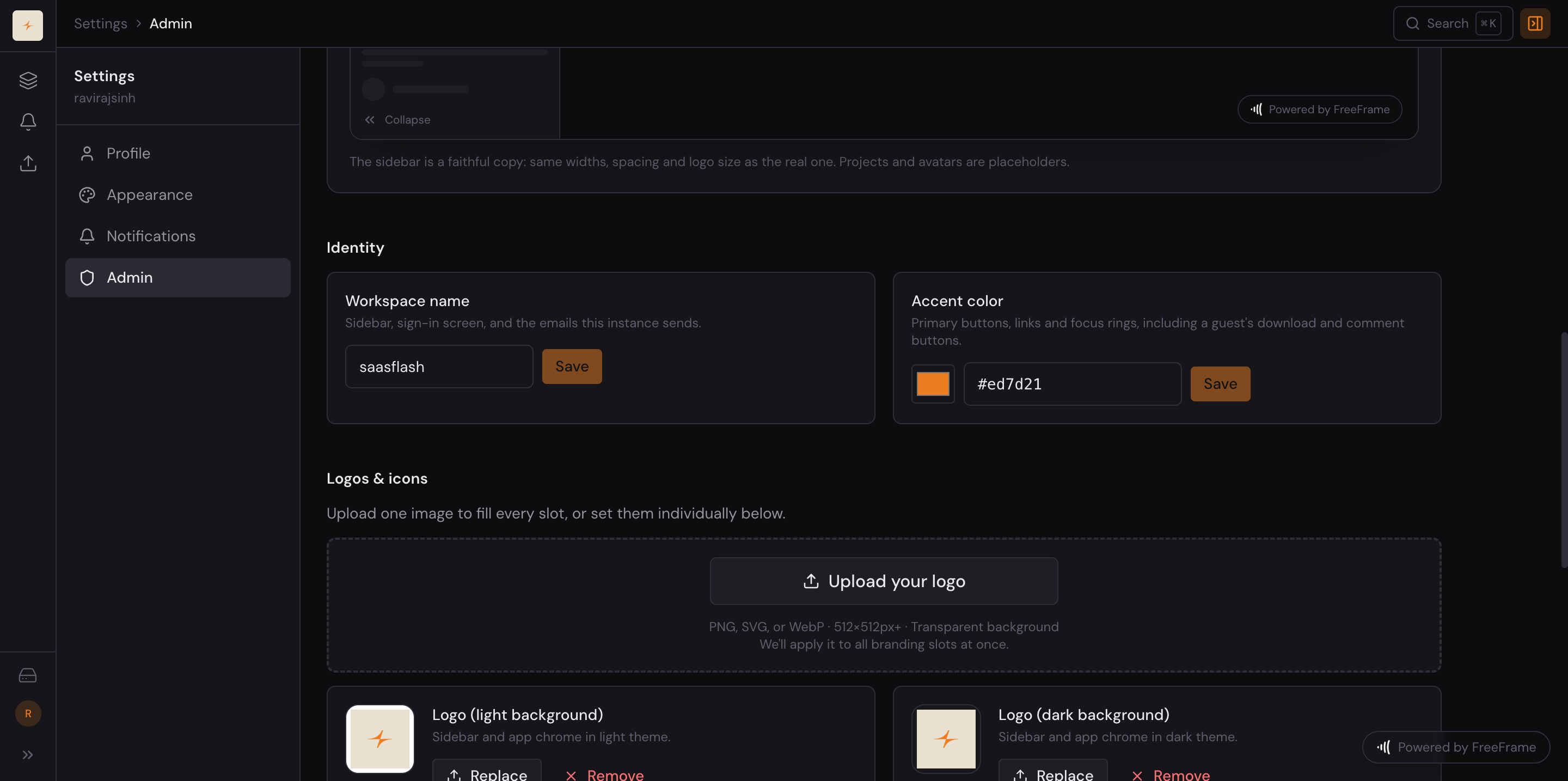
Set your workspace name, logos and accent colour once, and the whole platform follows — sign-in screen, sidebar, browser tab, share links, and the emails your clients receive. Switch off the "Powered by FreeFrame" badge (left on in the shots below) and nothing identifies the software your studio runs on.
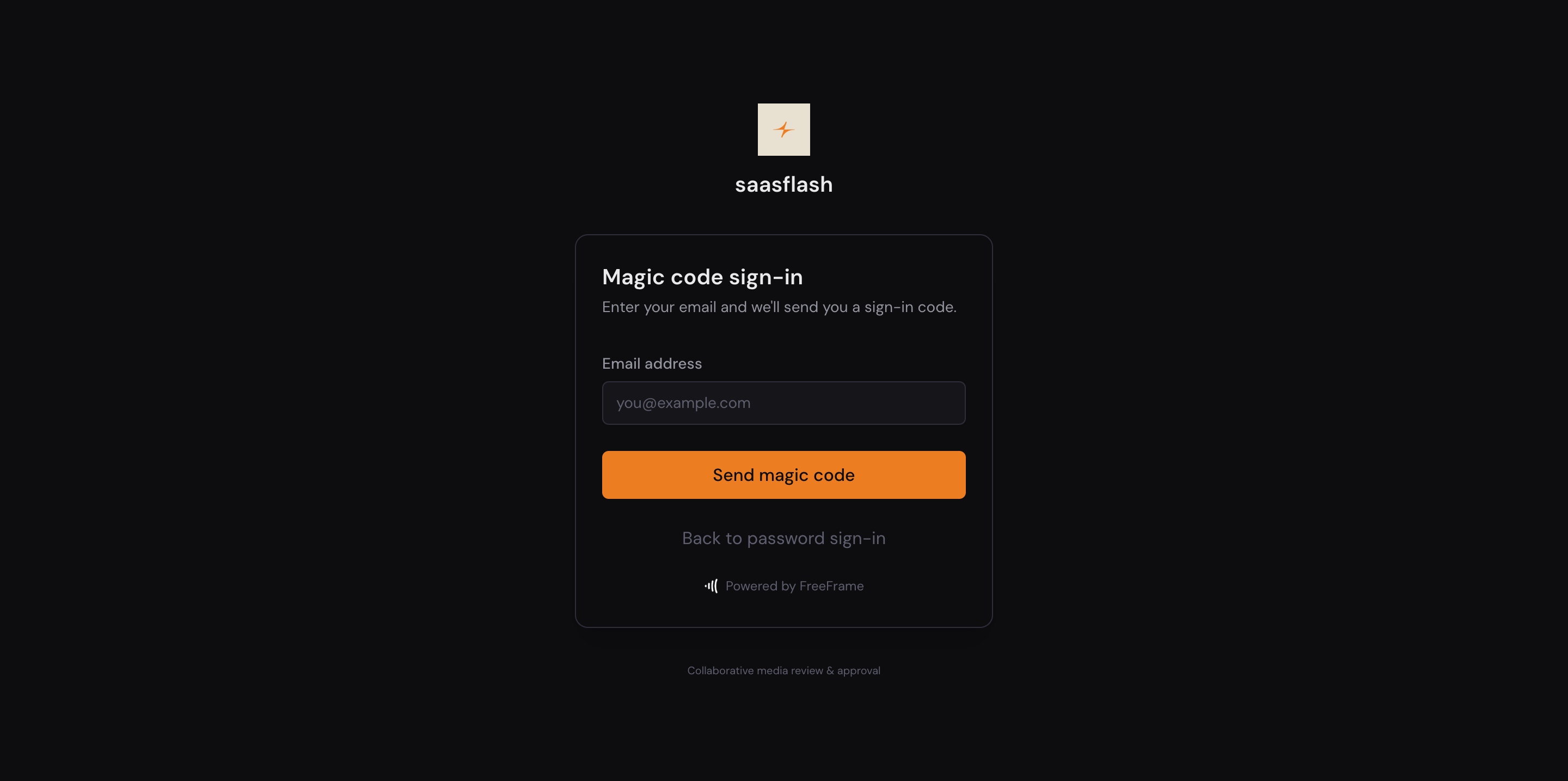
A live preview shows the app, the sign-in screen and an email side by side with the controls, so you can see what a change does before saving it.
| Live preview of the branded app | The controls |
|---|---|
|  |  |
## Quick Start (Development)
**Prerequisites:** Docker and Docker Compose
```bash
git clone https://github.com/Techiebutler/freeframe.git
cd freeframe
cp .env.example .env
docker compose -f docker-compose.dev.yml up --build
```
Open [http://localhost:3000](http://localhost:3000) to access FreeFrame. The first user to sign up becomes the super admin.
**Services running in dev:**
| Service | URL |
|-------------|------------------------------|
| Frontend | http://localhost:3000 |
| API | http://localhost:8000 |
| API Docs | http://localhost:8000/docs |
| Storage console (Silo) | http://localhost:9001 |
### Access from other devices on your network (LAN)
By default the dev stack is reachable only from the host machine (`localhost`). To open FreeFrame from a phone or another computer on the same network, point a few URLs at your machine's LAN IP — find it with `ipconfig getifaddr en0` (macOS) or `hostname -I` (Linux) — then recreate the containers.
In `.env` (replace `192.168.1.50` with your IP):
```env
NEXT_PUBLIC_API_URL=http://192.168.1.50:8000 # web → API (baked into the browser bundle)
FRONTEND_URL=http://192.168.1.50:3000 # links in invite/magic-code emails
CORS_ALLOW_ORIGINS=* # API and storage allow the LAN browser origin
S3_PUBLIC_ENDPOINT=http://192.168.1.50:9000 # presigned upload/download URLs
```
```bash
docker compose -f docker-compose.dev.yml up -d --force-recreate
```
Then browse to `http://192.168.1.50:3000` from any device on the network. Server-side settings (`DATABASE_URL`, `S3_ENDPOINT`, …) stay on their docker-internal hostnames — only the browser-facing URLs above change.
> The `*` wildcards are LAN-testing conveniences — don't use them in production. See [docs/deployment.md](docs/deployment.md) for a locked-down setup.
## Release channels
Production self-hosters should run a **released** version, not `main`:
| Ref | What it is | Use it if… |
|-----|-----------|------------|
| `stable` | The latest release we've validated — a bad release is never promoted here. | **Production (safe default):** `git clone -b stable …`, then `git pull` to update. |
| `latest` | The newest published release (moves on every release). | You want new features sooner and can tolerate the occasional regression. |
| `v1.3.1` (any `vX.Y.Z`) | An immutable, pinned release. | You want to pin an exact version: `git checkout v1.3.1`. |
| `main` | Active development; may be unreleased or unstable. | You're developing or contributing to FreeFrame. |
Release notes are on the [Releases page](https://github.com/Techiebutler/freeframe/releases). Maintainers: see [docs/RELEASING.md](docs/RELEASING.md).
## Production Deployment
### Install on a fresh server
The easiest way, and the one we recommend if you have not run a server before. Rent a server, run one command, and answer a few short questions: your web address (with an email for certificate notices when it uses HTTPS), where to keep footage (on the server or in an S3 bucket), your mail server (SMTP), your admin account and, on a server with an NVIDIA GPU, whether to use it. The installer sets up Docker, starts FreeFrame, gets a free HTTPS certificate, creates your admin account and turns on nightly backups. It also tells you whether video is processed on the GPU or the CPU: an NVIDIA GPU whose driver works can be used with one confirmation (the installer sets up NVIDIA's container toolkit), see [Video processing on a GPU](docs/deployment.md#video-processing-on-a-gpu).
What to rent:
- **Ubuntu 22.04, 24.04 or 26.04, or Debian 12 or 13**, on amd64 or arm64.
- **2 CPU cores, 4 GB of memory and 20 GB of disk at the least**, more for a bigger team or for footage kept on the server (see the [hardware table](docs/deployment.md#hardware-requirements)).
- **Ports 80 and 443 reachable** from the internet (open them in your provider's firewall).
Log in to the server and run:
```bash
sudo bash -c "$(curl -fsSL https://raw.githubusercontent.com/Techiebutler/freeframe/latest/install.sh)"
```
The installer is for **Linux servers only**:
- **Supported:** Ubuntu 22.04, 24.04 or 26.04, or Debian 12 or 13, on amd64 or arm64.
- **Not macOS or Windows.** On a Mac, use the [manual compose setup](#or-set-it-up-by-hand) with Docker Desktop. On Windows, Ubuntu in WSL2 with systemd switched on works for trying FreeFrame, but it is not something a team should rely on: its address changes when Windows restarts, and it stops when the PC sleeps.
- **Other Linux distributions:** use the [manual compose setup](#or-set-it-up-by-hand).
The command works from v1.22.0, the first release that has the installer. `latest` is the newest published release; the command will move to `stable` once the first release with the installer has been promoted there. To set a variable, put it after `sudo`: `sudo FREEFRAME_DOMAIN=review.yourstudio.com bash -c "$(curl -fsSL https://raw.githubusercontent.com/Techiebutler/freeframe/latest/install.sh)"`. Use this `bash -c` form rather than `curl ... | sudo bash`: on Ubuntu 26.04, whose `sudo` is sudo-rs, a piped script cannot read your answers (the installer notices and shows this command instead). A piped command is fine only for an [unattended install](docs/deployment.md#unattended-installs-cloud-init-ansible) with `--yes`.
When it finishes, open the address it prints and sign in with your admin account, then invite your team from the admin area. Without email set up, sign-in codes and invitations are not sent and there is no password reset; invitation links can still be copied from the admin page.
Afterwards the `freeframe` command looks after the server: `sudo freeframe status`, `update` (backs up first), `rollback`, `configure`, `backup`, `restore`, `logs`, `restart` and `uninstall`. Nightly backups run at 03:00 and the last 7 are kept, on the same server, so copy them elsewhere now and then. Uploaded media in bundled storage is not in them.
The installer refuses a server that already runs FreeFrame set up by hand, and leaves it alone. For the DNS step, an office server behind a router, moving to a new server, unattended installs (cloud-init, Ansible) and troubleshooting, see the **[installation guide](docs/deployment.md#install-on-a-fresh-server)**.
#### Removing FreeFrame
`sudo freeframe uninstall` takes FreeFrame off the server. It first saves a final backup of the database and moves it, with every earlier backup and a copy of the settings file, to `/root/freeframe-removed--