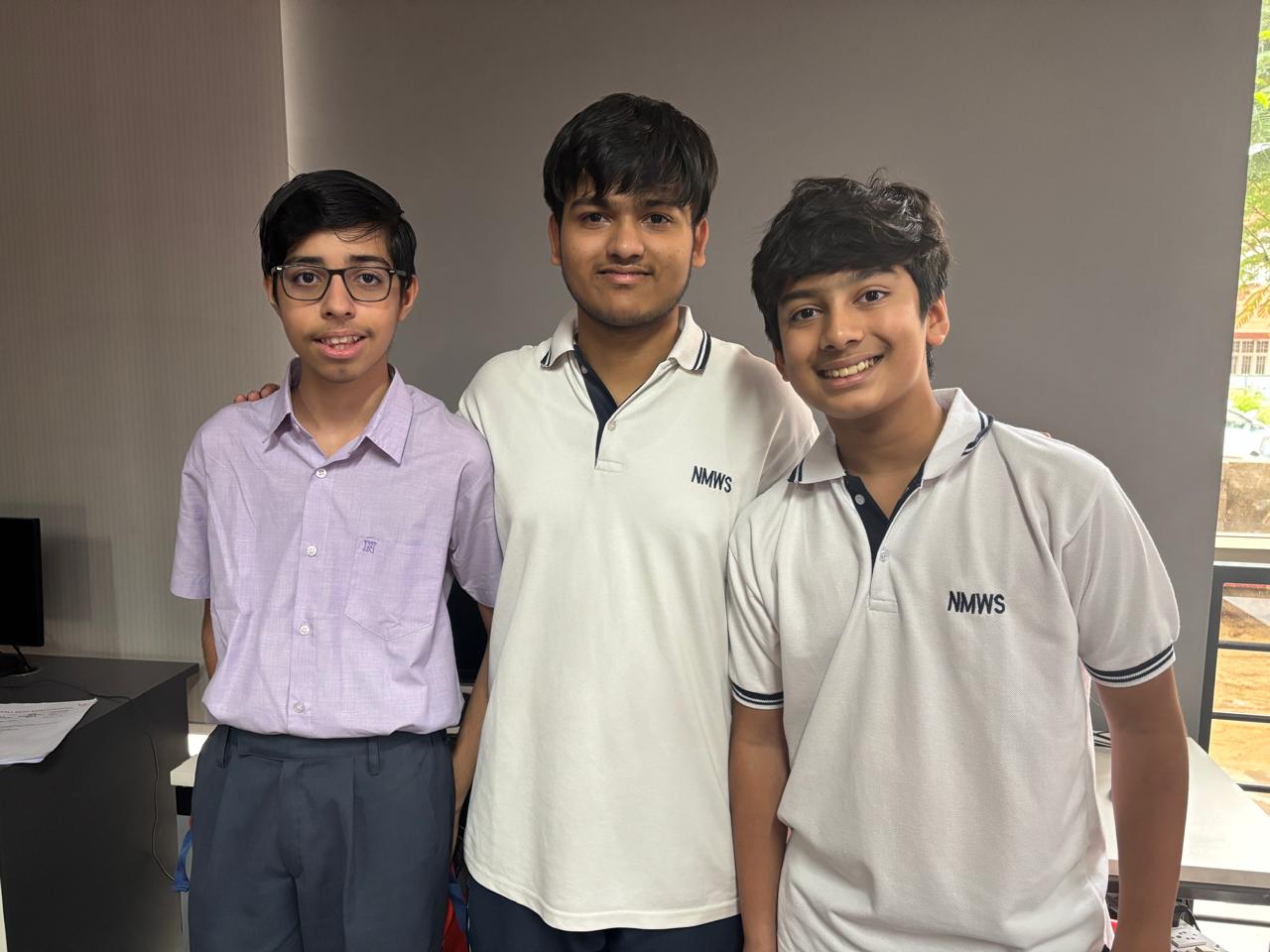
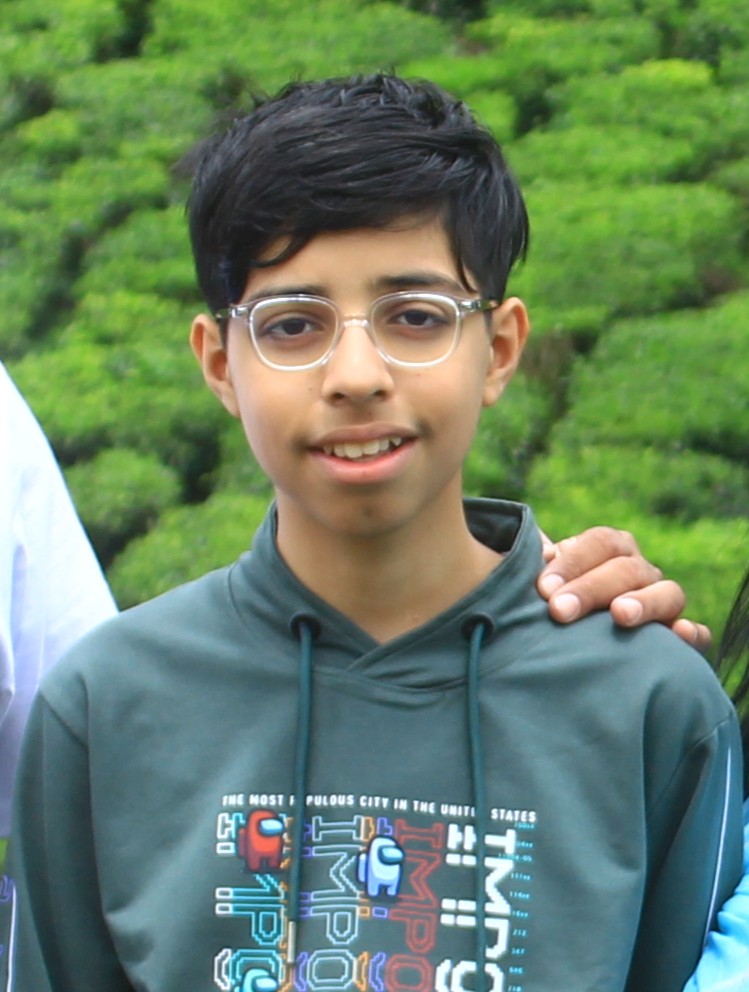
 ### Atharv Baluja
Age: 14
School: Neerja Modi World School
Description:
Hey! I am Atharv. I'm a high school freshman from Jaipur, India. This is my second WRO seaon. Last year, I had participated in the Future Innovator category. This year, I wanted a bigger challenge so I am participating in the Future Engineers category. I am working on the software of the robot.
### Atharv Baluja
Age: 14
School: Neerja Modi World School
Description:
Hey! I am Atharv. I'm a high school freshman from Jaipur, India. This is my second WRO seaon. Last year, I had participated in the Future Innovator category. This year, I wanted a bigger challenge so I am participating in the Future Engineers category. I am working on the software of the robot.
 ### Arham Jain
Hello, I am Arham, an 11th-grade student at Neerja Modi School. I have competed in WRO once before in the Future Innovators category two years ago. I was preparing to compete in the Future Engineers category last year before some hurdles derailed my progress. Building on the knowledge and research from last year, I hope to put my effort into the Future Engineers Category again.
### Arham Jain
Hello, I am Arham, an 11th-grade student at Neerja Modi School. I have competed in WRO once before in the Future Innovators category two years ago. I was preparing to compete in the Future Engineers category last year before some hurdles derailed my progress. Building on the knowledge and research from last year, I hope to put my effort into the Future Engineers Category again.
 ### Yashvardhan Surana
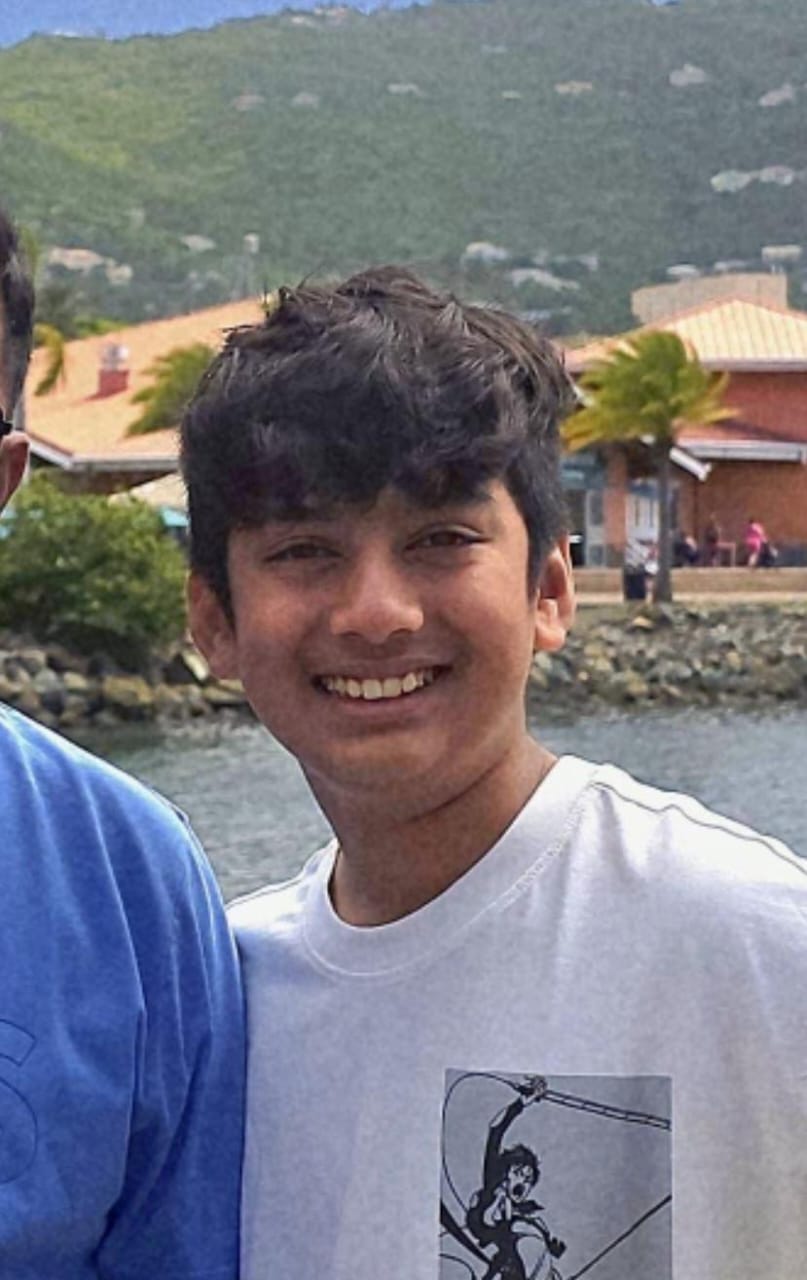
Hello, I'm Yash. I am a 6th grader from Jaipur. This is my second time participating in WRO. Last year, I had participated in the Future Innovators category. This year, I'm taking part in the Future Engineers category in the team The Statesmen. In The Statesmen, I am in charge of the hardware of the robot.
### Yashvardhan Surana
Hello, I'm Yash. I am a 6th grader from Jaipur. This is my second time participating in WRO. Last year, I had participated in the Future Innovators category. This year, I'm taking part in the Future Engineers category in the team The Statesmen. In The Statesmen, I am in charge of the hardware of the robot.
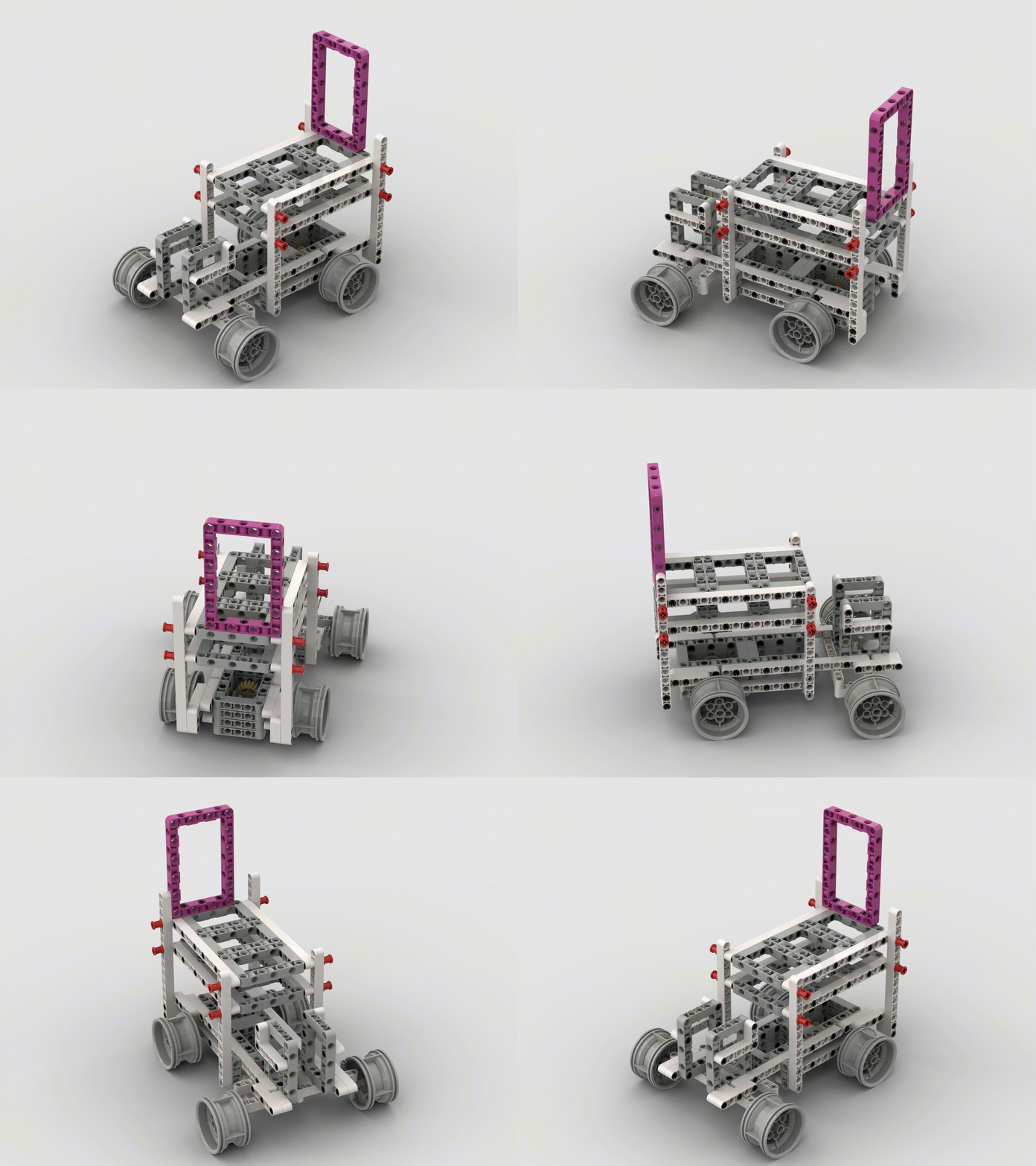
 ## Robot Photos
|
## Robot Photos
| 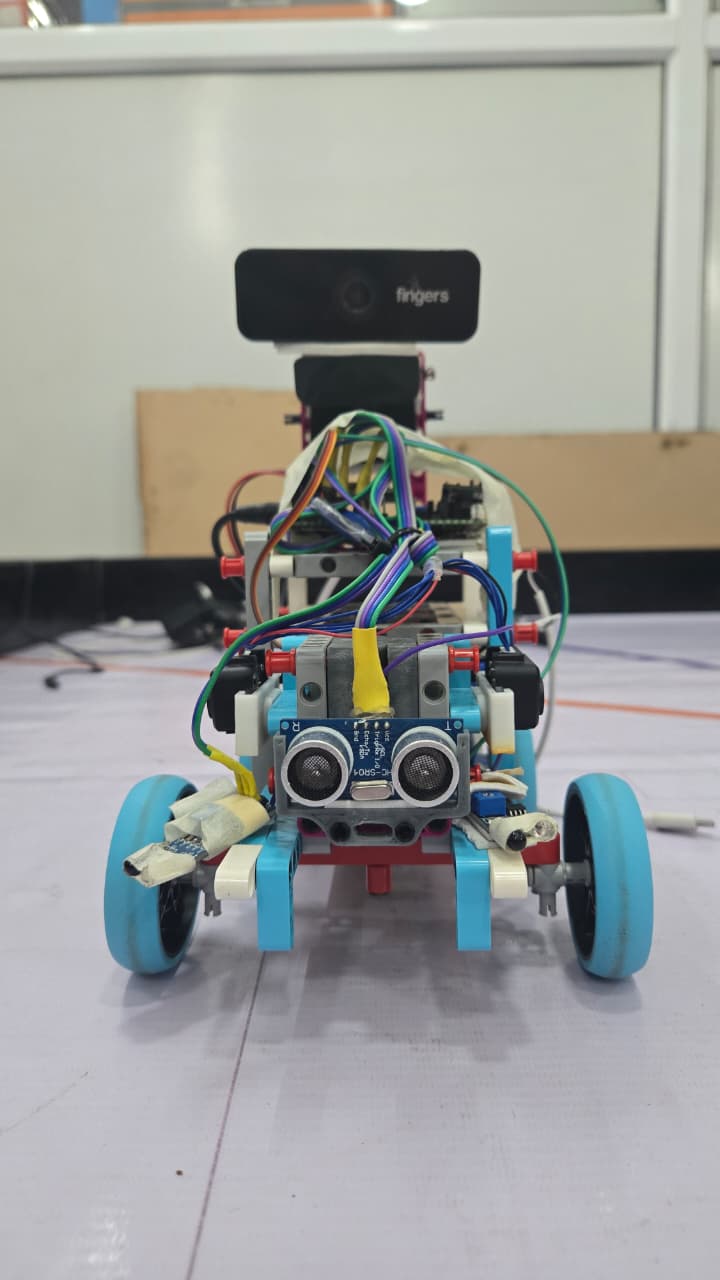 |
| 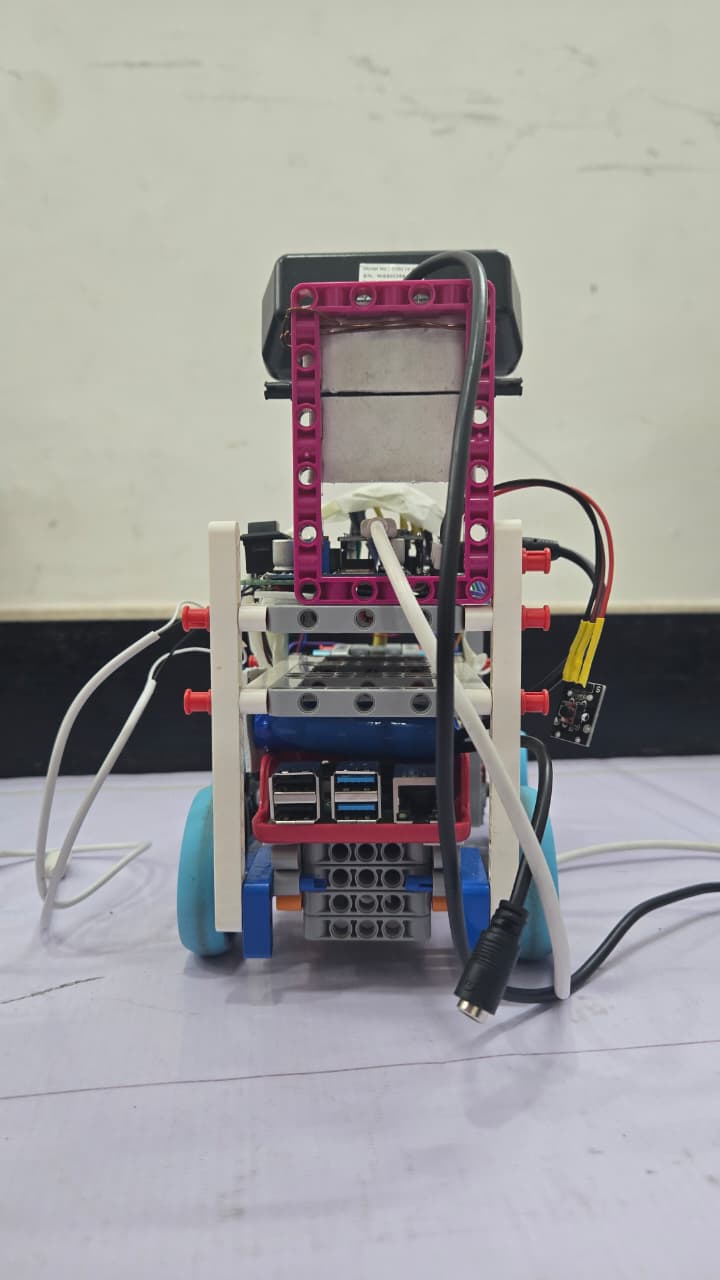 |
| :--: | :--: |
| *Front View* | *Back View* |
|
|
| :--: | :--: |
| *Front View* | *Back View* |
| 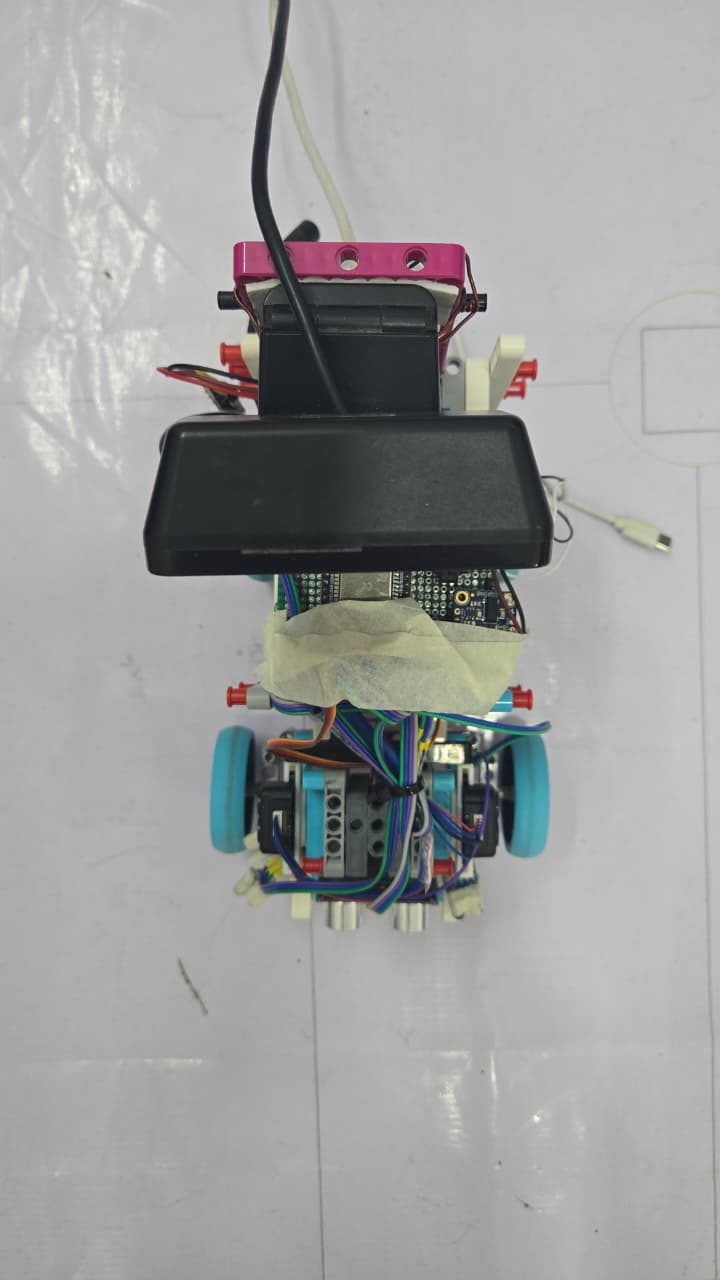 |
| 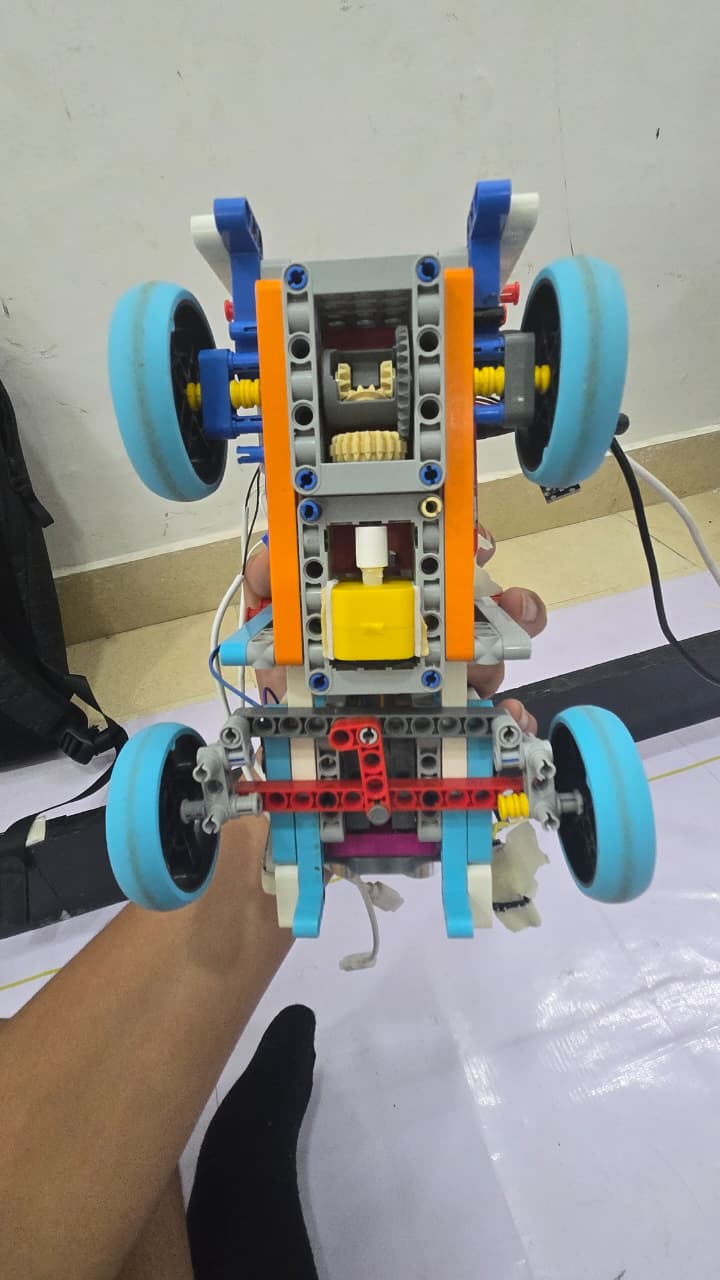 |
| *Top View* | *Bottom View* |
|
|
| *Top View* | *Bottom View* |
|  |
| 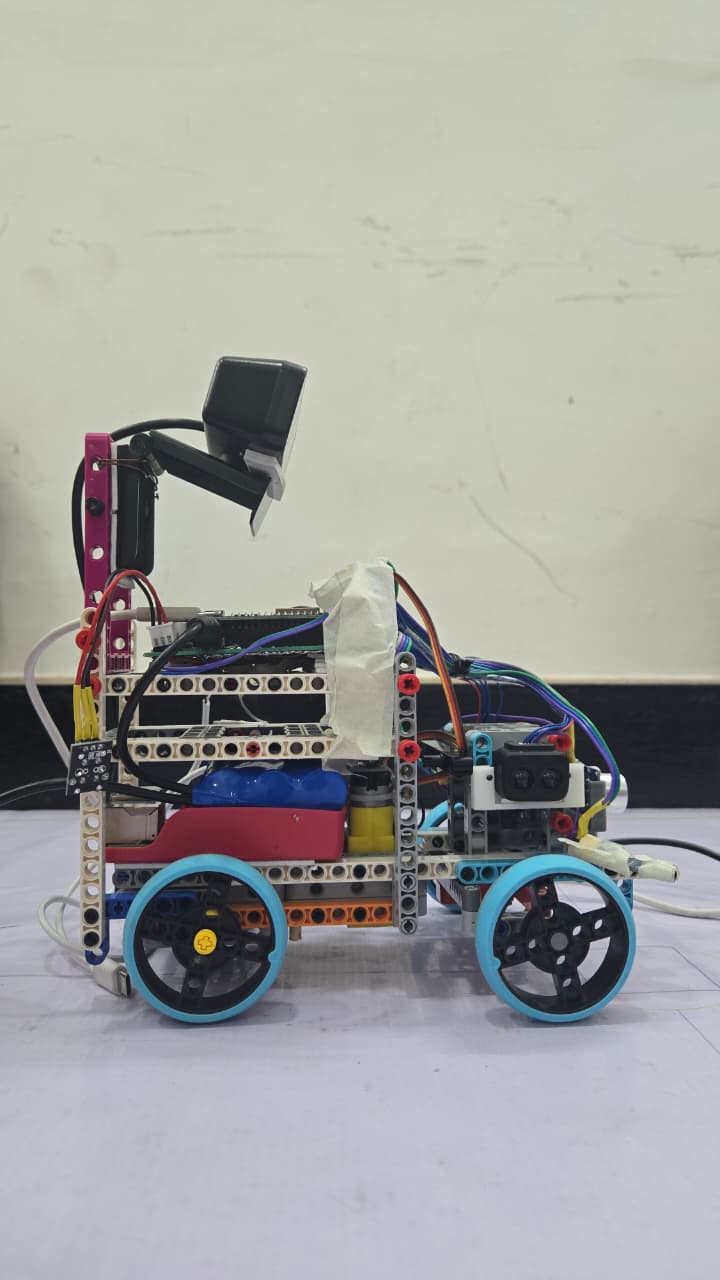 |
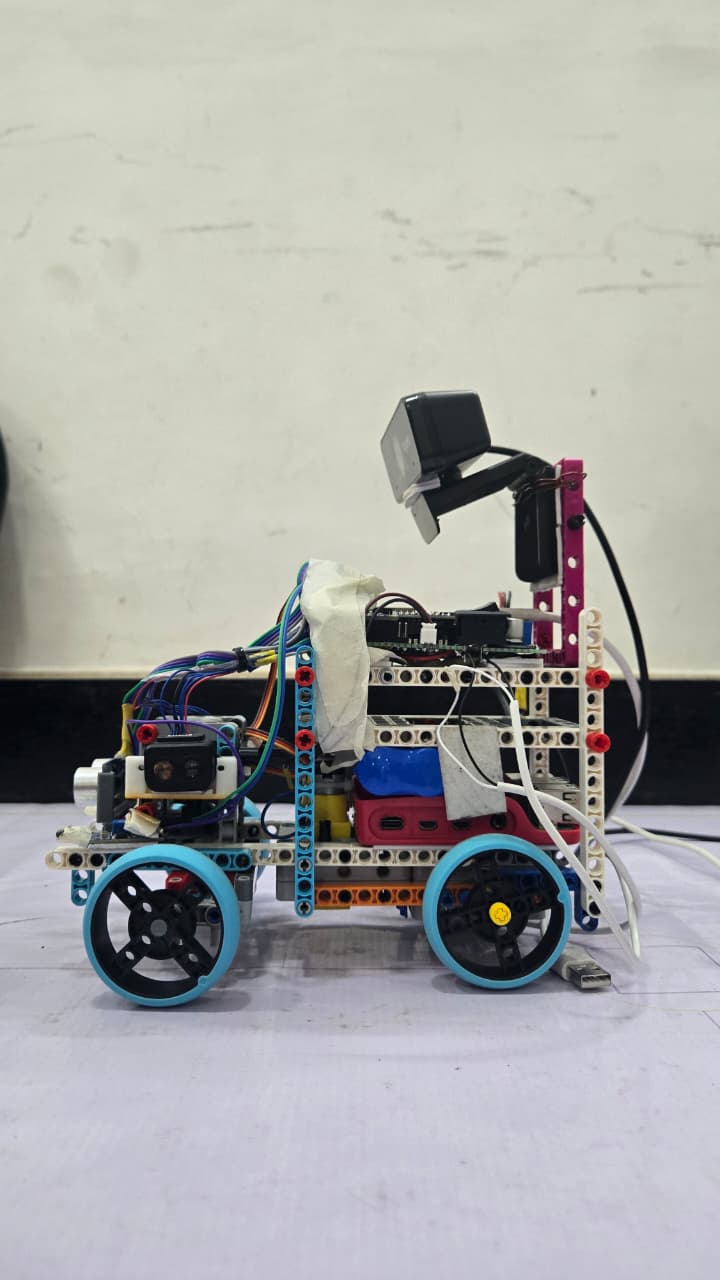
| *Left View* | *Right View* |
## Robot Videos
### Open Challenge - Default Setup
If the video is not loading for you, you can view it [here](https://youtu.be/yJYID6W3fv8)
### Open Challenge - 1 Side Extended
If the video is not loading for you, you can view it [here](https://youtu.be/VSAF0O4e32w)
### Open Challenge - 2 Sides Extended
If the video is not loading for you, you can view it [here](https://youtu.be/7XdKwXTz3Lk)
### Obstacle Challenge - Setup 1
You can view this video [here](https://www.youtube.com/watch?v=GN4vLTXXRtY)
You can watch all the videos on our [youtube channel](https://www.youtube.com/@TheStatesmen-fe)
## Mobility Management
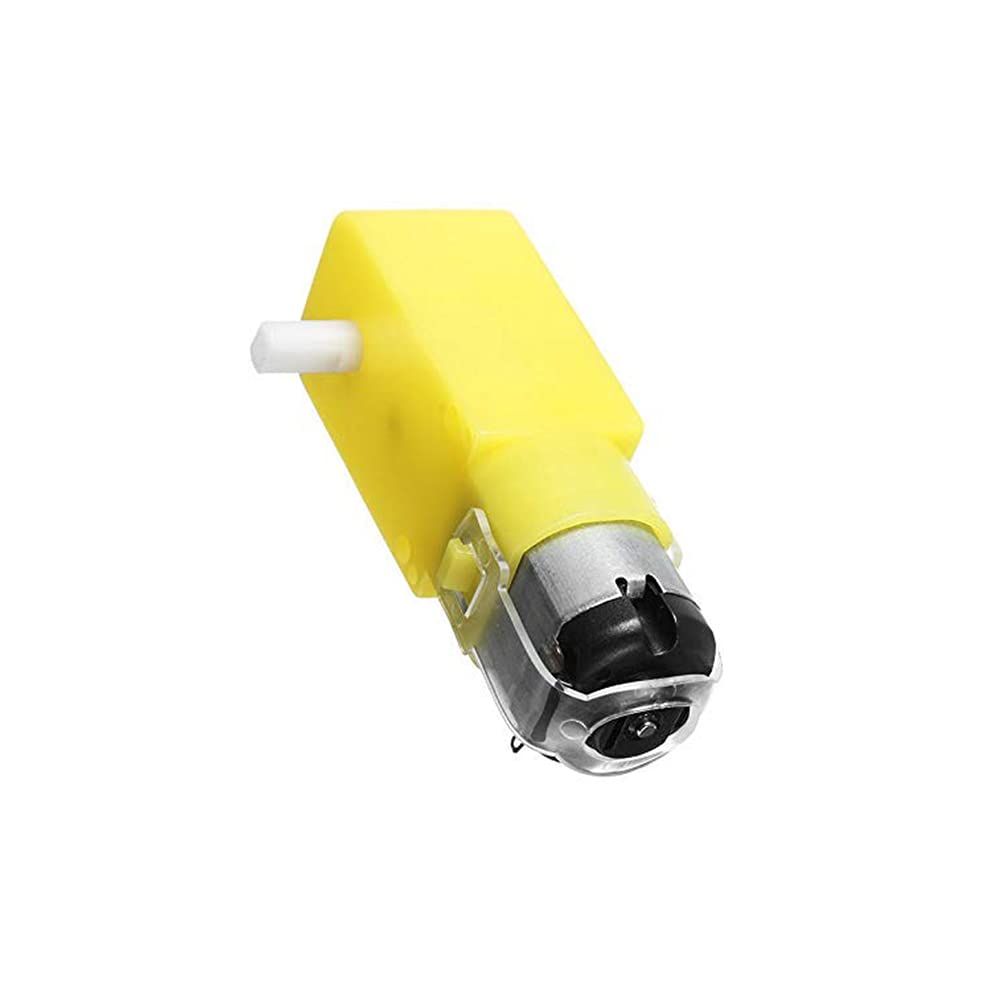
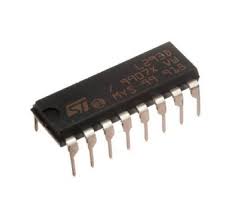
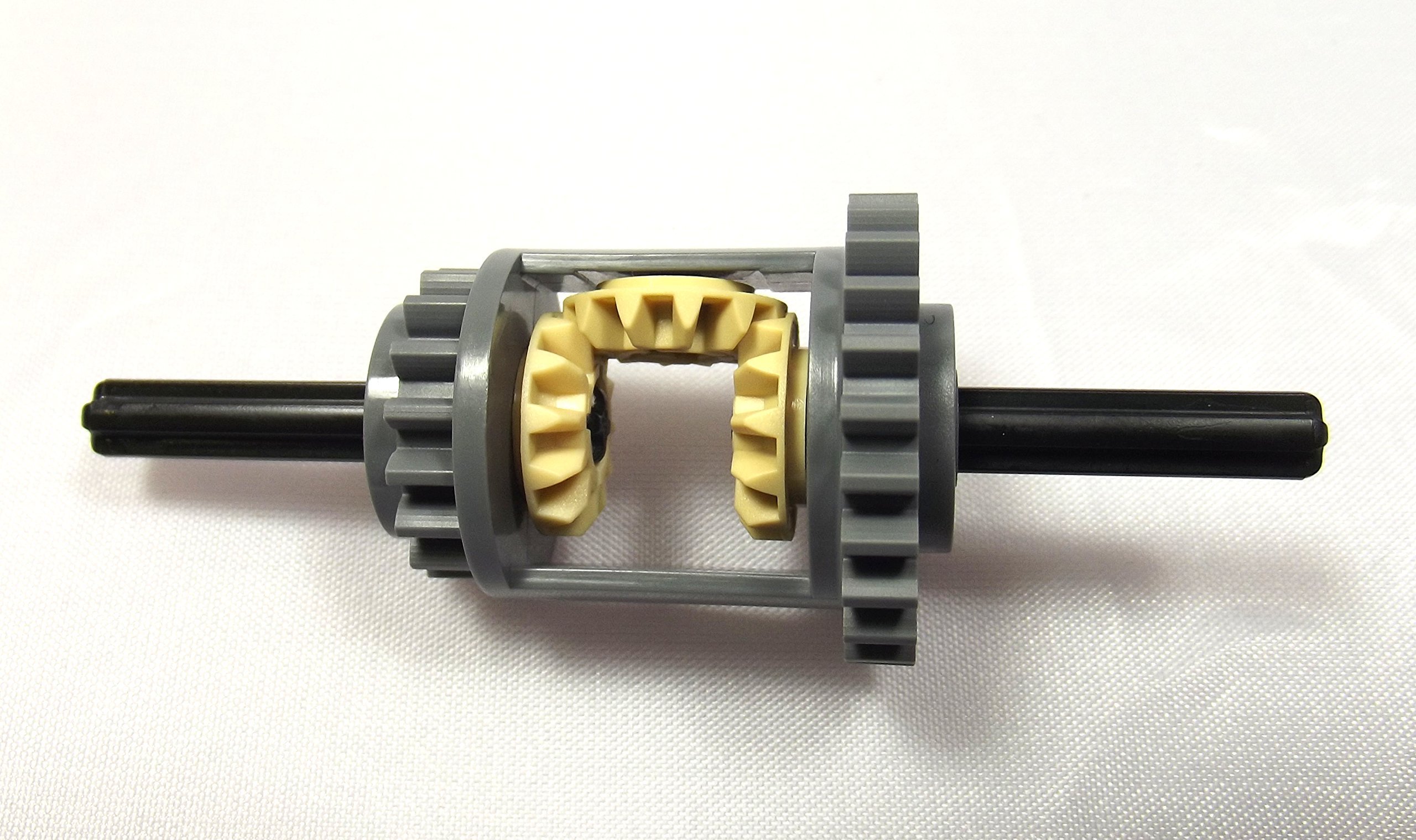
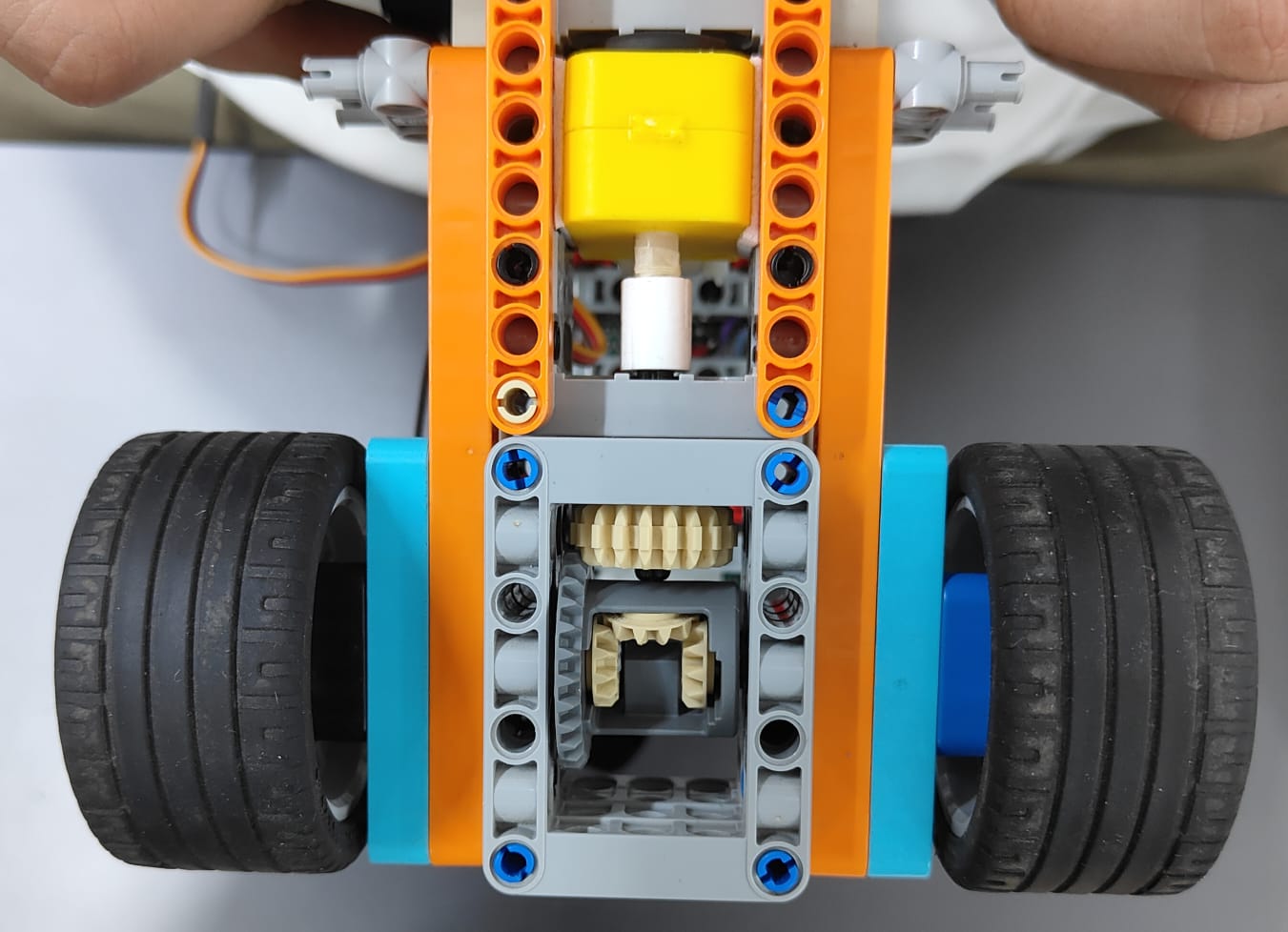
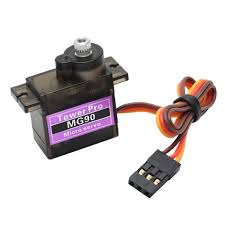
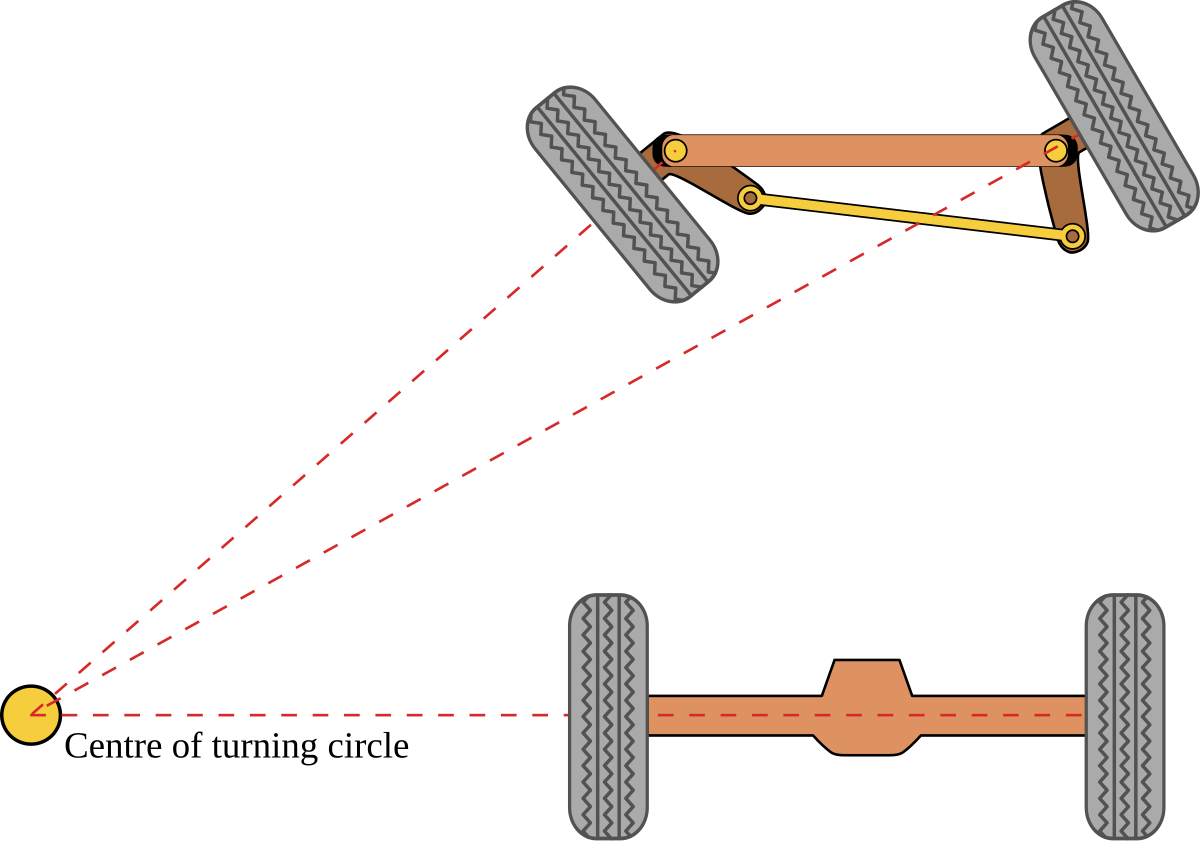
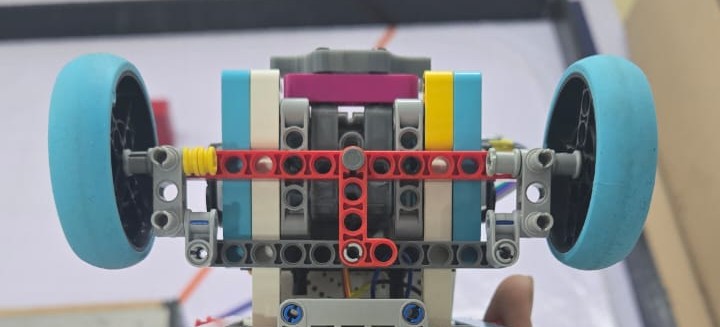
Our robot's mobility is managed by multiple components - a BO DC motor, L293D motor driver, an MG90 servo motor connected to a Ackermann steering geometry, and a rear differential. All of these seamlessly work together to achieve efficient movement.
### Motor
Aftering considering multiple motors, we finally settleed on a DC BO motor. We considered factors like speed (RPM), torque (kg cm), weight (g), required voltage (v), and current consumption (mA).
|
| *Left View* | *Right View* |
## Robot Videos
### Open Challenge - Default Setup
If the video is not loading for you, you can view it [here](https://youtu.be/yJYID6W3fv8)
### Open Challenge - 1 Side Extended
If the video is not loading for you, you can view it [here](https://youtu.be/VSAF0O4e32w)
### Open Challenge - 2 Sides Extended
If the video is not loading for you, you can view it [here](https://youtu.be/7XdKwXTz3Lk)
### Obstacle Challenge - Setup 1
You can view this video [here](https://www.youtube.com/watch?v=GN4vLTXXRtY)
You can watch all the videos on our [youtube channel](https://www.youtube.com/@TheStatesmen-fe)
## Mobility Management
Our robot's mobility is managed by multiple components - a BO DC motor, L293D motor driver, an MG90 servo motor connected to a Ackermann steering geometry, and a rear differential. All of these seamlessly work together to achieve efficient movement.
### Motor
Aftering considering multiple motors, we finally settleed on a DC BO motor. We considered factors like speed (RPM), torque (kg cm), weight (g), required voltage (v), and current consumption (mA).
|
|
Specifications: |
|
|
Specifications: |
|
|
|
Specifications: |
|
|
|
 |
|  |
| :--: | :--: |
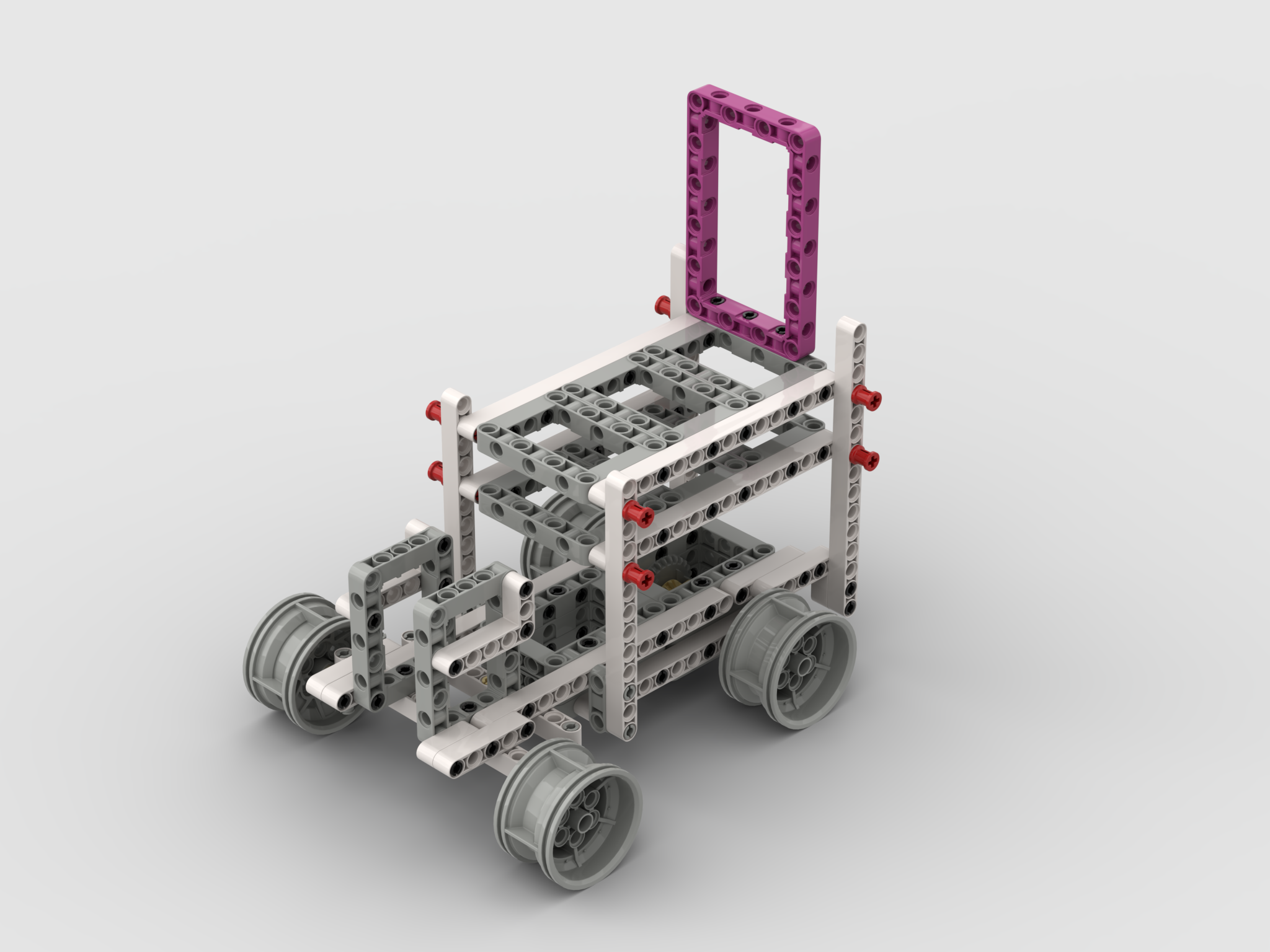
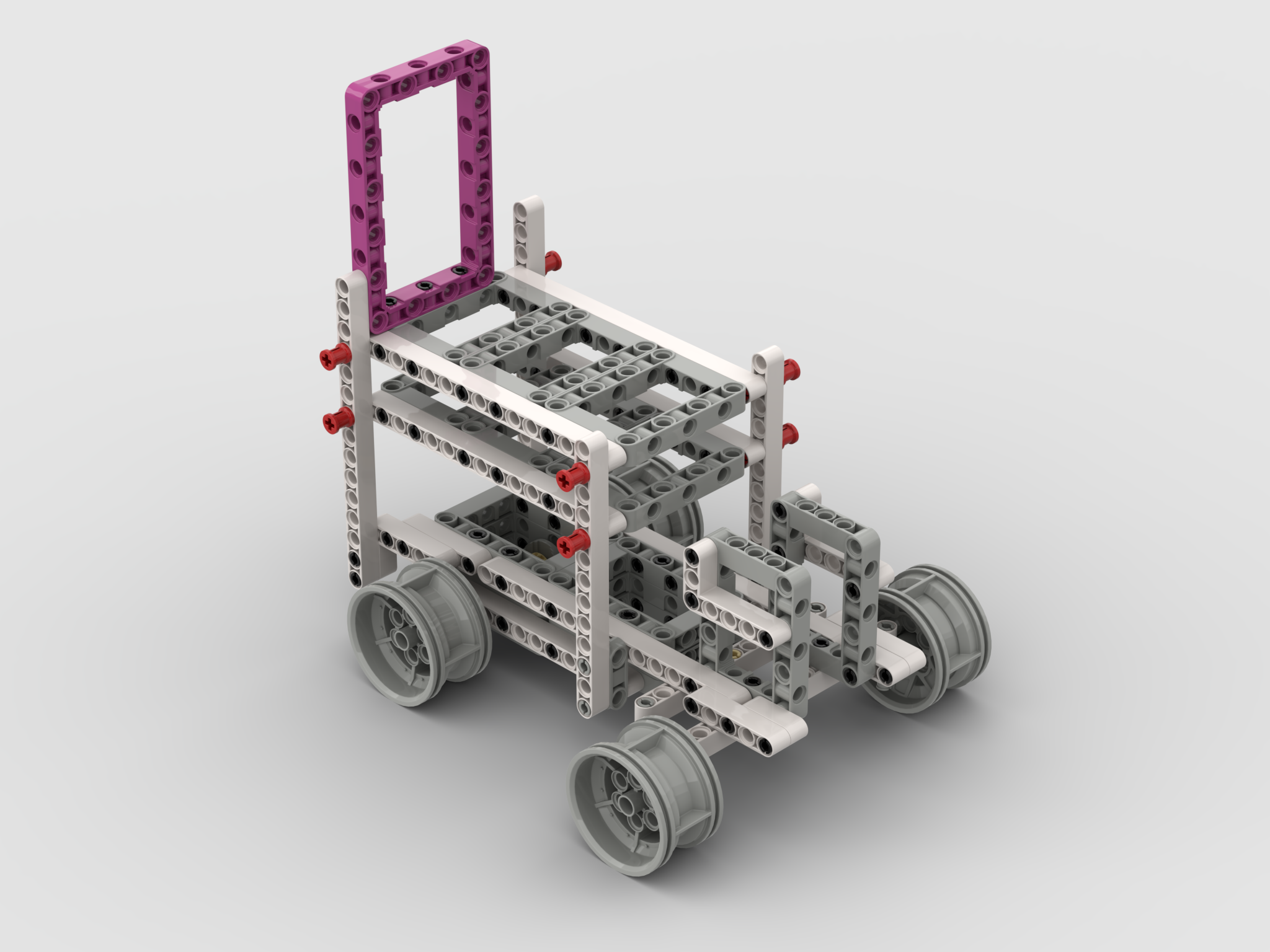
| *Orthographic View 1* | *Orthographic View 2* |
|
|
| :--: | :--: |
| *Orthographic View 1* | *Orthographic View 2* |
| 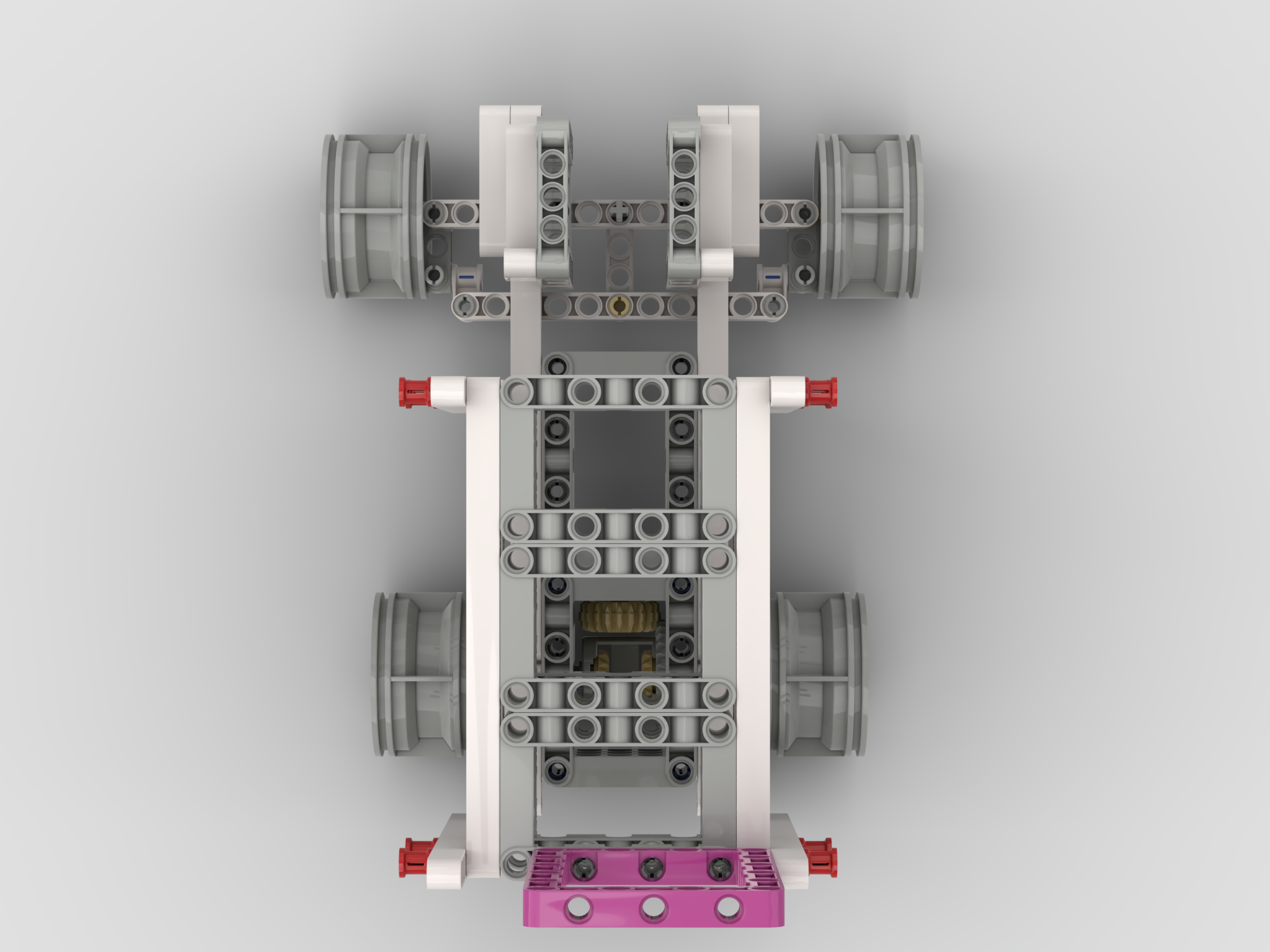 |
| 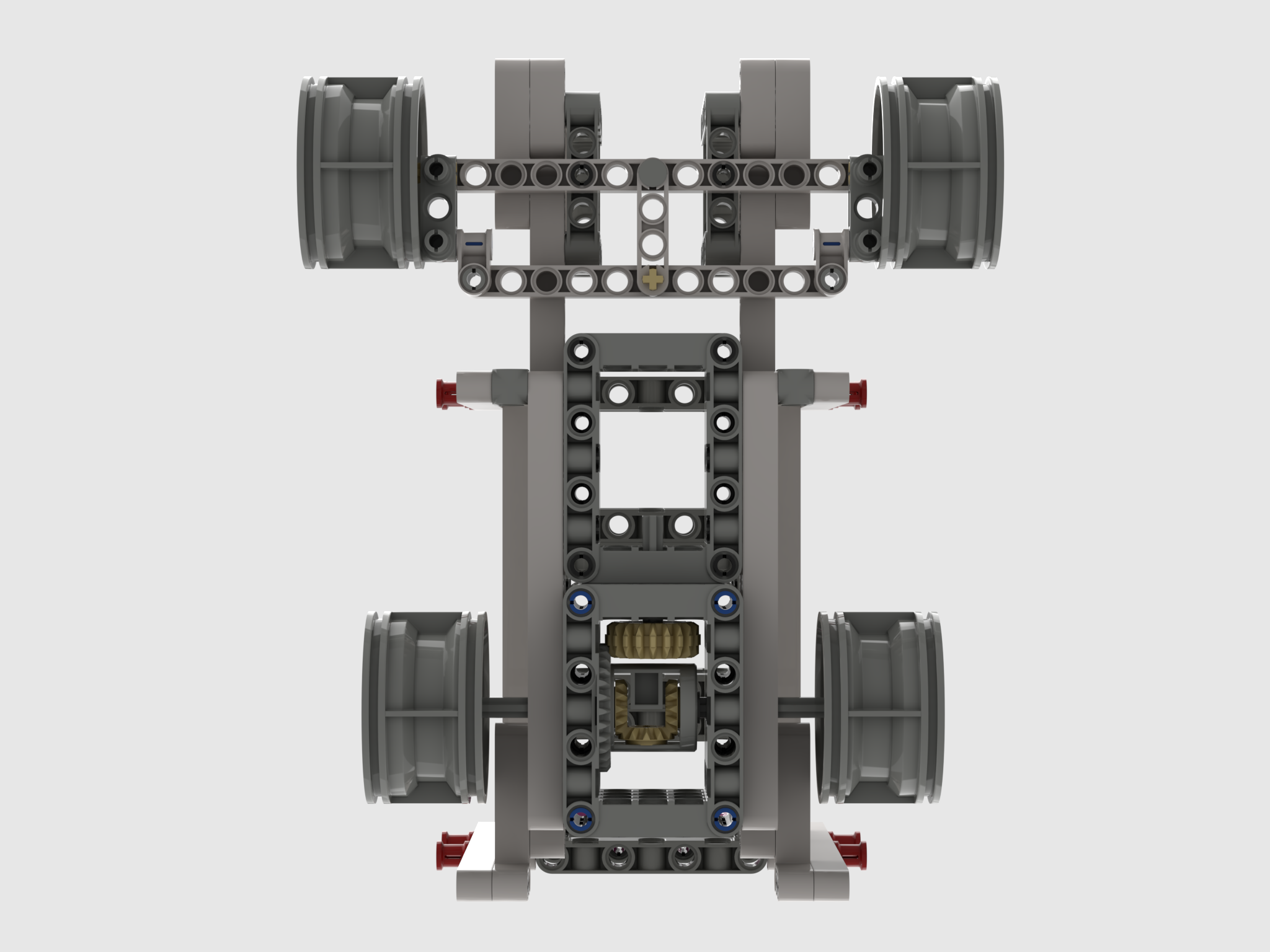 |
| *Top View* | *Bottom View* |
|
|
| *Top View* | *Bottom View* |
| 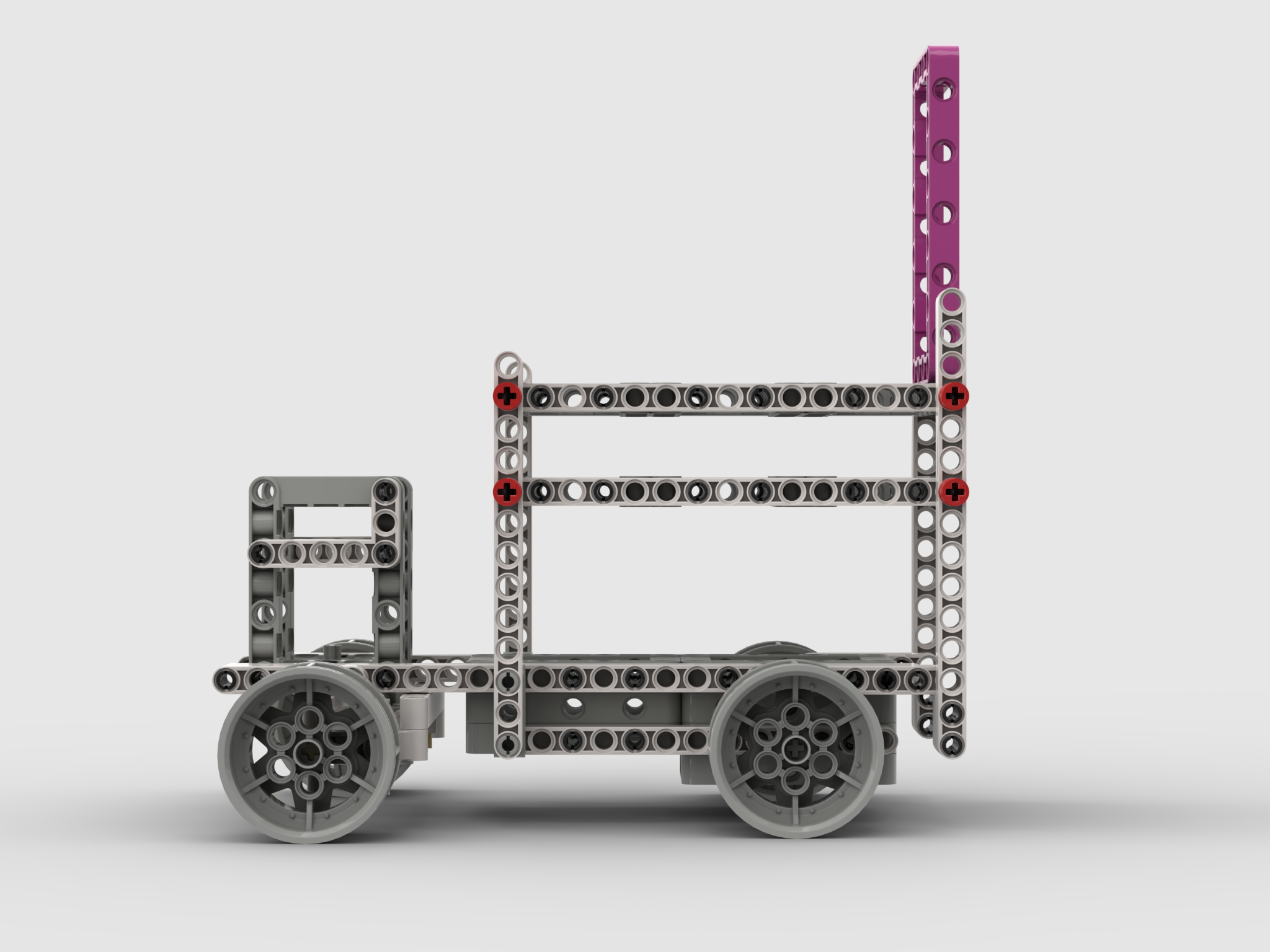 |
| 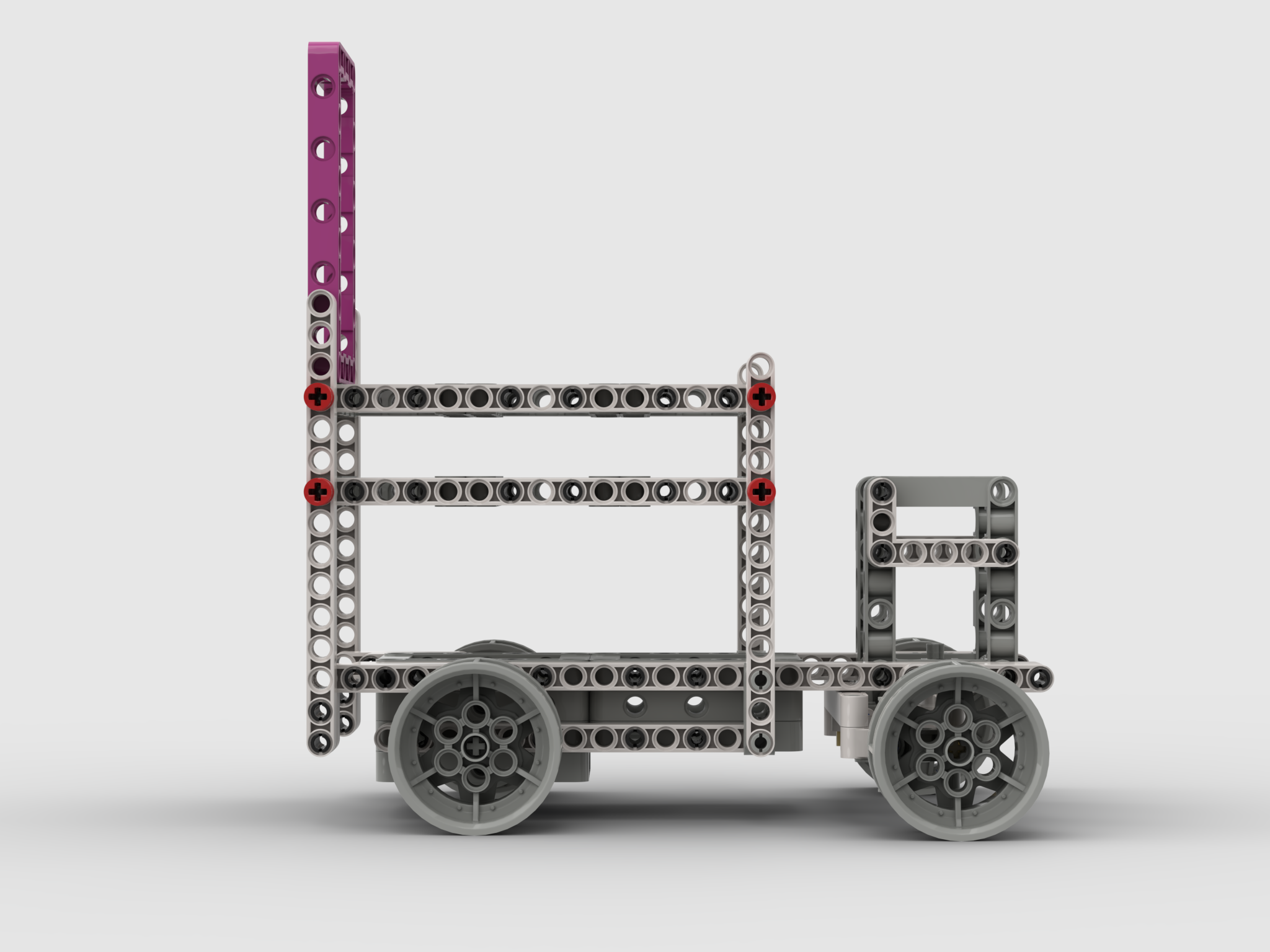 |
| *Left View* | *Right View* |
#### Assembly Guide
If the PDF is not loading properly, you can view the guide [here](https://github.com/WRO-Team-TheStatesmen/wro2025-fe-statesmen/blob/main/other/README-images/Chassis/ChassisAssembly.pdf)
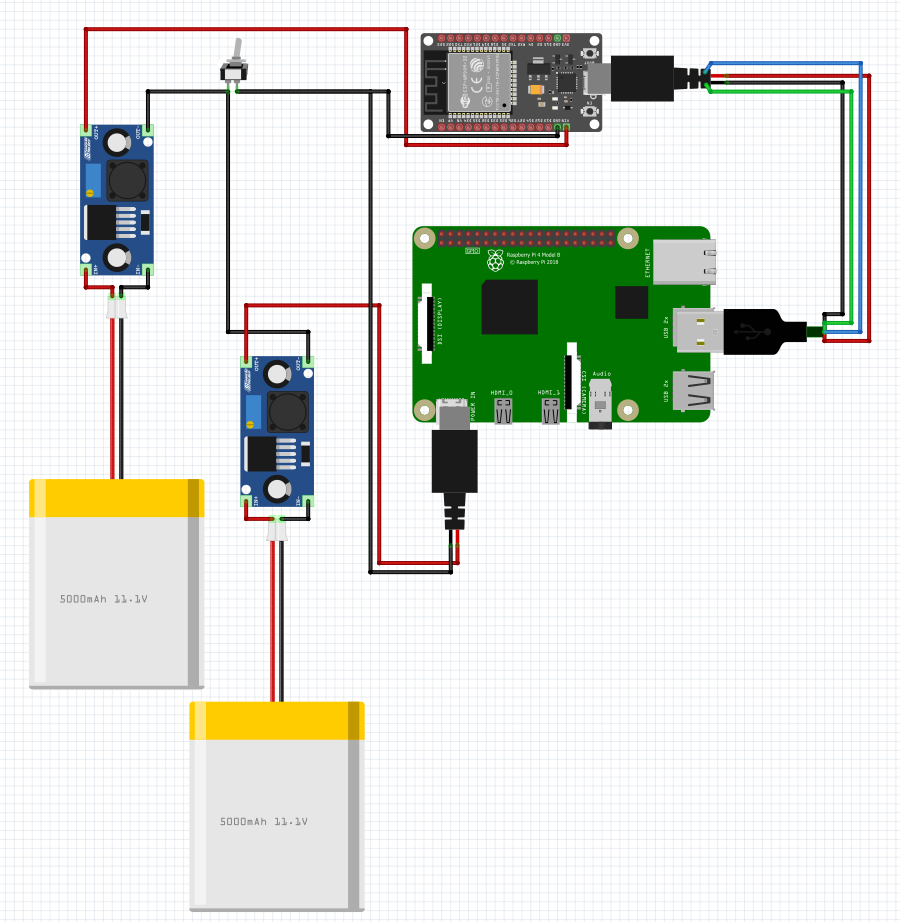
### Connection Diagram for Mobility System
|
| *Left View* | *Right View* |

#### Assembly Guide
If the PDF is not loading properly, you can view the guide [here](https://github.com/WRO-Team-TheStatesmen/wro2025-fe-statesmen/blob/main/other/README-images/Chassis/ChassisAssembly.pdf)
### Connection Diagram for Mobility System
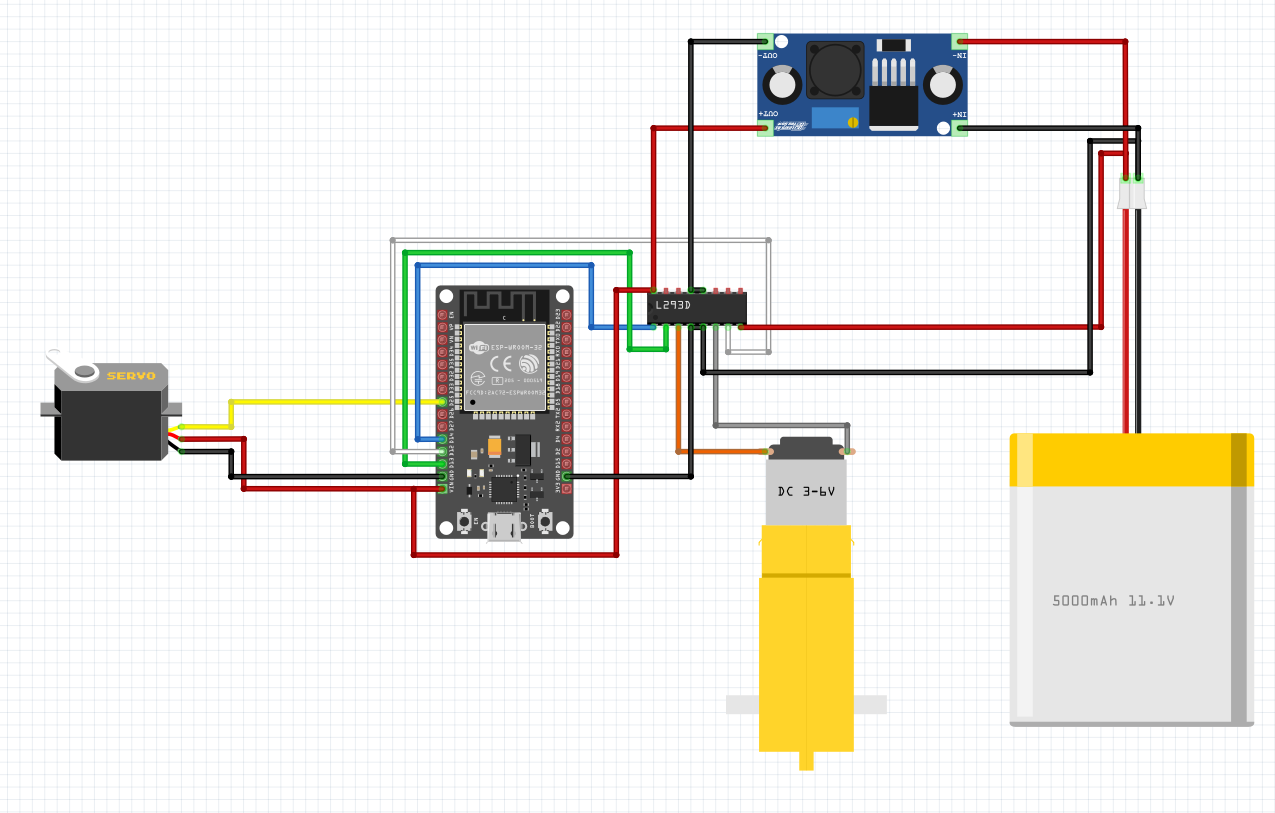
|
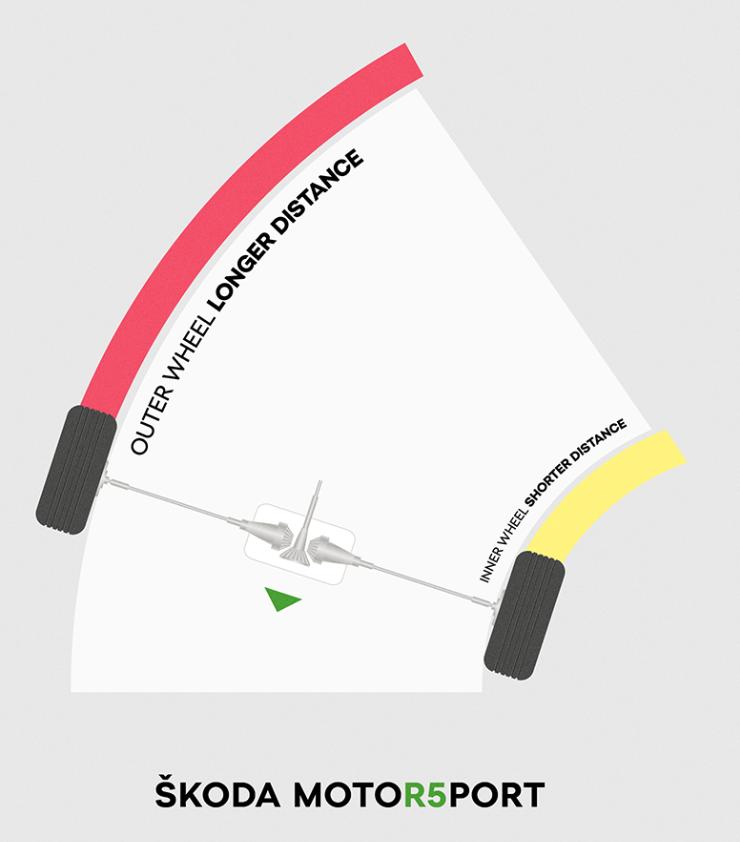
|
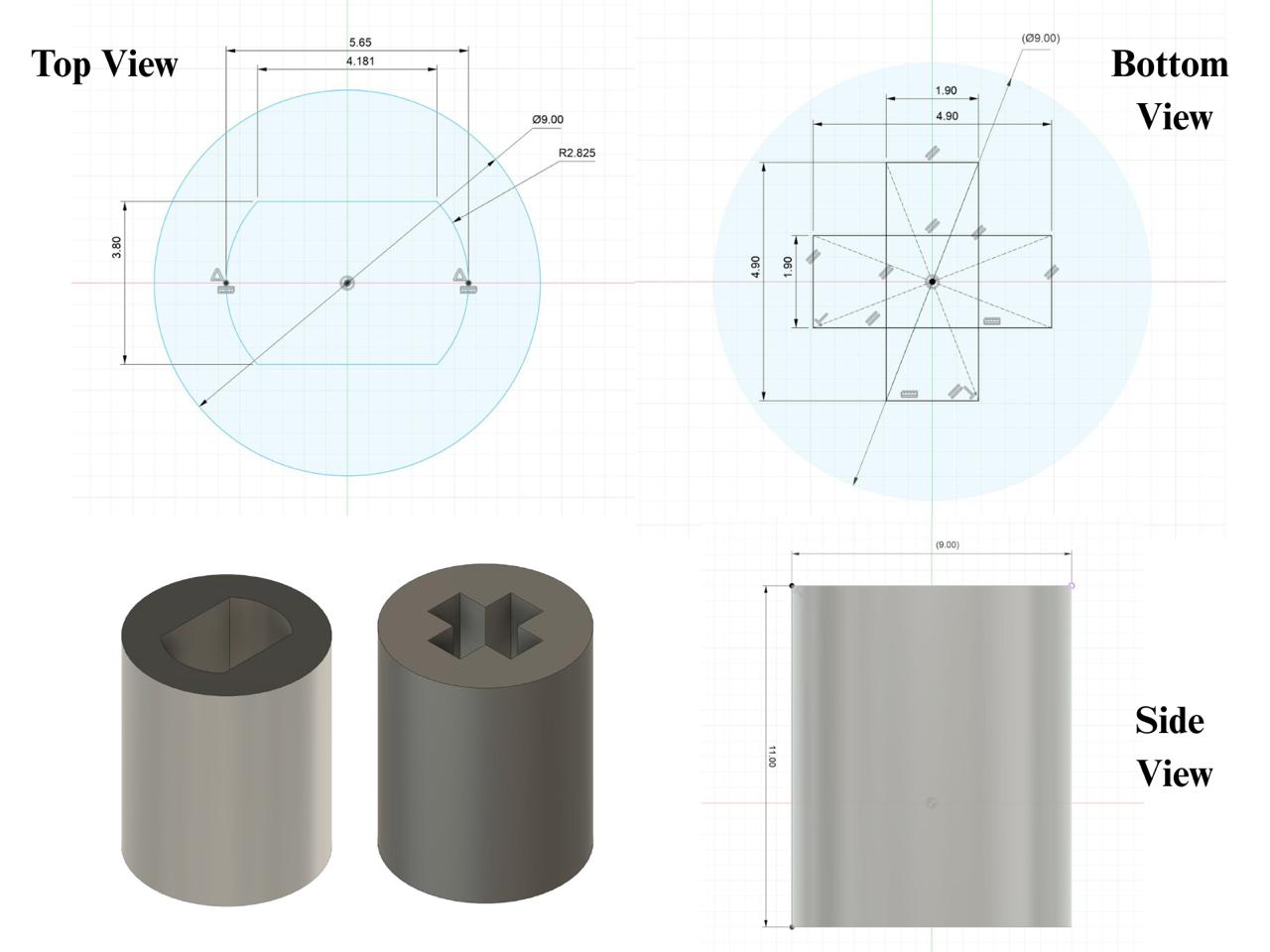
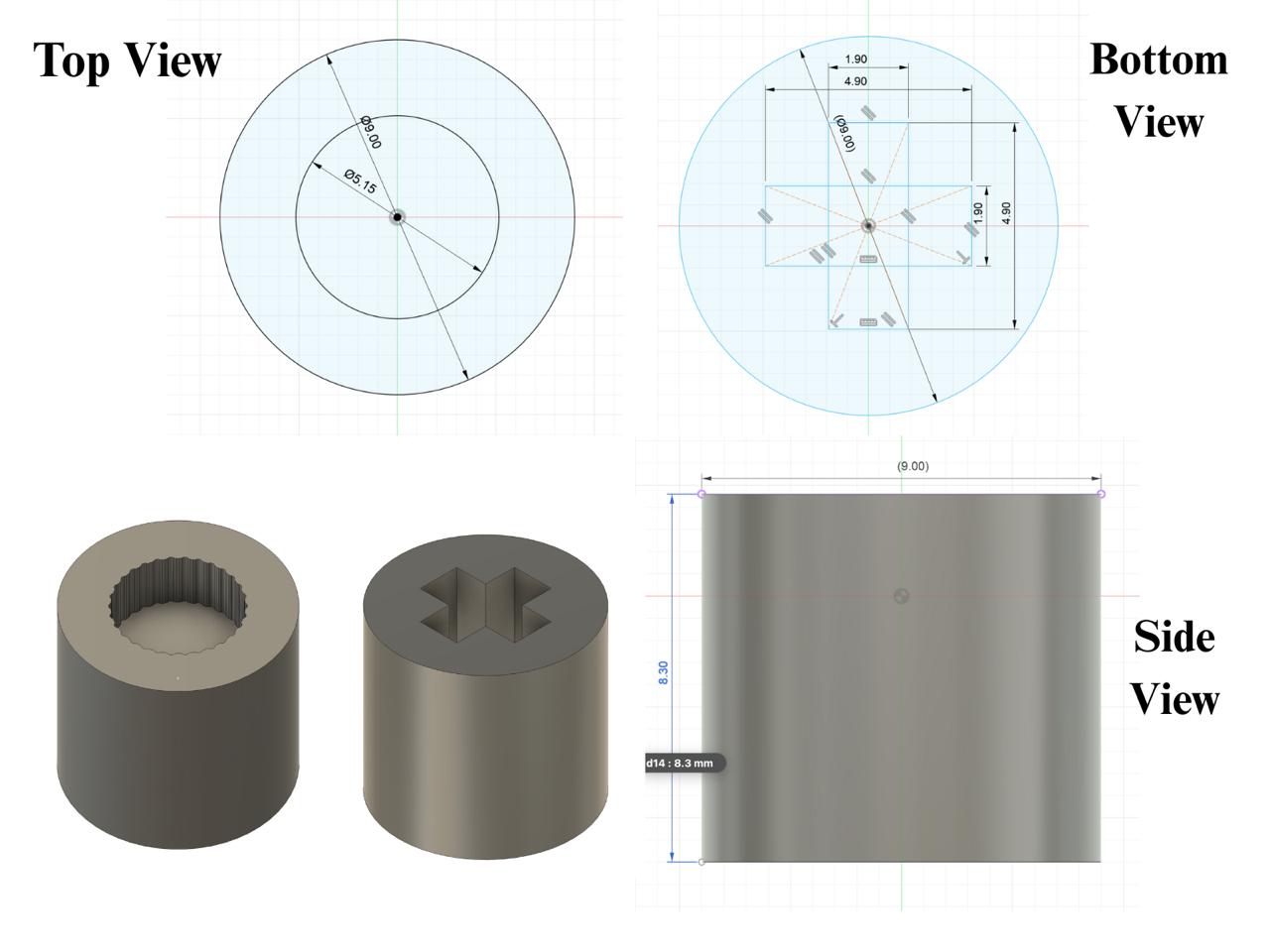
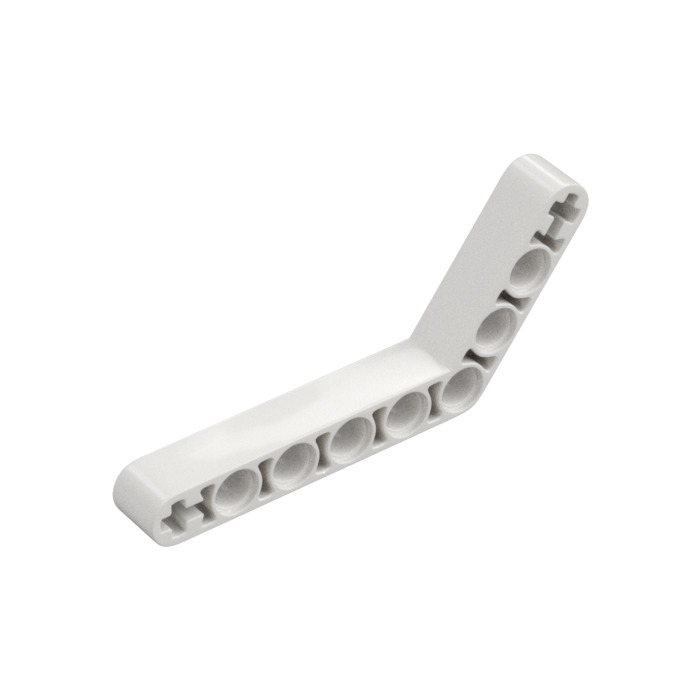 However, using this caused a problem that the robot wasn't fully level. After trying out multiple options, we finally settled on joining 2 pieces to achieve this:
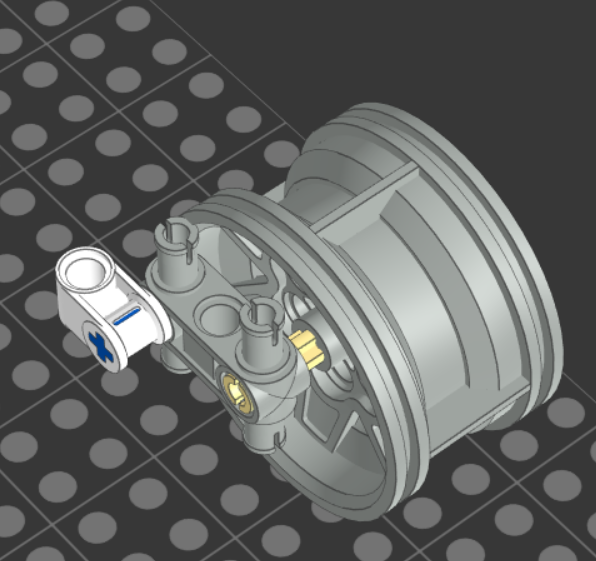 With this, we encountered another problem. If we tried to turn it more than 40 degree, it would cause a lot of tension and the 2 pieces would disconnect. To increase the maximum turning angle to 60 degrees, we had to superglue the 2 pieces together.
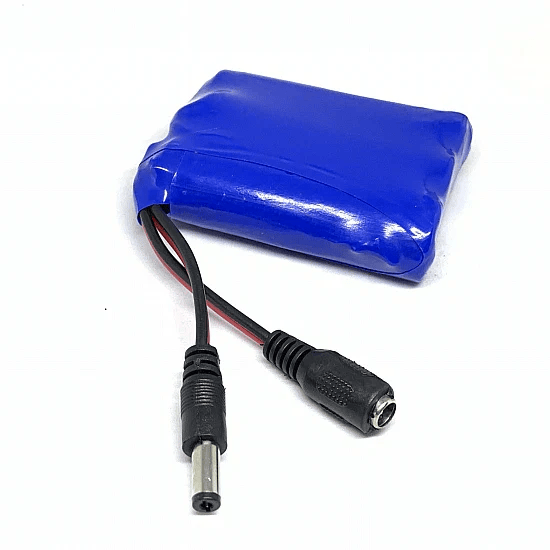
|
Specifications: |
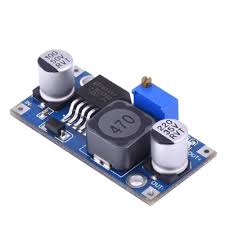
|
Specifications: |
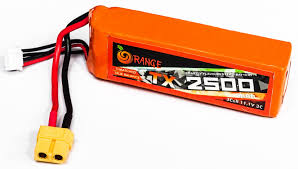
|
Specifications: |
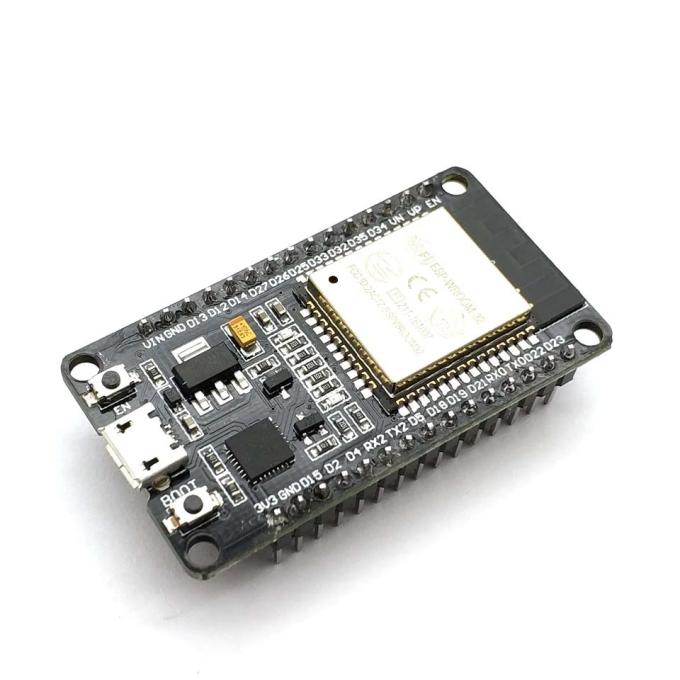
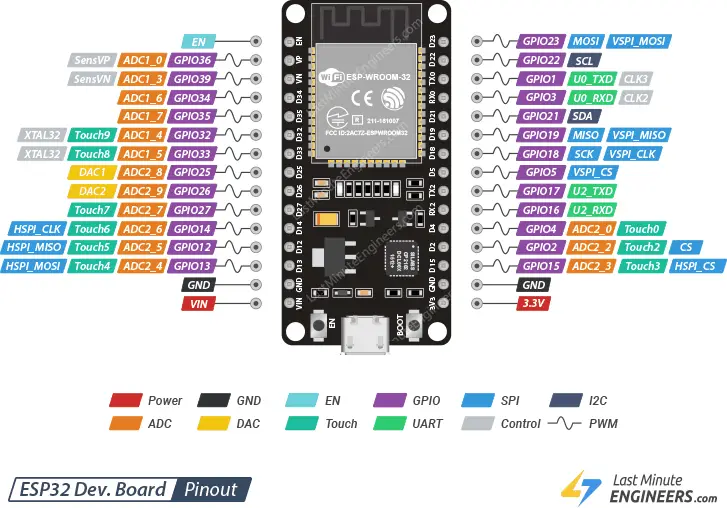
|
Specifications: |
 ### Raspberry Pi 5 SBC
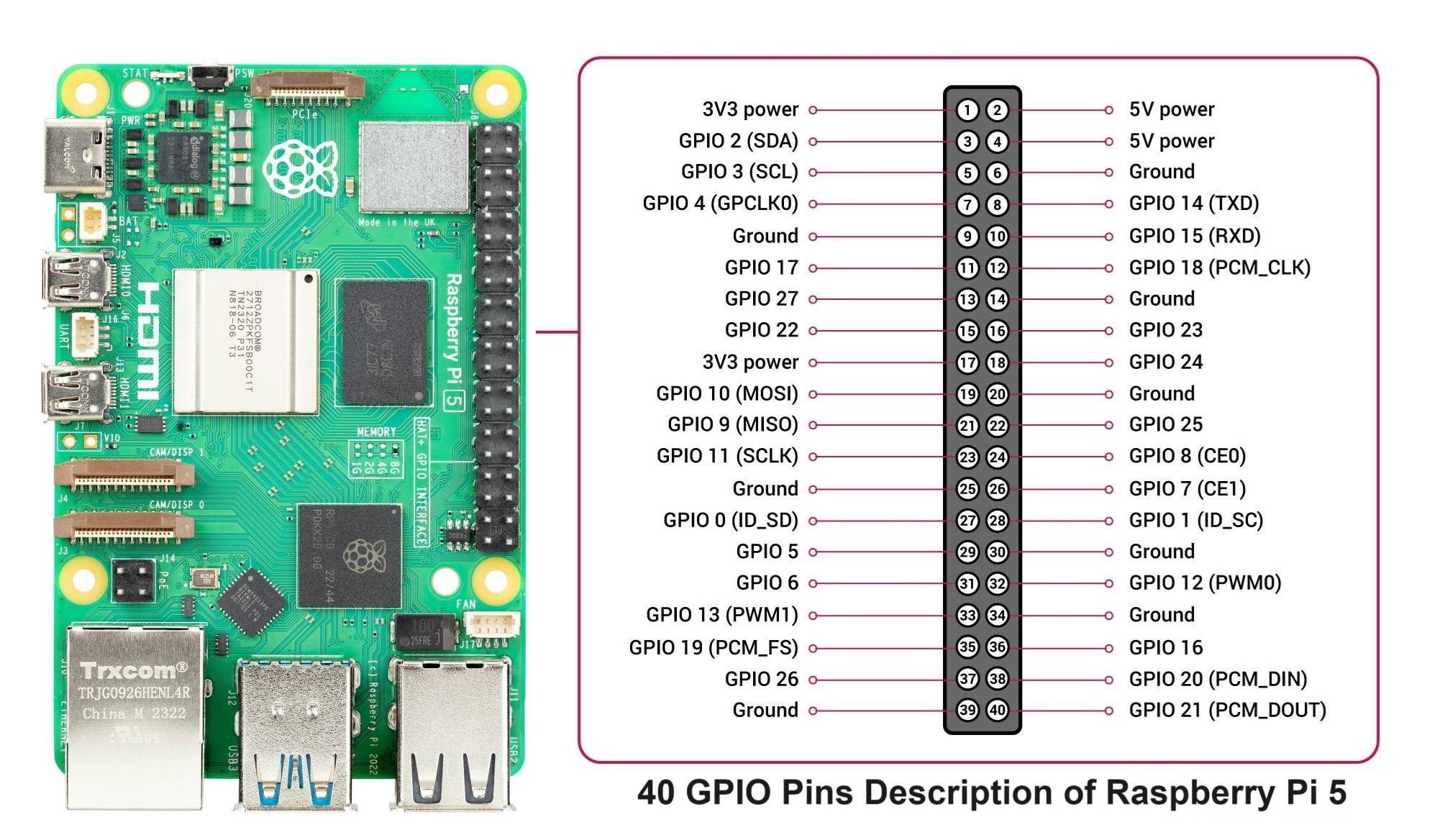
We are using the Raspberry Pi 5 Model B 8 GB RAM single board computer. We have chosen this after considering multiple options. We ended up on this one because of its cost and technical specifications mentioned below.
### Raspberry Pi 5 SBC
We are using the Raspberry Pi 5 Model B 8 GB RAM single board computer. We have chosen this after considering multiple options. We ended up on this one because of its cost and technical specifications mentioned below.
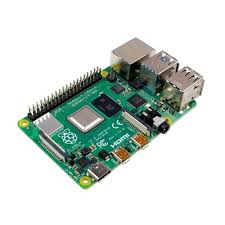
|
Specifications: |
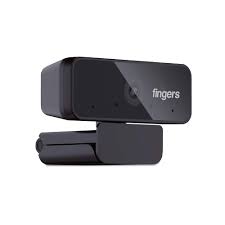
 ### Camera
We are using the FINGERS 1080p Hi-Res camera. We chose this camera after considereing multiple factors like its field of view, high resolution, and color saturation.
### Camera
We are using the FINGERS 1080p Hi-Res camera. We chose this camera after considereing multiple factors like its field of view, high resolution, and color saturation.
|
Specifications: |
|
Specifications: |
|
|
Specifications: |
|
|
|
|
|
|
|
 ### ESP32-Rasberry Pi Communication
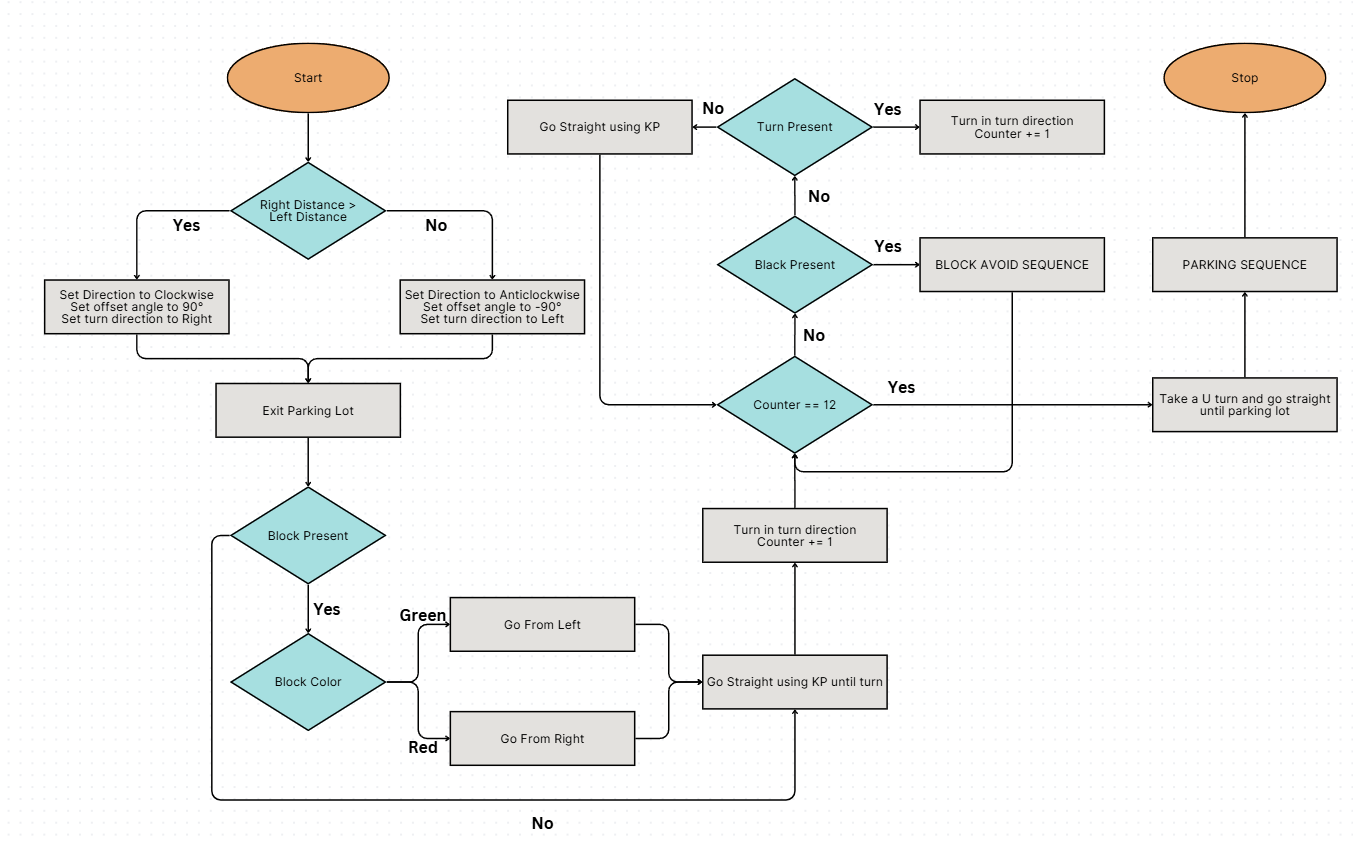
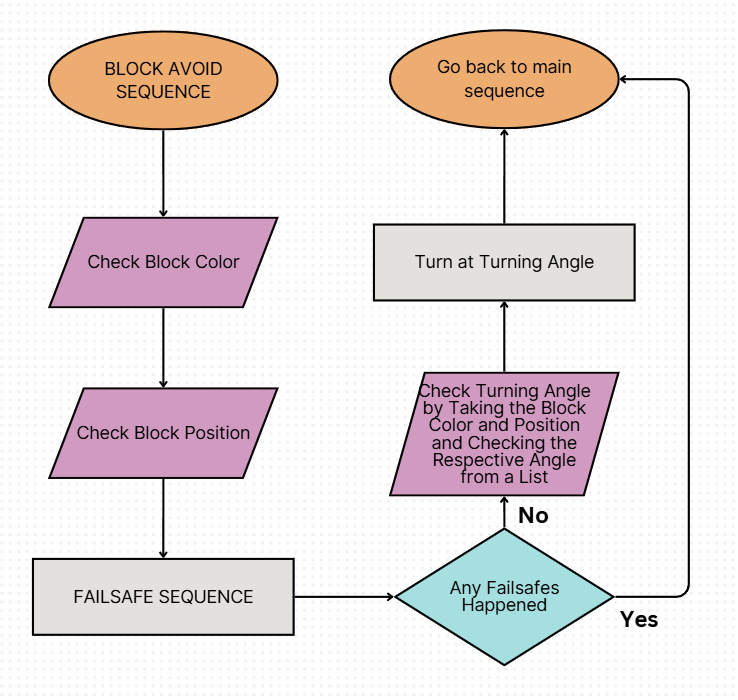
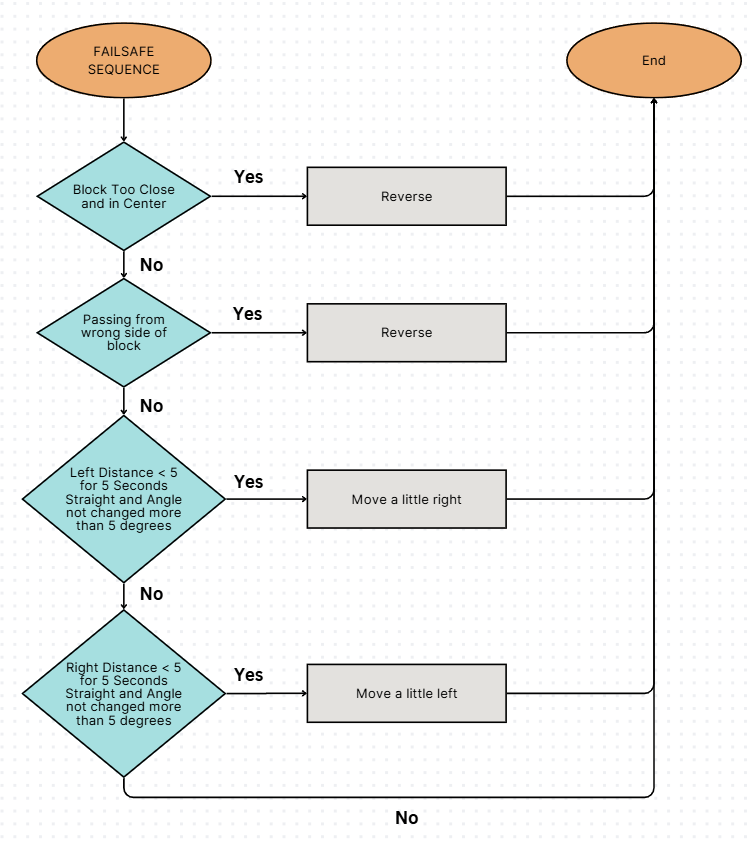
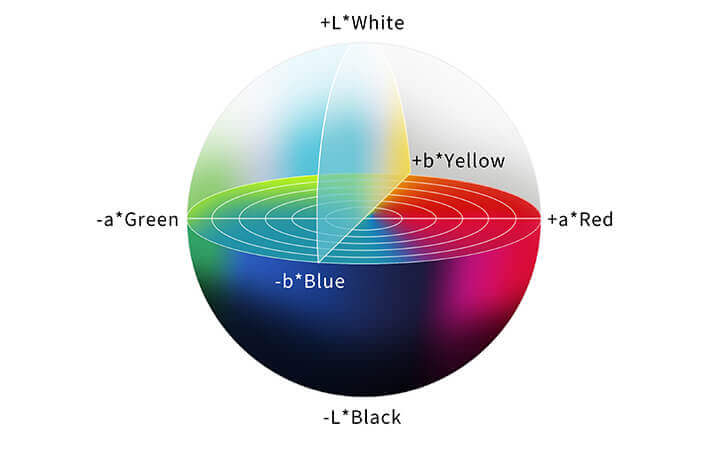
 ### Code Snippet for Detecting Blocks
```
import cv2
import numpy as np
import time
def detect_biggest_block(frame, SHOW=False):
global last_turn, DIRECTION
full_h, full_w, _ = frame.shape
roi_start = int(full_h * 0.2)
frame = frame[roi_start:full_h, 0:full_w]
adjusted = cv2.convertScaleAbs(frame, alpha=CONTRAST, beta=BRIGHTNESS)
inv_gamma = 1.0 / GAMMA
table = np.array([(i / 255.0) ** inv_gamma * 255 for i in np.arange(256)]).astype("uint8")
adjusted = cv2.LUT(adjusted, table)
lab = cv2.cvtColor(adjusted, cv2.COLOR_BGR2LAB)
l, a, b = cv2.split(lab)
clahe = cv2.createCLAHE(clipLimit=2.0, tileGridSize=(8, 8))
l_clahe = clahe.apply(l)
lab_clahe = cv2.merge((l_clahe, a, b))
adjusted_frame = cv2.cvtColor(lab_clahe, cv2.COLOR_LAB2BGR)
lab_frame = cv2.cvtColor(adjusted_frame, cv2.COLOR_BGR2LAB)
lab_raw = cv2.cvtColor(frame, cv2.COLOR_BGR2LAB)
detections = {"red": [], "green": [], "blue": [], "orange": []}
blue_y_values, orange_y_values = [], []
for color, (lower, upper) in COLOR_RANGES.items():
lower_bound = np.array(lower, dtype=np.uint8)
upper_bound = np.array(upper, dtype=np.uint8)
source_lab = lab_raw if color == "orange" else lab_frame
mask = cv2.inRange(source_lab, lower_bound, upper_bound)
kernel = np.ones((3, 3), np.uint8)
mask = cv2.morphologyEx(mask, cv2.MORPH_OPEN, kernel, iterations=2)
mask = cv2.morphologyEx(mask, cv2.MORPH_CLOSE, kernel, iterations=2)
contours, _ = cv2.findContours(mask, cv2.RETR_EXTERNAL, cv2.CHAIN_APPROX_SIMPLE)
for cnt in contours:
area = cv2.contourArea(cnt)
if area < MIN_AREA.get(color, 0):
continue
x, y, w_box, h_box = cv2.boundingRect(cnt)
cx, cy = x + w_box // 2, y + h_box // 2
detections[color].append((cx, cy, area, color))
if color == "blue":
blue_y_values.append(cy)
elif color == "orange":
orange_y_values.append(cy)
if SHOW:
cv2.rectangle(frame, (x, y), (x + w_box, y + h_box), colors[color], 2)
cv2.circle(frame, (cx, cy), 4, colors[color], -1)
cv2.putText(frame, f"{color} ({area})", (x, y - 10),
cv2.FONT_HERSHEY_SIMPLEX, 0.6, colors[color], 2)
max_blue_y = max(blue_y_values) if blue_y_values else None
max_orange_y = max(orange_y_values) if orange_y_values else None
valid_blocks = []
for color in ["red", "green"]:
for (cx, cy, area, col) in detections[color]:
if time.time() - last_turn > COOLDOWN:
if max_blue_y and cy <= max_blue_y:
continue
if max_orange_y and cy <= max_orange_y:
continue
valid_blocks.append((col, cy, cx, area))
closest_block = None
if valid_blocks:
closest_block = max(valid_blocks, key=lambda b: b[1])
color, cy, cx, area = closest_block
cy_full = cy + roi_start
x_percent = (cx / full_w) * 100
y_percent = ((full_h - cy_full) / full_h) * 100
cell_w = full_w // 5
cell_h = full_h // 5
col_idx = cx // cell_w
row_idx = cy_full // cell_h
cell_number = row_idx * 5 + col_idx + 1
else:
color, cy, cx, area, cell_number, x_percent, y_percent = (None, None, None, None, None, None, None)
if SHOW:
cell_w = full_w // 5
cell_h = full_h // 5
display = frame.copy()
for i in range(1, 5):
cv2.line(display, (i * cell_w, 0), (i * cell_w, frame.shape[0]), (200, 200, 200), 1)
for j in range(1, 5):
y_line = j * cell_h - roi_start
if 0 <= y_line < frame.shape[0]:
cv2.line(display, (0, y_line), (frame.shape[1], y_line), (200, 200, 200), 1)
num = 1
for r in range(5):
for c in range(5):
y_pos = r * cell_h + 20 - roi_start
if 0 <= y_pos < frame.shape[0]:
x_pos = c * cell_w + 10
cv2.putText(display, str(num), (x_pos, y_pos),
cv2.FONT_HERSHEY_SIMPLEX, 0.5, (180, 180, 180), 1)
num += 1
if closest_block:
cv2.rectangle(display, (cx - 20, cy - 20), (cx + 20, cy + 20), (0, 255, 255), 3)
cv2.putText(display, f"Closest: {color} Cell:{cell_number}",
(cx, cy - 30), cv2.FONT_HERSHEY_SIMPLEX, 0.7, (0, 255, 255), 2)
cv2.imshow("Block Detection", display)
cv2.waitKey(1)
return (color if closest_block else None,
y_percent if closest_block else None,
x_percent if closest_block else None,
area if closest_block else None,
cell_number if closest_block else None)
```
### Code Snippet for Moving Straight with KP
```
// Driving in a straight line
// Including Libraries
#include
### Code Snippet for Detecting Blocks
```
import cv2
import numpy as np
import time
def detect_biggest_block(frame, SHOW=False):
global last_turn, DIRECTION
full_h, full_w, _ = frame.shape
roi_start = int(full_h * 0.2)
frame = frame[roi_start:full_h, 0:full_w]
adjusted = cv2.convertScaleAbs(frame, alpha=CONTRAST, beta=BRIGHTNESS)
inv_gamma = 1.0 / GAMMA
table = np.array([(i / 255.0) ** inv_gamma * 255 for i in np.arange(256)]).astype("uint8")
adjusted = cv2.LUT(adjusted, table)
lab = cv2.cvtColor(adjusted, cv2.COLOR_BGR2LAB)
l, a, b = cv2.split(lab)
clahe = cv2.createCLAHE(clipLimit=2.0, tileGridSize=(8, 8))
l_clahe = clahe.apply(l)
lab_clahe = cv2.merge((l_clahe, a, b))
adjusted_frame = cv2.cvtColor(lab_clahe, cv2.COLOR_LAB2BGR)
lab_frame = cv2.cvtColor(adjusted_frame, cv2.COLOR_BGR2LAB)
lab_raw = cv2.cvtColor(frame, cv2.COLOR_BGR2LAB)
detections = {"red": [], "green": [], "blue": [], "orange": []}
blue_y_values, orange_y_values = [], []
for color, (lower, upper) in COLOR_RANGES.items():
lower_bound = np.array(lower, dtype=np.uint8)
upper_bound = np.array(upper, dtype=np.uint8)
source_lab = lab_raw if color == "orange" else lab_frame
mask = cv2.inRange(source_lab, lower_bound, upper_bound)
kernel = np.ones((3, 3), np.uint8)
mask = cv2.morphologyEx(mask, cv2.MORPH_OPEN, kernel, iterations=2)
mask = cv2.morphologyEx(mask, cv2.MORPH_CLOSE, kernel, iterations=2)
contours, _ = cv2.findContours(mask, cv2.RETR_EXTERNAL, cv2.CHAIN_APPROX_SIMPLE)
for cnt in contours:
area = cv2.contourArea(cnt)
if area < MIN_AREA.get(color, 0):
continue
x, y, w_box, h_box = cv2.boundingRect(cnt)
cx, cy = x + w_box // 2, y + h_box // 2
detections[color].append((cx, cy, area, color))
if color == "blue":
blue_y_values.append(cy)
elif color == "orange":
orange_y_values.append(cy)
if SHOW:
cv2.rectangle(frame, (x, y), (x + w_box, y + h_box), colors[color], 2)
cv2.circle(frame, (cx, cy), 4, colors[color], -1)
cv2.putText(frame, f"{color} ({area})", (x, y - 10),
cv2.FONT_HERSHEY_SIMPLEX, 0.6, colors[color], 2)
max_blue_y = max(blue_y_values) if blue_y_values else None
max_orange_y = max(orange_y_values) if orange_y_values else None
valid_blocks = []
for color in ["red", "green"]:
for (cx, cy, area, col) in detections[color]:
if time.time() - last_turn > COOLDOWN:
if max_blue_y and cy <= max_blue_y:
continue
if max_orange_y and cy <= max_orange_y:
continue
valid_blocks.append((col, cy, cx, area))
closest_block = None
if valid_blocks:
closest_block = max(valid_blocks, key=lambda b: b[1])
color, cy, cx, area = closest_block
cy_full = cy + roi_start
x_percent = (cx / full_w) * 100
y_percent = ((full_h - cy_full) / full_h) * 100
cell_w = full_w // 5
cell_h = full_h // 5
col_idx = cx // cell_w
row_idx = cy_full // cell_h
cell_number = row_idx * 5 + col_idx + 1
else:
color, cy, cx, area, cell_number, x_percent, y_percent = (None, None, None, None, None, None, None)
if SHOW:
cell_w = full_w // 5
cell_h = full_h // 5
display = frame.copy()
for i in range(1, 5):
cv2.line(display, (i * cell_w, 0), (i * cell_w, frame.shape[0]), (200, 200, 200), 1)
for j in range(1, 5):
y_line = j * cell_h - roi_start
if 0 <= y_line < frame.shape[0]:
cv2.line(display, (0, y_line), (frame.shape[1], y_line), (200, 200, 200), 1)
num = 1
for r in range(5):
for c in range(5):
y_pos = r * cell_h + 20 - roi_start
if 0 <= y_pos < frame.shape[0]:
x_pos = c * cell_w + 10
cv2.putText(display, str(num), (x_pos, y_pos),
cv2.FONT_HERSHEY_SIMPLEX, 0.5, (180, 180, 180), 1)
num += 1
if closest_block:
cv2.rectangle(display, (cx - 20, cy - 20), (cx + 20, cy + 20), (0, 255, 255), 3)
cv2.putText(display, f"Closest: {color} Cell:{cell_number}",
(cx, cy - 30), cv2.FONT_HERSHEY_SIMPLEX, 0.7, (0, 255, 255), 2)
cv2.imshow("Block Detection", display)
cv2.waitKey(1)
return (color if closest_block else None,
y_percent if closest_block else None,
x_percent if closest_block else None,
area if closest_block else None,
cell_number if closest_block else None)
```
### Code Snippet for Moving Straight with KP
```
// Driving in a straight line
// Including Libraries
#include 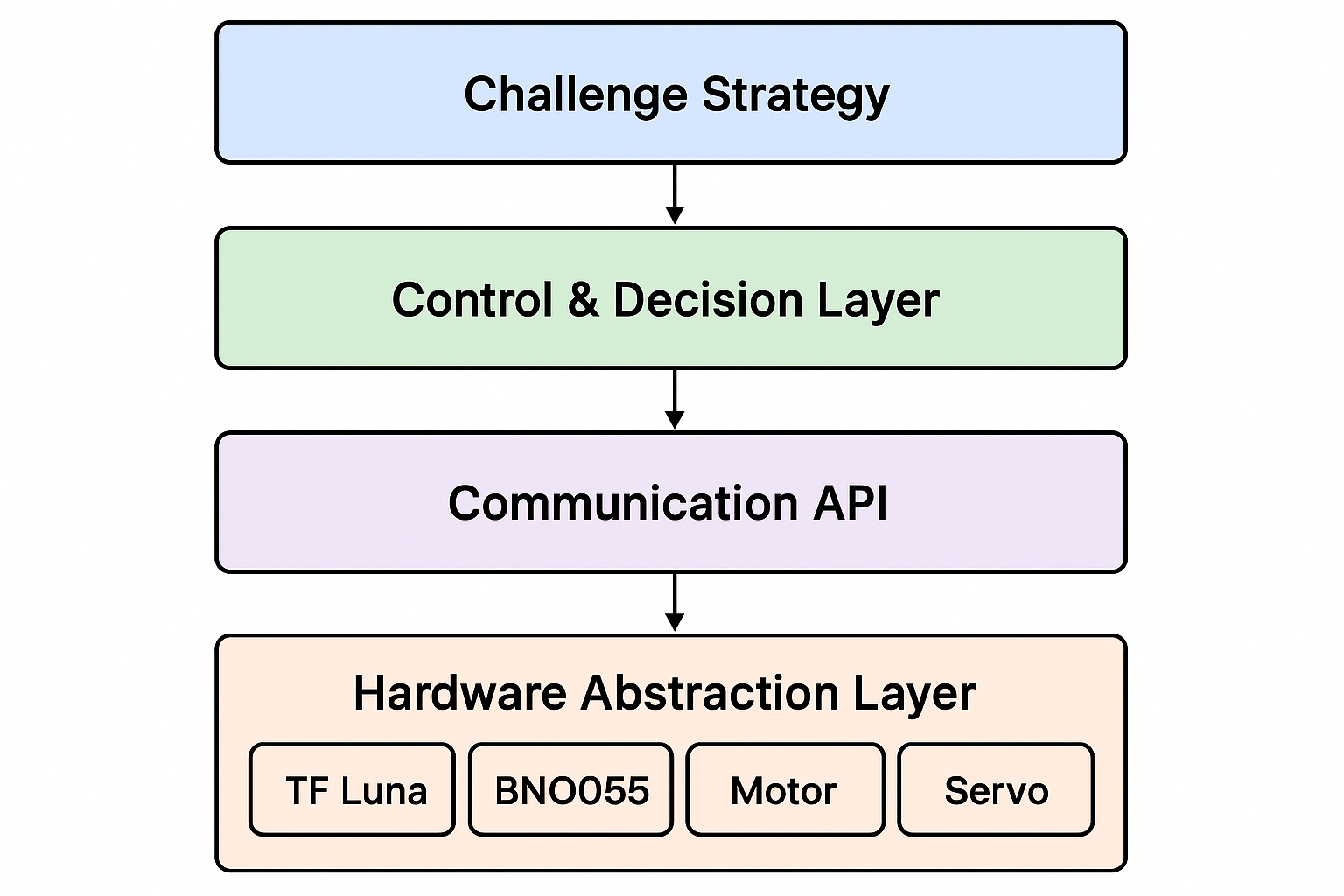 ### System Architecture
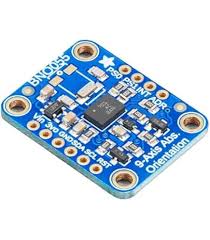
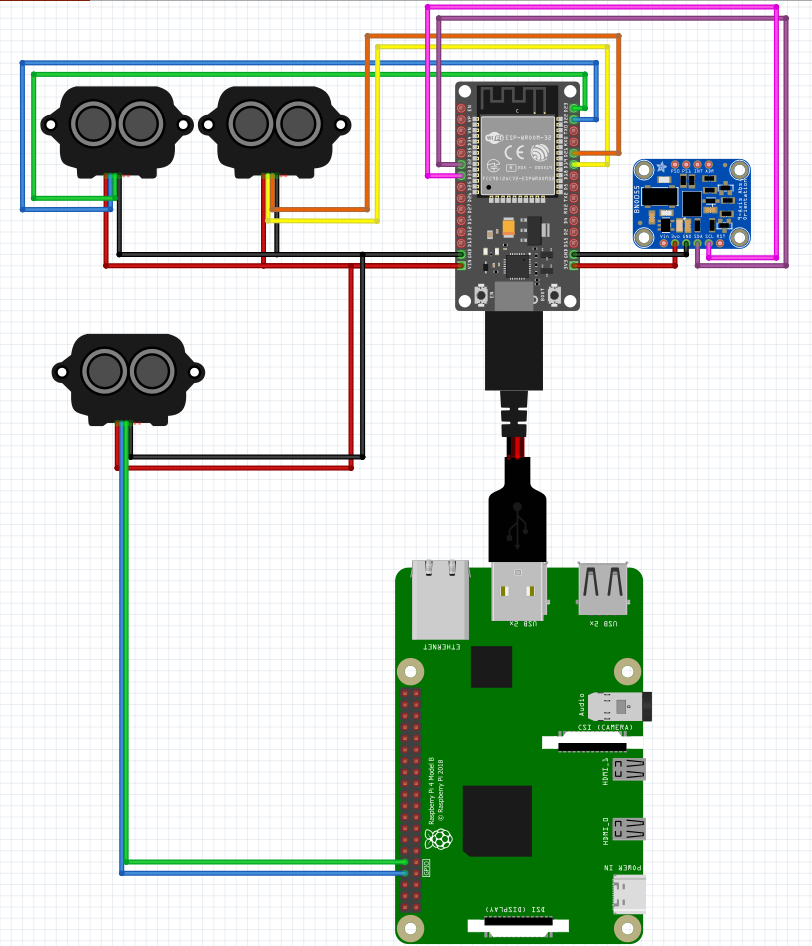
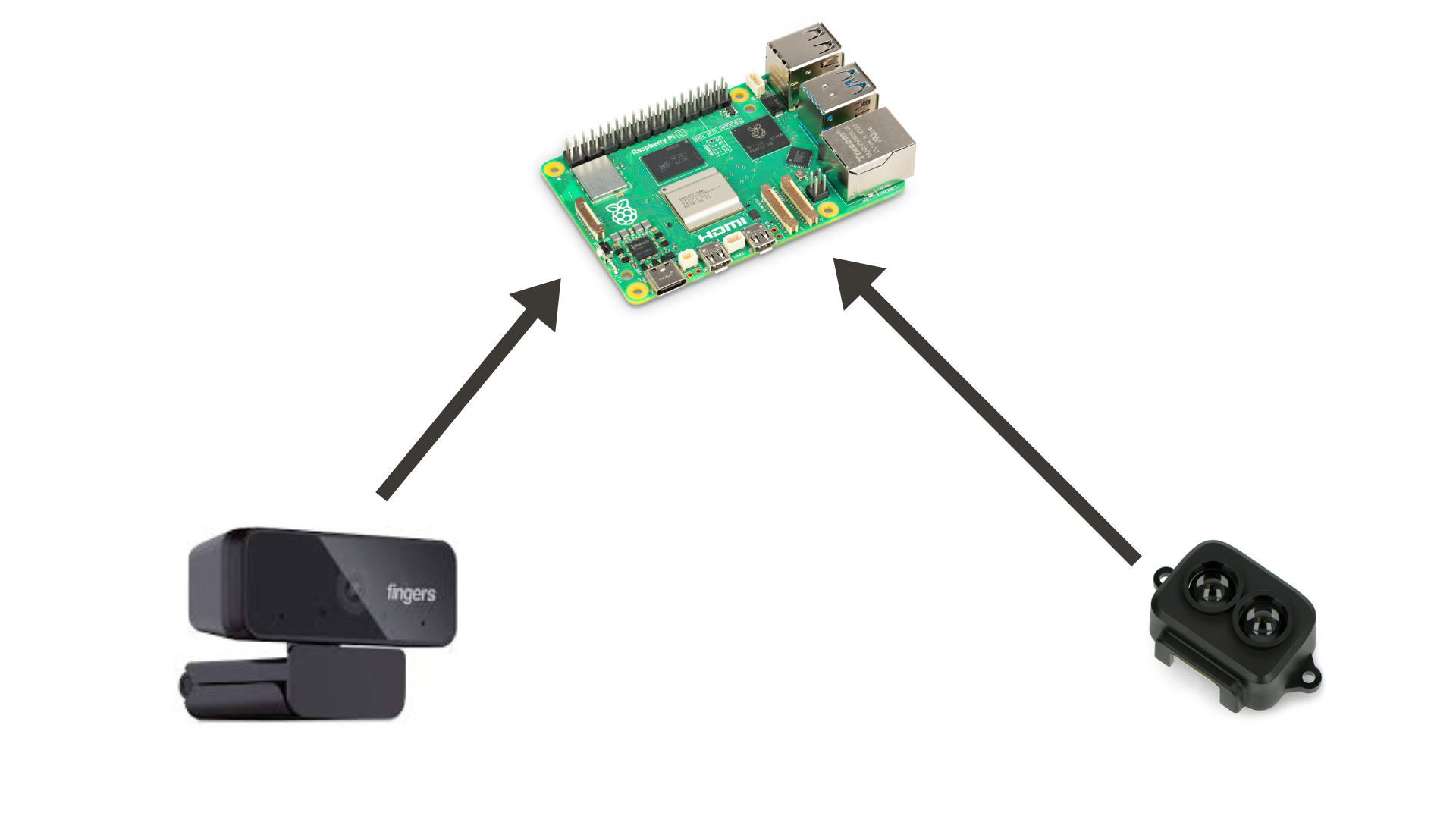
The ESP32 acts as a hub between the Raspberry Pi and the motor, servo motor, the BNO055 orientation sensor and 2 LiDAR sensors. The ESP32 is connected to these components. It is only reponsible for sending data to and receiving data from them. It acts as a hub in the middle.
### System Architecture
The ESP32 acts as a hub between the Raspberry Pi and the motor, servo motor, the BNO055 orientation sensor and 2 LiDAR sensors. The ESP32 is connected to these components. It is only reponsible for sending data to and receiving data from them. It acts as a hub in the middle.
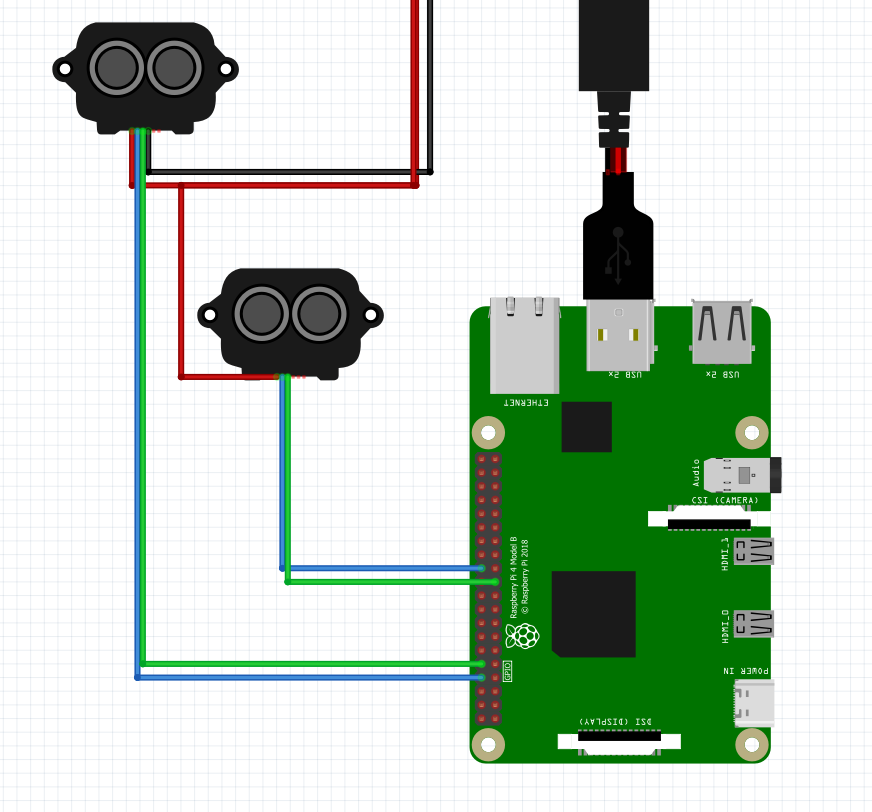
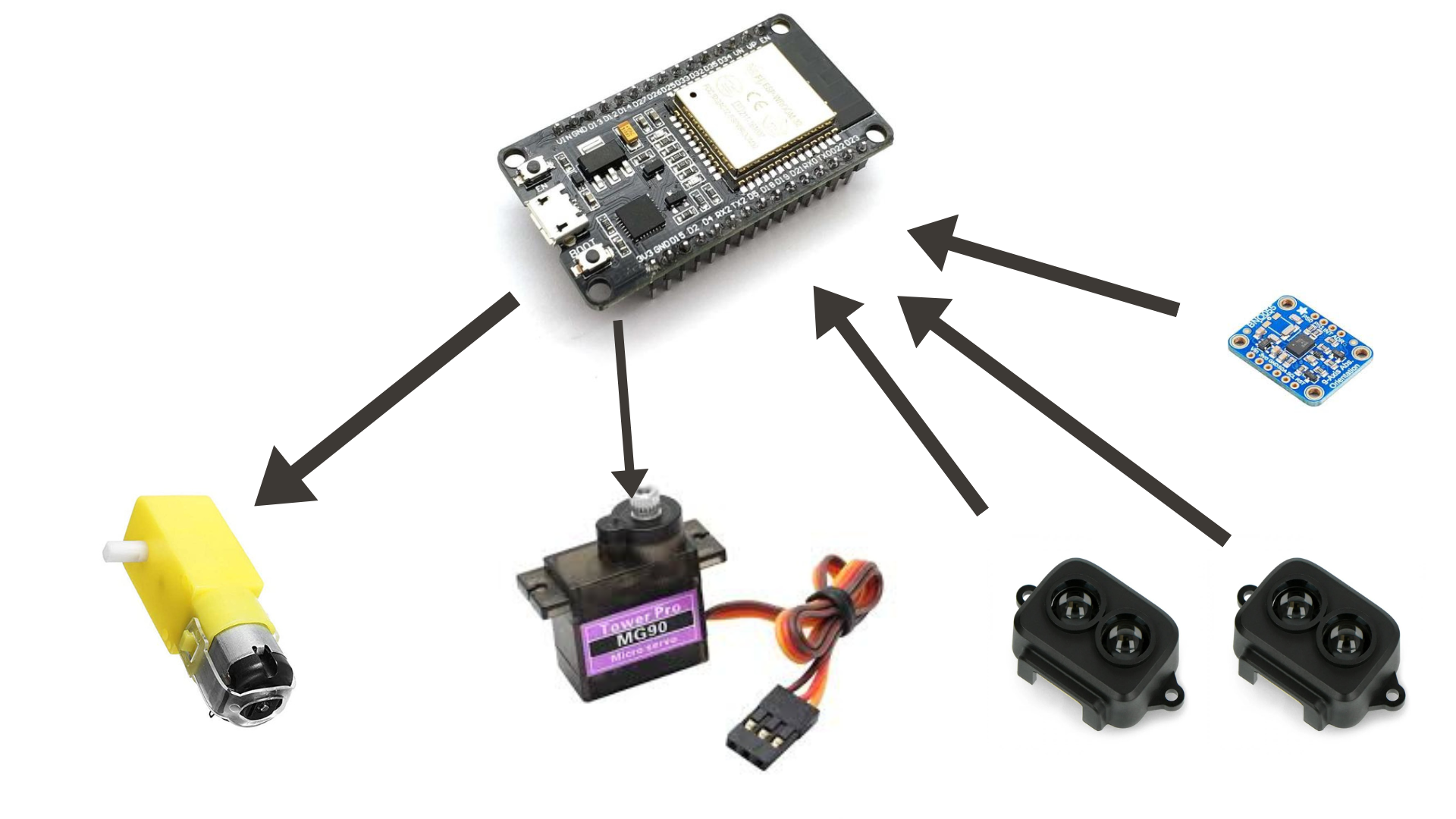 The Raspberry Pi is the brain of our robot. It is responsible for image processing and making decisions. It is also connected to the front LiDAR sensor because the ESP32 can only handle 2 UART connections.
 ### Communication Protocol
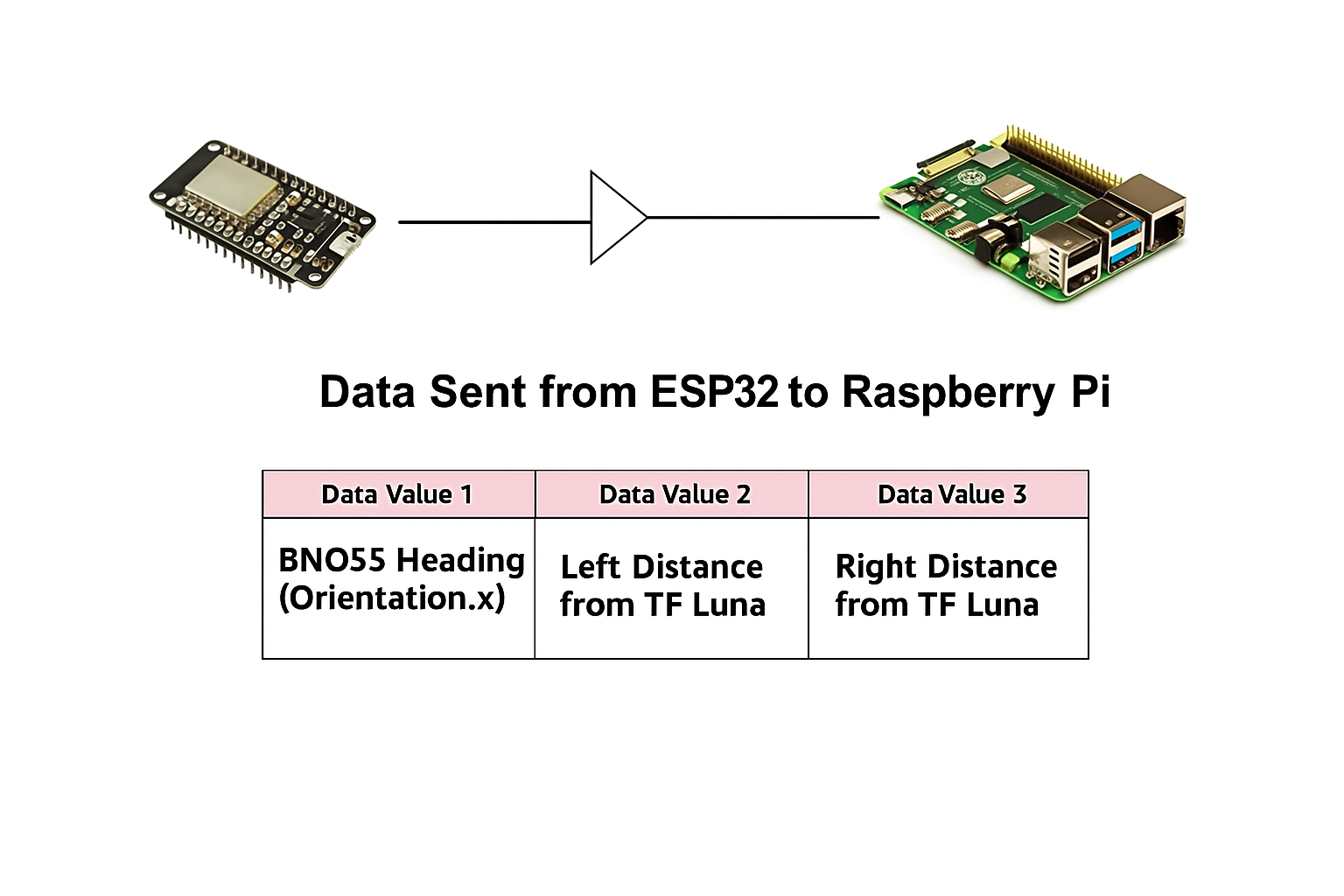
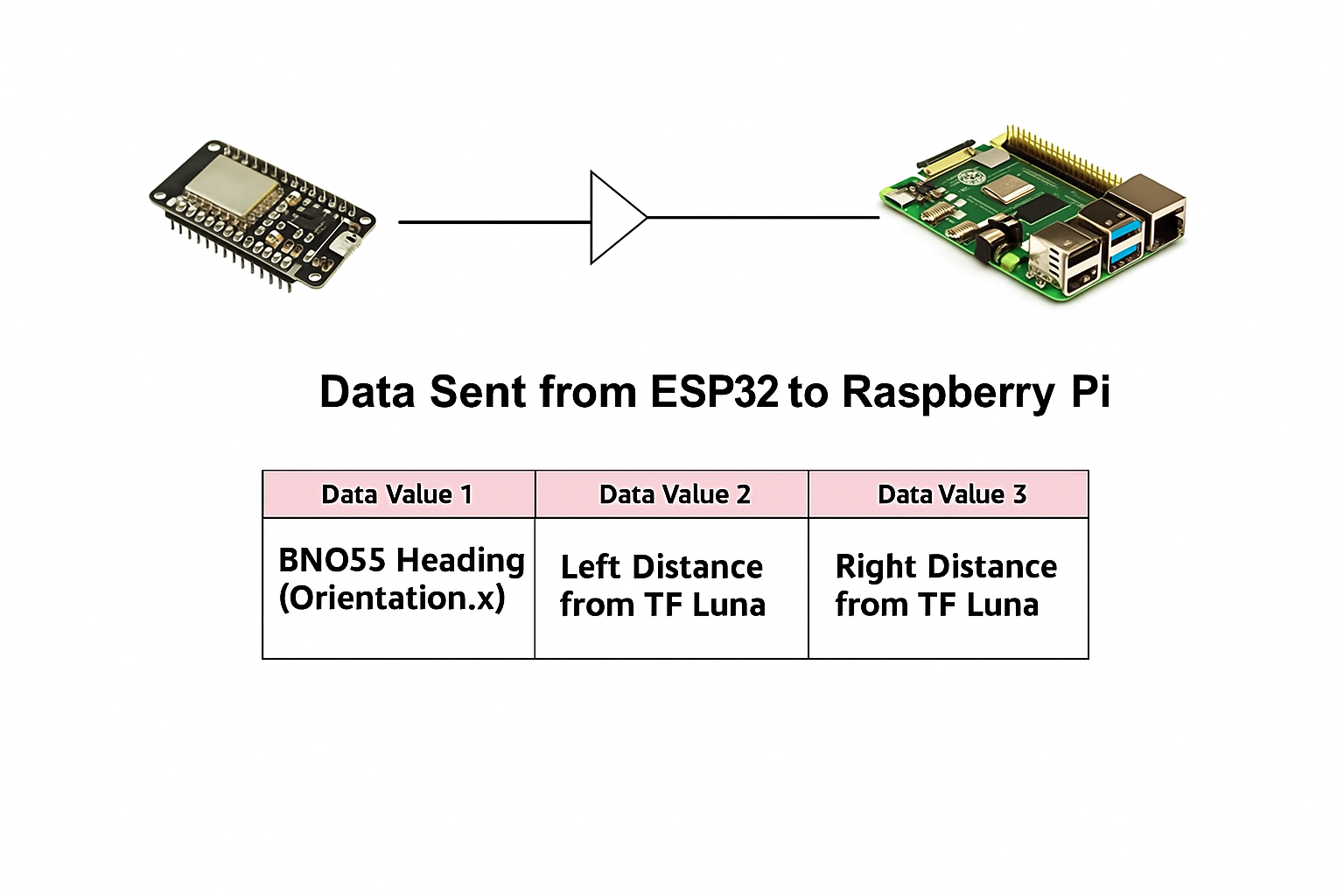
The Raspberry Pi needs to have all the data to make proper decisions. It needs data recorded by the ESP32 for that. For this, we have created a csv-based serial communication system between the Raspberry Pi and ESP32.
The Raspberry Pi is connected to the ESP32 via a USB cable. The ESP32 sends the data to the Raspberry Pi over a serial connection at a baud rate of 115200, which means 115200 signal changes per second.
The ESP32 sends 3 values to the ESP32:
| Data Value 1 | Data Value 2 | Data Value 3 |
|--------------|--------------------------|---------------------------|
| BNO055 Heading (*Orientation.x*) | Left Distance from TF Luna | Right Distance from TF Luna |
### Communication Protocol
The Raspberry Pi needs to have all the data to make proper decisions. It needs data recorded by the ESP32 for that. For this, we have created a csv-based serial communication system between the Raspberry Pi and ESP32.
The Raspberry Pi is connected to the ESP32 via a USB cable. The ESP32 sends the data to the Raspberry Pi over a serial connection at a baud rate of 115200, which means 115200 signal changes per second.
The ESP32 sends 3 values to the ESP32:
| Data Value 1 | Data Value 2 | Data Value 3 |
|--------------|--------------------------|---------------------------|
| BNO055 Heading (*Orientation.x*) | Left Distance from TF Luna | Right Distance from TF Luna |
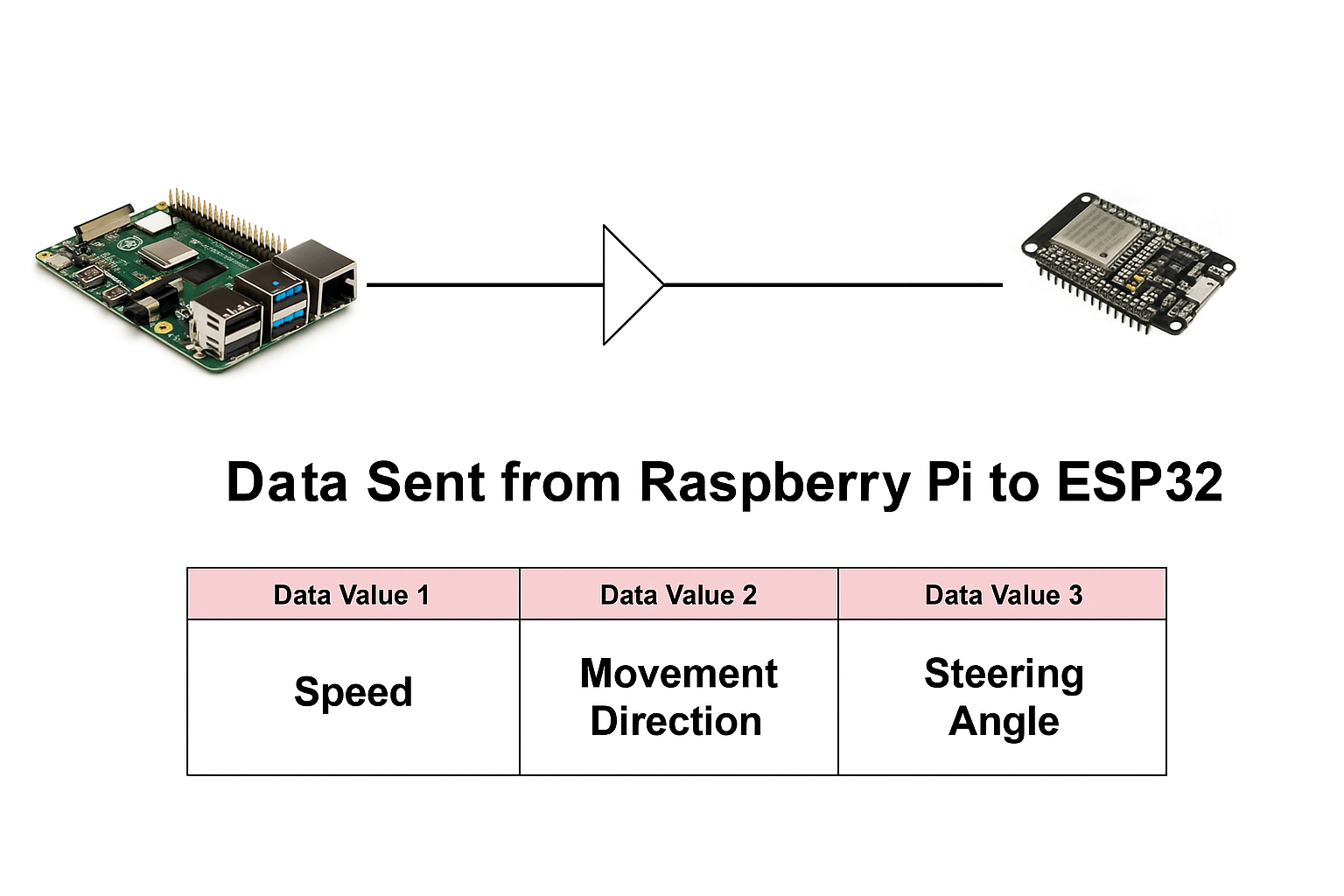
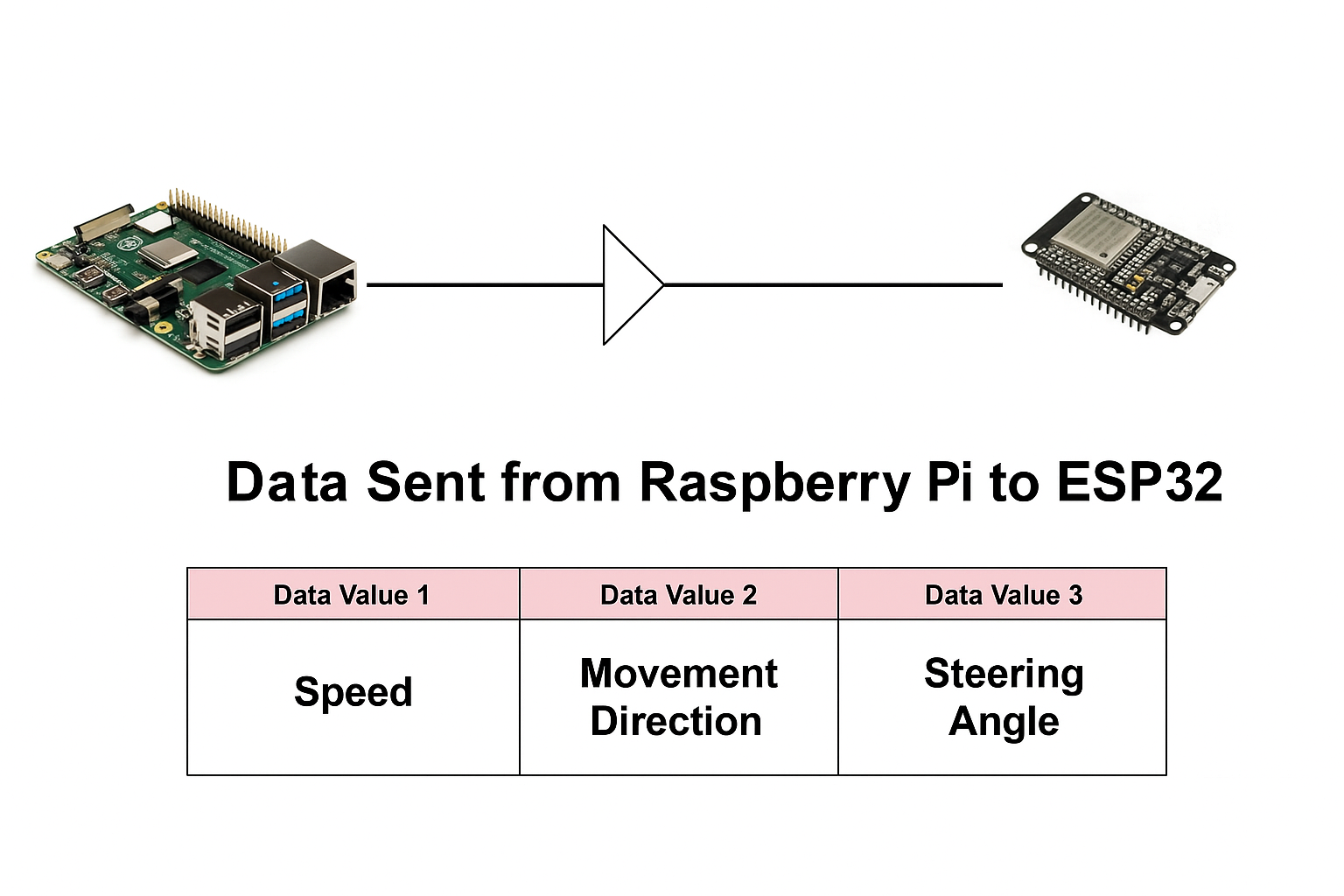
 After the ESP32 receives all the data, it processes it. It detects the location of the block and based on that it decides where the robot should go. For that, it needs to send the data to the ESP32. The Raspberry Pi sends 3 values to the ESP32.
| Data Value 1 | Data Value 2 | Data Value 3 |
|--------------|--------------------------|---------------------------|
| Speed | Movement Direction (Front/Back) | Steer Angle |
After the ESP32 receives all the data, it processes it. It detects the location of the block and based on that it decides where the robot should go. For that, it needs to send the data to the ESP32. The Raspberry Pi sends 3 values to the ESP32.
| Data Value 1 | Data Value 2 | Data Value 3 |
|--------------|--------------------------|---------------------------|
| Speed | Movement Direction (Front/Back) | Steer Angle |
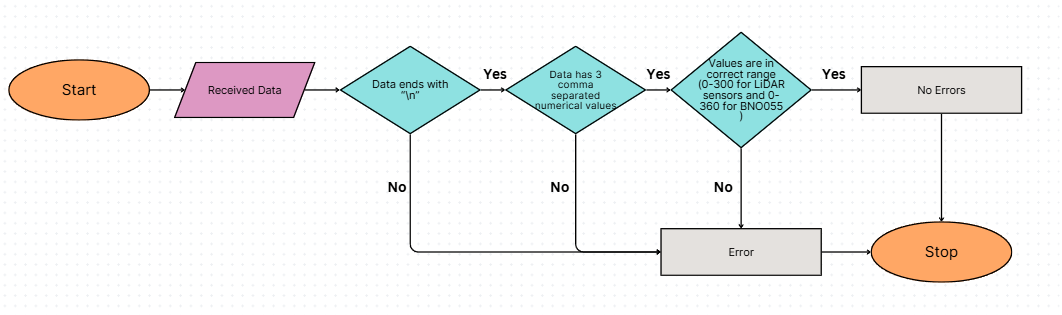
 #### Error Checks
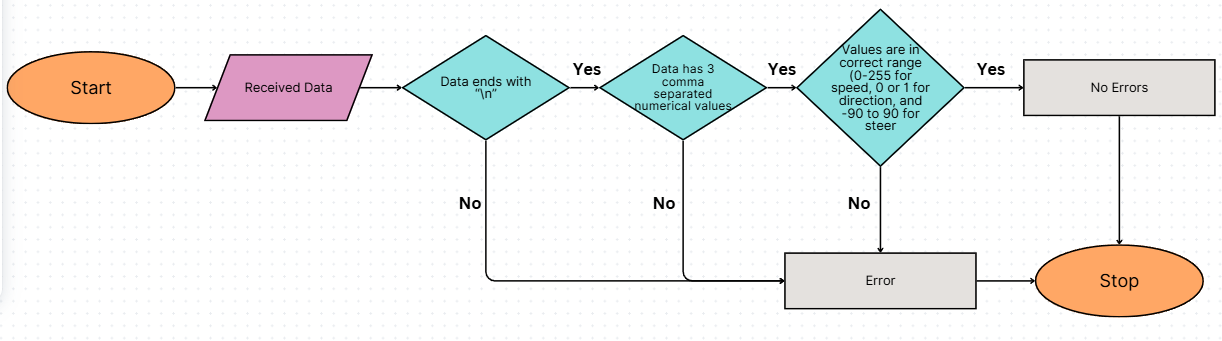
In data communication, there is also a small chance of errors. To prevent this, whenever data is received it is checked for errors.
1. If more than 3 data values are received, then that whole piece of data is discarded and considered having errors
2. If the data values received contain characters other that numbers, the data is discarded and considered having errors
3. If the value of the data exceeds the bounds, the data is discarded and considered having errors
#### Error Checking for Data Received by ESP32
#### Error Checks
In data communication, there is also a small chance of errors. To prevent this, whenever data is received it is checked for errors.
1. If more than 3 data values are received, then that whole piece of data is discarded and considered having errors
2. If the data values received contain characters other that numbers, the data is discarded and considered having errors
3. If the value of the data exceeds the bounds, the data is discarded and considered having errors
#### Error Checking for Data Received by ESP32
 #### Error Checking for Data Received by ESP32
 ### Code Modularity (Hardware Abstraction Layer)
We have structured our code in a modular way. Each component of the robot is handled by a dedicated function. This ensures that our script remains easily understandable and changes can be made without any trouble. The code can also easily be understood and reused
#### Function for TF Luna
```
void updateTFLuna(HardwareSerial &sensor, volatile int &distanceVar) {
while (sensor.available() >= 9) {
if (sensor.read() == 0x59 && sensor.read() == 0x59) {
byte low = sensor.read();
byte high = sensor.read();
int distance = (high << 8) + low;
for (int i = 0; i < 5; i++) sensor.read();
if (distance <= 500)
{
distanceVar = distance;
}
}
}
}
```
This function works in a special way. Instead of returning a value, this function updates a global variable. This way, we can make sure that the program doesn't slow down as the clock speed of the TF Luna and the ESP32 is different. Earlier, it was slowing down is it waited until the TF Luna sent a value. Now, it only updates the variable when the TF Luna sends a value.
#### Function for BNO055
```
void updateBNO055(Adafruit_BNO055 &bno, volatile float &headingVar) {
sensors_event_t orientationData;
bno.getEvent(&orientationData, Adafruit_BNO055::VECTOR_EULER);
headingVar = orientationData.orientation.x;
}
```
This function works in the same way as the `updateTFLuna()` function
#### Function for Motor
```
void setMotor(int speed, int direction) {
speed = constrain(speed, 0, 255);
if (direction == 0) {
digitalWrite(IN1, HIGH);
digitalWrite(IN2, LOW);
}
else if (direction == 1) {
digitalWrite(IN1, LOW);
digitalWrite(IN2, HIGH);
}
analogWrite(ENA, speed);
}
```
#### Function for Servo Motor
```
void moveServoAngle(int angle) {
angle = constrain(angle, 0, 180);
int pulsewidth = map(angle, 0, 180, 500, 2400);
digitalWrite(servoPin, HIGH);
delayMicroseconds(pulsewidth);
digitalWrite(servoPin, LOW);
delay(20 - pulsewidth / 1000);
}
void steer(int angleOffset) {
moveServoAngle(servoCenter + angleOffset);
}
```
To control our steering system from the MG90 servo motor, we created 2 functions.
`moveServoAngle()` is a low-level function that sends a PWM signal. We used this instead of ledcWrite because of 3 main reasons
1. ledcWrite is unreliable
2. Precise control over pulse width
3. Modularity and clarity
`steer()` is a high-level function. This lets us directly decide what direction the robot goes in. It automatically accounts for the center position of the servo motor. If we put the value 0, the robot travels straight, + means right, and - means left.
#### Function for LiDAR Sensor (Raspberry Pi)
```
def get_front(port="/dev/ttyAMA0", baud=115200, timeout=0.1):
try:
with serial.Serial(port, baud, timeout=timeout) as ser:
frame = ser.read(9)
if len(frame) != 9:
return None
if frame[0] != 0x59 or frame[1] != 0x59:
return None
dist = frame[2] | (frame[3] << 8)
return dist if dist >= 0 else None
except serial.SerialException as e:
return None
```
### Communication API (Communication Layer)
We created specialized python functions to have a communication system which can be debugged, edited, and understood easily
#### readData()
```
def read_data(DEBUG: bool = False):
try:
line = ser.readline().decode(errors="ignore").strip()
if not line:
if DEBUG:
print("No data received from serial.")
return None, None, None, None
parts = line.split(",")
if len(parts) != 3:
if DEBUG:
print(f"Invalid data format: {line}")
return None, None, None, None
angle = normalize_angle(int(parts[0]))
left = int(parts[1])
right = int(parts[2])
front = get_front(port=LIDAR_PORT) if DIRECTION else 100 # A default value of 100 is returned if the robot does not know the direction yet to avoid errors
if DEBUG:
print(f"Read -> Angle: {angle}, Left: {left}, Front: {front}, Right: {right}")
return angle, left, front, right
except (ValueError, UnicodeDecodeError) as e:
if DEBUG:
print(f"Data parsing error: {e}")
return None, None, None, None
except Exception as e:
if DEBUG:
print(f"Unexpected error in read_data: {e}")
return None, None, None, None
```
This function is used to read the incoming data from the ESP32. It will be run on the Raspberry Pi.
#### sendData()
```
def send_data(speed, direction, steer, DEBUG=False):
cmd = f"{speed},{direction},{steer}\n"
if DEBUG:
print(f"Data Sent: {cmd}")
ser.write(cmd.encode())
```
This function is used to send the speed, movement direction (front or back), and steer angle to the ESP32. Once the raspberry pi makes a decision, it can use this function to send that decision.
### Debugging
Throughout development, there were multiple challenges in the hardware-software integration, such as incorrect sensor readings, communication errors, etc. To address these issues, we created a structured debugging process.
#### Component Debugging (Unit Testing)
If there is a problem in any single component, we have a way of debuggin that as well. You can see [here](/src/invididual-components/) that we have individual programs to test out individual components. With this, we can know exactly what problem is being faced.
#### Communication Debugging (Integration Testing)
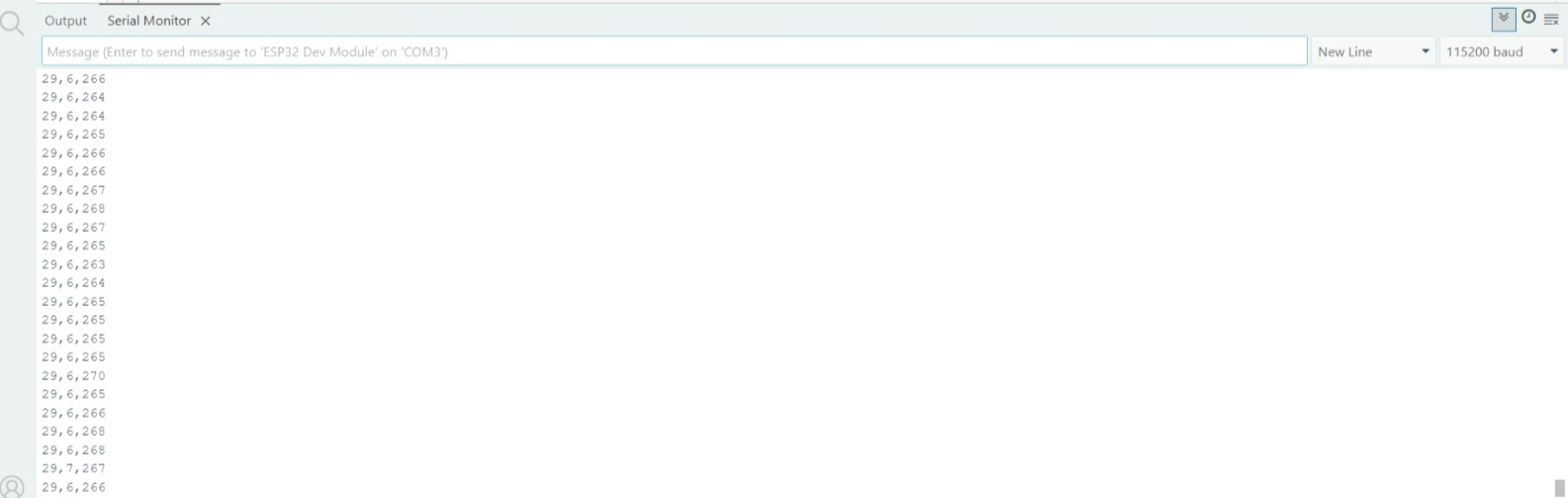
We implemented debugging tools directly within our code. As you can see in the `readData()` and `sendData()` functions, there is a DEBUG parameter. If this parameter is set to `True`, then whatever data is being sent / received will be printed. This makes debugging extremely easy.
Also, there is another way of checking communication on the ESP32 end. The ESP32 can directly be connected to a laptop. Then, the Arduino IDE can be opened. Since the data is sent via serial in csv format, it can easily be seen through the serial monitor. We can also send data easily via the serial monitor to the ESP32
### Code Modularity (Hardware Abstraction Layer)
We have structured our code in a modular way. Each component of the robot is handled by a dedicated function. This ensures that our script remains easily understandable and changes can be made without any trouble. The code can also easily be understood and reused
#### Function for TF Luna
```
void updateTFLuna(HardwareSerial &sensor, volatile int &distanceVar) {
while (sensor.available() >= 9) {
if (sensor.read() == 0x59 && sensor.read() == 0x59) {
byte low = sensor.read();
byte high = sensor.read();
int distance = (high << 8) + low;
for (int i = 0; i < 5; i++) sensor.read();
if (distance <= 500)
{
distanceVar = distance;
}
}
}
}
```
This function works in a special way. Instead of returning a value, this function updates a global variable. This way, we can make sure that the program doesn't slow down as the clock speed of the TF Luna and the ESP32 is different. Earlier, it was slowing down is it waited until the TF Luna sent a value. Now, it only updates the variable when the TF Luna sends a value.
#### Function for BNO055
```
void updateBNO055(Adafruit_BNO055 &bno, volatile float &headingVar) {
sensors_event_t orientationData;
bno.getEvent(&orientationData, Adafruit_BNO055::VECTOR_EULER);
headingVar = orientationData.orientation.x;
}
```
This function works in the same way as the `updateTFLuna()` function
#### Function for Motor
```
void setMotor(int speed, int direction) {
speed = constrain(speed, 0, 255);
if (direction == 0) {
digitalWrite(IN1, HIGH);
digitalWrite(IN2, LOW);
}
else if (direction == 1) {
digitalWrite(IN1, LOW);
digitalWrite(IN2, HIGH);
}
analogWrite(ENA, speed);
}
```
#### Function for Servo Motor
```
void moveServoAngle(int angle) {
angle = constrain(angle, 0, 180);
int pulsewidth = map(angle, 0, 180, 500, 2400);
digitalWrite(servoPin, HIGH);
delayMicroseconds(pulsewidth);
digitalWrite(servoPin, LOW);
delay(20 - pulsewidth / 1000);
}
void steer(int angleOffset) {
moveServoAngle(servoCenter + angleOffset);
}
```
To control our steering system from the MG90 servo motor, we created 2 functions.
`moveServoAngle()` is a low-level function that sends a PWM signal. We used this instead of ledcWrite because of 3 main reasons
1. ledcWrite is unreliable
2. Precise control over pulse width
3. Modularity and clarity
`steer()` is a high-level function. This lets us directly decide what direction the robot goes in. It automatically accounts for the center position of the servo motor. If we put the value 0, the robot travels straight, + means right, and - means left.
#### Function for LiDAR Sensor (Raspberry Pi)
```
def get_front(port="/dev/ttyAMA0", baud=115200, timeout=0.1):
try:
with serial.Serial(port, baud, timeout=timeout) as ser:
frame = ser.read(9)
if len(frame) != 9:
return None
if frame[0] != 0x59 or frame[1] != 0x59:
return None
dist = frame[2] | (frame[3] << 8)
return dist if dist >= 0 else None
except serial.SerialException as e:
return None
```
### Communication API (Communication Layer)
We created specialized python functions to have a communication system which can be debugged, edited, and understood easily
#### readData()
```
def read_data(DEBUG: bool = False):
try:
line = ser.readline().decode(errors="ignore").strip()
if not line:
if DEBUG:
print("No data received from serial.")
return None, None, None, None
parts = line.split(",")
if len(parts) != 3:
if DEBUG:
print(f"Invalid data format: {line}")
return None, None, None, None
angle = normalize_angle(int(parts[0]))
left = int(parts[1])
right = int(parts[2])
front = get_front(port=LIDAR_PORT) if DIRECTION else 100 # A default value of 100 is returned if the robot does not know the direction yet to avoid errors
if DEBUG:
print(f"Read -> Angle: {angle}, Left: {left}, Front: {front}, Right: {right}")
return angle, left, front, right
except (ValueError, UnicodeDecodeError) as e:
if DEBUG:
print(f"Data parsing error: {e}")
return None, None, None, None
except Exception as e:
if DEBUG:
print(f"Unexpected error in read_data: {e}")
return None, None, None, None
```
This function is used to read the incoming data from the ESP32. It will be run on the Raspberry Pi.
#### sendData()
```
def send_data(speed, direction, steer, DEBUG=False):
cmd = f"{speed},{direction},{steer}\n"
if DEBUG:
print(f"Data Sent: {cmd}")
ser.write(cmd.encode())
```
This function is used to send the speed, movement direction (front or back), and steer angle to the ESP32. Once the raspberry pi makes a decision, it can use this function to send that decision.
### Debugging
Throughout development, there were multiple challenges in the hardware-software integration, such as incorrect sensor readings, communication errors, etc. To address these issues, we created a structured debugging process.
#### Component Debugging (Unit Testing)
If there is a problem in any single component, we have a way of debuggin that as well. You can see [here](/src/invididual-components/) that we have individual programs to test out individual components. With this, we can know exactly what problem is being faced.
#### Communication Debugging (Integration Testing)
We implemented debugging tools directly within our code. As you can see in the `readData()` and `sendData()` functions, there is a DEBUG parameter. If this parameter is set to `True`, then whatever data is being sent / received will be printed. This makes debugging extremely easy.
Also, there is another way of checking communication on the ESP32 end. The ESP32 can directly be connected to a laptop. Then, the Arduino IDE can be opened. Since the data is sent via serial in csv format, it can easily be seen through the serial monitor. We can also send data easily via the serial monitor to the ESP32
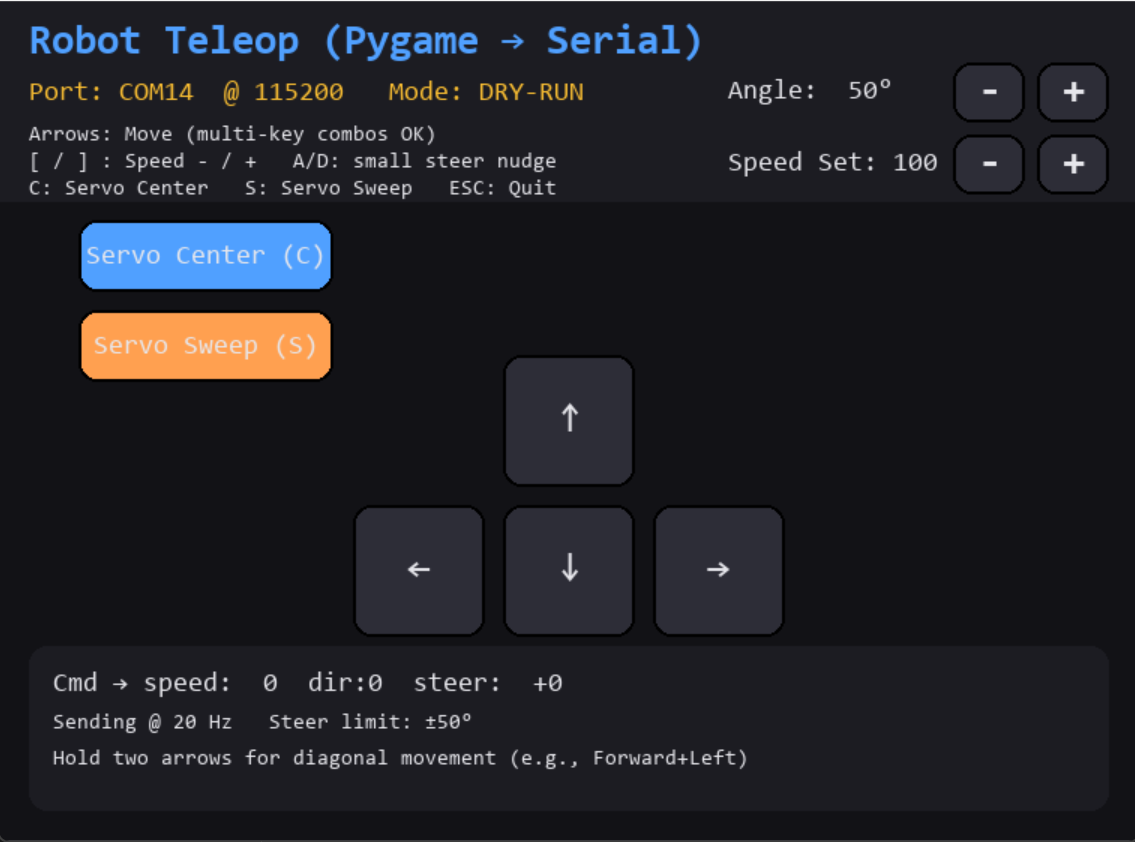
 To easily be able to send data to the ESP32 without using the serial monitor, we createed a custom python program with `pygame` to control the robot
You can see the code of the program [here](/src/tools/pygame-debugging.py)
To easily be able to send data to the ESP32 without using the serial monitor, we createed a custom python program with `pygame` to control the robot
You can see the code of the program [here](/src/tools/pygame-debugging.py)
 #### Image Processing Debugging
Also, we made it so that when the robot is running, we can connect to the Raspberry Pi via VNC and see the live camera feed. This camera feed will show all the blocks detected and how the robot is taking decisions. You can view it [here](/other/README-images/SoftwareIntegration/Debugging.mp4)
## Robot Construction Guide
### Step 1 - Print the Parts
Firstly, you will need to print all the parts. The *.STL files to be printed are [here](https://github.com/WRO-Team-TheStatesmen/wro2025-fe-statesmen/tree/main/models). We used the Bambu Lab X1-Carbon 3D printer to print everything.
### Step 2 - Assemble the Chassis
Next, you will need to assemble the chassis. The guide to assemble the chassis is given [here](https://github.com/WRO-Team-TheStatesmen/wro2025-fe-statesmen/blob/main/other/README-images/Chassis/ChassisAssembly.pdf). We have used lego parts for the chassis to make it so that we can easily change it.
### Step 3 - Attach the Components
Step 1 - Insert the batteries in the chassis in the section shown below
#### Image Processing Debugging
Also, we made it so that when the robot is running, we can connect to the Raspberry Pi via VNC and see the live camera feed. This camera feed will show all the blocks detected and how the robot is taking decisions. You can view it [here](/other/README-images/SoftwareIntegration/Debugging.mp4)
## Robot Construction Guide
### Step 1 - Print the Parts
Firstly, you will need to print all the parts. The *.STL files to be printed are [here](https://github.com/WRO-Team-TheStatesmen/wro2025-fe-statesmen/tree/main/models). We used the Bambu Lab X1-Carbon 3D printer to print everything.
### Step 2 - Assemble the Chassis
Next, you will need to assemble the chassis. The guide to assemble the chassis is given [here](https://github.com/WRO-Team-TheStatesmen/wro2025-fe-statesmen/blob/main/other/README-images/Chassis/ChassisAssembly.pdf). We have used lego parts for the chassis to make it so that we can easily change it.
### Step 3 - Attach the Components
Step 1 - Insert the batteries in the chassis in the section shown below
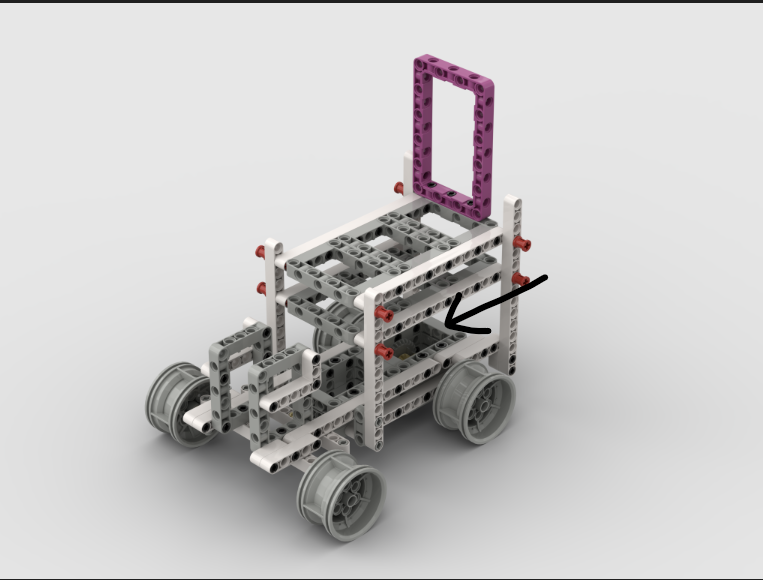 You may secure the batteries using double sided tape
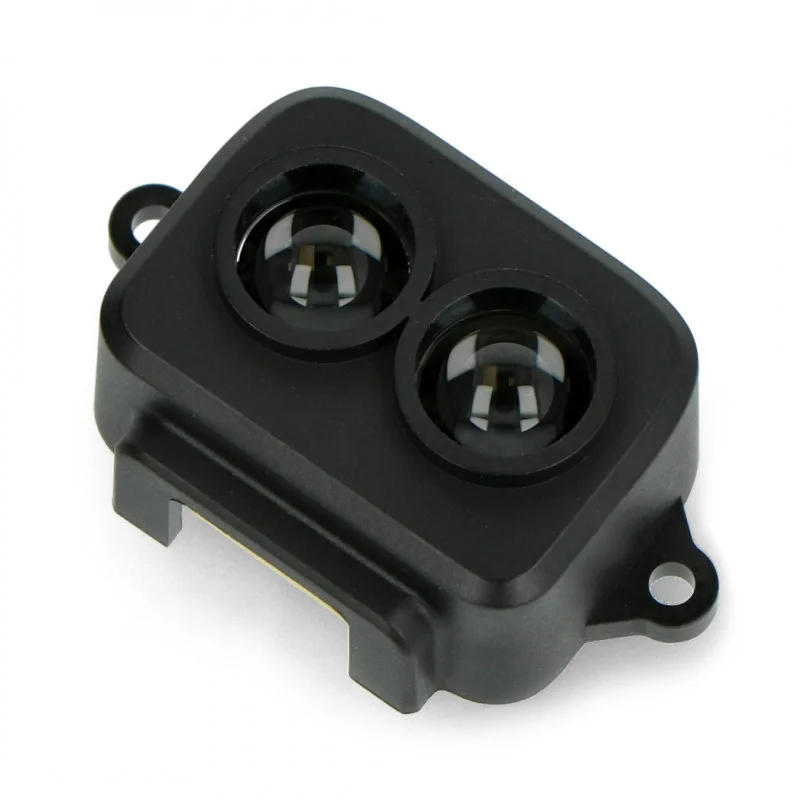
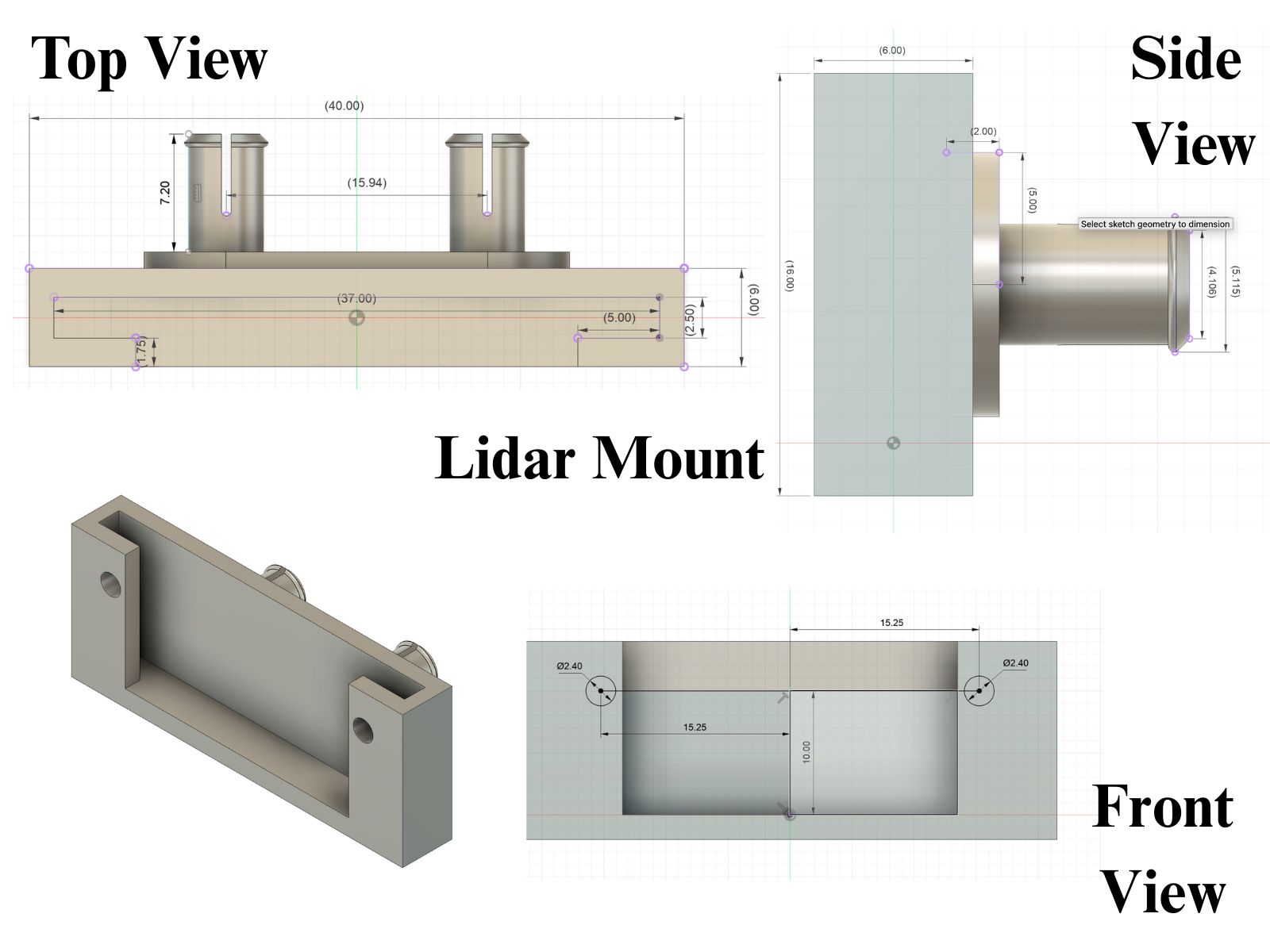
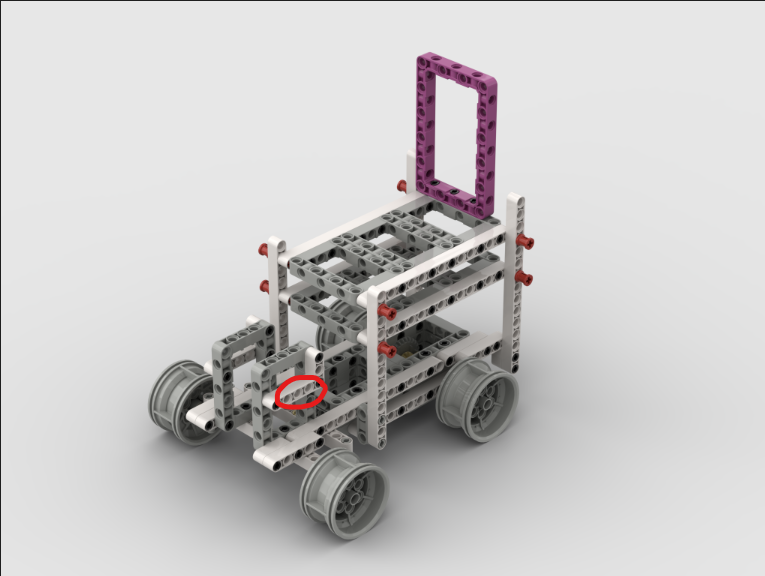
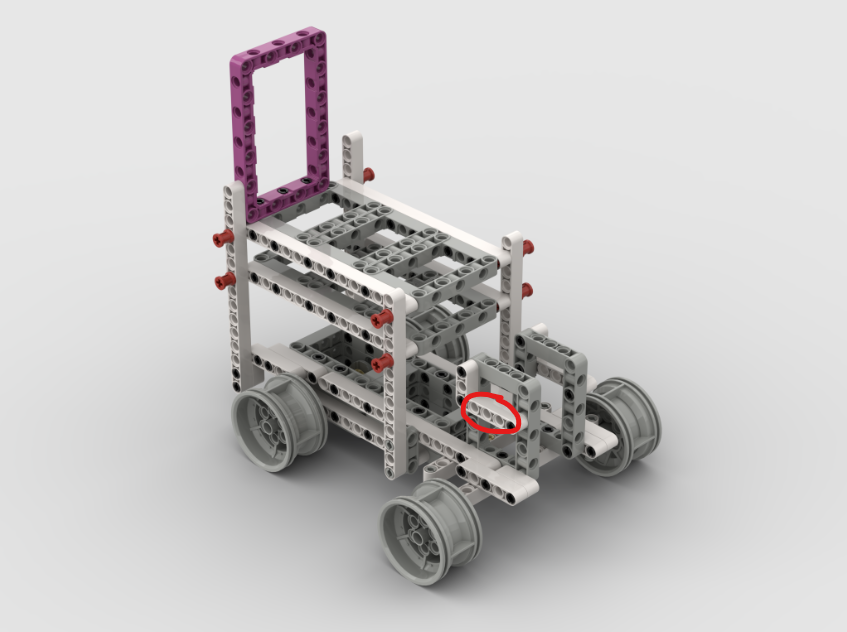
Step 2 - Screw the TF Luna LiDAR sensors to the 3D printed mounts and attach those mounts to the chassis as shown below
TF Luna 1 (Left)
You may secure the batteries using double sided tape
Step 2 - Screw the TF Luna LiDAR sensors to the 3D printed mounts and attach those mounts to the chassis as shown below
TF Luna 1 (Left)
 TF Luna 2 (Right)
 TF Luna 3 (Front)
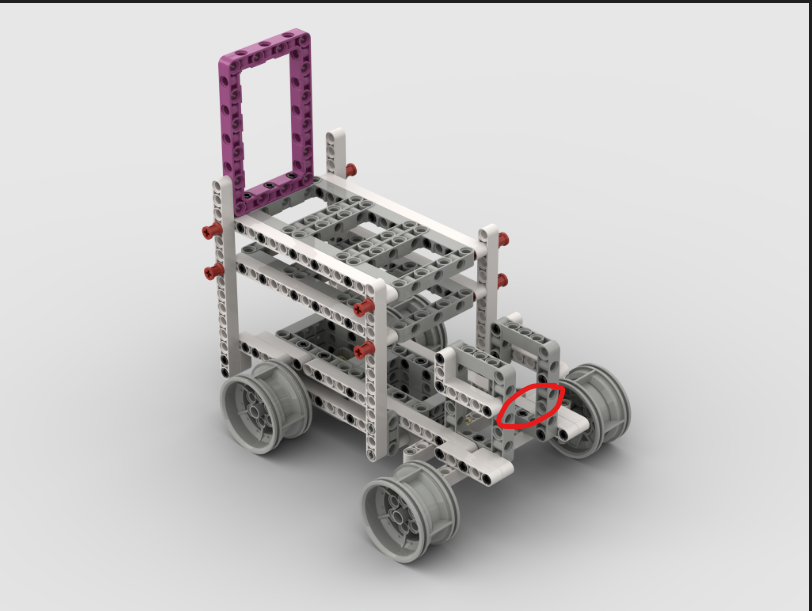 For the front TF Luna, you will have to attach a 5-hole beam to the marked place and then attach the mount to that beam
Step 3 - Insert the Raspberry Pi in the chassis as shown below
For the front TF Luna, you will have to attach a 5-hole beam to the marked place and then attach the mount to that beam
Step 3 - Insert the Raspberry Pi in the chassis as shown below
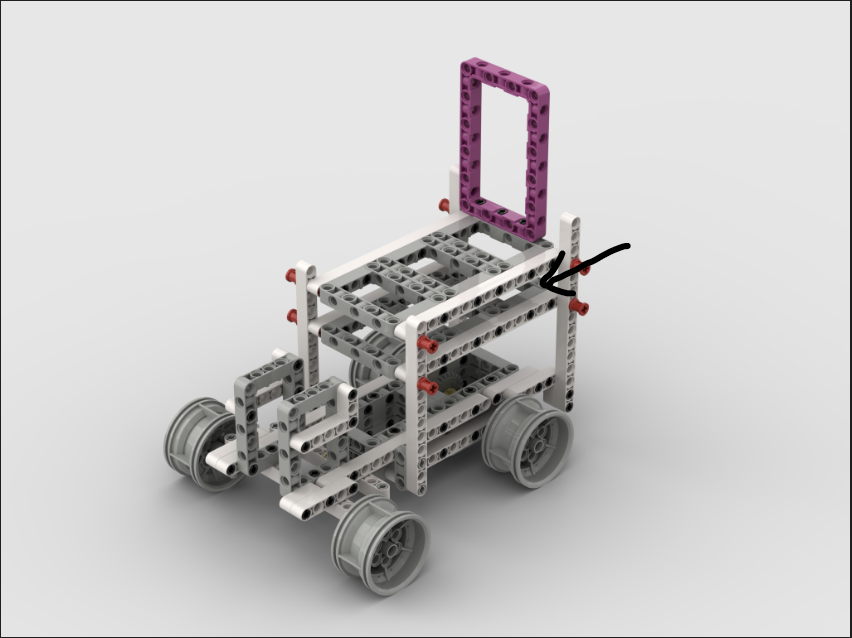 Step 4 - Place the PCB with the ESP32, BNO055, LM2596, and other connections on the section shown below
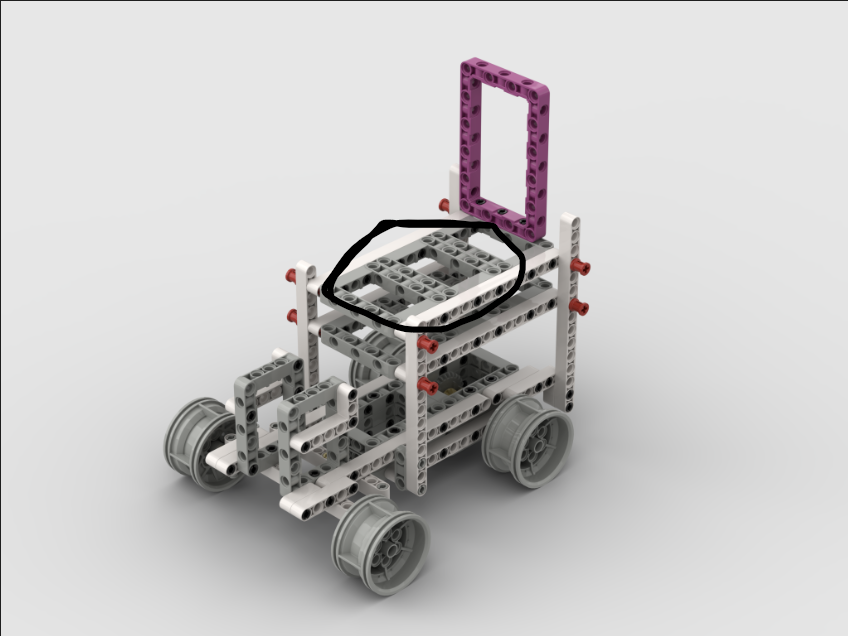 ### Step 4 - Connect the Components
Connect all the components with each other as per the electrical diagrams in above sections
### Step 5 - Upload the Code to the ESP32
Open the /src/final-code/ folder in the GitHub directory. Depending on if you want to run the open challenge or the obstacle challenge, open the respective directory. In that directory there will be 1 or 2 files. The will be a *.ino file and a *.py file (only for obstacle challenge). Download the files.
Open the *.ino file in the Arduino IDE. Connect the ESP32 to the device. Click on "choose board and port" and choose the "DOIT ESP32 Devkit v1" board in the boards section and the correct COM port in the "ports" section
Then, click on the upload code button to upload the code to the ESP32
### Step 6 - Set Up the Raspberry Pi
Next, you will need up to set up a Raspberry Pi
Step 1 - Install Raspbian OS on an SD card
### Step 4 - Connect the Components
Connect all the components with each other as per the electrical diagrams in above sections
### Step 5 - Upload the Code to the ESP32
Open the /src/final-code/ folder in the GitHub directory. Depending on if you want to run the open challenge or the obstacle challenge, open the respective directory. In that directory there will be 1 or 2 files. The will be a *.ino file and a *.py file (only for obstacle challenge). Download the files.
Open the *.ino file in the Arduino IDE. Connect the ESP32 to the device. Click on "choose board and port" and choose the "DOIT ESP32 Devkit v1" board in the boards section and the correct COM port in the "ports" section
Then, click on the upload code button to upload the code to the ESP32
### Step 6 - Set Up the Raspberry Pi
Next, you will need up to set up a Raspberry Pi
Step 1 - Install Raspbian OS on an SD card
sudo apt updatesudo apt upgradesudo raspi-config and then go to interface options > UART > enablecd Desktopgit clone https://github.com/WRO-Team-TheStatesmen/wro2025-fe-statesmen.gitpython3 -m venv venv./venv/bin/python3 -m pip install opencv-python pyserial numpy