





English | 中文
A desktop-first literature manager for PDF reading, translation, paper overviews, and AI agent workflows.
Quick Navigation · Why PaperQuay · Features · Quick Start · Development
Problem & Positioning · What Makes It Different · Core Workflow · Current Features · Architecture · Zotero Compatibility · Roadmap
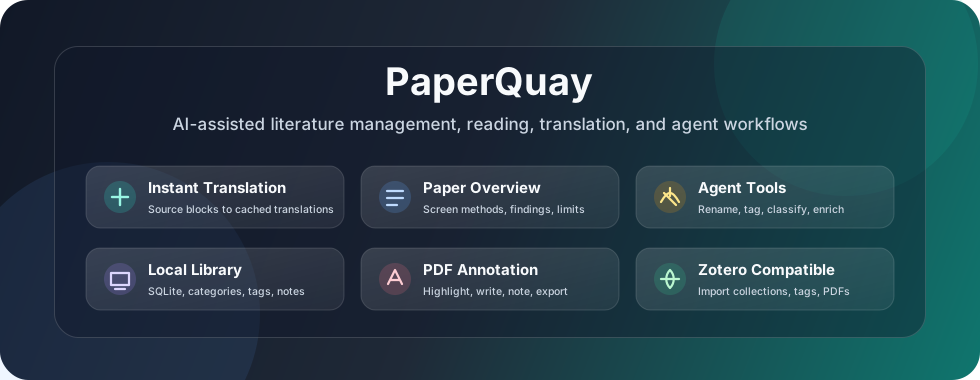
--- ## PaperQuay — AI-Assisted Literature Management That Keeps Reading Flow Intact **PaperQuay is more than a PDF reader or a Zotero add-on.** It is a local-first desktop literature manager designed for students, researchers, and paper writers who want to manage papers, read PDFs, annotate, translate, screen papers quickly, and use AI agents without leaving the same workspace. Many paper tools force the user to choose between fragmented workflows: one app for PDF reading, another tool for translation, another chat window for paper summaries, and another library manager for metadata. PaperQuay combines these into a single desktop workflow while keeping Zotero compatibility optional rather than mandatory. | Research workflow problem | Traditional tools | PaperQuay | | ----------------------------------------- | ------------------------------------------------------------------ | ------------------------------------------------------------------------------------------ | | Translation latency interrupts reading | Translate only after selecting text, often with visible API delay | Pre-translate MinerU structural blocks and jump instantly to cached translations | | Side-by-side translation hurts focus | Two columns require constant eye movement and can break formatting | Keep the original PDF visible while navigating to precise translated blocks on demand | | Pure translated files lose source context | Original wording, terminology, and academic expression are hidden | Keep source text, parsed blocks, translation, notes, and overview linked together | | Fast paper screening is repetitive | Upload PDFs to an LLM one by one and manually organize outputs | Generate and store structured paper overviews inside the local library | | AI model choices are locked down | Built-in models or platform-specific token pricing | Bring your own OpenAI-compatible endpoint, model, and runtime parameters | | Large libraries are hard to clean | Manual renaming, tagging, metadata fixes, and classification | Agent tools can assist with batch rename, metadata completion, tagging, and classification | | Zotero migration is inconvenient | Either stay locked in Zotero or rebuild everything manually | Import Zotero collections, tags, and PDF attachments as an optional source | --- ## What Makes PaperQuay Different
Live workflow demo: browse the library, open papers, inspect structured reading, and move into the Agent workspace without leaving the same desktop flow.
### Instant Block-Level Translation PaperQuay uses a translation workflow designed for long paper reading sessions. It can translate and cache MinerU-parsed structural blocks in advance. Later, when reading, clicking a source block can instantly jump to its translated counterpart. Translation no longer needs to happen only after each click or selection. ### Fast Paper Screening from the Overview Panel PaperQuay is designed not only for deep reading, but also for screening large numbers of papers quickly. In the overview panel, each paper can directly surface AI-generated fields such as background, research question, method, experiment setup, key findings, conclusions, and limitations. This allows you to judge whether a paper deserves deeper reading directly inside the library workflow before opening the full PDF in detail. ### Literature Library, Not Just Import PaperQuay can build an independent local library with PDF import, a configurable storage folder, categories, tags, metadata editing, search, filtering, notes, and SQLite-based local persistence. Zotero remains supported as an optional import source, not a required dependency. ### Agent Operations for Paper Management The agent workspace is designed for library operations, not just conversation. It can assist with batch renaming, metadata completion, smart tagging, tag cleanup, automatic classification, and paper summarization while exposing tool calls and results for user review. --- ## Core Workflow | Step | What happens | | ---------------------- | ------------------------------------------------------------------------------------- | | 1. Import PDFs | Drag PDFs into the app or choose files from the import dialog. | | 2. Confirm metadata | Review title, authors, year, venue, DOI, abstract, keywords, and duplicate warnings. | | 3. Organize library | Create categories, drag papers into collections, add tags, and mark favorites. | | 4. Parse with MinerU | Convert PDFs into structured blocks with page-region linkage. | | 5. Generate overviews | Produce reusable paper overviews for fast screening and later review. | | 6. Translate full text | Cache translated blocks so reading can jump instantly between source and translation. | | 7. Read and annotate | Highlight, write, add notes, jump to annotations, and export annotated PDFs. | | 8. Use the agent | Ask the agent to rename, classify, tag, clean metadata, or summarize selected papers. | --- ## PaperQuay Screenshots
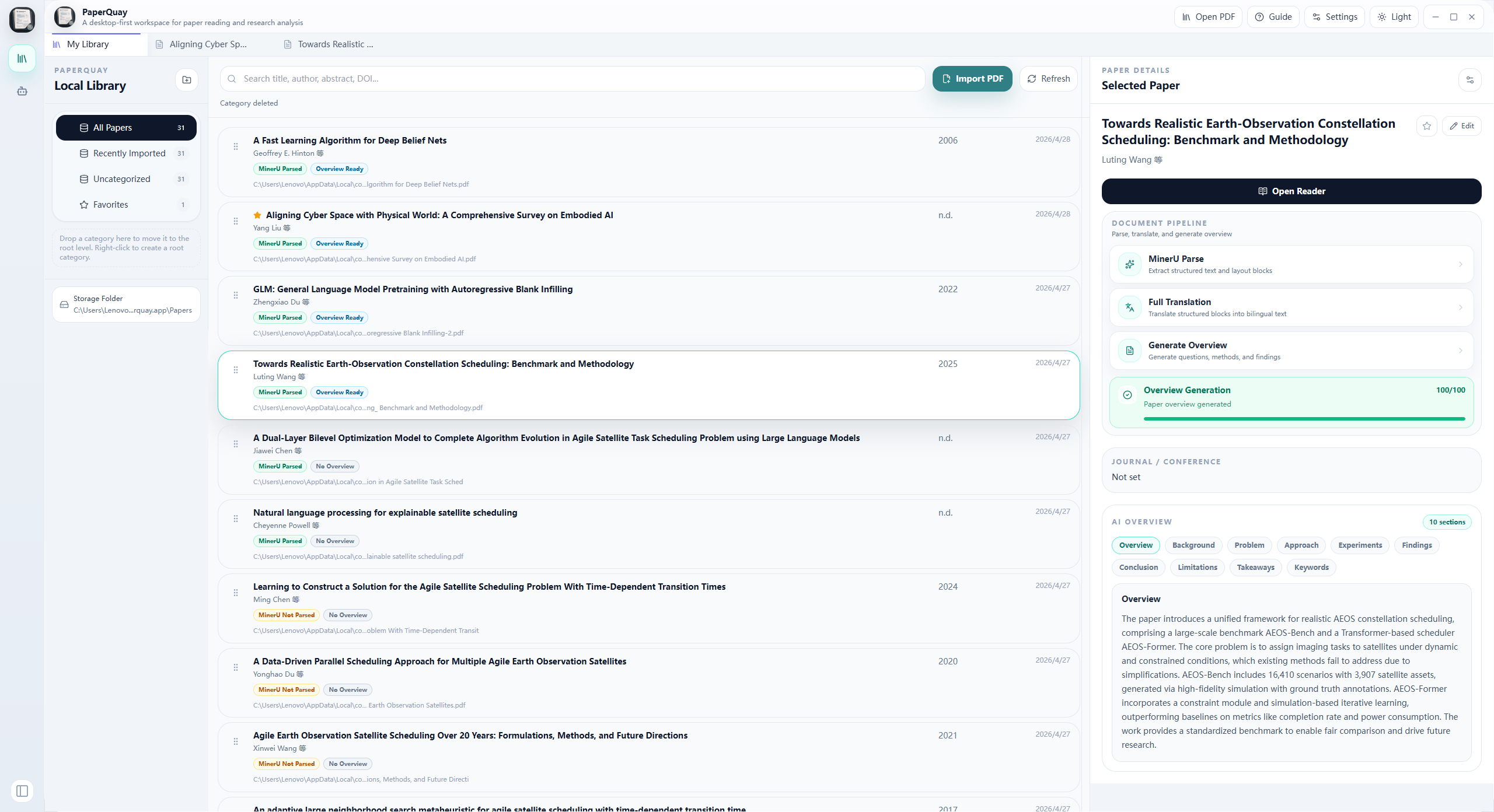
Main library workspace: manage papers, categories, metadata, reading progress, and AI-generated overviews in one desktop view.
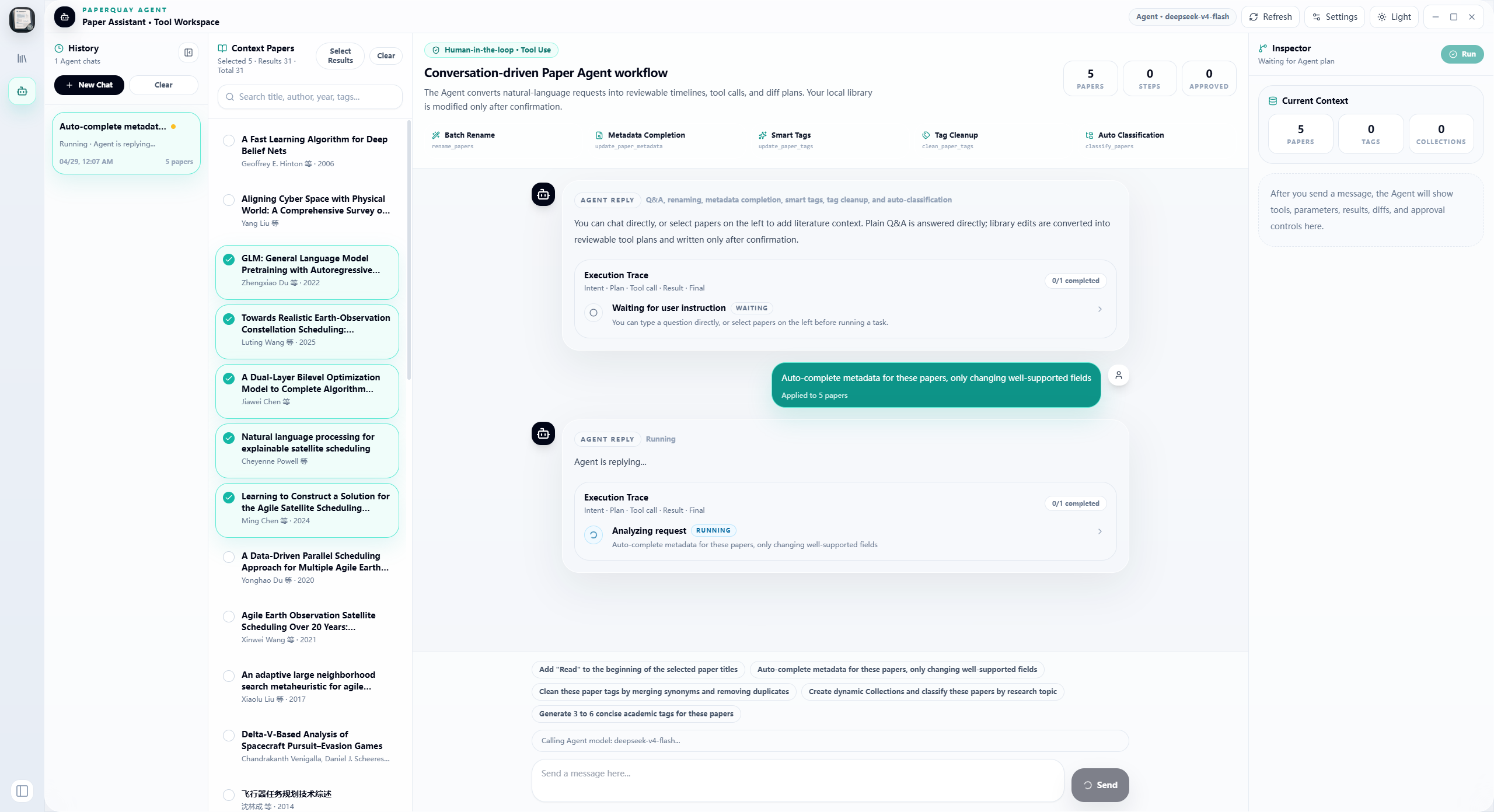
Agent workspace: chat with the paper assistant, inspect execution traces, review tool calls, and run batch library operations with human confirmation.
--- ## Current Features | Area | Available now | | --------------- | ------------------------------------------------------------------------------------------------------------------------------------ | | Local library | SQLite storage for papers, authors, categories, tags, attachments, notes, annotations, and import records | | PDF import | File picker and drag-and-drop import with confirmation before files enter the library | | File management | Configurable storage folder, copy / move / keep-path import modes, naming rules, and original-path tracking | | Metadata | Crossref enrichment by DOI or title, with manual editing before confirmation | | Categories | System categories, custom categories, nested subcategories, collapsible branches, context menus, drag sorting, and hierarchy changes | | Paper details | Title, authors, year, venue, DOI, URL, abstract, keywords, tags, notes, citation, and favorite state | | Reader | PDF reader with MinerU structured block views and region-based linkage | | Translation | Full-text translation, cached block translations, and selection translation through OpenAI-compatible models | | Paper overview | AI-generated screening fields for background, research questions, methods, experiment setup, findings, conclusions, and limitations | | Agent workspace | Conversation UI with execution traces, tool call cards, paper selection, metadata tools, rename tools, tagging, and classification | | Zotero import | Import local Zotero collections, tags, and available PDF attachments from `zotero.sqlite` | | Themes | Light and dark UI modes optimized for long desktop reading sessions | --- ## First-Run Workflow 1. Open Settings and choose a default paper storage folder. 2. Import PDFs by drag and drop or by clicking the import button. 3. Confirm or edit metadata in the import confirmation dialog. 4. Let PaperQuay copy PDFs into its storage folder and save records in the local SQLite library. 5. Create categories and subcategories from the left sidebar. 6. Drag papers into categories, add tags, mark favorites, and open papers in the reader. 7. Configure an OpenAI-compatible endpoint and model if you want AI features. 8. Configure a MinerU API key if you want MinerU parsing. 9. Optionally connect a Zotero data directory and import existing Zotero collections and PDFs. --- ## Architecture PaperQuay is desktop-first, not a browser demo wrapped at the end. | Path | Responsibility | | -------------------------- | ----------------------------------------------------------------------------------------------------------------- | | `src/` | React + TypeScript UI, feature modules, state, and frontend services | | `src/features/literature/` | Local literature library UI, import workflow, category tree, and paper details | | `src/features/reader/` | Reader shell, linked reading workspace, settings, onboarding, and AI reading actions | | `src/features/pdf/` | PDF rendering, overlays, annotation surface, and PDF-specific interactions | | `src/features/blocks/` | MinerU block rendering and structured content views | | `src/features/agent/` | Agent chat UI, execution traces, tool cards, and library operation entry points | | `src/services/` | Frontend bridges to Tauri commands | | `src-tauri/src/commands/` | Rust commands for files, SQLite, Zotero import, MinerU, metadata, translation, overview, QA, and agent operations | | `src-tauri/` | Tauri v2 configuration, icons, installer assets, and Rust crate | --- ## Requirements - Node.js 18 or newer - Rust stable toolchain - Platform requirements for Tauri v2 on your OS - Windows, macOS, or Linux Optional external services: - MinerU API key for cloud PDF structure parsing. - OpenAI-compatible API key for paper overviews, translation, QA, and agent tasks. - Internet access for Crossref metadata enrichment. --- ## Development Install dependencies: ```bash npm install ``` Start the desktop app in development mode: ```bash npm run tauri:dev ``` Build the frontend only: ```bash npm run build ``` Check the Rust host: ```bash cd src-tauri cargo check ``` Build the desktop installer: ```bash npm run tauri:build ``` --- ## Zotero Compatibility PaperQuay can read a local Zotero data directory that contains `zotero.sqlite`. During import it copies the Zotero database to a temporary read-only working file and does not modify your original Zotero database. Imported data enters PaperQuay's own local literature library. Zotero collections become local categories, and available local PDFs inside those collections are copied into the PaperQuay paper storage folder. Zotero is an optional compatibility source, not a required dependency. You can build a complete library directly inside PaperQuay without using Zotero. --- ## Data and Privacy PaperQuay is local-first. The literature database is stored as SQLite, and imported PDFs are stored in the paper storage folder you configure. Do not commit local data, API keys, PDFs, parser outputs, or backups. The `.gitignore` excludes common local runtime folders, SQLite databases, API key files, build output, backup archives, and private PDFs by default. --- ## Roadmap - Better metadata extraction from PDF first pages. - DOI / arXiv / Semantic Scholar enrichment options. - More advanced PDF annotations and export. - Citation style generation. - Database backup and restore UI. - Folder watching for automatic import queues. - RAG-based knowledge-base QA. - One-click survey generation and Word / LaTeX research draft generation. - Optional cloud sync after the local-first model is stable. --- ## Acknowledgements PaperQuay is also shaped by discussions, feedback, and shared ideas from the [LinuxDo community](https://linux.do/). --- ## License PaperQuay Community Edition is licensed under `AGPL-3.0-only`. If you distribute modified versions or provide modified versions over a network, keep the license and copyright notices, mark your changes, and provide the corresponding source code under AGPL terms. For closed-source commercial licensing, commercial support, or brand-name permission, contact the maintainer separately. See [TRADEMARKS.md](./TRADEMARKS.md) for brand-use notes.