# niceDarkTheme
A dark UI theme and color scheme for Sublime Text 4: neutral graphite surfaces (the editor darker than the side bar and tab bar), a teal accent, a colorful but even syntax palette, and matching file icons. It also sets up a three-pane default layout:
```
┌──────────┬──────────────────────────────┬──────────────┐
│ side bar │ files (70%) │ terminal │
│ folders │ │ (Terminus, │
│ & open │ │ 30%) │
│ files │ │ │
└──────────┴──────────────────────────────┴──────────────┘
```
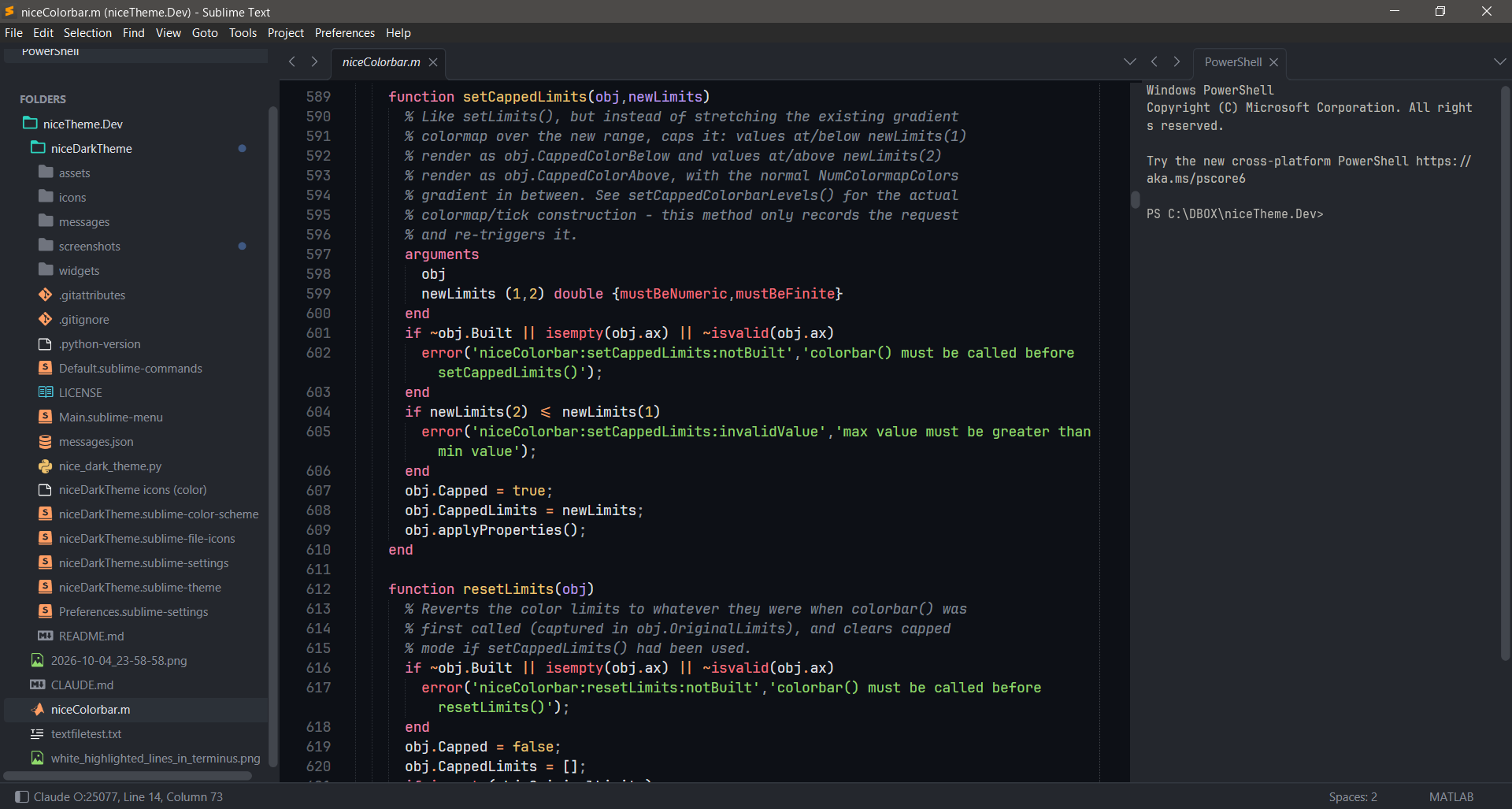
The menu stays a horizontal bar at the top of the window on Windows and Linux. It is not collapsed into a hamburger button.
### Alternative layouts
You can change the layout at any time, either from the menu under **Preferences › Package Settings › niceDarkTheme**, or from the Command Palette (Ctrl/Cmd+Shift+P) by typing `niceDarkTheme` and choosing **Terminal on the Right**, **Terminal at the Bottom** or **Without Terminal**.
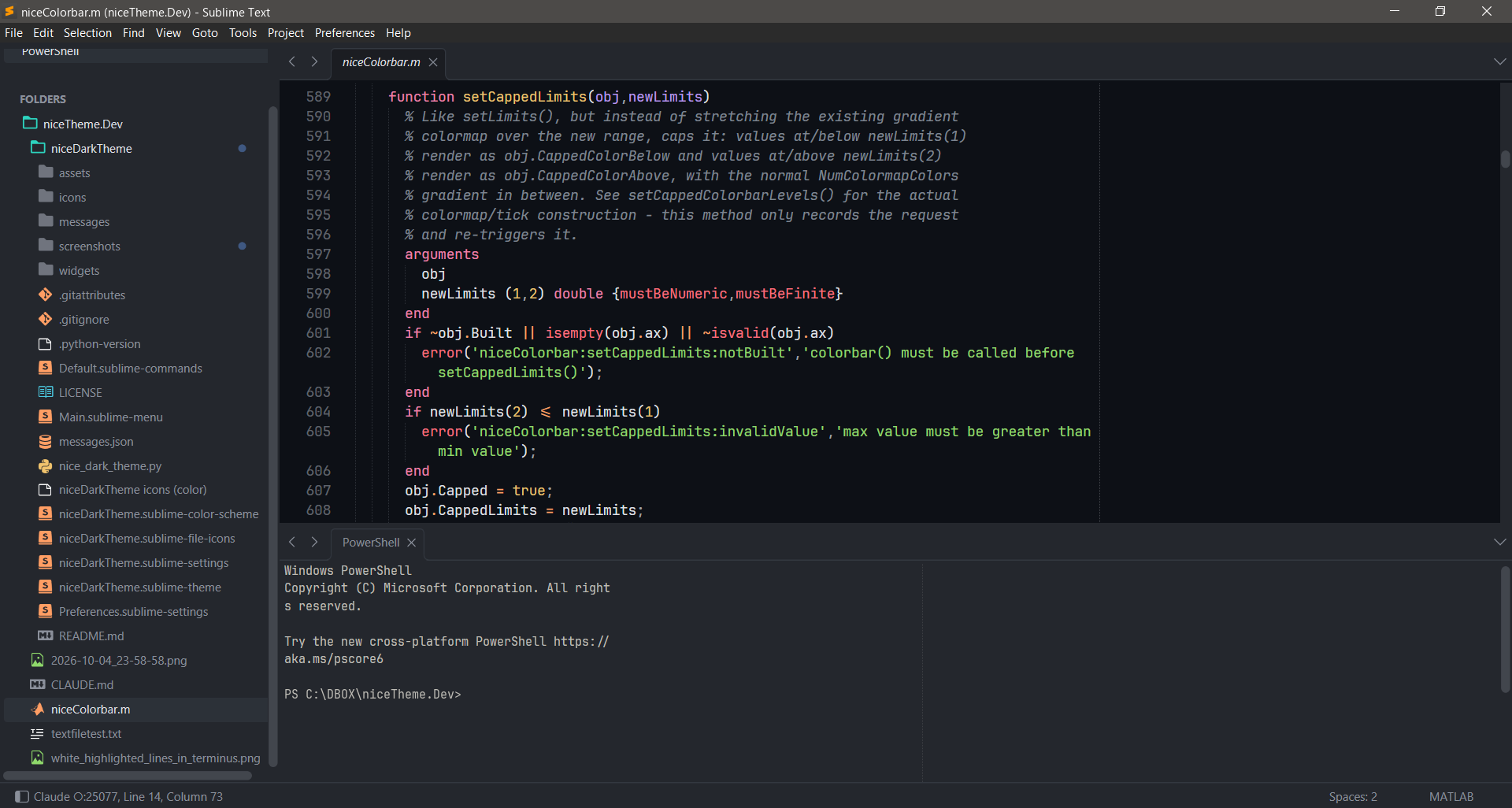
**Terminal at the bottom.** The terminal sits under the files, as wide as the editor area. The side bar is unaffected. Switch with **Terminal at the Bottom** (and back with **Terminal on the Right**).
```
┌──────────┬─────────────────────────────────────────────┐
│ side bar │ files (65%) │
│ ├─────────────────────────────────────────────┤
│ │ terminal (Terminus, 35%) │
└──────────┴─────────────────────────────────────────────┘
```
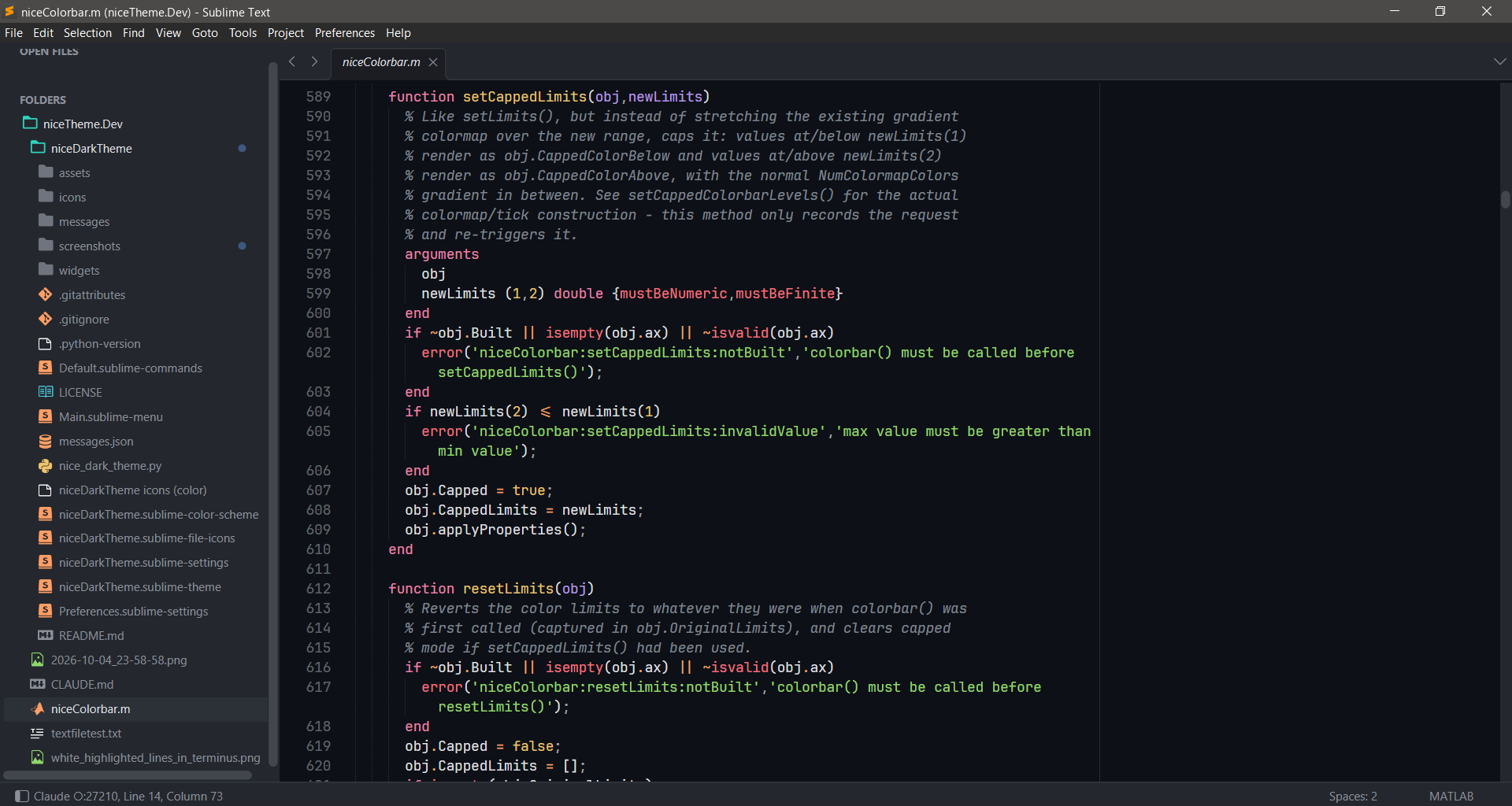
**No terminal.** Just the side bar and your files in a single view. Switch with **Without Terminal**. If a terminal is open, it asks before closing it, because that ends whatever is running in it. New windows then open without a terminal until you pick **Terminal on the Right** or **at the Bottom** again.
```
┌──────────┬────────────────────────────────────────────┐
│ side bar │ files │
│ │ │
│ │ │
└──────────┴────────────────────────────────────────────┘
```
## Install
### What you need
| What | Needed for | Without it | How to get it |
|---|---|---|---|
| [Sublime Text 4](https://www.sublimetext.com) | the theme itself | | build 4206 or later, for the file icons (Sublime Text 3 is untested) |
| [Terminus](https://packagecontrol.io/packages/Terminus) | the terminal pane (right or bottom) | windows open with the side bar and files only | **niceDarkTheme: Activate** offers it, or **Package Control: Install Package › Terminus** |
| [JetBrains Mono](https://www.jetbrains.com/lp/mono/) font | only **Apply Recommended Settings**, which sets it as the editor font | Sublime falls back to its default font | install the font on your system; it isn't bundled |
Terminus is a separate package, and Package Control can't install it as a dependency of a theme. That is why it is offered as a prompt. The file icons need nothing extra: they ship with the theme.
### Package Control
1. Open the Command Palette (Ctrl/Cmd+Shift+P) and run **Package Control: Install Package**.
2. Choose **niceDarkTheme**.
3. Run **niceDarkTheme: Activate** from the Command Palette. If Terminus is missing, it offers to install it.
4. Optional: run **niceDarkTheme: Apply Recommended Settings** (see [Commands](#commands)).
### Manual
Clone this repository into your `Packages` folder (**Preferences › Browse Packages…**) as `niceDarkTheme`:
```sh
git clone https://github.com/aaortizb/niceDarkTheme.git niceDarkTheme
```
Or activate it by hand in `Preferences.sublime-settings`:
```jsonc
"theme": "niceDarkTheme.sublime-theme",
"color_scheme": "niceDarkTheme.sublime-color-scheme",
```
### File icons
The theme ships its own file icons (MATLAB, Markdown, images, config files such as `package.json`, ...), colored to match its palette, through Sublime's file icon theme feature. Sublime loads `niceDarkTheme.sublime-file-icons` automatically while niceDarkTheme is the active theme; no setting is needed. This needs **Sublime Text build 4206 or later**; on older builds files show a generic icon. To use another icon set, set `file_icon_theme` in your own Preferences to the full file name of that set, for example `"file_icon_theme": ["FileIcons (color).sublime-file-icons"]`. To refer to this theme's set explicitly, the file name is `niceDarkTheme.sublime-file-icons`. The icons are based on [FileIcons](https://github.com/braver/FileIcons) by Koen Lageveen (MIT), recolored.
## Layout
When niceDarkTheme is the active theme, every window gets the layout at startup and whenever a new window opens. A window that already has a terminal, such as one restored from the last session, is left alone.
Switch the terminal's position under **Preferences › Package Settings › niceDarkTheme**: **Terminal on the Right**, **Terminal at the Bottom** or **Without Terminal**. The same three are in the Command Palette as **niceDarkTheme: Terminal on the Right** and so on. The choice is remembered, and an open terminal moves with it. Changing `terminal_column_width` or `terminal_row_height` in the settings, or `terminal_position` to `"right"` or `"bottom"`, applies to open windows as soon as you save. `"none"` takes effect in new windows; use **Without Terminal** to close the terminal in a window you already have.
The terminal needs [Terminus](https://packagecontrol.io/packages/Terminus). Without Terminus, windows open with the side bar and files only.
Change these options under **Preferences › Package Settings › niceDarkTheme › Settings**:
| Setting | Default | Description |
|---|---|---|
| `layout_on_startup` | `true` | Apply the layout at startup and in new windows |
| `terminal_position` | `"right"` | `"right"` (column), `"bottom"` (row) or `"none"` (no terminal) |
| `terminal_column_width` | `0.3` | Width fraction of the terminal on the right |
| `terminal_row_height` | `0.35` | Height fraction of the terminal at the bottom |
| `open_terminal` | `true` | Open a Terminus terminal. `false` also gives the single view |
| `terminal_args` | `{}` | Arguments for `terminus_open`, e.g. `{"config_name": "PowerShell"}` |
| `keep_files_out_of_terminal` | `true` | Files opened while the terminal has focus open in the files pane, not next to the terminal |
| `focus_files_after_terminal` | `true` | Return focus to the files column |
| `show_side_bar` / `show_minimap` | `true` / `false` | Side bar and minimap visibility |
## Commands
| Command Palette | Command |
|---|---|
| niceDarkTheme: Activate | `nice_activate` |
| niceDarkTheme: Apply Recommended Settings | `nice_apply_recommended_settings` |
| niceDarkTheme: Apply Default Layout | `nice_apply_layout` |
| niceDarkTheme: Open Terminal | `nice_open_terminal` |
| niceDarkTheme: Terminal on the Right | `nice_set_terminal_position` `{"position": "right"}` |
| niceDarkTheme: Terminal at the Bottom | `nice_set_terminal_position` `{"position": "bottom"}` |
| niceDarkTheme: Without Terminal | `nice_set_terminal_position` `{"position": "none"}` |
niceDarkTheme indents with 2 spaces by default (`"tab_size": 2`, `"translate_tabs_to_spaces": true`). This default applies while the package is installed, even if you switch to another theme. Your own Preferences and syntax-specific settings override it.
**Apply Recommended Settings** asks for confirmation, then writes these editor settings to your user preferences: JetBrains Mono at 10.5, phase caret, a highlighted current line, line padding of 1, a ruler and word wrap at column 90, 2-space soft tabs, trimming trailing whitespace on save, and saving on focus lost. If Terminus is installed, it also sets the Terminus font size to 9 and the history to 3,000 lines. On Windows, it makes PowerShell the default Terminus shell, because under cmd.exe full-screen programs such as Claude Code can lag and misdraw typed characters. The dialog lists every change before anything is written.
## Theme options
Set these in `Preferences.sublime-settings`:
| Setting | Default | Description |
|---|---|---|
| `nice_separator` | `true` | Separators between the side bar, editor and panels |
| `nice_wide_scrollbars` | `false` | Wider scroll bars |
| `nice_custom_titlebar` | `false` | Theme-colored title bar. On Windows, this collapses the menu into a hamburger button |
File icons can be changed with the `file_icon_theme` setting (see [File icons](#file-icons)).
## Credits
niceDarkTheme started from the dark variant of [ayu](https://github.com/dempfi/ayu) by Ike Ku (MIT); the palette has since been redesigned. The file icons are based on [FileIcons](https://github.com/braver/FileIcons) by Koen Lageveen (MIT), recolored. See [LICENSE](LICENSE).