# Homelab for Raycast
Your whole homelab in one Raycast extension: server stats, downloads, media requests,
uptime monitors, music, photos, audiobooks, ebooks, documents, native services, scheduled
jobs, DNS, containers, backups and money. Twenty-seven commands, including the **Home**
hub that ties them together and a menu bar item.
Every service is optional. Configure the ones you run, leave the rest empty, and the
extension hides them.
> This extension is **not** in the Raycast Store. It ties together twenty self-hosted
> apps in one hub, which the store does not accept. You install it from source
> (two commands, below) and it behaves exactly like a store extension afterwards.
## Screenshots
| | |
|---|---|
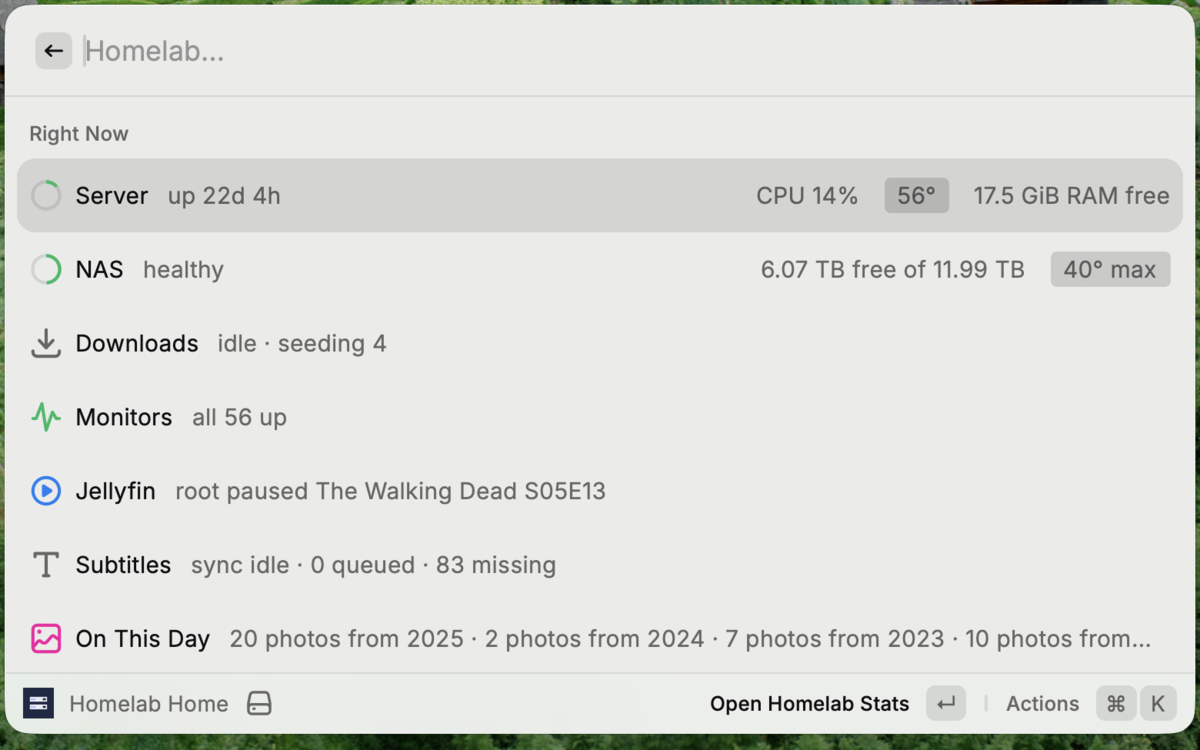
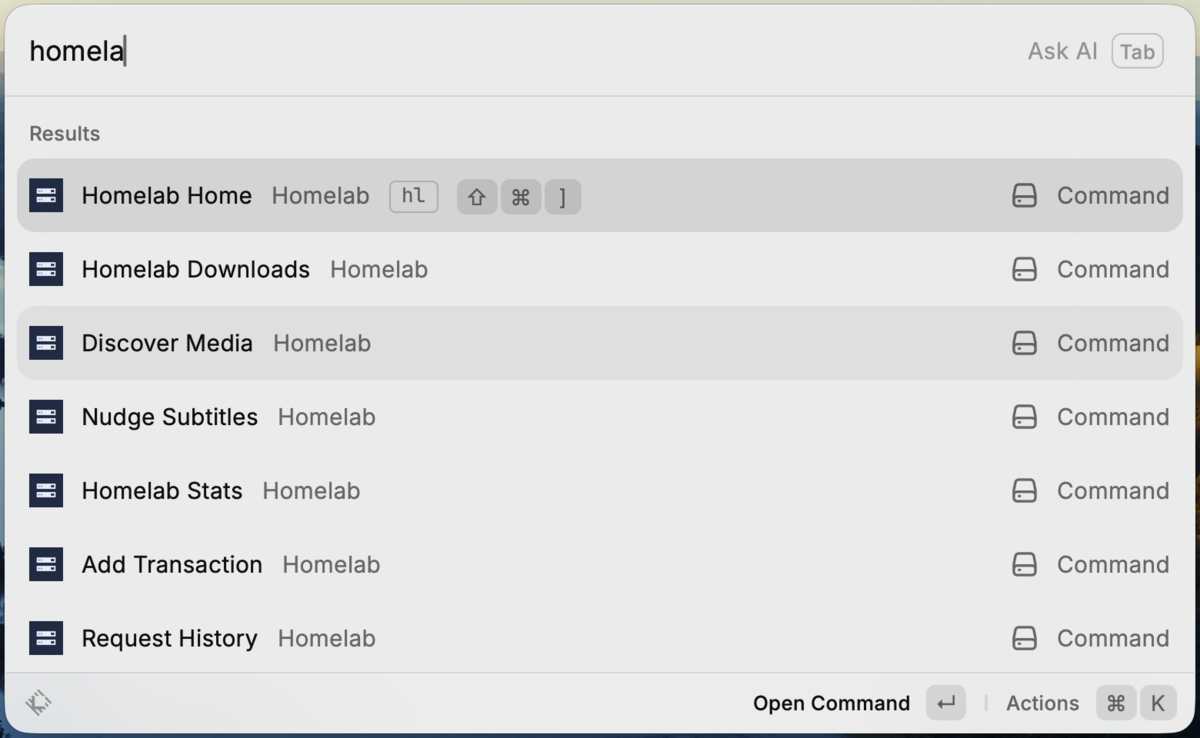
| **Homelab Home** — every command and quick link, Esc returns here
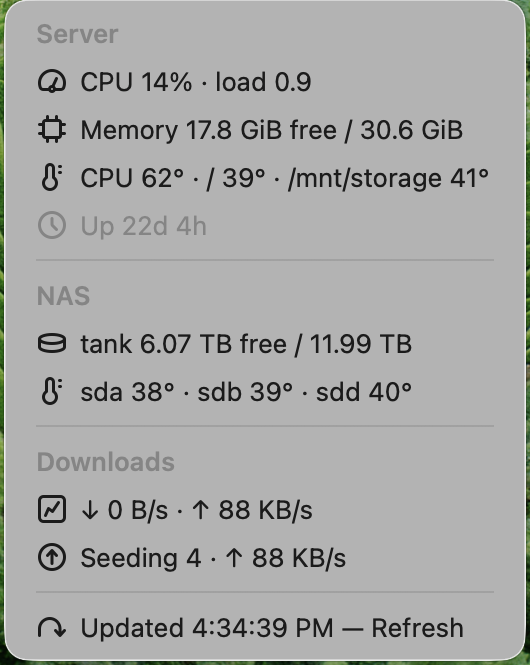
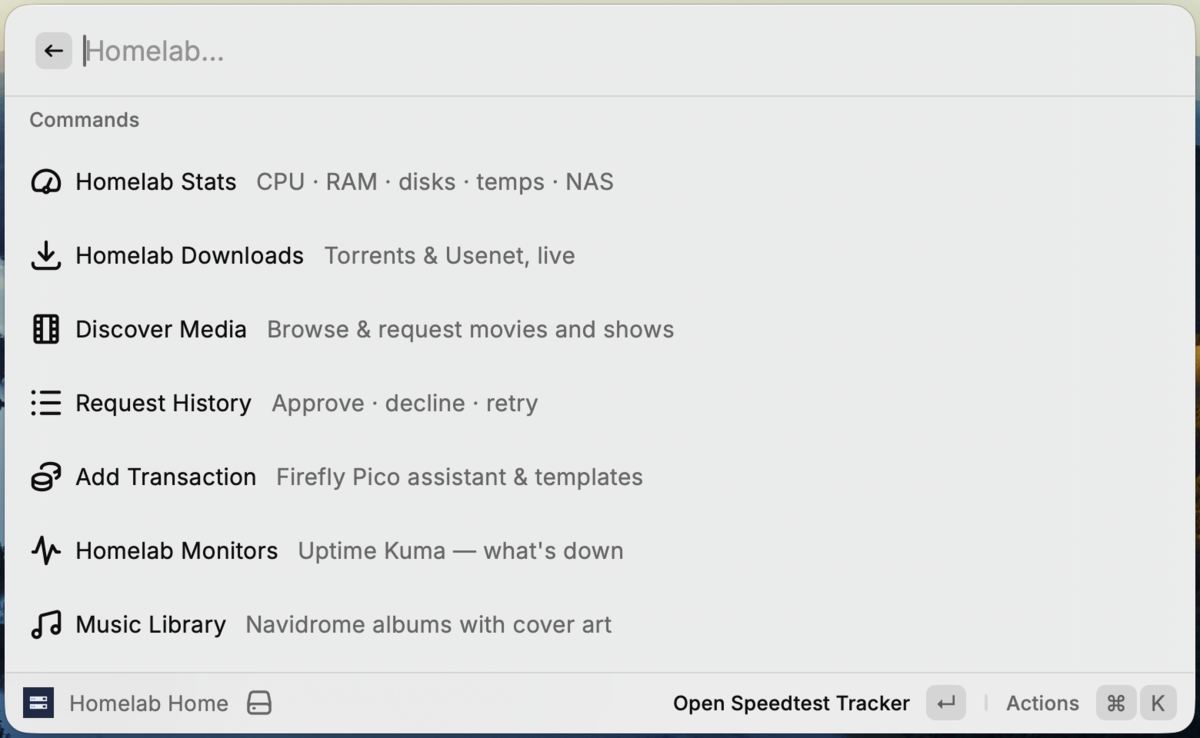 | **Homelab Menu Bar** — server, NAS and downloads at a glance
 |
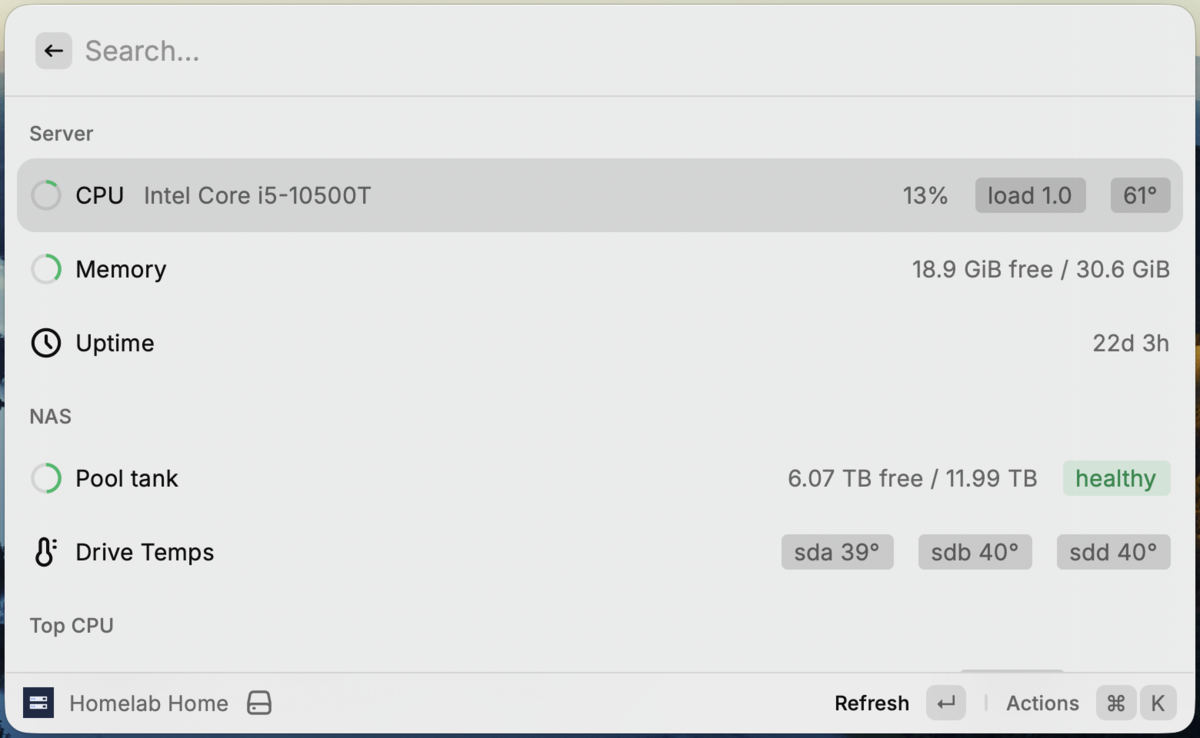
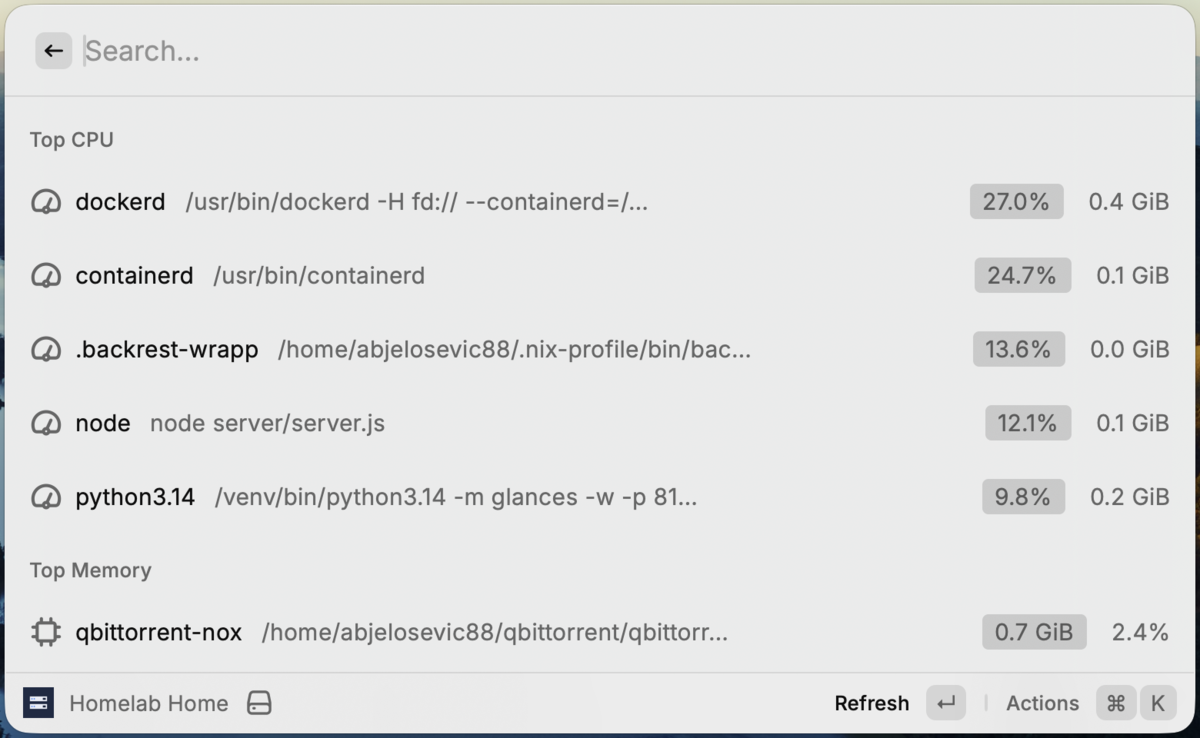
| **Homelab Stats** — CPU, memory, uptime, NAS pool, drive temps
 | **Top processes** — the same view scrolled down
 |
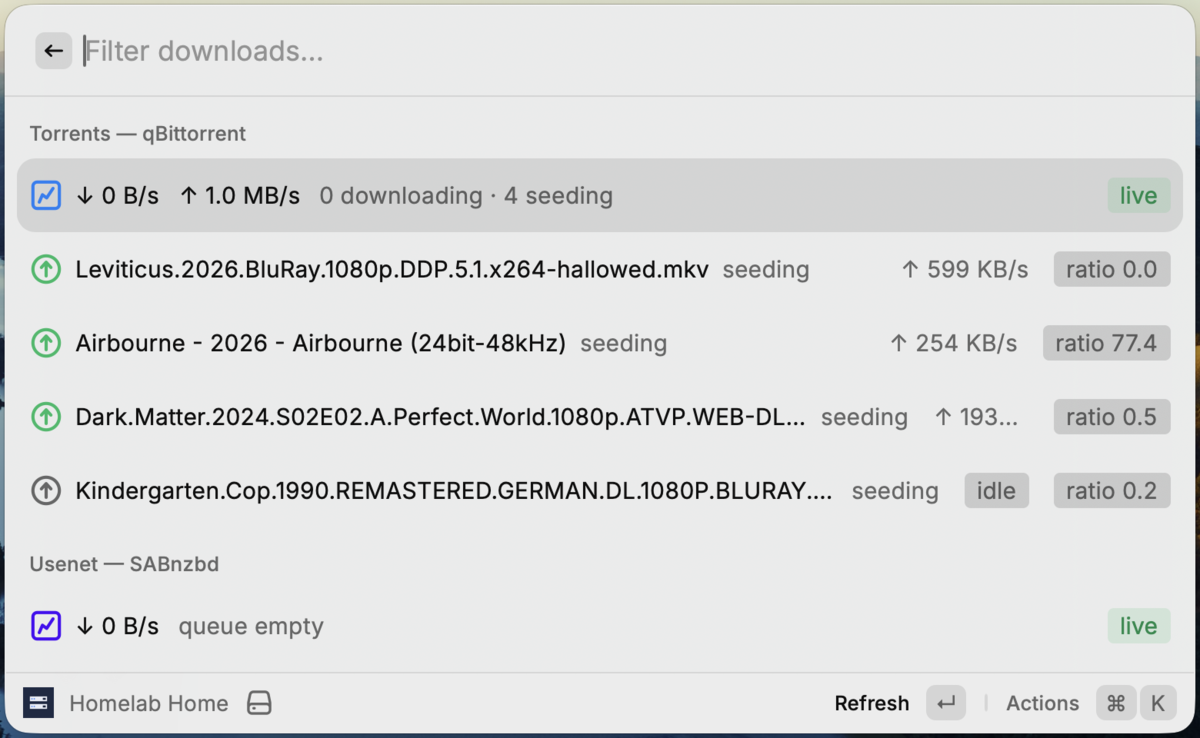
| **Homelab Downloads** — qBittorrent, SABnzbd and NZBget live
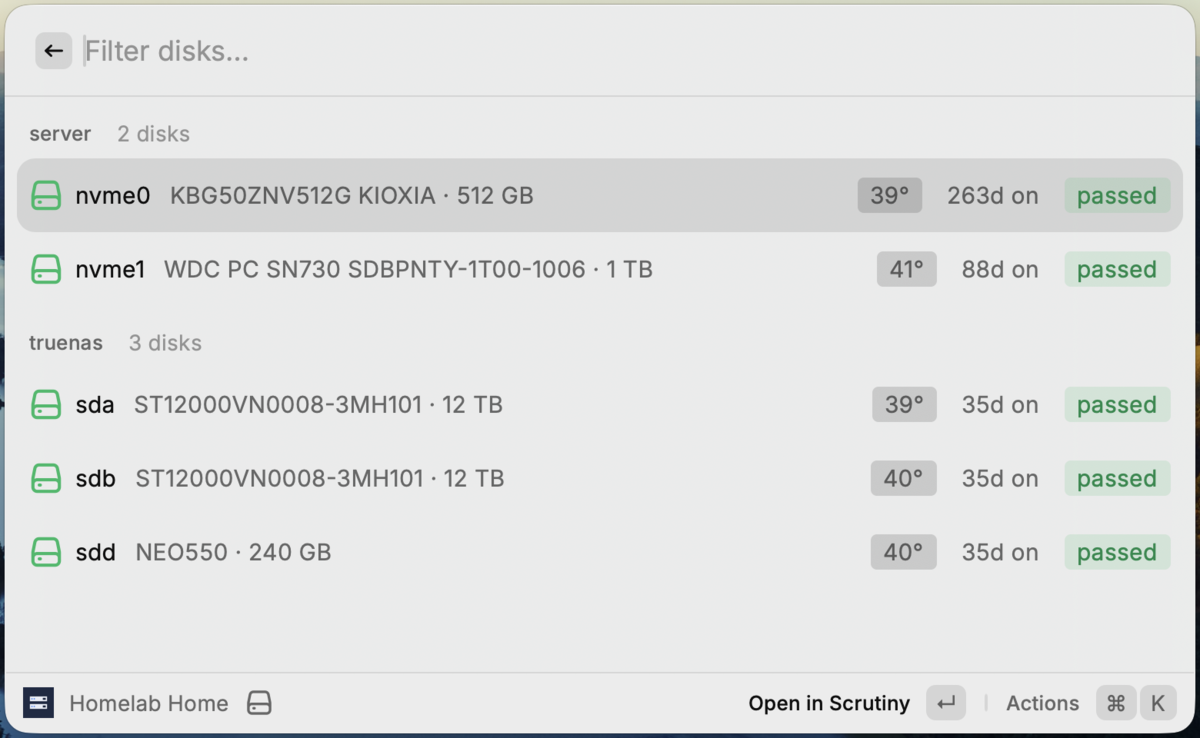
 | **Disk Health** — Scrutiny SMART for every host
 |
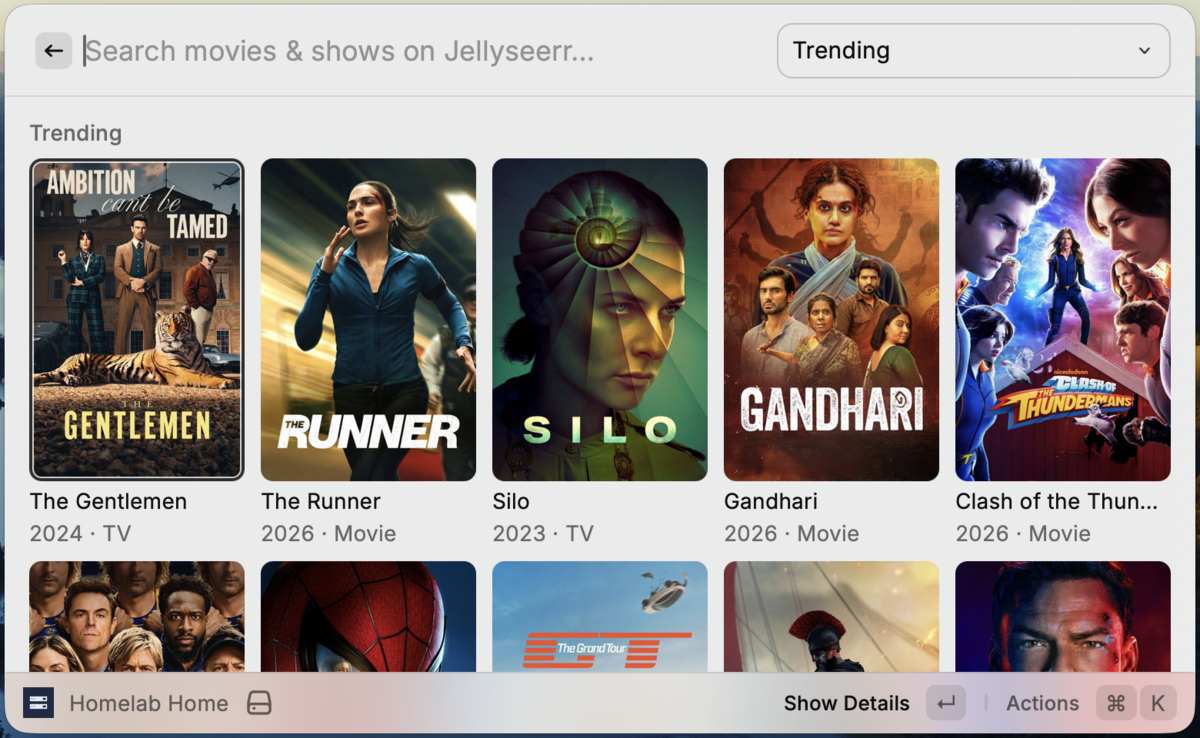
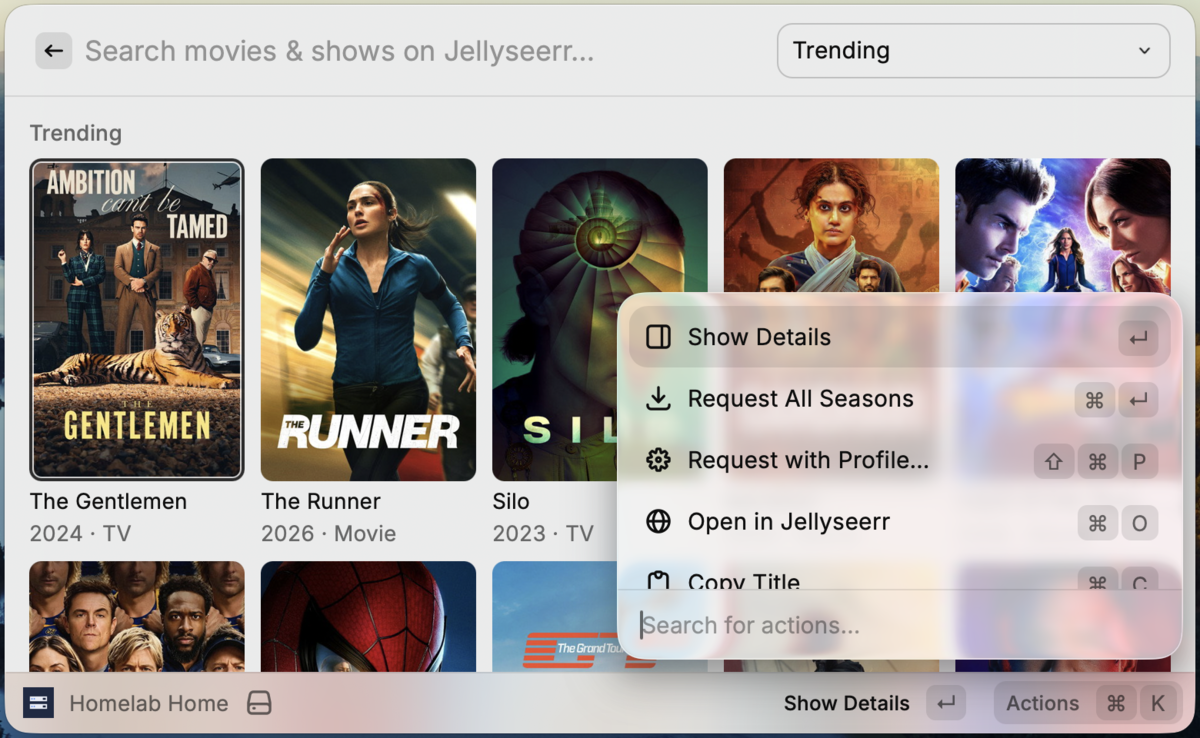
| **Discover Media** — Jellyseerr trending and search
 | **Request from the grid** — all seasons or a profile
 |
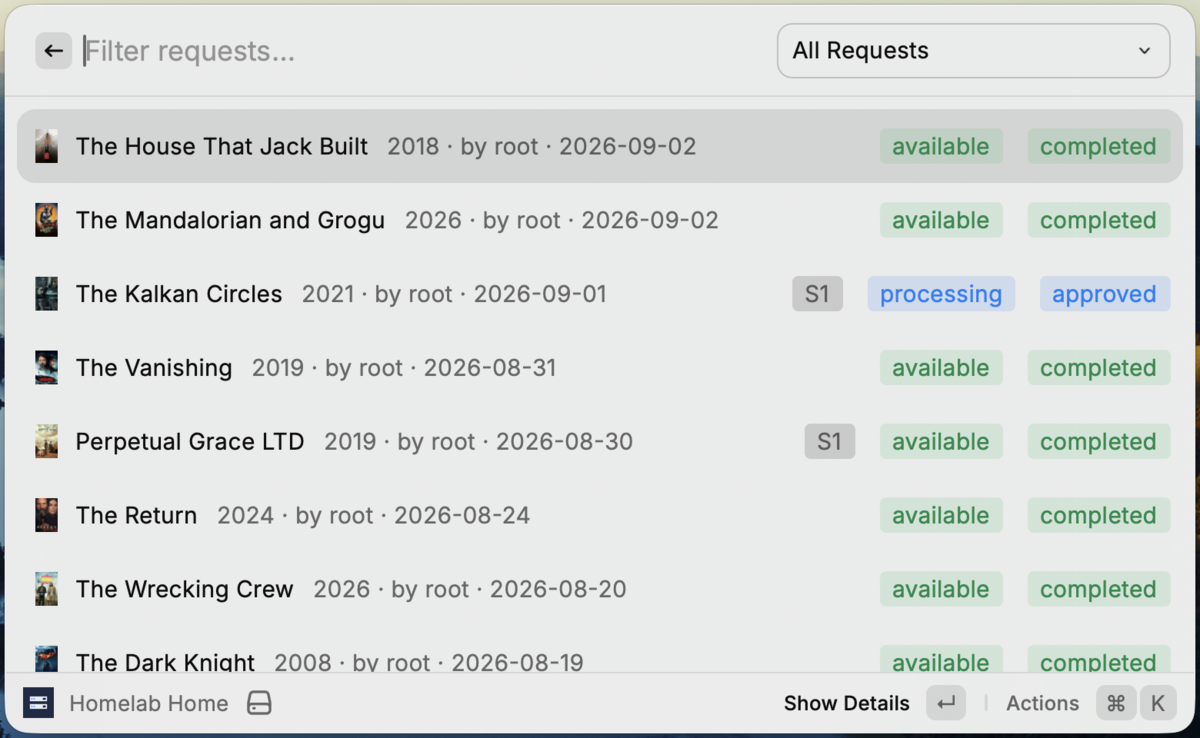
| **Request History** — approve, decline, retry
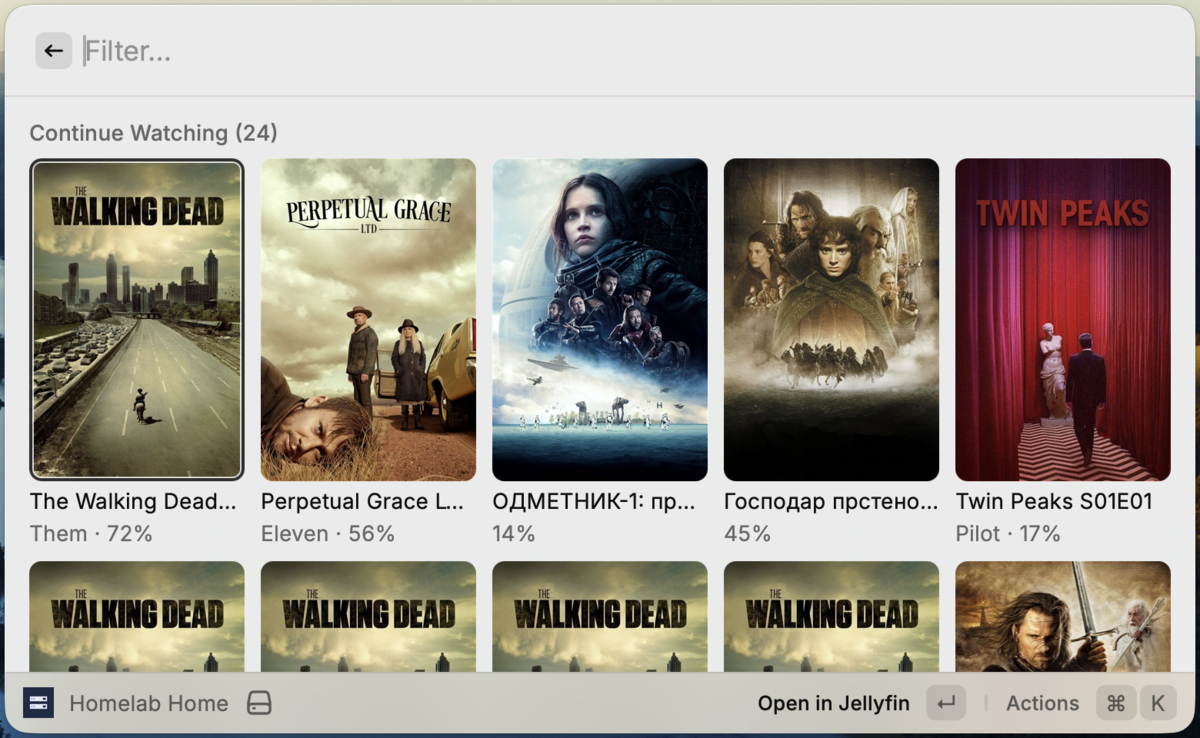
 | **Continue Watching** — Jellyfin resume and next up
 |
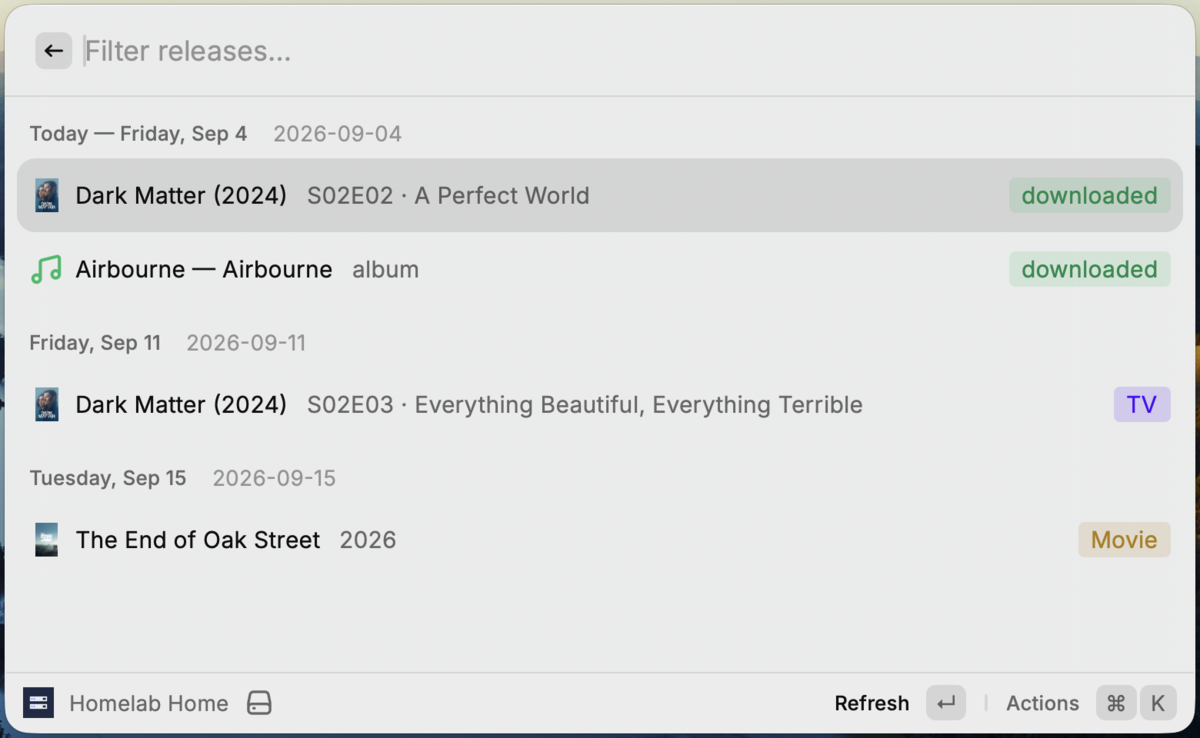
| **Media Calendar** — upcoming releases from the arr stack
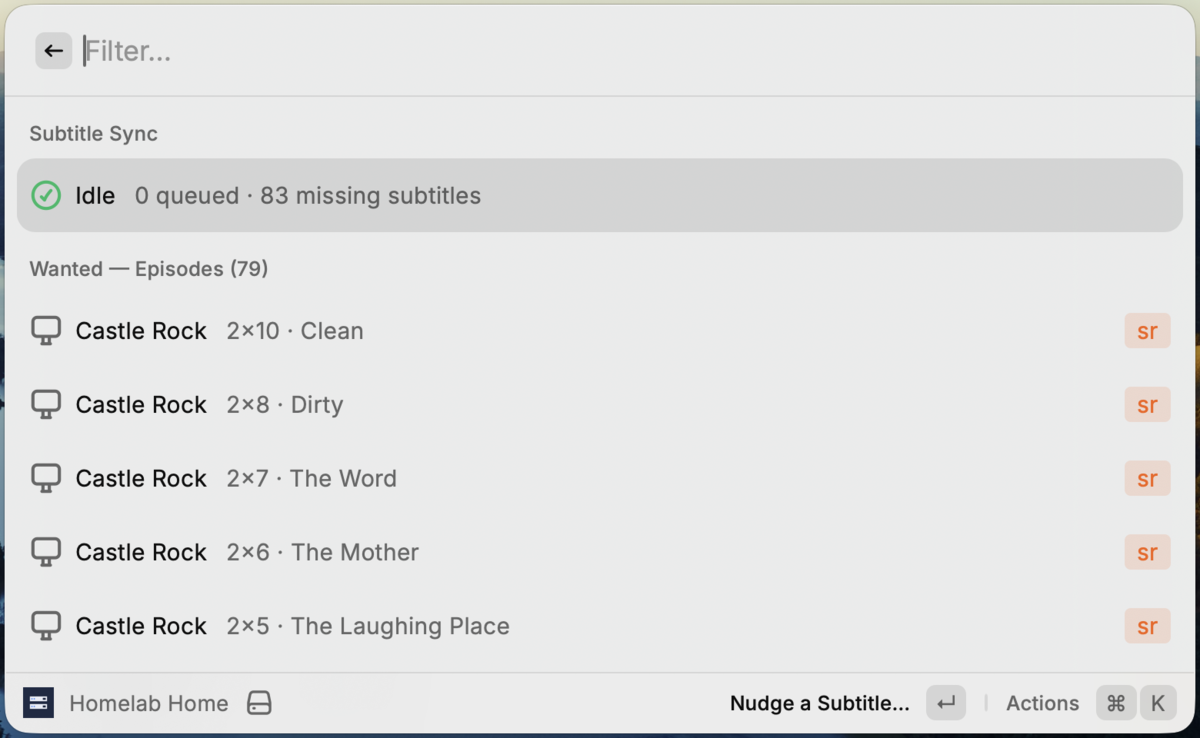
 | **Subtitles** — sync queue and Bazarr wanted list
 |
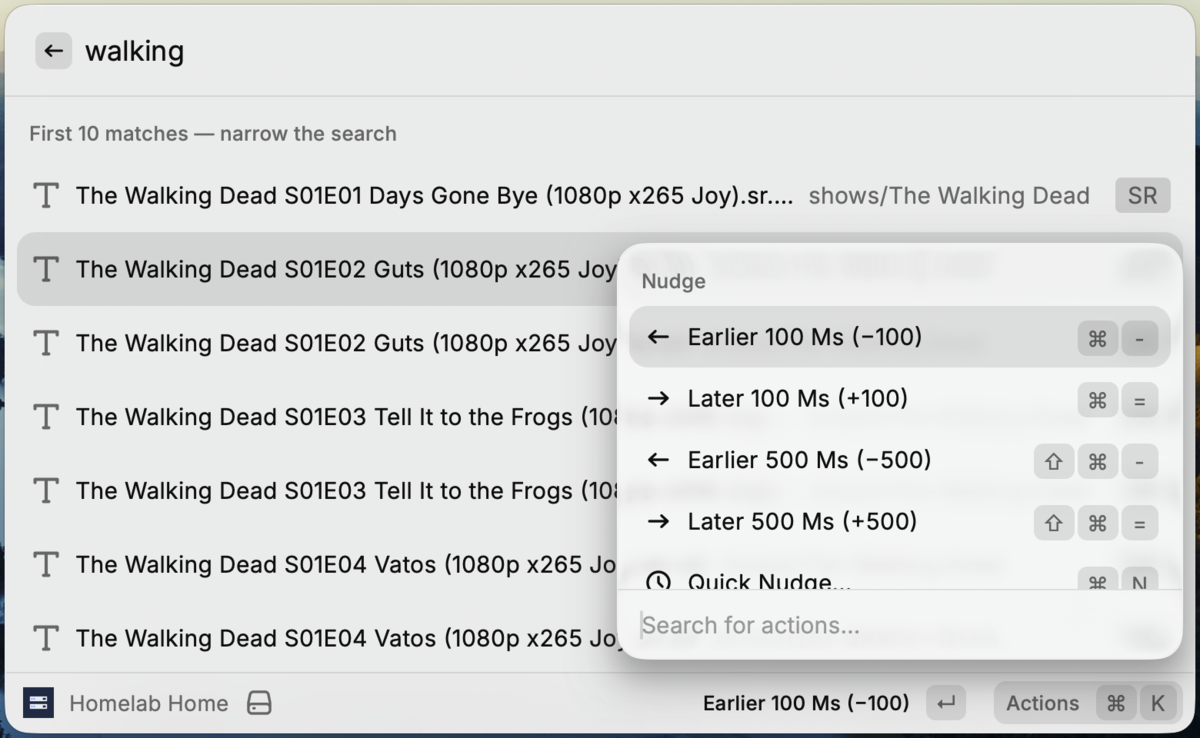
| **Nudge Subtitles** — shift one file by ±ms
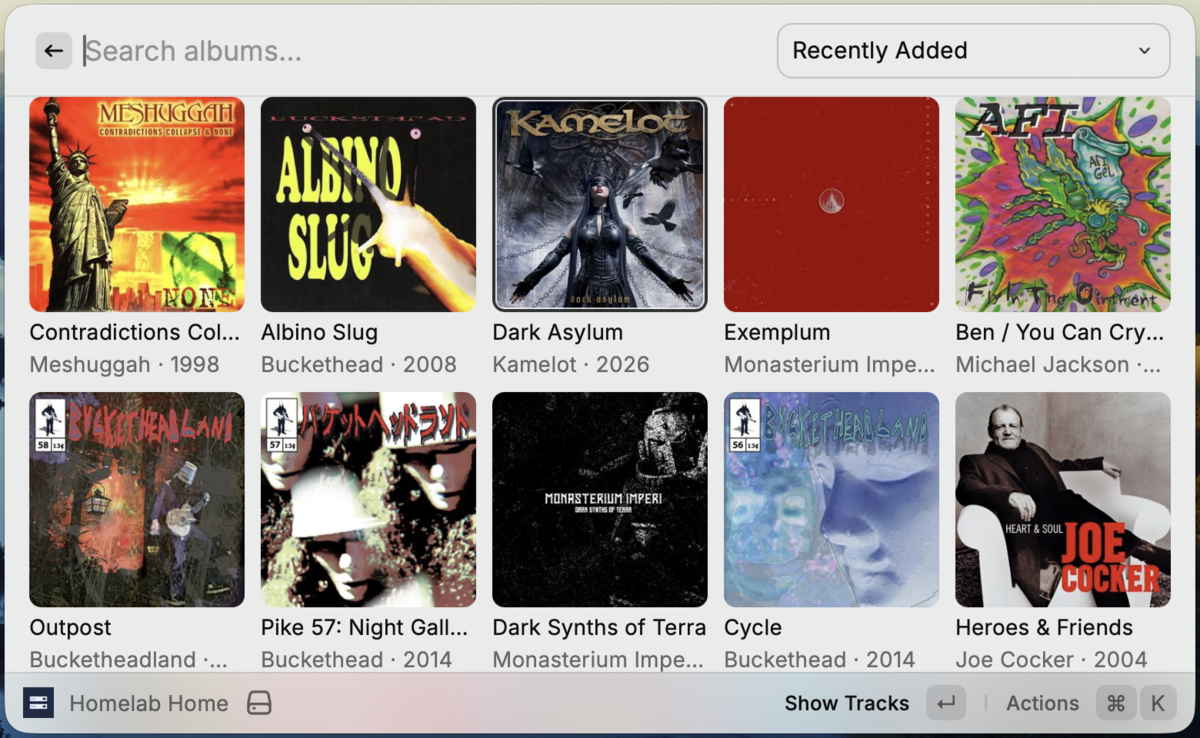
 | **Music Library** — Navidrome albums with cover art
 |
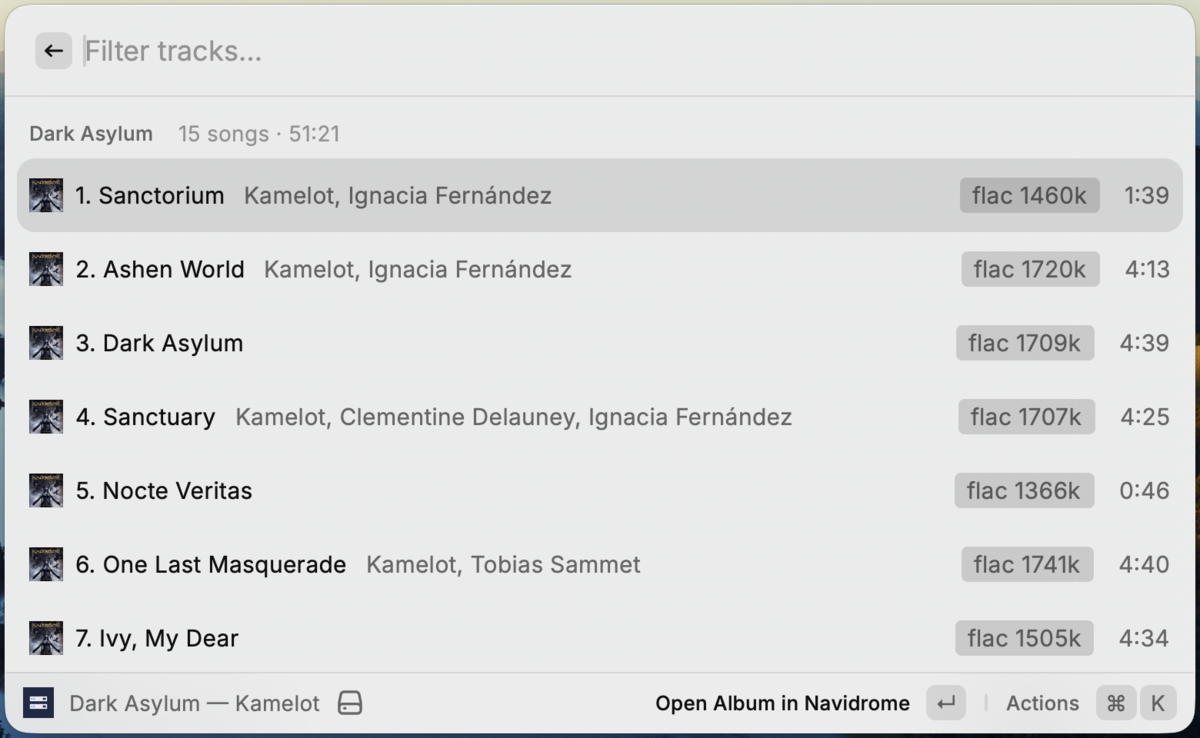
| **Album tracks** — format, bitrate, length
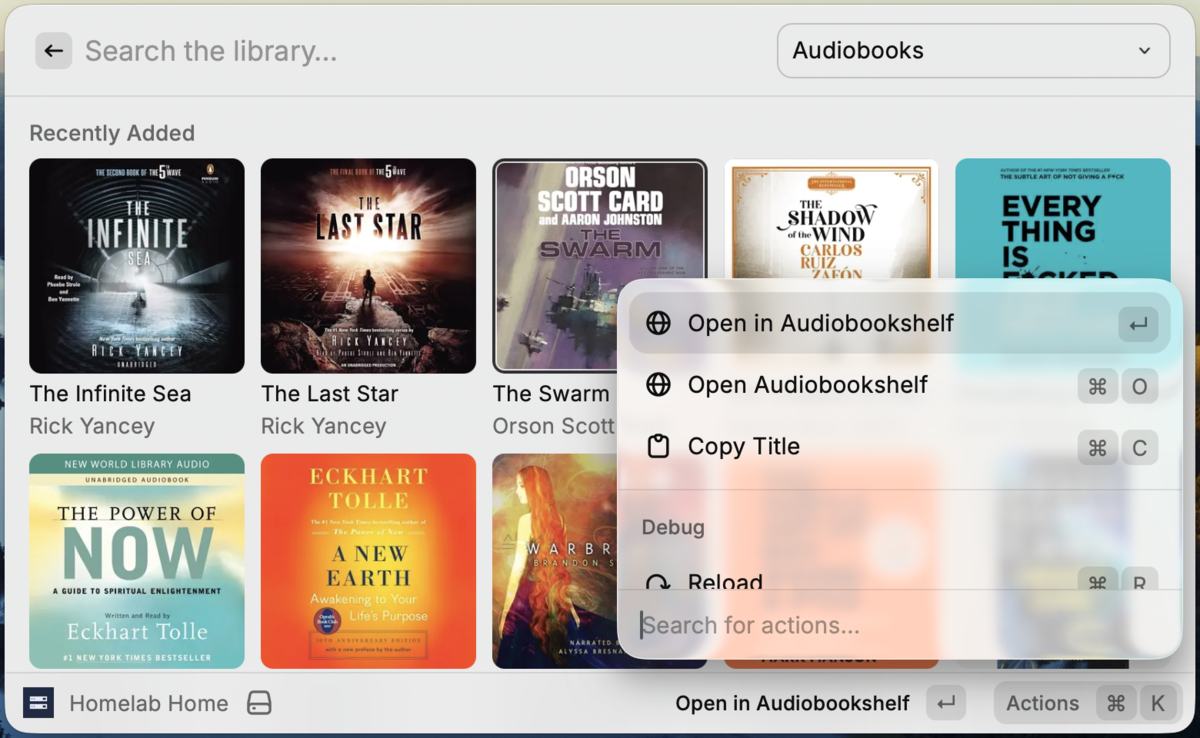
 | **Audiobooks** — Audiobookshelf library
 |
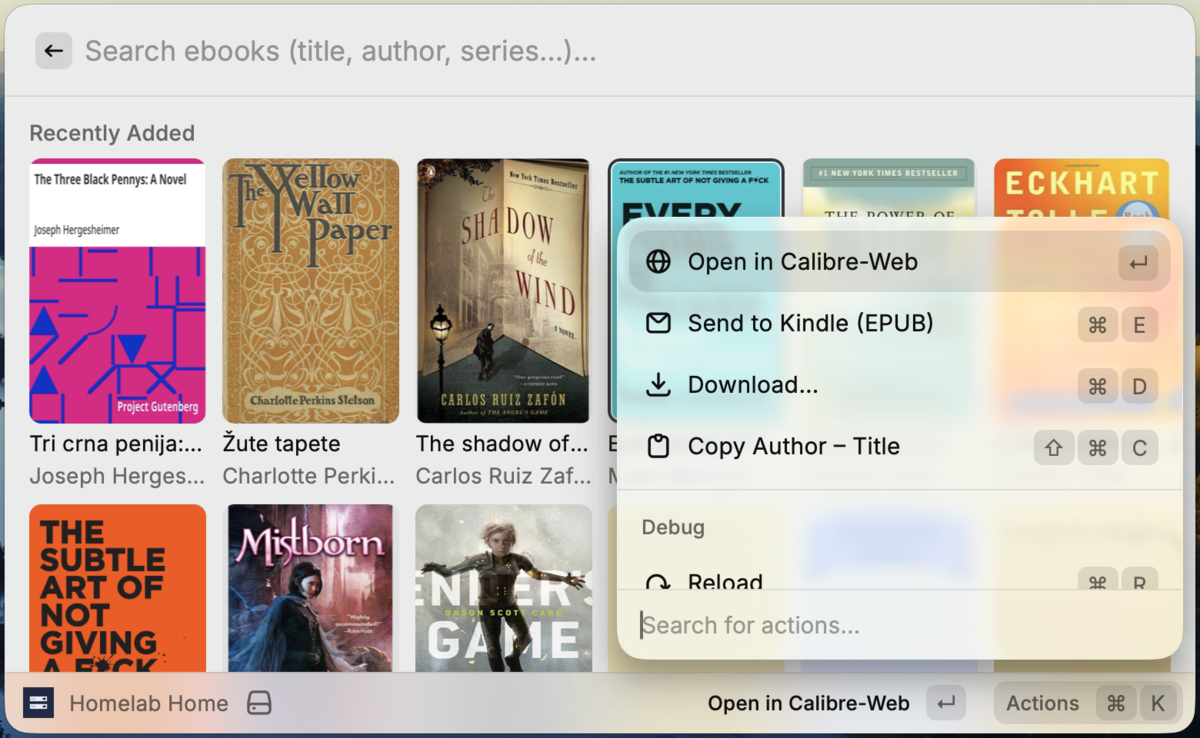
| **Ebooks** — Calibre-Web with Send to Kindle
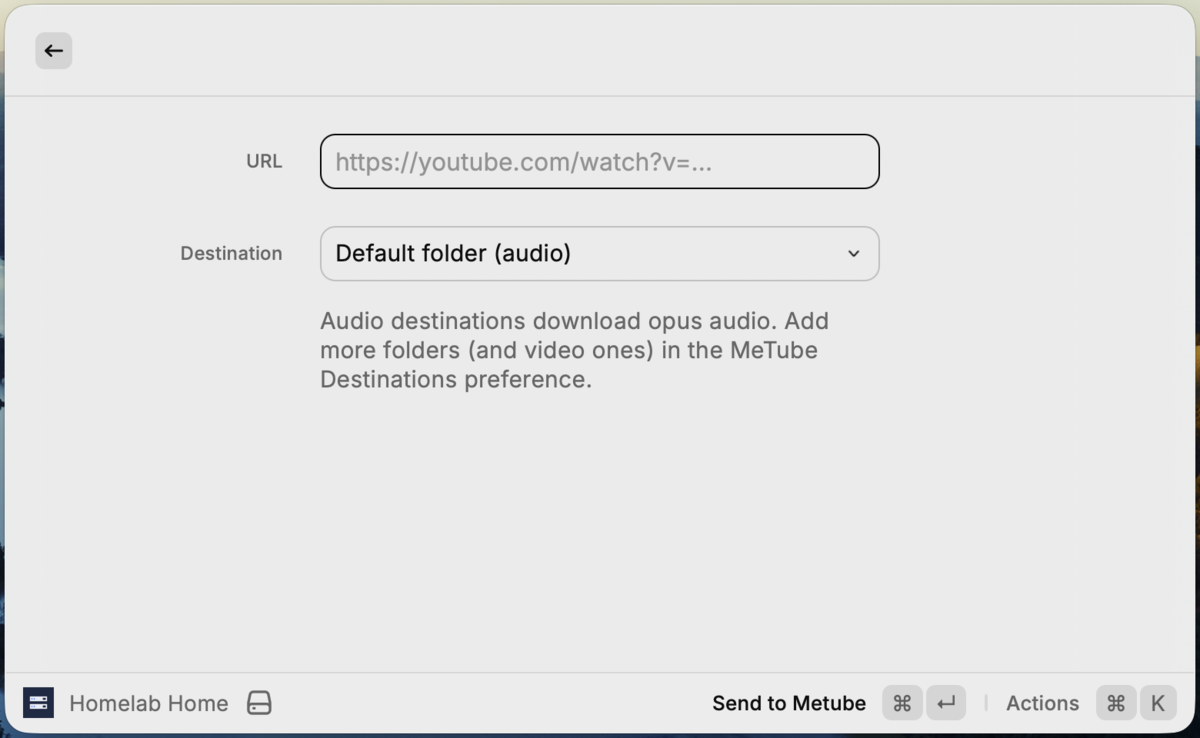
 | **Send to MeTube** — clipboard URL to a folder
 |
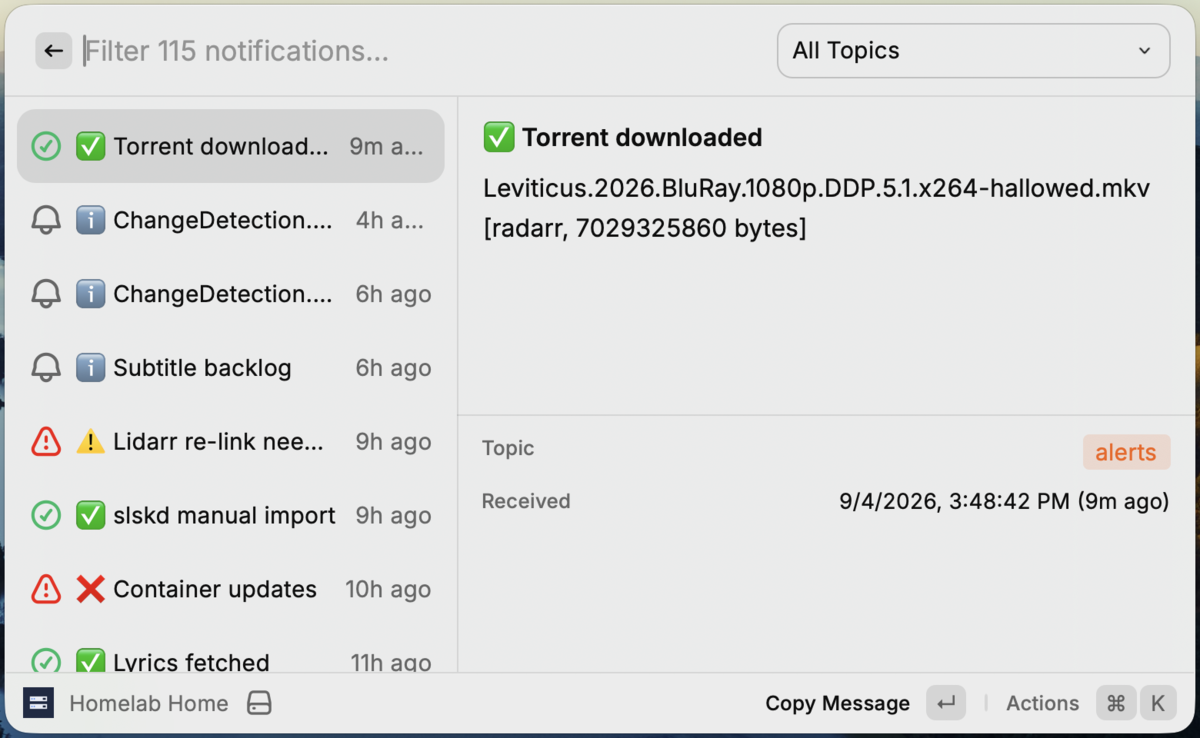
| **Notifications** — ntfy messages with detail pane
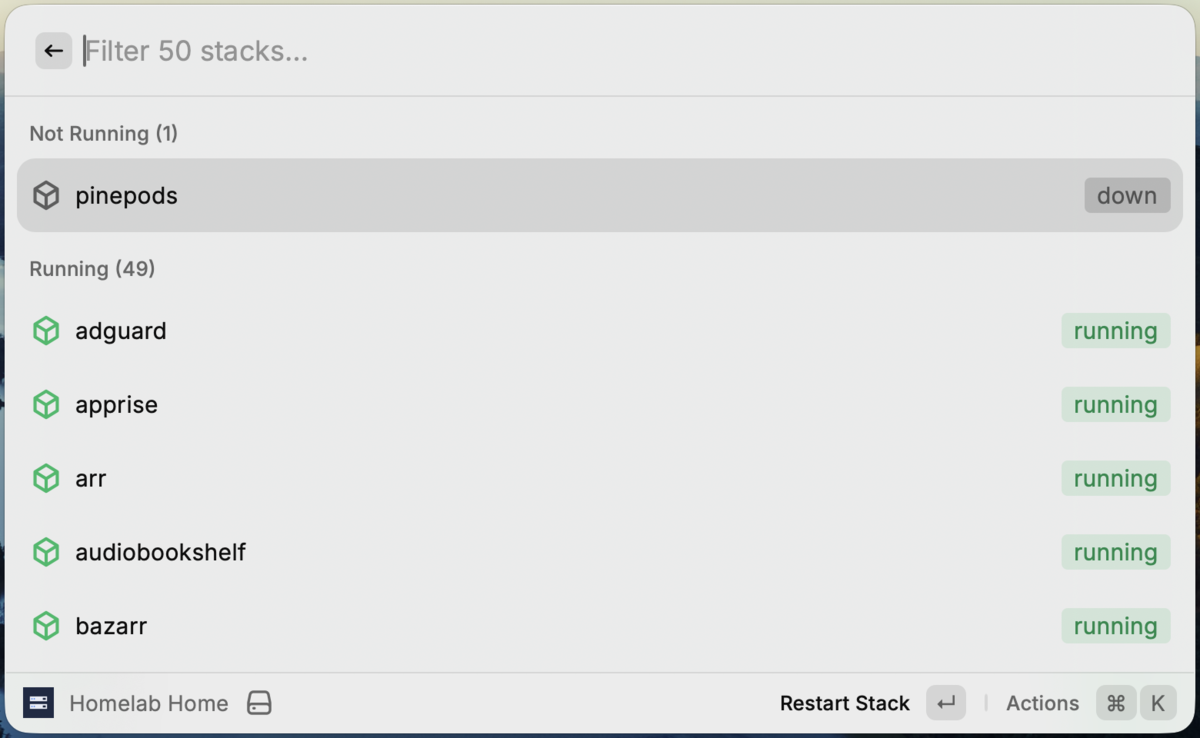
 | **Containers** — Komodo stacks, restart from Raycast
 |
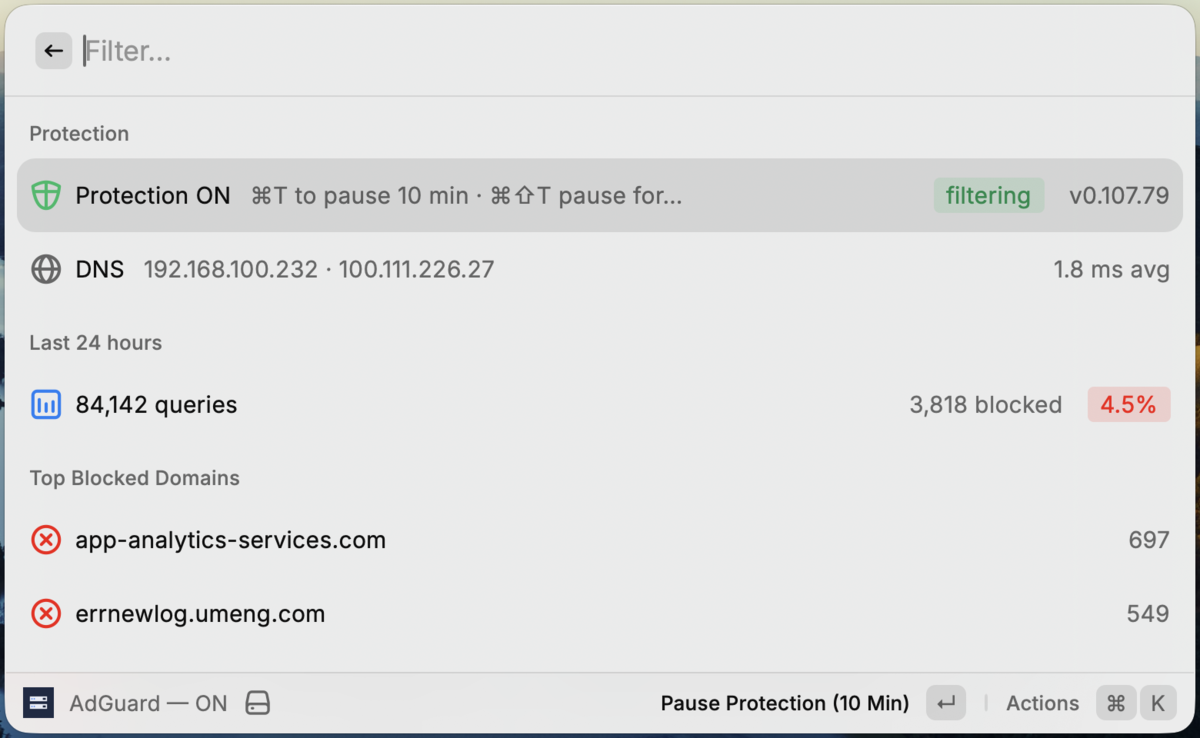
| **AdGuard Home** — protection toggle, stats, top blocked
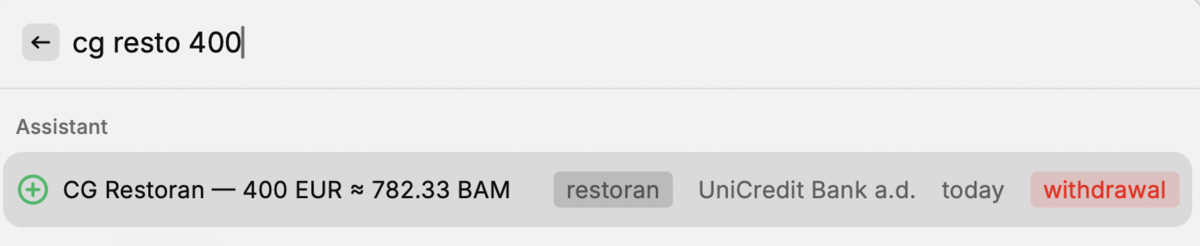
 | **Add Transaction** — Firefly Pico assistant parses "cg resto 400"
 |
## Commands
| Command | What it does |
|---|---|
| **Homelab Home** | One place for everything: live status rows, every command, quick links. Esc returns here. |
| **Homelab Stats** | CPU, memory, disks, uptime, temperatures, NAS pool, top processes |
| **Homelab Menu Bar** | CPU load and temperature in the menu bar, alerts when something is down (macOS only) |
| **Homelab Downloads** | qBittorrent, SABnzbd, NZBget and slskd activity, pause and resume |
| **Discover Media** | Browse trending and popular, search, and request movies and shows in Jellyseerr |
| **Request History** | Pending and past Jellyseerr requests: approve, decline, retry, delete |
| **Continue Watching** | Jellyfin now playing, resume, next up |
| **Media Calendar** | Upcoming movies, episodes and albums from the arr stack, plus stuck queues |
| **Search Indexers** | Prowlarr search across every indexer, grab straight to your download client |
| **Subtitles** | Bazarr wanted list and the sync queue |
| **Nudge Subtitles** | Shift one subtitle file by a few ms, undo, unpin |
| **Music Library** | Navidrome albums with cover art, search |
| **Photos** | Immich browse, smart search, on-this-day memories |
| **Audiobooks** | Audiobookshelf continue listening, browse, search |
| **Ebooks** | Calibre-Web search, download, send to Kindle |
| **Nextcloud Files and Sharing** | Recent files, folder browsing, Elasticsearch/OCR search, downloads, expiring share links and revocation |
| **Paperless Search** | Recent documents and full-text OCR search, tags and correspondent, preview, open and download |
| **Vehicle Expenses** | LubeLogger fuel-ups, service, repairs and car expenses; log a new record |
| **Send to MeTube** | Queue a video or audio download from the URL on your clipboard |
| **Homelab Monitors** | Uptime Kuma: what is down right now |
| **Notifications** | ntfy messages from the last seven days |
| **Disk Health** | Scrutiny SMART status for every disk |
| **Backup Health** | Backrest plan freshness, integrity checks, storage per disk/cloud destination, and largest-folder/file browsing |
| **Containers** | Komodo stacks: state, restart, start, stop |
| **Services & Jobs** | Native systemd services and timers over SSH: state, last result, next run and recent logs |
| **AdGuard Home** | Protection toggle, query stats, top blocked, recent log, blocklists |
| **Upcoming Bills** | Firefly III month spend and subscriptions due |
| **Add Transaction** | Firefly Pico quick entry with templates |
## Requirements
- [Raycast](https://raycast.com) on macOS or Windows. On Windows the env file lives at
`C:\Users\you\.config\raycast-homelab\.env`. Raycast for Windows does not support
menu bar commands yet, so Homelab Menu Bar is hidden there; every other command works
(tested by [FlowV4](https://www.reddit.com/u/FlowV4)). Services & Jobs and optional
backup storage measurements require OpenSSH available as `ssh` (built into Windows 10+);
other features use HTTP and the Raycast API.
- [Node.js](https://nodejs.org) 20 or newer (`brew install node`)
- Network access to your services. Over Tailscale or a VPN is fine, the extension only
needs to reach the URLs you configure, plus SSH for Services & Jobs or backup storage if enabled.
- For Services & Jobs: a Linux server with Python 3.9+, `systemctl` with JSON output
support, and `journalctl` available to your SSH account. No server daemon installation is needed.
## Install
```sh
git clone https://github.com/abjelosevic88/raycast-homelab.git
cd raycast-homelab
npm ci
npm run build
```
`npm run build` compiles the extension and registers it with Raycast permanently. You do
not need to keep a terminal open. To update later:
```sh
git pull && npm run build
```
Keep the folder where it is. Raycast links to the build output inside it.
## Configure
There are two ways to enter service settings. They can be mixed.
### 1. Raycast preferences
Open any command, press `⌘K` → **Configure Extension**. Fill in the URLs and credentials
for the services you run, or the SSH settings for Services & Jobs.
### 2. Env file
Copy the example and fill it in:
```sh
mkdir -p ~/.config/raycast-homelab
cp .env.example ~/.config/raycast-homelab/.env
```
Keys are the preference names in `UPPER_SNAKE` form (`JELLYFIN_URL`, `JELLYFIN_API_KEY`).
A value entered in the Raycast preferences always wins over the file, so the file is a
good place for the long list of URLs while secrets stay in Raycast, or the other way
round. The file path itself is a preference (**Env File**) if you want it elsewhere.
The env file is read once per command launch. After editing it, re-run the command.
### Settings by service
| Service | Settings | Where to find the credential |
|---|---|---|
| Glances | `GLANCES_URL`, `STORAGE_MOUNT` | No auth. Glances v4 API. `STORAGE_MOUNT` is an extra mount point to show beside `/`. |
| Temperatures | `TEMPS_URL` | Optional JSON published by the companion `temps-publish` script (see below) |
| Dashboard | `HOMEPAGE_URL` | Link only (Homepage, Dashy, anything) |
| TrueNAS | `TRUENAS_URL`, `TRUENAS_API_KEY` | Credentials → Local Users → API Keys |
| qBittorrent | `QBIT_URL`, `QBIT_USERNAME`, `QBIT_PASSWORD` | Web UI login |
| SABnzbd | `SABNZBD_URL`, `SABNZBD_API_KEY` | Config → General → API Key |
| NZBget | `NZBGET_URL`, `NZBGET_USERNAME`, `NZBGET_PASSWORD` | Settings → Security → ControlUsername / ControlPassword. Username defaults to `nzbget`. |
| slskd | `SLSKD_URL`, `SLSKD_API_KEY` | Options → Web → Authentication → API keys |
| Jellyfin | `JELLYFIN_URL`, `JELLYFIN_API_KEY`, `JELLYFIN_USER_ID` | Dashboard → API Keys. User ID optional. |
| Jellyseerr | `JELLYSEERR_URL`, `JELLYSEERR_API_KEY` | Settings → General → API Key |
| Radarr / Sonarr / Lidarr | `RADARR_URL`, `RADARR_API_KEY` (same for Sonarr, Lidarr) | Settings → General |
| Chaptarr / Readarr | `CHAPTARR_URL`, `CHAPTARR_API_KEY` | Settings → General. Any Readarr-compatible fork. |
| Prowlarr | `PROWLARR_URL`, `PROWLARR_API_KEY` | Settings → General |
| Bazarr | `BAZARR_URL`, `BAZARR_API_KEY` | Settings → General |
| Subtitle sync server | `SUBSYNC_URL` | Companion script, see below |
| Audiobookshelf | `ABS_URL`, `ABS_TOKEN` | Settings → Users → your user → API token |
| Navidrome | `NAVIDROME_URL`, `NAVIDROME_USER`, `NAVIDROME_PASSWORD` | Any user. Subsonic token auth. |
| Immich | `IMMICH_URL`, `IMMICH_API_KEY` | Account Settings → API Keys |
| Calibre-Web | `CALIBRE_URL`, `CALIBRE_USER`, `CALIBRE_PASSWORD` | Web UI login |
| Nextcloud | `NEXTCLOUD_URL`, `NEXTCLOUD_USERNAME`, `NEXTCLOUD_APP_PASSWORD` | User ID and app password from Personal settings → Security. |
| Paperless-ngx | `PAPERLESS_URL`, `PAPERLESS_TOKEN` | Your Paperless profile → API Auth Token. The token uses your user's document permissions. |
| LubeLogger | `LUBELOGGER_URL`, optional `LUBELOGGER_USERNAME`/`LUBELOGGER_PASSWORD` | No auth unless a LubeLogger account exists, then basic auth. |
| MeTube | `METUBE_URL`, `METUBE_FOLDERS` | No auth. Folders: `name\|Label[\|video],…` |
| Uptime Kuma | `KUMA_URL`, `KUMA_STATUS_SLUG` or `KUMA_API_KEY` | Status page slug needs no key. Settings → API Keys for all monitors. |
| ntfy | `NTFY_URL`, `NTFY_TOPICS` | Comma-separated topics |
| AdGuard Home | `ADGUARD_URL`, `ADGUARD_USERNAME`, `ADGUARD_PASSWORD` | Web UI login |
| Komodo | `KOMODO_URL`, `KOMODO_API_KEY`, `KOMODO_API_SECRET` | Settings → Profile → API keys |
| Services & Jobs | `SERVICES_SSH_HOST`, optional `SERVICES_SSH_PORT`, `SERVICES_SSH_IDENTITY_FILE` | SSH account with noninteractive key or agent authentication and a trusted host key. See setup below. |
| Backrest | `BACKREST_URL`, `BACKREST_USERNAME`, `BACKREST_PASSWORD`, optional `BACKREST_GRACE_HOURS` | Web UI login; freshness grace defaults to 2 hours. Actual storage uses the Services SSH settings and server inventory below. |
| Scrutiny | `SCRUTINY_URL` | No auth |
| Speedtest Tracker | `SPEEDTEST_URL` | Legacy open `/api/speedtest/latest` endpoint |
| Firefly III | `FIREFLY_URL`, `FIREFLY_TOKEN` | Options → Profile → OAuth → Personal Access Tokens |
| Firefly Pico | `PICO_URL` | Same token as Firefly III |
| Subscriptions | `SUBSCRIPTIONS_URL` | Optional JSON from the companion `firefly-sub-publish` script |
| Forgejo / Gitea | `FORGEJO_URL` | Link only |
`.env.example` lists every key with its description. Regenerate it after changing
preferences in `package.json` with `npm run gen:env`.
### Services & Jobs
Set **Services SSH Host** to `user@server.example.com`, or an existing alias from
`~/.ssh/config`. **Services SSH Port** is optional; when empty, OpenSSH uses its
configuration or port 22. **Services SSH Identity File** optionally selects a local
private key, with `~/` expanded to your home directory. Enter the key's file path,
never its contents. The equivalent env settings are:
```dotenv
SERVICES_SSH_HOST=user@server.example.com
SERVICES_SSH_PORT=
SERVICES_SSH_IDENTITY_FILE=
```
On your Mac, first connect manually with `ssh user@server.example.com` (or your
SSH alias, adding `-p`/`-i` if needed). Verify the host key and complete your normal
SSH setup. The extension uses OpenSSH with strict known-host checking and
noninteractive authentication, so your key or SSH agent must work without a
password or passphrase prompt. A passphrase-protected key can be loaded into your
agent before opening the command.
Open **Services & Jobs** from Raycast or Homelab Home. Search and filter native
services and scheduled jobs in the system scope and your SSH user's scope. Each
entry shows its current state; timer jobs also show the last result and next run
when systemd provides them. Open an entry for details or recent journal logs.
Refresh updates the snapshot. Failed connections remain visible, cached results
are marked stale, and a scope that cannot be read is reported explicitly while
available results remain usable.
The command streams its bundled Python collector over SSH and uses read-only
`systemctl` and `journalctl` queries. Nothing is installed on the server, no daemon
is required, and it never invokes `sudo`. User units belong to the SSH account,
whose systemd user manager must be available. System journal visibility depends
on that account's existing permissions; missing access can limit the logs shown.
Statuses describe systemd's current state, not a durable execution history.
An inactive oneshot that finished successfully is normal and appears as completed.
An overdue timer means its next deadline is in the past by more than its scheduling
accuracy or 60 seconds, whichever is longer; a running job is shown as running. Calendar runs skipped while the server
was off cannot be reconstructed from this snapshot. Use your existing job alerts
and backup history when you need proof that every expected run completed.
### Backup Health
Set the Backrest URL and login, then open **Backup Health** from Raycast, Home, or
the menu bar. Every configured plan and repository appears, including manual plans
and plans with no recorded successful run. The view shows the latest backup result,
last successful backup, next scheduled run, latest integrity-check result, and last
successful check. Failed, warning, cancelled, never-run and overdue states remain
visible. A current run does not hide an overdue or previously failed backup.
Freshness uses each schedule's nominal maximum interval, sampling eight consecutive
cron gaps as Backrest does, plus **Backup Freshness Grace (Hours)** (default 2).
Daily, weekly, five-field cron and hour/day frequency schedules are supported.
This is an age check, not proof that every scheduled run happened. Manual/disabled
plans have no automatic deadline; unsupported schedules show **Freshness unknown**.
Next-run times come from Backrest. Integrity-check coverage displays the current
policy: Backrest's historical operation records do not retain the check mode.
Health queries read the full recorded operation history for each repository,
including older successes hidden by busy repositories. Responses are bounded to
16 MiB per request; an oversized or unavailable history is reported explicitly.
Home and the command refresh health every minute; the menu bar follows its normal
refresh interval. Failed refreshes show errors and mark any cached result.
Storage has two separate measurements:
- **Raw data (cached)** is the latest successful Backrest/restic repository statistic,
including its measurement date and snapshot count at that date. It represents
deduplicated, compressed data, not filesystem allocation. Each repository is
counted once even when several plans use it. Logical snapshot sizes are never summed.
- **Backup Storage** measures allocated disk bytes for repository directories and
replica copies, current cloud object bytes, and staging space. These are separate
totals; do not add raw data to disk usage. Offline or failed locations are unknown
and excluded from the measured subtotal. Cloud figures exclude retained object
versions and billing overhead; filesystem figures exclude separate filesystem snapshots.
Cloud destinations (for example, Google Drive and Backblaze B2), disk destinations,
and staging appear in separate sections, each sorted by measured size. Select a
destination and press **Enter → Show Space Usage** to see its largest folders and
files. Each entry shows its size and percentage of the current folder. Open a folder
to continue browsing; Escape returns to the parent view. Measurements are loaded
on demand and can be refreshed independently.
For restic repositories, the `data` folder contains shared encrypted backup data;
`index`, `snapshots`, and `keys` contain repository metadata. Space Usage explains
these categories. Related plans' latest logical snapshot sizes provide context,
but are not assigned a share of the physical storage: compression and deduplication
share data across plans and snapshots. Staging directories show their actual
folder/file names. Browsing stays within the configured backup destination and
does not follow symlinks.
At most the 200 largest entries are displayed per folder. Any omitted entries and
directory allocation appear as remaining space, so they are not mistaken for free
space. Oversized, timed-out or unreadable listings report an error instead of an
incomplete total. Disk percentages use allocated bytes; cloud percentages use
current object bytes. A destination's backup folder is the browsing root, not the
entire cloud account or disk.
For actual storage, configure **Services SSH Host** using the setup above. On that
Linux server create `~/.config/raycast-homelab/backup-storage.json`, listing each
repository or copy once. This inventory stays on your server and is not uploaded
to Backrest or included in the extension repository. Example:
```json
{
"locations": [
{ "id": "main", "label": "Main backup", "repoId": "main", "kind": "local", "group": "repository", "path": "/backups/restic-repo" },
{ "id": "nas-copy", "label": "NAS copy", "repoId": "main", "kind": "ssh", "group": "replica", "host": "backup@nas", "path": "/tank/backups/restic-repo" },
{ "id": "cloud-copy", "label": "Cloud copy", "repoId": "main", "kind": "rclone", "group": "replica", "path": "cloud:backups/restic-repo" },
{ "id": "usb", "label": "USB backup", "kind": "local", "group": "repository", "path": "/mnt/usb/restic-repo", "requireMount": "/mnt/usb" },
{ "id": "staging", "label": "Backup exports", "kind": "local", "group": "staging", "path": "/backups/staging" }
]
}
```
The extension streams its bundled Python collector over SSH; no daemon installation
is needed. Local measurements require Python 3.9+ and GNU `du`. SSH locations require
key/agent access and a trusted host key **from the server to the NAS**, GNU `du` and
`timeout` on the NAS; folder browsing additionally requires Python 3.9+ there.
An optional numeric `port` selects a nondefault NAS SSH port.
Cloud locations use the server account's existing `rclone` configuration; put no
passwords or access tokens in the inventory. Use absolute filesystem paths and a
`requireMount` guard for removable local disks. The collector checks for a restic
repository before measuring filesystem repositories/copies, and never mounts disks.
Storage is measured only when opening the command or choosing **Refresh**, with
bounded parallel queries and timeouts. Nothing starts a backup, verification,
prune, restore or cloud sync. The SSH account needs read access to the configured
locations; unreadable files cause an explicit measurement error.
API and measurement references: [Backrest v1.14.1 API](https://github.com/garethgeorge/backrest/blob/v1.14.1/proto/v1/service.proto),
[Backrest nominal schedule periods](https://github.com/garethgeorge/backrest/blob/v1.14.1/internal/protoutil/schedule.go),
[restic statistics](https://restic.readthedocs.io/en/stable/045_working_with_repos.html),
[rclone size](https://rclone.org/commands/rclone_size/).
### Paperless Search
Set **Paperless URL** to your instance's base URL (without `/api`) and **Paperless API
Token** to the token from your Paperless profile, or use `PAPERLESS_URL` and
`PAPERLESS_TOKEN` in the env file. The command searches documents visible to that user.
Open **Paperless Search** from Raycast or Homelab Home. An empty search shows recent
documents; typing searches titles and OCR text, so you can find a receipt by a shop
name or an invoice by its number. Results show tags and correspondent. **Read Document
Text** opens OCR text in Raycast; **Preview File** opens a downloaded preview in your
default macOS app. You can also open the document in Paperless or save its original
file or archived PDF (when available) to Downloads. **Copy OCR Text** copies the full
extracted text. Files larger than 100 MB can be downloaded through Paperless instead.
### Vehicle Expenses
Set **LubeLogger URL** to your instance's base URL (without `/api`), or use
`LUBELOGGER_URL` in the env file. LubeLogger's API needs no credentials unless the
instance has a user account; set the username and password only in that case.
`LUBELOGGER_CURRENCY`, `LUBELOGGER_DISTANCE_UNIT` and `LUBELOGGER_VOLUME_UNIT` are
display labels (LubeLogger's API reports none), and `LUBELOGGER_VEHICLE_ID` picks which
vehicle the Homelab Home row summarises.
The command shows the vehicle's odometer, spend this year, an all-time breakdown by
record type, and any due reminders, followed by every record grouped by year with a
per-year total. The dropdown filters to fuel-ups, service, repairs, upgrades, expenses
or odometer readings; search matches descriptions, notes and tags. **⌘N** logs a new
record — the form adapts to the type, pre-fills the last odometer reading, and asks for
litres and fill-to-full only for fuel-ups. **⌃X** deletes a record after a confirmation.
LubeLogger formats and parses numbers in its server's locale, so on a `bs-BA` instance
`12.50` would be stored as `1250`. The extension detects the separator from the data
LubeLogger returns, verifies every new record round-trips, and rolls the record back
rather than saving a wrong amount; **LubeLogger Decimal Separator** overrides the
detection. Note that LubeLogger mirrors a record's odometer into its own odometer log
and keeps that entry when the record is deleted — the extension only cleans up mirrored
entries created by a rolled-back write.
### Nextcloud Files and Sharing
Set the Nextcloud URL, user ID and app password in extension preferences or the env
file. Use the instance base URL (including any installation subpath), without
`remote.php` or `ocs/v2.php`. The account's existing file permissions apply.
Open **Nextcloud Files and Sharing** from Raycast or Homelab Home:
- An empty query shows the 200 most recently modified files. **Browse All Files**
opens folders, with a local filter for the current folder.
- Typing searches your existing full-text index. **Advanced Search Options** (⌘F)
selects all indexed text including OCR, main document text (including image OCR), indexed
filenames, or filename search through WebDAV. You can limit results to one
extension, such as `pdf`, `png` or `docx`. Full-text queries support quoted
phrases, `+required` and `-excluded` terms.
- **Show only results with OCR highlights** filters each page to matches reported
in Tesseract's PDF OCR field or an image's main text field. This is a highlight filter, not a native OCR-only query;
pages can be empty while more results remain. Use **Next Page** (⌘→) and
**Previous Page** (⌘←). Recent files and WebDAV searches are capped at 200; narrow
the query or browse folders when the command shows that limit.
- **Download File** (⌘D) streams the selected file to your Mac's `~/Downloads`,
preserves existing files by adding a numbered suffix, and offers **Show in
Finder**. Downloads have a 30-minute timeout and remove partial files on failure.
To download a folder's files, open the folder and select individual files.
- **Create Share Link** creates a public link with view/download access, an expiry
date (seven days by default), and an optional password. Server sharing policy
still applies. **Manage Share Links** lists and copies existing public links and
lets you revoke a selected link after confirmation. **Copy Nextcloud File Link**
copies an ordinary authenticated link without creating a public share.
Full-text search requires the Nextcloud `fulltextsearch`, `files_fulltextsearch`
and `fulltextsearch_elasticsearch` apps and an indexed Elasticsearch backend. OCR
requires `files_fulltextsearch_tesseract`, Tesseract, and completed OCR indexing.
PDF OCR uses a separate index field; image OCR is stored as main document text.
OCR languages, PDF page limits and reindexing are server settings; changing search
options does not rerun OCR. Search goes through Nextcloud's authenticated remote
search API, which enforces the account's access, without exposing Elasticsearch.
If full-text search is unavailable, select **File Names (WebDAV)** explicitly.
API references: [WebDAV search](https://docs.nextcloud.com/server/stable/developer_manual/client_apis/WebDAV/search.html),
[downloads and folder operations](https://docs.nextcloud.com/server/stable/developer_manual/client_apis/WebDAV/basic.html),
[sharing](https://docs.nextcloud.com/server/stable/developer_manual/client_apis/OCS/ocs-share-api.html),
and [Nextcloud full-text search](https://github.com/nextcloud/fulltextsearch).
## Companion scripts
Three rows depend on small server-side scripts that are not part of this repository.
Leave their URLs empty and the rows simply do not appear.
- **Temperatures** (`TEMPS_URL`): a JSON file with server CPU and disk temperatures plus
NAS disk temperatures, published by a timer on the server. Shape:
`{ "server": { "cpu": { "name", "temp", "warn" }, "disks": [ … ] }, "nas": { "disks": [ … ] } }`.
- **Subtitle sync server** (`SUBSYNC_URL`): a tiny HTTP status server for a subtitle sync
queue. Powers the Subtitles status row and the Nudge Subtitles command.
- **Subscriptions** (`SUBSCRIPTIONS_URL`): a JSON summary of upcoming Firefly III bills.
Shape: `{ "due_30d", "count_30d", "next", "items": [ { "name", "detail" } ] }`.
## Development
```sh
npm run dev # build, install and hot-reload on save
npm run typecheck # tsc
npm run test:nextcloud # Nextcloud search, downloads and shares regression tests
npm run test:paperless # Paperless API regression tests (no live credentials needed)
npm run test:services # SSH transport and systemd collector regression tests
npm run test:backups # Backrest health and backup storage collector regression tests
npm run lint # ray lint (macOS only); npm run lint:local runs eslint anywhere
npm run gen:env # regenerate .env.example from package.json
```
Each service lives in its own `src/-api.ts` module. Views are the `.tsx` files
of the same name. `src/config.ts` is the only place settings are read; every module goes
through `setting()`, `optionalUrl()` and `requireUrl()` from there, so no hostname ever
appears in the source.
## Security notes
- Secrets are stored by Raycast in its preferences store, or in your env file if you use
one. Nothing is sent anywhere except to the services you configure.
- qBittorrent is never contacted while its password is empty: it bans an IP after five
failed logins, and behind a reverse proxy that bans the whole host.
- Audiobookshelf and Immich thumbnails embed the API key in the image URL, which is how
their APIs work. Those requests stay between Raycast and your server.
## License
MIT, see `LICENSE`.