# Material Contextual Action Bar
[  ](https://repo1.maven.org/maven2/com/afollestad/material-cab)
[](https://github.com/afollestad/material-cab/actions?query=workflow%3A%22Android+CI%22)
[](https://www.apache.org/licenses/LICENSE-2.0.html)
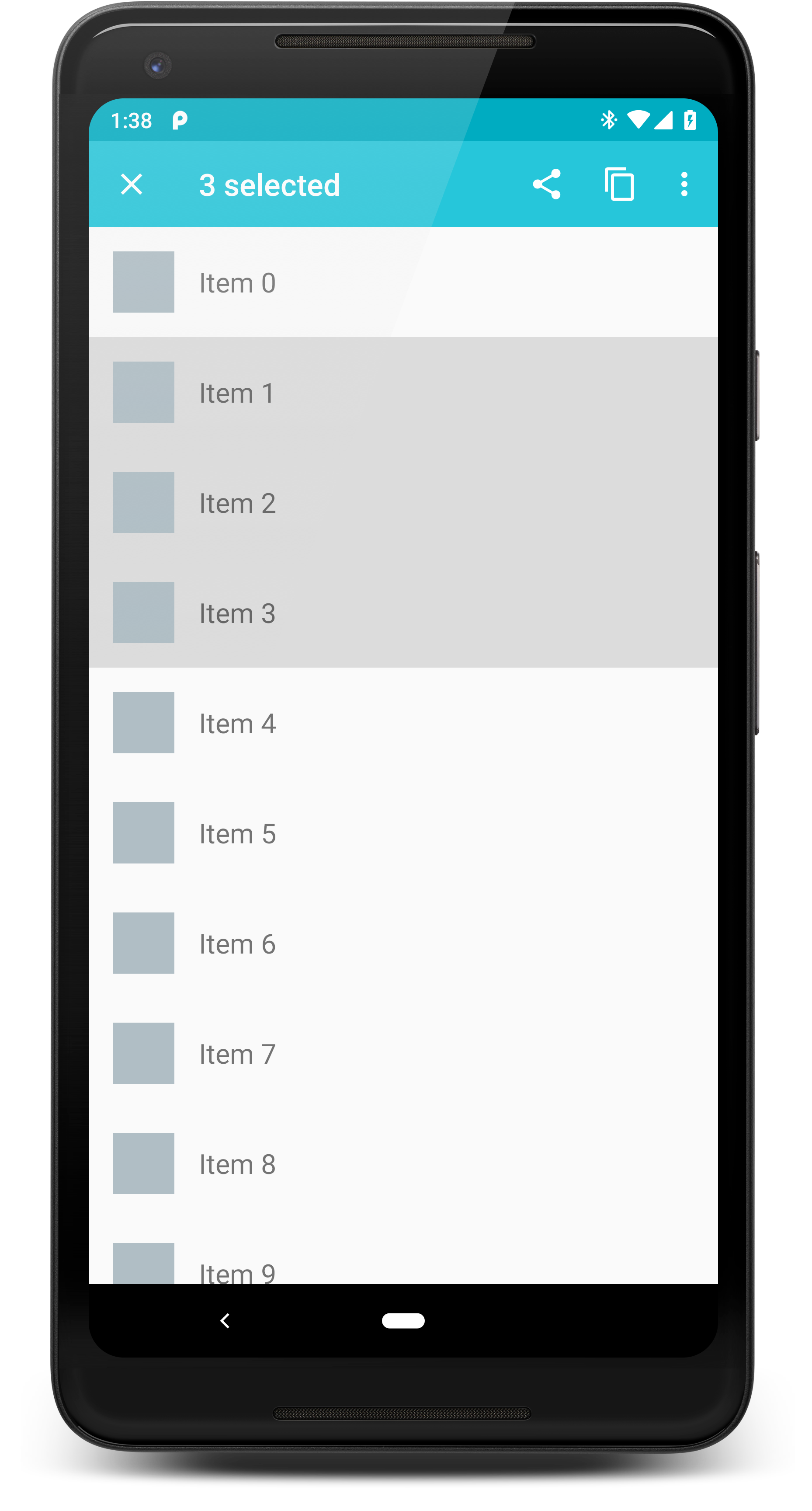 Material CAB allows you to implement a customizable and flexible contextual action bar in your app.
The traditional stock CAB on Android is limited to being placed at the top of your Activity,
and the navigation drawer cannot go over it. This library lets you choose its exact location,
and a toolbar is used, allowing views to be be placed over and under it.
## Table of Contents
1. [Gradle Dependency](#gradle-dependency)
2. [Getting Started](#getting-started)
3. [Destroying the CAB](#destroying-the-cab)
---
## Gradle Dependency
[  ](https://repo1.maven.org/maven2/com/afollestad/material-cab)
Add Material CAB to your module's `build.gradle` dependencies block:
```Gradle
dependencies {
implementation 'com.afollestad:material-cab:2.0.1'
}
```
---
## Getting Started
This library attaches to your `Activity` by taking the place of a `ViewStub` in your Activity layout.
For an example, this is similar to the main layout of the sample project:
```xml
```
You create/attach a Material CAB in an Activity like this:
```kotlin
class MyActivity : AppCompatActivity() {
private var cab: AttachedCab? = null
override fun onCreate(savedInstanceState: Bundle?) {
super.onCreate(savedInstanceState)
// createCab is an extension on Activity/Fragment
cab = createCab(R.id.cab_stub) {
title(R.string.some_title)
menu(R.menu.some_menu)
slideDown()
}
}
}
```
`R.id.cab_stub` references the `ViewStub`, which is replaced with the CAB toolbar.
In addition, you can also pass the ID of a `ViewGroup` (such as a `FrameLayout`). The CAB will
get appended as a child to that view group.
---
## Configuration
You can configure various properties about your CAB during attachment:
```kotlin
val attachedCab = createCab(R.id.cab_stub) {
title(R.string.some_title)
title(literal = "Some Title")
subtitle(R.string.some_subtitle)
subtitle(literal = "Some Subtitle")
titleColor(R.color.white)
titleColor(literal = Color.WHITE)
subtitleColor(R.color.white)
subtitleColor(literal = Color.WHITE)
popupTheme(R.style.ThemeOverlay_AppCompat_Light)
contentInsetStart(R.dimen.mcab_default_content_inset)
contentInsetStart(literal = 52)
backgroundColor(R.color.dark_gray)
backgroundColor(literal = Color.DARK_GRAY)
closeDrawable(R.drawable.close_icon)
menu(R.menu.cab_menu_items)
onCreate { cab, menu ->
...
}
onSelection { item ->
...
true // allow selection?
}
onDestroy { cab ->
...
true // allow destruction?
}
animateOnCreate { view, animator ->
// Animate the view with its animator.
// See the source of fadeIn(Long) or slideDown(Long) for an example.
}
animateOnDestroy { view, animator ->
// Animate the view with its animator.
// See the source of fadeIn(Long) or slideDown(Long) for an example.
}
// Sets animateOnCreate and animateOnDestroy to fade the CAB. Duration is optional, 250 is default.
fadeIn(durationMs = 250)
// Sets animateOnCreate and animateOnDestroy to slide the CAB up/down. Duration is optional, 250 is default.
slideDown(durationMs = 250)
}
```
---
## Destroying the CAB
The navigation icon in your CAB toolbar (far left button) will trigger this method, but you
can manually call it whenever you'd like as well:
```kotlin
val cab: AttachedCab? = // ...
val isDestroyed = cab.isDestroyed() // true if null or destroyed
val isActive = cab.isActive() // true if not destroyed
cab.destroy()
```
This will invoke the onDestroy callback. If the callback returns true, the CAB is destroyed.
If the CAB replaced a ViewStub, it's hidden (`GONE`), otherwise it's removed from the layout.
Material CAB allows you to implement a customizable and flexible contextual action bar in your app.
The traditional stock CAB on Android is limited to being placed at the top of your Activity,
and the navigation drawer cannot go over it. This library lets you choose its exact location,
and a toolbar is used, allowing views to be be placed over and under it.
## Table of Contents
1. [Gradle Dependency](#gradle-dependency)
2. [Getting Started](#getting-started)
3. [Destroying the CAB](#destroying-the-cab)
---
## Gradle Dependency
[  ](https://repo1.maven.org/maven2/com/afollestad/material-cab)
Add Material CAB to your module's `build.gradle` dependencies block:
```Gradle
dependencies {
implementation 'com.afollestad:material-cab:2.0.1'
}
```
---
## Getting Started
This library attaches to your `Activity` by taking the place of a `ViewStub` in your Activity layout.
For an example, this is similar to the main layout of the sample project:
```xml
```
You create/attach a Material CAB in an Activity like this:
```kotlin
class MyActivity : AppCompatActivity() {
private var cab: AttachedCab? = null
override fun onCreate(savedInstanceState: Bundle?) {
super.onCreate(savedInstanceState)
// createCab is an extension on Activity/Fragment
cab = createCab(R.id.cab_stub) {
title(R.string.some_title)
menu(R.menu.some_menu)
slideDown()
}
}
}
```
`R.id.cab_stub` references the `ViewStub`, which is replaced with the CAB toolbar.
In addition, you can also pass the ID of a `ViewGroup` (such as a `FrameLayout`). The CAB will
get appended as a child to that view group.
---
## Configuration
You can configure various properties about your CAB during attachment:
```kotlin
val attachedCab = createCab(R.id.cab_stub) {
title(R.string.some_title)
title(literal = "Some Title")
subtitle(R.string.some_subtitle)
subtitle(literal = "Some Subtitle")
titleColor(R.color.white)
titleColor(literal = Color.WHITE)
subtitleColor(R.color.white)
subtitleColor(literal = Color.WHITE)
popupTheme(R.style.ThemeOverlay_AppCompat_Light)
contentInsetStart(R.dimen.mcab_default_content_inset)
contentInsetStart(literal = 52)
backgroundColor(R.color.dark_gray)
backgroundColor(literal = Color.DARK_GRAY)
closeDrawable(R.drawable.close_icon)
menu(R.menu.cab_menu_items)
onCreate { cab, menu ->
...
}
onSelection { item ->
...
true // allow selection?
}
onDestroy { cab ->
...
true // allow destruction?
}
animateOnCreate { view, animator ->
// Animate the view with its animator.
// See the source of fadeIn(Long) or slideDown(Long) for an example.
}
animateOnDestroy { view, animator ->
// Animate the view with its animator.
// See the source of fadeIn(Long) or slideDown(Long) for an example.
}
// Sets animateOnCreate and animateOnDestroy to fade the CAB. Duration is optional, 250 is default.
fadeIn(durationMs = 250)
// Sets animateOnCreate and animateOnDestroy to slide the CAB up/down. Duration is optional, 250 is default.
slideDown(durationMs = 250)
}
```
---
## Destroying the CAB
The navigation icon in your CAB toolbar (far left button) will trigger this method, but you
can manually call it whenever you'd like as well:
```kotlin
val cab: AttachedCab? = // ...
val isDestroyed = cab.isDestroyed() // true if null or destroyed
val isActive = cab.isActive() // true if not destroyed
cab.destroy()
```
This will invoke the onDestroy callback. If the callback returns true, the CAB is destroyed.
If the CAB replaced a ViewStub, it's hidden (`GONE`), otherwise it's removed from the layout.