# Rem0te — screenshot gallery
Every image below is a capture of the running application at **1440×1000**
(retina, `deviceScaleFactor: 2`), taken against an isolated demo database.
Nothing is mocked, drawn, or AI-generated.
**All businesses, people, devices and activity shown are fictitious.** The
RustDesk IDs are synthetic and registered with no rendezvous server, so none of
these devices can be reached. Enrollment tokens, RustDesk IDs and public IP
addresses are replaced with sample values in the browser immediately before each
capture — see [Regenerating these](#regenerating-these).
↩︎ [Back to the README](../README.md) ·
[▶ Watch the walkthrough](https://github.com/agit8or1/rem0te/releases/download/v0.13.5/walkthrough.mp4) ·
[Quick start](setup.md) · [Architecture](architecture.md) ·
[More MSP tools at mspreboot.com](https://mspreboot.com)
---
## Contents
| Section | What it covers |
|---|---|
| [Overview and dashboards](#overview-and-dashboards) | The operator's landing view and the customer list |
| [Visual insights and monitoring](#visual-insights-and-monitoring) | Client map, live sessions, history, audit, host health |
| [Device inventory](#device-inventory) | Every computer, its collected specs and its event log |
| [Everyday workflows](#everyday-workflows) | Enrolling a device, downloads, Quick Connect, launching from Tactical RMM |
| [Access and administration](#access-and-administration) | The three-level model, capabilities, accounts |
| [Configuration](#configuration) | Platform settings, branding, releases, documentation |
| [Regenerating these](#regenerating-these) | How to rebuild the gallery without touching production |
Theme coverage is deliberately mixed: most features appear once, in whichever
theme suits them, with the dashboard captured in **both** so the theme support
is visible rather than claimed.
---
## Overview and dashboards
### Dashboard — light
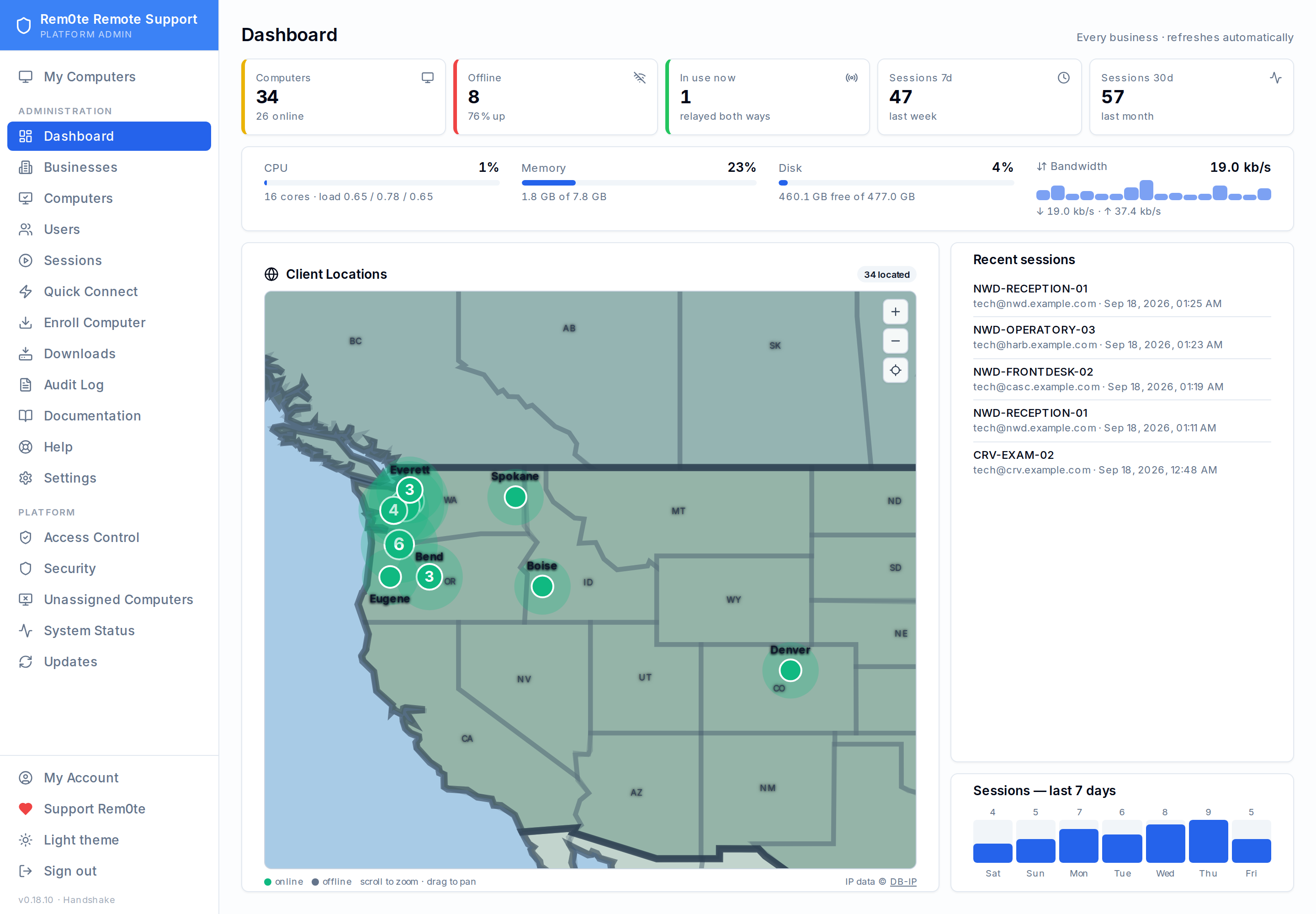 Open Rem0te and see the whole estate at once — how many computers exist, how
many are offline right now, what is connected, and how much support work the
last week actually took.
### Dashboard — dark
Open Rem0te and see the whole estate at once — how many computers exist, how
many are offline right now, what is connected, and how much support work the
last week actually took.
### Dashboard — dark
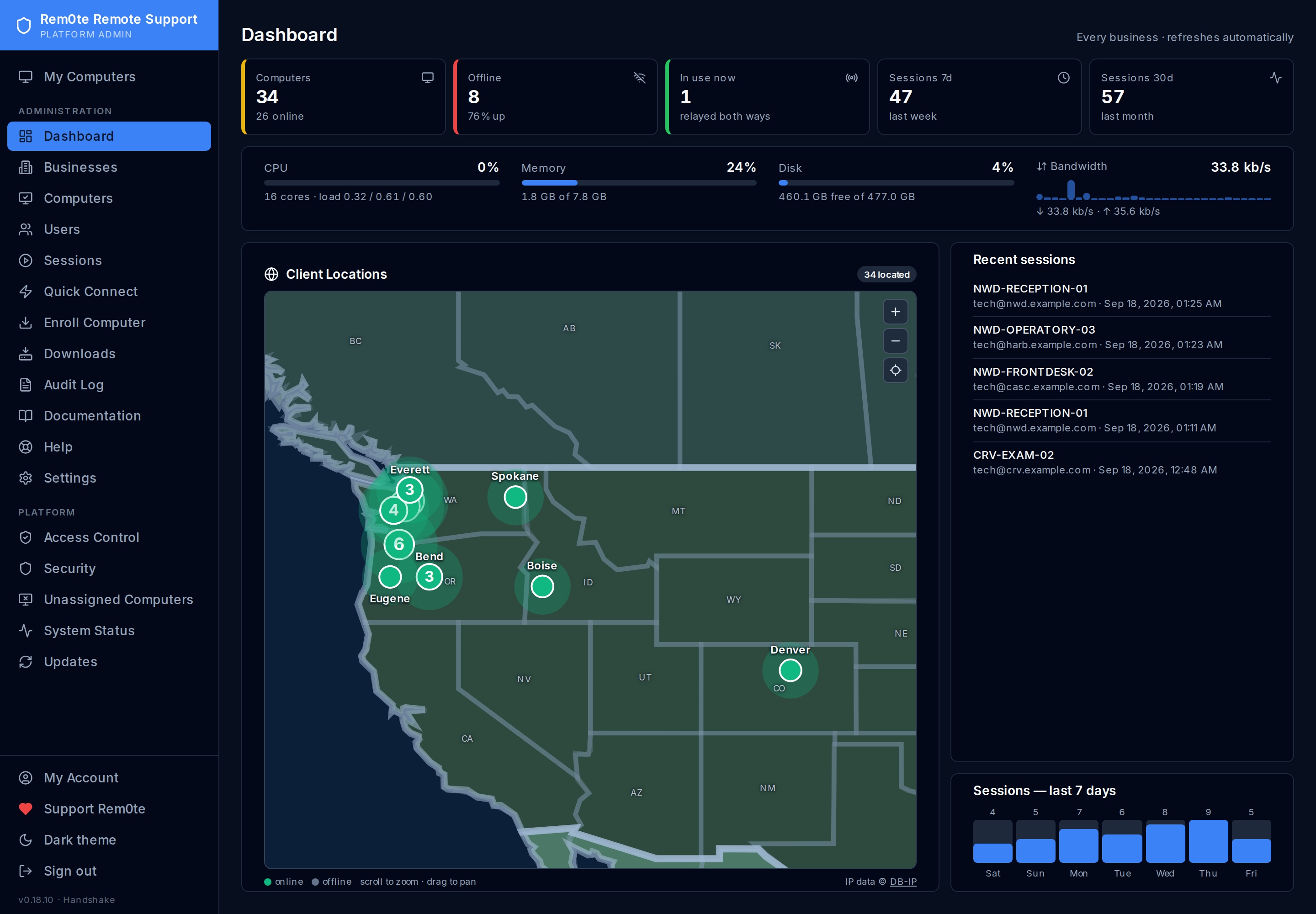 The same view in dark. Both themes ship with the product and are switched from
the sidebar — this pair is the one deliberate duplicate in the gallery.
### Businesses — light
The same view in dark. Both themes ship with the product and are switched from
the sidebar — this pair is the one deliberate duplicate in the gallery.
### Businesses — light
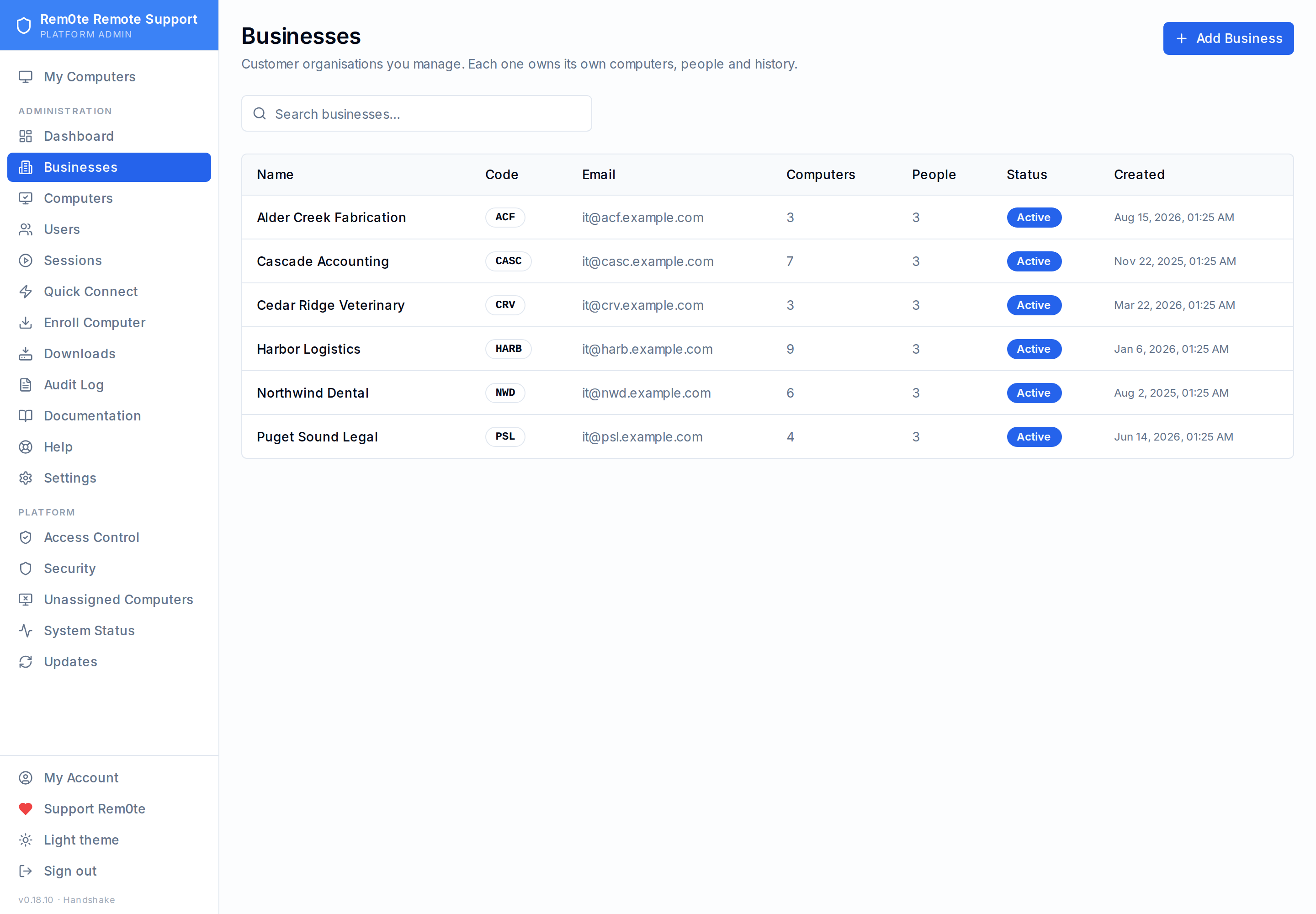 Every customer business you manage, with its computer and people counts. This is
the top of the hierarchy: each business owns its own computers, users and history.
### Business overview — dark
Every customer business you manage, with its computer and people counts. This is
the top of the hierarchy: each business owns its own computers, users and history.
### Business overview — dark
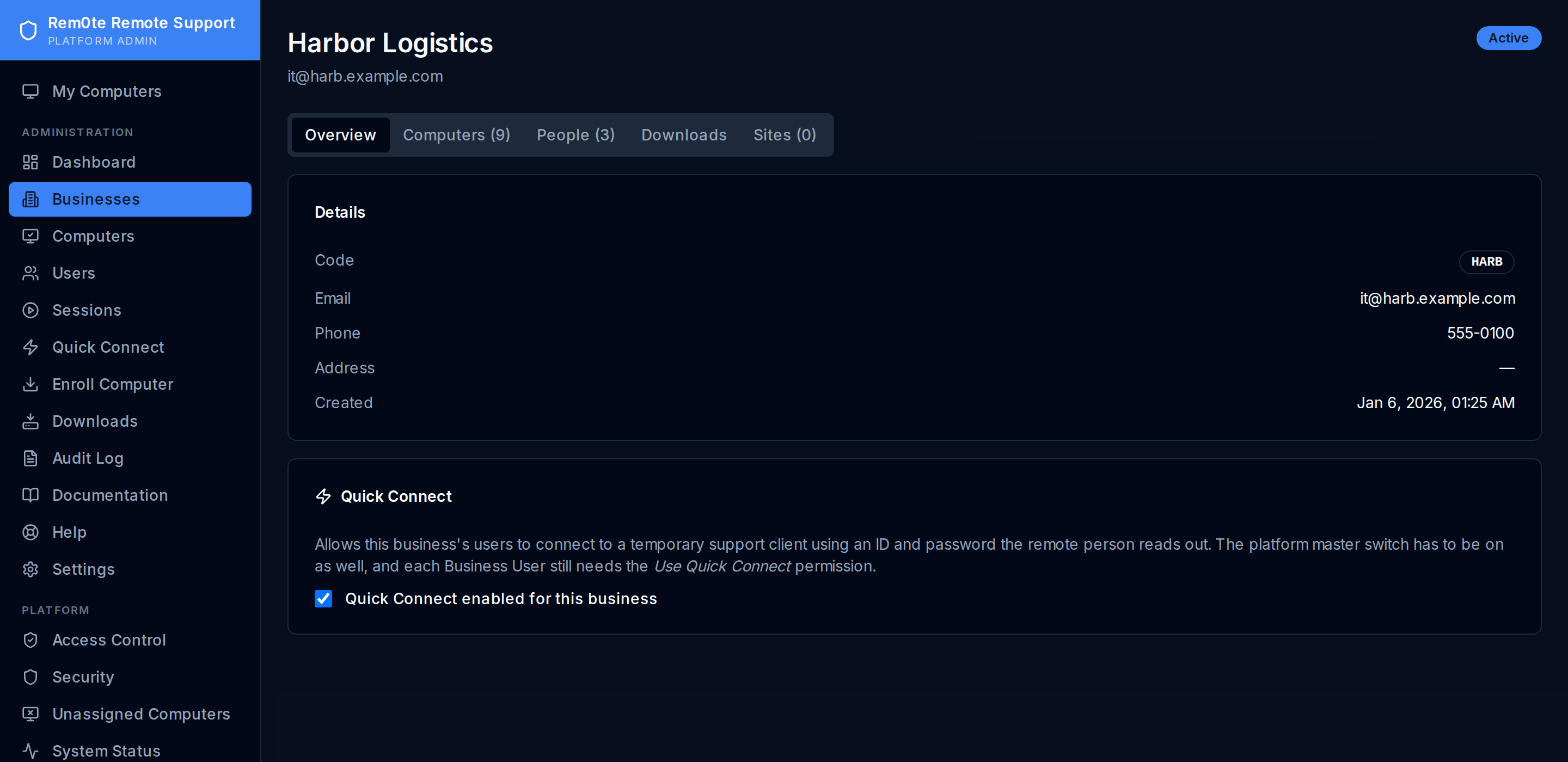 One customer's record, including the per-business Quick Connect switch that
gates temporary support access for their users.
---
## Visual insights and monitoring
### Client locations map — dark
One customer's record, including the per-business Quick Connect switch that
gates temporary support access for their users.
---
## Visual insights and monitoring
### Client locations map — dark
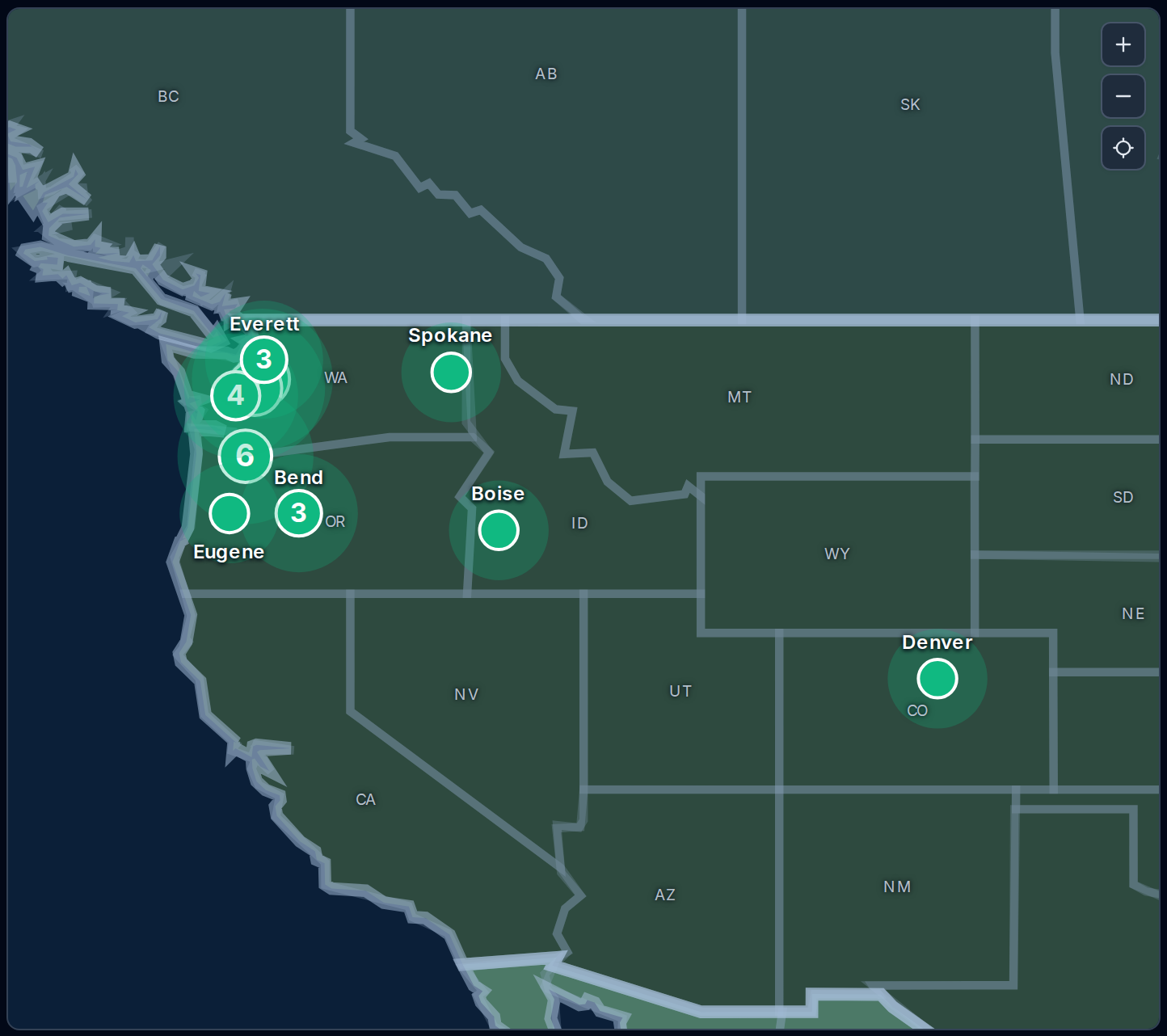 Managed computers plotted from the address each last checked in from, clustered
by city with a count. Useful for spotting a site that has gone dark.
### Live sessions — dark
Managed computers plotted from the address each last checked in from, clustered
by city with a count. Useful for spotting a site that has gone dark.
### Live sessions — dark
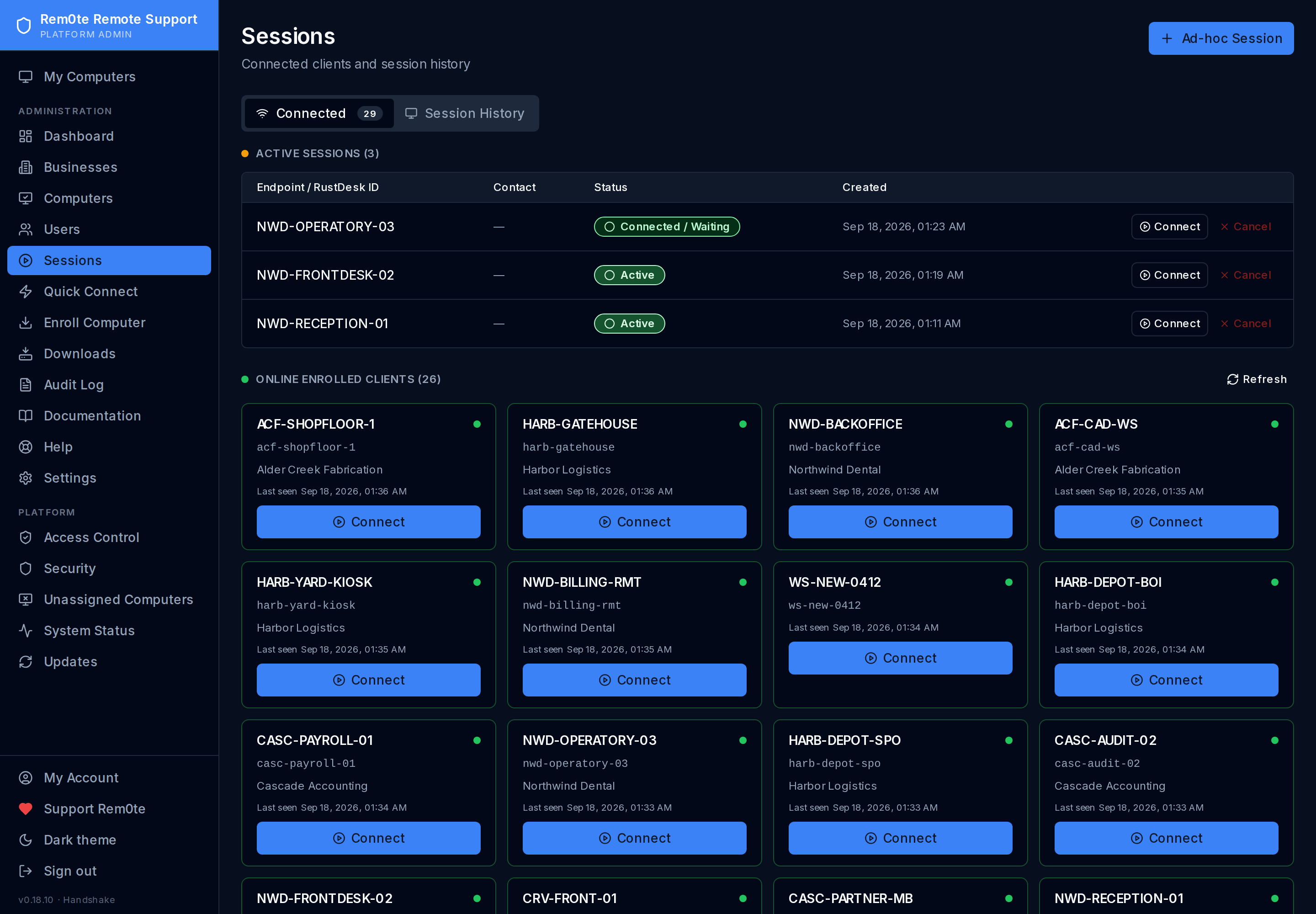 Everything online right now, grouped as connectable cards. One click launches
the technician's local RustDesk client against that machine.
### Session history — light
Everything online right now, grouped as connectable cards. One click launches
the technician's local RustDesk client against that machine.
### Session history — light
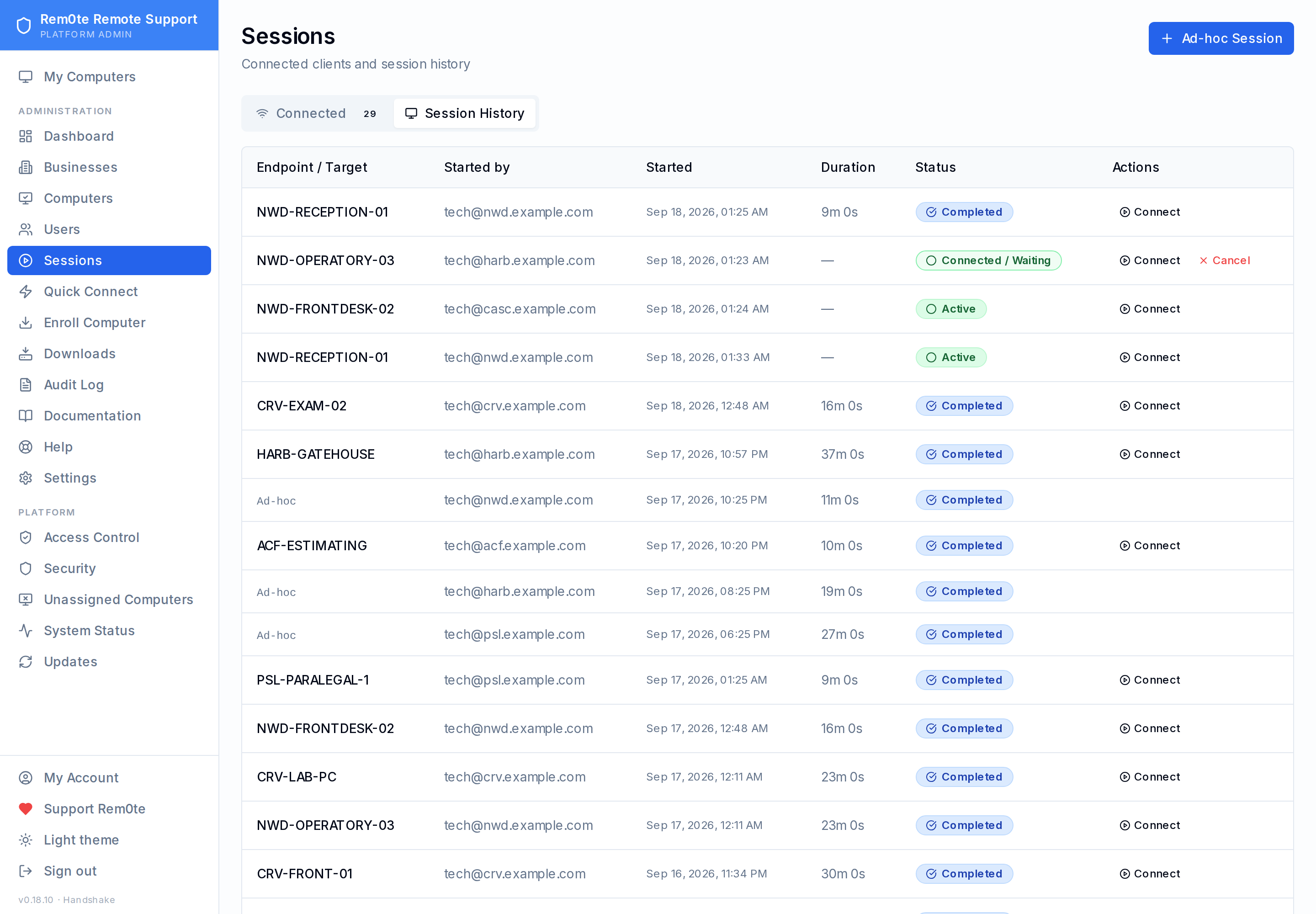 What was done, by whom, on which machine and for how long — the record you go
back to when a customer asks what you did last Tuesday.
### Audit log — dark
What was done, by whom, on which machine and for how long — the record you go
back to when a customer asks what you did last Tuesday.
### Audit log — dark
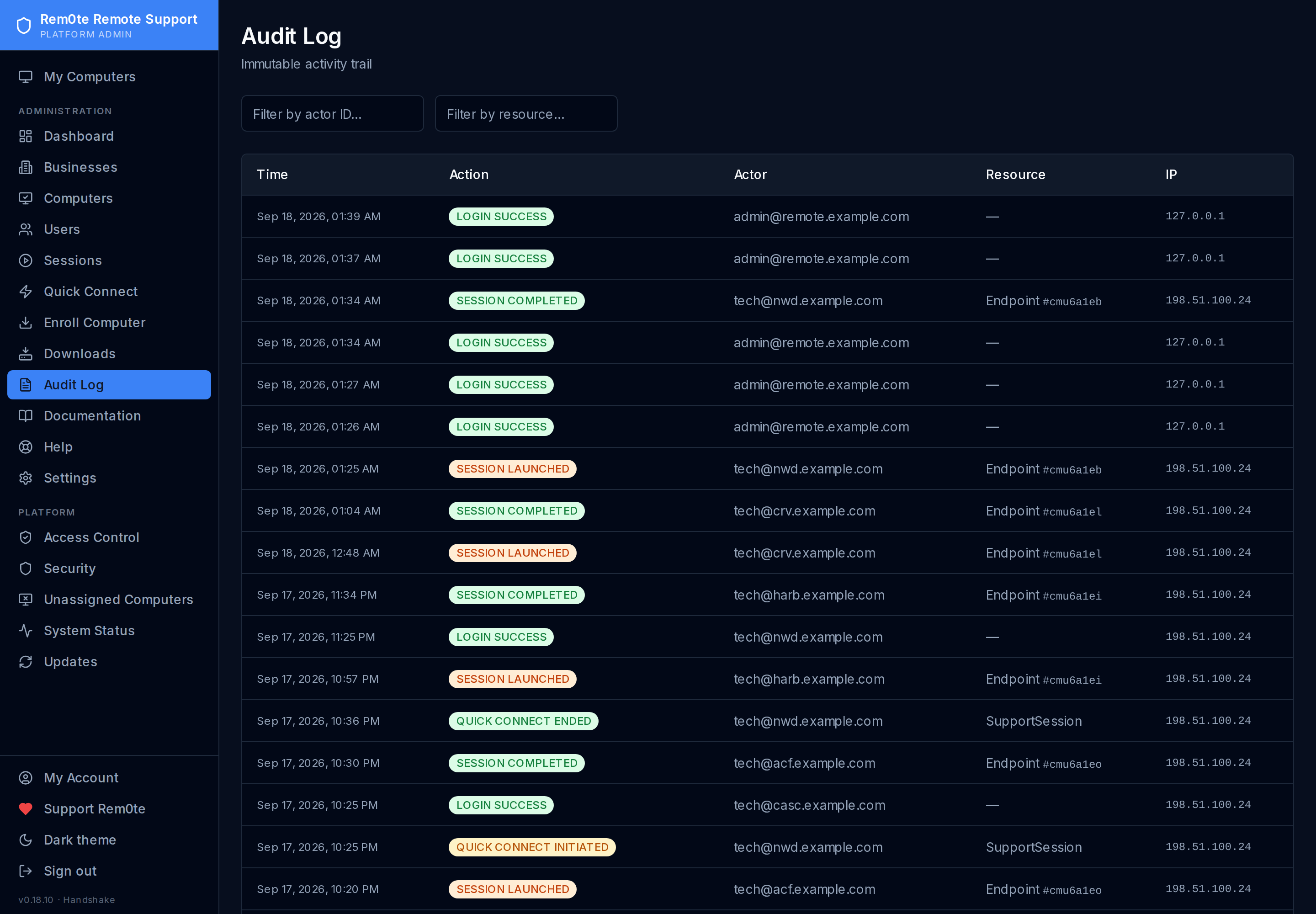 An append-only trail of every action: sign-ins, session launches, credential
reveals, capability changes. Failures never crash the request path, so the log
is what actually happened.
### Audit log — light
An append-only trail of every action: sign-ins, session launches, credential
reveals, capability changes. Failures never crash the request path, so the log
is what actually happened.
### Audit log — light
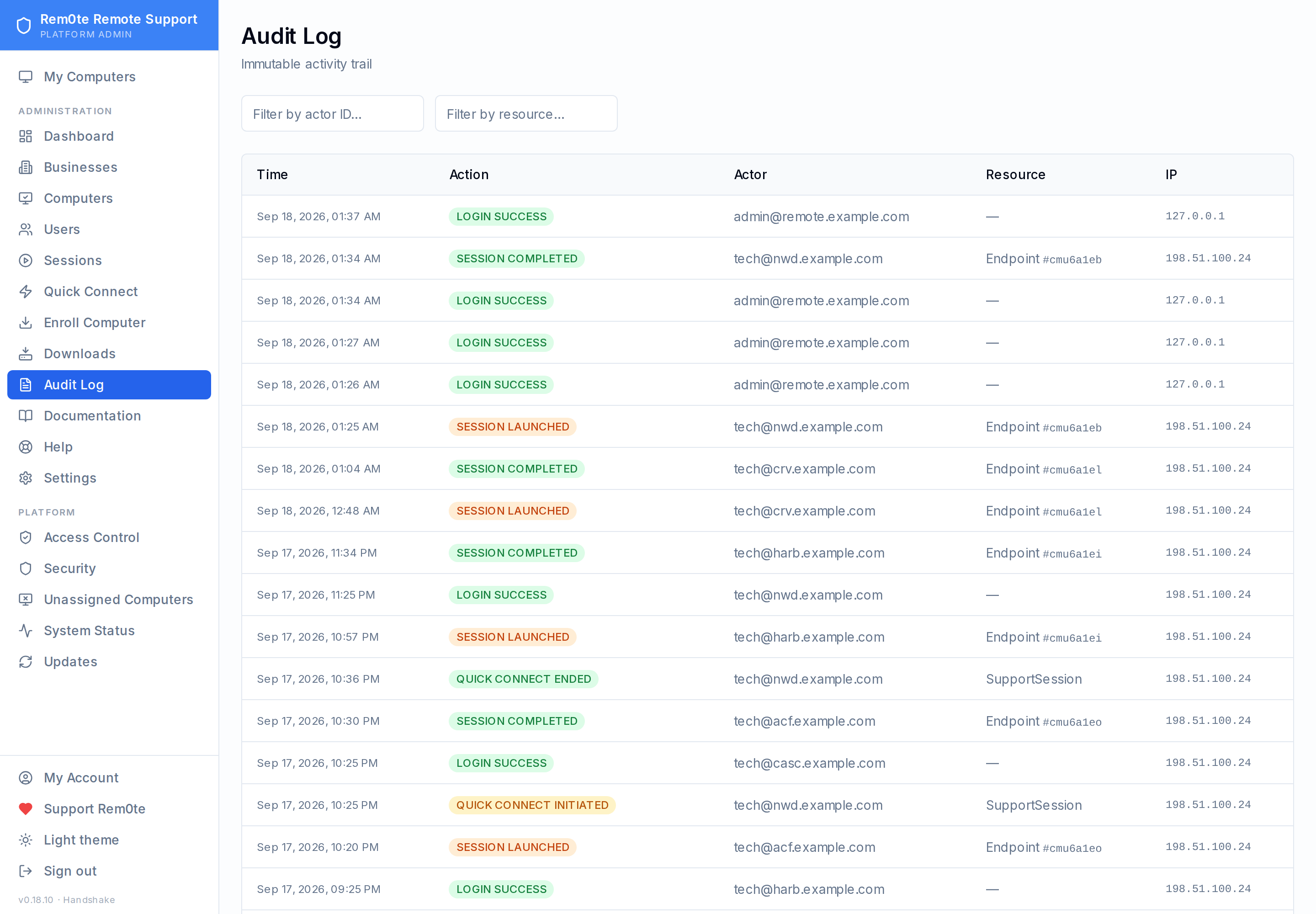 The same trail with the actor and resource filters, for narrowing to one person
or one machine.
### System status — dark
The same trail with the actor and resource filters, for narrowing to one person
or one machine.
### System status — dark
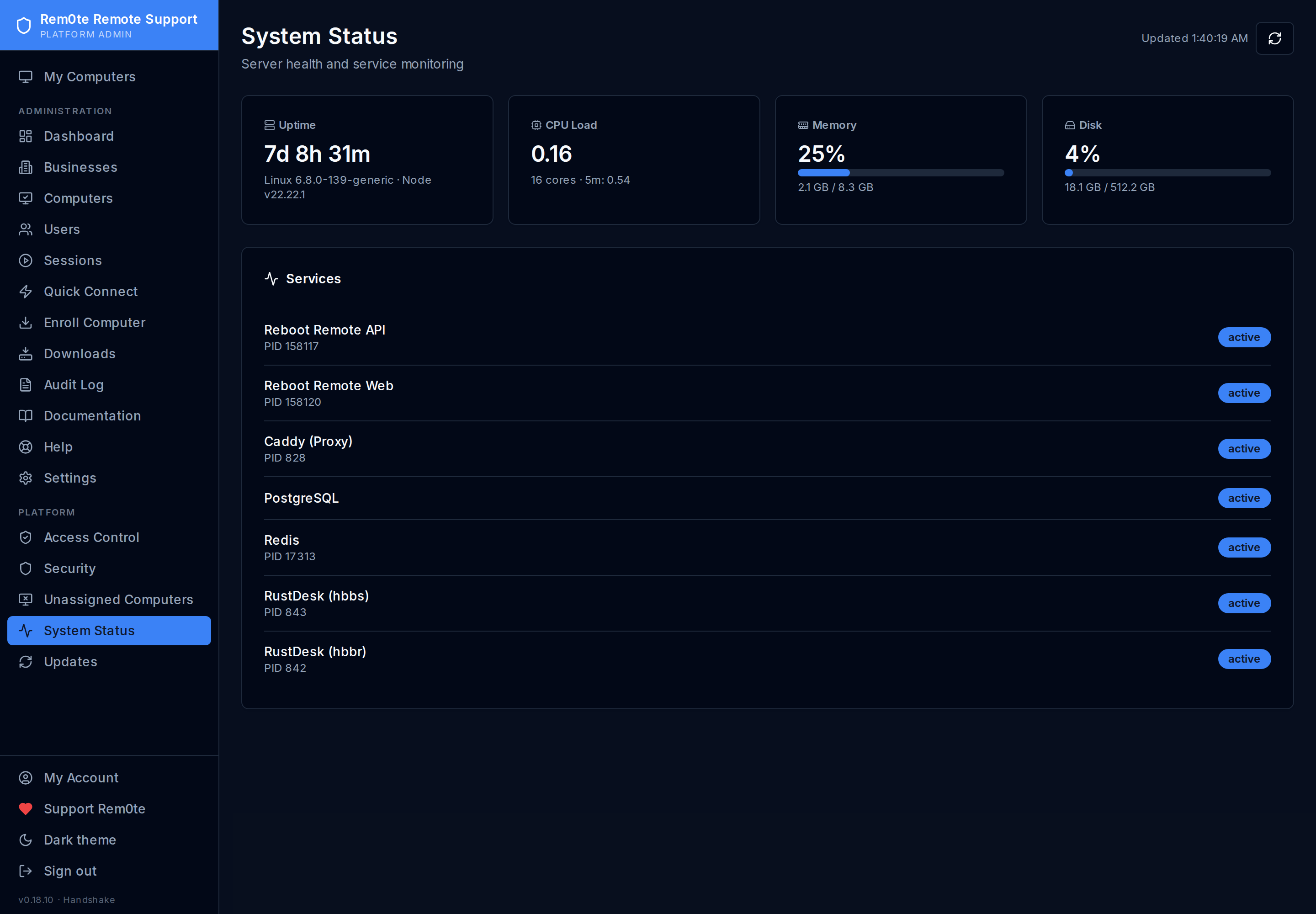 Host health and the services Rem0te depends on — including RustDesk's own `hbbs`
and `hbbr` — so you can tell a platform problem from a customer problem.
### Security overview — light
Host health and the services Rem0te depends on — including RustDesk's own `hbbs`
and `hbbr` — so you can tell a platform problem from a customer problem.
### Security overview — light
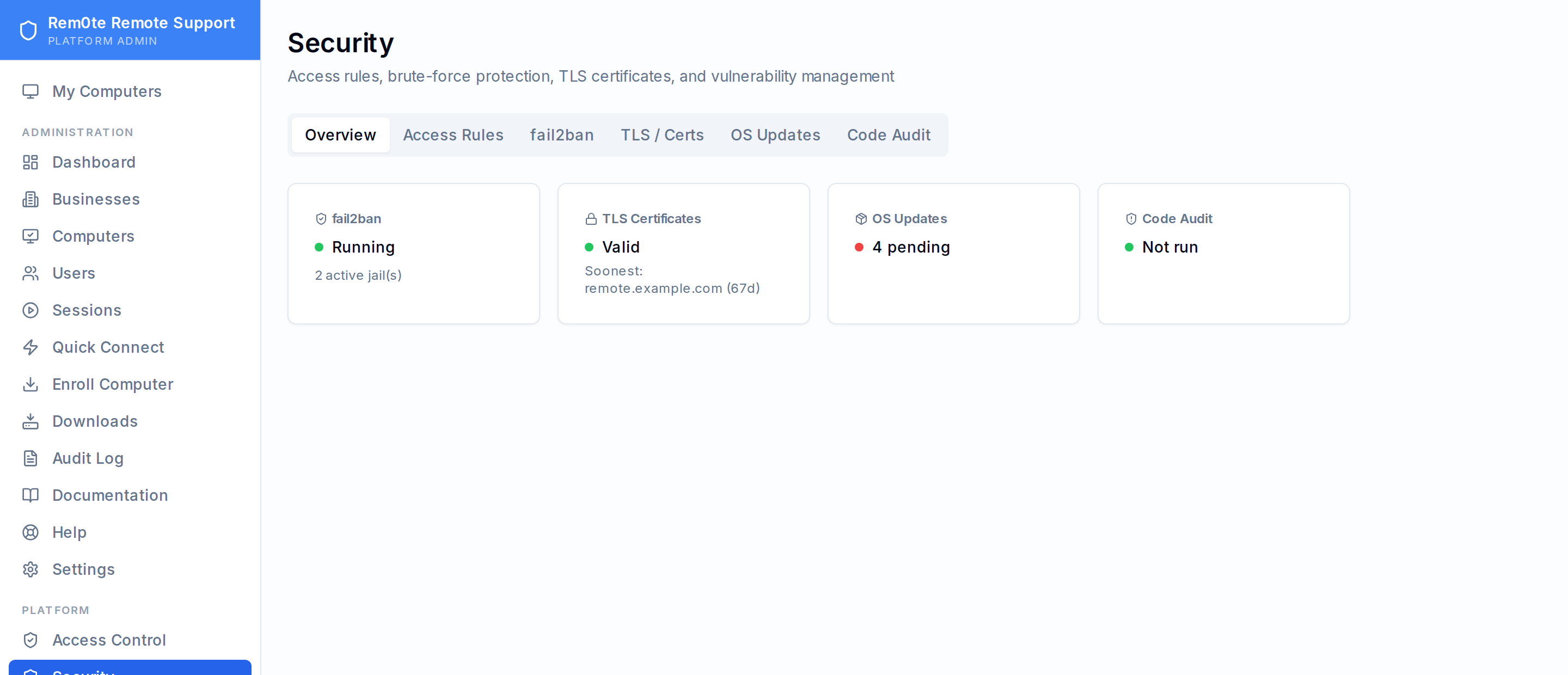 The platform's own security surface, in one place.
---
## Device inventory
### All computers — light
The platform's own security surface, in one place.
---
## Device inventory
### All computers — light
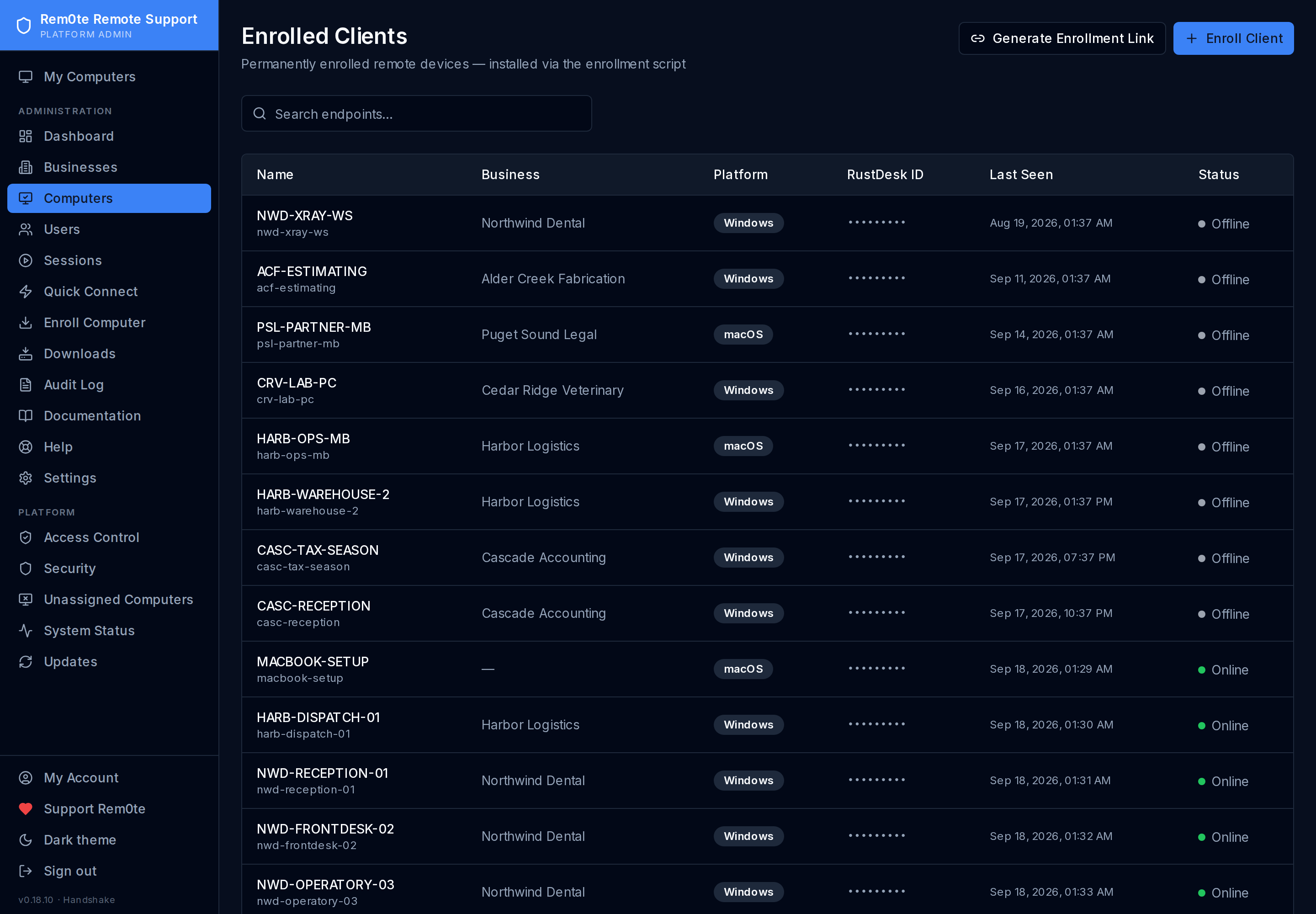
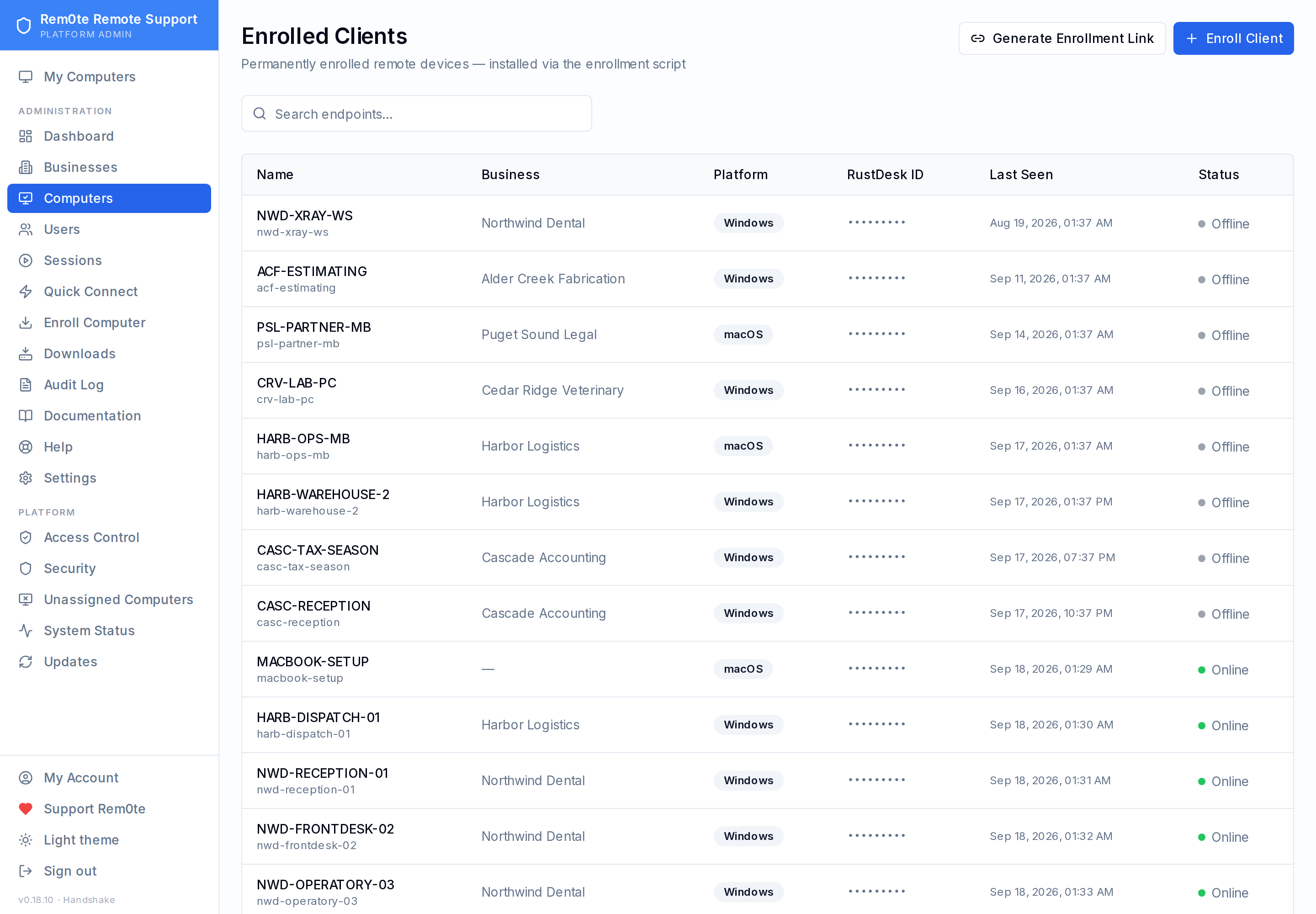 Every managed computer across every business, searchable, with platform and live
status. RustDesk IDs are masked in this gallery.
### All computers — dark
Every managed computer across every business, searchable, with platform and live
status. RustDesk IDs are masked in this gallery.
### All computers — dark
 ### One business's computers — dark
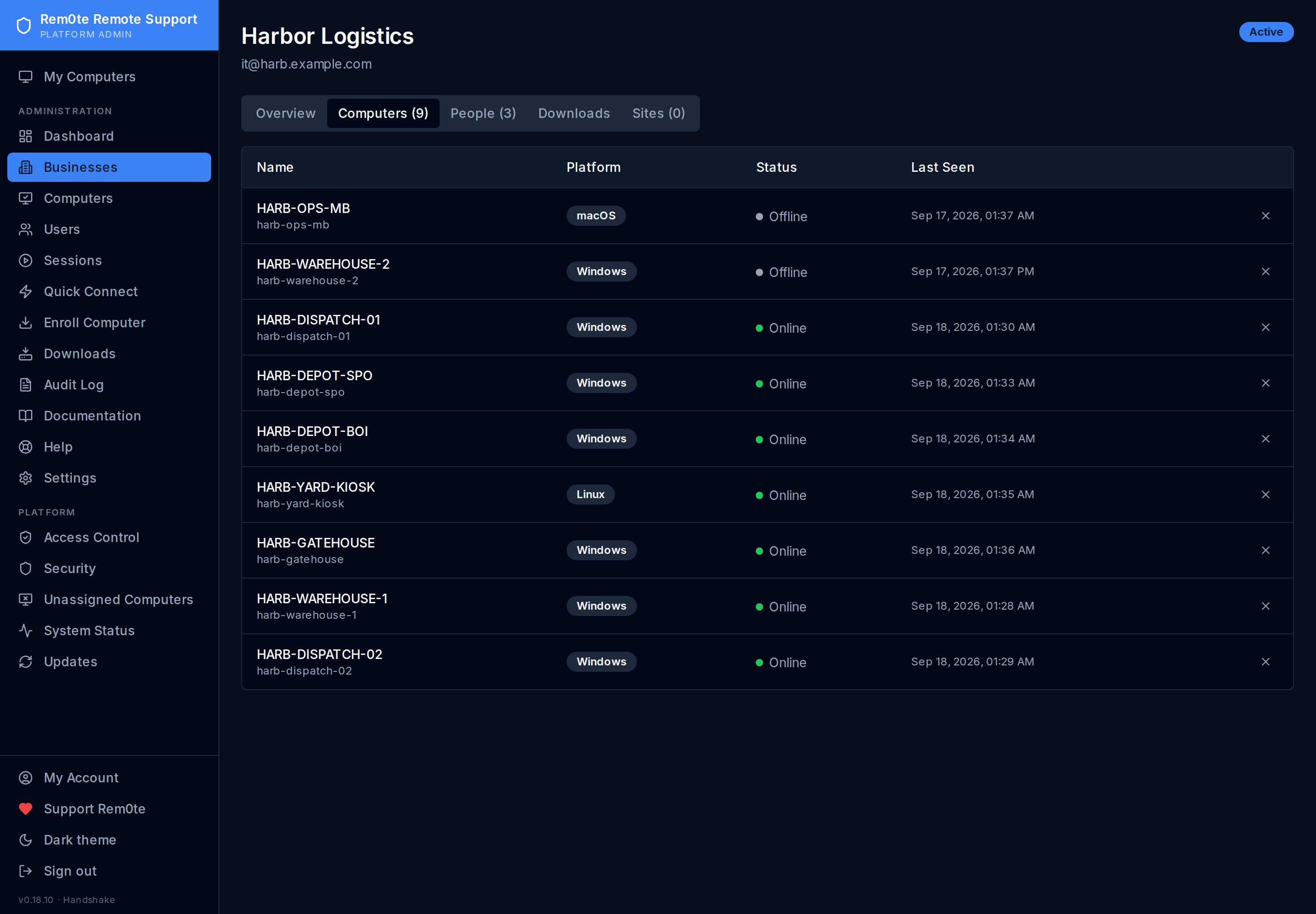 Scoped to a single customer — the view you use when they phone up.
### Computer detail — light
Scoped to a single customer — the view you use when they phone up.
### Computer detail — light
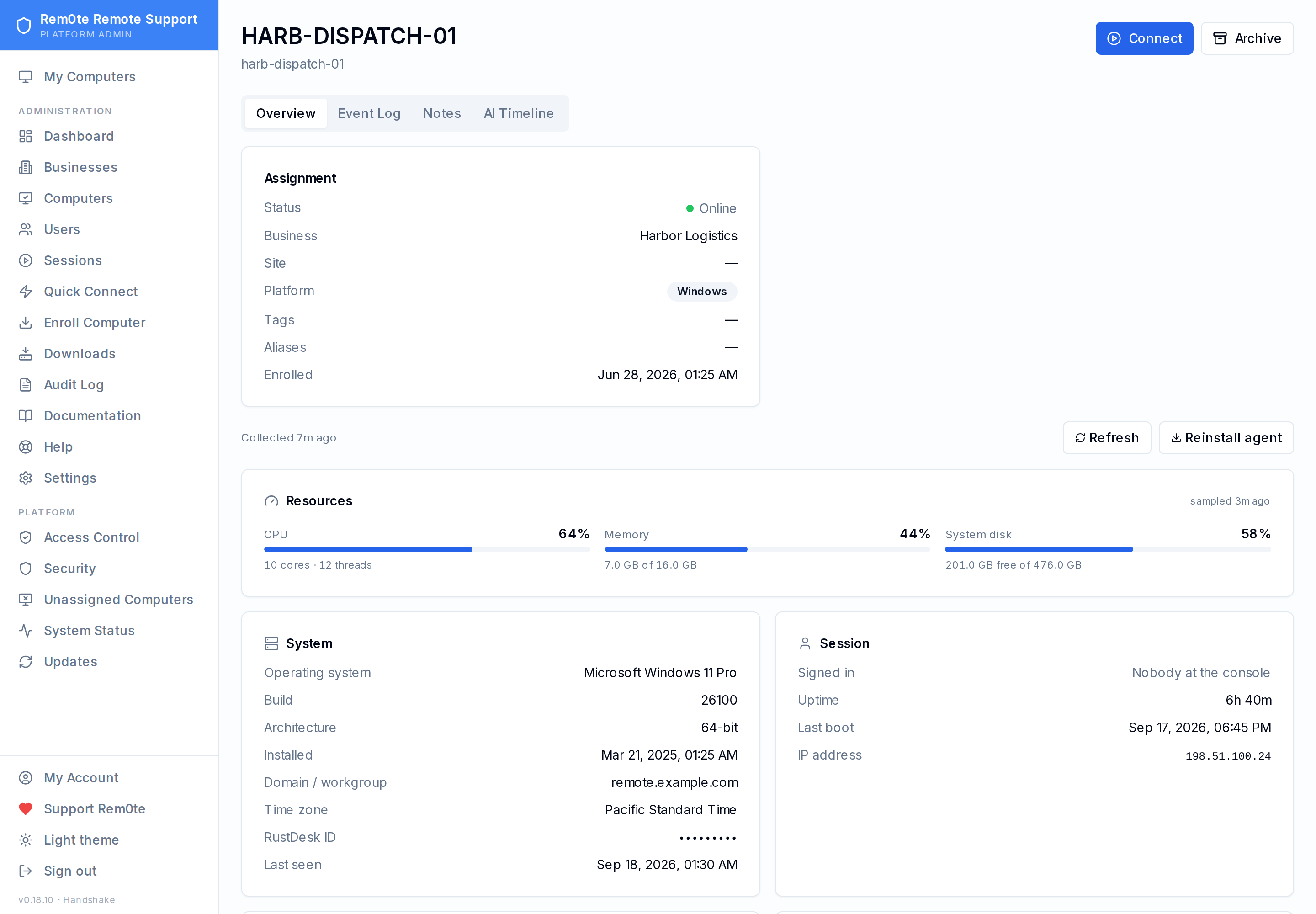 One machine: what it is, what it runs, and the controls to connect to it.
### Resource gauges — light
One machine: what it is, what it runs, and the controls to connect to it.
### Resource gauges — light
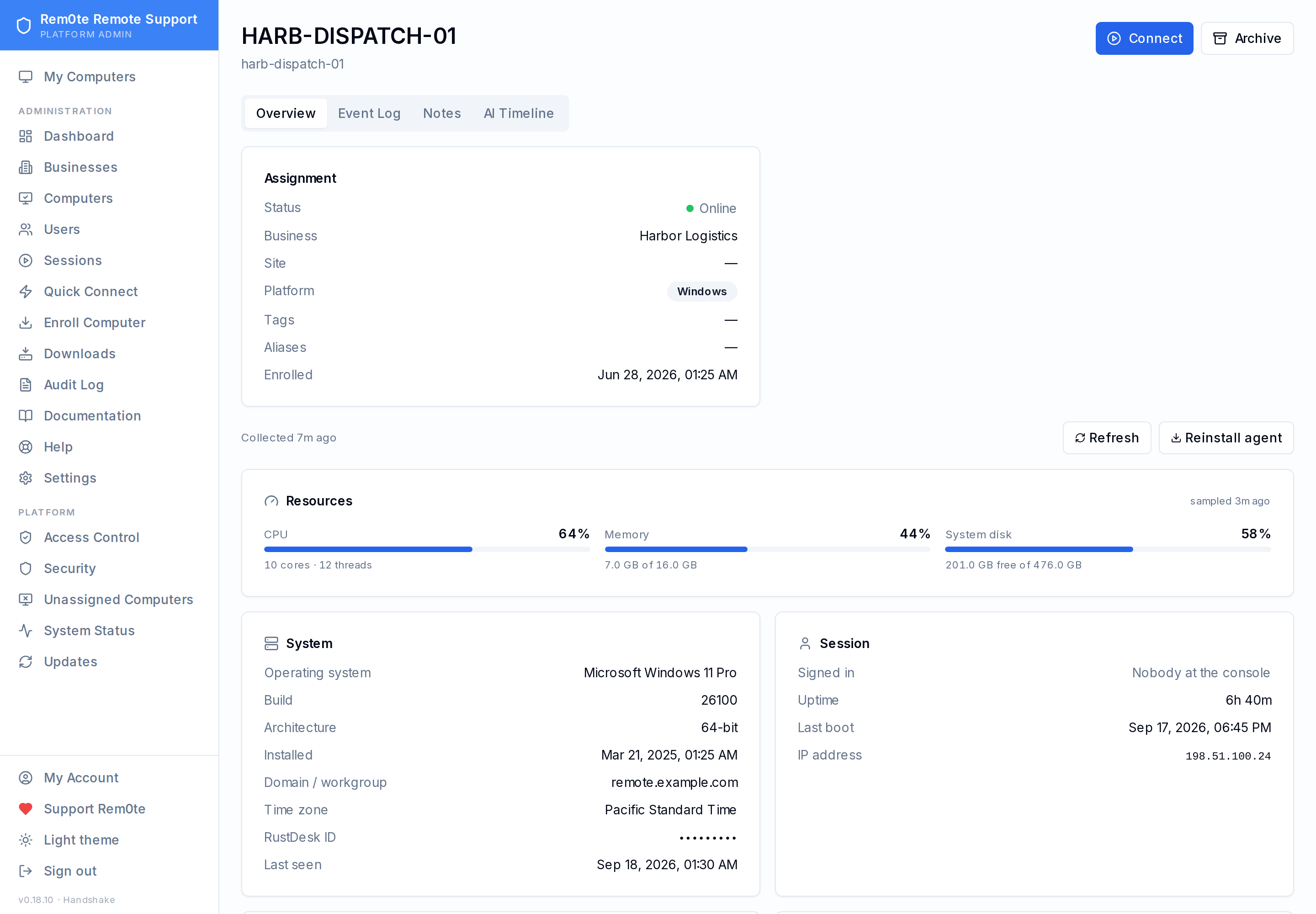 CPU, memory and system disk, sampled on the computer's heartbeat rather than
read from the six-hourly inventory pass — so these are minutes old, and the
card says so instead of letting a needle imply "now". Amber past 80% and red
past 92%, the point at which a Windows volume starts failing updates.
### Device specs — dark
CPU, memory and system disk, sampled on the computer's heartbeat rather than
read from the six-hourly inventory pass — so these are minutes old, and the
card says so instead of letting a needle imply "now". Amber past 80% and red
past 92%, the point at which a Windows volume starts failing updates.
### Device specs — dark
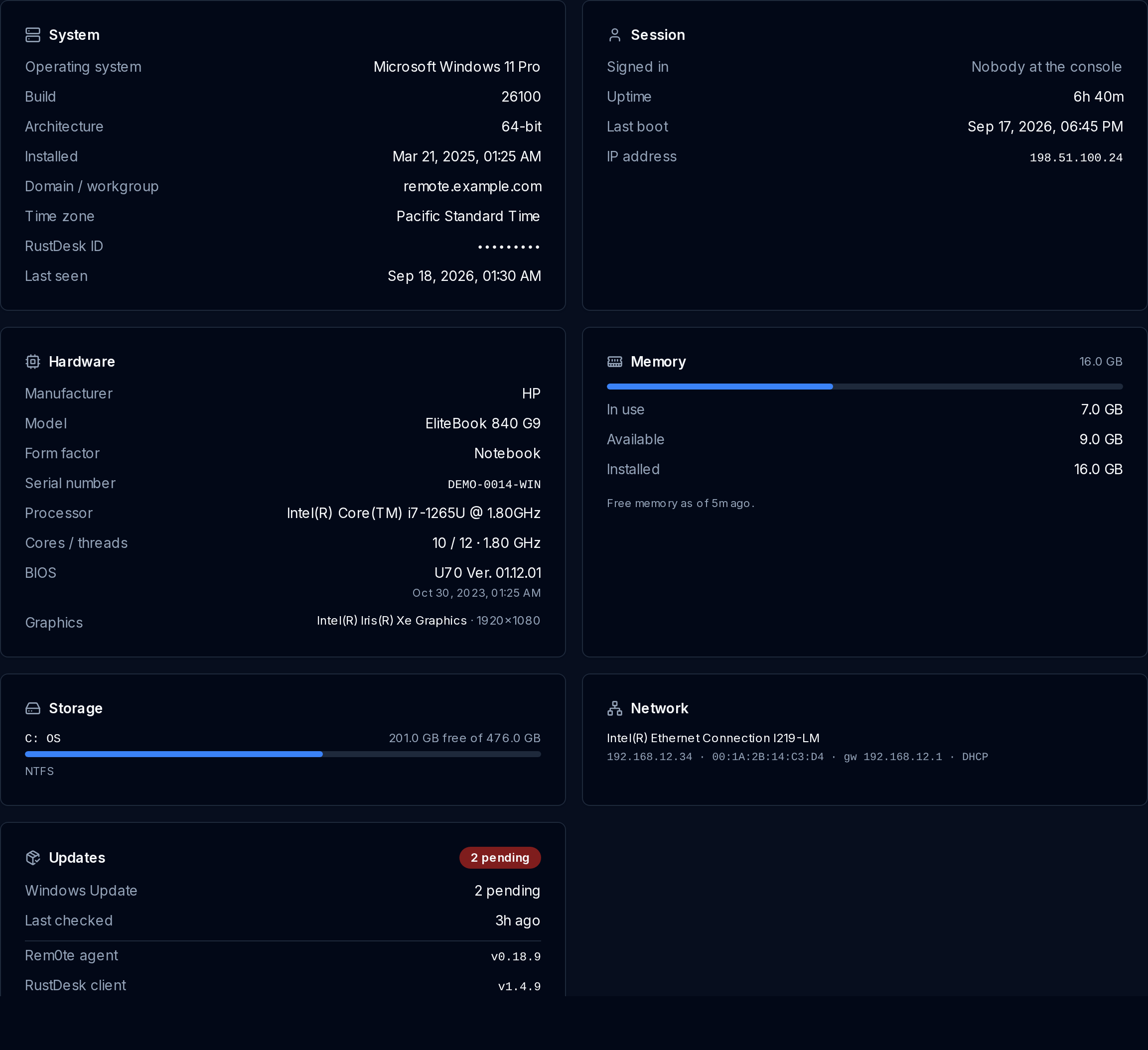 What a managed computer reports about itself, collected by its agent on a
heartbeat rather than fetched live — so every card says how old its contents
are. Hardware, storage and network come in every six hours, pending Windows
updates every twelve, and who is signed in on every beat.
Three separate things can be out of date here — the Rem0te agent, the RustDesk
client, and the machine's own Windows updates — so each is named rather than
merged into one "up to date" claim.
### Event log — dark
What a managed computer reports about itself, collected by its agent on a
heartbeat rather than fetched live — so every card says how old its contents
are. Hardware, storage and network come in every six hours, pending Windows
updates every twelve, and who is signed in on every beat.
Three separate things can be out of date here — the Rem0te agent, the RustDesk
client, and the machine's own Windows updates — so each is named rather than
merged into one "up to date" claim.
### Event log — dark
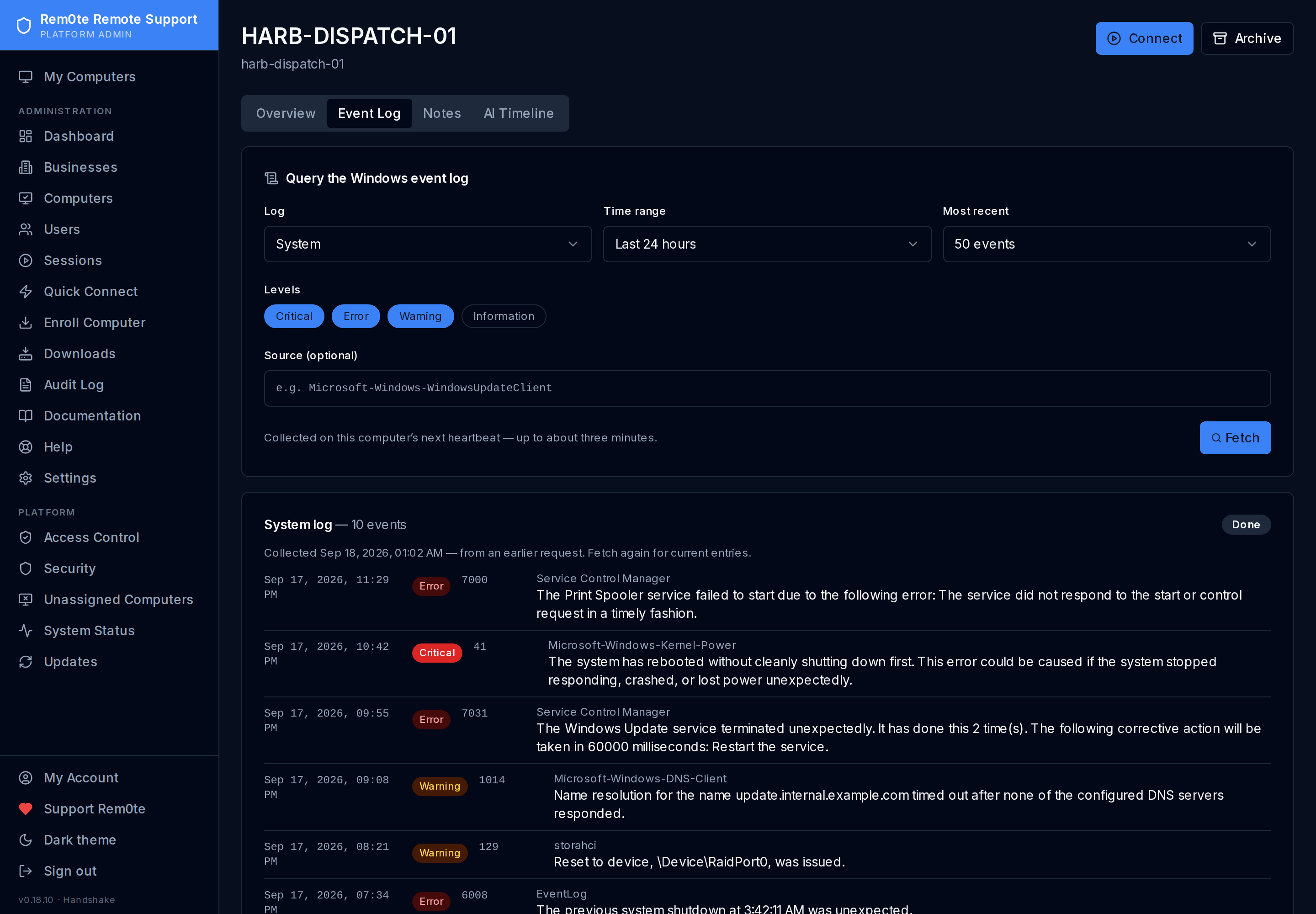 Read a page of a managed computer's Windows event log without connecting to it.
Five logs are available — Application, System, Security, Setup and Windows
PowerShell — and nothing else: the allowlist is enforced by the API and again
by the agent that opens the log.
There is no channel to reach into an endpoint, so this is a request rather than
a query: it is collected on the machine's next heartbeat, up to about three
minutes away. Reading logs is its own permission, separate from viewing the
computer, and every request is audited with the log, the window and who asked.
### My Computers — dark
Read a page of a managed computer's Windows event log without connecting to it.
Five logs are available — Application, System, Security, Setup and Windows
PowerShell — and nothing else: the allowlist is enforced by the API and again
by the agent that opens the log.
There is no channel to reach into an endpoint, so this is a request rather than
a query: it is collected on the machine's next heartbeat, up to about three
minutes away. Reading logs is its own permission, separate from viewing the
computer, and every request is audited with the log, the window and who asked.
### My Computers — dark
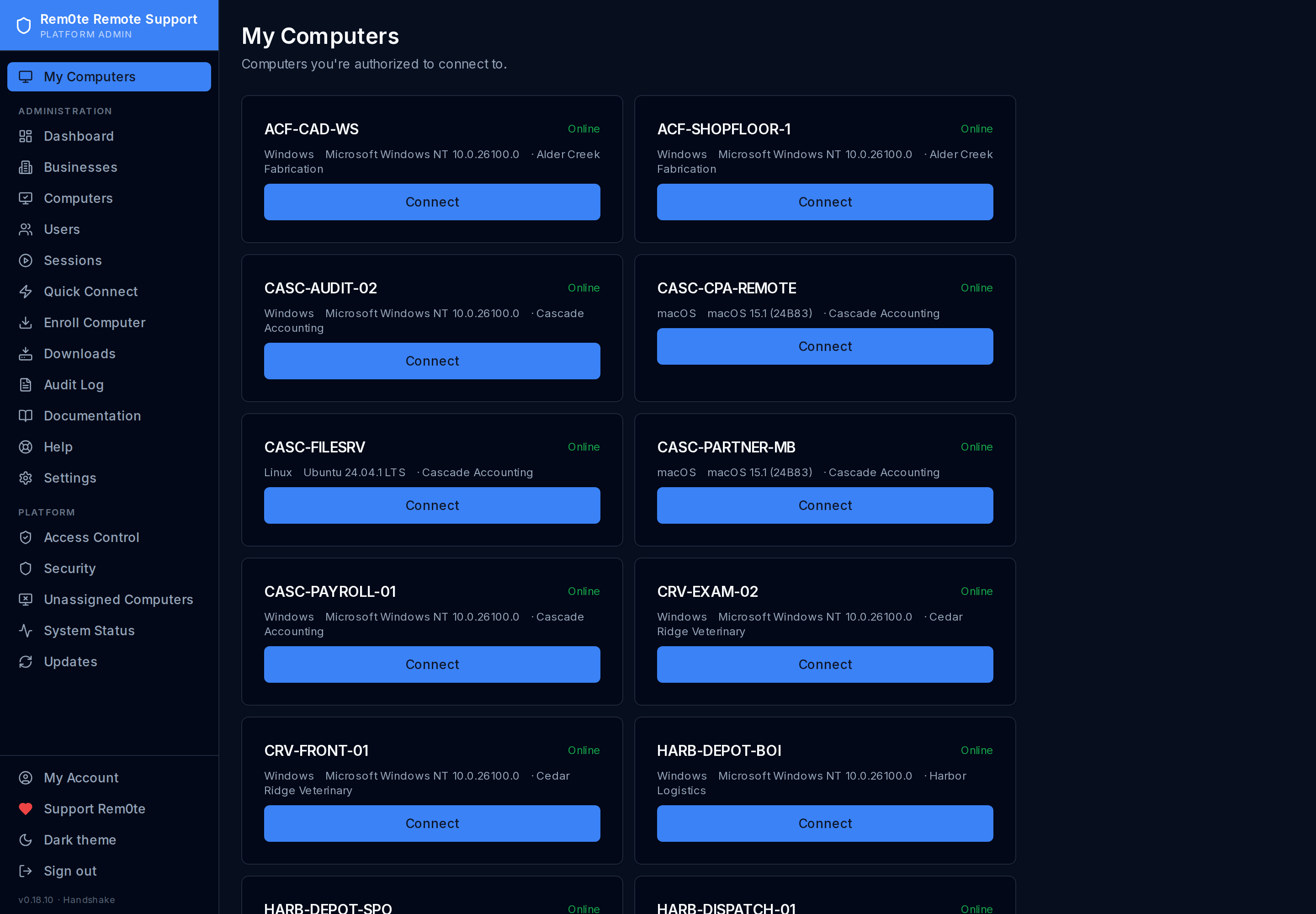 What a Business User sees — only the machines they were granted, and a Connect
button. No RustDesk IDs to type, no passwords to pass around.
### Unassigned computers — light
What a Business User sees — only the machines they were granted, and a Connect
button. No RustDesk IDs to type, no passwords to pass around.
### Unassigned computers — light
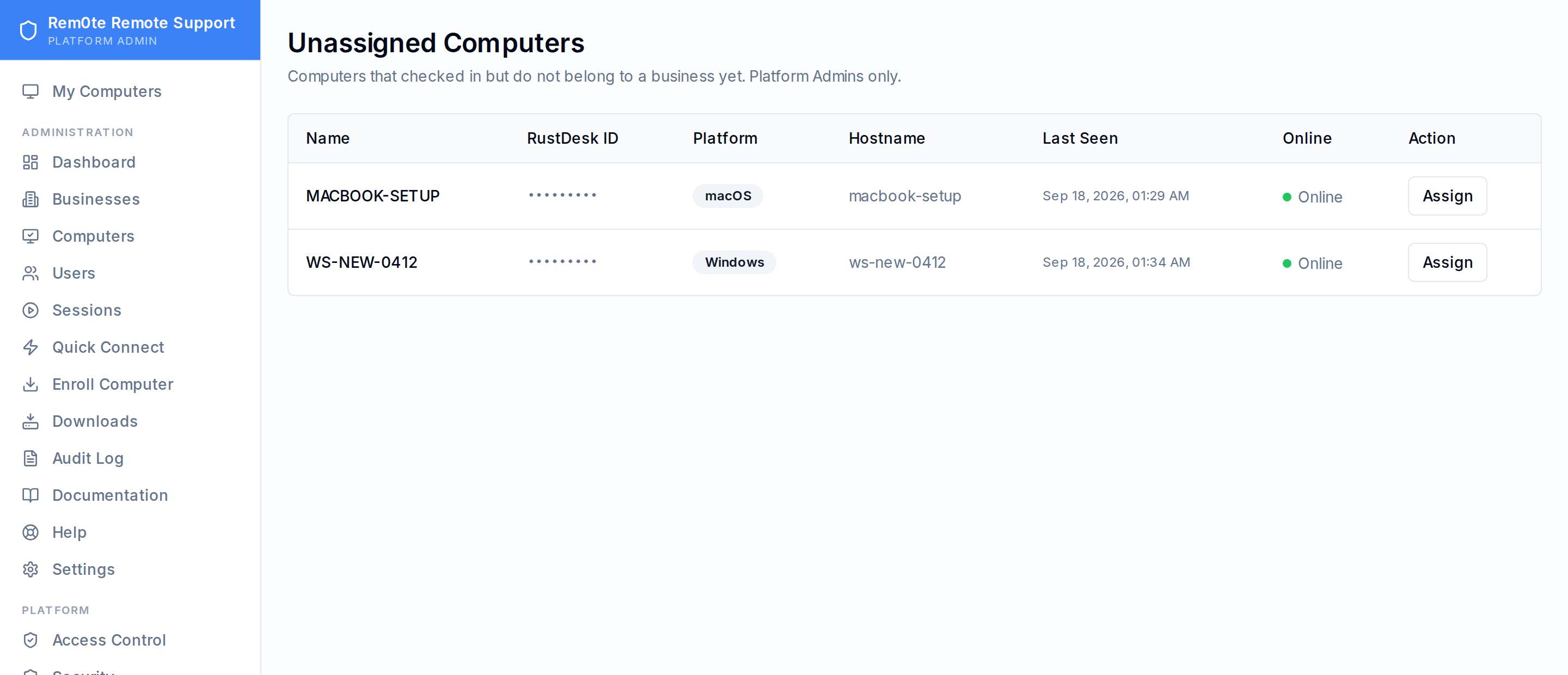 Machines that enrolled but have not landed in a business yet.
---
## Everyday workflows
### Enrol a managed device — light
Machines that enrolled but have not landed in a business yet.
---
## Everyday workflows
### Enrol a managed device — light
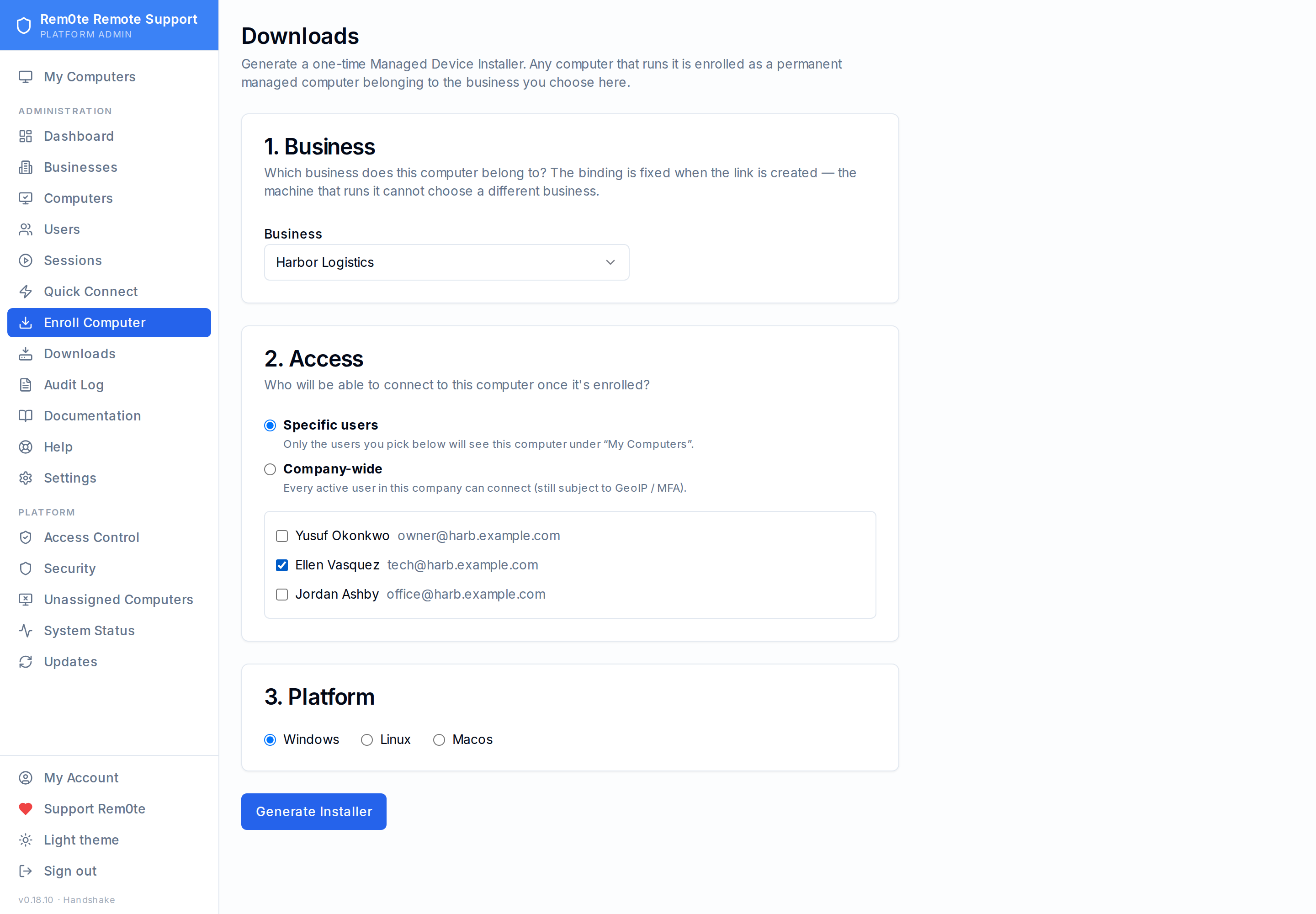 Pick the business, pick who may connect, pick the platform. The business is
bound into the installer when it is generated — the machine that runs it cannot
place itself somewhere else.
### Enrol a managed device — dark
Pick the business, pick who may connect, pick the platform. The business is
bound into the installer when it is generated — the machine that runs it cannot
place itself somewhere else.
### Enrol a managed device — dark
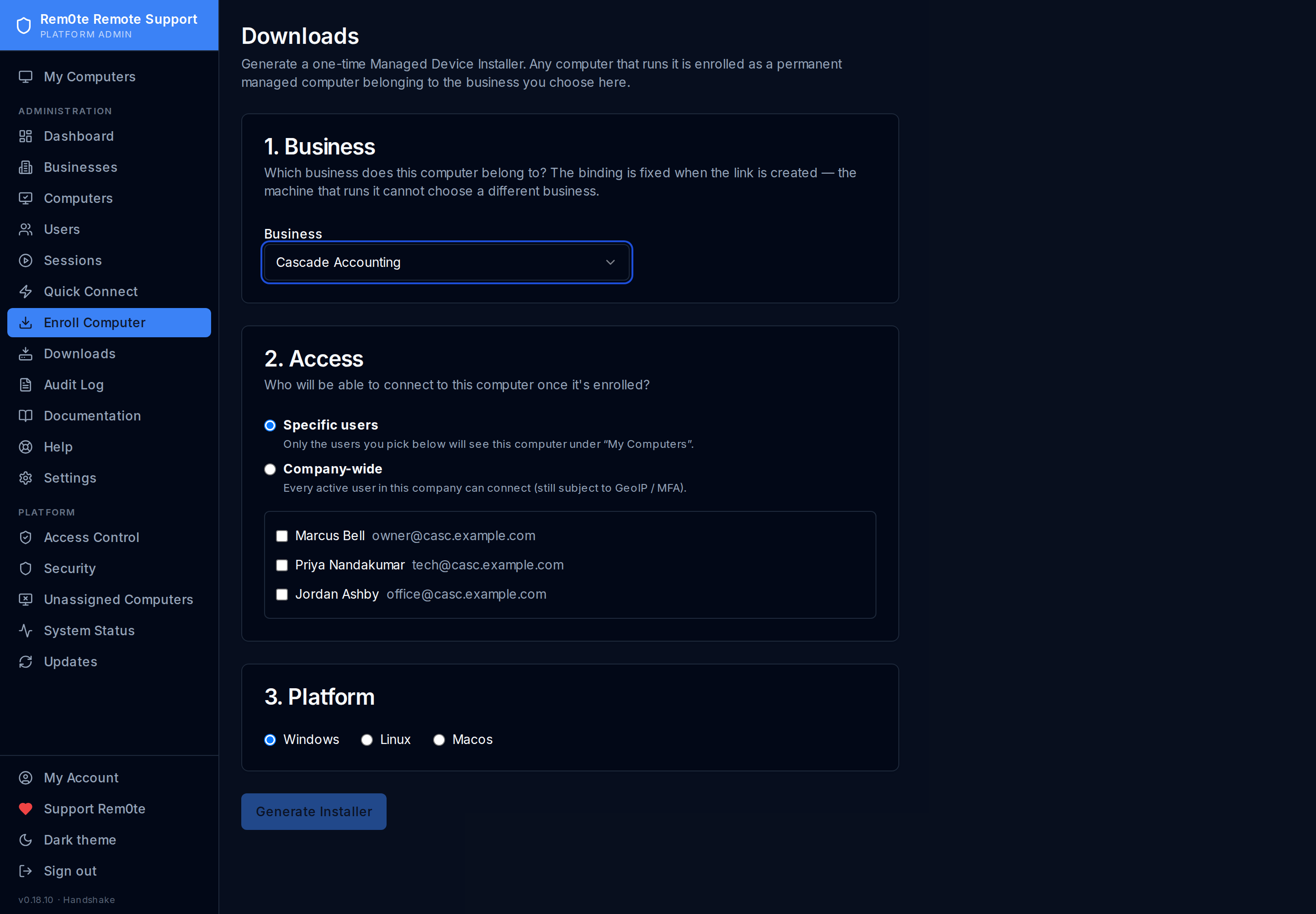 Choosing a different business narrows the access list to that business's people.
### Downloads — dark
Choosing a different business narrows the access list to that business's people.
### Downloads — dark
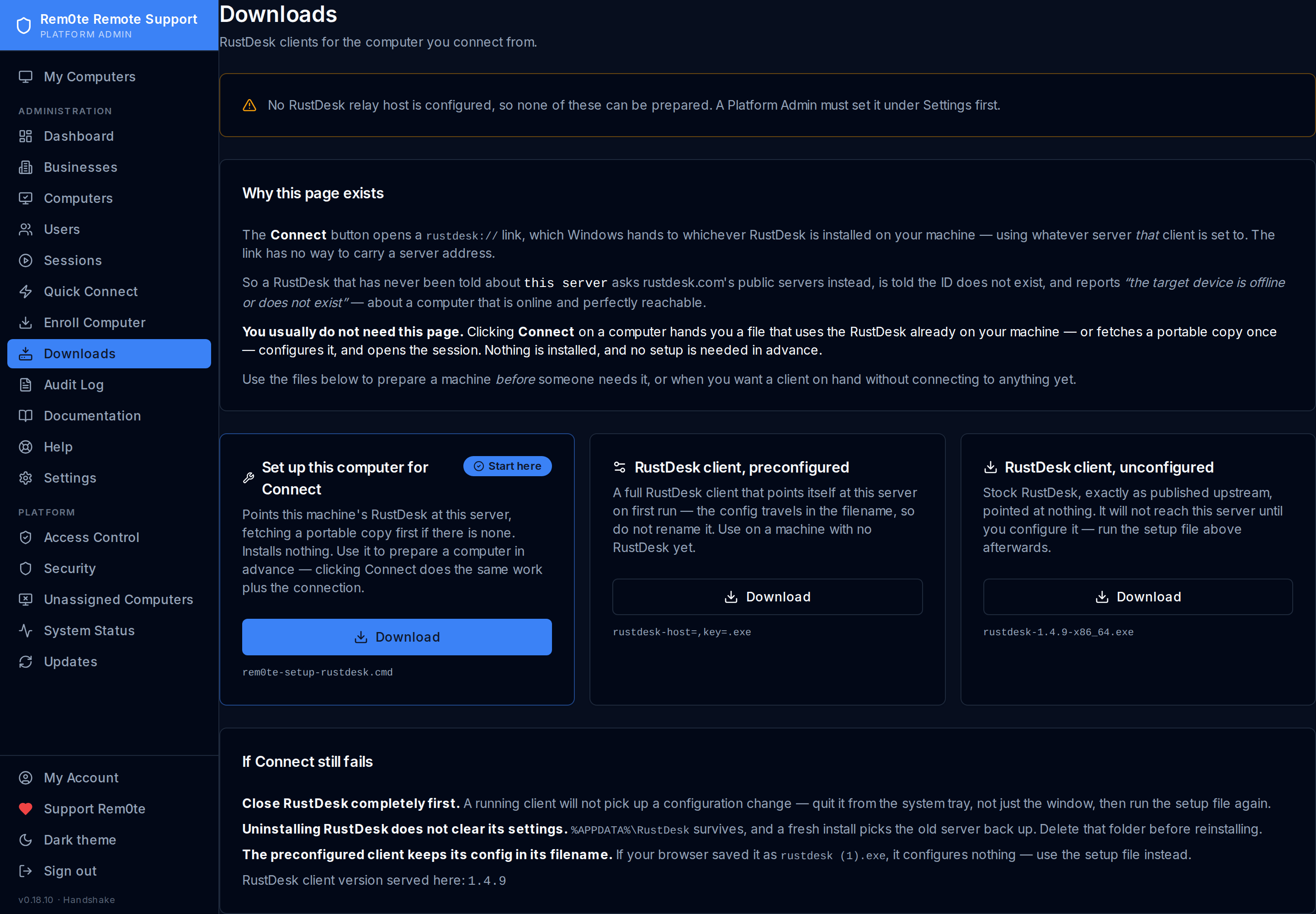 The clients Rem0te hands out, including the preconfigured RustDesk build that
already knows where your server is.
### Launched from Tactical RMM — dark
The clients Rem0te hands out, including the preconfigured RustDesk build that
already knows where your server is.
### Launched from Tactical RMM — dark
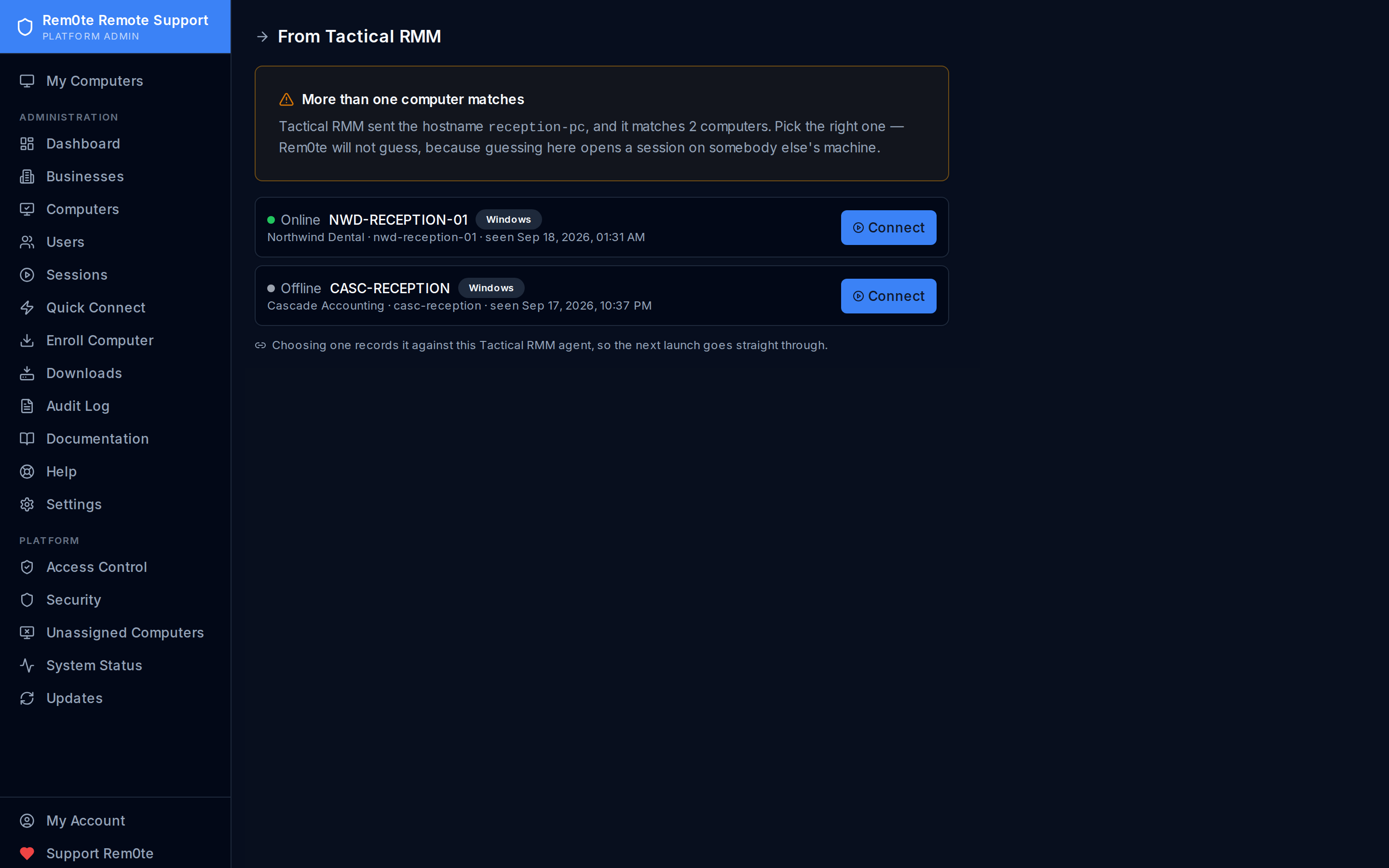 What a Tactical RMM URL Action lands on. Right-click an agent in TRMM and
Rem0te resolves it to a computer and connects.
Here it will not: two customers both have a machine the front desk calls
`reception-pc`, which is most MSPs rather than a contrived example. Rem0te
refuses to pick — guessing opens a remote session on somebody else's machine —
and remembers whichever you choose, so the next launch goes straight through.
### Quick Connect — light
What a Tactical RMM URL Action lands on. Right-click an agent in TRMM and
Rem0te resolves it to a computer and connects.
Here it will not: two customers both have a machine the front desk calls
`reception-pc`, which is most MSPs rather than a contrived example. Rem0te
refuses to pick — guessing opens a remote session on somebody else's machine —
and remembers whichever you choose, so the next launch goes straight through.
### Quick Connect — light
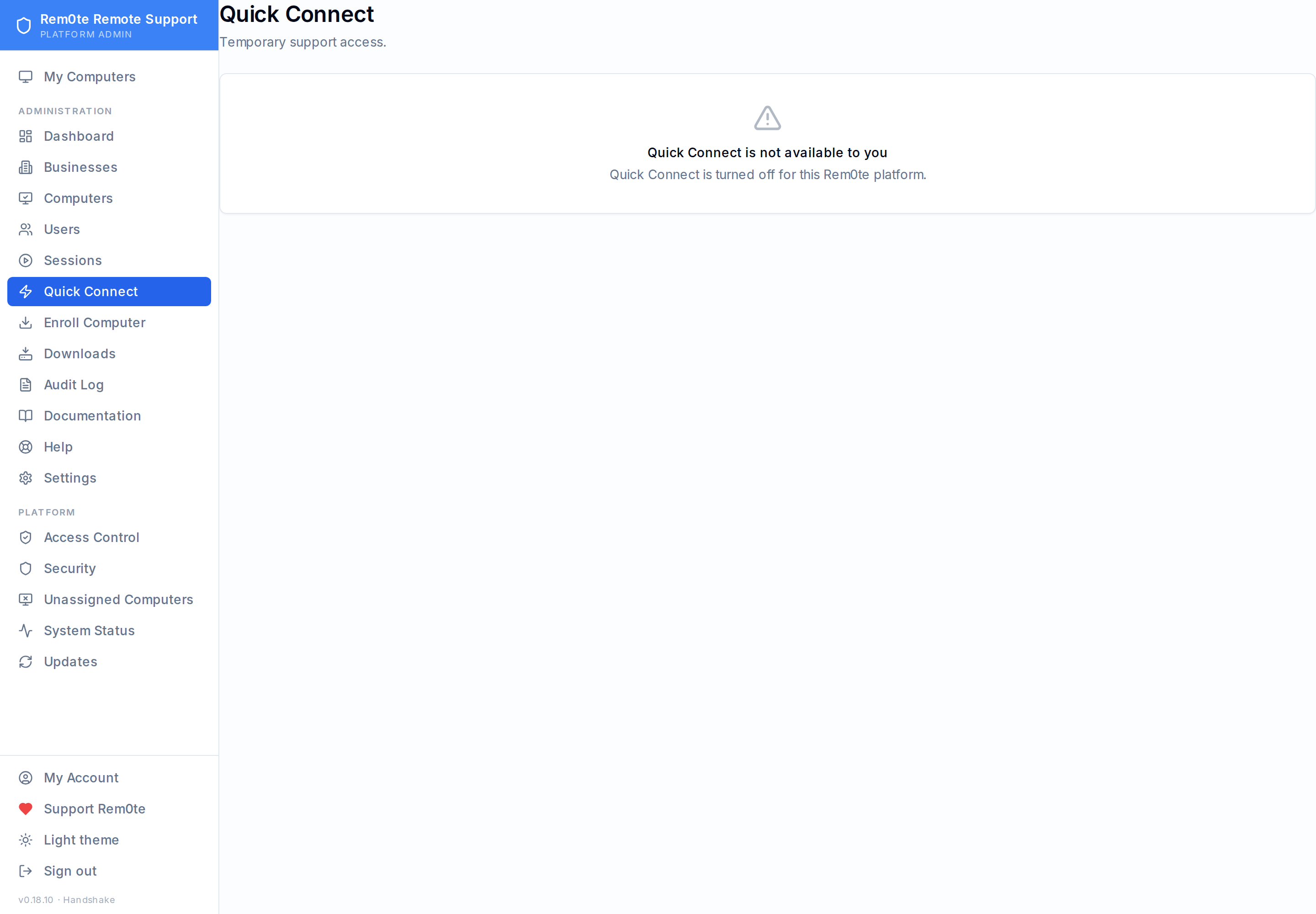 Temporary help for a machine that is **not** an enrolled device. They run a
client, read you an ID and a one-time password, and closing it ends the session.
No computer record is created.
### Built-in help — dark
Temporary help for a machine that is **not** an enrolled device. They run a
client, read you an ID and a one-time password, and closing it ends the session.
No computer record is created.
### Built-in help — dark
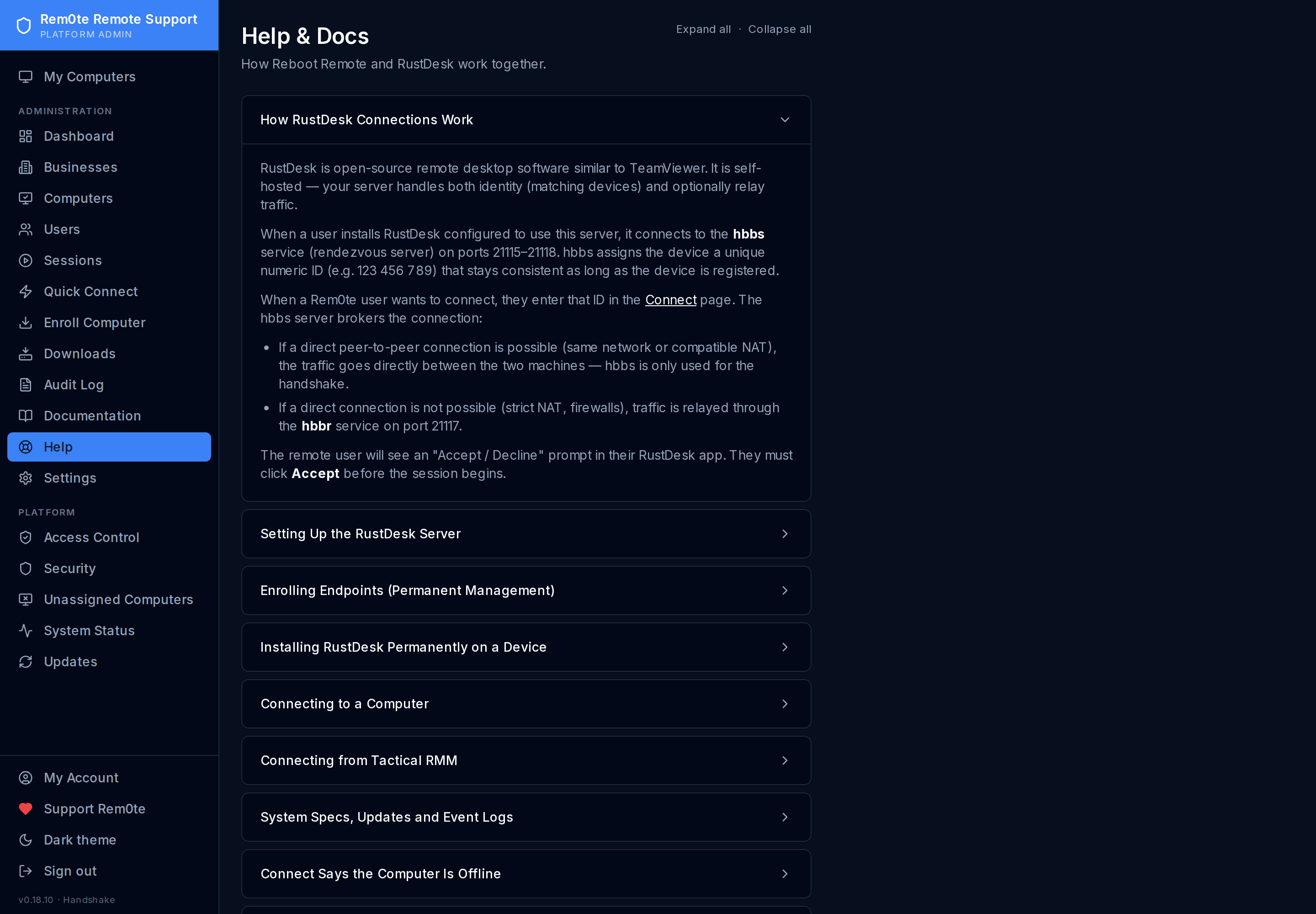 Answers in the product, not just the repository — how connections are brokered,
why a Connect can fail, and what to do about it.
---
## Access and administration
### The access model — light
Answers in the product, not just the repository — how connections are brokered,
why a Connect can fail, and what to do about it.
---
## Access and administration
### The access model — light
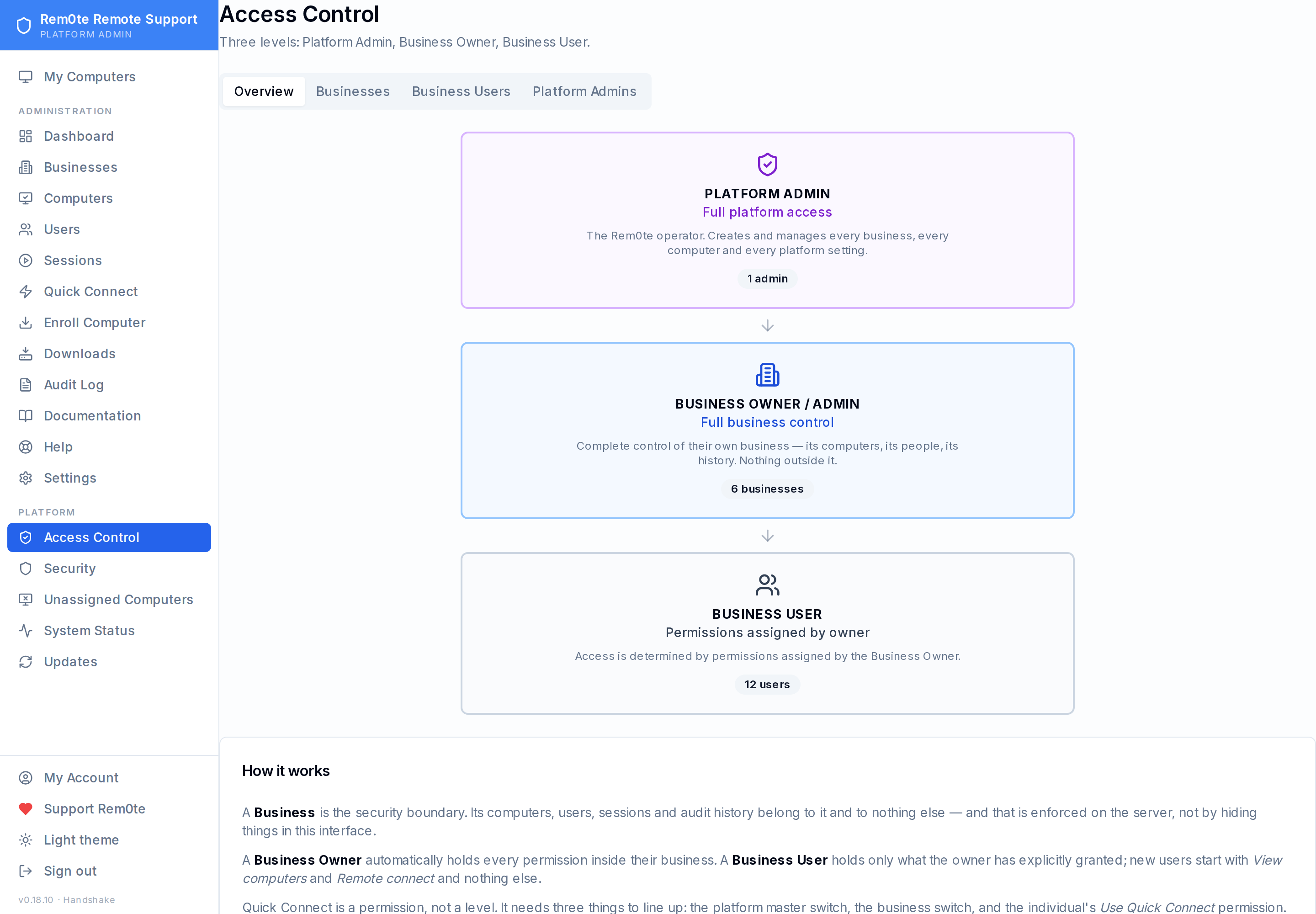 Three levels and no reseller hierarchy. A **Business** is the security boundary,
enforced on the server rather than by hiding buttons.
### Business users and capabilities — dark
Three levels and no reseller hierarchy. A **Business** is the security boundary,
enforced on the server rather than by hiding buttons.
### Business users and capabilities — dark
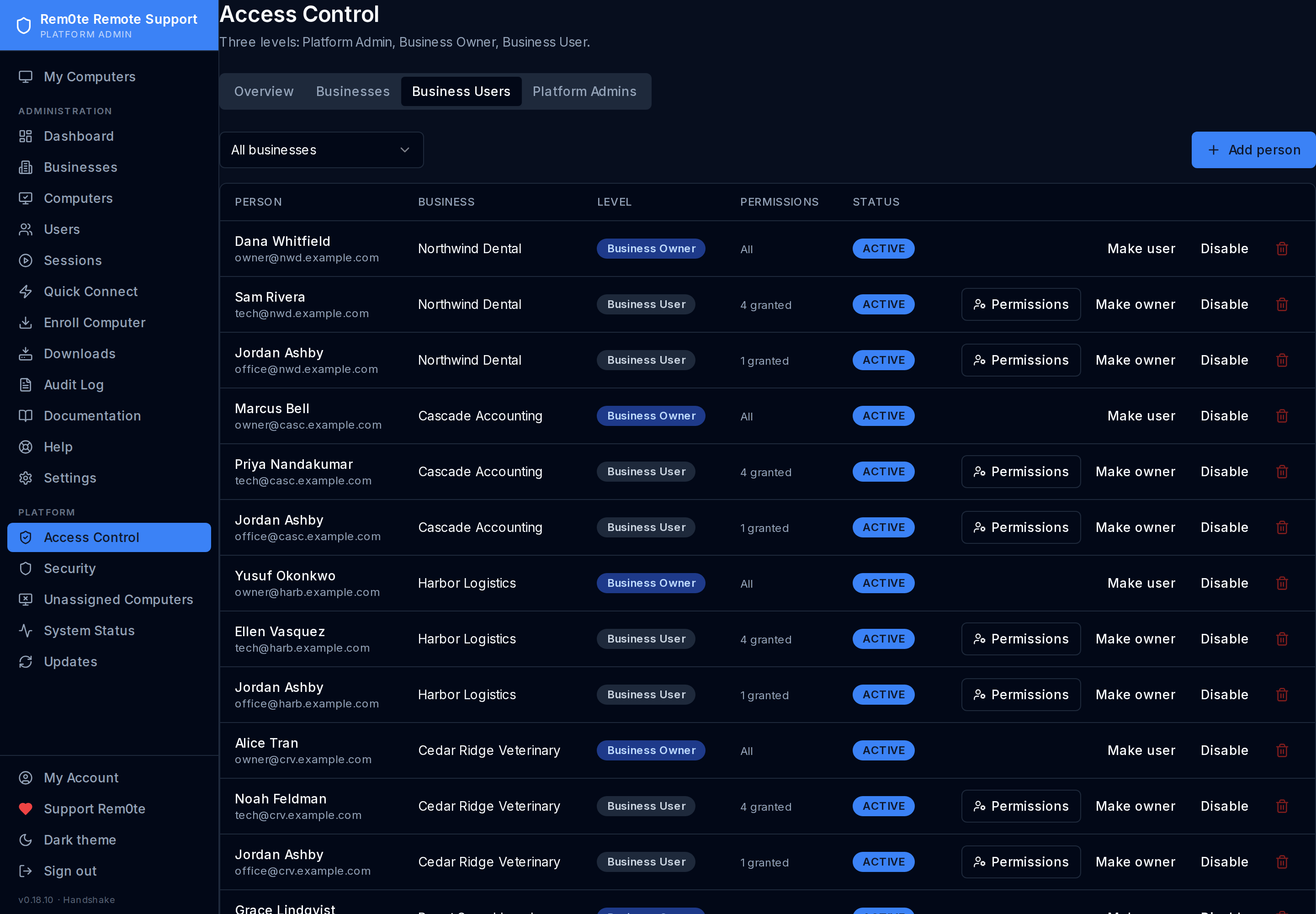 Who can do what, per business. Owners hold everything; each Business User shows
the capabilities actually granted — not a role name that hides the detail.
### Platform admins — light
Who can do what, per business. Owners hold everything; each Business User shows
the capabilities actually granted — not a role name that hides the detail.
### Platform admins — light
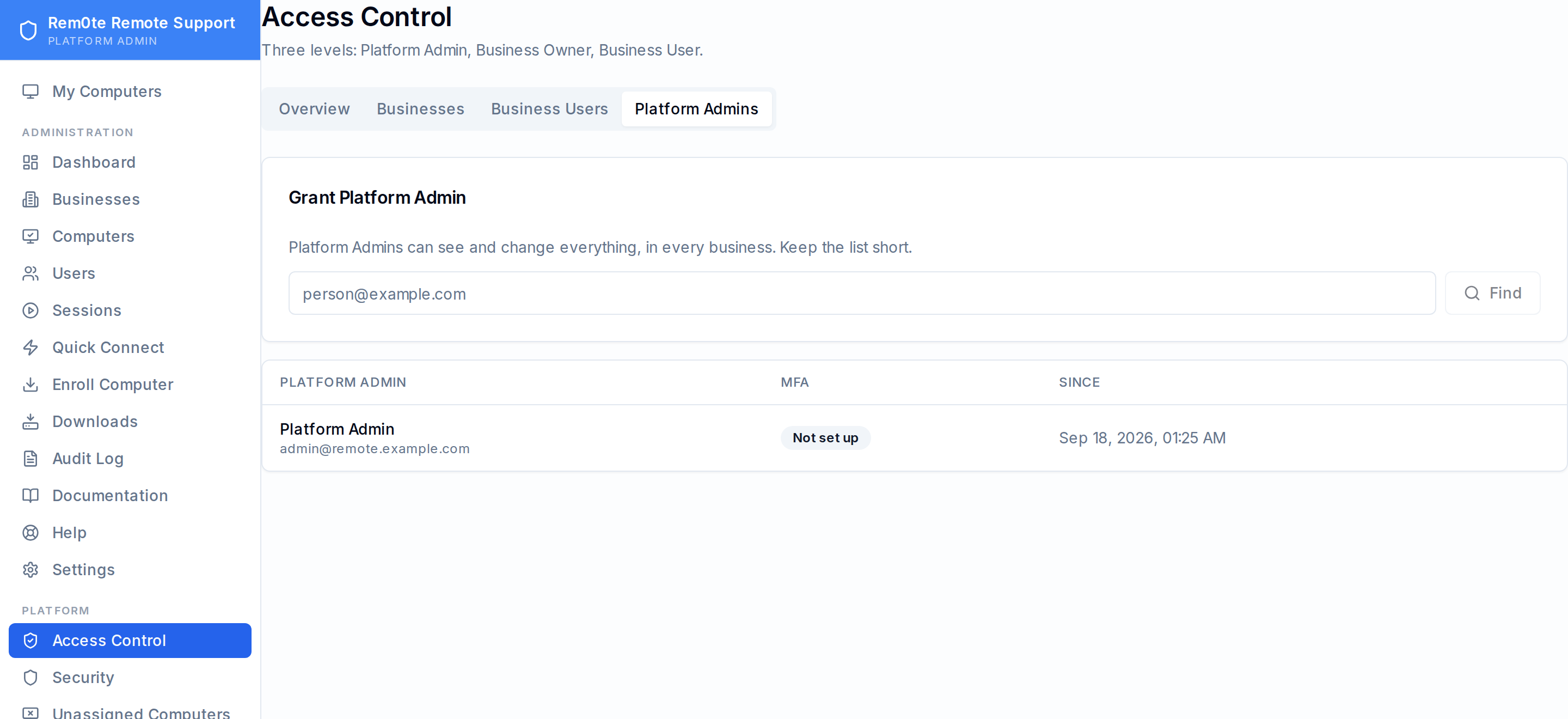 The short list of people who run the service itself.
### Users — dark
The short list of people who run the service itself.
### Users — dark
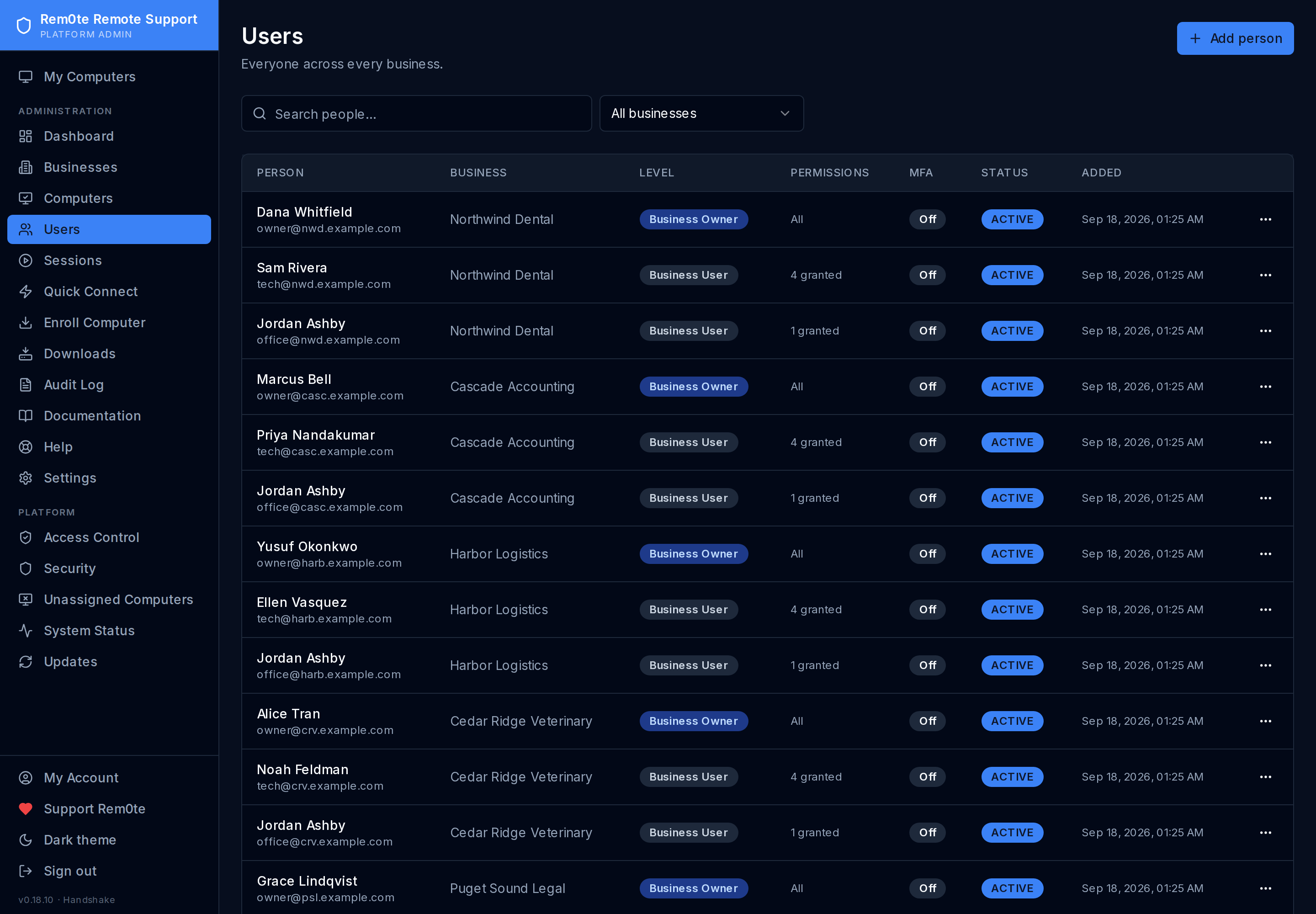 Every account on the platform, across all businesses.
### My account and security — light
Every account on the platform, across all businesses.
### My account and security — light
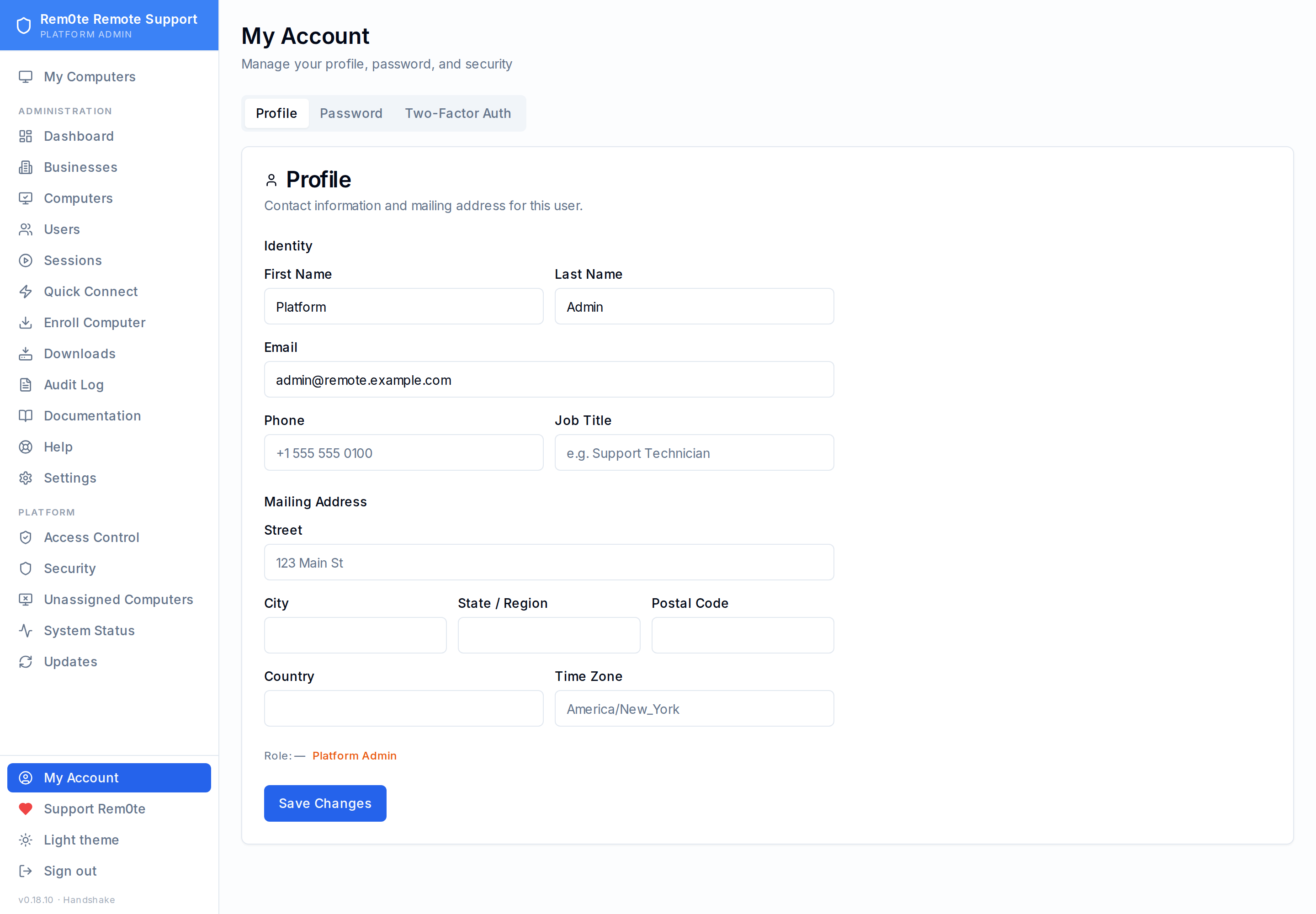 Your own profile, password and two-factor enrolment, each on its own tab.
---
## Configuration
### Platform settings — dark
Your own profile, password and two-factor enrolment, each on its own tab.
---
## Configuration
### Platform settings — dark
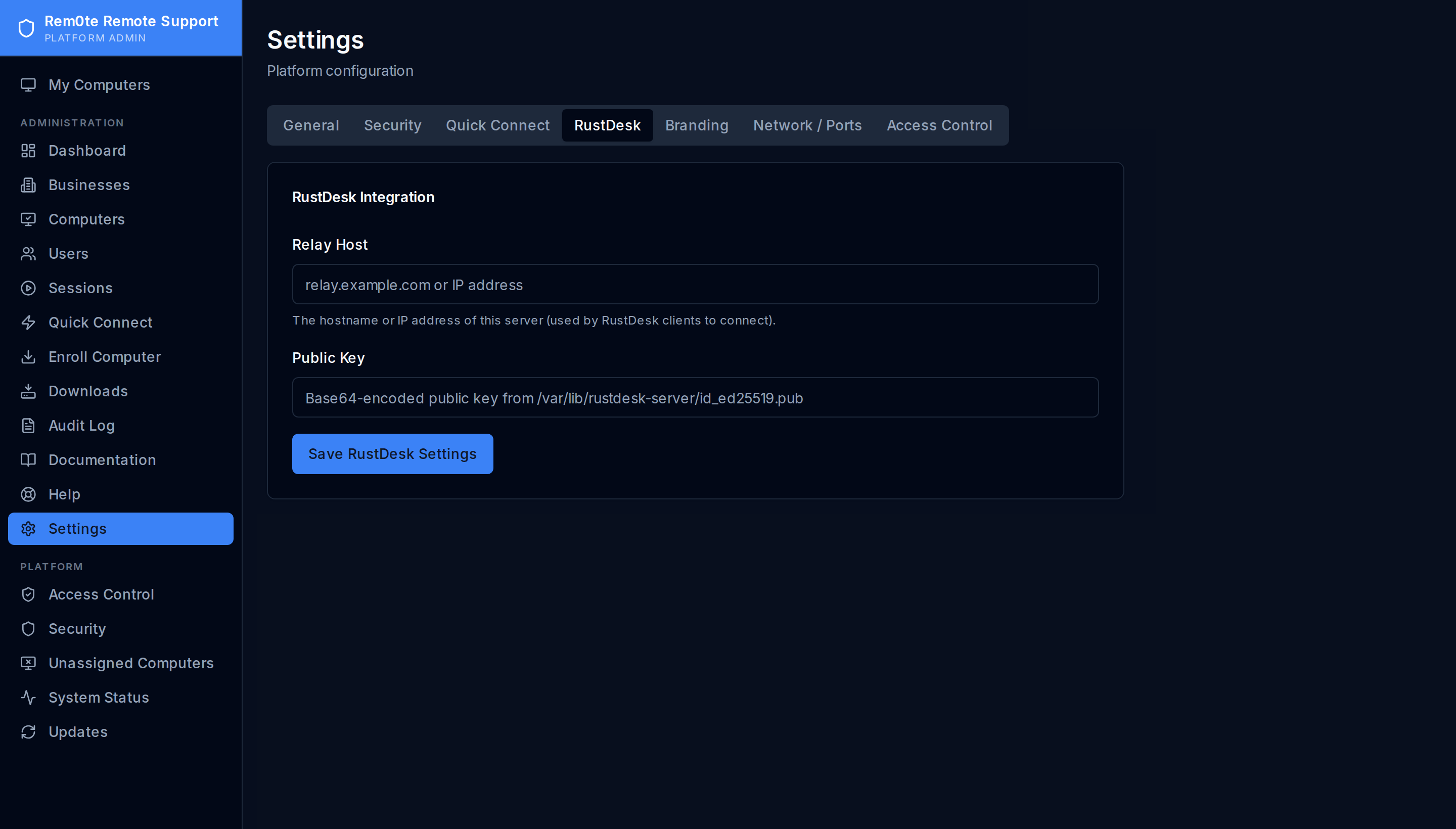 RustDesk infrastructure, the Quick Connect master switch and MFA policy — the
settings that apply to the whole platform.
### Branding — light
RustDesk infrastructure, the Quick Connect master switch and MFA policy — the
settings that apply to the whole platform.
### Branding — light
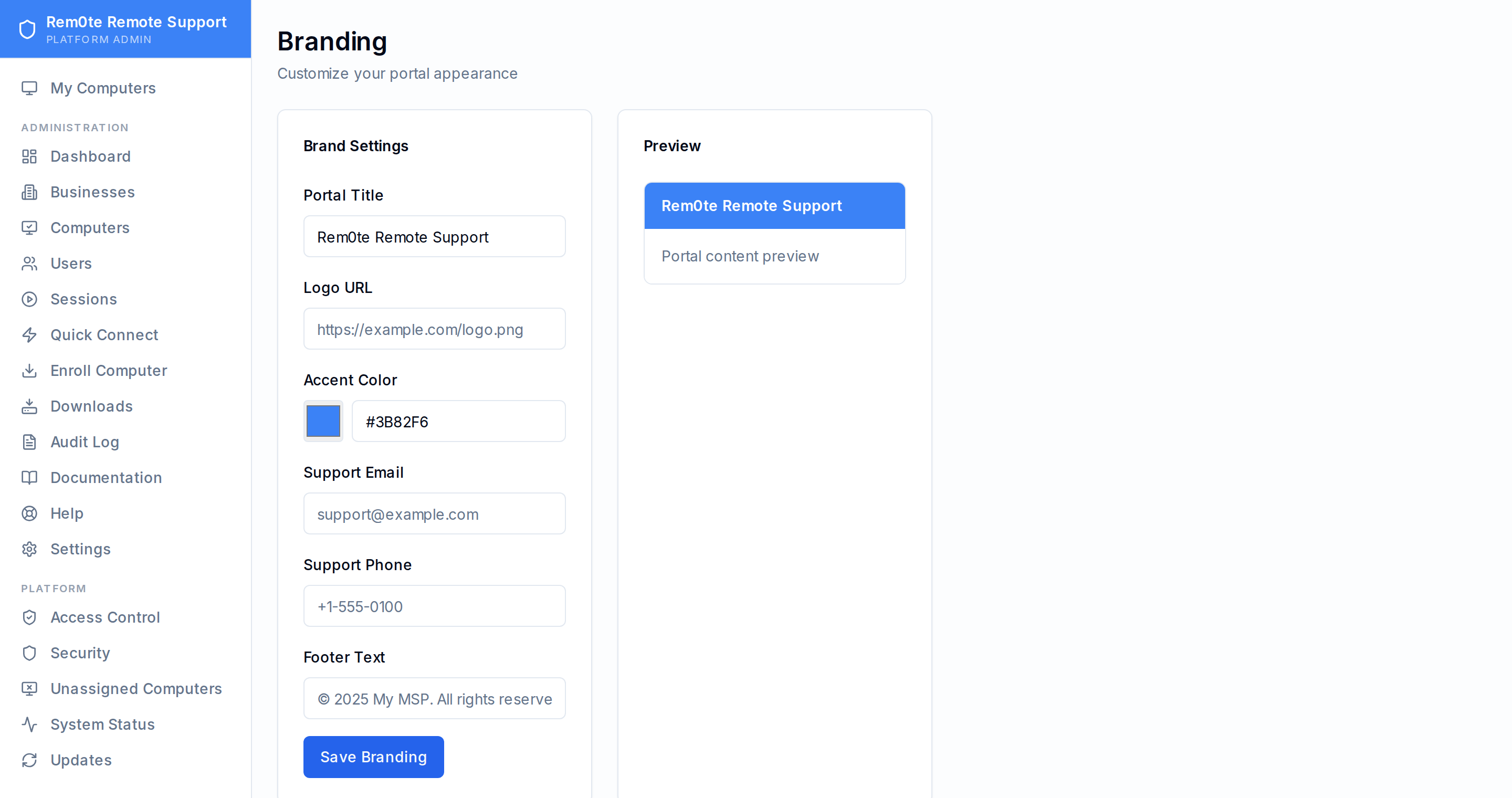 Name and logo shown to the businesses you support.
### Release history — dark
Name and logo shown to the businesses you support.
### Release history — dark
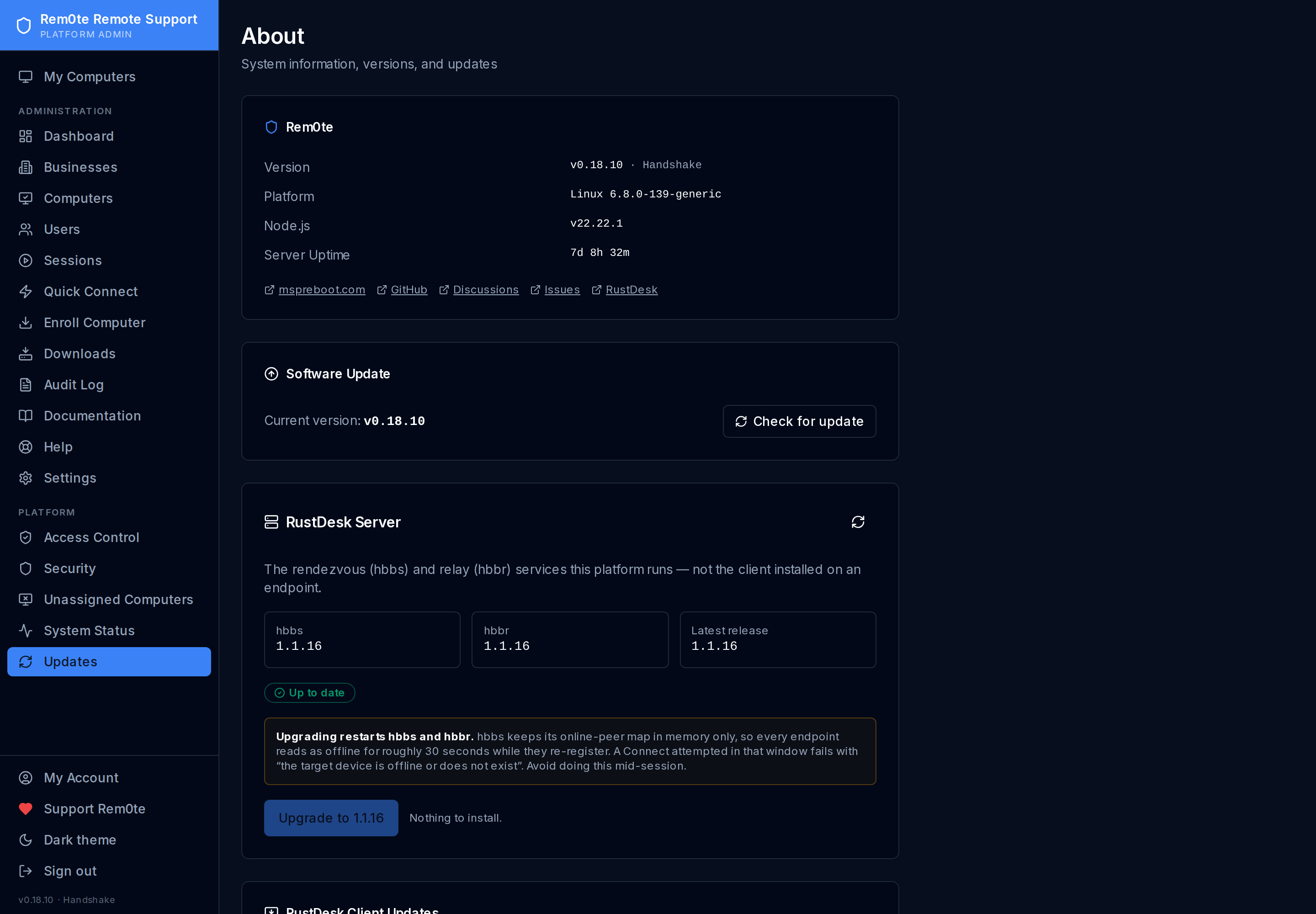 The running version and the release history, parsed from `CHANGELOG.md`.
### Built-in documentation — light
The running version and the release history, parsed from `CHANGELOG.md`.
### Built-in documentation — light
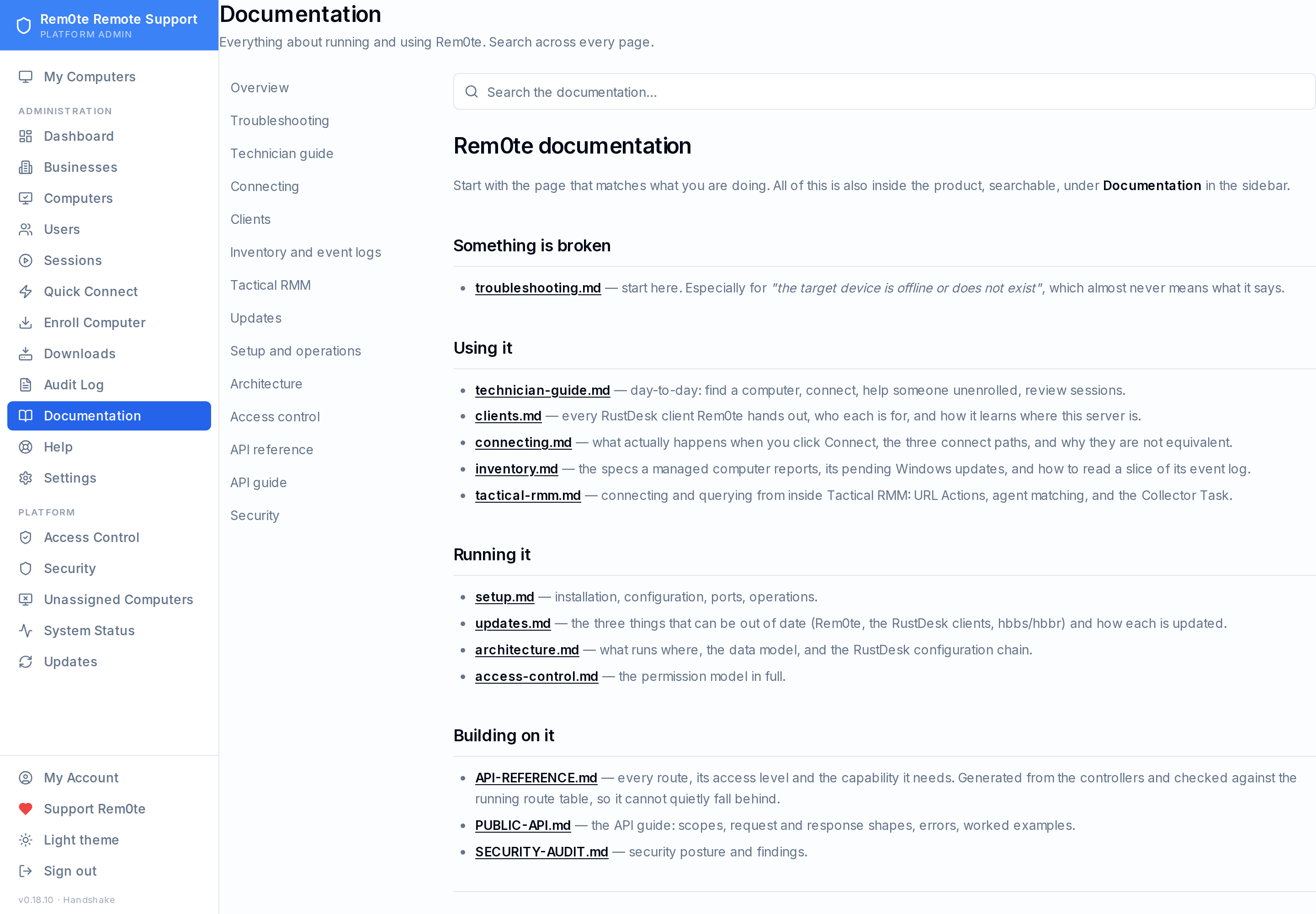 The same guides that live in `docs/`, searchable inside the app.
---
## Regenerating these
Captures run against an **isolated demo stack** — never production, and never a
database with real records. The capture script refuses an `https://` target or
port 3000/443 outright.
```bash
# 1. Throwaway database (the demo-data module refuses any other name)
sudo -u postgres createdb reboot_remote_docs
cd apps/api
DATABASE_URL=postgresql://…/reboot_remote_docs npx prisma migrate deploy
DATABASE_URL=… npx tsx prisma/seed.ts
DATABASE_URL=… npx tsx prisma/_docs-demo-data.ts
# 2. Run the API and web against it on non-production ports (4001 / 4000).
# `output: 'standalone'` bakes the API rewrite in at build time, so patch
# the copied build rather than relying on INTERNAL_API_URL. See CLAUDE.md.
# 3. Re-anchor the demo clocks, then capture. Online/offline is derived from
# how recently a device checked in, and the API sweeps the flag as data
# ages — without this the dashboard counts stop matching the inventory.
DATABASE_URL=… npx tsx prisma/_docs-demo-refresh.ts # run from apps/api
WEB_URL=http://127.0.0.1:4000 EMAIL=… PASSWORD=… \
node apps/web/scripts/capture-media.mjs # gallery -> docs/images/github/
WEB_URL=http://127.0.0.1:4000 EMAIL=… PASSWORD=… \
node apps/web/scripts/capture-video.mjs # recording -> media/raw/
scripts/build-video.sh # MP4 + poster + highlight
```
`docs/images/github/manifest.json` records the route, theme and viewport behind
every image. Credentials are passed as environment variables and are never
written to a script, a manifest, or the repository.
`apps/web/scripts/screenshots.mjs` is a **different** tool and is still in use:
it produces the numbered-callout images embedded in the in-app documentation
under `docs/screenshots/`. This gallery and that guide do not share files.
Masking happens in the browser DOM immediately before each shutter and never
writes to the database:
| Value | Shown as |
|---|---|
| Enrollment / claim tokens | `SAMPLE-ENROLLMENT-TOKEN` |
| Long hex secrets | `SAMPLE-TOKEN-VALUE` |
| RustDesk IDs | `•••••••••` |
| Public IP addresses | `198.51.100.24` (RFC 5737 documentation range) |
Private ranges and loopback are left as they are — they carry nothing.
---
Rem0te is one of several free tools for MSPs published at
[mspreboot.com](https://mspreboot.com). ↩︎ [Back to the README](../README.md)
The same guides that live in `docs/`, searchable inside the app.
---
## Regenerating these
Captures run against an **isolated demo stack** — never production, and never a
database with real records. The capture script refuses an `https://` target or
port 3000/443 outright.
```bash
# 1. Throwaway database (the demo-data module refuses any other name)
sudo -u postgres createdb reboot_remote_docs
cd apps/api
DATABASE_URL=postgresql://…/reboot_remote_docs npx prisma migrate deploy
DATABASE_URL=… npx tsx prisma/seed.ts
DATABASE_URL=… npx tsx prisma/_docs-demo-data.ts
# 2. Run the API and web against it on non-production ports (4001 / 4000).
# `output: 'standalone'` bakes the API rewrite in at build time, so patch
# the copied build rather than relying on INTERNAL_API_URL. See CLAUDE.md.
# 3. Re-anchor the demo clocks, then capture. Online/offline is derived from
# how recently a device checked in, and the API sweeps the flag as data
# ages — without this the dashboard counts stop matching the inventory.
DATABASE_URL=… npx tsx prisma/_docs-demo-refresh.ts # run from apps/api
WEB_URL=http://127.0.0.1:4000 EMAIL=… PASSWORD=… \
node apps/web/scripts/capture-media.mjs # gallery -> docs/images/github/
WEB_URL=http://127.0.0.1:4000 EMAIL=… PASSWORD=… \
node apps/web/scripts/capture-video.mjs # recording -> media/raw/
scripts/build-video.sh # MP4 + poster + highlight
```
`docs/images/github/manifest.json` records the route, theme and viewport behind
every image. Credentials are passed as environment variables and are never
written to a script, a manifest, or the repository.
`apps/web/scripts/screenshots.mjs` is a **different** tool and is still in use:
it produces the numbered-callout images embedded in the in-app documentation
under `docs/screenshots/`. This gallery and that guide do not share files.
Masking happens in the browser DOM immediately before each shutter and never
writes to the database:
| Value | Shown as |
|---|---|
| Enrollment / claim tokens | `SAMPLE-ENROLLMENT-TOKEN` |
| Long hex secrets | `SAMPLE-TOKEN-VALUE` |
| RustDesk IDs | `•••••••••` |
| Public IP addresses | `198.51.100.24` (RFC 5737 documentation range) |
Private ranges and loopback are left as they are — they carry nothing.
---
Rem0te is one of several free tools for MSPs published at
[mspreboot.com](https://mspreboot.com). ↩︎ [Back to the README](../README.md)