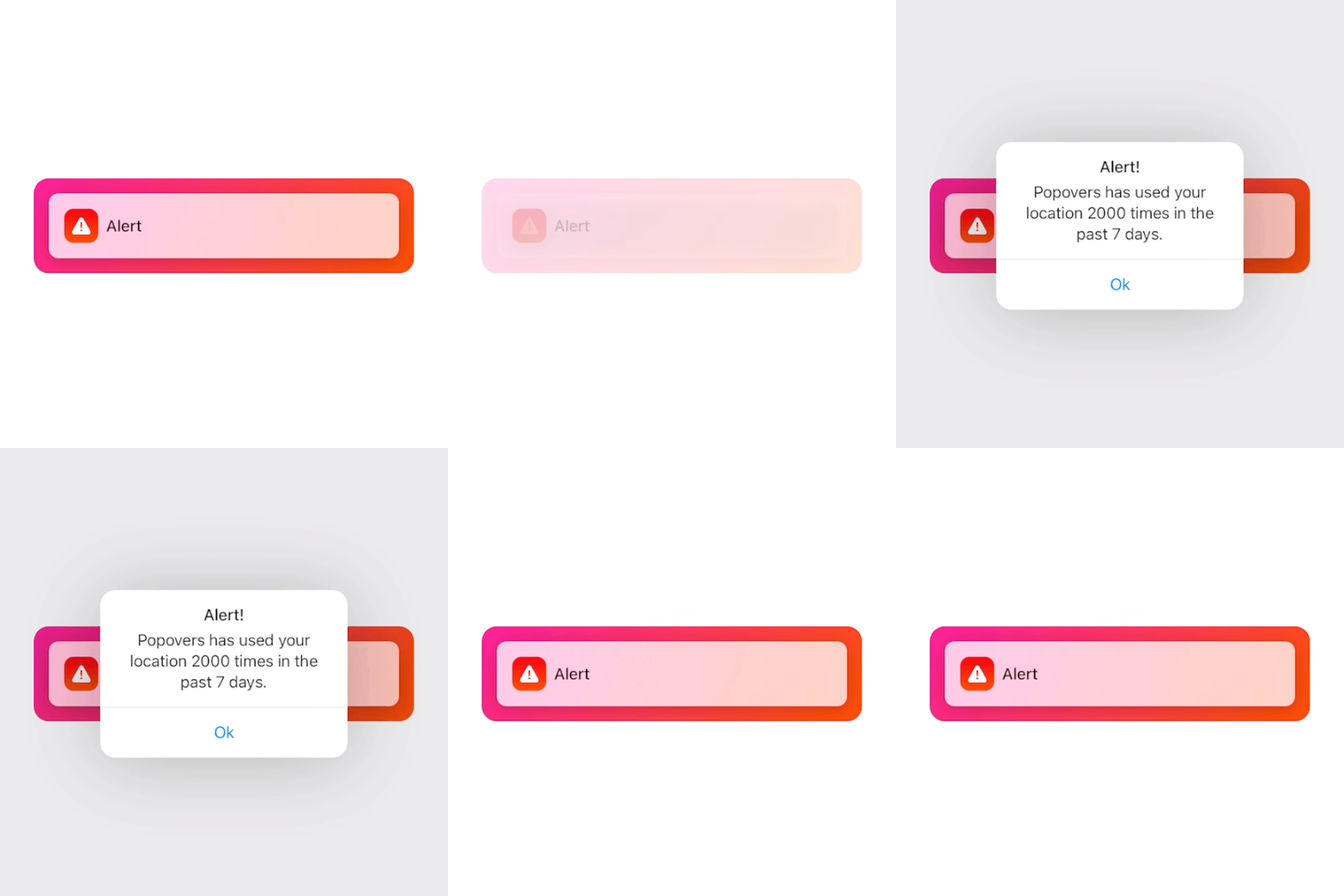
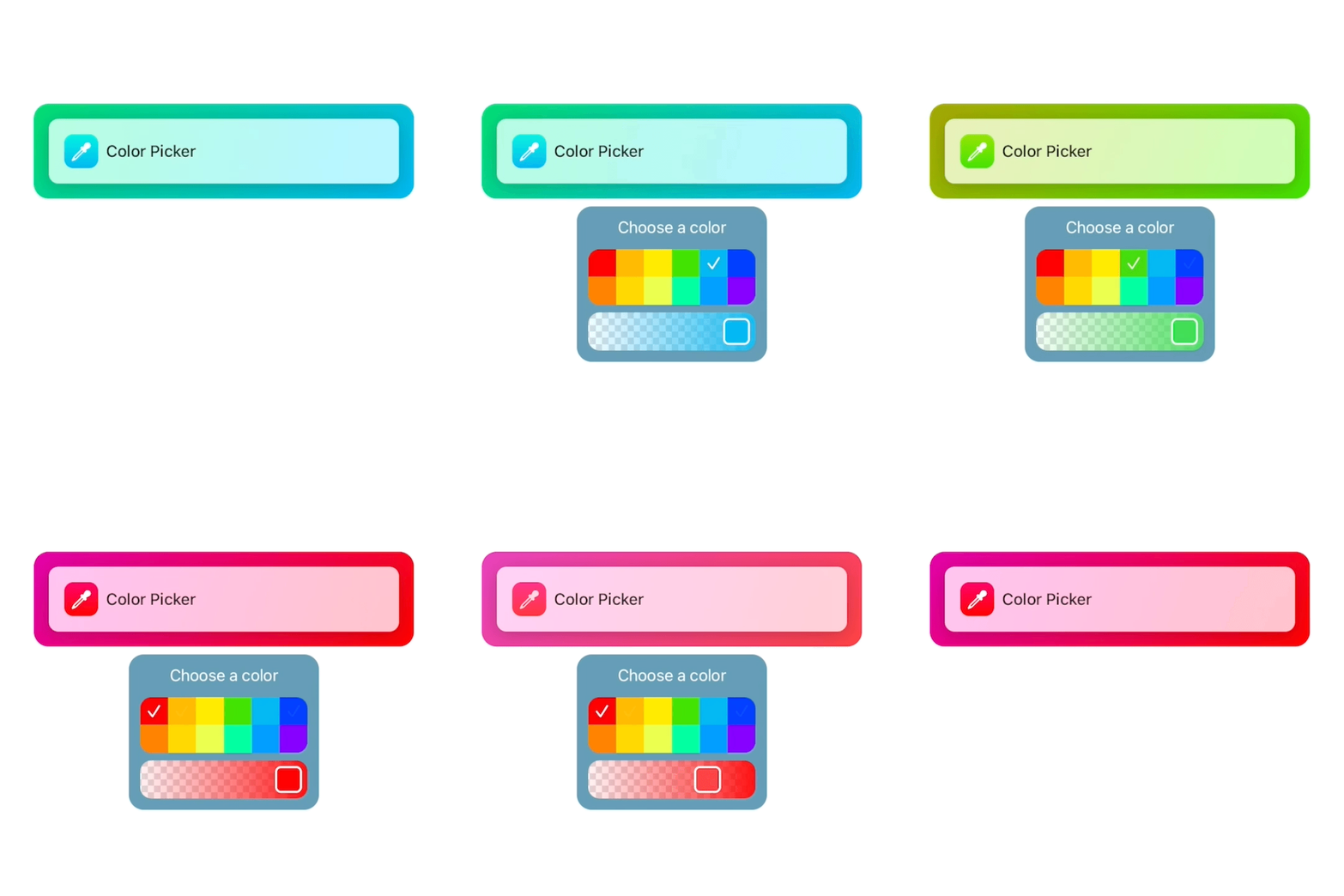
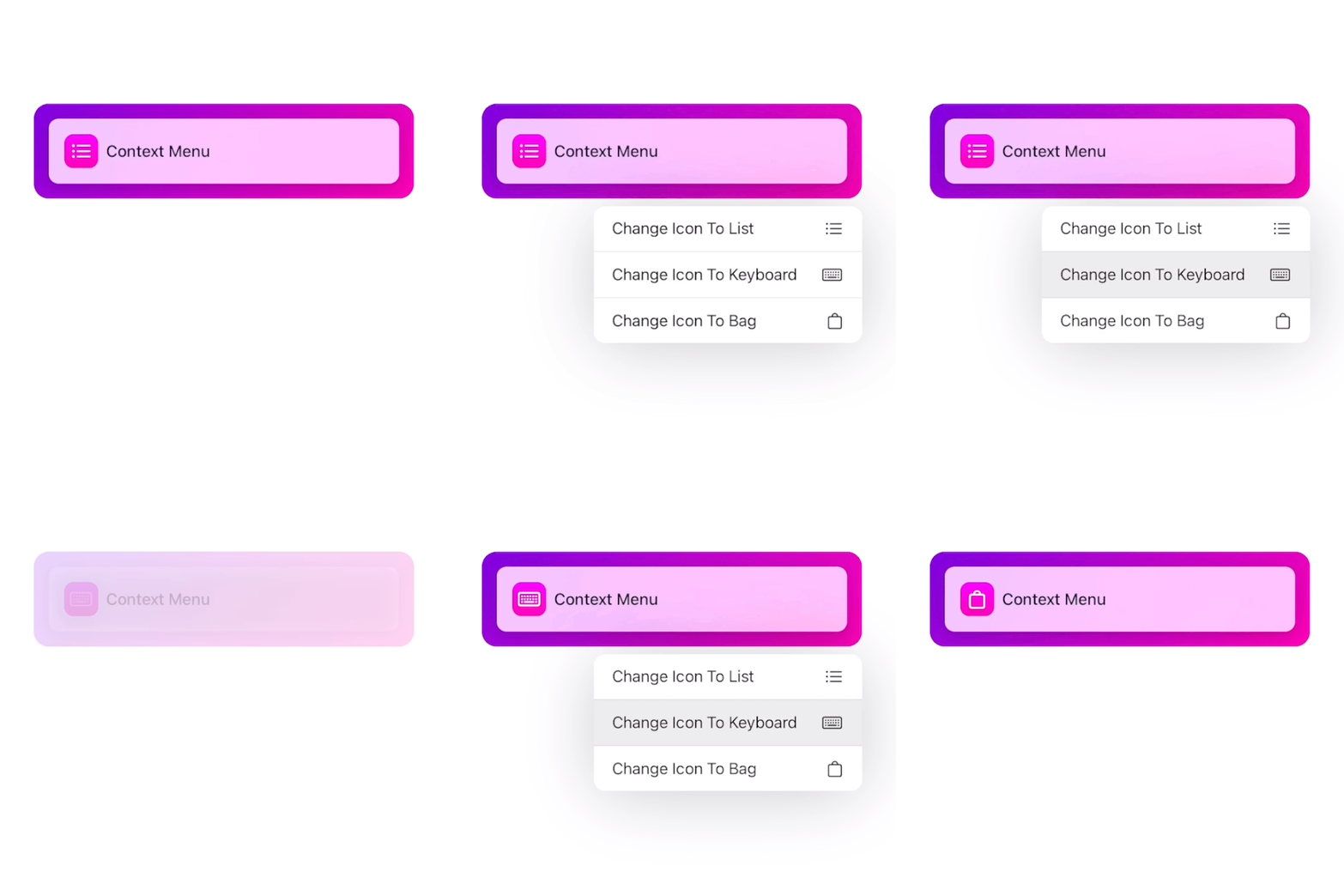
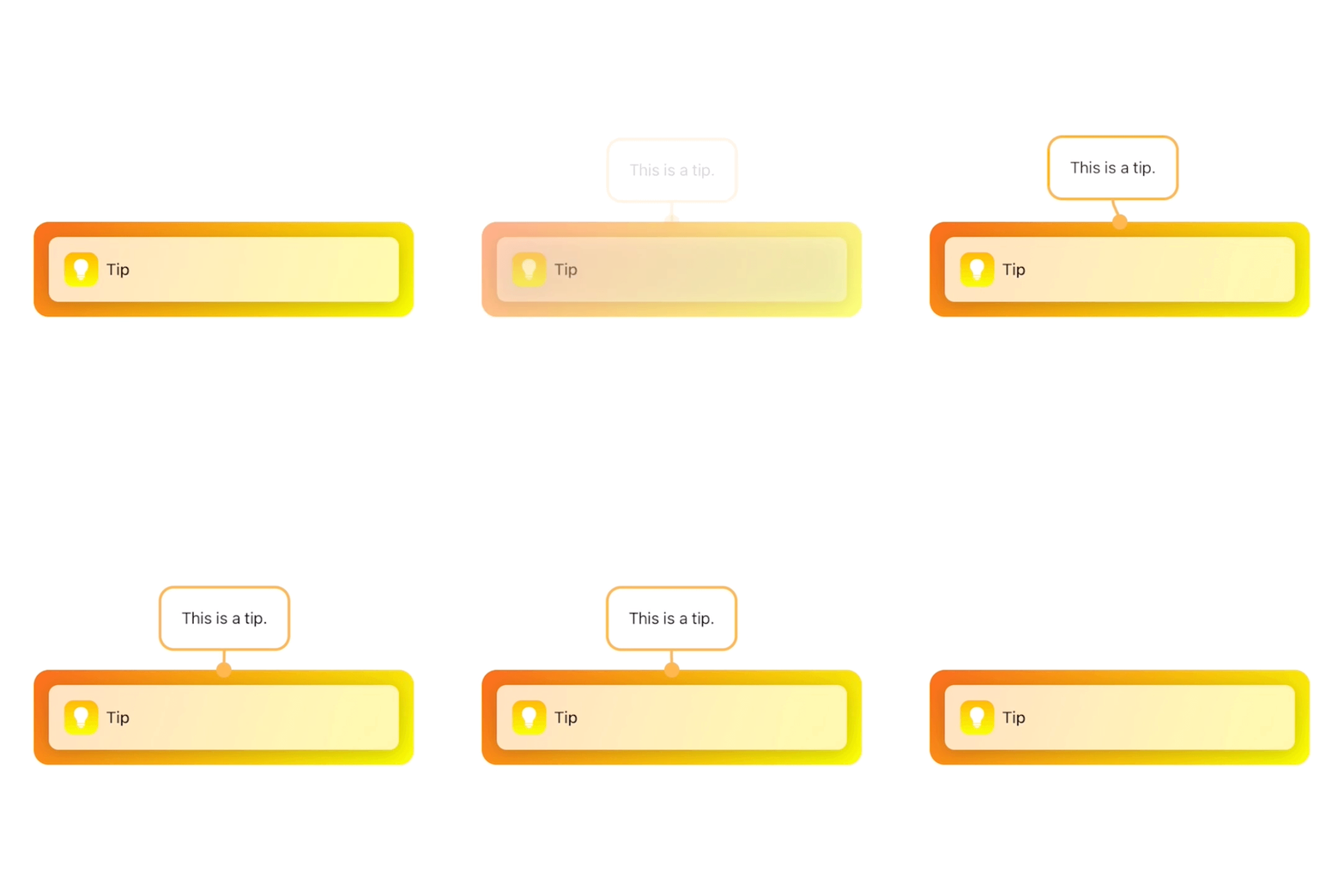
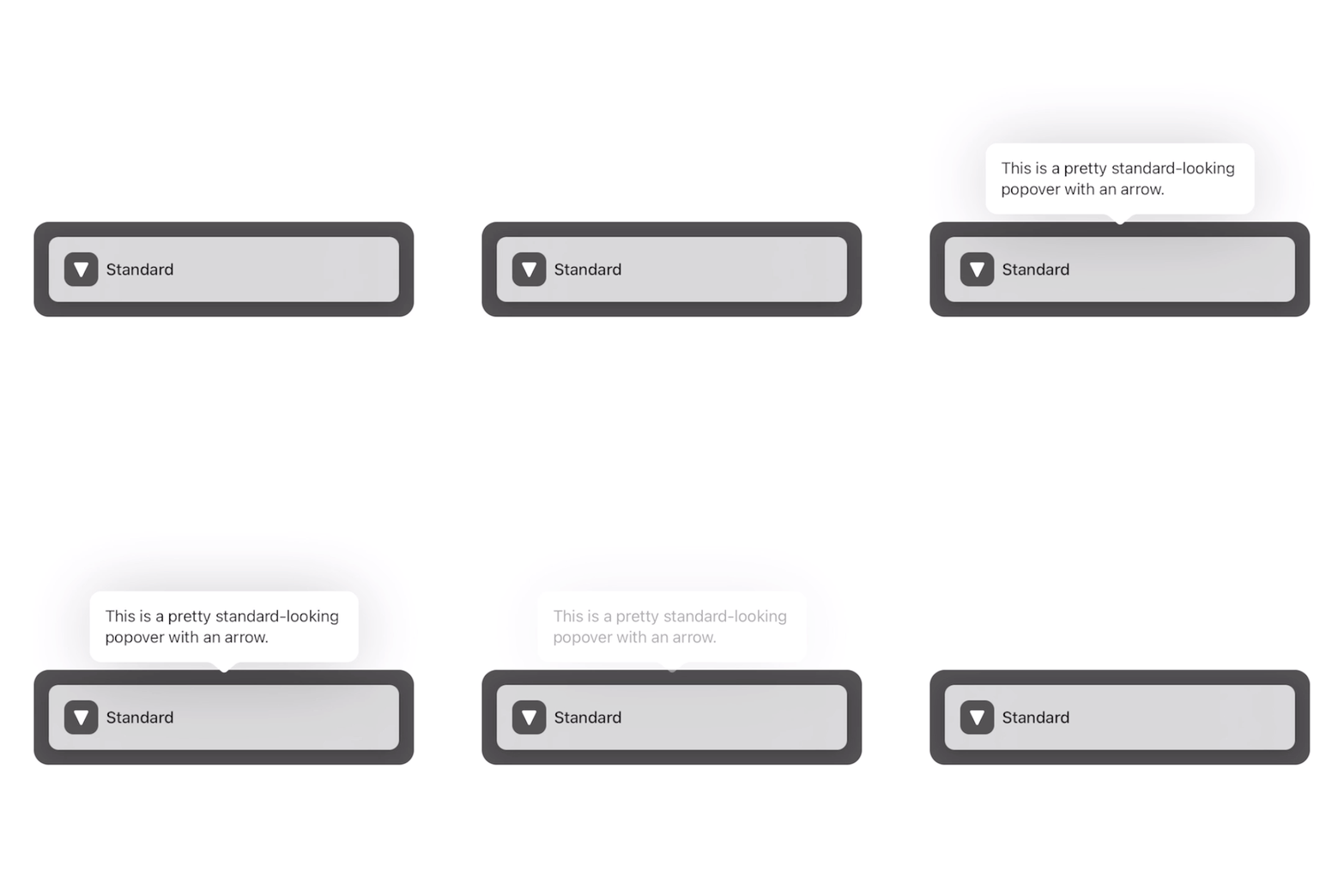
| Alert | Color | Menu | Tip | Standard |
|
|
|
|
|
|
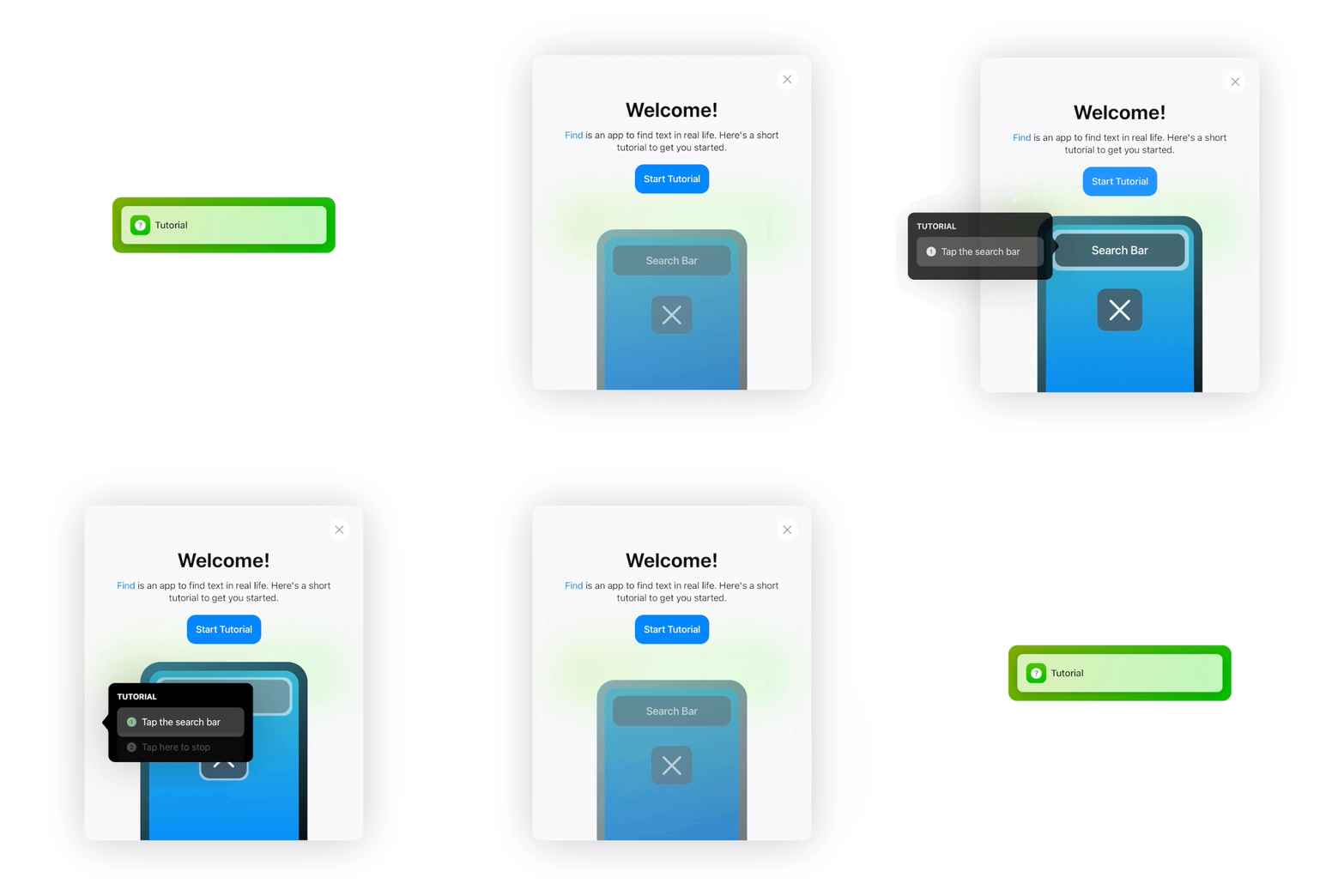
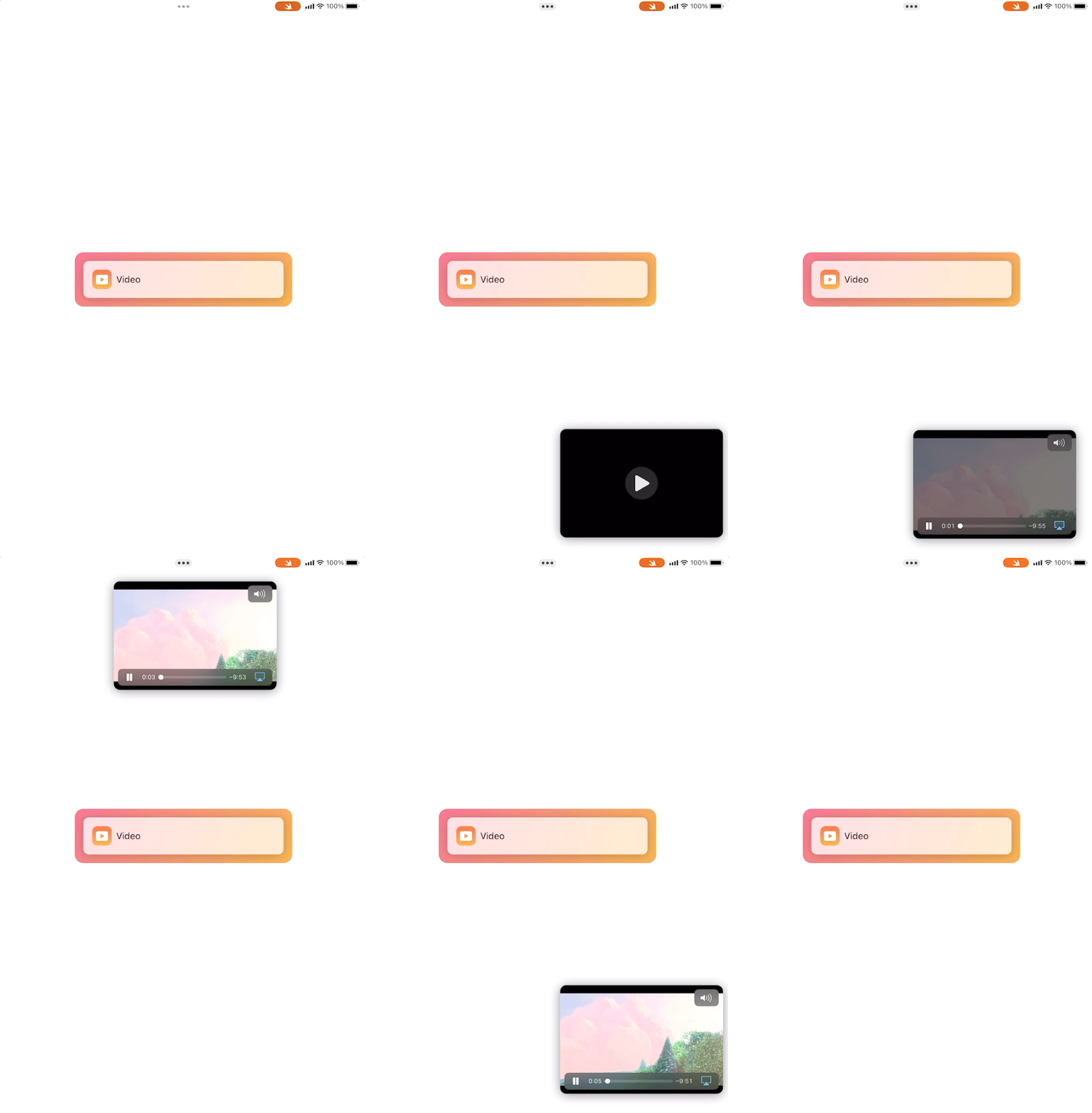
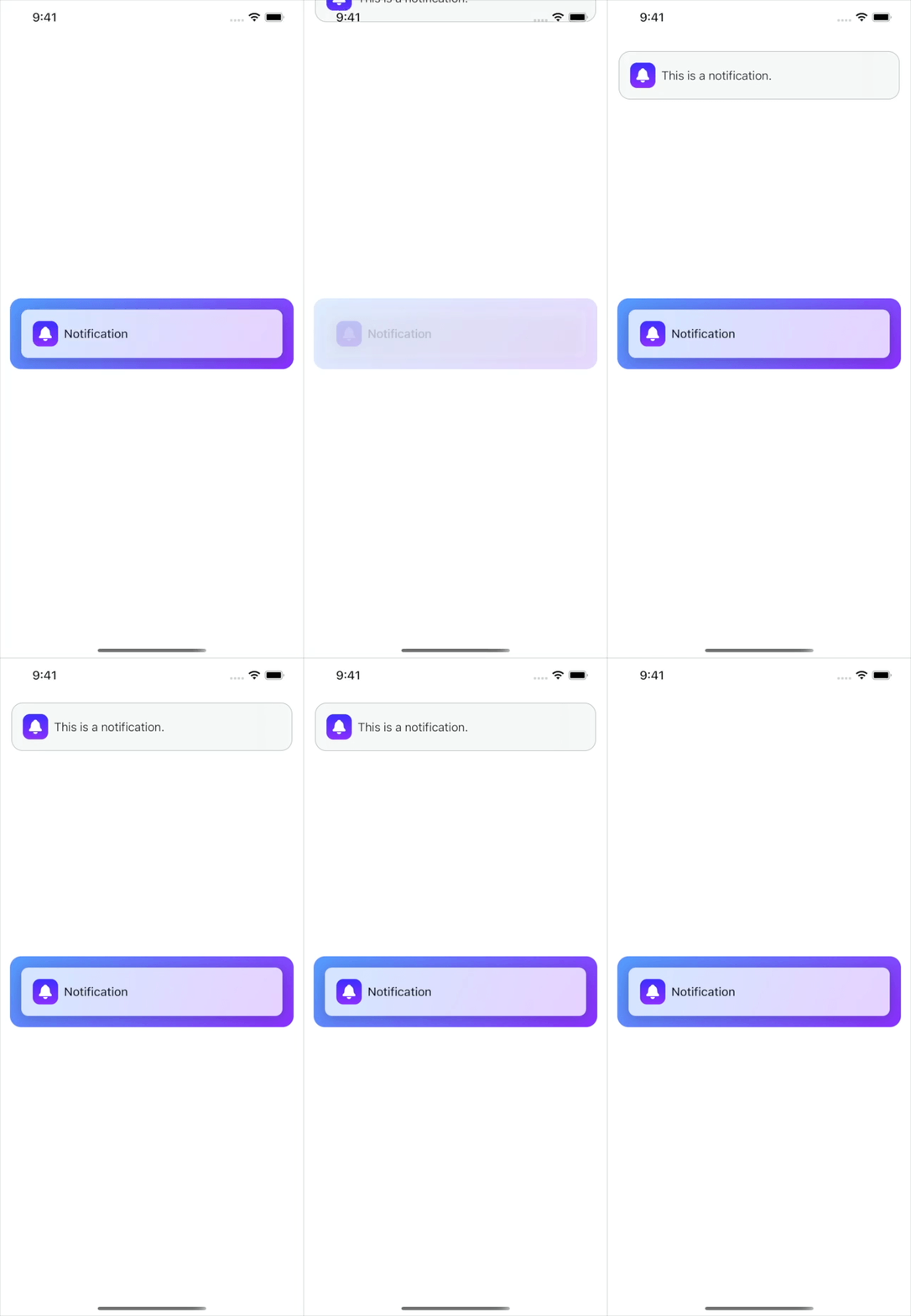
| Tutorial | Picture-in-Picture | Notification | ||
|
|
|
|
||
|
Swift Package Manager
Add the Package URL: |
Cocoapods
Add this to your Podfile: |
|
``` https://github.com/aheze/Popovers ``` |
``` pod 'Popovers' ``` |
|
SwiftUI
Configure in the attributes parameter.
|
UIKit
Modify the attributes property.
|
|
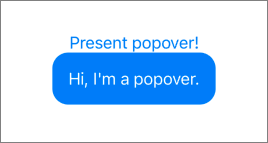
```swift .popover( present: $present, attributes: { $0.position = .absolute( originAnchor: .bottom, popoverAnchor: .topLeft ) } ) { Text("Hi, I'm a popover.") } ``` |
```swift var popover = Popover { Text("Hi, I'm a popover.") } popover.attributes.position = .absolute( originAnchor: .bottom, popoverAnchor: .topLeft ) present(popover) ``` |
|
SwiftUI
By default, the source frame is automatically set to the parent view. Setting this will override it. |
UIKit
It's highly recommended to provide a source frame, otherwise the popover will appear in the top-left of the screen. |
|
```swift $0.sourceFrame = { /** some CGRect here */ } ``` |
```swift /// use `weak` to prevent a retain cycle attributes.sourceFrame = { [weak button] in button.windowFrame() } ``` |
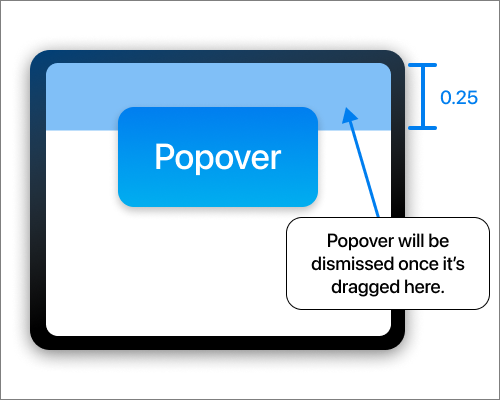 ### 🎾 Rubber Banding Mode • `RubberBandingMode`
Configures which axes the popover can "rubber-band" on when dragged. The default is `[.xAxis, .yAxis]`.
- `.xAxis` - enable rubber banding on the x-axis.
- `.yAxis` - enable rubber banding on the y-axis.
- `.none` - disable rubber banding.
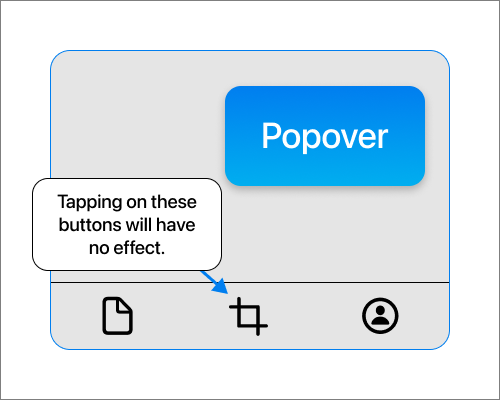
### 🛑 Blocks Background Touches • `Bool`
Set this to true to prevent underlying views from being pressed.
### 🎾 Rubber Banding Mode • `RubberBandingMode`
Configures which axes the popover can "rubber-band" on when dragged. The default is `[.xAxis, .yAxis]`.
- `.xAxis` - enable rubber banding on the x-axis.
- `.yAxis` - enable rubber banding on the y-axis.
- `.none` - disable rubber banding.
### 🛑 Blocks Background Touches • `Bool`
Set this to true to prevent underlying views from being pressed.
 ### 👓 Accessibility • `Accessibility` • [*`v1.2.0`*](https://github.com/aheze/Popovers/releases/tag/1.2.0)
Popovers is fully accessible! The `Accessibility` struct provides additional options for how VoiceOver should read out content.
```swift
/// Default values:
$0.accessibility.shiftFocus = true
$0.accessibility.dismissButtonLabel = defaultDismissButtonLabel /// An X icon wrapped in `AnyView?`
```
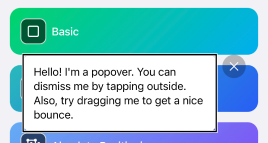
**Shift Focus:** If enabled, VoiceOver will focus the popover as soon as it's presented.
**Dismiss Button Label:** A button next to the popover that appears when VoiceOver is on. By default, this is an X circle.
|
### 👓 Accessibility • `Accessibility` • [*`v1.2.0`*](https://github.com/aheze/Popovers/releases/tag/1.2.0)
Popovers is fully accessible! The `Accessibility` struct provides additional options for how VoiceOver should read out content.
```swift
/// Default values:
$0.accessibility.shiftFocus = true
$0.accessibility.dismissButtonLabel = defaultDismissButtonLabel /// An X icon wrapped in `AnyView?`
```
**Shift Focus:** If enabled, VoiceOver will focus the popover as soon as it's presented.
**Dismiss Button Label:** A button next to the popover that appears when VoiceOver is on. By default, this is an X circle.
|  |
| --- |
Tip: You can also use the accessibility escape gesture (a 2-fingered Z-shape swipe) to dismiss all popovers.
### 👉 On Tap Outside • `(() -> Void)?`
A closure that's called whenever the user taps outside the popover.
### 🎈 On Dismiss • `(() -> Void)?`
A closure that's called when the popover is dismissed.
### 🔰 On Context Change • `((Context) -> Void)?`
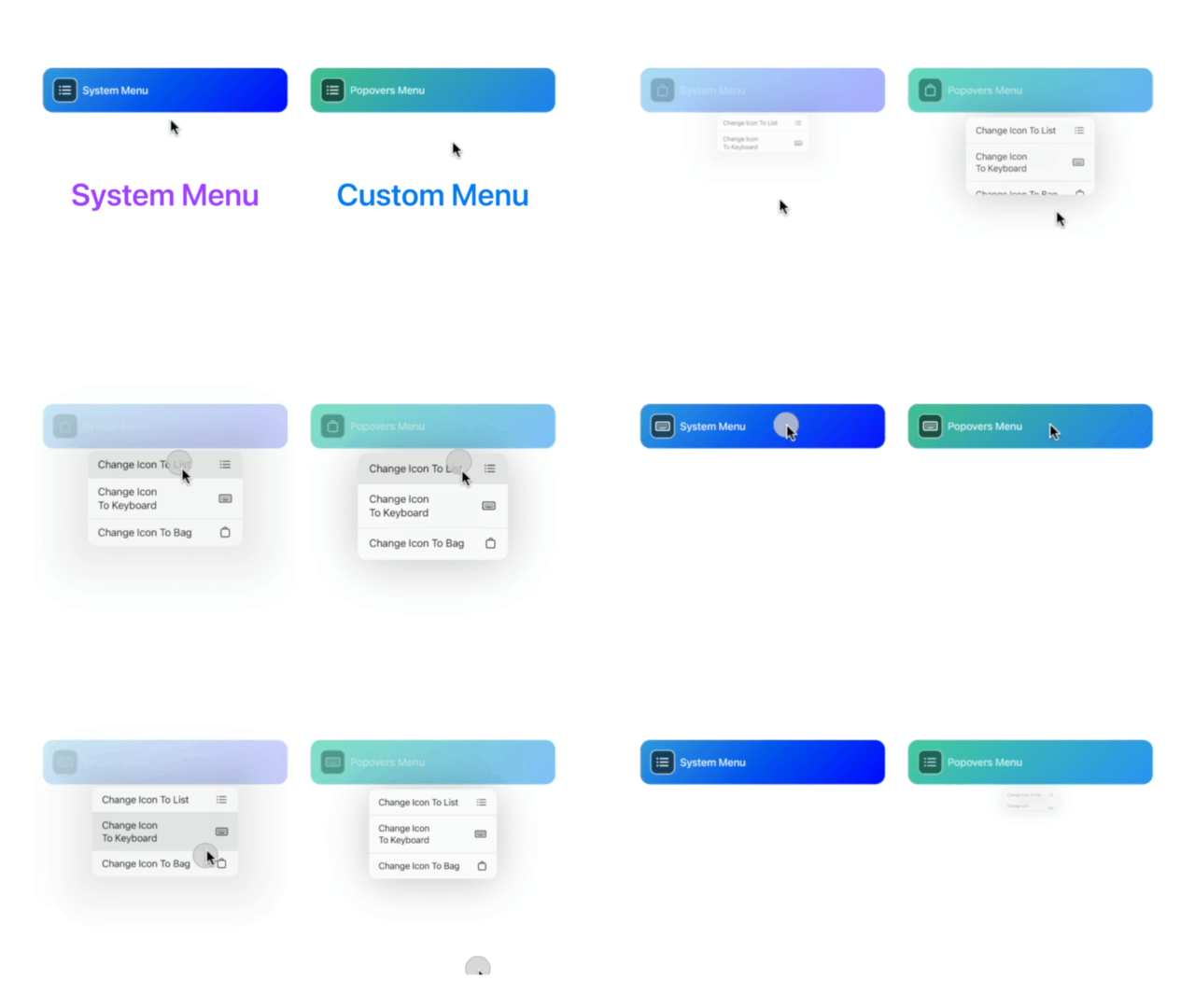
A closure that's called whenever the context changed. The context contains the popover's attributes, current frame, and other visible traits.
|
| --- |
Tip: You can also use the accessibility escape gesture (a 2-fingered Z-shape swipe) to dismiss all popovers.
### 👉 On Tap Outside • `(() -> Void)?`
A closure that's called whenever the user taps outside the popover.
### 🎈 On Dismiss • `(() -> Void)?`
A closure that's called when the popover is dismissed.
### 🔰 On Context Change • `((Context) -> Void)?`
A closure that's called whenever the context changed. The context contains the popover's attributes, current frame, and other visible traits.
 |
| --- |
|
| --- |
|
SwiftUI
Use the .popover(selection:tag:attributes:view:) modifier.
|
UIKit
Get the existing popover using UIResponder.popover(tagged:), then call UIResponder.replace(_:with:).
|
|
```swift struct ContentView: View { @State var selection: String? var body: some View { HStack { Button("Present First Popover") { selection = "1" } .popover(selection: $selection, tag: "1") { /// Will be presented when selection == "1". Text("Hi, I'm a popover.") .background(.blue) } Button("Present Second Popover") { selection = "2" } .popover(selection: $selection, tag: "2") { /// Will be presented when selection == "2". Text("Hi, I'm a popover.") .background(.green) } } } } ``` |
```swift @IBAction func button1Pressed(_ sender: Any) { var newPopover = Popover { Text("Hi, I'm a popover.").background(.blue) } newPopover.attributes.sourceFrame = { [weak button1] in button1.windowFrame() } newPopover.attributes.dismissal.excludedFrames = { [weak button2] in [button2.windowFrame()] } newPopover.attributes.tag = "Popover 1" if let oldPopover = popover(tagged: "Popover 2") { replace(oldPopover, with: newPopover) } else { present(newPopover) /// Present if the old popover doesn't exist. } } @IBAction func button2Pressed(_ sender: Any) { var newPopover = Popover { Text("Hi, I'm a popover.").background(.green) } newPopover.attributes.sourceFrame = { [weak button2] in button2.windowFrame() } newPopover.attributes.dismissal.excludedFrames = { [weak button1] in [button1.windowFrame()] } newPopover.attributes.tag = "Popover 2" if let oldPopover = popover(tagged: "Popover 1") { replace(oldPopover, with: newPopover) } else { present(newPopover) } } ``` |
 |
| --- |
### 🌃 Background
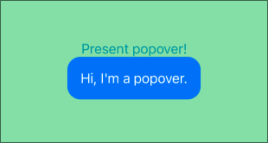
You can put anything in a popover's background.
|
| --- |
### 🌃 Background
You can put anything in a popover's background.
|
SwiftUI
Use the .popover(present:attributes:view:background:) modifier.
|
UIKit
Use the Popover(attributes:view:background:) initializer.
|
|
```swift .popover(present: $present) { PopoverView() } background: { /// here! Color.green.opacity(0.5) } ``` |
```swift var popover = Popover { PopoverView() } background: { /// here! Color.green.opacity(0.5) } ``` |
 ### 📖 Popover Reader
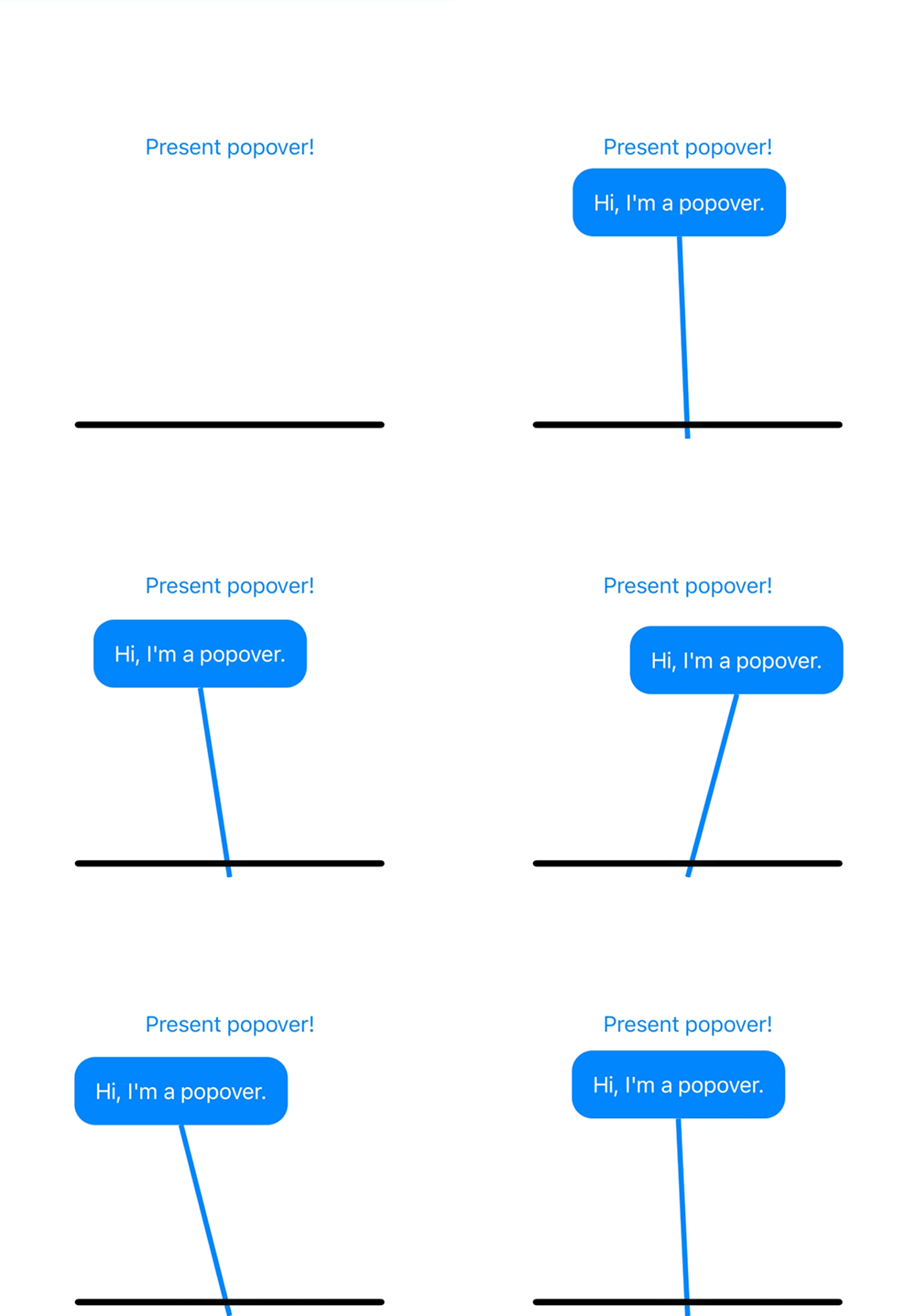
This reads the popover's context, which contains its frame, window, attributes, and various other properties. It's kind of like [`GeometryReader`](https://www.hackingwithswift.com/quick-start/swiftui/how-to-provide-relative-sizes-using-geometryreader), but cooler. You can put it in the popover's view or its background.
```swift
.popover(present: $present) {
PopoverView()
} background: {
PopoverReader { context in
Path {
$0.move(to: context.frame.point(at: .bottom))
$0.addLine(to: context.windowBounds.point(at: .bottom))
}
.stroke(Color.blue, lineWidth: 4)
}
}
```
|
### 📖 Popover Reader
This reads the popover's context, which contains its frame, window, attributes, and various other properties. It's kind of like [`GeometryReader`](https://www.hackingwithswift.com/quick-start/swiftui/how-to-provide-relative-sizes-using-geometryreader), but cooler. You can put it in the popover's view or its background.
```swift
.popover(present: $present) {
PopoverView()
} background: {
PopoverReader { context in
Path {
$0.move(to: context.frame.point(at: .bottom))
$0.addLine(to: context.windowBounds.point(at: .bottom))
}
.stroke(Color.blue, lineWidth: 4)
}
}
```
|  |
| --- |
### 🏷 Frame Tags
Popovers includes a mechanism for tagging and reading SwiftUI view frames. You can use this to provide a popover's `sourceFrame` or `excludedFrames`. Also works great when combined with `PopoverReader`, for connecting lines with anchor views.
```swift
Text("This is a view")
.frameTag("Your Tag Name") /// Adds a tag inside the window.
/// ...
WindowReader { window in
Text("Click me!")
.popover(
present: $present,
attributes: {
$0.sourceFrame = window.frameTagged("Your Tag Name") /// Retrieves a tag from the window.
}
)
}
```
### 📄 Templates
Get started quickly with some templates. All of them are inside [`Templates`](Sources/Templates) with example usage in the example app.
- `AlertButtonStyle` - a button style resembling a system alert.
- `VisualEffectView` - lets you use UIKit blurs in SwiftUI.
- `Container` - a wrapper view for the `BackgroundWithArrow` shape.
- `Shadow` - an easier way to apply shadows.
- `BackgroundWithArrow` - a shape with an arrow that looks like the system popover.
- `CurveConnector` - an animatable shape with endpoints that you can set.
- `Menu` - the system menu, but built from scratch.
|
| --- |
### 🏷 Frame Tags
Popovers includes a mechanism for tagging and reading SwiftUI view frames. You can use this to provide a popover's `sourceFrame` or `excludedFrames`. Also works great when combined with `PopoverReader`, for connecting lines with anchor views.
```swift
Text("This is a view")
.frameTag("Your Tag Name") /// Adds a tag inside the window.
/// ...
WindowReader { window in
Text("Click me!")
.popover(
present: $present,
attributes: {
$0.sourceFrame = window.frameTagged("Your Tag Name") /// Retrieves a tag from the window.
}
)
}
```
### 📄 Templates
Get started quickly with some templates. All of them are inside [`Templates`](Sources/Templates) with example usage in the example app.
- `AlertButtonStyle` - a button style resembling a system alert.
- `VisualEffectView` - lets you use UIKit blurs in SwiftUI.
- `Container` - a wrapper view for the `BackgroundWithArrow` shape.
- `Shadow` - an easier way to apply shadows.
- `BackgroundWithArrow` - a shape with an arrow that looks like the system popover.
- `CurveConnector` - an animatable shape with endpoints that you can set.
- `Menu` - the system menu, but built from scratch.
|
Yes
The popover's view is in a separate struct, with $string passed down.
|
No
The button is directly inside the view parameter and receives string.
|
|
```swift struct ContentView: View { @State var present = false @State var string = "Hello, I'm a popover." var body: some View { Button("Present popover!") { present = true } .popover(present: $present) { PopoverView(string: $string) /// Pass down a Binding ($). } } } /// Create a separate view to ensure that the button updates. struct PopoverView: View { @Binding var string: String var body: some View { Button(string) { string = "The string changed." } .background(.mint) .cornerRadius(16) } } ``` |
```swift struct ContentView: View { @State var present = false @State var string = "Hello, I'm a popover." var body: some View { Button("Present popover!") { present = true } .popover(present: $present) { /// Directly passing down the variable (without $) is unsupported. /// The button might not update. Button(string) { string = "The string changed." } .background(.mint) .cornerRadius(16) } } } ``` |
 [AnyTracker](https://apps.apple.com/app/anytracker-track-anything/id6450756953) is an app that tracks numbers, text and prices on websites. It uses Popovers to display sleek dialogs with a nice background blur.
[Track Attack!](https://apps.apple.com/us/app/track-attack/id1557802135) is the ultimate vehicle enthusiast app for the road and track. Modern UI. Dual front & rear cameras. GPS & sensor data. RPM and throttle. Heart rate with Apple Watch. Lap timing for the track & multi-waypoint routing for the road. Easily export and share video with data overlays. Track Attack uses Popovers to display the onboarding tutorial and in-app notifications.
If you have an app that uses Popovers, just make a PR or [message me](https://twitter.com/aheze0). ## License ``` MIT License Copyright (c) 2023 A. Zheng Permission is hereby granted, free of charge, to any person obtaining a copy of this software and associated documentation files (the "Software"), to deal in the Software without restriction, including without limitation the rights to use, copy, modify, merge, publish, distribute, sublicense, and/or sell copies of the Software, and to permit persons to whom the Software is furnished to do so, subject to the following conditions: The above copyright notice and this permission notice shall be included in all copies or substantial portions of the Software. THE SOFTWARE IS PROVIDED "AS IS", WITHOUT WARRANTY OF ANY KIND, EXPRESS OR IMPLIED, INCLUDING BUT NOT LIMITED TO THE WARRANTIES OF MERCHANTABILITY, FITNESS FOR A PARTICULAR PURPOSE AND NONINFRINGEMENT. IN NO EVENT SHALL THE AUTHORS OR COPYRIGHT HOLDERS BE LIABLE FOR ANY CLAIM, DAMAGES OR OTHER LIABILITY, WHETHER IN AN ACTION OF CONTRACT, TORT OR OTHERWISE, ARISING FROM, OUT OF OR IN CONNECTION WITH THE SOFTWARE OR THE USE OR OTHER DEALINGS IN THE SOFTWARE. ```