




 # Installation
### Swift Package Manager
The Swift Package Manager is a tool for managing the distribution of Swift code. It’s integrated with the Swift build system to automate the process of downloading, compiling, and linking dependencies.
To use SwiftPM, you should use Xcode 11+ to open your project. Click `File` -> `Swift Packages` -> `Add Package Dependency`, enter [InstantSearch VoiceOverlay repo's URL](https://github.com/algolia/voice-overlay-ios).
If you're a framework author and use VoiceOverlay as a dependency, update your `Package.swift` file:
```swift
let package = Package(
// 1.1.0 ..< 2.0.0
dependencies: [
.package(url: "https://github.com/algolia/voice-overlay-ios", from: "1.1.0")
],
// ...
)
```
#### CocoaPods
`InstantSearchVoiceOverlay` is available through [CocoaPods](http://cocoapods.org). To install
it, add the following line to your Podfile:
```ruby
pod 'InstantSearchVoiceOverlay', '~> 1.1.0'
```
### Carthage
[Carthage](https://github.com/Carthage/Carthage) is a simple, decentralized dependency manager for Cocoa.
To install InstantSearchVoiceOverlay, add the following line to your Cartfile:
```ruby
github "algolia/voice-overlay-ios" ~> 1.1.0
```
# Usage
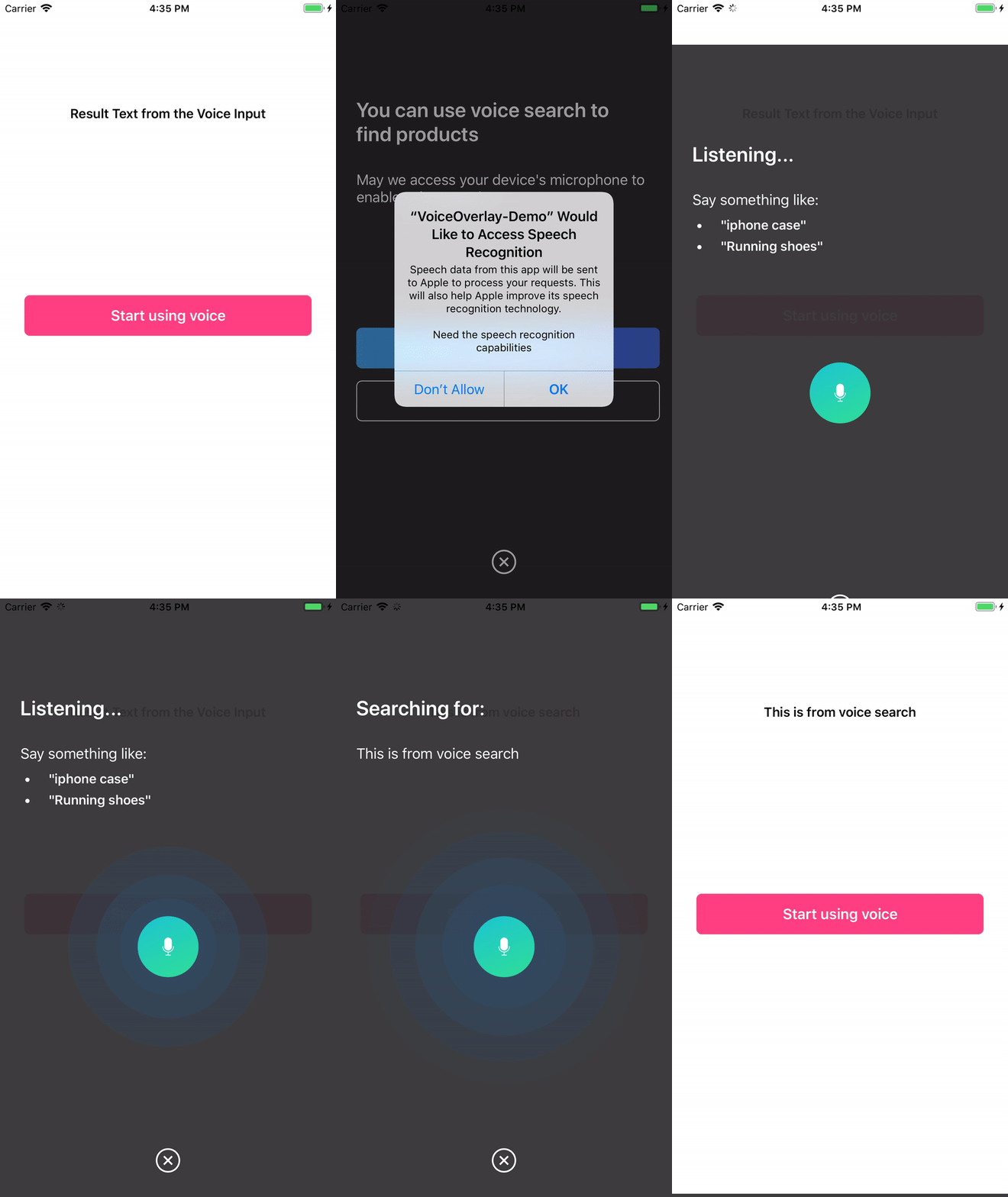
1. In `Info.plist`, add these 2 string properties along with the description
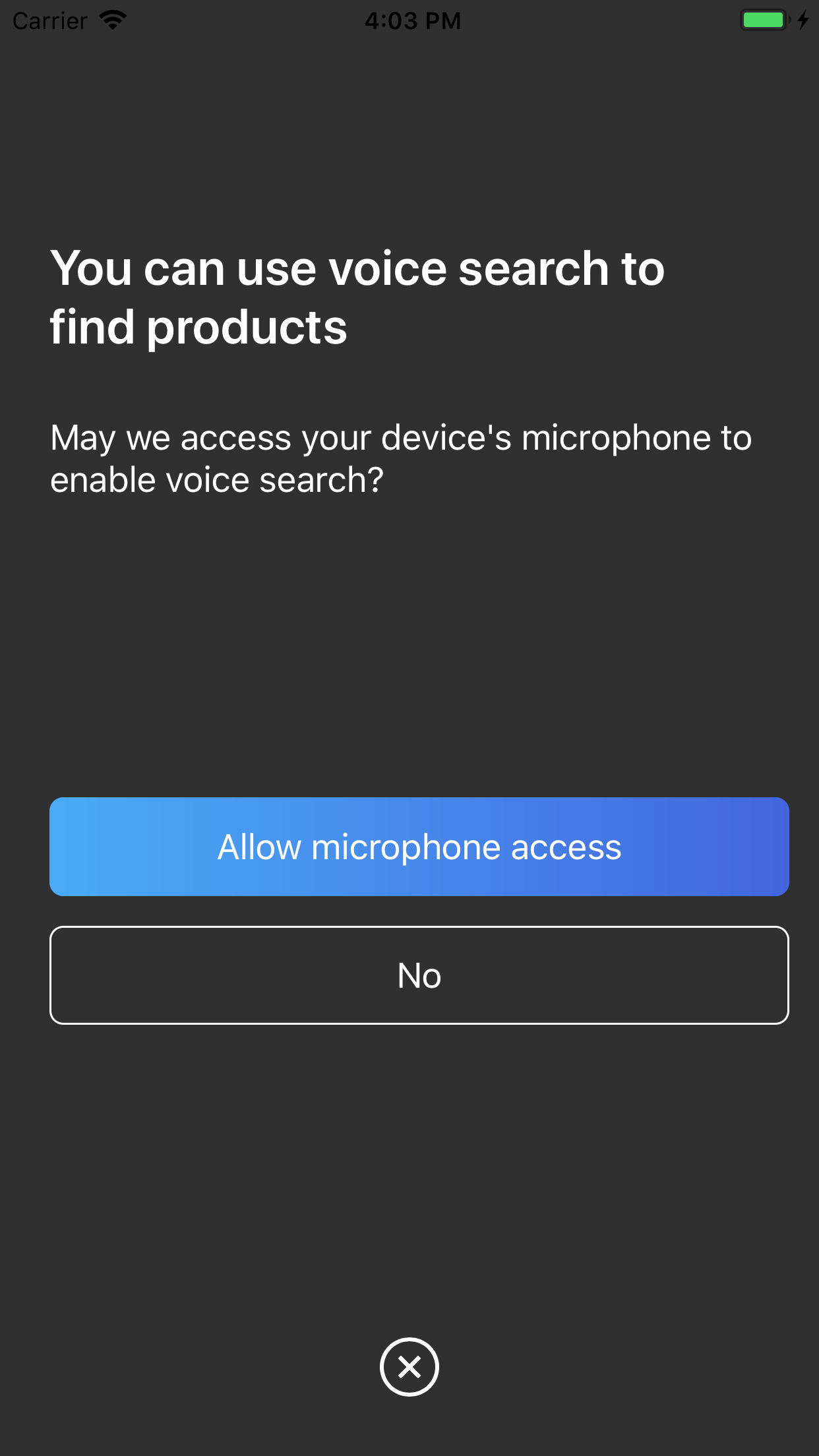
- `Privacy - Microphone Usage Description` with a description like: `Need the mic for audio to text`
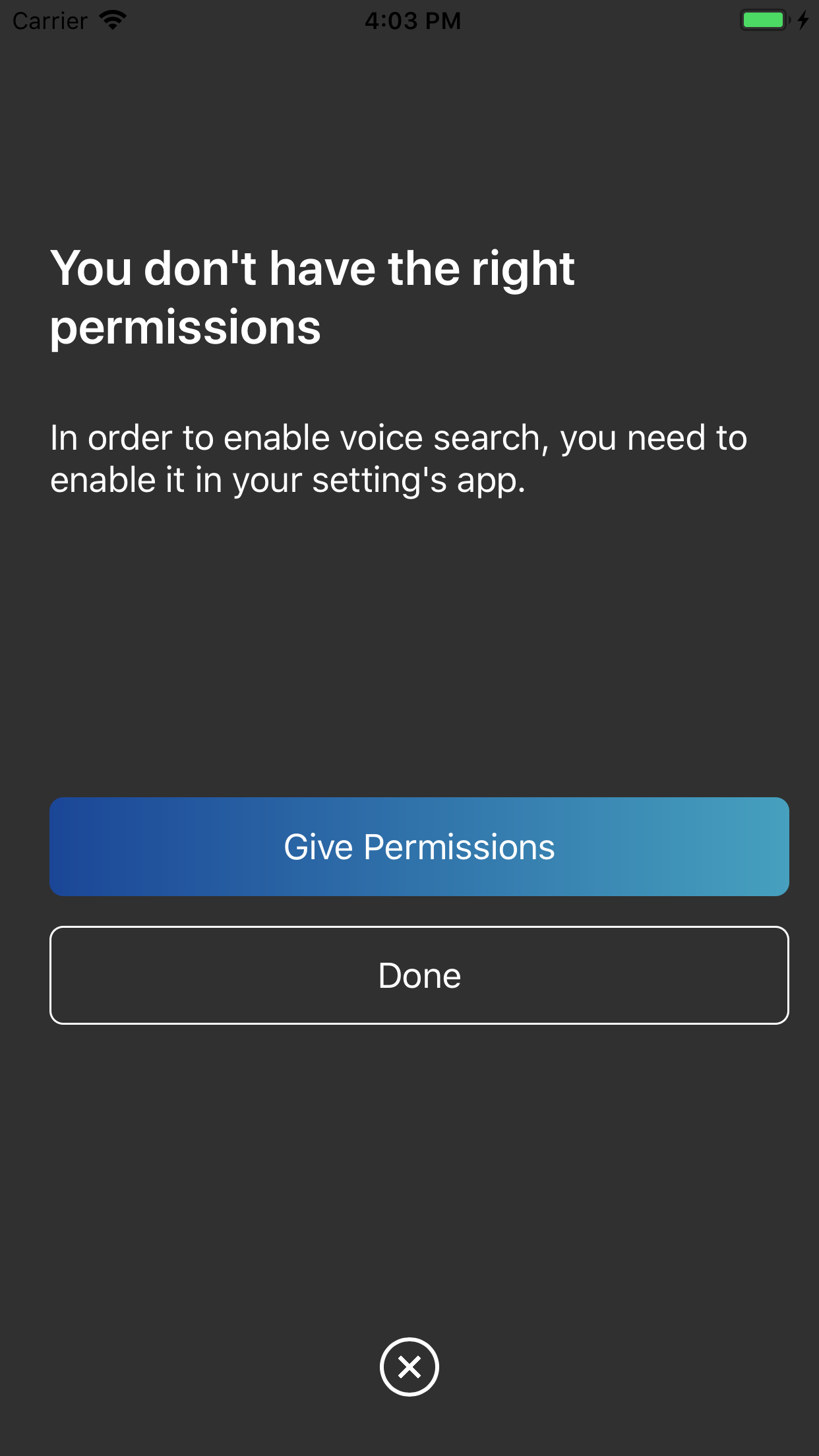
- `Privacy - Speech Recognition Usage Description` some description like: `Need the speech recognition capabilities for searching tags`
# Installation
### Swift Package Manager
The Swift Package Manager is a tool for managing the distribution of Swift code. It’s integrated with the Swift build system to automate the process of downloading, compiling, and linking dependencies.
To use SwiftPM, you should use Xcode 11+ to open your project. Click `File` -> `Swift Packages` -> `Add Package Dependency`, enter [InstantSearch VoiceOverlay repo's URL](https://github.com/algolia/voice-overlay-ios).
If you're a framework author and use VoiceOverlay as a dependency, update your `Package.swift` file:
```swift
let package = Package(
// 1.1.0 ..< 2.0.0
dependencies: [
.package(url: "https://github.com/algolia/voice-overlay-ios", from: "1.1.0")
],
// ...
)
```
#### CocoaPods
`InstantSearchVoiceOverlay` is available through [CocoaPods](http://cocoapods.org). To install
it, add the following line to your Podfile:
```ruby
pod 'InstantSearchVoiceOverlay', '~> 1.1.0'
```
### Carthage
[Carthage](https://github.com/Carthage/Carthage) is a simple, decentralized dependency manager for Cocoa.
To install InstantSearchVoiceOverlay, add the following line to your Cartfile:
```ruby
github "algolia/voice-overlay-ios" ~> 1.1.0
```
# Usage
1. In `Info.plist`, add these 2 string properties along with the description
- `Privacy - Microphone Usage Description` with a description like: `Need the mic for audio to text`
- `Privacy - Speech Recognition Usage Description` some description like: `Need the speech recognition capabilities for searching tags`
 2. Start the Voice Overlay and listen to the text output:
```swift
import InstantSearchVoiceOverlay
class ViewController: UIViewController {
let voiceOverlayController = VoiceOverlayController()
@objc func voiceButtonTapped() {
voiceOverlayController.start(on: self, textHandler: { (text, final) in
print("voice output: \(String(describing: text))")
print("voice output: is it final? \(String(describing: final))")
}, errorHandler: { (error) in
print("voice output: error \(String(describing: error))")
})
}
```
## Customization
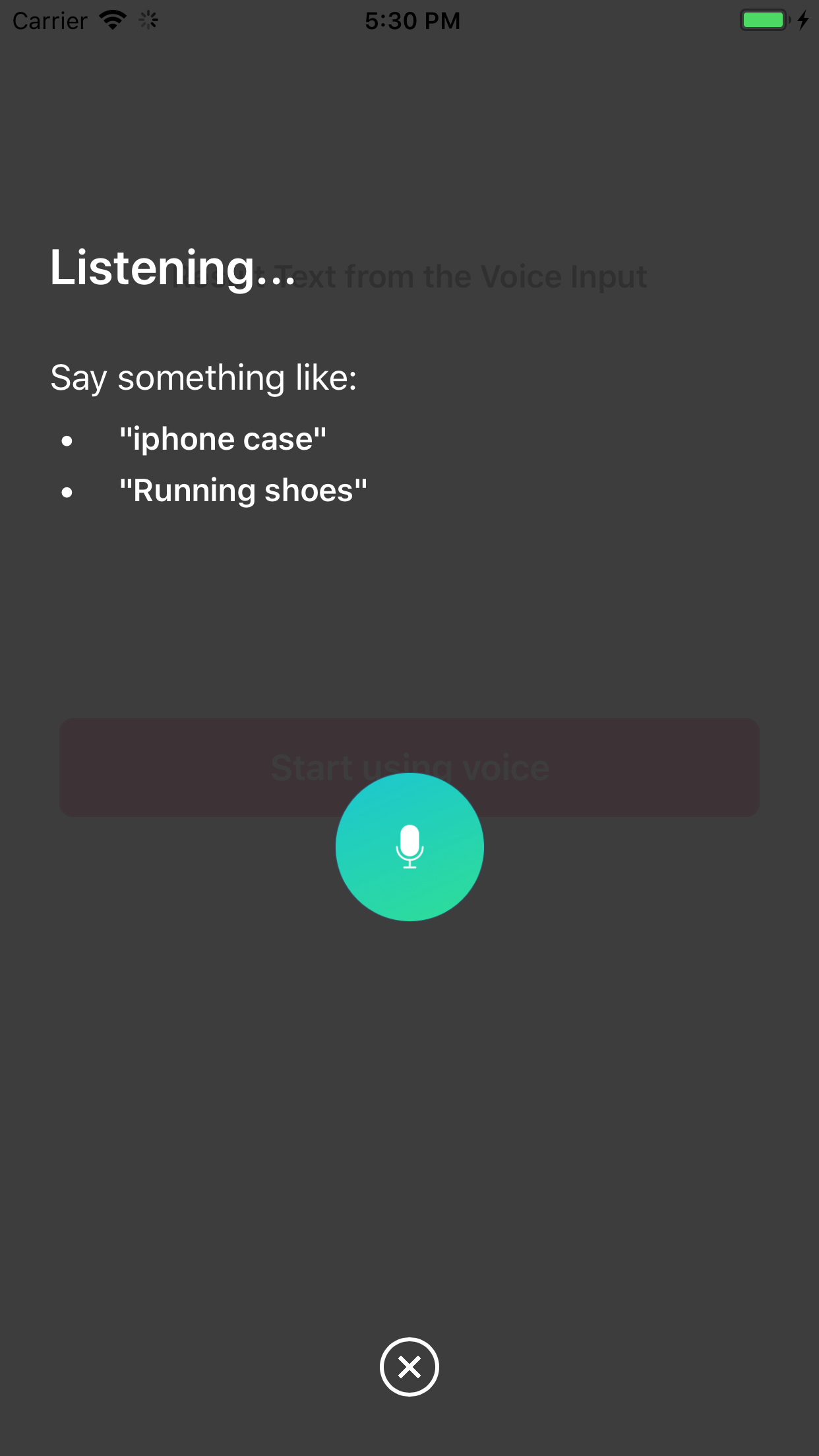
You can customize your voice overlay by modifying the `settings` property of the voiceOverlayController:
```swift
/// Specifies whether the overlay directly starts recording (true),
/// or if it requires the user to click the mic (false). Defaults to true.
voiceOverlayController.settings.autoStart = true
/// Specifies whether the overlay stops recording after the user stops talking for `autoStopTimeout`
/// seconds (true), or if it requires the user to click the mic (false). Defaults to true.
voiceOverlayController.settings.autoStop = true
/// When autoStop is set to true, autoStopTimeout determines the amount of
/// silence time of the user that causes the recording to stop. Defaults to 2.
voiceOverlayController.settings.autoStopTimeout = 2
/// The layout and style of all screens of the voice overlay.
voiceOverlayController.settings.layout.
2. Start the Voice Overlay and listen to the text output:
```swift
import InstantSearchVoiceOverlay
class ViewController: UIViewController {
let voiceOverlayController = VoiceOverlayController()
@objc func voiceButtonTapped() {
voiceOverlayController.start(on: self, textHandler: { (text, final) in
print("voice output: \(String(describing: text))")
print("voice output: is it final? \(String(describing: final))")
}, errorHandler: { (error) in
print("voice output: error \(String(describing: error))")
})
}
```
## Customization
You can customize your voice overlay by modifying the `settings` property of the voiceOverlayController:
```swift
/// Specifies whether the overlay directly starts recording (true),
/// or if it requires the user to click the mic (false). Defaults to true.
voiceOverlayController.settings.autoStart = true
/// Specifies whether the overlay stops recording after the user stops talking for `autoStopTimeout`
/// seconds (true), or if it requires the user to click the mic (false). Defaults to true.
voiceOverlayController.settings.autoStop = true
/// When autoStop is set to true, autoStopTimeout determines the amount of
/// silence time of the user that causes the recording to stop. Defaults to 2.
voiceOverlayController.settings.autoStopTimeout = 2
/// The layout and style of all screens of the voice overlay.
voiceOverlayController.settings.layout.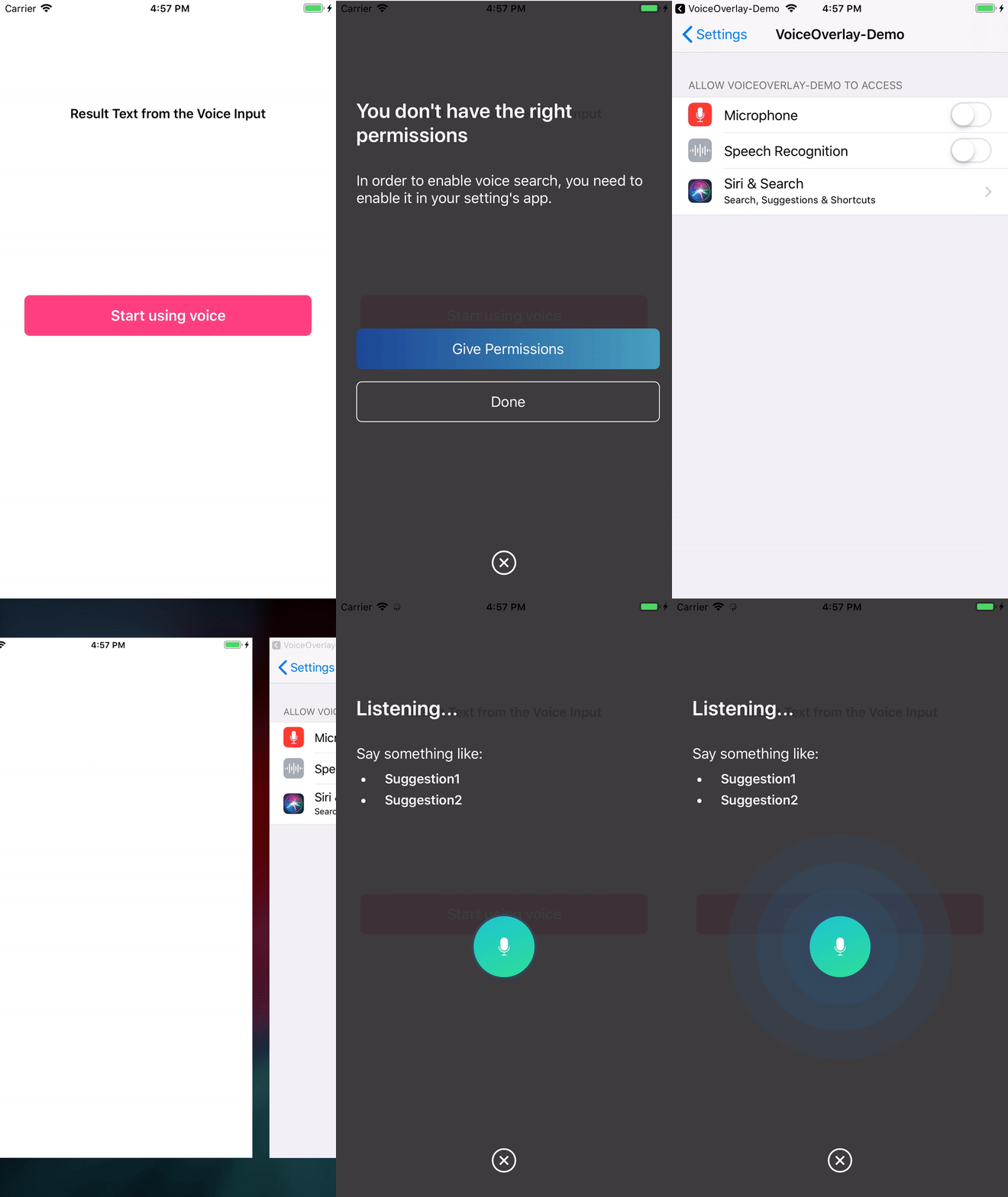 ## Result Screen (Beta)
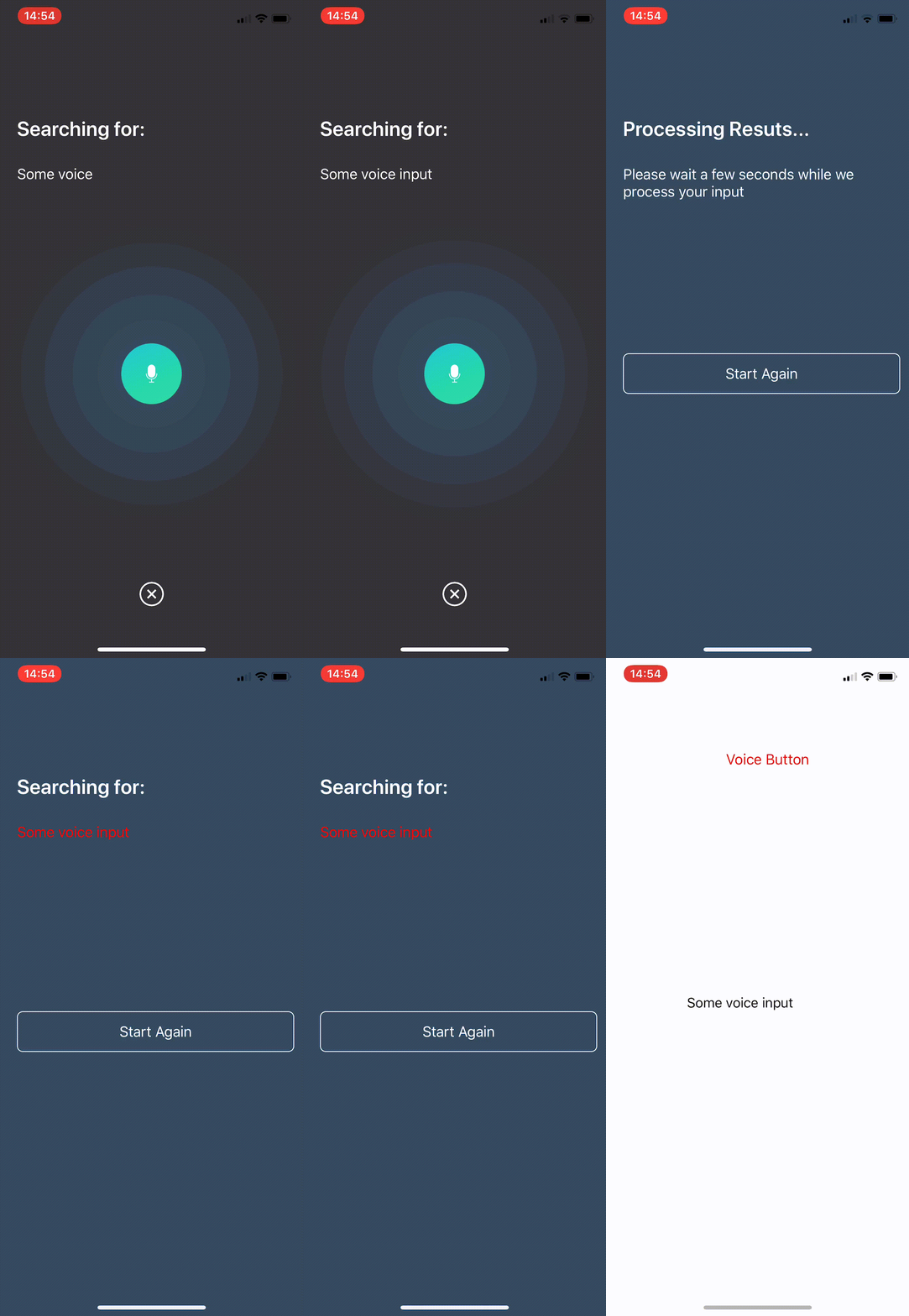 The result screen appears when `showResultScreen` is set to true.
```swift
/// Whether or not to show a result screen after the recording is finished.
voiceOverlayController.settings.showResultScreen = true
/// Timeout for showing the result screen in case no resultScreenText is provided on time.
voiceOverlayController.settings.showResultScreenTimeout = 2
/// Time for showing the result screen with the provided resultScreenText.
voiceOverlayController.settings.showResultScreenTime = 4
/// The processed result screen text that should be appear in the result screen.
voiceOverlayController.settings.resultScreenText = NSAttributedString(string: myString, attributes: myAttributes)
```
The widget provides a `resultScreenHandler` for when the result screen is dismissed (provided the "Start again" button is not clicked). The handler provides the text that has been set in `resultScreenText` beforehand.
```swift
voiceOverlayController.start(on: self, textHandler: { (text, final) in
print("getting \(String(describing: text))")
print("is it final? \(String(describing: final))")
if final {
// Process the result to post in the result screen.
// The timer here simulates a network processing call that took 1.5 seconds.
Timer.scheduledTimer(withTimeInterval: 1.5, repeats: false, block: { (_) in
let myString = text
let myAttribute = [ NSAttributedString.Key.foregroundColor: UIColor.red ]
let myAttrString = NSAttributedString(string: myString, attributes: myAttribute)
self.voiceOverlayController.settings.resultScreenText = myAttrString
})
}
}, errorHandler: { (error) in
print("error \(String(describing: error))")
}, resultScreenHandler: { (text) in
print("Result Screen: \(text)")
})
```
## Getting Help
- **Need help**? Ask a question to the [Algolia Community](https://discourse.algolia.com/) or on [Stack Overflow](http://stackoverflow.com/questions/tagged/algolia).
- **Found a bug?** You can open a [GitHub issue](https://github.com/algolia/instantsearch-ios-insights).
- **Questions about Algolia?** You can search our [FAQ in our website](https://www.algolia.com/doc/faq/).
## Getting involved
* If you **want to contribute** please feel free to **submit pull requests**.
* If you **have a feature request** please **open an issue**.
* If you use **InstantSearch** in your app, we would love to hear about it! Drop us a line on [discourse](https://discourse.algolia.com/) or [twitter](https://twitter.com/algolia).
## License
InstantSearchVoiceOverlay is available under the MIT license. See the [LICENSE file](./LICENSE.md) for more info.
The result screen appears when `showResultScreen` is set to true.
```swift
/// Whether or not to show a result screen after the recording is finished.
voiceOverlayController.settings.showResultScreen = true
/// Timeout for showing the result screen in case no resultScreenText is provided on time.
voiceOverlayController.settings.showResultScreenTimeout = 2
/// Time for showing the result screen with the provided resultScreenText.
voiceOverlayController.settings.showResultScreenTime = 4
/// The processed result screen text that should be appear in the result screen.
voiceOverlayController.settings.resultScreenText = NSAttributedString(string: myString, attributes: myAttributes)
```
The widget provides a `resultScreenHandler` for when the result screen is dismissed (provided the "Start again" button is not clicked). The handler provides the text that has been set in `resultScreenText` beforehand.
```swift
voiceOverlayController.start(on: self, textHandler: { (text, final) in
print("getting \(String(describing: text))")
print("is it final? \(String(describing: final))")
if final {
// Process the result to post in the result screen.
// The timer here simulates a network processing call that took 1.5 seconds.
Timer.scheduledTimer(withTimeInterval: 1.5, repeats: false, block: { (_) in
let myString = text
let myAttribute = [ NSAttributedString.Key.foregroundColor: UIColor.red ]
let myAttrString = NSAttributedString(string: myString, attributes: myAttribute)
self.voiceOverlayController.settings.resultScreenText = myAttrString
})
}
}, errorHandler: { (error) in
print("error \(String(describing: error))")
}, resultScreenHandler: { (text) in
print("Result Screen: \(text)")
})
```
## Getting Help
- **Need help**? Ask a question to the [Algolia Community](https://discourse.algolia.com/) or on [Stack Overflow](http://stackoverflow.com/questions/tagged/algolia).
- **Found a bug?** You can open a [GitHub issue](https://github.com/algolia/instantsearch-ios-insights).
- **Questions about Algolia?** You can search our [FAQ in our website](https://www.algolia.com/doc/faq/).
## Getting involved
* If you **want to contribute** please feel free to **submit pull requests**.
* If you **have a feature request** please **open an issue**.
* If you use **InstantSearch** in your app, we would love to hear about it! Drop us a line on [discourse](https://discourse.algolia.com/) or [twitter](https://twitter.com/algolia).
## License
InstantSearchVoiceOverlay is available under the MIT license. See the [LICENSE file](./LICENSE.md) for more info.