# dsh-safe-tui
A safe-mode recovery TUI for DeepSeek Harness.
## Demo
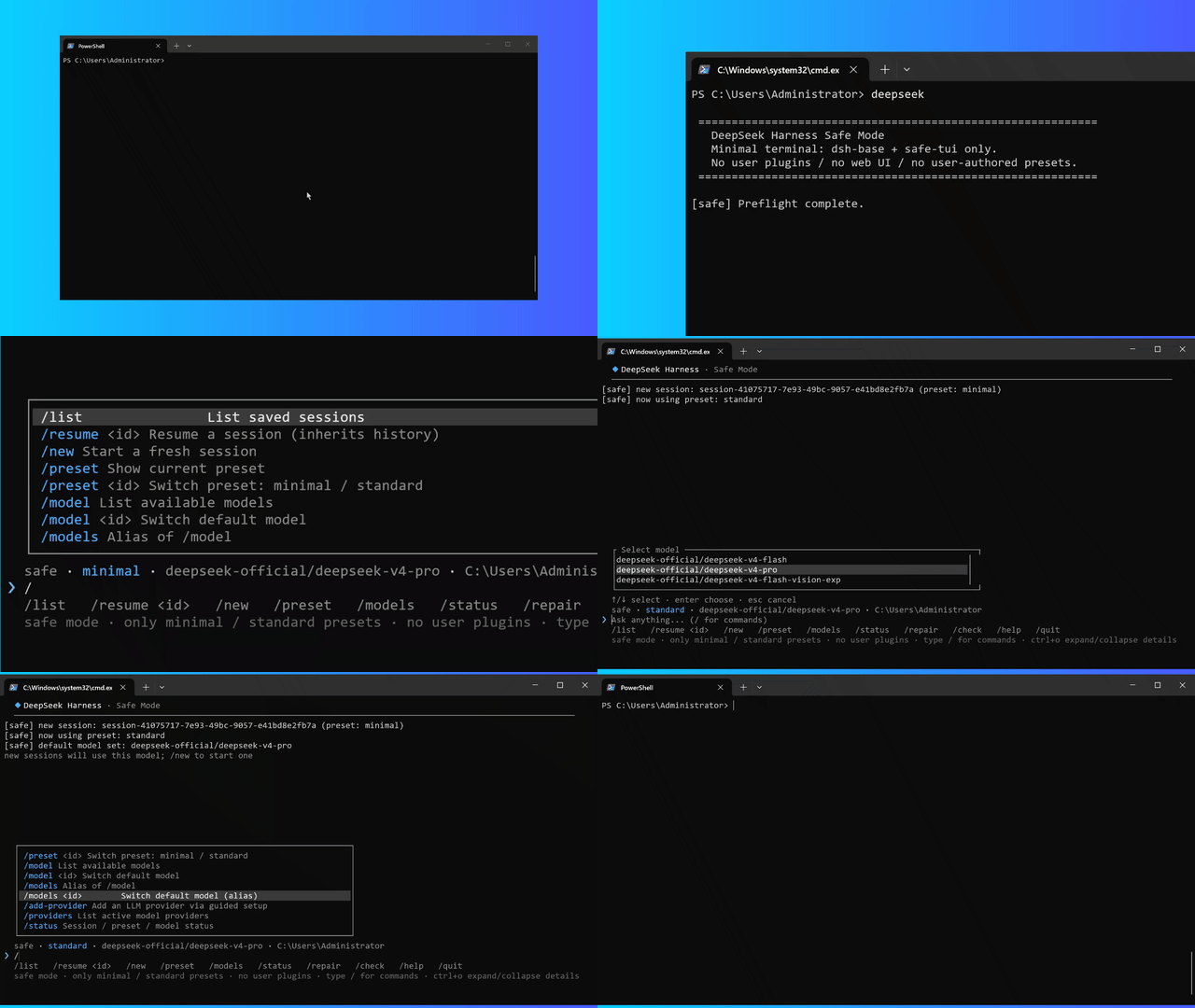 ## What it is
When the main Web UI cannot start because of a broken plugin/client patch, use this standalone terminal to:
- Load only `dsh-base` + `dsh-safe-tui`; no user plugins, no Web UI.
- Disable user-authored presets (`includeUserRoot: false`); only official system presets are exposed: `minimal` / `standard` / `code` / `cordis`.
- Inherit existing DeepSeek history from `~/.dsh/sessions` (`/sessions`).
- Repair corrupted official client files from bundled pristine copies (`/repair` or the standalone Repair shortcut).
- Switch models and providers (`/models`, `/providers`, `/add-provider`).
> Difference: `dsh-safe-tui` is a **safe-mode / recovery** TUI. It does not load user plugins or Web UI and only exposes official system presets (`minimal` / `standard` / `code` / `cordis`). It is not a general-purpose daily-driver TUI skin (e.g. `ccch1mneyyy/dsh-TUI`); the two have different purposes and can complement each other.
## Quick start
```bash
# Install the plugin into a fresh safe profile
dsh plugin --profile safe add github:aorucshiea/dsh-safe-tui#v0.4.16
```
Then either:
```bash
dsh --profile safe
```
or, if the `deepseek` command is available:
```bash
deepseek
```
The `deepseek` command opens the same full-screen TUI directly.
### Getting the `deepseek` command
- If the package is installed through npm/global tooling, the `deepseek` binary is provided automatically.
- On Windows you can also copy `deepseek.cmd` from this repository into a directory on `PATH`, for example:
```bat
copy deepseek.cmd %APPDATA%\npm\
```
Then open a new terminal and run:
```bat
deepseek
```
## TUI commands
```text
/help /sessions /sessions all /new /preset [minimal|standard|code|cordis] /models /models /providers /add-provider /status /repair /clean /check /quit
```
Official system presets:
- `minimal` — minimal mode: persistent bash + `str_replace_editor` only.
- `standard` — standard mode: full coding agent (files, shell, search, skills, plans, goals, subagents, workflows).
- `code` — PTC mode: all standard capabilities plus the Code Mode TypeScript SDK for multi-step operations.
- `cordis` — creation mode: all standard capabilities plus runtime inspection, plugin experimentation, and preset authoring.
- Type `/` to open the command palette.
- Use `↑` / `↓` to navigate, `Enter` to choose, `Esc` to cancel.
- Selecting `/model`, `/sessions`, or `/preset` opens a second-level picker.
- `/sessions` uses an OpenCode-style Sessions dialog: type to filter, grouped by Today/Yesterday/date, workspace folder at the end of each row, current session marked with `●`; press `Ctrl+X` twice to delete the selected session.
- `/clean` or `dsh --profile safe --clean` deletes all empty sessions that have no AI-generated content.
- While a turn is generating, press **`Ctrl+C`** or **`Esc`** to cancel the current turn.
- In the `/preset` picker, press `i` or `?` to show/hide the highlighted preset's description.
- When the input is empty, `↑` / `↓` or `PgUp` / `PgDn` scroll through conversation history; while typing, `↑` / `↓` recall command history.
- Model reasoning and tool calls are collapsed to one line by default; press `Ctrl+O` to expand/collapse details. The mouse wheel can also scroll history.
- You can switch `preset` inside an existing session; a warning is shown because old tool calls may not match the new preset.
## Other CLI usage
```bash
dsh --profile safe "your question" # one-shot
dsh --profile safe --list # list saved sessions
dsh --profile safe --resume # resume in TUI
dsh --profile safe --models # list models
dsh --profile safe --providers # list providers
dsh --profile safe --model # switch default model
dsh --profile safe --check # health check
dsh --profile safe --repair # repair broken files
```
## Repository
## License
MIT
## What it is
When the main Web UI cannot start because of a broken plugin/client patch, use this standalone terminal to:
- Load only `dsh-base` + `dsh-safe-tui`; no user plugins, no Web UI.
- Disable user-authored presets (`includeUserRoot: false`); only official system presets are exposed: `minimal` / `standard` / `code` / `cordis`.
- Inherit existing DeepSeek history from `~/.dsh/sessions` (`/sessions`).
- Repair corrupted official client files from bundled pristine copies (`/repair` or the standalone Repair shortcut).
- Switch models and providers (`/models`, `/providers`, `/add-provider`).
> Difference: `dsh-safe-tui` is a **safe-mode / recovery** TUI. It does not load user plugins or Web UI and only exposes official system presets (`minimal` / `standard` / `code` / `cordis`). It is not a general-purpose daily-driver TUI skin (e.g. `ccch1mneyyy/dsh-TUI`); the two have different purposes and can complement each other.
## Quick start
```bash
# Install the plugin into a fresh safe profile
dsh plugin --profile safe add github:aorucshiea/dsh-safe-tui#v0.4.16
```
Then either:
```bash
dsh --profile safe
```
or, if the `deepseek` command is available:
```bash
deepseek
```
The `deepseek` command opens the same full-screen TUI directly.
### Getting the `deepseek` command
- If the package is installed through npm/global tooling, the `deepseek` binary is provided automatically.
- On Windows you can also copy `deepseek.cmd` from this repository into a directory on `PATH`, for example:
```bat
copy deepseek.cmd %APPDATA%\npm\
```
Then open a new terminal and run:
```bat
deepseek
```
## TUI commands
```text
/help /sessions /sessions all /new /preset [minimal|standard|code|cordis] /models /models /providers /add-provider /status /repair /clean /check /quit
```
Official system presets:
- `minimal` — minimal mode: persistent bash + `str_replace_editor` only.
- `standard` — standard mode: full coding agent (files, shell, search, skills, plans, goals, subagents, workflows).
- `code` — PTC mode: all standard capabilities plus the Code Mode TypeScript SDK for multi-step operations.
- `cordis` — creation mode: all standard capabilities plus runtime inspection, plugin experimentation, and preset authoring.
- Type `/` to open the command palette.
- Use `↑` / `↓` to navigate, `Enter` to choose, `Esc` to cancel.
- Selecting `/model`, `/sessions`, or `/preset` opens a second-level picker.
- `/sessions` uses an OpenCode-style Sessions dialog: type to filter, grouped by Today/Yesterday/date, workspace folder at the end of each row, current session marked with `●`; press `Ctrl+X` twice to delete the selected session.
- `/clean` or `dsh --profile safe --clean` deletes all empty sessions that have no AI-generated content.
- While a turn is generating, press **`Ctrl+C`** or **`Esc`** to cancel the current turn.
- In the `/preset` picker, press `i` or `?` to show/hide the highlighted preset's description.
- When the input is empty, `↑` / `↓` or `PgUp` / `PgDn` scroll through conversation history; while typing, `↑` / `↓` recall command history.
- Model reasoning and tool calls are collapsed to one line by default; press `Ctrl+O` to expand/collapse details. The mouse wheel can also scroll history.
- You can switch `preset` inside an existing session; a warning is shown because old tool calls may not match the new preset.
## Other CLI usage
```bash
dsh --profile safe "your question" # one-shot
dsh --profile safe --list # list saved sessions
dsh --profile safe --resume # resume in TUI
dsh --profile safe --models # list models
dsh --profile safe --providers # list providers
dsh --profile safe --model # switch default model
dsh --profile safe --check # health check
dsh --profile safe --repair # repair broken files
```
## Repository
## License
MIT