<% set_title(product_name_long, "in 15 Minutes or Less") %>
Need a quick introduction to <%=vars.product_name_long%>? Take this brief tour to try out basic features and functionality.
## Step 1: Install <%=vars.product_name_long%>
See [How to Install](installation/install_standalone.html#concept_0129F6A1D0EB42C4A3D24861AF2C5425) for instructions.
## Step 2: Use gfsh to start a locator
In a terminal window, use the `gfsh` command line interface to start up a locator. <%=vars.product_name_long%> *gfsh* (pronounced "jee-fish") provides a single, intuitive command-line interface from which you can launch, manage, and monitor <%=vars.product_name_long%> processes, data, and applications. See [gfsh](../tools_modules/gfsh/chapter_overview.html).
The *locator* is a <%=vars.product_name%> process that tells new, connecting members where running members are located and provides load balancing for server use. A locator, by default, starts up a JMX Manager, which is used for monitoring and managing a <%=vars.product_name%> cluster. The cluster configuration service uses locators to persist and distribute cluster configurations to cluster members. See [Running <%=vars.product_name%> Locator Processes](../configuring/running/running_the_locator.html) and [Overview of the Cluster Configuration Service](../configuring/cluster_config/gfsh_persist.html).
1. Create a scratch working directory (for example, `my_geode`) and change directories into it. `gfsh` saves locator and server working directories and log files in this location.
2. Start gfsh by typing `gfsh` at the command line (or `gfsh.bat` if you are using Windows).
``` pre
_________________________ __
/ _____/ ______/ ______/ /____/ /
/ / __/ /___ /_____ / _____ /
/ /__/ / ____/ _____/ / / / /
/______/_/ /______/_/ /_/ <%=vars.product_version%>
Monitor and Manage <%=vars.product_name%>
gfsh>
```
3. At the `gfsh` prompt, type the `start locator` command and specify a name for the locator:
``` pre
gfsh>start locator --name=locator1
Starting a <%=vars.product_name%> Locator in /home/username/my_geode/locator1...
.................................
Locator in /home/username/my_geode/locator1 on ubuntu.local[10334] as locator1 is currently online.
Process ID: 3529
Uptime: 18 seconds
<%=vars.product_name%> Version: <%=vars.product_version%>
Java Version: <%=vars.min_java_version%>.0.<%=vars.min_java_update%>
Log File: /home/username/my_geode/locator1/locator1.log
JVM Arguments: -Dgemfire.enable-cluster-configuration=true -Dgemfire.load-cluster-configuration-from-dir=false
-Dgemfire.launcher.registerSignalHandlers=true -Djava.awt.headless=true
-Dsun.rmi.dgc.server.gcInterval=9223372036854775806
Class-Path: /home/username/Apache_Geode_Linux/lib/geode-core-2.0.0.jar:
/home/username/Apache_Geode_Linux/lib/geode-dependencies.jar
Successfully connected to: JMX Manager [host=10.118.33.169, port=1099]
Cluster configuration service is up and running.
```
If you run `start locator` from gfsh without specifying the member name, gfsh will automatically pick a random member name. This is useful for automation.
## Step 3: Start Pulse
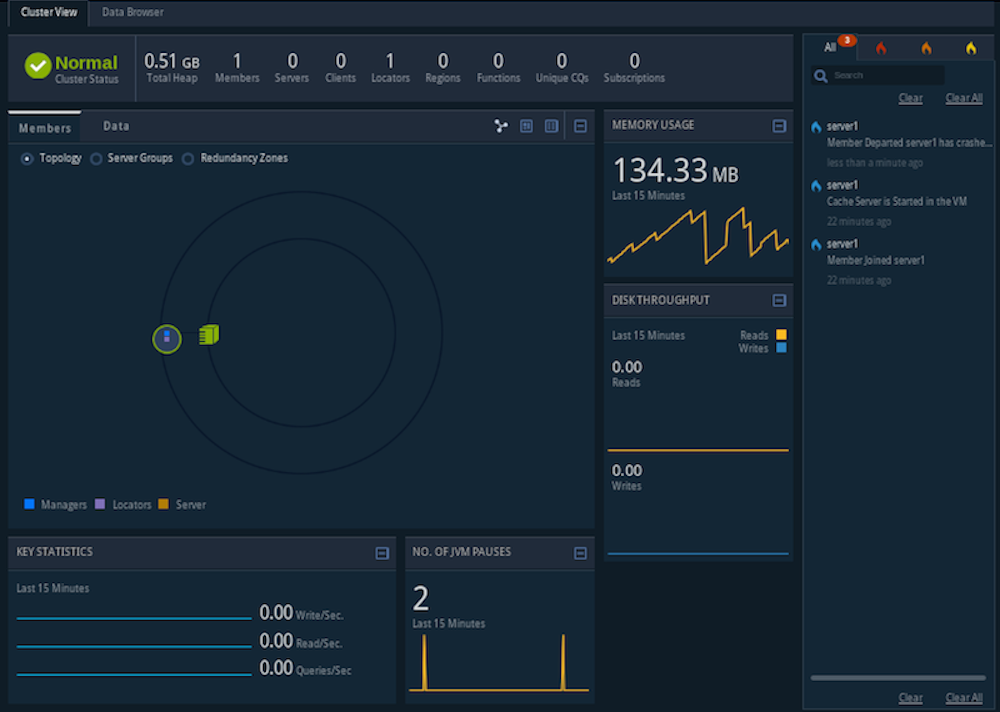
Start up the browser-based Pulse monitoring tool. Pulse is a Web Application that provides a graphical dashboard for monitoring vital, real-time health and performance of <%=vars.product_name%> clusters, members, and regions. See [<%=vars.product_name%> Pulse](../tools_modules/pulse/pulse-overview.html).
``` pre
gfsh>start pulse
```
This command launches Pulse and automatically connects you to the JMX Manager running in the Locator. At the Pulse login screen, type in the default username `admin` and password `admin`.
The Pulse application now displays the locator you just started (locator1):
 ## Step 4: Start a server
A <%=vars.product_name%> server is a process that runs as a long-lived, configurable member of a cluster. The <%=vars.product_name%> server is used primarily for hosting long-lived data regions and for running standard <%=vars.product_name%> processes such as the server in a client/server configuration. See [Running <%=vars.product_name%> Server Processes](../configuring/running/running_the_cacheserver.html).
Start the cache server:
``` pre
gfsh>start server --name=server1 --server-port=40411
```
This commands starts a cache server named "server1" on the specified port of 40411.
If you run `start server` from gfsh without specifying the member name, gfsh will automatically pick a random member name. This is useful for automation.
Observe the changes (new member and server) in Pulse. Try expanding the distributed system icon to see the locator and cache server graphically.
## Step 5: Create a replicated, persistent region
In this step you create a region with the `gfsh` command line utility. Regions are the core building blocks of the <%=vars.product_name%> cluster and provide the means for organizing your data. The region you create for this exercise employs replication to replicate data across members of the cluster and utilizes persistence to save the data to disk. See [Data Regions](../basic_config/data_regions/chapter_overview.html#data_regions).
1. Create a replicated, persistent region:
``` pre
gfsh>create region --name=regionA --type=REPLICATE_PERSISTENT
Member | Status
------- | --------------------------------------
server1 | Region "/regionA" created on "server1"
```
Note that the region is hosted on server1.
2. Use the `gfsh` command line to view a list of the regions in the cluster.
``` pre
gfsh>list regions
List of regions
---------------
regionA
```
3. List the members of your cluster. The locator and cache server you started appear in the list:
``` pre
gfsh>list members
Name | Id
------------ | ---------------------------------------
Coordinator: | 192.0.2.0(locator1:3529:locator):59926
locator1 | 192.0.2.0(locator1:3529:locator):59926
server1 | 192.0.2.0(server1:3883):65390
```
4. To view specifics about a region, type the following:
``` pre
gfsh>describe region --name=regionA
..........................................................
Name : regionA
Data Policy : persistent replicate
Hosting Members : server1
Non-Default Attributes Shared By Hosting Members
Type | Name | Value
------ | ---- | -----
Region | size | 0
```
5. In Pulse, click the green cluster icon to see all the new members and new regions that you just added to your cluster.
**Note:** Keep this `gfsh` prompt open for the next steps.
## Step 6: Manipulate data in the region and demonstrate persistence
<%=vars.product_name_long%> manages data as key/value pairs. In most applications, a Java program adds, deletes and modifies stored data. You can also use gfsh commands to add and retrieve data. See [Data Commands](../tools_modules/gfsh/quick_ref_commands_by_area.html#topic_C7DB8A800D6244AE8FF3ADDCF139DCE4).
1. Run the following `put` commands to add some data to the region:
``` pre
gfsh>put --region=regionA --key="1" --value="one"
Result : true
Key Class : java.lang.String
Key : 1
Value Class : java.lang.String
Old Value :
gfsh>put --region=regionA --key="2" --value="two"
Result : true
Key Class : java.lang.String
Key : 2
Value Class : java.lang.String
Old Value :
```
2. Run the following command to retrieve data from the region:
``` pre
gfsh>query --query="select * from /regionA"
Result : true
startCount : 0
endCount : 20
Rows : 2
Result
------
two
one
```
Note that the result displays the values for the two data entries you created with the `put` commands.
See [Data Entries](../basic_config/data_entries_custom_classes/chapter_overview.html).
3. Stop the cache server using the following command:
``` pre
gfsh>stop server --name=server1
Stopping Cache Server running in /home/username/my_geode/server1 on ubuntu.local[40411] as server1...
Process ID: 3883
Log File: /home/username/my_geode/server1/server1.log
....
```
4. Restart the cache server using the following command:
``` pre
gfsh>start server --name=server1 --server-port=40411
```
5. Run the following command to retrieve data from the region again. Notice that the data is still available:
``` pre
gfsh>query --query="select * from /regionA"
Result : true
startCount : 0
endCount : 20
Rows : 2
Result
------
two
one
```
Because regionA uses persistence, it writes a copy of the data to disk. When a server hosting regionA starts, the data is populated into the cache. Note that the result displays the values for the two data entries you created with the `put` commands prior to stopping the server.
See [Data Entries](../basic_config/data_entries_custom_classes/chapter_overview.html).
See [Data Regions](../basic_config/data_regions/chapter_overview.html#data_regions).
## Step 7: Examine the effects of replication
In this step, you start a second cache server. Because regionA is replicated, the data will be available on any server hosting the region.
See [Data Regions](../basic_config/data_regions/chapter_overview.html#data_regions).
1. Start a second cache server:
``` pre
gfsh>start server --name=server2 --server-port=40412
```
2. Run the `describe region` command to view information about regionA:
``` pre
gfsh>describe region --name=regionA
..........................................................
Name : regionA
Data Policy : persistent replicate
Hosting Members : server1
server2
Non-Default Attributes Shared By Hosting Members
Type | Name | Value
------ | ---- | -----
Region | size | 2
```
Note that you do not need to create regionA again for server2. The output of the command shows that regionA is hosted on both server1 and server2. When gfsh starts a server, it requests the configuration from the cluster configuration service which then distributes the shared configuration to any new servers joining the cluster.
3. Add a third data entry:
``` pre
gfsh>put --region=regionA --key="3" --value="three"
Result : true
Key Class : java.lang.String
Key : 3
Value Class : java.lang.String
Old Value :
```
4. Open the Pulse application (in a Web browser) and observe the cluster topology. You should see a locator with two attached servers. Click the Data tab to view information about regionA.
5. Stop the first cache server with the following command:
``` pre
gfsh>stop server --name=server1
Stopping Cache Server running in /home/username/my_geode/server1 on ubuntu.local[40411] as server1...
Process ID: 4064
Log File: /home/username/my_geode/server1/server1.log
....
```
6. Retrieve data from the remaining cache server.
``` pre
gfsh>query --query="select * from /regionA"
Result : true
startCount : 0
endCount : 20
Rows : 3
Result
------
two
one
three
```
Note that the data contains 3 entries, including the entry you just added.
7. Add a fourth data entry:
``` pre
gfsh>put --region=regionA --key="4" --value="four"
Result : true
Key Class : java.lang.String
Key : 3
Value Class : java.lang.String
Old Value :
```
Note that only server2 is running. Because the data is replicated and persisted, all of the data is still available. But the new data entry is currently only available on server 2.
``` pre
gfsh>describe region --name=regionA
..........................................................
Name : regionA
Data Policy : persistent replicate
Hosting Members : server2
Non-Default Attributes Shared By Hosting Members
Type | Name | Value
------ | ---- | -----
Region | size | 4
```
8. Stop the remaining cache server:
``` pre
gfsh>stop server --name=server2
Stopping Cache Server running in /home/username/my_geode/server2 on ubuntu.local[40412] as server2...
Process ID: 4185
Log File: /home/username/my_geode/server2/server2.log
.....
```
## Step 8: Restart the cache servers in parallel
In this step you restart the cache servers in parallel. Because the data is persisted, the data is available when the servers restart. Because the data is replicated, you must start the servers in parallel so that they can synchronize their data before starting.
1. Start server1. Because regionA is replicated and persistent, it needs data from the other server to start and waits for the server to start:
``` pre
gfsh>start server --name=server1 --server-port=40411
Starting a <%=vars.product_name%> Server in /home/username/my_geode/server1...
............................................................................
............................................................................
```
Note that if you look in the server1.log file for the restarted server, you will see a log message similar to the following:
``` pre
[info 2015/01/14 09:08:13.610 PST server1 tid=0x1] Region /regionA has pot
entially stale data. It is waiting for another member to recover the latest data.
My persistent id:
DiskStore ID: 8e2d99a9-4725-47e6-800d-28a26e1d59b1
Name: server1
Location: /192.0.2.0:/home/username/my_geode/server1/.
Members with potentially new data:
[
DiskStore ID: 2e91b003-8954-43f9-8ba9-3c5b0cdd4dfa
Name: server2
Location: /192.0.2.0:/home/username/my_geode/server2/.
]
Use the "gfsh show missing-disk-stores" command to see all disk stores that
are being waited on by other members.
```
2. In a second terminal window, change directories to the scratch working directory (for example, `my_geode`) and start gfsh:
``` pre
[username@localhost ~/my_geode]$ gfsh
_________________________ __
/ _____/ ______/ ______/ /____/ /
/ / __/ /___ /_____ / _____ /
/ /__/ / ____/ _____/ / / / /
/______/_/ /______/_/ /_/ <%=vars.product_version%>
Monitor and Manage <%=vars.product_name%>
```
3. Run the following command to connect to the cluster:
``` pre
gfsh>connect --locator=localhost[10334]
Connecting to Locator at [host=localhost, port=10334] ..
Connecting to Manager at [host=ubuntu.local, port=1099] ..
Successfully connected to: [host=ubuntu.local, port=1099]
```
4. Start server2:
``` pre
gfsh>start server --name=server2 --server-port=40412
```
When server2 starts, note that **server1 completes its start up** in the first gfsh window:
``` pre
Server in /home/username/my_geode/server1 on ubuntu.local[40411] as server1 is currently online.
Process ID: 3402
Uptime: 1 minute 46 seconds
<%=vars.product_name%> Version: <%=vars.product_version%>
Java Version: <%=vars.min_java_version%>.0.<%=vars.min_java_update%>
Log File: /home/username/my_geode/server1/server1.log
JVM Arguments: -Dgemfire.default.locators=192.0.2.0[10334] -Dgemfire.use-cluster-configuration=true
-XX:OnOutOfMemoryError=kill -KILL %p -Dgemfire.launcher.registerSignalHandlers=true
-Djava.awt.headless=true -Dsun.rmi.dgc.server.gcInterval=9223372036854775806
Class-Path: /home/username/Apache_Geode_Linux/lib/geode-core-2.0.0.jar:
/home/username/Apache_Geode_Linux/lib/geode-dependencies.jar
```
5. Verify that the locator and two servers are running:
``` pre
gfsh>list members
Name | Id
------------ | ---------------------------------------
Coordinator: | ubuntu(locator1:2813:locator):46644
locator1 | ubuntu(locator1:2813:locator):46644
server2 | ubuntu(server2:3992):21507
server1 | ubuntu(server1:3402):36532
```
6. Run a query to verify that all the data you entered with the `put` commands is available:
``` pre
gfsh>query --query="select * from /regionA"
Result : true
startCount : 0
endCount : 20
Rows : 5
Result
------
one
two
four
Three
NEXT_STEP_NAME : END
```
7. Stop server2 with the following command:
``` pre
gfsh>stop server --dir=server2
Stopping Cache Server running in /home/username/my_geode/server2 on 192.0.2.0[40412] as server2...
Process ID: 3992
Log File: /home/username/my_geode/server2/server2.log
....
```
8. Run a query to verify that all the data you entered with the `put` commands is still available:
``` pre
gfsh>query --query="select * from /regionA"
Result : true
startCount : 0
endCount : 20
Rows : 5
Result
------
one
two
four
Three
NEXT_STEP_NAME : END
```
## Step 9: Shut down the system including your locators
To shut down your cluster, do the following:
1. In the current `gfsh` session, stop the cluster:
``` pre
gfsh>shutdown --include-locators=true
```
See [shutdown](../tools_modules/gfsh/command-pages/shutdown.html).
2. When prompted, type 'Y' to confirm the shutdown of the cluster.
``` pre
As a lot of data in memory will be lost, including possibly events in queues,
do you really want to shutdown the entire distributed system? (Y/n): Y
Shutdown is triggered
gfsh>
No longer connected to ubuntu.local[1099].
gfsh>
```
3. Type `exit` to quit the gfsh shell.
## Step 10: What to do next...
Here are some suggestions on what to explore next with <%=vars.product_name_long%>:
- To ensure that your Geode instances are secure, see: [Security](../security/chapter_overview.html).
- To get more practice using `gfsh`, see [Tutorial—Performing Common Tasks with gfsh](../tools_modules/gfsh/tour_of_gfsh.html#concept_0B7DE9DEC1524ED0897C144EE1B83A34).
- To learn about the cluster configuration service, see [Tutorial—Creating and Using a Cluster Configuration](../configuring/cluster_config/persisting_configurations.html#task_bt3_z1v_dl).
- Continue reading the next section to learn more about the components and concepts that were just introduced.
## Step 4: Start a server
A <%=vars.product_name%> server is a process that runs as a long-lived, configurable member of a cluster. The <%=vars.product_name%> server is used primarily for hosting long-lived data regions and for running standard <%=vars.product_name%> processes such as the server in a client/server configuration. See [Running <%=vars.product_name%> Server Processes](../configuring/running/running_the_cacheserver.html).
Start the cache server:
``` pre
gfsh>start server --name=server1 --server-port=40411
```
This commands starts a cache server named "server1" on the specified port of 40411.
If you run `start server` from gfsh without specifying the member name, gfsh will automatically pick a random member name. This is useful for automation.
Observe the changes (new member and server) in Pulse. Try expanding the distributed system icon to see the locator and cache server graphically.
## Step 5: Create a replicated, persistent region
In this step you create a region with the `gfsh` command line utility. Regions are the core building blocks of the <%=vars.product_name%> cluster and provide the means for organizing your data. The region you create for this exercise employs replication to replicate data across members of the cluster and utilizes persistence to save the data to disk. See [Data Regions](../basic_config/data_regions/chapter_overview.html#data_regions).
1. Create a replicated, persistent region:
``` pre
gfsh>create region --name=regionA --type=REPLICATE_PERSISTENT
Member | Status
------- | --------------------------------------
server1 | Region "/regionA" created on "server1"
```
Note that the region is hosted on server1.
2. Use the `gfsh` command line to view a list of the regions in the cluster.
``` pre
gfsh>list regions
List of regions
---------------
regionA
```
3. List the members of your cluster. The locator and cache server you started appear in the list:
``` pre
gfsh>list members
Name | Id
------------ | ---------------------------------------
Coordinator: | 192.0.2.0(locator1:3529:locator):59926
locator1 | 192.0.2.0(locator1:3529:locator):59926
server1 | 192.0.2.0(server1:3883):65390
```
4. To view specifics about a region, type the following:
``` pre
gfsh>describe region --name=regionA
..........................................................
Name : regionA
Data Policy : persistent replicate
Hosting Members : server1
Non-Default Attributes Shared By Hosting Members
Type | Name | Value
------ | ---- | -----
Region | size | 0
```
5. In Pulse, click the green cluster icon to see all the new members and new regions that you just added to your cluster.
**Note:** Keep this `gfsh` prompt open for the next steps.
## Step 6: Manipulate data in the region and demonstrate persistence
<%=vars.product_name_long%> manages data as key/value pairs. In most applications, a Java program adds, deletes and modifies stored data. You can also use gfsh commands to add and retrieve data. See [Data Commands](../tools_modules/gfsh/quick_ref_commands_by_area.html#topic_C7DB8A800D6244AE8FF3ADDCF139DCE4).
1. Run the following `put` commands to add some data to the region:
``` pre
gfsh>put --region=regionA --key="1" --value="one"
Result : true
Key Class : java.lang.String
Key : 1
Value Class : java.lang.String
Old Value :
gfsh>put --region=regionA --key="2" --value="two"
Result : true
Key Class : java.lang.String
Key : 2
Value Class : java.lang.String
Old Value :
```
2. Run the following command to retrieve data from the region:
``` pre
gfsh>query --query="select * from /regionA"
Result : true
startCount : 0
endCount : 20
Rows : 2
Result
------
two
one
```
Note that the result displays the values for the two data entries you created with the `put` commands.
See [Data Entries](../basic_config/data_entries_custom_classes/chapter_overview.html).
3. Stop the cache server using the following command:
``` pre
gfsh>stop server --name=server1
Stopping Cache Server running in /home/username/my_geode/server1 on ubuntu.local[40411] as server1...
Process ID: 3883
Log File: /home/username/my_geode/server1/server1.log
....
```
4. Restart the cache server using the following command:
``` pre
gfsh>start server --name=server1 --server-port=40411
```
5. Run the following command to retrieve data from the region again. Notice that the data is still available:
``` pre
gfsh>query --query="select * from /regionA"
Result : true
startCount : 0
endCount : 20
Rows : 2
Result
------
two
one
```
Because regionA uses persistence, it writes a copy of the data to disk. When a server hosting regionA starts, the data is populated into the cache. Note that the result displays the values for the two data entries you created with the `put` commands prior to stopping the server.
See [Data Entries](../basic_config/data_entries_custom_classes/chapter_overview.html).
See [Data Regions](../basic_config/data_regions/chapter_overview.html#data_regions).
## Step 7: Examine the effects of replication
In this step, you start a second cache server. Because regionA is replicated, the data will be available on any server hosting the region.
See [Data Regions](../basic_config/data_regions/chapter_overview.html#data_regions).
1. Start a second cache server:
``` pre
gfsh>start server --name=server2 --server-port=40412
```
2. Run the `describe region` command to view information about regionA:
``` pre
gfsh>describe region --name=regionA
..........................................................
Name : regionA
Data Policy : persistent replicate
Hosting Members : server1
server2
Non-Default Attributes Shared By Hosting Members
Type | Name | Value
------ | ---- | -----
Region | size | 2
```
Note that you do not need to create regionA again for server2. The output of the command shows that regionA is hosted on both server1 and server2. When gfsh starts a server, it requests the configuration from the cluster configuration service which then distributes the shared configuration to any new servers joining the cluster.
3. Add a third data entry:
``` pre
gfsh>put --region=regionA --key="3" --value="three"
Result : true
Key Class : java.lang.String
Key : 3
Value Class : java.lang.String
Old Value :
```
4. Open the Pulse application (in a Web browser) and observe the cluster topology. You should see a locator with two attached servers. Click the Data tab to view information about regionA.
5. Stop the first cache server with the following command:
``` pre
gfsh>stop server --name=server1
Stopping Cache Server running in /home/username/my_geode/server1 on ubuntu.local[40411] as server1...
Process ID: 4064
Log File: /home/username/my_geode/server1/server1.log
....
```
6. Retrieve data from the remaining cache server.
``` pre
gfsh>query --query="select * from /regionA"
Result : true
startCount : 0
endCount : 20
Rows : 3
Result
------
two
one
three
```
Note that the data contains 3 entries, including the entry you just added.
7. Add a fourth data entry:
``` pre
gfsh>put --region=regionA --key="4" --value="four"
Result : true
Key Class : java.lang.String
Key : 3
Value Class : java.lang.String
Old Value :
```
Note that only server2 is running. Because the data is replicated and persisted, all of the data is still available. But the new data entry is currently only available on server 2.
``` pre
gfsh>describe region --name=regionA
..........................................................
Name : regionA
Data Policy : persistent replicate
Hosting Members : server2
Non-Default Attributes Shared By Hosting Members
Type | Name | Value
------ | ---- | -----
Region | size | 4
```
8. Stop the remaining cache server:
``` pre
gfsh>stop server --name=server2
Stopping Cache Server running in /home/username/my_geode/server2 on ubuntu.local[40412] as server2...
Process ID: 4185
Log File: /home/username/my_geode/server2/server2.log
.....
```
## Step 8: Restart the cache servers in parallel
In this step you restart the cache servers in parallel. Because the data is persisted, the data is available when the servers restart. Because the data is replicated, you must start the servers in parallel so that they can synchronize their data before starting.
1. Start server1. Because regionA is replicated and persistent, it needs data from the other server to start and waits for the server to start:
``` pre
gfsh>start server --name=server1 --server-port=40411
Starting a <%=vars.product_name%> Server in /home/username/my_geode/server1...
............................................................................
............................................................................
```
Note that if you look in the server1.log file for the restarted server, you will see a log message similar to the following:
``` pre
[info 2015/01/14 09:08:13.610 PST server1 tid=0x1] Region /regionA has pot
entially stale data. It is waiting for another member to recover the latest data.
My persistent id:
DiskStore ID: 8e2d99a9-4725-47e6-800d-28a26e1d59b1
Name: server1
Location: /192.0.2.0:/home/username/my_geode/server1/.
Members with potentially new data:
[
DiskStore ID: 2e91b003-8954-43f9-8ba9-3c5b0cdd4dfa
Name: server2
Location: /192.0.2.0:/home/username/my_geode/server2/.
]
Use the "gfsh show missing-disk-stores" command to see all disk stores that
are being waited on by other members.
```
2. In a second terminal window, change directories to the scratch working directory (for example, `my_geode`) and start gfsh:
``` pre
[username@localhost ~/my_geode]$ gfsh
_________________________ __
/ _____/ ______/ ______/ /____/ /
/ / __/ /___ /_____ / _____ /
/ /__/ / ____/ _____/ / / / /
/______/_/ /______/_/ /_/ <%=vars.product_version%>
Monitor and Manage <%=vars.product_name%>
```
3. Run the following command to connect to the cluster:
``` pre
gfsh>connect --locator=localhost[10334]
Connecting to Locator at [host=localhost, port=10334] ..
Connecting to Manager at [host=ubuntu.local, port=1099] ..
Successfully connected to: [host=ubuntu.local, port=1099]
```
4. Start server2:
``` pre
gfsh>start server --name=server2 --server-port=40412
```
When server2 starts, note that **server1 completes its start up** in the first gfsh window:
``` pre
Server in /home/username/my_geode/server1 on ubuntu.local[40411] as server1 is currently online.
Process ID: 3402
Uptime: 1 minute 46 seconds
<%=vars.product_name%> Version: <%=vars.product_version%>
Java Version: <%=vars.min_java_version%>.0.<%=vars.min_java_update%>
Log File: /home/username/my_geode/server1/server1.log
JVM Arguments: -Dgemfire.default.locators=192.0.2.0[10334] -Dgemfire.use-cluster-configuration=true
-XX:OnOutOfMemoryError=kill -KILL %p -Dgemfire.launcher.registerSignalHandlers=true
-Djava.awt.headless=true -Dsun.rmi.dgc.server.gcInterval=9223372036854775806
Class-Path: /home/username/Apache_Geode_Linux/lib/geode-core-2.0.0.jar:
/home/username/Apache_Geode_Linux/lib/geode-dependencies.jar
```
5. Verify that the locator and two servers are running:
``` pre
gfsh>list members
Name | Id
------------ | ---------------------------------------
Coordinator: | ubuntu(locator1:2813:locator):46644
locator1 | ubuntu(locator1:2813:locator):46644
server2 | ubuntu(server2:3992):21507
server1 | ubuntu(server1:3402):36532
```
6. Run a query to verify that all the data you entered with the `put` commands is available:
``` pre
gfsh>query --query="select * from /regionA"
Result : true
startCount : 0
endCount : 20
Rows : 5
Result
------
one
two
four
Three
NEXT_STEP_NAME : END
```
7. Stop server2 with the following command:
``` pre
gfsh>stop server --dir=server2
Stopping Cache Server running in /home/username/my_geode/server2 on 192.0.2.0[40412] as server2...
Process ID: 3992
Log File: /home/username/my_geode/server2/server2.log
....
```
8. Run a query to verify that all the data you entered with the `put` commands is still available:
``` pre
gfsh>query --query="select * from /regionA"
Result : true
startCount : 0
endCount : 20
Rows : 5
Result
------
one
two
four
Three
NEXT_STEP_NAME : END
```
## Step 9: Shut down the system including your locators
To shut down your cluster, do the following:
1. In the current `gfsh` session, stop the cluster:
``` pre
gfsh>shutdown --include-locators=true
```
See [shutdown](../tools_modules/gfsh/command-pages/shutdown.html).
2. When prompted, type 'Y' to confirm the shutdown of the cluster.
``` pre
As a lot of data in memory will be lost, including possibly events in queues,
do you really want to shutdown the entire distributed system? (Y/n): Y
Shutdown is triggered
gfsh>
No longer connected to ubuntu.local[1099].
gfsh>
```
3. Type `exit` to quit the gfsh shell.
## Step 10: What to do next...
Here are some suggestions on what to explore next with <%=vars.product_name_long%>:
- To ensure that your Geode instances are secure, see: [Security](../security/chapter_overview.html).
- To get more practice using `gfsh`, see [Tutorial—Performing Common Tasks with gfsh](../tools_modules/gfsh/tour_of_gfsh.html#concept_0B7DE9DEC1524ED0897C144EE1B83A34).
- To learn about the cluster configuration service, see [Tutorial—Creating and Using a Cluster Configuration](../configuring/cluster_config/persisting_configurations.html#task_bt3_z1v_dl).
- Continue reading the next section to learn more about the components and concepts that were just introduced.