
The self-hosted, open-source visual bug reporting tool.
Capture screenshots and screen recordings, annotate issues, and track bugs from your web applications.



The self-hosted, open-source visual bug reporting tool.
Capture screenshots and screen recordings, annotate issues, and track bugs from your web applications.
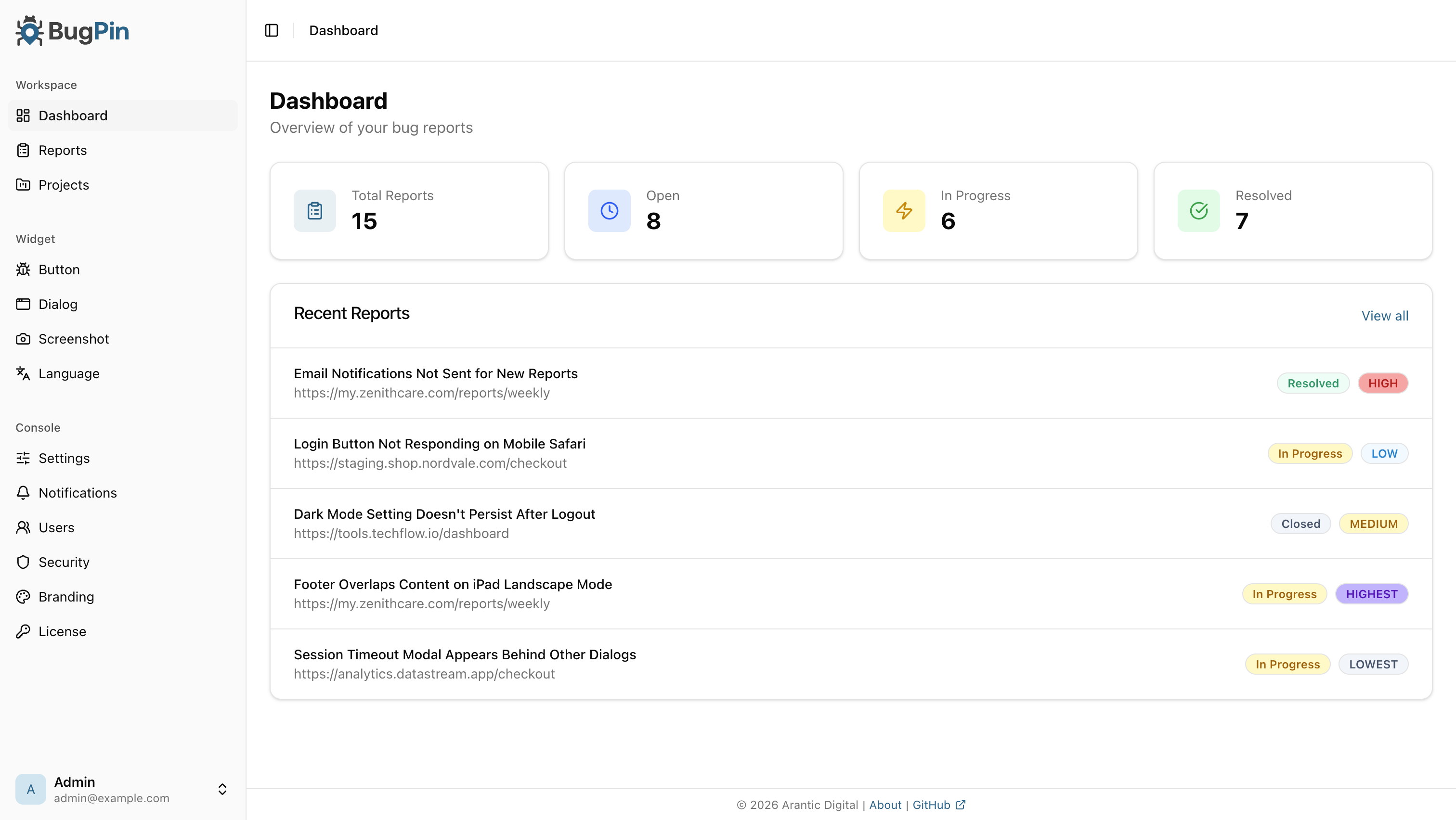 **Dark Mode**
 ### Widget
Capture screenshots, record the screen, and annotate issues from any page on your site.
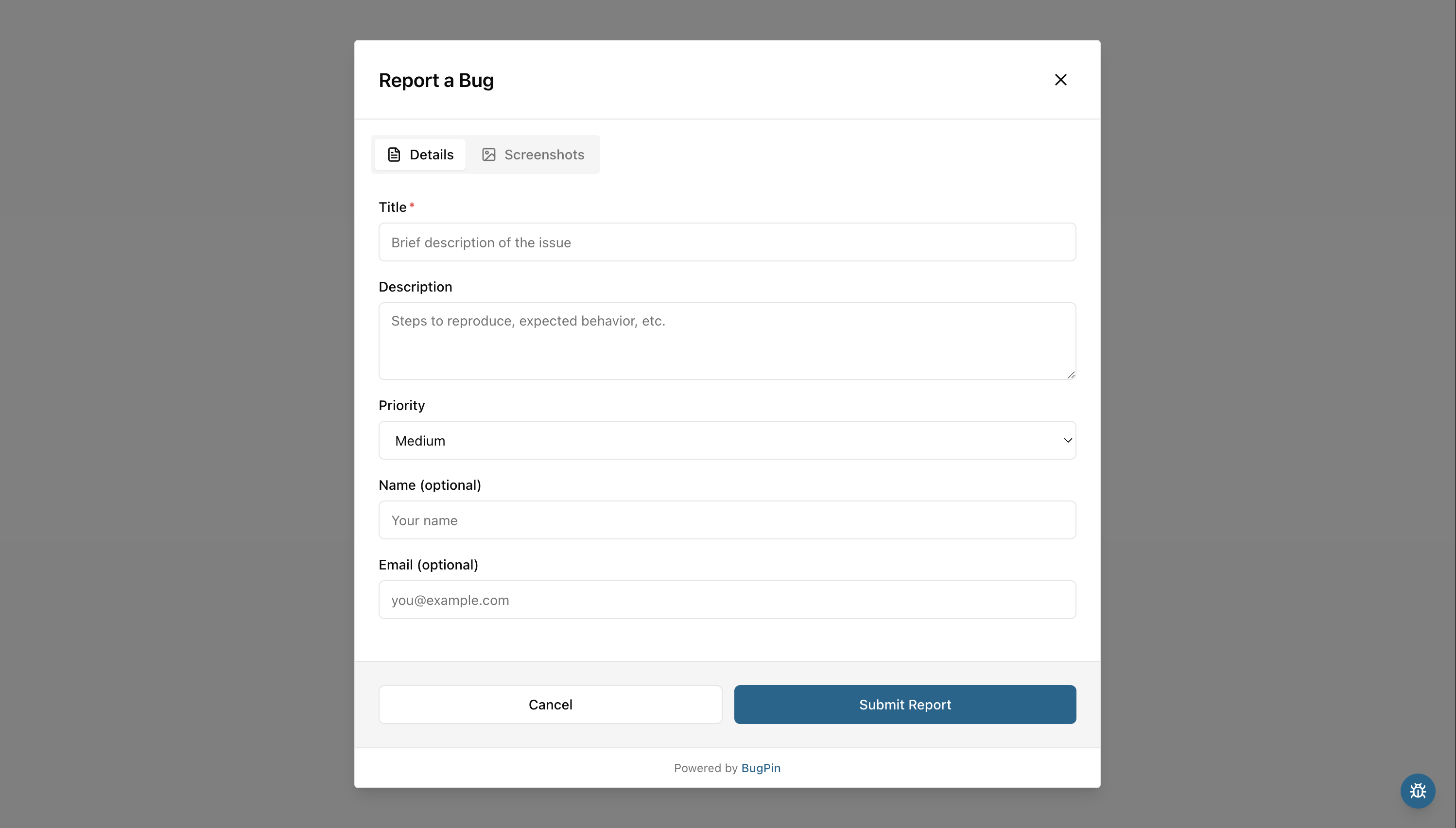 - Embeds with a single script tag. Works with React, Vue, Angular, Svelte, or vanilla JS
- Shadow DOM isolation: widget styles never leak into your site, and your CSS never bleeds into the widget
- Offline-safe: reports are cached locally and synced when the connection returns
- Annotation tools: pen, shapes, arrows, text, privacy blur
- Screen recording with a pen, laser pointer, click effects, and optional microphone audio; recordings survive a crash or reload
- Translated into 8 languages (English, German, French, Dutch, Spanish, Italian, Japanese, Simplified Chinese) with automatic detection
# Features
- **Visual Bug Reporting** - Capture screenshots with one click
- **Annotation Tools** - Draw, highlight, and annotate screenshots
- **Screen Recording** - Record the page from the widget or attach a video, with quality, duration, size, and daily upload limits set globally or per project
- **Automated Metadata Collection** - Failed network requests (4xx, 5xx), console errors, and OS/browser/device info captured automatically
- **Offline Support** - Reports are buffered and sent when back online
- **Self-Hosted** - Your data stays on your servers
- **Multi-Project** - Manage multiple projects with separate API keys
- **Multilingual Widget** - Widget and reporter emails translated into 8 languages, with per-project language settings
- **Export Diagnostics** - Export a report's full context as Markdown, plain text, an AI prompt, or JSON, with section toggles and redactions
- **Enhanced Security Features** - Domain whitelists, configurable rate limiting, HSTS, and secure headers
- **GitHub Integration** - Forward reports to GitHub Issues, with optional public links to attached videos
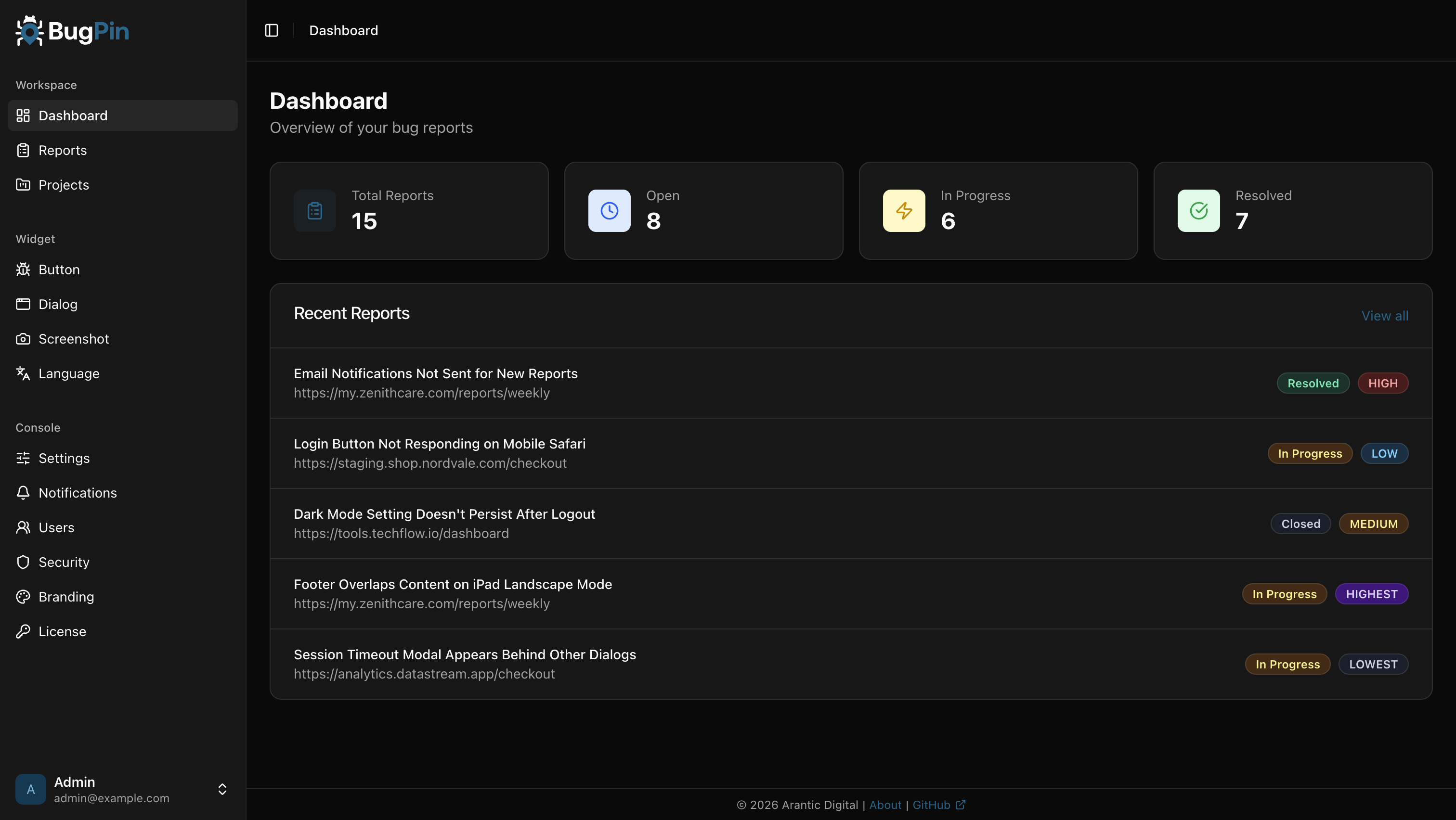
- **Dark Mode** - Admin Console supports light and dark themes
# Quick Start
Get BugPin up and running in under 5 minutes. This guide will walk you through the basic setup to start capturing and managing bug reports.
## Install
### Docker Compose
Create a `docker-compose.yml` file:
```yaml
services:
bugpin:
image: registry.arantic.cloud/bugpin/bugpin:latest
container_name: bugpin
restart: unless-stopped
ports:
- '7300:7300'
volumes:
- ./data:/data
```
Then run:
```bash
# Start BugPin
docker compose up -d
```
### Docker Run
```bash
# Run BugPin container
docker run -d \
--name bugpin \
--restart unless-stopped \
-p 7300:7300 \
-v bugpin-data:/data \
registry.arantic.cloud/bugpin/bugpin:latest
```
BugPin will be available at `http://localhost:7300`
### Reverse Proxy
BugPin rate-limits logins and widget submissions per client address. It reads `X-Forwarded-For` only from proxies it trusts, set with `TRUST_PROXY`:
| Value | Behavior |
| ---------------- | ----------------------------------------------------------------------------------------------- |
| `auto` (default) | Trust forwarded headers from loopback and private-network proxies (same host or Docker network) |
| `true` | Trust forwarded headers from any connecting proxy (for example a CDN with a public address) |
| `false` | Ignore forwarded headers and use the connection address |
The quick-start `docker-compose.yml` publishes port 7300 directly and sets `TRUST_PROXY=false`, so clients cannot choose their own address with a forged header. Behind a reverse proxy, set `TRUST_PROXY=auto` (or `true` for a proxy with a public address) and make sure the proxy sets or appends `X-Forwarded-For`. IPv6 clients are rate-limited per /64 network.
## Login
On first start, BugPin creates an admin account from these environment variables:
| Variable | Default |
| ---------------- | ------------------- |
| `ADMIN_EMAIL` | `admin@example.com` |
| `ADMIN_PASSWORD` | `changeme123` |
The initial password only works once. After the first login, BugPin asks you to choose a new password before you can use the Admin Console or the API. Instances that still use the initial password after an update ask for the change on the next login.
> [!NOTE]
> The variables are only read when no users exist yet. Changing them later does not change an existing account. Development mode (`make dev`) does not require the password change.
## Create a Project
Projects organize bug reports and provide the API key used by the widget.
1. Open the Admin Console and go to **Projects**
2. Click **Create Project** and enter a name
3. Copy the **API Key** shown after creation. You'll need it in the next step.
## Widget Integration
Pick whichever method fits your stack. Replace `YOUR_API_KEY` with the key from the previous step.
### Option 1: Script Tag
Add this before the closing `