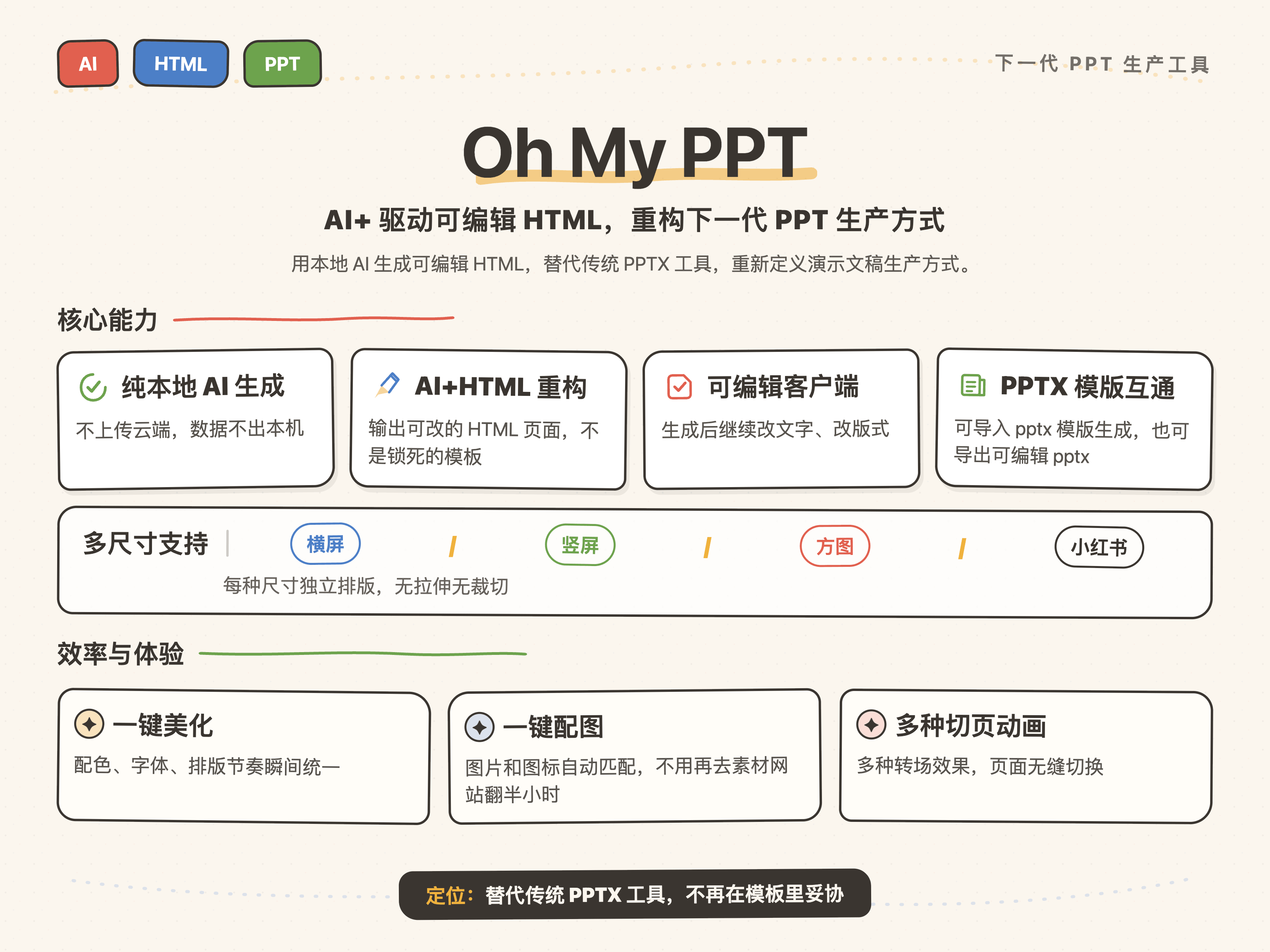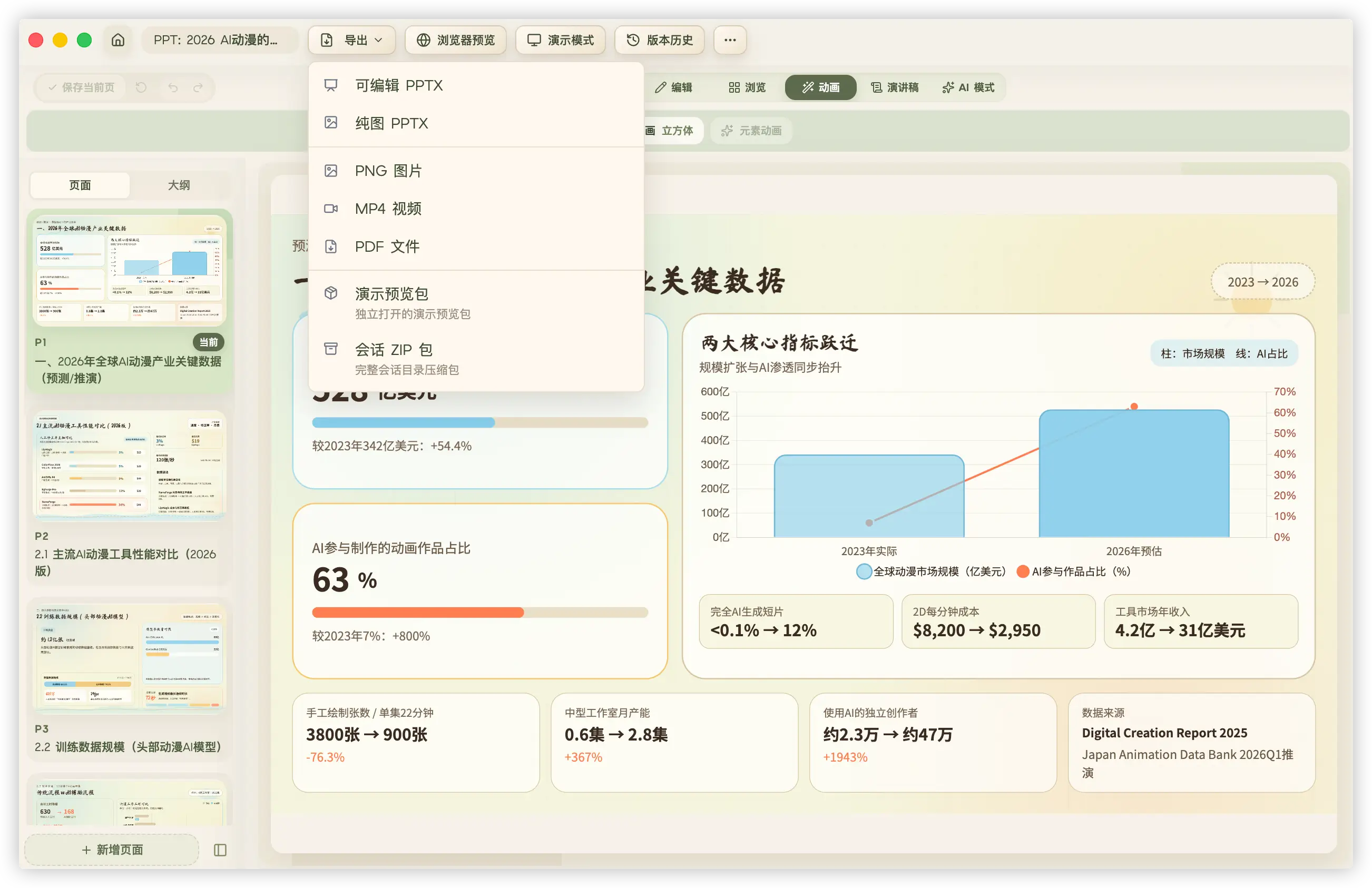




AI-powered editable HTML, reinventing how next-generation presentations are made.
Describe what you want to say and let AI shape the outline, slides, and visuals.
Create, edit, present, and export in one local-first workflow.
Local-first · Your models, your workflow.
| Sponsor | About |
|---|---|
![]() |
❤️ 感谢 透明人网关 对 Oh My PPT 的赞助支持! 高性价比 AI 聚合 API 网关——一套接口、一个 Key,海内外主流大模型一键通调! 💥 王牌底价 🖼️ 生图单张低至 3 分钱! ✅ GLM & DeepSeek 官方原版,价格直接砍半 ✅ 国模特惠分组,倍率低至 0.1,批量跑量成本拉满低 ✅ 高缓存命中率,重复请求更省 Token 🧠 支持模型能力 文本:GPT、Claude、Gemini、DeepSeek、GLM,文案撰写、代码开发、方案脑暴、PPT 生成全都 hold 住 图像:GPT-Image、Gemini,文生图、图编轻松调用 ⚙️ 接入省心:线路稳定高速,兼容 OpenAI 格式,仅改一行 base_url 即可接入 🎁 长期惊喜福利:不定时限时活动,充值直送余额;重大节日加码专属好礼,蹲优惠不踩空! 无虚标、不混降级模型,开发者、工作室、批量业务调用首选! |
![]() |
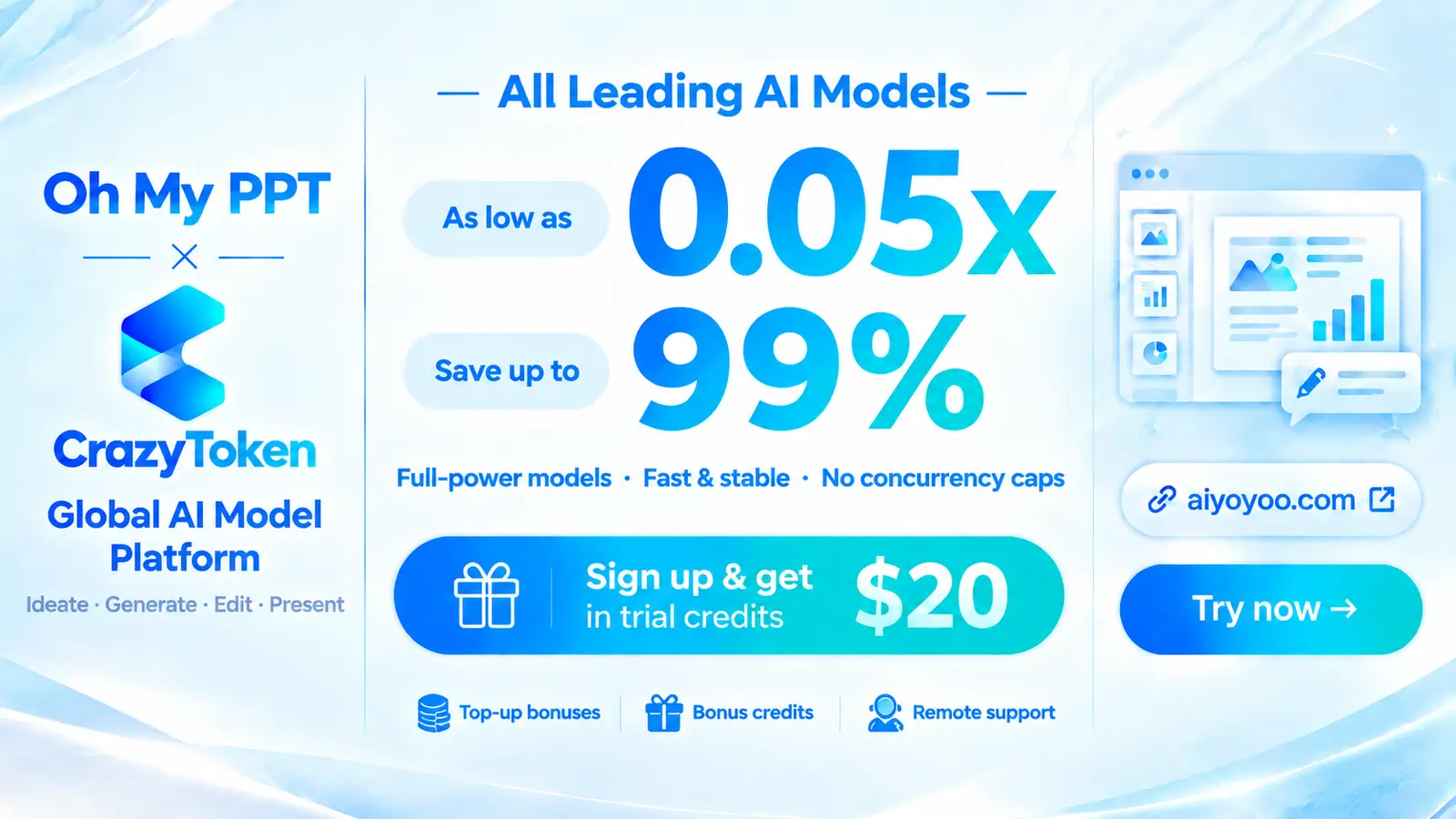
❤️ Thank you to CrazyToken for sponsoring Oh My PPT! CrazyToken provides APIs for Claude, GPT, Gemini, Kimi, GLM, DeepSeek, Qwen, Grok, and other leading models for brainstorming, outlining, HTML slide generation, and conversational editing. Choose the right model to take your ideas from concept to presentation. 💰 As low as 0.05×: Save up to 99%, with transparent token-level billing.✨ Official model access: Native performance with no model substitution or long-context compression. ⚡ Fast, stable, and no concurrency caps: Keep presentation generation and multiple rounds of revisions flowing. 🎁 $20 signup gift for new users: Register through the exclusive link to receive trial credits, plus top-up bonuses and one-on-one remote setup assistance from a real person. |
![]() |
❤️ 感谢 Mixtoken 对 Oh My PPT 的赞助支持! 一站式接入主流 AI 模型 API,覆盖文本生成、图片创作与视频制作。一个 Key 调用所有模型!稳定高速,不掺水! 🧠 语言模型:Claude、GPT、Gemini、DeepSeek 等,支持文案写作、代码开发和演示稿内容生成。 🖼️ 图片模型:GPT-Image、Gemini 等,支持图片生成与编辑。 🎥 视频模型:Seedance、MiniMax Hailuo H3、Grok 等,支持视频生成。 ✨ 新人体验:通过专属链接注册即可领取体验额度,测试模型效果。接入或使用中遇到问题,可联系人工客服。 🌐 企业运营:由海外企业运营,具备企业资质,支持开具正规发票。 |

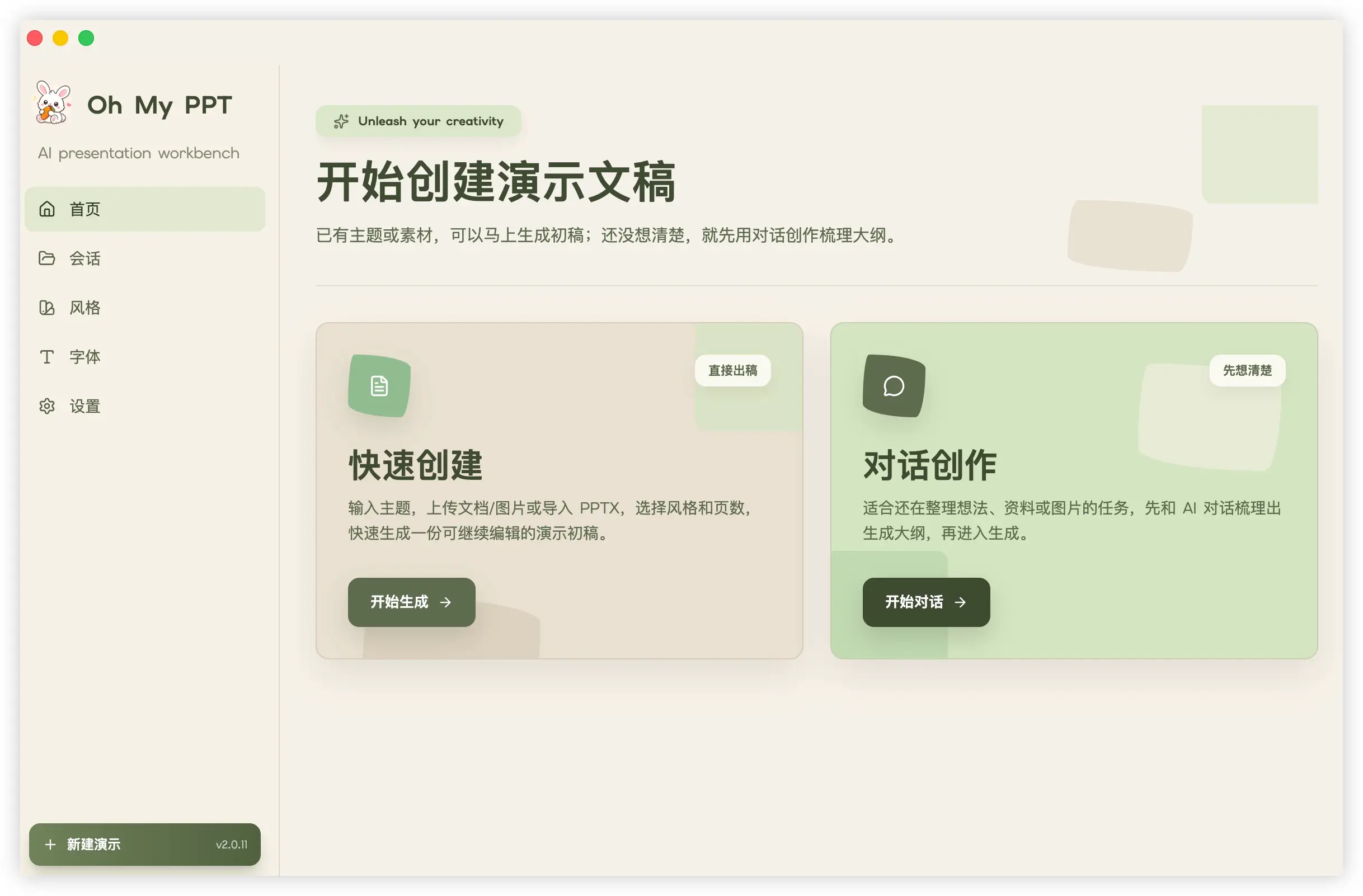
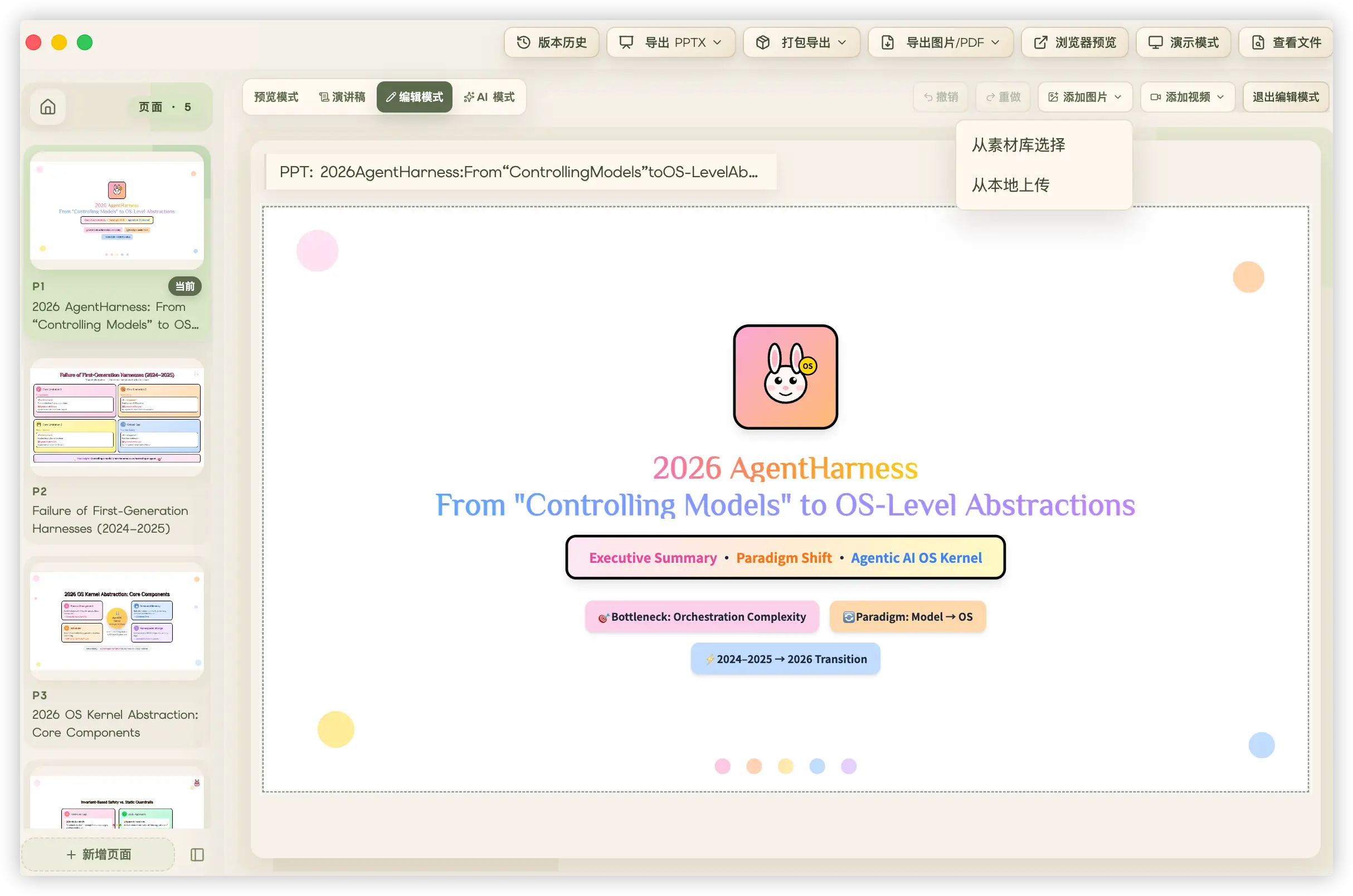
The home page supports several common entry points:
- **Topic-based creation**: set the topic, canvas format, and detailed brief to create a complete deck, vertical page, square card, or Xiaohongshu/social-note format.
- **Chat to Create**: use a multi-turn conversation to clarify the topic, materials, audience, structure, and key points for each slide. This is useful when requirements are still unclear, the source material is complex, or you want to shape the outline together first.
- **Upload document parsing**: upload txt, md, csv, docx, and other files so the app can prepare the topic, page count, and detailed description, then keep referencing the source file during generation.
- **Create from template**: choose a saved template from the Templates page to copy it into an editable PPT session, or enter a new topic/outline or upload a document so the app regenerates content while preserving the template's layout, palette, and visual rhythm.
To import a legacy PPTX template, click "Import PPTX" on the home page; typical files are restored with close to 100% fidelity for further editing. Existing sessions can also be saved to the template library and reused.
After configuring and verifying an image model in **Settings**, enable **Image Generation** on the creation page and pick a style marked **Image generation**; visuals are produced only where they genuinely improve the page. Automatic visuals add generation time — you can still generate images on demand in the editor when it is off.
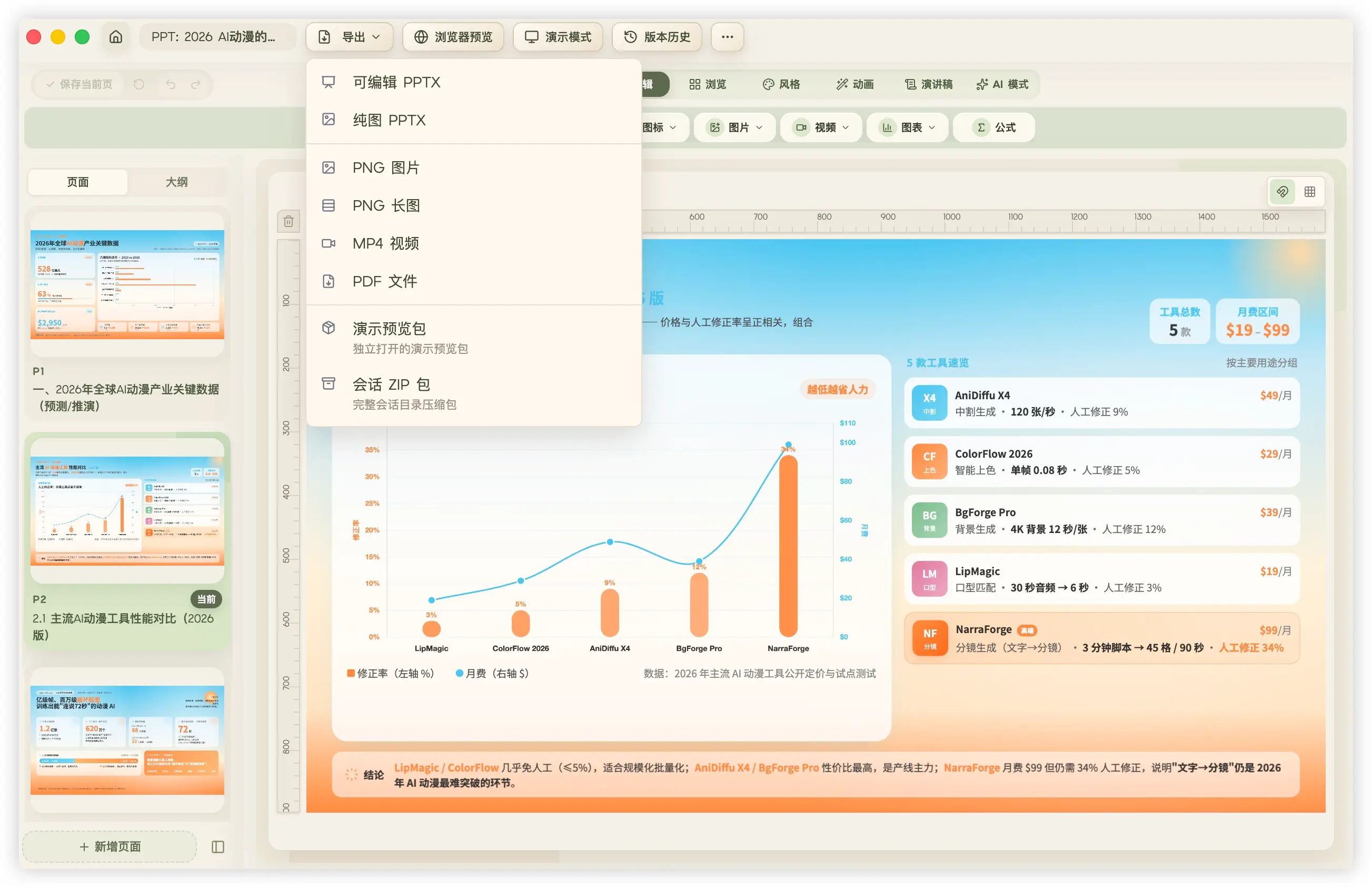
After generation, preview or present the deck, keep editing (drag elements, insert images/videos, chat edits, roll back history, generate speaker scripts), and export — imported or newly created alike — as an editable PPTX with close to 100% fidelity.
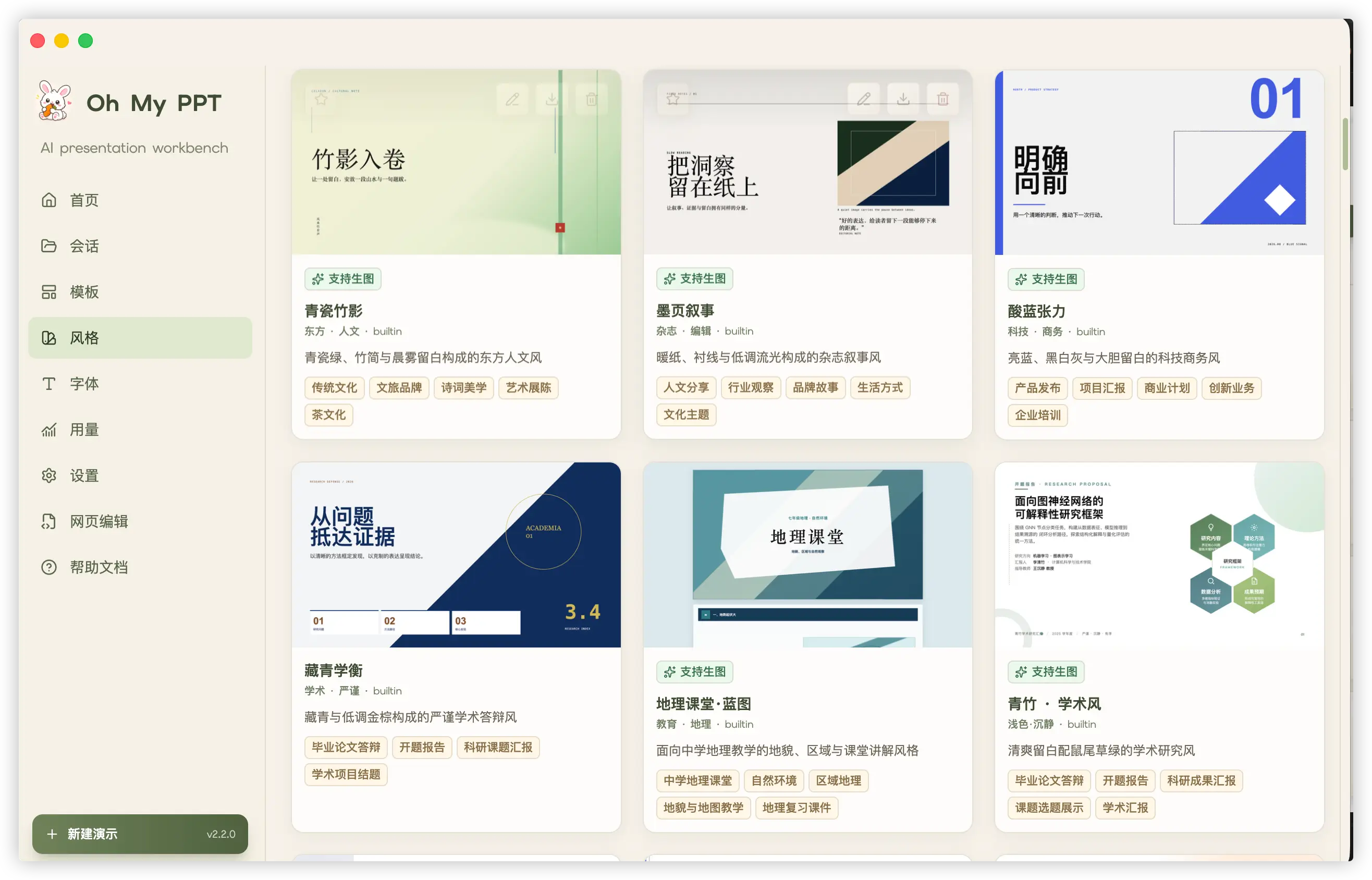
## 🎨 90+ Built-in Style Skills
To create your own Style Skill, use the official style generation package: [arcsin1/style-generate-skill](https://github.com/arcsin1/style-generate-skill). It helps turn reference designs, palettes, and layout requirements into importable Oh My PPT style packages.
## 🖼️ AI Image Generation & Smart Visuals
Image generation has two entry points for deck-wide visuals and targeted additions:
| Use case | How to use it | Result |
| --- | --- | --- |
| Create a full deck | Add and **verify** an image model under **Settings → Image Models**, enable **Image Generation** on the creation page, and choose a style marked **Image generation** | AI produces illustrations, backgrounds, or visual elements only in suitable layout slots, preserving text-safe space and the selected visual style |
| Edit an existing slide | Open the editor's image-generation panel, generate a prompt from the current slide or write one yourself, then choose a model and size | Preview the generated image, add it to the canvas for layout work, or set it as the current slide background |
Built-in provider presets include Jimeng 3.0 / 4.0, Agnes AI, Seedream, SiliconFlow, Gemini, and OpenAI-compatible image APIs; text and image models are configured separately. Image configurations are saved only after passing a real test under **Settings → Image Models**.
Successful outputs are archived in the session's local asset directory, ready to edit, replace, export, or move with the session. Automatic visuals keep the canvas format and never replace images you uploaded. Image requests are sent to the provider you choose — follow its privacy and content policies.
## 🔤 Font Management
14 curated Google Fonts are built in (including CJK families). You can also upload local `.woff2` font files and customize the font name, category (sans-serif, serif, handwriting, monospace, and more), role (title / body), and script type (Latin / CJK).
When creating a deck, you can choose **title fonts** and **body fonts** separately, or let AI automatically match the best font pair based on the topic and style. When exporting to PPTX, used fonts are automatically embedded so the deck displays consistently on other computers.
## 🎬 Animation Support
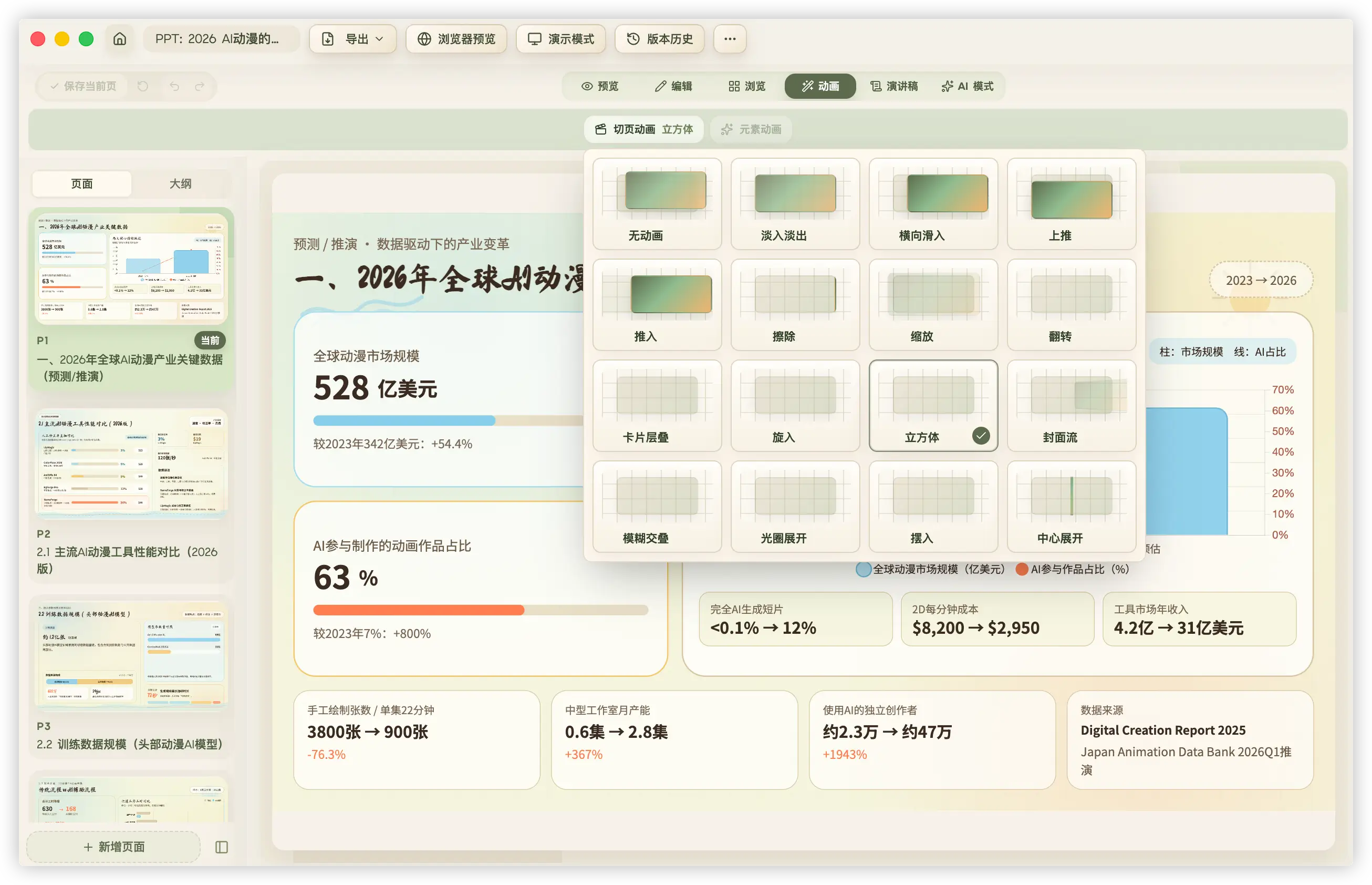
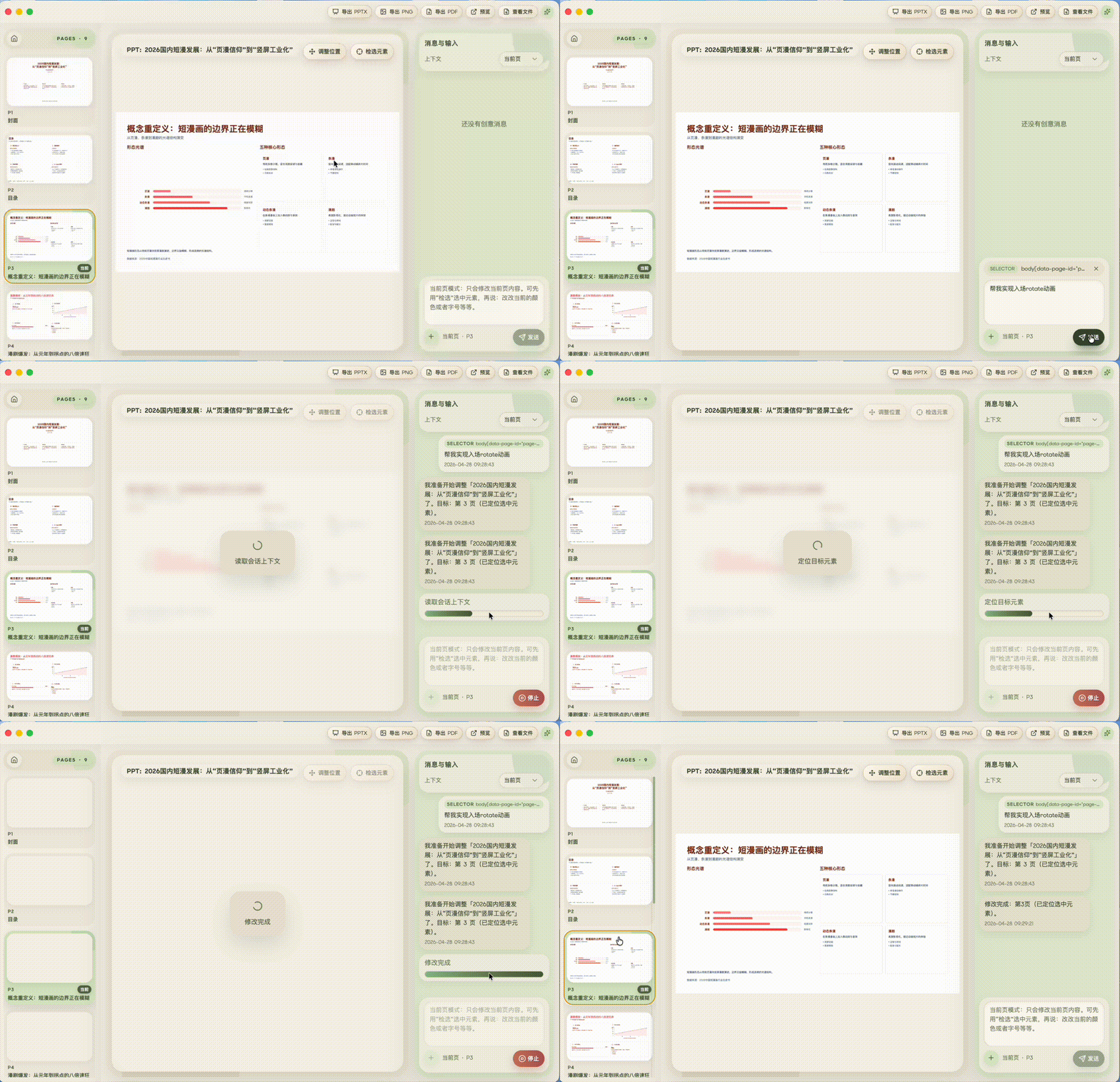
Oh My PPT generates HTML slides with 16+ slide transition effects and a local **Anime.js v4** runtime. During generation or chat-based editing, the AI can add presentation motion to whole slide elements such as titles, metric cards, images, chart containers, and step blocks.
In addition to AI-generated motion, edit mode lets you select an individual element and configure its entrance, emphasis, or exit effect, together with automatic or click triggering, duration, and direction.
Animations are designed for real presentation flow: content can appear step by step with the speaker's rhythm instead of showing everything on the slide at once. This works well for reports, pitches, classes, and product walkthroughs.
Common animation expressions include:
- **Fade in**: lightweight transitions when modules appear.
- **Slide-in motion**: short movement from top, bottom, left, or right for titles, cards, and lists.
- **Scale emphasis**: gently enlarge key numbers or conclusion cards, then settle back.
- **Staggered reveal**: reveal cards or bullets one after another.
- **Click-to-reveal**: reveal content step by step during presentation, so the deck follows your speaking pace.
Whole-element animation is preferred over splitting text into many tiny moving fragments. It keeps slides readable, stable, and easier to export or edit later. Animations are meant to guide attention and show hierarchy, so complex timelines, high-frequency flashing, infinite loops, and large shaking motion are not recommended.
## 📦 Opening Unsigned Apps
Release builds may not be code-signed yet, so macOS or Windows can show security warnings on first launch. This usually does not mean the app is broken; it is the operating system blocking unsigned or unnotarized software by default.
### macOS
If macOS says the app cannot be opened, is damaged, or cannot verify the developer, use either option below.
**Option 1: Right-click Open**
1. Open Finder or the Applications folder.
2. Find `OhMyPPT.app`.
3. Right-click the app and choose **Open**.
4. Click **Open** again in the confirmation dialog.
This usually only needs to be done once.
**Option 2: Clear the quarantine attribute**
If right-click Open still does not work, run:
```bash
xattr -cr /Applications/OhMyPPT.app
```
Then open the app again.
If you placed the app somewhere else, replace the path with the actual location, for example:
```bash
xattr -cr ~/Downloads/OhMyPPT.app
```
### Windows
Unsigned installers may trigger Windows SmartScreen, such as "Windows protected your PC". This is expected for unsigned apps.
Steps:
1. Click **More info**.
2. Confirm the app name is `OhMyPPT`.
3. Click **Run anyway**.
If your browser or antivirus blocks the file, first confirm the installer came from this project's GitHub Releases page, then choose to keep or allow the file.
> Download builds only from the official Releases page when possible.
## Reference
- [@arcsin1/pptx2json](https://www.npmjs.com/package/@arcsin1/pptx2json) — Oh My PPT's fully in-house foundation for editable PPTX import, parsing PPTX files into editable structured data. Support for complex shapes, charts, tables, animations, and more will continue to improve.
- [@arcsin1/html2pptx](https://www.npmjs.com/package/@arcsin1/html2pptx) — Oh My PPT's fully in-house foundation for editable PPTX export, converting HTML into true, editable PPTX files. Support for complex shapes, charts, tables, animations, and more will continue to improve.
- [arcsin1/style-generate-skill](https://github.com/arcsin1/style-generate-skill) — the official Oh My PPT style-generation Skill for turning reference designs, palettes, layouts, and scenario requirements into importable style packages.
- [ui-ux-pro-max-skill](https://github.com/nextlevelbuilder/ui-ux-pro-max-skill)
- [html-ppt-skill](https://github.com/lewislulu/html-ppt-skill)
## Contributors
Thanks to all contributors!
## License
This project is licensed under the [Apache License 2.0](LICENSE) © 2026 arcsin1 <zy19931129@gmail.com>.