---
title: 'UNO Q User Manual'
overwriteSidebar: User Manual
difficulty: beginner
compatible-products: [uno-q]
description: 'Learn about the hardware and software features of the Arduino® UNO Q.'
tags:
- IoT
- ML
- Linux
- Python
author: 'Christopher Méndez'
hardware:
- hardware/02.uno/boards/uno-q
software:
- app-lab
- ide-v2
---
## Overview
This user manual will guide you through a practical journey covering the most interesting features of the Arduino UNO Q. With this user manual, you will learn how to set up, configure and use this Arduino board.
## Hardware and Software Requirements
### Hardware Requirements
- (1x) [UNO Q 2GB](https://store.arduino.cc/products/uno-q) or [UNO Q 4GB](https://store.arduino.cc/products/uno-q-4gb)
- [USB-C® cable](https://store.arduino.cc/products/usb-cable2in1-type-c) (1x)
- [USB-C multiport adapter (dongle) with external power delivery](https://store.arduino.cc/products/usb-c-to-hdmi-multiport-adapter-with-ethernet-and-usb-hub) (1x
***You can use any USB-C dongle with external power delivery capabilities except for [Apple](https://www.apple.com/shop/product/MW5M3AM/A/usb-c-digital-av-multiport-adapter) ones.***
### Software Requirements
- [Arduino App Lab](https://www.arduino.cc/en/software/#app-lab-section)
***You can still use the __Arduino IDE 2+__ to program only the microcontroller (MCU) side of your UNO Q.***
## Product Overview
The Arduino UNO Q unlocks a new level of performance for the Arduino ecosystem, blending robust computing power from Qualcomm’s advanced QRB2210 Microprocessor (MPU) running a full Debian Linux OS with upstream support, and the real-time responsiveness of a dedicated STM32U585 Microcontroller (MCU) running Arduino sketches over Zephyr OS — all on a single-board computer.
### Board Architecture Overview
The Arduino UNO Q blends the high-performance Qualcomm® QRB2210 MPU, running a full Linux environment, with the real-time precision of the STMicroelectronics® STM32U585 (32-bit Arm® Cortex®-M33) MCU, all on a single, compact board. This mixed architecture delivers the power and responsiveness needed for AIoT, machine learning, and advanced automation applications.
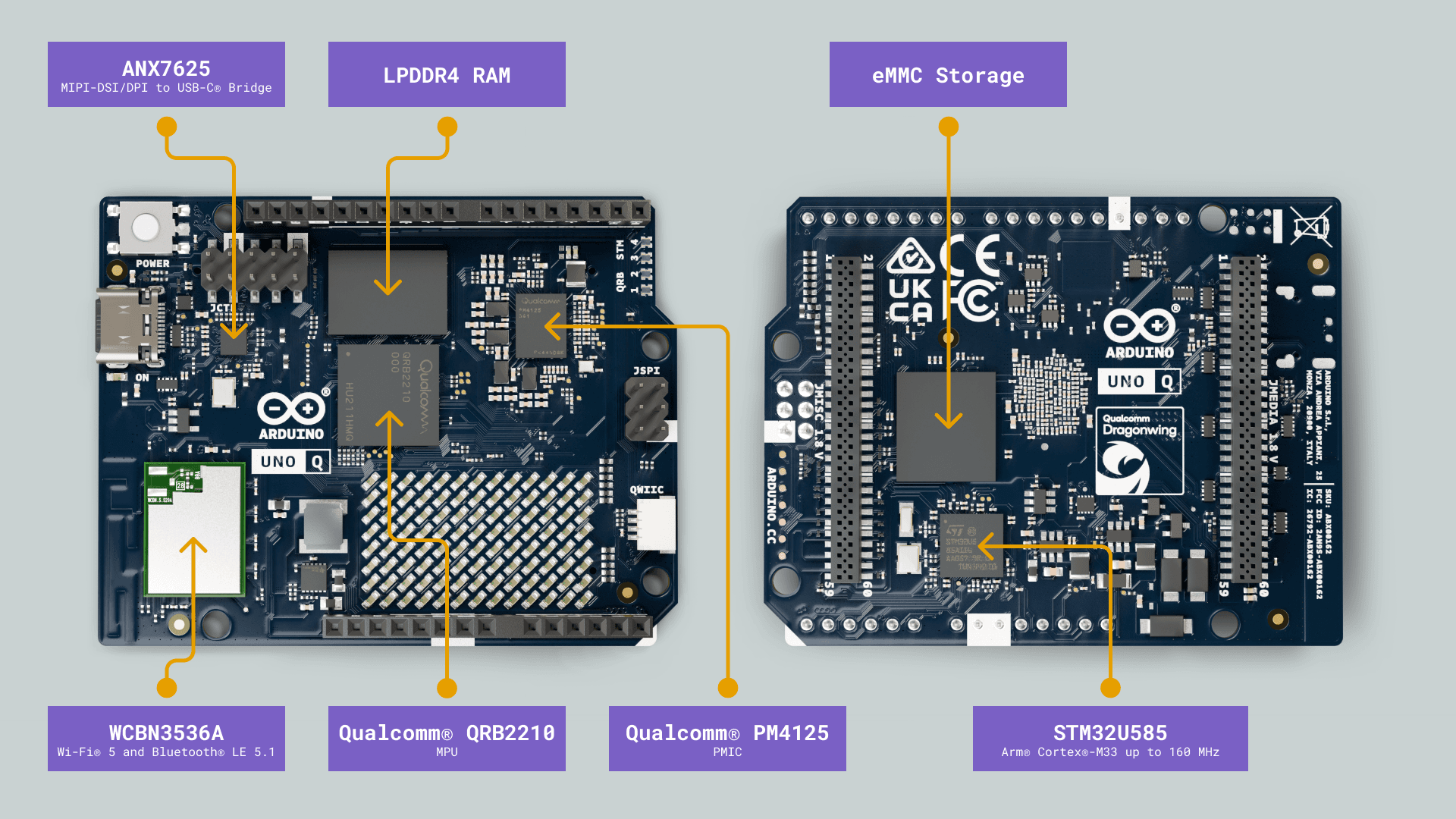
Here is an overview of the board’s main components, as shown in the image above:
- **Microprocessor**: The Qualcomm® QRB2210 is a quad-core Arm® Cortex®-A53 processor running at 2.0 GHz, equipped with an Adreno™ 702 GPU (845 MHz) for 3D graphics acceleration and dual ISPs supporting up to 25 MP at 30 fps. It runs Debian Linux OS with upstream support, making it well-suited for embedded vision and edge computing applications.
- **Microcontroller**: The STM32U585 microcontroller features an Arm® Cortex®-M33 core running up to 160 MHz, with 2 MB of flash memory and 786 KB of SRAM. It runs the Zephyr OS, providing a secure and efficient platform for low-power embedded applications.
- **Wireless Connectivity**: The WCBN3536A radio module provides dual-band Wi-Fi® 5 (2.4/5 GHz) and Bluetooth® 5.1 connectivity, both with onboard antennas for reliable wireless performance.
- **Memory**: The board features 16 GB or 32 GB options of eMMC storage and 2 GB or 4 GB options of LPDDR4 RAM, delivering fast memory access and reliable storage for embedded applications.
- **Multimedia Codec**: The ANX7625 multimedia codec enables video and audio output through the onboard USB-C connector, providing a high-speed interface for display and sound transmission in embedded applications.
- **Power Management**: The UNO Q includes the Qualcomm® PM4145, a power management integrated circuit (PMIC) to meet the demands of always-connected IoT devices.
### Pinout
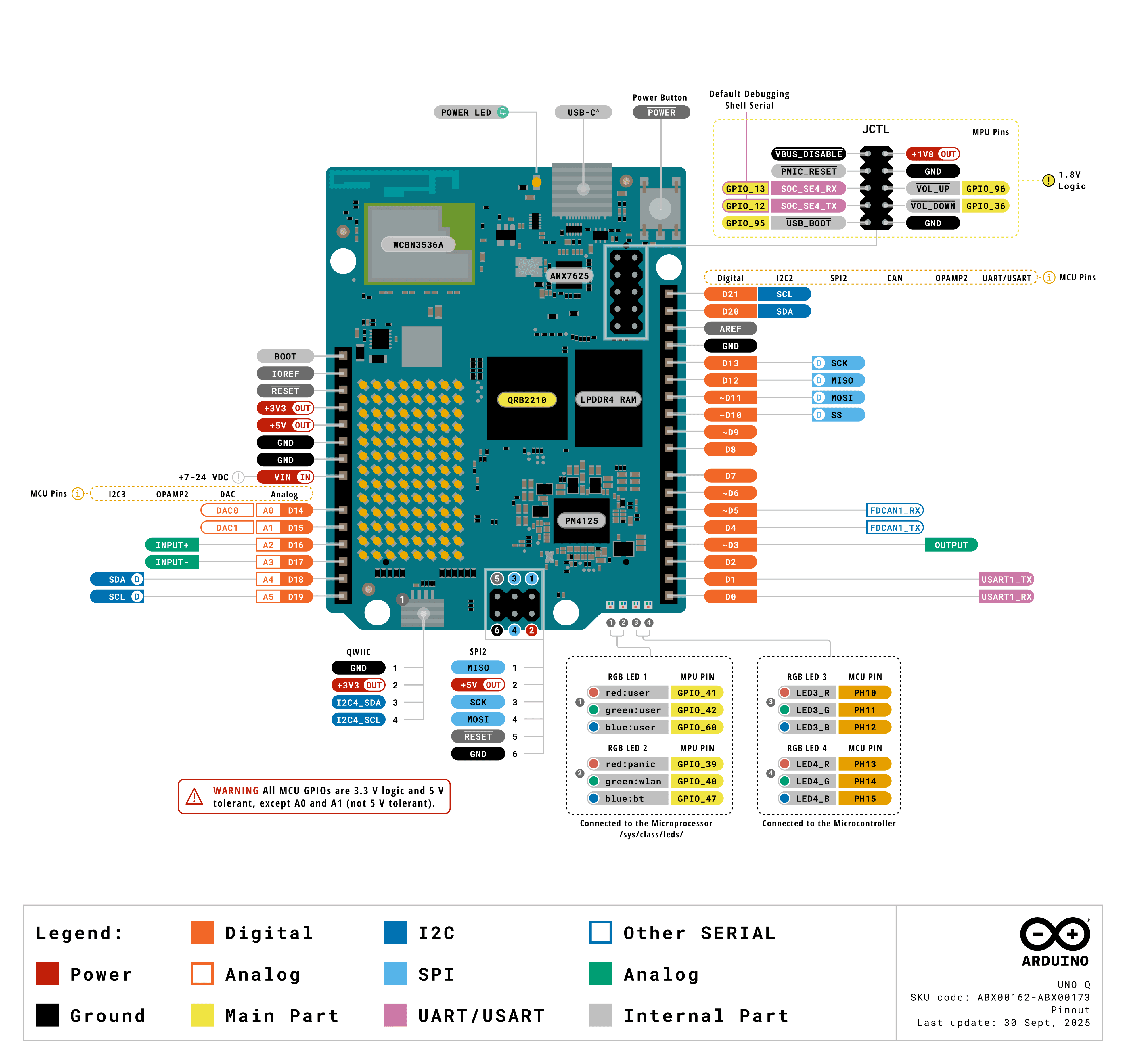
The full pinout is available and downloadable as PDF from the link below:
- [UNO Q full pinout](https://docs.arduino.cc/resources/pinouts/ABX00162-full-pinout.pdf)
### Datasheet
The complete datasheet is available and downloadable as PDF from the link below:
- [UNO Q datasheet](https://docs.arduino.cc/resources/datasheets/ABX00162-datasheet.pdf)
### Schematics
The complete schematics are available and downloadable as PDF from the link below:
- [UNO Q schematics](https://docs.arduino.cc/resources/schematics/ABX00162-schematics.pdf)
### STEP Files
The complete STEP files are available and downloadable from the link below:
- [UNO Q STEP files](../../downloads/ABX00162-step.zip)
### Form Factor
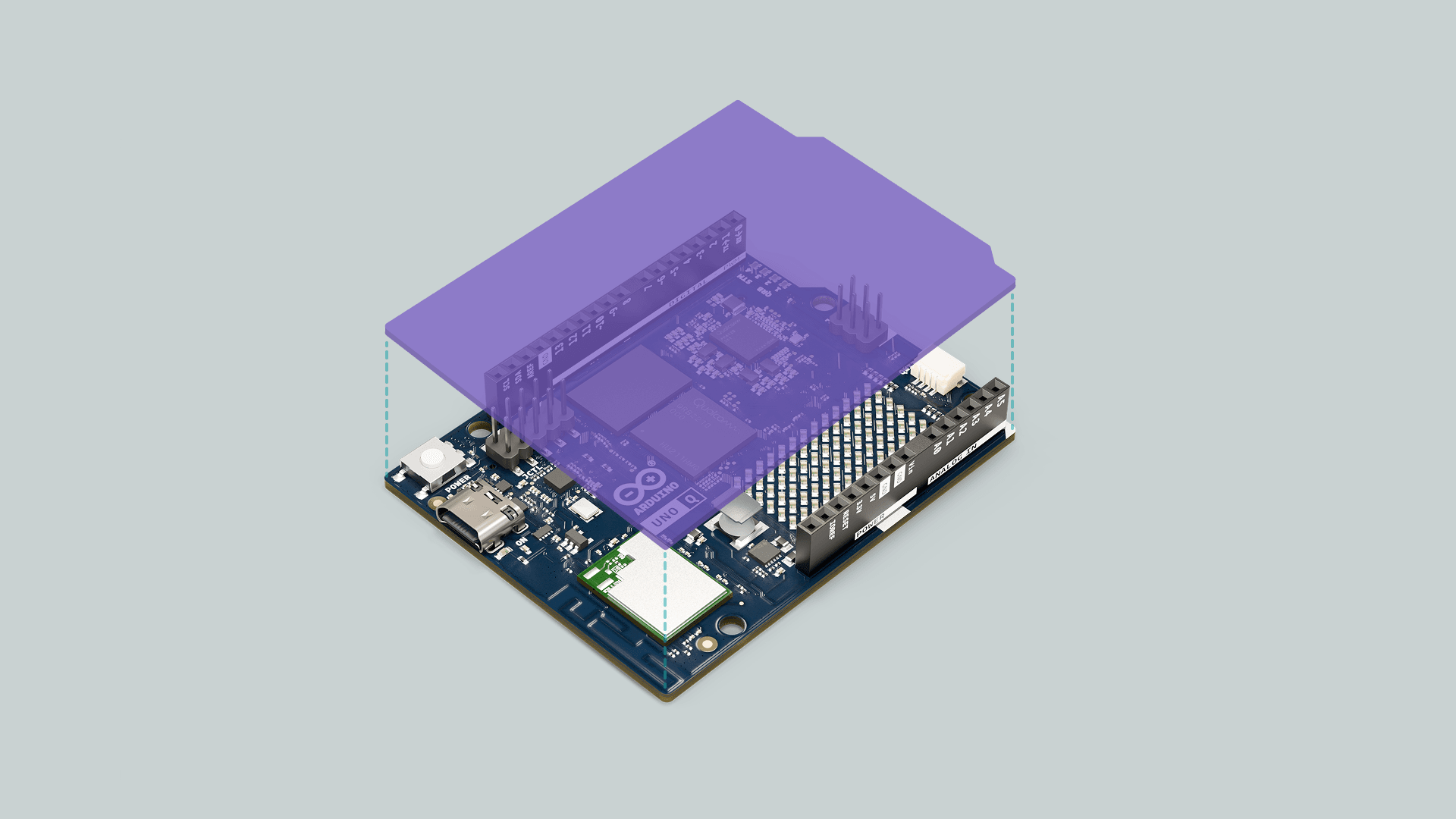
The Arduino UNO Q features the classic UNO form factor, ensuring compatibility with the wide range of UNO shields developed by us and the community over time.
## First Use
### Powering the Board
The Arduino UNO Q can be powered by:
- A USB-C® cable providing 5 VDC 3 A (not included).
- An external +5 VDC power supply connected to 5V pin.
- An external +7-24 VDC power supply connected to VIN pin.
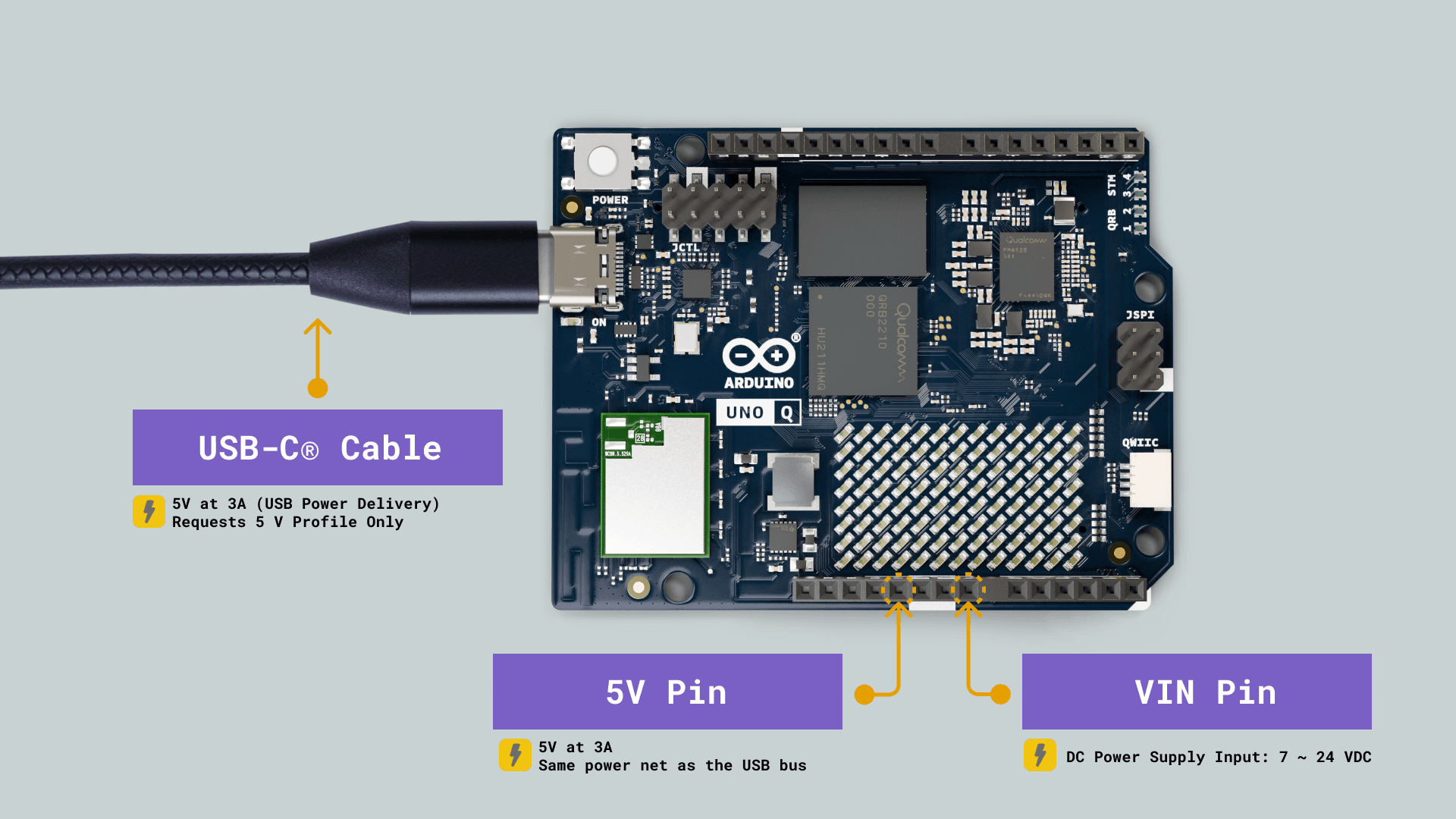
***Click [here](https://docs.arduino.cc/tutorials/uno-q/power-specification/) to learn more about the UNO Q power specifications.***
### Install Arduino App Lab
The [Arduino App Lab](https://docs.arduino.cc/software/app-lab/) is a unified development environment that extends the classic Arduino experience into the world of high-performance computing. Arduino App Lab lets you seamlessly combine Arduino sketches, Python scripts, and containerized Linux applications into a single workflow.
With code building blocks called Bricks, preconfigured AI models, and integrated orchestration, it reduces complexity while enabling you to create everything from simple prototypes to advanced, computation-intensive applications.
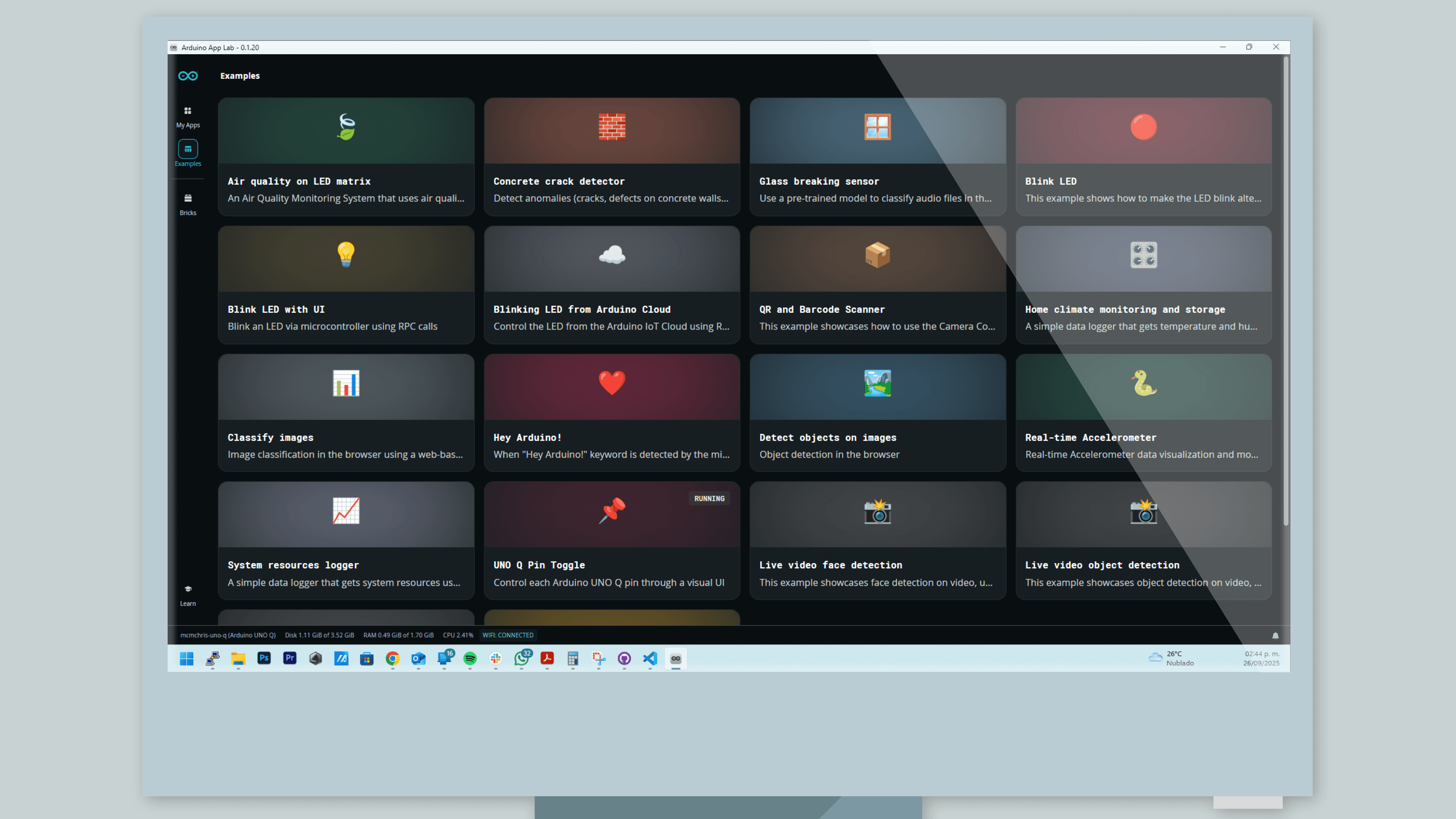
Arduino App Lab comes **pre-installed** on the UNO Q and can be used in Single-Board Computer (SBC) mode. We highly recommend the 4 GB of RAM UNO Q variant for a better **standalone** experience.
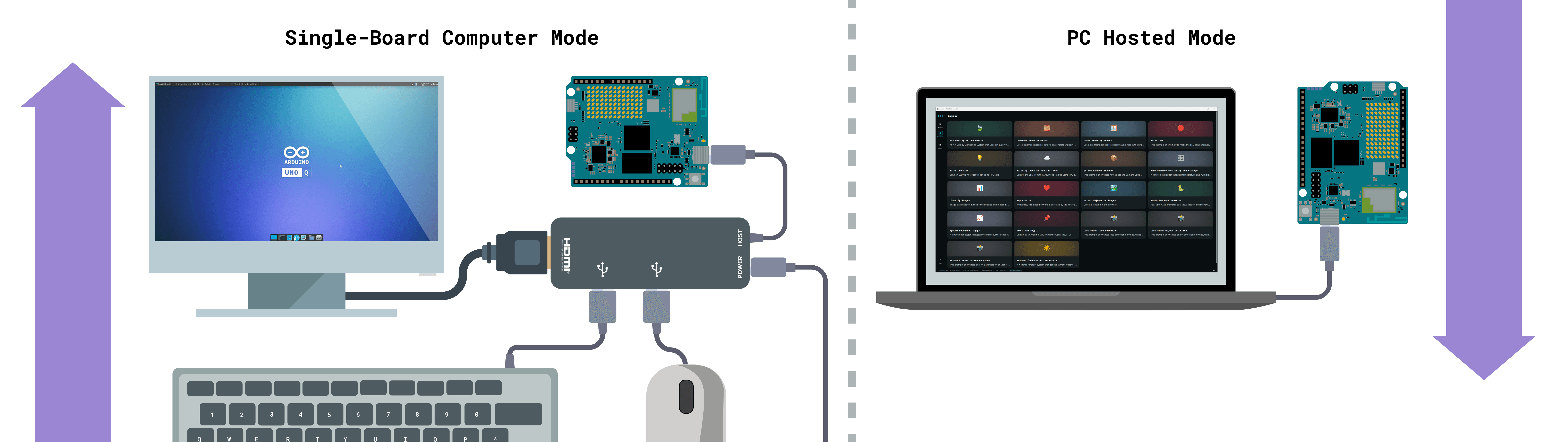
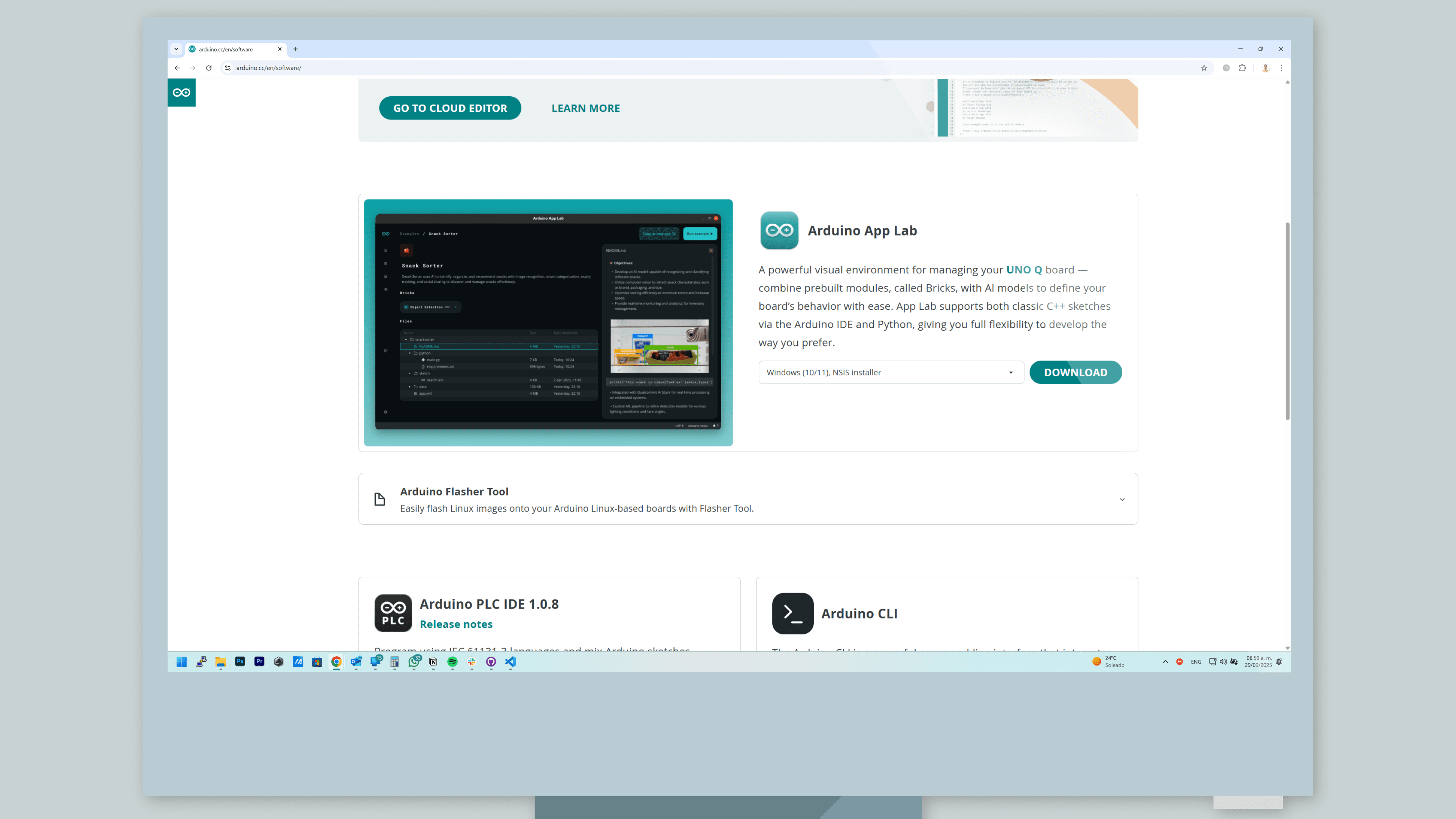
To install it in your personal computer for a **PC Hosted** setup, go to the [software section](https://www.arduino.cc/en/software/#app-lab-section) on our official website, scroll to Arduino App Lab and select your OS’s respective variant.
#### Network Mode
Even when you have set up your Arduino UNO Q as a **single-board computer**, you can access it remotely from your personal machine by using the Arduino App Lab desktop and the **Network Mode**. Both modes can be used simultaneously.
- When you open Arduino App Lab, your board will appear with the **Network** tag if it can be discovered on your local network.
- Click on it and enter the Linux password to log in.
- You will now have access to the board remotely.
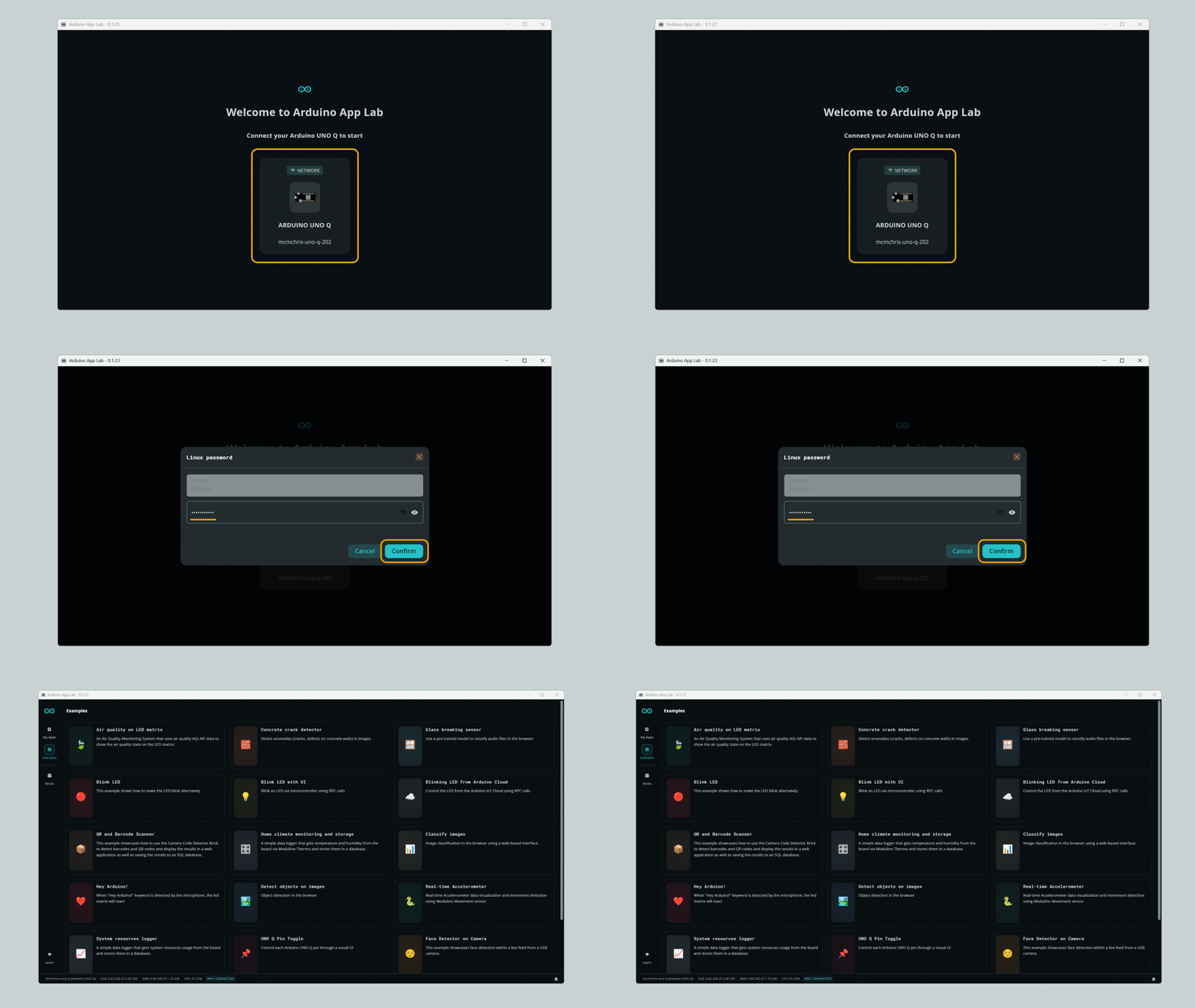
With this method, you can access your UNO Q from any machine in your local network. This allows you to use Arduino App Lab as if you were connected directly to the board, where you can develop & run Apps in the same way as if it was connected via USB-C®.
Network Mode relies on **local network discovery (mDNS)** to automatically find boards on the same network. Some network configurations such as guest Wi-Fi, corporate or IoT networks, VPNs, or strict firewall rules may prevent automatic discovery, even if the board is connected to Wi-Fi.
**Troubleshooting Discovery Issues**
* **Windows Users:** When launching Arduino App Lab for the first time, you may receive a prompt from Windows Defender (or other security software) regarding `mdns-discovery.exe`. You must **allow** this access for the board to be discovered. *Note: The prompt may not appear on systems that have already run Arduino IDE at some point.*
* **Firewall Settings:** If the board does not appear, ensure that your firewall allows traffic on **UDP port 5353**, which is required for mDNS discovery.
***__Note__: Being able to access the board via browser, SSH, or IP address does not guarantee that it will appear in Network Mode. Arduino App Lab uses local network discovery to list boards automatically.***
### Linux Host Setup (Required for Linux Users)
If you are using the UNO Q from a Linux host machine, you must configure USB device permissions for your user account. Without proper permissions, several operations may fail, resulting in frustrating errors.
When Arduino App Lab attempts to connect to the board via USB, it will fail silently. You may need to check the DevTools console to see the actual error message about insufficient device permissions.
Similarly, if you try to flash a new image to the board, the process will fail with the following error:
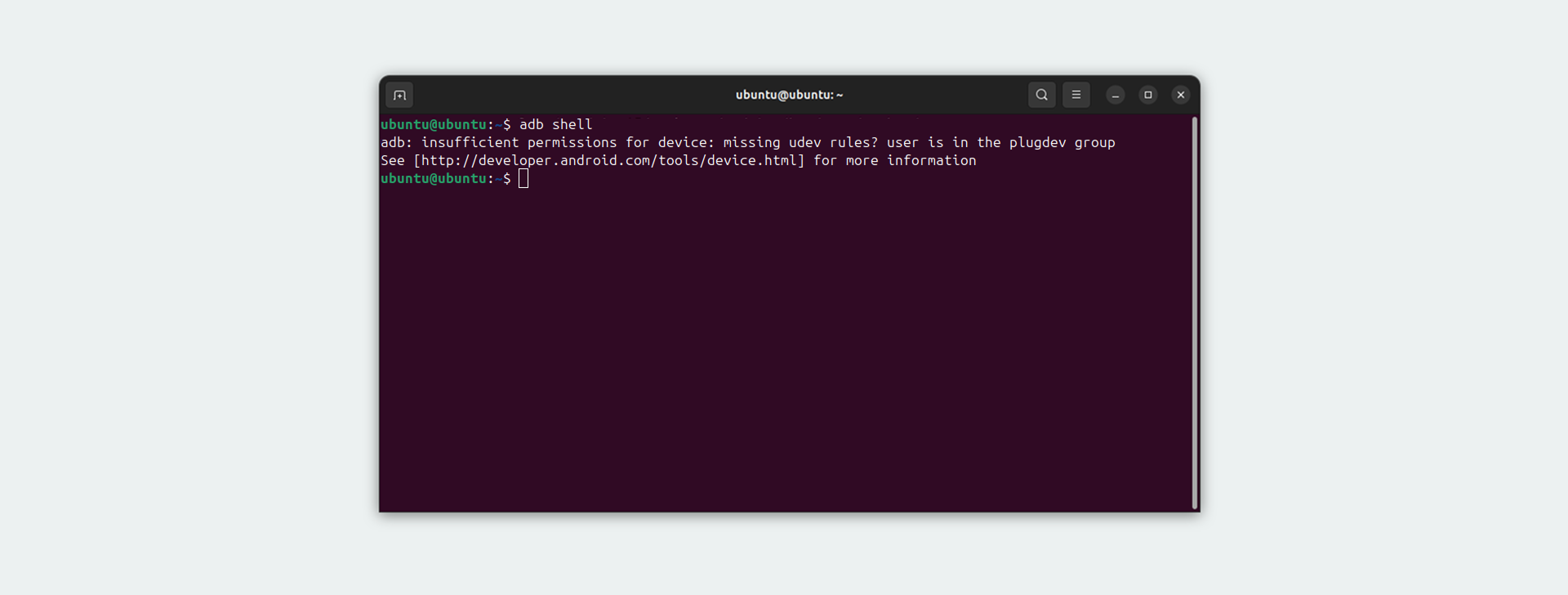
The same error will occur when trying to communicate with the board via ADB commands such as `adb shell`.
Click to expand this section
#### Understanding the Permission
By default, USB devices on Linux are accessible only by the root user or users in specific groups. When the UNO Q connects to your computer, it creates USB device files, typically in the following directory:
```bash
/dev/bus/usb/
```
That requires write permissions for communication.
The UNO Q supports two USB modes, each with its own USB identifier. In regular operation, the board uses USB VID `2341` and PID `0078`.
When you need to flash the board's firmware, it enters **Emergency Download Mode (EDL)**, which uses USB VID `05c6` and PID `9008`. Both modes require proper permissions to function correctly.
#### Installing Udev Rules
The correct way to configure the necessary permissions for your user account is via **udev rules**. `udev` is the Linux subsystem that manages device nodes in the `/dev` directory. The following udev rules will grant your user account access to the UNO Q:
```bash
# Operating mode
SUBSYSTEMS=="usb", ATTRS{idVendor}=="2341", ATTRS{idProduct}=="0078", MODE="0660", TAG+="uaccess"
# EDL mode
SUBSYSTEMS=="usb", ATTRS{idVendor}=="05c6", ATTRS{idProduct}=="9008", MODE="0660", TAG+="uaccess"
```
Run this command to install the necessary udev rules:
```bash
echo \
'# Operating mode
SUBSYSTEMS=="usb", ATTRS{idVendor}=="2341", ATTRS{idProduct}=="0078", MODE="0660", TAG+="uaccess"
# EDL mode
SUBSYSTEMS=="usb", ATTRS{idVendor}=="05c6", ATTRS{idProduct}=="9008", MODE="0660", TAG+="uaccess"' \
| \
sudo \
tee \
"/etc/udev/rules.d/60-Arduino-UNO-Q.rules" \
&& \
sudo \
udevadm control \
--reload-rules \
&& \
sudo \
udevadm trigger
```
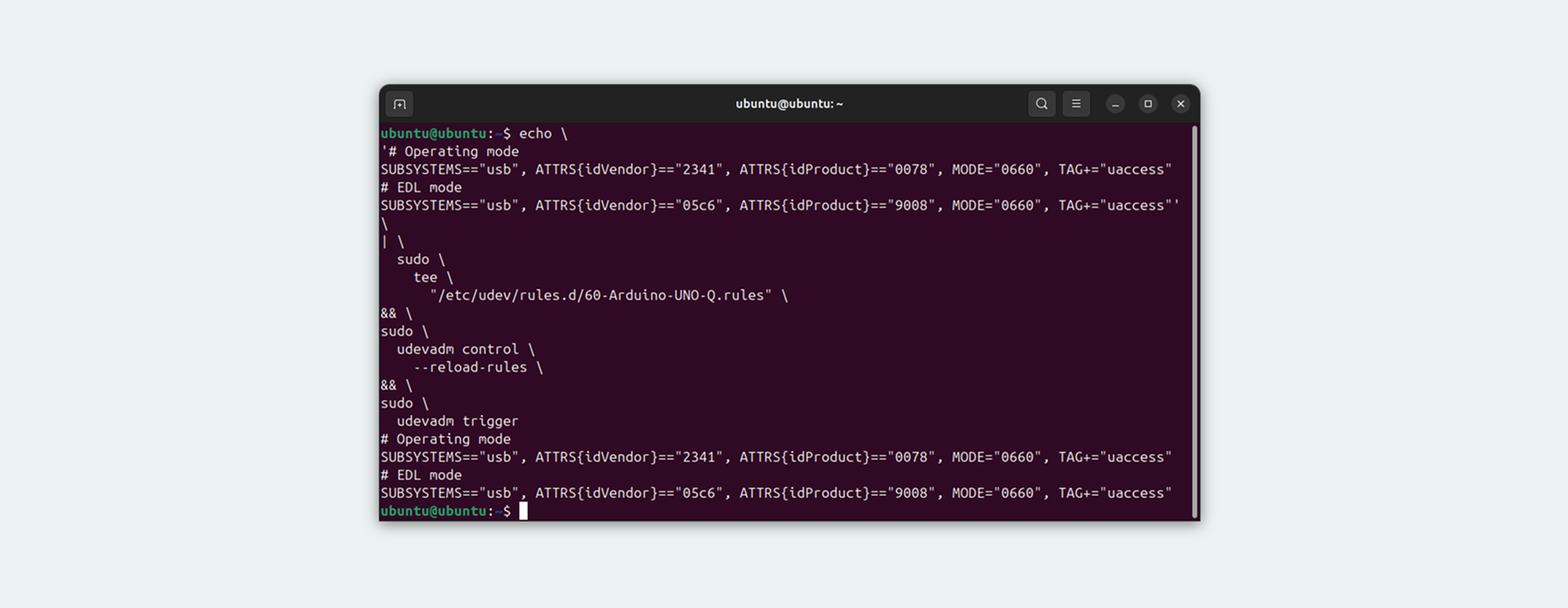
This command performs several operations in sequence. First, it creates the rule file and writes the udev rules to:
```bash
/etc/udev/rules.d/60-Arduino-UNO-Q.rules
```
The `60-` prefix determines the rule processing order, where lower numbers indicate higher priority. Files in the `/etc/udev/rules.d/` directory are user-specific overrides that are kept across system updates.
Each rule matches USB devices based on specific criteria. The `SUBSYSTEMS=="usb"` parameter allows the rule to only apply to USB devices.
The `ATTRS{idVendor}` and `ATTRS{idProduct}` parameters identify the UNO Q by its unique USB vendor and product IDs. The `MODE="0660"` parameter sets the device file permissions, allowing the owner and group to read and write to the device.
The `TAG+="uaccess"` parameter grants access to the currently logged-in user through `systemd-logind`.
After creating the rule file, the command reloads all udev rules by running as follows:
```bash
udevadm control --reload-rules
```
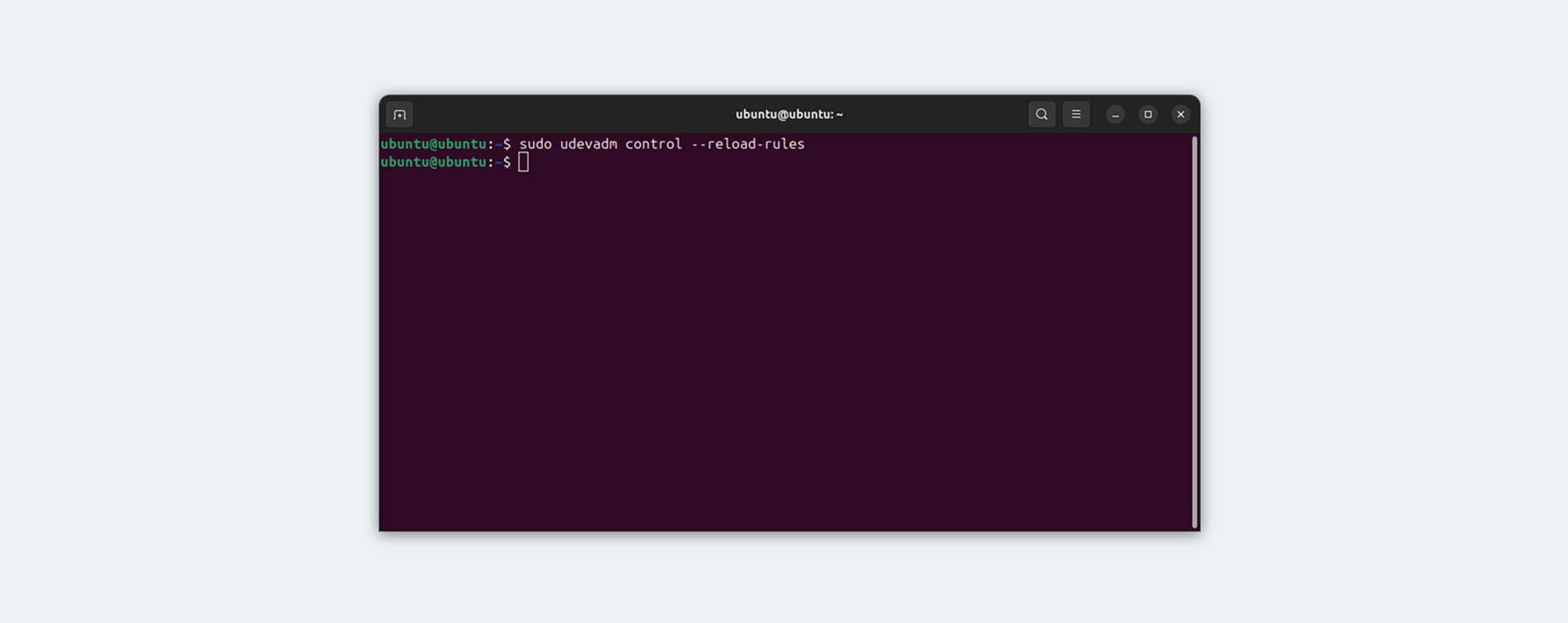
This tells udev to reload all rule files without requiring a system restart.
The `udevadm trigger` reprocesses all existing devices with the newly loaded rules, making sure that any currently connected UNO Q boards receive the correct permissions.
#### Verifying the Installation
Using the following command, verify the rules were installed correctly:
```bash
cat /etc/udev/rules.d/60-Arduino-UNO-Q.rules
```
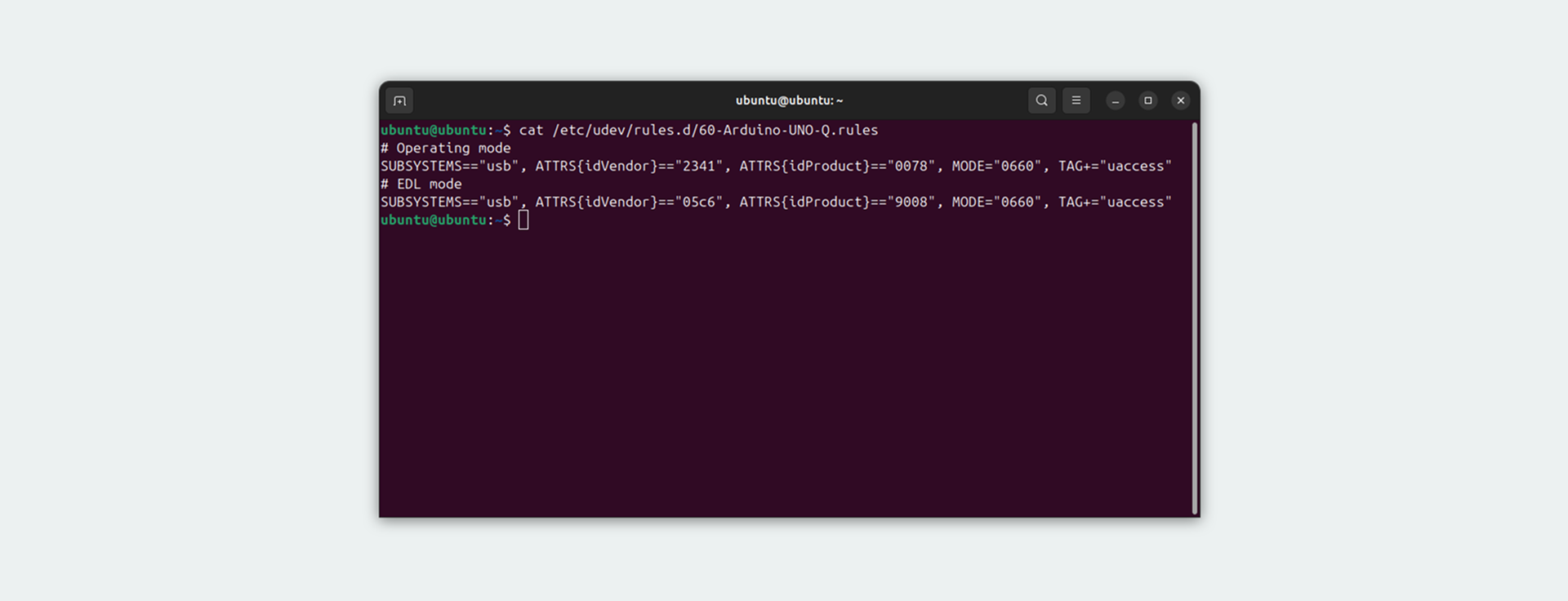
This should display the two udev rules you just installed.
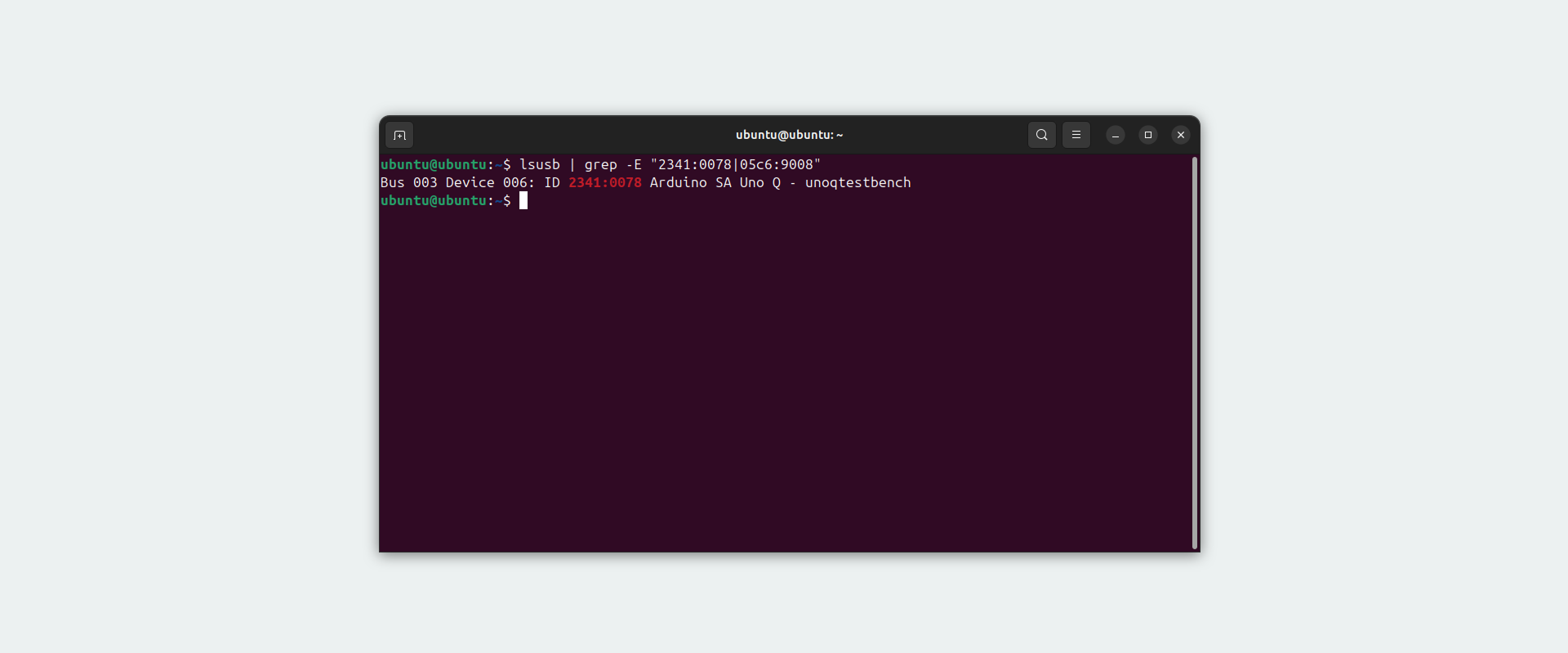
To check if the UNO Q is detected, the following command can be used:
```bash
lsusb | grep -E "2341:0078|05c6:9008"
```
When the board is connected in operating mode, you should see similar to the following output:
#### Applying the Changes
After installing the udev rules, **you need to disconnect and reconnect your board for the changes to take effect**.
Unplug the UNO Q from your computer and wait a few seconds. Then reconnect the board. The new permissions will be applied automatically when the board reconnects.
If you had any applications open when you installed the rules, such as Arduino App Lab or a terminal running ADB commands, you should close and restart them after reconnecting the board. This allows applications to properly detect the board with its new permissions.
For ADB commands, the following commands can be used:
```bash
adb devices
```
This command lists all Android Debug Bridge devices connected to your system. Your UNO Q should appear in the list without any error messages.
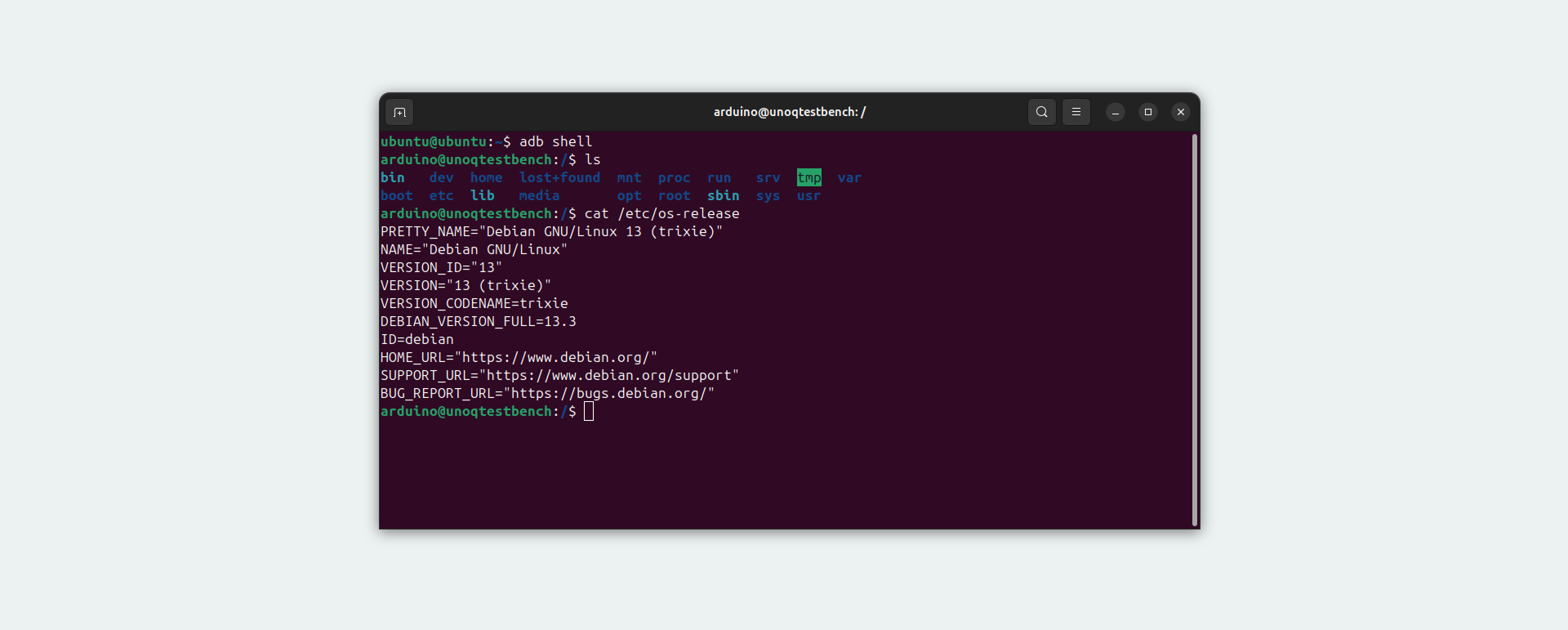
The following command can be used to access the UNO Q:
```bash
adb shell
```
#### Alternative Installation Method
You can use the official `post-install` script from the [*Arduino Core Zephyr repository*](https://github.com/arduino/ArduinoCore-zephyr) to configure these permissions automatically. This script performs the same [udev rule installation as the manual method](#linux-users-usb-permissions-required) described above.
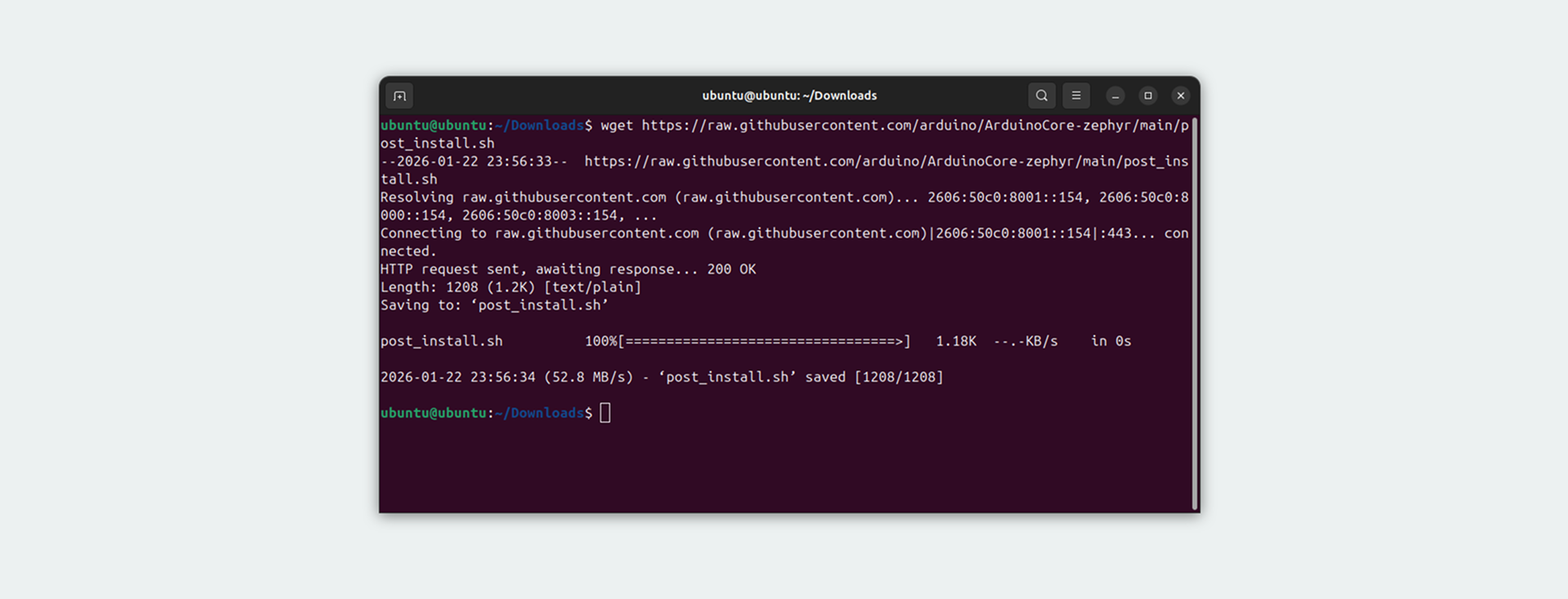
To download and run the `post-install` script, navigate to your Downloads directory and use `wget` to fetch the script from the repository:
```bash
cd ~/Downloads
```
```bash
wget https://raw.githubusercontent.com/arduino/ArduinoCore-zephyr/main/post_install.sh
```
```bash
chmod +x post_install.sh
```
```bash
sudo ./post_install.sh
```
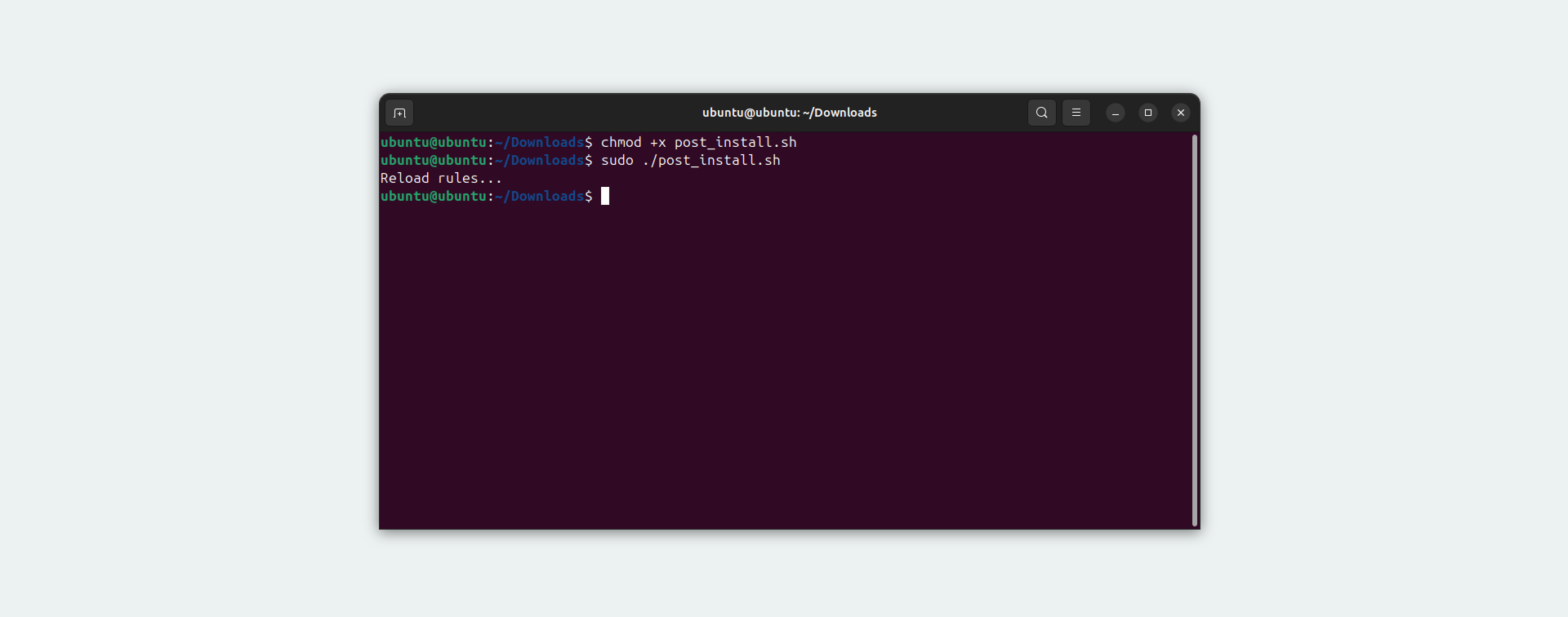
If wget is not available on your system, you can use `curl` instead:
```bash
cd ~/Downloads
```
```bash
curl -O https://raw.githubusercontent.com/arduino/ArduinoCore-zephyr/main/post_install.sh
```
```bash
chmod +x post_install.sh
```
```bash
sudo ./post_install.sh
```
```bash
sudo ~/.arduino15/packages/arduino/hardware/zephyr//post_install.sh
```
Alternatively, you can clone the entire repository and run the script from there:
```bash
cd ~/Downloads
```
```bash
git clone https://github.com/arduino/ArduinoCore-zephyr.git
```
```bash
cd ArduinoCore-zephyr
```
```bash
chmod +x post_install.sh
```
```bash
sudo ./post_install.sh
```
When prompted, enter your password. The script will create the udev rules file, reload the udev rules, and apply them to any currently connected devices, just like the manual installation method.
After running the script, you can verify the installation using the same command shown in the manual installation section:
```bash
cat /etc/udev/rules.d/60-arduino-zephyr.rules
```
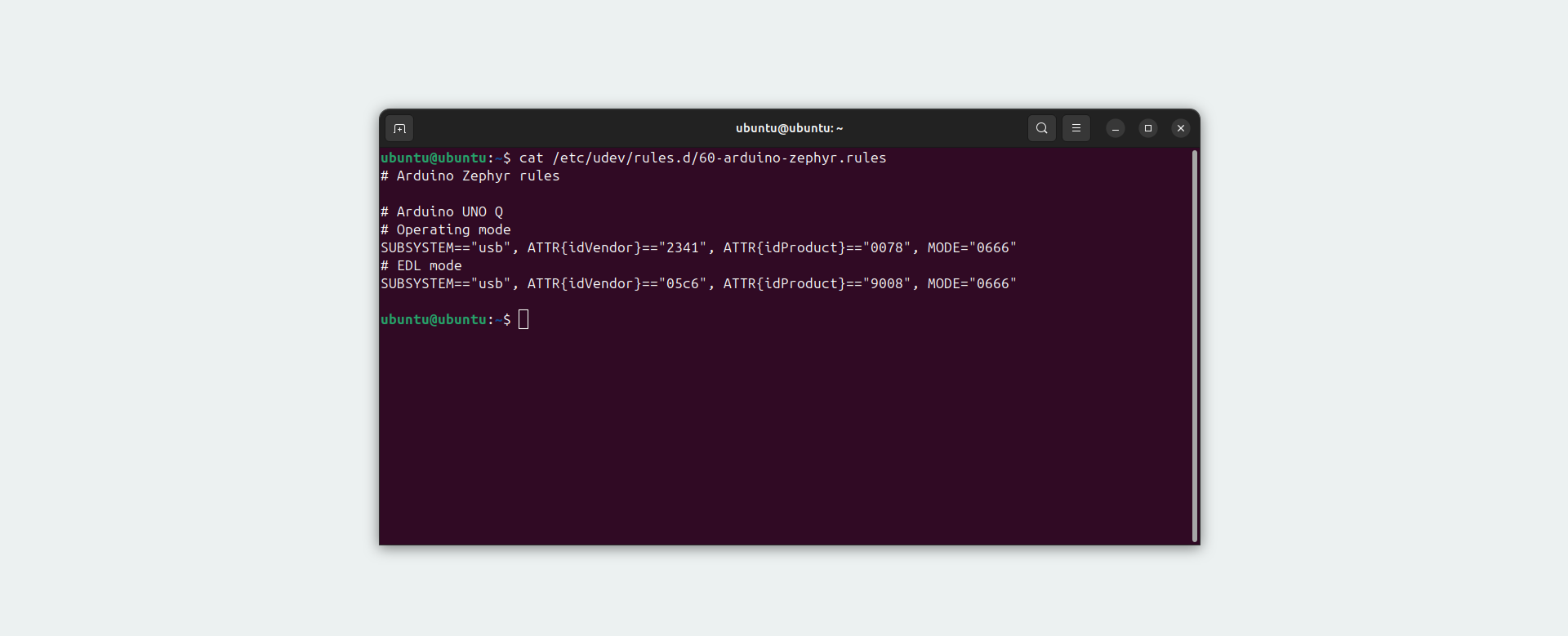
Note that the script creates a file named `60-arduino-zephyr.rules` rather than `60-Arduino-UNO-Q.rules`, but it has the same permission rules for both operating modes.
After installing the udev rules using either method, **unplug your UNO Q board from the computer, wait a few seconds, then reconnect it**. This allows the new permissions to be applied. Once reconnected, you can continue to the next steps in the [Flash a Linux Image](/software/app-lab/configure/flash/) tutorial.
### Hello World Example
Let’s program the UNO Q with the classic **Hello World** example typical of the Arduino ecosystem: the Blink sketch. We will use this example to verify that the board is correctly connected to the Arduino App Lab.
**Prerequisites:**
- Arduino UNO Q
- USB-C cable
- Computer with internet access (PC-hosted mode)
- Monitor, keyboard, mouse, and USB-C dongle (single-board computer mode)
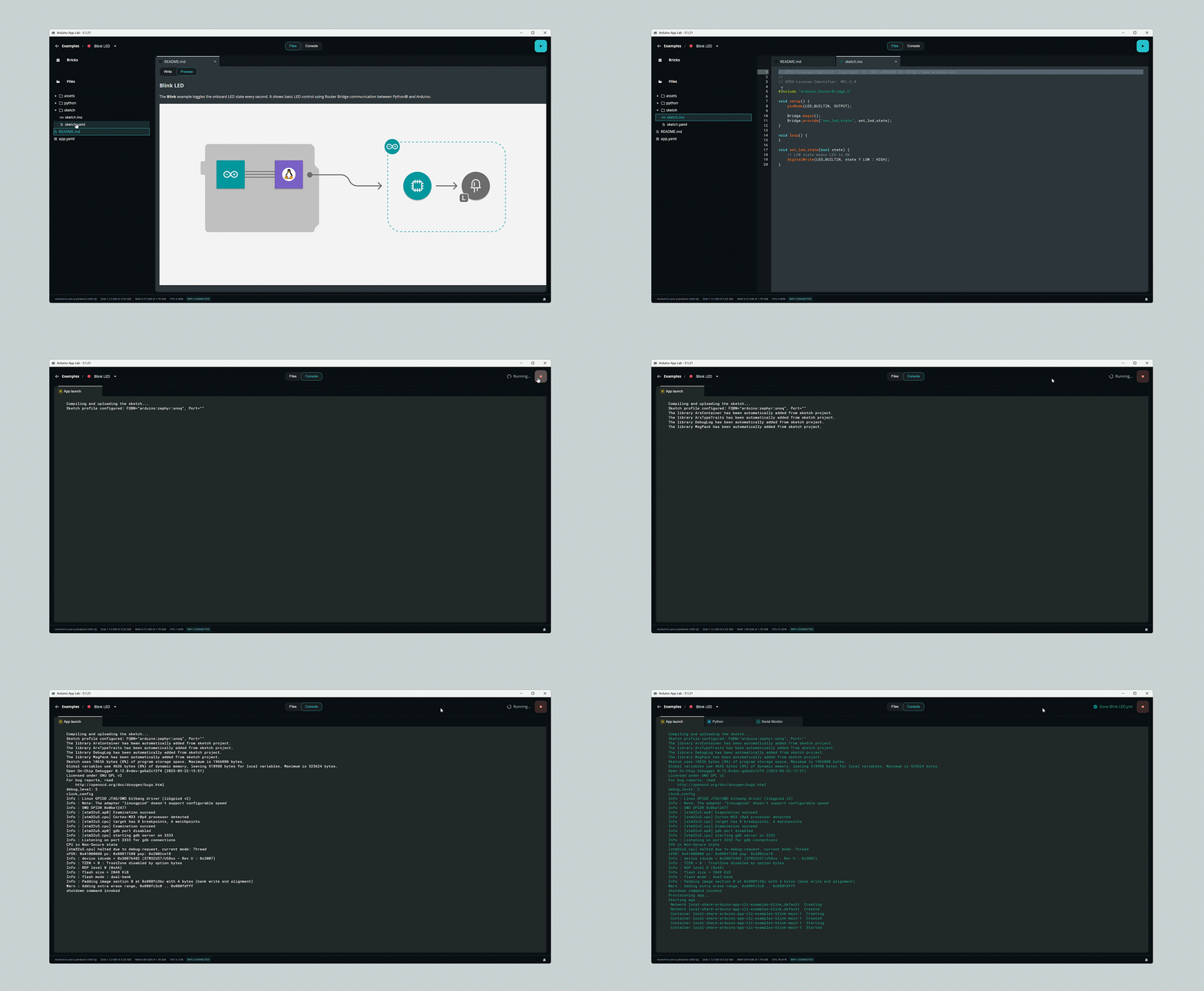
- Connect the UNO Q to your PC (if you are not in single-board computer mode).
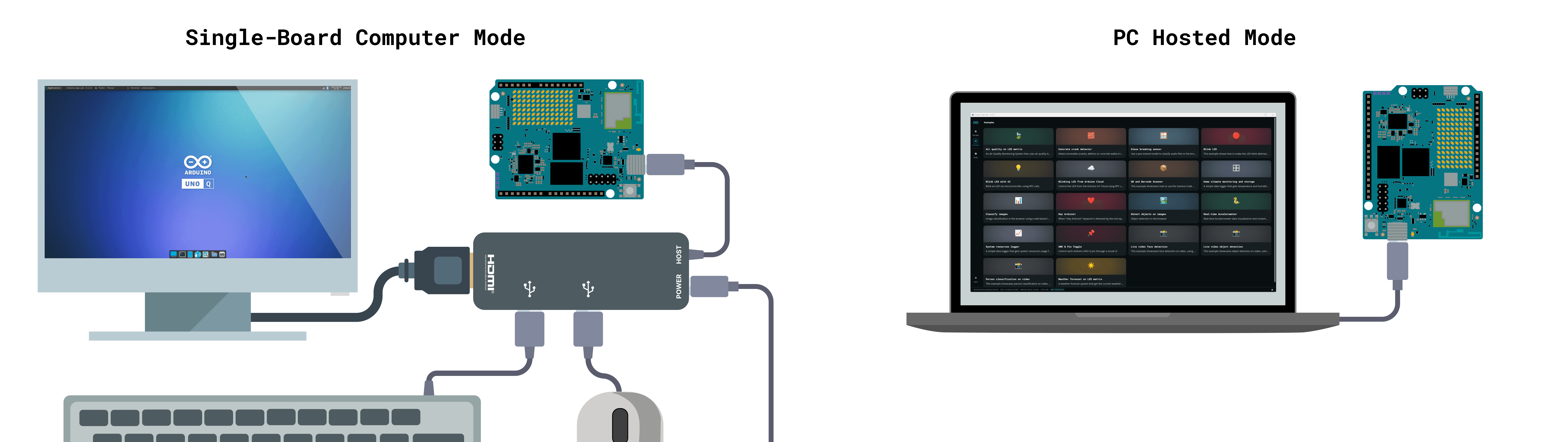
- Open the Arduino App Lab, it opens in the **Examples** section.
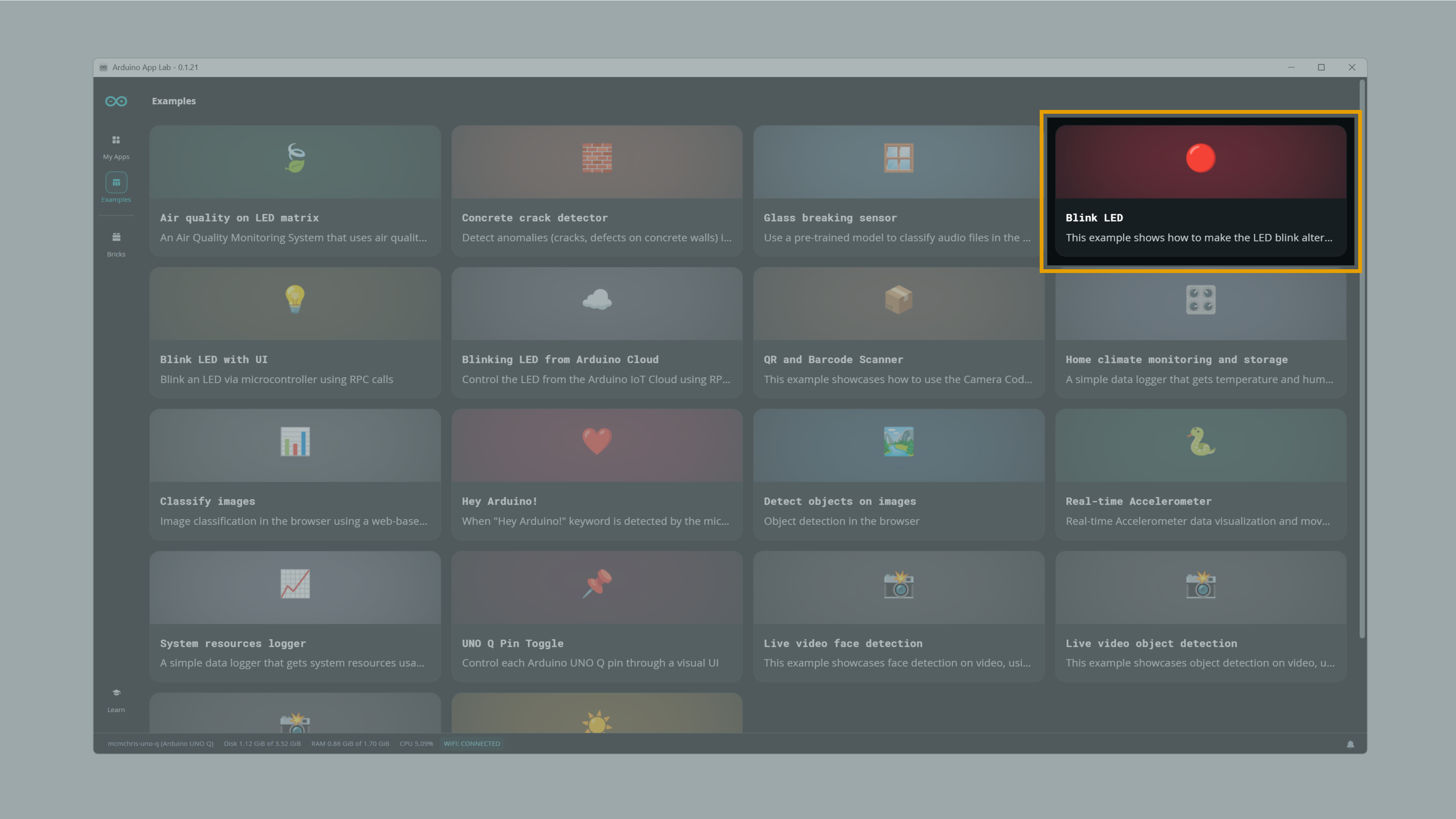
- Open the **Blink LED** example (Read the example documentation to understand how the App works).
- Click on the **Run** button in the top right corner and wait for the app to be uploaded.
You should now see the red LED of the built-in RGB LED turning on for one second, then off for one second, repeatedly.
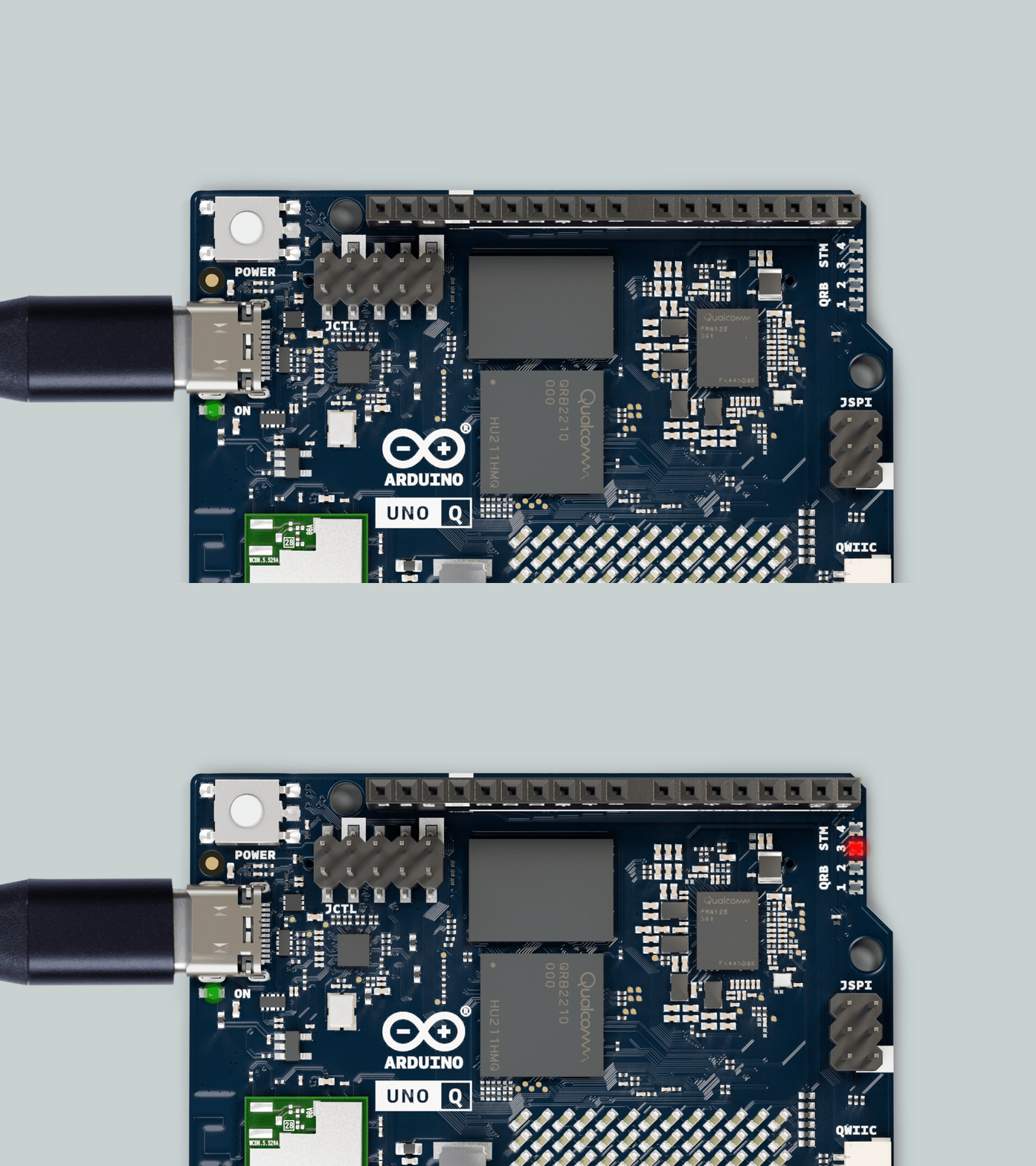
***The LED controlled in this example is driven by the STM32 microcontroller through the Arduino sketch.***
### Running an App at Startup
You can configure a specific App to launch automatically whenever the UNO Q is powered on. This is useful for standalone projects where the board operates without a computer connection.
**Note:** You cannot set a built-in **Example** as the startup app directly from the UI. You must first click **Copy and edit app** from the example or create a new **App** from scratch.
1. Open your custom App (or the copy of an example).
2. Select the arrow (▼) next to the App name near the top left corner.
3. Toggle the **Run at startup** switch to the **ON** position.
Once configured, a **DEFAULT** badge will appear next to your App's name, indicating it will run automatically upon boot.
#### Advanced: Using the CLI
Alternatively, you can set the default app using the command line interface (CLI) inside the UNO Q terminal:
```bash
arduino-app-cli properties set default user:
```
### Arduino IDE (Beta)
The Arduino UNO Q is compatible with the standard Arduino IDE, allowing you to program the board using the familiar Arduino language and ecosystem.
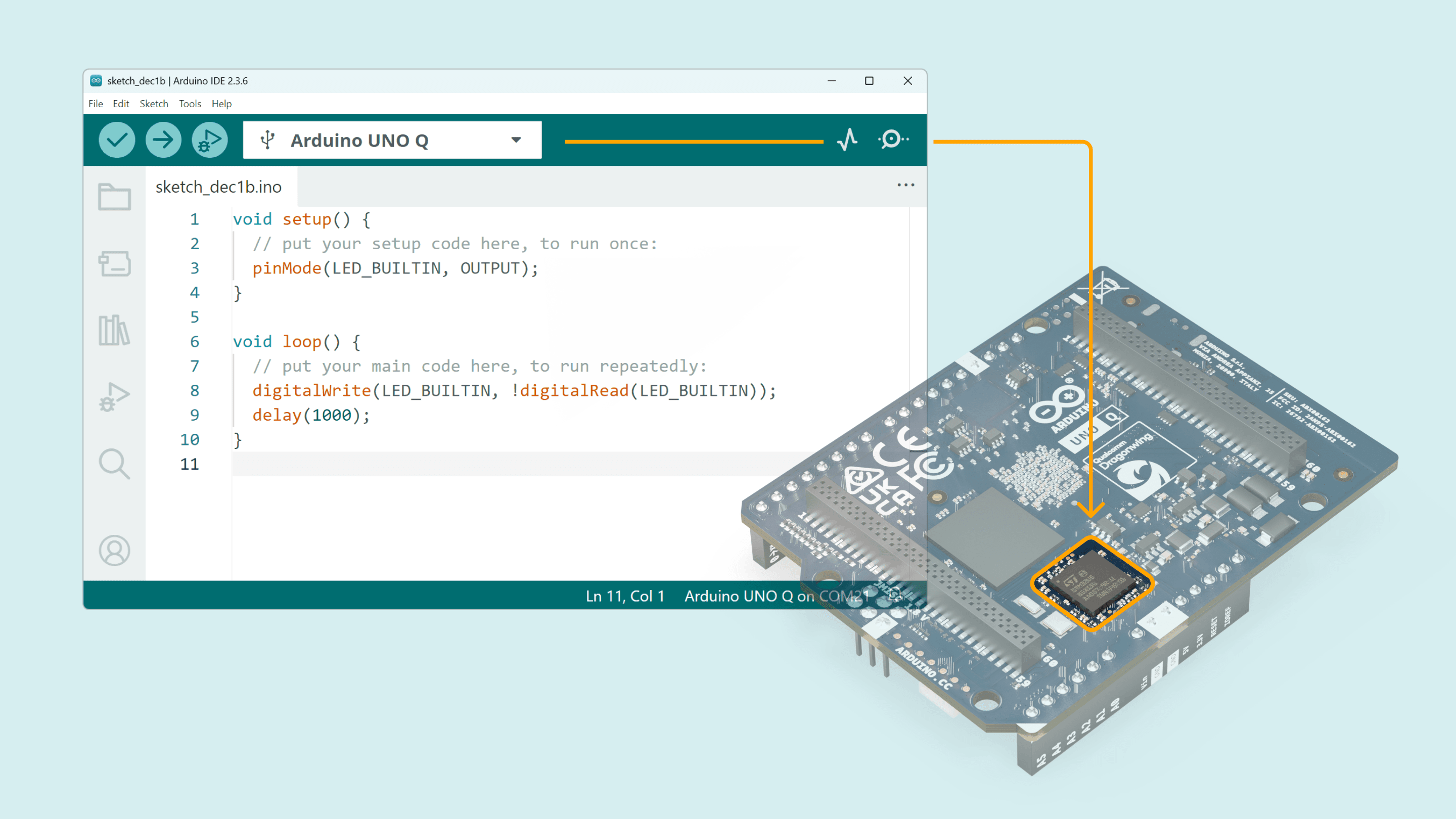
***The Arduino UNO Q features a dual-processor architecture. The Arduino IDE targets and programs only the __UNO Q Microcontroller (STM32)__. If you wish to program the Qualcomm Microprocessor, please refer to the [Arduino App Lab section](#install-arduino-app-lab).***
#### Installing the UNO Q Core
To start using the board, you must first install the specific core that supports the UNO Q architecture (based on Zephyr).
1. Open the Arduino IDE.
2. Navigate to **Tools > Board > Boards Manager...** or click the **Boards Manager** icon in the left sidebar.
3. In the search bar, type `UNO Q`.
4. Locate the **Arduino UNO Q Zephyr Core** and click **Install**.
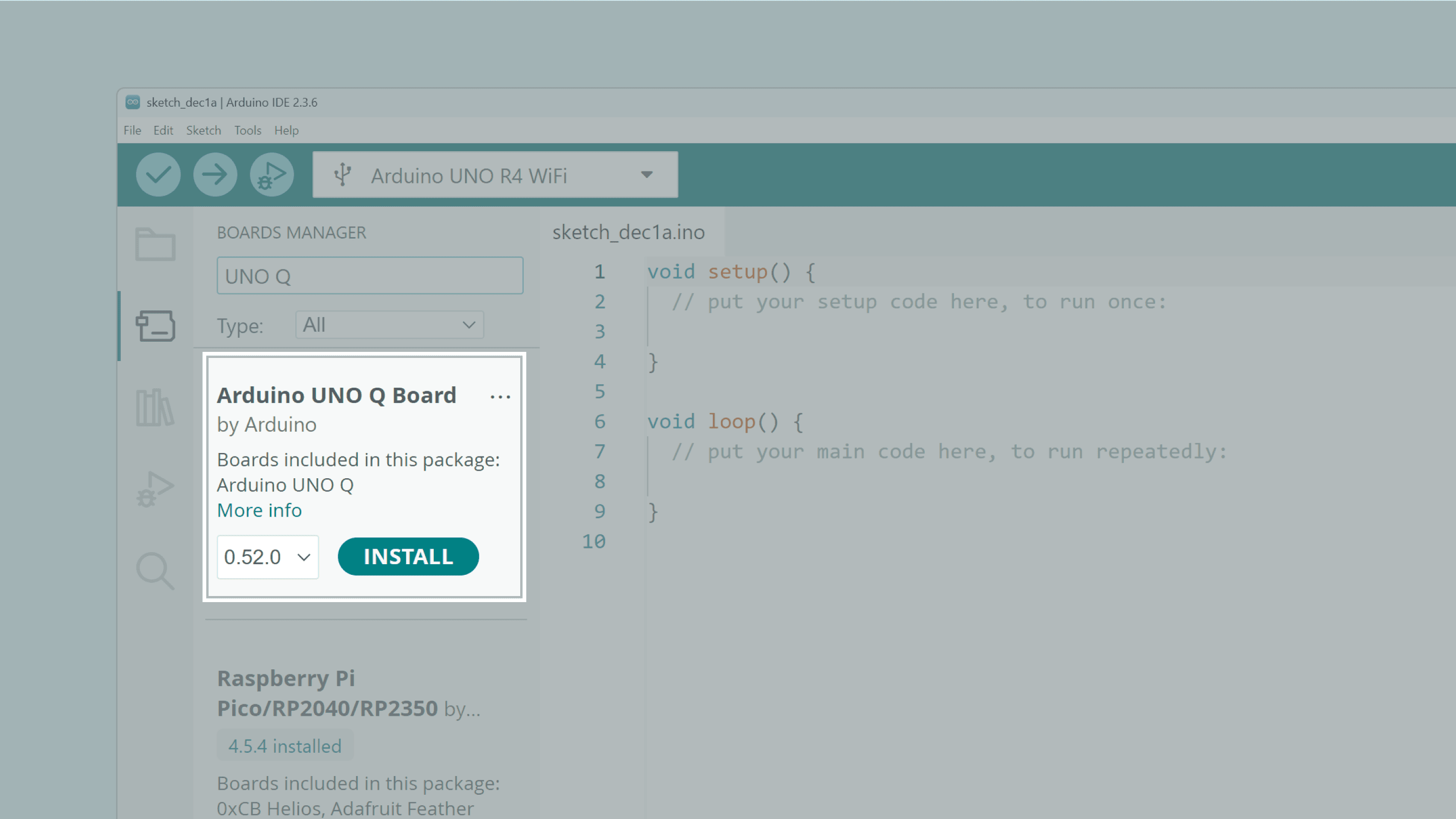
***Troubleshooting: If the core does not appear in the search results, you may need to add the package manually. Go to __File > Preferences__ and add the following link to the __Additional Boards Manager URLs__ field: `https://downloads.arduino.cc/packages/package_zephyr_index.json`***
#### Hello World (Blink)
Once the core is installed, you can verify that everything is working by uploading the classic Blink sketch.
1. **Select the Board:** Go to **Tools > Board > Arduino UNO Q Board** and select **Arduino UNO Q**.
2. **Select the Port:** Connect your board via USB-C. Go to **Tools > Port** and select the port corresponding to your UNO Q.
3. **Open the Example:** Go to **File > Examples > 01.Basics > Blink**.
4. **Upload:** Click the **Upload** button (right arrow icon) in the top toolbar.
You can copy it directly from the snippet below:
```cpp
void setup() {
Serial.begin(9600); // We can use 'Serial' again!
// initialize digital pin LED_BUILTIN as an output.
pinMode(LED_BUILTIN, OUTPUT);
}
// the loop function runs over and over again forever
void loop() {
digitalWrite(LED_BUILTIN, HIGH); // change state of the LED by setting the pin to the HIGH voltage level
delay(1000); // wait for a second
digitalWrite(LED_BUILTIN, LOW); // change state of the LED by setting the pin to the LOW voltage level
delay(1000); // wait for a second
Serial.println("Hello World");
}
```
The IDE will compile the sketch and upload it to the STM32 microcontroller. You should now see the red LED of the built-in RGB LED turning on for one second, then off for one second, repeatedly.

Also, if you open the Serial Monitor you will see the "Hello World" message!.
## Onboard User Interface
The Arduino UNO Q offers a wide range of user interfaces, making interaction intuitive and straightforward.
### LED Matrix
One of the board’s key features is an 8×13 blue LED matrix that is managed by the STM32 microcontroller of the UNO Q.
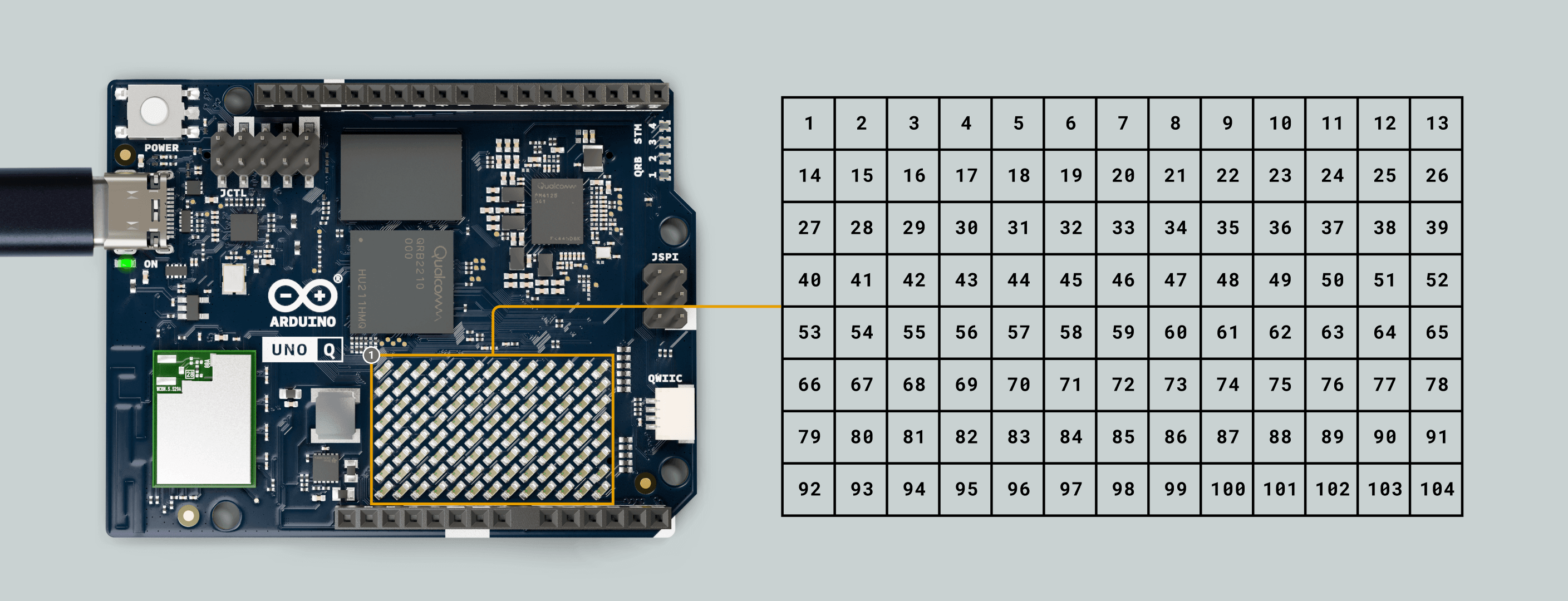
It is a versatile display you can use to show data, status indicators, icons, or even create simple animations and games.
Here is a list of basic examples for using the **LED matrix**. To test them, follow the steps below:
1. Connect the UNO Q to your PC (if you are not in single-board computer mode).

2. Open the Arduino App Lab, navigate to **My Apps** and click on **Create new app+**.
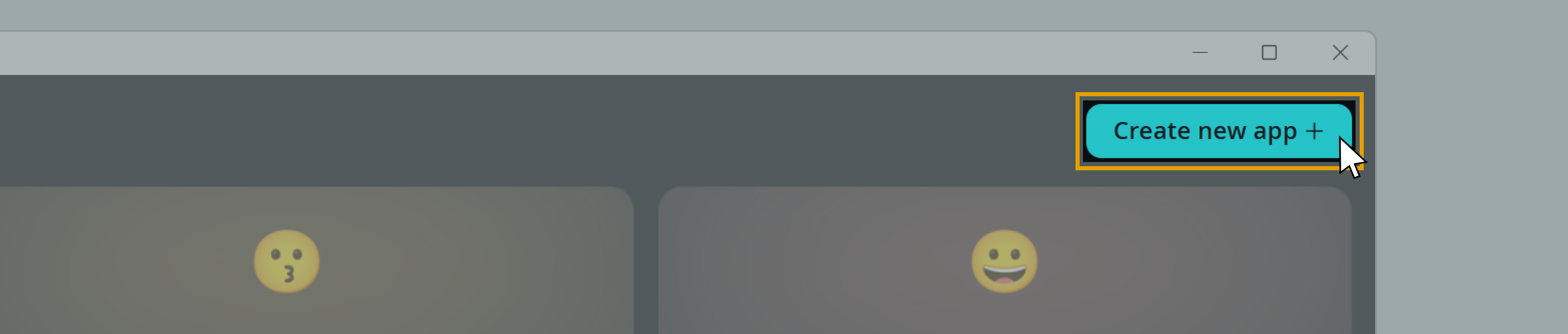
3. A new App must be created to test each of the examples below.
#### Image Drawing
This example is for drawing **custom frames** in the LED matrix, specifically the Arduino logo.
You can copy and paste the following example into the "sketch" part of your new App found in `sketch\sketch.ino`.
```cpp
#include
uint8_t logo[104] = {
0,0,0,0,0,0,0,0,0,0,0,0,0,
0,0,1,1,1,0,0,0,1,1,1,0,0,
0,1,0,0,0,1,0,1,0,0,0,1,0,
1,0,0,0,0,0,1,0,0,1,0,0,1,
1,0,1,1,1,0,1,0,1,1,1,0,1,
1,0,0,0,0,0,1,0,0,1,0,0,1,
0,1,0,0,0,1,0,1,0,0,0,1,0,
0,0,1,1,1,0,0,0,1,1,1,0,0
};
Arduino_LED_Matrix matrix;
void setup() {
matrix.begin();
// display the image
matrix.setGrayscaleBits(1);
matrix.draw(logo);
}
void loop() {
}
```
It should look like this in the Arduino App Lab:
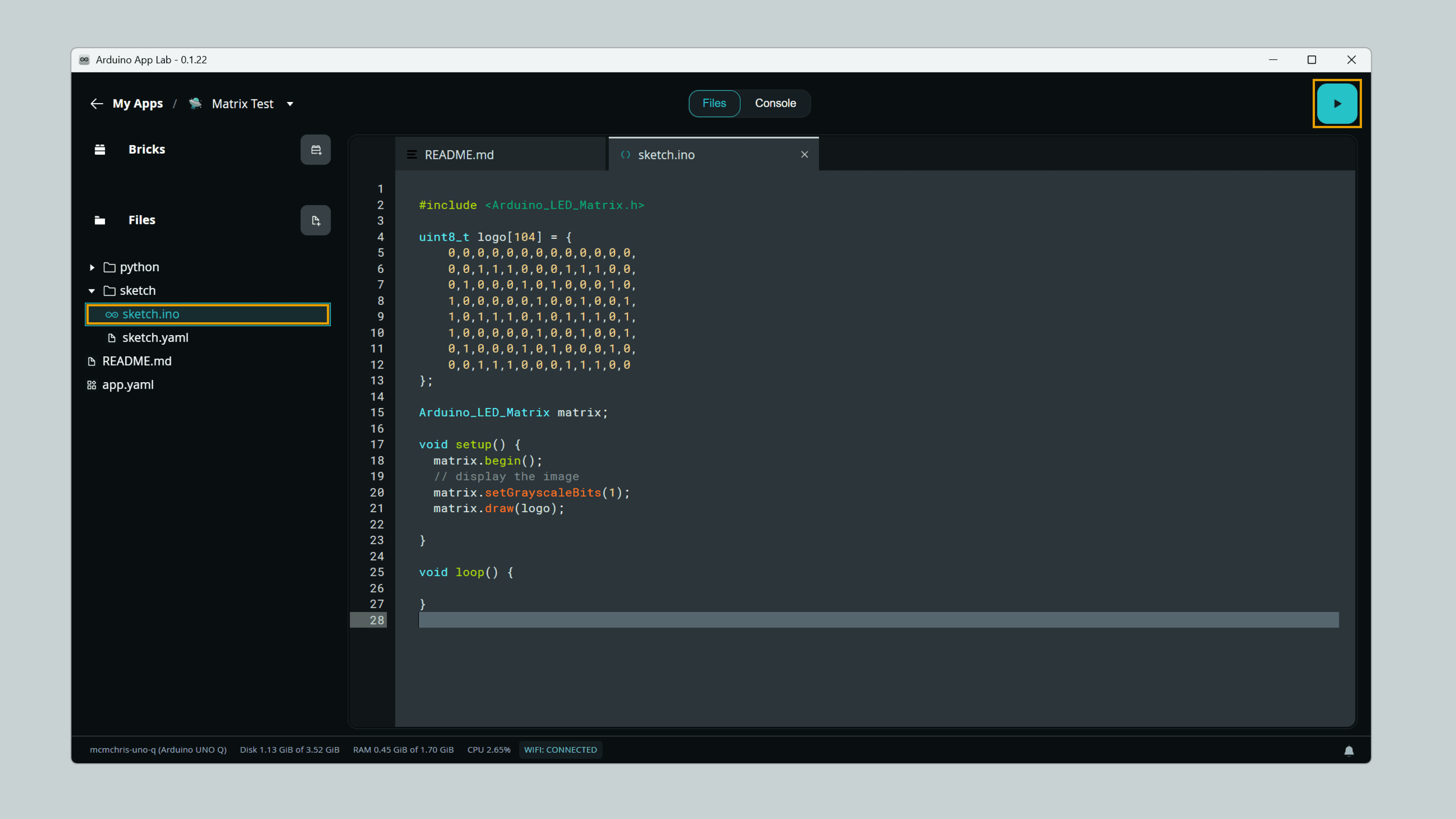
You can create your own frame by creating an array following the matrix format (8x13) with 1's and 0's as in the example from above:
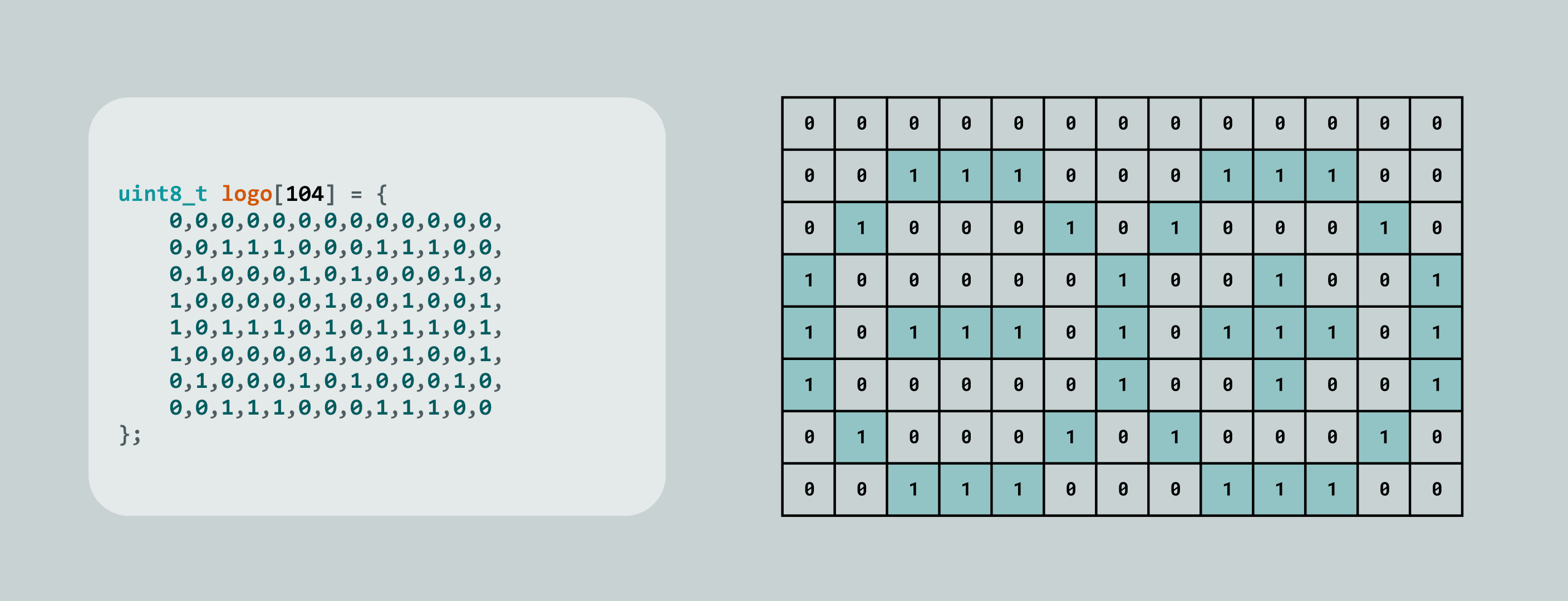
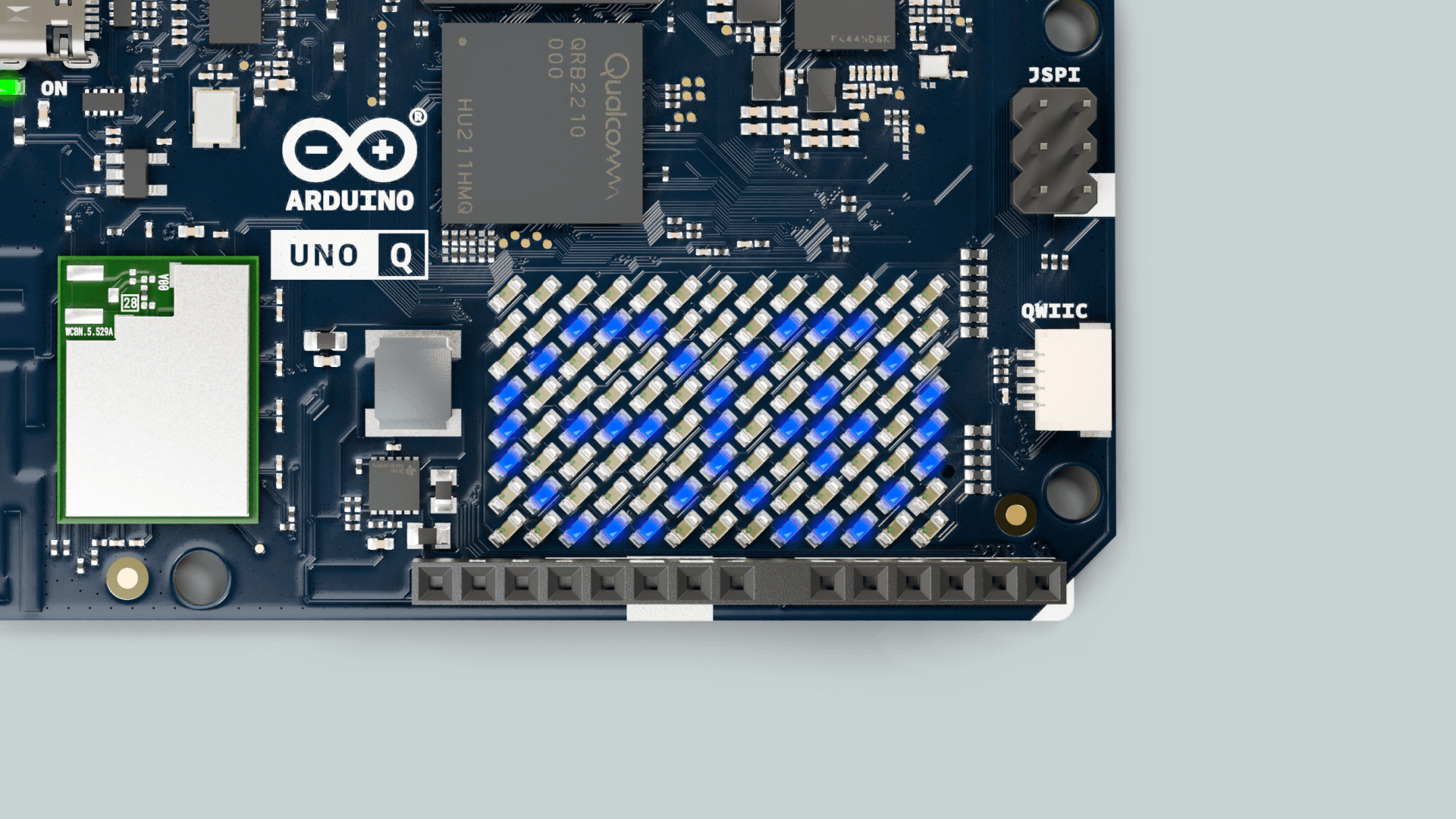
Execute the App by clicking on the **Run** button in the Arduino App Lab and you should see the LED matrix showing your frame:
#### Dimmable LEDs
The LED matrix supports 8 levels of grayscale (3 bits) so you can manage the LED brightness individually.
You can set the brightness bits with the function `setGrayscaleBits(bits)` as shown below:
```cpp
matrix.setGrayscaleBits(3); // 3 bits result on 8 brightness levels (0 to 7)
```
As usual conversion tools to grayscale uses 256 levels (8 bits) so you can also use this range, and it will be automatically mapped.
```cpp
matrix.setGrayscaleBits(8); // 8 bits result on 256 brightness levels (0 to 255)
```
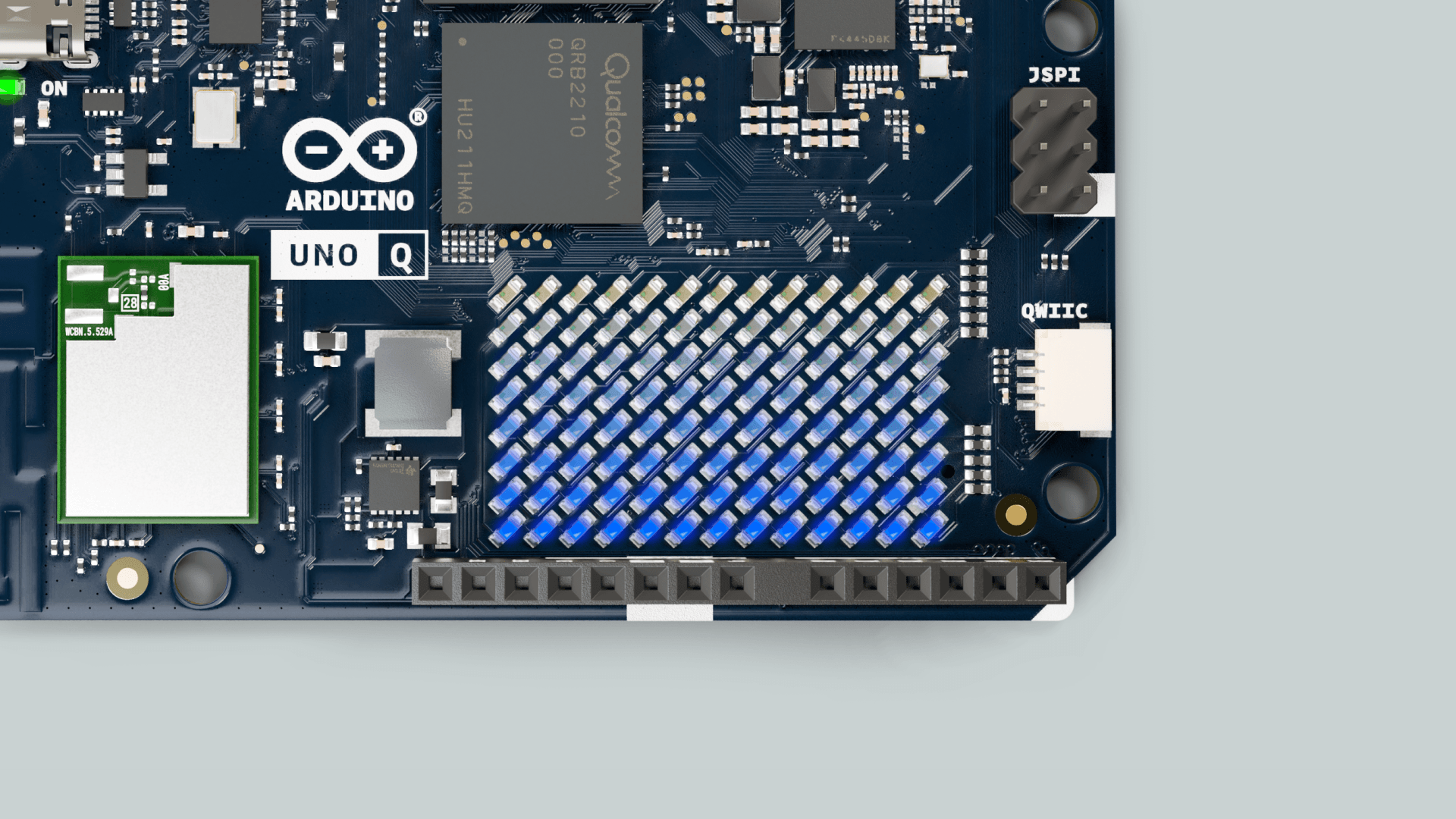
This example is for showing the **supported grayscale** in the LED matrix.
You can copy and paste the following example into the "sketch" part of your new App found in `sketch\sketch.ino`.
```cpp
#include
uint8_t shades[104] = {
0,0,0,0,0,0,0,0,0,0,0,0,0,
1,1,1,1,1,1,1,1,1,1,1,1,1,
2,2,2,2,2,2,2,2,2,2,2,2,2,
3,3,3,3,3,3,3,3,3,3,3,3,3,
4,4,4,4,4,4,4,4,4,4,4,4,4,
5,5,5,5,5,5,5,5,5,5,5,5,5,
6,6,6,6,6,6,6,6,6,6,6,6,6,
7,7,7,7,7,7,7,7,7,7,7,7,7
};
Arduino_LED_Matrix matrix;
void setup() {
matrix.begin();
// display the image
matrix.setGrayscaleBits(3);
matrix.draw(shades);
}
void loop() {
}
```
Execute the App by clicking on the **Run** button in the Arduino App Lab and you should see the LED matrix showing your frame:
### RGB LEDs
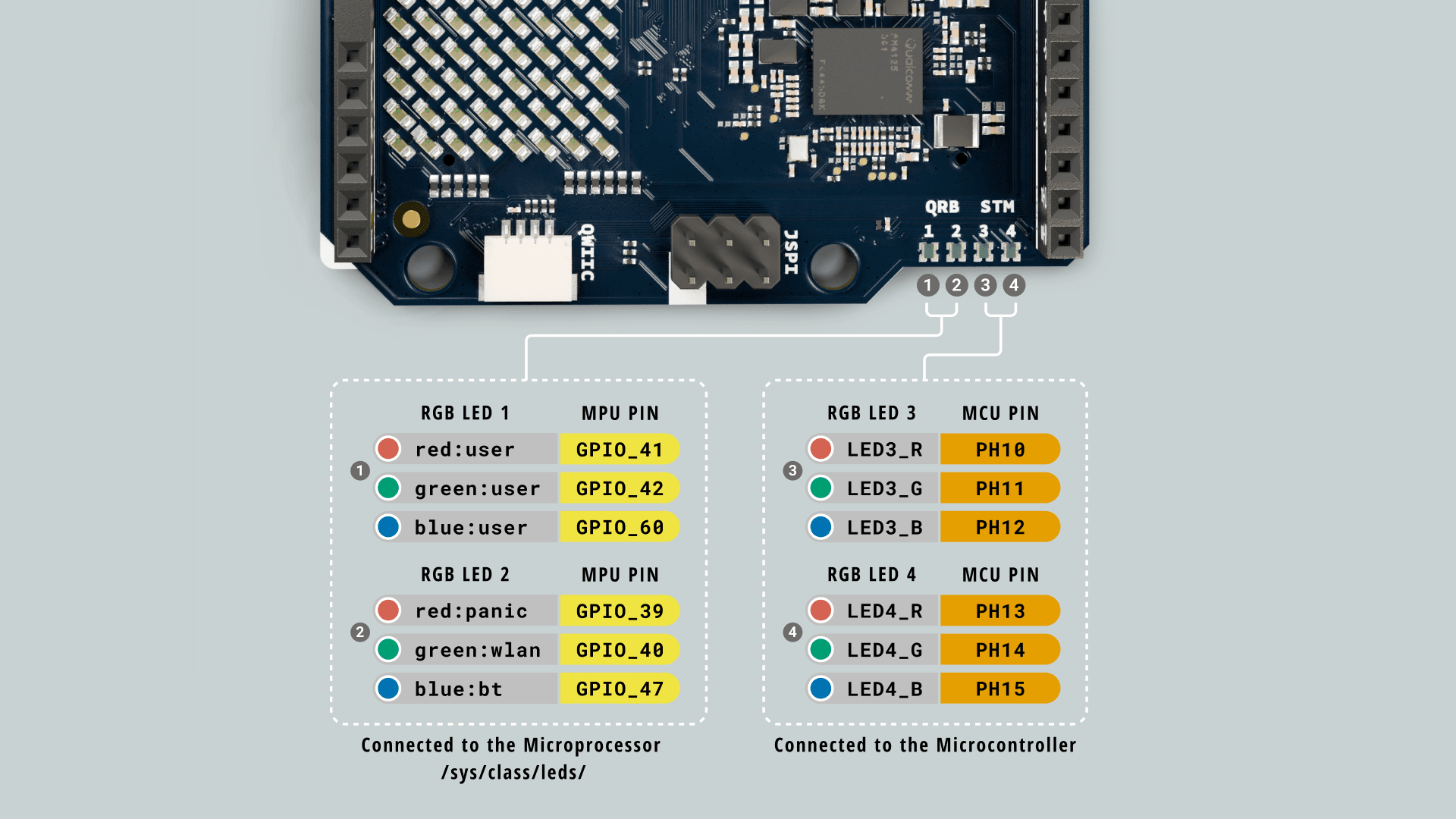
The UNO Q features 4x RGB LEDs. Two of them connected and controlled by the Qualcomm microprocessor, and the other two by the STM32 microcontroller.
#### MPU Controlled LEDs
LEDs #1 and #2 are controlled by the MPU.
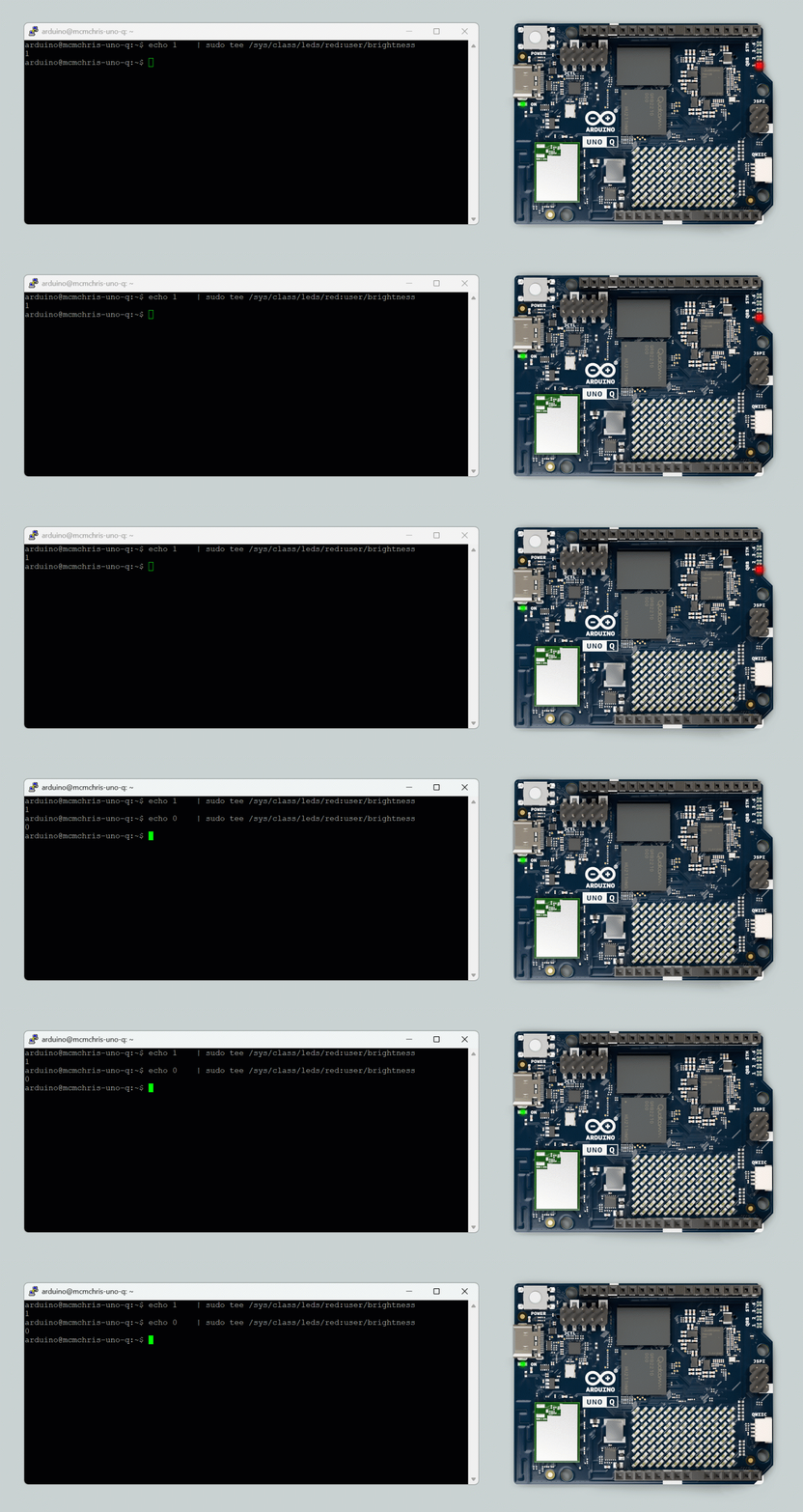
There is a dedicated LED interface in our Linux OS for controlling these LEDs, they can be controlled via `/sys/class/leds` from the **Command Line**, using **SSH**, an **ADB** connection from your PC terminal or by using the Linux built-in terminal application when used in single-board computer mode:
```bash
echo 1 | tee /sys/class/leds/red:user/brightness # set HIGH/ON
echo 0 | tee /sys/class/leds/red:user/brightness # set LOW/OFF
```
The LED color segments are defined as follows:
**LED 1:**
- **Red:** `red:user`
- **Green:** `green:user`
- **Blue:** `blue:user`
**LED 2:**
- **Red:** `red:panic`
- **Green:** `green:wlan`
- **Blue:** `blue:bt`
***LED 2 is used to show system status: `PANIC`, `WLAN` and `BT`. But it can be controlled by the user.***
You can also control these LEDs from a Python script as follows. Remember to **create a new App** inside Arduino App Lab and then copy and paste the script below in the python section of your App:
```python
import time
from arduino.app_utils import App
LED1_R = "/sys/class/leds/red:user/brightness"
LED1_G = "/sys/class/leds/green:user/brightness"
LED1_B = "/sys/class/leds/blue:user/brightness"
LED2_R = "/sys/class/leds/red:panic/brightness"
LED2_G = "/sys/class/leds/green:wlan/brightness"
LED2_B = "/sys/class/leds/blue:bt/brightness"
def set_led_brightness(led_file, value):
try:
with open(led_file, "w") as f:
f.write(f"{value}\n")
except Exception as e:
print(f"Error writing to {led_file}: {e}")
# turn off all LEDs
set_led_brightness(LED1_R, 0)
set_led_brightness(LED1_G, 0)
set_led_brightness(LED1_B, 0)
set_led_brightness(LED2_R, 0)
set_led_brightness(LED2_G, 0)
set_led_brightness(LED2_B, 0)
def loop():
#blink the LED 1 RED segment
set_led_brightness(LED1_R, 1)
time.sleep(1)
set_led_brightness(LED1_R, 0)
time.sleep(1)
App.run(user_loop=loop)
```
You can also control these LEDs by using their dedicated Linux module `Leds` as follows:
```python
# Arguments corresponds to R, G, and B colors respectively
Leds.set_led1_color(1,0,0) # LED 1 in red
Leds.set_led2_color(1,0,0) # LED 2 in red
```
Remember to **create a new App** inside Arduino App Lab and then copy and paste the script below in the python section of your App:
```python
import time
from arduino.app_utils import App
from arduino.app_utils import Leds
def loop():
# Blink LED 1 in red
# Turn on the LED red segment(1, 0, 0)
Leds.set_led1_color(1,0,0)
time.sleep(1)
# Turn off the LED (0, 0, 0)
Leds.set_led1_color(0,0,0)
time.sleep(1)
App.run(user_loop=loop)
```
#### MCU Controlled LEDs
LEDs #3 and #4 are controlled by the MCU.
They can be controlled by setting the state of their respective GPIOs using the `digitalWrite` function as usual.
To test them follow the steps below:
- Connect the UNO Q to your PC (if you are not in single-board computer mode).
- Open the Arduino App Lab, navigate to **My Apps** and click on **Create new app+**.
You can copy and paste the following example into the "sketch" part of your new App found in `sketch\sketch.ino`.
```cpp
void setup(){
// Configure the pins as outputs
pinMode(LED3_R, OUTPUT);
pinMode(LED3_G, OUTPUT);
pinMode(LED3_B, OUTPUT);
// As they are active low, turn them OFF initially
digitalWrite(LED3_R, HIGH);
digitalWrite(LED3_G, HIGH);
digitalWrite(LED3_B, HIGH);
}
void loop(){
digitalWrite(LED3_R, LOW); // Turn ON red segment
digitalWrite(LED3_G, HIGH);
digitalWrite(LED3_B, HIGH);
delay(1000);
digitalWrite(LED3_R, HIGH);
digitalWrite(LED3_G, LOW); // Turn ON green segment
digitalWrite(LED3_B, HIGH);
delay(1000);
digitalWrite(LED3_R, HIGH);
digitalWrite(LED3_G, HIGH);
digitalWrite(LED3_B, LOW); // Turn ON blue segment
delay(1000);
}
```
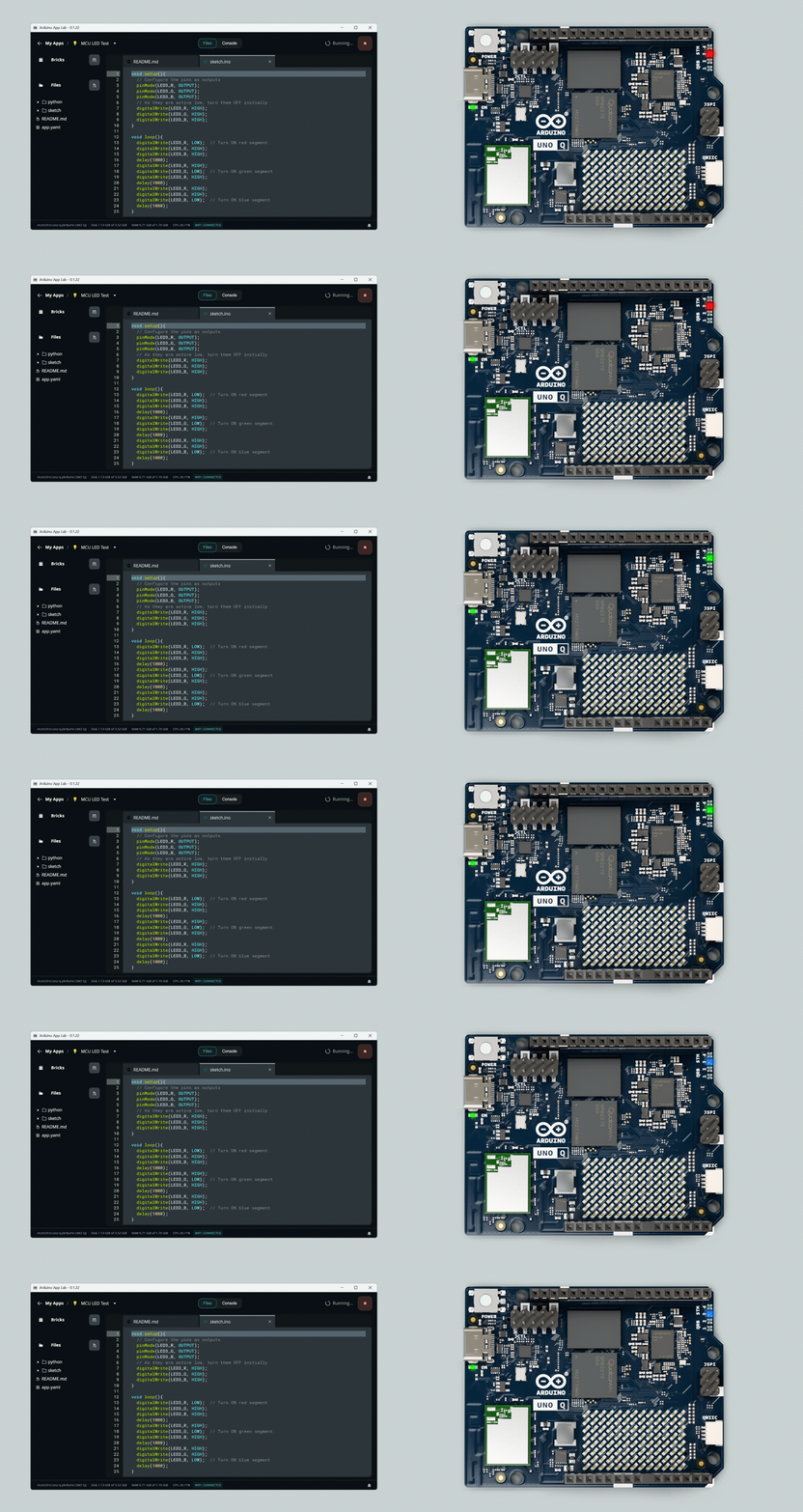
The LED color segments are defined as follows:
**LED 3:**
- **Red:** `LED3_R`
- **Green:** `LED3_G`
- **Blue:** `LED3_B`
**LED 4:**
- **Red:** `LED4_R`
- **Green:** `LED4_G`
- **Blue:** `LED4_B`
***The RGB LEDs are active low, this means they turn ON with logic '0'.***
### Hardware Debug UART Interface
The UNO Q provides a dedicated low-level UART interface for debugging and system diagnostics. This interface connects directly to the SoC’s main console (TTY), allowing you to observe boot and kernel logs, troubleshoot system issues, or access a shell environment before network services like SSH or ADB are available.
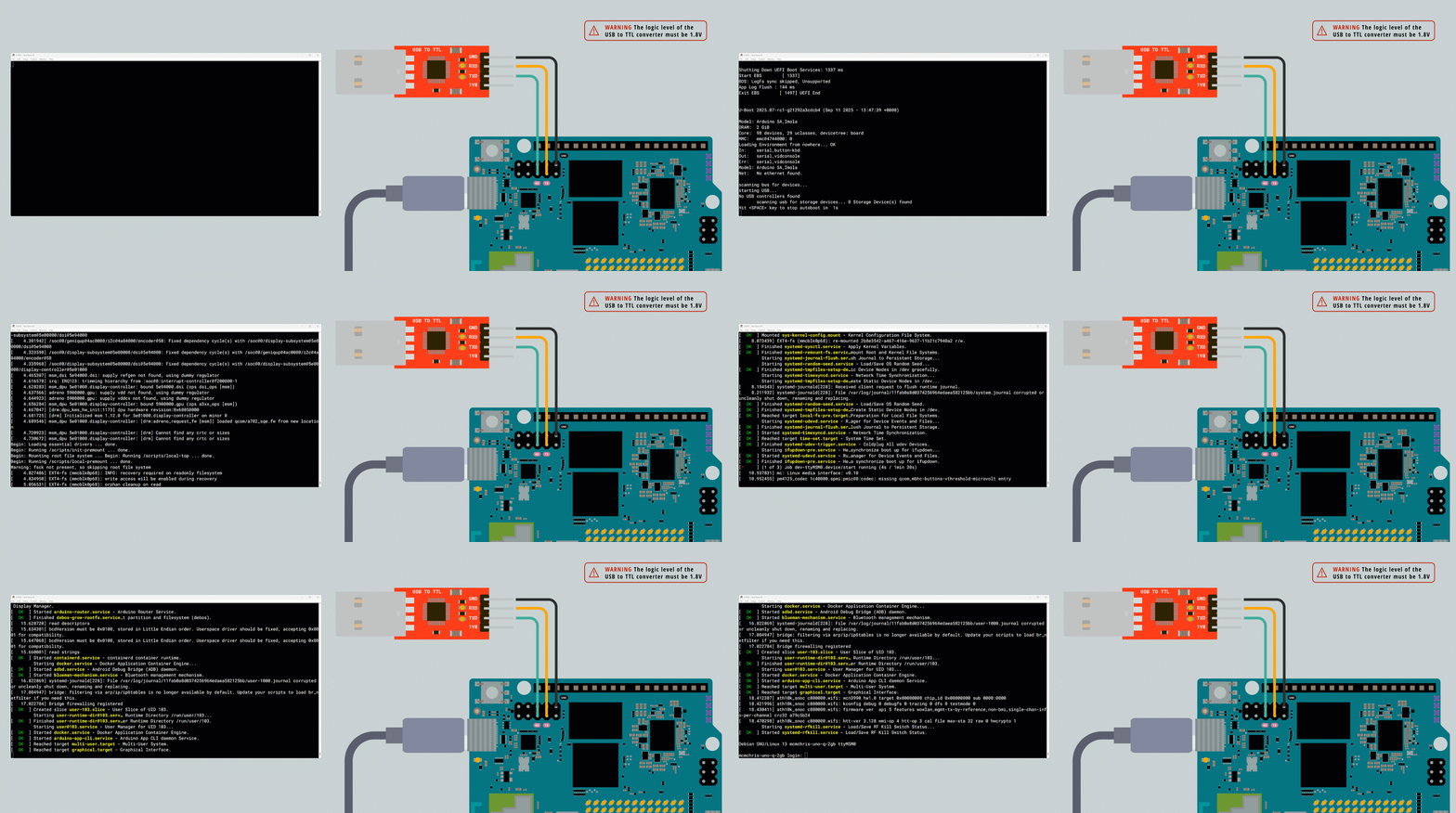
This interface is available through the JCTL connector on the UNO Q. Refer to the [pinout](#pinout) section for details, and follow the wiring example above to access it.
***WARNING: This interface operates at __1.8 V logic__ levels and must be used with a compatible USB-to-TTL converter to avoid hardware damage.***
#### Prerequisites
- 1.8V USB to TTL converter (e.g., DSD Tech SH-U09C5)
- USB-C cable to power the UNO Q
- Serial Terminal (e.g., [Tera Term](https://teratermproject.github.io/index-en.html))
#### UART Parameters:
- **Baud rate:** 115200 bps
- **Logic level:** 1.8 V
This console provides access to low-level system messages printed by the bootloaders (e.g., SPL and U-Boot), which are not visible through SSH or other high-level interfaces. For example, it allows capturing logs related to power delivery negotiation or hardware initialization during early boot stages, providing information that is otherwise inaccessible.
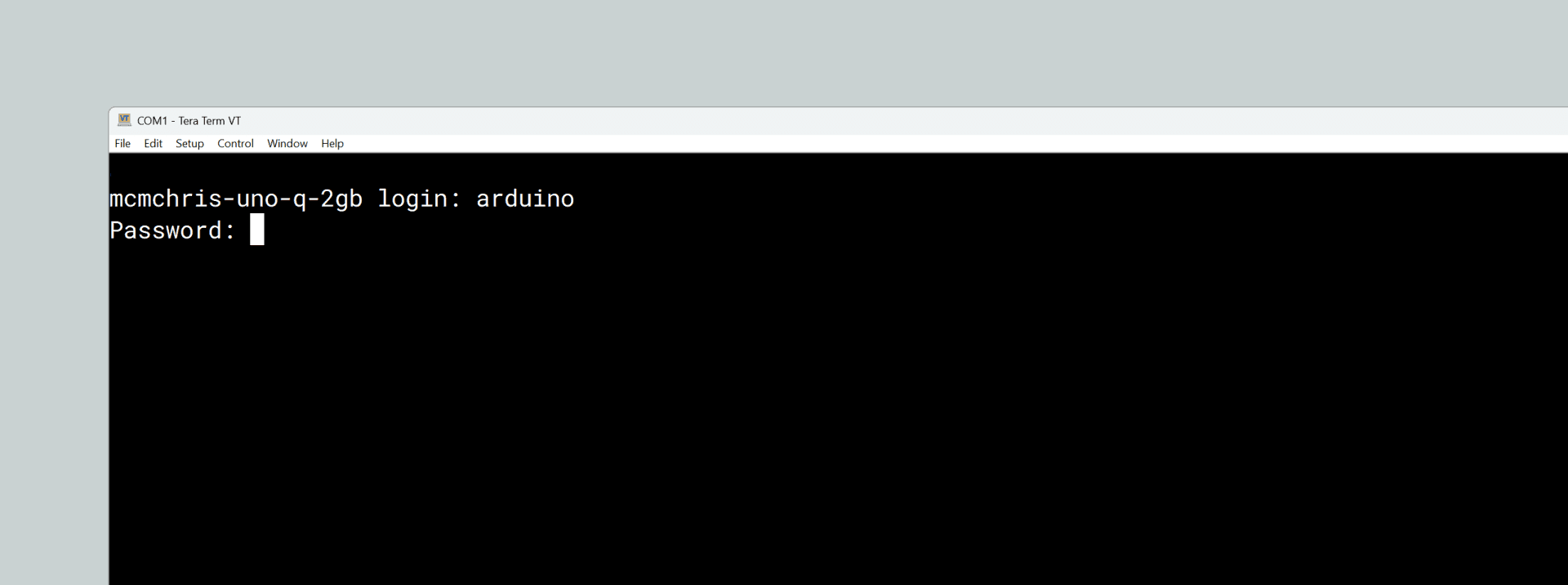
It can be used to log in to the board and interact with the system through the shell. Use the **Linux credentials** configured during the board setup process to authenticate.
### Power Button
The UNO Q features a power button that can be used to reboot the board.
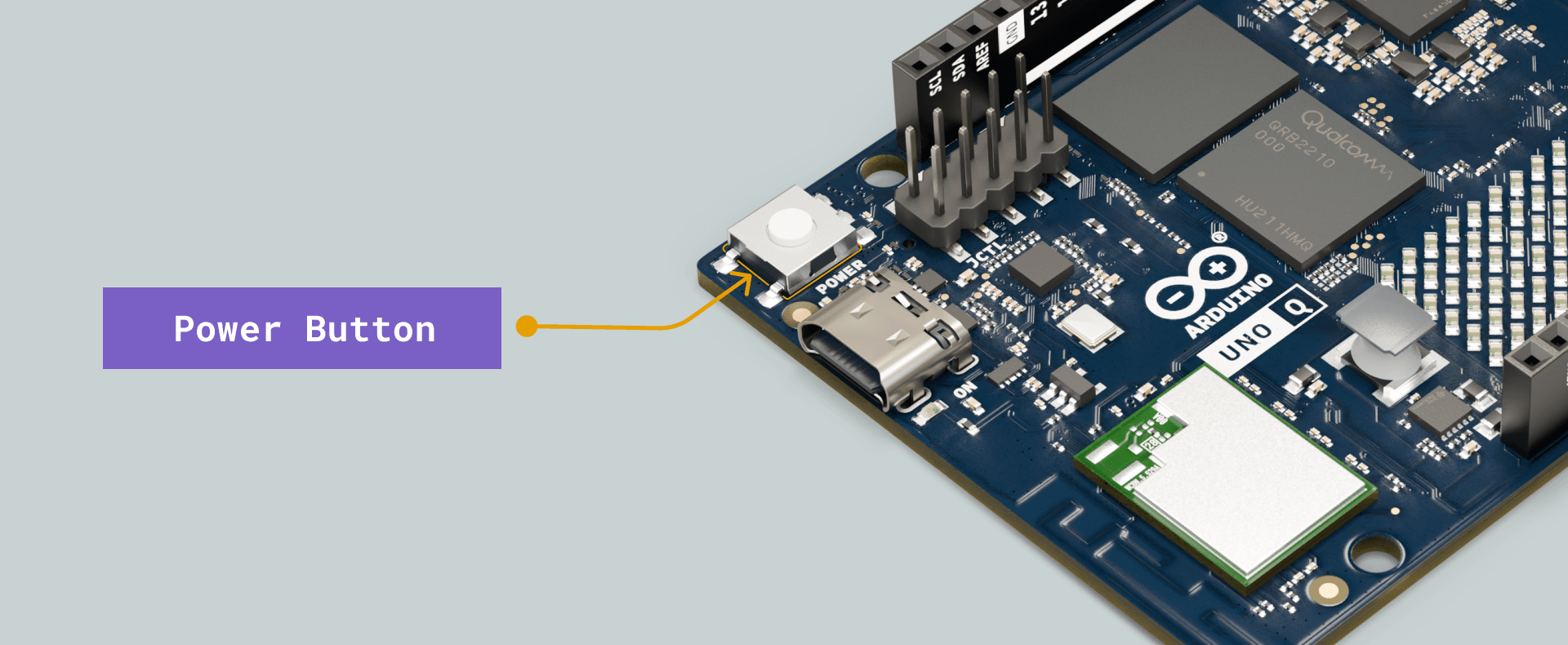
- **Long press**: the board’s Linux part is rebooted when the button is pressed for **5+** seconds.
***You do not need to press the power button for the board to power up, it boots automatically after being powered.***
## USB-C Connector
The UNO Q features a USB-C connector that can be used for much more than just programming and powering the board.
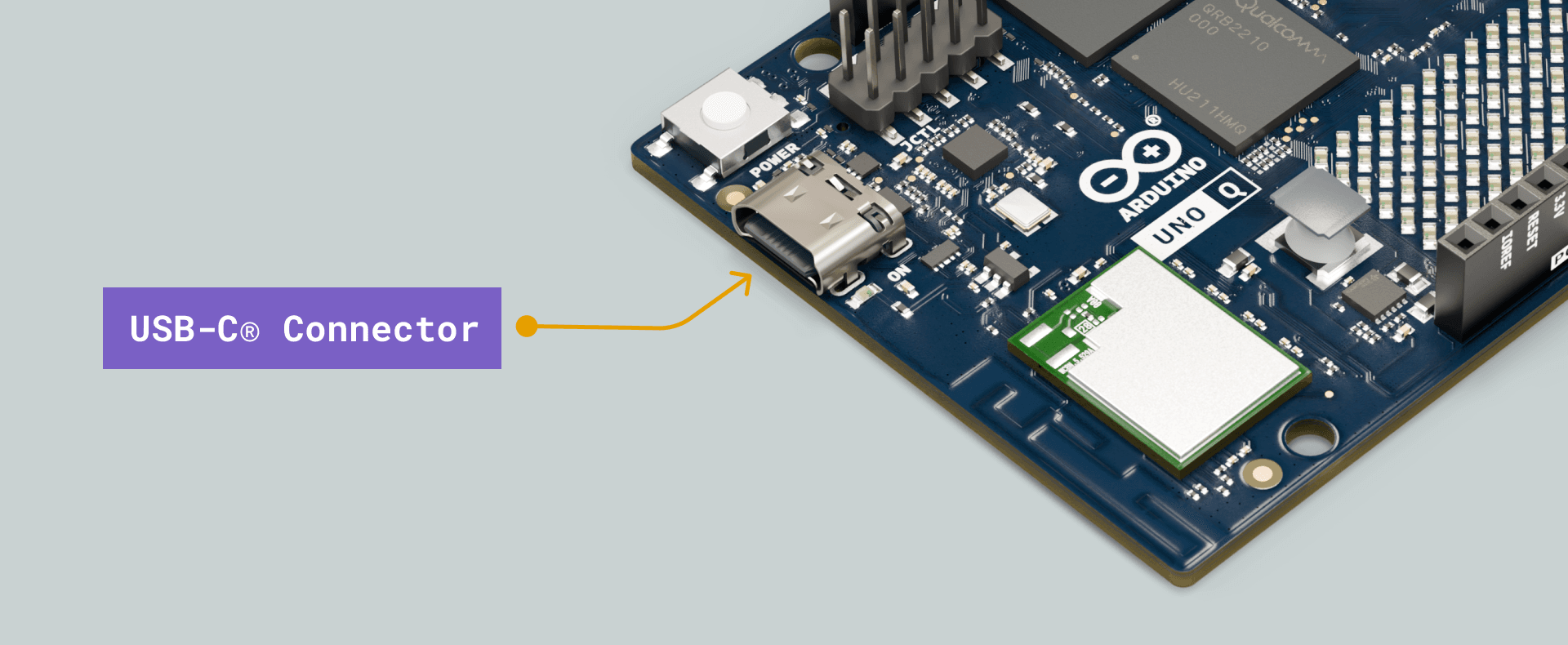
Below is a table with the main features of the USB-C connector that expands the UNO Q capabilities.
| Feature | Description |
| ------------------ | ---------------------- |
| USB Power (Sink) | 5 VDC 3 A (15 W) |
| USB Standard | USB 3.1 Gen 1 (5 Gb/s) |
| Display over USB-C | DisplayPort |
By using a USB-C dongle (adapter/hub) you can also leverage the following features:
| Feature | Description |
| ------------ | ------------------------------------------- |
| Video Output | HDMI support |
| Video Input | USB camera support |
| Audio | USB or 3.5mm headset (speaker + microphone) |
| Ethernet | Internet through Ethernet supported |
| HID | USB keyboard/mouse and other HID devices |
| Storage | External microSD card or USB drive support |
## Pins
The UNO Q is equipped with two connector types: the **classic UNO-style headers** on the top, designed for prototyping and debugging, guaranteeing full compatibility with Arduino UNO Shields, and the **high-speed header connectors** on the bottom, purpose-built for integration with UNO Q carriers.
### Digital Pins
The UNO Q has 47x digital pins controlled by the **STM32 microcontroller**, 22x of them exposed through the UNO-styled connector and 25x exposed through JMISC connector mapped as follows:
| Microcontroller Pin | Arduino Pin Mapping | Pin Functionality |
| :-----------------: | :-----------------: | :---------------------: |
| PB7 | D0 / RX | GPIO / UART RX |
| PB6 | D1 / TX | GPIO / UART TX |
| PB3 | D2 | GPIO |
| PB0 | D3 | GPIO / OPAMP OUT |
| PA12 | D4 / FDCAN1_TX | GPIO / CAN Bus TX |
| PA11 | D5 / FDCAN1_RX | GPIO / CAN Bus RX |
| PB1 | D6 | GPIO |
| PB2 | D7 | GPIO |
| PB4 | D8 | GPIO |
| PB8 | D9 | GPIO |
| PB9 | D10 / SS | GPIO / SPI SS |
| PB15 | D11 / MOSI | GPIO / SPI MOSI |
| PB14 | D12 / MISO | GPIO / SPI MISO |
| PB13 | D13 / SCK | GPIO / SPI SCK |
| PA4 | D14 / DAC0 | GPIO / ADC / DAC |
| PA5 | D15 / DAC1 | GPIO / ADC / DAC |
| PA6 | D16 | GPIO / ADC / OPAMP IN + |
| PA7 | D17 | GPIO / ADC / OPAMP IN - |
| PC1 | D18 / SDA2 | GPIO / ADC / I2C SDA |
| PC0 | D19 / SCL2 | GPIO / ADC / I2C SCL |
| PB11 | D20 / SDA | GPIO / I2C SDA |
| PB10 | D21 / SCL | GPIO / I2C SCL |
***Notice that pins D14 to D19 also have analog capabilities.***
The digital pins of the UNO Q can be used as inputs or outputs through the built-in functions of the Arduino programming language.
The configuration of a digital pin is done in the `setup()` function with the built-in function `pinMode()` as shown below:
```cpp
// Pin configured as an input
pinMode(pin, INPUT);
// Pin configured as an output
pinMode(pin, OUTPUT);
// Pin configured as an input, internal pull-up resistor enabled
pinMode(pin, INPUT_PULLUP);
```
The state of a digital pin, configured as an input, can be read using the built-in function `digitalRead()` as shown below:
```cpp
// Read pin state, store value in a state variable
state = digitalRead(pin);
```
The state of a digital pin, configured as an output, can be changed using the built-in function `digitalWrite()` as shown below:
```cpp
// Set pin on
digitalWrite(pin, HIGH);
// Set pin off
digitalWrite(pin, LOW);
```
The example code shown below uses digital pin `D5` to control an LED and reads the state of a button connected to digital pin `D4`:
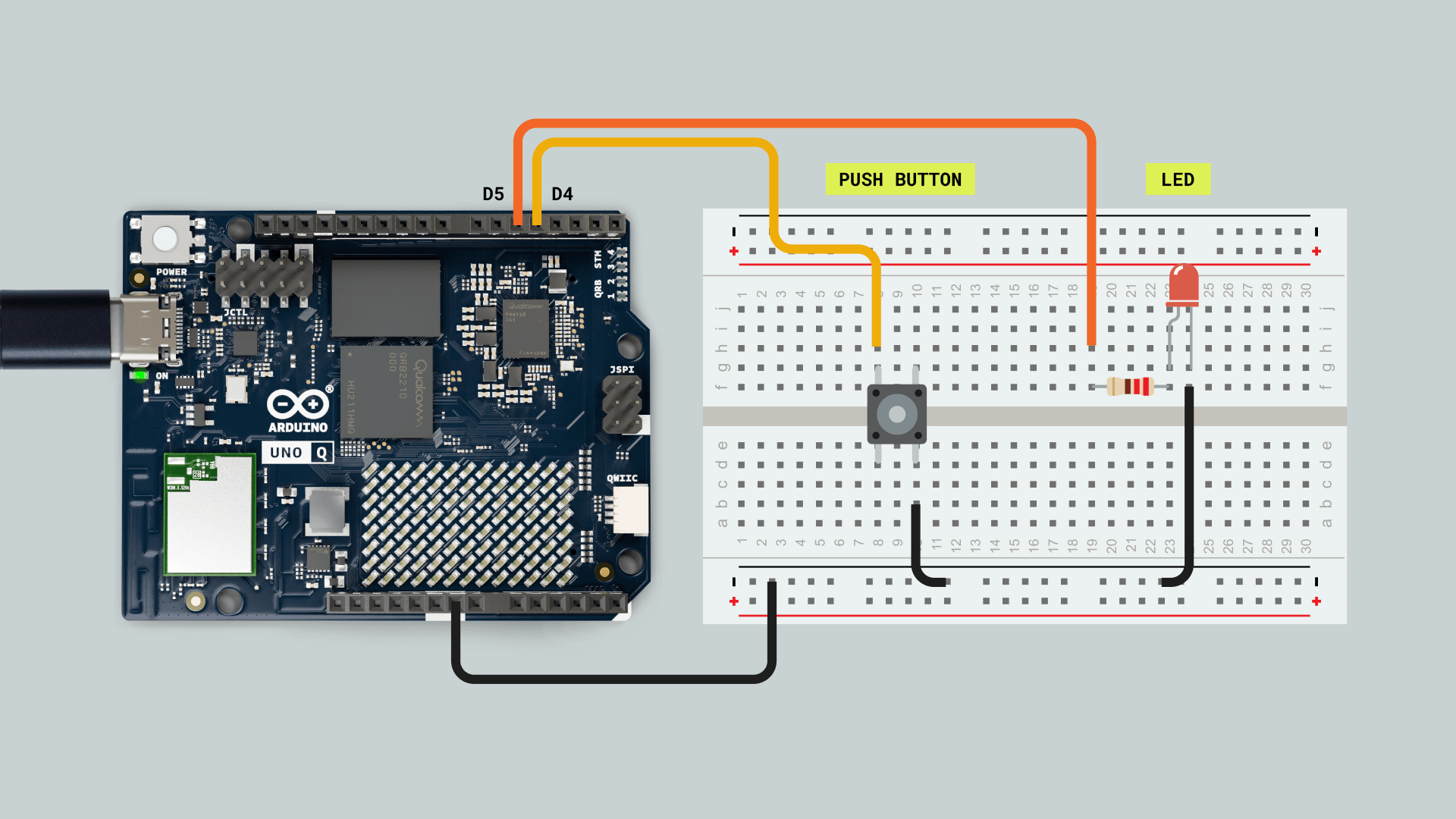
1. Create a new App in the Arduino App Lab.

2. Copy and paste the example below in the "sketch" part of your new App found in `sketch\sketch.ino`.
```cpp
// Define button and LED pin
int buttonPin = D4;
int ledPin = D5;
// Variable to store the button state
int buttonState = 0;
void setup() {
// Configure button and LED pins
pinMode(buttonPin, INPUT_PULLUP);
pinMode(ledPin, OUTPUT);
// Initialize Serial communication
Serial.begin(9600);
}
void loop() {
// Read the state of the button
buttonState = digitalRead(buttonPin);
// If the button is pressed, turn on the LED and print its state to the Serial Monitor
if (buttonState == LOW) {
digitalWrite(ledPin, HIGH);
Serial.println("- Button is pressed. LED is on.");
} else {
// If the button is not pressed, turn off the LED and print to the Serial Monitor
digitalWrite(ledPin, LOW);
Serial.println("- Button is not pressed. LED is off.");
}
// Wait for 1000 milliseconds
delay(1000);
}
```
### Analog Pins
The UNO Q features the well-known analog pins in the **JANALOG** connector; more details below:
#### Analog to Digital Converter (ADC)
In the **JANALOG** connector the UNO Q has 6x 14-bit ADC pins mapped as follows:
| Microcontroller Pin | Arduino Pin Mapping | Pin Functionality |
| :-----------------: | :-----------------: | :---------------------: |
| PA4 | A0 | GPIO / ADC / DAC |
| PA5 | A1 | GPIO / ADC / DAC |
| PA6 | A2 | GPIO / ADC / OPAMP IN + |
| PA7 | A3 | GPIO / ADC / OPAMP IN - |
| PC1 | A4 | GPIO / ADC / I2C SDA |
| PC0 | A5 | GPIO / ADC / I2C SCL |
Analog input pins can be used through the built-in functions of the Arduino programming language.
The UNO Q ADC **resolution** can be configured between 14, 12, 10, or 8 bits by using the `analogReadResolution(bits)` function:
```cpp
// ADC resolution set to 14-bit (0 to 16383)
analogReadResolution(14);
```
The default ADC **voltage reference** is 3.3V and can be changed by software using the function `analogReference()` with the following arguments:
| Analog Voltage Reference (VREF+) | Argument | Source |
| :-----------------------------------------: | :-------------: | :------: |
| 1.5 V | AR_INTERNAL1V5 | Internal |
| 1.8 V | AR_INTERNAL1V8 | Internal |
| 2.048 V | AR_INTERNAL2V05 | Internal |
| 2.5 V | AR_INTERNAL2V5 | Internal |
| 2 V ~ VDD | AR_EXTERNAL | External |
***An external voltage reference can be provided through the AREF pin when `AR_EXTERNAL` reference is used.***
To set a different analog reference from the default one, see the following example:
```cpp
analogReference(AR_INTERNAL2V5);
```
The example code shown below reads the analog input value from a potentiometer connected to `A0` and displays it on the Serial Monitor. To understand how to properly connect a potentiometer to the UNO Q, take the following image as a reference:
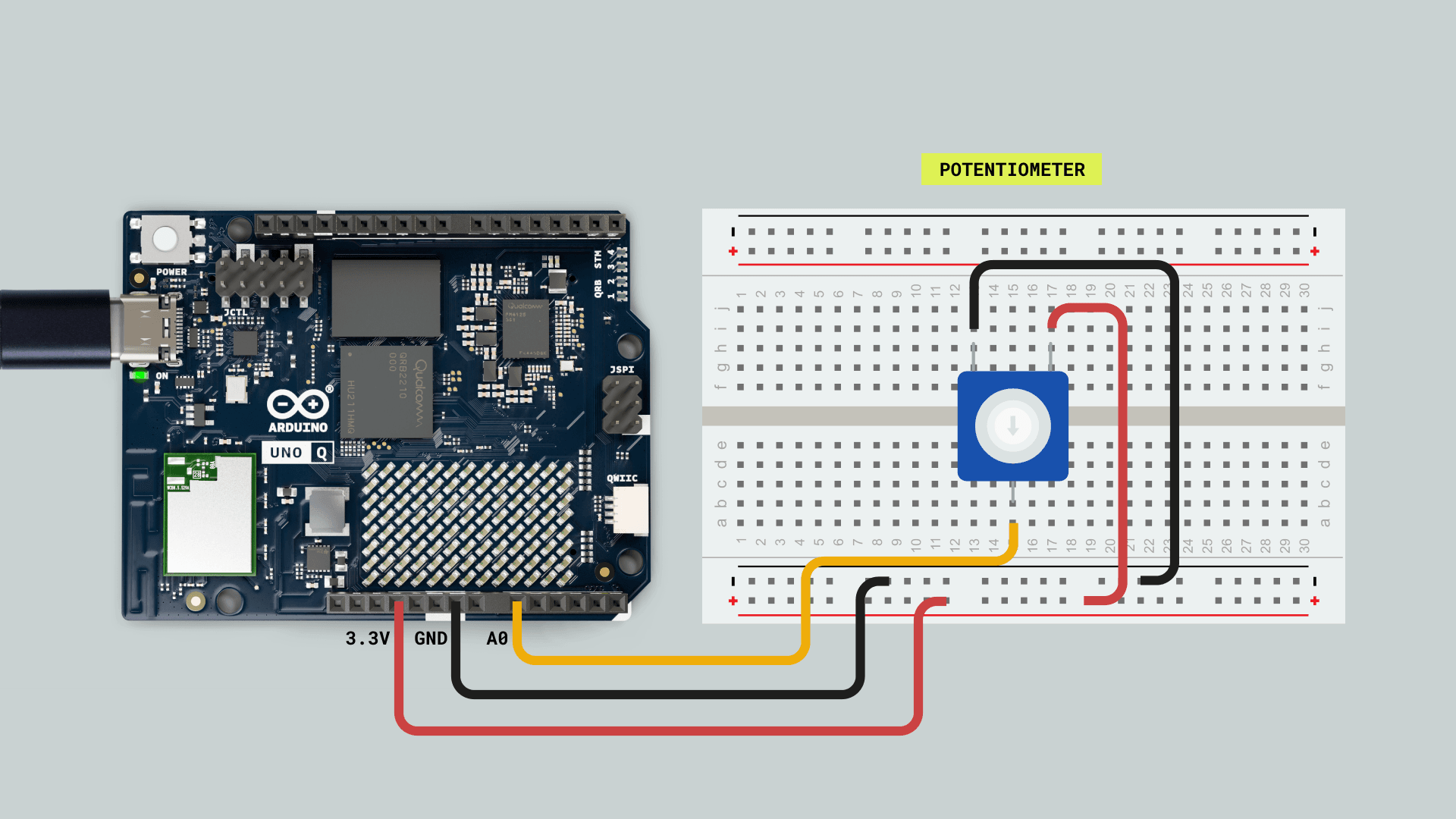
1. Create a new App in the Arduino App Lab.

2. Copy and paste the example below in the "sketch" part of your new App found in `sketch\sketch.ino`.
```cpp
int sensorPin = A0; // select the input pin for the potentiometer
int sensorValue = 0; // variable to store the value coming from the sensor
void setup() {
Serial.begin(9600);
}
void loop() {
// read the value from the sensor:
sensorValue = analogRead(sensorPin);
Serial.println(sensorValue);
delay(100);
}
```
#### Digital to Analog Converter (DAC)
The UNO Q has two DAC outputs, mapped as follows:
| Microcontroller Pin | Arduino Pin Mapping | Pin Functionality |
| :-----------------: | :-----------------: | :---------------: |
| PA4 | DAC0 | GPIO / ADC / DAC |
| PA5 | DAC1 | GPIO / ADC / DAC |
The digital-to-analog converters of the UNO Q can be used to output analog voltages through the built-in functions of the Arduino programming language.
The DAC output resolution can be configured from 8 to 12 bits using the `analogWriteResolution()` function as follows:
```cpp
// DAC resolution set to 12-bit (0 to 4095)
analogWriteResolution(12); // enter the desired resolution in bits (8, 10, 12)
```
To output an analog voltage value through a DAC pin, use the `analogWrite()` function with the DAC channel as an argument. See the example below:
```cpp
analogWrite(DAC0, value); // the value should be in the range of the DAC resolution (e.g. 0-4095 with a 12 bits resolution)
```
***If a normal GPIO is passed to the `analogWrite()` function, the output will be a PWM signal.***
The following sketch will create a **60 Hz sine wave** signal in the `A0/DAC0` UNO Q pin:
1. Create a new App in the Arduino App Lab.

2. Copy and paste the example below in the "sketch" part of your new App found in `sketch\sketch.ino`.
```cpp
const float freq = 60.0f;
const int N = 256; // 256 samples/cycle
const uint32_t Ts_us = (uint32_t)llroundf(1e6f / (freq * N));
uint16_t lut[N]; // store the sine wave here
void setup() {
analogWriteResolution(12);
for (int i = 0; i < N; ++i){
lut[i] = 2048 + (1000.0 * sin(2 * PI * i / N));
}
}
void loop() {
static uint32_t t_next = micros();
for (int i = 0; i < N; ++i) {
analogWrite(DAC0, lut[i]); // output the sine wave values
t_next += Ts_us;
while ((int32_t)(micros() - t_next) < 0) { /* spin */ }
}
}
```
The DAC output should look like the image below:
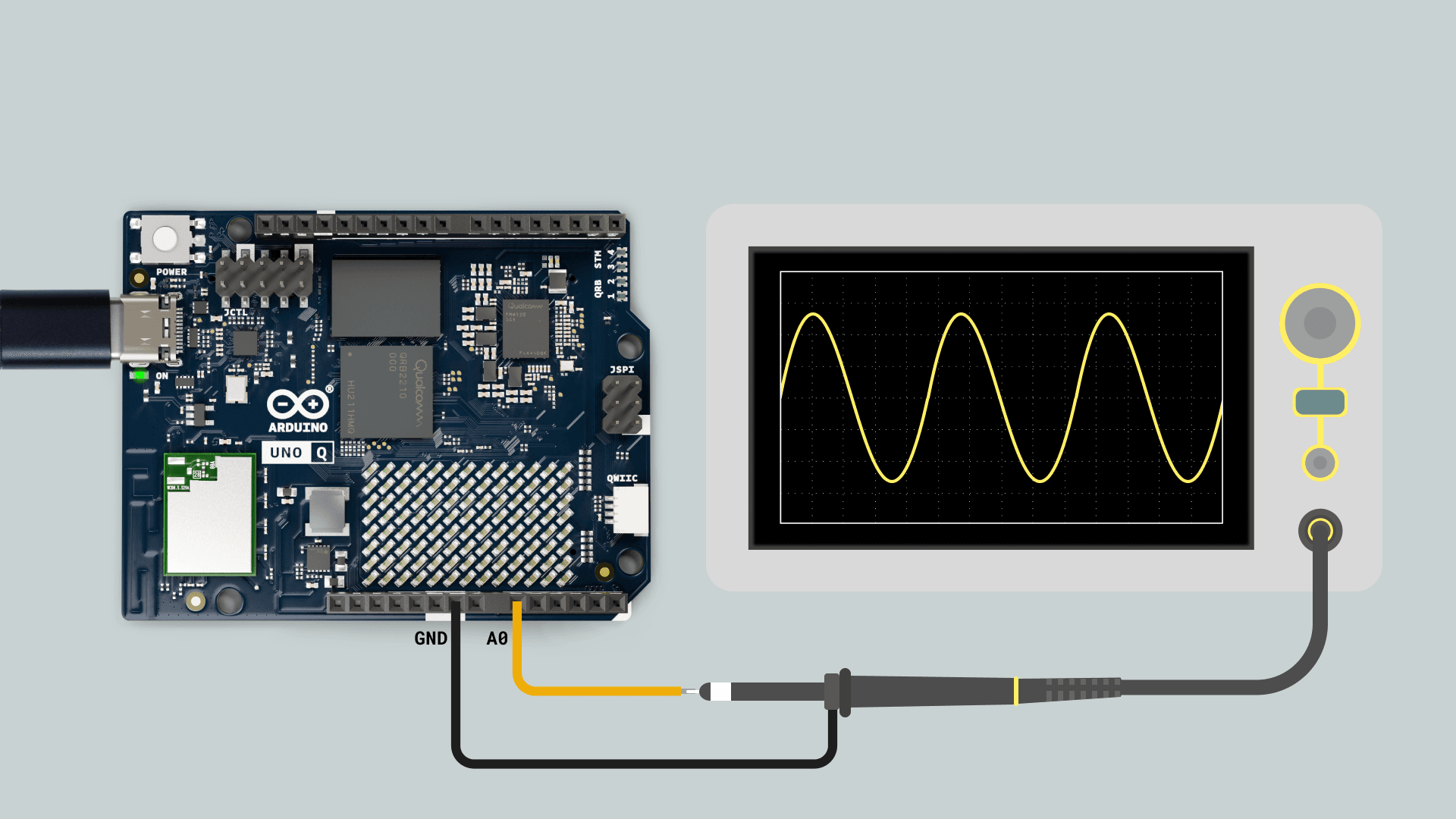
### PWM Pins
The UNO Q has 6x PWM (Pulse Width Modulation) pins, mapped as follows:
| Microcontroller Pin | Arduino Pin Mapping | Pin Functionality |
| :-----------------: | :-----------------: | :---------------------: |
| PB0 | D3 | GPIO / OPAMP OUT / PWM |
| PA11 | D5 / FDCAN1_RX | GPIO / CAN Bus RX / PWM |
| PB1 | D6 | GPIO / PWM |
| PB8 | D9 | GPIO / PWM |
| PB9 | D10 / SS | GPIO / SPI SS / PWM |
| PB15 | D11 / MOSI | GPIO / SPI MOSI / PWM |
This functionality can be used with the built-in function `analogWrite()` as shown below:
```cpp
analogWrite(pin, value);
```
By default, the output resolution is **8 bits**, so the output value should be between 0 and 255. To set a greater resolution, do it using the built-in function `analogWriteResolution` as shown below:
```cpp
// PWM resolution set to 10-bit (0 to 4095)
analogWriteResolution(10);
```
Here is an example of how to create a variable duty-cycle PWM signal:
1. Create a new App in the Arduino App Lab.

2. Copy and paste the example below in the "sketch" part of your new App found in `sketch\sketch.ino`.
```cpp
const int analogInPin = A0; // Analog input pin that the potentiometer is attached to
const int pwmOutPin = D3; // PWM output pin
int sensorValue = 0; // value read from the pot
int outputValue = 0; // value output to the PWM (analog out)
void setup() {
// Define the PWM output resolution
analogWriteResolution(10); // 0 - 1023 -> 0 - 100% duty-cycle
analogReadResolution(14); // 0 - 16383
}
void loop() {
// read the analog in value:
sensorValue = analogRead(analogInPin);
// map it to the range of the analog out:
outputValue = map(sensorValue, 0, 16383, 0, 1024);
// change the analog out value:
analogWrite(pwmOutPin, outputValue);
// wait 2 milliseconds before the next loop for the ADC
// to settle after the last reading:
delay(2);
}
```
Now you can control the PWM signal duty-cycle by turning the potentiometer.
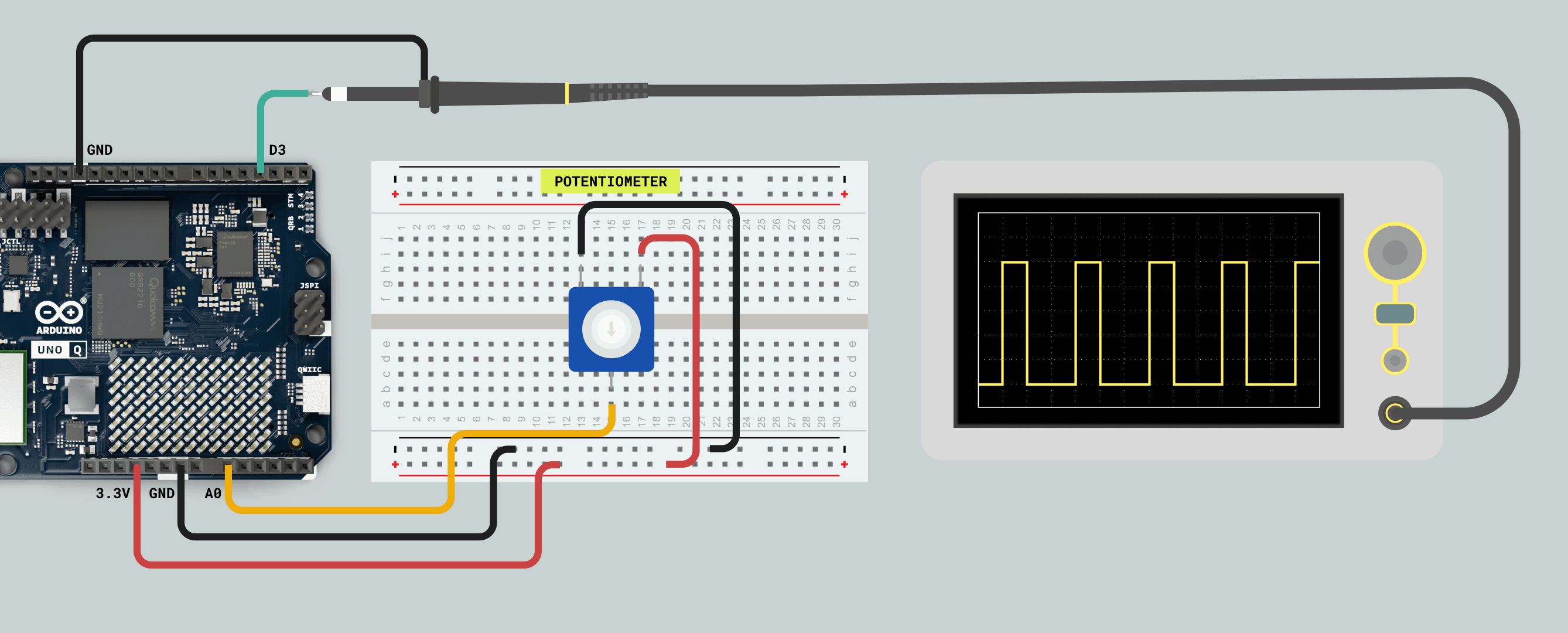
***PWM frequency is fixed to 500 Hz.***
## Communication
This section of the user manual covers the different communication protocols that are supported by the Arduino UNO Q.
### Bridge - Remote Procedure Call (RPC) Library
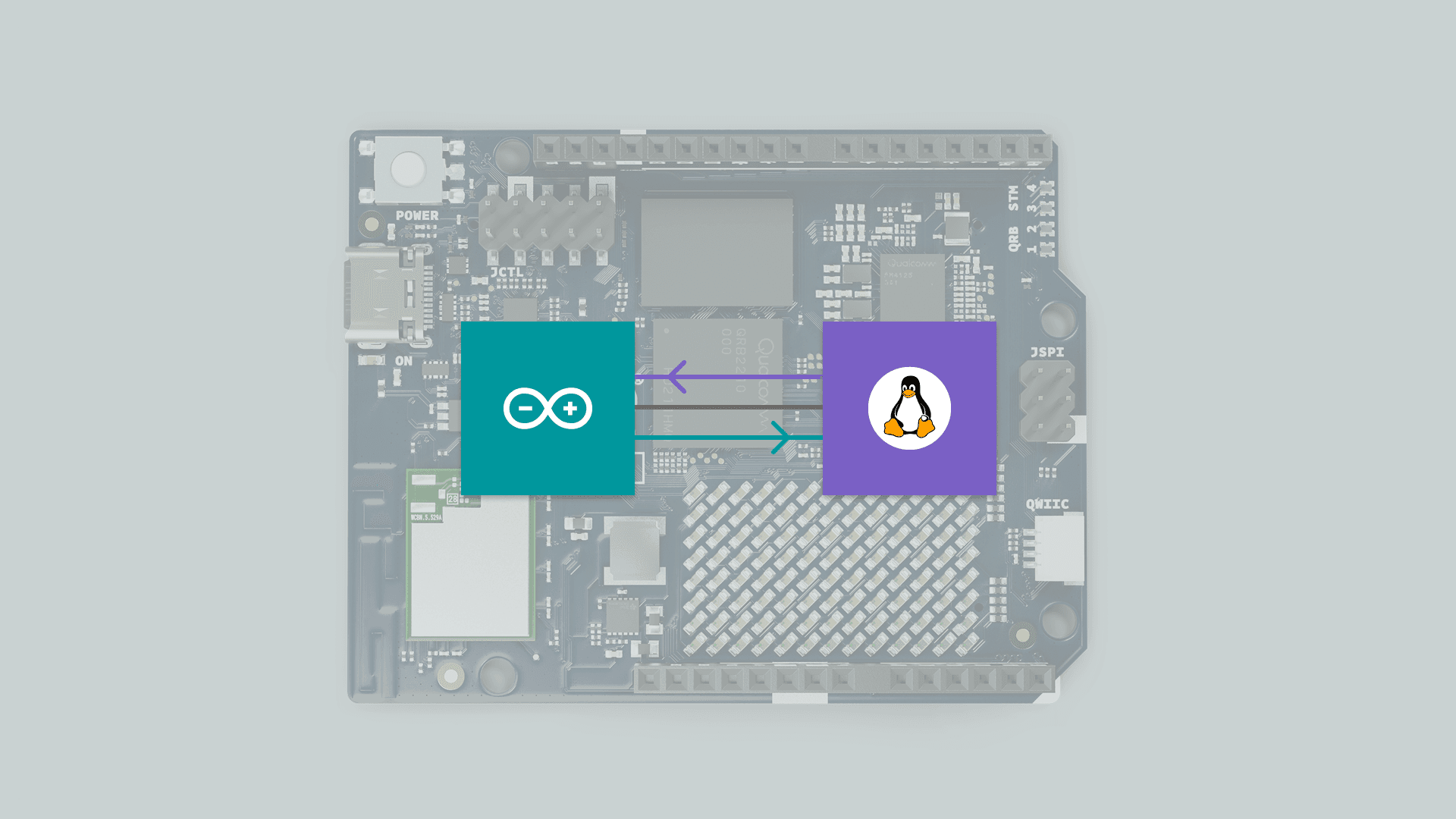
The Arduino UNO Q uses RPC (Remote Procedure Call) to exchange data between the Linux (Qualcomm MPU) side and the real-time STM32 MCU. This mechanism allows functions running on one processor to be invoked transparently from the other, as if they were local calls.
#### Overview
The `Bridge` library provides a communication layer built on top of the `Arduino_RPClite` framework. It manages bidirectional RPC traffic between the MPU and MCU, handling method binding, request forwarding, and asynchronous responses.
- **MPU side (Qualcomm QRB, Linux)**: Runs higher-level services and can remotely invoke MCU functions.
- **MCU side (STM32, Zephyr RTOS)**: Handles time-critical tasks and exposes functions to the MPU via RPC.
#### The Arduino Router (Infrastructure)
Under the hood, the communication is managed by a background Linux service called the **Arduino Router** (`arduino-router`).
While the `Bridge` library is what you use in your code, the Router is the traffic controller that makes it possible. It implements a **Star Topology** network using MessagePack RPC.
**Key Features:**
- **Multipoint Communication:** Unlike simple serial communication (which is typically point-to-point), the Router allows multiple Linux processes to communicate with the MCU simultaneously (and with each other).
**Linux ↔ MCU:** Multiple Linux processes can interact with the MCU simultaneously (e.g., a Python® script reading sensors while a separate C++ application commands motors).
**Linux ↔ Linux:** You can use the Router to bridge different applications running on the MPU. For example, a Python script can expose an RPC function that another Python® or C++ application calls directly, allowing services to exchange data without involving the MCU at all.
- **Service Discovery:** Clients (like your Python® script or the MCU Sketch) "register" functions they want to expose. The Router keeps a directory of these functions and routes calls to the correct destination.
**Source Code:**
- **[Arduino Router Service](https://github.com/arduino/arduino-router)**
- **[Arduino_RouterBridge Library](https://github.com/arduino-libraries/Arduino_RouterBridge/tree/main)**
#### System Configuration & Hardware Interfaces
The Router manages the physical connection between the two processors. It is important to know which hardware resources are claimed by the Router to avoid conflicts in your own applications.
* **Linux Side (MPU):** The router claims the serial device `/dev/ttyHS1`.
> **⚠️ WARNING: Reserved Resources**
> Do not attempt to open `/dev/ttyHS1` (on Linux) in your own code. This interface is exclusively locked by the `arduino-router` service. Attempting to access it directly will cause the Bridge to fail.
#### Managing the Router Service
The arduino-router runs automatically as a system service. In most cases, you do not need to interact with it directly. However, if you are debugging advanced issues or need to restart the communication stack, you can control it via the Linux terminal:
**Check Status** To see if the router is running and connected:
```bash
systemctl status arduino-router
```
**Restart the Service** If the communication seems stuck, you can restart the router without rebooting the board:
```bash
sudo systemctl restart arduino-router
```
**View Logs** To view the real-time logs for debugging (e.g., to see if RPC messages are being rejected or if a client has disconnected):
```bash
journalctl -u arduino-router -f
```
To capture more detailed information in the logs, you can append the `--verbose` argument to the systemd service configuration.
- Open the service file for editing:
```bash
sudo nano /etc/systemd/system/arduino-router.service
```
- Locate the line beginning with `ExecStart=` and append `--verbose` to the end of the command. The updated service file should look like this:
```bash
[Unit]
Description=Arduino Router Service
After=network-online.target
Wants=network-online.target
Requires=
[Service]
# Put the micro in a ready state.
ExecStartPre=-/usr/bin/gpioset -c /dev/gpiochip1 -t0 37=0
ExecStart=/usr/bin/arduino-router --unix-port /var/run/arduino-router.sock --serial-port /dev/ttyHS1 --serial-baudrate 115200 --verbose # <--- ADD THIS
# End the boot animation after the router is started.
ExecStartPost=/usr/bin/gpioset -c /dev/gpiochip1 -t0 70=1
StandardOutput=journal
StandardError=journal
Restart=always
RestartSec=3
[Install]
WantedBy=multi-user.target
```
- You must reload the systemd daemon for the configuration changes to take effect.
```bash
sudo systemctl daemon-reload
```
- Restart the Router:
```bash
sudo systemctl restart arduino-router
```
- View the verbose logs:
```bash
journalctl -u arduino-router -f
```
#### Core Components
`BridgeClass` The main class managing RPC clients and servers.
- `begin()`: Initializes the bridge and the internal serial transport.
- `call(method, args...)`: Invokes a function on the Linux side and waits for a result.
- `notify(method, args...)`: Invokes a function on the Linux side without waiting for a response (fire-and-forget).
- `provide(name, function)`: Exposes a local MCU function to Linux. Note: The function executes in the high-priority background RPC thread. Keep these functions short and thread-safe.
- `provide_safe(name, function)`: Exposes a local MCU function, but ensures it executes within the main `loop()` context. Use this if your function interacts with standard Arduino APIs (like `digitalWrite` or `Serial`) to avoid concurrency crashes.
***__Warning:__ Do not use `Bridge.call()`, `Monitor.print()` or `Serial.print()` inside `provide()` functions. Initiating a new communication while responding to one causes system deadlocks.***
`RpcCall`
- Helper class representing an asynchronous RPC. If its `.result` method is invoked, it waits for the response, extracts the return value, and propagates error codes if needed.
`Monitor`
- The library includes a pre-defined Monitor object. This allows the Linux side to send text streams to the MCU (acting like a virtual Serial Monitor) via the RPC method mon/write.
**Threading and Safety**
- The bridge uses Zephyr mutexes (`k_mutex`) to guarantee safe concurrent access when reading/writing over the transport. Updates are handled by a background thread that continuously polls for requests.
- **Incoming Updates**: Handled by a dedicated background thread (`updateEntryPoint`) that continuously polls for requests.
- **Safe Execution**: The provide_safe mechanism hooks into the main loop (`__loopHook`) to execute user callbacks safely when the processor is idle.
#### Usage Example (Arduino App Lab)
This example shows the **Linux side (Qualcomm QRB)** toggling an LED on the **MCU (STM32)** by calling a remote function over the Bridge.
1. Create a new App in the Arduino App Lab.

2. Copy and paste the example below in the "Python" and "sketch" parts of your new App found in `python\main.py` and `sketch\sketch.ino` respectivelys.
- **Linux (QRB) example to call a remote MCU function**
This Python script runs on the QRB and calls an MCU-exposed RPC named `set_led_state` once per second:
```python
# main.py (QRB side)
from arduino.app_utils import *
import time
led_state = False
def loop():
global led_state
time.sleep(1)
led_state = not led_state
Bridge.call("set_led_state", led_state)
App.run(user_loop=loop)
```
This sends a boolean to the MCU every second using `Bridge.call("set_led_state", )`
- **MCU (STM32) setup to include the Bridge and start it**
This sketch includes the Bridge library and configures the LED pin.
```cpp
#include "Arduino_RouterBridge.h"
void setup() {
pinMode(LED_BUILTIN, OUTPUT);
Bridge.begin();
Bridge.provide("set_led_state", set_led_state);
}
void loop() {
}
void set_led_state(bool state) {
// LOW state means LED is ON
digitalWrite(LED_BUILTIN, state ? LOW : HIGH);
}
```
This registers the local MCU function `set_led_state` as an RPC service named `"set_led_state"`, so that the Linux (QRB) side can call it remotely as if it were a local function using `Bridge.provide("set_led_state", set_led_state);`
***You can do the same the other way around, Python functions can be provided to the MCU sketch to be used locally.***
After pasting the Python script into your App’s Python file and the Arduino code to the sketch, you can run the App and observe LED #3 blinking in red every second.

***There are more advanced methods in the Bridge RPC library that you can discover by testing our different built-in examples inside Arduino App Lab.***
#### Interacting via Unix Socket (Advanced)
Linux processes communicate with the Router using a **Unix Domain Socket** located at:
`/var/run/arduino-router.sock`
While the `Bridge` library handles this automatically for you, you can manually connect to this socket to interact with the MCU or other Linux services using any language that supports **MessagePack RPC** (e.g., Python, C++, Rust, Go).
#### Usage Example (Custom Python Client)
The following example demonstrates how to control an MCU function (`set_led_state`) from a standard Python script using the `msgpack` library, without using the Arduino App Lab helper classes. This is useful for integrating Arduino functions into existing Linux applications.
**Prerequisites:**
1. **Flash the MCU Sketch**
Upload the following code using the Arduino IDE or Arduino App Lab. This registers the function we want to call.
```cpp
#include "Arduino_RouterBridge.h"
void setup() {
pinMode(LED_BUILTIN, OUTPUT);
Bridge.begin();
// We use provide_safe to ensure the hardware call runs in the main loop context
Bridge.provide_safe("set_led_state", set_led_state);
}
void loop() {
}
void set_led_state(bool state) {
digitalWrite(LED_BUILTIN, state ? LOW : HIGH);
}
```
2. **Install the Python Dependency**
Install the msgpack library using the system package manager:
```bash
sudo apt install python3-msgpack
```
3. **Create the Python Script**
Create a new file named msgpack_test.py:
```bash
nano msgpack_test.py
```
4. **Add the Script Content**
Copy and paste the following code. This script connects manually to the Router's Unix socket and sends a raw RPC request.
```python
import socket
import msgpack
import sys
# 1. Define the connection to the Router's Unix Socket
SOCKET_PATH = "/var/run/arduino-router.sock"
# 2. Parse command line arguments
# Default to turning LED ON (True) if no argument is provided
led_state = True
if len(sys.argv) > 1:
arg = sys.argv[1]
if arg == "1":
led_state = True
elif arg == "0":
led_state = False
else:
print("Usage: python3 msgpack_test.py [1|0]")
sys.exit(1)
print(f"Sending request to set LED: {led_state}")
# 3. Create the MessagePack RPC Request
# Format: [type=0 (Request), msgid=1, method="set_led_state", params=[led_state]]
request = [0, 1, "set_led_state", [led_state]]
packed_req = msgpack.packb(request)
# 4. Send the request
try:
with socket.socket(socket.AF_UNIX, socket.SOCK_STREAM) as client:
client.connect(SOCKET_PATH)
client.sendall(packed_req)
# 5. Receive the response
response_data = client.recv(1024)
response = msgpack.unpackb(response_data)
# Response Format: [type=1 (Response), msgid=1, error=None, result=None]
print(f"Router Response: {response}")
except Exception as e:
print(f"Connection failed: {e}")
```
**Running the Example**
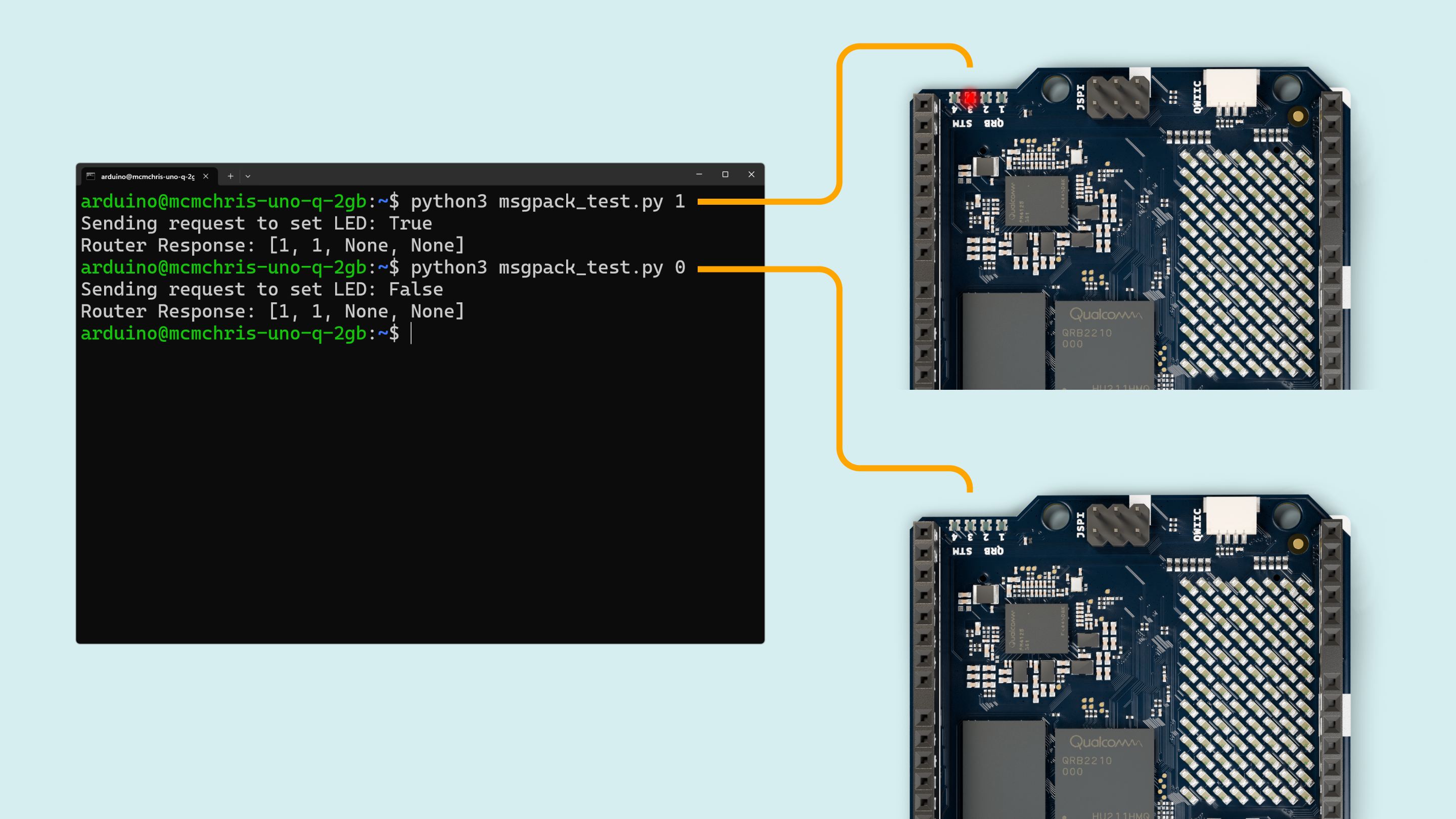
You can now test the connection by running the script from the terminal and passing `1` (ON) or `0` (OFF):
```bash
python3 msgpack_test.py 1 # to turn on the LED
# or
python3 msgpack_test.py 0 # to turn off the LED
```
### SPI
The UNO Q supports SPI communication, which allows data transmission between the board and other SPI-compatible devices.
The pins used in the UNO Q for the SPI communication protocol are the following:
| **Microcontroller Pin** | **Arduino Pin Mapping** |
| :---------------------: | :---------------------: |
| PB9 | SS / D10 |
| PB15 | MOSI / D11 |
| PB14 | MISO / D12 |
| PB13 | SCK / D13 |
Please, refer to the [board pinout section](#pinout) of the user manual to locate them on the board.
Include the `SPI` library at the top of your sketch to use the SPI communication protocol. The SPI library provides functions for SPI communication:
```cpp
#include
```
In the `setup()` function, initialize the SPI library, define and configure the chip select (`SS`) pin:
```cpp
#define SS D10
void setup() {
// Set the chip select pin as output
pinMode(SS, OUTPUT);
// Pull the SS pin HIGH to unselect the device
digitalWrite(SS, HIGH);
// Initialize the SPI communication
SPI.begin();
}
```
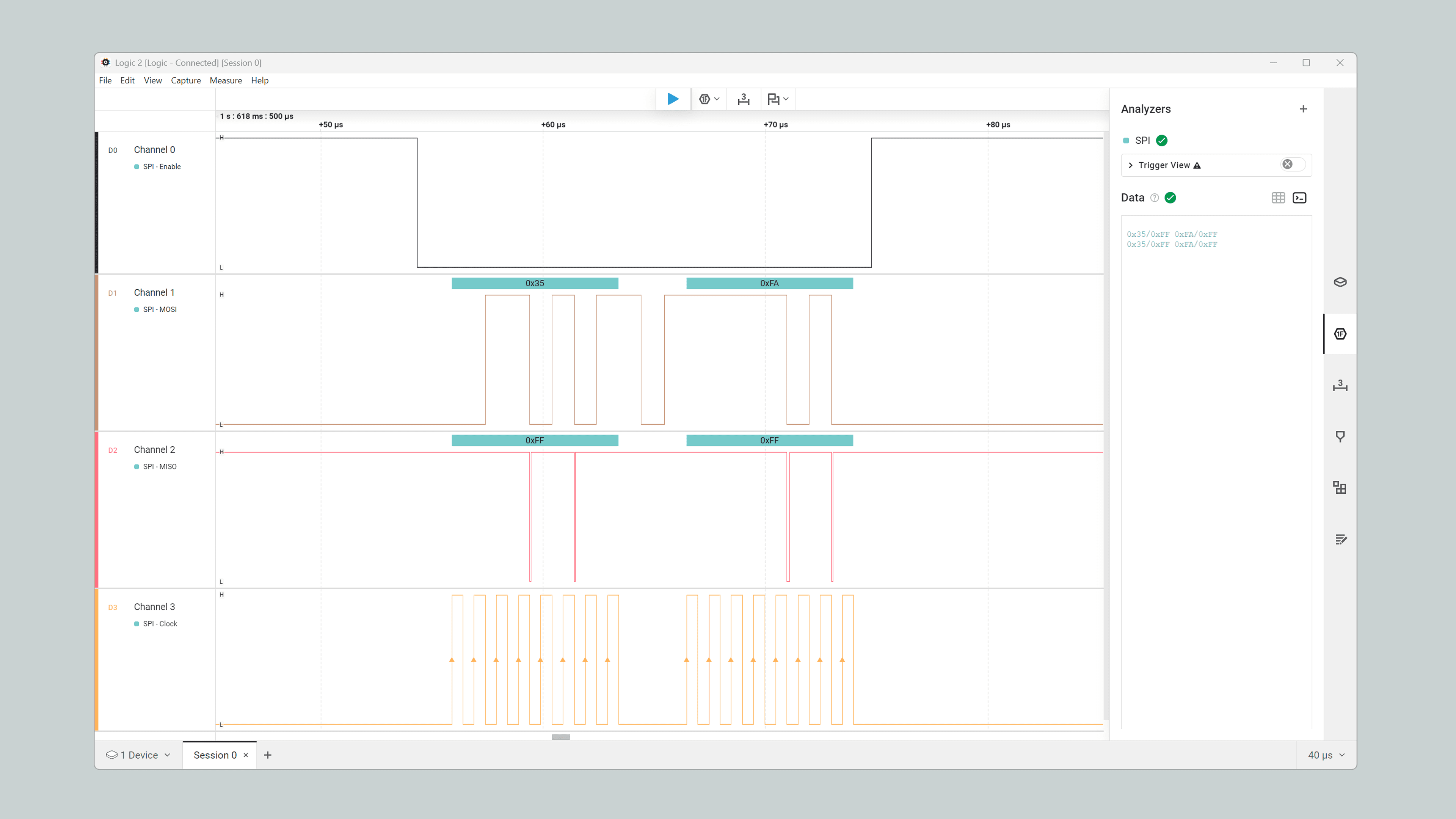
To transmit data to an SPI-compatible device, you can use the commands used in the following example:
1. Create a new App in the Arduino App Lab.

2. Copy and paste the example below in the "sketch" part of your new App found in `sketch\sketch.ino`.
```cpp
#include
#define SS D10
void setup() {
// Set the chip select pin as output
pinMode(SS, OUTPUT);
// Pull the SS pin HIGH to unselect the device initially
digitalWrite(SS, HIGH);
// Initialize the SPI hardware pins
SPI.begin();
}
void loop() {
// Replace with the target device’s address
byte address = 0x35;
// Replace with the value to send
byte value = 0xFA;
// 1. Begin transaction (Configure speed, data order, and mode)
// We use 1 MHz (1000000) for broad compatibility and easy logic analysis
SPI.beginTransaction(SPISettings(1000000, MSBFIRST, SPI_MODE0));
// 2. Pull the SS pin LOW to select the device
digitalWrite(SS, LOW);
// 3. Send the data
SPI.transfer(address);
SPI.transfer(value);
// 4. Pull the SS pin HIGH to unselect the device
digitalWrite(SS, HIGH);
// 5. End the transaction
SPI.endTransaction();
delay(2000);
}
```
The example code above should output this:
### I2C
The UNO Q supports I2C communication, which allows data transmission between the board and other I2C-compatible devices. The pins used in the UNO Q for the I2C communication protocol are the following:
| **Microcontroller Pin** | **Arduino Pin Mapping (Wire)** | **Microcontroller Pin** | **Arduino Pin Mapping (Wire1)** |
| :---------------------: | :----------------------------: | :---------------------: | :-----------------------------: |
| PB10 | SCL / D21 | PD12 | I2C4_SCL (Qwiic) |
| PB11 | SDA / D20 | PD13 | I2C4_SDA (Qwiic) |
Please, refer to the [board pinout section](#pinout) of the user manual to locate them on the board.
To use I2C communication, include the `Wire` library at the top of your sketch. The `Wire` library provides functions for I2C communication:
```cpp
#include
```
In the `setup()` function, initialize the I2C library:
```cpp
// Initialize the I2C communication
Wire.begin(); // I2C in UNO-style headers (D20, D21)
// or
Wire1.begin(); // I2C in Qwiic connector
```
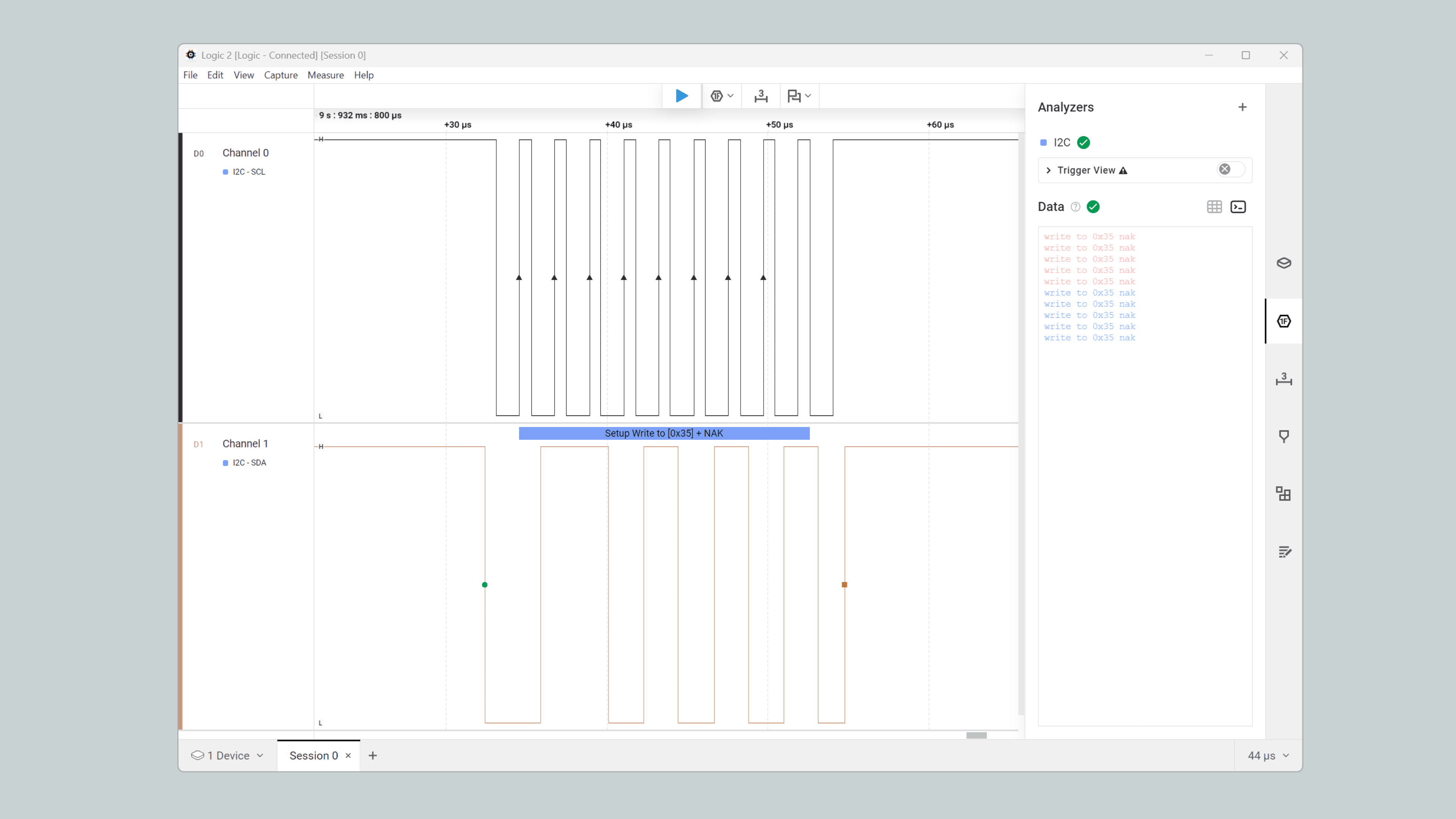
To transmit data to an I2C-compatible device, you can use the commands used in the following example:
1. Create a new App in the Arduino App Lab.

2. Copy and paste the example below in the "sketch" part of your new App found in `sketch\sketch.ino`.
```cpp
#include
void setup() {
// Initialize the I2C communication
Wire.begin();
}
void loop() {
// Replace with the target device’s I2C address
byte deviceAddress = 0x35;
// Replace with the appropriate instruction byte
byte instruction = 0x00;
// Replace with the value to send
byte value = 0xFA;
// Begin transmission to the target device
Wire.beginTransmission(deviceAddress);
// Send the instruction byte
Wire.write(instruction);
// Send the value
Wire.write(value);
// End transmission
Wire.endTransmission();
delay(2000);
}
```
The example code above should output this:
#### Qwiic
The Arduino UNO Q features an onboard Qwiic connector that provides a simple, tool-free solution for connecting I²C devices. The Qwiic ecosystem, developed by SparkFun Electronics, has become an industry standard for rapid prototyping with I²C devices, allowing you to connect sensors, displays, and other peripherals without soldering or complex wiring.
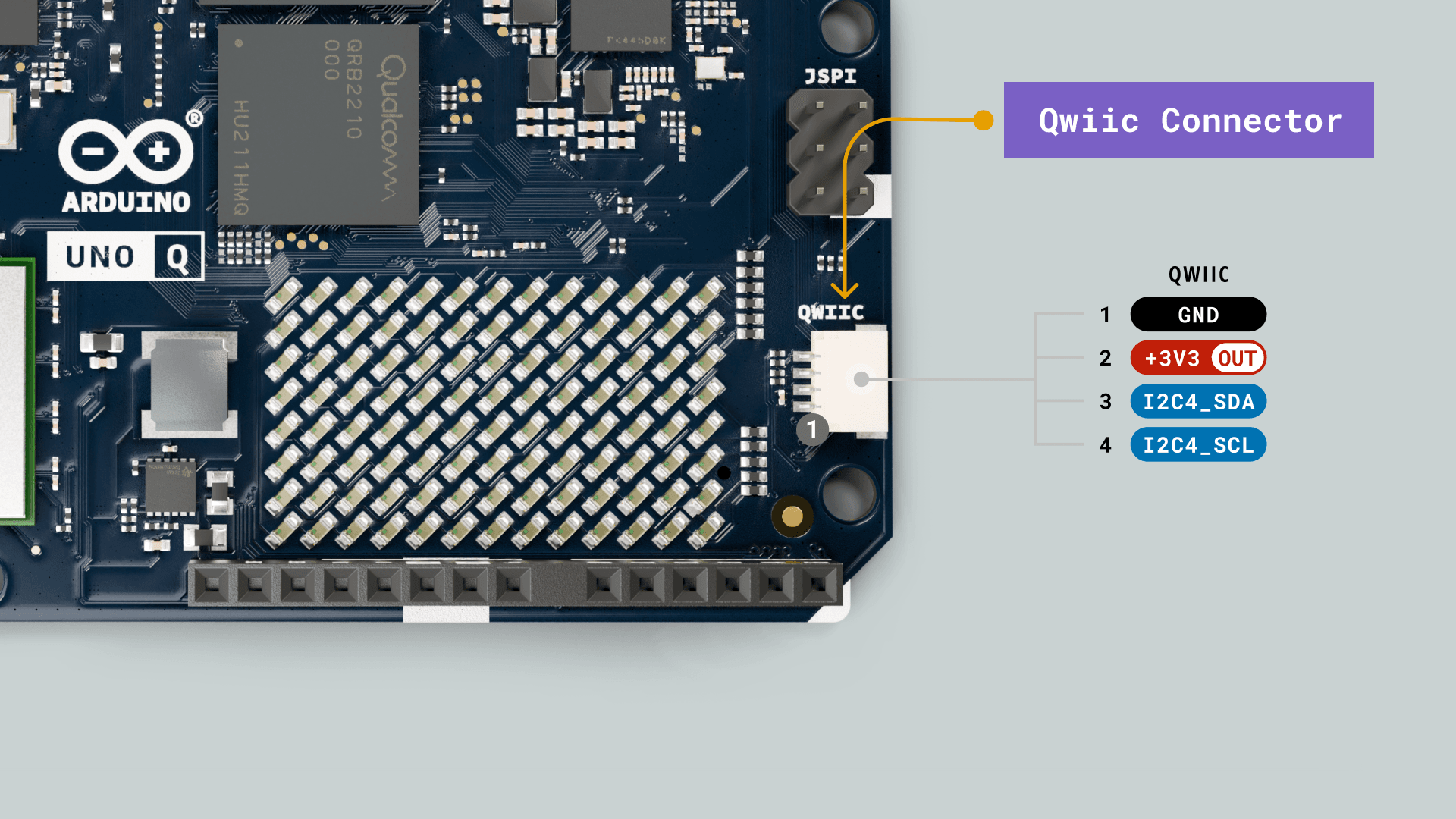
The Qwiic system’s key advantages include:
- **Plug-and-play connectivity**: No breadboards, jumper wires, or soldering required
- **Polarized connectors**: Prevents accidental reverse connections
- **Daisy-chain capability**: Connect multiple devices in series
- **Built-in pull-up resistors**: No external resistors needed
- **Standard pinout**: Compatible across all Qwiic ecosystem devices
***The Qwiic connector on the UNO Q is connected to the secondary I2C bus (I2C4), which uses the `Wire1` object rather than the `Wire` object. Please note that the Qwiic connector is 3.3 V only.***
The Qwiic connector allows you to interface our Modulino nodes for developing soldering-free projects.
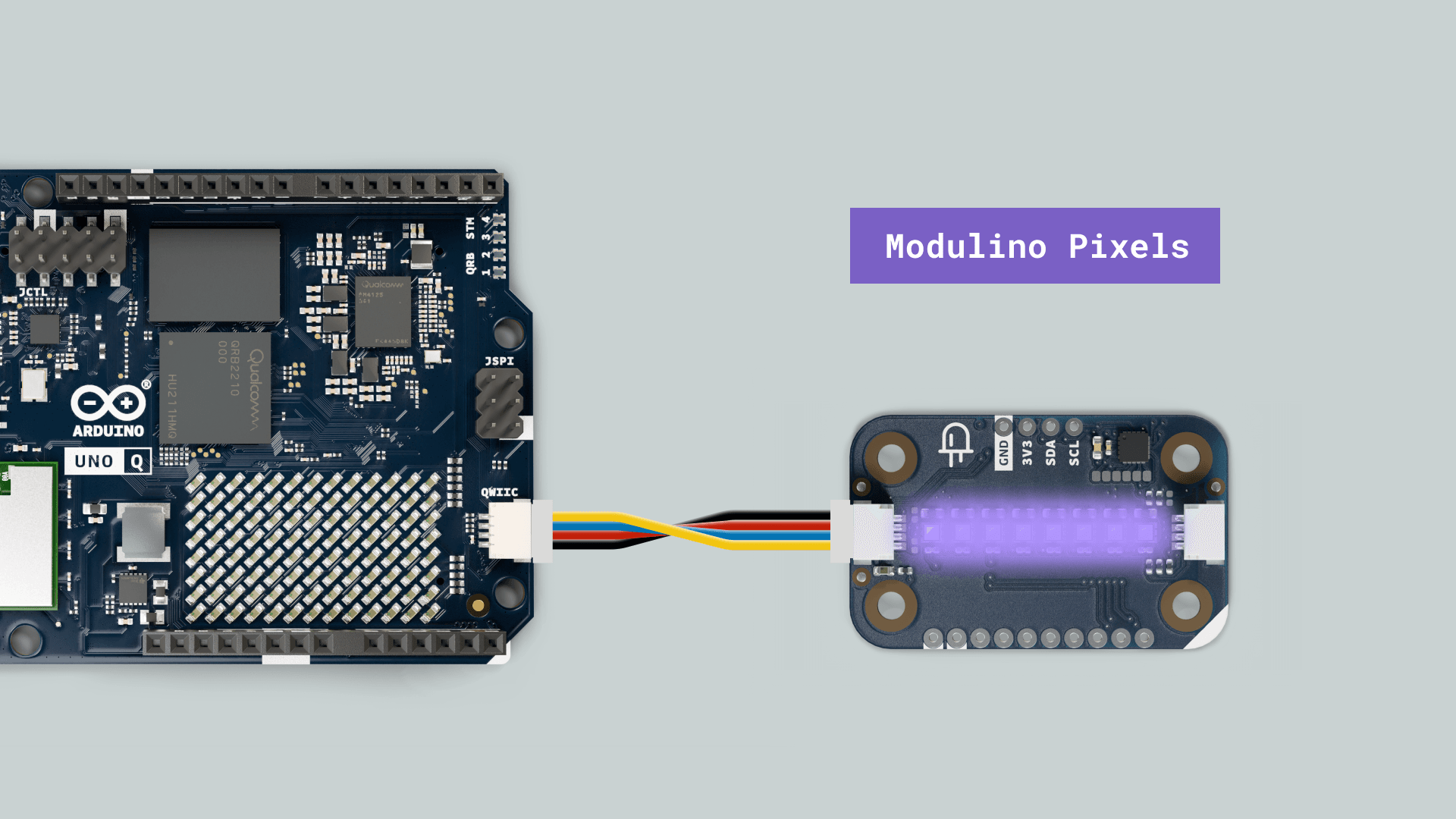
You can check our [Modulino family](https://www.arduino.cc/en/hardware/#modulino) where you will find a variety of **sensors** and **actuators** to expand your projects.
### UART
The pins used in the UNO Q for the UART communication protocol are the following:
| **Microcontroller Pin** | **Arduino Pin Mapping** |
| :---------------------: | :---------------------: |
| PB6 | USART1_TX / D1 |
| PB7 | USART1_RX / D0 |
Please, refer to the [board pinout section](#pinout) of the user manual to locate them on the board.
***To communicate over the hardware serial pins on the JDIGITAL connector, the `Serial1` object must be used.***
To begin with UART communication, you will need to configure it first. In the `setup()` function, set the baud rate (bits per second):
```cpp
// Start UART communication at 115200 baud
Serial1.begin(115200);
```
To transmit data to another device via UART, you can use the `write()` function:
```cpp
// Transmit the string "Hello UNO Q"
Serial1.write("Hello UNO Q");
Serial1.write("\r\n"); // new line
```
You can also use the `print` and `println()` to send a string without a newline character or followed by a newline character:
```cpp
// Transmit the string "Hello UNO Q"
Serial1.print("Hello UNO Q");
// Transmit the string "Hello UNO Q" followed by a newline character
Serial1.println("Hello UNO Q");
```
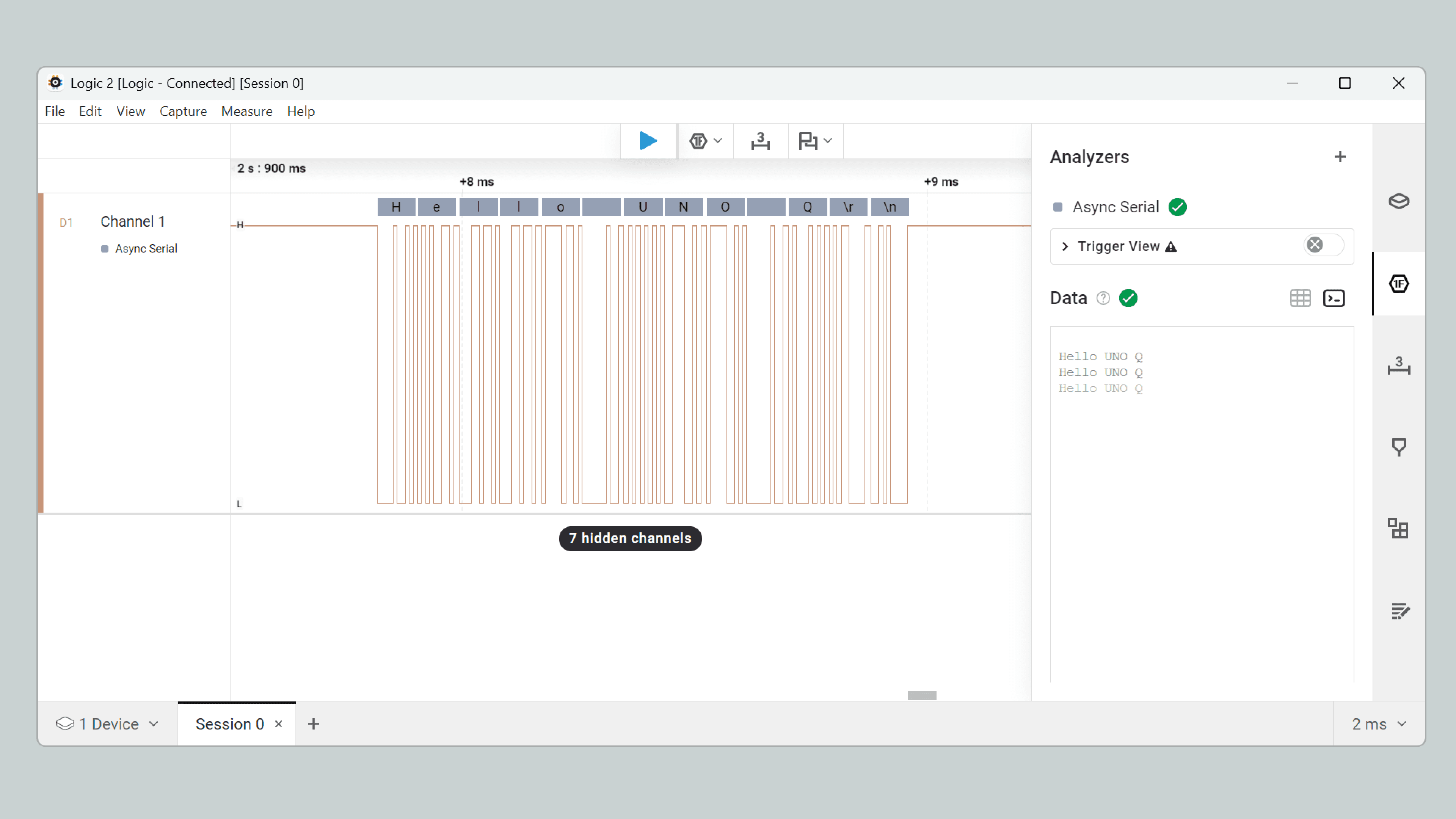
To test the UART transmit method use the following example, remember to create a new App in the Arduino App Lab, then copy and paste the example below:
```cpp
void setup() {
// Initialize the hardware UART at 115200 bps
Serial1.begin(115200);
}
void loop() {
// Transmit the string "Hello UNO Q" followed by a newline character
Serial1.println("Hello UNO Q");
delay(1000);
}
```
You should get the following in the **TX** and **RX** pins of your UNO Q board, I am using a logic analyzer to capture the data:
To read incoming data, you can use a `while()` loop to continuously check for available data and read individual characters. The code shown below stores the incoming characters in a String variable and processes the data when a line-ending character is received:
```cpp
String incoming = "";
void setup() {
// Initialize the hardware UART at 115200 baud
Serial1.begin(115200);
}
void loop() {
while (Serial1.available()) {
char c = Serial1.read();
if (c == '\n') {
// Echo the buffered message and add a newline
Serial1.println(incoming);
// Clear for the next message
incoming = "";
} else {
incoming += c;
}
}
}
```
With this example the UNO Q will send back whatever it receives on the UART.
#### From Serial to Monitor
Starting with version 0.55.0 of the **Arduino UNO Q Board** platform, the UNO Q fully supports legacy `Serial` communication for debugging. You can now use `Serial.print()` and `Serial.println()` commands to display data, sensor readings, or any other messages directly in the _Arduino App Lab Console_, just as you would with other Arduino boards.
```cpp
void setup() {
// Initialize the Monitor
Serial.begin(9600);
}
void loop() {
// Transmit the string "Hello UNO Q" followed by a newline character
Serial.println("Hello UNO Q");
delay(1000);
}
```
Because of the UNO Q's architecture, earlier versions of the **Arduino UNO Q Board** platform required a specific `Monitor` object to print to the console instead of `Serial`.
For backward compatibility, the `Monitor` object is still fully supported. If you are maintaining an older project, code using the `Arduino_RouterBridge` library will continue to work without any changes:
```cpp
#include
void setup() {
// Initialize the legacy Monitor
Monitor.begin(9600);
}
void loop() {
Monitor.println("This still works!");
delay(1000);
}
```
***While `Monitor` is still supported, we recommend using standard `Serial` for all new projects.***
## Wireless Connectivity
The UNO Q features the WCBN3536A radio module that provides dual-band Wi-Fi® 5 (2.4/5 GHz) and Bluetooth® 5.1 to the board. This allows seamless wireless connectivity for both IoT and peripheral communication.
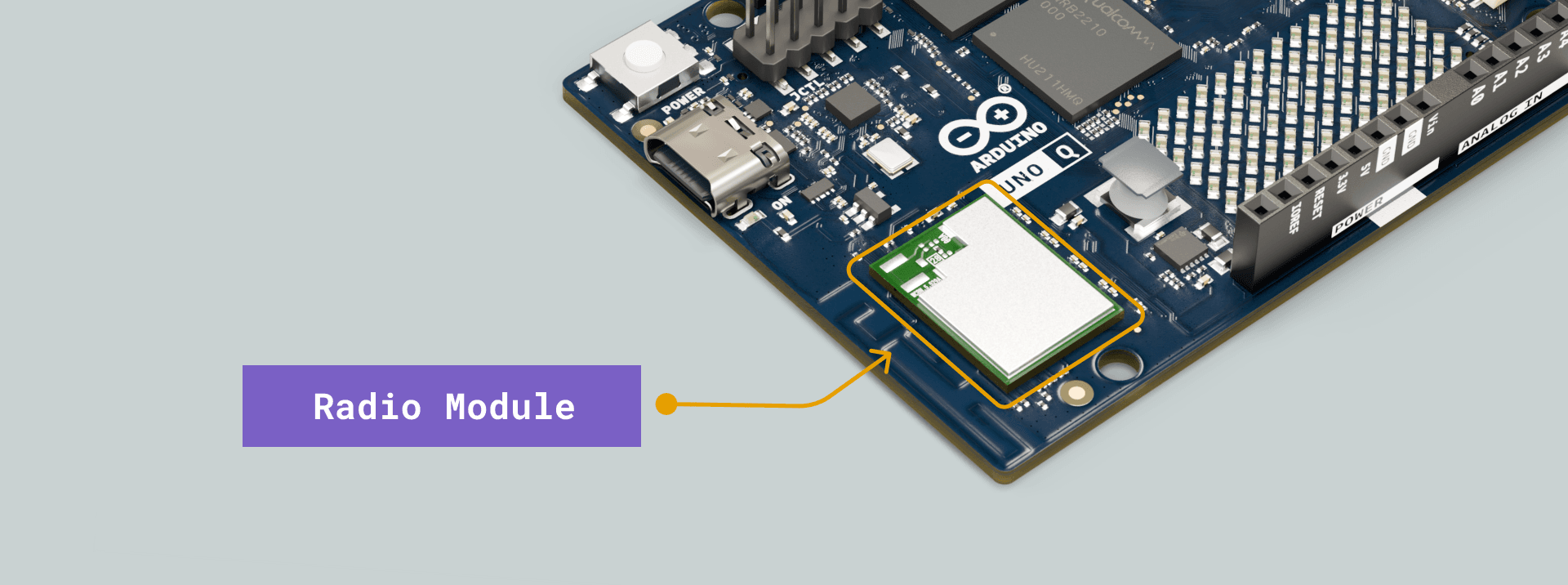
Whether connecting to a local network, uploading data to the cloud, or communicating with Bluetooth-enabled devices such as smartphones and sensors, the UNO Q offers flexible and reliable options for your projects.
### Wi-Fi®
Wi-Fi connectivity on the UNO Q allows the board to connect to local networks or the internet to access online services, perform software updates, and communicate with remote servers. Additionally, Wi-Fi can be configured to share its internet connection with the onboard microcontroller, allowing both systems to stay connected without additional network hardware.
#### From the Microprocessor
If you followed the Arduino App Lab first set up, you should be already connected to the internet. However, here is a brief explanation of how to do it manually.
To **connect** the UNO Q to the internet, simply go to the upper-right corner and click on the network icon. Then, search for available Wi-Fi® networks and select one.
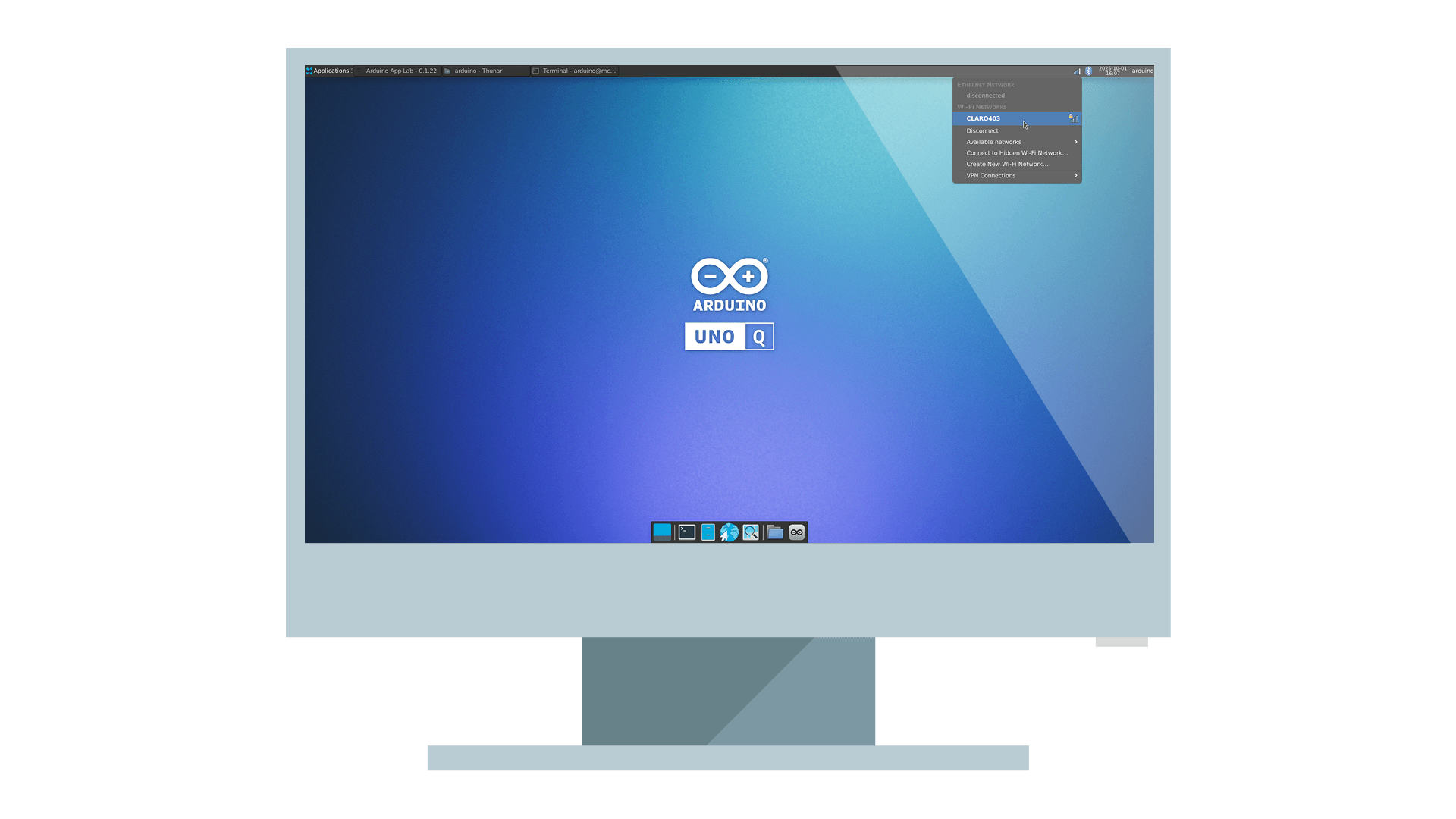
Or run the following command in the terminal:
```bash
sudo nmcli d wifi connect password
```
To **disconnect** the UNO Q from the current Wi-Fi network, go to the same place where you enabled it before, click on the network icon in the upper-right corner, and then click on "Disconnect".
Or run the following command in the terminal:
```bash
sudo nmcli d disconnect wlan0
```
***`wlan0` is the typical name of the Wi-Fi interface, you can verify yours running `nmcli device` in the terminal.***
If you want to forget the saved network so it doesn’t auto-connect again, you can also run:
```bash
sudo nmcli connection delete
```
#### WPA2-Enterprise Connections
To connect to a WPA2-Enterprise network, you need to provide additional authentication configuration. The possible configurations can be complex; please refer to the [official documentation](https://people.freedesktop.org/~lkundrak/nm-dbus-api/nm-settings.html) for a comprehensive list of options.
For example, here is the configuration for **Eduroam**, an international Wi-Fi roaming service for users in research and education.
```bash
nmcli con add \
type wifi \
connection.id Eduroam \ # Connection name
wifi.ssid eduroam \ # Network Wi-Fi SSID
wifi.mode infrastructure \
wifi-sec.key-mgmt wpa-eap \
802-1x.eap peap \
802-1x.phase2-auth mschapv2 \
802-1x.identity
```
Here's another example using TTLS authentication with PAP:
```bash
nmcli con add \
type wifi \
connection.id ExampleNetwork \ # Connection name
wifi.ssid \ # Network Wi-Fi SSID
wifi.mode infrastructure \
wifi-sec.key-mgmt wpa-eap \
802-1x.eap ttls \
802-1x.phase2-auth pap \
802-1x.domain-suffix-match example.com \
802-1x.identity
```
If you prefer not to store your password in plain text (especially when it contains special characters), you can use the `--ask` flag to be prompted for the password interactively when connecting:
```bash
nmcli --ask con up
```
#### From the Microcontroller
Since the radio module is connected to the Qualcomm microprocessor, we need the **Bridge** to expose the connectivity to the microcontroller.
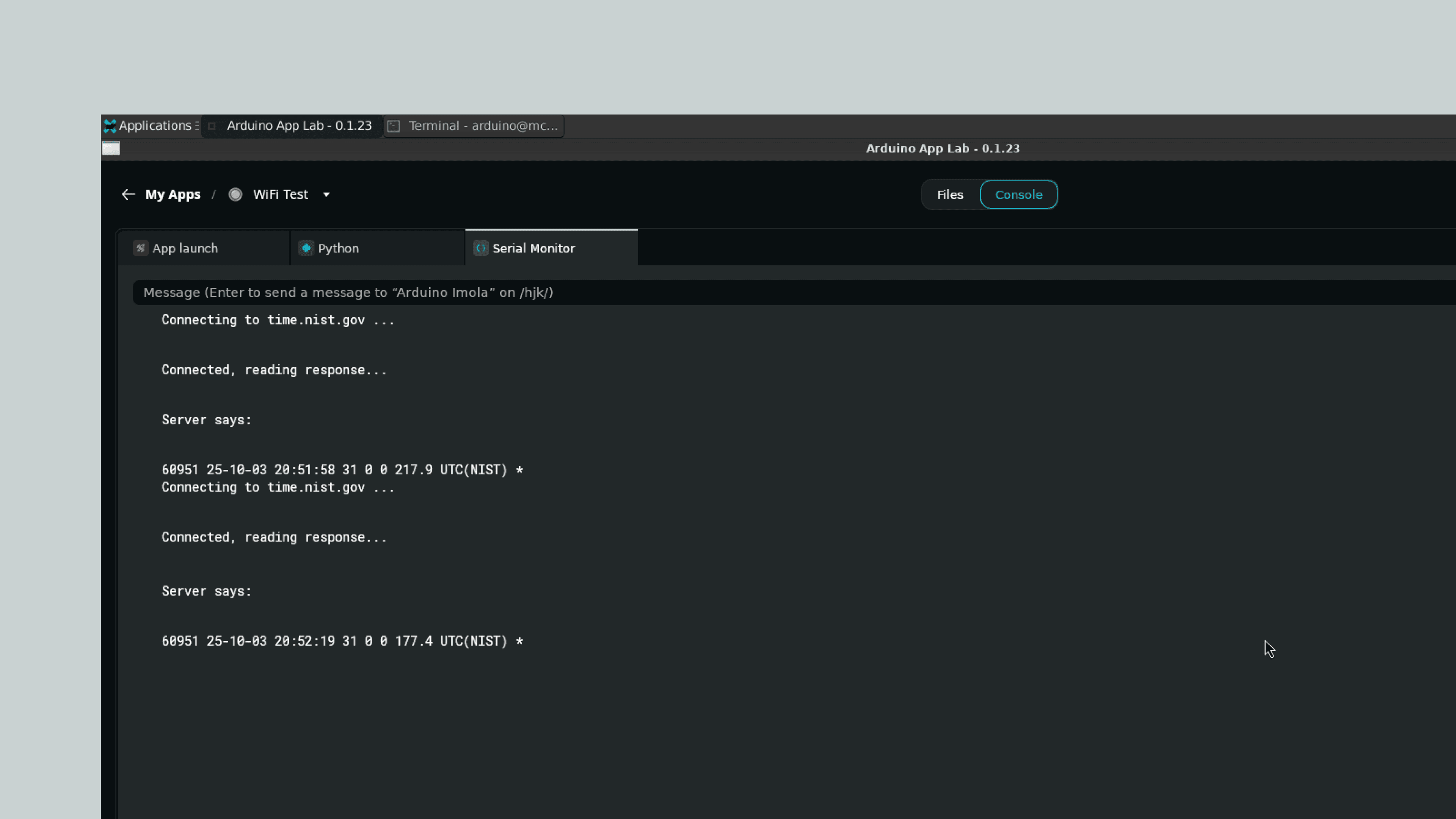
The following example gets the UTC time using TCP over socket RPC calls and prints it in the Serial Monitor:
1. Create a new App in the Arduino App Lab.

2. Copy and paste the example below in the "sketch" part of your new App found in `sketch\sketch.ino`.
```cpp
BridgeTCPClient<> client(Bridge);
void setup() {
if (!Bridge.begin()) {
while (true) {}
}
Serial.begin(9600);
Serial.println("TCP Daytime Demo started");
}
void loop() {
Serial.println("\nConnecting to time.nist.gov ...");
if (client.connect("time.nist.gov", 13) < 0) {
Serial.println("Connection failed!");
delay(5000);
return;
}
Serial.println("Connected, reading response...");
String line;
while (client.connected() || client.available()) {
if (client.available()) {
char c = client.read();
if (c == '\n') break; // daytime sends one line
if (c != '\r') line += c;
}
}
Serial.print("Server says: ");
Serial.println(line);
client.stop();
delay(10000);
}
```
Once running, open the Arduino App Lab Serial Monitor and you will see the time and date retrieved from the `time.nist.gov` server.
### Bluetooth®
Bluetooth® connectivity allows the UNO Q to communicate with nearby devices such as smartphones, computers, or sensors. It can be used for data exchange, remote control, or connecting to Bluetooth® peripherals like keyboards, headsets and serial devices. Depending on the setup, the UNO Q can act as either a Bluetooth® peripheral or host, enabling flexible short-range communication for various applications.
You can leverage the Bluetooth® feature from the Single-Board Computer mode by clicking on the upper-right Bluetooth icon to manage it.
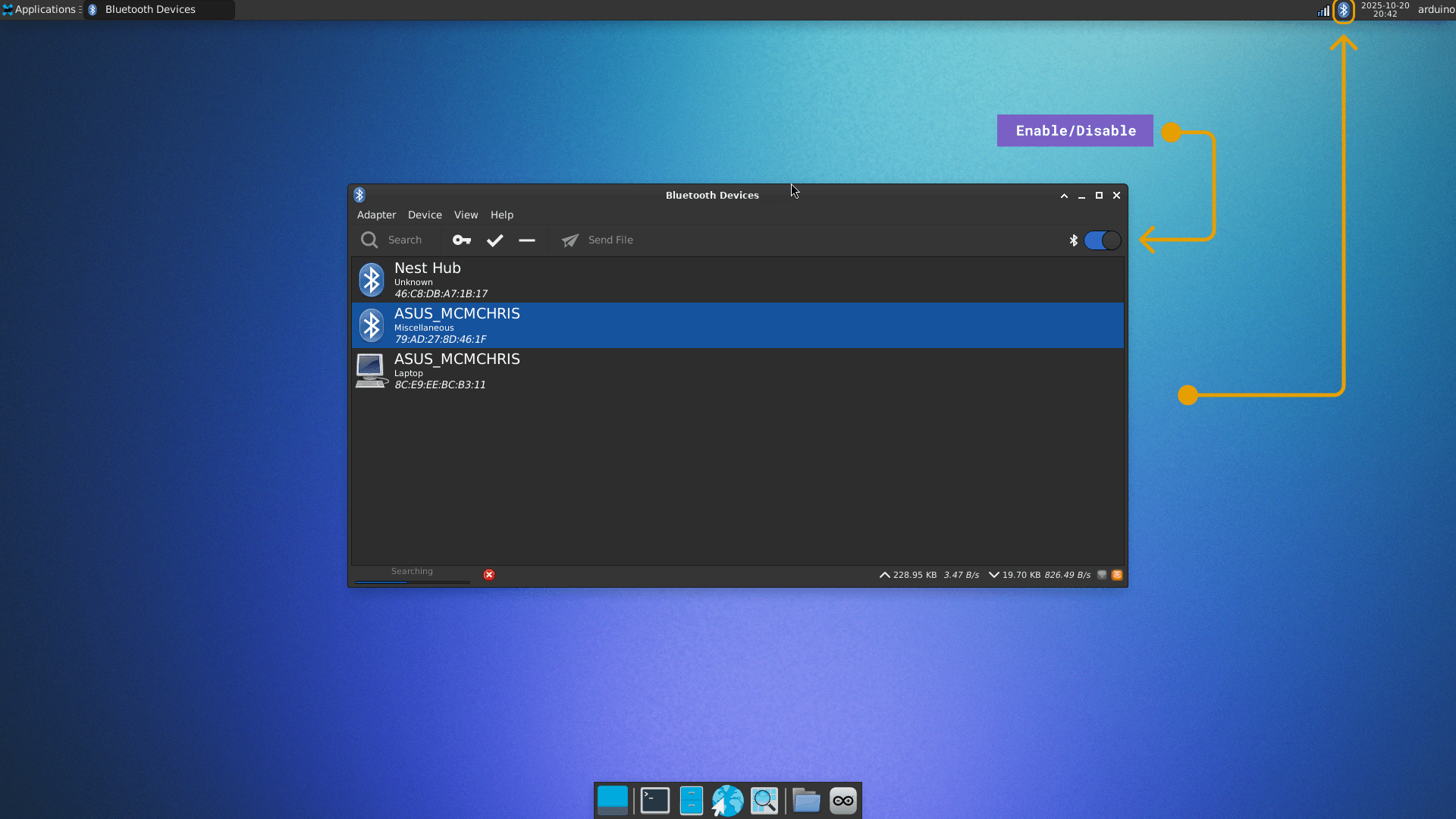
From here, you can do the following:
- Scan for devices
- Pair to a specific device
- Trust devices
- Send files
- Turn on or off the Bluetooth connection
You can also manage the Bluetooth connection from the terminal by using `bluetoothctl` as follows:
```bash
bluetoothctl power on # turn on Bluetooth
bluetoothctl power off # turn off Bluetooth
```
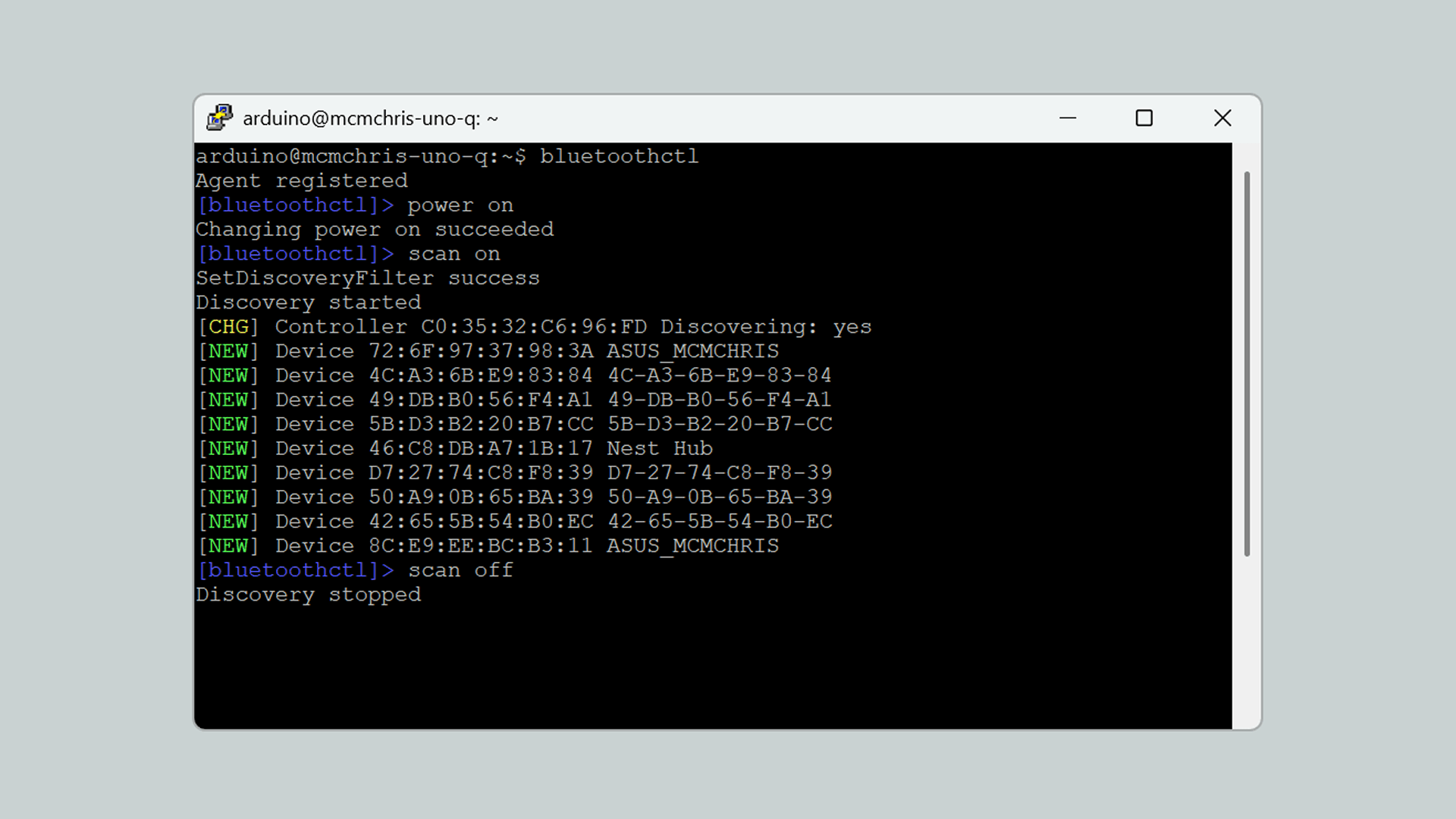
You can enter the Bluetooth manager prompt by running `bluetoothctl` and inside you can run specific commands:
```bash
power on # turn on Bluetooth
power off # turn off Bluetooth
scan on # start searching for nearby Bluetooth devices
scan off # stop searching for devices
connect # pair to the device with the specified MAC address
```
Here is an example of how looks like to search for Bluetooth devices from the terminal:
## Manage the Linux Operating System
The Arduino UNO Q runs a full Debian Linux operating system, allowing you to interact with the system just like any standard Linux environment. For convenience, Arduino App Lab provides integrated tools to help you manage updates, configure your board, and flash new operating system images.
The following sections outline how to work with the Debian environment and how to manage or flash the Linux system image.
### Working with the Debian Environment
The UNO Q runs a full Debian Linux operating system, providing a powerful environment for running Python scripts, managing network services, and installing thousands of open-source packages.
To learn how to access the shell, navigate the file system, manage permissions, and use the built-in system tools, please refer to the comprehensive [Debian Linux Basics for UNO Q guide](/tutorials/uno-q/debian-guide/).
### Flashing a Linux Image
If you need to reset the board to its factory state, recover from system corruption, or switch to a different Linux distribution, you can flash a new system image using one of two tools:
* **Arduino App Lab**: If your board is functional and recognized by your computer, you can initiate a reset or switch distributions directly from the **Settings** menu. This method allows you to preserve your user data if desired.
* **Arduino Flasher CLI**: If your board is unresponsive or cannot be discovered on your network, use this standalone command-line tool to reinstall the OS.
For detailed instructions on both methods, please refer to the [Flash a Linux Image](/software/app-lab/configure/flash/) tutorial.
## Support
If you encounter any issues or have questions while working with the Arduino UNO Q, we provide various support resources to help you find answers and solutions.
### Help Center
Explore our [Help Center](https://support.arduino.cc/hc/en-us), which offers a comprehensive collection of articles and guides for the UNO Q. The Arduino Help Center is designed to provide in-depth technical assistance and help you make the most of your device.
- [UNO Q Help Center page](https://support.arduino.cc/hc/en-us)
### Forum
Join our community forum to connect with other UNO Q users, share your experiences, and ask questions. The forum is an excellent place to learn from others, discuss issues, and discover new ideas and projects related to the UNO Q.
- [UNO Q category in the Arduino Forum](https://forum.arduino.cc/c/official-hardware/uno-family/uno-q/222)
### Contact Us
Please get in touch with our support team if you need personalized assistance or have questions not covered by the help and support resources described before. We are happy to help you with any issues or inquiries about the UNO Q.
- [Contact us page](https://www.arduino.cc/en/contact-us/)