
[]()
[](https://github.com/Carthage/Carthage)
[](http://cocoadocs.org/docsets/BWWalkthrough)
[](http://twitter.com/bitwaker)
## What is BWWalkthrough?
BWWalkthrough (BWWT) is a class that helps you create **Walkthroughs** for your iOS Apps.
It differs from other similar classes in that there is no rigid template; BWWT is just a layer placed over your controllers that gives you complete **freedom on the design of your views.**.
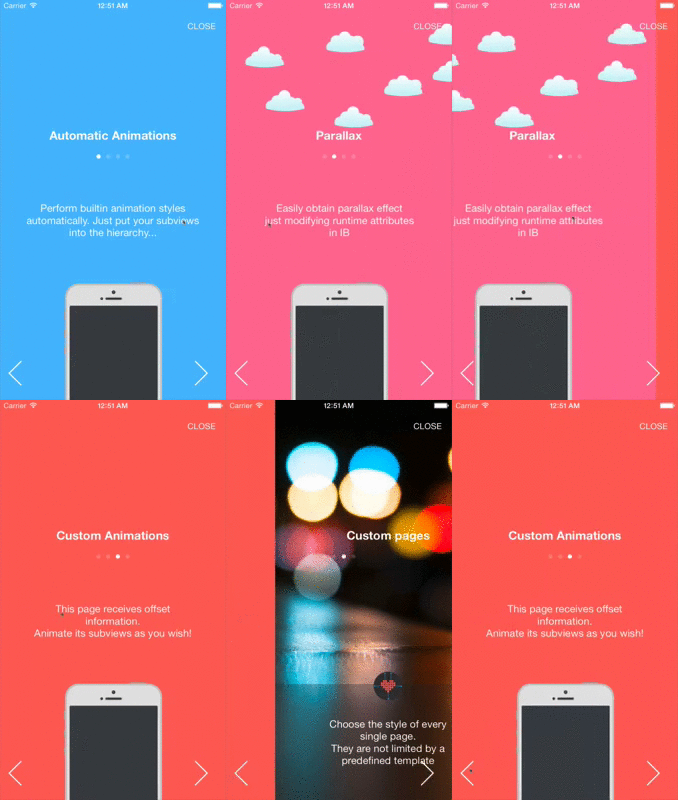
Video preview [Here](http://vimeo.com/106542773)
A dedicated tutorial is available on [ThinkAndBuild](http://www.thinkandbuild.it/creating-custom-walkthroughs-for-your-apps/)
The class comes with a set of **pre-built animations** that are automatically applied to the subviews of each page. This set can be easily substituted with your custom animations.
BWWT is essentially defined by 2 classes:
**BWWalkthroughViewController** is the Master (or Container). It shows the walkthrough and contains UI elements that are shared among all the Pages (like UIButtons and UIPageControl).
**BWWalkthroughPageViewController** defines every single Page that is going to be displayed with the walkthrough inside the Master.
## What it's not?
BWWT is not a copy-paste-and-it-just-works class and it is not a fixed walkthrough template. If you need a simple no-configuration walkthrough, BWWT is not the right choice.
## Installation
> Note: There is a known issue with IBOutlets and Carthage that prevents Outlets from working correctly.
> I see something similar reported for other [projects](https://github.com/xmartlabs/Eureka/issues/295) too.
> My suggestion is to follow the manual installation instructions, as it is just matter of drag and drop 2 files in your project.
> I know you cannot update the library automatically going that route... but IBOutlets are needed for a project like BWWalkthrough.
### With CocoaPods
BWWalkthrough is available through [CocoaPods](http://cocoapods.org). To install
it, simply add the following line to your Podfile:
```ruby
pod "BWWalkthrough"
```
### With Carthage
Include this line into your `Cartfile`:
```ruby
github "ariok/BWWalkthrough"
```
Run carthage update to build the framework and drag the built BWWalkthrough.framework into your Xcode project.
### With Swift Package Manager
``` swift
// swift-tools-version:5.0
import PackageDescription
let package = Package(
name: "YourTestProject",
platforms: [
.iOS(.v10),
],
dependencies: [
.package(url: "https://github.com/ariok/BWWalkthrough/.git", from: "4.0.1")
],
targets: [
.target(name: "YourTestProject", dependencies: ["BWWalkthrough"])
]
)
```
And then import wherever needed: ```import BWWalkthrough```
#### Adding it to an existent iOS Project via Swift Package Manager
1. Using Xcode 11 go to File > Swift Packages > Add Package Dependency
2. Paste the project URL: https://github.com/ariok/BWWalkthrough
3. Click on next and select the project target
If you have doubts, please, check the following links:
[How to use](https://developer.apple.com/videos/play/wwdc2019/408/)
[Creating Swift Packages](https://developer.apple.com/videos/play/wwdc2019/410/)
After successfully retrieved the package and added it to your project, just import `BWWalkthrough` and you can get the full benefits of it.
### Manually
Include the `BWWalkthrough/BWWalkthroughViewController.swift` and the `BWWalkthrough/BWWalkthroughPageViewController.swift` files into your project.
## How to use it?
#### Define the Master
Add a new controller to the Storyboard and set its class as **BWWalkthroughViewController**. This is the Master controller where every page will be attached.
Here you can add all the elements that have to be visible in all the Pages.
There are 4 prebuilt IBOutlets that you can attach to your elements to obtain some standard behaviours: UIPageControl (**pageControl**), UIButton to close/skip the walkthrough (**closeButton**) and UIButtons to navigate to the next and the previous page (**nextButton**, **prevButton**).
You can take advantage of these IBOutlets just creating your UI elements and connecting them with the outlets of the Master controller.
#### Define the Pages
Add a new controller to the Storyboard and set it has **BWWalkthroughPageViewController**. Define your views as you prefer.
#### Attach Pages to the Master
Here is an example that shows how to create a walkthrough reading data from a dedicated Storyboard:
```swift
// Get view controllers and build the walkthrough
let stb = UIStoryboard(name: "Walkthrough", bundle: nil)
let walkthrough = stb.instantiateViewControllerWithIdentifier(“Master”) as BWWalkthroughViewController
let page_one = stb.instantiateViewControllerWithIdentifier(“page1”) as UIViewController
let page_two = stb.instantiateViewControllerWithIdentifier(“page2”) as UIViewController
let page_three = stb.instantiateViewControllerWithIdentifier(“page3”) as UIViewController
// Attach the pages to the master
walkthrough.delegate = self
walkthrough.add(viewController:page_one)
walkthrough.add(viewController:page_two)
walkthrough.add(viewController:page_three)
```
## Prebuilt Animations
You can add animations without writing a line of code. You just implement a new Page with its subviews and set an animation style using the runtime argument {Key: **animationType**, type: String} via IB. The BWWalkthrough animates your views depending on the selected animation style.
At the moment (WIP!) the possible value for animationsType are:
**Linear**, **Curve**, **Zoom** and **InOut**
The speed of the animation on the X and Y axes **must** be modified using the runtime argument {key: **speed** type:CGPoint}, while the runtime argument {key: **speedVariance** type: CGPoint} adds a speed variation to the the subviews of the page depending on the hierarchy position.
**Example**
Let’s say that we have defined these runtime arguments for one of the Pages:
- animationType: "Linear"
- speed: {0,1}
- speedVariance: {0,2}
The subviews of the Page will perform a linear animation adding speed to the upfront elements depending on speedVariance.
So if we have 3 subviews, the speed of each view will be:
- view 0 {0,1+2}
- view 1 {0,1+2+2}
- view 2 {0,1+2+2+2}
creating the ~~infamous~~ parallax effect.
### Exclude Views from automatic animations
You might need to avoid animations for some specific subviews.To stop those views to be part of the automatic BWWalkthrough animations you can just specify a list of views’ tags that you don’t want to animate. The Inspectable property `staticTags` (available from version ~> 0.6) accepts a `String` where you can list these tags separated by comma (“1,3,9”). The views indicated by those tags are now excluded from the automatic animations.
## Custom Animations
Each page of the walkthrough receives information about its normalized offset position implementing the protocol **BWWalkthroughPage**, so you can extend the prebuilt animations adding your super-custom-shiny-woah™ animations depending on this value (here is a simple example)
```swift
func walkthroughDidScroll(position: CGFloat, offset: CGFloat) {
var tr = CATransform3DIdentity
tr.m34 = -1/500.0
titleLabel?.layer.transform = CATransform3DRotate(tr, CGFloat(M_PI)*2 * (1.0 - offset), 1, 1, 1)
}
```
## Delegate
The **BWWalkthroughViewControllerDelegate** protocol defines some useful methods that you can implement to get more control over the Walkthrough flow.
```swift
@objc protocol BWWalkthroughViewControllerDelegate {
@objc optional func walkthroughCloseButtonPressed()
@objc optional func walkthroughNextButtonPressed()
@objc optional func walkthroughPrevButtonPressed()
@objc optional func walkthroughPageDidChange(pageNumber:Int)
}
```