# Documentation
## Snippets
*Snippets* are shortcuts that allow you to insert certain text based on certain triggers. The structure of a snippet is as follows:
```typescript
{
trigger: string | RegExp,
replacement: string | BaseNode[],
options: string,
priority?: number = 0,
description?: string = "no description provided",
flags?: string = "",
triggerKey?: string = "",
language?: string,
excludedMacros?: string[],
excludedEnvironments: string[],
}
```
- `trigger` : The text that triggers this snippet.
- Triggers can also be regular expressions. See [regex snippets](#regex-snippets).
- `replacement` : The text to replace the `trigger` with.
- Replacements can also be JavaScript functions. See [function snippets](#function-snippets). Or created programmatically, see [nodes](#nodes).
- `options` : See below.
- `priority` (optional): This snippet's priority. Snippets with higher priority are run first. Can be negative. Defaults to 0.
- `description` (optional): A description for this snippet.
- `flags` (optional): Flags for [regex snippets](#regex).
- Not applicable to non-regex snippets.
- The following flags are permitted: `i`, `m`, `s`, `u`, `v`.
- `triggerKey` (optional): The shortcut to expand the snippet.
- Has to be in codemirror keymap format such as `Ctrl-a`.
- Empty strings are ignored and both the `triggerKey` and `trigger` need to match (`trigger` can be an empty string making it a hotkey). See #439 for examples and a snippet to add a snippet as an hotkey.
- No other shortcut such as obsidians hotkeys, vims keymaps or other plugins can have used the shortcut before this plugin. For example `Ctrl-o` by default will open quick switcher and thus won't as a `triggerKey`.
- `language` (optional): Which code language to expand this in. Needs to match the text after ``` exactly.
- `excludedMacros` (optional): Which macros\commands name to skip expansion in. Could be usefull for commands such as `ce` and `pu`.
- `excludedEnvironments` (optional): Which environment names such as `pmatrix` to skip expansion in.
### Options
- `t` : Text mode. Only run this snippet outside math
- `m` : Math mode. Only run this snippet inside math. Shorthand for both `M` and `n`
- `M` : Block math mode. Only run this snippet inside a `$$ ... $$` block
- `n` : Inline math mode. Only run this snippet inside a `$ ... $` block
- `A` : Auto. Expand this snippet as soon as the trigger is typed. If omitted, the Tab key must be pressed to expand the snippet
- `r` : [Regex](#regex-snippets). The `trigger` will be treated as a regular expression
- `v` : [Visual](#visual-snippets). Only run this snippet on a selection. The trigger should be a single character
- `w` : Word boundary. Only run this snippet when the trigger is preceded (and followed by) a word delimiter, such as `.`, `,`, or `-`.
- `c` : Code mode. Only run this snippet inside a ```` ``` ... ``` ```` block
- Languages using `$` as part of their syntax won't trigger math mode while in their codeblock
- The `math` language from https://github.com/ocapraro/obsidian-math-plus doesn't trigger code mode, but block math mode instead
- `U`: Skip undo. When an automatic snippet expands, undo returns the editor to the state before the triggering key was typed, instead of restoring that key.
- `C` : Inline code mode. Only run this snippet inside a `` ` ... ` `` block
Multiple options can be used at once. As an exception, regex and visual are mutually exclusive.
No mode specified means that this snippet can be triggered _at all times_. Multiple modes specified mean that a snippet can be triggered in the given modes, independent of each other.
### Tabstops
- Insert tabstops for the cursor to jump to using `$X`, where X is a number starting from 0.
- Pressing Tab will move the cursor to the next tabstop.
- Tabstops can have placeholders. Use the format `${X:text}`, where `text` is the text that will be selected by the cursor on moving to this tabstop.
- Tabstops with the same number, X, will all be selected at the same time.
#### Examples
```typescript
{trigger: "//", replacement: "\\frac{$0}{$1}$2", options: "mA"}
{trigger: "dint", replacement: "\\int_{${0:0}}^{${1:\\infty}} $2 d${3:x}", options: "mA"}
{trigger: "outp", replacement: "\\ket{${0:\\psi}} \\bra{${0:\\psi}} $1", options: "mA"}
```
### Regex snippets
[Regular expressions](https://en.wikipedia.org/wiki/Regular_expression) are sequences of characters that specify a match pattern. (If you're unfamiliar with regex, [here's a tutorial you might like to check out](https://regexone.com).)
In Latex Suite, you can use regular expressions to write more general snippets that expand according to some match pattern that you specify.
To create a regex snippet, you can
- use the `r` option, or
- make the `trigger` a RegExp literal (such as `/regex-goes-here/`).
When creating a regex snippet,
- In the `trigger`, surround an expression with brackets `()` to create a capturing group.
- Inside a `replacement` string, strings of the form `[[X]]` will be replaced by matches in increasing order of X, starting from 0.
- You can also make the `replacement` a JavaScript function. See [function snippets](#function-snippets) for more details.
#### Example
The snippet
```typescript
{trigger: "([A-Za-z])(\\d)", replacement: "[[0]]_{[[1]]}", options: "rA"}
```
will expand `x2` to `x_{2}`, `a1` to `a_{1}` and so on.
Using a RegExp literal, the same snippet can be written as
```typescript
{trigger: /([A-Za-z])(\d)/, replacement: "[[0]]_{[[1]]}", options: "A"}
```
> [!IMPORTANT]
> - Some characters, such as `\`, `+`, and `.`, are special characters in regex. If you want to use these literally, remember to escape them by inserting two backslashes (`\\`) before them!
> - (One backslash to escape the special character, and another to escape that backslash)
> - [Lookbehind regex is not supported on iOS versions prior to 16.4.](https://github.com/bicarlsen/obsidian_image_caption/issues/4#issuecomment-982982629) Using lookbehind regex will cause snippets to break on iOS versions prior to 16.4.
### Snippet variables
Snippet variables are used as shortcuts when writing snippets. In the `trigger` of a snippet, strings with the format `"${VARIABLE}"` will be replaced with the contents of the matching variable if it's defined, and left unchanged otherwise.
By default, the following variables are available for use in a `trigger`:
- `${GREEK}` : Shorthand for the following by default:
```
alpha|beta|gamma|Gamma|delta|Delta|epsilon|varepsilon|zeta|eta|theta|vartheta|Theta|iota|kappa|lambda|Lambda|mu|nu|xi|omicron|pi|rho|varrho|sigma|Sigma|tau|upsilon|Upsilon|phi|varphi|Phi|chi|psi|omega|Omega
```
Recommended for use with the regex option "r".
- `${SYMBOL}` : Shorthand for the following by default:
```
parallel|perp|partial|nabla|hbar|ell|infty|oplus|ominus|otimes|oslash|square|star|dagger|vee|wedge|subseteq|subset|supseteq|supset|emptyset|exists|nexists|forall|implies|impliedby|iff|setminus|neg|lor|land|bigcup|bigcap|cdot|times|simeq|approx
```
Recommended for use with the regex option "r".
- `${MORE_SYMBOLS}` : Shorthand for the following by default:
```
leq|geq|neq|gg|ll|equiv|sim|propto|rightarrow|leftarrow|Rightarrow|Leftarrow|leftrightarrow|to|mapsto|cap|cup|in|sum|prod|exp|ln|log|det|dots|vdots|ddots|pm|mp|int|iint|iiint|oint
```
Recommended for use with the regex option "r".
Snippet variables can be changed in the settings, under **Advanced editor settings > Snippet variables**. You can also choose to [load your snippet variables from files](#snippet-variables-files).
### Visual snippets
Sometimes you want to annotate math, or cancel or cross out terms. **Visual snippets** can be used to surround your current selection with other text.
For example, the snippet
```typescript
{trigger: "U", replacement: "\\underbrace{ ${VISUAL} }_{ $0 }", options: "mA"},
```
will surround your selection with an `\underbrace` when "U" is typed.
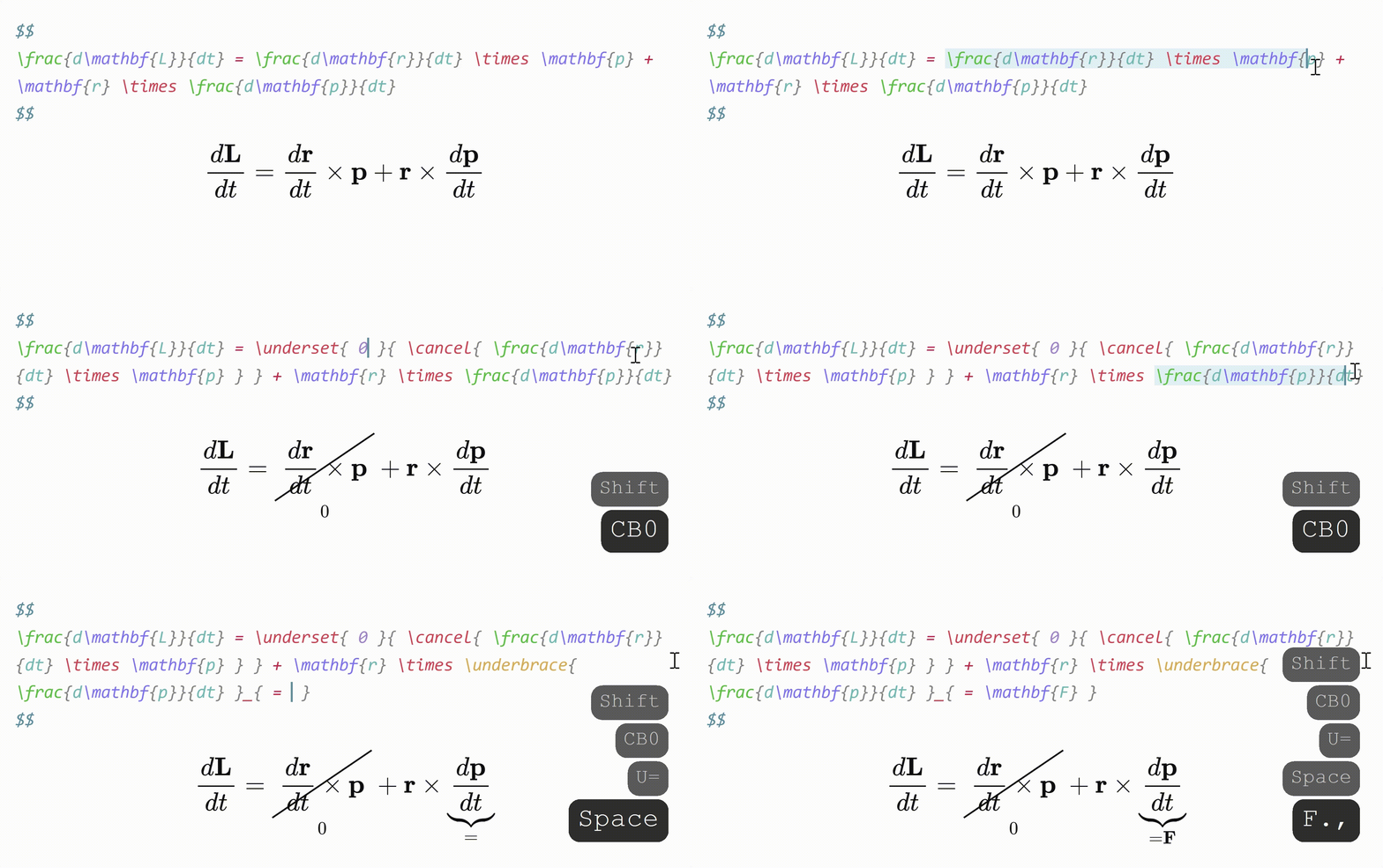
To create a visual snippet, you can
- make the replacement a string containing the special string `${VISUAL}`, or
- use the `v` option, and make the replacement a function.
When a visual snippet is expanded, the special string `${VISUAL}` in its replacement is replaced with the current selection.
To create a visual snippet, you can alternatively use the `v` option and make the replacement a [function](#function-snippets) that takes the selection as an argument. For example, the previous snippet can be written as
```typescript
{trigger: "U", replacement: (sel) => ("\\underbrace{" + sel + "}_{ $0 }"), options: "mv"},
```
.
Visual snippets will not expand unless text is selected.
You can also trigger visual snippets with vim, see [select-mode](#select-mode)
### Function snippets
Replacements can also be functions, written in JavaScript. For example, the snippet
```typescript
{trigger: "date", replacement: () => (new Date().toDateString()), options: "t"},
```
will expand "dateTab" to the current date, such as "Mon Jan 15 2023".
Function snippets work with regex and visual snippets as well.
#### Regex function snippets
For [**regex** snippets](#regex-snippets), Latex Suite will pass in the `RegExpExecArray` returned by the matching regular expression to your replacement function. This lets you access the value of capture groups inside your function. For example, the regex snippet
```typescript
{trigger: /iden(\d)/, replacement: (match) => {
const n = match[1];
let arr = [];
for (let j = 0; j < n; j++) {
arr[j] = [];
for (let i = 0; i < n; i++) {
arr[j][i] = (i === j) ? 1 : 0;
}
}
let output = arr.map(el => el.join(" & ")).join(" \\\\\n");
output = `\\begin{pmatrix}\n${output}\n\\end{pmatrix}`;
return output;
}, options: "mA"},
```
will expand "iden4" to a 4×4 identity matrix:
```latex
\begin{pmatrix}
1 & 0 & 0 & 0 \\
0 & 1 & 0 & 0 \\
0 & 0 & 1 & 0 \\
0 & 0 & 0 & 1
\end{pmatrix}
```
. More generally, it will expand "idenN" to an N×N identity matrix.
#### Visual function snippets
Function replacements can also be used for [visual snippets](#visual-snippets). To do this, use the `v` option, and make the replacement a function that takes the selection as an argument. Latex Suite will pass in the selection to your replacement function.
For example, the snippet
```typescript
{trigger: "K", replacement: (sel) => ("\\cancelto{ $0 }{" + sel + "}"), options: "mv"},
```
will surround your selection with a `\cancelto` when "K" is typed.
The snippet
```typescript
{trigger: "-", replacement: sel => { if (!sel.includes(" ")) { return false } return sel.replaceAll(/\s+/g, "-")}, options: "vA"},
```
will convert all spaces in your selection to hypens (for example, `hello world` will expand to `hello-world`) when "-" is typed.
---
In general, **function snippets** take the form
```ts
{
replacement:
| ((str: string) => string)
| ((match: RegExpExecArray) => string) // Regex snippets
| ((selection: string) => (string | false)) // Visual snippets
}
```
based on which type of snippet the replacement applies to.
If a snippet replacement function returns a non-string value, the snippet is ignored and will not expand.
### Nodes
Taking inspiration from [LuaSnip](https://github.com/L3MON4D3/LuaSnip) you can also create replacements programmaticaly with nodes.
These functions can be imported as the following:
```js
const ls = require("latex-suite") // can also be used to import libraries like @codemirror/state
```
where `ls` is of the following type:
```ts
type api = {
snippetVariables: Record,
// if insert is empty then its just like $X otherwise ${X:insert}
tabstop_node: (index: number, insert: string="") => BaseNode,
text_node: (text: string) => BaseNode,
// The key to extract regex groups or named groups, replaces [[X]].
// ${VISUAL} is used for the selection in visual snippets and 0 for the trigger in normal snippets
// default is used, if the key isn't defiend.
capture_node: (key: string | number, defaultValue: string = "") => BaseNode,
}
```
#### Example
To turn a simple equation from `1+1` to `$1+1=2$`, you can create the following snippet
```ts
const ls = require("latex-suite")
const snippet = {
trigger: /(\d+)\+(\d+)/,
replacement: (match) => [ls.text_node(`$${match[0]}+${match[1]}=${parseInt(match[0]) + parseInt(match[1])}$`)],
options: "t",
}
```
Or when the visual selection should be copied as is
```ts
const ls = require("latex-suite")
const fraction = {
trigger: "/",
replacement: [
ls.text_node("\\frac{"),
ls.capture_node("${VISUAL}"),
ls.text_node("}{"),
ls.tabstop_node(0),
ls.text_node("}")
],
options: "mv",
}
```
### IME keyboards
By defaults snippets won't automatically expand for [Input Method Editor](https://en.wikipedia.org/wiki/Input_method)(IME) keyboards when they are in the middle of a composition because of `Advanced Settings > Don't trigger snippets when IME is active`. Keyboards like gboard are almost always in composition, making automatic unusable. Currently there is only support for keyboards like gboard, so turning that setting off will enable all automatic snippets. But due to the way french/german/chinese keyboards behave, there will still be automatic snippets that don't work (like `trigger: "^"`) when this setting is turned off.
On mobile devices a warning is shown that this setting is turned on, notifying that the keyboard is supported. If you use a different keyboard than swipe/touch keyboard thats IME, e.g. a physical keyboard with pinyin or if `Don't trigger snippets when IME is active` is turned on intentionally, you can turn that warning off.
## Snippet files
You can choose to load snippets from a file or from all files within a folder. To do this, toggle the setting **Snippets > Load snippets from file or folder**. The file or folder must be within your vault, and not in a hidden folder (such as `.obsidian/`).
Snippet files can be saved with any extension. However, to obtain syntax highlighting in external editors, you may wish to save your snippet files with an extension of `.js`. If you don't have an external editor, (vscode)[https://code.visualstudio.com/] is a beginner-friendly editor to start with. If you wish to edit the snippet files inside Obsidian, you can create a regular markdown file and format it in a certain way to still get the syntax highlighting. See below.
A snippets file is a Javascript module/file with a default export of an array of snippets. (The file can also contain only an array but this can mess up with syntax highlighting and its easier to break this file, so it is not recommended)
_Note: an **array** is a list of items. In JavaScript, this is represented with the bracket symbols `[` `]`, with the items between them and separated by commas, e.g. `[ item1, item2 ]`._
### Example
1. A snippets file called `latex-suite-snippets.js` in `/path/to/obsidian-vault/latex-suite-snippets.js`. The path in the settings should be relative to the vault, so in this case it would be `latex-suite-snippets.js`
```javascript
export default [
{trigger: "mk", replacement: "$$0$", options: "tA"},
{trigger: "dm", replacement: "$$\n$0\n$$", options: "tAw"},
{trigger: /([A-Za-z])(\d)/, replacement: "[[0]]_{[[1]]}", options: "mA"}
]
```
2. A snippets file that can be edited by obsidian. For example `latex-suite-snippets.md` formatted in the following way:
~~~md
/*
First start with an opening `/*`.
In javascript everything between `/*` and a closing `* /` (without the space in the second one)
is treated as a "comment" and is ignored
Then open a code block with javascript to get the highlighting like:
```javascript
*/
// everything before the */ is a comment for javascript,
// so you could still place text between the ```javascript and */.
// But gets javascript syntax highlighting from obsidian, so its not recommended
export default [
{trigger: "mk", replacement: "$$0$", options: "tA"},
{trigger: "dm", replacement: "$$\n$0\n$$", options: "tAw"},
{trigger: /([A-Za-z])(\d)/, replacement: "[[0]]_{[[1]]}", options: "mA"}
];
// Don't forget to comment the closing code block ticks with /* ... */ like the following:
// The backticks need to be at the beginning of the line, so you can't use //``` to get the highlighting in obsidian.
/*
```
*/
~~~
3. A folder called `latex-suite` with 2 snippet files in that folder called `greek.js` and `symbols_and_matrices.md`.
In the settings the snippet-path is `latex-suite`.
Then your vault looks like the following
```
.
├── latex-suite
│ ├── greek.js
│ └── symbols_and_matrices.md
└── .obsidian
```
where your `greek.js` looks like the following
```js
const greek_snippets = [
// Greek letters
{trigger: "@a", replacement: "\\alpha", options: "mA"},
{trigger: "@b", replacement: "\\beta", options: "mA"},
// ... further snippets
];
export default greek_snippets
```
and your `symbols_and_matrices.md` can look like the following:
~~~md
/*
Don't forget the comments in md files
```javascript
*/
// `const = ...` declares constant variable that can't be reassigned later
// so `const a = 1; a=2;` gives an error.
// If you want to reassign variables use `let = ...`
const symbol_snippets = [
{trigger: "\\sum", replacement: "\\sum_{${0:i}=${1:1}}^{${2:N}} $3", options: "m"},
{trigger: "\\prod", replacement: "\\prod_{${0:i}=${1:1}}^{${2:N}} $3", options: "m"},
{trigger: "lim", replacement: "\\lim_{ ${0:n} \\to ${1:\\infty} } $2", options: "mA"},
// further snippets here
];
/*
```
Insert your markdown here, like examples as reminders.
Reminder the string `* /` (without the space) always marks the end of the comment.
So you can't use it here.
Then you can have another block
```javascript
*/
const matrix_snippets = [
{trigger: "pmat", replacement: "\\begin{pmatrix}\n$0\n\\end{pmatrix}", options: "MA"},
{trigger: "bmat", replacement: "\\begin{bmatrix}\n$0\n\\end{bmatrix}", options: "MA"},
{trigger: "Bmat", replacement: "\\begin{Bmatrix}\n$0\n\\end{Bmatrix}", options: "MA"},
// further snippets here
];
/*
```
(Further markdown here)
```javascript
*/
// the `...` is called the "spread" operator
// And you can use it extract all items into one array
// As [matrix_snippets, greek_snippets] would be an array containing 2 arrays and thus not valid.
export default [...matrix_snippets, ...greek_snippets];
/*
You don't have to use variables and you don't have to structure it in multiple blocks
But it could be nice. Note that a javascript module can have only **ONE** `export default`
```
*/
~~~
If the external file is invalid, there will be a notice in obsidian and a message in console.
On desktop the console can be opened with `(Ctrl/Cmd)-Shift-I`.
## Snippet variable files
You can choose to load snippet variables from a file or from all files within a folder. To do this, toggle the setting **Advanced editor settings > Snippet variables > Load snippet variables from file or folder**. The file or folder must be within your vault, and not in a hidden folder (such as `.obsidian/`).
Snippet variable files can be saved with any extension. However, to obtain syntax highlighting in external editors, you may wish to save your snippet variable files with an extension of `.js`.
A snippet variable file is a JavaScript object, or a JavaScript module with a default export of an object.
The `${}` around the variable may be ommited, i.e. `"${VARIABLE}": "..."` and `"VARIABLE": "..."` are both accepted.
_Note: an **object** is a mapping of names to values. In JavaScript, this is represented with the braces symbols `{}`, with a `:` between the name and value, and a comma between name-value pairs, e.g. `{ name: "value1", "name2": "value2" }`. In most cases, the key may be written with or without quotes. Specifically, `VARIABLE: "..."` is also acceptable_
### Example
A snippet variables file containing an object of variables, with the 3 acceptable formats:
```typescript
export default {
"${GREEK}": "alpha|beta|gamma|Gamma|delta|Delta|epsilon|varepsilon|zeta|eta|theta|vartheta|Theta|iota|kappa|lambda|Lambda|mu|nu|xi|omicron|pi|rho|varrho|sigma|Sigma|tau|upsilon|Upsilon|phi|varphi|Phi|chi|psi|omega|Omega",
"SYMBOL": "parallel|perp|partial|nabla|hbar|ell|infty|oplus|ominus|otimes|oslash|square|star|dagger|vee|wedge|subseteq|subset|supseteq|supset|emptyset|exists|nexists|forall|implies|impliedby|iff|setminus|neg|lor|land|bigcup|bigcap|cdot|times|simeq|approx",
MORE_SYMBOLS: "leq|geq|neq|gg|ll|equiv|sim|propto|rightarrow|leftarrow|Rightarrow|Leftarrow|leftrightarrow|to|mapsto|cap|cup|in|sum|prod|exp|ln|log|det|dots|vdots|ddots|pm|mp|int|iint|iiint|oint"
}
```
## Sharing snippets
You can [view snippets written by others and share your own snippets here](https://github.com/artisticat1/obsidian-latex-suite/discussions/50).
> [!WARNING]
> Snippet files are interpreted as JavaScript and can execute arbitrary code.
> Always be careful with snippets shared from others to avoid running malicious code.
## Keymap order
When 2 or more keymaps have the same key, the following order will be used
- Auto delete `$`
- Expand snippets automatic snippets
- Expand manual snippets (using `triggerKey` or the default `triggerKey`)
- Select the next tabstop
- Select the previous tabstop
- Auto fraction
- Priority tabout, e.g. only tabout when the cursor is inside brackets.
- Add `\\` and a newline in a matrix
- Add a new cell/ ` & ` in a matrix
- Go to the next line in a matrix
- Tabout to the next closing bracket or exit the equation
- Tabout if you type a closing delimiter (e.g. `}`,`]`,`)`)
If the feature is disabled, the keymap will be skipped.
## Vim
[Vim](https://vimhelp.org/intro.txt.html#intro.txt) is a powerful and highly configurable text editor, that is known for its unique editing style. It allows you to perform complex editing tasks with minimal keystrokes. It is heavily centered around moving with the keys `hjkl` instead of using the mouse. This can make the tedious parts of editing a bit less tedious.
But this intro can't do it justice, so for those unfamiliar that are interested, it's recommended to read [Vims](https://vimhelp.org/usr_02.txt.html#usr_02.txt) for a proper explanation.
Obsidian uses a subset of vim's keybindings maintained by [this repo](https://github.com/replit/codemirror-vim). This subset does not cover everything like [select-mode](https://vimhelp.org/visual.txt.html#Select-mode) and has its own bugs. For any issues that may arise, please first check if the problem lies with [CodeMirror-Vim](https://github.com/replit/codemirror-vim) at [vim-playground](https://raw.githack.com/replit/codemirror-vim/master/dev/web-demo.html) or Obsidian before reporting it here.
### Select mode
You can trigger visual snippets in insert mode, but not in visual mode.
Because of this, a shortcut in the vim extension is defined that allows you to switch between insert mode and visual mode while keeping the selection. This should also work with multicursor.
You can define this shortcut in the settings by enabling vim mode in obsidian and in this plugin.
The shortcut should be a vim keybinding with no spaces. Some keybindings are not supported by the original vim extension. Due to this, please first see if the shortcut works for other keys, such as `:imap ` or `:vmap 0`. It is known that the shift key (`:map `) does not work.
Keep in mind that the shortcut from visual -> select mode only works in visual mode, and the shortcut from select -> visual mode only works when something is selected and you are in insert mode.
Macros are not yet supported for visual snippets.
### Vim matrix shortcut \\\\
Same key mapping rules apply. You can define or redefine `open a new line below` action, which also inserts \\\\ at the end of the current line if it's in a matrix environment.