---
description: >-
Follow this quickstart tutorial to add authentication to your Angular
application
---
# Angular
[](https://raw.githubusercontent.com/authgear/docs/refs/heads/main/get-started/single-page-app/angular.md)
Authgear helps you add user logins to your Angular apps. It provides prebuilt login page and user settings page that accelerate the development.
Follow this :clock1: **15 minutes** tutorial to create a simple app using Angular with Authgear SDK.
{% hint style="info" %}
**Check out and clone** [**the Sample Project on GitHub**](https://github.com/authgear/authgear-example-angular)**.**
{% endhint %}
**Table of Content**
* [Setup Application in Authgear](angular.md#setup-application-in-authgear)
* [Create a simple Angular project](angular.md#step-1-create-a-simple-angular-project)
* [Install Authgear SDK to the project](angular.md#step-2-install-authgear-sdk-to-the-project)
* [Implement User Service](angular.md#step-3-implement-the-user-service)
* [Implement the Auth Redirect page](angular.md#step-4-implement-the-auth-redirect)
* [Add a Login button](angular.md#step-6-add-a-login-button)
* [Show the user information](angular.md#step-7-show-the-user-information)
* [Add a Logout button](angular.md#step-8-add-an-logout-button)
* [Open User Settings](angular.md#step-9-open-user-settings)
* [Calling an API](angular.md#next-steps-calling-an-api)
## Setup Application in Authgear
Signup for an account in [https://portal.authgear.com/](https://portal.authgear.com/) and create a Project.
After that, we will need to create an Application in the Project Portal.
### Create an application in the Portal
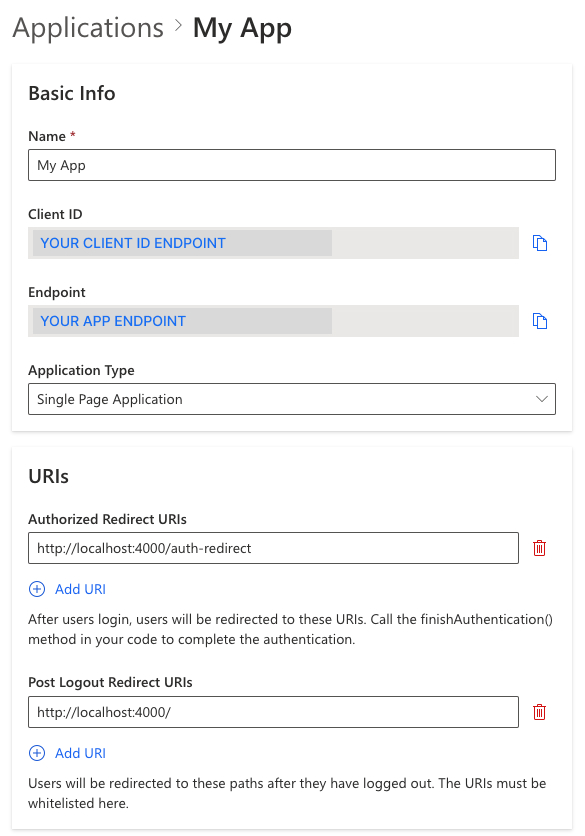
1. Go to **Applications** on the left menu bar.
2. Click **⊕Add Application** in the top tool bar.
3. Input the name of your application, e.g. "MyAwesomeApp".
4. Select **Single Page Application** as the application type
5. Click "Save" to create the application
### Configure Authorize Redirect URI
The Redirect URI is a URL in you application where the user will be redirected to after login with Authgear. In this path, make a **finish authentication** call to complete the login process.
For this tutorial, add `http://localhost:4000/auth-redirect` to Authorize Redirect URIs.
### Configure Post Logout Redirect URI
The Post Logout Redirect URI is the URL users will be redirected after they have logged out. The URL must be whitelisted.
For this tutorial, add `http://localhost:4000/` to Post Logout Redirect URIs.
**Save** the configuration before next steps.
## Step 1: Create a simple Angular project
Here are some recommended steps to scaffold an Angular project. You can skip this part if you are adding Authgear to an existing project. See [#step-2-install-authgear-sdk-to-the-project](angular.md#step-2-install-authgear-sdk-to-the-project "mention") in the next section.
#### Install the Angular CLI
To install the Angular CLI, open a terminal window and run the following command:
```bash
npm install -g @angular/cli
```
{% hint style="info" %}
For Windows clients, please find your reference in [https://angular.io/guide/setup-local](https://angular.io/guide/setup-local) for more information on installing the Angular CLI.
{% endhint %}
#### Create initial workspace
Run the following cli command to create a new workspace and initial app called `my-app` with a routing module generated.
```bash
# Create a workspace called my-app
ng new my-app --routing --defaults
# Move into the project directory
cd my-app
```
#### Edit script for launching the app
In the `package.json` file, edit the `start` script in the `script` section
```bash
# before
"start": "ng serve"
# after
"start": "ng serve --port 4000"
```
The `start` script run the app in development mode on port 4000 instead of the default one.
#### Edit the `app.component.html` file
By default, the Angular CLI generated an initial application for us, but for simplicity, we recommend to modify some of these files to scratch.
In the `src/app/app.component.html` file, remove all the lines and add the following line:
```html
Hello world
```
#### Run your initial app
Run `npm start` now to run the project and you will see "Hello world" on `http://localhost:4000`.
## Step 2: Install Authgear SDK to the project
Run the following command within your Angular project directory to install the Authgear Web SDK
```bash
npm install --save-exact @authgear/web
```
In `src/app/app.component.ts` , import `authgear` and call the `configure` function to initialize an Authgear instance on application loads.
```typescript
// src/app/app.component.ts
import { Component, OnInit } from '@angular/core';
import authgear from '@authgear/web';
@Component({
selector: 'app-root',
templateUrl: './app.component.html',
styleUrls: ['./app.component.css'],
})
export class AppComponent implements OnInit {
// configure Authgear container instance
initAuthgear(): Promise {
return authgear.configure({
endpoint: '',
clientID: '',
sessionType: 'refresh_token',
});
}
ngOnInit(): void {
this.initAuthgear().catch((e) => {
// Error handling
console.log(e);
});
}
}
```
The Authgear container instance takes `endpoint` and `clientID` as parameters. They can be obtained from the application page created in [#setup-application-in-authgear](angular.md#setup-application-in-authgear "mention").
It is recommend to render the app after `configure()` resolves. So by the time the app is rendered, Authgear is ready to use.
{% hint style="info" %}
Run **`npm start`** now and you should see a page with "Hello World" and no error message in the console if Authgear SDK is configured successfully
{% endhint %}
## Step 3: Implement the User Service
Since we want to reference the logged in state in anywhere of the app, let's put the state in a **service** with `user.service.ts` in the `/src/app/services/` folder.
In `user.service.ts`, it will have a `isLoggedIn` boolean variable. The `isLoggedIn` boolean variable can be auto updated using the `onSessionStateChange` callback. This callback can be stored in `delegate` which is in the local SDK container.
```typescript
// src/app/services/user.service.ts
import { Injectable } from '@angular/core';
import authgear from '@authgear/web';
@Injectable({
providedIn: 'root',
})
export class UserService {
// By default the user is not logged in
isLoggedIn: boolean = false;
constructor() {
// When the sessionState changed, logged in state will also be changed
authgear.delegate = {
onSessionStateChange: (container) => {
// sessionState is now up to date
// value of sessionState can be "NO_SESSION" or "AUTHENTICATED"
const sessionState = container.sessionState;
if (sessionState === 'AUTHENTICATED') {
this.isLoggedIn = true;
} else {
this.isLoggedIn = false;
}
},
};
}
}
```
## Step 4: Implement the Auth Redirect
Next, we will add an "auth-redirect" page for handling the authentication result after the user have been authenticated by Authgear.
Create the `auth-redirect` component using the following command:
```bash
ng generate component auth-redirect
```
We will inject the router and the UserService to get the use of navigation and the `isLoggedIn` state.
Call the Authgear `finishAuthentication()` function in the Auth Redirect component to send a token back to Authgear server in exchange for access token and refresh token. Don't worry about the technical jargons, `finishAuthentication()` will do all the hard work for you and and save the authentication data.
When the authentication is finished, the `isLoggedIn` state from the UserService will automatic set to `true`. Finally, navigate back to root (`/`) which is our Home page.
The final `auth-redirect.component.ts` will look like this
```typescript
// src/app/auth-redirect/auth-redirect.component.ts
import { Component, OnInit } from '@angular/core';
import { UserService } from '../services/user.service';
import authgear from '@authgear/web';
import { Router } from '@angular/router';
@Component({
selector: 'app-auth-redirect',
templateUrl: './auth-redirect.component.html',
styleUrls: ['./auth-redirect.component.css'],
})
export class AuthRedirectComponent implements OnInit {
constructor(private router: Router, private user: UserService) {}
ngOnInit(): void {
authgear
.finishAuthentication()
.catch((e) => console.error(e))
.then(() => {
this.router.navigate(['']);
});
}
}
```
## Step 5: Add Routes and Context Provider to the App
Next, we will add a "Home" page . Create a `home` component using the following command:
```bash
ng generate component home
```
Then import **HomeComponent** and **AuthRedirectComponent** as routes. We can add those routes in the `app-routing.module.ts` file:
```tsx
// src/app/app-routing.module.ts
import { NgModule } from '@angular/core';
import { RouterModule, Routes } from '@angular/router';
import { AuthRedirectComponent } from './auth-redirect/auth-redirect.component';
import { HomeComponent } from './home/home.component';
const routes: Routes = [
{ path: '', component: HomeComponent },
{ path: 'auth-redirect', component: AuthRedirectComponent },
];
@NgModule({
imports: [RouterModule.forRoot(routes)],
exports: [RouterModule],
})
export class AppRoutingModule {}
```
You can apply those routes in `src/app/app.component.html` by replace the lines with the following:
```html
```
The file structure should now look like
```
src
├── (...)
└── app
├── app-routing.module.ts
├── app.component.ts
├── app.component.html
├── app.module.ts
├── (...)
├── auth-redirect
│ ├── auth-redirect.component.ts
│ ├── auth-redirect.component.html
│ └── (...)
├── home
│ ├── home.component.ts
│ ├── home.component.html
│ └── (...)
└── services
└── user.service.ts
```
## Step 6: Add a Login button
First we will import the Authgear dependency and inject the UserService in `home.component.ts`. Then add the `startLogin` method which will call `startAuthentication(ConfigureOptions)`. This will redirect the user to the login page.
```tsx
// src/app/home/home.component.ts
import { Component, OnInit } from '@angular/core';
import { UserService } from '../services/user.service';
import authgear from '@authgear/web';
@Component({
selector: 'app-home',
templateUrl: './home.component.html',
styleUrls: ['./home.component.css'],
})
export class HomeComponent implements OnInit {
constructor(public user: UserService) {}
ngOnInit(): void {}
startLogin(): void {
authgear
.startAuthentication({
redirectURI: 'http://localhost:4000/auth-redirect',
prompt: 'login',
})
.then(
() => {
// started authorization, user should be redirected to Authgear
},
(err) => {
// failed to start authorization
console.error(err);
}
);
}
}
```
Then you can add a button which will trigger the `startLogin` method in `home.component.html`:
```html
Home Page
```
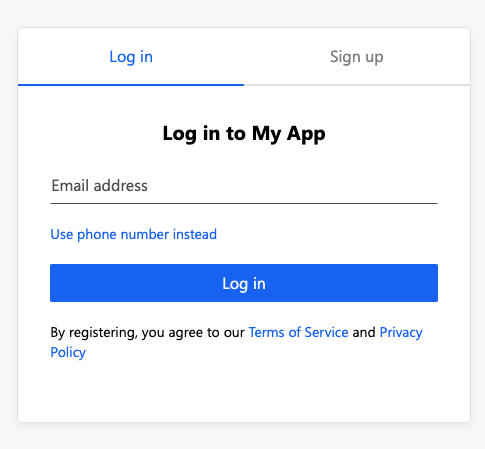
You can now run **`npm start`** and you will be redirected to the Authgear Login page when you click the Login button.
## Step 7: Show the user information
The Authgear SDK helps you get the information of the logged in users easily.
In the last step, the user is successfully logged in so let's try to print the user ID (sub) of the user in the Home page.
In `home` component, we will add a simple Loading splash and a greeting message printing the Sub ID. We will add two conditional elements such that they are only shown when user is logged in. We can also change the login button to show only if the user is not logged in.
Make use of `isLoggedIn` from the `UserService` to control the components on the page. Fetch the user info by `fetchInfo()` and access its `sub` property.
```tsx
// src/app/home/home.component.ts
import { Component, OnInit } from '@angular/core';
import { UserService } from '../services/user.service';
import authgear from '@authgear/web';
@Component({
selector: 'app-home',
templateUrl: './home.component.html',
styleUrls: ['./home.component.css'],
})
export class HomeComponent implements OnInit {
isLoading: boolean = false;
greetingMessage: string = '';
constructor(public user: UserService) {}
async updateGreetingMessage() {
this.isLoading = true;
try {
if (this.user.isLoggedIn) {
const userInfo = await authgear.fetchUserInfo();
this.greetingMessage = 'The current User sub: ' + userInfo.sub;
}
} finally {
this.isLoading = false;
}
}
ngOnInit(): void {
this.updateGreetingMessage().catch((e) => {
console.error(e);
});
}
startLogin(): void {
authgear
.startAuthentication({
redirectURI: 'http://localhost:4000/auth-redirect',
prompt: 'login',
})
.then(
() => {
// started authorization, user should be redirected to Authgear
},
(err) => {
// failed to start authorization
console.error(err);
}
);
}
}
```
In the `home.component.html`:
```html
Home Page
Loading{{ greetingMessage }}
```
Run the app again, the User ID (sub) of the user should be printed on the Home page.
## Step 8: Add a Logout button
Finally, let's add an Logout button when user is logged in.
In `home.component.html`, we will add a conditional element in the markup:
```html
```
And add the `logout` method:
```tsx
logout(): void {
authgear
.logout({
redirectURI: 'http://localhost:4000/',
})
.then(
() => {
this.greetingMessage = '';
},
(err) => {
console.error(err);
}
);
}
```
Run the app again, we can now logout by clicking the logout button.
## Step 9: Open User Settings
Authgear provide a built-in UI for the users to set their attributes and change security settings.
Use the `open` function to open the setting page at `/settings`
In `home.component.html` append a conditional link to the logout button section.
```html
```
.png>)
## Next steps, Calling an API
To access restricted resources on your backend application server, the HTTP requests should include the access token in their Authorization headers. The Web SDK provides a `fetch` function which automatically handle this, or you can get the token with `authgear.accessToken`.
#### Option 1: Using fetch function provided by Authgear SDK
Authgear SDK provides the `fetch` function for you to call your application server. This `fetch` function will include the Authorization header in your application request, and handle refresh access token automatically. The `authgear.fetch` implements [fetch](https://fetch.spec.whatwg.org/).
```javascript
authgear
.fetch("YOUR_SERVER_URL")
.then(response => response.json())
.then(data => console.log(data));
```
#### Option 2: Add the access token to the HTTP request header
You can get the access token through `authgear.accessToken`. Call `refreshAccessTokenIfNeeded` every time before using the access token, the function will check and make the network call only if the access token has expired. Include the access token into the Authorization header of the application request.
```javascript
authgear
.refreshAccessTokenIfNeeded()
.then(() => {
// access token is ready to use
// accessToken can be string or undefined
// it will be empty if user is not logged in or session is invalid
const accessToken = authgear.accessToken;
// include Authorization header in your application request
const headers = {
Authorization: `Bearer ${accessToken}`
};
});
```