## About


Figwright connects an **MCP server** to a **Figma plugin** over a local WebSocket relay, so an AI agent (Claude Code, Cursor, Codex, or any other MCP client) can work _with_ Figma instead of just looking at it.
It works in both directions:
**Read**: turn a Figma selection into framework-aware code, grounded on faithful, de-duplicated design context (layout, typography, variables, components).
**Write**: author and edit the canvas directly, from frames and text to auto-layout, styles, variables, components, whole screens.
Everything runs on your machine: the server, the relay, and the plugin. Your designs are never sent anywhere.
## Why Figwright
- **Not gated**: the official Dev Mode MCP is behind a paid Dev Mode seat. Figwright runs on the free tier.
- **Bidirectional**: not read-only. **135 tools** span reading _and_ writing the canvas, so an agent can both implement designs and build them.
- **Provider-first codegen**: Figwright detects your real stack (framework + styling system) and reuses your existing components, tokens, and icons, instead of emitting generic markup you have to rewrite.
- **One agent per file**: several agents can work at once, each claiming its own open Figma file. Switching tabs no longer sends one agent's edits into another's design — see [working across files](#faq).
- **Open & extensible**: the read/write workflows ship as installable [skills](#skills) you can adopt or fork.
## Setup
You need an **MCP client** (Claude Code, Cursor, …), **Node.js 20.19+ or 22.12+**, and **Figma**. The free Figma tier is enough, though the desktop app is needed to import the plugin. The server runs via `npx` as its own process, so its Node version is independent of the one your project builds with; Node 18/21 and 22.0–22.11 are not supported.
### 1. Add the server to your MCP client
For Claude Code, add this to your `.mcp.json` (other clients use the same shape):
```json
{
"mcpServers": {
"figwright": {
"command": "npx",
"args": ["-y", "@figwright/mcp@latest"]
}
}
}
```
`npx` fetches and runs the published server, so no global install is needed.
### 2. Install the Figma plugin
The plugin isn't on the Figma Community marketplace yet, so install it from the latest release:
1. Download the plugin zip from the [**latest GitHub Release**](https://github.com/awdr74100/figwright/releases/latest) and unzip it.
2. In the Figma **desktop app**: **Menu → Plugins → Development → Import plugin from manifest…** and pick the unzipped `manifest.json`.
### 3. Connect
Open the Figwright plugin in Figma (**Plugins → Development → Figwright**). It connects to the local server automatically and shows **Connected**. Ask your agent to run `ping` to confirm the link.
### 4. (Optional) Install the skills
The [skills](#skills) make agents reach for Figwright at the right moment and follow the grounded workflows:
```bash
npx skills add awdr74100/figwright/skills
```
### 5. Try it
With a frame selected in Figma, prompt your agent:
> _Code this Figma selection as a React component._
or, the other direction:
> _Build a pricing section in Figma from this spec._
### Updating
Each release ships the server and the plugin together, so update both. The skills are optional and update the same way you installed them.
**1. Restart the server.** With the `@latest` config above there is nothing to install, because every launch fetches the newest release. A session that is already open keeps the server it started with, so new tools don't appear until you restart it: in Claude Code, run `/mcp`, pick **figwright** and choose **Reconnect** (or restart Claude Code); in other clients, restart the client. Do this in each client you use Figwright from.
If you installed the package instead of using `@latest` (see the [FAQ](#faq)), update it before restarting: `npm i -D @figwright/mcp@latest`, or `npm i -g @figwright/mcp@latest` for a global install.
**2. Replace the plugin.** Download the zip from the [latest release](https://github.com/awdr74100/figwright/releases/latest), unzip it, and copy its `manifest.json` and `dist` into the folder you imported the plugin from, replacing the old ones. Figma runs a development plugin straight from that folder, so you don't import it again. Close the plugin and run it again.
**3. Update the skills.** Run `npx skills update`. Agent sessions you start after that use the new version.
To confirm, open the plugin's **Debug** tab: it lists the server and plugin versions side by side. If the plugin is still too old for the server, the panel header says so, and so does every tool result (see [the FAQ](#faq)).
## Skills
Agent skills orchestrate Figwright's tools. They are model-invoked: your agent loads one automatically when the task matches its description.
| Skill | What it does |
| :------------------------------------------------- | :-------------------------------------------------------------------------------------------------- |
| [`figma‑codegen`](./skills/figma-codegen/SKILL.md) | Turn a Figma selection into framework-aware code, grounded on your stack and existing components. |
| [`figma‑build`](./skills/figma-build/SKILL.md) | Build a Figma design from code or a description, reusing the file's existing components and styles. |
Install across any supported agent with the [`skills`](https://www.skills.sh) CLI:
```bash
npx skills add awdr74100/figwright/skills # both
npx skills add https://github.com/awdr74100/figwright/tree/main/skills/figma-codegen # one
```
> [!NOTE]
> Skills need the `@figwright/mcp` server connected. On their own they have no tools to drive.
## Tools
Figwright exposes **135 MCP tools** in three groups:
- **Read**: selection, document and node inspection, styles, variables, components, fonts, prototype reactions and flows, motion (animation) state, screenshots, original image-fill assets, PDF export, and video export of animated frames (MP4 / GIF / WebM); plus `list_files` / `use_file` for working across more than one open Figma file at once.
- **Write**: create and edit frames, text, shapes (lines, polygons, stars, boolean operations, flattening), auto-layout, alignment and distribution, effects, images (as a new layer or into an existing layer's fill), styles, variables (including importing a team library's variables and styles, and switching a frame to a mode such as Dark), components (including authoring their boolean/text/instance-swap properties), pages, prototype reactions and flows, Motion animations (keyframes, animation-style presets, timelines), and Figma Draw (vector paths drawn and edited point by point from any SVG path data, outlined strokes, repeat groups, text on a path, brush / dynamic / variable-width strokes, pattern fills); plus a `batch` tool to apply many edits at once.
- **Grounding**: `get_design_context` for faithful, de-duplicated design context, and `component_map` / `token_map` / `icon_map`, which join Figma data to your codebase so codegen reuses what you already have; plus `design_diff`, which reports what changed in a design against a saved baseline so you update only the affected code.
> [!TIP]
> Your MCP client lists every tool at connect time, which is always the authoritative, up-to-date catalog.
## Plugin
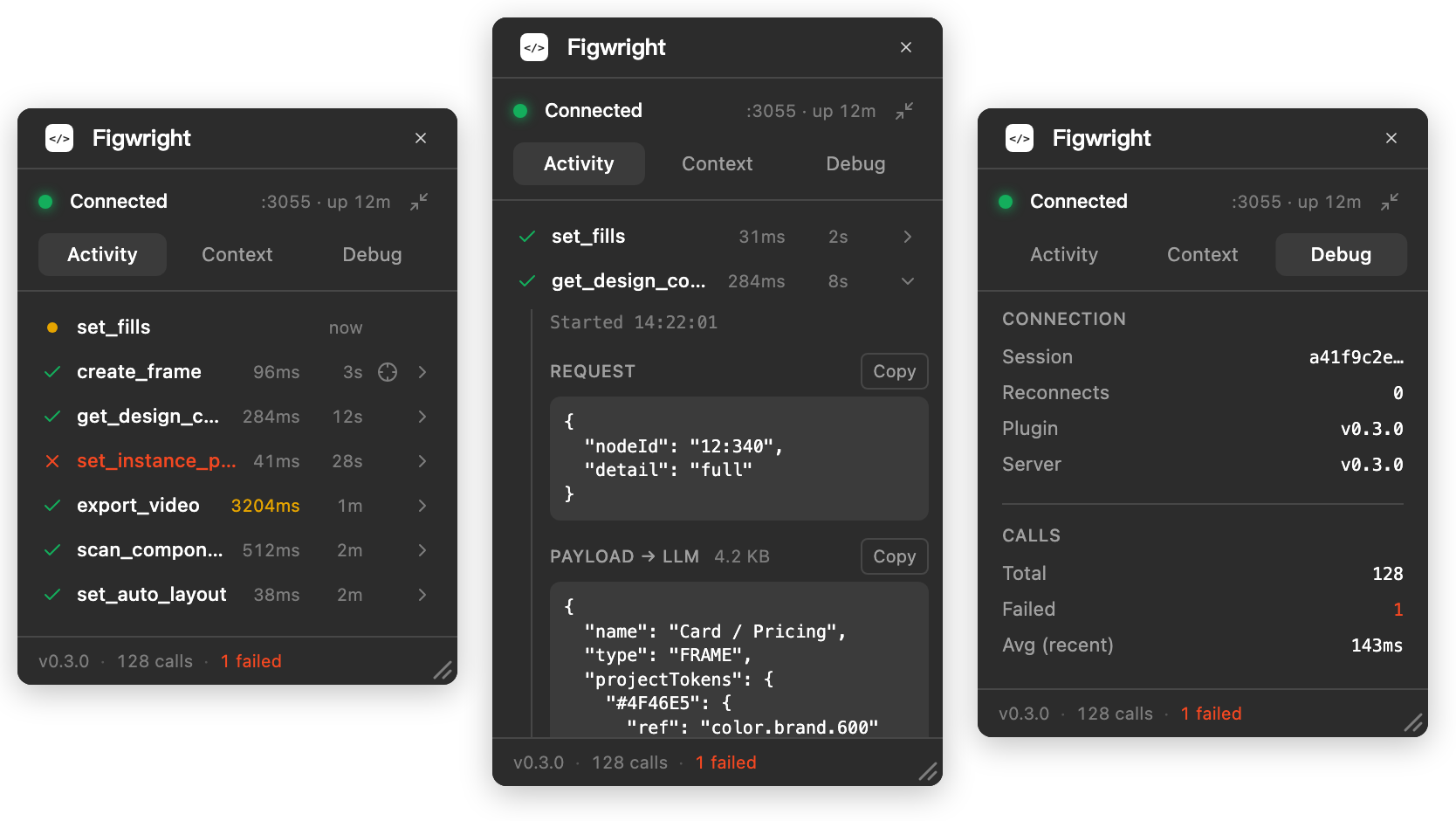
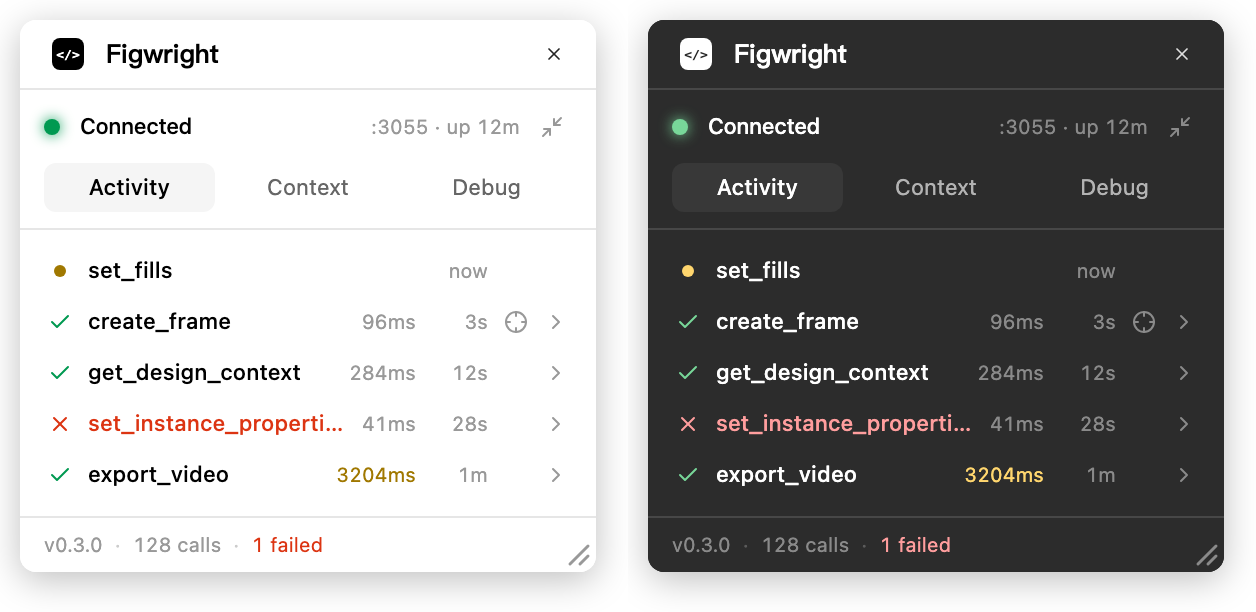
The Figma-side plugin isn't a black box. It shows every call as it happens, lets you inspect the exact payload sent to the model, and surfaces its own connection health.
Activity: every call, with timing and a jump to the nodes it touched · Payload: exactly what the model received · Debug: health, versions, and a one-click diagnostic bundle
And it follows your Figma theme, light or dark.
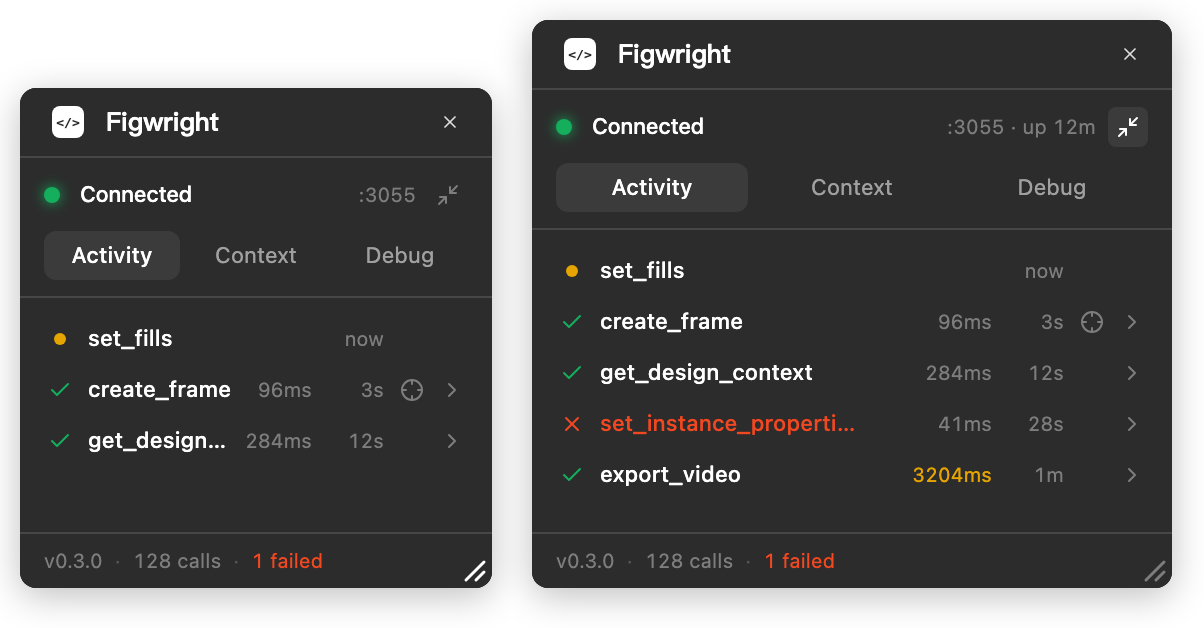
The window is yours to arrange. Drag the bottom-right corner to resize it. A taller panel keeps more of the log in view, and the size is remembered next time you open it. Or put it away: **Run in background**, in the panel header right under Figma's own ✕, hides the panel while the connection stays live, so a long-running agent keeps working. Run the plugin again to bring it back. The ✕ above it closes the plugin instead, connection and all.
Resize: drag the corner, the size sticks · Background: the panel hides, the relay stays connected