## A Pi-hole Control Card
A handy dashboard card for easy management of your Pi-hole.
### Prerequisites
In this example, you have to consider that there are two switches.
The first switch serves as the master control to disable ad blocking across all devices.
- **name:** Pi-hole
- **entity_id:** switch.pi_hole
The second switch is a group switch to disable ad blocking on all my MacBooks.
- **name:** [single] Macbook Air Bastien
- **entity_id:** switch.pi_hole_group_single_macbook_air_bastien
Before creating your dashboard card, ensure you have two dropdown menus and a script ready.
#### Dropdown deactivating delays
First, we create a dropdown menu for selecting deactivation delays.
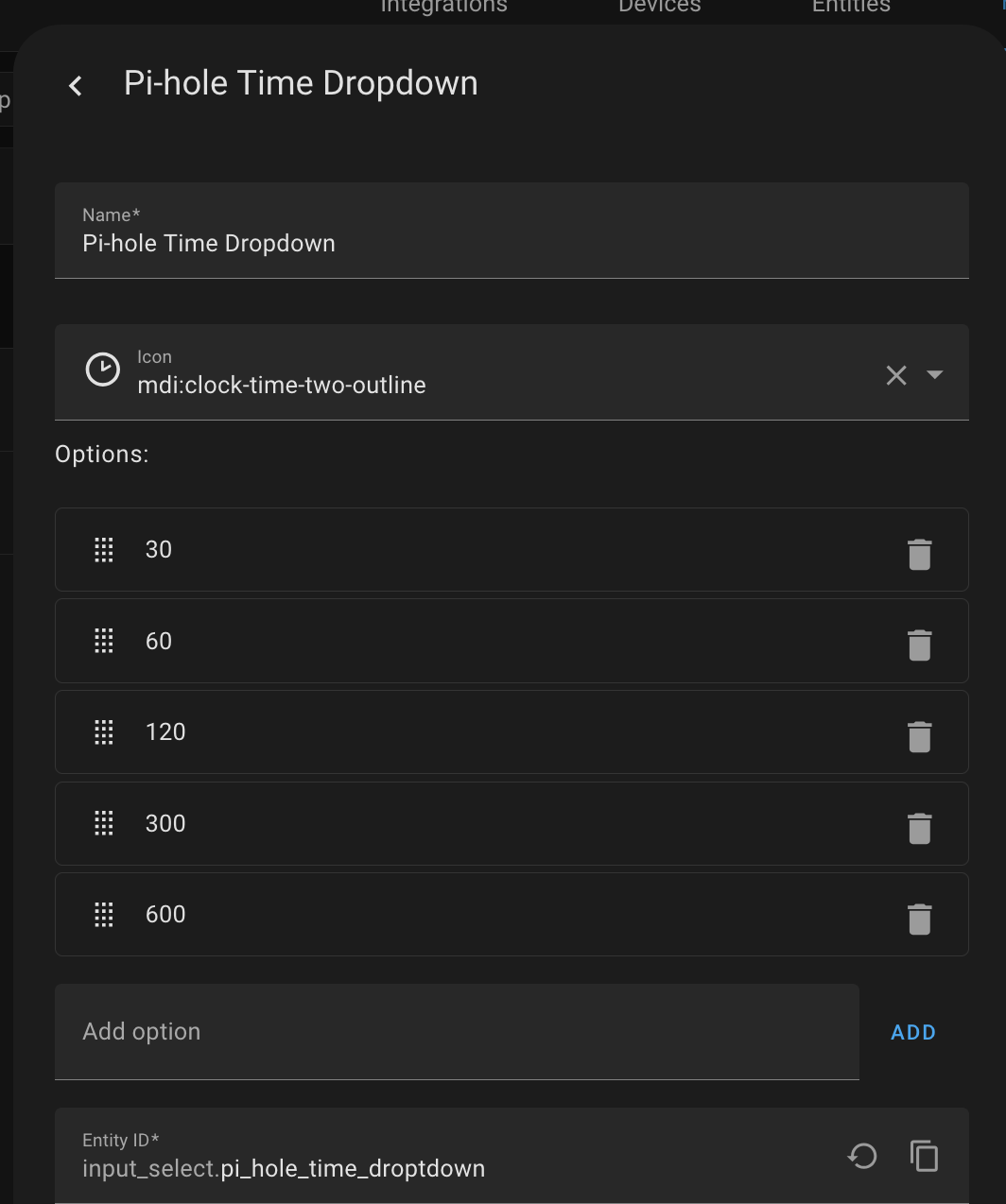 The dropdown entity_id is: `input_select.pi_hole_entity_dropdown`.
#### Dropdown entity names
Next, we create a dropdown menu for a selecting Pi-hole group (switch) to deactivate.
The dropdown entity_id is: `input_select.pi_hole_entity_dropdown`.
#### Dropdown entity names
Next, we create a dropdown menu for a selecting Pi-hole group (switch) to deactivate.
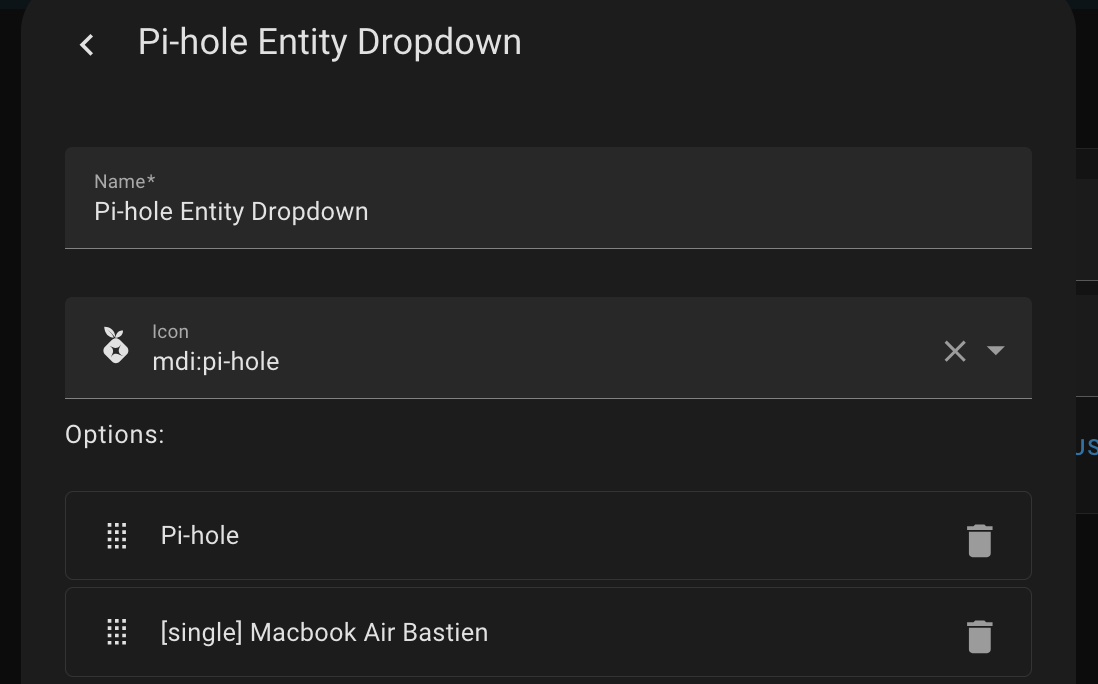 The dropdown entity_id is: `input_select.pi_hole_entity_dropdown`.
#### The script
Next, we will create a script to execute the service that allows disabling the blocking.
```yaml
sequence:
- variables:
duration: >
{{ states.input_select.pi_hole_time_droptdown.state | int |
timestamp_custom('%H:%M:%S', False) }}
pihole_entity: >
{{ states.switch | selectattr('attributes.friendly_name', 'eq',
states.input_select.pi_hole_entity_dropdown.state | string) |
map(attribute='entity_id') | list | first }}
- action: pi_hole_v6.disable
target:
entity_id:
- "{{ pihole_entity }}"
data:
duration: "{{ duration }}"
alias: Pi-hole - Switch status OFF (generic)
icon: mdi:pi-hole
mode: single
description: ""
```
The script entity_id is: `script.pi_hole_switch_status_off_generic`
### Pi-hole Control Card creation
Now, we will combine the dropdowns, the script, and an entities card.
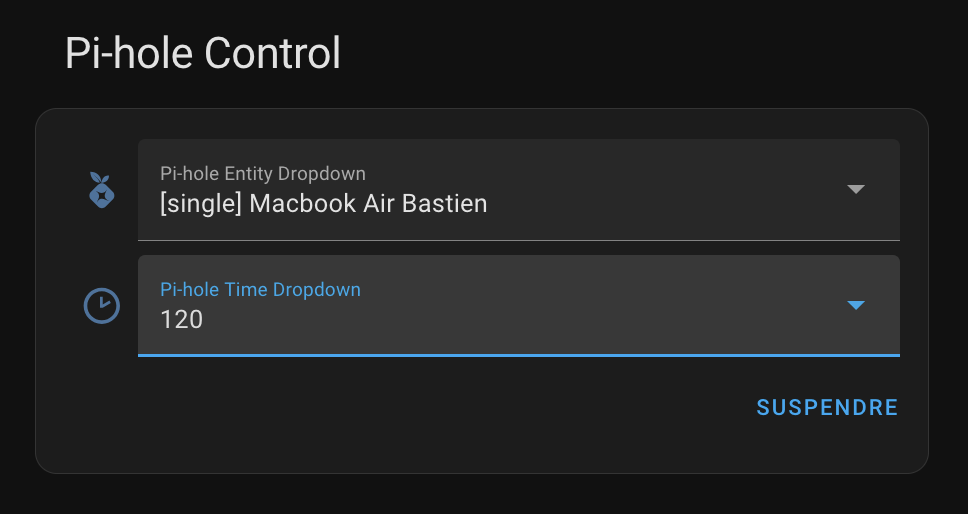
The Pi-hole control system consists of two parts. The first part allows you to deactivate blocking after selecting a group."
The dropdown entity_id is: `input_select.pi_hole_entity_dropdown`.
#### The script
Next, we will create a script to execute the service that allows disabling the blocking.
```yaml
sequence:
- variables:
duration: >
{{ states.input_select.pi_hole_time_droptdown.state | int |
timestamp_custom('%H:%M:%S', False) }}
pihole_entity: >
{{ states.switch | selectattr('attributes.friendly_name', 'eq',
states.input_select.pi_hole_entity_dropdown.state | string) |
map(attribute='entity_id') | list | first }}
- action: pi_hole_v6.disable
target:
entity_id:
- "{{ pihole_entity }}"
data:
duration: "{{ duration }}"
alias: Pi-hole - Switch status OFF (generic)
icon: mdi:pi-hole
mode: single
description: ""
```
The script entity_id is: `script.pi_hole_switch_status_off_generic`
### Pi-hole Control Card creation
Now, we will combine the dropdowns, the script, and an entities card.
The Pi-hole control system consists of two parts. The first part allows you to deactivate blocking after selecting a group."
 A second part which will be displayed only if the ads blocking is deactivated.
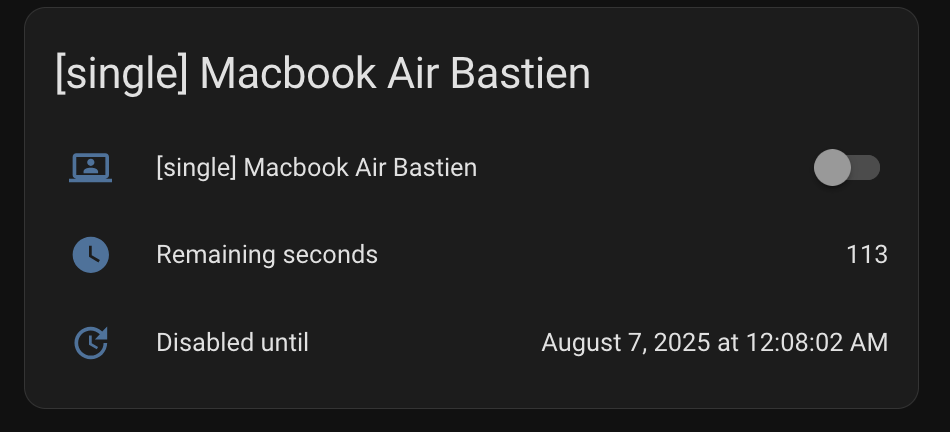 The second part will only be displayed if the ad blocking is deactivated.
The code is available bellow:
```yaml
type: vertical-stack
cards:
- type: entities
entities:
- entity: input_select.pi_hole_entity_dropdown
name: Pi-hole entity
- entity: input_select.pi_hole_time_droptdown
name: Disable time (in seconds)
- entity: script.pi_hole_switch_status_off_generic
name: " "
icon: " "
action_name: SUSPENDRE
- type: conditional
conditions:
- condition: state
entity: switch.pi_hole
state: "off"
card:
type: entities
entities:
- entity: switch.pi_hole
- type: attribute
entity: switch.pi_hole
attribute: remaining_seconds
name: Remaining seconds
icon: mdi:clock
- type: attribute
entity: switch.pi_hole
attribute: until_date
name: Disabled until
icon: mdi:update
title: Pi-hole
show_header_toggle: false
- type: conditional
conditions:
- condition: state
entity: switch.pi_hole_group_single_macbook_air_bastien
state: "off"
card:
type: entities
entities:
- entity: switch.pi_hole_group_single_macbook_air_bastien
- type: attribute
entity: switch.pi_hole_group_single_macbook_air_bastien
attribute: remaining_seconds
name: Remaining seconds
icon: mdi:clock
- type: attribute
entity: switch.pi_hole_group_single_macbook_air_bastien
attribute: until_date
name: Disabled until
icon: mdi:update
title: "[single] Macbook Air Bastien"
show_header_toggle: false
```
Feel free to modify this to suit your needs and share your implementations with the community!
The second part will only be displayed if the ad blocking is deactivated.
The code is available bellow:
```yaml
type: vertical-stack
cards:
- type: entities
entities:
- entity: input_select.pi_hole_entity_dropdown
name: Pi-hole entity
- entity: input_select.pi_hole_time_droptdown
name: Disable time (in seconds)
- entity: script.pi_hole_switch_status_off_generic
name: " "
icon: " "
action_name: SUSPENDRE
- type: conditional
conditions:
- condition: state
entity: switch.pi_hole
state: "off"
card:
type: entities
entities:
- entity: switch.pi_hole
- type: attribute
entity: switch.pi_hole
attribute: remaining_seconds
name: Remaining seconds
icon: mdi:clock
- type: attribute
entity: switch.pi_hole
attribute: until_date
name: Disabled until
icon: mdi:update
title: Pi-hole
show_header_toggle: false
- type: conditional
conditions:
- condition: state
entity: switch.pi_hole_group_single_macbook_air_bastien
state: "off"
card:
type: entities
entities:
- entity: switch.pi_hole_group_single_macbook_air_bastien
- type: attribute
entity: switch.pi_hole_group_single_macbook_air_bastien
attribute: remaining_seconds
name: Remaining seconds
icon: mdi:clock
- type: attribute
entity: switch.pi_hole_group_single_macbook_air_bastien
attribute: until_date
name: Disabled until
icon: mdi:update
title: "[single] Macbook Air Bastien"
show_header_toggle: false
```
Feel free to modify this to suit your needs and share your implementations with the community!