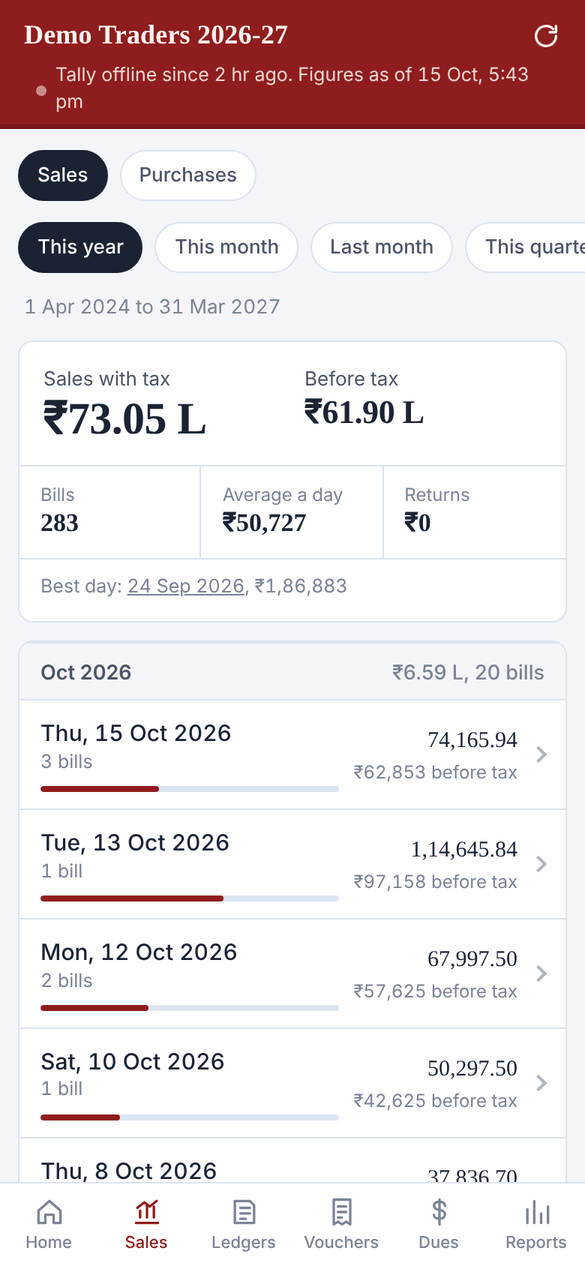
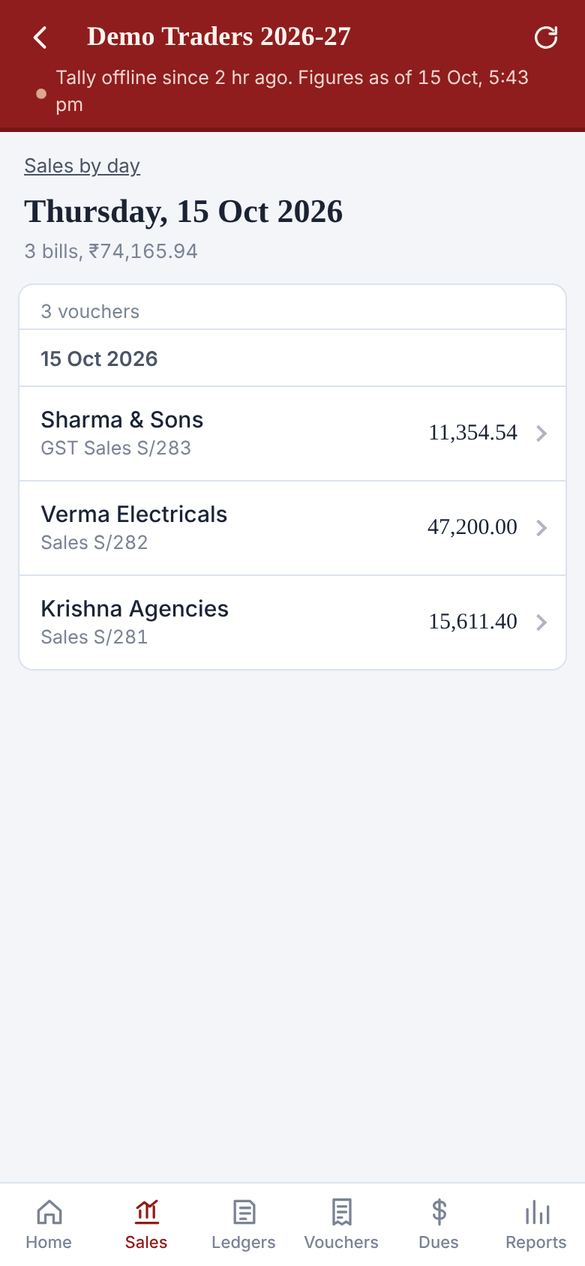
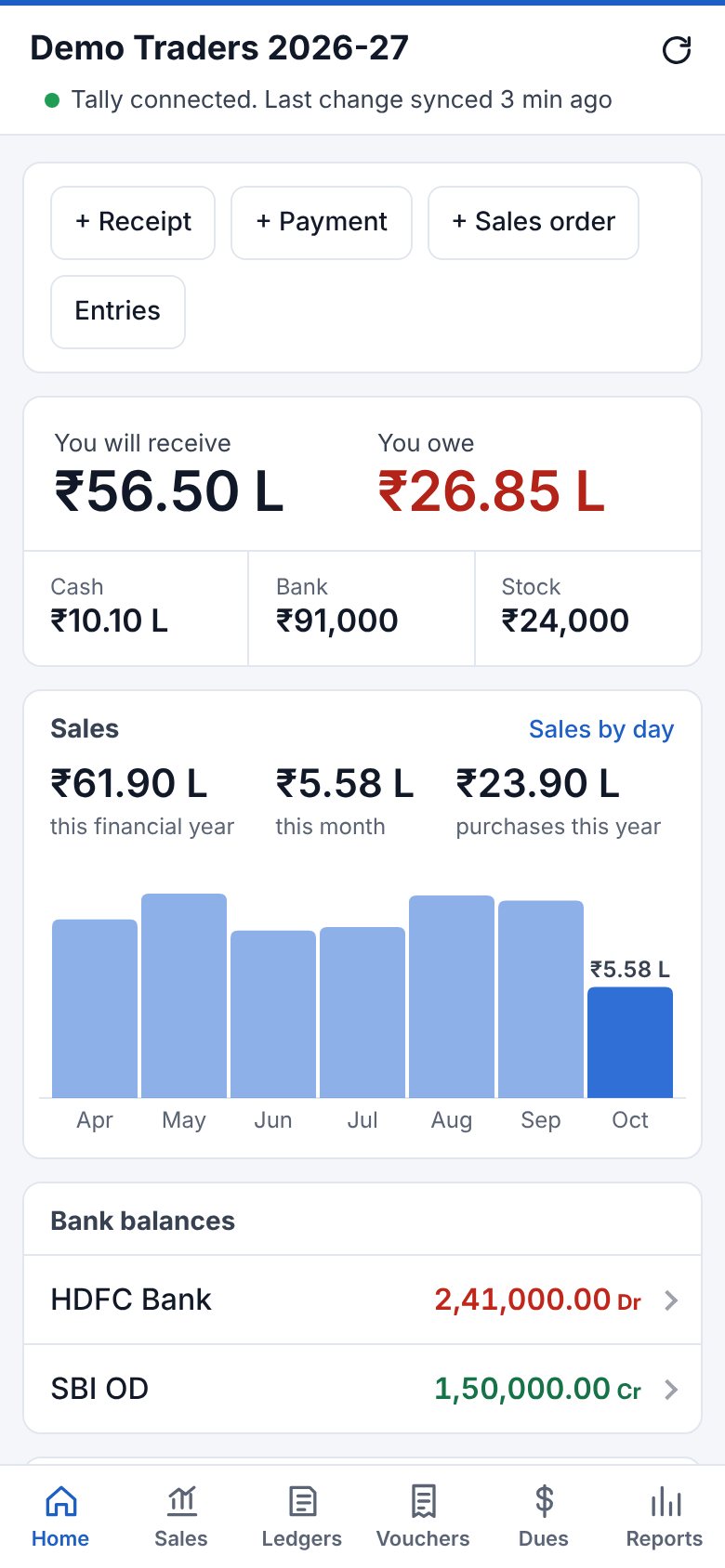
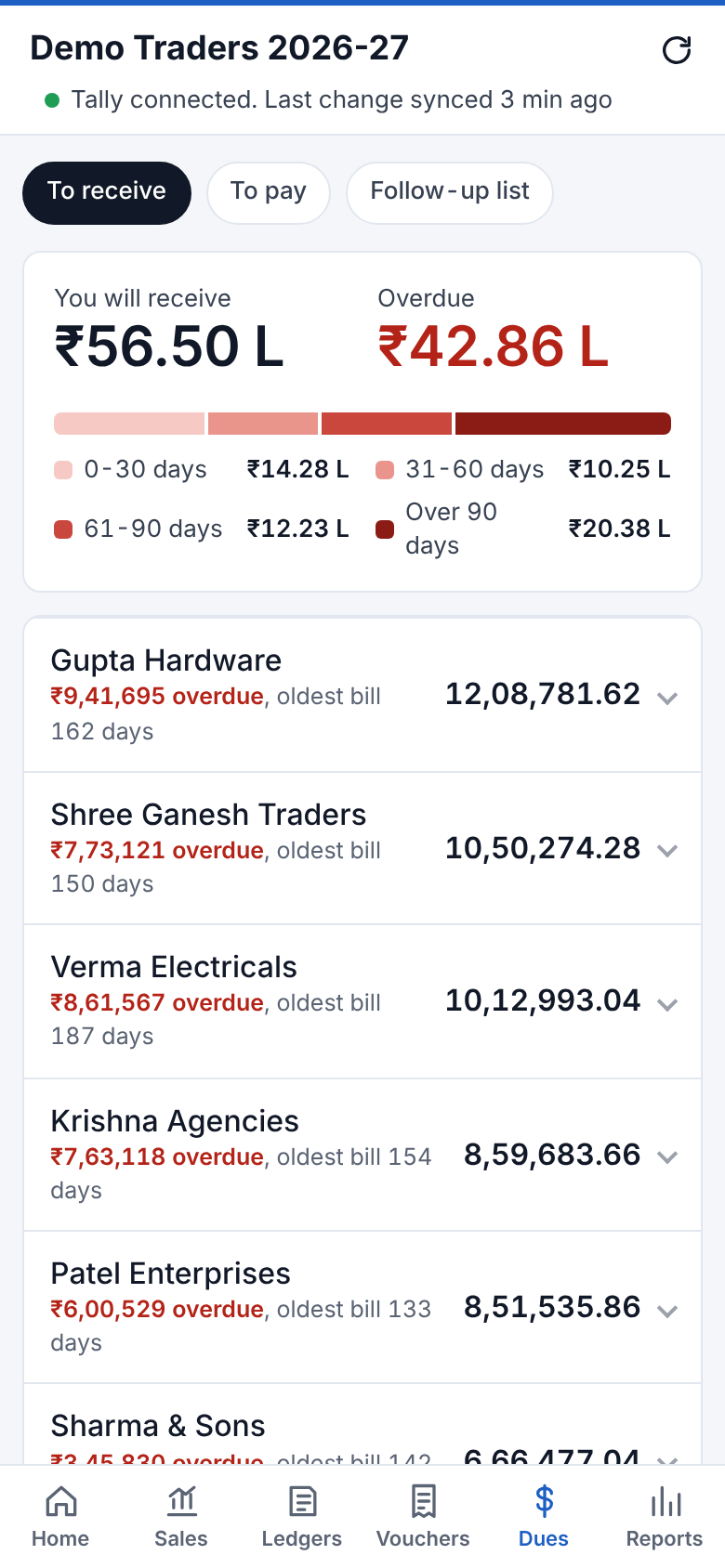
 - **You will receive / You owe:** total of Sundry Debtors and Sundry Creditors. Tap either to open Dues.
- **Cash, Bank, Stock:** current balances. Tap to see the ledgers behind them.
- **Sales:** sales this financial year, this month, and purchases, with a bar for each month. Tap a bar to see the exact figure.
- **Bank balances**, **Biggest dues** and **Latest entries:** tap any row to open it.
|
|
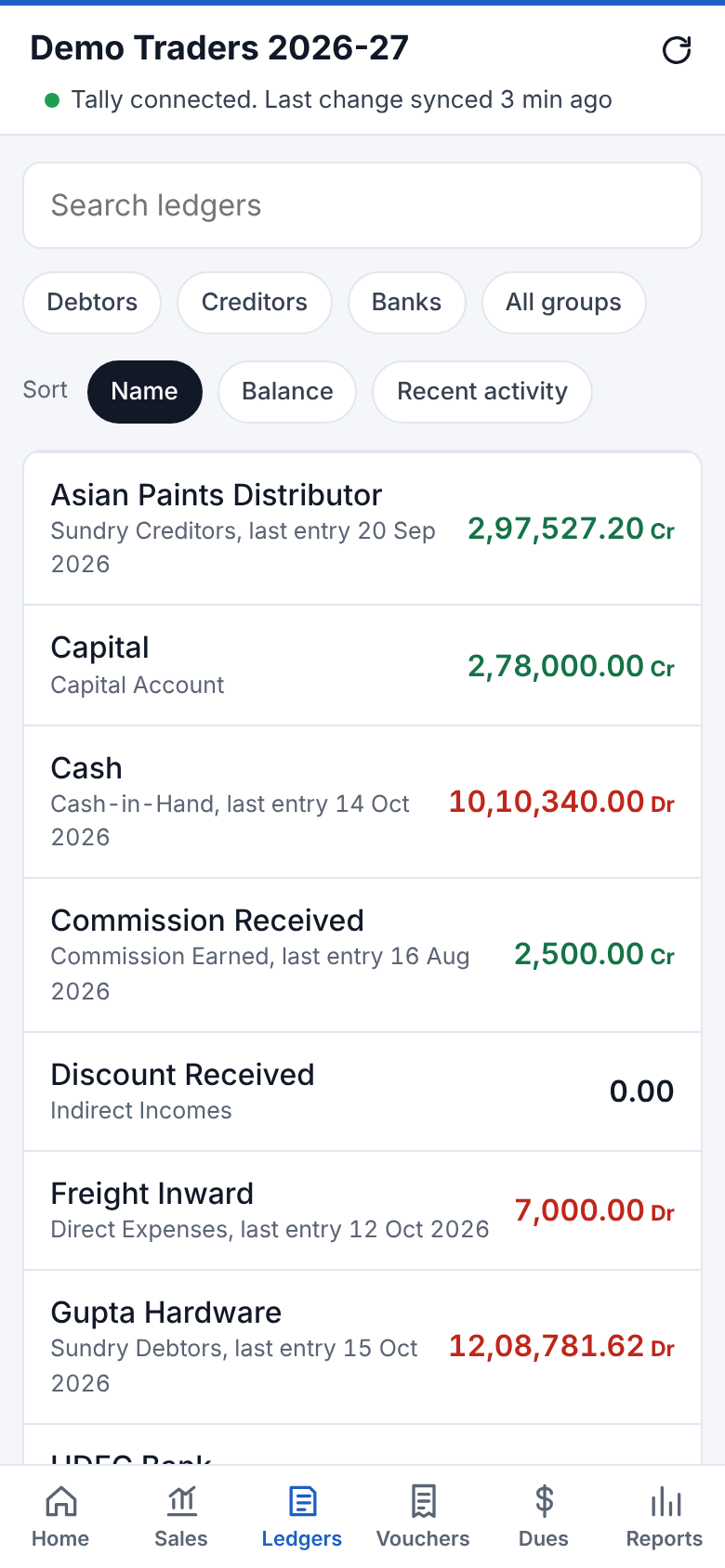 Type in the search box to find any ledger. The chips below the search box jump straight to **Debtors**, **Creditors**, **Banks** or **All groups**. **Sort** the list by name, by balance (largest first) or by most recent activity. The app remembers your choice.
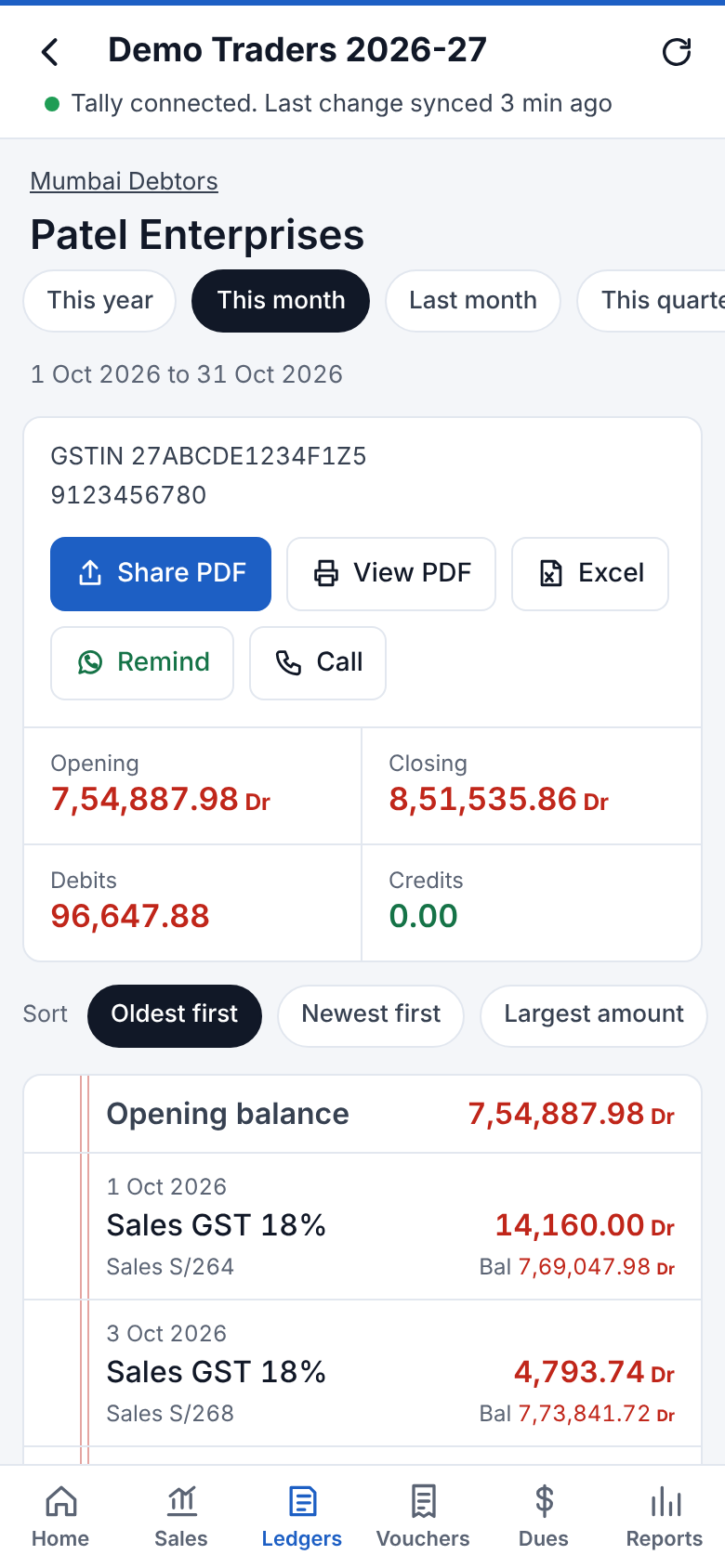 A ledger opens on **this month**, starting from the opening balance on the 1st. Tap another period (This year, Last month, Custom…) to see more. Your choice stays while you go from ledger to ledger, and goes back to this month the next time you open the app. The PDF and Excel follow the period on screen.
- The top shows phone, GSTIN, and **Opening, Closing, Debits and Credits** for the selected period.
- **Share PDF** sends a Tally-style *Ledger Account* PDF, e.g. to the party on WhatsApp. **View PDF** opens it on the phone.
- **Remind** opens WhatsApp with a ready-made payment reminder. It only appears for parties who owe you and have a mobile number in Tally.
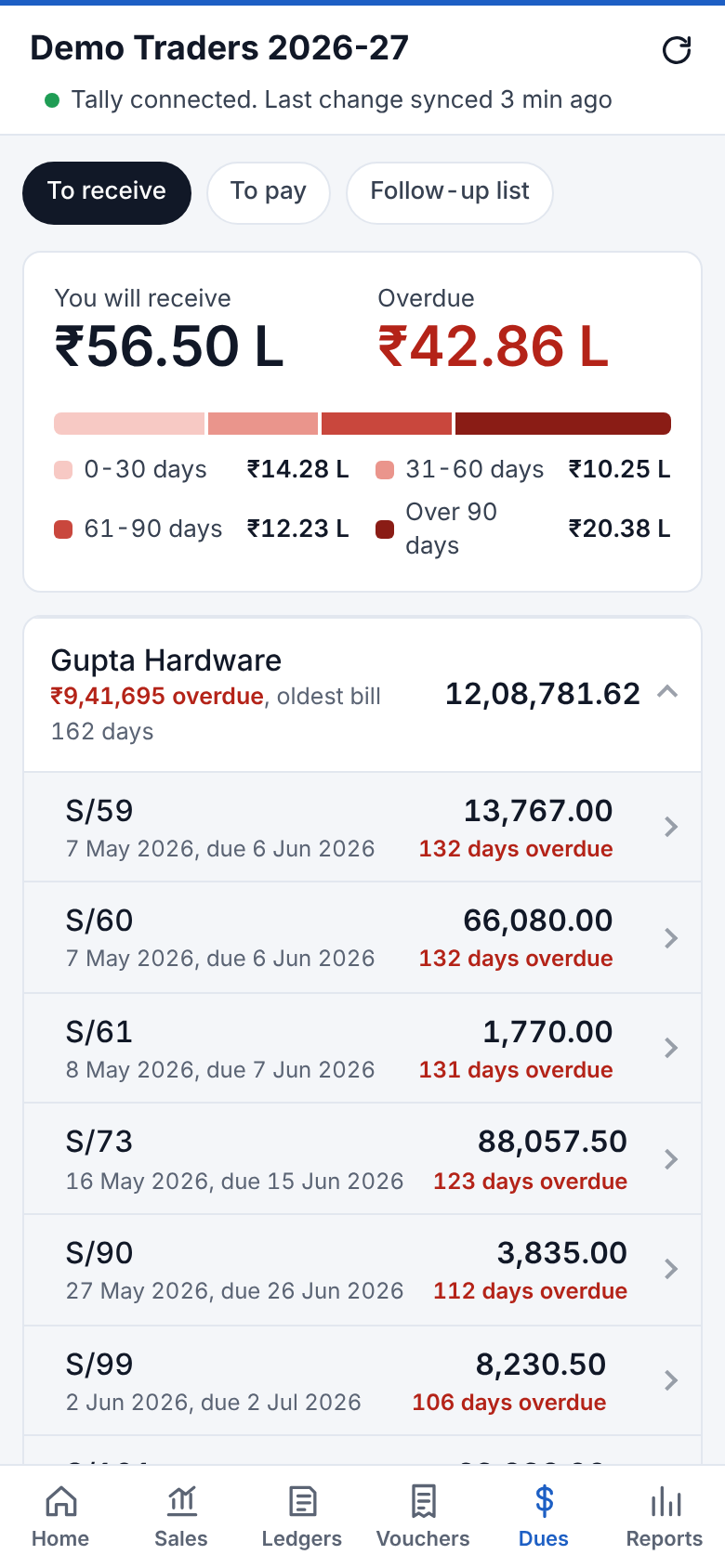
- **Pending bills** lists unpaid bills with days overdue. Tap a bill to open its invoice.
- **Sort** the statement oldest first, newest first or by largest amount.
- The statement below is laid out like a ruled account book: each entry shows the other ledger, voucher type and number, amount (Dr or Cr) and the running balance. Tap an entry to open the voucher.
The closing balance always matches Tally, because running balances are worked back from Tally's own closing figure.
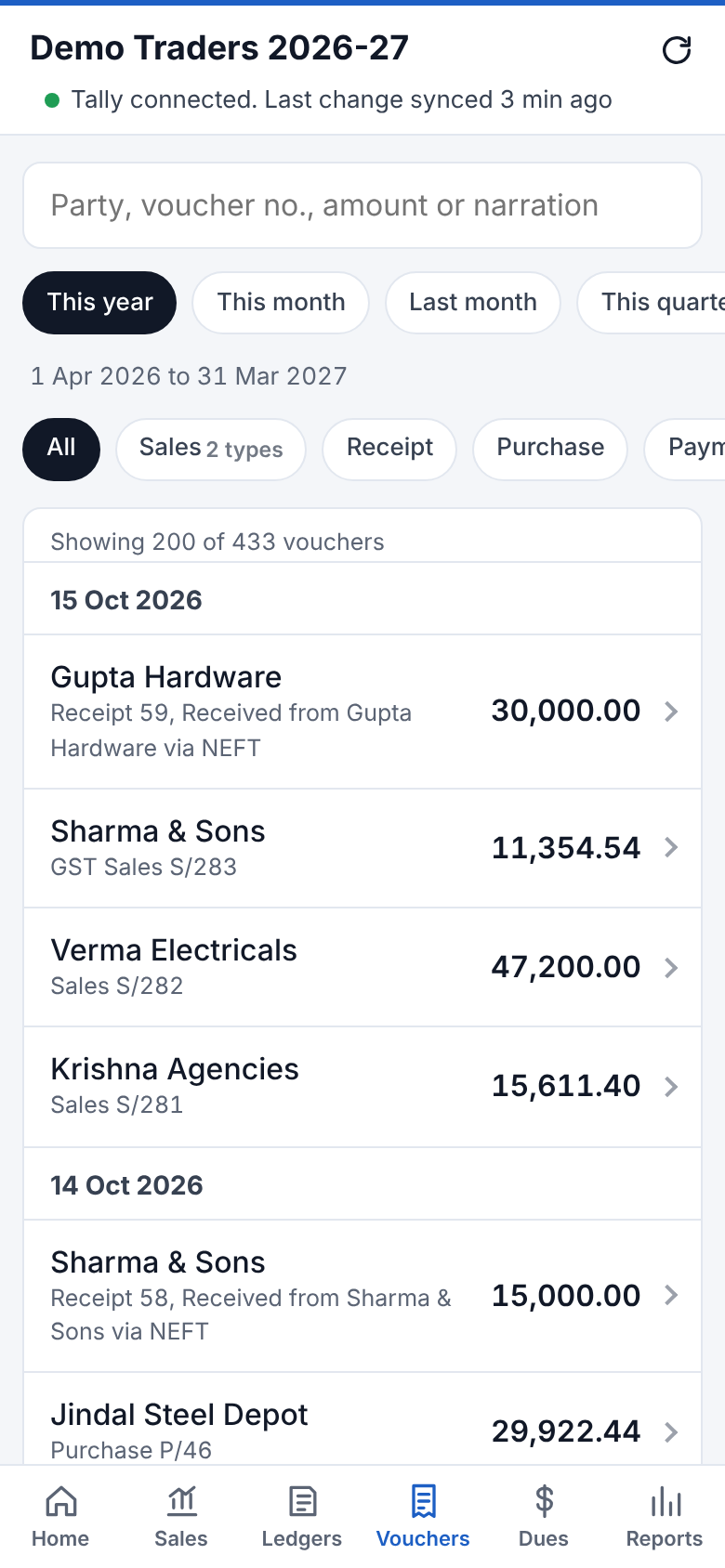 - **Search** by party name, voucher number (e.g. `S/279`), exact amount (e.g. `66080`) or a word from the narration.
- Filter by **voucher type** (Sales, Receipt, Payment and so on) and **period**. Use **All dates** to search everything synced.
- The count at the top shows how many vouchers matched. **Load more** at the bottom shows the next 200.
- **Cancelled** and **optional** vouchers are listed too, with a grey label and the amount struck through. They are never added into balances, totals or reports, just as in Tally.
- **Excel** at the bottom downloads the vouchers that matched, as a file Excel or Google Sheets opens.
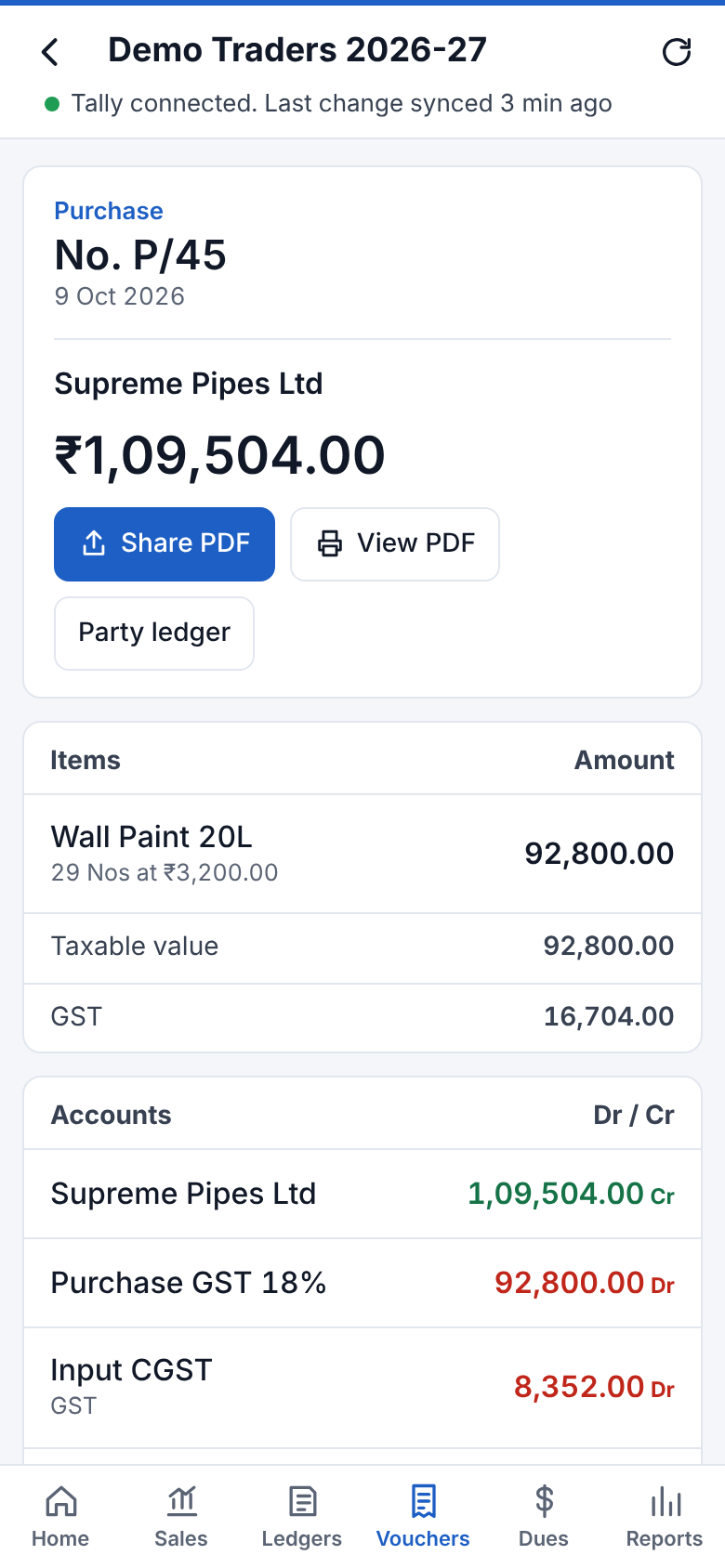 |
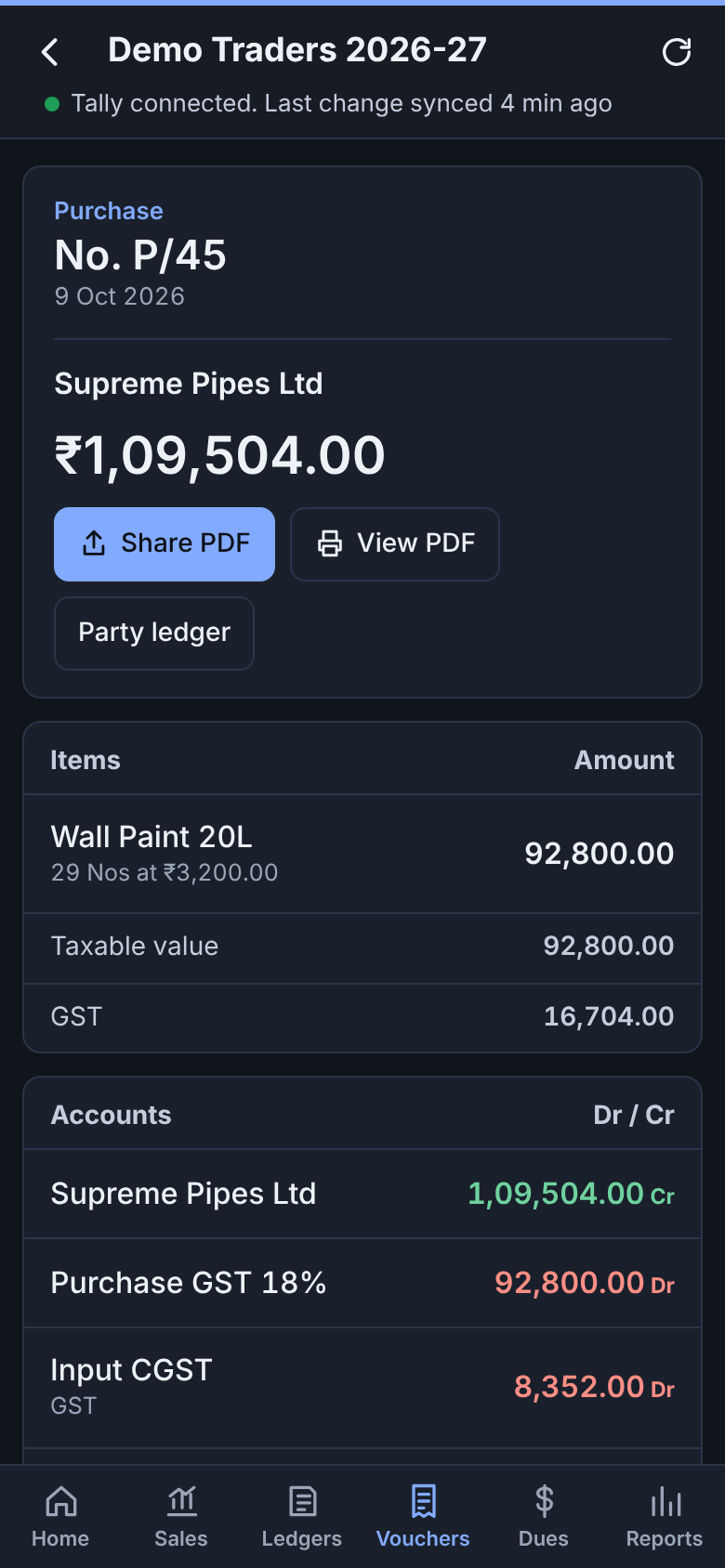 |
 |
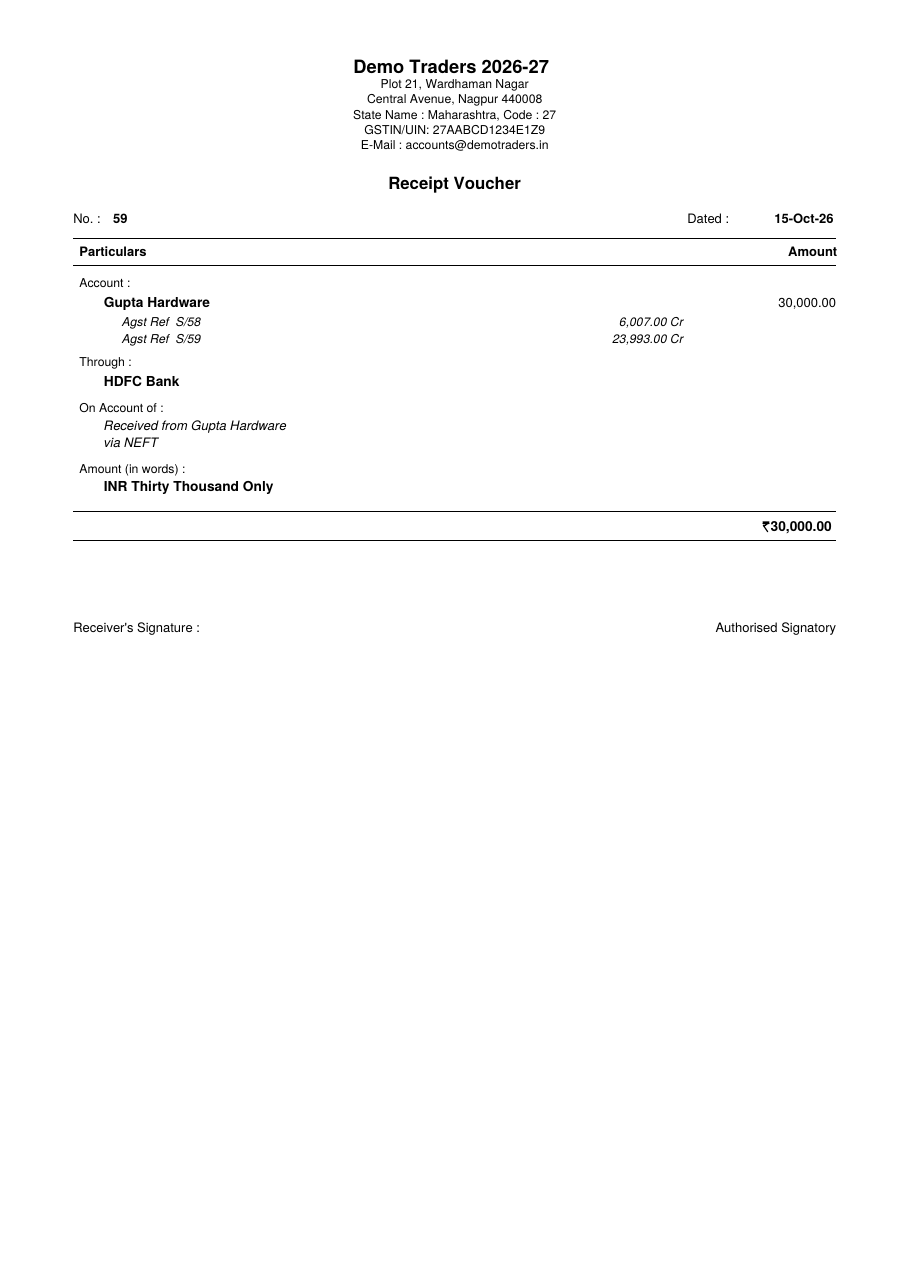 |
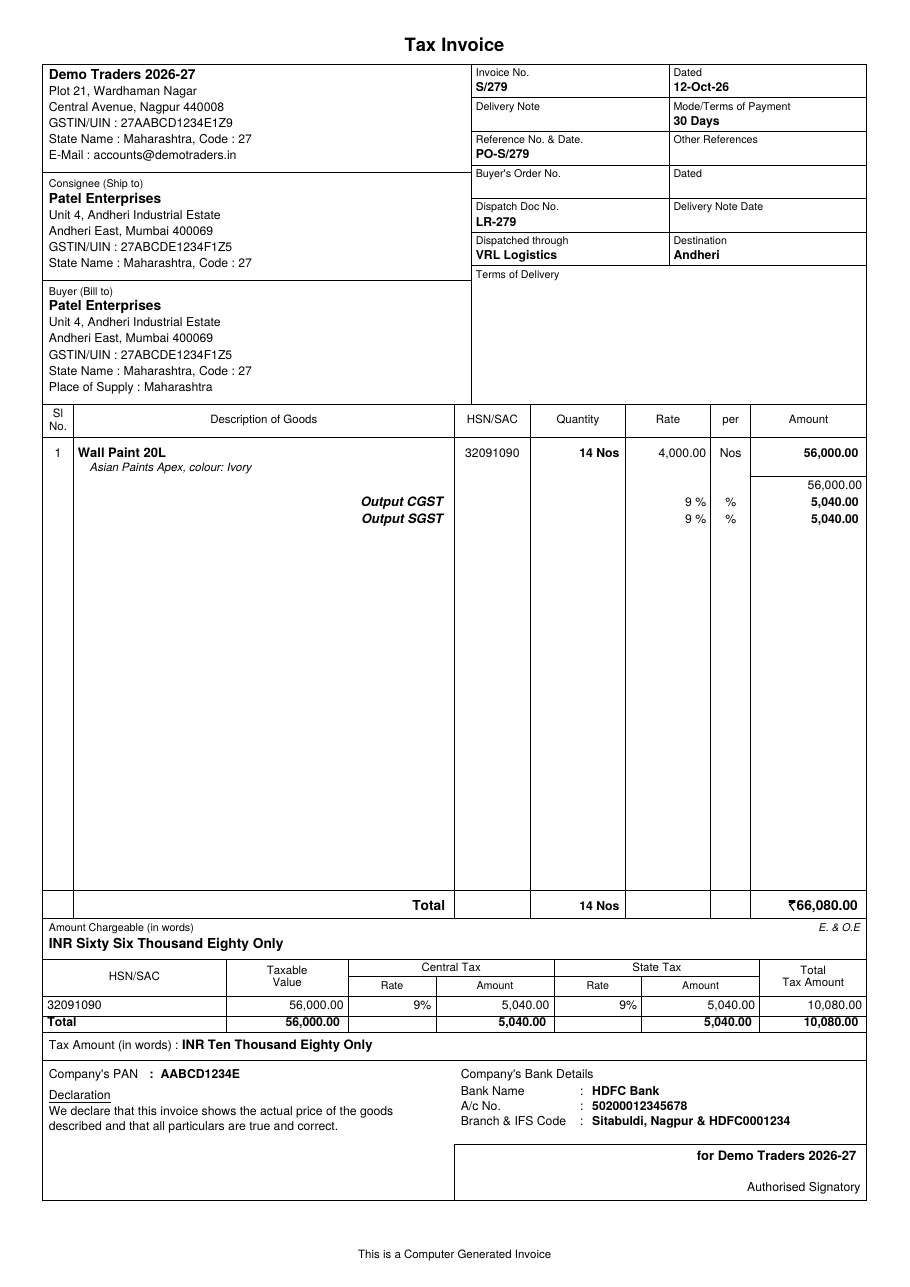
| Sales, purchases, credit and debit notes: Tax Invoice with HSN, GST, amount in words, HSN tax summary, bank details and signatory | Receipts, payments, contra and journals: Voucher with Account, Through, bills settled and amount in words |
 |
 |
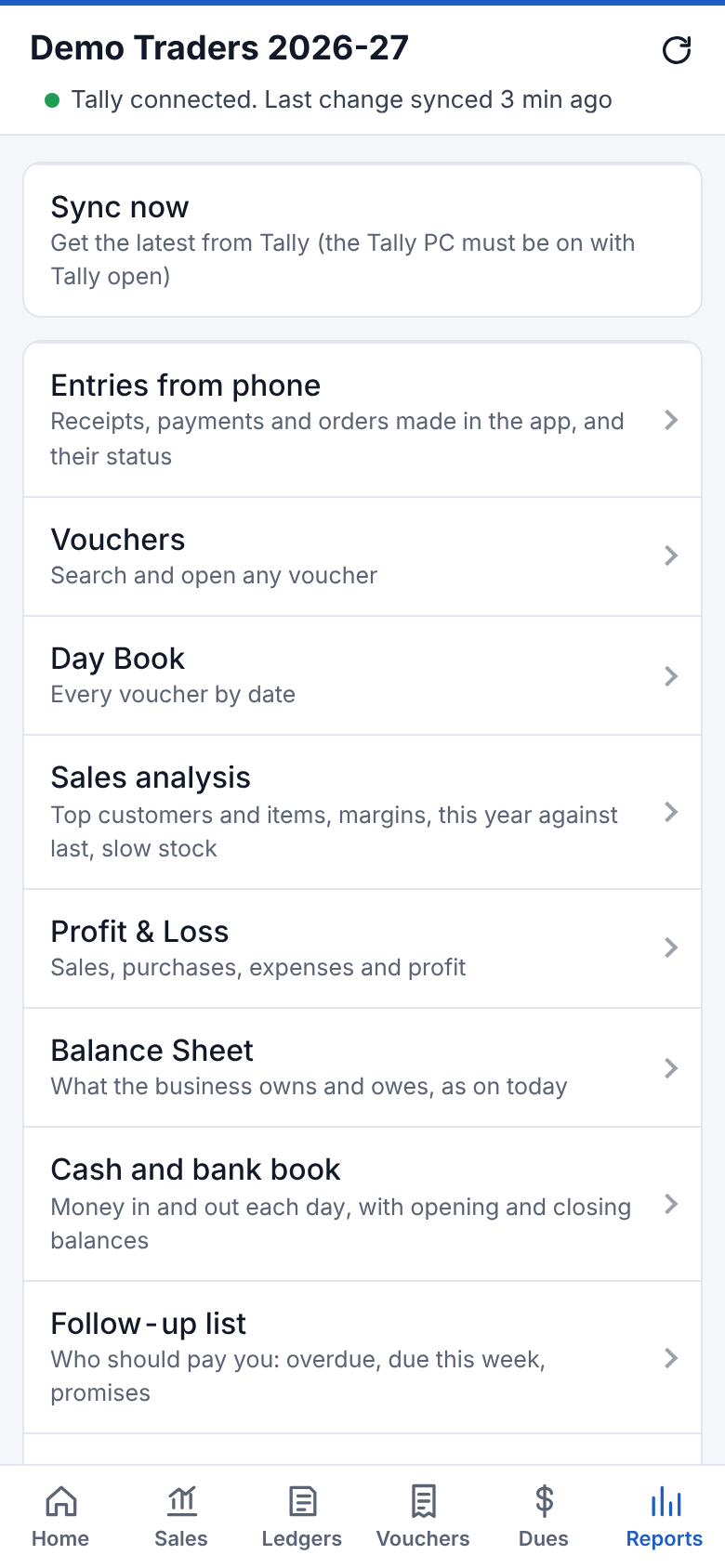 | Report | What it shows |
|---|---|
| **Vouchers** | Search and open any voucher |
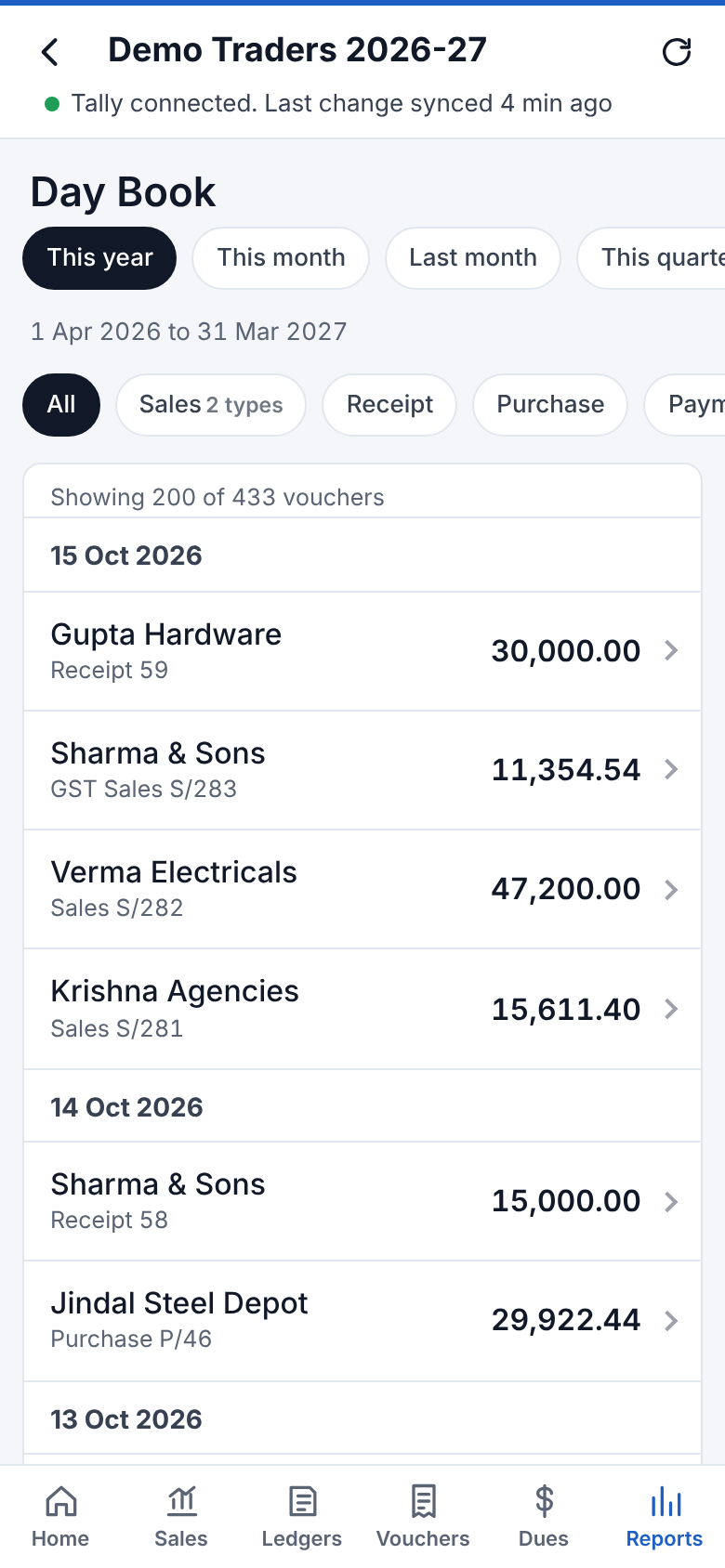
| **Day Book** | All vouchers by date, filter by type |
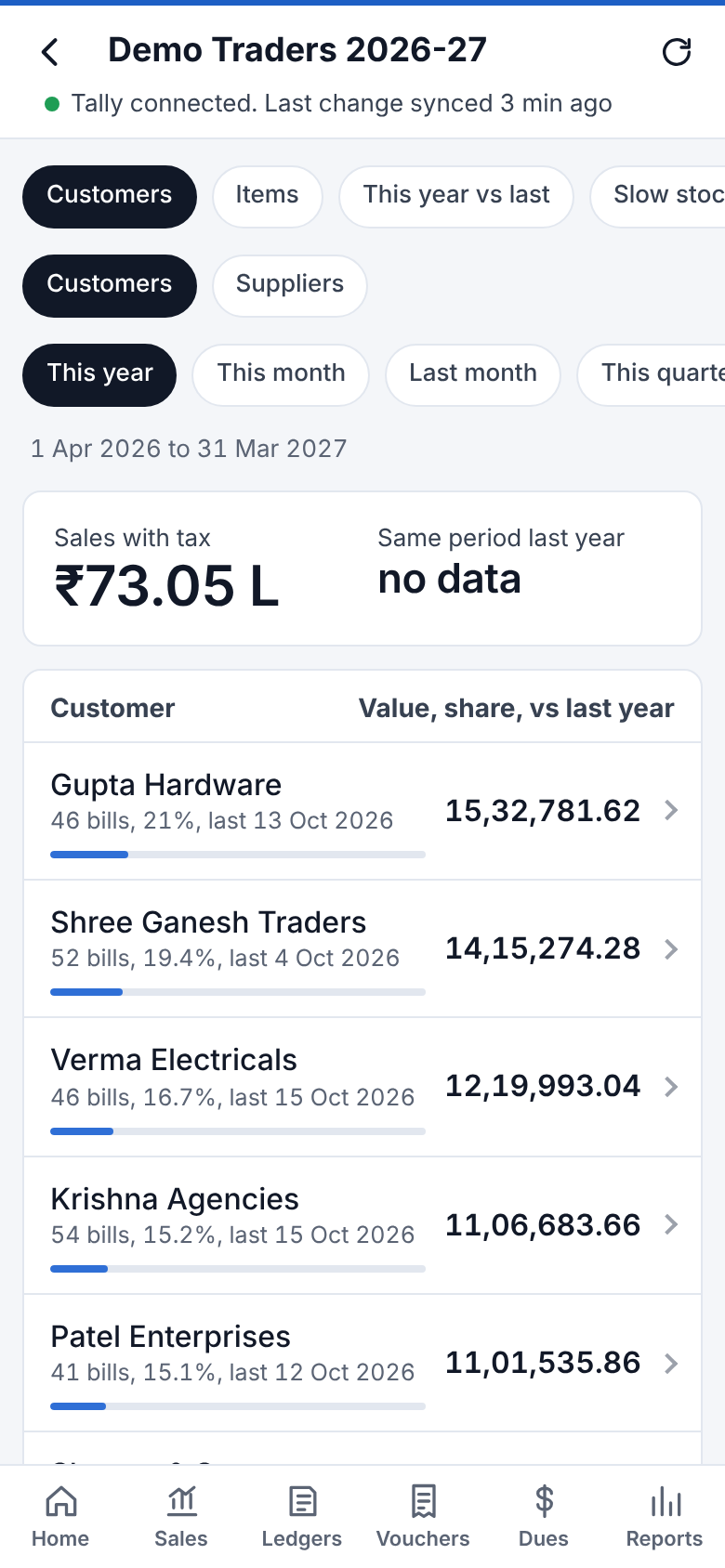
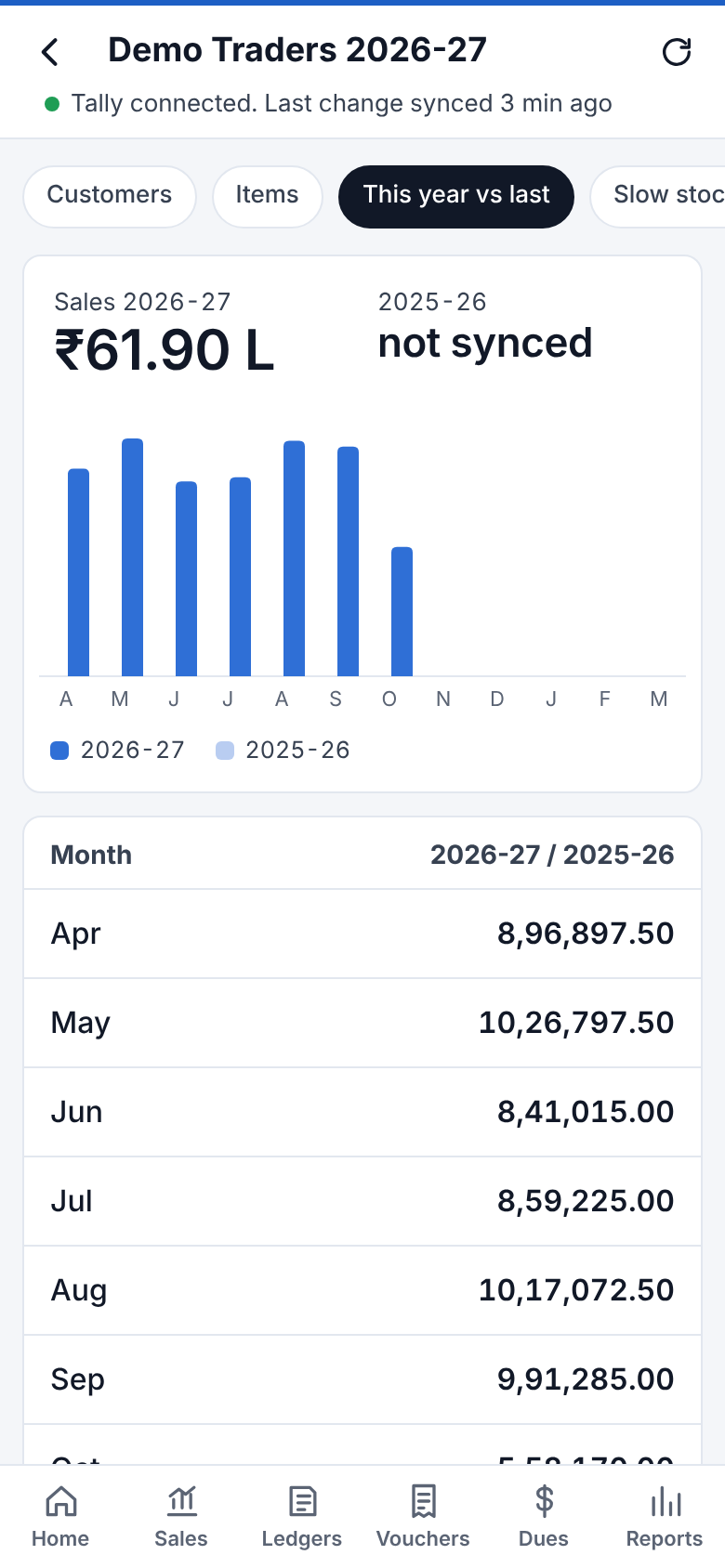
| **Sales analysis** | Best customers and suppliers against last year, item-wise sales with margin, a month-by-month comparison with last year, and stock that hasn't sold |
| **Balance Sheet** | Liabilities and assets as on the last sync. Tap a line to open its groups and ledgers. |
| **Cash and bank book** | Money in and out each day, with opening and closing balances |
| **Follow-up list** | Who should pay you, with your notes and promised dates |
| **Profit & Loss** | Sales, purchases, stock, expenses, gross and net profit. Tap a line to see its ledgers. |
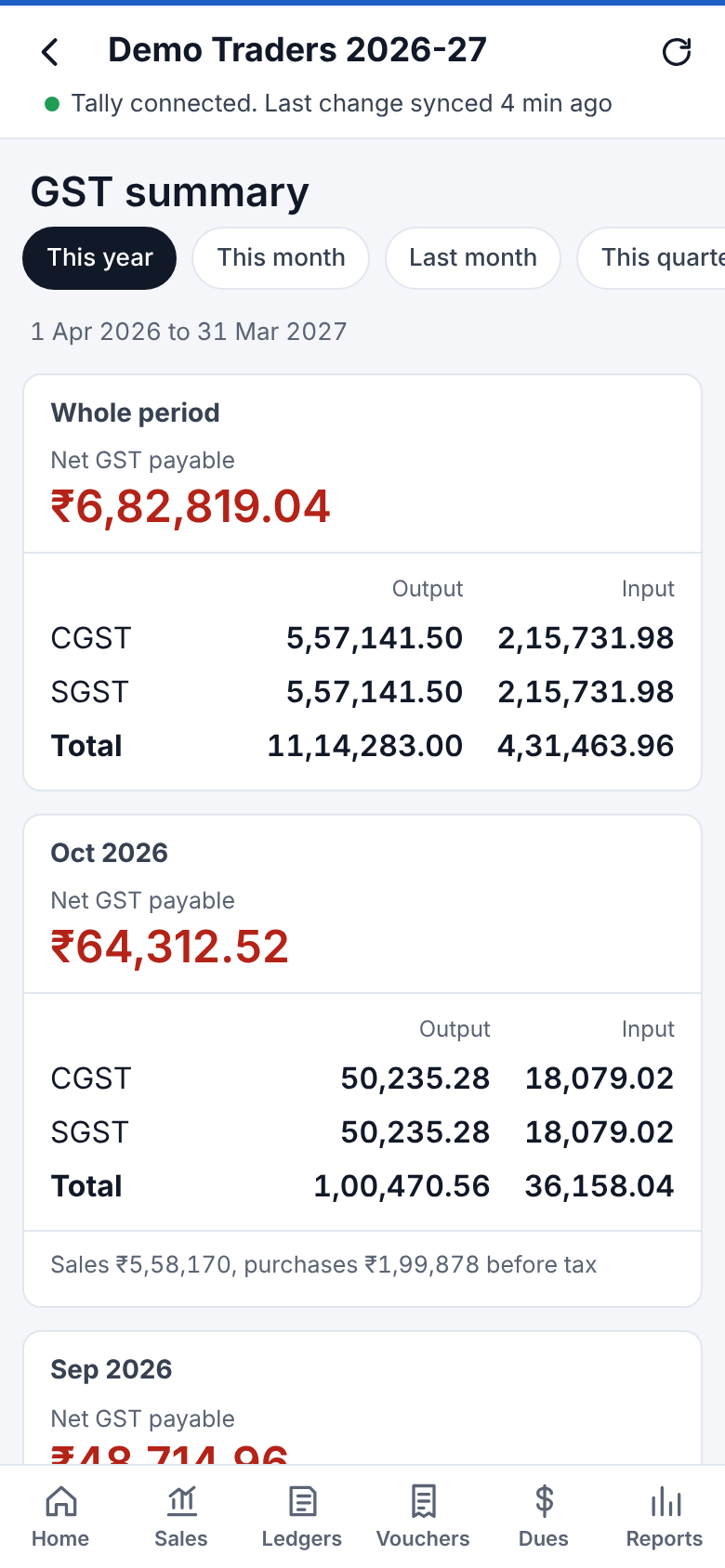
| **GST summary** | Output tax, input credit and net GST payable, month by month |
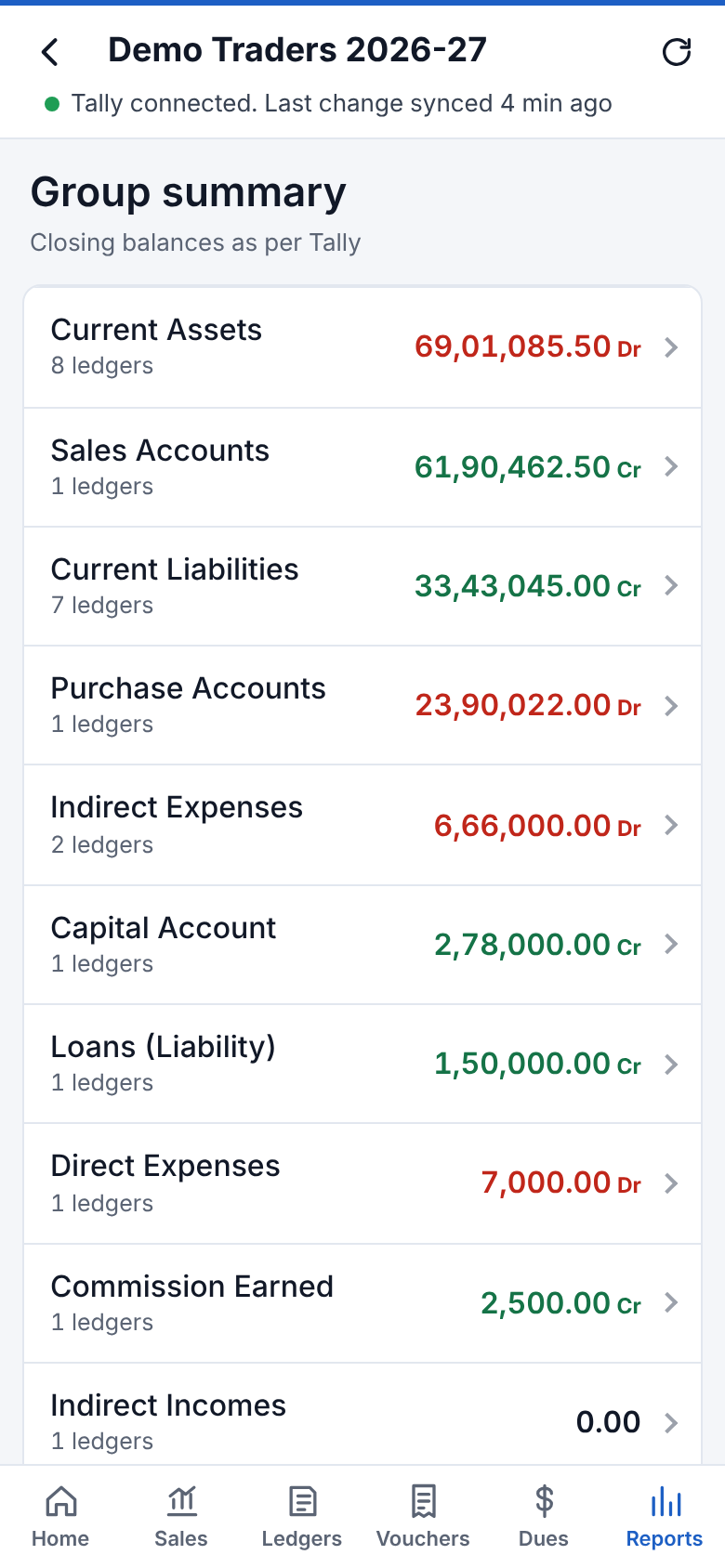
| **Group summary** | Balances by Tally group. Tap to drill down. |
| **Outstanding** | Same as Dues |
| **Stock summary** | Same as Stock |
The **Sync** box shows the synced date range, the number of ledgers and vouchers, when data last changed, and the **app version**. This screen also has buttons to switch between light and dark mode and to log out.
 |
 |
 |
 |
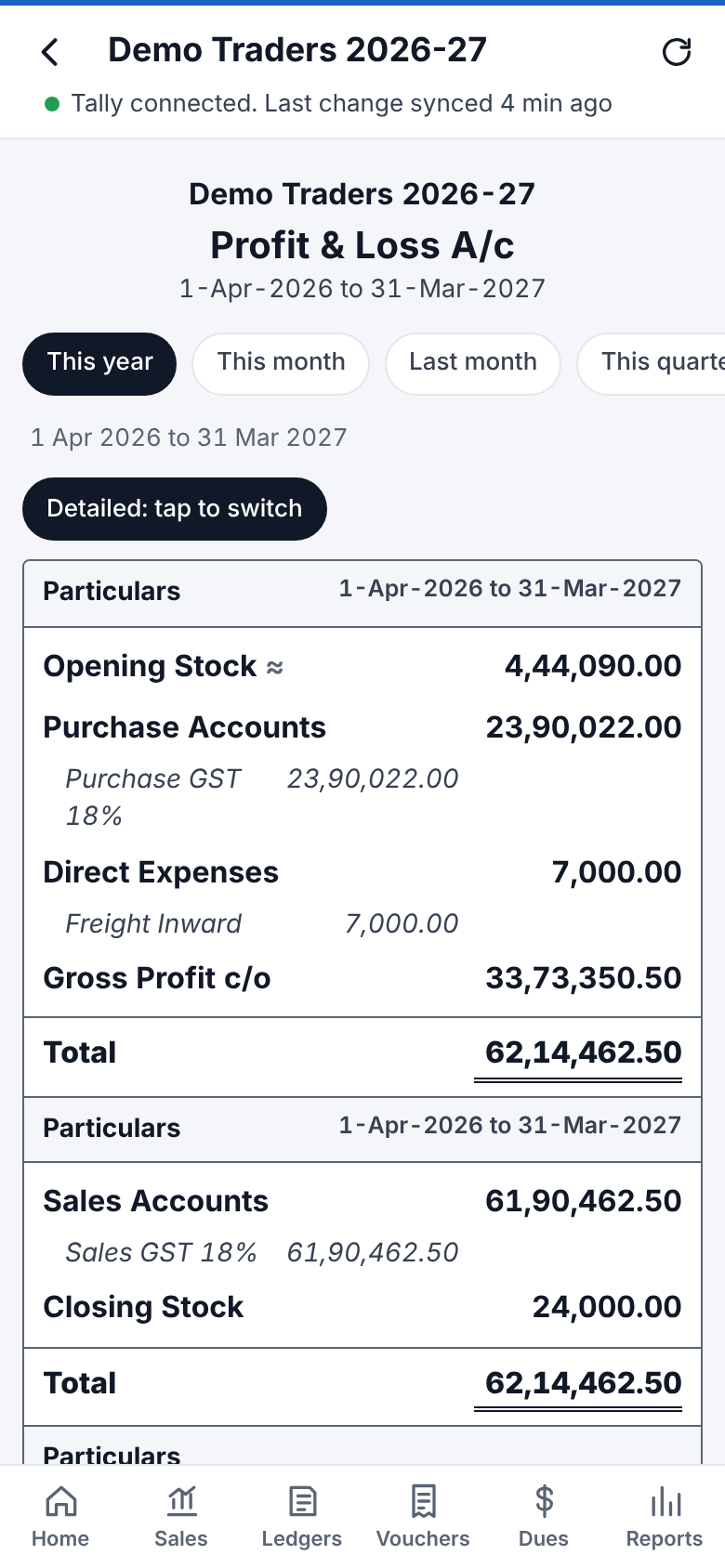
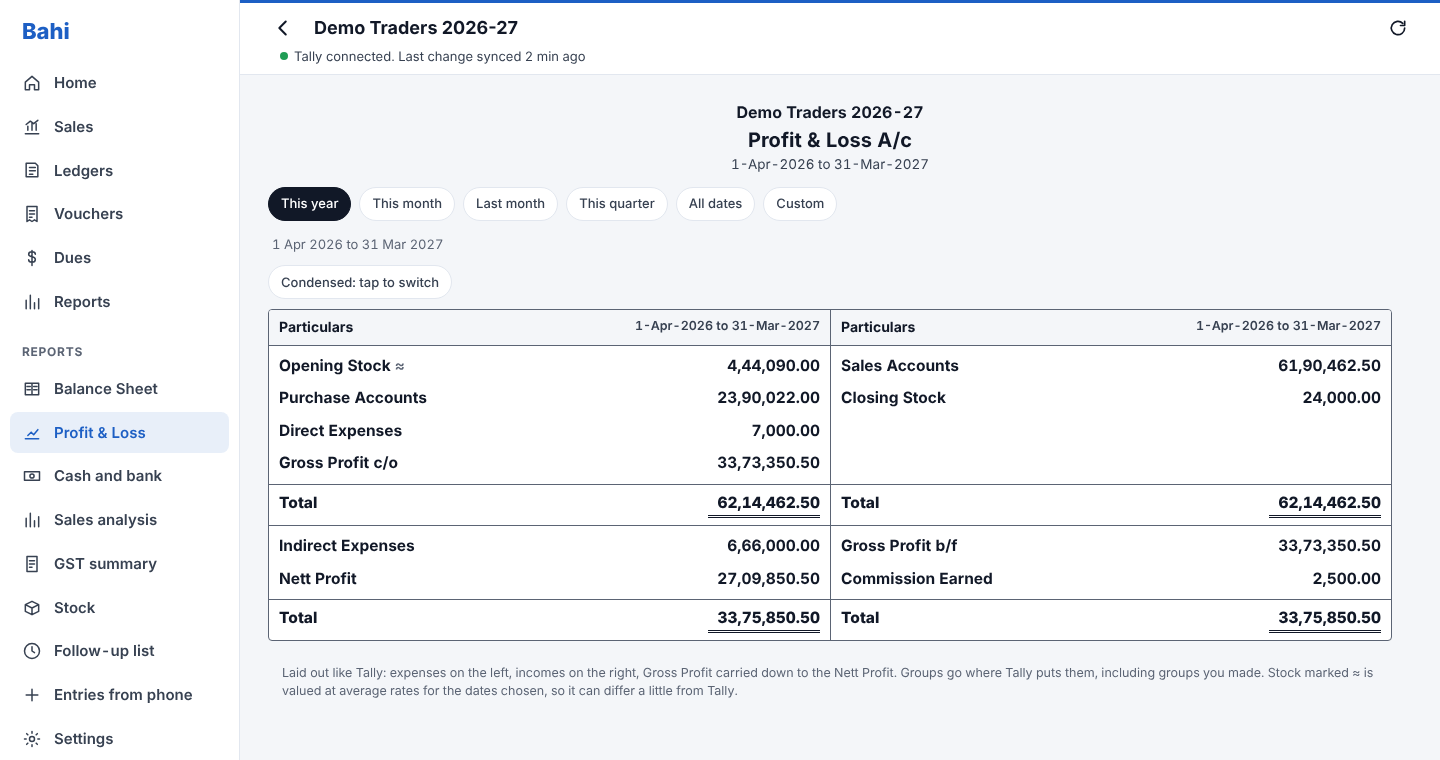 Both are laid out like Tally:
- **Profit & Loss A/c:** Opening Stock, Purchases and Direct Expenses on the left, against Sales, Direct Incomes and Closing Stock on the right, giving **Gross Profit c/o**. Below that, Gross Profit b/f and Indirect Incomes against Indirect Expenses, giving **Nett Profit**. Pick the period at the top.
- **Balance Sheet:** Liabilities on the left and Assets on the right, *as at* today, with equal totals. **Profit & Loss A/c** shows *Opening Balance* (everything up to last year) and *Current Period* (this year's Nett Profit). Closing Stock is under Current Assets.
On a computer the two sides are side by side. On a phone they are one under the other.
**Condensed / Detailed** switches between headings only and headings with their sub-groups and ledgers (in italics), like Alt+F1 in Tally. Tap any heading to open just that one. Tap a sub-group or ledger to see it.
Each group goes where Tally puts it, using the group's own settings in Tally (revenue or not, gross profit or not, debit or credit), so groups you made yourself land in the right place too.
Opening and closing stock are Tally's own figures for whole months, quarters and years. For other dates they are worked out from the nearest month-end and marked ≈.
## Cash and bank book
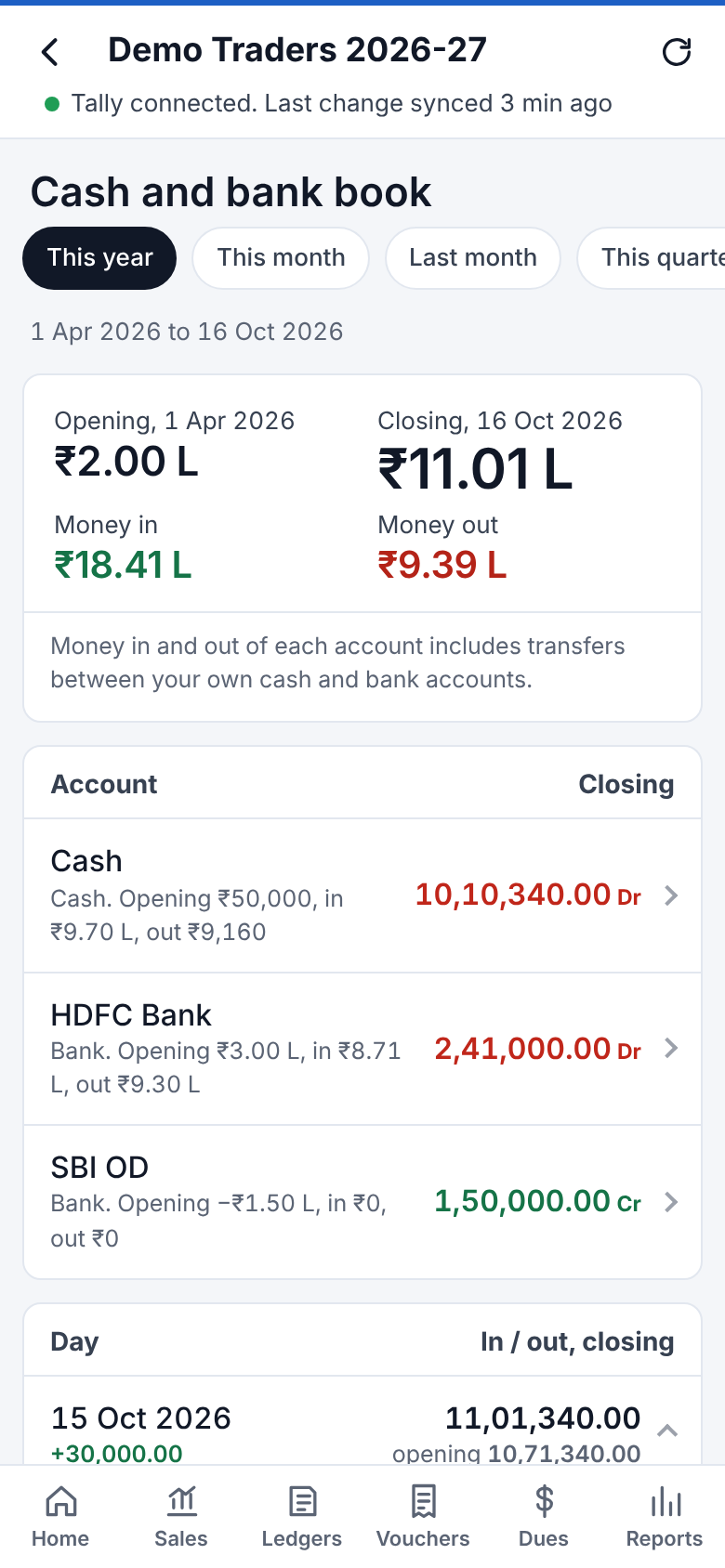 - The top shows opening and closing cash and bank for the period, and the total money in and out.
- **Account** lists each cash and bank account with its opening, money in, money out and closing balance. Tap one for its full statement.
- **Day** lists each day, newest first, with money in and out and the closing balance. Tap a day to see its entries, and tap an entry to open the voucher. Transfers between your own accounts are marked *transfer* and don't count as money in or out for the day.
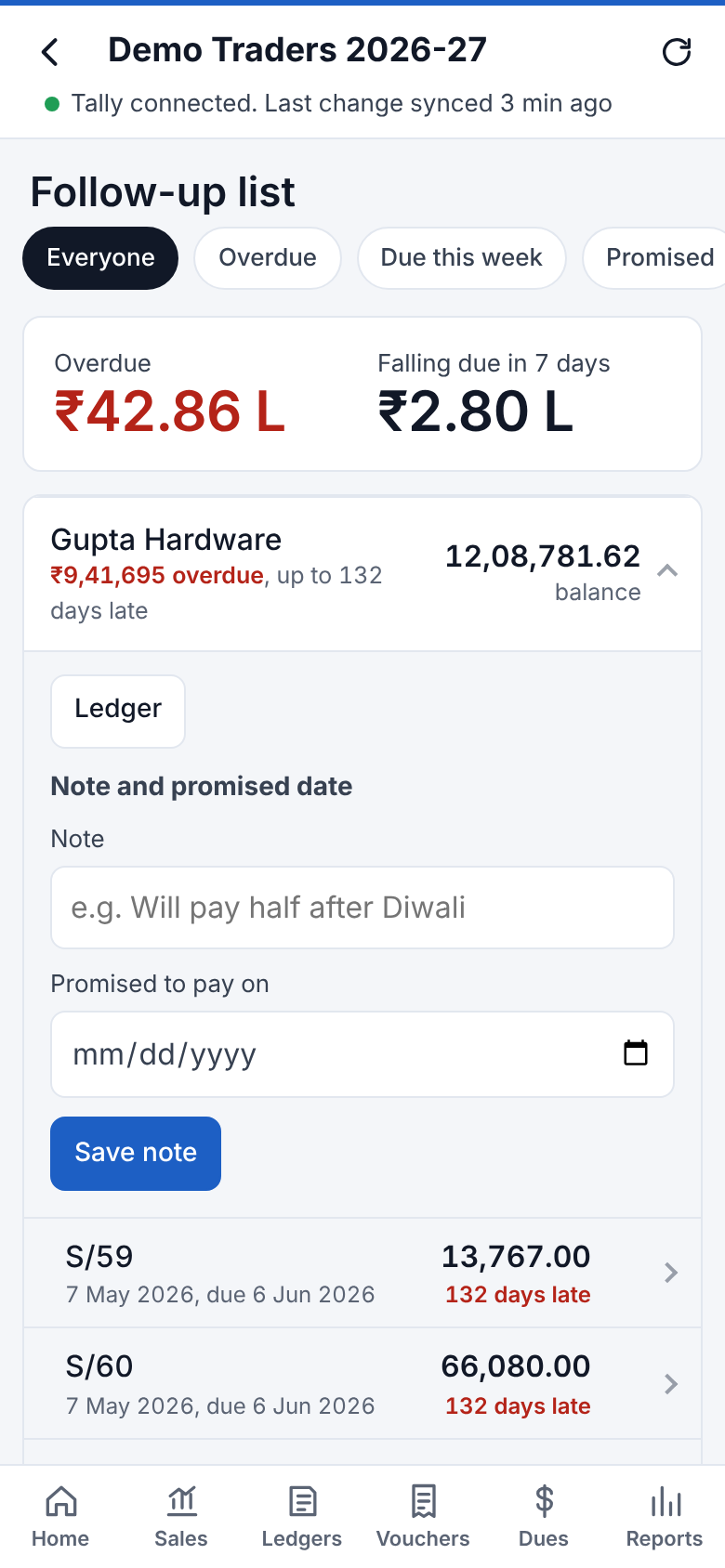 Open it from **Dues → Follow-up list** or **Reports**. It lists customers with overdue bills or bills falling due in the next 7 days, and anyone you've written a note for.
- Tap a customer to see the bills, then **Remind** on WhatsApp, **Call**, or open the ledger.
- Write a **note** ("will pay half after Diwali") and a **promised date**. On that date the customer shows under *Promised to pay today*. If the date passes and they're still overdue, they move to the top marked *promised, not paid*.
- Use the chips at the top to show only **Overdue**, **Due this week** or **Promised**.
- Bills without a credit period count as due on the bill date. Notes stay on your server; Tally isn't changed.
The Telegram morning summary also lists what falls due this week, who promised to pay today, and broken promises.
 |
 |
 Bahi can message you on Telegram:
- **Every morning** (09:00 by default): yesterday's sales, collections and payments, sales so far this month, cash and bank, and your biggest overdue parties.
- **When a big payment comes in**: a message for every receipt above the amount you choose, soon after Tally syncs.
- **When you ask about a party**: send the bot a party's name, or part of it, spelt any way ("sarma", "gupta hardwre", "shri ganesh"). If one ledger fits, it replies with that ledger: balance, this month's opening, debits and credits, the latest entries and pending bills (overdue first). If several fit, it lists them as buttons to pick from. Under each ledger are **This month PDF** and **This year PDF** buttons that send the statement as a PDF, ready to forward. `/summary` sends the morning summary on demand, `/help` explains. Only your own chat gets answers; anyone else who finds the bot gets nothing. Turn it off with **Answer ledger questions** in Settings.
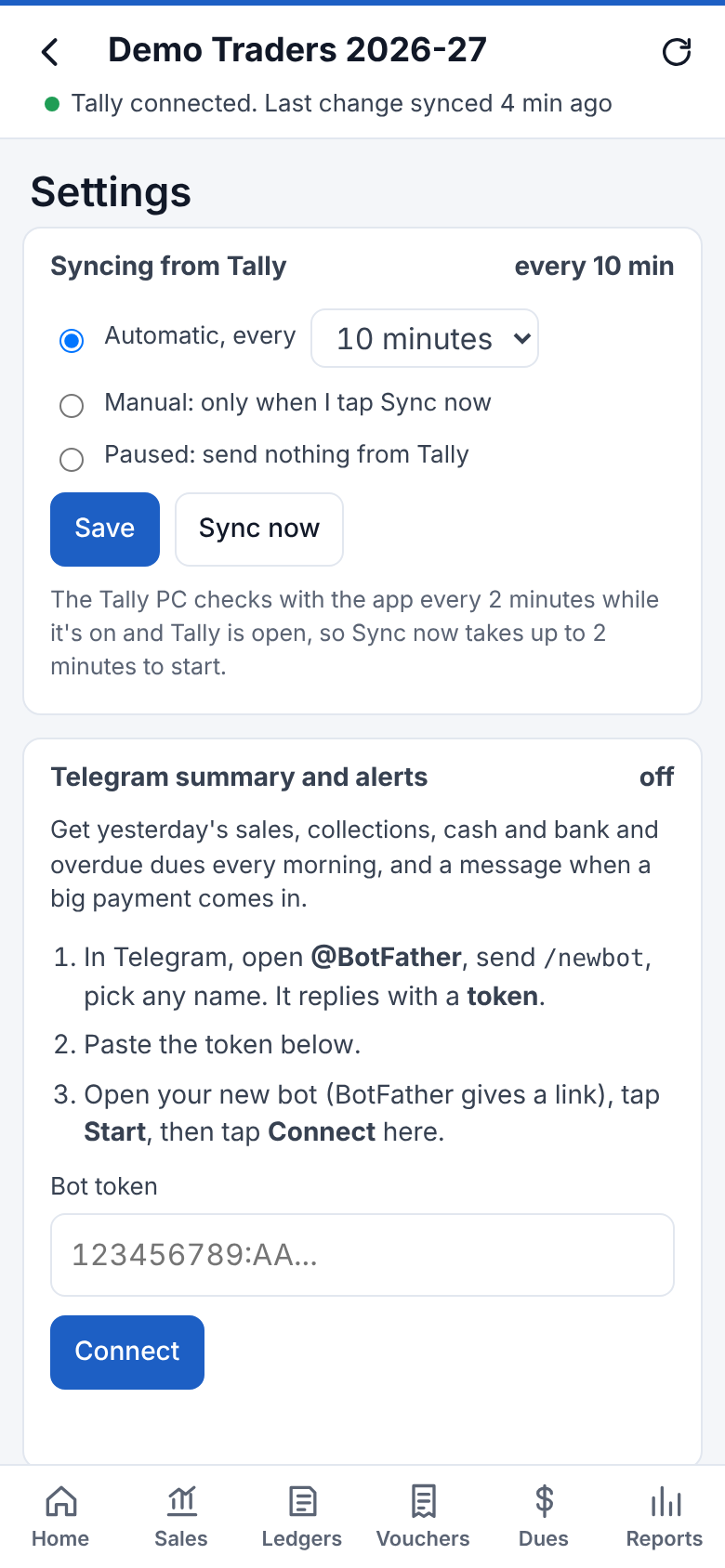
To set it up, in **Reports → Settings**:
1. In Telegram, open **@BotFather**, send `/newbot` and pick any name. BotFather replies with a **token**.
2. Paste the token into Bahi.
3. Open your new bot from the link BotFather gives you and tap **Start**.
4. Tap **Connect** in Bahi. You get a test message in Telegram.
After that you can change the time, the minimum amount, send a summary now, or turn it off. Only you can see your bot's messages, but don't share the token.
 |
 |
 Give staff their own login so they see only what they need. In **Reports → Settings → Staff logins**, tap **Add a staff member**, set a name and password, and tick what they may see and do:
| Tick | They can |
|---|---|
| Money figures | See Home figures, Profit & Loss, Balance Sheet, cash and bank, GST and sales analysis |
| Sales by day | See daily sales |
| All ledgers / Customer and supplier ledgers only | Open ledgers. *Only customers and suppliers* hides bank, cash, expenses and capital. |
| Vouchers and Day Book | Search and open any voucher |
| Dues and follow-up list | See who owes what, send reminders, write follow-up notes |
| Stock | See stock |
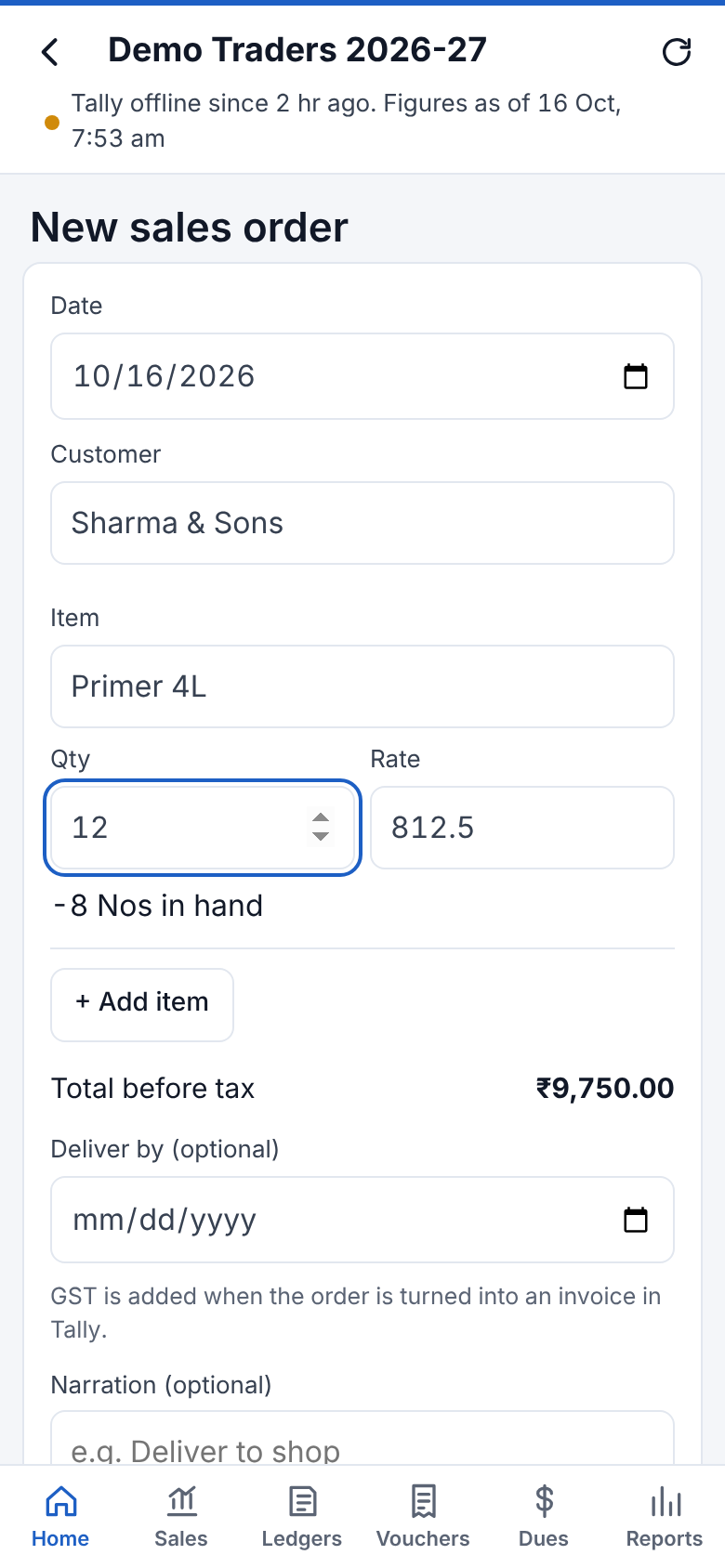
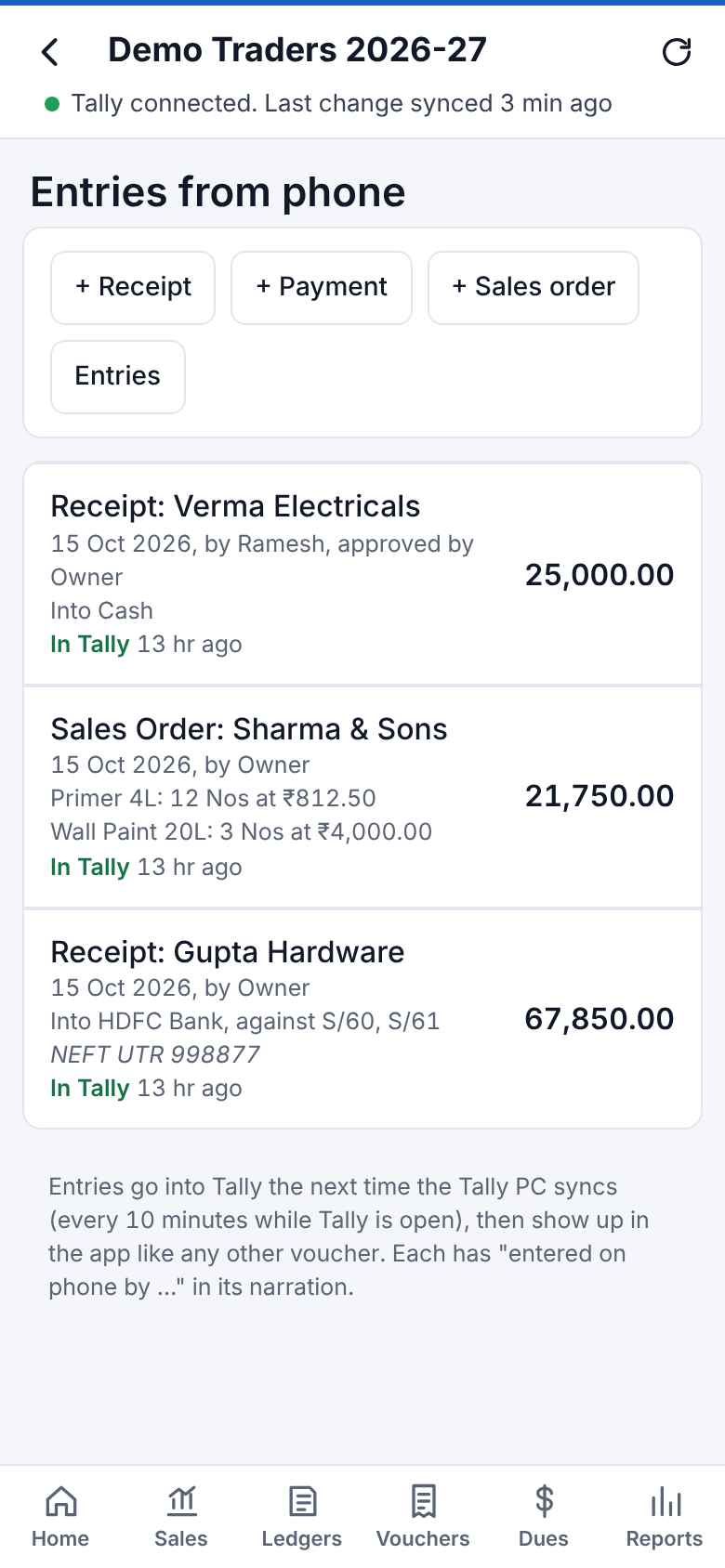
| Enter receipts / payments / sales orders | Make those entries |
| No approval | Their entries go to Tally without waiting for you |
**Salesman** and **Accountant** buttons tick a sensible set for you. With two companies, you can also limit someone to one company.
Staff log in with their **name** and password. You log in as before, with the name left empty and the app password. Staff can change their own password in Settings. **Switch off** or a new password logs them out at once. Only you can see Settings for Telegram, backups, staff and deleting data.
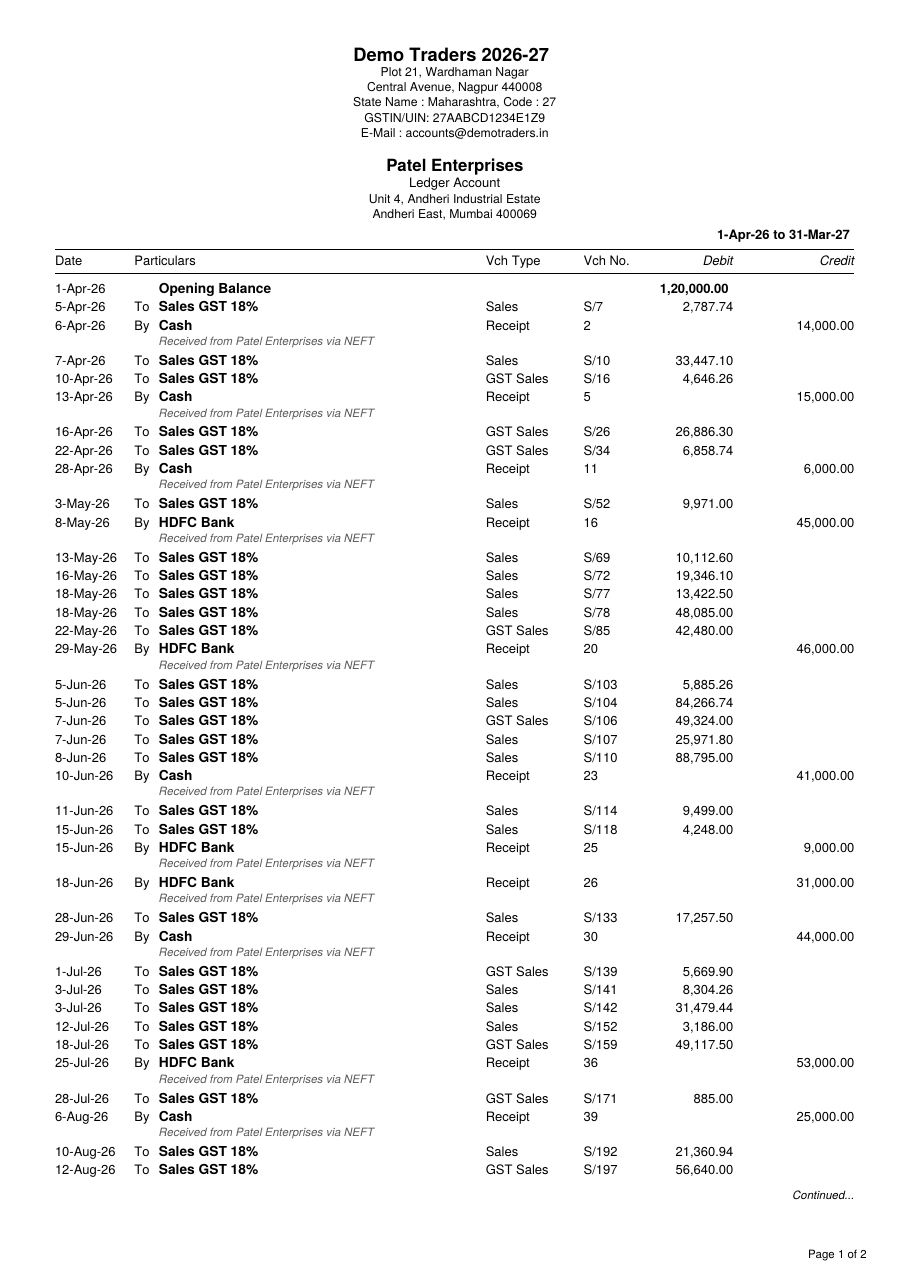 The PDF follows Tally's *Ledger Account* layout:
- your company header, then the party's name and address;
- **To** entries in the Debit column and **By** entries in the Credit column, with the narration under each entry;
- the closing balance at the end, so that both columns total the same.
## Offline copy
**Settings → Offline copy → Save offline copy now** keeps everything on the phone, so the app works with no internet: every ledger (this month and this year), every stock item, dues, all the reports, and the last 12 months' vouchers. With **Update it by itself** ticked, the copy is refreshed every 6 hours while the app is open. When the phone is offline, a bar at the top says you're looking at the saved copy. Other periods (say, last quarter) need a connection. The copy needs the `https://` address.
## Good to know
- **A sync never leaves a month half-filled.** The Tally PC asks Tally for each month's vouchers and checks the count against Tally's own list; a month that comes back short (Tally busy, or a Tally whose Day Book export ignores dates) isn't sent, the app keeps what it had for that month, and it is tried again two minutes later. The server checks the same again before changing anything. Only one sync runs at a time on the Tally PC.
- **Receipt notes, delivery notes and rejections move stock only**, as in Tally: their amounts don't count in ledger balances; the purchase or sales invoice made against them does.
- **Balances are Tally's own.** A ledger's opening and closing, and each cash and bank account's, are the figures Tally gives at each month-end, and its current balance; nothing is worked out or adjusted to make them fit. The entries are listed exactly as they are in Tally. If the entries in a period don't add up to Tally's closing (an entry hasn't reached Bahi yet), the ledger says so in red with the amount, and Bahi fetches that month again.
- **Bahi checks itself against Tally.** With every sync the Tally PC also sends each ledger's balance as Tally has it at every month-end. Bahi compares those with its own figures; if a ledger differs in some month, entries are missing (or extra) in that month, and Bahi fetches the month again by itself. **Reports → Sync check → Ledger balances against Tally** shows the result. A line that stays there after the next sync means Tally isn't sending those entries; please report it with the ledger and month shown. The ledger page also warns when its opening is affected.
- **Bahi never deletes or changes anything in Tally.** Syncing only reads from Tally. The only things ever written to Tally are entries made in the app (receipts, payments, sales, purchases, journals, contras, orders), always added as new vouchers, and new stock items, always created new (Tally refuses a name it already has, so an existing item is never changed). The Tally PC checks every request just before it goes to Tally and refuses anything that would delete, alter or cancel an existing voucher, ledger or item, or create any other kind of master; the server checks phone entries the same way before sending them. Changes and deletions are always done by you in Tally itself.
- The Tally PC sends only the vouchers that were created, changed or deleted since the last sync, so a normal sync takes a few seconds. After a big change (more than 100 vouchers at once) it sends the affected months instead. After a server update that changes how data is stored, the next sync sends everything again.
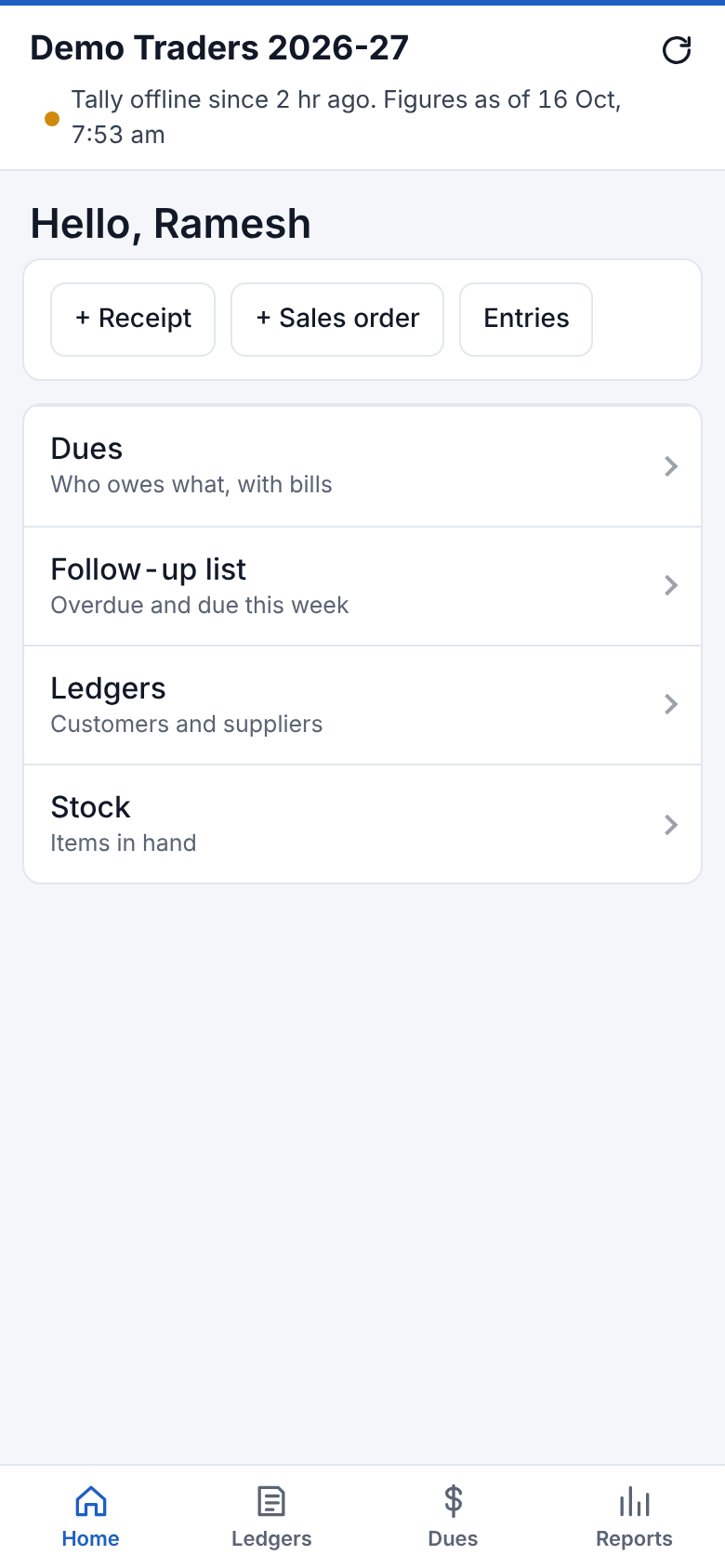
- Figures are as of the **last sync**. If the Tally PC is off, the app shows the last copy and says so at the top.
- Without internet, the phone shows the screens you opened before, with a note saying it's a saved copy.
- PDFs print Hindi (Devanagari). Other Indian scripts such as Gujarati still print as "?". The ₹ sign prints correctly.
## Customer links
Every party can have a private link to their own account: their ledger (any financial year), pending bills, and each invoice or voucher as a PDF. Nothing else of yours is visible through it, and it needs no login.
- **Get a party's link:** open their ledger and tap **Customer link** (copy, share or open it).
- **Sent automatically:** the link goes with every ledger or voucher PDF you share with the party, with WhatsApp reminders from Dues and the follow-up list, and in Telegram ledger answers (to forward).
- **The address customers use:** set it in **Settings, Customer links** (for example `https://books.yourdomain.com`). Customers must be able to open it from the internet, for example through a Cloudflare Tunnel to Bahi on Unraid. Left empty, links use the address you open Bahi with, which only works inside your network unless that address is public.
- **Stop a link:** Settings, Customer links, **Stop link**. It stops working at once; the party gets a new one the next time you share something with them.
- Links are kept in `links.json` in the Bahi data folder, so they keep working after a full sync or a restored backup.
## UPI payment requests
Set your UPI ID once in **Settings, UPI payments** (one per company), then:
- **Request payment** on any ledger: the amount due is filled in (change it if you like). **Send on WhatsApp** sends the party a link that opens their UPI app (GPay, PhonePe, Paytm, BHIM, any bank app) with your UPI ID and the amount filled in; or let a customer at the counter **scan the QR code** on your phone.
- **Reminders** from Dues and the follow-up list, and statements you share, carry the payment link.
- **Sales invoice PDFs** get a "Scan to pay with UPI" code for the bill amount.
- The **customer link** page shows a **Pay with UPI** button when they owe you.
The money goes straight from the customer's UPI app to your bank; Bahi never handles it and charges nothing. Enter the receipt in Tally (or in Bahi) when it arrives. UPI apps usually limit one payment to ₹1 lakh. Payment links work when customers can open Bahi's address from the internet (Settings, Customer links); the QR code on your phone and on invoices works anywhere.
## Barcodes
- **Give items their barcodes:** Stock → **Scan** → scan a product. A barcode Bahi doesn't know asks which item it is; then scan the next. Or open an item and tap **Scan a barcode for this item** (one item can have several: different pack sizes, the maker's code and your own). Barcodes are kept in Bahi; Tally's item masters aren't changed.
- **Bill by scanning:** in a new sales or purchase entry (or an order), tap **Scan items**. Each scan adds the item with quantity 1 and its usual rate; scanning the same item again adds one more. Close the scanner when done, check the entry and save; it goes to Tally as usual.
- The Android app uses Google's scanner (no camera permission needed). In a browser, the camera is used where the browser can read barcodes; otherwise type the code, or use a USB / Bluetooth barcode scanner (they type the code for you).
## New stock items
Stock → **+ New item** (or **+ Stock item** among the entry buttons): name, stock group, unit (one Tally already has), and optionally HSN code, GST rate, an alias and a barcode (scan it). It goes into Tally at the next sync like any phone entry (staff need the "Add stock items" permission, and the owner's approval unless their entries go straight in), then shows under Stock. Scanning a barcode no item has also offers **Make a new stock item** with that barcode. Check the GST details in Tally once for a new item: older and newer TallyPrime releases keep them differently.