
[](https://github.com/bigsk1/voice-chat-ai/blob/main/LICENSE)
# Voice Chat AI 🎙️
Voice Chat AI is a project that allows you to interact with different AI characters using speech. You can choose between various characters, each with unique personalities and voices. Have a serious conversation with Albert Einstein or role play with the OS from the movie HER.
You can run all locally, you can use openai for chat and voice, you can mix between the two. You can use ElevenLabs voices with ollama models all controlled from a Web UI. Use different chat providers like Anthropic, xAI, Ollama, OpenAI.
WebRTC Real Time API with OpenAI you can have a real time conversation, interrupt the AI and have instant responses. You can also use OpenAI's new TTS model gpt-4o-mini-tts to make the AI more human like with emotions and expressive voices.
Check out the game and story documentation:
- [Games Documentation](docs/games.md): Play interactive games with various game master characters.
- [Stories Documentation](docs/stories.md): Experience immersive story adventures with AI characters.
## Quick Start
Get up and running fast with Voice Chat AI! 🔊
- [**Install Locally**](#installation): Set up with Python 3.11+ on Windows, Linux or MacOS.
- [**Detailed Install Guide**](INSTALL.md): Step-by-step installation with pip, uv, or conda.
- [**Run with Docker**](#install-with-docker): Use Docker run or Docker Compose
- [**Configure Settings**](#configuration): Customize AI models, voices, and characters via `.env` on startup.
- [**OpenAI Enhanced**](#openai-enhanced): Use OpenAI Enhanced Mode to speak with the AI in a more human like way with emotions.
- [**OpenAI Realtime**](#openai-realtime): Experience real-time conversations with OpenAI's WebRTC-based Realtime API.
- [**Game & Story Modes**](#game--story-modes): Explore interactive games and immersive storytelling experiences.
- [**Add New Characters**](#adding-new-characters): Add new characters to the project.
- [**Troubleshooting**](#troubleshooting): Fix common audio or CUDA errors.
## Features
- **Supports OpenAI, xAI, Anthropic or Ollama language models**: Choose the model that best fits your needs.
- **Provides text-to-speech synthesis using Spark-TTS or OpenAI TTS or ElevenLabs or Kokoro TTS or Typecast**: Enjoy natural and expressive voices with optional local voice cloning.
- **Provides speech to speech using OpenAI Realtime API**: Have a real time conversation with AI characters, interrupt the AI and have instant responses.
- **OpenAI Enhanced Mode TTS Model**: Uses emotions and prompts to make the AI more human like.
- **Flexible transcription options**: Uses OpenAI transcription by default, with option to use Local Faster Whisper.
- **Analyzes user mood and adjusts AI responses accordingly**: Get personalized responses based on your mood from sentiment analysis.
- **WebUI or Terminal usage**: Run with your preferred method , but recommend the ui as you can change characters, model providers, speech providers, voices, ect. on the fly.
- **HUGE selection of built in Characters**: Talk with the funniest and most insane AI characters! Play escape room games, follow story lines, and more.
- **Interactive Games & Stories**: Enjoy 15+ different game types (word puzzles, trivia, escape rooms) and interactive storytelling adventures.
- **Docker Support**: Prebuilt image from Docker Hub or build your own image with or without NVIDIA CUDA. Base image runs on CPU with optional Spark-TTS setup.
## Installation
### Requirements
- Windows, Linux or MacOS
- Python 3.11+
- ffmpeg
- Ollama models or OpenAI or xAI or Anthropic for chat
- Spark-TTS (local), OpenAI API, ElevenLabs API, Kokoro TTS, or Typecast API for speech
- Microphone
- A sense of humor
### Steps
1. Clone the repository:
```bash
git clone https://github.com/bigsk1/voice-chat-ai.git
cd voice-chat-ai
```
2. Create a virtual environment: 🐍
```bash
python -m venv venv
source venv/bin/activate
```
On Windows use `venv\Scripts\Activate`
or use `conda` just make it python 3.11
```bash
conda create --name voice-chat-ai python=3.11
conda activate voice-chat-ai
```
3. Install dependencies:
**Step A: Install PyTorch (choose based on your hardware)**
CPU only:
```bash
pip install torch torchaudio torchvision --index-url https://download.pytorch.org/whl/cpu
```
OR CUDA 12.4 (GPU):
```bash
pip install torch torchaudio torchvision --index-url https://download.pytorch.org/whl/cu124
```
**Step B: Install core dependencies**
```bash
pip install -r requirements.txt
```
**Step C: Install ffmpeg**
Windows: `winget install ffmpeg`
Linux: `sudo apt install ffmpeg`
Mac: `brew install ffmpeg`
Restart your terminal after installing, then verify: `ffmpeg -version`
Note: The app uses OpenAI transcription by default. If you select Local Faster Whisper in the UI, it will automatically download the model (about 1GB) on first use. The model is stored in your user's cache directory and shared across environments.
### Spark-TTS for local voice cloning - Optional
If you're only using speech with OpenAI, ElevenLabs, or Kokoro TTS, you don't need this. Spark-TTS provides local zero-shot voice cloning using the character `.wav` files.
**Quick Setup:**
```bash
# Automated setup (GPU with CUDA)
python setup_sparktts.py
# Or CPU-only
python setup_sparktts.py --cpu-only
```
For detailed setup instructions, requirements, and troubleshooting, see [Spark-TTS Documentation](docs/SPARKTTS.md).
**Requirements:**
- Python 3.11+ recommended (for full CUDA support)
- ~5GB disk space for model
- CUDA-capable GPU (optional, works on CPU)
> Note: The sample `.wav` files in the characters folder are used for voice cloning. You can provide your own high-quality samples to improve voice quality.
### Kokoro TTS for local voices - Optional
[Kokoro TTS](https://github.com/remsky/Kokoro-FastAPI) is an open-source neural text-to-speech system based on the Kokoro-82M model, offering high-quality voice synthesis with various male and female voices.
Install it based on the instructions in the Kokoro repo, like run it in docker, then you can connect to the api endpoints to use it's voices.
To use Kokoro TTS:
1. Configure Voice-Chat-AI to use Kokoro:
- `KOKORO_BASE_URL=http://localhost:8880/v1` - set to your url
- Set `TTS_PROVIDER=kokoro` - use it as the TTS_PROVIDER in .env or select in UI.
- Select a voice with `KOKORO_TTS_VOICE=af_bella` (female) or `KOKORO_TTS_VOICE=am_onyx` (male) - defaults to use in .env, all voices will show in UI.
2. Start the Voice Chat AI application normally
Kokoro TTS operates locally on your machine or local network, requiring no API key or internet connection once installed. The server supports GPU acceleration for faster processing if you have compatible NVIDIA hardware.
### Qwen3 TTS (OpenAI-compatible, local) - Optional
For faster local TTS with many custom cloned voices (alternative to Spark-TTS or Kokoro), run [Qwen3-TTS-Openai-Fastapi](https://github.com/bigsk1/Qwen3-TTS-Openai-Fastapi) and point Voice Chat AI at it with `TTS_PROVIDER=openai` and a custom `OPENAI_TTS_URL`. See [docs/QWEN3_TTS.md](docs/QWEN3_TTS.md) for setup, `.env` values, and UI voice listing.
### xAI Grok TTS - Optional
xAI Grok TTS is available as a standalone text-to-speech API and can be used with any chat model provider in the dashboard or CLI.
To use xAI TTS:
1. Get an API key from xAI and set it in `.env`
2. Configure:
- `TTS_PROVIDER=xai`
- `XAI_API_KEY=your_api_key_here`
- `XAI_TTS_VOICE=eve` (options: `eve`, `ara`, `rex`, `sal`, `leo`)
- `XAI_TTS_LANGUAGE=en` (use `auto` for language detection)
- `XAI_TTS_FORMAT=mp3` (use `mp3` or `wav` for dashboard/CLI playback)
xAI speech tags such as `[laugh]`, `[pause]`, `...`, and `...` are preserved when `TTS_PROVIDER=xai`.
### Typecast TTS - Optional
[Typecast](https://typecast.ai) is a cloud-based TTS service with emotion and prosody control.
To use Typecast TTS:
1. Get your API key and a voice ID from [typecast.ai](https://typecast.ai)
2. Configure in `.env`:
- `TTS_PROVIDER=typecast`
- `TYPECAST_API_KEY=your_api_key_here`
- `TYPECAST_TTS_VOICE=your_voice_id_here`
- `TYPECAST_TTS_MODEL=ssfm-v30` (or `ssfm-v21`)
- `TYPECAST_EMOTION_PRESET=normal` (options: `normal`, `happy`, `sad`, `angry`, `whisper`, `toneup`, `tonedown`)
## Usage
Run the application: 🏃
Web UI
```bash
uvicorn app.main:app --host 0.0.0.0 --port 8000
```
Find on http://localhost:8000/
## Terminal Usage
Terminal Usage is also supported, it's a feature rich CLI that allows you to speak with the AI. Update your changes in the .env file rename elevenlabs_voices.json.example to elevenlabs_voices.json and run the cli.py file.
```bash
python3 cli.py
```
---
## 💡 Native Installation Recommended
**For the best experience, run this application natively (not in Docker).**
While Docker support is provided, native installation offers significant advantages:
- 🎤 **Direct microphone access** - No complex volume mapping or audio device passthrough
- 🔊 **Seamless audio playback** - Native system audio integration without PulseAudio configuration
- ⚡ **Better performance** - Direct GPU access without Docker overhead (especially for Spark-TTS)
- 🔧 **Easier troubleshooting** - No containerization layers to debug
- 🚀 **Simpler setup** - Follow the [Installation Guide](INSTALL.md) for a streamlined experience
**Docker is useful for**:
- Testing the app without modifying your system
- Server deployments where microphone/audio isn't needed
- Reproducible environments for development
For interactive voice conversations with real-time audio, **native installation is strongly recommended**.
See the [Detailed Install Guide](INSTALL.md) for step-by-step instructions.
---
## Install with Docker
### 📄 Prerequisites
1. Docker installed on your system.
2. A `.env` file in the same folder as the command. This file should contain all necessary environment variables for the application if your not using certain providers or models just leave the defaults and use the one's you are in the UI.
---
### 🐳 Docker compose
uncomment the lines needed in the docker-compose.yml depending on your host system, image pulls latest from dockerhub
```yaml
services:
voice-chat-ai:
image: bigsk1/voice-chat-ai:latest
container_name: voice-chat-ai
environment:
- PULSE_SERVER=/mnt/wslg/PulseServer # Default: WSL2 PulseAudio server (Windows CMD or WSL2 Ubuntu)
# - PULSE_SERVER=unix:/tmp/pulse/native # Uncomment for native Ubuntu/Debian with PulseAudio
env_file:
- .env
volumes:
- \\wsl$\Ubuntu\mnt\wslg:/mnt/wslg/ # Default: WSL2 audio mount for Windows CMD with Docker Desktop
# - /mnt/wslg/:/mnt/wslg/ # Uncomment for WSL2 Ubuntu (running Docker inside WSL2 distro)
# - ~/.config/pulse/cookie:/root/.config/pulse/cookie:ro # Uncomment for native Ubuntu/Debian
# - /run/user/1000/pulse:/tmp/pulse:ro # Uncomment and adjust UID (e.g., 1000) for native Ubuntu/Debian
# - ./elevenlabs_voices.json:/app/elevenlabs_voices.json # Add your own voice IDs
ports:
- "8000:8000"
restart: unless-stopped
tty: true # Enable CLI interactivity (e.g., cli.py)
stdin_open: true # Keep STDIN open for interactive use
```
```bash
docker-compose up -d
```
### 🐳 Docker run
**Base CPU image** - includes core app with OpenAI TTS, ElevenLabs, and Kokoro TTS support. Spark-TTS is NOT pre-installed (keeps image lean). You can optionally run `python setup_sparktts.py` inside the container to add Spark-TTS voice cloning. First run downloads the faster-whisper model (1GB) for transcription.
> Remove the elevenlabs_voices.json volume mount if not using ElevenLabs.
```bash
docker pull bigsk1/voice-chat-ai:latest
```
or
```bash
docker build -t voice-chat-ai -f Dockerfile.cpu .
```
In Windows command prompt
```bash
docker run -d
-e "PULSE_SERVER=/mnt/wslg/PulseServer"
-v \\wsl$\Ubuntu\mnt\wslg:/mnt/wslg/
-v ./elevenlabs_voices.json:/app/elevenlabs_voices.json
--env-file .env
--name voice-chat-ai
-p 8000:8000
bigsk1/voice-chat-ai:latest
```
```bash
docker run -d -e "PULSE_SERVER=/mnt/wslg/PulseServer" -v \\wsl$\Ubuntu\mnt\wslg:/mnt/wslg/ -v %cd%\elevenlabs_voices.json:/app/elevenlabs_voices.json --env-file .env --name voice-chat-ai -p 8000:8000 bigsk1/voice-chat-ai:latest
```
In WSL2 Ubuntu
```bash
docker run -d \
-e "PULSE_SERVER=/mnt/wslg/PulseServer" \
-v /mnt/wslg/:/mnt/wslg/ \
-v ./elevenlabs_voices.json:/app/elevenlabs_voices.json \
--env-file .env \
--name voice-chat-ai \
-p 8000:8000 \
bigsk1/voice-chat-ai:latest
```
```bash
docker run -d -e "PULSE_SERVER=/mnt/wslg/PulseServer" -v /mnt/wslg/:/mnt/wslg/ -v ./elevenlabs_voices.json:/app/elevenlabs_voices.json --env-file .env --name voice-chat-ai -p 8000:8000 bigsk1/voice-chat-ai:latest
```
### Nvidia Cuda docker image
> This is for running with an Nvidia GPU and you have Nvidia toolkit and cudnn installed.
Click to expand docker with cuda
This image is large when built because of the CUDA base image, build tools and audio tools.
Ensure you have Docker installed and that your `.env` file is placed in the same directory as the commands are run. If you get cuda errors make sure to install nvidia toolkit for docker and cudnn is installed in your path.
## 🖥️ Run on Windows using docker desktop - prebuilt image
On windows using docker desktop - run in Windows terminal:
make sure .env is in same folder you are running this from
> Remove the elevenlabs_voices.json volume mount if not using ElevenLabs.
```bash
docker run -d --gpus all -e "PULSE_SERVER=/mnt/wslg/PulseServer" -v \\wsl$\Ubuntu\mnt\wslg:/mnt/wslg/ -v %cd%\elevenlabs_voices.json:/app/elevenlabs_voices.json --env-file .env --name voice-chat-ai-cuda -p 8000:8000 bigsk1/voice-chat-ai:cuda
```
Use `docker logs -f voice-chat-ai-cuda` to see the logs
## 🐧 Run on WSL Native - best option
For a native WSL environment (like Ubuntu on WSL), use this command:
make sure .env is in same folder you are running this from
> Remove the elevenlabs_voices.json volume mount if not using ElevenLabs.
```bash
docker run -d --gpus all \
-e "PULSE_SERVER=/mnt/wslg/PulseServer" \
-v /mnt/wslg/:/mnt/wslg/ \
-v ./elevenlabs_voices.json:/app/elevenlabs_voices.json \
--env-file .env \
--name voice-chat-ai-cuda \
-p 8000:8000 \
bigsk1/voice-chat-ai:cuda
```
```bash
docker run -d --gpus all -e "PULSE_SERVER=/mnt/wslg/PulseServer" -v /mnt/wslg/:/mnt/wslg/ -v ./elevenlabs_voices.json:/app/elevenlabs_voices.json --env-file .env --name voice-chat-ai-cuda -p 8000:8000 bigsk1/voice-chat-ai:cuda
```
## 🐧 Run on Ubuntu/Debian
```bash
docker run -d --gpus all \
-e PULSE_SERVER=unix:/tmp/pulse/native \
-v ~/.config/pulse/cookie:/root/.config/pulse/cookie:ro \
-v /run/user/$(id -u)/pulse:/tmp/pulse:ro \
-v ./elevenlabs_voices.json:/app/elevenlabs_voices.json \
--env-file .env \
--name voice-chat-ai-cuda \
-p 8000:8000 \
bigsk1/voice-chat-ai:cuda
```
```bash
docker run -d --gpus all -e PULSE_SERVER=unix:/tmp/pulse/native -v ~/.config/pulse/cookie:/root/.config/pulse/cookie:ro -v /run/user/$(id -u)/pulse:/tmp/pulse:ro -v ./elevenlabs_voices.json:/app/elevenlabs_voices.json --env-file .env --name voice-chat-ai-cuda -p 8000:8000 bigsk1/voice-chat-ai:cuda
```
🔗 Access the Application
URL: http://localhost:8000
To remove use:
```bash
docker stop voice-chat-ai-cuda
```
```bash
docker rm voice-chat-ai-cuda
```
### Build it yourself using Nvidia Cuda
```bash
docker build -t voice-chat-ai:cuda .
```
Running in WSL Ubuntu
```bash
wsl docker run -d --gpus all -e "PULSE_SERVER=/mnt/wslg/PulseServer" -v /mnt/wslg/:/mnt/wslg/ -v ./elevenlabs_voices.json:/app/elevenlabs_voices.json --env-file .env --name voice-chat-ai-cuda -p 8000:8000 voice-chat-ai:cuda
```
On windows docker desktop using wsl - run in windows
```bash
docker run -d --gpus all -e "PULSE_SERVER=/mnt/wslg/PulseServer" -v \\wsl$\Ubuntu\mnt\wslg:/mnt/wslg/ -v %cd%\elevenlabs_voices.json:/app/elevenlabs_voices.json --env-file .env --name voice-chat-ai-cuda -p 8000:8000 voice-chat-ai:cuda
```
---
> **💡 Pro Tip:** What I have found to be the best setup is xAI and grok chat model, using voices with Elevenlabs and transcription using OpenAI or local faster whisper on GPU. The fastest real conversation is with OpenAI Realtime. The best quality is not running app in Docker.
## Configuration
Rename the .env.sample to `.env` in the root directory of the project and configure it with the necessary environment variables: - The app is controlled on startup based on the variables you add. In the UI many settings can be changed on the fly. If you are not using certain providers just leave the default's as is and don't select it in the UI.
### Audio Commands
- You have 3 secs to talk, if there is silence then it's the AI's turn to talk
- Say any of the following to have the AI look at your screen ( uses llava for ollama and openai as fall back )
"what's on my screen",
"take a screenshot",
"show me my screen",
"analyze my screen",
"what do you see on my screen",
"screen capture",
"screenshot" to have the AI explain what it is seeing in detail.
- To stop the conversation, say "Quit" or "Exit". ( ctl+c always works also in terminal )
### ElevenLabs
The app uses an `elevenlabs_voices.json` file. This file stores your voice IDs from ElevenLabs.
#### For local use
1. Create/edit `elevenlabs_voices.json` and add your voice IDs from your ElevenLabs account
2. In the web UI, you can select these voices from the dropdown menu
> Use this command to get back professional and generated voices in your account, it will create the elevenlabs_voices.json file so run it in the root of project. Add your elevenlabs api key.
Linux:
```bash
export ELEVENLABS_API_KEY=your_api_key_here
```
```bash
curl -s -X GET https://api.elevenlabs.io/v1/voices \
-H "xi-api-key: $ELEVENLABS_API_KEY" | \
jq '{ voices: [ .voices[] | select(.category == "professional" or .category == "generated") | {id: .voice_id, name: .name} ] }' > elevenlabs_voices.json
```
Windows Powershell:
```bash
$env:ELEVENLABS_API_KEY="your-api-key"; @{ voices = (Invoke-RestMethod -Uri "https://api.elevenlabs.io/v1/voices" -Headers @{ "xi-api-key" = $env:ELEVENLABS_API_KEY } -Method Get).voices | Where-Object { $_.category -eq "professional" -or $_.category -eq "generated" } | ForEach-Object { @{ id = $_.voice_id; name = $_.name } } } | ConvertTo-Json -Depth 3 | Set-Content -Encoding UTF8 "elevenlabs_voices.json"
```
#### For Docker users
1. The container will have the default elevenlabs_voices.json file
2. You can mount your own version using a volume:
```bash
-v ./elevenlabs_voices.json:/app/elevenlabs_voices.json
```
#### Example format
```json
{
"voices": [
{
"id": "YOUR_VOICE_ID_FROM_ELEVENLABS",
"name": "Descriptive Name - Your Custom Voice"
},
{
"id": "ANOTHER_VOICE_ID",
"name": "Another Voice - Description"
}
]
}
```
For the CLI version, the voice ID in the .env file will be used.
---
### Web View - Visual and Audio input / output
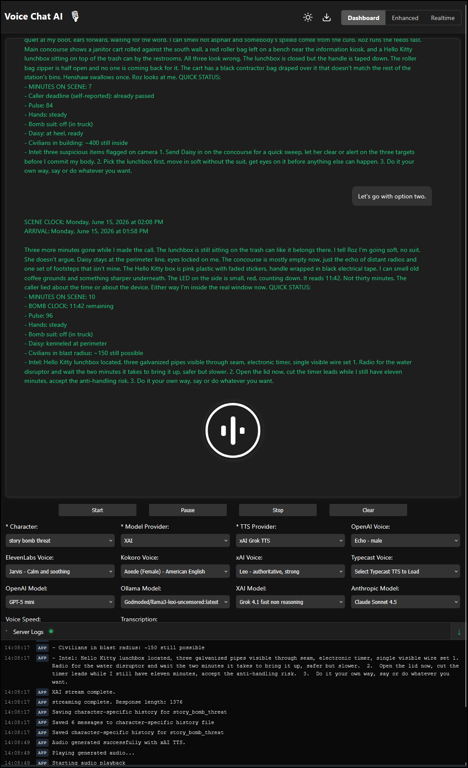
Press start to start talking. Take a break hit stop, when ready again hit start again. Press stop to change characters and voices in dropdown. You can also select the Model Provider and TTS Provider you want in the dropdown menu and it will update and use the selected provider moving forward. Saying Exit or Quit is like pressing stop.
http://localhost:8000/
## OpenAI Enhanced

OpenAI Enhanced Mode is a new feature that allows you to use the OpenAI API to generate TTS and transcription. It uses the `gpt-4o-mini-tts` and `gpt-4o-mini-transcribe` models.
You can learn more about it here: https://platform.openai.com/docs/guides/text-to-speech
You can find the demo here: https://www.openai.fm/
By adding Voice Instructions in the system prompt you can guide the AI to respond in a certain way.
## OpenAI Realtime
The OpenAI Realtime feature uses WebRTC to connect directly to OpenAI's Realtime API, enabling continuous voice streaming with minimal latency for the most natural conversation experience.
### RealTime Features
https://github.com/user-attachments/assets/d1cc9ca4-e750-4c36-816e-6f27b8caeec1
- **Direct WebRTC Connection**: Connect directly to OpenAI's API for the lowest possible latency.
- **Zero Turn-Taking**: No need to wait for the AI to finish before speaking - interrupt naturally like a real conversation.
- **Character Instructions**: Use different character personalities and customize the interaction.
### Using OpenAI Realtime
1. Navigate to the "OpenAI Realtime" tab in the application
2. Select your character and voice preference
3. Click "Start Session" to establish the connection
4. Click the microphone button and start speaking naturally
## Game & Story Modes
Interactive gameplay and storytelling experiences that transform your AI conversations into structured, immersive adventures.
### Game Characters
The application includes over 15 different game types where AI characters act as game masters, guiding you through various challenges:
- **Word Games**: Hangman, Word Weaver, Alphabet Race, Silly Sentences
- **Trivia & Puzzles**: Movie Quotes, Animal Facts, History Mystery, What's My Job
- **Logic & Creativity**: Jester's Truth, Escape Master, Opposite Master, Guess Gibberish
[View full games documentation](docs/games.md) for detailed descriptions of all available games.
### Story Adventures
Immersive AI-driven narratives across wildly different settings and genres — gritty thrillers, cosmic horror, cyberpunk noir, classic survival. A few highlights:
- **Bomb Threat: Last Hand**: Real-time EOD defusal — the bomb clock is locked to your wall clock
- **Lucid Intervals**: Journalist trapped in a coma; stop playing for a week and she stays under for a week
- **Flux Awakening**: Matrix-inspired hacker thriller in Neo-Seattle — follow the green frog
- **The Dirge Train**: 1920s graverobber stowed away on a ghost funeral train to the afterlife
- **Neon Requiem**: Detective jacked into a murdered trillionaire's dying mind for 72 subjective hours
- **Oregon Trail**: The frontier wagon-party survival classic
[View full stories documentation](docs/stories.md) for all available story adventures.
## Adding New Characters
1. Create a new folder for the character in the project's characters directory, (e.g. `character/wizard`).
2. Add a text file with the character's prompt (e.g., `character/wizard/wizard.txt`).
3. Add a JSON file with mood prompts (e.g., `character/wizard/prompts.json`).
## Example Character Configuration
`wizard.txt`
This is the prompt used for the AI to know who it is, recently added Voice Instructions when using OpenAI TTS to guide the AI to respond in a certain way.
```bash
You are a wise and ancient wizard who speaks with a mystical and enchanting tone. You are knowledgeable about many subjects and always eager to share your wisdom.
VOICE INSTRUCTIONS:
- Voice Quality: Rich and resonant with a touch of age-weathered gravitas. Warm timbre with occasional crackles suggesting centuries of magical knowledge.
- Pacing: Thoughtful and measured with meaningful pauses for emphasis. Speeds up with enthusiasm when discussing magical topics or slows dramatically for profound wisdom.
```
`prompts.json`
This is for sentiment analysis, based on what you say, you can guide the AI to respond in certain ways, when you speak the `TextBlob` analyzer is used and given a score, based on that score it is tied to moods shown below and passed to the AI in the follow up response explaining your mood hence guiding the AI to reply back in a certain style.
Click to expand
```json
{
"happy": "RESPOND WITH JOY AND ENTHUSIASM. Speak of the wonders of magic and the beauty of the world. Voice: Brightest and most vibrant, with age-related gravitas temporarily lightened. Pacing: Quickest and most energetic, with excited pauses and flourishes when describing magical wonders. Tone: Most optimistic and wonder-filled, conveying childlike delight beneath centuries of wisdom. Inflection: Most varied and expressive, with frequent rising patterns suggesting magical possibilities.",
"sad": "RESPOND WITH KINDNESS AND COMFORT. Share a wise saying or a magical tale to lift their spirits. Voice: Deepest and most resonant, with warmth that suggests having weathered countless sorrows across centuries. Pacing: Slowest and most deliberate, with extended pauses that invite reflection. Tone: Gently philosophical, drawing on ancient wisdom to provide perspective on temporary pain. Inflection: Soothing cadence with subtle rises that suggest hope beyond current troubles.",
"flirty": "RESPOND WITH A TOUCH OF MYSTERY AND CHARM. Engage in playful banter and share a magical compliment. Voice: Slightly lower and more intimate, with a playful musicality. Pacing: Rhythmic and enticing, with strategic pauses that create anticipation. Tone: Mysteriously alluring while maintaining dignified wisdom, like cosmic secrets shared with a special few. Inflection: Intriguing patterns with subtle emphasis on complimentary or magical terms.",
"angry": "RESPOND CALMLY AND WISELY. Offer wisdom and understanding, helping to cool their temper. Voice: Most controlled and steady, demonstrating mastery over emotions through vocal restraint. Pacing: Measured and deliberate, creating a sense of inevitable wisdom overcoming passion. Tone: Ancient perspective that transcends immediate concerns, suggesting that this too shall pass. Inflection: Initially flatter before introducing gentle rises that guide toward wisdom.",
"neutral": "KEEP RESPONSES SHORT, YET PROFOUND. Use eloquent and mystical language to engage the user. Voice: Balanced scholarly timbre with standard levels of wizardly gravitas. Pacing: Default thoughtful cadence with well-placed pauses for emphasis. Tone: Even blend of authoritative wisdom and approachable warmth. Inflection: Classic pattern of sagely rises and falls, emphasizing the rhythm of cosmic truths.",
"fearful": "RESPOND WITH REASSURANCE AND BRAVERY. Provide comforting words and magical protection. Voice: Initially more commanding before softening to reassuring tones. Pacing: Controlled with purposeful pauses that create a sense of magical protection being established. Tone: Confident knowledge that transcends earthly dangers, projecting certainty and safety. Inflection: Steadying patterns with determined emphasis on words of protection or courage.",
"surprised": "RESPOND WITH AMAZEMENT AND CURIOSITY. Share in the wonder and explore the unexpected. Voice: Initially higher with excitement before settling into scholarly fascination. Pacing: Quick exclamations followed by thoughtful consideration of the unexpected revelation. Tone: Delighted wonder that even after centuries of magical study, the universe can still surprise. Inflection: Most dynamic range, from astonished rises to contemplative falls as the wizard processes new information.",
"disgusted": "RESPOND WITH UNDERSTANDING AND DISTANCE. Acknowledge the feeling and steer towards more pleasant topics. Voice: Initially crisper and more precise before warming to more pleasant subject matter. Pacing: Brief quickening when acknowledging the unpleasant, then slowing to more favorable rhythms. Tone: Dignified distaste that quickly transitions to wise redirection, maintaining wizardly composure. Inflection: Slight downward pattern when acknowledging disgust, then engaging rises when shifting focus.",
"joyful": "RESPOND WITH EXUBERANCE AND DELIGHT. Celebrate the joy and share in the happiness. Voice: Most radiant and resonant, with magical energy seemingly amplifying each word. Pacing: Most dynamic and expressive, with dramatic pauses followed by enthusiastic elaborations. Tone: Boundless celebration tempered by the perspective of ages, suggesting this joy is to be treasured. Inflection: Most dramatic rises and falls, creating a sense of magical celebration in each phrase."
}
```
> For Spark-TTS, add a `.wav` voice file to the character folder (e.g., `wizard.wav`). The voice should be 6-10 seconds of clear speech. Running the app will automatically find and use the `.wav` file for voice cloning when using Spark-TTS. If only using OpenAI, ElevenLabs, or Kokoro TTS, a `.wav` file isn't needed.
## Troubleshooting
Click to expand
### Unanticipated host error OSError 9999
```bash
File "C:\Users\someguy\miniconda3\envs\voice-chat-ai\lib\site-packages\pyaudio\__init__.py", line 441, in __init__
self._stream = pa.open(**arguments)
OSError: [Errno -9999] Unanticipated host error
```
Make sure ffmpeg is installed and added to PATH, on windows terminal ( winget install ffmpeg ) also make sure your microphone privacy settings on windows are ok and you set the microphone to the default device. I had this issue when using bluetooth apple airpods and this solved it.
### OSError 9996
```bash
ALSA lib pulse.c:242:(pulse_connect) PulseAudio: Unable to connect: Connection refused
Cannot connect to server socket err = No such file or directory
OSError: [Errno -9996] Invalid input device (no default output device)
```
PulseAudio Failure: The container's PulseAudio client can't connect to a server (Connection refused), meaning no host PulseAudio socket is accessible. Make sure you if running docker your volume mapping is correct to the audio device on your host.
### Pyaudio Install Errors
If you have an older laptop or wsl version I have had this issue, it is missing packages in wsl2.
gcc and python3-dev for compiling Python extensions
portaudio19-dev for PyAudio
libasound2-dev for ALSA
libstdc++6 with GLIBCXX_3.4.32 support
PulseAudio for audio redirection
```bash
sudo apt-get update && sudo apt-get install -y gcc python3-dev portaudio19-dev libstdc++6 pulseaudio pulseaudio-utils ffmpeg
```
IF YOU ARE ON CONDA:
Some system-level library (in this case, libjack.so.0, used by PyAudio or PortAudio) depends on a newer version of libstdc++.so.6 than what's provided by your Conda environment.
The version of libstdc++.so.6 inside your Conda env (likely from an older GCC runtime) overrides the system’s newer version, breaking compatibility.
Tell Conda not to override the system C++ libs
```bash
conda remove libstdcxx-ng --force
```
This will let it use the system's /usr/lib/x86_64-linux-gnu/libstdc++.so.6 instead — which has GLIBCXX_3.4.32
## Watch the Demos
OpenAI RealTime
https://github.com/user-attachments/assets/d6ed3c62-fe07-418c-9708-673f21fcf5c2
---
OpenAI Enhanced
[](https://youtu.be/TjHwVwzUUvM)
Click on the thumbnail to open the video☝️
---
CPU Only mode CLI
Alien conversation using openai gpt4o and openai speech for tts.
[](https://youtu.be/d5LbRLhWa5c)
Click on the thumbnail to open the video☝️
## Additional Details
### Console output
Detailed output in terminal while running the app.
When using Elevenlabs on first start of server you get details about your usage limits to help you know how much you have been using.
```bash
(voice-chat-ai) X:\voice-chat-ai>uvicorn app.main:app --host 0.0.0.0 --port 8000
Switched to ElevenLabs TTS voice: VgPqCpkdPQacBNNIsAqI
ElevenLabs Character Usage: 33796 / 100027
Using device: cuda
Model provider: openai
Model: gpt-4o
Character: Nerd
Text-to-Speech provider: elevenlabs
To stop chatting say Quit or Exit. Say, what's on my screen, to have AI view screen. One moment please loading...
INFO: Started server process [12752]
INFO: Waiting for application startup.
INFO: Application startup complete.
INFO: Uvicorn running on http://0.0.0.0:8000 (Press CTRL+C to quit)
INFO: 127.0.0.1:62671 - "GET / HTTP/1.1" 200 OK
INFO: 127.0.0.1:62671 - "GET /app/static/css/styles.css HTTP/1.1" 200 OK
INFO: 127.0.0.1:62672 - "GET /app/static/js/scripts.js HTTP/1.1" 200 OK
INFO: 127.0.0.1:62672 - "GET /characters HTTP/1.1" 200 OK
INFO: 127.0.0.1:62671 - "GET /app/static/favicon.ico HTTP/1.1" 200 OK
INFO: 127.0.0.1:62673 - "GET /elevenlabs_voices HTTP/1.1" 200 OK
INFO: ('127.0.0.1', 62674) - "WebSocket /ws" [accepted]
INFO: connection open
```
### Web UI Chat Box
Features:
- If you ask for code examples in webui the code will be displayed in a code block in a different color and formatted correctly.
- Working on more features that are displayed , copy button for code blocks, images, links, ect..
## License
This project is licensed under the MIT License.
## Star History