twrap
===
A TUI wrapper for applying rules to live terminal screens.
## About
`twrap` launches an interactive terminal application as a child process and wraps its screen with extra behavior from the outside.
It is designed for practical live-screen automation such as highlighting matches, masking sensitive text, taking screenshots, and remapping keys without modifying the target TUI itself.
## Install
```bash
cargo install twrap
```
## Example
### Use vim & less
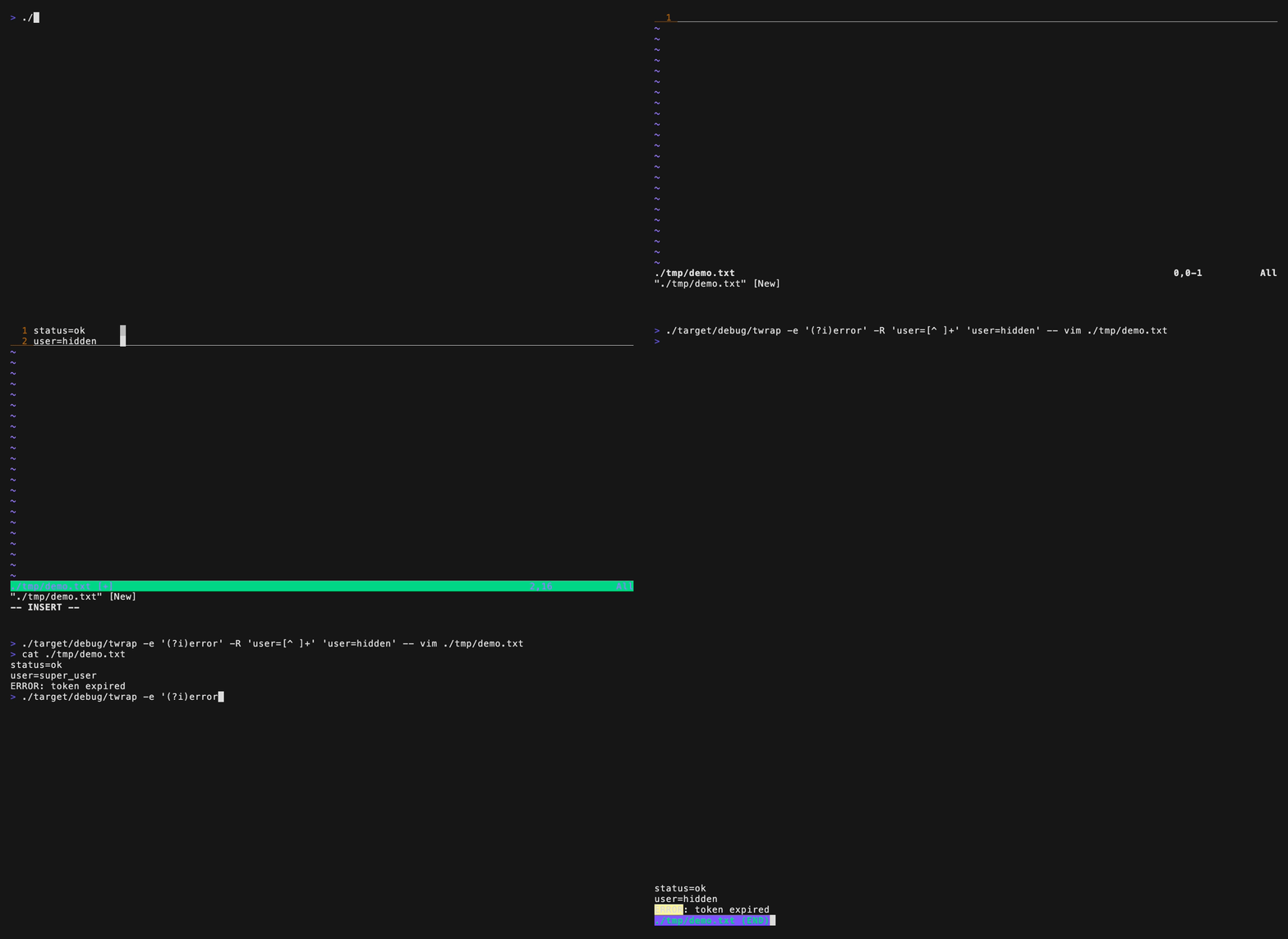 This demo wraps both `vim` and `less` with the same live screen rules.
`twrap` highlights `ERROR` lines and rewrites `user=...` to `user=hidden` on screen, so the sensitive value is hidden in the TUI while the original file content stays unchanged.
### Use htop
This demo wraps both `vim` and `less` with the same live screen rules.
`twrap` highlights `ERROR` lines and rewrites `user=...` to `user=hidden` on screen, so the sensitive value is hidden in the TUI while the original file content stays unchanged.
### Use htop
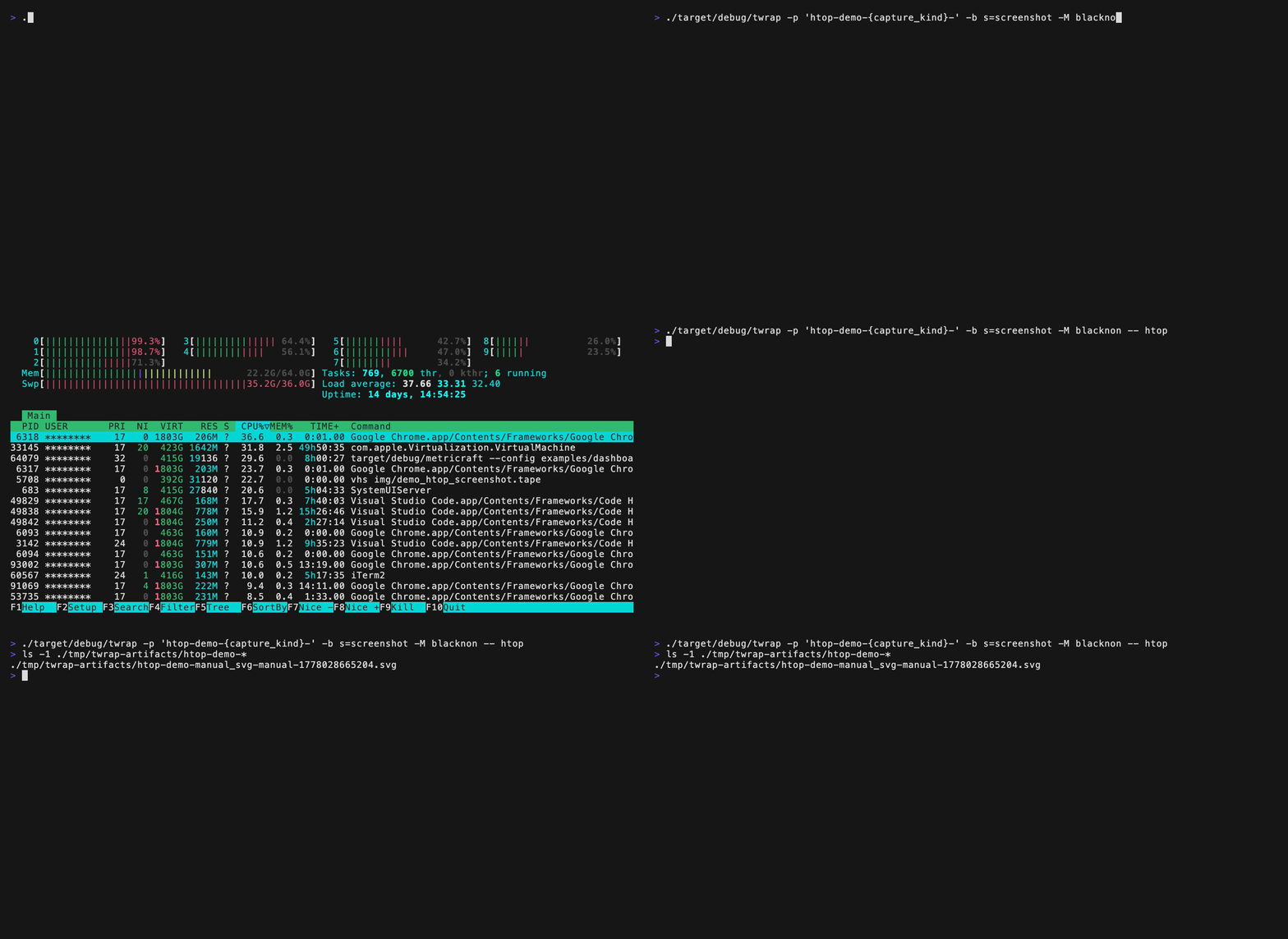 This demo wraps `htop` with live masking and a custom screenshot key.
`twrap` masking `blacknon` to `*` on screen, remaps `s` to the screenshot action, and saves the captured SVG under `./tmp/twrap-artifacts/` with the configured `htop-demo-...` prefix.
#### Screenshot
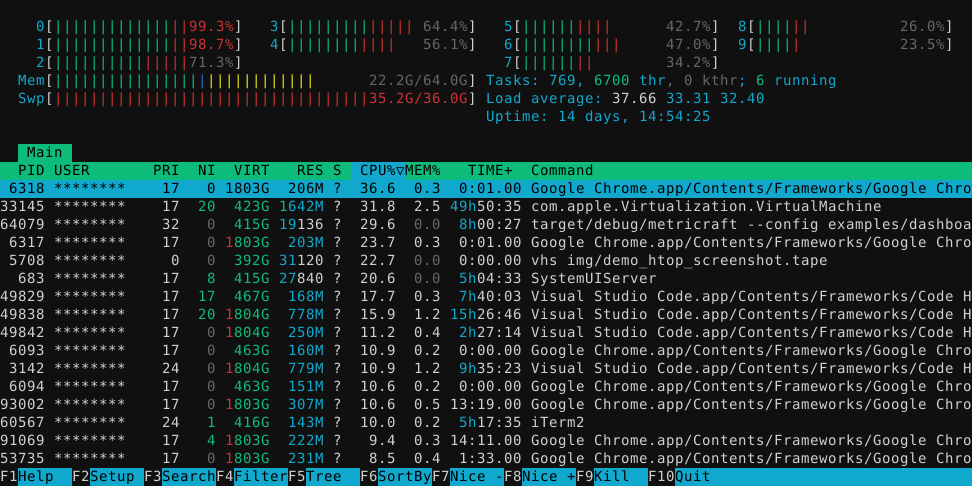
This demo wraps `htop` with live masking and a custom screenshot key.
`twrap` masking `blacknon` to `*` on screen, remaps `s` to the screenshot action, and saves the captured SVG under `./tmp/twrap-artifacts/` with the configured `htop-demo-...` prefix.
#### Screenshot
 ## Usage
Use `twrap` by placing its options before the target TUI command.
You can still add `--` when you want to make the command boundary explicit.
You can combine highlighting, screenshots, masking, replacement, and key remapping in a single run.
### Command
```bash
twrap [options] [args...]
```
```text
$ twrap --help
Wrap an existing TUI and add highlights plus screenshots
Usage: twrap [OPTIONS] ...
Arguments:
...
Options:
-e, --highlight
-H, --highlight-color [default: #fff59d]
-x, --highlight-command
-S, --highlight-capture-tui-screenshot
-o, --screenshot-dir [default: tmp/twrap-artifacts]
-p, --screenshot-prefix
-k, --screenshot-key [default: ctrl-g]
-b, --bind
-R, --replace
-M, --mask
-c, --mask-char [default: *]
-C, --startup-capture-ms [default: 0]
-h, --help Print help
-V, --version Print version
```
### Set keybind
Remap keys before they reach the wrapped TUI with `--bind FROM=TO`.
This is useful for shortcut aliases or assigning actions such as screenshots.
`TO` supports `screenshot`, key names like `up`, `down`, `enter`, `f1`, `ctrl-c`, or `text:...`.
Example:
```bash
twrap -b j=down -b k=up -b ctrl-p=screenshot lazygit
```
### Get screenshot
Save screenshots from the wrapped screen with `--screenshot-key`, `--screenshot-dir`, and `--screenshot-prefix`.
Enable `-S` if you also want screenshots captured when a highlight command matches.
Screenshots are saved as SVG files.
Prefix templates support `{key}`, `{backend}`, `{capture_kind}`, `{ext}`, `{timestamp}`, and `{env:NAME}`.
Example:
```bash
twrap -p 'nightly-{capture_kind}-{timestamp}-' -k ctrl-t btop
```
### Hilight keyword, auto execute command, and get auto screenshot
Highlight matching text with `--highlight PATTERN`.
Add `--highlight-command '...'` to run a command when a match appears, and add `-S` to save a screenshot at the same time.
The command receives event data through environment variables such as `TWRAP_HIGHLIGHT_KEY`, `TWRAP_HIGHLIGHT_PATTERN`, `TWRAP_HIGHLIGHT_MATCHES_JSON`, and `TWRAP_HIGHLIGHT_EVENT_JSON`.
You can also interpolate `{backend}`, `{key}`, `{pattern}`, `{matches_json}`, `{event_json}`, and `{capture_path}` anywhere in the command arguments.
When `-S` is enabled, `TWRAP_HIGHLIGHT_CAPTURE_PATH` is also set to the saved screenshot path.
Example:
```bash
twrap -e '(?i)error' -x 'notify-send "twrap: {key}" "{matches_json}"' -S htop
```
### Masking
Hide sensitive text on screen with `--mask PATTERN`.
Each matched character is replaced with the configured mask character.
`--mask-char` changes the masking character.
Example:
```bash
twrap -M 'token=[^ ]+' htop
```
### Replace keyword
Rewrite matched text on screen with `--replace PATTERN TEXT`.
This is useful when you want a stable visible label instead of the original text.
Replacement is fitted to the matched display width, truncating or padding with spaces when needed.
Example:
```bash
twrap -R 'user=[^ ]+' 'user=hidden' htop
```
## Related Projects
- [baeru](https://github.com/blacknon/baeru): an earlier TUI wrapper project based on the same core idea.
## License
MIT. See [LICENSE](LICENSE).
## Usage
Use `twrap` by placing its options before the target TUI command.
You can still add `--` when you want to make the command boundary explicit.
You can combine highlighting, screenshots, masking, replacement, and key remapping in a single run.
### Command
```bash
twrap [options] [args...]
```
```text
$ twrap --help
Wrap an existing TUI and add highlights plus screenshots
Usage: twrap [OPTIONS] ...
Arguments:
...
Options:
-e, --highlight
-H, --highlight-color [default: #fff59d]
-x, --highlight-command
-S, --highlight-capture-tui-screenshot
-o, --screenshot-dir [default: tmp/twrap-artifacts]
-p, --screenshot-prefix
-k, --screenshot-key [default: ctrl-g]
-b, --bind
-R, --replace
-M, --mask
-c, --mask-char [default: *]
-C, --startup-capture-ms [default: 0]
-h, --help Print help
-V, --version Print version
```
### Set keybind
Remap keys before they reach the wrapped TUI with `--bind FROM=TO`.
This is useful for shortcut aliases or assigning actions such as screenshots.
`TO` supports `screenshot`, key names like `up`, `down`, `enter`, `f1`, `ctrl-c`, or `text:...`.
Example:
```bash
twrap -b j=down -b k=up -b ctrl-p=screenshot lazygit
```
### Get screenshot
Save screenshots from the wrapped screen with `--screenshot-key`, `--screenshot-dir`, and `--screenshot-prefix`.
Enable `-S` if you also want screenshots captured when a highlight command matches.
Screenshots are saved as SVG files.
Prefix templates support `{key}`, `{backend}`, `{capture_kind}`, `{ext}`, `{timestamp}`, and `{env:NAME}`.
Example:
```bash
twrap -p 'nightly-{capture_kind}-{timestamp}-' -k ctrl-t btop
```
### Hilight keyword, auto execute command, and get auto screenshot
Highlight matching text with `--highlight PATTERN`.
Add `--highlight-command '...'` to run a command when a match appears, and add `-S` to save a screenshot at the same time.
The command receives event data through environment variables such as `TWRAP_HIGHLIGHT_KEY`, `TWRAP_HIGHLIGHT_PATTERN`, `TWRAP_HIGHLIGHT_MATCHES_JSON`, and `TWRAP_HIGHLIGHT_EVENT_JSON`.
You can also interpolate `{backend}`, `{key}`, `{pattern}`, `{matches_json}`, `{event_json}`, and `{capture_path}` anywhere in the command arguments.
When `-S` is enabled, `TWRAP_HIGHLIGHT_CAPTURE_PATH` is also set to the saved screenshot path.
Example:
```bash
twrap -e '(?i)error' -x 'notify-send "twrap: {key}" "{matches_json}"' -S htop
```
### Masking
Hide sensitive text on screen with `--mask PATTERN`.
Each matched character is replaced with the configured mask character.
`--mask-char` changes the masking character.
Example:
```bash
twrap -M 'token=[^ ]+' htop
```
### Replace keyword
Rewrite matched text on screen with `--replace PATTERN TEXT`.
This is useful when you want a stable visible label instead of the original text.
Replacement is fitted to the matched display width, truncating or padding with spaces when needed.
Example:
```bash
twrap -R 'user=[^ ]+' 'user=hidden' htop
```
## Related Projects
- [baeru](https://github.com/blacknon/baeru): an earlier TUI wrapper project based on the same core idea.
## License
MIT. See [LICENSE](LICENSE).