![]()
See what is slowing your Mac down, and fix it from the menu bar.
An open-source resource monitor and careful storage cleaner, built by BlitzReels.
Free on macOS 14 or later. No account, no subscription, no telemetry.
Download for macOS · Features · Architecture · Contribute · Release notes
 BlitzClean is for developers and creators whose Macs fill up with builds, caches, simulators, AI agents, and dev servers. It shows CPU, memory, and free disk space in the menu bar, tells you which one is the bottleneck, and gives you one window to act: quit or pause what is using memory, revive frozen apps, and remove data that tools rebuild on their own. Nothing leaves your Mac. Overview offers one-click cleanup of eligible rebuildable caches; other removals are reviewed first, and personal files go to the Trash. ## What you can do - Clean old, rebuildable caches from Overview with one click, with activity checks, animated progress, and a result showing removed cache bytes separately from the change in free disk space. - See the limiting resource at a glance. The menu bar shows live numbers, and a warning names what is short (memory, swap, disk reserve, or CPU) with one instruction. - Free memory by stopping apps, AI workers, and project services. Suspend/Resume keeps worker memory allocated. - Open independent emergency controls with Control–Option–Command–R, even while the dashboard is busy. Select local workers or the shared Codex app, then Stop; Force Stop requires confirmation. - Stop project dev servers and associated Docker containers together, preserving database volumes. - Inspect individual process footprints in Memory → Processes, sorted by RAM and searchable by name, owner, project path, or PID. Restricted measurements stay marked as unavailable. - Revive apps that stopped or froze, and see whether each one actually recovered. - Find leftover processes in Projects, with their RAM, CPU, folder, and uptime. Quit one directly; Force Quit and Quit all ask first. AI sessions and protected projects keep their existing controls. - Find what fills your disk by browsing every drive with folder sizes, or by ranking the largest files. - Review caches, `node_modules`, build output, simulators, Docker, and merged worktrees before removing them, and see when removed folders grow back. - Reduce supported System Data in Storage → Cleanup: eligible browser and developer caches, plus crash and hang reports older than 30 days. Reports require explicit selection and review. - Filter large videos and images, find exact duplicates, and make smaller copies with FFmpeg.
|
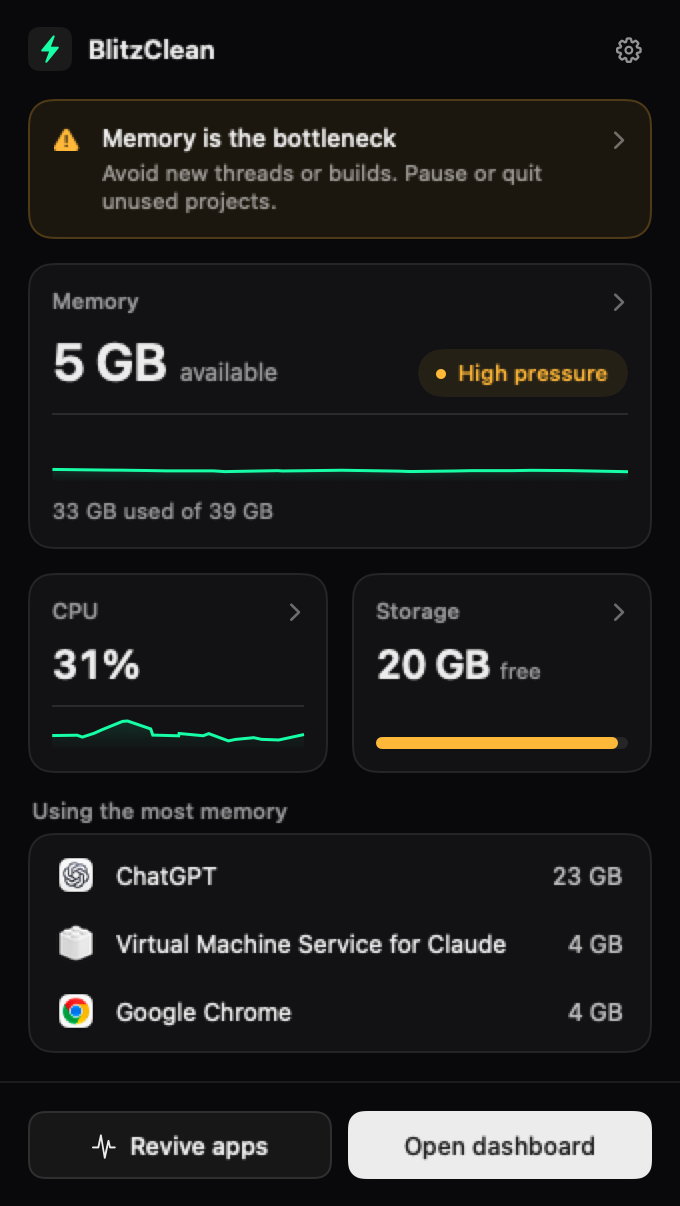
Always in the menu barMemory, CPU, and storage at a glance, the apps using the most memory, and a warning only when something needs you. Closing the dashboard keeps monitoring on; quit from the panel's gear menu. Choose what the menu bar shows in Settings: available memory, used memory, or a percentage. |