[Overview](../README.md) . [Inspect](inspect.md) . [Capture](capture.md)
# Record
Records all WebGPU commands and associated data needed to recreate a render, and can play the
recording back inside the panel or export it to a self-contained file.
Unlike the Capture tool — which inspects any single frame but doesn't capture enough information to
re-create a render — the Recorder tracks the WebGPU objects and data required to reproduce the
rendering on its own. The Recorder uses `requestAnimationFrame` to delimit frames, so it currently
does not work with apps that don't render via `requestAnimationFrame`. Frame indices refer to the
absolute `requestAnimationFrame` count since the page loaded.
Starting a recording reloads the page so the Recorder can wrap WebGPU before any rendering begins.
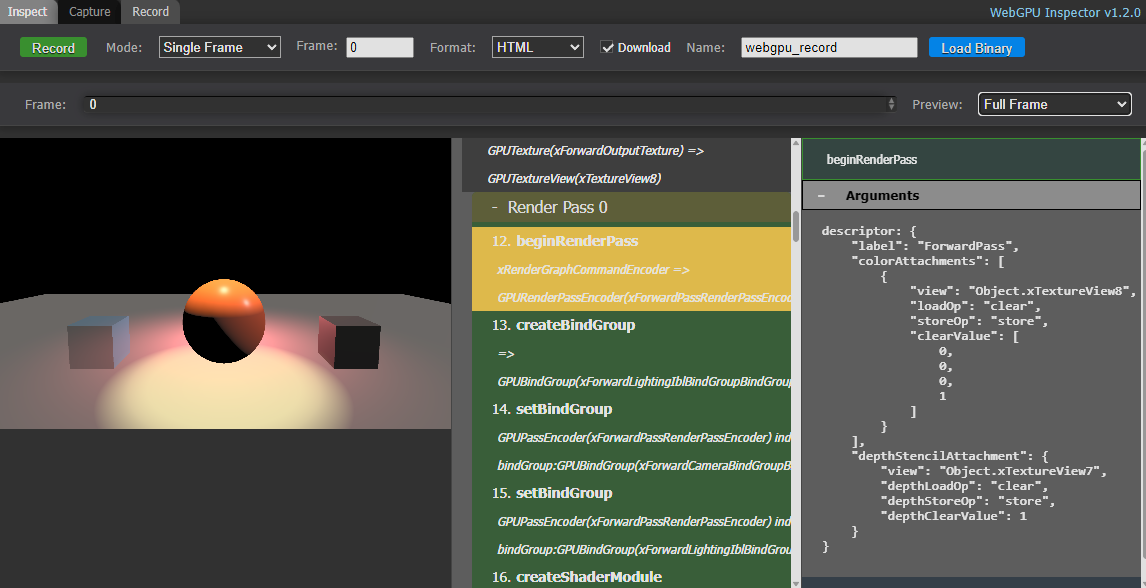 ## Recording Modes
The **Mode** dropdown selects which frame(s) to capture:
- **Single Frame** (default): Capture one frame by its absolute frame index, entered in the **Frame**
field.
- **Frame Range**: Capture a contiguous range of frames, from **Start** to **End** (inclusive). Each
frame is written as its own recording, so a range produces one file per frame.
- **Multi-Frame**: Capture an explicit list of frames, entered as comma-separated indices (e.g.
`5,10`). As with Frame Range, each captured frame is written as its own recording.
- **On Demand**: Don't capture a preset frame. The page runs normally with the Recorder tracking
state, and a **Capture Frame** button captures whichever frame comes next when clicked. Enable
**Continuous** to keep tracking after a capture so you can capture more frames in the same
session; otherwise recording stops after the first captured frame.
## Output Format
The **Format** dropdown selects what the recording is exported as:
- **HTML**: A self-contained `.html` file with embedded JavaScript and resource data that recreates
the render with no engine code. Open it in a browser to play it back, edit the JavaScript, and
diagnose or experiment with the rendering outside of your engine. Useful for isolated bug
reproductions and render debugging.
- **Binary**: A compact `.wgpu` file that stores the raw buffer/texture data without the base64
inflation of the HTML format, producing much smaller files for large recordings. Binary recordings
are loaded back into the Record panel (see **Load Binary** below) or played with `webgpu_player.js`.
- **Both**: Export both the HTML and binary files.
When recording HTML (or Both), the commands are also streamed into the panel for live playback. A
Binary-only recording is not streamed to the panel; load the saved `.wgpu` file to view it.
## Options
- **Mode**: The recording mode (see above), with its mode-specific inputs (Frame / Start+End /
Frames / Continuous).
- **Format**: The output format (HTML, Binary, or Both).
- **Download**: If checked, the generated recording file(s) are downloaded automatically.
- **Name**: The base filename for the downloaded recording, used as `.html` and/or
`.wgpu`.
- **Record**: Starts a recording with the selected options (reloads the page).
- **Capture Frame**: (On Demand mode, after recording has started) Triggers capture of the next
frame.
- **Menu** (the **☰** button, left of **Record**): Save and load recordings from the panel:
- **Save Binary**: Saves the recording currently loaded in the panel as a `.wgpu` file.
- **Save HTML**: Saves the recording as a self-contained `.html` playback page.
- **Load Binary**: Opens a `.wgpu` file and plays it back in the panel.
**Save Binary** and **Save HTML** are enabled once a recording is loaded — whether captured live
or loaded from a `.wgpu` file — so a recording can be saved without relying on the **Download**
option, and a panel-loaded recording can be re-exported to either format.
## Downloaded Recording Files
If **Download** is checked, the Recorder downloads the recording in the selected format:
- The **HTML** file embeds the JavaScript and all buffer/texture data, and recreates the rendered
frame(s) standalone.
- The **Binary** `.wgpu` file stores the commands and raw resource data compactly. It can be
re-opened in the Record panel with **Load Binary**, or played with `webgpu_player.js`.
## Recording View
When a recording is ready — whether captured live or loaded from a `.wgpu` file — the panel shows
three columns:
- **Preview canvas** (left): The rendered result of the current preview.
- **Command list** (middle): The recorded commands, grouped by render/compute pass with pass labels
and debug groups, with a **Filter** box to narrow the list.
- **Command details** (right): For the selected command, its method, a lightweight summary, its
editable arguments, and result.
A **Frame** input (defaults to the last frame) and a **Preview** mode select control what the canvas
shows:
- **Selected Command**: Replays the commands up to and including the selected command (closing its
pass and submitting), so you can see the render at any stage of the frame.
- **Full Frame**: Replays the whole frame — the selected command's frame, or, when no command is
selected, the frame chosen in the **Frame** input.
For multi-frame recordings, each recorded frame appears in the command list and can be previewed.
## Editing a Recording
A loaded recording can be edited in the panel before saving. Edits affect the preview immediately
and are written to the file when you **Save Binary** / **Save HTML** from the menu.
- **Disable / enable commands**: Hovering a command row reveals a checkbox. Unchecking it disables
the command — it is dimmed, skipped in the preview, and removed from the saved recording.
Re-checking re-enables it. Foundational commands (`requestAdapter`, `requestDevice`, `getQueue`,
`configure`) can't be disabled.
- **Disable / enable a whole pass**: Each render/compute pass group header has its own checkbox
(revealed on hover) that reflects the pass's `beginRenderPass` / `beginComputePass` command.
Unchecking it disables the entire pass — its begin, contents, and `end` — even while the group is
collapsed.
- **Implicit disabling**: Disabling a command also disables everything that depends on it, shown in
a lighter italic style with an indeterminate (`–`) checkbox:
- Disabling a command that creates an object (e.g. `createRenderPipeline`, `createBuffer`,
`createView`) disables every command that uses that object — and this cascades.
- Disabling either half of a begin/end pair (render/compute pass, debug group, error scope) also
disables its partner and everything inside the block.
- Within a pass, disabling a state command (`setPipeline`, `setBindGroup`, `setVertexBuffer`,
`setIndexBuffer`) disables the draws that rely on that state; disabling a `setPipeline` disables
its whole group of bindings and draws.
- When a resource (buffer/texture) is no longer consumed by any enabled command — for example its
bind group's `setBindGroup` was disabled — the commands that only create or populate it
(`createBuffer`, `writeBuffer`, `createTexture`, `writeTexture`, …) are disabled too, cascading
upstream through bind groups, pipelines, and shader modules.
- **Bulk disable / enable**: Click to select a command, `Ctrl`/`Cmd`-click to add or remove
individual commands, and `Shift`-click to select a range (ranges may span frames). Right-click the
selection for **Disable** / **Enable**, or toggle any selected row's checkbox to apply to the
whole selection.
- **Hide Disabled**: A toolbar toggle that hides disabled commands from the list (they remain in the
recording until saved).
- **Edit arguments**: In the command details pane, each argument is editable. Numbers, strings, and
booleans edit inline; object/array arguments edit as JSON (object references like `{"__id": ...}`
are preserved). Changes commit on Enter or when the field loses focus.
- **Undo / Redo / Revert**: The toolbar provides **Undo** and **Redo** for edits, and **Revert** to
restore the recording to its as-loaded state (revert is itself undoable). A **● Modified**
indicator appears whenever the recording differs from the loaded baseline.
Saving a recording with disabled commands writes only the enabled commands, and any data
(buffer/texture contents) no longer referenced by an enabled command is dropped from the file, so
the saved recording stays compact.
Implicit disabling keeps most edits consistent — disabling a `beginRenderPass` also disables its
`end` and contents, and disabling a resource's creator disables everything that used it. Edits that
the dependency rules can't account for (for example changing an argument to reference an object that
is no longer created) can still produce a recording whose preview logs errors. Use **Undo** or
re-enable the command to recover.
## Recording Modes
The **Mode** dropdown selects which frame(s) to capture:
- **Single Frame** (default): Capture one frame by its absolute frame index, entered in the **Frame**
field.
- **Frame Range**: Capture a contiguous range of frames, from **Start** to **End** (inclusive). Each
frame is written as its own recording, so a range produces one file per frame.
- **Multi-Frame**: Capture an explicit list of frames, entered as comma-separated indices (e.g.
`5,10`). As with Frame Range, each captured frame is written as its own recording.
- **On Demand**: Don't capture a preset frame. The page runs normally with the Recorder tracking
state, and a **Capture Frame** button captures whichever frame comes next when clicked. Enable
**Continuous** to keep tracking after a capture so you can capture more frames in the same
session; otherwise recording stops after the first captured frame.
## Output Format
The **Format** dropdown selects what the recording is exported as:
- **HTML**: A self-contained `.html` file with embedded JavaScript and resource data that recreates
the render with no engine code. Open it in a browser to play it back, edit the JavaScript, and
diagnose or experiment with the rendering outside of your engine. Useful for isolated bug
reproductions and render debugging.
- **Binary**: A compact `.wgpu` file that stores the raw buffer/texture data without the base64
inflation of the HTML format, producing much smaller files for large recordings. Binary recordings
are loaded back into the Record panel (see **Load Binary** below) or played with `webgpu_player.js`.
- **Both**: Export both the HTML and binary files.
When recording HTML (or Both), the commands are also streamed into the panel for live playback. A
Binary-only recording is not streamed to the panel; load the saved `.wgpu` file to view it.
## Options
- **Mode**: The recording mode (see above), with its mode-specific inputs (Frame / Start+End /
Frames / Continuous).
- **Format**: The output format (HTML, Binary, or Both).
- **Download**: If checked, the generated recording file(s) are downloaded automatically.
- **Name**: The base filename for the downloaded recording, used as `.html` and/or
`.wgpu`.
- **Record**: Starts a recording with the selected options (reloads the page).
- **Capture Frame**: (On Demand mode, after recording has started) Triggers capture of the next
frame.
- **Menu** (the **☰** button, left of **Record**): Save and load recordings from the panel:
- **Save Binary**: Saves the recording currently loaded in the panel as a `.wgpu` file.
- **Save HTML**: Saves the recording as a self-contained `.html` playback page.
- **Load Binary**: Opens a `.wgpu` file and plays it back in the panel.
**Save Binary** and **Save HTML** are enabled once a recording is loaded — whether captured live
or loaded from a `.wgpu` file — so a recording can be saved without relying on the **Download**
option, and a panel-loaded recording can be re-exported to either format.
## Downloaded Recording Files
If **Download** is checked, the Recorder downloads the recording in the selected format:
- The **HTML** file embeds the JavaScript and all buffer/texture data, and recreates the rendered
frame(s) standalone.
- The **Binary** `.wgpu` file stores the commands and raw resource data compactly. It can be
re-opened in the Record panel with **Load Binary**, or played with `webgpu_player.js`.
## Recording View
When a recording is ready — whether captured live or loaded from a `.wgpu` file — the panel shows
three columns:
- **Preview canvas** (left): The rendered result of the current preview.
- **Command list** (middle): The recorded commands, grouped by render/compute pass with pass labels
and debug groups, with a **Filter** box to narrow the list.
- **Command details** (right): For the selected command, its method, a lightweight summary, its
editable arguments, and result.
A **Frame** input (defaults to the last frame) and a **Preview** mode select control what the canvas
shows:
- **Selected Command**: Replays the commands up to and including the selected command (closing its
pass and submitting), so you can see the render at any stage of the frame.
- **Full Frame**: Replays the whole frame — the selected command's frame, or, when no command is
selected, the frame chosen in the **Frame** input.
For multi-frame recordings, each recorded frame appears in the command list and can be previewed.
## Editing a Recording
A loaded recording can be edited in the panel before saving. Edits affect the preview immediately
and are written to the file when you **Save Binary** / **Save HTML** from the menu.
- **Disable / enable commands**: Hovering a command row reveals a checkbox. Unchecking it disables
the command — it is dimmed, skipped in the preview, and removed from the saved recording.
Re-checking re-enables it. Foundational commands (`requestAdapter`, `requestDevice`, `getQueue`,
`configure`) can't be disabled.
- **Disable / enable a whole pass**: Each render/compute pass group header has its own checkbox
(revealed on hover) that reflects the pass's `beginRenderPass` / `beginComputePass` command.
Unchecking it disables the entire pass — its begin, contents, and `end` — even while the group is
collapsed.
- **Implicit disabling**: Disabling a command also disables everything that depends on it, shown in
a lighter italic style with an indeterminate (`–`) checkbox:
- Disabling a command that creates an object (e.g. `createRenderPipeline`, `createBuffer`,
`createView`) disables every command that uses that object — and this cascades.
- Disabling either half of a begin/end pair (render/compute pass, debug group, error scope) also
disables its partner and everything inside the block.
- Within a pass, disabling a state command (`setPipeline`, `setBindGroup`, `setVertexBuffer`,
`setIndexBuffer`) disables the draws that rely on that state; disabling a `setPipeline` disables
its whole group of bindings and draws.
- When a resource (buffer/texture) is no longer consumed by any enabled command — for example its
bind group's `setBindGroup` was disabled — the commands that only create or populate it
(`createBuffer`, `writeBuffer`, `createTexture`, `writeTexture`, …) are disabled too, cascading
upstream through bind groups, pipelines, and shader modules.
- **Bulk disable / enable**: Click to select a command, `Ctrl`/`Cmd`-click to add or remove
individual commands, and `Shift`-click to select a range (ranges may span frames). Right-click the
selection for **Disable** / **Enable**, or toggle any selected row's checkbox to apply to the
whole selection.
- **Hide Disabled**: A toolbar toggle that hides disabled commands from the list (they remain in the
recording until saved).
- **Edit arguments**: In the command details pane, each argument is editable. Numbers, strings, and
booleans edit inline; object/array arguments edit as JSON (object references like `{"__id": ...}`
are preserved). Changes commit on Enter or when the field loses focus.
- **Undo / Redo / Revert**: The toolbar provides **Undo** and **Redo** for edits, and **Revert** to
restore the recording to its as-loaded state (revert is itself undoable). A **● Modified**
indicator appears whenever the recording differs from the loaded baseline.
Saving a recording with disabled commands writes only the enabled commands, and any data
(buffer/texture contents) no longer referenced by an enabled command is dropped from the file, so
the saved recording stays compact.
Implicit disabling keeps most edits consistent — disabling a `beginRenderPass` also disables its
`end` and contents, and disabling a resource's creator disables everything that used it. Edits that
the dependency rules can't account for (for example changing an argument to reference an object that
is no longer created) can still produce a recording whose preview logs errors. Use **Undo** or
re-enable the command to recover.