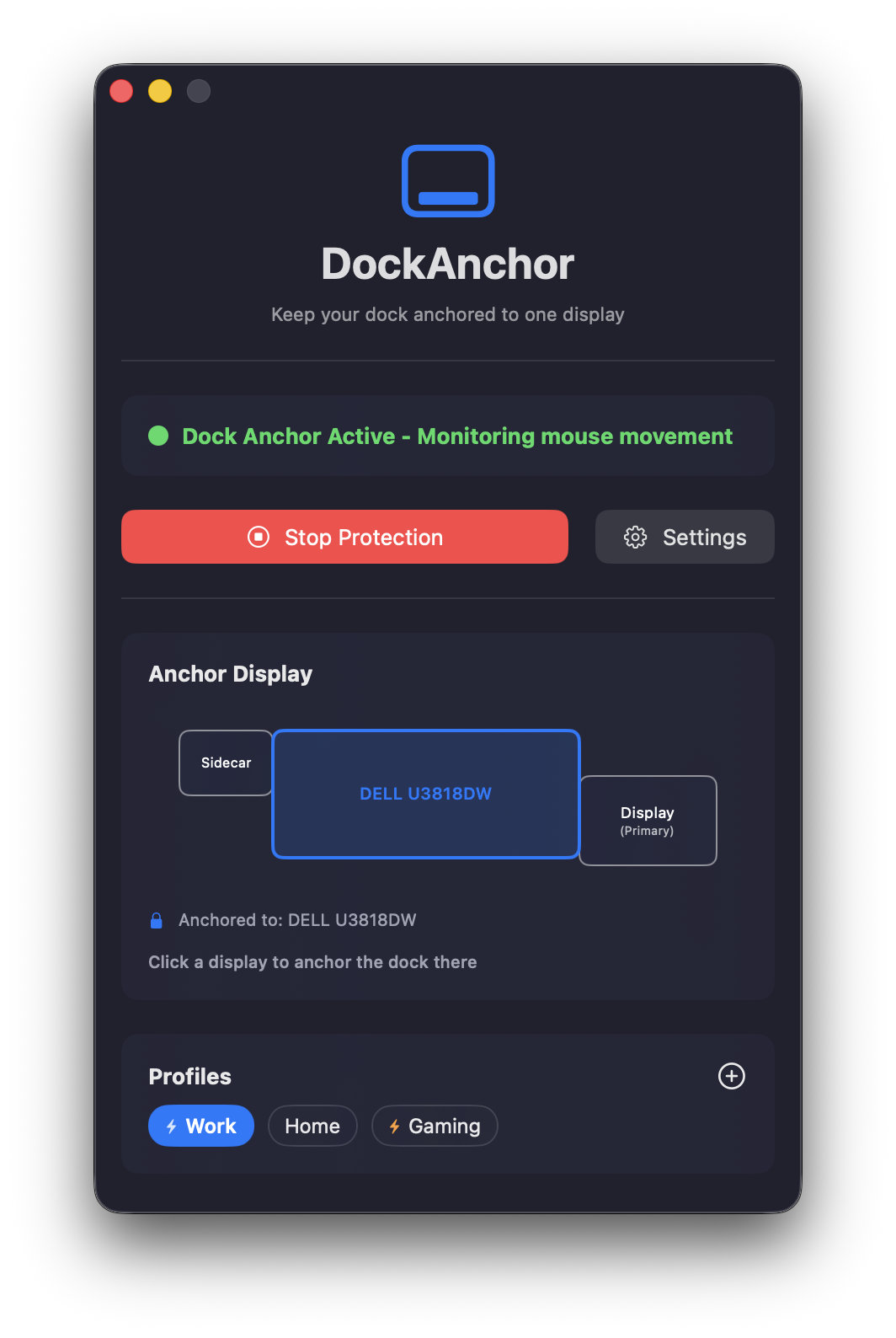
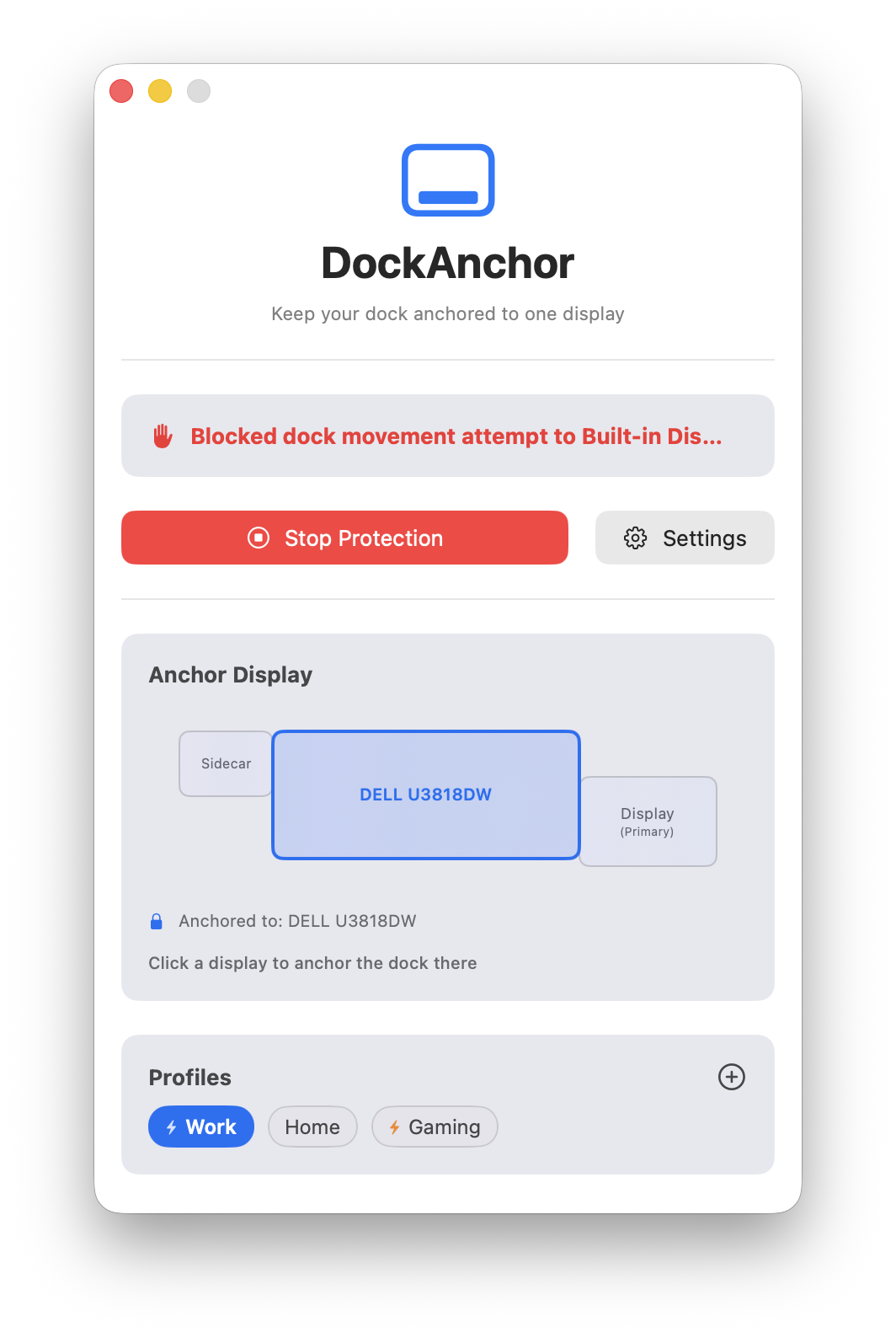
# DockAnchor

A macOS app that prevents the dock from moving between displays in multi-monitor setups.
## Download
### Install from Releases
👉 [**Download Apple Signed App**](https://github.com/bwya77/DockAnchor/releases/latest)
### Install via Homebrew
1. Tap the repository:
```bash
brew tap bwya77/tap
```
2. Install DockAnchor:
```bash
brew install --cask dockanchor
```
3. (Optional) To upgrade later:
```bash
brew upgrade --cask dockanchor
```
## Problem
In macOS with multiple monitors, the dock automatically moves to whichever display your cursor approaches at the bottom edge. This can be distracting and interfere with workflow, especially when you want the dock to stay on a specific display.
## Solution
DockAnchor intercepts mouse movement events and blocks the dock from moving to secondary displays. Unlike scripts that kill and restart the dock, DockAnchor prevents the movement entirely at the system level.
## Features
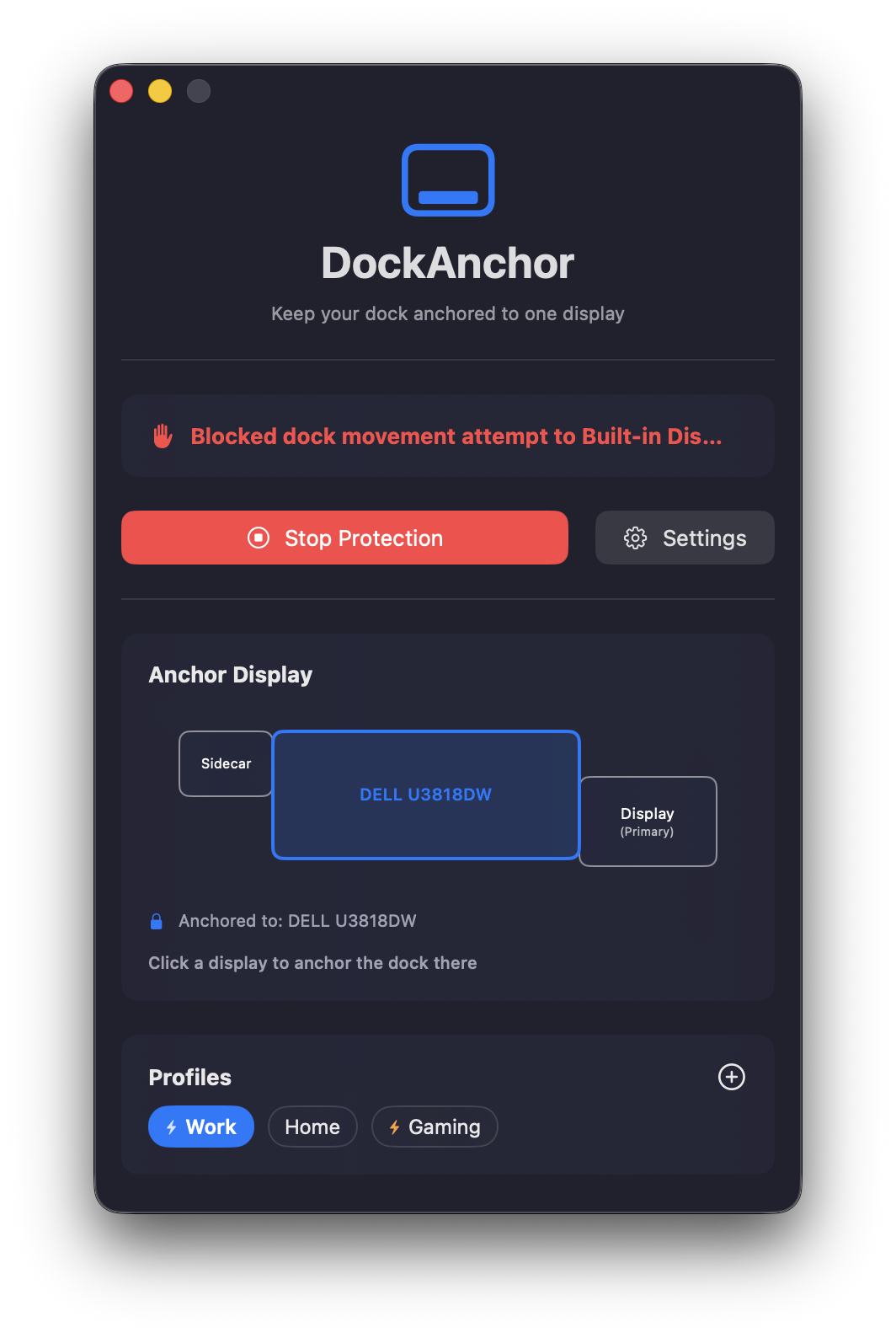 - **Start app at login**: Automatically launch DockAnchor when you log in
- **Run in background**: Keep protection active even when the main window is closed
- **Profiles**: Allows users to create and switch between different profiles. Enable automatic profile switching based on connected displays.
- **Virtual Monitor Display**: Displays your monitors visually in the app, updating in real-time as monitors are connected or disconnected or moved.
- **Auto-Move Dock to Anchor Display**: Automatically moves the dock to the selected anchor display when protection is started.
- **Dock Icon**: Displays a status icon in the macOS dock
- **Menu Bar Icon**: Shows app icon in the menu bar for quick access
- **Display Selection**: Choose which display the dock should stay on
- **Real-time Display Detection**: Detects when monitors are connected or disconnected
- **Auto Fallback**: Automatic fallback to Primary display when selected anchor display is removed.
- **Default Anchor Display**: Option to always anchor to the Primary display or built-in display.
- **Friendly Display Names**: Automatically detects and displays connected monitors with user-friendly names
- **Check for Updates**: Automatically checks for new releases and updates
- **Show DockAnchor**: Provides a simple way to access the app's main window
- **Anchor Display**: Select which display the dock should remain on
- **Cursor Position**: Customize horizontal cursor position (Left/Center/Right) with adjustable offset when relocating dock
- **Status Monitoring**: Real-time feedback on protection status
- **Primary Display Identification**: Displays the primary display in the settings
- **App Theme**: Supports light, dark, and system themes
### Settings
- **Start app at login**: Automatically launch DockAnchor when you log in
- **Run in background**: Keep protection active even when the main window is closed
- **Profiles**: Allows users to create and switch between different profiles. Enable automatic profile switching based on connected displays.
- **Virtual Monitor Display**: Displays your monitors visually in the app, updating in real-time as monitors are connected or disconnected or moved.
- **Auto-Move Dock to Anchor Display**: Automatically moves the dock to the selected anchor display when protection is started.
- **Dock Icon**: Displays a status icon in the macOS dock
- **Menu Bar Icon**: Shows app icon in the menu bar for quick access
- **Display Selection**: Choose which display the dock should stay on
- **Real-time Display Detection**: Detects when monitors are connected or disconnected
- **Auto Fallback**: Automatic fallback to Primary display when selected anchor display is removed.
- **Default Anchor Display**: Option to always anchor to the Primary display or built-in display.
- **Friendly Display Names**: Automatically detects and displays connected monitors with user-friendly names
- **Check for Updates**: Automatically checks for new releases and updates
- **Show DockAnchor**: Provides a simple way to access the app's main window
- **Anchor Display**: Select which display the dock should remain on
- **Cursor Position**: Customize horizontal cursor position (Left/Center/Right) with adjustable offset when relocating dock
- **Status Monitoring**: Real-time feedback on protection status
- **Primary Display Identification**: Displays the primary display in the settings
- **App Theme**: Supports light, dark, and system themes
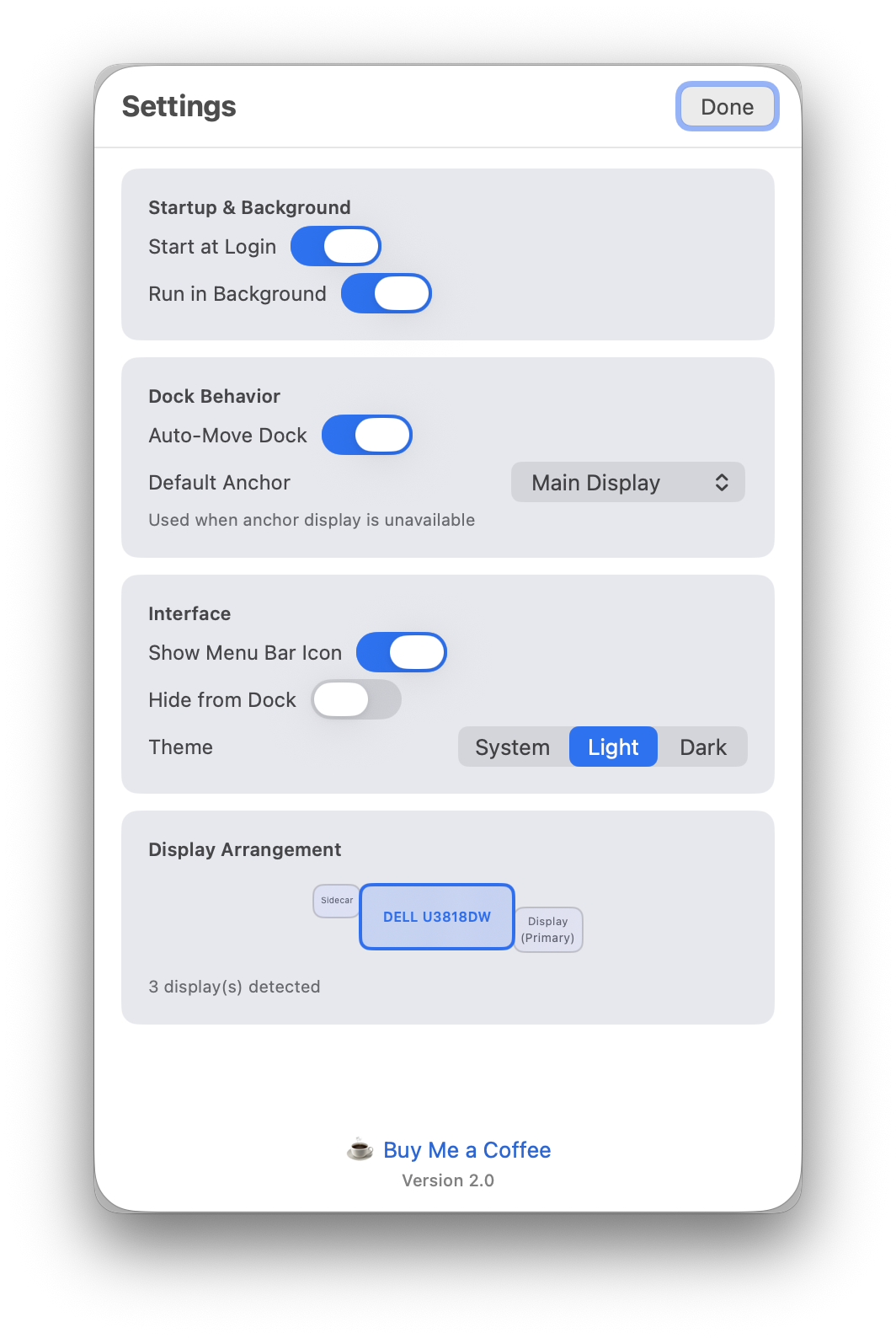
### Settings
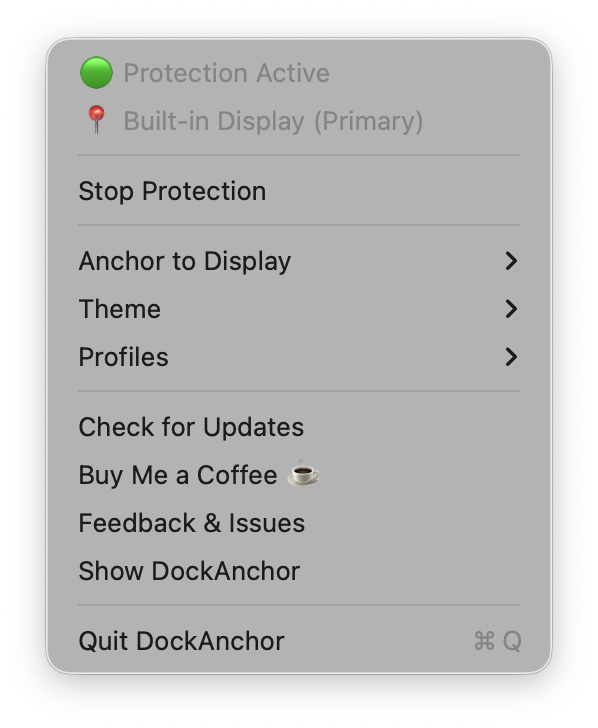
 ### Menu Bar Menu
 ## Installation
### Building from Source
1. Clone this repository
2. Open `DockAnchor.xcodeproj` in Xcode
3. Build and run the project
4. **Grant accessibility permissions when prompted** (required for functionality)
5. Optionally enable "Start at Login" in settings
### Download Pre-Built App
- Download the latest release from the releases page
## Required Permissions
### Accessibility Permissions (Required)
DockAnchor requires accessibility permissions to function properly. This allows the app to:
- Monitor mouse movement events across all displays
- Intercept dock trigger events on secondary displays
- Provide seamless dock movement prevention
**To grant permissions:**
1. When first launched, DockAnchor will prompt for accessibility access
2. Go to **System Preferences → Security & Privacy → Privacy → Accessibility**
3. Click the lock icon to make changes
4. Add DockAnchor to the list and check the box
5. Restart DockAnchor if needed
**Note:** Without accessibility permissions, DockAnchor cannot prevent dock movement between displays.
## Usage
### First Launch
1. Launch DockAnchor
2. Click "Start Protection" to begin monitoring
3. **Grant accessibility permissions when prompted** (see above)
4. The dock will now be anchored to your selected display
### Menu Bar Icon
- Shows protection status (green = active, red = inactive)
- Right-click for quick access to controls
- Left-click to open the main window
- Displays current anchor display and protection status
### Settings
#### Startup & Background
- **Start at Login**: Automatically launch DockAnchor when you log in
- **Run in Background**: Keep protection active even when window is closed
#### Interface
- **Show Menu Bar Icon**: Display status icon in menu bar
- **Hide from Dock**: Hide the app from the dock when running (access via menu bar only)
#### Display Selection
- **Anchor Display**: Choose which display the dock should stay on
- **Display Detection**: Automatically detects all connected displays with friendly names
- **Primary Display Support**: Special handling for primary display designation
## How It Works
DockAnchor works by:
1. **Event Monitoring**: Creates a low-level event tap to monitor mouse movements
2. **Zone Detection**: Calculates dock trigger zones on secondary displays
3. **Event Blocking**: Prevents mouse events from reaching the dock when in trigger zones
4. **Status Tracking**: Provides real-time feedback on protection status
5. **Display Management**: Uses system APIs to get actual display names and positions
This approach is superior to dock-killing scripts because:
- No visual flashing or animations
- No interruption to running applications
- No dock restart delays
- Seamless user experience
## Technical Details
### System Requirements
- macOS 10.15 (Catalina) or later
- **Accessibility permissions (required)**
- Multiple displays (for the feature to be useful)
### Permissions Required
- **Accessibility**: Required to monitor mouse events and control system behavior
- **Apple Events**: Used to force dock positioning when needed
### Architecture
- **SwiftUI**: Modern declarative UI framework
- **Core Data**: Settings and preferences storage
- **Accessibility APIs**: System-level event monitoring
- **Menu Bar Integration**: Background operation support
- **Display Detection**: System profiler integration for display names
## Privacy & Security
DockAnchor:
- Only monitors mouse movement events
- Does not collect or transmit any personal data. none.
- Runs entirely locally on your machine
- Source code is open and auditable
- **Requires accessibility permissions for core functionality**
## Development
### Building from Source
```bash
git clone https://github.com/yourusername/DockAnchor.git
cd DockAnchor
open DockAnchor.xcodeproj
```
### Contributing
1. Fork the repository
2. Create a feature branch
3. Make your changes
4. Test thoroughly on multiple monitor setups
5. **Ensure accessibility permissions work correctly**
6. Submit a pull request
## License
MIT License - see LICENSE file for details.
## Support
For issues, feature requests, or questions:
- Open an issue on GitHub
- Provide system information (macOS version, monitor setup)
- **Include accessibility permission status**
- Include steps to reproduce any problems
- Check the troubleshooting section above first
If you find my work helpful, please consider:
## Installation
### Building from Source
1. Clone this repository
2. Open `DockAnchor.xcodeproj` in Xcode
3. Build and run the project
4. **Grant accessibility permissions when prompted** (required for functionality)
5. Optionally enable "Start at Login" in settings
### Download Pre-Built App
- Download the latest release from the releases page
## Required Permissions
### Accessibility Permissions (Required)
DockAnchor requires accessibility permissions to function properly. This allows the app to:
- Monitor mouse movement events across all displays
- Intercept dock trigger events on secondary displays
- Provide seamless dock movement prevention
**To grant permissions:**
1. When first launched, DockAnchor will prompt for accessibility access
2. Go to **System Preferences → Security & Privacy → Privacy → Accessibility**
3. Click the lock icon to make changes
4. Add DockAnchor to the list and check the box
5. Restart DockAnchor if needed
**Note:** Without accessibility permissions, DockAnchor cannot prevent dock movement between displays.
## Usage
### First Launch
1. Launch DockAnchor
2. Click "Start Protection" to begin monitoring
3. **Grant accessibility permissions when prompted** (see above)
4. The dock will now be anchored to your selected display
### Menu Bar Icon
- Shows protection status (green = active, red = inactive)
- Right-click for quick access to controls
- Left-click to open the main window
- Displays current anchor display and protection status
### Settings
#### Startup & Background
- **Start at Login**: Automatically launch DockAnchor when you log in
- **Run in Background**: Keep protection active even when window is closed
#### Interface
- **Show Menu Bar Icon**: Display status icon in menu bar
- **Hide from Dock**: Hide the app from the dock when running (access via menu bar only)
#### Display Selection
- **Anchor Display**: Choose which display the dock should stay on
- **Display Detection**: Automatically detects all connected displays with friendly names
- **Primary Display Support**: Special handling for primary display designation
## How It Works
DockAnchor works by:
1. **Event Monitoring**: Creates a low-level event tap to monitor mouse movements
2. **Zone Detection**: Calculates dock trigger zones on secondary displays
3. **Event Blocking**: Prevents mouse events from reaching the dock when in trigger zones
4. **Status Tracking**: Provides real-time feedback on protection status
5. **Display Management**: Uses system APIs to get actual display names and positions
This approach is superior to dock-killing scripts because:
- No visual flashing or animations
- No interruption to running applications
- No dock restart delays
- Seamless user experience
## Technical Details
### System Requirements
- macOS 10.15 (Catalina) or later
- **Accessibility permissions (required)**
- Multiple displays (for the feature to be useful)
### Permissions Required
- **Accessibility**: Required to monitor mouse events and control system behavior
- **Apple Events**: Used to force dock positioning when needed
### Architecture
- **SwiftUI**: Modern declarative UI framework
- **Core Data**: Settings and preferences storage
- **Accessibility APIs**: System-level event monitoring
- **Menu Bar Integration**: Background operation support
- **Display Detection**: System profiler integration for display names
## Privacy & Security
DockAnchor:
- Only monitors mouse movement events
- Does not collect or transmit any personal data. none.
- Runs entirely locally on your machine
- Source code is open and auditable
- **Requires accessibility permissions for core functionality**
## Development
### Building from Source
```bash
git clone https://github.com/yourusername/DockAnchor.git
cd DockAnchor
open DockAnchor.xcodeproj
```
### Contributing
1. Fork the repository
2. Create a feature branch
3. Make your changes
4. Test thoroughly on multiple monitor setups
5. **Ensure accessibility permissions work correctly**
6. Submit a pull request
## License
MIT License - see LICENSE file for details.
## Support
For issues, feature requests, or questions:
- Open an issue on GitHub
- Provide system information (macOS version, monitor setup)
- **Include accessibility permission status**
- Include steps to reproduce any problems
- Check the troubleshooting section above first
If you find my work helpful, please consider: