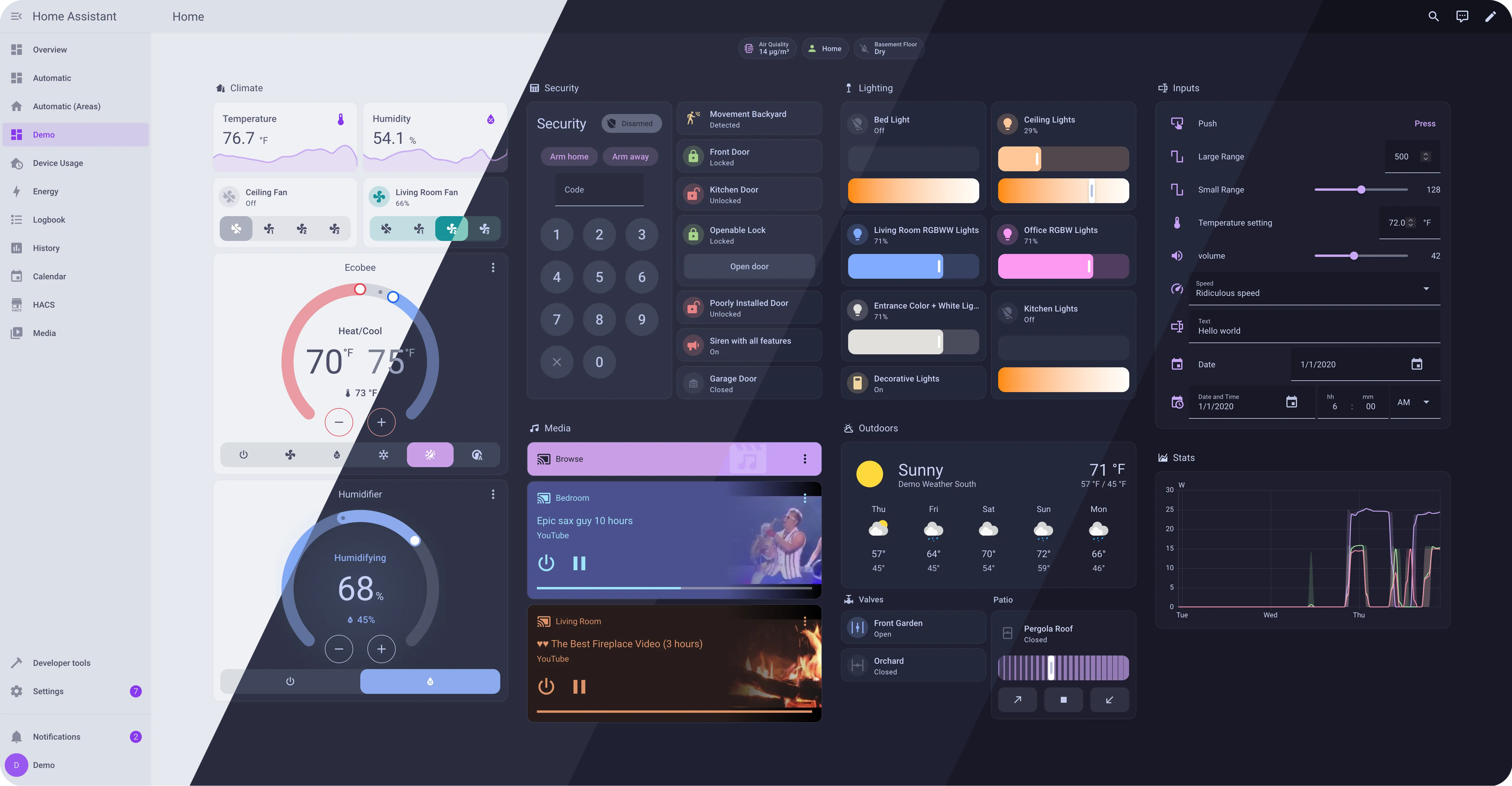
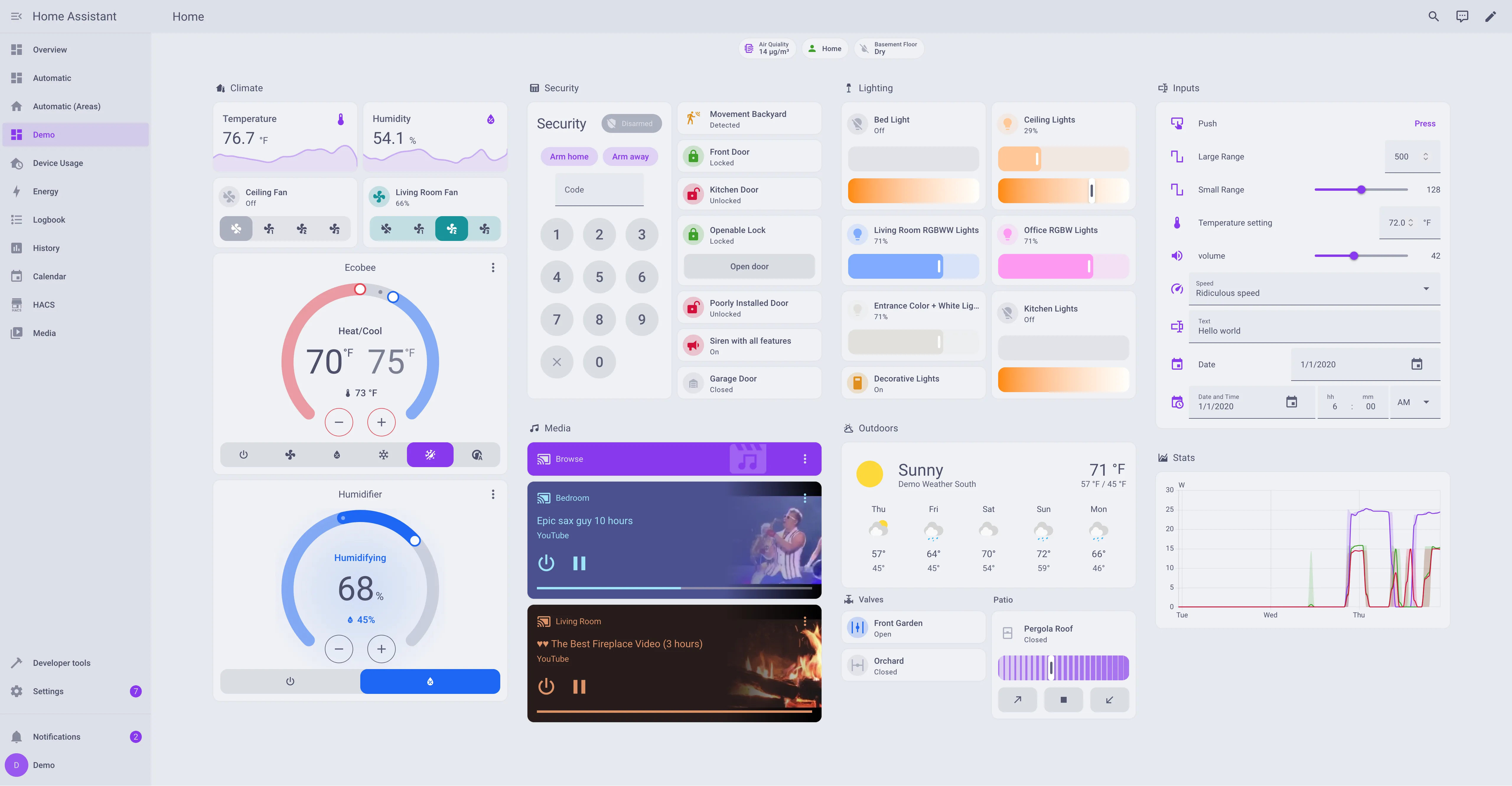
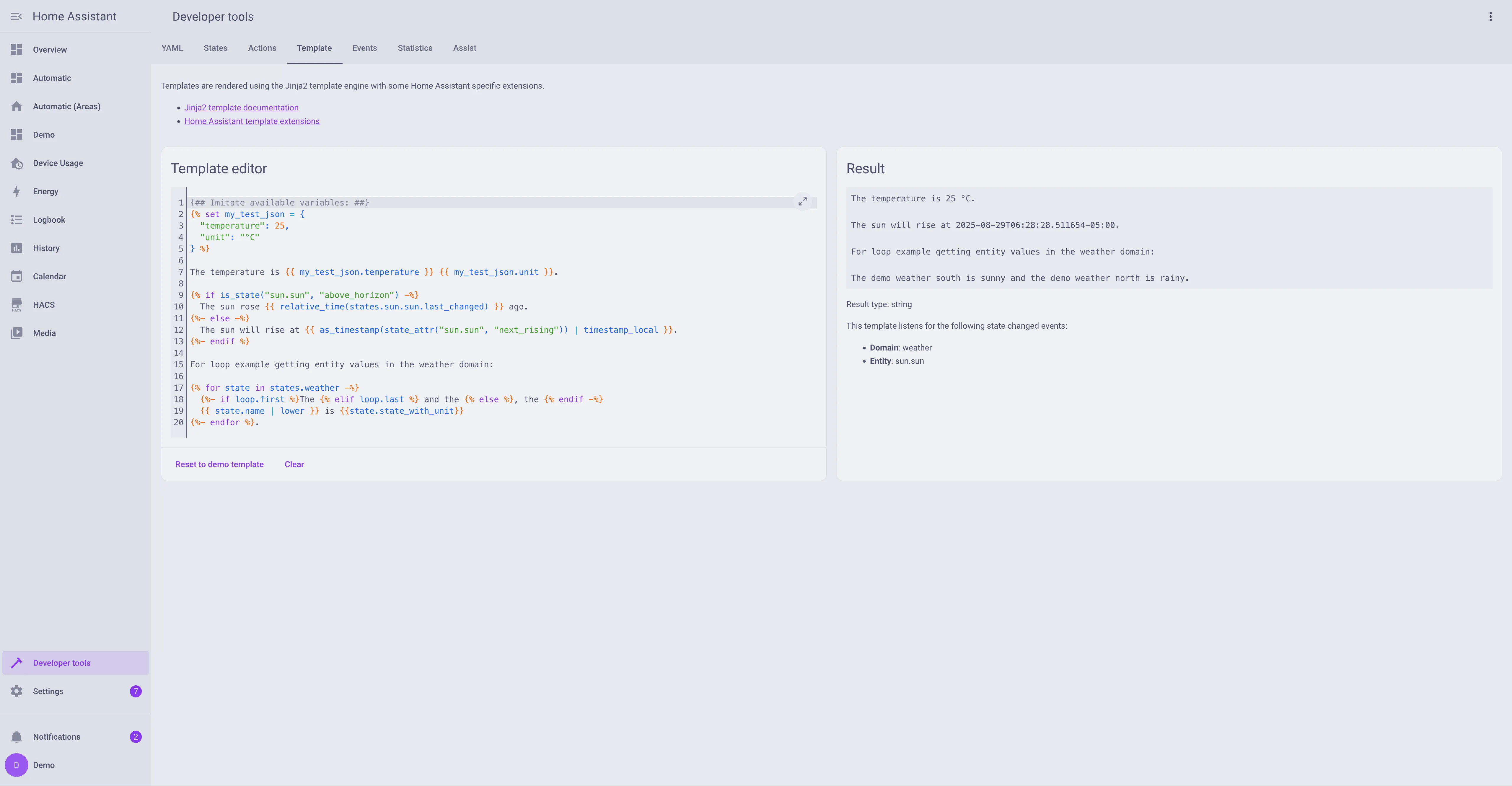
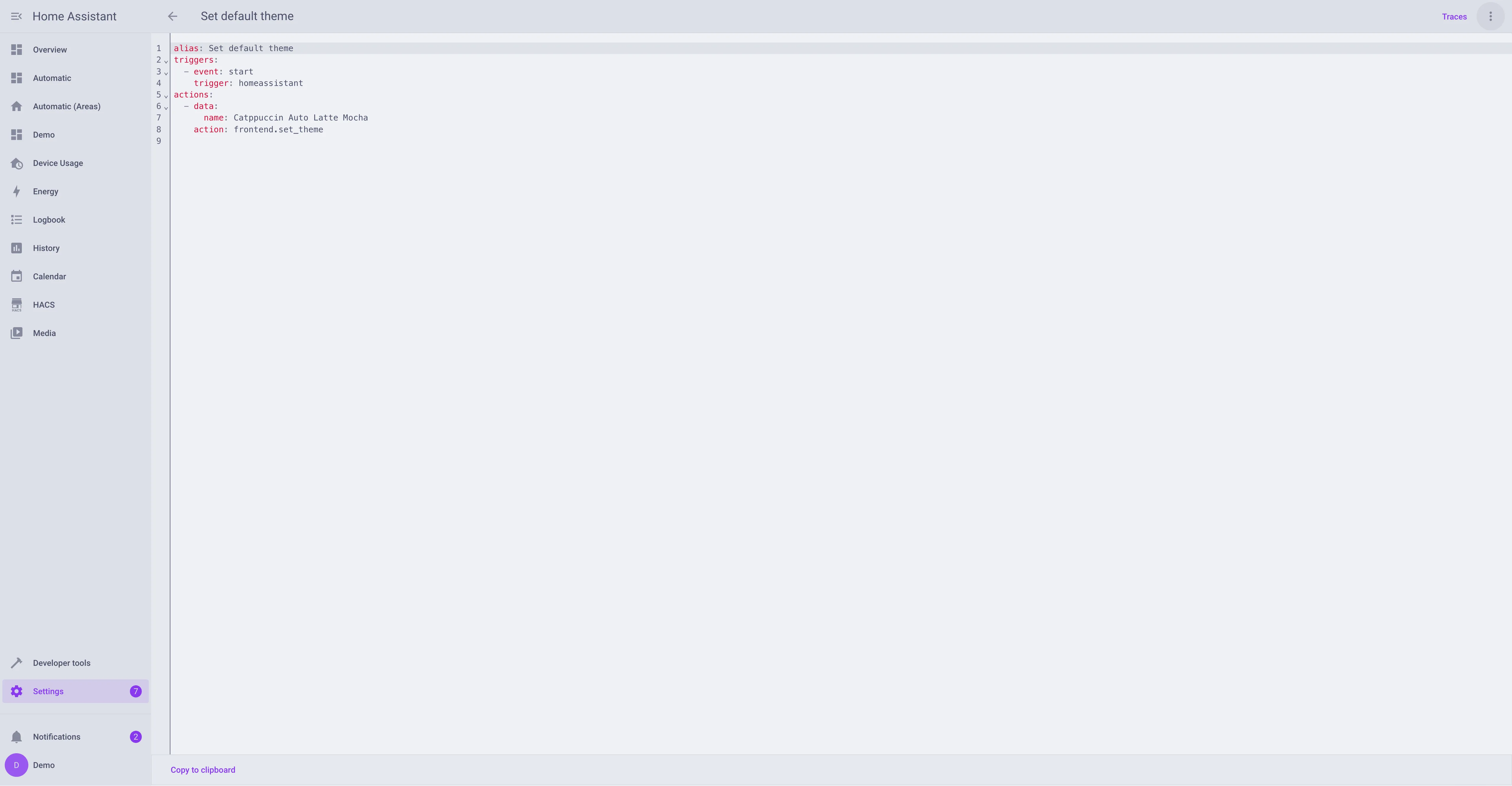
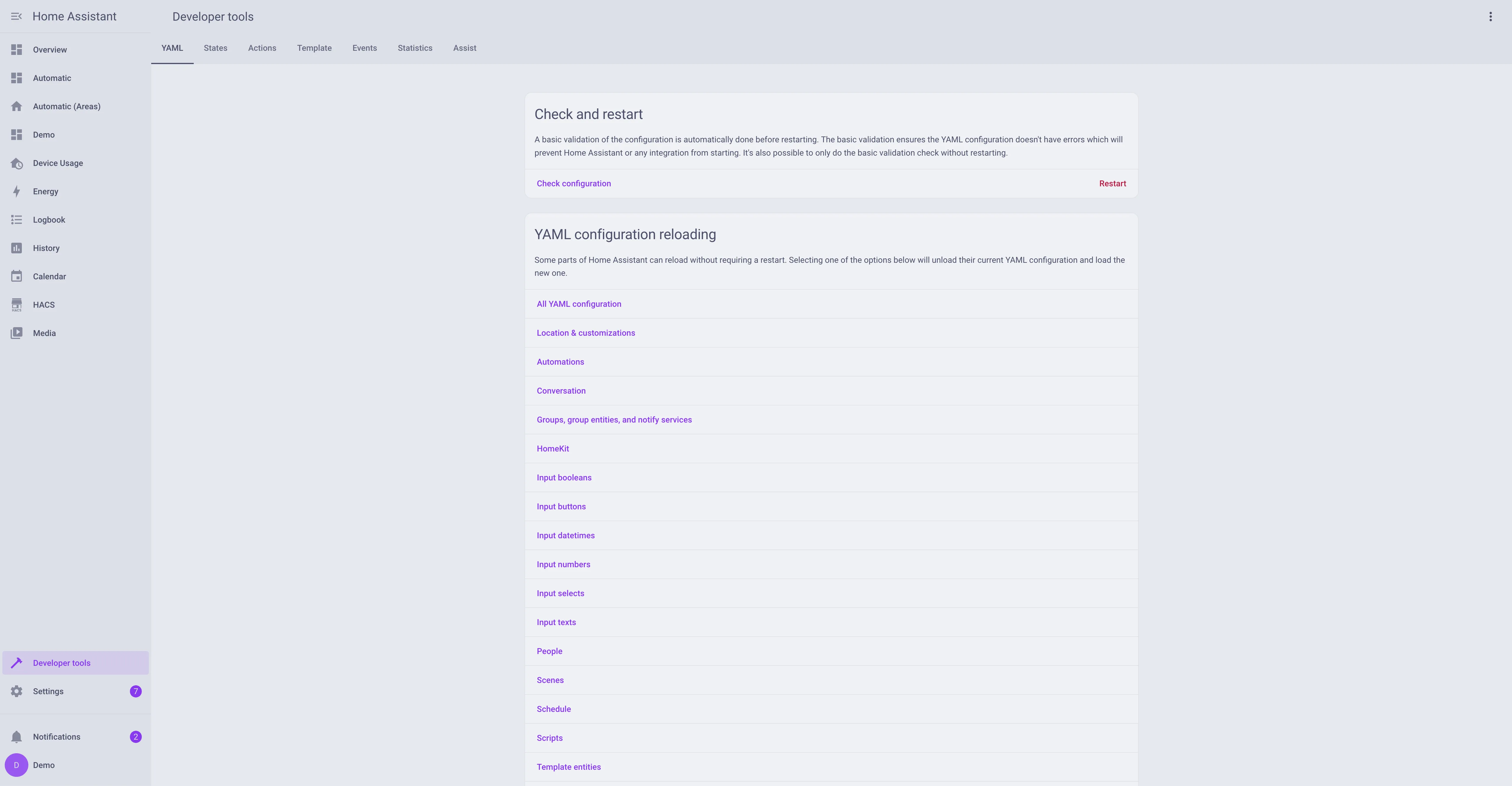
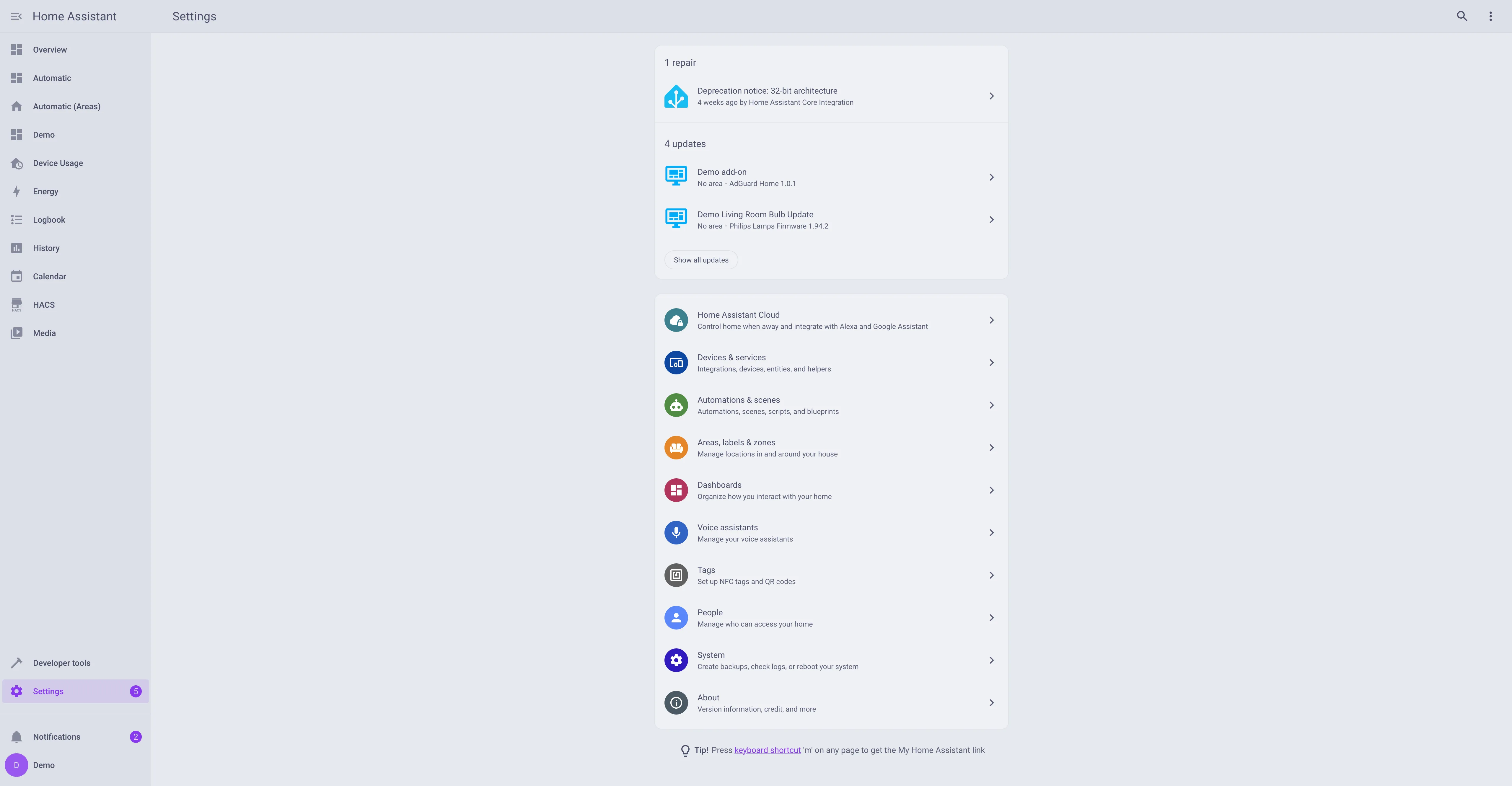
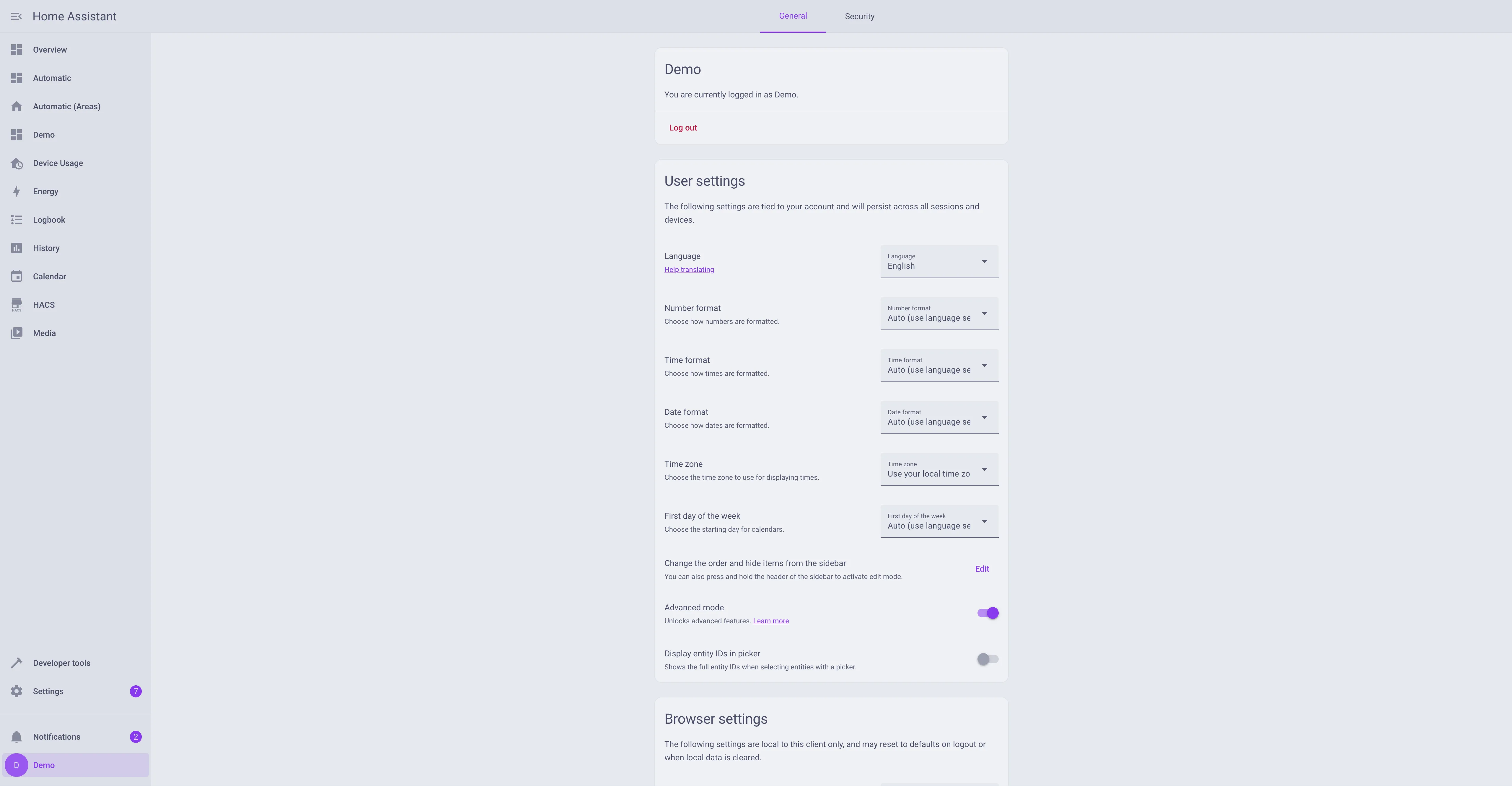
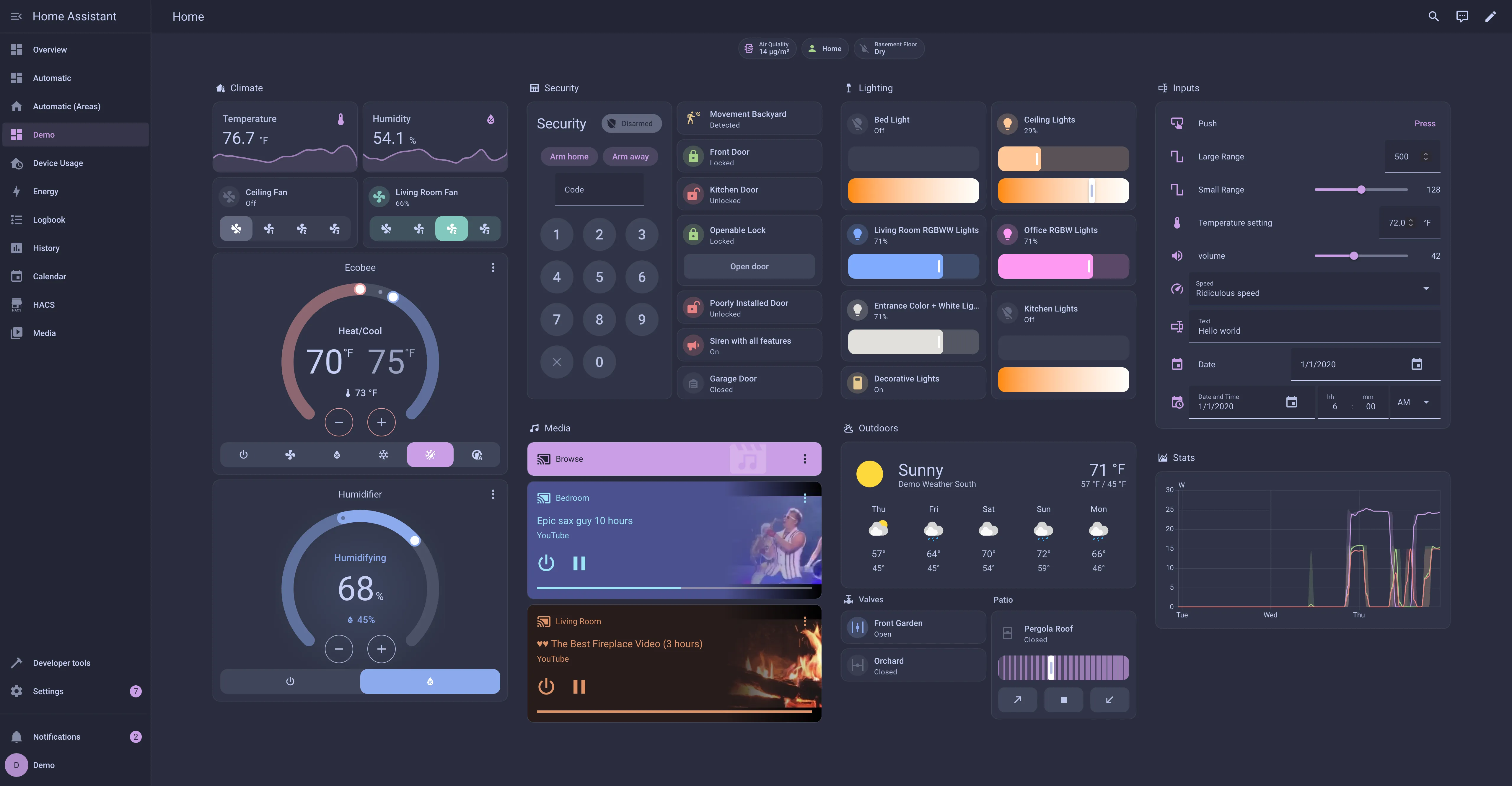
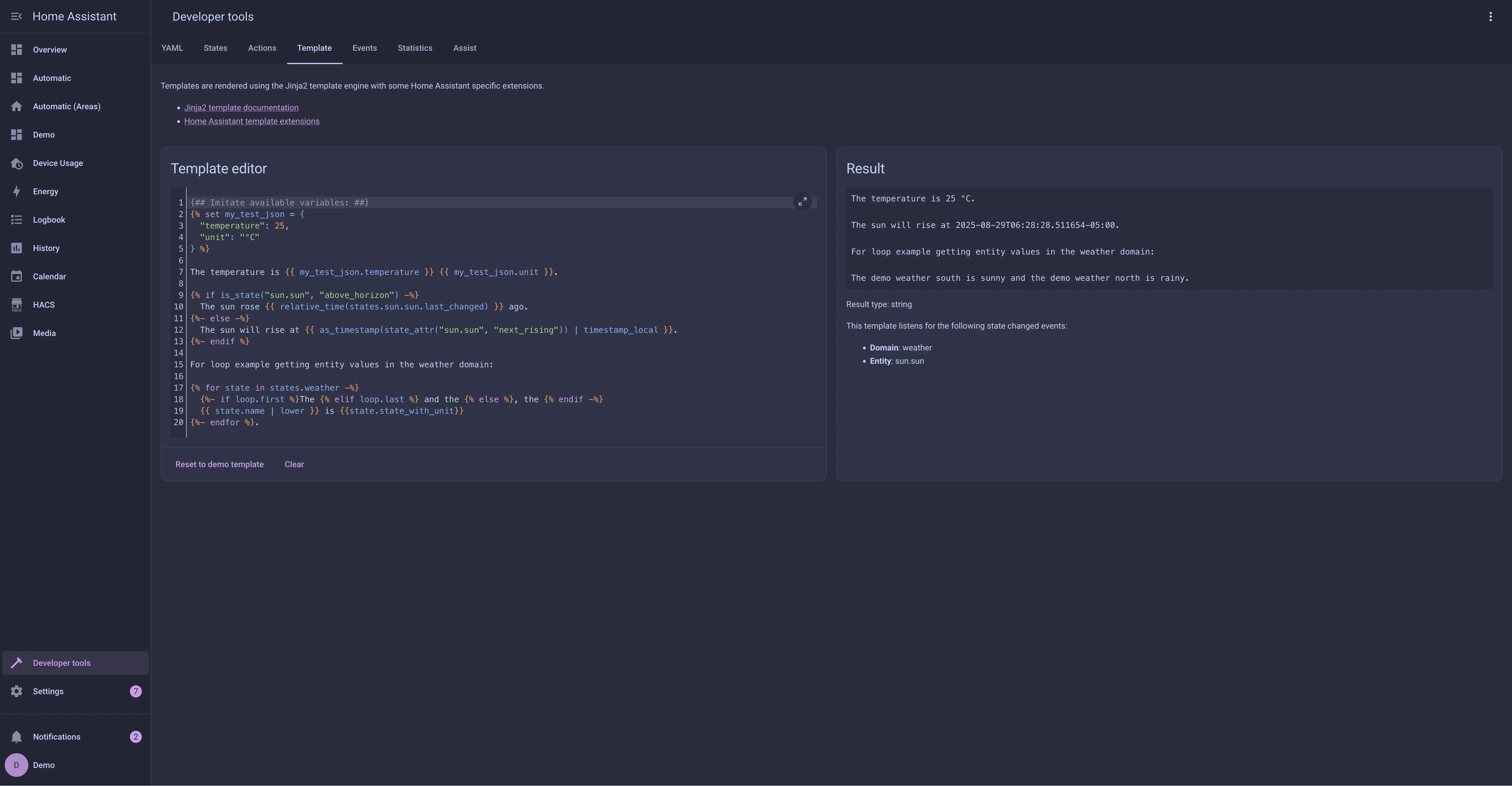
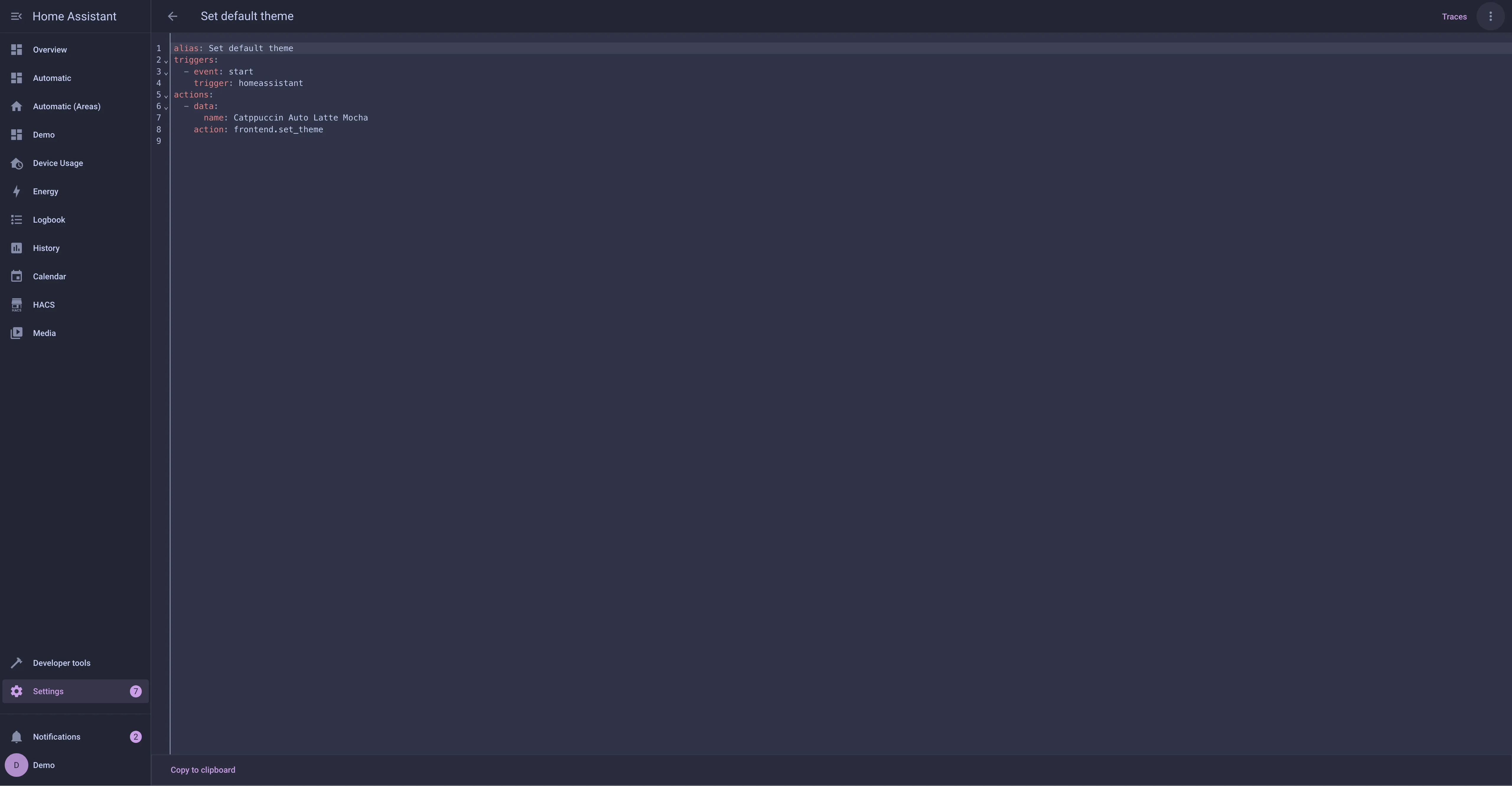
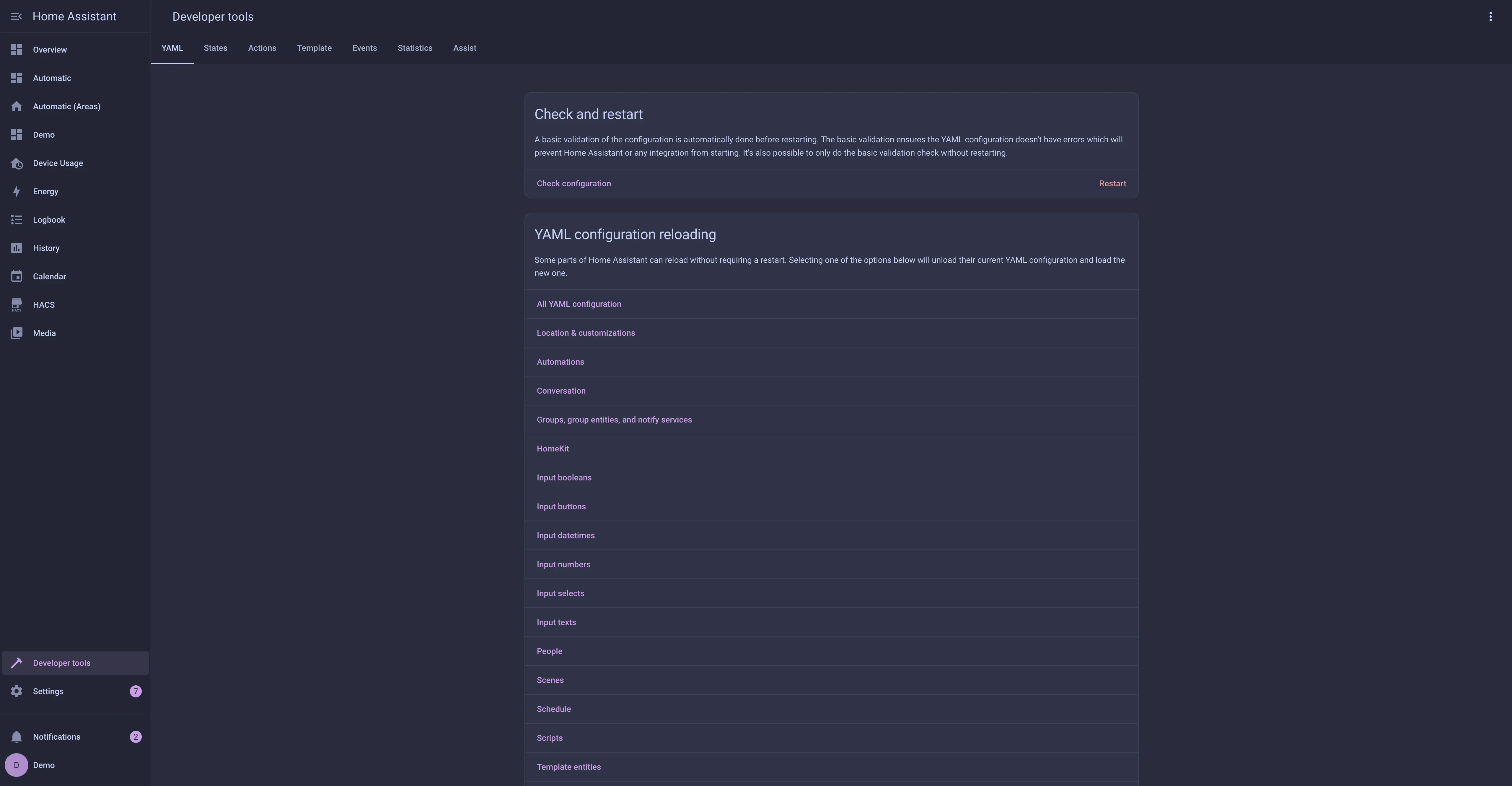
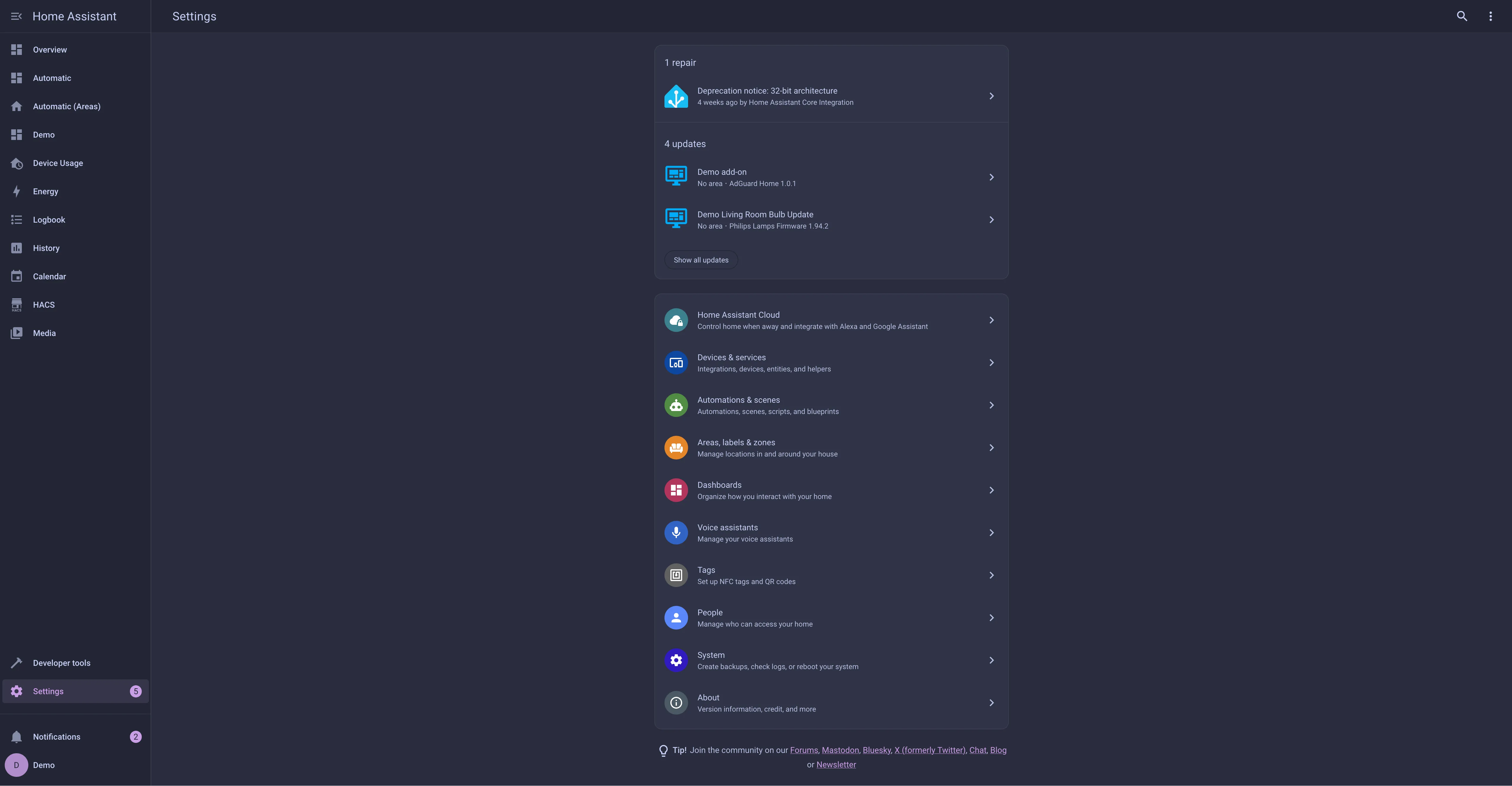
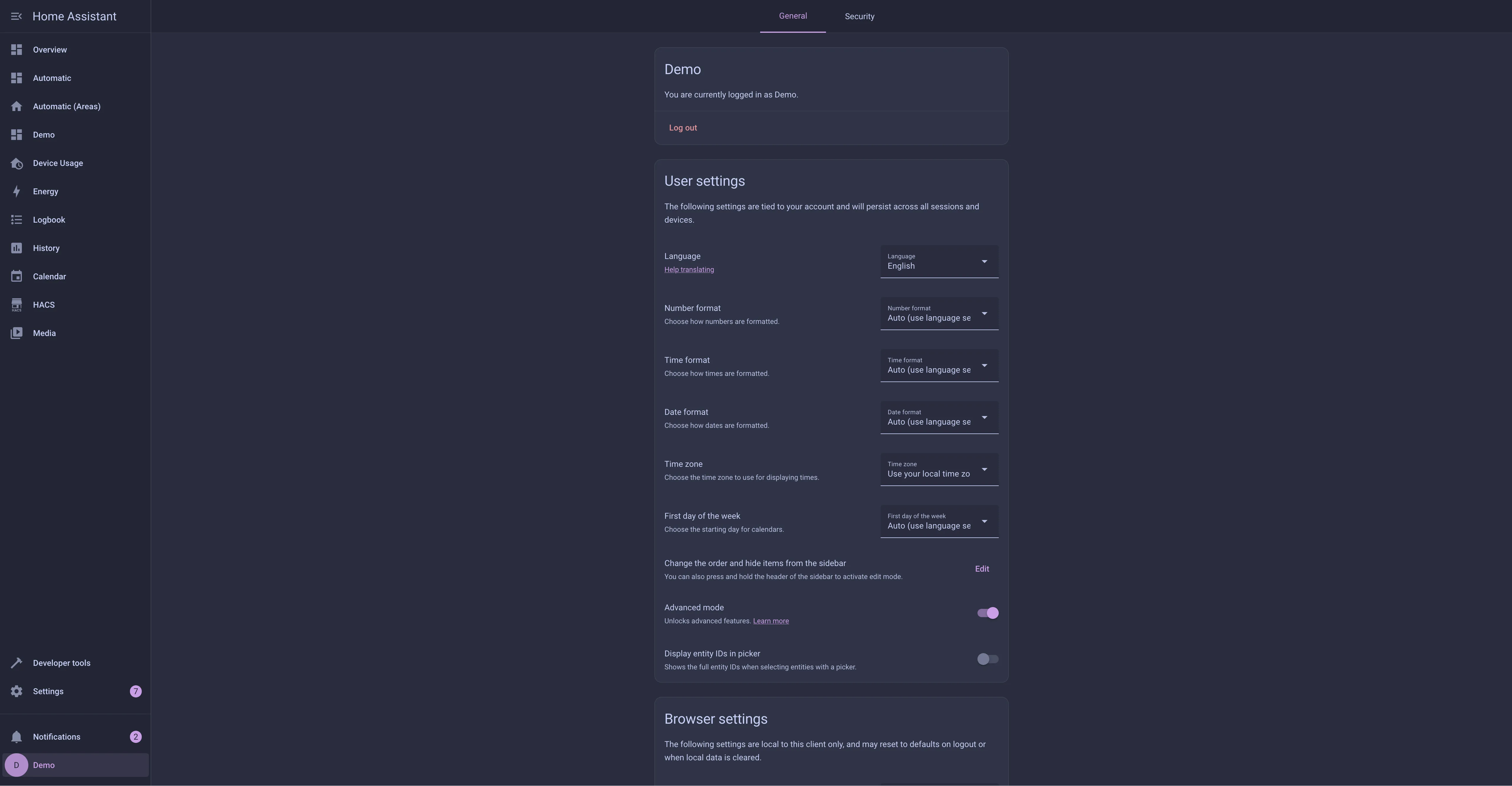
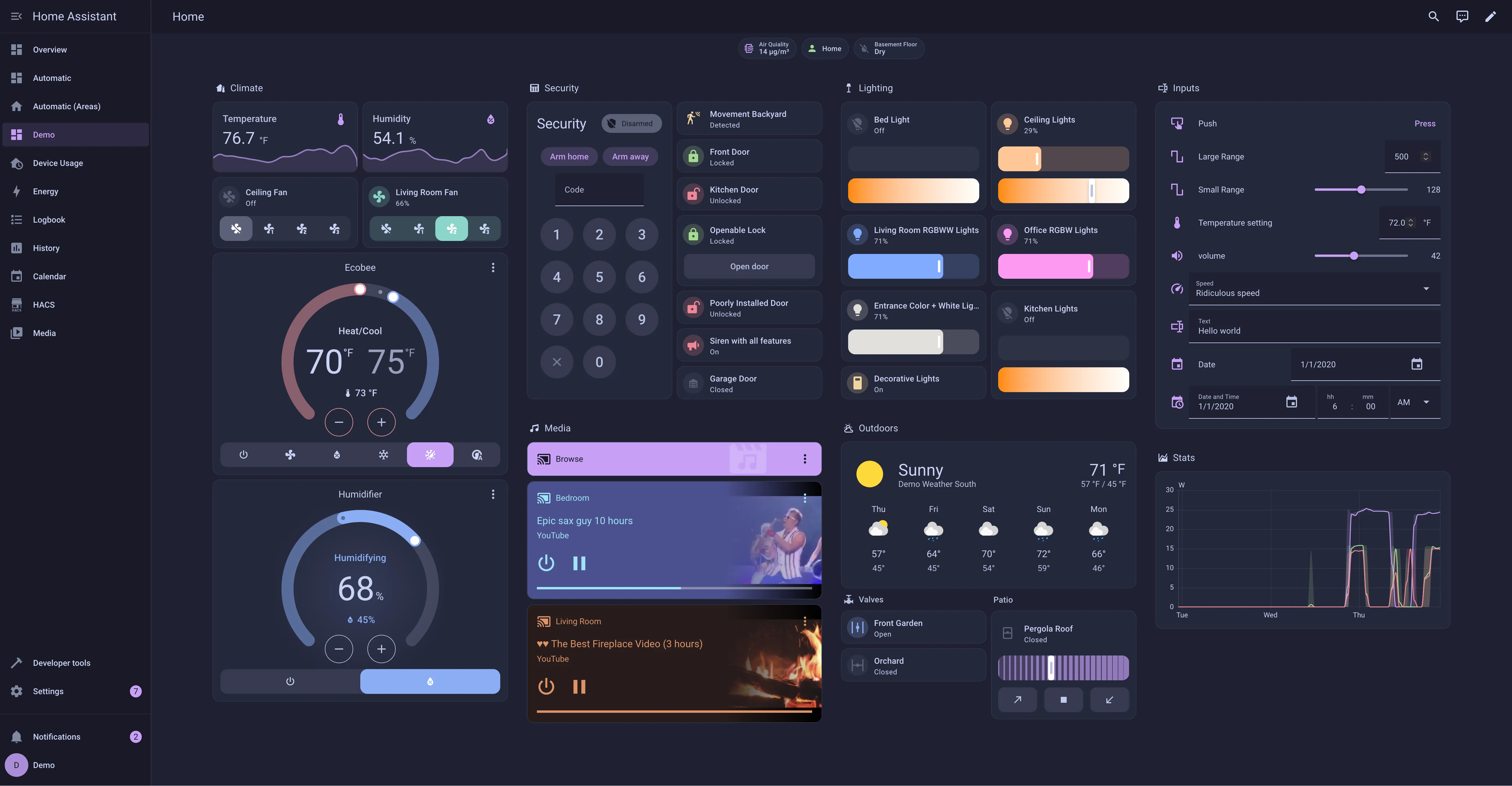
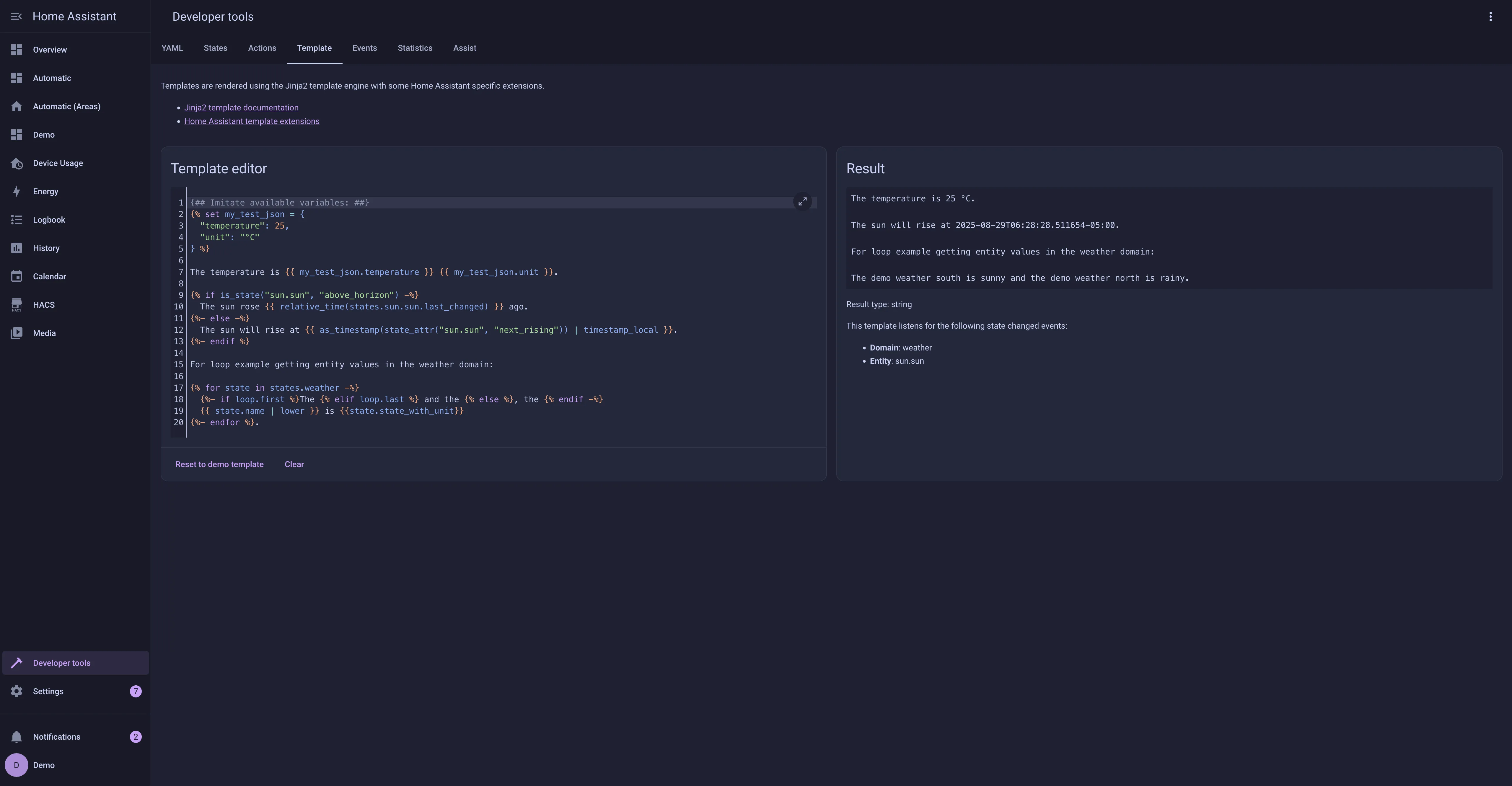
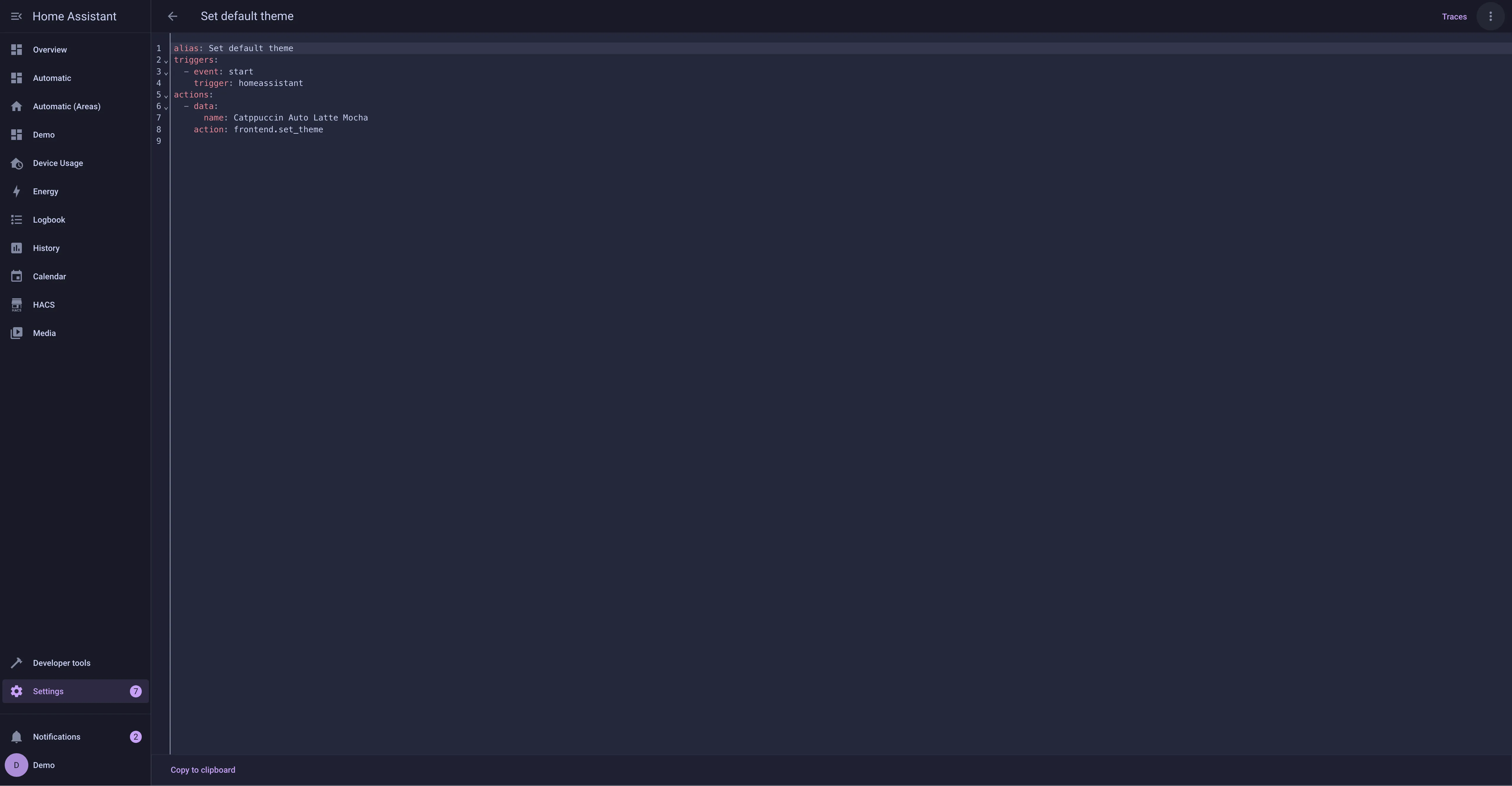
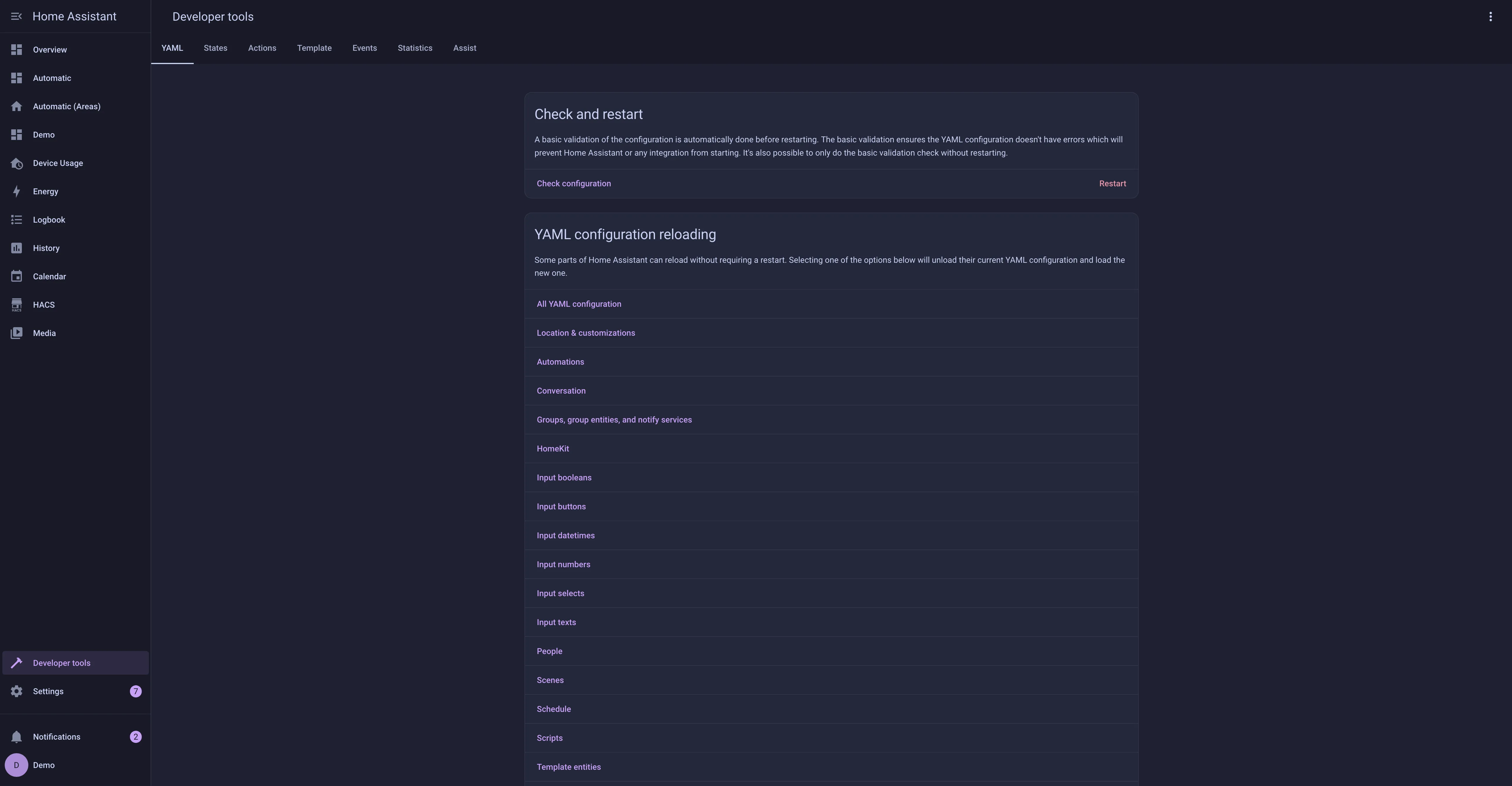
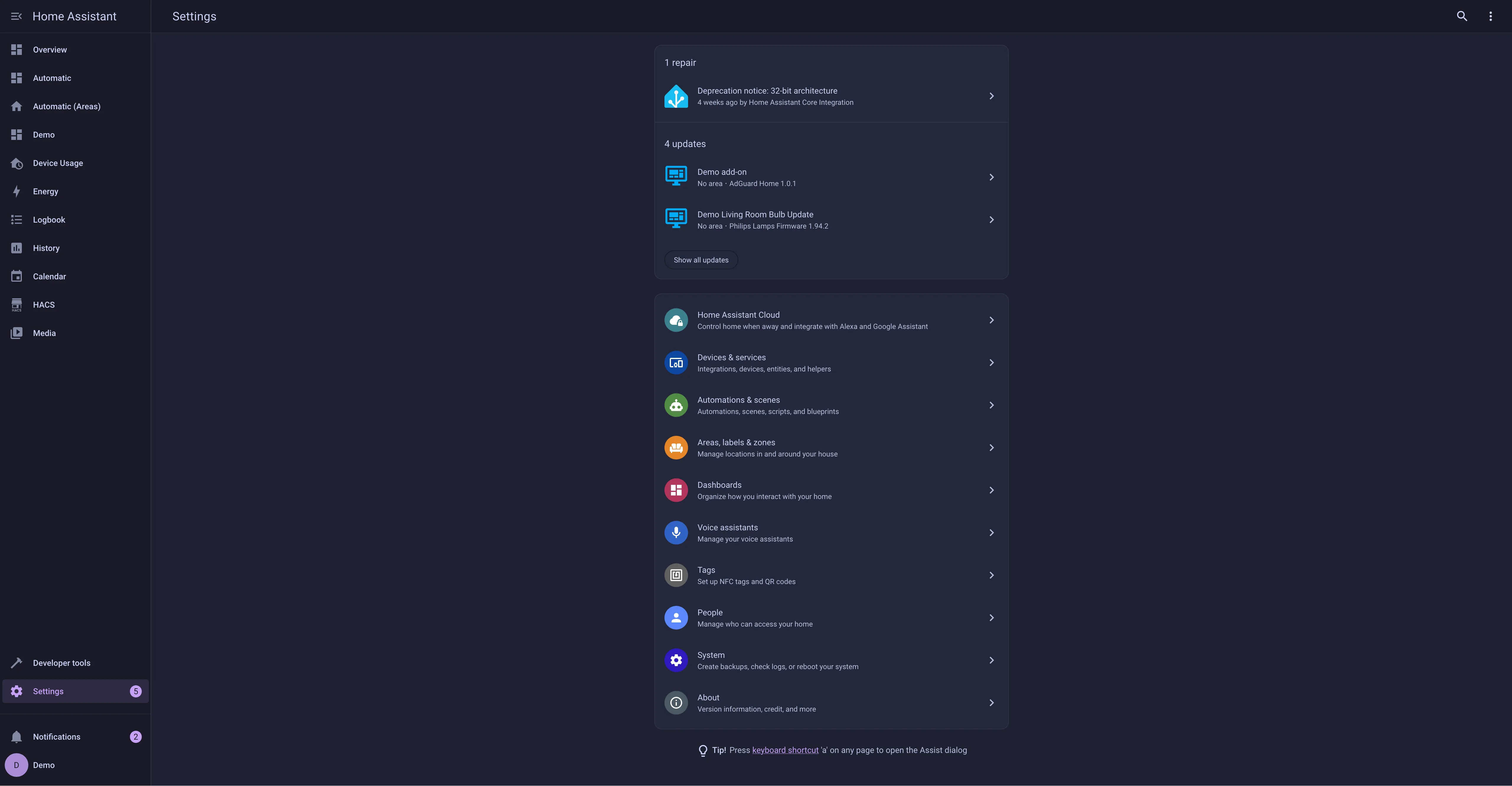
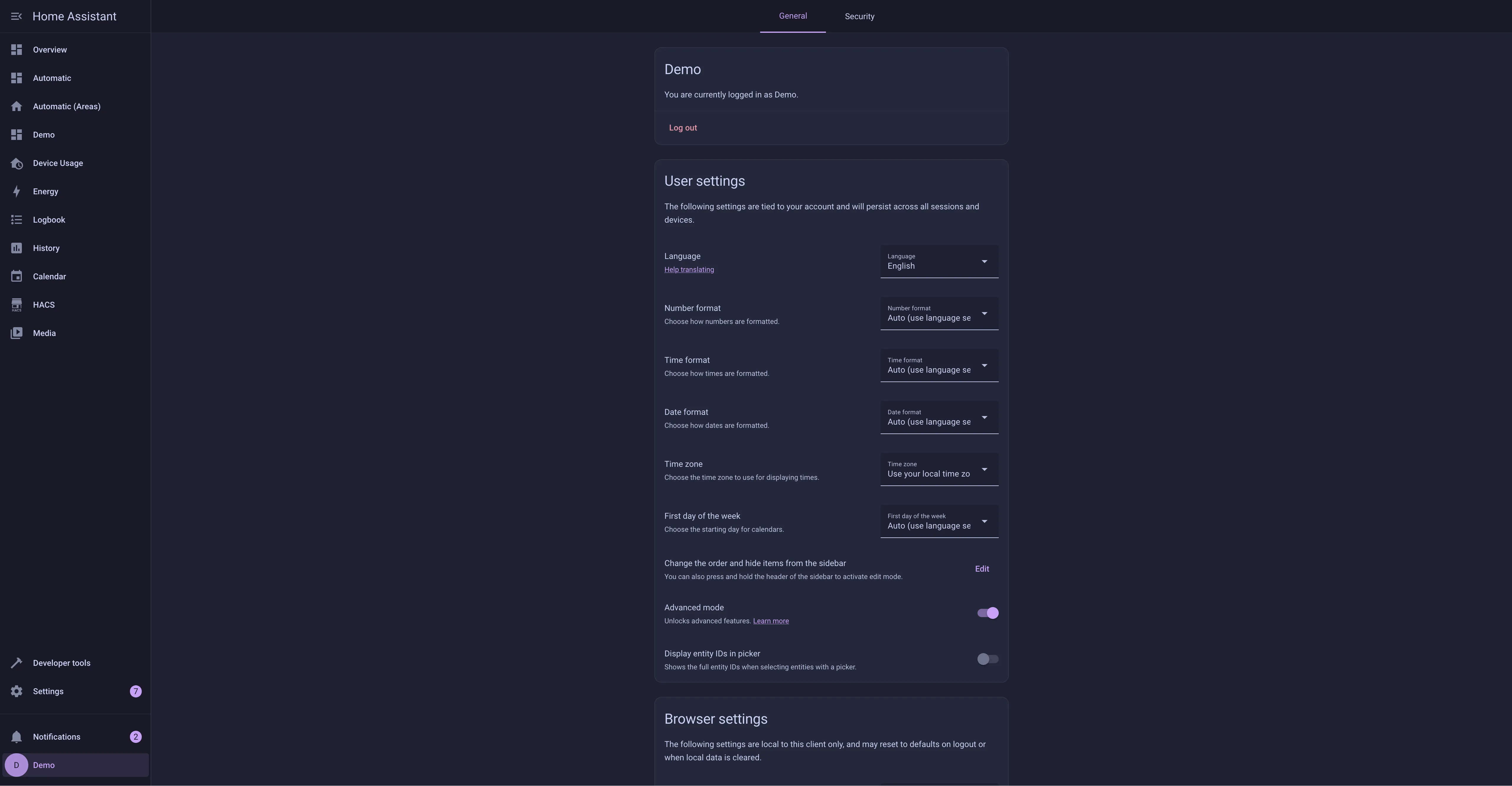
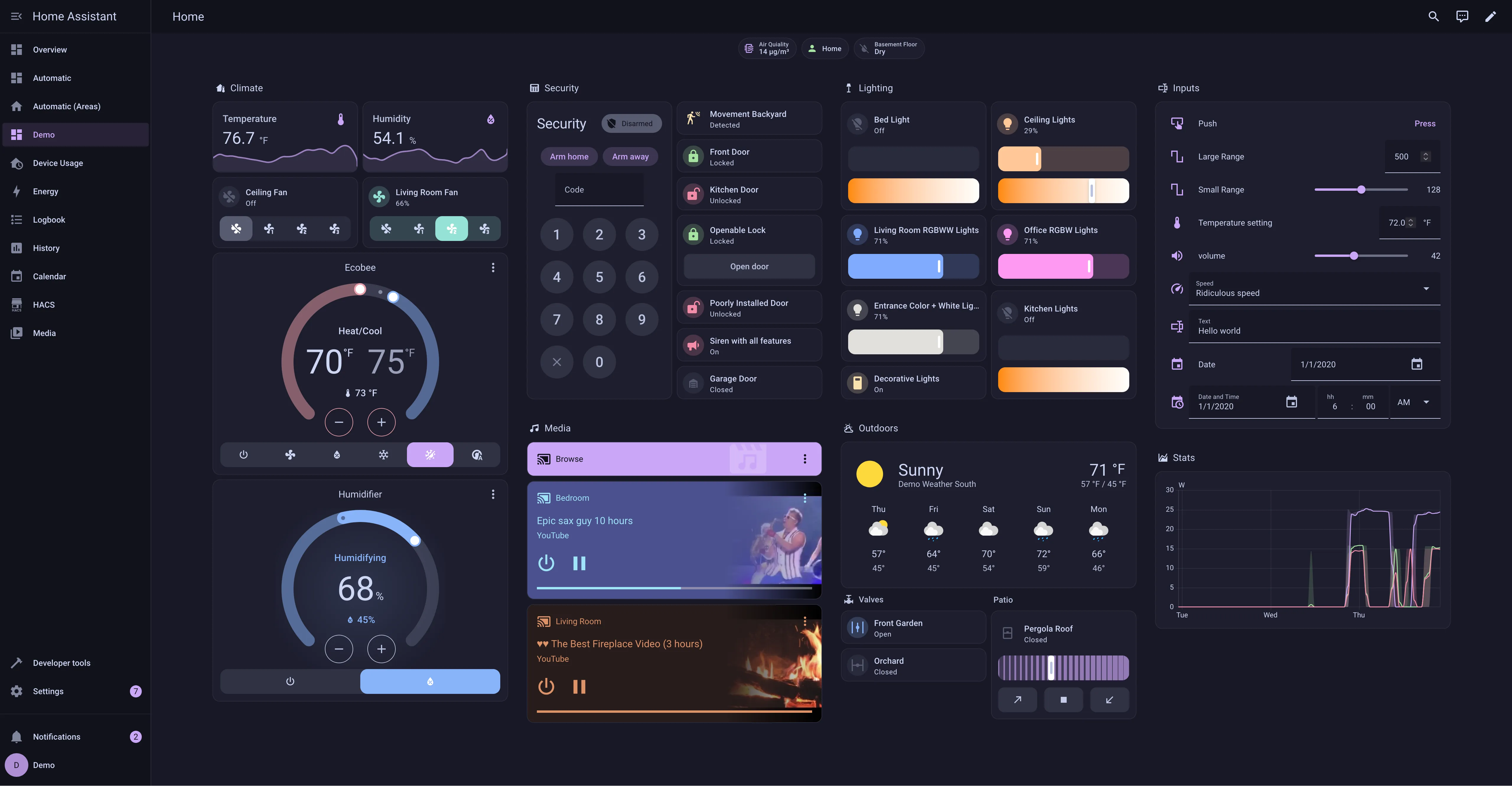
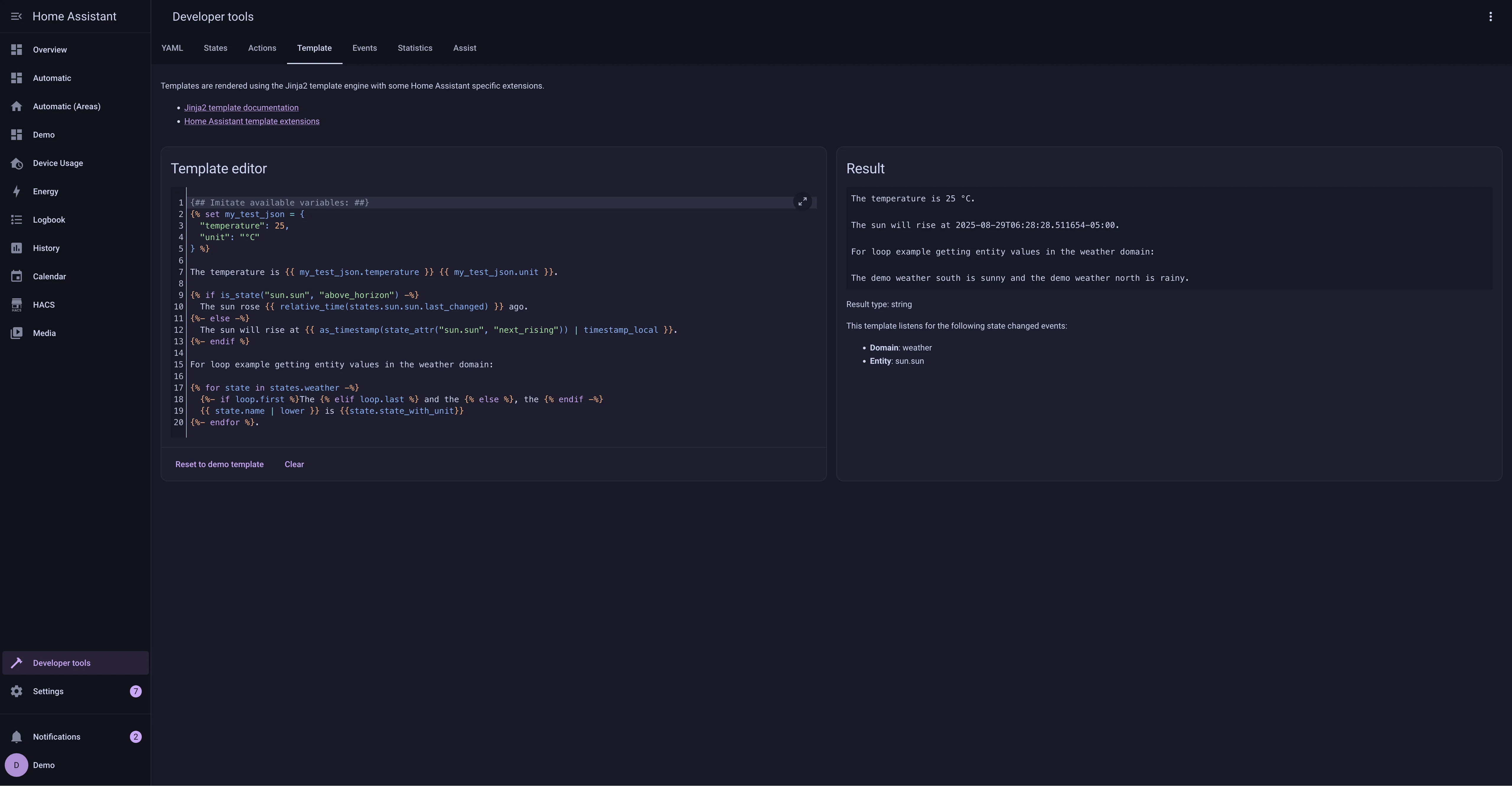
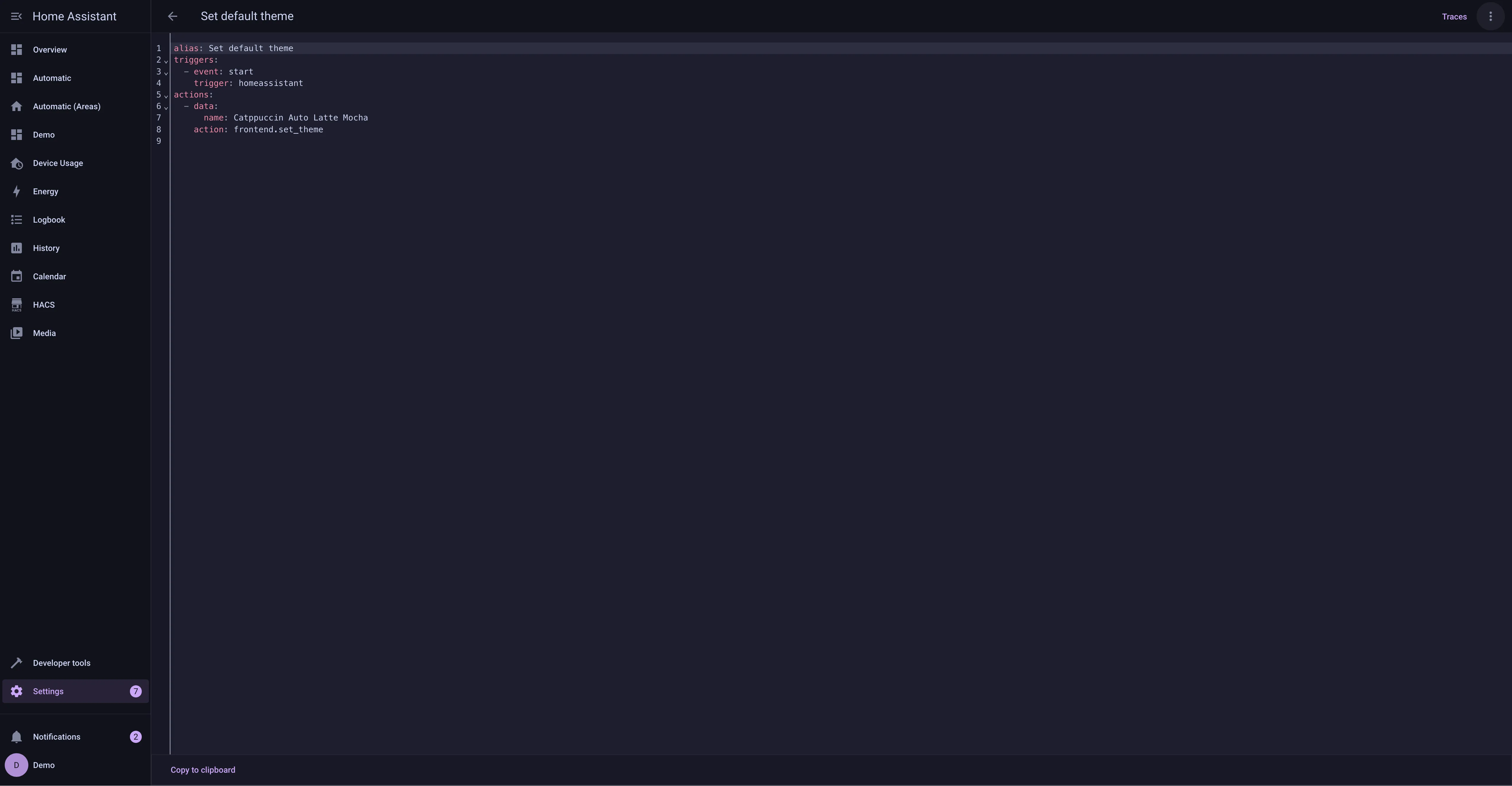
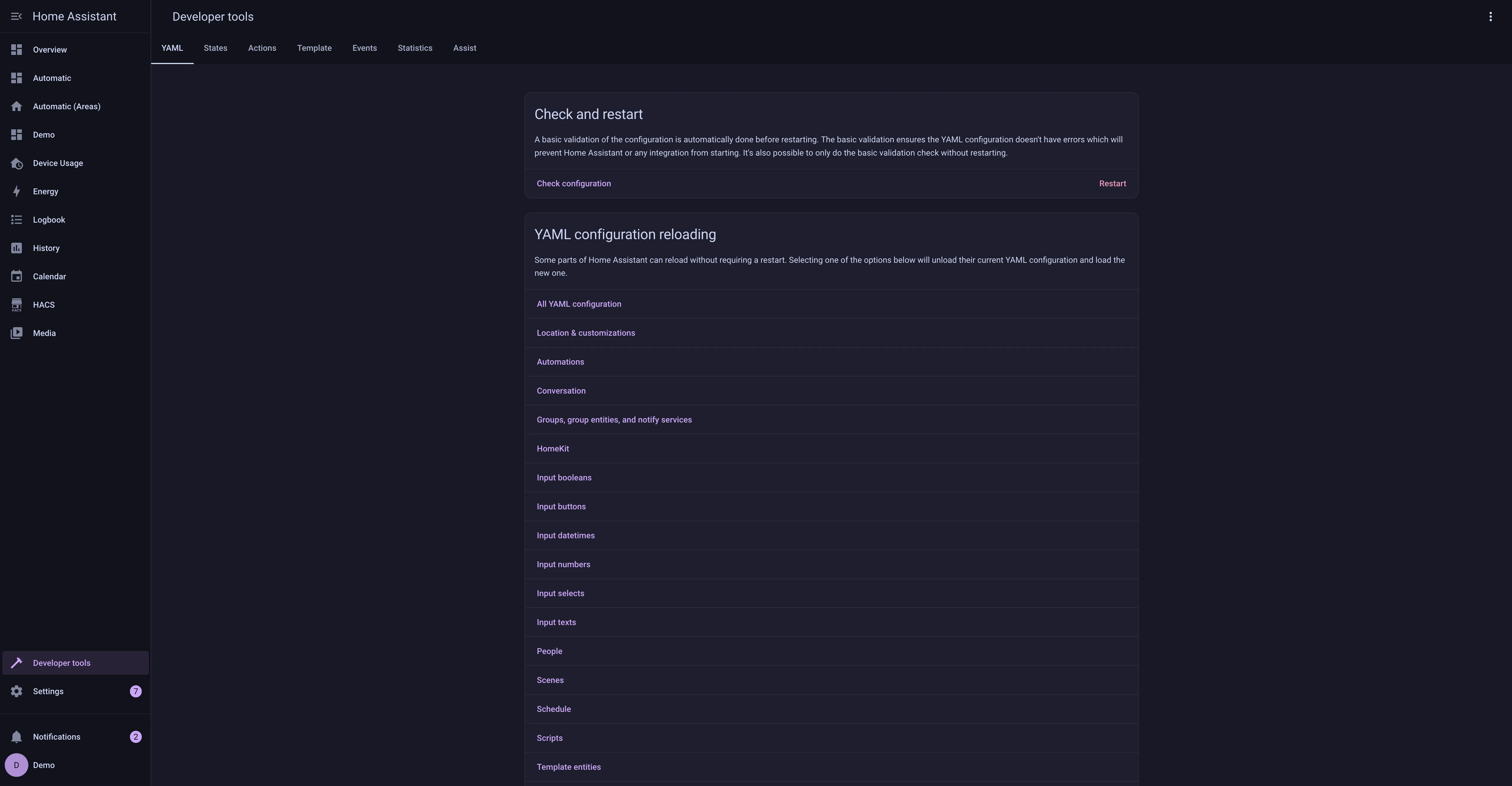
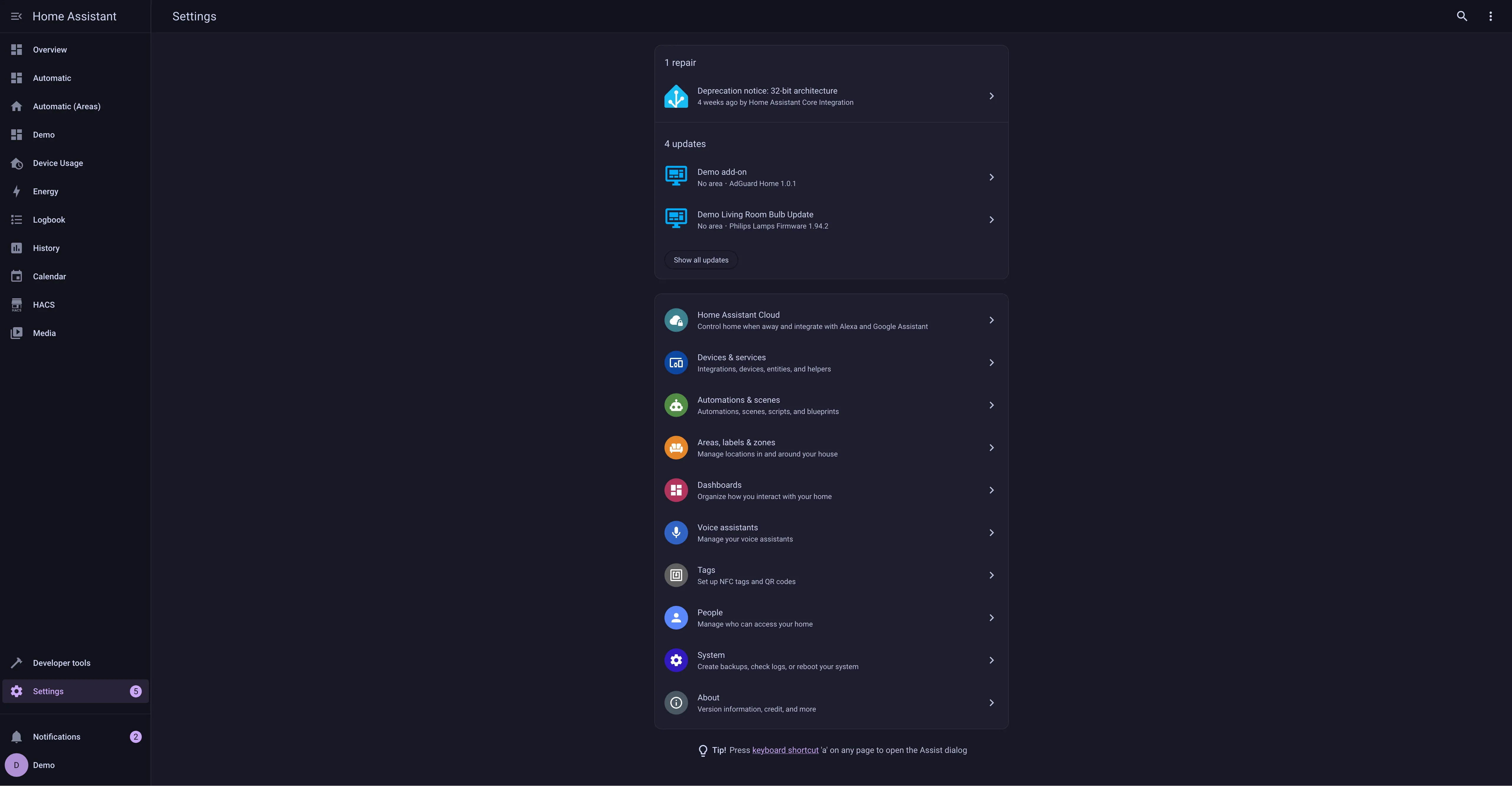
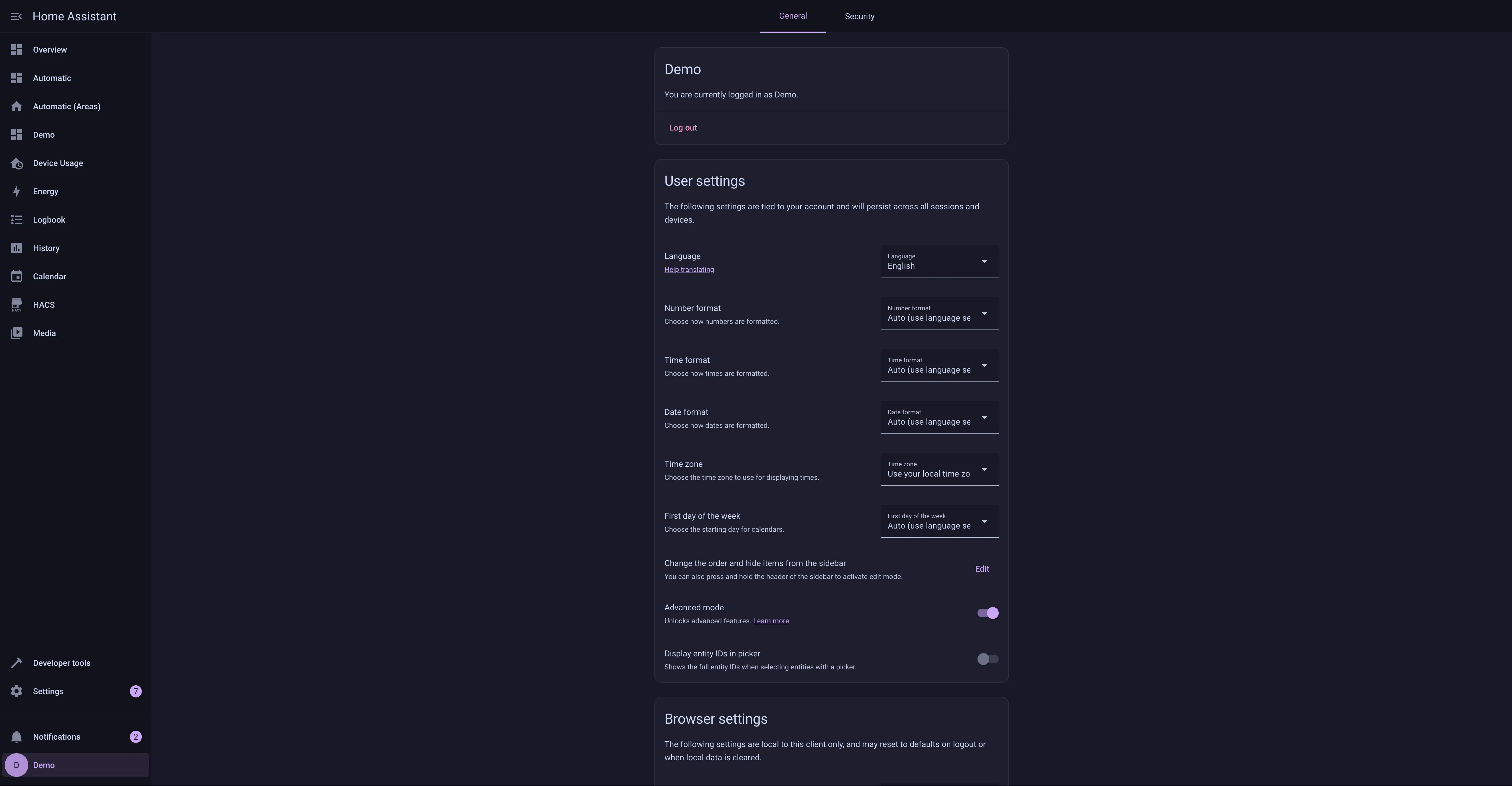
## Previews
🌻 Latte🪴 Frappé🌺 Macchiato🌿 Mocha
## Usage
### With [HACS](https://hacs.xyz/)
> [!NOTE]
> This will install the default mauve theme shown in the example screenshots. If you wish to have a different highlight color you will need to follow the [manual installation steps](#manual) below.
1. Add the following code to your `configuration.yaml` file (reboot required).
```yaml
frontend:
... # your configuration.
themes: !include_dir_merge_named themes
... # your configuration.
```
2. Go to the Community Store.
3. Search for `Catppuccin`.
4. Navigate to `Catppuccin` theme.
5. Press `Install`.
6. Go to Developer Tools, and next Actions. Then select and manually trigger the `frontend.reload_actions` action.
7. Go to the [Profile General tab](https://my.home-assistant.io/redirect/profile) and change Theme under Browser Settings to your desired theme.
### Manual
1. Add the following code to your `configuration.yaml` file (reboot required).
```yaml
frontend:
... # your configuration.
themes: !include_dir_merge_named themes
... # your configuration.
```
2. Go to the [latest GitHub release](https://github.com/catppuccin/home-assistant/releases/latest)
- If you want to install the default (mauve) theme, download the `catppuccin.yaml` file
- If you want a different highlight color, download and extract the `catppuccin-accents.zip` file and select the accent(s) you want available
3. Move the selected file(s) to the `themes` folder in your [HA configuration directory](https://www.home-assistant.io/docs/configuration/#to-find-the-configuration-directory). (E.g. `~/config/themes`)
4. Run the `frontend.reload_themes` action or restart Home Assistant.
5. Go to the [Profile General tab](https://my.home-assistant.io/redirect/profile) and change Theme under Browser Settings to your desired theme.
## 💝 Thanks to
- [fapfaff](https://github.com/fapfaff)

 Catppuccin for Home Assistant