[](https://github.com/Carthage/Carthage)
[](https://cocoapods.org/pods/Cely)
[](http://github.com/cookiecutter-swift/Framework)
[](https://app.bitrise.io/app/aff729145cb46dfe)
[](https://codecov.io/gh/initFabian/Cely)
> Prounounced Cell-Lee
Cely’s goal is to add a login system into your app in under 30 seconds!
- [Overview](#overview)
- [Requirements](#requirements)
- [Usage](#usage)
- [API](#api)
- [Installation](#installation)
- [License](#license)
## Overview
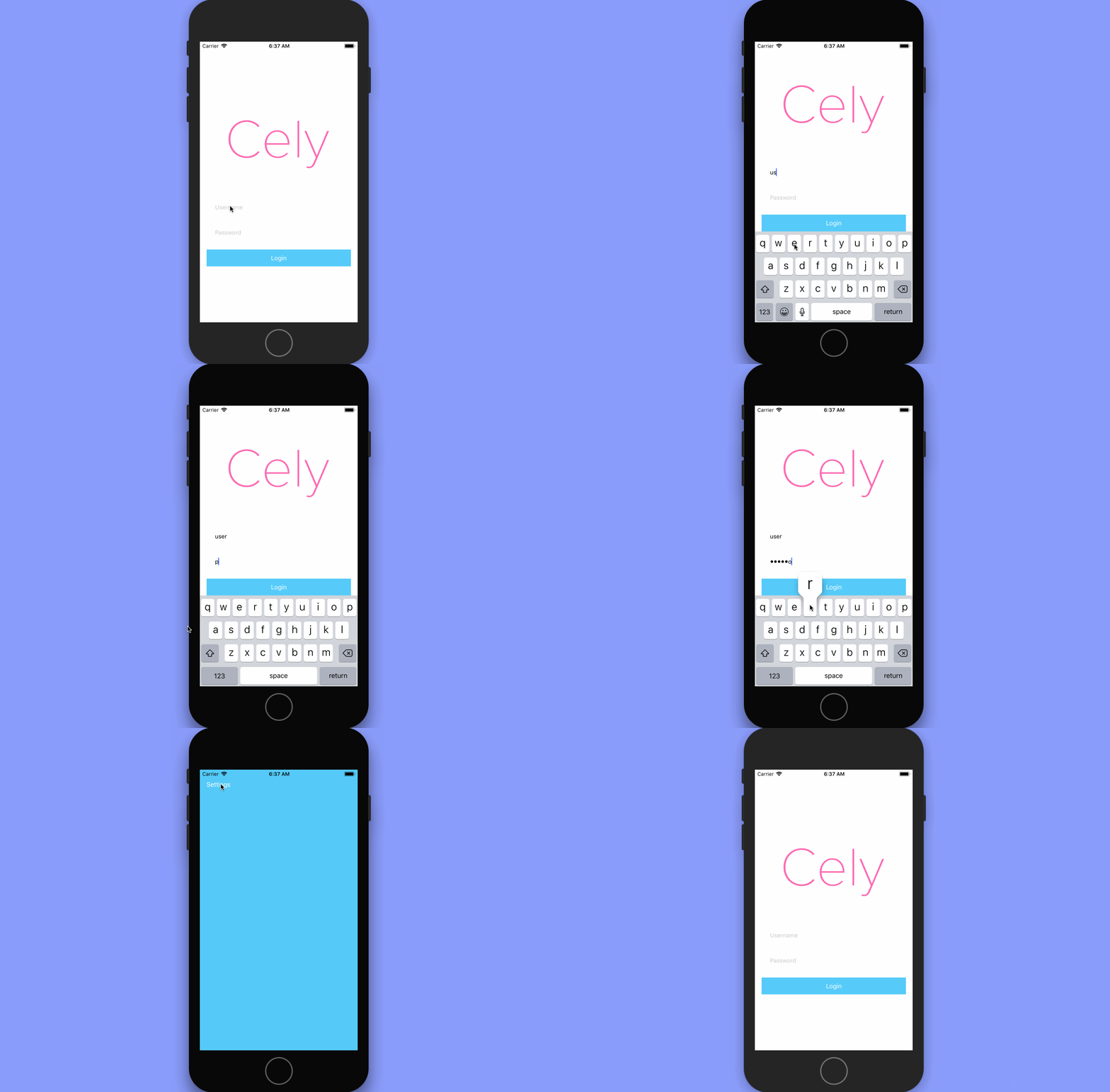
Cely's goal is to add a login system into your app in under 30 seconds!
 ### Background
Whether you're building an app for a client or for a hackathon, building a login system, no matter how basic it is, can be very tedious and time-consuming. Cely's architecture has been battle tested on countless apps, and Cely guarantees you a fully functional login system in a fraction of the time. You can trust Cely is handling login credentials correctly as well since Cely is built on top of [Locksmith](https://github.com/matthewpalmer/Locksmith), swift's most popular Keychain wrapper.
#### Details:
What does Cely does for you?
1. Simple API to store user creditials and information **securely**
- `Cely.save("SUPER_SECRET_STRING", forKey: "token", securely: true)`
2. Manages switching between your app's Home Screen and Login Screen with:
- `Cely.changeStatus(to: .loggedIn) // or .loggedOut`
3. Customizable starter Login screen(or you can use your login screen)
What Cely **does not do** for you?
1. Network requests
2. Handle Network errors
3. Anything with the network
## Requirements
- iOS 11.0+
- Xcode 9.0+
- Swift 4.0+
## Usage
### Setup(30 seconds)
#### User Model (`User.swift`)
Let's start by creating a `User` model that conforms to the [`CelyUser`](#Cely.CelyUser) Protocol:
```swift
// User.swift
import Cely
struct User: CelyUser {
enum Property: CelyProperty {
case token = "token"
}
}
```
#### Login redirect(`AppDelegate.swift`)
Cely's **Simple Setup** function will get you up and running in a matter of seconds. Inside of your `AppDelegate.swift` simply `import Cely` and call the [`setup(_:)`](#Cely.setup) function inside of your `didFinishLaunchingWithOptions` method.
```swift
// AppDelegate.swift
import Cely
func application(application: UIApplication, didFinishLaunchingWithOptions launchOptions: [NSObject: Any]?) -> Bool {
Cely.setup(with: window, forModel: User(), requiredProperties: [.token])
...
}
```
### Background
Whether you're building an app for a client or for a hackathon, building a login system, no matter how basic it is, can be very tedious and time-consuming. Cely's architecture has been battle tested on countless apps, and Cely guarantees you a fully functional login system in a fraction of the time. You can trust Cely is handling login credentials correctly as well since Cely is built on top of [Locksmith](https://github.com/matthewpalmer/Locksmith), swift's most popular Keychain wrapper.
#### Details:
What does Cely does for you?
1. Simple API to store user creditials and information **securely**
- `Cely.save("SUPER_SECRET_STRING", forKey: "token", securely: true)`
2. Manages switching between your app's Home Screen and Login Screen with:
- `Cely.changeStatus(to: .loggedIn) // or .loggedOut`
3. Customizable starter Login screen(or you can use your login screen)
What Cely **does not do** for you?
1. Network requests
2. Handle Network errors
3. Anything with the network
## Requirements
- iOS 11.0+
- Xcode 9.0+
- Swift 4.0+
## Usage
### Setup(30 seconds)
#### User Model (`User.swift`)
Let's start by creating a `User` model that conforms to the [`CelyUser`](#Cely.CelyUser) Protocol:
```swift
// User.swift
import Cely
struct User: CelyUser {
enum Property: CelyProperty {
case token = "token"
}
}
```
#### Login redirect(`AppDelegate.swift`)
Cely's **Simple Setup** function will get you up and running in a matter of seconds. Inside of your `AppDelegate.swift` simply `import Cely` and call the [`setup(_:)`](#Cely.setup) function inside of your `didFinishLaunchingWithOptions` method.
```swift
// AppDelegate.swift
import Cely
func application(application: UIApplication, didFinishLaunchingWithOptions launchOptions: [NSObject: Any]?) -> Bool {
Cely.setup(with: window, forModel: User(), requiredProperties: [.token])
...
}
```
Hit RUN!!
### CelyOptions
#### Handle Login Credentials
Now how do we get the `username` and `password` from Cely's default LoginViewController? It's easy, just pass in a completion block for the `.loginCompletionBlock`. Check out [`CelyOptions`](#Cely.CelyOptions) for more info.
```swift
func application(_ application: UIApplication, didFinishLaunchingWithOptions launchOptions: [UIApplicationLaunchOptionsKey: Any]?) -> Bool {
Cely.setup(with: window!, forModel: User(), requiredProperties: [.token], withOptions: [
.loginCompletionBlock: { (username: String, password: String) in
if username == "asdf" && password == "asdf" {
Cely.save(username, forKey: "username")
Cely.save("FAKETOKEN:\(username)\(password)", forKey: "token", securely: true)
Cely.changeStatus(to: .loggedIn)
}
}
])
return true
}
```
#### Customize Default Login Screen
Create an object that conforms to the [`CelyStyle`](#Cely.CelyStyle) protocol and set it to `.loginStyle` inside of the [`CelyOptions`](#Cely.CelyOptions) dictionary when calling Cely's [`setup(_:)`](#Cely.setup) method.
```swift
// LoginStyles.swift
struct CottonCandy: CelyStyle {
func backgroundColor() -> UIColor {
return UIColor(red: 86/255, green: 203/255, blue: 249/255, alpha: 1) // Changing Color
}
func buttonTextColor() -> UIColor {
return .white
}
func buttonBackgroundColor() -> UIColor {
return UIColor(red: 253/255, green: 108/255, blue: 179/255, alpha: 1) // Changing Color
}
func textFieldBackgroundColor() -> UIColor {
return UIColor.white.withAlphaComponent(0.4)
}
func appLogo() -> UIImage? {
return UIImage(named: "CelyLogo")
}
}
...
// AppDelegate.swift
func application(_ application: UIApplication, didFinishLaunchingWithOptions launchOptions: [UIApplicationLaunchOptionsKey: Any]?) -> Bool {
Cely.setup(with: window!, forModel: User.ref, requiredProperties: [.token], withOptions: [
.loginStyle: CottonCandy(), // <--- HERE!!
.loginCompletionBlock: { ... }
])
return true
}
```
#### Customize Transitions
In order to create a custom transition, create an object that conforms to [`CelyAnimator`](#Cely.CelyAnimator) protocol and set it to `.celyAnimator` inside of the [`CelyOption`](#Cely.CelyOptions) dictionary when calling Cely's [`setup(_:)`](#Cely.setup) method.
```swift
struct DefaultAnimator: CelyAnimator {
func loginTransition(to destinationVC: UIViewController?, with celyWindow: UIWindow) {
guard let snapshot = celyWindow.snapshotView(afterScreenUpdates: true) else {
return
}
destinationVC?.view.addSubview(snapshot)
// Set the rootViewController of the `celyWindow` object
celyWindow.setCurrentViewController(to: destinationVC)
// Below here is where you can create your own animations
UIView.animate(withDuration: 0.5, animations: {
// Slide login screen to left
snapshot.transform = CGAffineTransform(translationX: 600.0, y: 0.0)
}, completion: {
(value: Bool) in
snapshot.removeFromSuperview()
})
}
func logoutTransition(to destinationVC: UIViewController?, with celyWindow: UIWindow) {
guard let snapshot = celyWindow.snapshotView(afterScreenUpdates: true) else {
return
}
destinationVC?.view.addSubview(snapshot)
// Set the rootViewController of the `celyWindow` object
celyWindow.setCurrentViewController(to: destinationVC)
// Below here is where you can create your own animations
UIView.animate(withDuration: 0.5, animations: {
// Slide home screen to right
snapshot.transform = CGAffineTransform(translationX: -600.0, y: 0.0)
}, completion: {
(value: Bool) in
snapshot.removeFromSuperview()
})
}
}
...
// AppDelegate.swift
func application(_ application: UIApplication, didFinishLaunchingWithOptions launchOptions: [UIApplicationLaunchOptionsKey: Any]?) -> Bool {
Cely.setup(with: window!, forModel: User.ref, requiredProperties: [.token], withOptions: [
.celyAnimator: CustomAnimator(), // <--- HERE!!
.loginCompletionBlock: { ... }
])
return true
}
```
#### Use your own Screens
To use your own login screen, simply create a storyboard that contains your login screen and pass that in as `.loginStoryboard` inside of the [`CelyOptions`](#Cely.CelyOptions) dictionary when calling Cely's [`setup(_:)`](#Cely.setup) method.
Lastly, if your app uses a different storyboard other than `Main.storyboard`, you can pass that in as `.homeStoryboard`.
**⚠️⚠️⚠️⚠️ Be sure to make your Login screen as the `InitialViewController` inside of your storyboard!⚠️⚠️⚠️⚠️**
```swift
// AppDelegate.swift
func application(_ application: UIApplication, didFinishLaunchingWithOptions launchOptions: [UIApplicationLaunchOptionsKey: Any]?) -> Bool {
Cely.setup(with: window!, forModel: User.ref, requiredProperties: [.token], withOptions: [
.loginStoryboard: UIStoryboard(name: "MyCustomLogin", bundle: nil),
.homeStoryboard: UIStoryboard(name: "NonMain", bundle: nil)
])
return true
}
```
### Recommended User Pattern
```swift
import Cely
struct User: CelyUser {
enum Property: CelyProperty {
case username = "username"
case email = "email"
case token = "token"
func securely() -> Bool {
switch self {
case .token:
return true
default:
return false
}
}
func persisted() -> Bool {
switch self {
case .username:
return true
default:
return false
}
}
func save(_ value: Any) {
Cely.save(value, forKey: rawValue, securely: securely(), persisted: persisted())
}
func get() -> Any? {
return Cely.get(key: rawValue)
}
}
}
// MARK: - Save/Get User Properties
extension User {
static func save(_ value: Any, as property: Property) {
property.save(value: value)
}
static func save(_ data: [Property : Any]) {
data.forEach { property, value in
property.save(value)
}
}
static func get(_ property: Property) -> Any? {
return property.get()
}
}
```
The reason for this pattern is to make saving data as easy as:
```swift
// Pseudo network code, NOT REAL CODE!!!
ApiManager.logUserIn("username", "password") { json in
let apiToken = json["token"].string
// REAL CODE!!!
User.save(apiToken, as: .token)
}
```
and getting data as simple as:
```swift
let token = User.get(.token)
```
## API
### Cely
Cely was made to help handle user credentials and handling login with ease. Below you will find documentation for Cely's Framework. **Please do not hesitate to open an issue if something is unclear or is missing.**
#### Variables
##### `store`
A class that conforms to the [`CelyStorageProtocol`](#Cely.CelyStorageProtocol) protocol. By default is set to a singleton instance of `CelyStorage`.
#### Methods
##### `setup(with:forModel:requiredProperties:withOptions:)`
Sets up Cely within your application
Example
```swift
Cely.setup(with: window, forModel: User(), requiredProperties:[.token])
// or
Cely.setup(with: window, forModel: User(), requiredProperties:[.token], withOptions:[
.loginStoryboard: UIStoryboard(name: "MyCustomLogin", bundle: nil),
.HomeStoryboard: UIStoryboard(name: "My_NonMain_Storyboard", bundle: nil),
.loginCompletionBlock: { (username: String, password: String) in
if username == "asdf" && password == "asdf" {
print("username: \(username): password: \(password)")
}
}
])
```
Parameters
Key | Type| Required? | Description
----|------|----------|--------
`window` | `UIWindow` | ✅ | window of your application.
`forModel` | [`CelyUser`](#Cely.CelyUser) | ✅ | The model Cely will be using to store data.
`requiredProperties` | `[CelyProperty]` | no | The properties that cely tests against to determine if a user is logged in.
**Default value**: empty array.
`options` | `[CelyOption]` | no | An array of [`CelyOptions`](#Cely.CelyOptions) to pass in additional customizations to cely.
##### `currentLoginStatus(requiredProperties:fromStorage:)`
Will return the `CelyStatus` of the current user.
Example
```swift
let status = Cely.currentLoginStatus()
```
Parameters
Key | Type| Required? | Description
----|------|----------|--------
`properties` | [`CelyProperty`] | no | Array of required properties that need to be in store.
`store` | `CelyStorage` | no | Storage `Cely` will be using. Defaulted to `CelyStorage`
Returns
Type| Description
----|------
[`CelyStatus`](#Cely.CelyStatus) | If `requiredProperties` are all in store, it will return `.loggedIn`, else `.loggedOut`
##### `get(_:fromStorage:)`
Returns stored data for key.
Example
```swift
let username = Cely.get(key: "username")
```
Parameters
Key | Type| Required? | Description
----|------|----------|--------
`key` | String | ✅ | The key to the value you want to retrieve.
`store` | CelyStorage | no | Storage `Cely` will be using. Defaulted to `CelyStorage`
Returns
Type| Description
----|------
`Any?` | Returns an `Any?` object in the case the value nil(not found).
##### `save(_:forKey:toStorage:securely:persisted:)`
Saves data in store
Example
```swift
Cely.save("test@email.com", forKey: "email")
Cely.save("testUsername", forKey: "username", persisted: true)
Cely.save("token123", forKey: "token", securely: true)
```
Parameters
Key | Type| Required? | Description
----|------|----------|--------
`value` | **Any?** | ✅ | The value you want to save to storage.
`key` | **String** | ✅ | The key to the value you want to save.
`store` | **CelyStorage** | no | Storage `Cely` will be using. Defaulted to `CelyStorage`.
`secure` | **Boolean** | no | If you want to store the value securely.
`persisted` | **Boolean** | no | Keep data after logout.
Returns
Type| Description
----|------
`StorageResult` | Whether or not your value was successfully set.
##### `changeStatus(to:)`
Perform action like `LoggedIn` or `LoggedOut`.
Example
```swift
changeStatus(to: .loggedOut)
```
Parameters
Key | Type| Required? | Description
----|------|----------|--------
`status` | **CelyStatus** | ✅ | enum value
##### `logout(usesStorage:)`
Convenience method to logout user. Is equivalent to `changeStatus(to: .loggedOut)`
Example
```swift
Cely.logout()
```
Parameters
Key | Type| Required? | Description
----|------|----------|--------
`store` | **CelyStorage** | no | Storage `Cely` will be using. Defaulted to `CelyStorage`.
##### `isLoggedIn()`
Returns whether or not the user is logged in
Example
```swift
Cely.isLoggedIn()
```
Returns
Type| Description
----|------
`Boolean` | Returns whether or not the user is logged in
### Constants
#### Protocols
##### `CelyUser `
`protocol` for model class to implements
Example
```swift
import Cely
struct User: CelyUser {
enum Property: CelyProperty {
case token = "token"
}
}
```
Required
value | Type| Description
----|------|---
`Property ` | `associatedtype` | Enum of all the properties you would like to save for a model
##### `CelyStorageProtocol `
`protocol` a storage class must abide by in order for Cely to use it
Required
```swift
func set(_ value: Any?, forKey key: String, securely secure: Bool, persisted: Bool) -> StorageResult
func get(_ key: String) -> Any?
func removeAllData()
```
##### `CelyStyle`
The `protocol` an object must conform to in order to customize Cely's default login screen. Since all methods are optional, Cely will use the default value for any unimplemented methods.
Methods
```swift
func backgroundColor() -> UIColor
func textFieldBackgroundColor() -> UIColor
func buttonBackgroundColor() -> UIColor
func buttonTextColor() -> UIColor
func appLogo() -> UIImage?
```
##### `CelyAnimator`
The `protocol` an object must conform to in order to customize transitions between home and login screens.
Methods
```swift
func loginTransition(to destinationVC: UIViewController?, with celyWindow: UIWindow)
func logoutTransition(to destinationVC: UIViewController?, with celyWindow: UIWindow)
```
#### Typealias
##### `CelyProperty `
`String` type alias. Is used in User model
##### `CelyCommands `
`String` type alias. Command for cely to execute
#### enums
##### `CelyOptions`
`enum` Options that you can pass into Cely on [`setup(with:forModel:requiredProperties:withOptions:)`](#Cely.setup)
Options
Case | Description
----|------
`storage ` | Pass in you're own storage class if you wish not to use Cely's default storage. Class must conform to the `CelyStorage` protocol.
`homeStoryboard ` | Pass in your app's default storyboard if it is not named "Main"
`loginStoryboard ` | Pass in your own login storyboard.
`loginStyle` | Pass in an object that conforms to [`CelyStyle`](#Cely.CelyStyle) to customize the default login screen.
`loginCompletionBlock ` | `(String,String) -> Void` block of code that will run once the Login button is pressed on Cely's default login Controller
`celyAnimator` | Pass in an object that conforms to [`CelyAnimator`](#Cely.CelyAnimator) to customize the default login screen.
##### `CelyStatus`
`enum` Statuses for Cely to perform actions on
Statuses
Case | Description
----|------
`loggedIn ` | Indicates user is now logged in.
`loggedOut ` | Indicates user is now logged out.
##### `StorageResult `
`enum` result on whether or not Cely successfully saved your data.
Results
Case| Description
----|------
`success ` | Successfully saved your data
`fail(error) ` | Failed to save data along with a `LocksmithError`.
## Installation
### CocoaPods
[CocoaPods](http://cocoapods.org) is a dependency manager for Cocoa projects. You can install it with the following command:
```bash
$ gem install cocoapods
```
> CocoaPods 1.1.0+ is required to build Cely 2.0.0+.
To integrate Cely into your Xcode project using CocoaPods, specify it in your `Podfile`:
```ruby
source 'https://github.com/CocoaPods/Specs.git'
platform :ios, '8.0'
use_frameworks!
pod 'Cely', '~> 2.1'
```
Then, run the following command:
```bash
$ pod install
```
### Carthage
[Carthage](https://github.com/Carthage/Carthage) is a decentralized dependency manager that automates the process of adding frameworks to your Cocoa application.
You can install Carthage with [Homebrew](http://brew.sh/) using the following command:
```bash
$ brew update
$ brew install carthage
```
To integrate Cely into your Xcode project using Carthage, specify it in your `Cartfile`:
```ogdl
github "initFabian/Cely" ~> 2.1
```
### Manually
If you prefer not to use either of the aforementioned dependency managers, you can integrate Cely into your project manually.
#### Git Submodules
- Open up Terminal, `cd` into your top-level project directory, and run the following command "if" your project is not initialized as a git repository:
```bash
$ git init
```
- Add Cely as a git [submodule](http://git-scm.com/docs/git-submodule) by running the following command:
```bash
$ git submodule add https://github.com/initFabian/Cely.git
$ git submodule update --init --recursive
```
- Open the new `Cely` folder, and drag the `Cely.xcodeproj` into the Project Navigator of your application's Xcode project.
> It should appear nested underneath your application's blue project icon. Whether it is above or below all the other Xcode groups does not matter.
- Select the `Cely.xcodeproj` in the Project Navigator and verify the deployment target matches that of your application target.
- Next, select your application project in the Project Navigator (blue project icon) to navigate to the target configuration window and select the application target under the "Targets" heading in the sidebar.
- In the tab bar at the top of that window, open the "General" panel.
- Click on the `+` button under the "Embedded Binaries" section.
- You will see two different `Cely.xcodeproj` folders each with two different versions of the `Cely.framework` nested inside a `Products` folder.
> It does not matter which `Products` folder you choose from.
- Select the `Cely.framework`.
- And that's it!
> The `Cely.framework` is automagically added as a target dependency, linked framework and embedded framework in a copy files build phase which is all you need to build on the simulator and a device.
#### Embeded Binaries
- Download the latest release from https://github.com/initFabian/Cely/releases
- Next, select your application project in the Project Navigator (blue project icon) to navigate to the target configuration window and select the application target under the "Targets" heading in the sidebar.
- In the tab bar at the top of that window, open the "General" panel.
- Click on the `+` button under the "Embedded Binaries" section.
- Add the downloaded `Cely.framework`.
- And that's it!
## License
Cely is available under the MIT license. See the LICENSE file for more info.