简体中文 | English · 🌐 Official Homepage (Play Live in Browser) · 🎨 Skin Workshop & Plaza · ⬇️ Download Latest
Ultra-lightweight native desktop pet · Hardware-level full-state capture for typing & gaming · 2.5D spherical head tracking · Hunting boba eyes · Switchable cat skins
Native macOS (Swift + CoreGraphics + IOHIDManager) · Windows (C++17 + GDI+ + Raw Input) · Linux / UOS (C++17 + GTK3/Cairo + XInput2/evdev)
 |
 |
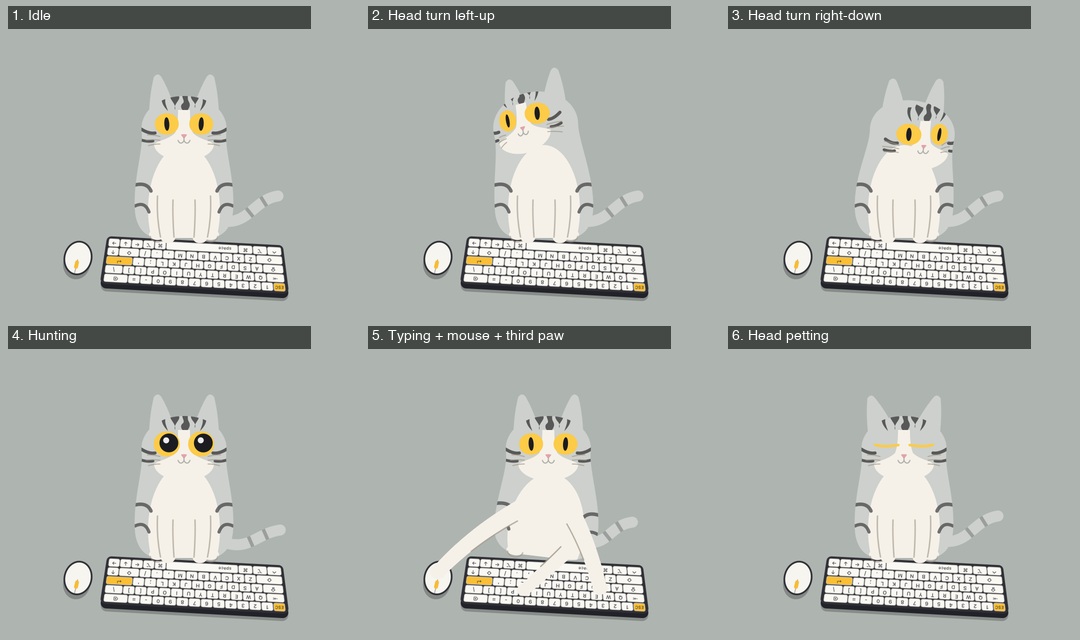
| American Shorthair | Orange & White Cat |
| :---: | :---: |
|
 |
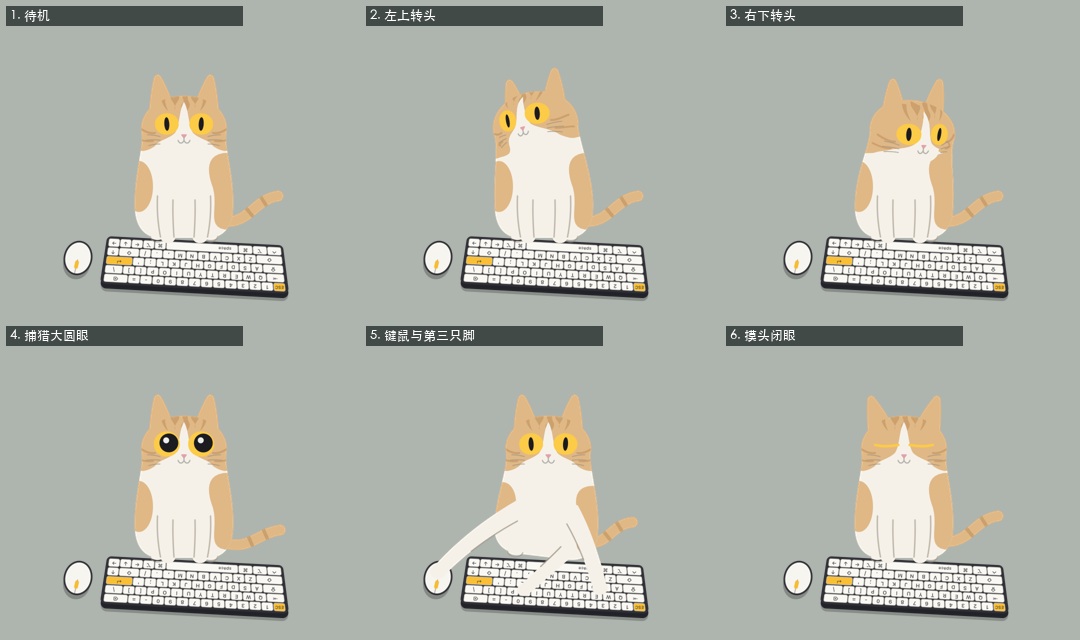 |
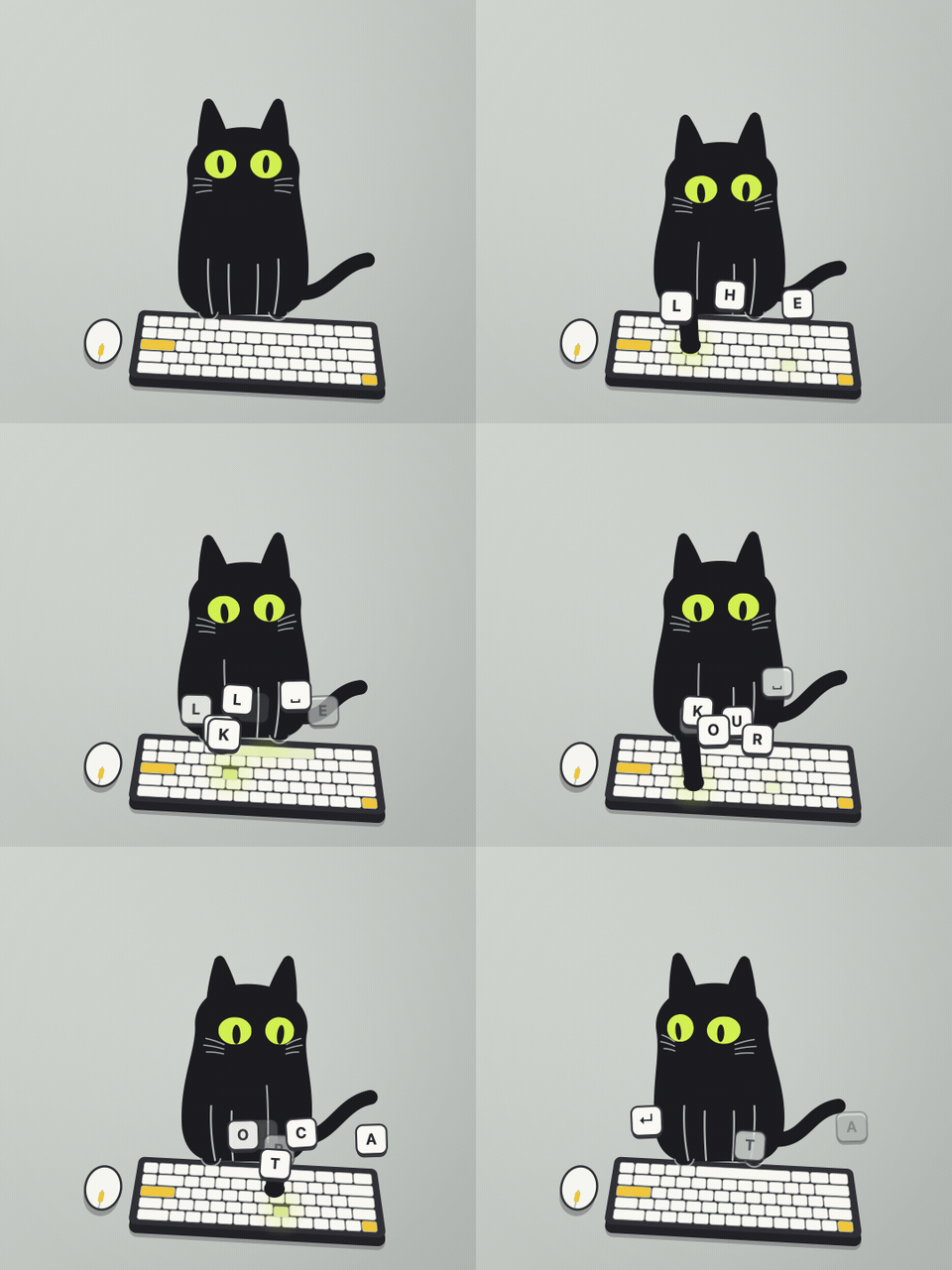
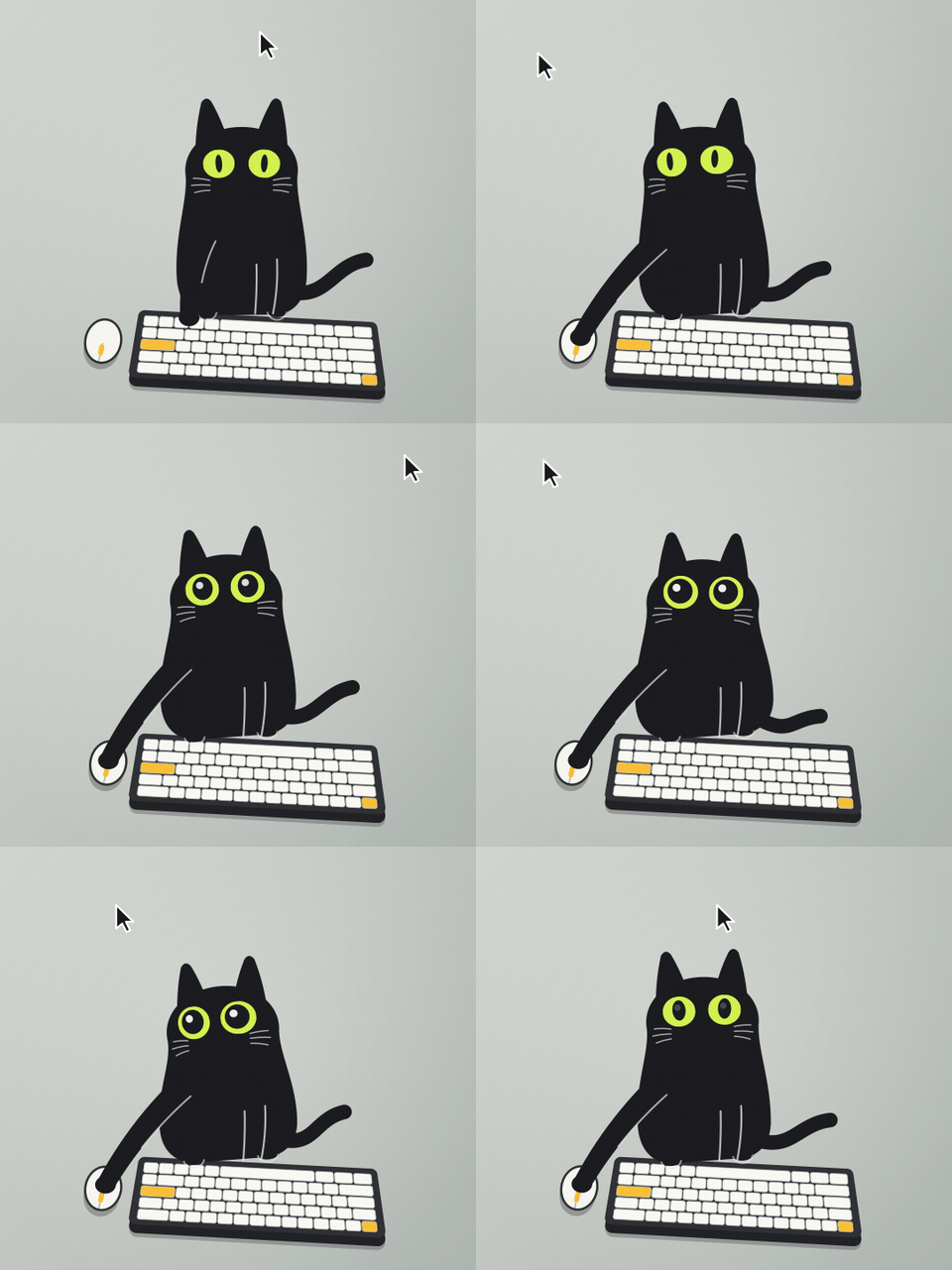
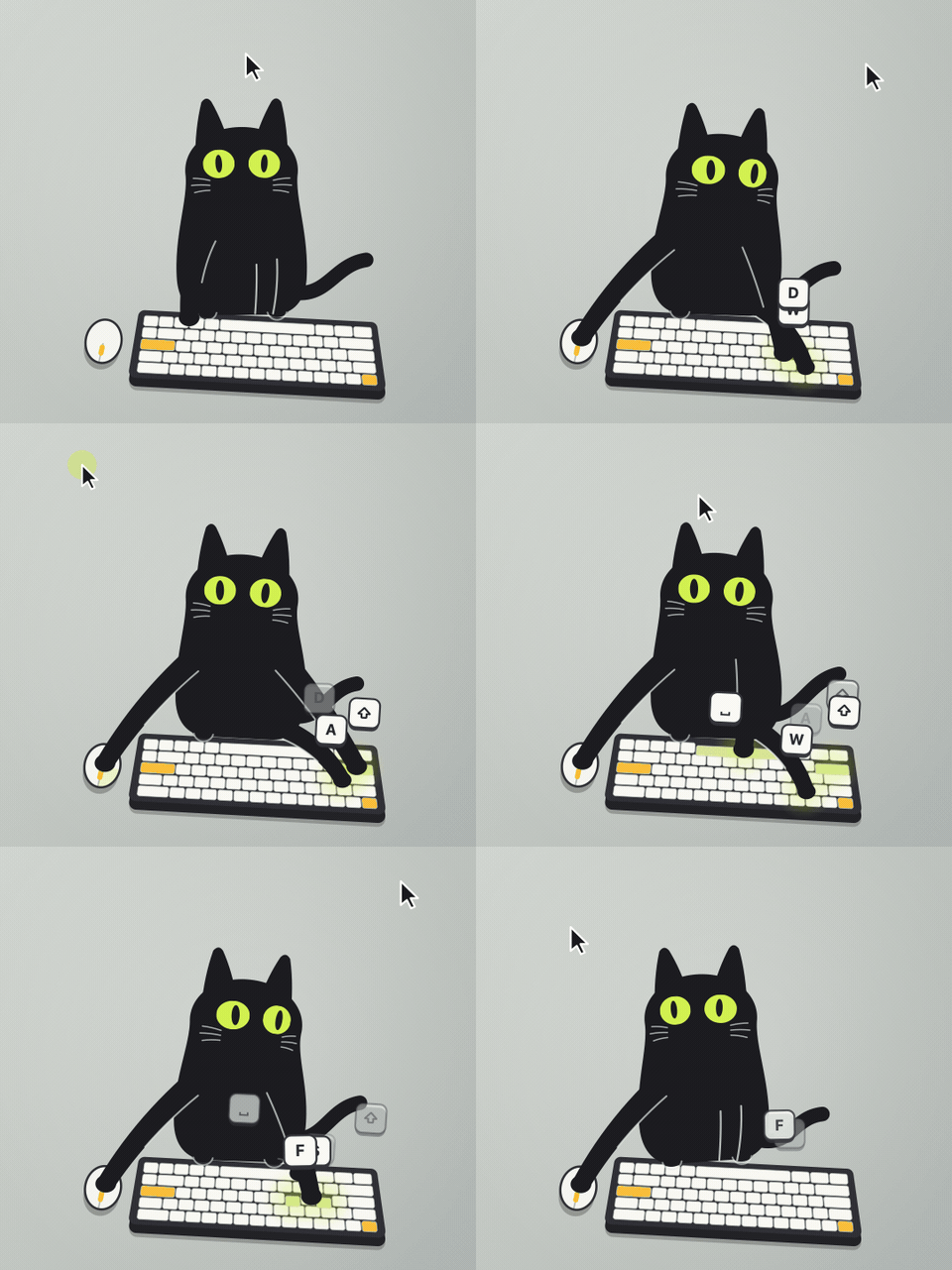
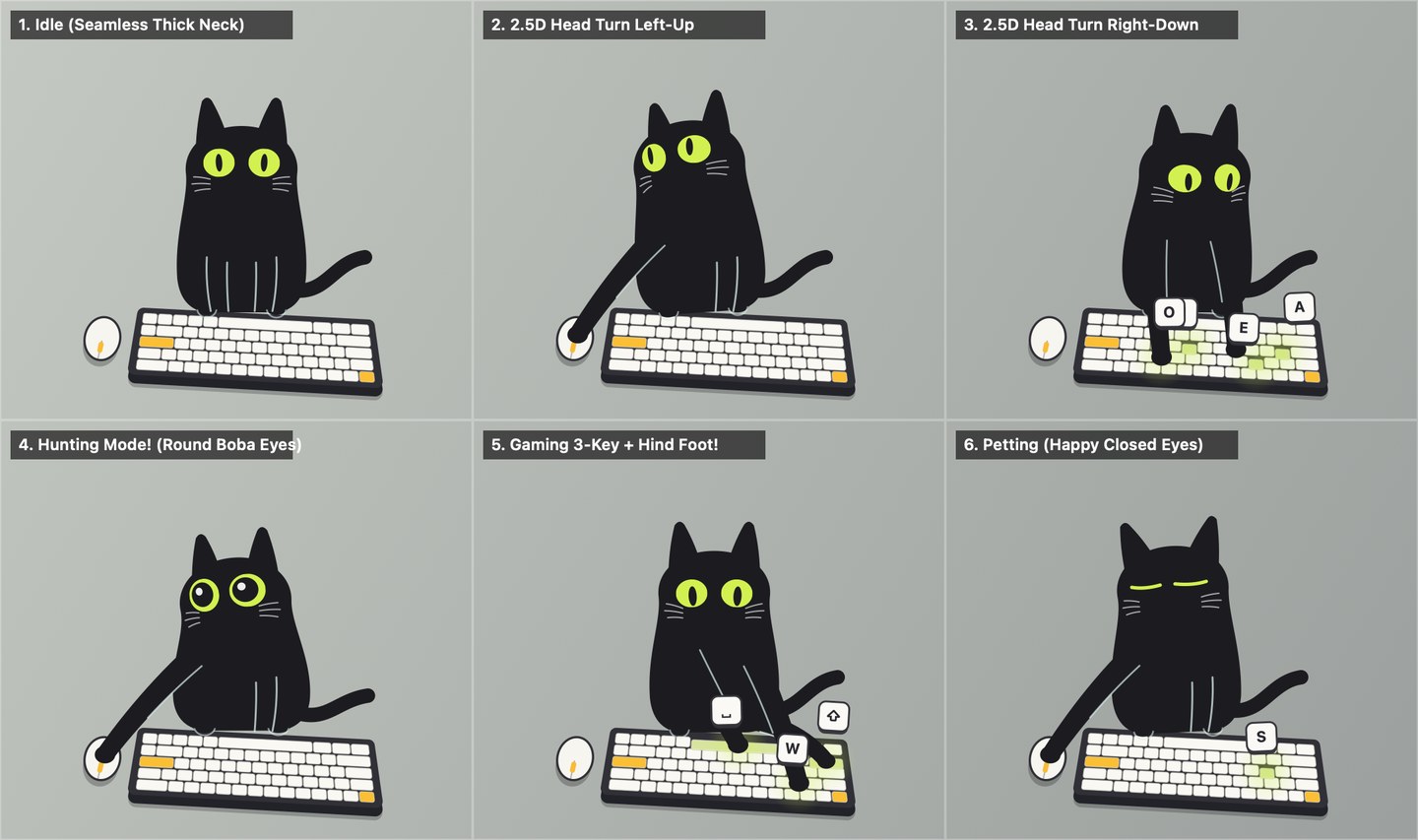
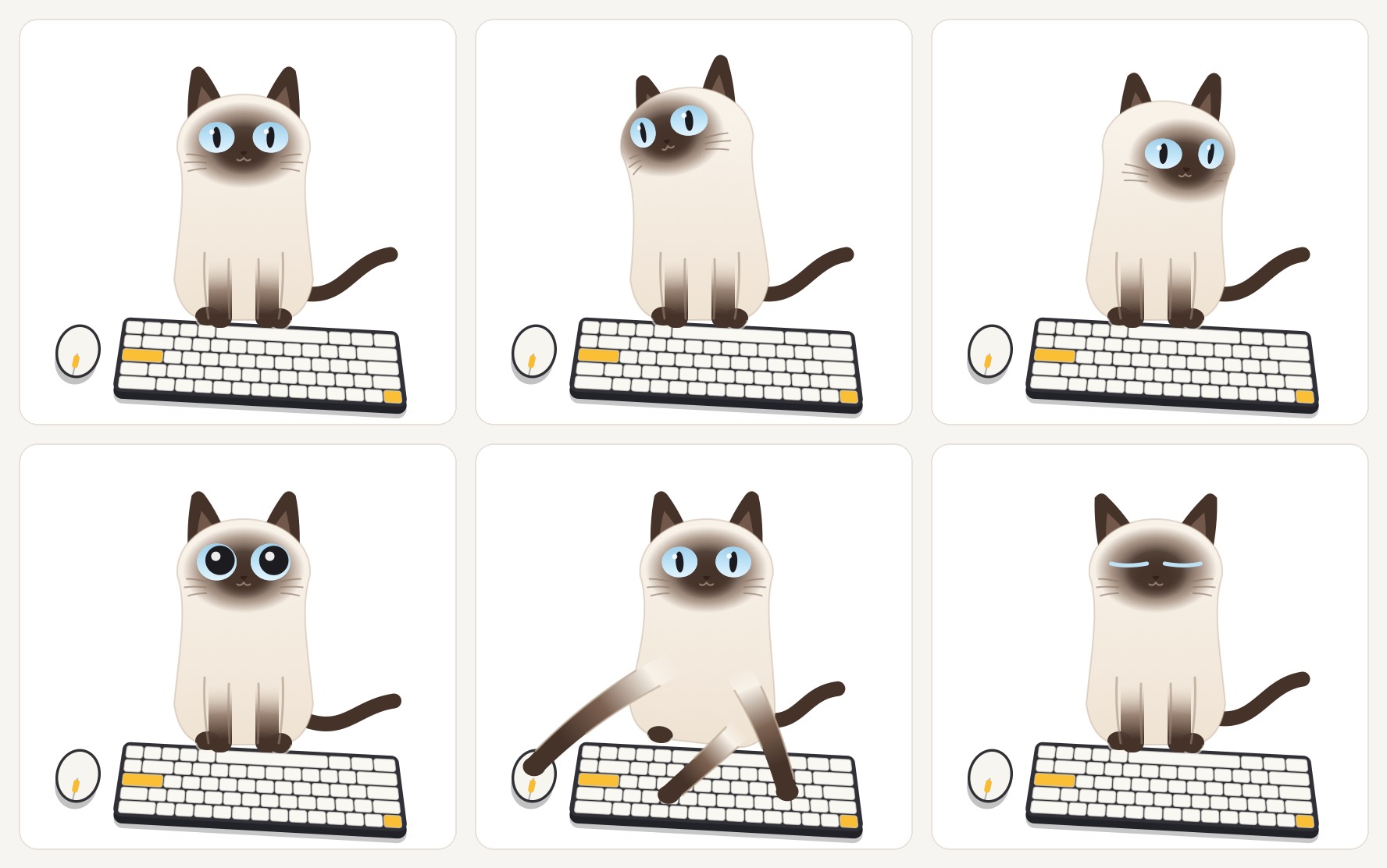
The 6-state previews are natively rendered by the app: Idle, Top-Left Look, Bottom-Right Look, Hunting, Keyboard/Mouse + 3rd Paw, and Petting Closed Eyes.
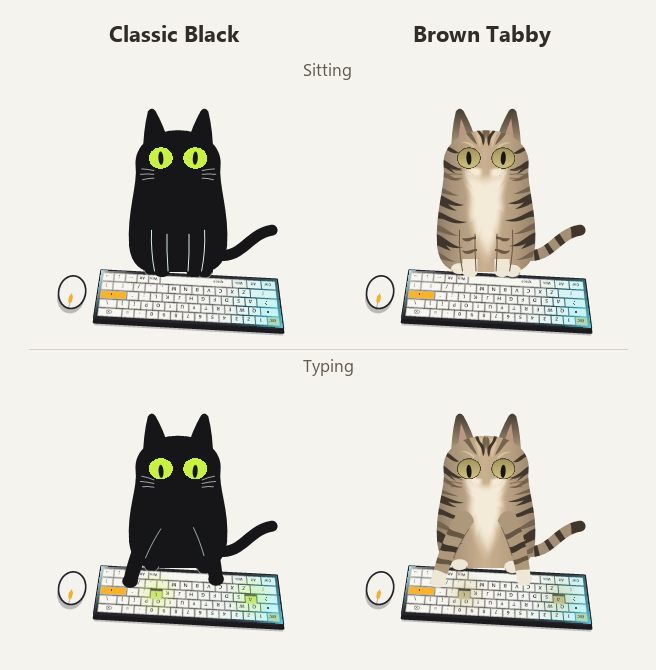
### Brown Mackerel Tabby (Windows)
 ---
## 📦 Download & Run
Download pre-built binaries from **[Releases](../../releases)** (built automatically via GitHub Actions):
### 🍎 macOS (Universal: Apple Silicon & Intel · macOS 11+)
1. Download `KuroCat-macOS-universal.zip`, unzip it, and drag `KuroCat.app` into **Applications** (lives in the top menu bar, no Dock icon).
2. On first launch, click the bottom prompt pill to open **System Settings → Privacy & Security → Input Monitoring**, enable `KuroCat`, then click **Restart KuroCat** from the menu bar to enable global typing & gaming capture.
3. Supports one-click **Launch at Login**. When **Full Click-Through** is enabled, use the menu bar icon or **hold `⌥ Option` and right-click / drag the cat**.
**Build from source:**
```bash
chmod +x build.sh
./build.sh
open KuroCat.app
```
### 🪟 Windows (Windows 7 SP1 / 8 / 10 / 11 x64)
1. Download the single-file `KuroCat-Windows-x64.exe` (~220 KB, **zero external runtime dependencies**). Double-click to run; lives in the system tray.
2. Right-click the cat or click the tray icon to switch skins, keyboard themes, scale, **Launch at Login**, or **Full Click-Through**.
3. **4 ways to exit or open the menu while Full Click-Through is active**:
- Global shortcut: **`Ctrl + Alt + Shift + P`** to toggle click-through;
- Temporary unlock: hold **`Alt`** and right-click the cat to uncheck or left-drag to move;
- System tray: click the black cat icon in the **`^` hidden icons area** on the taskbar;
- Fallback: **double-click `KuroCat.exe` again** to disable click-through and open the settings menu at your cursor.
> **Cat follows the mouse but not the keyboard in a game?** The game (or its launcher) runs as Administrator, and Windows withholds its keystrokes from normal apps. Right-click the cat → **Restart as administrator**, or tick **Always run as administrator**. KuroCat shows a tray tip when it detects such a game.
>
> **Cat disappears in games?** KuroCat now re-asserts always-on-top when a fullscreen/borderless game comes to the front and moves back on-screen after resolution changes. True *exclusive fullscreen* cannot be overlaid by any desktop window — switch the game to borderless/windowed fullscreen.
>
> **Still told to update after downloading the new version?** An old copy was still running. A newer KuroCat now shuts down older running copies on launch, and the update prompt shows which exe is running.
**Build from source (MSVC / MinGW):**
```bat
cd windows
build.bat
```
Or with CMake:
```bat
cd windows
cmake -B build && cmake --build build --config Release
```
### 🐧 Linux & UOS / Kylin (x86_64 & ARM64)
Supports **Ubuntu 20.04+ / Debian 11+ / Deepin / UOS (x86_64 & ARM64) / Kylin / Arch / Fedora**:
1. **No-password install (recommended on UOS / Kylin)**: extract `KuroCat-Linux-x86_64.tar.gz` or `KuroCat-Linux-arm64.tar.gz` and run `bash install.sh` in that folder. It installs into `~/.local` for the current user only (no sudo); `bash uninstall.sh` removes it.
2. **`.deb` package (UOS / Deepin / Ubuntu / Debian / Kylin)**:
- Download `KuroCat-Linux-amd64.deb` or `KuroCat-Linux-arm64.deb`, double-click it or run:
```bash
sudo apt install ./KuroCat-Linux-amd64.deb
```
- Packages are built on Debian 10 (glibc 2.28), so older UOS 20 / Kylin V10 systems can run them. In-app updates install per-user and no longer ask for a password.
- Kylin refuses to install? Set *Security Center → App Protection / Execution Control* to Off or Warn, or use the no-password install.
3. **Other Linux distros (Arch / Fedora, etc.)**:
- Extract the tar.gz and run `bash install.sh`, or simply run `./kurocat`.
- Desktop lagging? KuroCat uses an adaptive 30/20/10 fps by default; the **60fps** option in the menu should stay off on low-end machines.
- On pure **Wayland** sessions, run `sudo usermod -aG input $USER` once and re-login to enable kernel-level `evdev` capture.
4. **Build from source (including LoongArch)**:
```bash
sudo apt install g++ pkg-config libgtk-3-dev libcairo2-dev libx11-dev libxi-dev
cd linux && chmod +x build.sh build_deb.sh
./build.sh # Compile binary
./build_deb.sh # Package .deb installer
```
---
## 📁 Project Structure
```text
KuroCat/
├── Sources/ # macOS native Swift source (Universal: Apple Silicon + Intel)
├── Resources/ # macOS Info.plist & AppIcon.icns
├── build.sh # macOS universal binary build script
├── windows/ # Windows native C++17 (Win32 + GDI+ + Raw Input)
├── linux/ # Linux & UOS native C++17 (GTK3 + Cairo + XInput2 + evdev)
│ ├── src/ # KeyMap / InputEngine / CatPhysics / CatRenderer / main.cpp
│ ├── build.sh # Local build script
│ └── build_deb.sh # Debian / UOS .deb packager
└── .github/workflows/build.yml # Automated multi-platform release workflow
```
---
## 🔒 Privacy
All keyboard and mouse hardware signals in KuroCat are processed **strictly in local memory in real time** to drive animations and counters—**no keystrokes are ever logged or saved**. Aside from checking the official release endpoint for new versions on startup or when manually clicking "Check for Updates", KuroCat makes no network requests. The entire codebase is open source and auditable.
## 📄 License
[MIT License](LICENSE)