


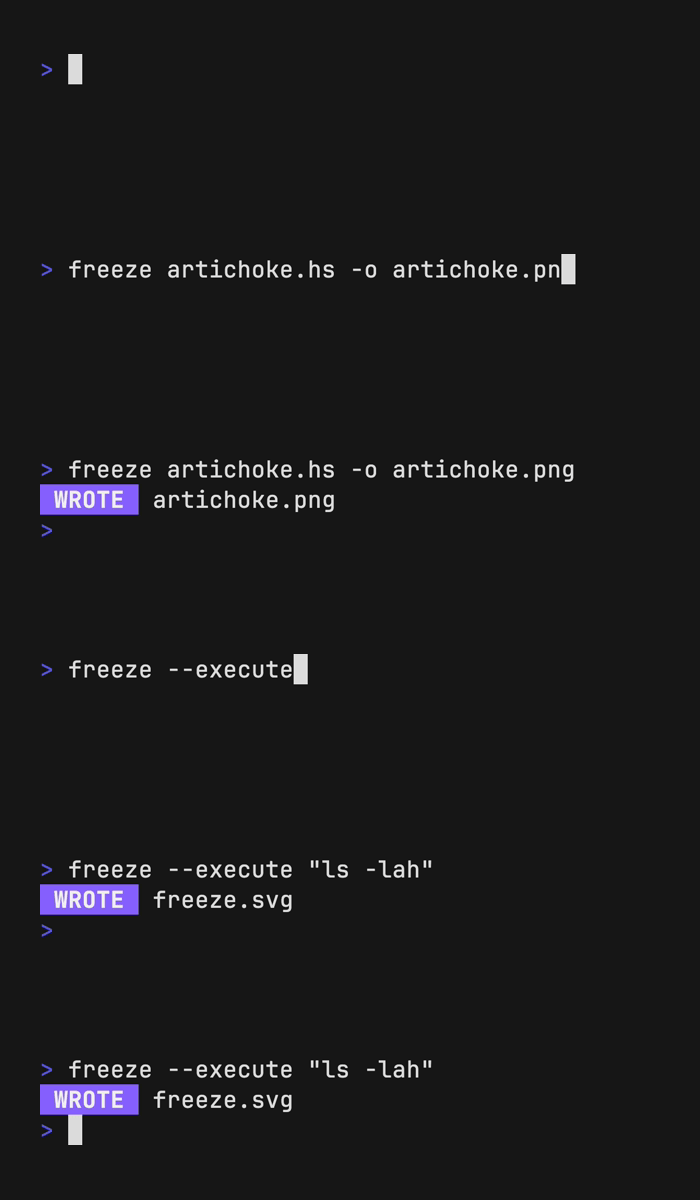
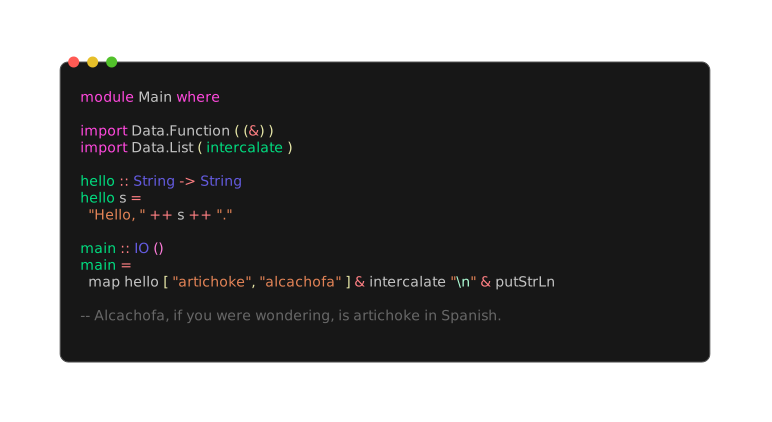
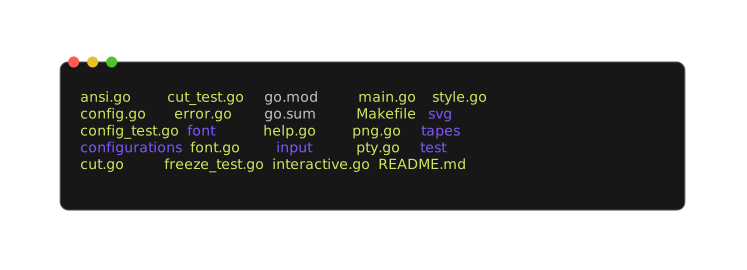
 Settings are written to `$XDG_CONFIG/freeze/user.json` and can be accessed with
`freeze --config user`.
### Flags
Screenshots can be customized with `--flags` or [Configuration](#configuration) files.
> [!NOTE]
> You can view all freeze customization with `freeze --help`.
- [`-b`](#background), [`--background`](#background): Apply a background fill.
- [`-c`](#configuration), [`--config`](#configuration): Base configuration file or template.
- [`-l`](#language), [`--language`](#language): Language to apply to code
- [`-m`](#margin), [`--margin`](#margin): Apply margin to the window.
- [`-o`](#output), [`--output`](#output): Output location for .svg, .png, .jpg.
- [`-p`](#padding), [`--padding`](#padding): Apply padding to the code.
- [`-r`](#border-radius), [`--border.radius`](#border-radius): Corner radius of window.
- [`-t`](#theme), [`--theme`](#theme): Theme to use for syntax highlighting.
- [`-w`](#window), [`--window`](#window): Display window controls.
- [`-H`](#height), [`--height`](#height): Height of terminal window.
- [`--border.width`](#border-width): Border width thickness.
- [`--border.color`](#border-width): Border color.
- [`--shadow.blur`](#shadow): Shadow Gaussian Blur.
- [`--shadow.x`](#shadow): Shadow offset x coordinate.
- [`--shadow.y`](#shadow): Shadow offset y coordinate.
- [`--font.family`](#font): Font family to use for code.
- [`--font.ligatures`](#font): Use ligatures in the font.
- [`--font.size`](#font): Font size to use for code.
- [`--font.file`](#font): File path to the font to use (embedded in the SVG).
- [`--line-height`](#font): Line height relative to font size.
- [`--show-line-numbers`](#line-numbers): Show line numbers.
- [`--lines`](#line-numbers): Lines to capture (start,end).
### Language
If possible, `freeze` auto-detects the language from the file name or analyzing
the file contents. Override this inference with the `--language` flag.
```bash
cat artichoke.hs | freeze --language haskell
```
Settings are written to `$XDG_CONFIG/freeze/user.json` and can be accessed with
`freeze --config user`.
### Flags
Screenshots can be customized with `--flags` or [Configuration](#configuration) files.
> [!NOTE]
> You can view all freeze customization with `freeze --help`.
- [`-b`](#background), [`--background`](#background): Apply a background fill.
- [`-c`](#configuration), [`--config`](#configuration): Base configuration file or template.
- [`-l`](#language), [`--language`](#language): Language to apply to code
- [`-m`](#margin), [`--margin`](#margin): Apply margin to the window.
- [`-o`](#output), [`--output`](#output): Output location for .svg, .png, .jpg.
- [`-p`](#padding), [`--padding`](#padding): Apply padding to the code.
- [`-r`](#border-radius), [`--border.radius`](#border-radius): Corner radius of window.
- [`-t`](#theme), [`--theme`](#theme): Theme to use for syntax highlighting.
- [`-w`](#window), [`--window`](#window): Display window controls.
- [`-H`](#height), [`--height`](#height): Height of terminal window.
- [`--border.width`](#border-width): Border width thickness.
- [`--border.color`](#border-width): Border color.
- [`--shadow.blur`](#shadow): Shadow Gaussian Blur.
- [`--shadow.x`](#shadow): Shadow offset x coordinate.
- [`--shadow.y`](#shadow): Shadow offset y coordinate.
- [`--font.family`](#font): Font family to use for code.
- [`--font.ligatures`](#font): Use ligatures in the font.
- [`--font.size`](#font): Font size to use for code.
- [`--font.file`](#font): File path to the font to use (embedded in the SVG).
- [`--line-height`](#font): Line height relative to font size.
- [`--show-line-numbers`](#line-numbers): Show line numbers.
- [`--lines`](#line-numbers): Lines to capture (start,end).
### Language
If possible, `freeze` auto-detects the language from the file name or analyzing
the file contents. Override this inference with the `--language` flag.
```bash
cat artichoke.hs | freeze --language haskell
```
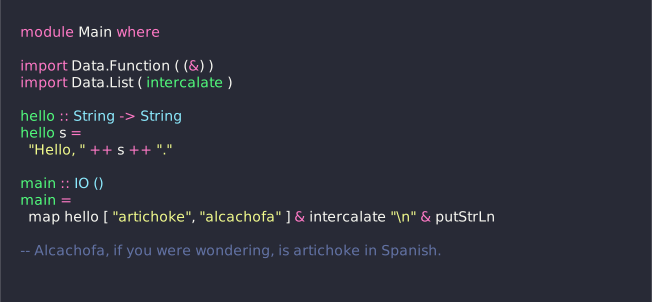
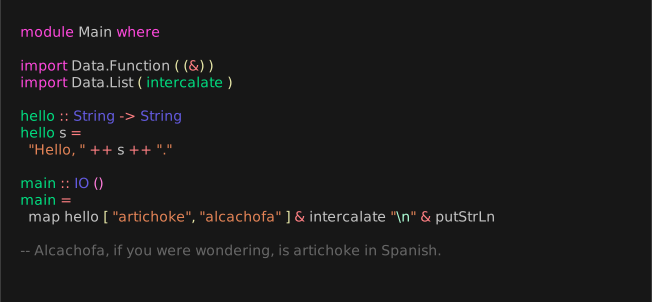 ### Theme
Change the color theme.
```bash
freeze artichoke.hs --theme dracula
```
### Theme
Change the color theme.
```bash
freeze artichoke.hs --theme dracula
```
 ### Output
Change the output file location, defaults to `out.svg` or stdout if piped. This
value supports `.svg`, `.png`, `.webp`.
```bash
freeze main.go --output out.svg
freeze main.go --output out.png
freeze main.go --output out.webp
# or all of the above
freeze main.go --output out.{svg,png,webp}
```
### Font
Specify the font family, font size, and font line height of the output image.
Defaults to `JetBrains Mono`, `14`(px), `1.2`(em).
```bash
freeze artichoke.hs \
--font.family "SF Mono" \
--font.size 16 \
--line-height 1.4
```
You can also embed a font file (in TTF, WOFF, or WOFF2 format) using the
`--font.file` flag.
To use ligatures in the font, you can apply the `--font.ligatures` flag.
### Line Numbers
Show line numbers in the terminal window with the `--show-line-numbers` flag.
```bash
freeze artichoke.hs --show-line-numbers
```
To capture only a specific range of line numbers you can use the `--lines` flag.
```bash
freeze artichoke.hs --show-line-numbers --lines 2,3
```
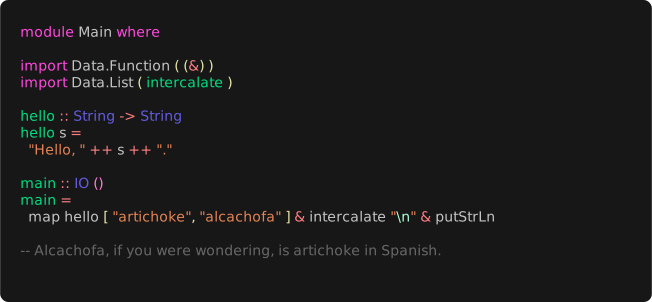
### Border Radius
Add rounded corners to the terminal.
```bash
freeze artichoke.hs --border.radius 8
```
### Output
Change the output file location, defaults to `out.svg` or stdout if piped. This
value supports `.svg`, `.png`, `.webp`.
```bash
freeze main.go --output out.svg
freeze main.go --output out.png
freeze main.go --output out.webp
# or all of the above
freeze main.go --output out.{svg,png,webp}
```
### Font
Specify the font family, font size, and font line height of the output image.
Defaults to `JetBrains Mono`, `14`(px), `1.2`(em).
```bash
freeze artichoke.hs \
--font.family "SF Mono" \
--font.size 16 \
--line-height 1.4
```
You can also embed a font file (in TTF, WOFF, or WOFF2 format) using the
`--font.file` flag.
To use ligatures in the font, you can apply the `--font.ligatures` flag.
### Line Numbers
Show line numbers in the terminal window with the `--show-line-numbers` flag.
```bash
freeze artichoke.hs --show-line-numbers
```
To capture only a specific range of line numbers you can use the `--lines` flag.
```bash
freeze artichoke.hs --show-line-numbers --lines 2,3
```
### Border Radius
Add rounded corners to the terminal.
```bash
freeze artichoke.hs --border.radius 8
```
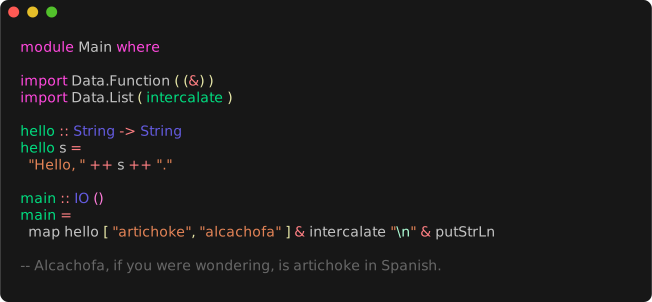
 ### Window
Add window controls to the terminal, macOS-style.
```bash
freeze artichoke.hs --window
```
### Window
Add window controls to the terminal, macOS-style.
```bash
freeze artichoke.hs --window
```
 ### Background
Set the background color of the terminal window.
```bash
freeze artichoke.hs --background "#08163f"
```
### Height
Set the height of the terminal window.
```bash
freeze artichoke.hs --height 400
```
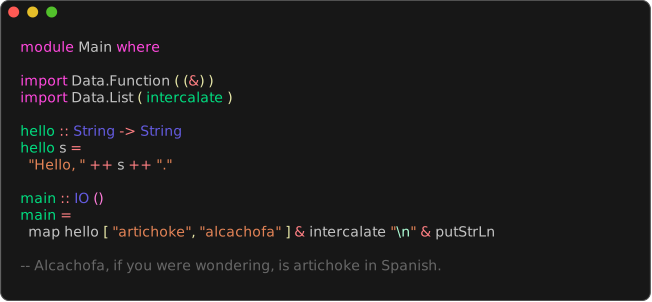
### Border Width
Add a border outline to the terminal window.
```bash
freeze artichoke.hs --border.width 1 --border.color "#515151" --border.radius 8
```
### Background
Set the background color of the terminal window.
```bash
freeze artichoke.hs --background "#08163f"
```
### Height
Set the height of the terminal window.
```bash
freeze artichoke.hs --height 400
```
### Border Width
Add a border outline to the terminal window.
```bash
freeze artichoke.hs --border.width 1 --border.color "#515151" --border.radius 8
```
 ### Padding
Add padding to the terminal window. You can provide 1, 2, or 4 values.
```bash
freeze main.go --padding 20 # all sides
freeze main.go --padding 20,40 # vertical, horizontal
freeze main.go --padding 20,60,20,40 # top, right, bottom, left
```
### Padding
Add padding to the terminal window. You can provide 1, 2, or 4 values.
```bash
freeze main.go --padding 20 # all sides
freeze main.go --padding 20,40 # vertical, horizontal
freeze main.go --padding 20,60,20,40 # top, right, bottom, left
```
 ### Margin
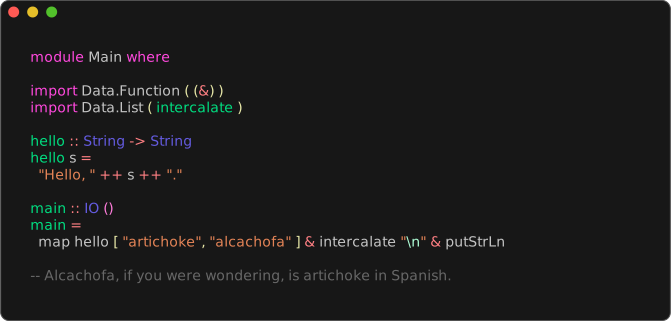
Add margin to the terminal window. You can provide 1, 2, or 4 values.
```bash
freeze main.go --margin 20 # all sides
freeze main.go --margin 20,40 # vertical, horizontal
freeze main.go --margin 20,60,20,40 # top, right, bottom, left
```
### Margin
Add margin to the terminal window. You can provide 1, 2, or 4 values.
```bash
freeze main.go --margin 20 # all sides
freeze main.go --margin 20,40 # vertical, horizontal
freeze main.go --margin 20,60,20,40 # top, right, bottom, left
```
 ### Shadow
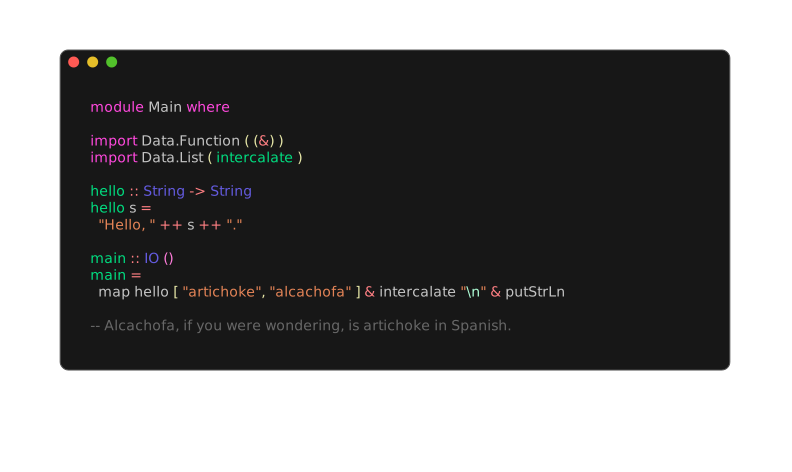
Add a shadow under the terminal window.
```bash
freeze artichoke.hs --shadow.blur 20 --shadow.x 0 --shadow.y 10
```
## Screenshot TUIs
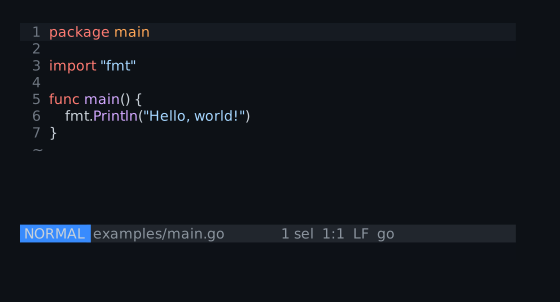
Use `tmux capture-pane` to generate screenshots of TUIs.
Run your TUI in `tmux` and get it to the state you want to capture.
Next, use `capture-pane` to capture the pane and pipe that to freeze.
```bash
hx # in a separate pane
tmux capture-pane -pet 1 | freeze -c full
```
### Shadow
Add a shadow under the terminal window.
```bash
freeze artichoke.hs --shadow.blur 20 --shadow.x 0 --shadow.y 10
```
## Screenshot TUIs
Use `tmux capture-pane` to generate screenshots of TUIs.
Run your TUI in `tmux` and get it to the state you want to capture.
Next, use `capture-pane` to capture the pane and pipe that to freeze.
```bash
hx # in a separate pane
tmux capture-pane -pet 1 | freeze -c full
```
 ## Configuration
Freeze also supports configuration via a JSON file which can be passed with the
`--config` / `-c` flag. In general, all `--flag` options map directly to keys
and values in the config file
There are also some default configurations built into `freeze` which can be passed by name.
- `base`: Simple screenshot of code.
- `full`: macOS-like screenshot.
- `user`: Uses `~/.config/freeze/user.json`.
If you use `--interactive` mode, a configuration file will be created for you at
`~/.config/freeze/user.json`. This will be the default configuration file used
in your screenshots.
```bash
freeze -c base main.go
freeze -c full main.go
freeze -c user main.go # alias for ~/.config/freeze/user.json
freeze -c ./custom.json main.go
```
Here's what an example configuration looks like:
```json
{
"window": false,
"border": {
"radius": 0,
"width": 0,
"color": "#515151"
},
"shadow": false,
"padding": [20, 40, 20, 20],
"margin": "0",
"font": {
"family": "JetBrains Mono",
"size": 14
},
"line_height": 1.2
}
```
## Contributing
See [contributing][contribute].
[contribute]: https://github.com/charmbracelet/freeze/contribute
## Feedback
We’d love to hear your thoughts on this project. Feel free to drop us a note!
- [Twitter](https://twitter.com/charmcli)
- [The Fediverse](https://mastodon.social/@charmcli)
- [Discord](https://charm.sh/chat)
## License
[MIT](https://github.com/charmbracelet/freeze/raw/main/LICENSE)
---
Part of [Charm](https://charm.sh).
## Configuration
Freeze also supports configuration via a JSON file which can be passed with the
`--config` / `-c` flag. In general, all `--flag` options map directly to keys
and values in the config file
There are also some default configurations built into `freeze` which can be passed by name.
- `base`: Simple screenshot of code.
- `full`: macOS-like screenshot.
- `user`: Uses `~/.config/freeze/user.json`.
If you use `--interactive` mode, a configuration file will be created for you at
`~/.config/freeze/user.json`. This will be the default configuration file used
in your screenshots.
```bash
freeze -c base main.go
freeze -c full main.go
freeze -c user main.go # alias for ~/.config/freeze/user.json
freeze -c ./custom.json main.go
```
Here's what an example configuration looks like:
```json
{
"window": false,
"border": {
"radius": 0,
"width": 0,
"color": "#515151"
},
"shadow": false,
"padding": [20, 40, 20, 20],
"margin": "0",
"font": {
"family": "JetBrains Mono",
"size": 14
},
"line_height": 1.2
}
```
## Contributing
See [contributing][contribute].
[contribute]: https://github.com/charmbracelet/freeze/contribute
## Feedback
We’d love to hear your thoughts on this project. Feel free to drop us a note!
- [Twitter](https://twitter.com/charmcli)
- [The Fediverse](https://mastodon.social/@charmcli)
- [Discord](https://charm.sh/chat)
## License
[MIT](https://github.com/charmbracelet/freeze/raw/main/LICENSE)
---
Part of [Charm](https://charm.sh).
 Charm热爱开源 • Charm loves open source