# dsh-IDE — An All-in-One IDE for the DSH Web GUI (JupyterLab-style Workspace + SSH Remote Development)



> [中文](README.md) | **English**
Turn the DeepSeek Harness (DSH) Web GUI into an **all-in-one development environment** with four core
capabilities:
- 🖥️ **Right sidebar**: a dockable right-hand drawer — file tree + preview/editor in one pane; **drag a tab
out into a floating window, drag it back to the right edge to auto-dock** (bottom / right drawer / float /
triple-IDE)
- 📄 **Preview**: Markdown / HTML / image / CSV / Office (docx / xlsx / pptx) / log rendered in place
- ✏️ **Edit**: live code editing (syntax highlight + line numbers + zebra stripes) + Word-style visual
editing for Markdown/HTML + in-frame rich-text Office editing
- 🧩 **IDE**: file tree, terminal, Trae-style red/green diffs, type-colored tabs, Git badges, watch paths —
an out-of-the-box JupyterLab-style workspace
It also ships with an **SSH remote workspace mode**: configure an SSH host (password / key, reusing
`~/.dsh/dsh-ssh.json`) from the top-right corner (left of the session log); once connected, the right
panel switches to the remote file tree, and **the model's local read / write / edit / glob / grep and
bash / terminal execute transparently on the remote server** while the LLM and agent loop stay local —
"local brain, remote hands".
## Feature Overview
### ⚙️ Right-side Workspace Settings (inside the system settings)
"Settings" → "Right-side Workspace" manages the workspace's **feature toggles** (8: auto-diff / watch dots / Git badges / syntax highlight / zoom / triple-IDE / terminal dock / session isolation) and the **editor toolbar tools** (9, for rich-text editing), rendered as rounded cards with switches — changes apply immediately and persist.
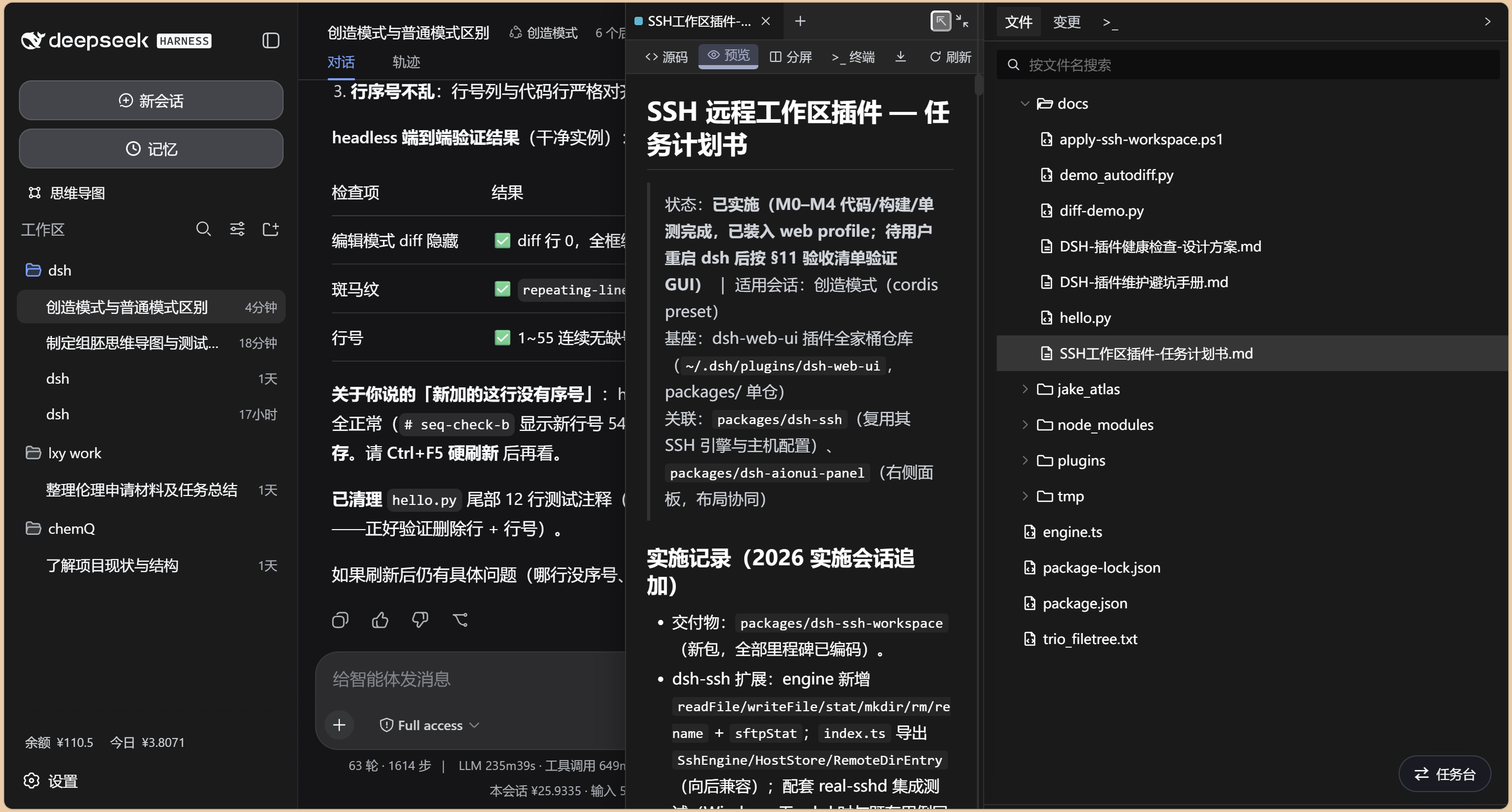
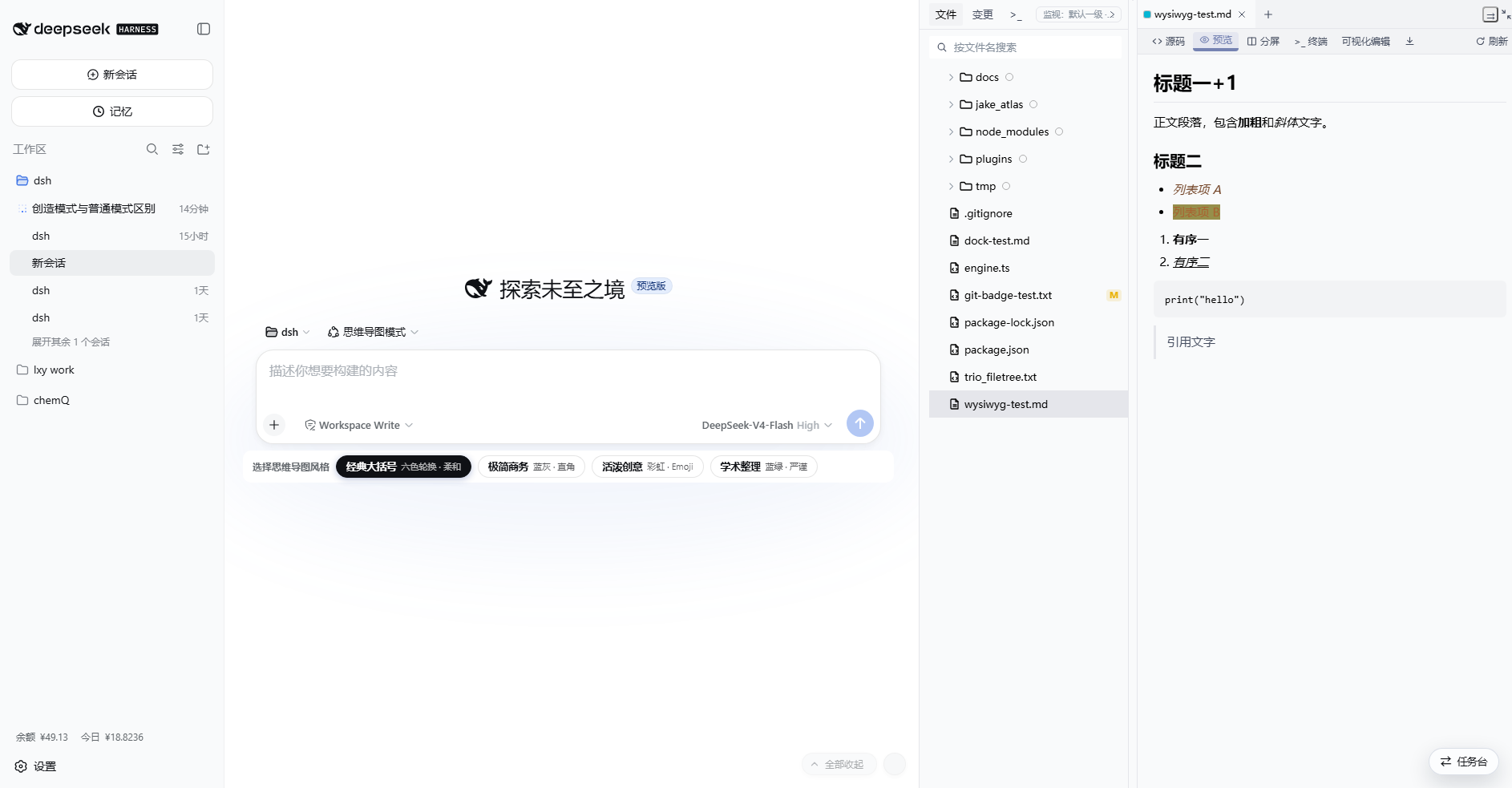
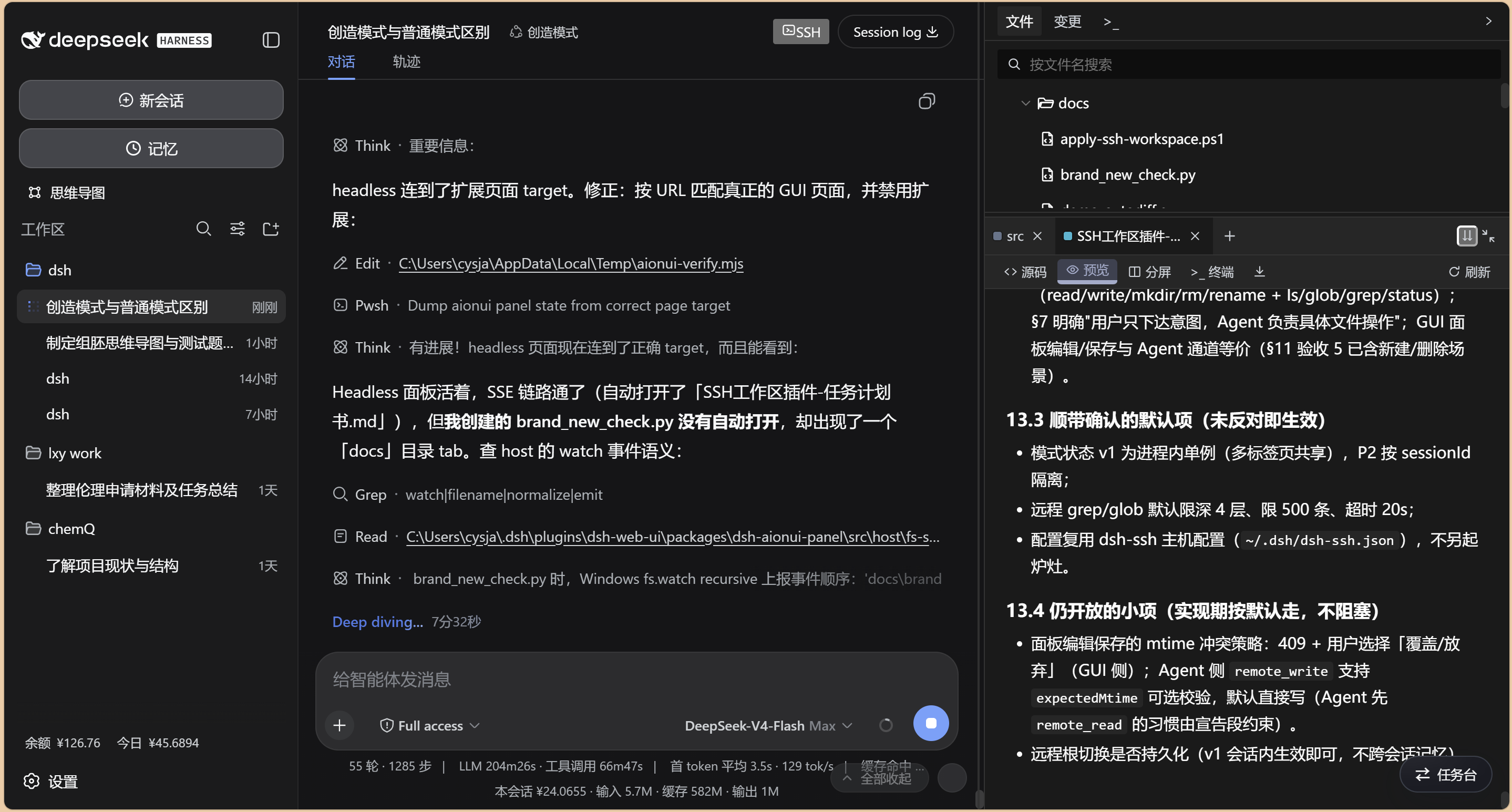
### 🖼️ Markdown Preview (Three Layouts)
Markdown files render directly in the panel (cyan tab), switchable between three layouts:
- **Bottom pane (⇊)**: preview shown in the lower pane
- **Right pane (⇉)**: preview shown in the right code column
- **Floating overlay (⇱)**: floats over the chat, wider
### 🌳 Left File Tree
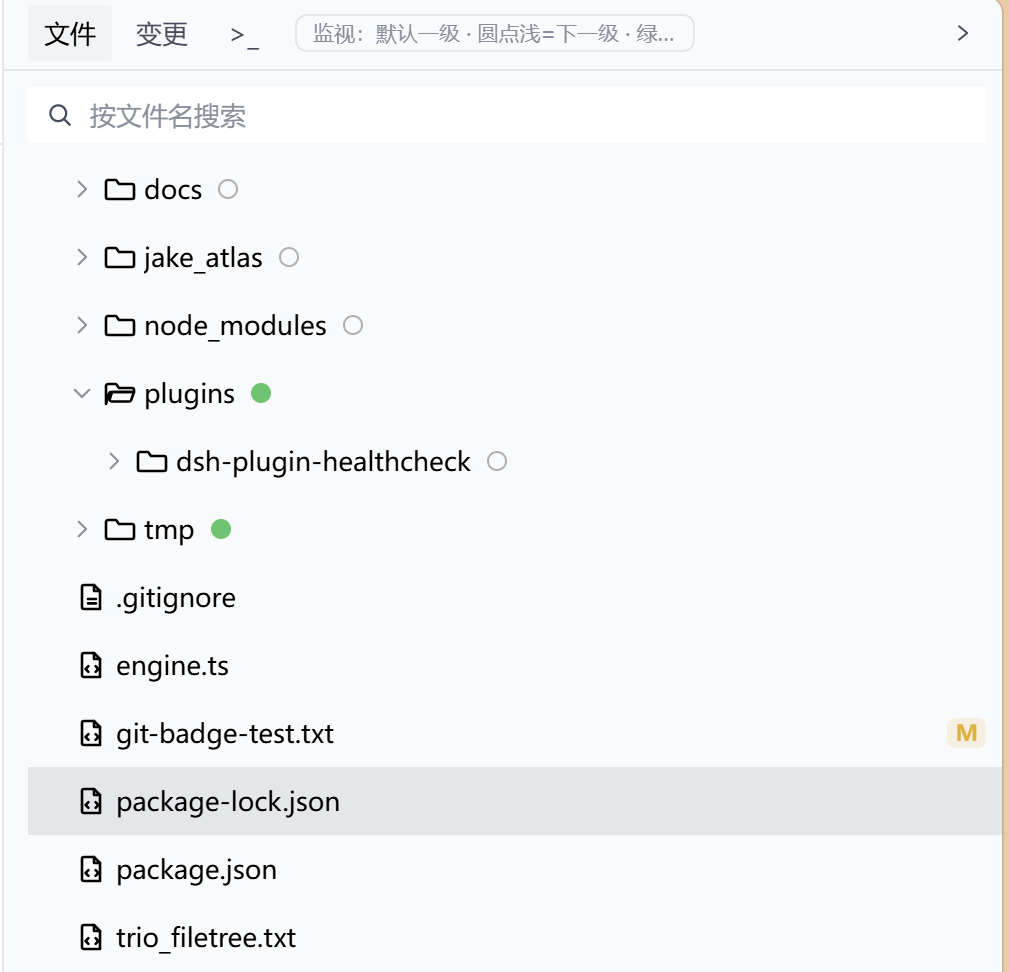
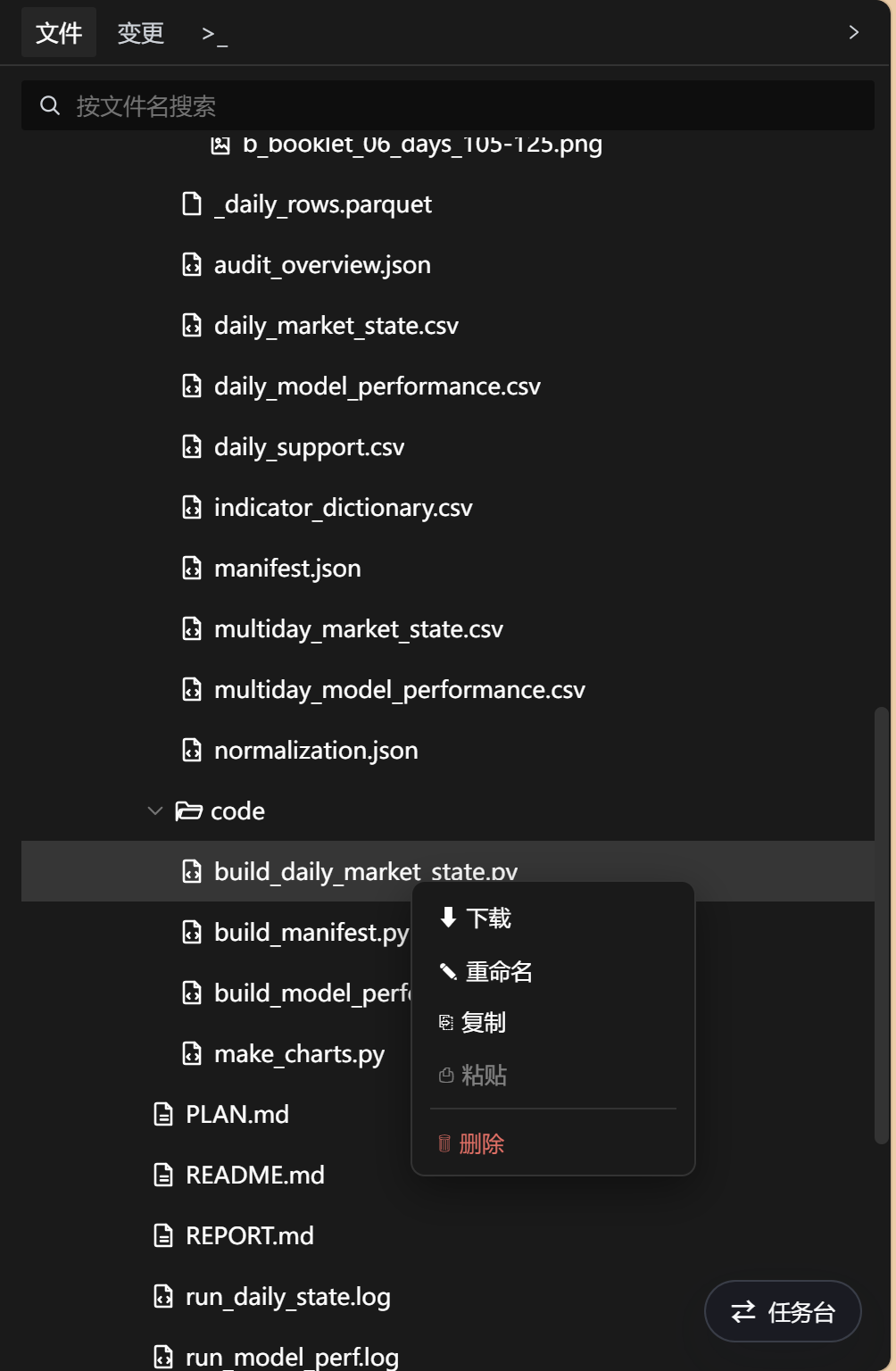
Lazy-loaded file tree with filename search, **Git status badges** (A/M/D/R/U/C), a context menu
(**New File / New Folder** / download / **inline rename** / copy / paste / **delete to Recycle Bin**),
auto-switching between the local working directory and the SSH remote directory. An already-open file
**never opens twice** — external changes refresh its tab in place.
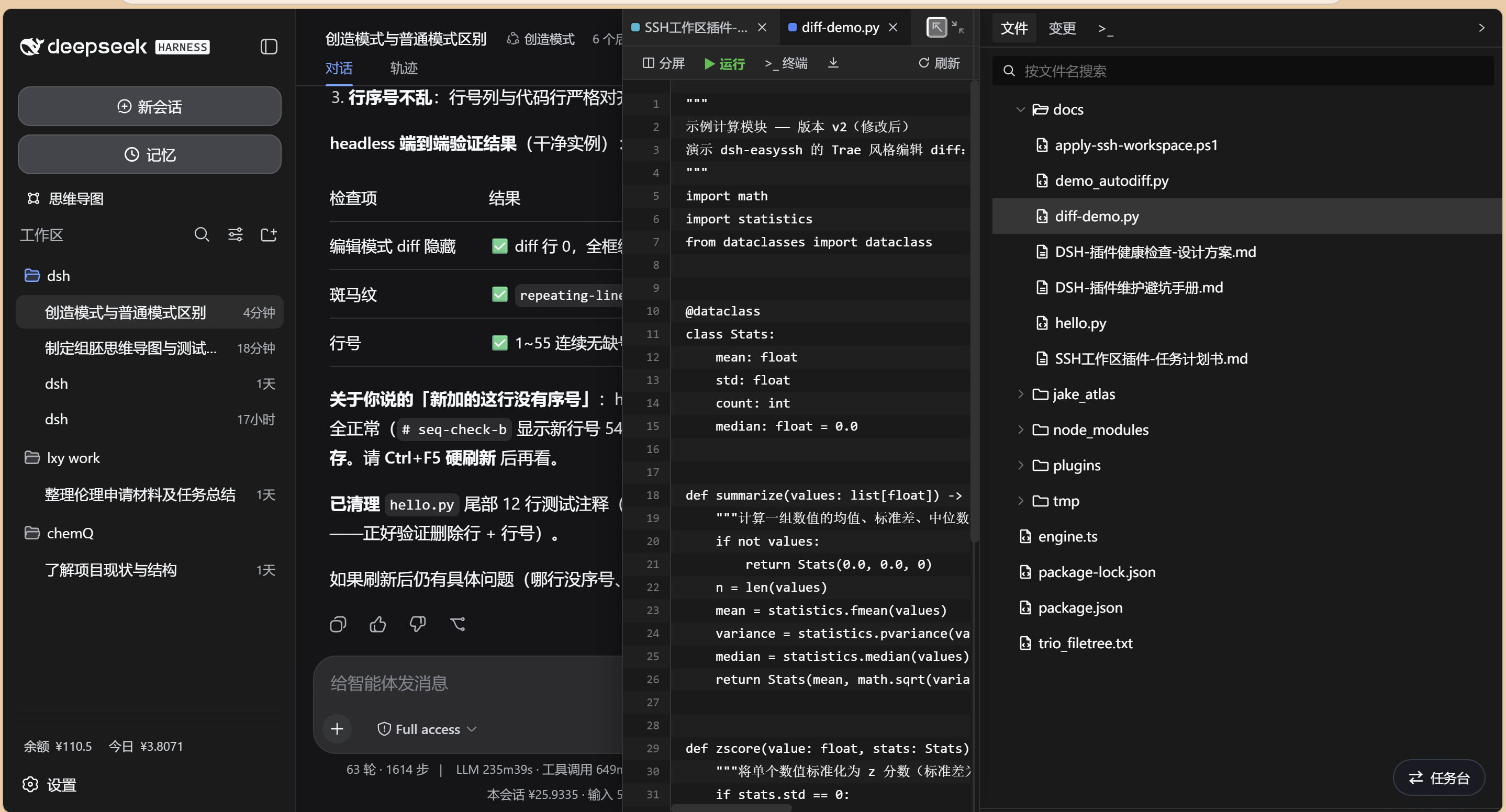
**🔍 Watch paths (auto-open scope)**: by default only the FIRST level is watched (files directly under
the root and its first-level dirs). Click the **dot** on a directory row to switch: **amber** = watch the
next level of this directory, **green** = watch ALL levels (n) under it, click again to reset; marks are
remembered per session. A rule explainer box sits in the tab bar (right of Files / Changes / >_). Build
artifacts, temp files and lockfiles NEVER pop regardless of marks.
### 📊 Status Bar
The bottom status bar shows the workspace state.
### ✏️ Live Code Editing
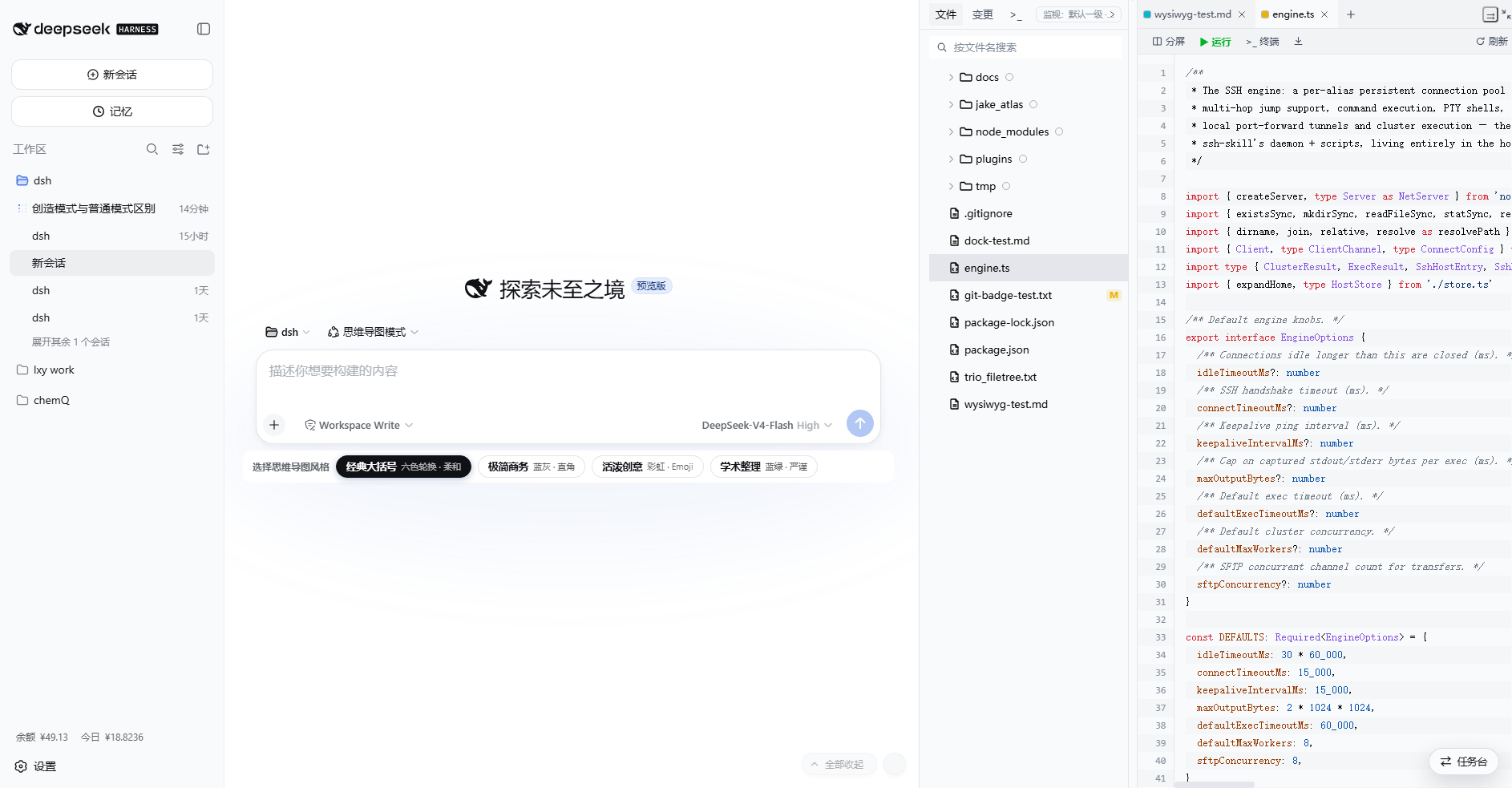
Editable code area with **colorful syntax highlighting** (Trae-style palette, **auto-switching with the
light/dark theme**), line numbers and zebra striping (aligned to code lines and following scroll),
Ctrl+S save with mtime conflict detection; the toolbar offers split (editor | preview), refresh, and more.
### 🔴🟢 Red/Green Annotations (Trae-style Edit Diff)
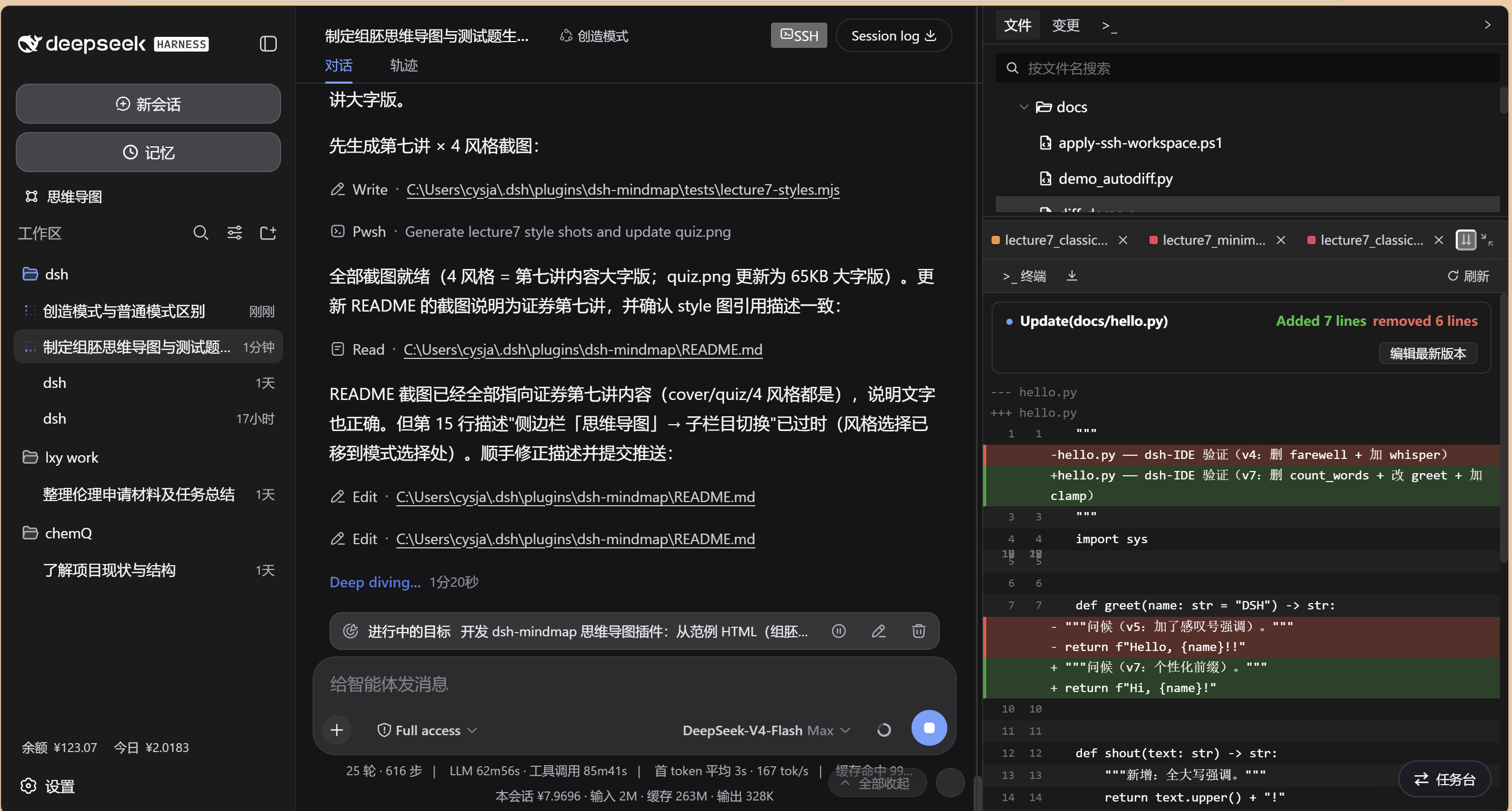
**Any external edit** (agent tool writes, other processes) automatically pops an "Update(path)" card into
the **bottom pane** — Added/removed stats, deleted lines in red, added lines in green; every edit pops its
own card (baseline auto-advances, no repeats, no misses). Saving pops one too:
- **Brand-new files (no baseline) pop an all-GREEN card** (the whole file counts as added)
- **Deleted files pop an all-RED card** (the whole file counts as removed)
- The card carries a fixed **two-column line-number gutter** (old / new aligned), zebra-striped unchanged rows
- Click "**Edit latest version**" — the editor covers the whole frame so you can modify and save the
latest code directly (red/green refresh automatically); clicking "**Refresh**" never loses the colors
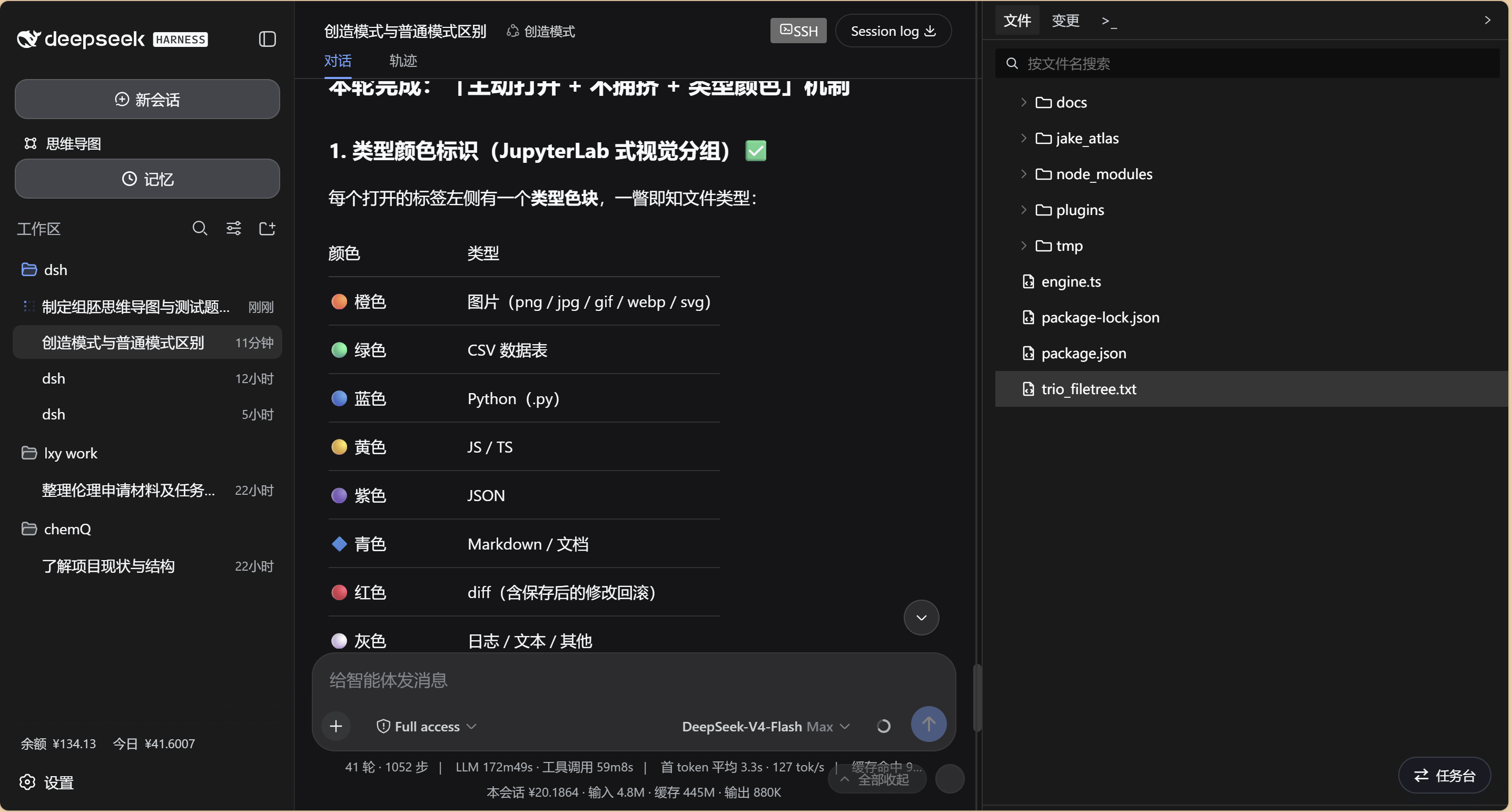
### 🎨 Color Markers (Type-colored Tabs)
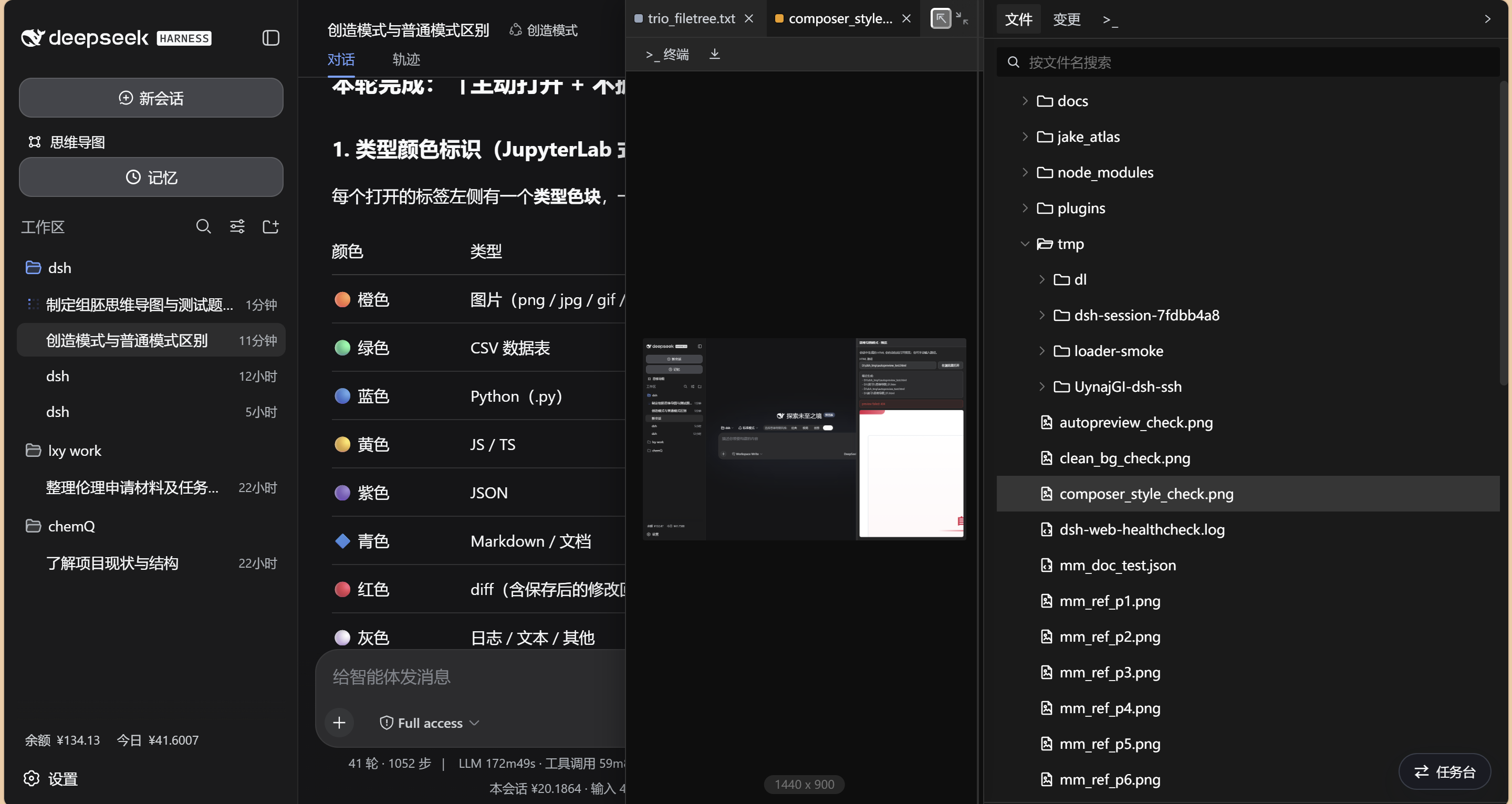
Every open tab carries a type color — **orange** = image, **green** = CSV, **blue** = Python, **yellow** =
JS/TS, **purple** = JSON, **cyan** = Markdown, **red** = diff, **gray** = log — scannable at a glance even
with many tabs; newly opened files and diffs auto-scroll into view, and the tab bar scrolls horizontally
with truncated titles.
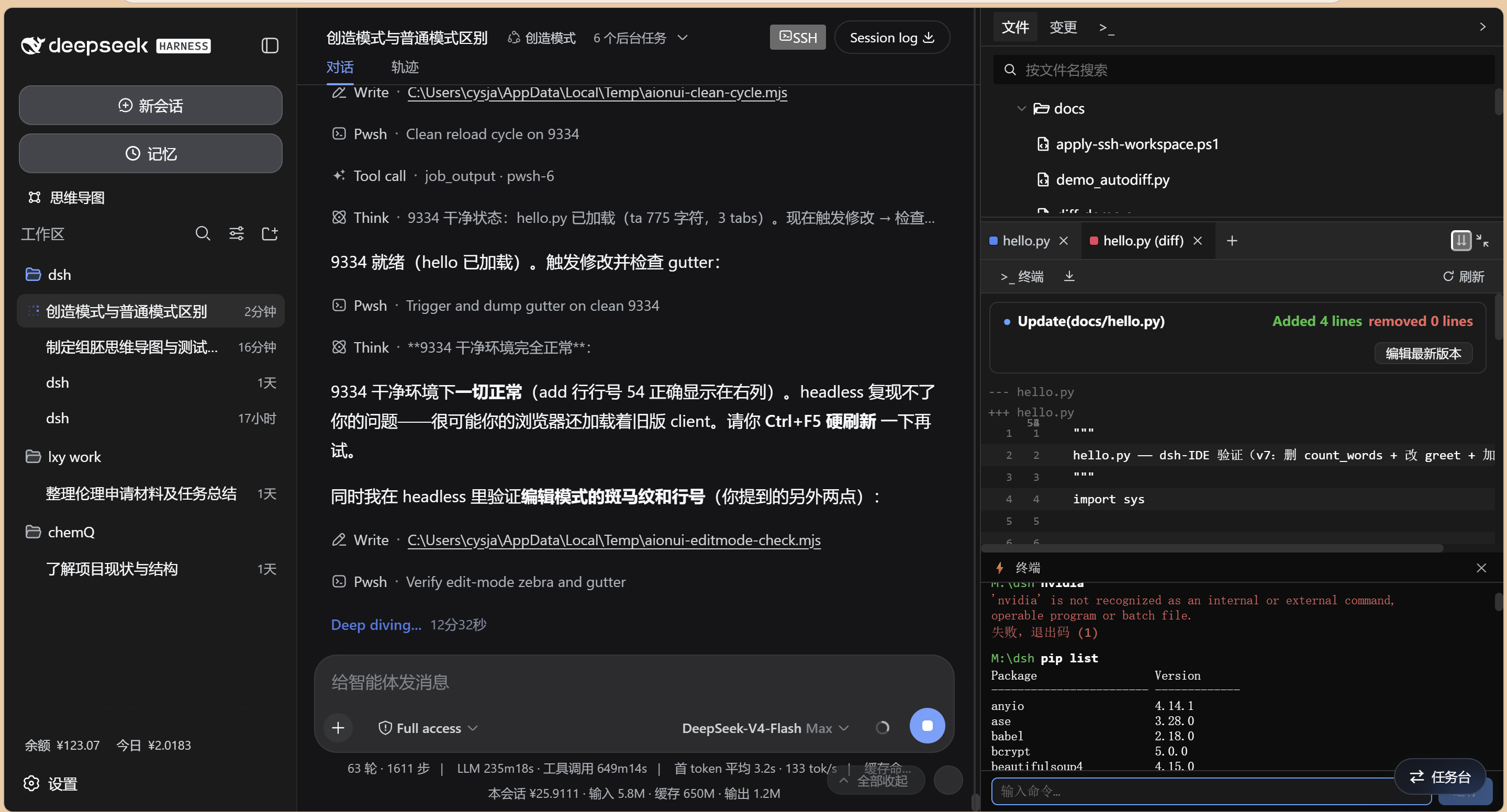
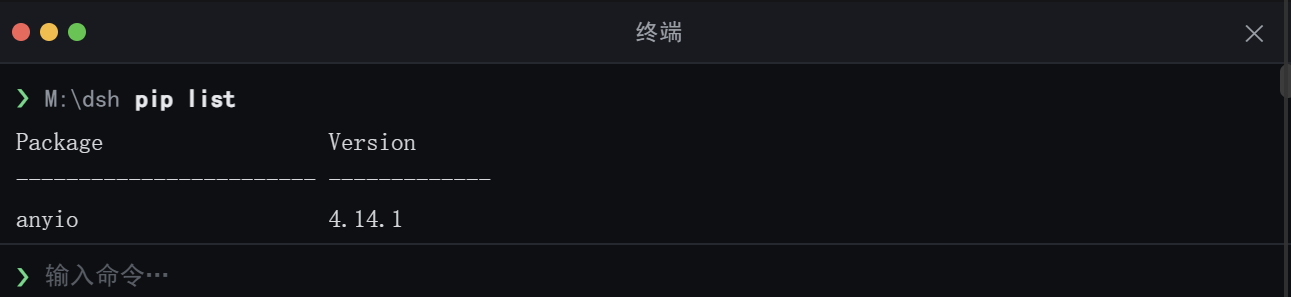
### ⌨️ Terminal & Run
Built-in command-line terminal: "▶ Run" executes the current file directly (python / node / bash etc.),
">_ Terminal" opens a command panel for ad-hoc commands (both run remotely in SSH mode); a standalone
terminal entry also lives on the file tab bar. The terminal docks at the BOTTOM FIFTH of the chat column
in a faithful terminal look (SimHei font, macOS traffic-light dots, ❯ prompt, green caret) without
overlapping the conversation.
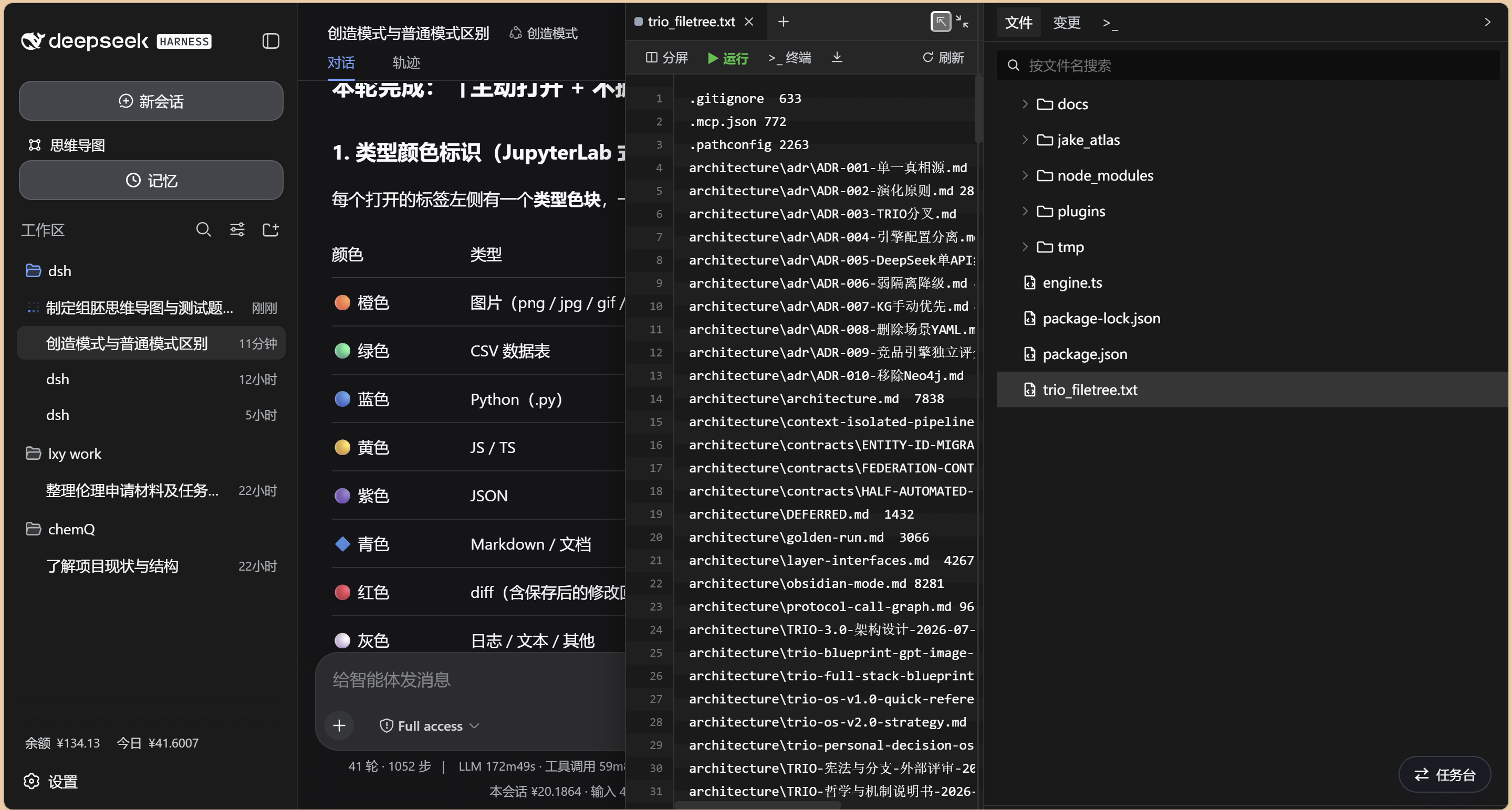
### 📜 Log Preview
Log files (gray tab) preview directly in the panel.
### 🖼️ Image / 📋 CSV / 🌐 HTML Previews
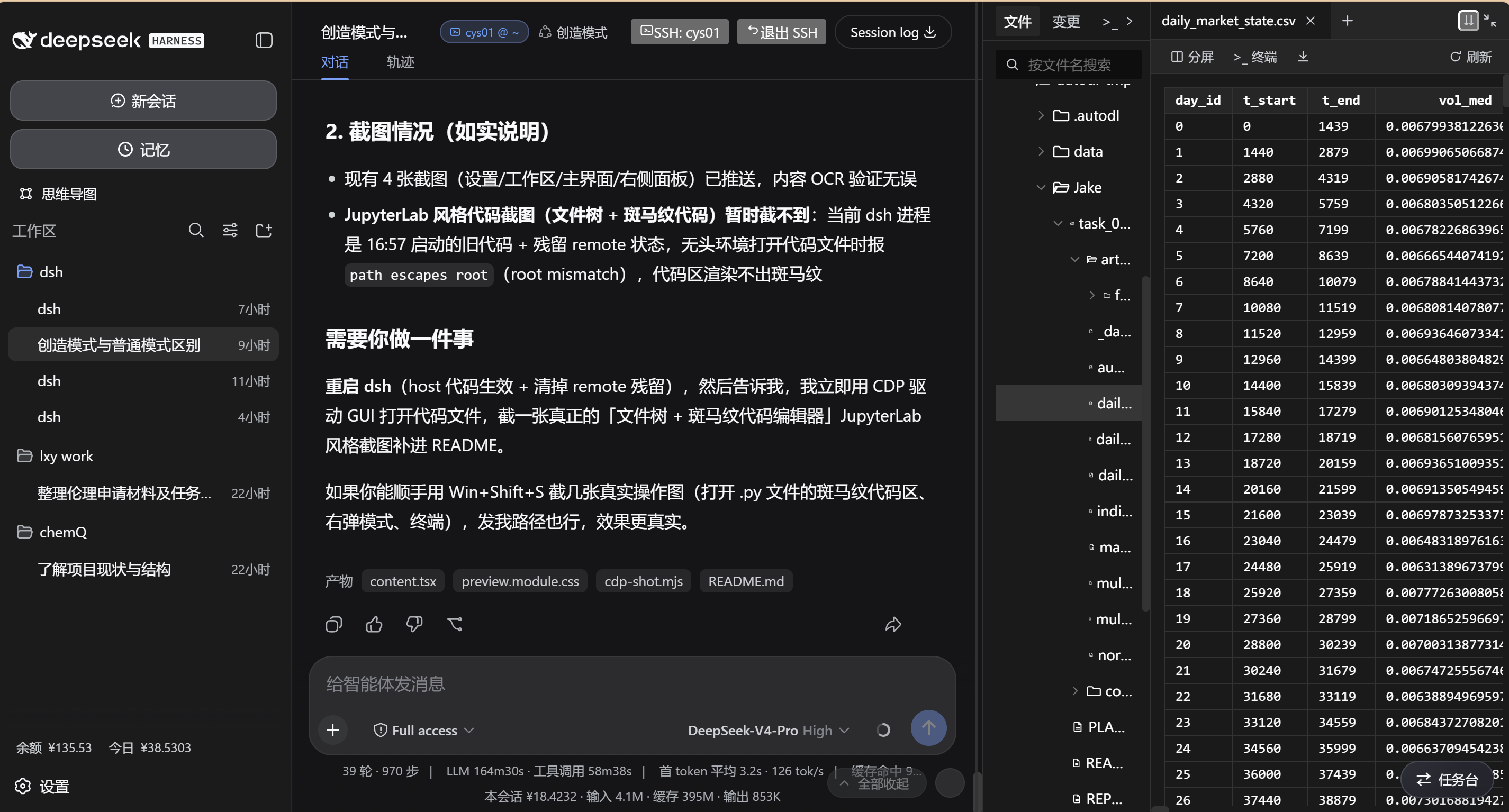
- **Images** (orange tab) and **HTML** (purple tab) previews support **zoom**: toolbar − / % / + / 1:1 /
fit-width, or **Ctrl+wheel**
- **CSV** data renders as a table (green tab)
### 🖥️ Right Sidebar (dockable drawer · drag to detach / dock)
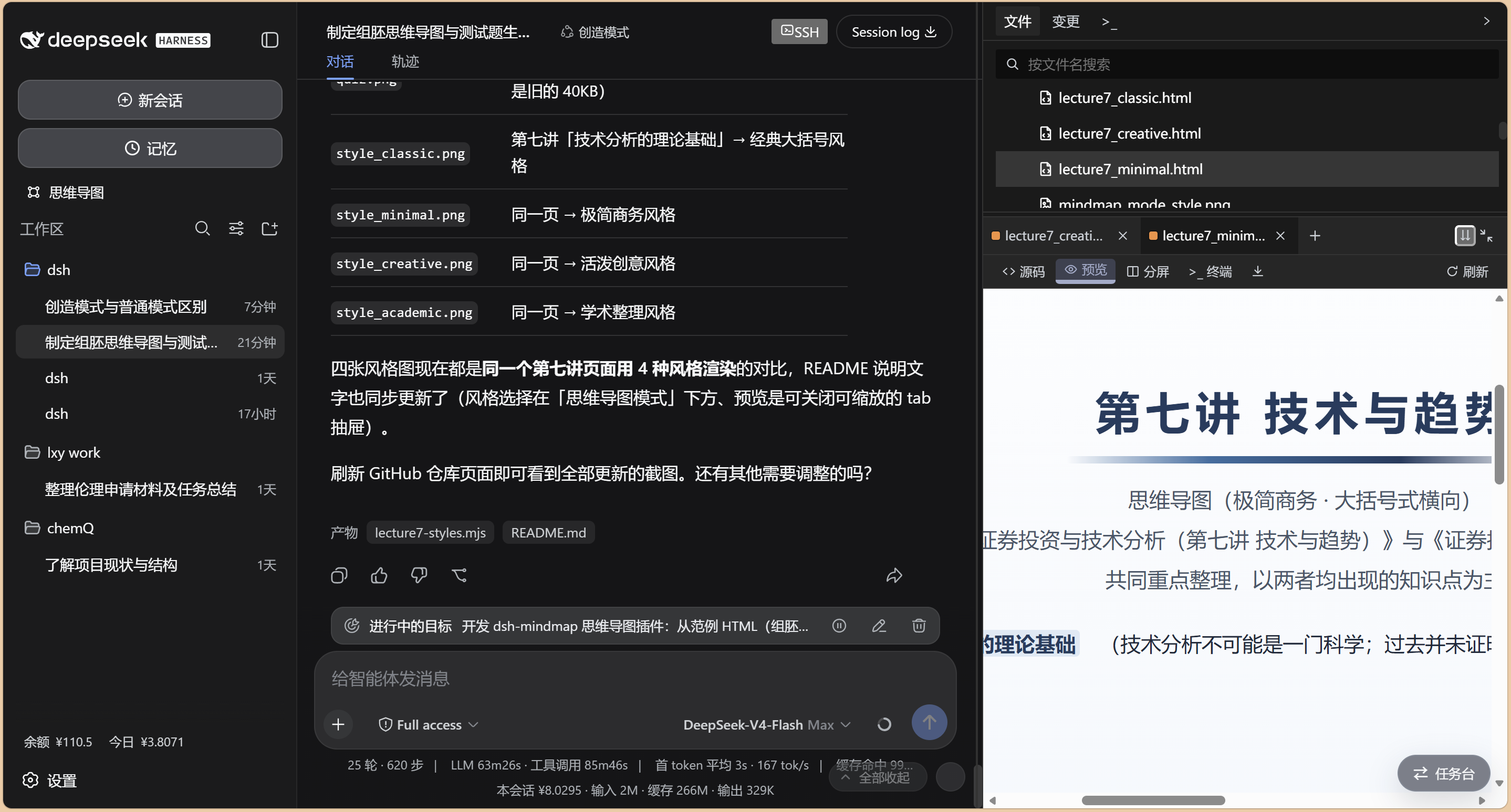
- **Right drawer (default)**: the preview docks in the right-hand column (file tree + preview in one drawer); four modes cycle — bottom (⇊) / **right drawer (⇉)** / float (⇱) / **triple IDE (⿻)** — chat | files | preview side by side
- **Drag a tab out into a float**: in ANY layout, grab the preview **tab bar / toolbar empty area** and drag to pull the preview out into a floating window; it follows the pointer 1:1 with smooth, jank-free animation
- **Drag to the right edge to dock back**: release the float flush against the screen's **right edge** to auto-dock back into the right drawer; release near "cover the file tree (tree auto-collapses to a round button) / below the tree / chat-below" to snap to that preset, or drag out of a zone to free-float again
- **Resize the float**: drag the bottom-right grip to change width + height (size remembered, kept across snap)
- **Focus rail**: with the preview open, collapse the file tree — it shrinks to a round floating button + a far-right drawer handle; the preview keeps its width. Click the round button to toggle the floating file-tree popup; click the far-right handle to re-dock the drawer

### 🧬 R Language Support
`.R` / `.r` scripts run with **Rscript** (▶ Run), R tabs use the official R blue; `.Rmd` (R Markdown)
renders as Markdown; syntax highlighting supports R natively.
### 📄 Office Preview (docx / xlsx / pptx)
- **docx**: paragraphs / tables / bold / italic / underline / color / size / highlight / alignment / fonts (incl. CJK `w:eastAsia`) / paragraph & run shading / **inline images & shape photos** (`w:drawing`/`a:blip`, incl. `mc:AlternateContent` shapes) / **content controls** (`w:sdt`) / **headers & footers** (letterhead logos from `header1.xml` etc.) rendered
- **xlsx**: first worksheet rendered as a table (shared strings resolved)
- **pptx**: one card per slide
- Client-side ZIP parsing — no host dependencies, no dsh restart
### ✏️ In-frame Rich Editing (Office)
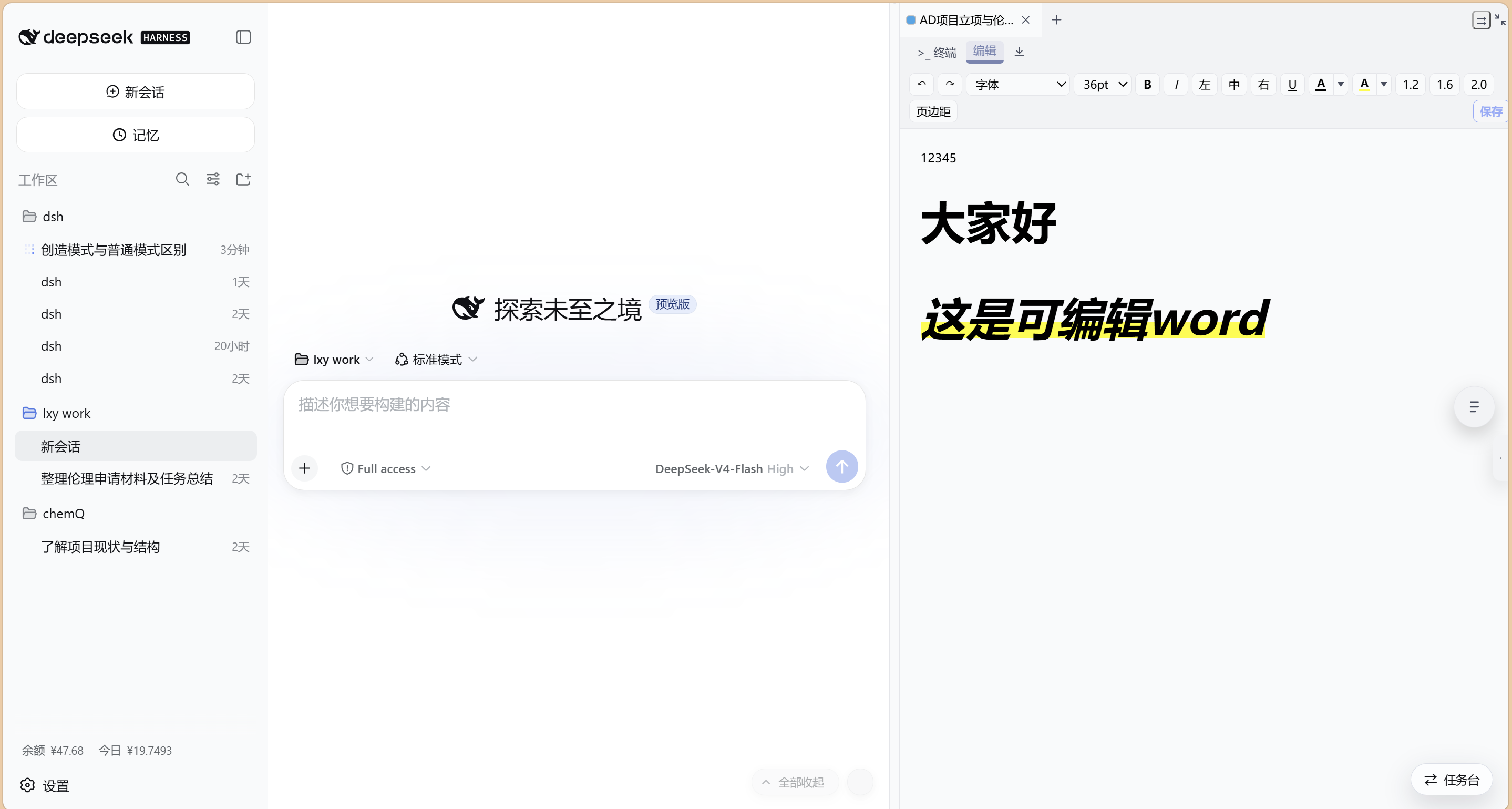
The toolbar's "Edit" arms contenteditable editing: the toolbar shows only the tools checked in
Settings (font / size / bold-italic / align / underline / color / highlight / spacing / margins); saving
rebuilds the docx/xlsx/pptx from the edited HTML and writes it back as binary (mtime-conflict guarded;
run formatting — bold / italic / underline / color / size / font / highlight — survives edit + save).
Known limit: charts (`word/charts/*`) and embedded objects (embedded Excel) are not parsed or preserved.
### 🎨 HTML / Markdown Visual Editing (Word-style in-place)
The toolbar's "Visual editing" makes the rendered result itself the editable document (no more floating
text boxes) — edit directly on the rendered page like Word. **Markdown** edits the compiled HTML and
converts back to Markdown on save (titles with hyphens stay mojibake-free, code fences keep their
language); **color / font-size / font-family / underline / highlight** persist as a strictly-sanitized
inline-HTML subset, so changing the text color no longer paints the background and bold/italic/size
survive saving. **HTML** edits the FULL document in a design-mode iframe (PPT-style rich editing: color
/ size / bold-italic / align / underline / highlight) — the original `