# Screenshots Screenshots captured on an emulator with a shelf of [Standard Ebooks](https://standardebooks.org) editions (public domain, cover art included). The README shows a few; the rest are here. ## Reading
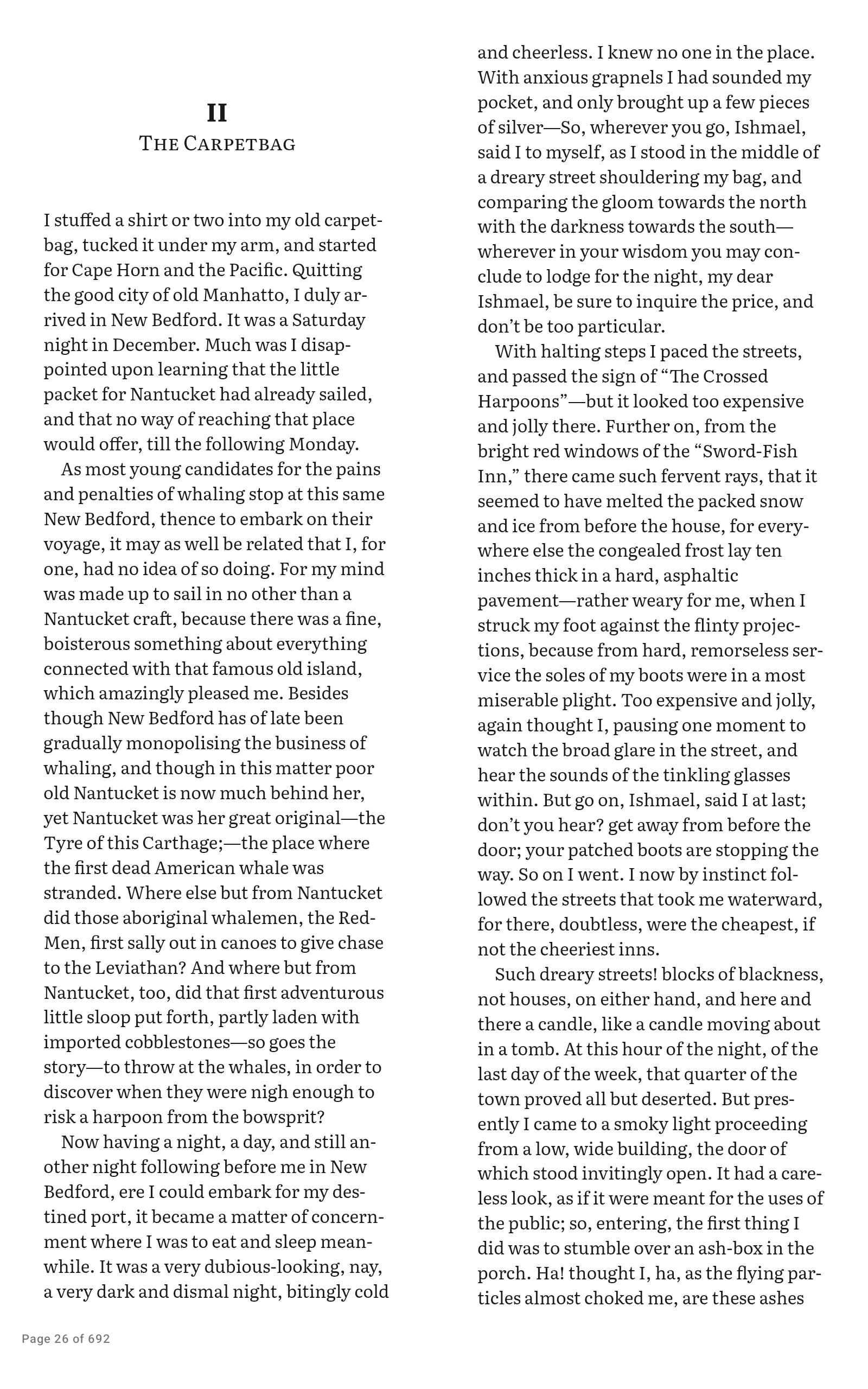
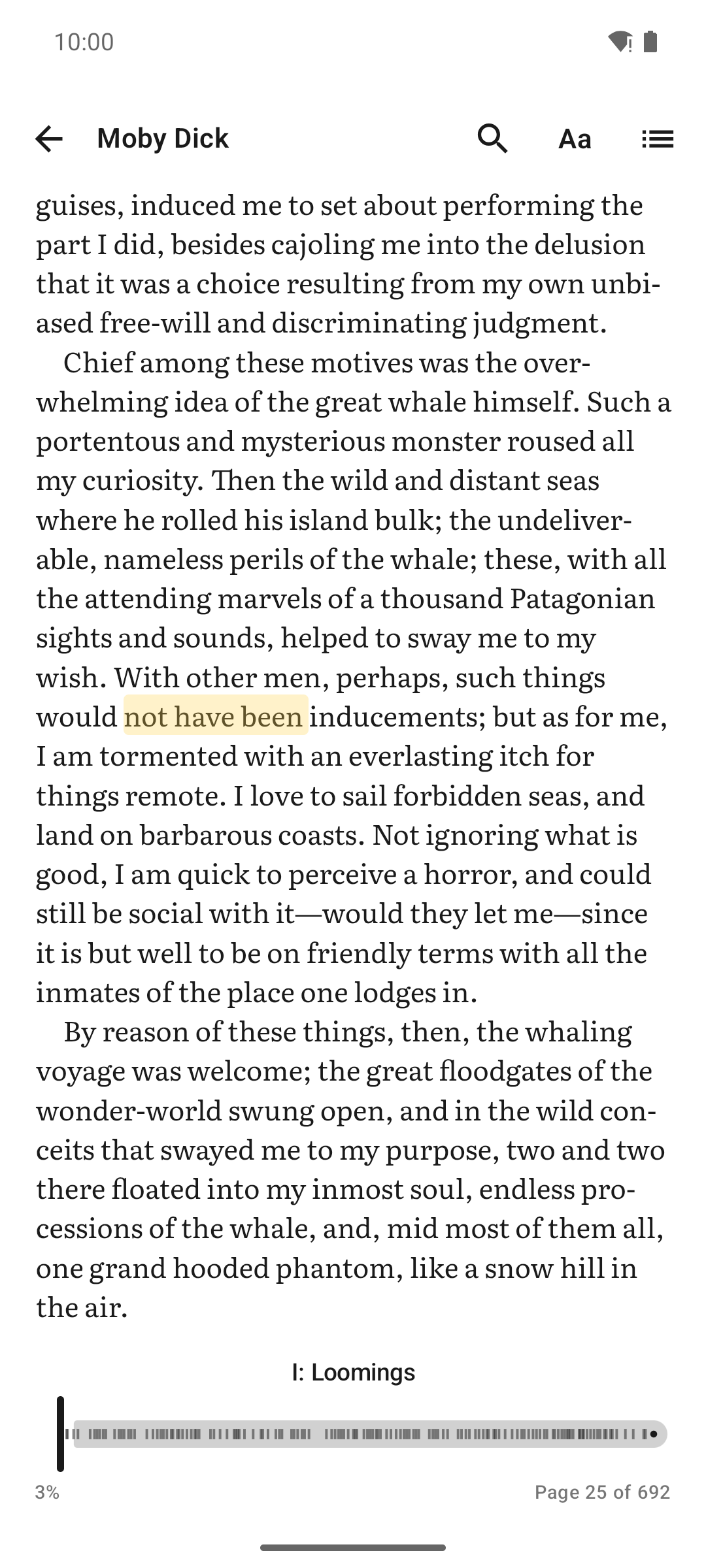
A page Reading controls Contents
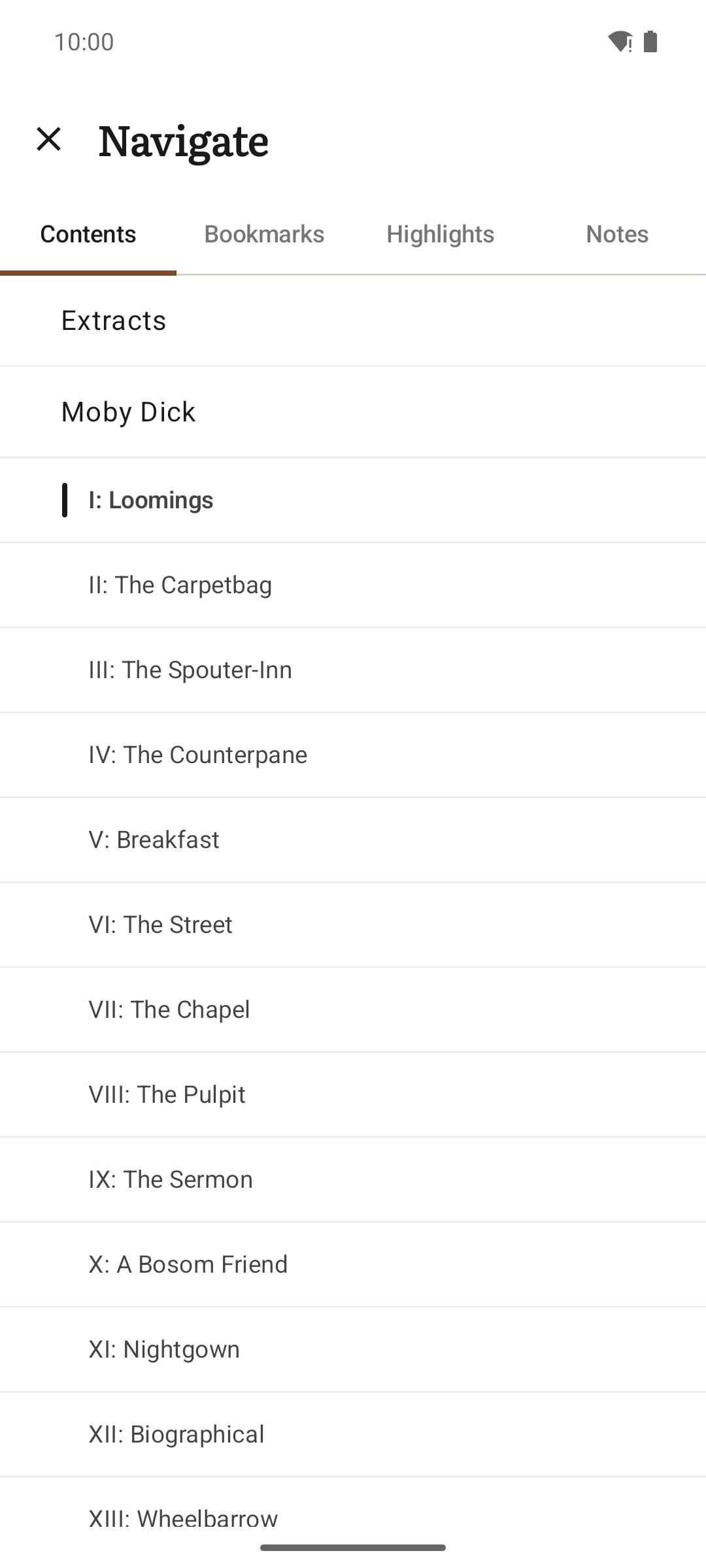
The page, with nothing on it but the book. Progress, chapter scrubber, and how long is left. The table of contents, full screen.
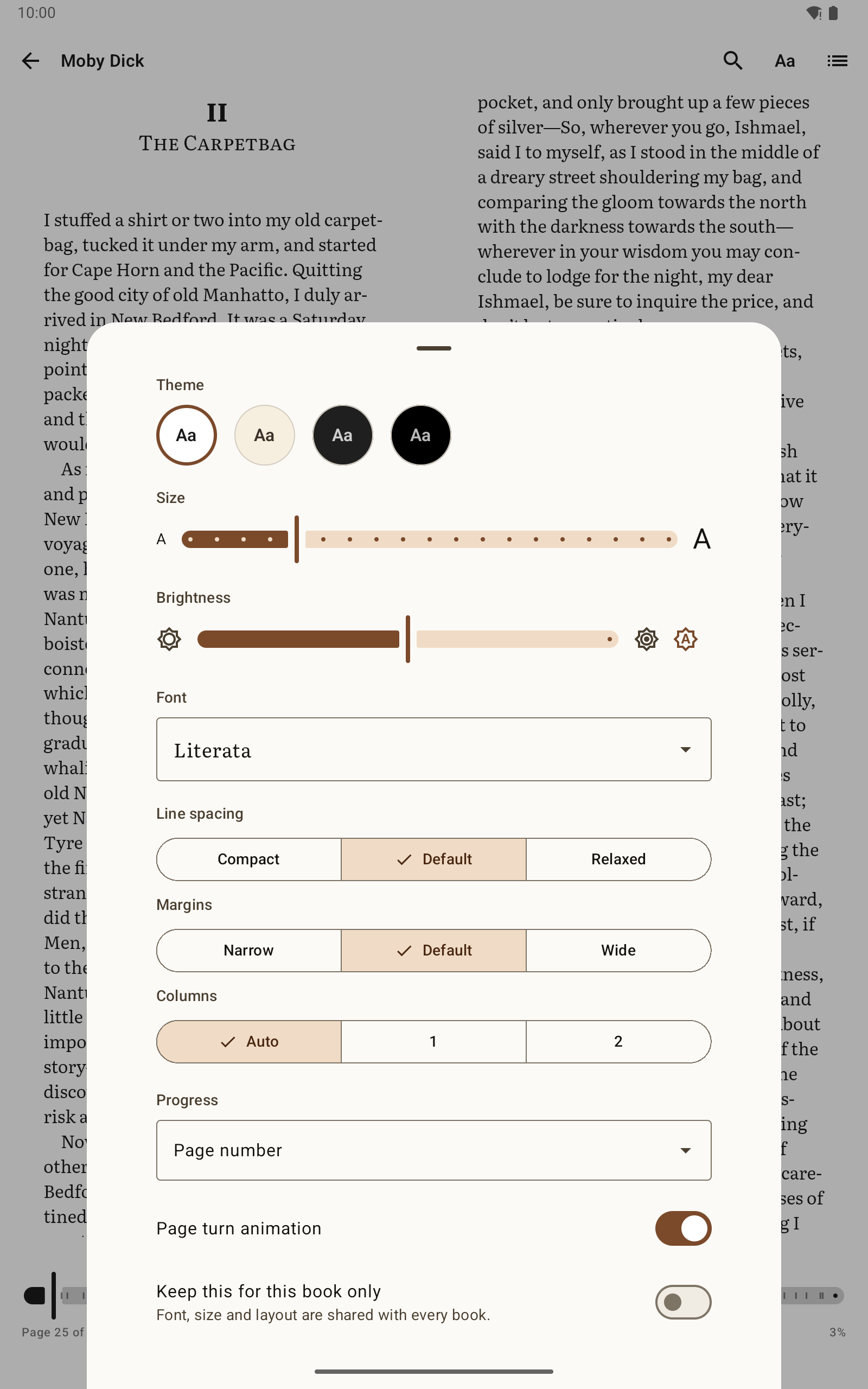
Typography Advanced reading settings Search
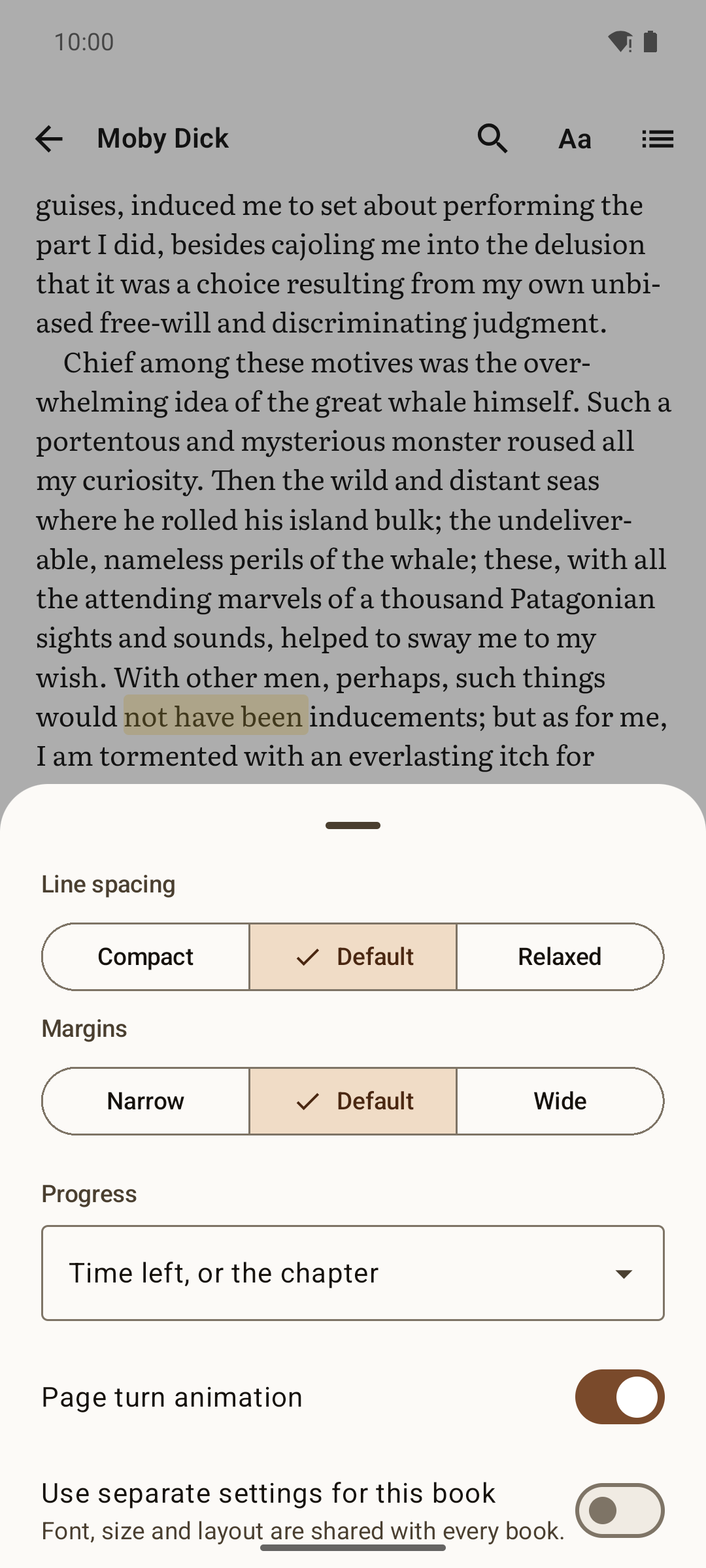
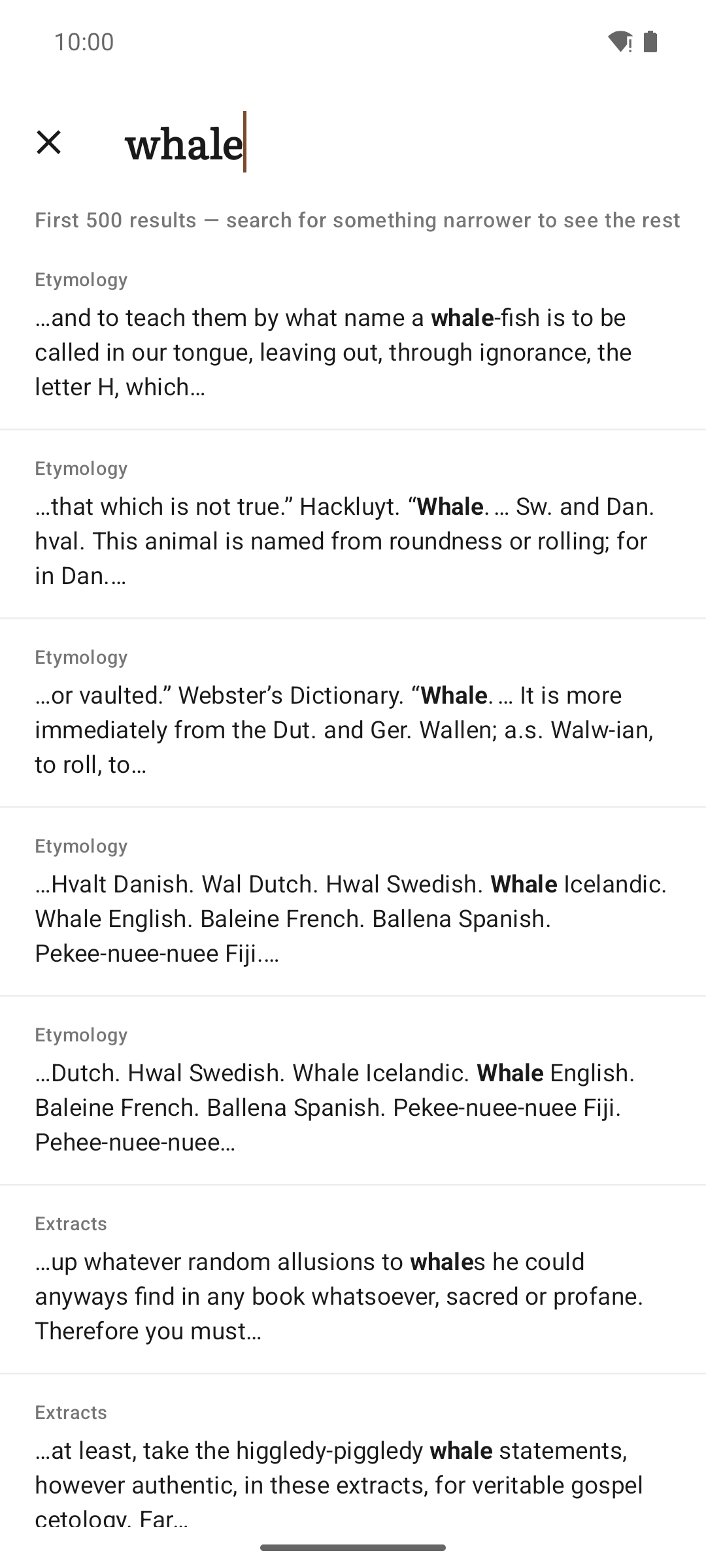
Theme, size, brightness, typeface, and how the book is read. Everything set once, if ever, a tap further in. In-book search, with the line each hit sits on.
Read aloud
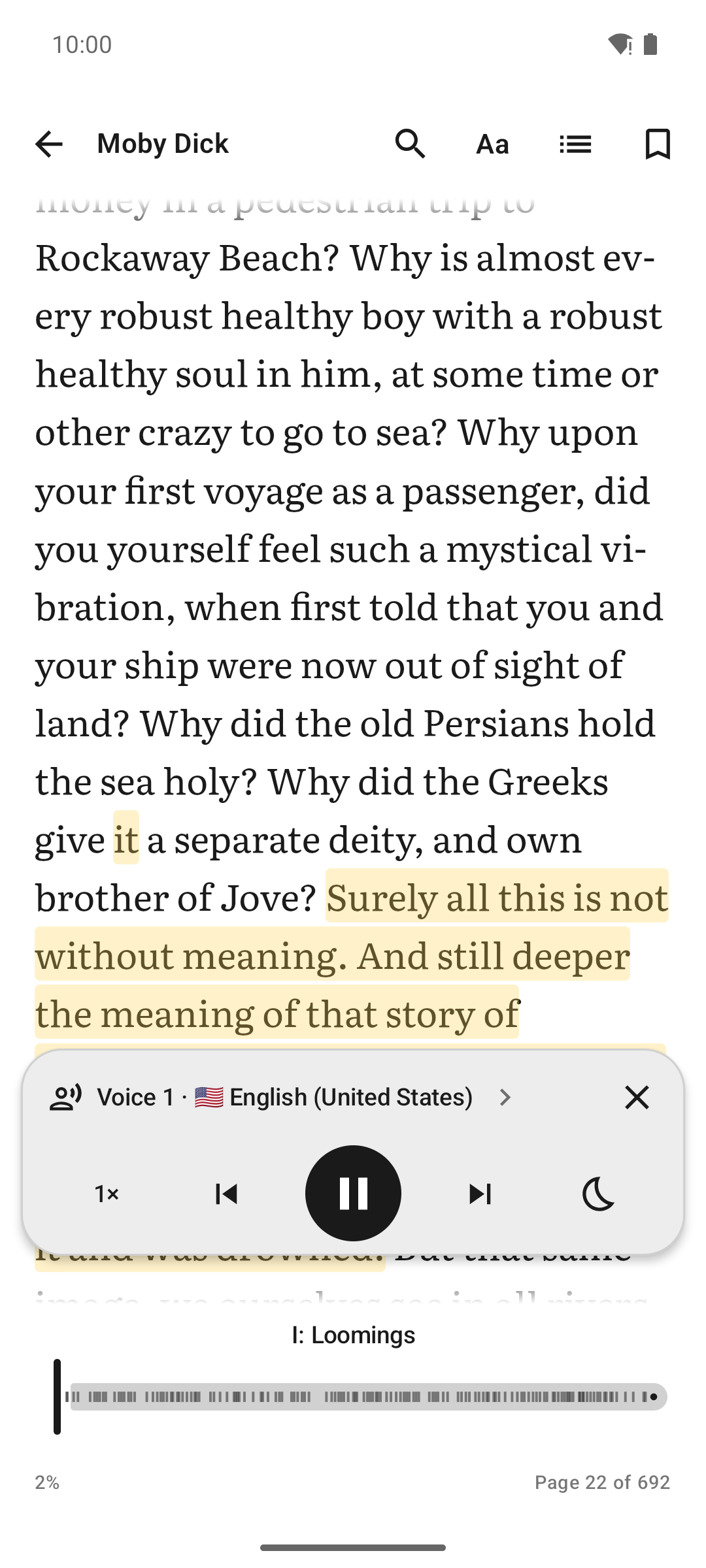
Read aloud, following the sentence on the page.
## Translation ![A page translated into French](screenshots/27-translation.png) The same page [in its original English](screenshots/27-translation-original.png). Captured with the Play edition's on-device ML Kit translator. ## Reading companion
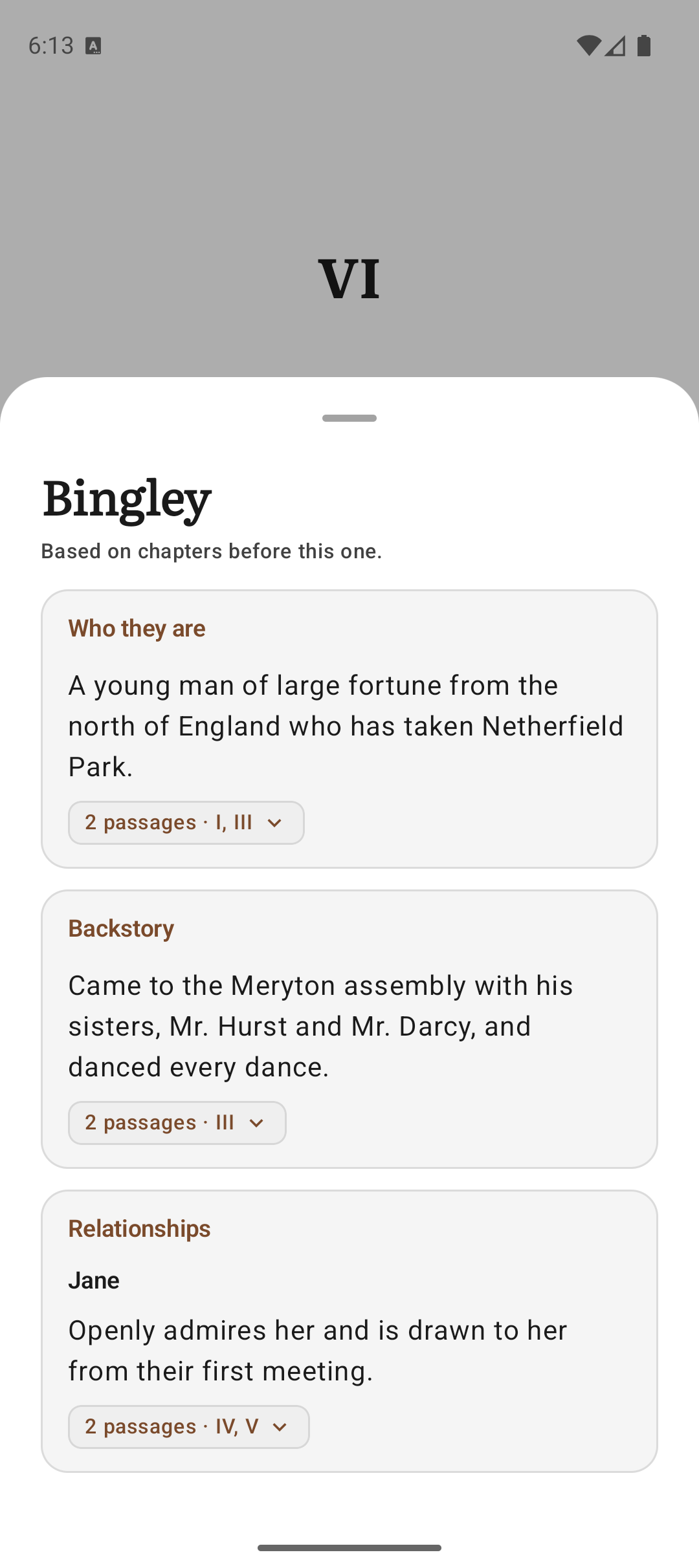
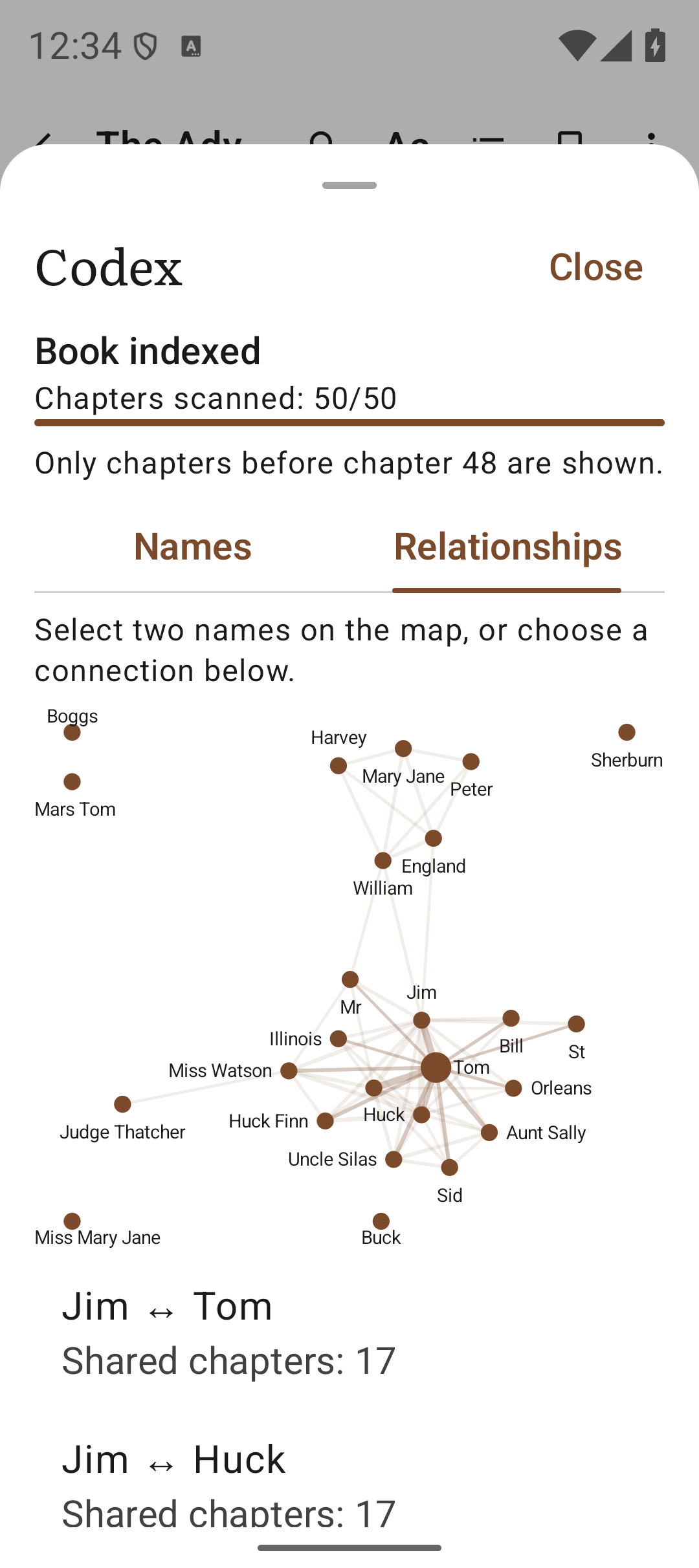
Reading companion character profile with source passages Companion map of character relationships across chapters
Character profiles with passages that support them. Names connected by the chapters they share.
## Marks and lookups
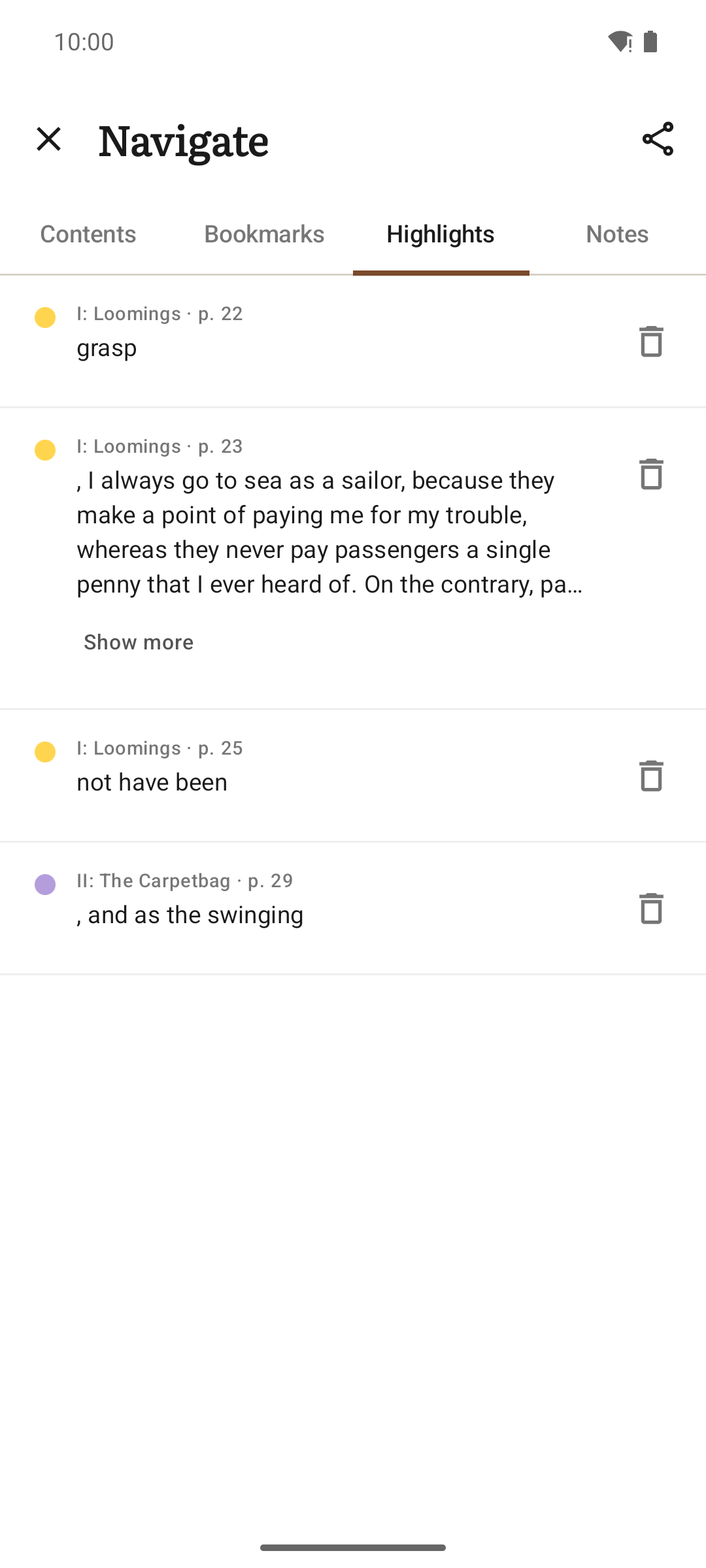
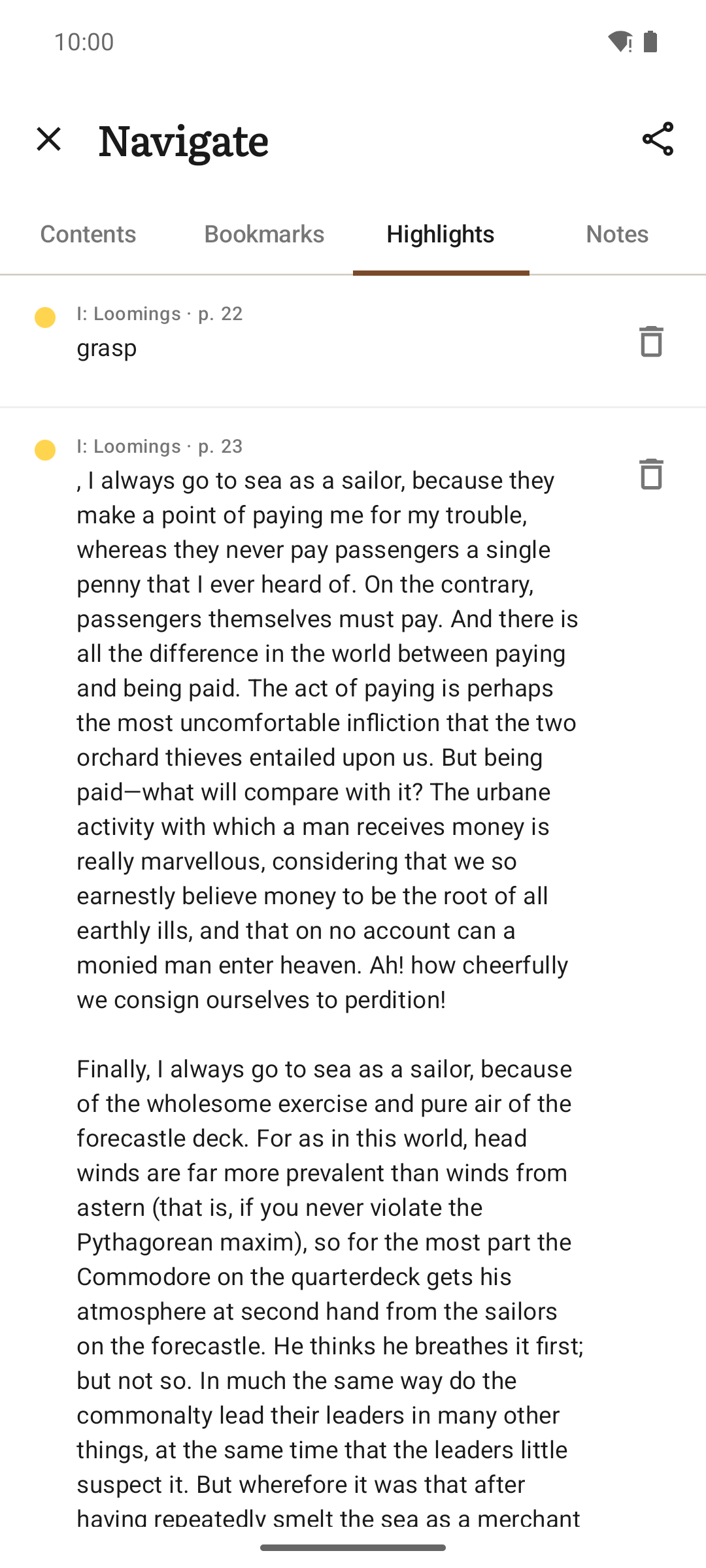
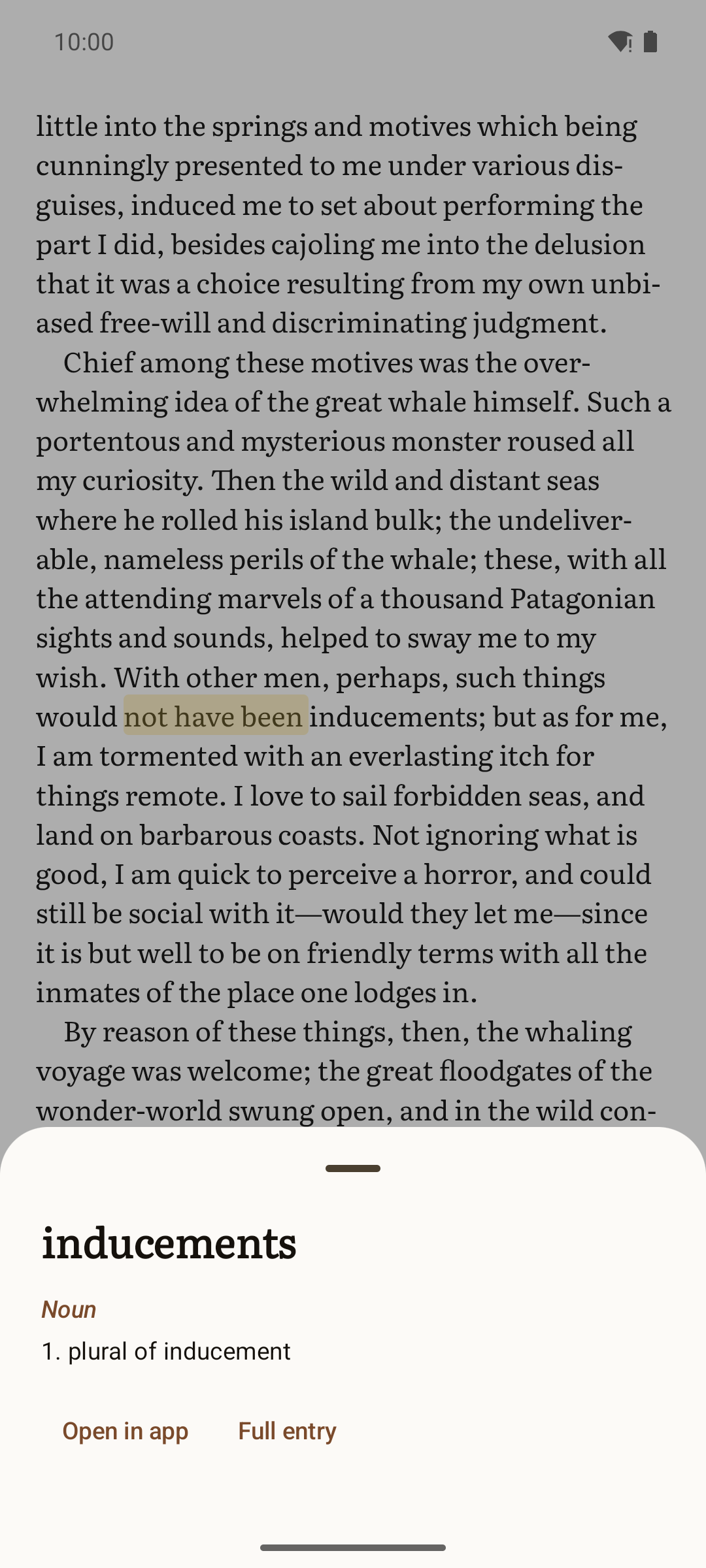
Highlights A long highlight, opened out Definition card
The notebook: highlights, notes and bookmarks, exportable to Markdown. A passage longer than the list shows, read in full where it is. A definition without leaving the page. Off until you turn it on.
## The shelf
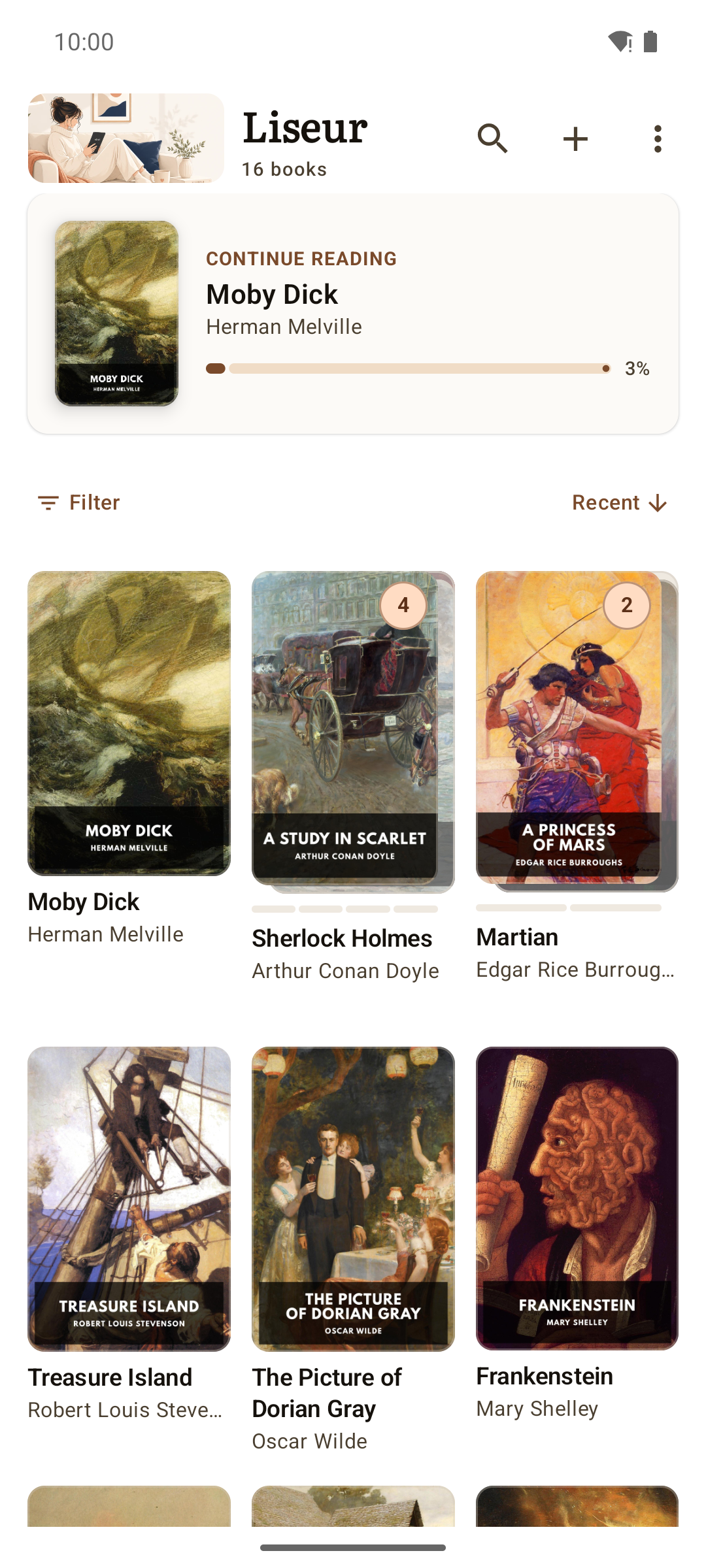
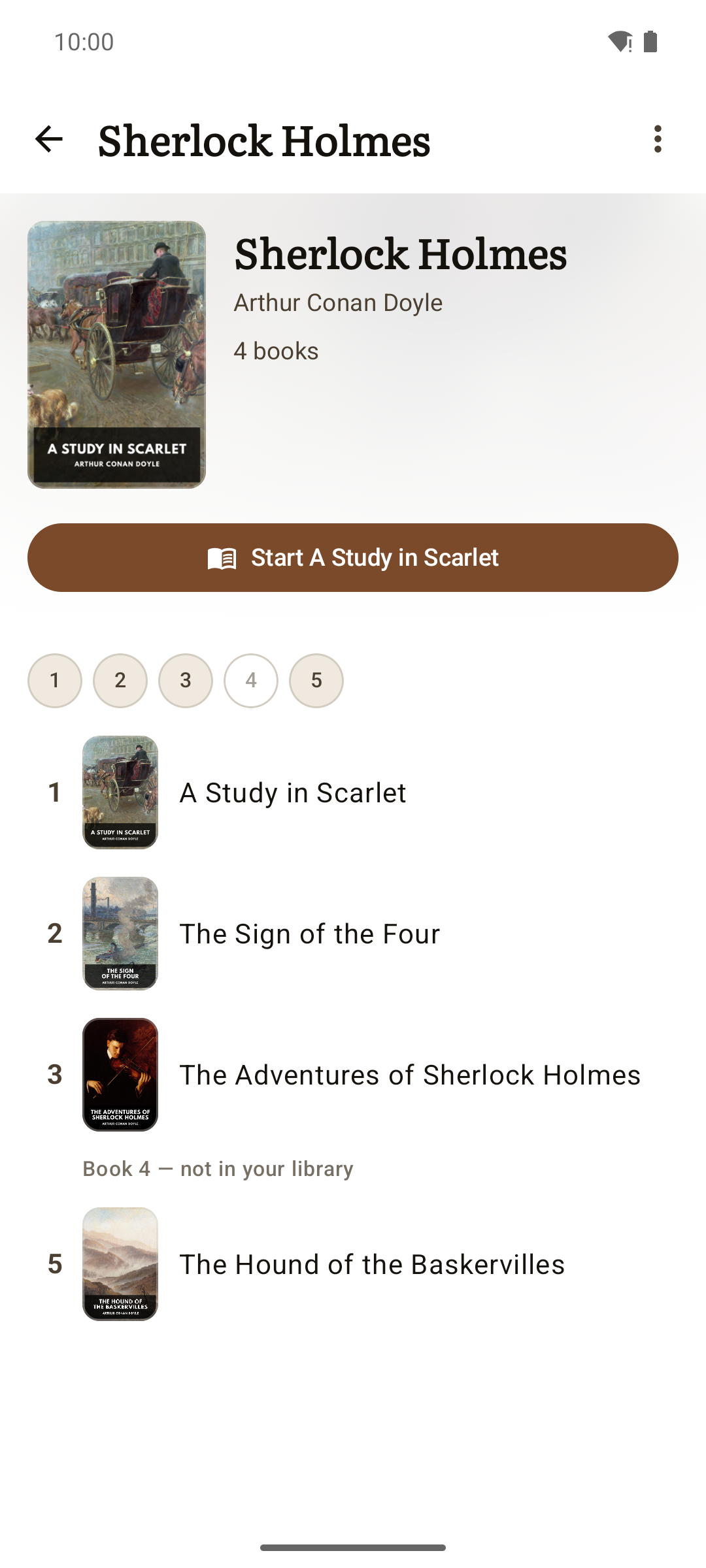
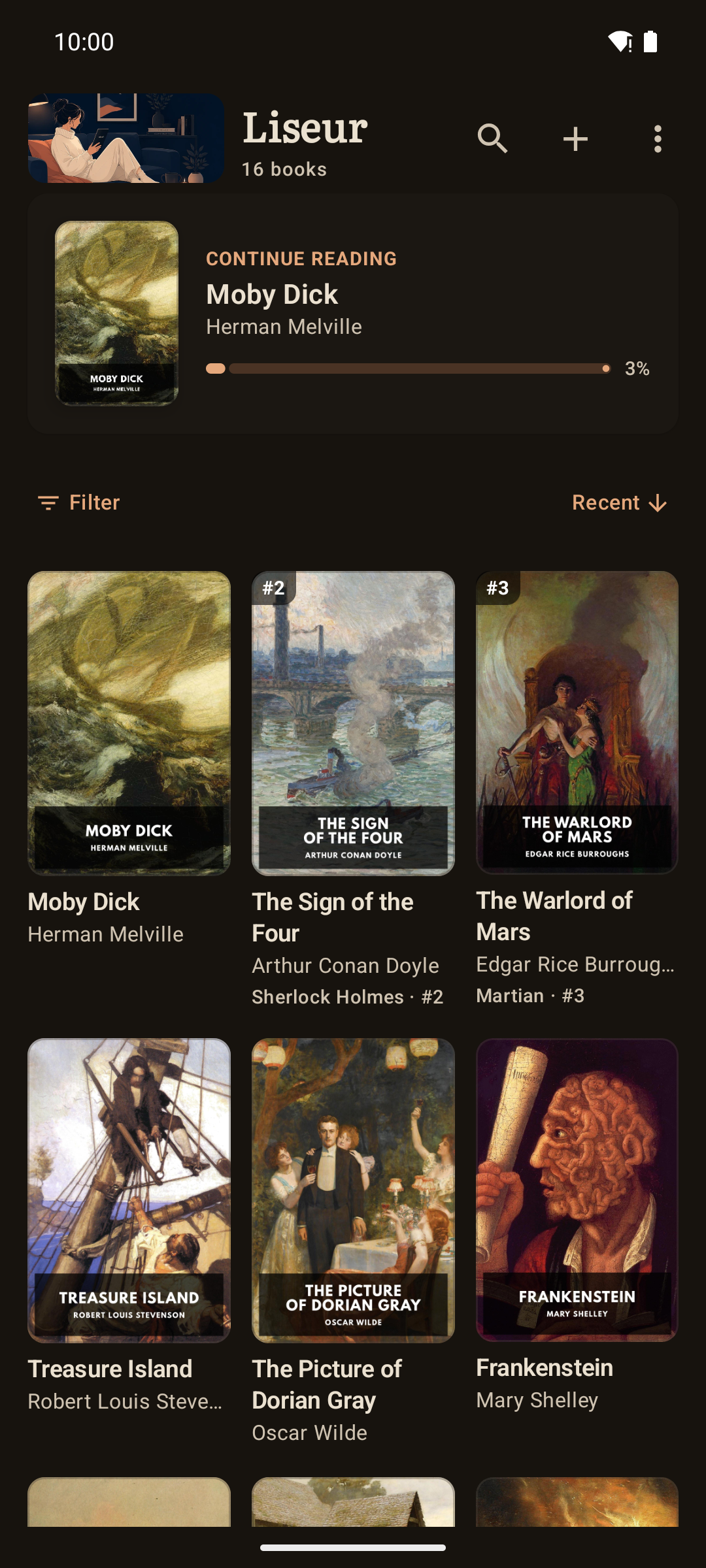
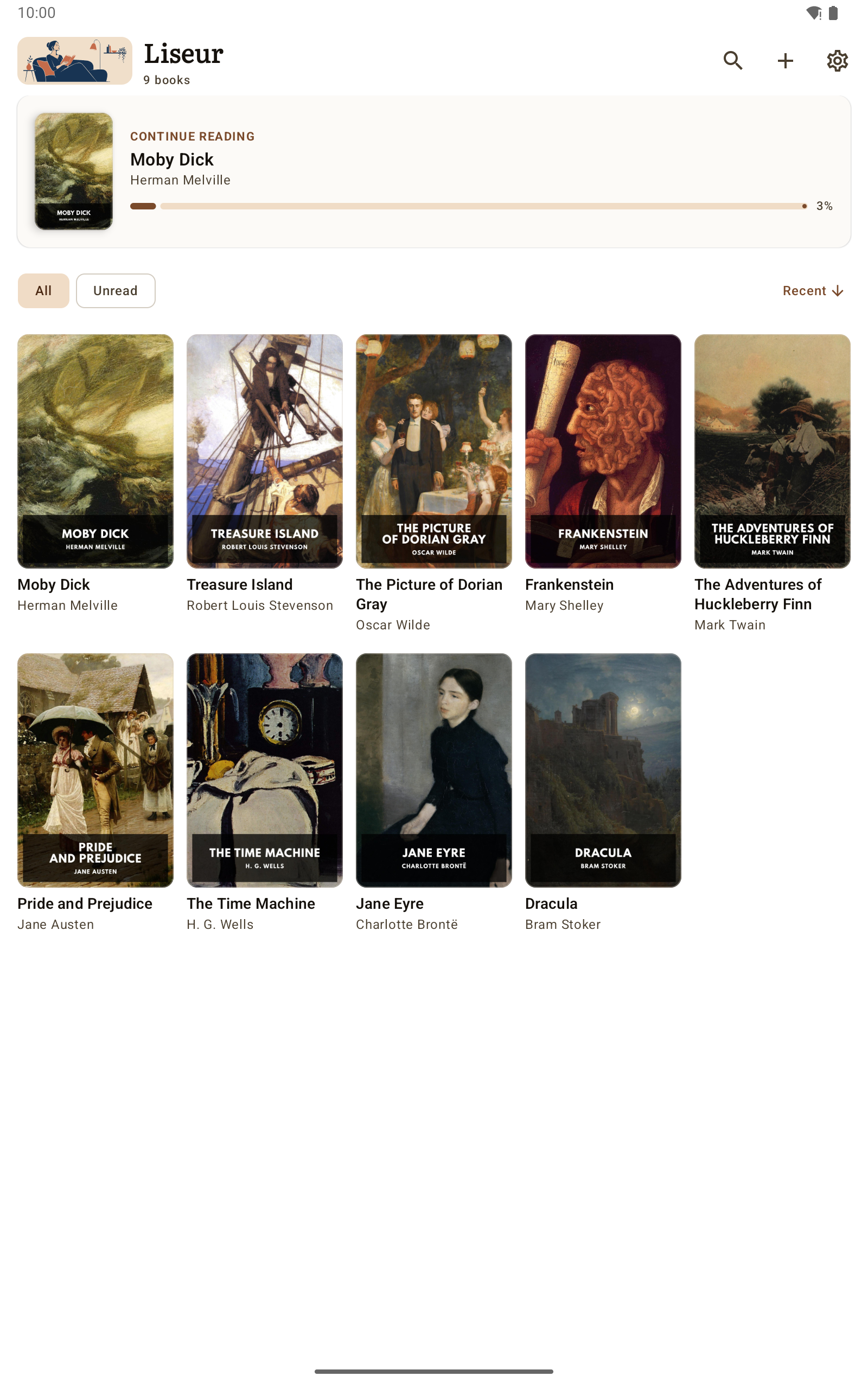
Library Series One series
Sorted by what you are reading now. Series gathered into stacks. Reading order, progress, and which volumes are missing.
## Reading stats
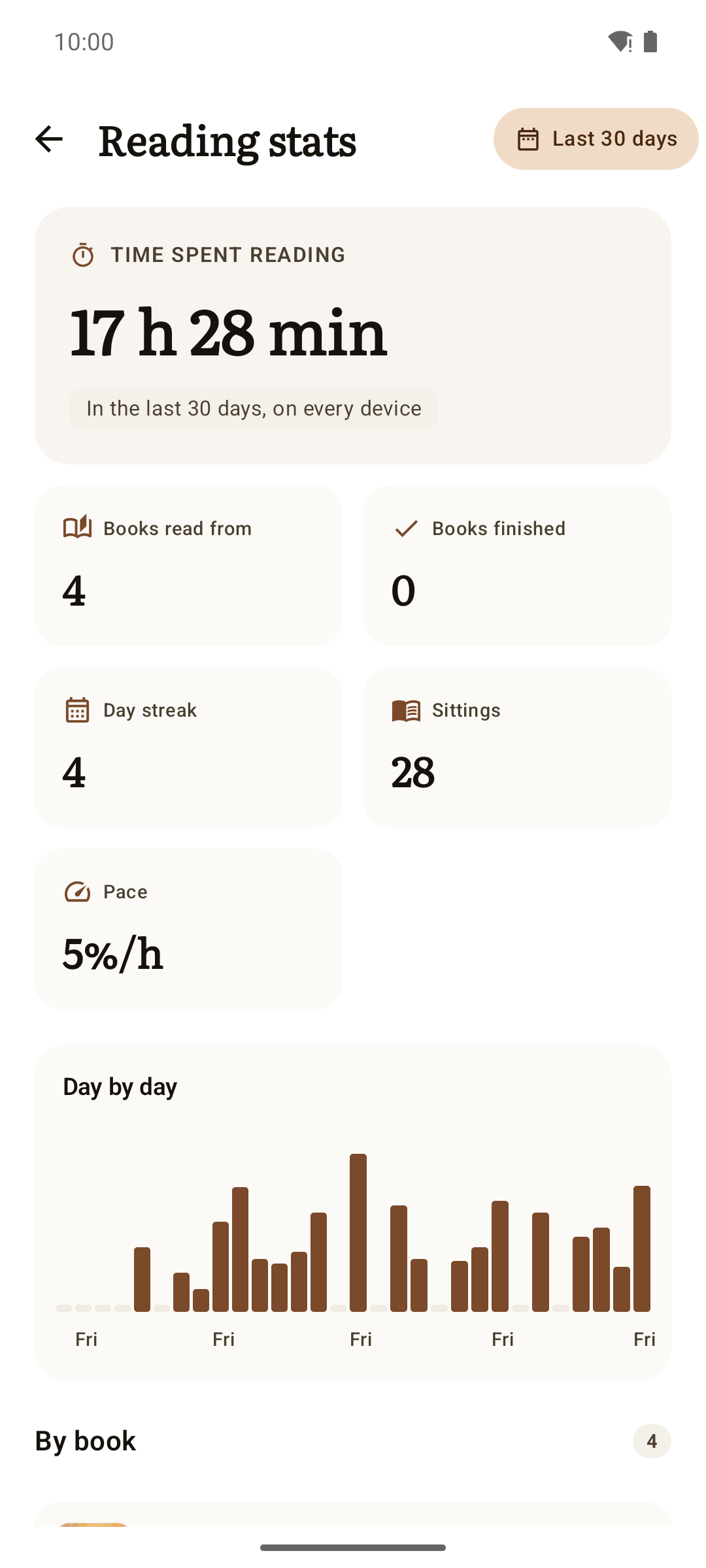
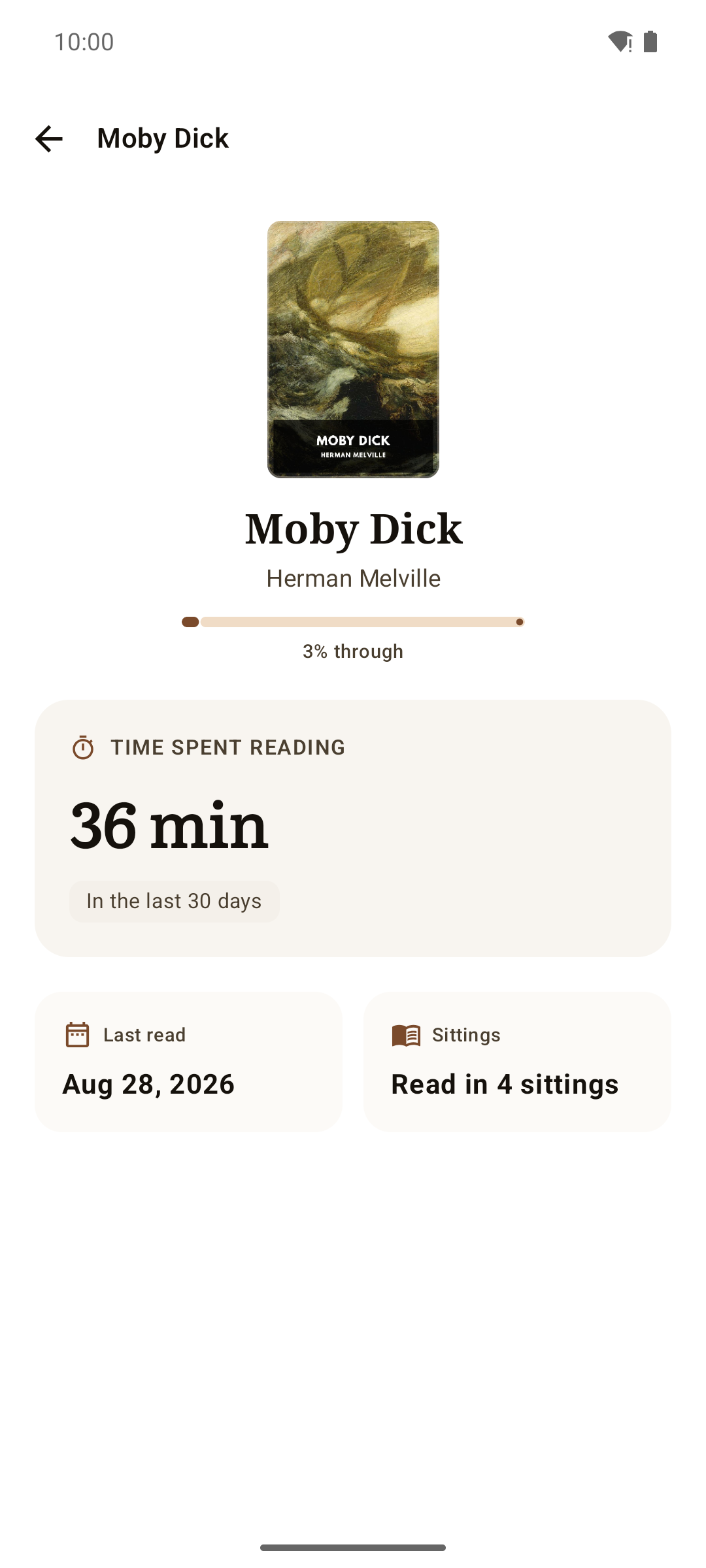
Reading stats One book's reading
Hours, sittings, streak, and the days they landed on. One book: the pace you read it at, and what is left.
Counted from the moment you open a book, on this device. Nothing is guessed about reading you did before Liseur arrived. ## Setting up
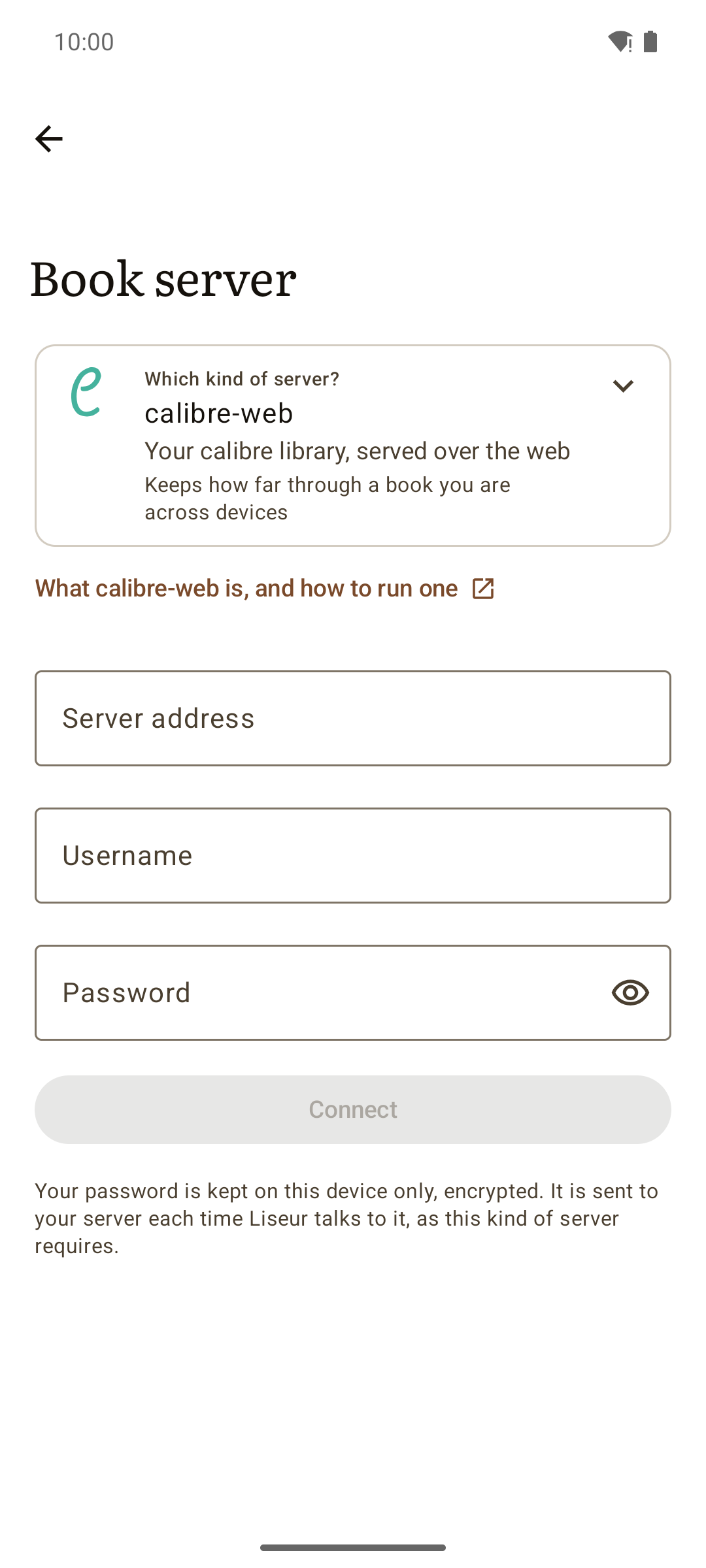
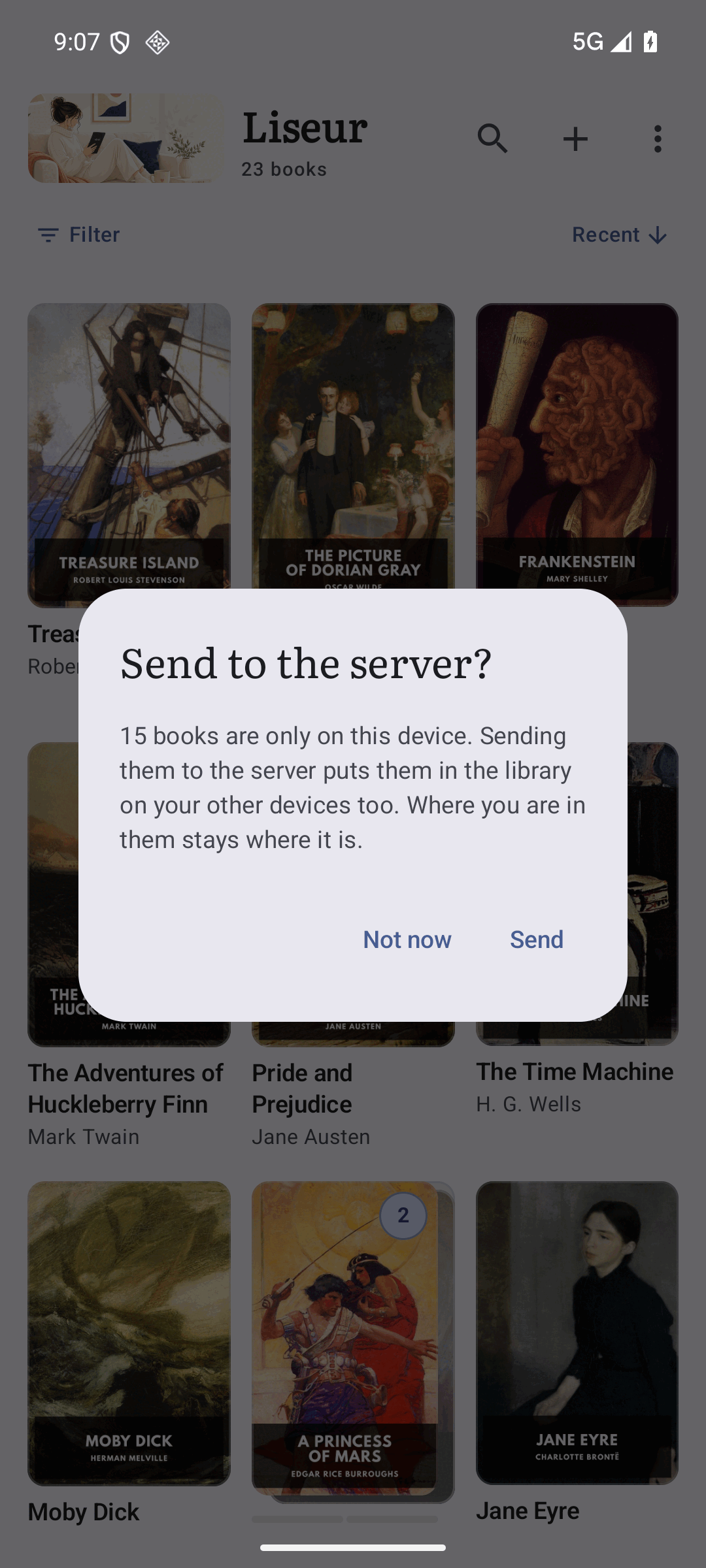
Server setup Sending a book to the server
One server at a time, with your own credentials. A book only on this phone, offered to a server that takes uploads.
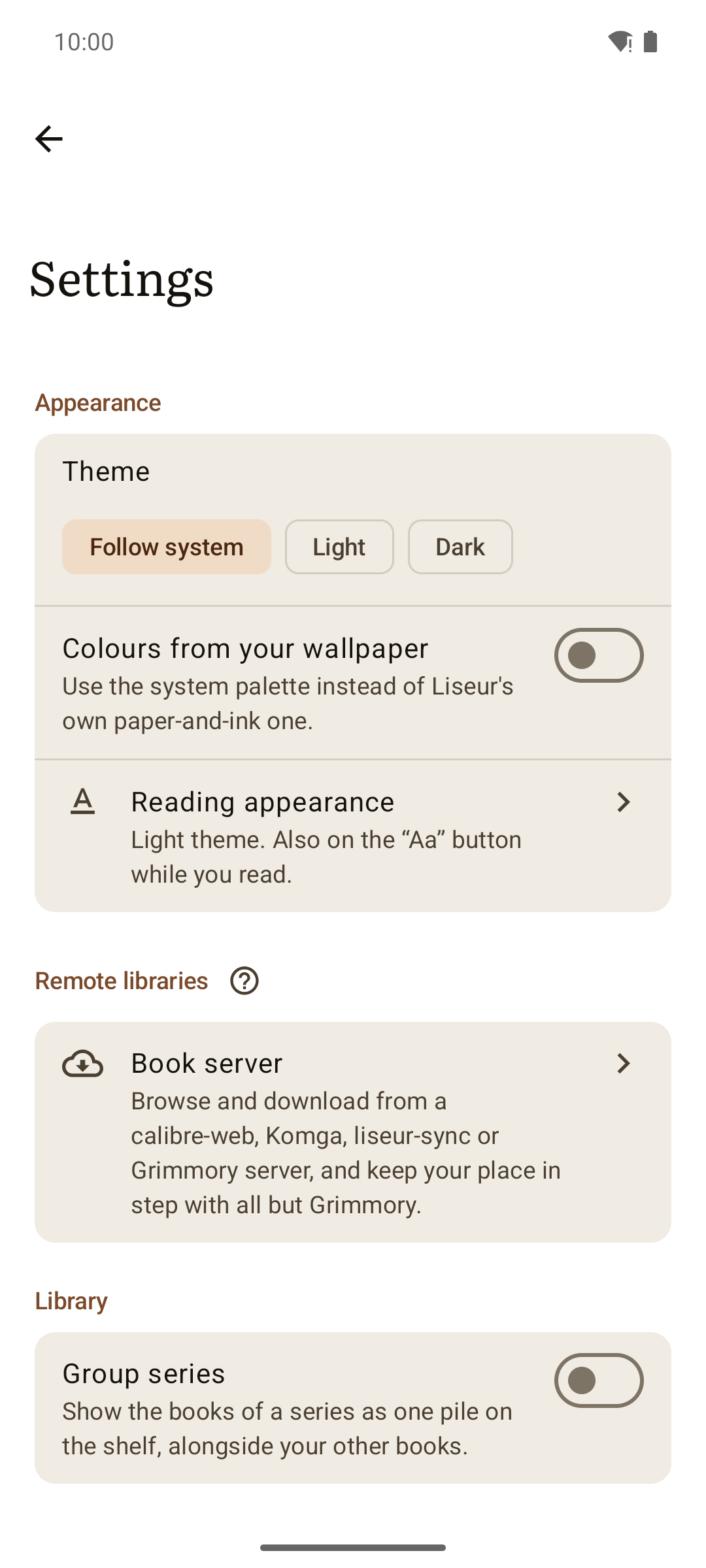
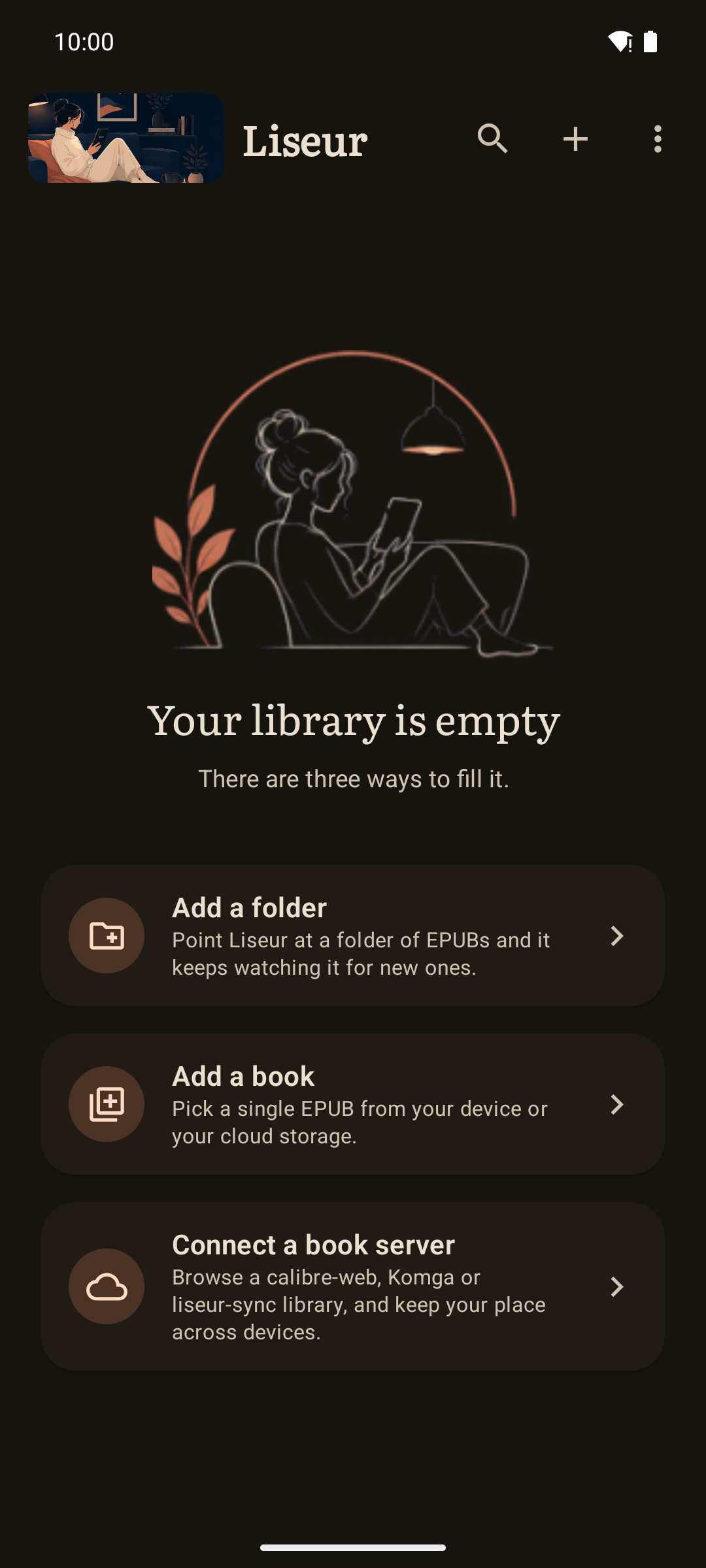
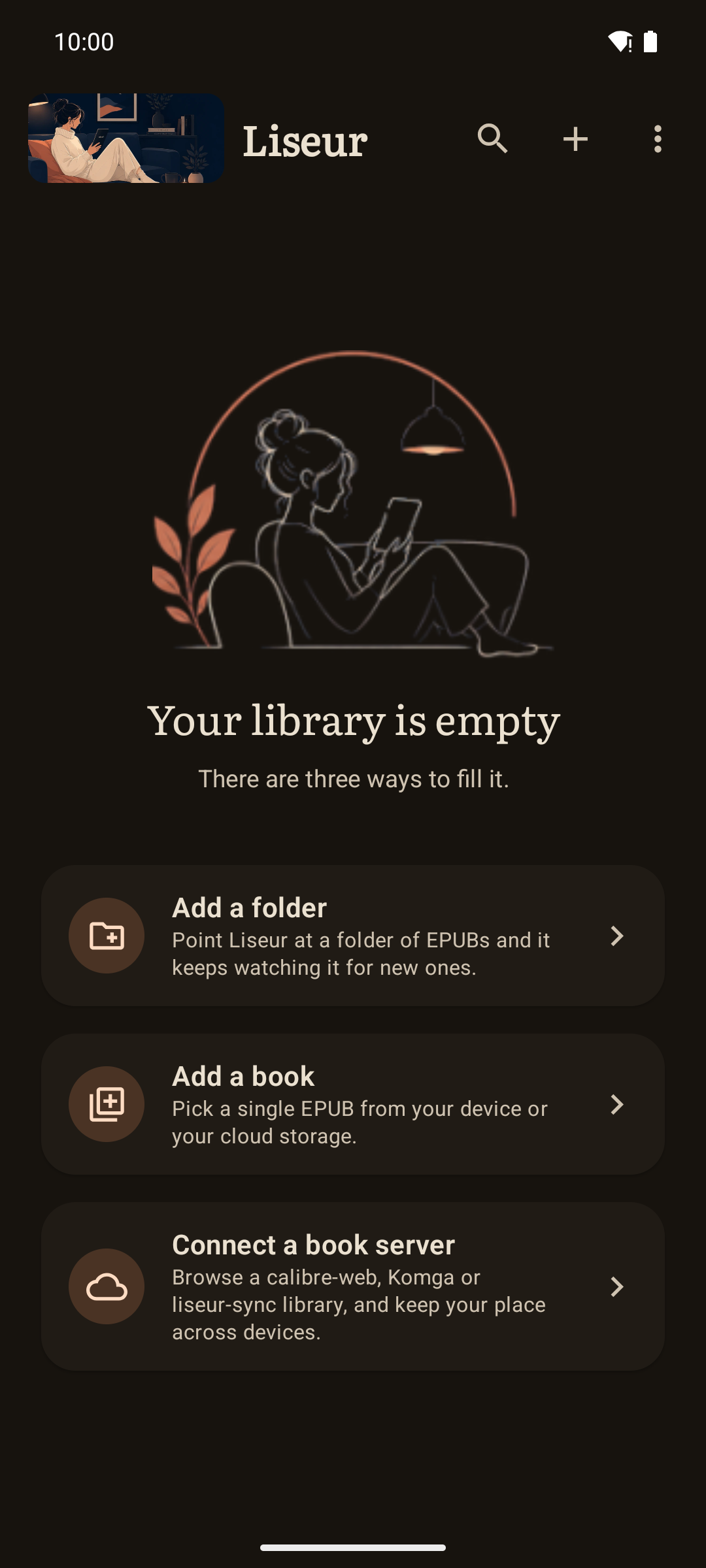
Settings An empty library
Everything else. Three ways to fill a new shelf.
## In the dark
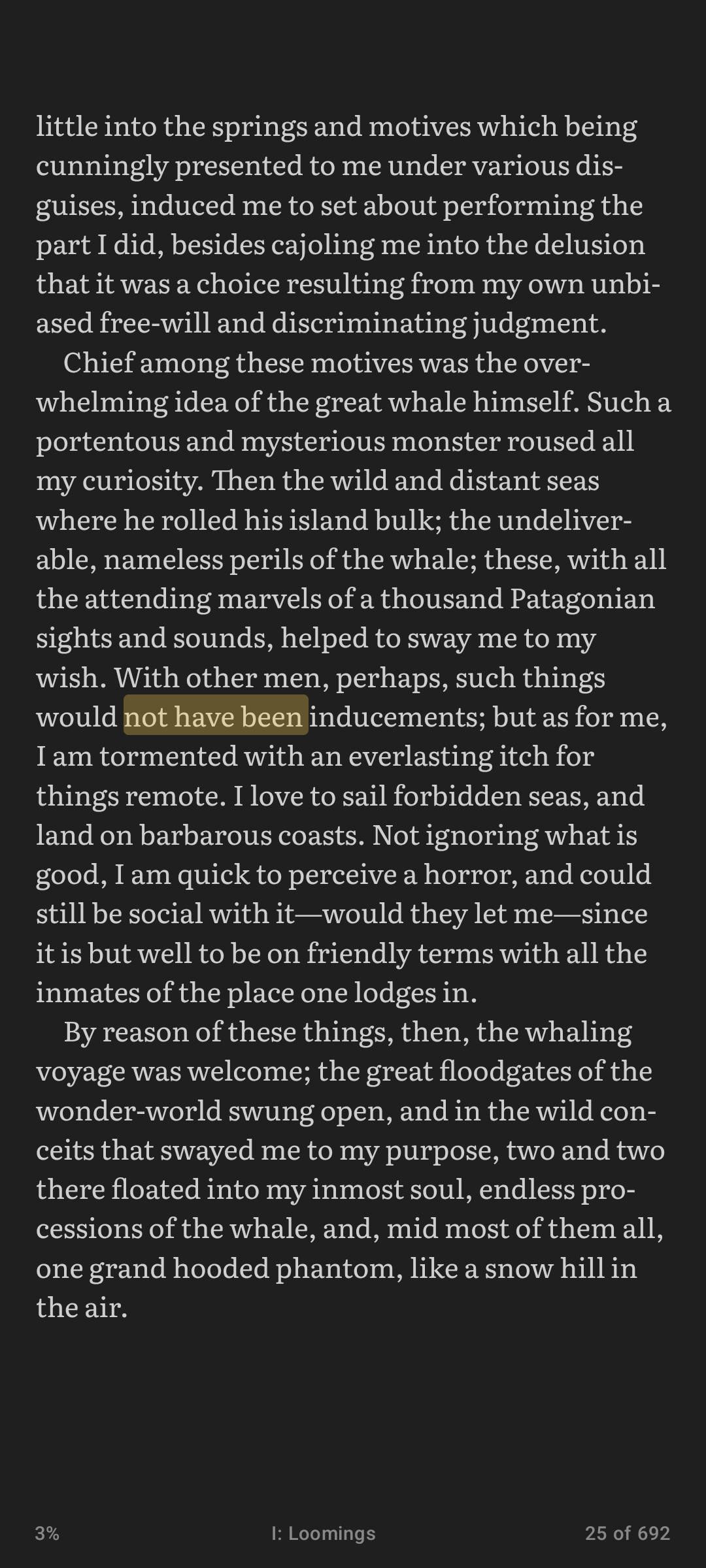
Library, dark Reading, dark An empty library, dark
The shelf follows the system theme. The reading theme does not have to: Light, Sepia, Dark and OLED Black are the book's own. A new shelf, after dark.
## Home-screen widgets Two widgets sit on the home screen: the current cover and a paged shelf of library covers. The combined-cover and reading stats widgets were removed. | Light | Dark | | --- | --- | | ![Widgets in light mode](screenshots/22-widgets-light.png) | ![Widgets in dark mode](screenshots/23-widgets-dark.png) | ## On a tablet
Two columns The columns control The shelf on a tablet
A wide page laid out in two columns. One column or two, or let the width decide. More books to a screen, same shelf.
--- Most screenshots are captured with `hack/screenshots --setup`, which builds the demo shelf, reads a book part-way, marks it up, and photographs the result. See the header of that script for how to run it.