# Shimmering Obsidian 🎩



Alfred workflow with dozens of features for controlling your
[Obsidian](https://obsidian.md/) vault.
[⭐ Featured in the Alfred
Gallery.](https://alfred.app/workflows/chrisgrieser/shimmering-obsidian/)
 ## Table of contents
- [Installation](#installation)
- [Alfred-based quick switcher](#alfred-based-quick-switcher)
- [How the search works](#how-the-search-works)
- [Main search](#main-search)
- [Search for notes](#search-for-notes)
- [Smart queries](#smart-queries)
- [Search for aliases](#search-for-aliases)
- [Search for folders](#search-for-folders)
- [Search for headings](#search-for-headings)
- [Browse links of a note](#browse-links-of-a-note)
- [Search notes by their tags](#search-notes-by-their-tags)
- [Search bookmarked files](#search-bookmarked-files)
- [Search recent files](#search-recent-files)
- [Search for attachments](#search-for-attachments)
- [Search all external links in the entire vault](#search-all-external-links-in-the-entire-vault)
- [Extra features](#extra-features)
- [Vault search as Alfred fallback](#vault-search-as-alfred-fallback)
- [Previewing notes via QuickLook](#previewing-notes-via-quicklook)
- [Note-related features](#note-related-features)
- [Create a new note](#create-a-new-note)
- [Scratchpad](#scratchpad)
- [Screenshot features](#screenshot-features)
- [OCR screenshots](#ocr-screenshots)
- [Image screenshot](#image-screenshot)
- [Utility features](#utility-features)
- [Workspace switcher](#workspace-switcher)
- [Vault switcher](#vault-switcher)
- [Back up your vault](#back-up-your-vault)
- [CSS files](#css-files)
- [Open various folders](#open-various-folders)
- [Update plugins & metadata](#update-plugins--metadata)
- [Plugins, themes, and settings](#plugins-themes-and-settings)
- [Plugins](#plugins)
- [Themes](#themes)
- [Settings & local plugins](#settings--local-plugins)
- [Documentation searches](#documentation-searches)
- [Official documentation](#official-documentation)
- [Plugin developer documentation](#plugin-developer-documentation)
- [Cheat sheet](#cheat-sheet)
- [Credits](#credits)
- [About the developer](#about-the-developer)
## Installation
*This workflow requires Alfred 5 with
[Powerpack](https://www.alfredapp.com/powerpack/).*
1. Install the Obsidian plugins [Advanced
URI](https://obsidian.md/plugins?id=obsidian-advanced-uri) & [Metadata
Extractor](https://obsidian.md/plugins?id=metadata-extractor).
2. Enable both plugins.
3. Download the [latest release at
GitHub](https://github.com/chrisgrieser/shimmering-obsidian/releases/latest).
Double-click the `.alfredworkflow` file to install it.
4. Set your vault path in the workflow configuration.
**In the Obsidian plugin settings for the "Metadata Extractor"**
- Enable `Write JSON files automatically when Obsidian launches`.
- Set `Configure frequency for writing the three JSON files` to how often you
want the Metadata to be updated. A value like 30 minutes is reasonable. Do
**not** change any of the other settings.
- Restart Obsidian.
## Alfred-based quick switcher
The Alfred-based Quick Switcher is basically an enhanced version of [Obsidian's
Quick Switcher Core Plugin](https://help.obsidian.md/Plugins/Quick+switcher).
### How the search works
All the search features listed here do not *directly* search your vault, but
rather use the metadata created by the [Metadata Extractor
Plugin](https://obsidian.md/plugins?id=metadata-extractor) on a regular basis.
By default, this happens every 30 minutes, meaning recently created notes,
recently renamed notes, or recent tag changes are not picked up at once. You can
change the metadata refresh rate via the Metadata Extractor Plugin's settings.
### Main search
**`o`: Open files in your vault.**
This keyword searches all your notes, aliases, folders, and headings combined.
#### Search for notes
This works similar to Obsidian's built-in *Quick Switcher*, but can be triggered
without Obsidian running (in which case it opens Obsidian with the selected
note).
- `⏎`: Open the selected file in Obsidian.
- `⌘ + ⏎`: Open the file in a new tab. (Can be configured in the workflow
settings to open in a new window or split instead.)
- `⌥ + ⏎`: Reveal the file in Finder.
- `fn + ⏎`: Append content to the selected note. (Prompt for text or clipboard
content)
- `⌃ + ⏎`: Copy the
[Obsidian-URI](https://help.obsidian.md/Advanced+topics/Using+obsidian+URI#Action+`hook-get-address`)
to the selected file.
- `⇧ + ⏎`: Browse a list of all links of the selected note (outgoing links,
backlinks, external links.) See at the [section "Browse Links"
below](#browse-links-of-a-note) for further information.
- Press `⇧` or `⌘ y` to preview the selected note via macOS' Quick Look feature.
Press it again to close the preview. This feature requires [QLMarkdown or
Peek](#previewing-notes-via-quicklook) to be installed.
- 💡 The `o`-search respects the `Excluded files` setting from Obsidian and
ignore files and folders added there. (Regex-filters do not work though.)
> [!TIP]
> There are various settings for appending and opening notes, which can be found
> in the workflow configuration.
#### Smart queries
- Add `filename` or `title` to your search query, to display only files and no
aliases, folders, or headings. For example, `o obsidian filename` displays
only notes that have the `obsidian` in their filename.
- Add `canvas` to your search to only display canvases (Obsidian 1.1).
- Similarly, you can also filter for starred or recent files by adding `starred`
or `recent` to your query.
- You can add `#tag` to your search query to search only for files with a
specific tag, for example, `o foobar #moc` only displays notes with the name
`foobar` that are also tagged with `#moc`.
#### Search for aliases
This command also looks for **aliases**, when they are [defined in the
YAML-Header](https://help.obsidian.md/How+to/Add+aliases+to+note#Set+aliases).
- Add `alias` to your search query, to only display aliases, for example, `o
obsidian alias` only displays notes that have the *alias* `obsidian`.
#### Search for folders
When **selecting a folder**, you can "browse" the selected folder—this means
that you are now searching only for files and folders inside that folder.
- When browsing a folder, you also have the option to create a new note *in that
folder*. Uses the template note defined in the workflow configuration.
- Furthermore, you can go up and browse the *parent* folder of the current
folder. Basically, you can fully explore the folder structure of your vault
via Alfred.
- Add `folder` to your search query, to only display folders, for example, `o
foobar folder` only displays *folders* that have `foobar` in their name.
- When you are browsing inside a folder, use the query `..` to go up to the
parent folder or `new` to create a new
note in that folder, respectively.
#### Search for headings
Displayed alongside the other search results are all headings in your vault.
Selecting headings with `⏎` opens the file *at the respective heading*.
- `⌃ + ⏎`: Copies either a Markdown link
[that uses the Obsidian URI](https://help.obsidian.md/Advanced+topics/Using+obsidian+URI#Action+%60hook-get-address%60)
or the wikilink to the selected file, depending on the setting. Also work with
headings.
- Add `heading` to your search query, to only display headings, for example, `o
foobar heading` only displays *headings* that include `foobar`.
- Add `h1`, `h2`, … to your search query, to only display headings of a certain
level, for example, `o obsidian h2` only displays *level 2 headings* that
include `obsidian`.
- You can ignore certain (or all) heading levels with the respective workflow
configuration.
> [!TIP]
> If the search results become too crowded, you can ignore certain heading
> levels in the workflow configuration.
#### Browse links of a note
**Use `⇧ + ⏎` on any search result of the main `o` search to browse the links of
that note**
- Displays a list of *all* links of the note: outgoing links, backlinks, and
external links. (As of now, unresolved internal links are not displayed
though.)
- Selecting an outgoing link or backlink opens the respective note.
- All the modifiers (`⌘/⌃/⌥/fn/⇧ + ⏎`) apply the same way as with the main
`o` search.
- *Yes, this means you can repeatedly use `⇧ + ⏎` to basically traverse
your graph via Alfred. 😎*
- for external links:
- Selecting an external link with `⏎` opens the link in the default browser.
- Press `⌥ + ⏎` on an external link to copy the URL to the clipboard
instead.
### Search notes by their tags
**`ot`: Search `t`ags and subsequently files with that tag**
- Display and search a full list of all tags in your vault.
- Select a tag with `⏎` to display & search all notes with that tag.
- In the following list of your notes, all the modifiers (`⌘/⌃/⌥/fn/⇧ + ⏎`)
apply the same way as they do with the `o` search.
- Press `⌘ + ⏎` instead to open Obsidian's search pane and search for the
tag there.
- Use the workflow configuration to set whether nested tags should be merged
with their parent or not.
### Search bookmarked files
**`ob`: Search `b`ookmarked Files and Searches**
- When you select a starred *file*, all the modifiers (`⌘/⌃/⌥/fn/⇧ + ⏎`) apply
the same way as with the main `o` search.
- If you select a starred *search*, Obsidian opens the search pane with the
respective query.
- This feature requires the [Bookmark core
plugin](https://help.obsidian.md/Plugins/Bookmarks) being enabled.
### Search recent files
**`or`: Open `r`ecent Files**
- All the modifiers (`⌘/⌃/⌥/fn/⇧ + ⏎`) apply the same way as with the main `o`
search.
- Only the 10 most recent files are displayed.
### Search for attachments
**`oa`: `a`ttachments**
- Searches only for attachments (non-Markdown files) in your vault. `⏎` opens
the selected files in your default app. (Obsidian itself is not opened.)
- The modifiers `⌘/⌃/⌥ + ⏎` and the previewing (`⇧` or `⌘y`) work the same way
as with the main `o` search.
- `⇧ + ⏎`, however, works differently: it opens the file in Obsidian, if
[Obsidian is able to open
them](https://help.obsidian.md/Advanced+topics/Accepted+file+formats). (If not,
the file simply is opened in your default app.)
### Search all external links in the entire vault
**`oe`: Search all `e`xternal links in your entire vault**
- `⏎`: Opens the link in the browser.
- `cmd + ⏎`: Reveal the link in Obsidian.
- `alt + ⏎`: Copies the URL to the clipboard.
### Extra features
#### Vault search as Alfred fallback
The main search (`o`) can also be used as
[Fallback Search for Alfred](https://www.alfredapp.com/help/features/default-results/fallback-searches/),
basically a search that shows up when any Alfred search has no result.
#### Previewing notes via QuickLook
To avoid accidentally triggering the Quick Look feature, it is suggested you
turn off activating QuickLook via shift and use `⌘ + Y` instead. You can do so
in the Alfred Settings under `Features → Previews`:
[QLmarkdown](https://github.com/sbarex/QLMarkdown) and
[Peek](https://apps.apple.com/app/peek-quick-look-extension/id1554235898) both
enable previewing of Markdown documents. Peek works with a wide range of other
filetypes than Markdown, but costs around €5. `QLMarkdown` is free, but only
works for Markdown and requires some minor setup.
## Table of contents
- [Installation](#installation)
- [Alfred-based quick switcher](#alfred-based-quick-switcher)
- [How the search works](#how-the-search-works)
- [Main search](#main-search)
- [Search for notes](#search-for-notes)
- [Smart queries](#smart-queries)
- [Search for aliases](#search-for-aliases)
- [Search for folders](#search-for-folders)
- [Search for headings](#search-for-headings)
- [Browse links of a note](#browse-links-of-a-note)
- [Search notes by their tags](#search-notes-by-their-tags)
- [Search bookmarked files](#search-bookmarked-files)
- [Search recent files](#search-recent-files)
- [Search for attachments](#search-for-attachments)
- [Search all external links in the entire vault](#search-all-external-links-in-the-entire-vault)
- [Extra features](#extra-features)
- [Vault search as Alfred fallback](#vault-search-as-alfred-fallback)
- [Previewing notes via QuickLook](#previewing-notes-via-quicklook)
- [Note-related features](#note-related-features)
- [Create a new note](#create-a-new-note)
- [Scratchpad](#scratchpad)
- [Screenshot features](#screenshot-features)
- [OCR screenshots](#ocr-screenshots)
- [Image screenshot](#image-screenshot)
- [Utility features](#utility-features)
- [Workspace switcher](#workspace-switcher)
- [Vault switcher](#vault-switcher)
- [Back up your vault](#back-up-your-vault)
- [CSS files](#css-files)
- [Open various folders](#open-various-folders)
- [Update plugins & metadata](#update-plugins--metadata)
- [Plugins, themes, and settings](#plugins-themes-and-settings)
- [Plugins](#plugins)
- [Themes](#themes)
- [Settings & local plugins](#settings--local-plugins)
- [Documentation searches](#documentation-searches)
- [Official documentation](#official-documentation)
- [Plugin developer documentation](#plugin-developer-documentation)
- [Cheat sheet](#cheat-sheet)
- [Credits](#credits)
- [About the developer](#about-the-developer)
## Installation
*This workflow requires Alfred 5 with
[Powerpack](https://www.alfredapp.com/powerpack/).*
1. Install the Obsidian plugins [Advanced
URI](https://obsidian.md/plugins?id=obsidian-advanced-uri) & [Metadata
Extractor](https://obsidian.md/plugins?id=metadata-extractor).
2. Enable both plugins.
3. Download the [latest release at
GitHub](https://github.com/chrisgrieser/shimmering-obsidian/releases/latest).
Double-click the `.alfredworkflow` file to install it.
4. Set your vault path in the workflow configuration.
**In the Obsidian plugin settings for the "Metadata Extractor"**
- Enable `Write JSON files automatically when Obsidian launches`.
- Set `Configure frequency for writing the three JSON files` to how often you
want the Metadata to be updated. A value like 30 minutes is reasonable. Do
**not** change any of the other settings.
- Restart Obsidian.
## Alfred-based quick switcher
The Alfred-based Quick Switcher is basically an enhanced version of [Obsidian's
Quick Switcher Core Plugin](https://help.obsidian.md/Plugins/Quick+switcher).
### How the search works
All the search features listed here do not *directly* search your vault, but
rather use the metadata created by the [Metadata Extractor
Plugin](https://obsidian.md/plugins?id=metadata-extractor) on a regular basis.
By default, this happens every 30 minutes, meaning recently created notes,
recently renamed notes, or recent tag changes are not picked up at once. You can
change the metadata refresh rate via the Metadata Extractor Plugin's settings.
### Main search
**`o`: Open files in your vault.**
This keyword searches all your notes, aliases, folders, and headings combined.
#### Search for notes
This works similar to Obsidian's built-in *Quick Switcher*, but can be triggered
without Obsidian running (in which case it opens Obsidian with the selected
note).
- `⏎`: Open the selected file in Obsidian.
- `⌘ + ⏎`: Open the file in a new tab. (Can be configured in the workflow
settings to open in a new window or split instead.)
- `⌥ + ⏎`: Reveal the file in Finder.
- `fn + ⏎`: Append content to the selected note. (Prompt for text or clipboard
content)
- `⌃ + ⏎`: Copy the
[Obsidian-URI](https://help.obsidian.md/Advanced+topics/Using+obsidian+URI#Action+`hook-get-address`)
to the selected file.
- `⇧ + ⏎`: Browse a list of all links of the selected note (outgoing links,
backlinks, external links.) See at the [section "Browse Links"
below](#browse-links-of-a-note) for further information.
- Press `⇧` or `⌘ y` to preview the selected note via macOS' Quick Look feature.
Press it again to close the preview. This feature requires [QLMarkdown or
Peek](#previewing-notes-via-quicklook) to be installed.
- 💡 The `o`-search respects the `Excluded files` setting from Obsidian and
ignore files and folders added there. (Regex-filters do not work though.)
> [!TIP]
> There are various settings for appending and opening notes, which can be found
> in the workflow configuration.
#### Smart queries
- Add `filename` or `title` to your search query, to display only files and no
aliases, folders, or headings. For example, `o obsidian filename` displays
only notes that have the `obsidian` in their filename.
- Add `canvas` to your search to only display canvases (Obsidian 1.1).
- Similarly, you can also filter for starred or recent files by adding `starred`
or `recent` to your query.
- You can add `#tag` to your search query to search only for files with a
specific tag, for example, `o foobar #moc` only displays notes with the name
`foobar` that are also tagged with `#moc`.
#### Search for aliases
This command also looks for **aliases**, when they are [defined in the
YAML-Header](https://help.obsidian.md/How+to/Add+aliases+to+note#Set+aliases).
- Add `alias` to your search query, to only display aliases, for example, `o
obsidian alias` only displays notes that have the *alias* `obsidian`.
#### Search for folders
When **selecting a folder**, you can "browse" the selected folder—this means
that you are now searching only for files and folders inside that folder.
- When browsing a folder, you also have the option to create a new note *in that
folder*. Uses the template note defined in the workflow configuration.
- Furthermore, you can go up and browse the *parent* folder of the current
folder. Basically, you can fully explore the folder structure of your vault
via Alfred.
- Add `folder` to your search query, to only display folders, for example, `o
foobar folder` only displays *folders* that have `foobar` in their name.
- When you are browsing inside a folder, use the query `..` to go up to the
parent folder or `new` to create a new
note in that folder, respectively.
#### Search for headings
Displayed alongside the other search results are all headings in your vault.
Selecting headings with `⏎` opens the file *at the respective heading*.
- `⌃ + ⏎`: Copies either a Markdown link
[that uses the Obsidian URI](https://help.obsidian.md/Advanced+topics/Using+obsidian+URI#Action+%60hook-get-address%60)
or the wikilink to the selected file, depending on the setting. Also work with
headings.
- Add `heading` to your search query, to only display headings, for example, `o
foobar heading` only displays *headings* that include `foobar`.
- Add `h1`, `h2`, … to your search query, to only display headings of a certain
level, for example, `o obsidian h2` only displays *level 2 headings* that
include `obsidian`.
- You can ignore certain (or all) heading levels with the respective workflow
configuration.
> [!TIP]
> If the search results become too crowded, you can ignore certain heading
> levels in the workflow configuration.
#### Browse links of a note
**Use `⇧ + ⏎` on any search result of the main `o` search to browse the links of
that note**
- Displays a list of *all* links of the note: outgoing links, backlinks, and
external links. (As of now, unresolved internal links are not displayed
though.)
- Selecting an outgoing link or backlink opens the respective note.
- All the modifiers (`⌘/⌃/⌥/fn/⇧ + ⏎`) apply the same way as with the main
`o` search.
- *Yes, this means you can repeatedly use `⇧ + ⏎` to basically traverse
your graph via Alfred. 😎*
- for external links:
- Selecting an external link with `⏎` opens the link in the default browser.
- Press `⌥ + ⏎` on an external link to copy the URL to the clipboard
instead.
### Search notes by their tags
**`ot`: Search `t`ags and subsequently files with that tag**
- Display and search a full list of all tags in your vault.
- Select a tag with `⏎` to display & search all notes with that tag.
- In the following list of your notes, all the modifiers (`⌘/⌃/⌥/fn/⇧ + ⏎`)
apply the same way as they do with the `o` search.
- Press `⌘ + ⏎` instead to open Obsidian's search pane and search for the
tag there.
- Use the workflow configuration to set whether nested tags should be merged
with their parent or not.
### Search bookmarked files
**`ob`: Search `b`ookmarked Files and Searches**
- When you select a starred *file*, all the modifiers (`⌘/⌃/⌥/fn/⇧ + ⏎`) apply
the same way as with the main `o` search.
- If you select a starred *search*, Obsidian opens the search pane with the
respective query.
- This feature requires the [Bookmark core
plugin](https://help.obsidian.md/Plugins/Bookmarks) being enabled.
### Search recent files
**`or`: Open `r`ecent Files**
- All the modifiers (`⌘/⌃/⌥/fn/⇧ + ⏎`) apply the same way as with the main `o`
search.
- Only the 10 most recent files are displayed.
### Search for attachments
**`oa`: `a`ttachments**
- Searches only for attachments (non-Markdown files) in your vault. `⏎` opens
the selected files in your default app. (Obsidian itself is not opened.)
- The modifiers `⌘/⌃/⌥ + ⏎` and the previewing (`⇧` or `⌘y`) work the same way
as with the main `o` search.
- `⇧ + ⏎`, however, works differently: it opens the file in Obsidian, if
[Obsidian is able to open
them](https://help.obsidian.md/Advanced+topics/Accepted+file+formats). (If not,
the file simply is opened in your default app.)
### Search all external links in the entire vault
**`oe`: Search all `e`xternal links in your entire vault**
- `⏎`: Opens the link in the browser.
- `cmd + ⏎`: Reveal the link in Obsidian.
- `alt + ⏎`: Copies the URL to the clipboard.
### Extra features
#### Vault search as Alfred fallback
The main search (`o`) can also be used as
[Fallback Search for Alfred](https://www.alfredapp.com/help/features/default-results/fallback-searches/),
basically a search that shows up when any Alfred search has no result.
#### Previewing notes via QuickLook
To avoid accidentally triggering the Quick Look feature, it is suggested you
turn off activating QuickLook via shift and use `⌘ + Y` instead. You can do so
in the Alfred Settings under `Features → Previews`:
[QLmarkdown](https://github.com/sbarex/QLMarkdown) and
[Peek](https://apps.apple.com/app/peek-quick-look-extension/id1554235898) both
enable previewing of Markdown documents. Peek works with a wide range of other
filetypes than Markdown, but costs around €5. `QLMarkdown` is free, but only
works for Markdown and requires some minor setup.
- The app `QLMarkdown.app` must be started at least once. You may need to
right-click the app and select `open`, to be able to allow macOS to trust the
app.
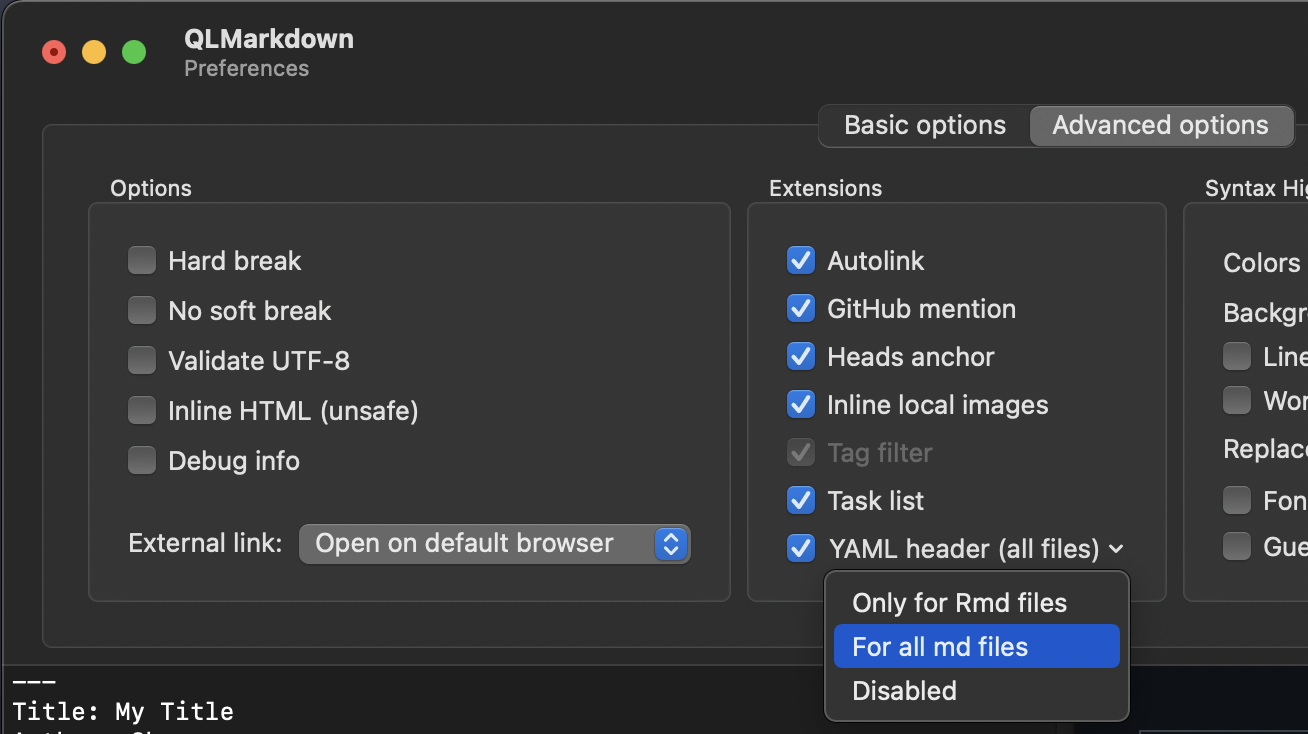
- To enable proper display of YAML headers, you need to enable the respective
setting in the Advanced Options of QLMarkdown:
## Note-related features
### Create a new note
**`on`: Create a `n`ew note.**
- **File name:** Anything you type after the keyword `on` (for example, `on
foobar`) becomes the filename of the new note (for example, `foobar.md`).
(Note that the [Filename Heading Sync
Plugin](https://obsidian.md/plugins?id=obsidian-filename-heading-sync) may
interfere with this.)
- When triggered via `cmd + ⏎`, the new note is created in a new tab.
- **Content:** You can select a template note to use in the workflow
configuration. Only `{{title}}` is supported as placeholder and is replaced
with the filename. Be aware that the template might be overridden by Folder
Templates from the [Templater
plugin](https://obsidian.md/plugins?id=templater-obsidian).
- **Location:** The new note is placed in the folder specified in the workflow
configuration. If the configuration is empty, it is placed in your vault root.
- 💡 There are various settings for creating new notes in the workflow
configuration.
### Scratchpad
**`oo` or `triggered via hotkey`: Append to your Scratchpad Note**
Quickly add text to the note set in the workflow configuration. (This command is
basically a quicker version of the `fn + ⏎` mode of the [Alfred-based Quick
Switcher](#alfred-based-quick-switcher).)
- When using `oo foobar`, appends `foobar` to the note.
- Using just `oo`, you can also directly open the Scratchpad.
- Triggered via **hotkey**, appends the current selection.
- When you add `#foobar` to path of the scratchpad file in the workflow
configuration (for example, `Inbox/Scratchpad-Note#Thoughts`), the text is
appended to the section with the heading "foobar."
> [!TIP]
> There are various settings for the scratchpad in the workflow configuration.
> You can, for instance, use [Alfred's Dynamic
> Placeholders](https://www.alfredapp.com/help/workflows/advanced/placeholders/)
> to prefix the current date and time, or use a dynamic path to a daily note.
## Screenshot features
 ### OCR screenshots
**`Triggered via Hotkey`: Take an OCR Screenshot.**
- Similar to the default Mac Hotkey `⌘ ⇧ + 4`, you are able to select part
of your screen for a screenshot. However, instead of saving a screenshot, a
new note is created which contains the OCR-ed content of the selection.
- For best results, you should set the languages to be recognized in the
workflow settings, such as `eng+deu` for English and German. You can find out
the code for your languages in
[this list](https://tesseract-ocr.github.io/tessdoc/Data-Files-in-different-versions.html).
- 💡 There are various settings in the workflow configurations for
OCR-screenshots.
**Requirement**
For the OCR-Screenshot Feature, you need to install
[Tesseract](https://tesseract-ocr.github.io/tessdoc/Installation.html). If you
use Homebrew, you can do so with the following command:
```bash
brew install tesseract tesseract-lang
```
> [!TIP]
> The first time you use the OCR or image screenshot feature, you might have to
> give Alfred permission to record your screen. You can do so under the macOS
> system settings.
>
>
### OCR screenshots
**`Triggered via Hotkey`: Take an OCR Screenshot.**
- Similar to the default Mac Hotkey `⌘ ⇧ + 4`, you are able to select part
of your screen for a screenshot. However, instead of saving a screenshot, a
new note is created which contains the OCR-ed content of the selection.
- For best results, you should set the languages to be recognized in the
workflow settings, such as `eng+deu` for English and German. You can find out
the code for your languages in
[this list](https://tesseract-ocr.github.io/tessdoc/Data-Files-in-different-versions.html).
- 💡 There are various settings in the workflow configurations for
OCR-screenshots.
**Requirement**
For the OCR-Screenshot Feature, you need to install
[Tesseract](https://tesseract-ocr.github.io/tessdoc/Installation.html). If you
use Homebrew, you can do so with the following command:
```bash
brew install tesseract tesseract-lang
```
> [!TIP]
> The first time you use the OCR or image screenshot feature, you might have to
> give Alfred permission to record your screen. You can do so under the macOS
> system settings.
>
>  alt="Permissions for OCR Screenshots" width=35%>
### Image screenshot
**`Triggered via Hotkey`: Take an image screenshot.**
- Similar to the default Mac Hotkey `⌘ ⇧ + 4`, you are able to select part
of your screen for a screenshot. The image is directly saved in your
vault with the filename `Screenshot {date} {time}.png` and the image is
embedded (`![[image_file_name.png]]`) in the note `Images.md` in your vault
root.
- The images are saved in `{vault-path}/screenshots/` by default. You can
use the workflow configuration to specify a folder in your vault where to save
the images instead.
- If the file `Images.md` already exists in your vault root, any subsequent
screenshots are instead appended to this note. This is intended for taking
screenshots in quick succession, for instance during a live lecture or
presentation.
- 💡 There are various settings in the workflow configurations for screenshots.
## Utility features
### Workspace switcher
**`ow`: Switch to a different `w`orkspace**
- Displays a list of your workspaces. Select one to open the workspace.
- You can also manage your Workspaces from here, that is, saving, loading &
deleting a workspace.
- Unsurprisingly, this workflow requires the [Workspaces Core
Plugin](https://help.obsidian.md/Plugins/Workspaces) to be enabled.
alt="Permissions for OCR Screenshots" width=35%>
### Image screenshot
**`Triggered via Hotkey`: Take an image screenshot.**
- Similar to the default Mac Hotkey `⌘ ⇧ + 4`, you are able to select part
of your screen for a screenshot. The image is directly saved in your
vault with the filename `Screenshot {date} {time}.png` and the image is
embedded (`![[image_file_name.png]]`) in the note `Images.md` in your vault
root.
- The images are saved in `{vault-path}/screenshots/` by default. You can
use the workflow configuration to specify a folder in your vault where to save
the images instead.
- If the file `Images.md` already exists in your vault root, any subsequent
screenshots are instead appended to this note. This is intended for taking
screenshots in quick succession, for instance during a live lecture or
presentation.
- 💡 There are various settings in the workflow configurations for screenshots.
## Utility features
### Workspace switcher
**`ow`: Switch to a different `w`orkspace**
- Displays a list of your workspaces. Select one to open the workspace.
- You can also manage your Workspaces from here, that is, saving, loading &
deleting a workspace.
- Unsurprisingly, this workflow requires the [Workspaces Core
Plugin](https://help.obsidian.md/Plugins/Workspaces) to be enabled.
 ### Vault switcher
**`ov`: Open `V`aults in Obsidian, Finder, or the Terminal**
- Select a Vault and press `⏎` to open it in Obsidian.
- `⌃ ⏎` opens the root of the selected vault in your default Terminal. You can
[change the default terminal in the Alfred
Settings](https://www.alfredapp.com/help/features/terminal/).
- `⌥ ⏎` opens the root in Finder.
- `⇧ ⏎` Control this vault with Alfred.
> [!NOTE]
> The `Metadata Extractor` and the `Advanced URI` plugins need to be installed
> and enabled in every vault you want to control. The `Metadata Extractor` needs
> to be configured in every vault as well.
### Back up your vault
**`obackup`: Create a `backup` of your vault.**
- Your whole vault is compressed into a *zip* file and then moved to the
location you specified in the workflow configuration.
- This command respects the maximum number of backups you have set (workflow
configuration `max_number_of_bkps`) to prevent taking up too much disk space.
When the number is reached, every new backup causes the oldest backup to be
deleted.
- The hidden folders `.obsidian` and `.trash` are included in the backup, the
`.git` folder is excluded.
- 💡 Advanced users: you can use the following AppleScript snippet to trigger a
backup. This is useful to create automated backups via
[launchd](https://launchd.info/), [Cron
jobs](https://ostechnix.com/a-beginners-guide-to-cron-jobs/), or [Keyboard
Maestro](https://www.keyboardmaestro.com/main/).
```applescript
tell application id "com.runningwithcrayons.Alfred"
run trigger "backup-obsidian" in workflow
"de.chris-grieser.shimmering-obsidian"
end tell
# pass 'no sound' as argument to turn off backup confirmation sound
```
> [!WARNING]
> Please be aware that this is a simplistic backup solution. While I do not have
> any problems with it, this workflow comes without any warranties, as stated in
> the
> [license](https://github.com/chrisgrieser/shimmering-obsidian/blob/main/LICENSE).
> If you care about safety, please use a professional backup solution.
### CSS files
**`ocss`: Access your `css` files.**
- Open a CSS snippet in your default text editor.
### Open various folders
- `o.obsidian`: The hidden `.obsidian` folder located in your vault root is
opened in Finder.
- `o.trash`: Open the hidden [`.trash`
folder](https://help.obsidian.md/Advanced+topics/Deleting+files) located in
your vault root is opened in Finder. (Note that you have to select `Move to
Obsidian trash` in the Obsidian settings under the `Files & Links` tab before
deleted files can be found here.)
- `oapplicationsupport`: Open Obsidian's Application Support folder.
- `oplugins`: The plugin folder in `.obsidian` is opened in Finder.
- `othemes`: The theme folder in `.obsidian` is opened in Finder.
### Update plugins & metadata
**`oupdate`: Update plugins and metadata used by this workflow**
- Update your community plugins (and beta plugins installed via [the BRAT
Plugin](https://github.com/TfTHacker/obsidian42-brat)).
- Refresh the metadata used for this workflow manually.
## Plugins, themes, and settings
### Plugins
**`op`: combined Search of community `p`lugins and community themes.**
- Press `⏎` to open the plugin's GitHub repository.
- Use `⌘ + ⏎` to open the plugin in Obsidian's Community Plugin Browser
instead.
- Press `⌥ + ⏎` to copy the plugin URI (`obsidian://show-plugin?id=…`) to
your clipboard.
- `⌘⌥ + ⏎`: Copy the plugin link together with a description.
- Only plugins officially included in the community plugins are displayed —
plugins solely available via GitHub or still in review are not shown.
- Add `plugin` to the search query to only display plugin, for example, use `op
focus plugin` as search query to only display *plugins* with the term `focus`.
- The `op` search also considers the name of the plugin's author, meaning the
query `op JaneDoe` returns all plugins (and themes) authored by the user
`JaneDoe`.
### Themes
**`op`: Combined Search of community `p`lugins and community themes.**
- Press `⏎` to open the theme's GitHub repository in the browser.
- Use `⌘ + ⏎` to open the theme browser instead. (There are no separate
theme pages in Obsidian Theme Browser that can be opened.)
- Press `⌥ + ⏎` to copy the theme URI (`obsidian://show-theme?id=…`) to your
clipboard.
- `⌘⌥ + ⏎`: Copy the plugin link together with a description.
- Use `⇧` or `⌘ + Y` to open a Quick Look Preview of the theme's promo
screenshot. Press `⇧` or `⌘ + Y` again to close the preview.
- Only themes officially included in the community themes are displayed — themes
solely available via GitHub or still in review are not shown.
- Add `theme` to the search query to only display themes, for instance use `op
focus theme` as search query to only display *themes* with the term `focus`.
- The `op` search also considers the name of the theme's author, meaning the
query `op JaneDoe` returns all themes (and plugins) authored by the user
`JaneDoe`.
### Vault switcher
**`ov`: Open `V`aults in Obsidian, Finder, or the Terminal**
- Select a Vault and press `⏎` to open it in Obsidian.
- `⌃ ⏎` opens the root of the selected vault in your default Terminal. You can
[change the default terminal in the Alfred
Settings](https://www.alfredapp.com/help/features/terminal/).
- `⌥ ⏎` opens the root in Finder.
- `⇧ ⏎` Control this vault with Alfred.
> [!NOTE]
> The `Metadata Extractor` and the `Advanced URI` plugins need to be installed
> and enabled in every vault you want to control. The `Metadata Extractor` needs
> to be configured in every vault as well.
### Back up your vault
**`obackup`: Create a `backup` of your vault.**
- Your whole vault is compressed into a *zip* file and then moved to the
location you specified in the workflow configuration.
- This command respects the maximum number of backups you have set (workflow
configuration `max_number_of_bkps`) to prevent taking up too much disk space.
When the number is reached, every new backup causes the oldest backup to be
deleted.
- The hidden folders `.obsidian` and `.trash` are included in the backup, the
`.git` folder is excluded.
- 💡 Advanced users: you can use the following AppleScript snippet to trigger a
backup. This is useful to create automated backups via
[launchd](https://launchd.info/), [Cron
jobs](https://ostechnix.com/a-beginners-guide-to-cron-jobs/), or [Keyboard
Maestro](https://www.keyboardmaestro.com/main/).
```applescript
tell application id "com.runningwithcrayons.Alfred"
run trigger "backup-obsidian" in workflow
"de.chris-grieser.shimmering-obsidian"
end tell
# pass 'no sound' as argument to turn off backup confirmation sound
```
> [!WARNING]
> Please be aware that this is a simplistic backup solution. While I do not have
> any problems with it, this workflow comes without any warranties, as stated in
> the
> [license](https://github.com/chrisgrieser/shimmering-obsidian/blob/main/LICENSE).
> If you care about safety, please use a professional backup solution.
### CSS files
**`ocss`: Access your `css` files.**
- Open a CSS snippet in your default text editor.
### Open various folders
- `o.obsidian`: The hidden `.obsidian` folder located in your vault root is
opened in Finder.
- `o.trash`: Open the hidden [`.trash`
folder](https://help.obsidian.md/Advanced+topics/Deleting+files) located in
your vault root is opened in Finder. (Note that you have to select `Move to
Obsidian trash` in the Obsidian settings under the `Files & Links` tab before
deleted files can be found here.)
- `oapplicationsupport`: Open Obsidian's Application Support folder.
- `oplugins`: The plugin folder in `.obsidian` is opened in Finder.
- `othemes`: The theme folder in `.obsidian` is opened in Finder.
### Update plugins & metadata
**`oupdate`: Update plugins and metadata used by this workflow**
- Update your community plugins (and beta plugins installed via [the BRAT
Plugin](https://github.com/TfTHacker/obsidian42-brat)).
- Refresh the metadata used for this workflow manually.
## Plugins, themes, and settings
### Plugins
**`op`: combined Search of community `p`lugins and community themes.**
- Press `⏎` to open the plugin's GitHub repository.
- Use `⌘ + ⏎` to open the plugin in Obsidian's Community Plugin Browser
instead.
- Press `⌥ + ⏎` to copy the plugin URI (`obsidian://show-plugin?id=…`) to
your clipboard.
- `⌘⌥ + ⏎`: Copy the plugin link together with a description.
- Only plugins officially included in the community plugins are displayed —
plugins solely available via GitHub or still in review are not shown.
- Add `plugin` to the search query to only display plugin, for example, use `op
focus plugin` as search query to only display *plugins* with the term `focus`.
- The `op` search also considers the name of the plugin's author, meaning the
query `op JaneDoe` returns all plugins (and themes) authored by the user
`JaneDoe`.
### Themes
**`op`: Combined Search of community `p`lugins and community themes.**
- Press `⏎` to open the theme's GitHub repository in the browser.
- Use `⌘ + ⏎` to open the theme browser instead. (There are no separate
theme pages in Obsidian Theme Browser that can be opened.)
- Press `⌥ + ⏎` to copy the theme URI (`obsidian://show-theme?id=…`) to your
clipboard.
- `⌘⌥ + ⏎`: Copy the plugin link together with a description.
- Use `⇧` or `⌘ + Y` to open a Quick Look Preview of the theme's promo
screenshot. Press `⇧` or `⌘ + Y` again to close the preview.
- Only themes officially included in the community themes are displayed — themes
solely available via GitHub or still in review are not shown.
- Add `theme` to the search query to only display themes, for instance use `op
focus theme` as search query to only display *themes* with the term `focus`.
- The `op` search also considers the name of the theme's author, meaning the
query `op JaneDoe` returns all themes (and plugins) authored by the user
`JaneDoe`.
 ### Settings & local plugins
**`o,`: Search and directly open specific setting tabs.**
- The search includes Obsidian main settings, quick access to the plugin and
theme browser, as well as settings for plugins. Press `⏎` to open the
respective setting *directly*.
- `⌥ + ⏎` opens the local plugin folder in `.obsidian/plugins/` in Finder.
- `⇧ + ⏎` enables/disables the plugin.
- *⚙️ For developers:*
- `⌘ + ⏎` opens the local plugin folder in your default Terminal.
(You can [change the default terminal in the Alfred
Settings](https://www.alfredapp.com/help/features/terminal/).)
- `⌃ + ⏎` copies the plugin's ID. (Hold `⌃` to see the plugin's id.)
- `fn + ⏎` runs `git pull` in the plugin's directory.
> [!TIP]
> `o,` refers to the `⌘ ,` shortcut used to open the settings.
## Documentation searches
### Official documentation
**`oh`: Search the official [Obsidian help
(documentation)](https://help.obsidian.md/Start+here)**
- This command mimics the search behavior on the official documentation site,
meaning that it also searches for headings inside individual documentation
pages.
- Press `⏎` to open in your default browser.
- Use `⌥ + ⏎` to copy the link to your clipboard.
### Plugin developer documentation
**`odd`: `o`bsidian `d`eveloper `d`ocumentation Search**
Search the official [Obsidian developer docs](https://docs.obsidian.md/Home).
## Cheat sheet
- `o`: All notes
- `oe`: All external links
- `ot`: Tags
- `ob`: Bookmarked files/searches
- `or`: Recent files
- `oa`: Attachments
- `oo`: Append/open to scratchpad
- `on`: New note
- `ow`: Workspace switcher
- `ov`: Vault switcher
- `oh`: Documentation search
- `op`: Search plugins/themes
- `o,:` Search settings and installed plugins
- `ocss`: Open CSS snippets
## Credits
- Thanks to [@kometenstaub](https://github.com/kometenstaub) for
developing the [metadata extractor
plugin](https://github.com/kometenstaub/metadata-extractor), as this workflow
is its main client.
- Also thanks to [@Vinzent03](https://github.com/Vinzent03) for his invaluable
[Advanced URI plugin](https://github.com/Vinzent03/obsidian-advanced-uri),
which enables Alfred to control various aspects of Obsidian.
- Most icons created by
[Freepik (Flaticon)](https://www.flaticon.com/authors/freepik).
## About the developer
In my day job, I am a sociologist studying the social mechanisms underlying the
digital economy. For my PhD project, I investigate the governance of the app
economy and how software ecosystems manage the tension between innovation and
compatibility. If you are interested in this subject, feel free to get in touch.
> [!IMPORTANT]
> Due to the large number of requests I receive, and due to the need for
> information the respective forms ask for, I am not able to give support
> via email. For questions, bug reports, or feature requests for this workflow,
> please open a [GitHub
> issue](https://github.com/chrisgrieser/shimmering-obsidian/issues).
- [Website](https://chris-grieser.de/)
- [ResearchGate](https://www.researchgate.net/profile/Christopher-Grieser)
- [Mastodon](https://pkm.social/@pseudometa)
- [LinkedIn](https://www.linkedin.com/in/christopher-grieser-ba693b17a/)
If you find this project helpful, you can support me via [🩷 GitHub
Sponsors](https://github.com/sponsors/chrisgrieser?frequency=one-time).
### Settings & local plugins
**`o,`: Search and directly open specific setting tabs.**
- The search includes Obsidian main settings, quick access to the plugin and
theme browser, as well as settings for plugins. Press `⏎` to open the
respective setting *directly*.
- `⌥ + ⏎` opens the local plugin folder in `.obsidian/plugins/` in Finder.
- `⇧ + ⏎` enables/disables the plugin.
- *⚙️ For developers:*
- `⌘ + ⏎` opens the local plugin folder in your default Terminal.
(You can [change the default terminal in the Alfred
Settings](https://www.alfredapp.com/help/features/terminal/).)
- `⌃ + ⏎` copies the plugin's ID. (Hold `⌃` to see the plugin's id.)
- `fn + ⏎` runs `git pull` in the plugin's directory.
> [!TIP]
> `o,` refers to the `⌘ ,` shortcut used to open the settings.
## Documentation searches
### Official documentation
**`oh`: Search the official [Obsidian help
(documentation)](https://help.obsidian.md/Start+here)**
- This command mimics the search behavior on the official documentation site,
meaning that it also searches for headings inside individual documentation
pages.
- Press `⏎` to open in your default browser.
- Use `⌥ + ⏎` to copy the link to your clipboard.
### Plugin developer documentation
**`odd`: `o`bsidian `d`eveloper `d`ocumentation Search**
Search the official [Obsidian developer docs](https://docs.obsidian.md/Home).
## Cheat sheet
- `o`: All notes
- `oe`: All external links
- `ot`: Tags
- `ob`: Bookmarked files/searches
- `or`: Recent files
- `oa`: Attachments
- `oo`: Append/open to scratchpad
- `on`: New note
- `ow`: Workspace switcher
- `ov`: Vault switcher
- `oh`: Documentation search
- `op`: Search plugins/themes
- `o,:` Search settings and installed plugins
- `ocss`: Open CSS snippets
## Credits
- Thanks to [@kometenstaub](https://github.com/kometenstaub) for
developing the [metadata extractor
plugin](https://github.com/kometenstaub/metadata-extractor), as this workflow
is its main client.
- Also thanks to [@Vinzent03](https://github.com/Vinzent03) for his invaluable
[Advanced URI plugin](https://github.com/Vinzent03/obsidian-advanced-uri),
which enables Alfred to control various aspects of Obsidian.
- Most icons created by
[Freepik (Flaticon)](https://www.flaticon.com/authors/freepik).
## About the developer
In my day job, I am a sociologist studying the social mechanisms underlying the
digital economy. For my PhD project, I investigate the governance of the app
economy and how software ecosystems manage the tension between innovation and
compatibility. If you are interested in this subject, feel free to get in touch.
> [!IMPORTANT]
> Due to the large number of requests I receive, and due to the need for
> information the respective forms ask for, I am not able to give support
> via email. For questions, bug reports, or feature requests for this workflow,
> please open a [GitHub
> issue](https://github.com/chrisgrieser/shimmering-obsidian/issues).
- [Website](https://chris-grieser.de/)
- [ResearchGate](https://www.researchgate.net/profile/Christopher-Grieser)
- [Mastodon](https://pkm.social/@pseudometa)
- [LinkedIn](https://www.linkedin.com/in/christopher-grieser-ba693b17a/)
If you find this project helpful, you can support me via [🩷 GitHub
Sponsors](https://github.com/sponsors/chrisgrieser?frequency=one-time).